UPDF
UPDF
 UPDF for Windows
 UPDF for Mac
 UPDF for iPhone/iPad
 UPDF for Android
 UPDF AI Online
 UPDF Sign
 Edit PDF
 Annotate PDF
 Create PDF
 PDF Form
 Edit links
 Convert PDF
 OCR
OCR PDF to Word
 PDF to Image
 PDF to Excel
 Organize PDF
 Merge PDF
 Split PDF
 Crop PDF
 Rotate PDF
 Protect PDF
 Sign PDF
 Redact PDF
 Sanitize PDF
 Remove Security
 Read PDF
 UPDF Cloud
 Compress PDF
 Print PDF
 Batch Process
 About UPDF AI
 UPDF AI Solutions
 AI User Guide
 FAQ about UPDF AI
 Summarize PDF
 Translate PDF
 Chat with PDF
 Chat with AI
 Chat with image
 PDF to Mind Map
 Explain PDF
 Scholar Research
 Paper Search
 AI Proofreader
 AI Writer
 AI Homework Helper
 AI Quiz Generator
 AI Math Solver
 PDF to Word
 PDF to Excel
 PDF to PowerPoint
 Enterprise Solution
 Enterprise Sign
 Enterprise AI
 Enterprise Plan
 Enterprise User Guide
 Enterprise Webinar
 Banking
 Healthcare
 Insurance
 Legal
Legal Manufacturing
 Government
 Education Solution
 Customer Stories
 User Guide
 UPDF Tricks
 FAQs
FAQs UPDF Reviews
 Download Center
 Blog
Blog Newsroom
 Tech Spec
 Updates
 UPDF vs. Adobe Acrobat
 UPDF vs. Foxit
 UPDF vs. PDF Expert


There are many people who enjoy reading books, but some might face reading difficulties that prevent them from learning. Therefore, imagine immersing yourself in your favorite book by converting it into an audiobook. For this purpose, you can use the features of PDF to audiobook converters available online and offline.
In this article, we will learn what methods to use to convert PDFs to audiobooks. Moreover, we will also see how to listen to your favorite documents using UPDF. Click the button below to try UPDF today and turn your ebooks into an effortless listening experience.
Windows • macOS • iOS • Android 100% secure
Part 1: What is Audiobook
An audiobook is mainly a digital recording of PDF books that allows users to listen to their favorite books instead of reading. Every word of the audiobook takes you on a journey as you go on with your daily tasks. Moreover, it improves the reading experience by providing you with accessibility and better narration of your chosen book.
Audiobooks are very convenient for people with reading and visual impairment as they can now enjoy books by listening. Whether you're into a thriller, adventure, or romantic genre of novels, you can choose to listen to audiobooks. Furthermore, the soothing voices of a professional narrator can bring the storytelling to life. So, why not sit back and enjoy a literary journey without needing to read at all?
Part 2: How to Read a PDF as Audiobook
It gets tiring if you read a book through your monitor screen all day, and it causes visual fatigue. Therefore, to enjoy your favorite book, consider using the read-aloud feature of the UPDF PDF toolkit. Additionally, you can also use the slideshow to play your PDF while it is in listening mode.
Windows • macOS • iOS • Android 100% secure

Pros:
- Read PDF aloud easily for a range of languages and it supports reading scanned PDF.
- UPDF for iOS supports full-text read aloud and allows tracking of spoken content.
- Adjust reading speed and select from a variety of voices and languages, including regional accents.
- The UPDF AI can also help summarize, translate, and explain your PDF document, which makes it easier to read.
- The OCR feature of this tool allows you to first convert scanned PDFs into editable ones and then apply a read-aloud feature to listen to them.
- The cost-effectiveness of UPDF enables you to use UPDF on all platforms with a single license.
Cons:
- The text-to-speech feature is only available on Mac, Win and iOS device as of now.
Instructions Involved to Convert PDF into Audiobook with UPDF
Anyone can use the UPDF read-aloud feature to listen to their favorite books. In the following section, we'll give you a step-by-step guide on how you can perform this function using UPDF on your desktop and iOS:
Read PDF Aloud on Desktop (Mac/Win)
Step 1. Install UPDF and Access it on Your Desktop
After installing UPDF by clicking the download button below, open the main interface on your PC.
Windows • macOS • iOS • Android 100% secure
Then, click the "Open File" button to add any PDF file or book you want to read aloud. When the file is added, the main editing window will appear.

Step 2. Select the Start Speaking Option
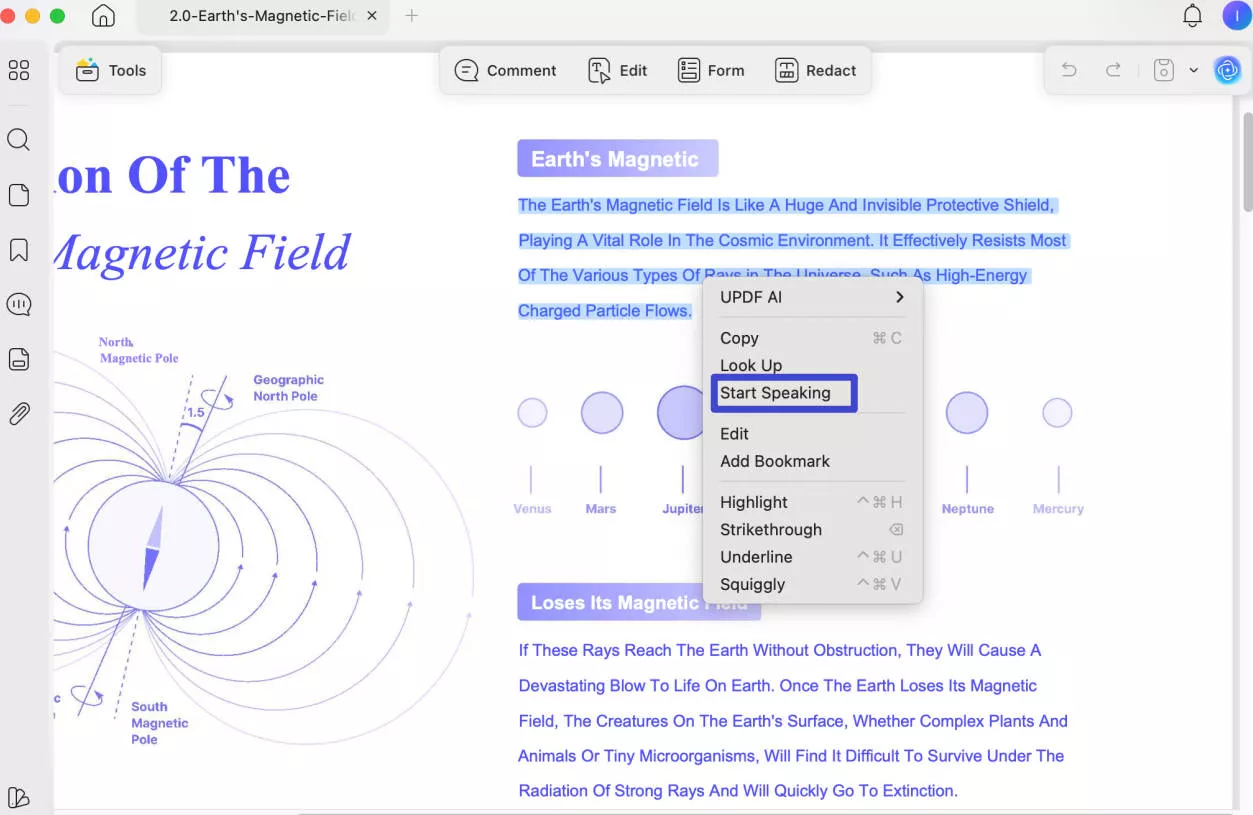
When you have accessed your book on UPDF, select the desired text that you wish UPDF to read aloud. Afterward, right-click the selected text, and a drop-down menu will appear. From there, click on the "Start Speaking" option to hear your PDF content aloud.
Read PDF Aloud on iOS
Step 1: Launch UPDF on iOS and Access File
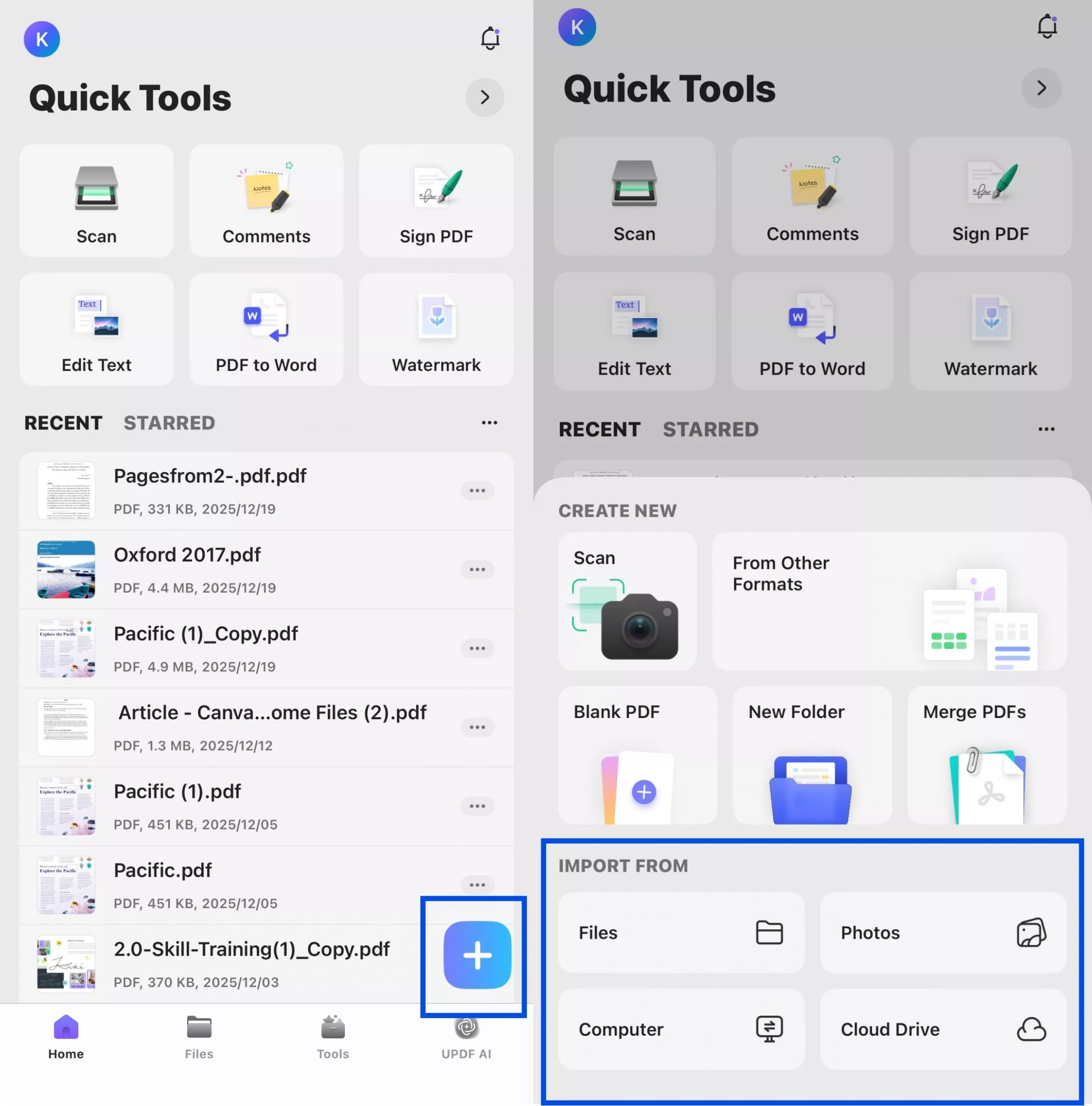
First, go to App store to install UPDF on your iPhone or iPad, launch it and hit the "+" option to import the required PDF file you want to read aloud.
Step 2: Select the Text to Read Aloud
Next, select the specific content you wish to have read aloud. Select Listen Here from the floating toolbar, and UPDF will start reading aloud.
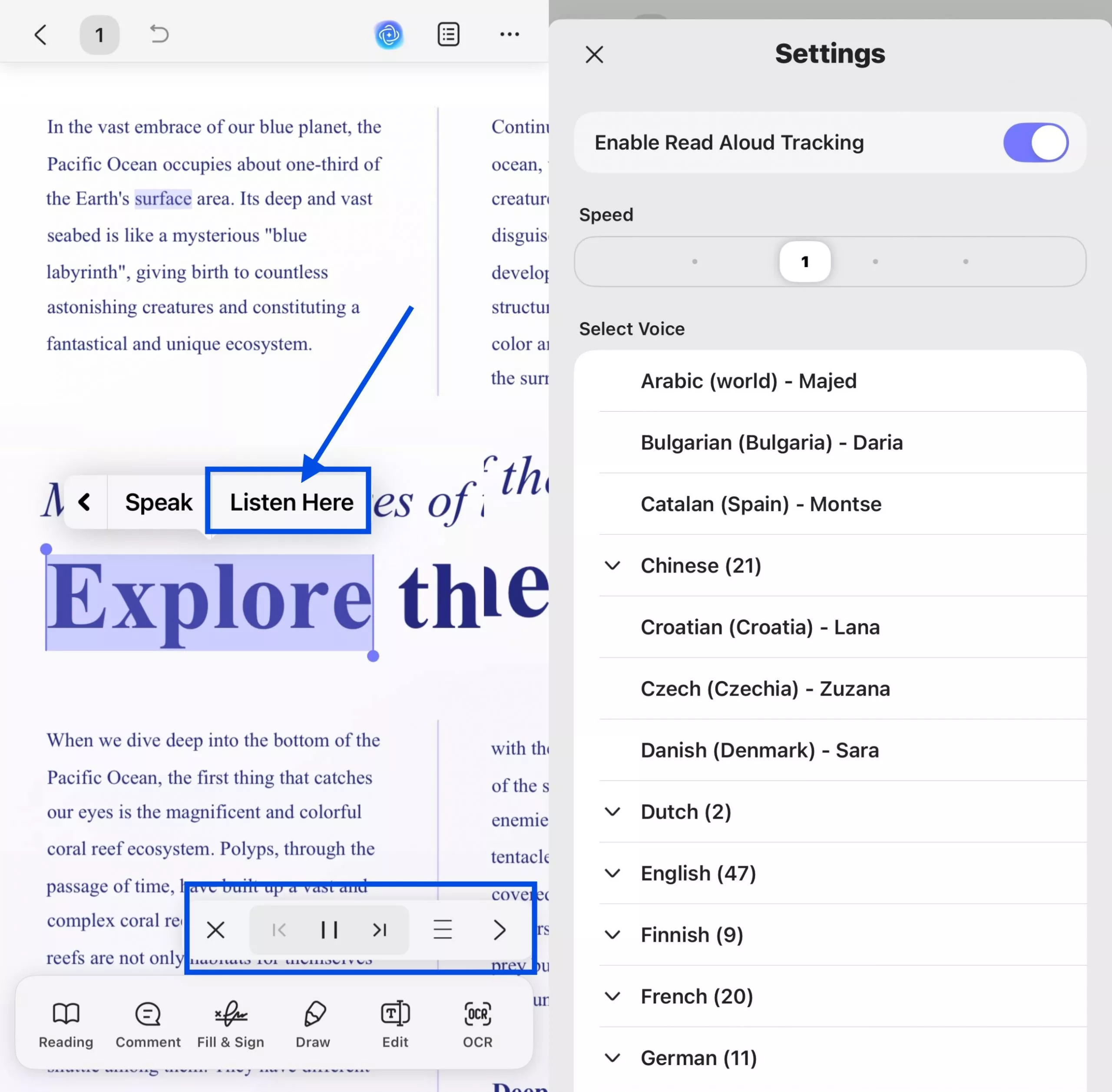
In the pop-up toolbar, you can click X to stop reading, click |< to start reading from the beginning of the previous page, click || to pause the reading and ▶ to resume, and click >| to start reading from the beginning of the next page. By clicking the ≡ icon, users can enable the Read Aloud Tracking feature, adjust the reading speed, and choose a preferred voice from a wide range of languages, including various regional accents (such as Arabic, Bulgarian, Chinese, English, French, German, and more).
During reading, the corresponding text will be highlighted, making it easier for you to locate the current content being read aloud.
Windows • macOS • iOS • Android 100% secure
Other Key Features Of AI-Powered UPDF
There are many other advanced features that UPDF has to offer other than listening to your PDF content aloud. Therefore, keep reading the following article as we explain why you should choose UPDF.

- Edit PDF Files: UPDF offers various editing features, like adding text, images, and clickable links to your PDF. You can also customize the color, font, and size and add web or page links to your PDF.
- Annotate Your PDFs: The annotate feature offers various makeup tools that you can add to your PDF books. This includes stickers, stamps, underlining, highlight, and pencil options.
- Organize PDFs Swiftly: You can easily organize your PDF books with the organizer feature, where you can crop, rotate, and split pages. Other than that, it also has an insert and delete feature to store certain book pages.
- Compress PDFs: With the use of compression features, you can reduce the file size of your books to facilitate the book-sharing process. UPDF provides multiple compression qualities to optimize the procedure for you.
- Extract PDFs: You can extract text from images using AI-powered OCR. You can also chat with images in a range of ways.
- Translate PDFs: With UPDF AI, you can translate the entire PDF or text into any languages.
There are several tools that you can try with UPDF, so tap the below icon and download it today for free. Other than that, be sure to check out UPDF's advanced AI features by keeping yourself updated.
Windows • macOS • iOS • Android 100% secure
Part 3: 3 Methods to Turn PDF into Audiobook
If you want to convert PDF into audiobooks, there are many other methods that you can try using other efficient software and tools. The following tools will illustrate their own way of converting PDF into an audiobook. Therefore, be sure to choose the best method out of the three methods provided below.
Method 1. Turn PDF into Audiobook via Zamzar
Zamzar offers a user-friendly online conversion tool that can convert PDFs into audiobooks in the form of MP3s. This tool streamlines the conversion process in three easy steps that are convenient for users. Moreover, it eliminates the need to install the tool first and jump straight into converting your file into any format. Now, let's delve into the steps of how to turn a PDF into an audiobook:
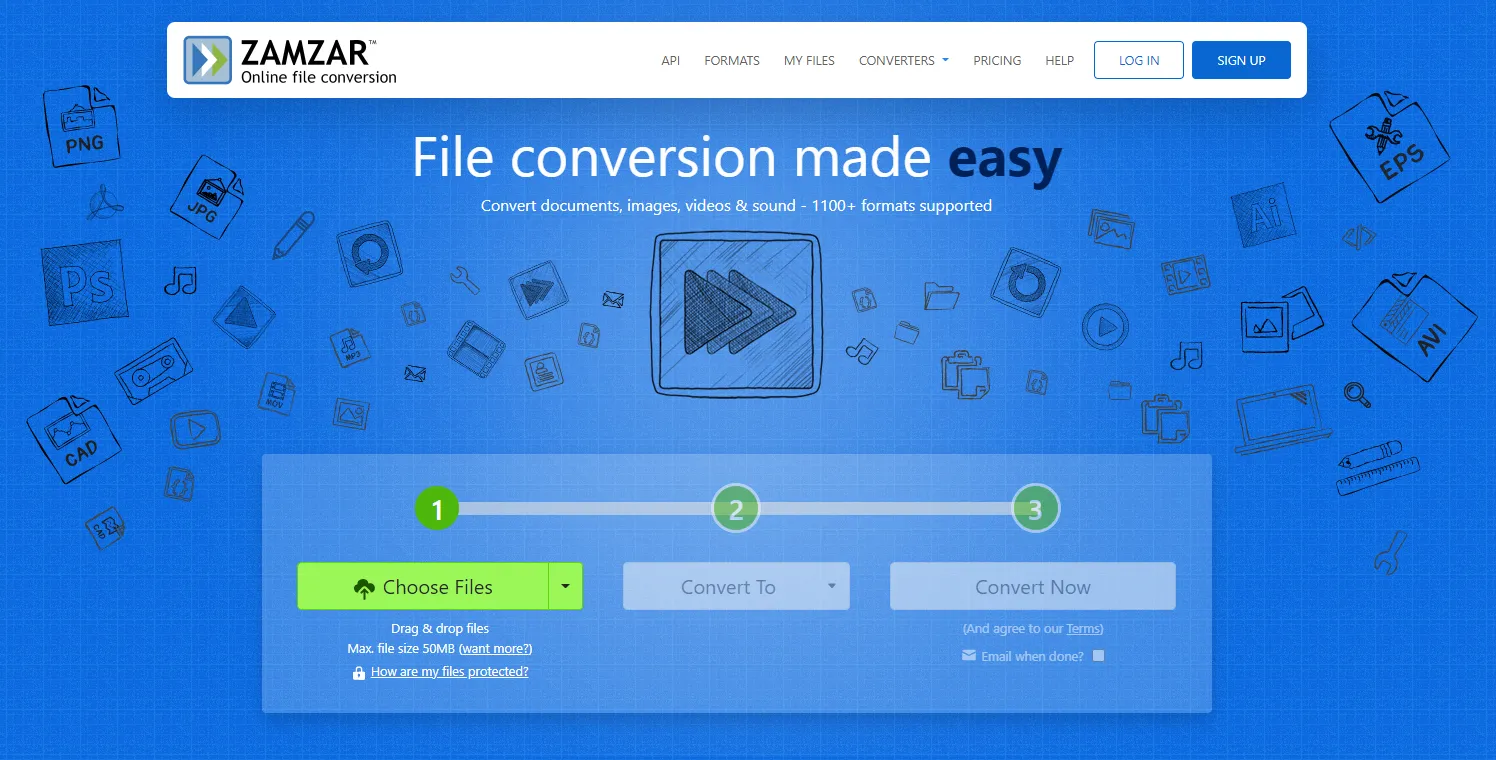
Step 1. Go to the Zamzar website through your browser, and on the main interface window, click on the "Choose Files" option. It'll open the dialogue box, choose your desired PDF file, and hit "Open" to upload the file. You can also select files from Dropbox, Google Drive, and URL.
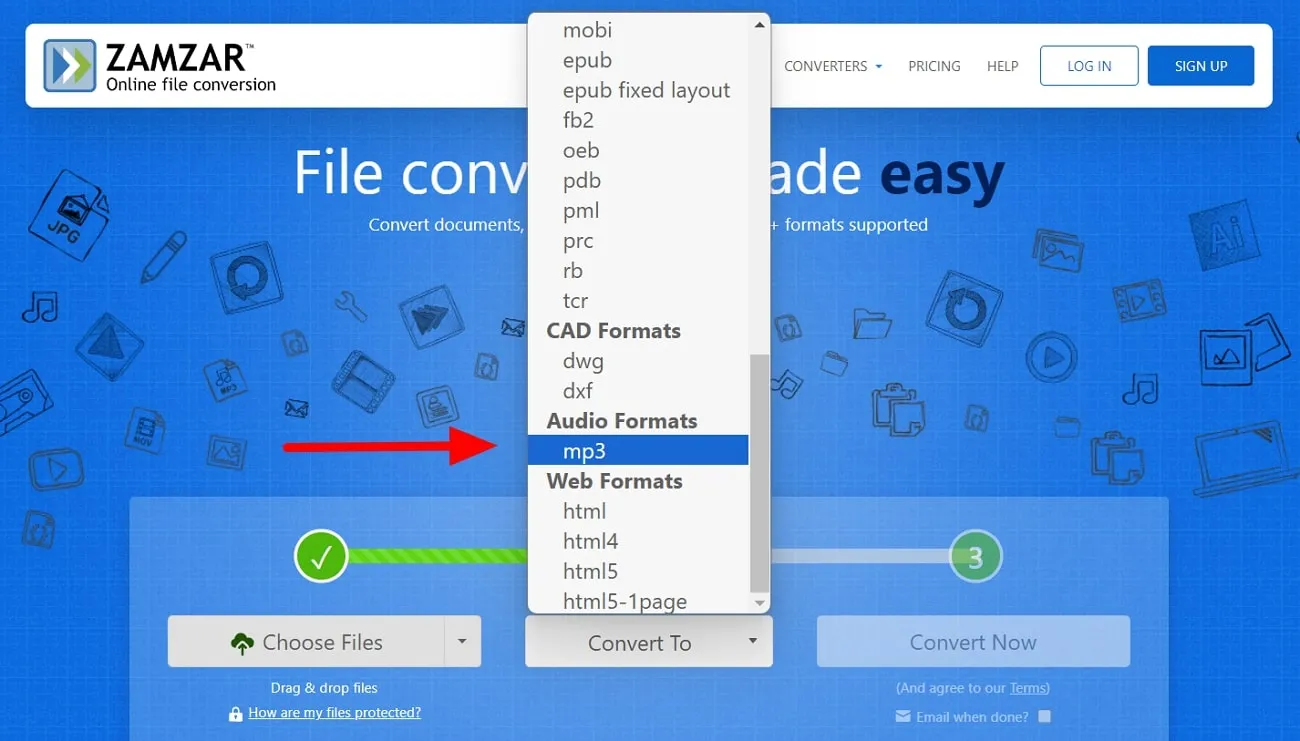
Step 2. After uploading your PDF document, click the "Convert To" button. From there, select "mp3" under the "Audio Formats" section to convert your PDFs into an audiobook.
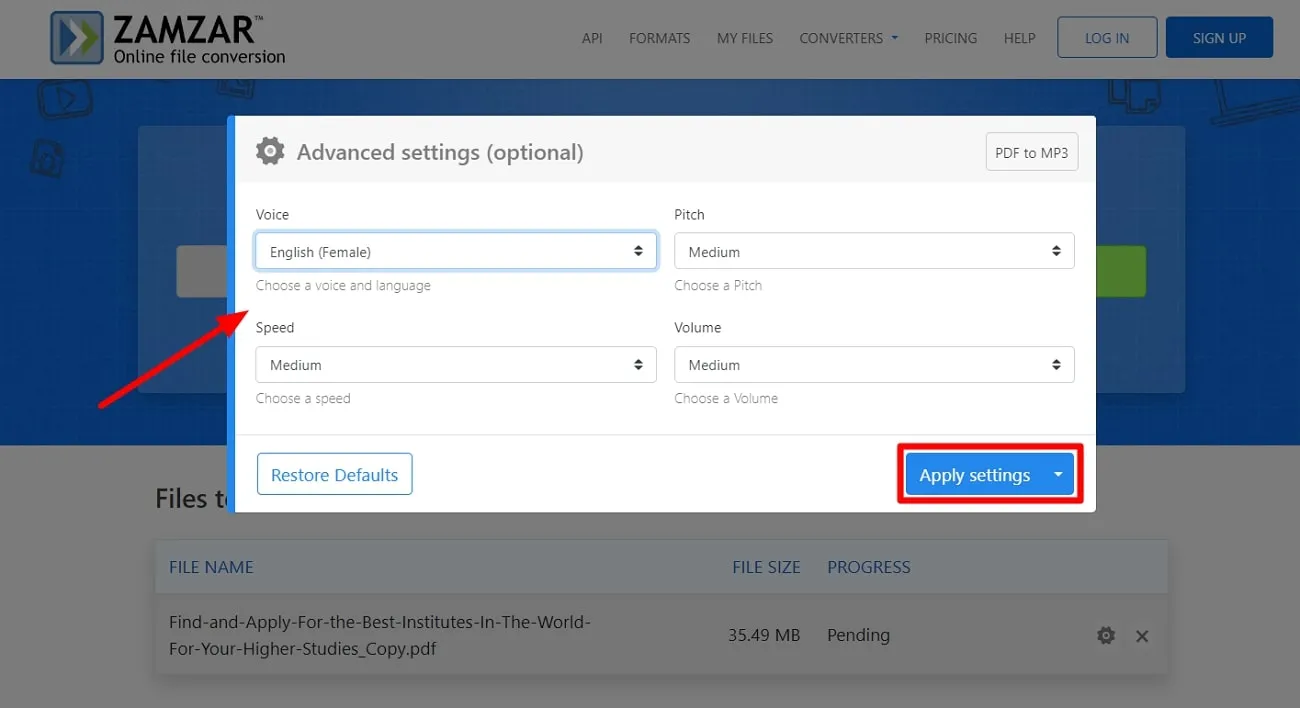
Step 3: Once you select the format, you will see the "Advanced settings" window. Here, you can choose the "Voice" and "Pitch" for the converted MP3 audio. In addition, you also have the option to modify the "Speed" and "Volume" before clicking on the "Apply settings" button.
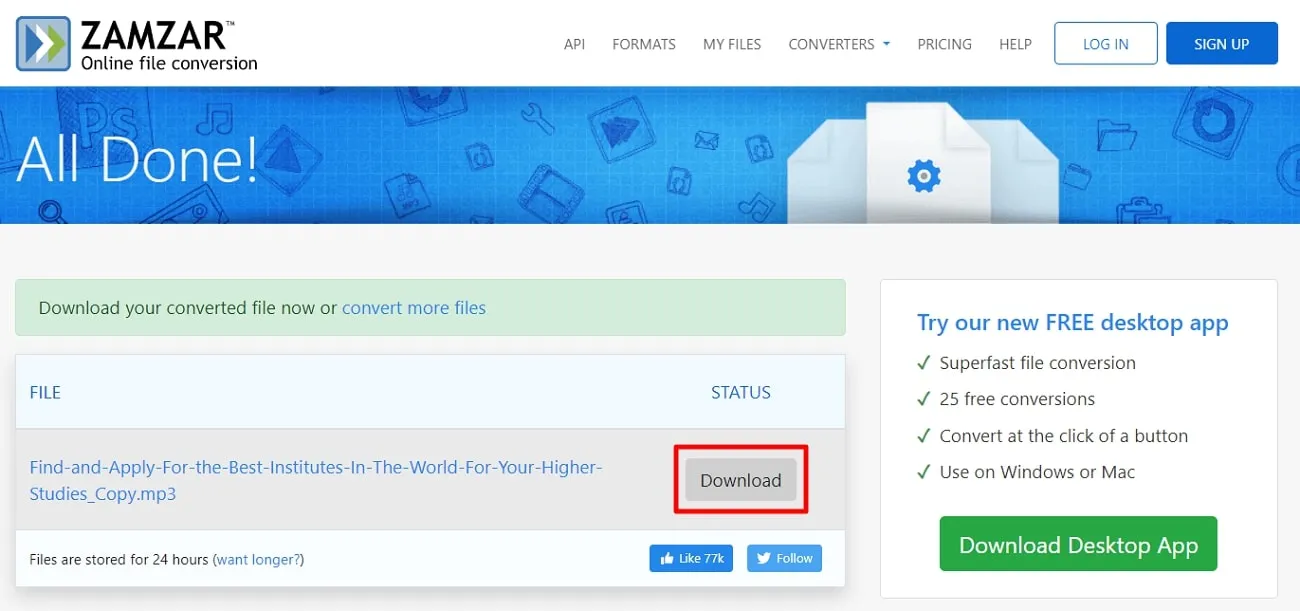
Step 4: Afterward, you can click on "Convert Now," and it'll show a progress bar down below the "Files To Convert" section. Once it's done, you can download your audiobook file by clicking the "Download" button.
Method 2. Convert PDF to Audiobook via Speechify
Speechify is a dynamic audio conversion online platform that effortlessly converts PDFs into audiobooks. You can listen to your books up to 9X faster with realistic AI voiceovers or narrators. Moreover, this tool highlights the text while reading aloud so that you can read and listen simultaneously. The narrators have human-like voices with over 100+ accents in 30+ languages. The following steps will guide you on how to convert text into speech:
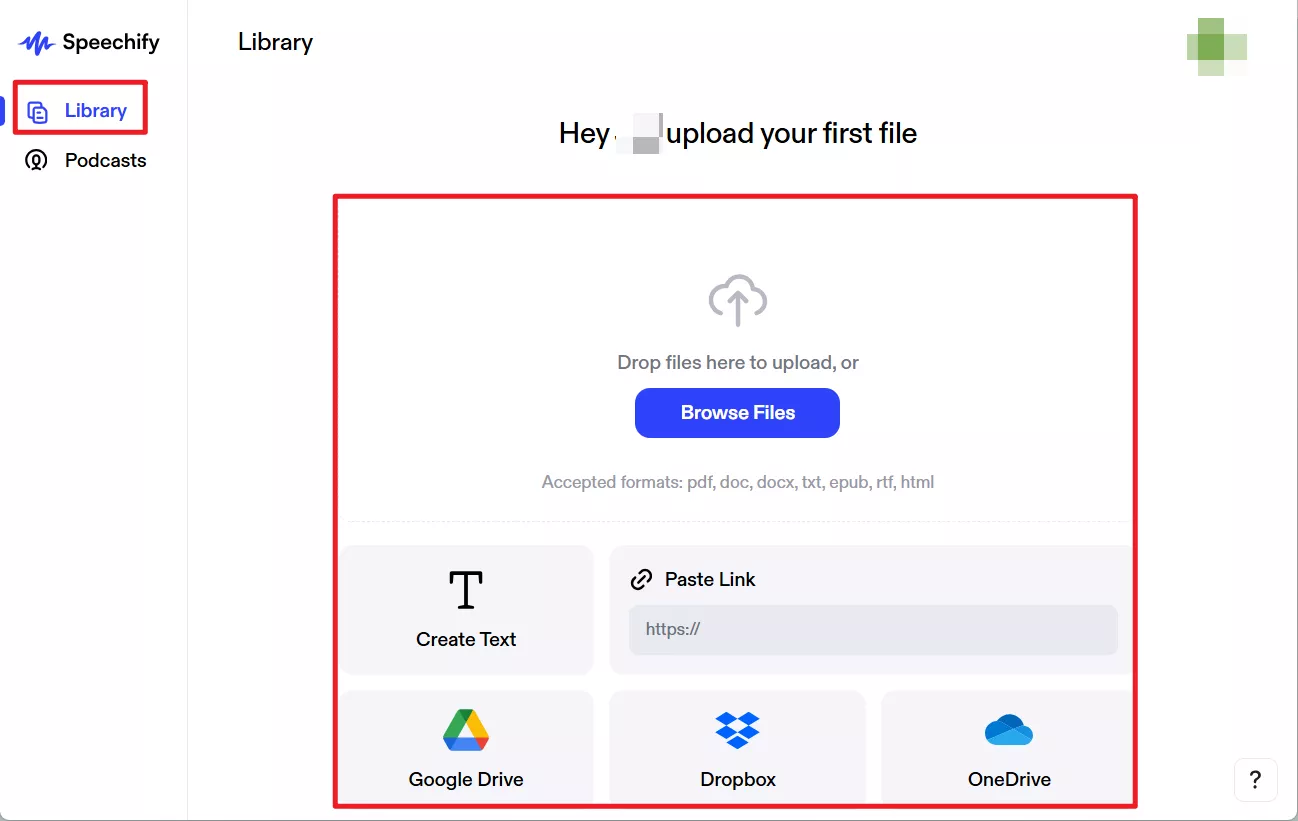
Step 1. Open the Speechify website on your desktop and click the "Library" option at the left of the website. Here, you can drag and drop files into the designated area or clicking "Browse Files" to select them. Accepted file-formats are pdf, doc, docx, txt, epub, rtf, and html. Additionally, there are options to create text, paste a link, and access Google Drive, Dropbox, and OneDrive for file-sourcing.
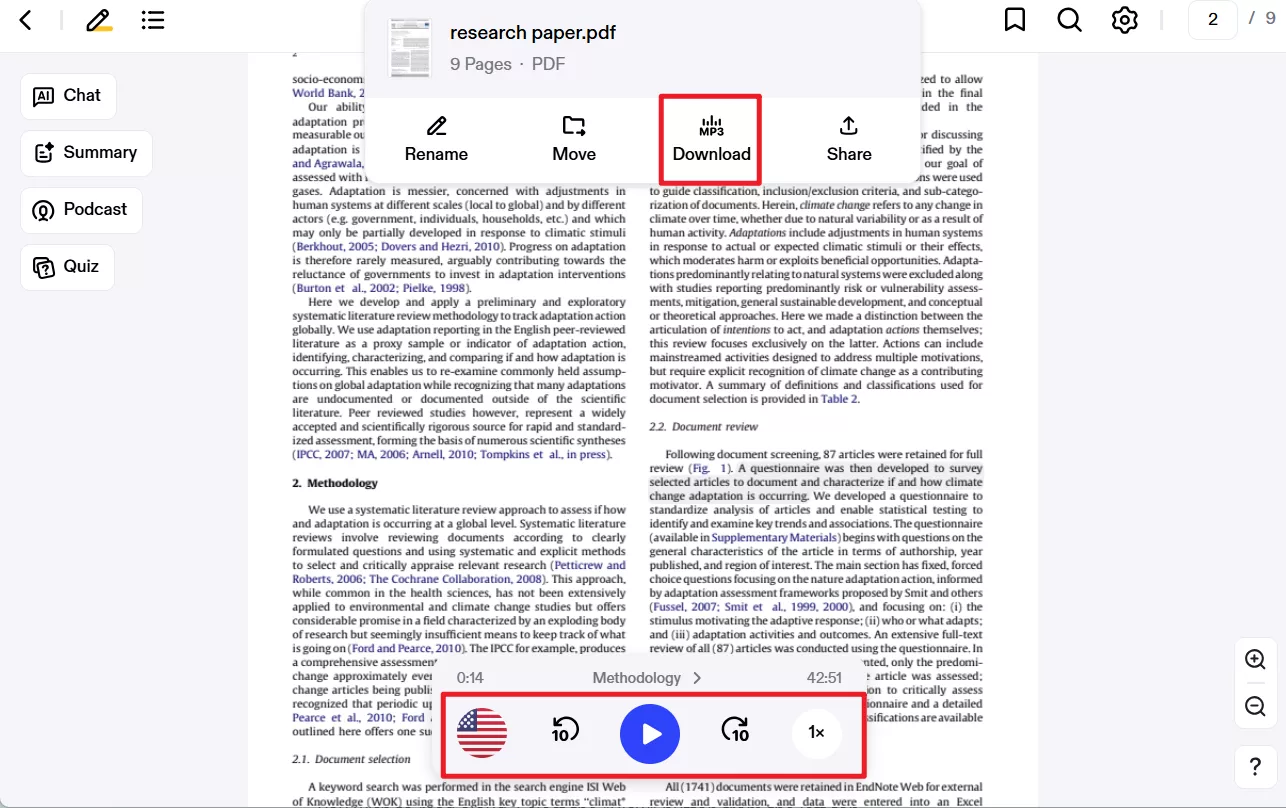
Step 2. After adding the file, choose to click on the "Voice" option to select the voice of your narrator. There is also an option to adjust the reading speed by clicking on the "Speed" option and dragging it up and down to set your speed. Finally, press the "Play" button to get a preview of the accent and reading style. Now, hit the "Download MP3" button from the drop-down menu on the top to save this converted audiobook to your device.
Method 3. Convert PDF into Audiobook via NaturalReader
NaturalReader is a great solution for your text-to-speech problem, whether it's for commercial or personal use. You can easily convert PDF into audiobooks and listen to it anywhere and anytime. Moreover, this tool not only offers AI voiceover narrators but also allows you to choose emotional voice styles to bring life to stories. In order to use this tool, follow the steps that we have highlighted below:
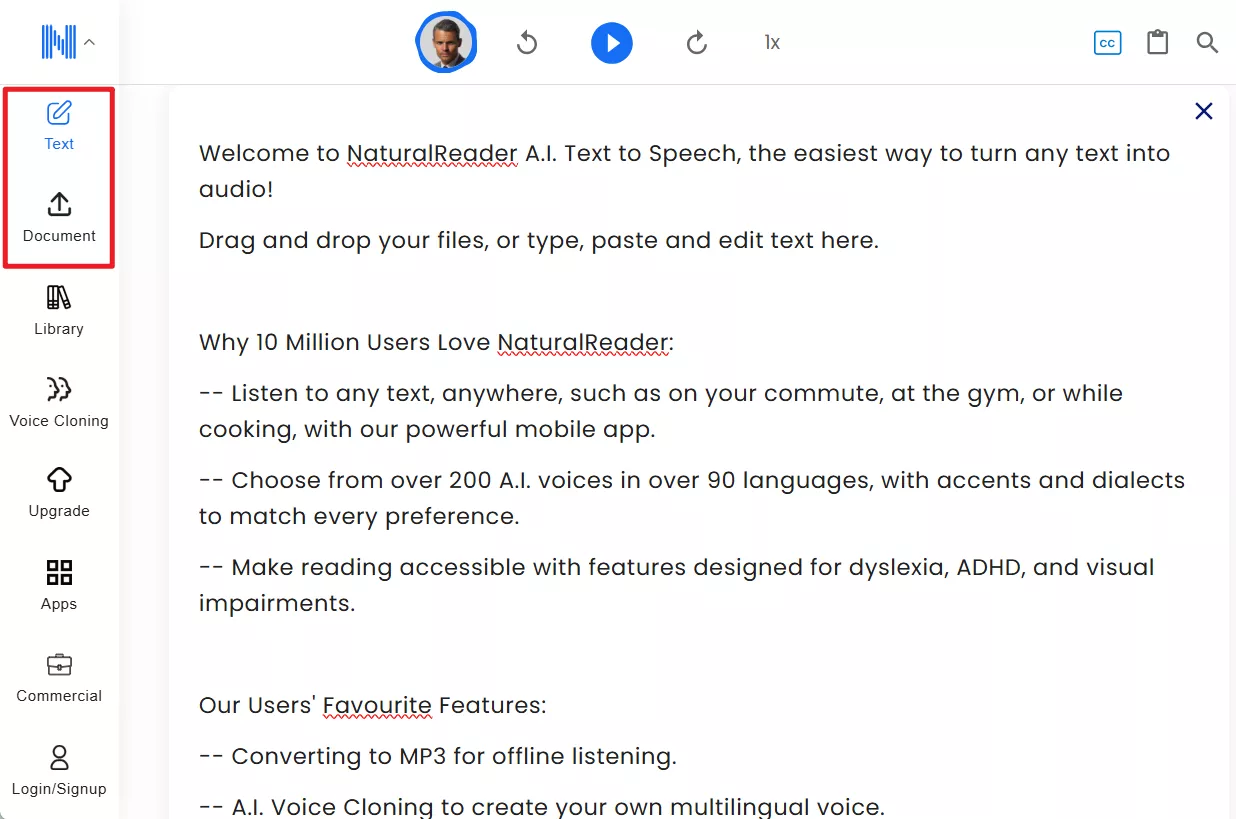
Step 1. Visit the NaturalReader website through your browser and click "Start For Free" to open the main interface window. Here, click on "Document" on the left-side panel to upload a PDF document or click on "Text" to input text by copy-pasting it.
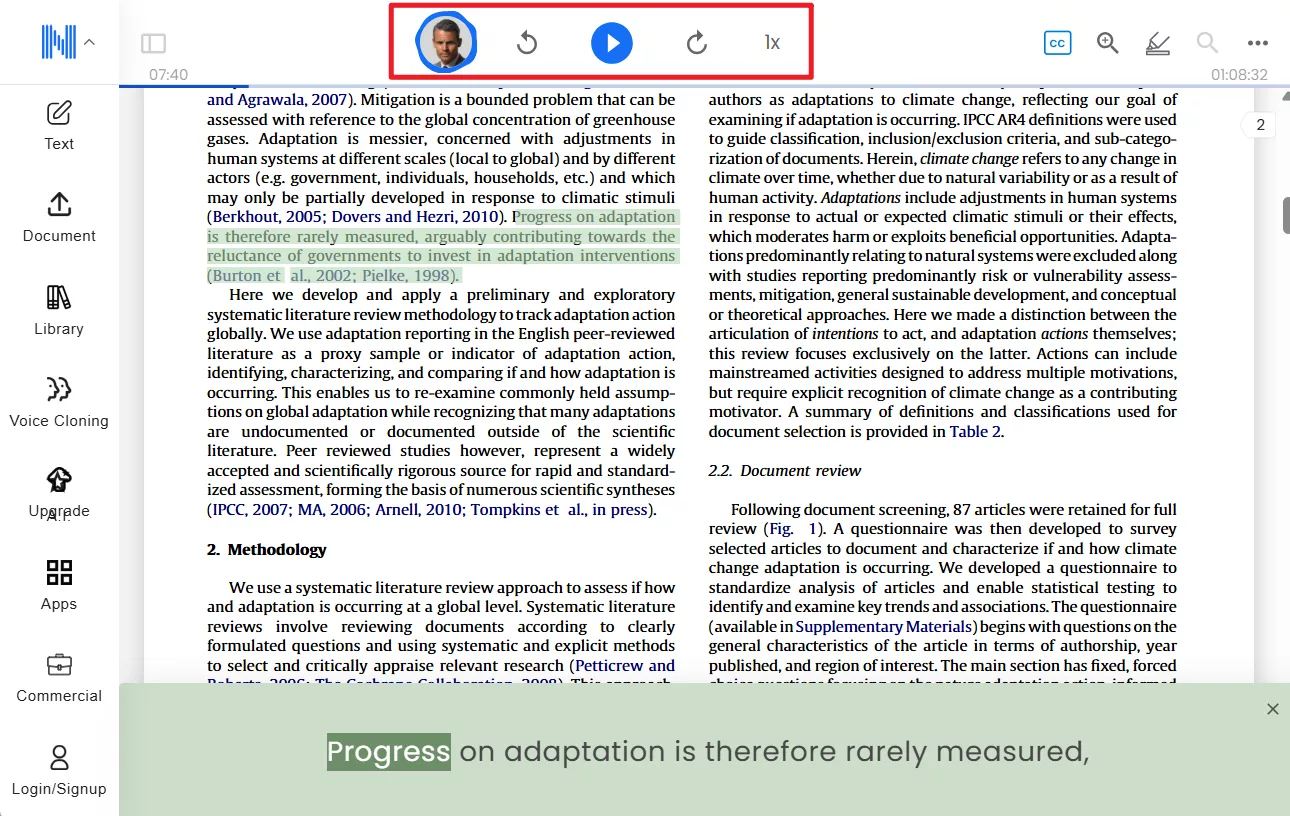
Step 2. Once the file has been uploaded, click the "Play" button on the top, and the AI will read the text aloud. Furthermore, by clicking on the "Voice" icon, you can select various narrators. Plus, click the "Speed" option to adjust the speed by dragging it up and down.
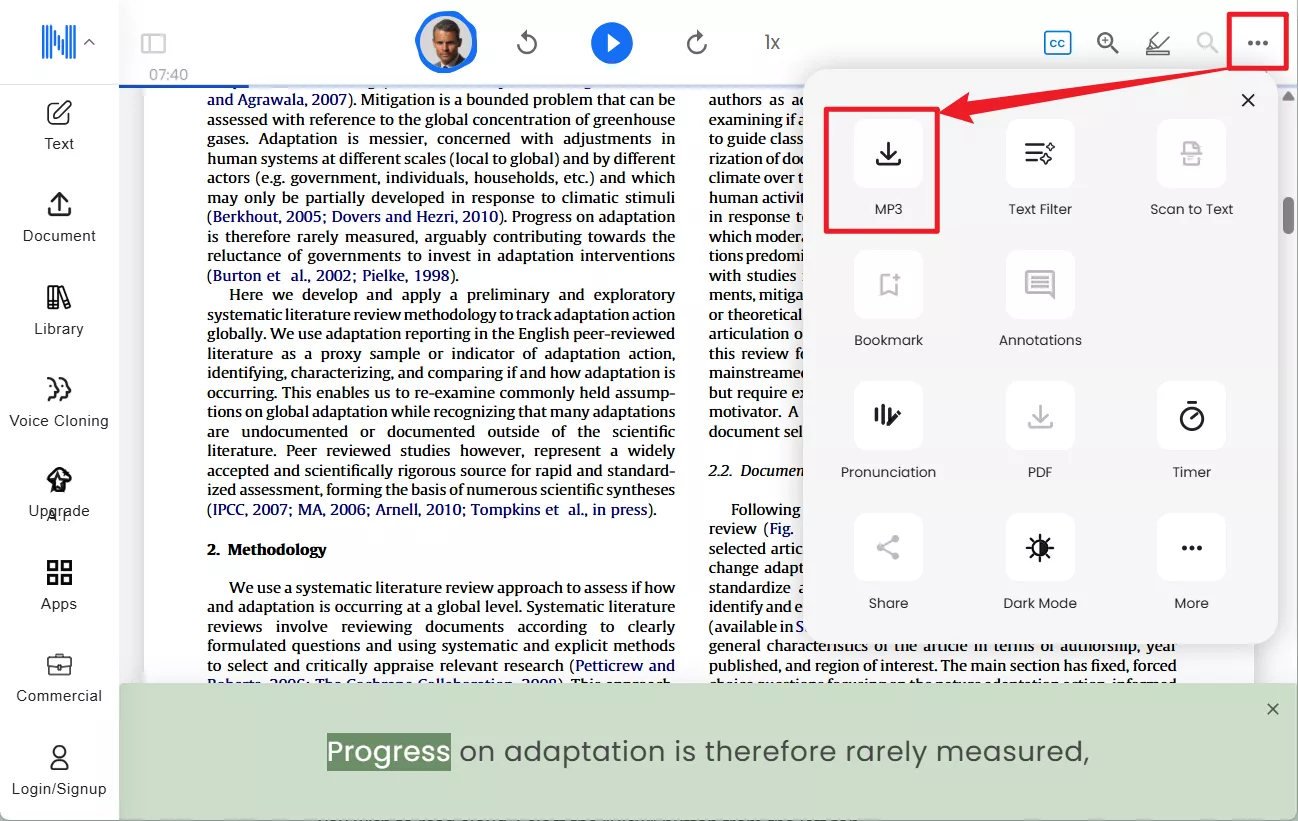
Step 3: Afterward, navigate to the "Three" dots at the top right corner and hit the "MP3" icon to get this audiobook file on your system.
Part 4: Benefits of Converting PDF to Audiobook
There are many notable benefits of converting PDF into audiobooks, as it helps break visual barriers to those people who suffer from disabilities. It offers excellent accessibility and ensures that you enjoy yourself while consuming such information. Furthermore, the conversion makes it extremely easy for people to access the information.
As we know, scrolling through our mobile or laptop screens all day can strain your eyes, which is why converting PDFs to audiobooks is also beneficial. Moreover, you can enjoy listening to your favorite books while doing your daily chores. It also helps accommodate your busy lifestyle and goes beyond offering your excellent reading experience and relaxation. That is why conversion makes it a valuable option for a book-loving audience.
Final Words
To conclude this article, we are now aware of the benefits of PDF to audiobook conversion as it makes it convenient for people. It has changed how we can engage with written text and listen to our favorite novels on the go. There are various methods to convert PDFs into audiobooks by choosing effective tools.
Alternatively, one of the most recommended tools to listen to your PDFs aloud is UPDF. With its user-friendly interface, anyone can now listen to their PDF content with a few clicks. So, click the Free Download button below to start listening to your PDF text for easy content consumption. Besides, if you want to learn more about UPDF's innovative technology, check out this objective review.
Windows • macOS • iOS • Android 100% secure




 Enola Davis
 Enrica Taylor
 Enola Miller