 UPDF
UPDF
 UPDF for Windows
 UPDF for Mac
 UPDF for iPhone/iPad
 UPDF for Android
 UPDF AI Online
 UPDF Sign
 Edit PDF
 Annotate PDF
 Create PDF
 PDF Form
 Edit links
 Convert PDF
 OCR
OCR PDF to Word
 PDF to Image
 PDF to Excel
 Organize PDF
 Merge PDF
 Split PDF
 Crop PDF
 Rotate PDF
 Protect PDF
 Sign PDF
 Redact PDF
 Sanitize PDF
 Remove Security
 Read PDF
 UPDF Cloud
 Compress PDF
 Print PDF
 Batch Process
 About UPDF AI
 UPDF AI Solutions
 AI User Guide
 FAQ about UPDF AI
 Summarize PDF
 Translate PDF
 Chat with PDF
 Chat with AI
 Chat with image
 PDF to Mind Map
 Explain PDF
 PDF AI Tools
 Image AI Tools
 AI Chat Tools
 AI Writing Tools
 AI Study Tools
 AI Working Tools
 Other AI Tools
 AI Bookmark Generation
 AI Bookmark Summary
 AI Watermark Generation
 AI Background Generation
 AI Sticker Generation
 AI Stamp Generation
 AI Editing Suite
 UPDF Copilot
 AI Page Management
 AI Semantic Search
 PDF to Word
 PDF to Excel
 PDF to PowerPoint
 Enterprise Solution
 Enterprise Sign
 Enterprise AI
 Enterprise Plan
 Enterprise User Guide
 Enterprise Webinar
 Banking
 Healthcare
 Insurance
 Legal
Legal Manufacturing
 Government
 Education Solution
 Customer Stories
 User Guide
 UPDF Tricks
 FAQs
FAQs UPDF Reviews
 Download Center
 Blog
Blog Newsroom
 Tech Spec
 Updates
 UPDF vs. Adobe Acrobat
 UPDF vs. Foxit
 UPDF vs. PDF Expert

When I first explored how to tile print PDF files for large projects, everything felt surprisingly complicated and unclear. The settings seemed scattered across different menus, and most tools offered little guidance for beginners. However, after experimenting with various options, I eventually discovered a smoother process that consistently produced clean results. Now I use this method whenever I need accurate, multi-page poster prints.
In this guide, I explain the exact steps I follow, helping you avoid unnecessary confusion. Therefore, continue reading to learn the full workflow and download UPDF today for easier and more reliable tile printing.
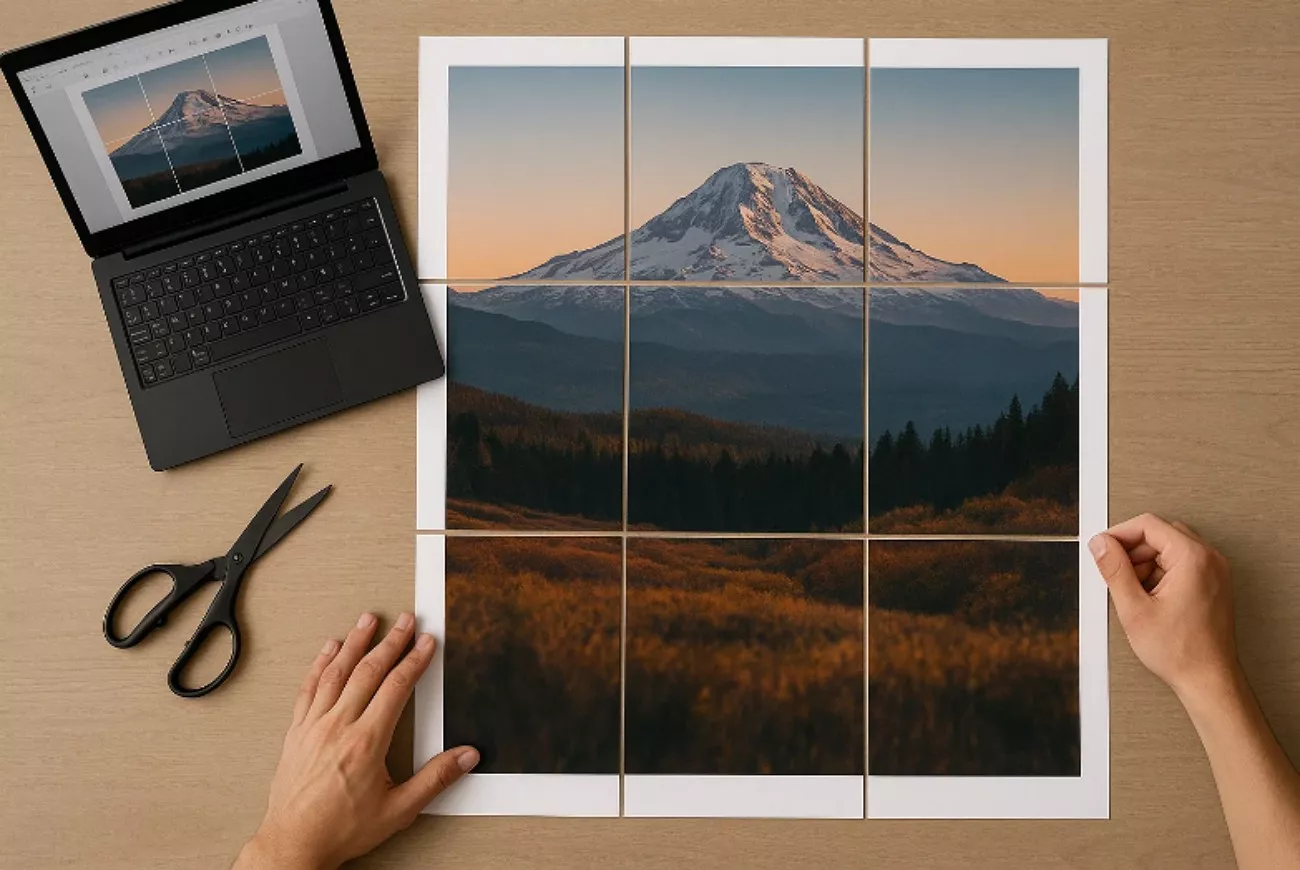
Part 1. What “Tile Printing / Poster Mode” Means in PDF Printing
When I first learned about tile printing, I realized it involves dividing one oversized PDF page into multiple smaller sheets that any standard printer can handle. Instead of struggling with a large page that my printer cannot support, I print each portion separately and easily assemble the final poster afterward. This method helps me create big, clear visuals while still using regular A4 or Letter paper.
A user on Adobe’s community forum described the same challenge perfectly when they wrote:
Their experience matches countless situations I’ve faced myself, especially when I needed oversized prints without access to any large-format equipment. It highlights exactly why tile printing is essential for everyday users working with limited printing options.
Why People Need Tile Printing
After seeing how often this issue appears, I realized many people depend on tile printing for practical everyday reasons:
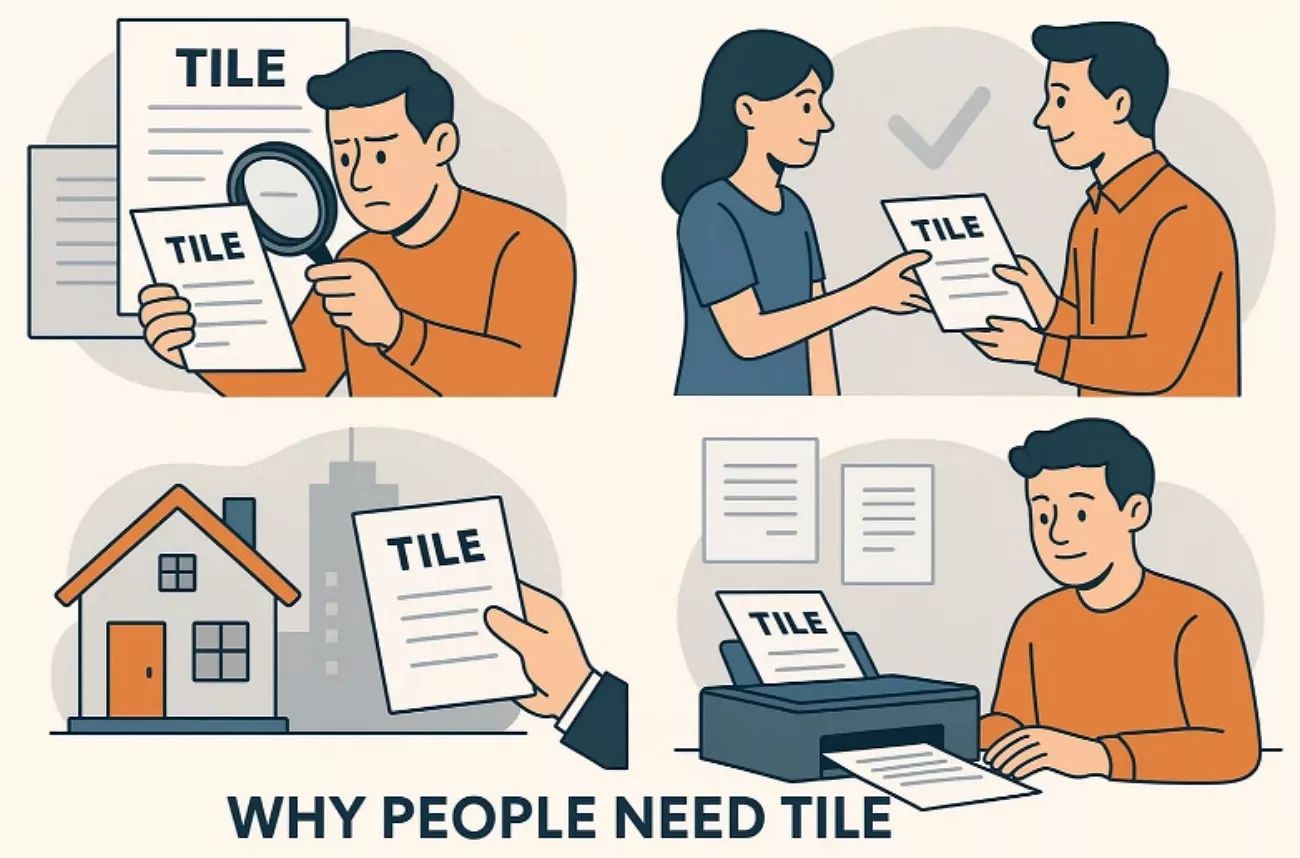
- Many basic printers accept only A4 or Letter paper, making oversized layouts impossible without tiling pages manually.
- Complex diagrams, detailed posters, or lengthy blueprints often exceed the physical limits supported by standard paper formats.
- People often need enlarged visuals when preparing classroom materials, workshop boards, or impactful presentation charts.
- Designers and students frequently require clearer details when reviewing draft concepts, creative sketches, or technical project layouts.
- Costly plotters or large-format printers are unnecessary when tile printing provides an affordable alternative for big outputs.
Part 2. How To Tile Print PDF Using UPDF
After understanding why tile printing matters, I wanted a tool that made the entire process easier, especially when learning how to tile print a PDF without unnecessary complications. That search eventually brought me to UPDF, and it immediately felt different from the heavy, cluttered interfaces I had used before. I appreciated how it stayed simple while still giving me the advanced control required for accurate tile printing.
As I explored UPDF more seriously, I noticed how naturally the entire printing workflow blended into my routine without confusion. Instead of digging through endless menus, I could adjust scale, layout, and page handling in a way that made immediate sense. That smooth experience encouraged me to rely on UPDF whenever I needed clean, well-aligned, multi-page poster output.
Windows • macOS • iOS • Android 100% secure
Advantages of UPDF's Printing Feature
Before showing the exact steps, let me highlight the printing advantages that made UPDF stand out to me:
- Instant Preview Control: The preview updates instantly whenever settings change during printing adjustments. This helps me verify scaling and alignment before sending any document.
- Flexible Scaling Options: I can freely adjust scale percentages to enlarge documents accurately. This ensures my poster prints align properly across multiple divided pages.
- Clean Page Layout Tools: UPDF provides simple margins and orientation settings for precise page handling. Every adjustment feels clear, predictable, and easy for me to control.
- Smooth Paper Size Selection: Switching between supported paper sizes takes only seconds inside the print panel. This saves time whenever I prepare different tile printing layouts.
- Reliable Cross-Device Consistency: UPDF prints consistently well on desktop or mobile devices without complications. This keeps my workflow stable even when switching between various platforms.
How to Tile-Print with UPDF: Step-by-Step Guide
I usually follow the steps below whenever I want to tile-print a PDF in UPDF:
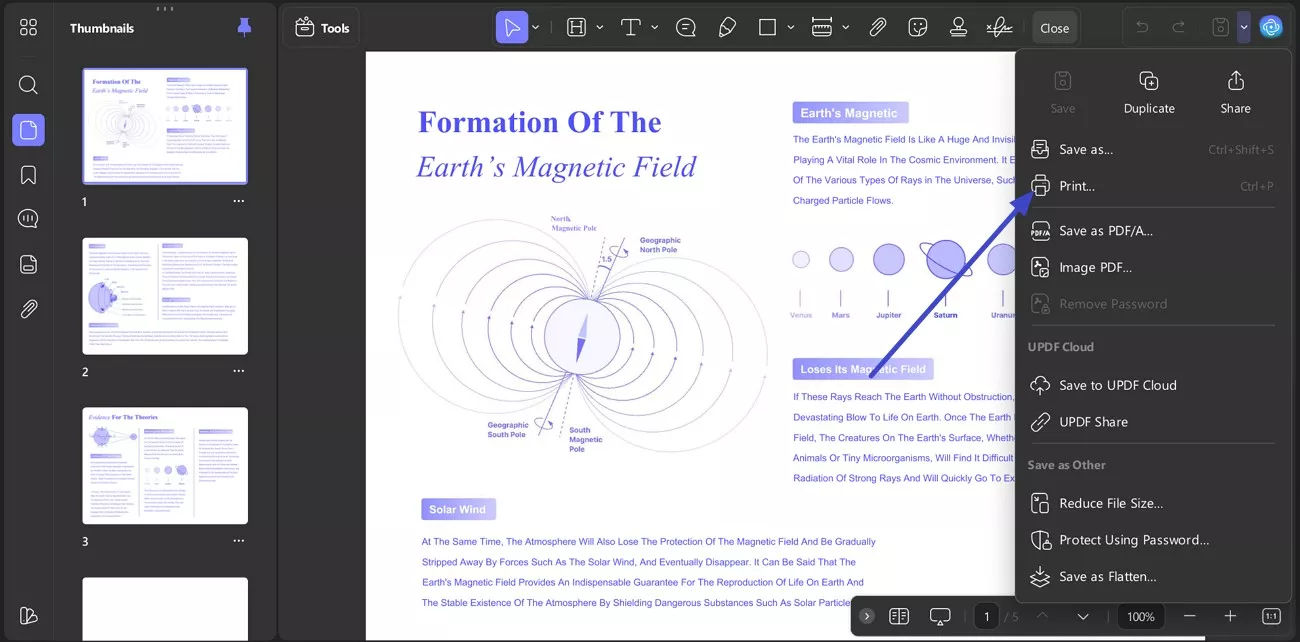
Step 1. Access Print Menu to Proceed
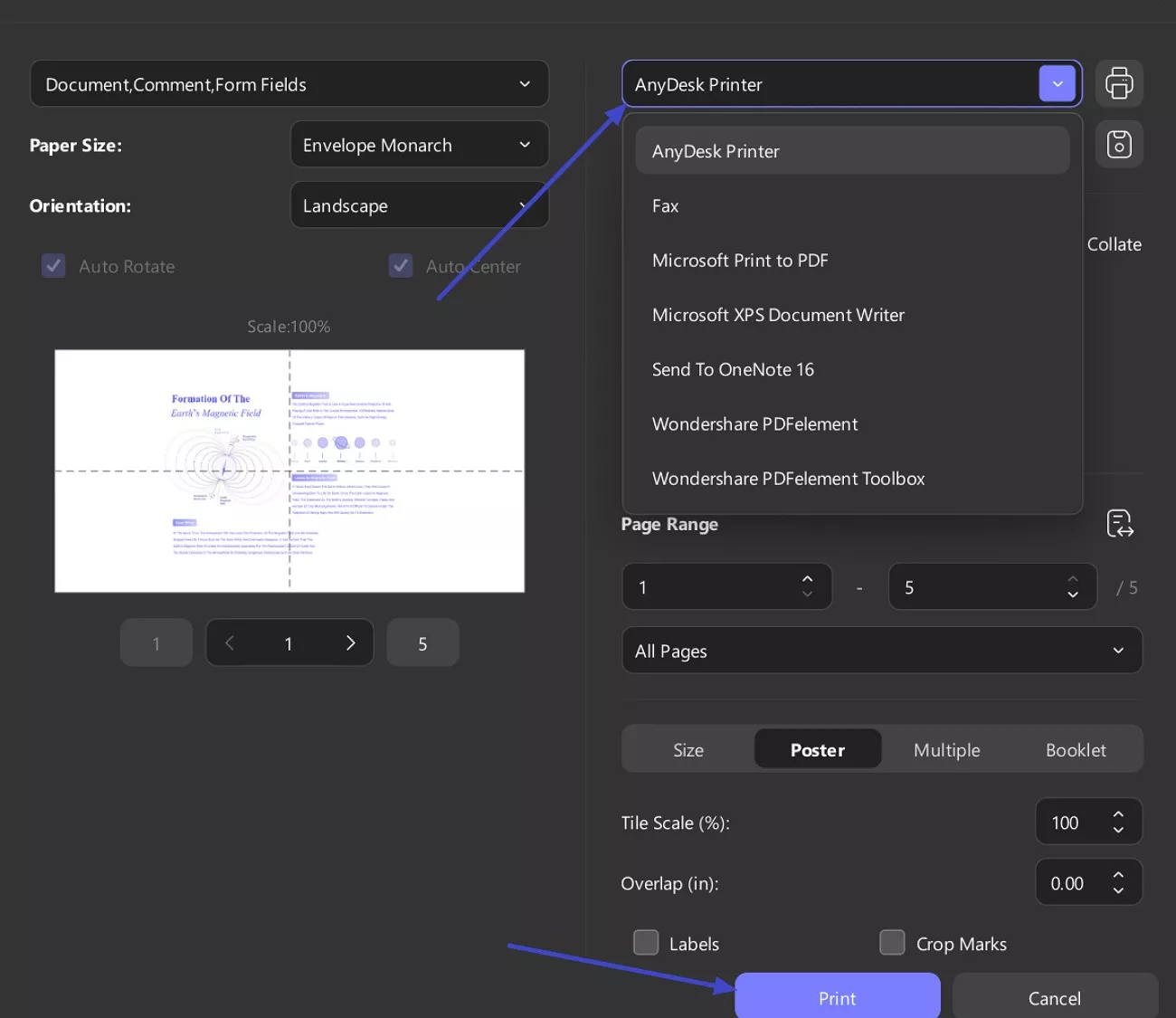
Click on the “Drop-Down Arrow” icon in the top right corner and select the “Print” option from the list to open the full print settings panel.
Step 2. Enable Tile Printing Mode
Next, in the print window, set your “Paper Size,” “Orientation,” and “Page Range” and switch to the “Poster” tab. After that, adjust “Tile Scale (100%)” to enlarge or shrink the poster and set “Overlap” if you want margins for trimming and alignment.
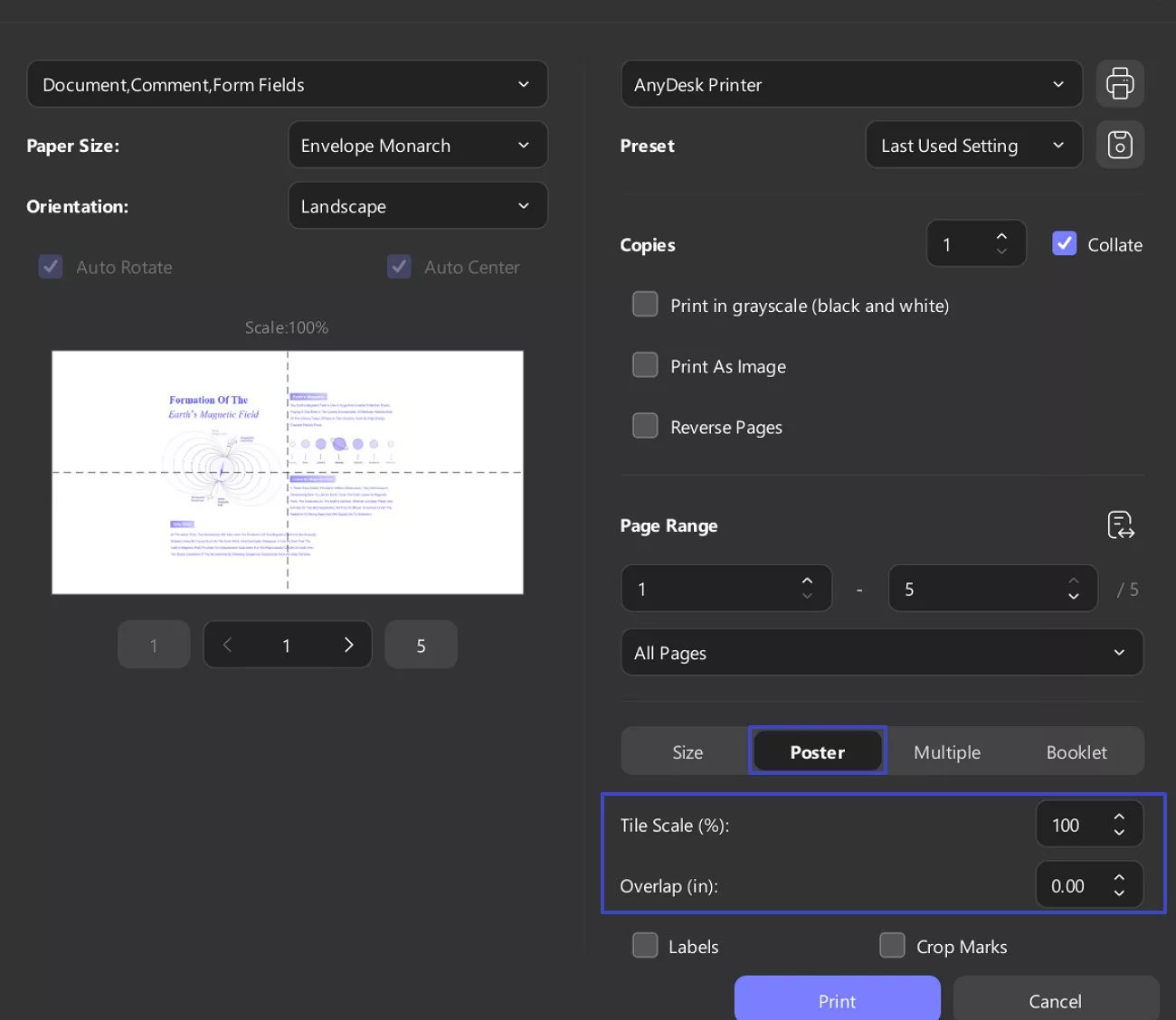
Step 3. Choose Printer and Start Printing
Lastly, navigate to the “Printer” drop-down menu and choose your preferred printer. When all settings look correct in the preview, hit the “Print” button at the bottom to generate your tiled poster.
Windows • macOS • iOS • Android 100% secure
Part 3. How To Tile Print In Adobe Acrobat?
When I need to understand how to tile print in Adobe Acrobat, I rely on its Poster mode to divide oversized pages into neatly structured sheets. I find this method useful for architectural plans, detailed maps, or design layouts that exceed the size of a standard page. To achieve a clean and organized tiled output, I simply follow the steps outlined below:
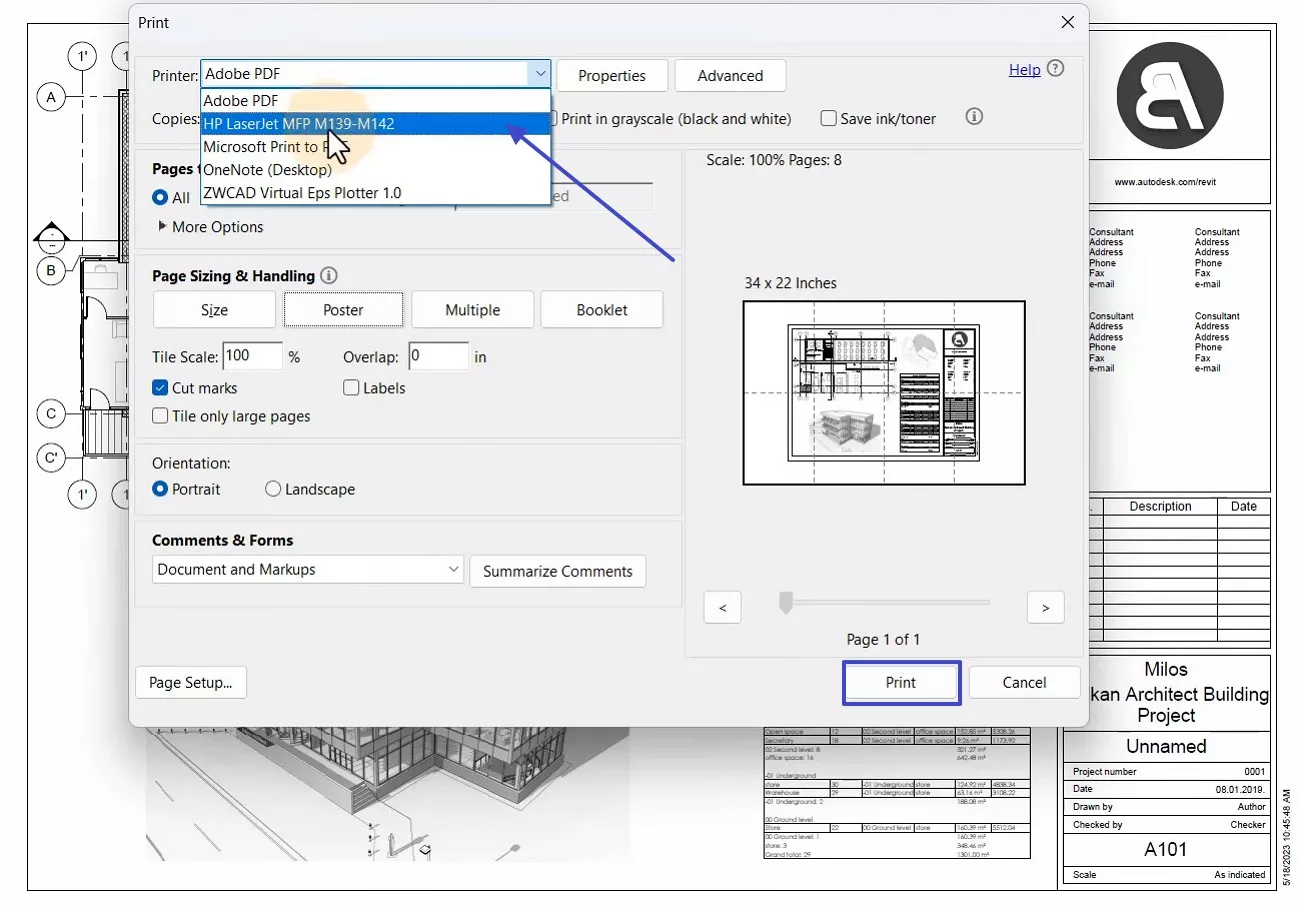
Step 1. First, access the “Print” menu to further select the “Poster” option to proceed further.

Step 2. Afterwards, checked “Cut marks,” set a suitable “Tile Scale,” and chose an “Overlap” value to align sheets properly.

Step 3. Lastly, select a preferred printer and click the “Print” option to proceed with printing.
Although Acrobat manages tile printing well, I often prefer a smoother experience with fewer disruptions. UPDF gives me everything I need on one platform, eliminating constant jumps between separate applications. I also appreciate that a single UPDF license works seamlessly across Windows, Mac, iOS, and Android. As it remains far more affordable than Adobe, I genuinely recommend exploring UPDF premium upgrade options.
Windows • macOS • iOS • Android 100% secure
Part 4. Frequently Asked Questions
- How to make a PDF fit to the page when printing?
UPDF makes it simple to ensure your PDF prints correctly without cutting off important details. After opening your file, click “Print” at the top, and under the “Size” section in the print window, select “Fit.” This option automatically scales the page, so the entire PDF adjusts to your selected paper size. It prevents clipping, keeps proportions accurate, and delivers a clean, full-page print every time.
- Is it better to flatten a PDF for printing?
Flattening a PDF can often improve printing consistency because it merges annotations, form fields, and layered content into a single static page. This prevents printing issues such as missing comments, shifted elements, or incorrectly rendered layers. However, flattening removes editability, so it’s only recommended when you want clean, consistent output and no further revisions are needed.
- How to split a large PDF into multiple pages for printing?
To divide a large PDF into smaller, easy-to-print sections, open your document in UPDF and click “Organize Pages” at the top-left panel. Next, choose “Split PDF” to access the splitting options. You can split the file by the number of pages, file size, or existing bookmarks. Once you confirm your settings, UPDF automatically generates separate PDFs that you can print individually for a smoother experience.
Windows • macOS • iOS • Android 100% secure
Conclusion
To conclude, understanding how to tile print a PDF helps me handle oversized documents with far better control, especially when I need neatly divided sections that assemble cleanly. Through the steps mentioned in this guide, I can adjust scale, overlap, and layout with great confidence, which makes the overall printing process efficient.
Having all this on a single platform spares me the hassle of having to switch between various applications. I also appreciate the fact that a single license is compatible with Windows, Mac, iOS, and Android. For a smoother, unified workflow, UPDF is certainly worth considering.
Windows • macOS • iOS • Android 100% secure





 Enola Miller
 Lizzy Lozano


 Grace Curry
-multimetier