UPDF
UPDF
 UPDF for Windows
 UPDF for Mac
 UPDF for iPhone/iPad
 UPDF for Android
 Nomostar
 UPDF AI Online
 UPDF Sign
 IvyCraft
 Edit PDF
 Annotate PDF
 Create PDF
 PDF Form
 Edit links
 Convert PDF
 OCR
OCR PDF to Word
 PDF to Image
 PDF to Excel
 Organize PDF
 Merge PDF
 Split PDF
 Crop PDF
 Rotate PDF
 Protect PDF
 Sign PDF
 Redact PDF
 Sanitize PDF
 Remove Security
 Read PDF
 UPDF Cloud
 Compress PDF
 Print PDF
 Batch Process
 About UPDF AI
 UPDF AI Solutions
 AI User Guide
 FAQ about UPDF AI
 Summarize PDF
 Translate PDF
 Chat with PDF
 Chat with AI
 Chat with image
 PDF to Mind Map
 Explain PDF
 PDF AI Tools
 Image AI Tools
 AI Chat Tools
 AI Writing Tools
 AI Study Tools
 AI Working Tools
 Other AI Tools
 AI Bookmark Generation
 AI Bookmark Summary
 AI Watermark Generation
 AI Background Generation
 AI Sticker Generation
 AI Stamp Generation
 AI Editing Suite
 UPDF Copilot
 AI Page Management
 AI Semantic Search
 PDF to Word
 PDF to Excel
 PDF to PowerPoint
 Enterprise Solution
 Enterprise Sign
 Enterprise AI
 Enterprise Plan
 Enterprise User Guide
 Enterprise Webinar
 IT
IT Education
 Construction
 Financial Service
 Healthcare
 Insurance
 Legal
Legal Manufacturing
 Government
 Researchers & PhDs
 Solopreneurs & Freelancers
 Lawyers & Legal Professionals
 Real Estate Agents & Brokers
 Education Solution
 Customer Stories
 User Guide
 UPDF Tricks
 FAQs
FAQs UPDF Reviews
 Download Center
 Blog
Blog Newsroom
 Tech Spec
 Updates
 UPDF vs. Adobe Acrobat
 UPDF vs. Foxit
 UPDF vs. PDF Expert

To remove password from PDF files effectively, choosing the right tool depends entirely on your situation:
- Scenario A (Known Password): You know the open password and want to permanently deactivate PDF password security for seamless editing, printing, and sharing.
- Scenario B (Permission Restrictions): You can view the document, but printing, copying text, or editing form fields are grayed out.
- Scenario C (Forgot Password): You need dedicated recovery software if you forgot PDF password credentials completely.
Whether you need a quick online fix, a browser-based hack, or a high-security desktop solution, this guide breaks down 4 effective ways on how to remove password protection from a PDF document.
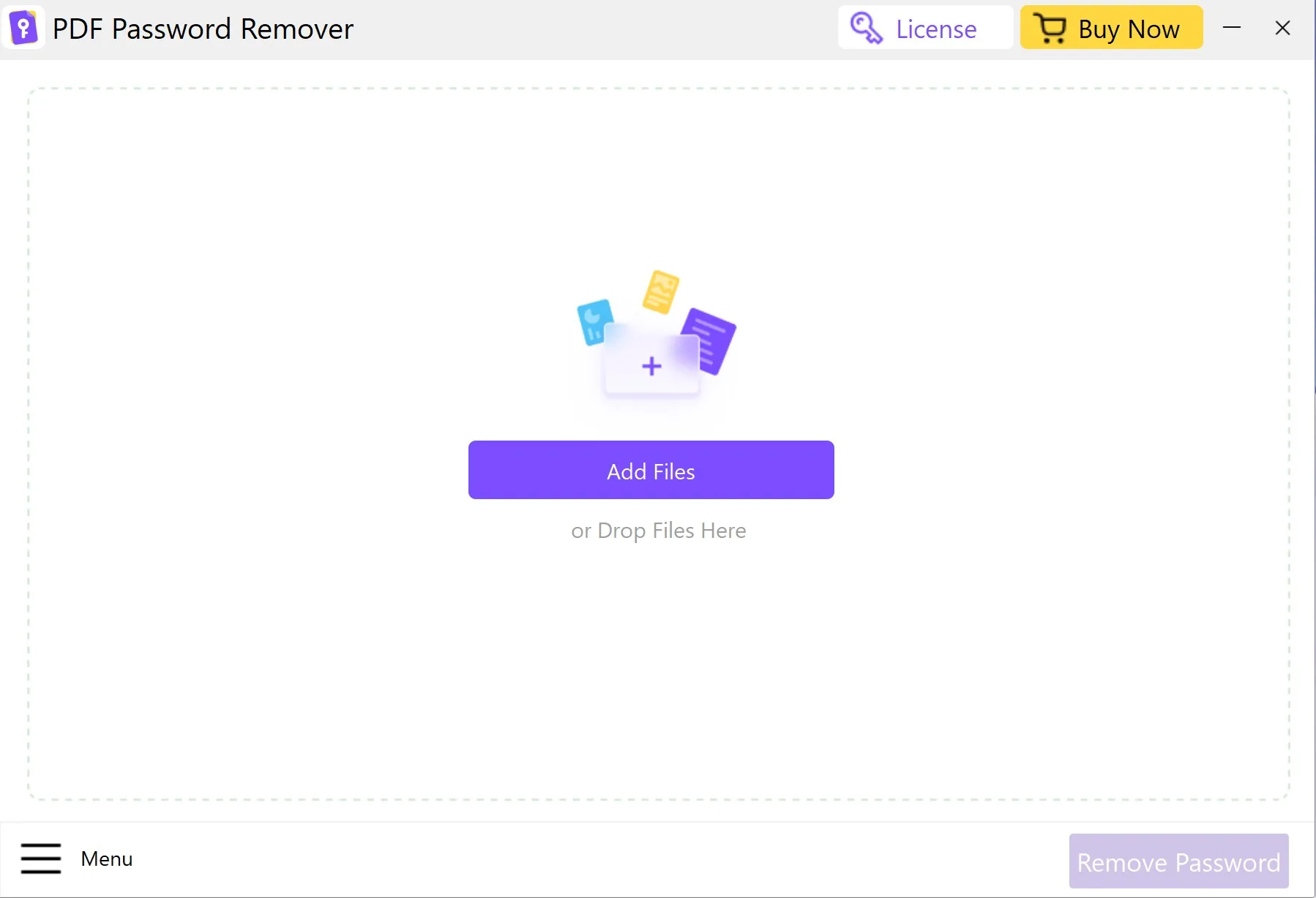
How to Remove a Password from a PDF File with aJoysoft
When handling multi-file decryption or batch processing, a specialized lightweight utility is often the fastest route. aJoysoft PDF Password Remover is engineered specifically for fast batch decryption and stripping away permission limits.
Best For:
- Users who need to batch-unlock up to 200 PDFs at once, or remove permission restrictions (printing, copying, form filling) without needing the owner password.
Limitations:
- Windows and Mac desktop app only;
- Requires the open password if the file is strictly locked from viewing.
Steps on How to Remove the Password Security from PDF via aJoysoft:
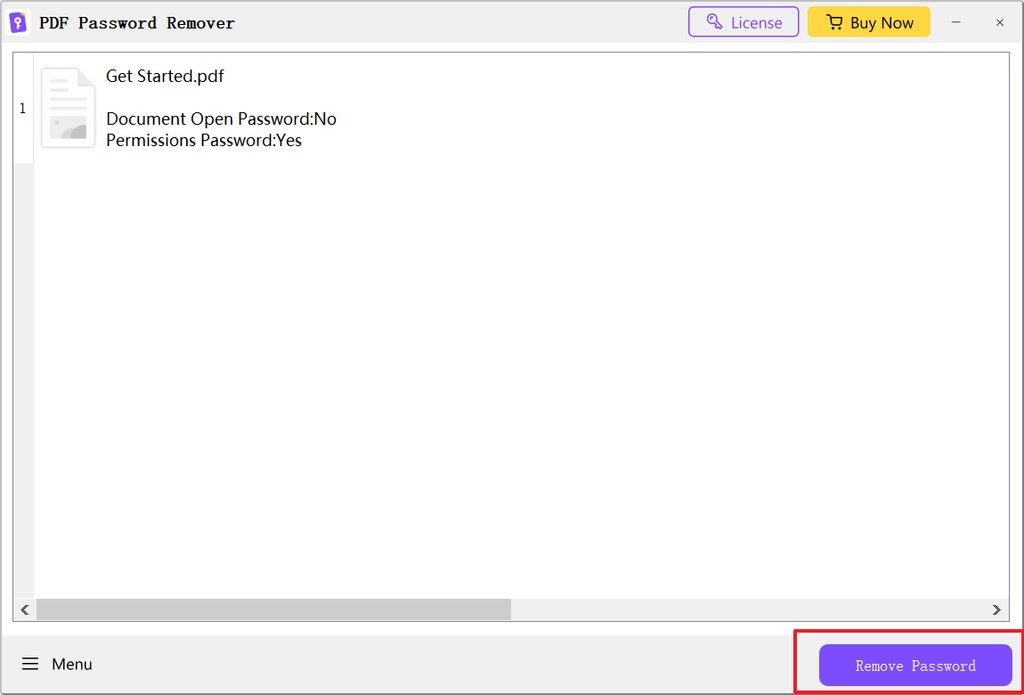

Note: If you have completely forgotten the open password for an encrypted file, a standard remover won't work—you will need a specialized PDF password remover utility or recovery tool.
💡 Important Notice on How to Get aJoysoft:
Please note that aJoysoft is not sold separately. However, you can get lifetime access to aJoysoft for FREE by purchasing any of the following UPDF plans:
- UPDF Pro (Yearly)
- UPDF Pro (Perpetual)
- UPDF Pro (Yearly) + AI (Yearly) Bundle
- UPDF Pro (Perpetual) + AI (Yearly) Bundle
How to Remove Security from PDF with UPDF (Known Password)
Best For:
- Users who know the password and need to remove restrictions from PDF files while enjoying full PDF editing, signing, and conversion capabilities across Windows, Mac, iOS, and Android.
Limitations:
- Requires entering the valid open/permission password once before security can be removed.
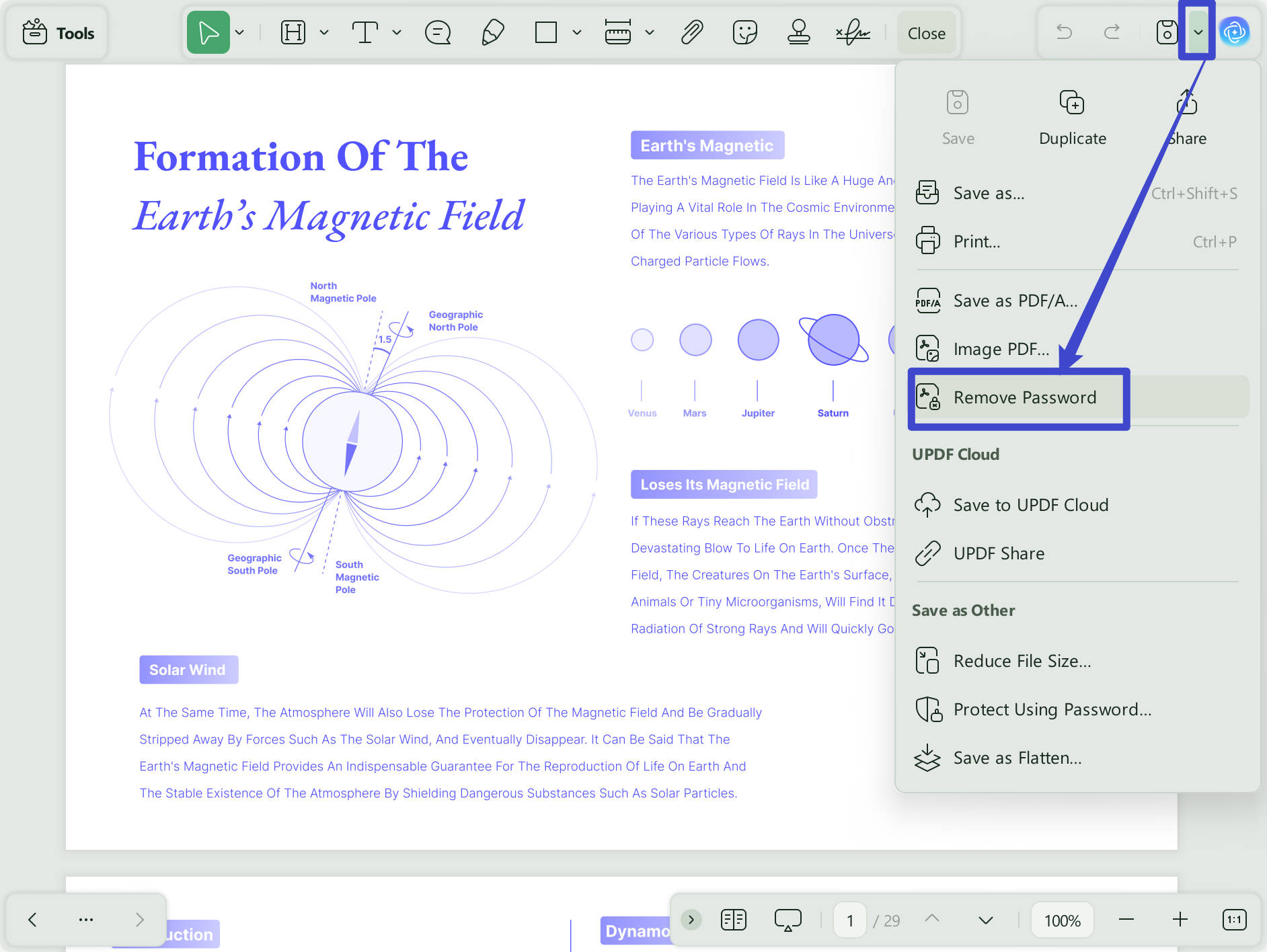
Steps to Remove Password Protection from PDF with UPDF:
1. Launch UPDF and click the "Open File" button to load your document. If the file has an open password, enter it when prompted.
Windows • macOS • iOS • Android 100% secure
2. Click the "Protect Using Password" icon on the right toolbar. Select "Remove Security", then click "Remove" in the popup dialog. Save your newly unlocked document to your preferred folder.
Windows • macOS • iOS • Android 100% secure
Key Highlights of UPDF:
- Advanced Security & Protection Controls: Beyond unlocking, UPDF is also a powerful PDF security hub. You can set custom open passwords or fine-grained permission controls—such as toggling high/low-resolution printing or restricting document modification.
- Comprehensive Unlocking & Saving: UPDF allows you to remove open passwords and granular permission restrictions (e.g., printing, editing, commenting, page insertion, and form filling). Once unlocked, saving the document creates a clean, unprotected copy for unrestricted use.
- Native Document Editing: After learning how to edit secured PDF files with UPDF, you can directly modify existing text layers, adjust image elements, edit hyperlinks, or sign official forms without switching apps.
To know more about UPDF, you can read this UPDF review article from Howtogeek and watch the below review video.
Step 1. Open the Protected PDF
Step 2. Unprotect PDF
Windows • macOS • iOS • Android 100% secure
How to Remove Password Protection from PDF in Chrome
Best For:
- One-off, non-sensitive files when you need a zero-installation option and already know the open password.
Limitations:
- Will fail if the PDF has active printing restrictions; cannot process scanned files or batch files; strips away interactive form fields and internal hyperlinks.
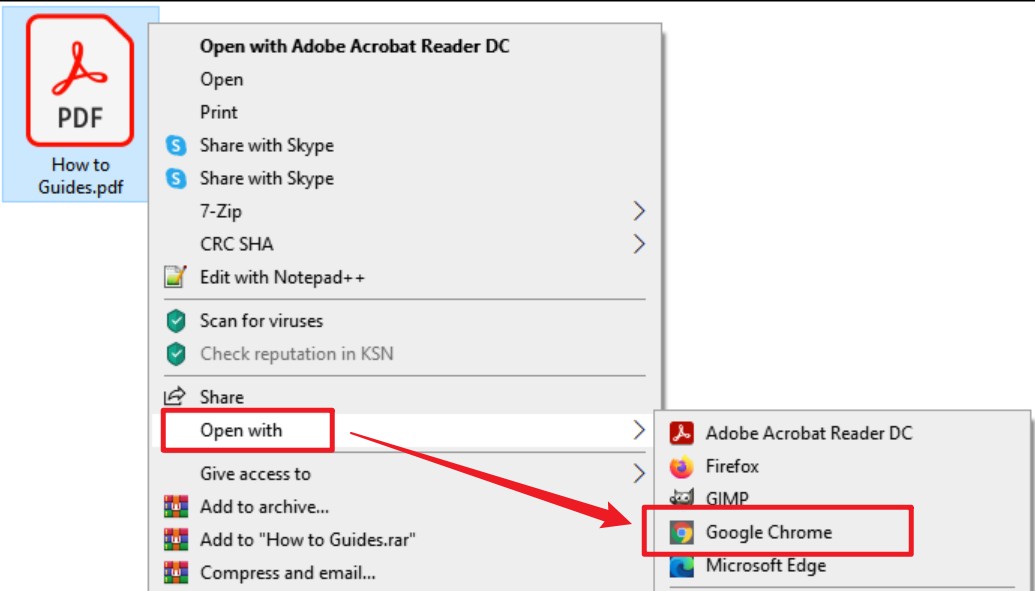
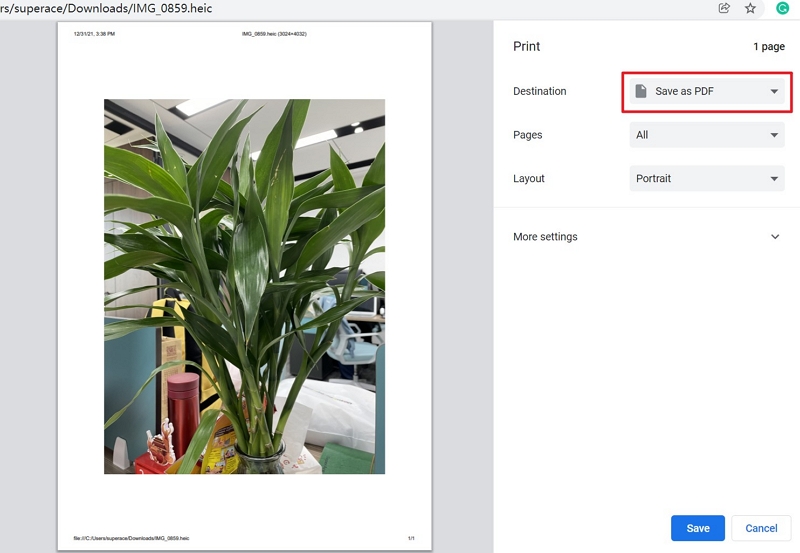
Steps on How to Remove Password Protection from a PDF Document via Chrome:
How to Remove Security from PDF with Google Drive
Best For:
- Occasional users seeking to remove password protection from PDF online without desktop software.
Limitations:
- Requires an active internet connection; file upload size limits apply; uploading confidential or proprietary business documents to third-party cloud servers poses security risks.
Steps to Remove Password from PDF via Google Drive:

Comparison of Methods to Remove Passwords from PDF
| Tool / Method | Best For | Key Limitations | Security Level | Unlocking Efficiency |
| aJoysoft | Bulk processing & stripping permission locks | Desktop app required; not sold standalone (Bonus with UPDF) | 100% Local (High) | Excellent (Batch) |
| UPDF | All-in-one PDF editing, security removal, and advanced protection | Requires entering known password once | 100% Local (High) | Excellent |
| Google Chrome | Quick single-file unlock without software | Fails if print restrictions are enabled | Local Browser (Medium) | Fair |
| Google Drive / Online | Web-based light usage on any browser | Upload limits; cloud data risks | Cloud Server (Medium/Low) | Dependent on Internet |
Frequently Asked Questions
How do I remove password protection from PDF if I forgot the password?
If you forgot PDF password credentials for viewing, standard removers cannot open the file. You must use a dedicated password recovery tool to retrieve or brute-force the open password before removing security.
Is it safe to remove PDF passwords online?
While using a remove password from PDF online service is convenient, uploading sensitive contracts or financial records carries inherent privacy risks. For maximum confidentiality, offline desktop applications like UPDF keep all document processing 100% local on your computer.
What is the difference between an Open Password and a Permission Password?
An Open Password prevents unauthorized users from opening or viewing the file. A Permission Password allows users to view the file but restricts specific actions like editing text, copying content, or printing. UPDF can help you manage, add, or remove both types seamlessly.
Conclusion
Windows • macOS • iOS • Android 100% secure




 Engelbert White
 Enola Miller
 Lizzy Lozano