 UPDF
UPDF
 UPDF for Windows
 UPDF for Mac
 UPDF for iPhone/iPad
 UPDF for Android
 Nomostar
 UPDF AI Online
 UPDF Sign
 IvyCraft
 Edit PDF
 Annotate PDF
 Create PDF
 PDF Form
 Edit links
 Convert PDF
 OCR
OCR PDF to Word
 PDF to Image
 PDF to Excel
 Organize PDF
 Merge PDF
 Split PDF
 Crop PDF
 Rotate PDF
 Protect PDF
 Sign PDF
 Redact PDF
 Sanitize PDF
 Remove Security
 Read PDF
 UPDF Cloud
 Compress PDF
 Print PDF
 Batch Process
 About UPDF AI
 UPDF AI Solutions
 AI User Guide
 FAQ about UPDF AI
 Summarize PDF
 Translate PDF
 Chat with PDF
 Chat with AI
 Chat with image
 PDF to Mind Map
 Explain PDF
 PDF AI Tools
 Image AI Tools
 AI Chat Tools
 AI Writing Tools
 AI Study Tools
 AI Working Tools
 Other AI Tools
 AI Bookmark Generation
 AI Bookmark Summary
 AI Watermark Generation
 AI Background Generation
 AI Sticker Generation
 AI Stamp Generation
 AI Editing Suite
 UPDF Copilot
 AI Page Management
 AI Semantic Search
 PDF to Word
 PDF to Excel
 PDF to PowerPoint
 Enterprise Solution
 Enterprise Sign
 Enterprise AI
 Enterprise Plan
 Enterprise User Guide
 Enterprise Webinar
 IT
IT Education
 Construction
 Financial Service
 Healthcare
 Insurance
 Legal
Legal Manufacturing
 Government
 Researchers & PhDs
 Solopreneurs & Freelancers
 Lawyers & Legal Professionals
 Real Estate Agents & Brokers
 Education Solution
 Customer Stories
 User Guide
 UPDF Tricks
 FAQs
FAQs UPDF Reviews
 Download Center
 Blog
Blog Newsroom
 Tech Spec
 Updates
 UPDF vs. Adobe Acrobat
 UPDF vs. Foxit
 UPDF vs. PDF Expert

Quick answer:
That distinction is the whole game: some tools delete the underlying text so it can't be recovered, while others only lay a black mark on top — leaving the original a copy-paste away. Whether you call it redaction software, redact software, or a PDF redaction tool, the question to ask is the same: does it remove the data, or only cover what you can see?
This guide compares three document redaction tools by removal method, search coverage, privacy, workflow limits, and cost — with a verifiable checklist so you can choose the right one for occasional files or regulated work.
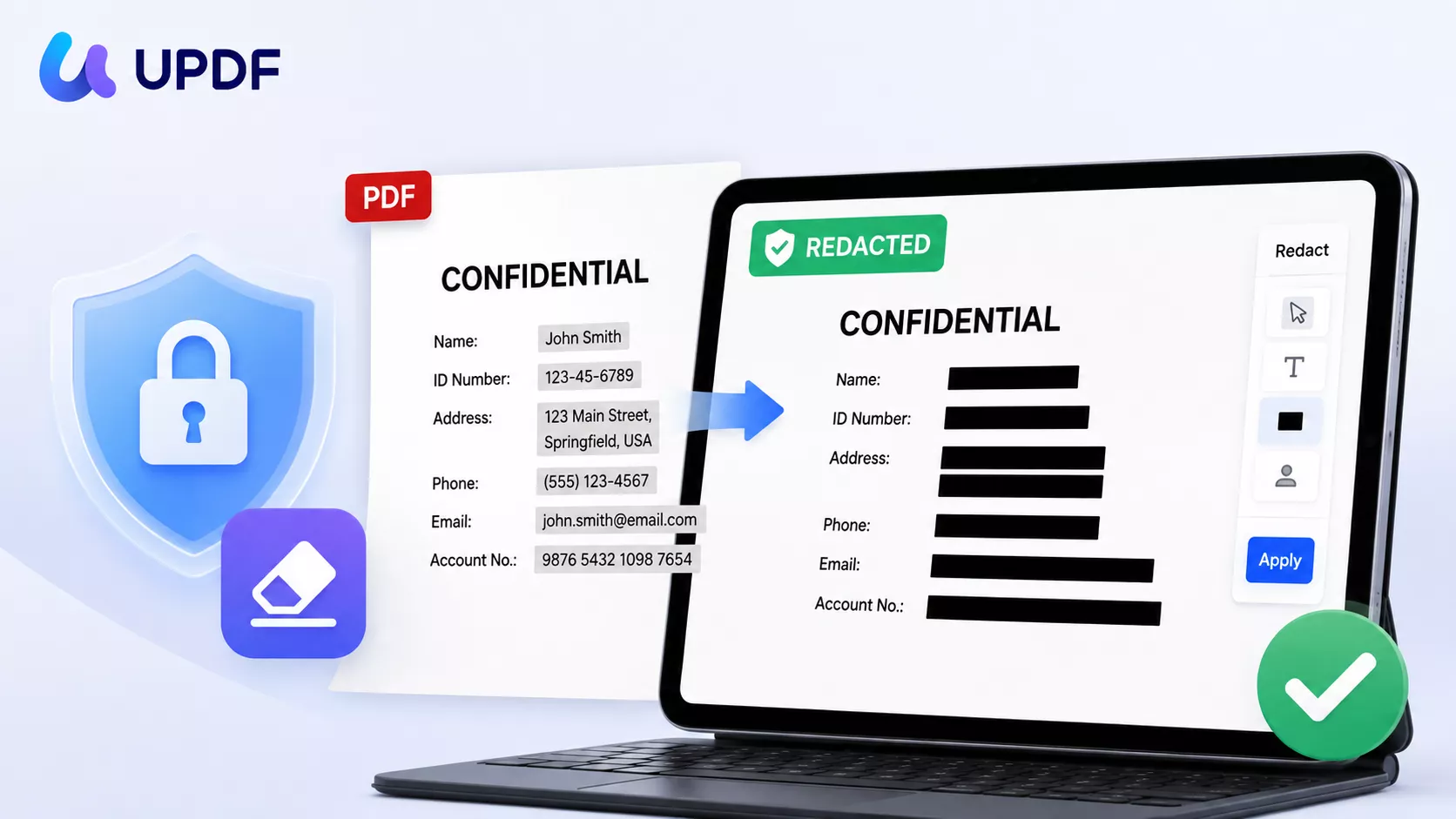
Part 1. What is Redaction Software and Why Do You Need It?
Redaction software is any tool that permanently removes sensitive information from documents, images, and other files before you share or publish them. Unlike simple redaction methods, which place a black box or highlight over text to hide it, true redaction removes the data completely from the document’s internal structure, so it can never be retrieved.
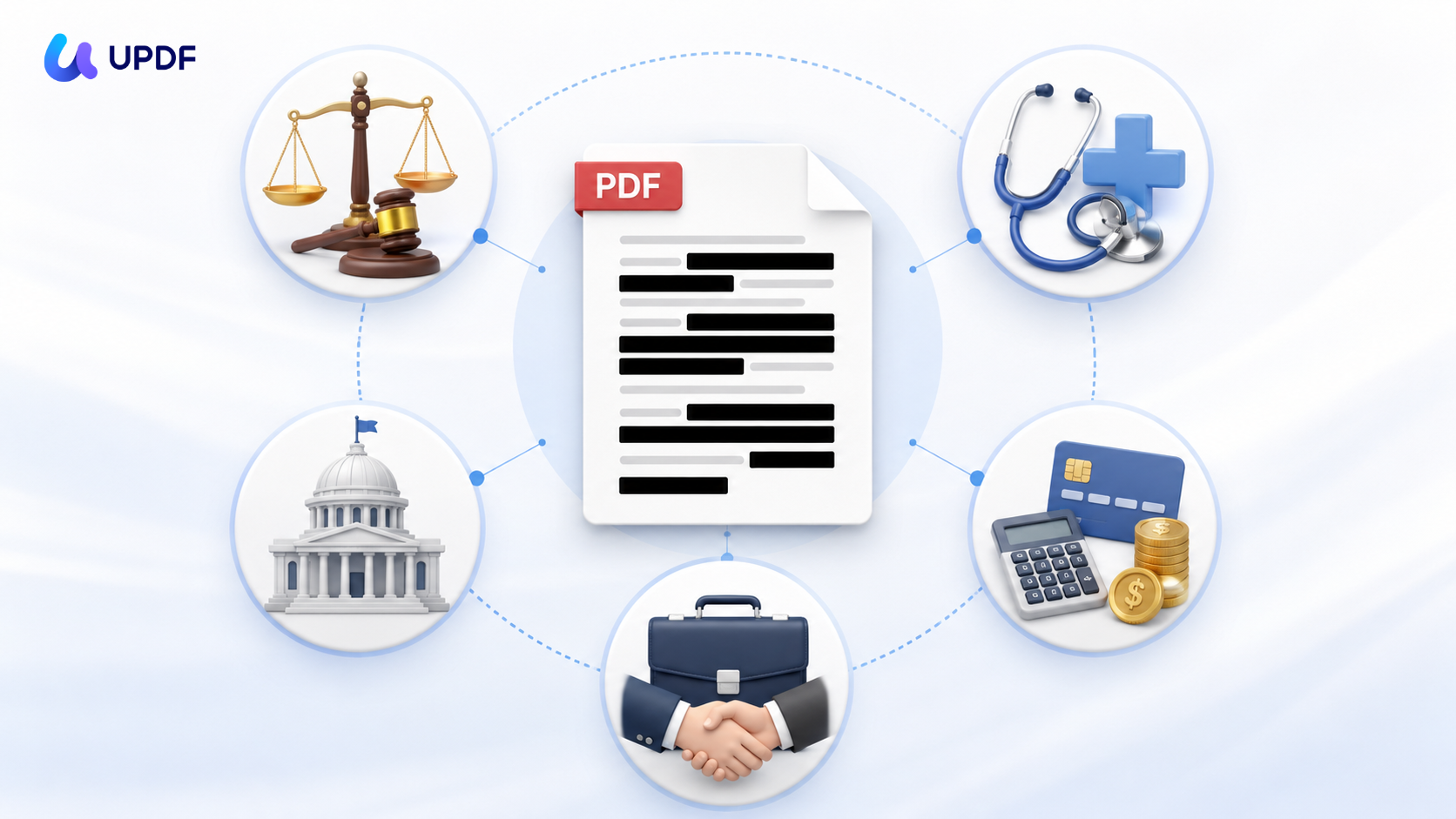
Who Needs a Redaction Software?
Redaction software is commonly required in the following industries.
- Legal: Redaction helps lawyers remove confidential details, such as client communications or case notes.
- Healthcare: It can be used to mask patient names or medical record numbers to meet HIPAA privacy laws.
- Finance: Redaction can be applied to account numbers and financial identifiers to hide them in reports sent to clients.
- Business: Redaction can delete trade secrets and pricing details from contracts before sharing with outside parties.
- Government: It helps remove classified information before the documents are released to the public.
What Redaction Software Can — and Cannot — Do
True redaction permanently removes selected text, images, or page areas from a saved copy of a document. It is different from drawing a black box, changing the font color, cropping a page, or adding an annotation, because those methods can leave the original content recoverable — a reader can select, copy, or search the "hidden" text right out of the file.
Redaction is also not the same as encryption or password protection. Encryption controls who can open or edit a file, but the protected data still exists inside it. Redaction removes the chosen content so the released copy no longer contains it. This is the distinction that matters at the data level — the kind of removal NIST SP 800-88 frames as purging data rather than merely clearing it, and improper removal of personal data can carry obligations under GDPR Article 17 and HIPAA.
Likewise, redaction does not automatically clean metadata, comments, attachments, hidden layers, or every form field unless the software includes a separate sanitization step. And no automated tool is error-proof: OCR can miss text in poor-quality scans, pattern matching can produce false positives, and search can overlook context. Always review every marked result, keep an untouched original, and apply redactions only to a separate release copy.
How to Choose the Best Redaction Software
Judge redaction software by what remains after you apply and save — not by how the black mark looks on screen. Use this checklist when comparing data redaction tools:
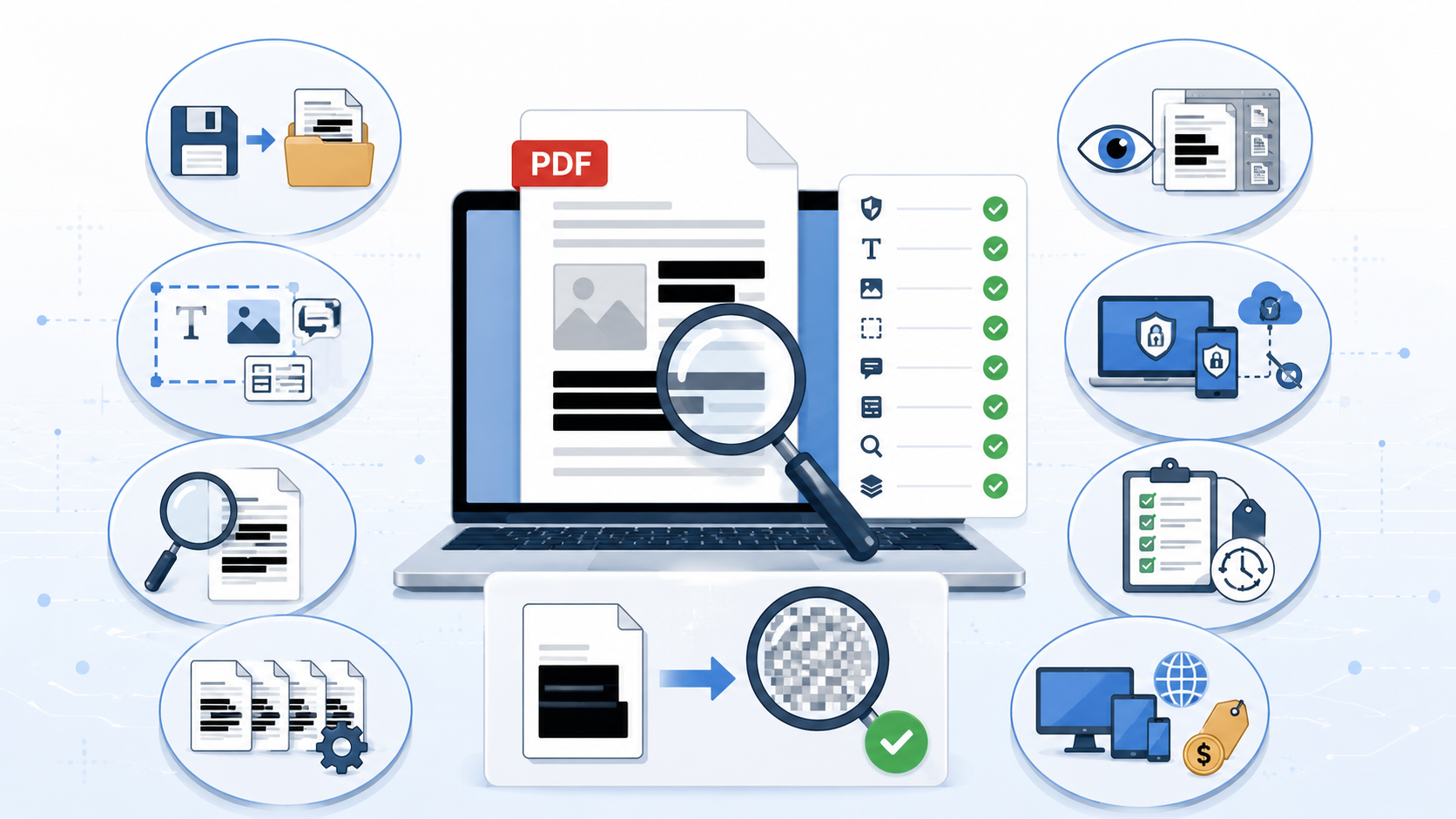
- Permanent removal: Save a copy, reopen it, then test search, copy-paste, and text extraction. A visual rectangle is not proof that the source data is gone.
- Content coverage: Confirm the tool can remove selectable text, images, page areas, full pages, form fields, and comments. Scanned PDFs may require OCR before text-based search will work — see our PII redaction workflow for scanned PDFs for that case.
- Search accuracy: Compare exact keyword search, multi-word search, pattern matching for items like phone numbers or IDs, and synonym-aware search for related terms. Automated matches should always be reviewed by a person.
- Scale: Check whether the tool can redact repeated results, page ranges, or multiple documents without marking every item by hand.
- Review controls: A professional redaction tool should let you preview marked content and remove mistaken marks before the irreversible "Apply" step.
- Privacy and deployment: Decide whether files must stay on the device or may be uploaded to a cloud service. For sensitive data, review storage location, retention, and deletion policy — this is why many teams prefer local PDF redaction for regulated files.
- Audit support: Redaction codes, reason labels, and review steps support legal or compliance workflows. The tool itself does not make an organization GDPR-, HIPAA-, or CCPA-compliant.
- Platform and cost: Compare desktop, mobile, and browser availability, license scope, and whether OCR, AI search, or batch processing require a paid plan.
Part 2. Best Redaction Software Options to Try
After testing for real data removal, search coverage, privacy, and cost, here are three options that suit different workflows. The quick comparison first, then the detail:
| Tool | Best for | Main advantages | Important limits |
|---|---|---|---|
| UPDF | Individuals and teams wanting a desktop-first, cross-platform workflow | Manual area/page redaction; exact and synonym-aware search; preview before applying; redaction codes | Requires installation; confirm which AI/batch features are in your plan |
| Adobe Acrobat Pro | Organizations already standardized on Acrobat | Broad redaction methods; pattern search; repeated-position marks; mature enterprise workflow | Permanent redaction isn't in free Acrobat Reader; ~$19.99/mo subscription; steeper interface |
| Smallpdf | Occasional, low-sensitivity files where browser convenience matters | No install; simple browser workflow; works across devices | Files are uploaded to process; free plan ~2 tasks/day with a small file cap; no batch redaction; doesn't auto-sanitize metadata |
The right data redaction tool depends on the file, not just the feature list: use a local PDF redactor for sensitive or regulated documents, a full desktop suite for repeatable professional work, and an online redactor only when upload risk and feature limits are acceptable.
1. UPDF (Recommended)
UPDF is a comprehensive AI-driven PDF editor for Windows, Mac, Android, and iOS devices. It offers an advanced redaction tool that permanently deletes the sensitive content from the PDF so it can never be recovered.
You can redact in several ways: mark specific keywords — or synonym-aware matches that surface related terms as well as exact ones — for search-and-redact across the document, or manually mark text, images, or entire pages. You also control how the redacted areas appear.
Windows • macOS • iOS • Android 100% secure
Key Features for Redaction:
- Mark for Redaction: You can highlight specific text or draw areas over images or blocks of text for redaction.
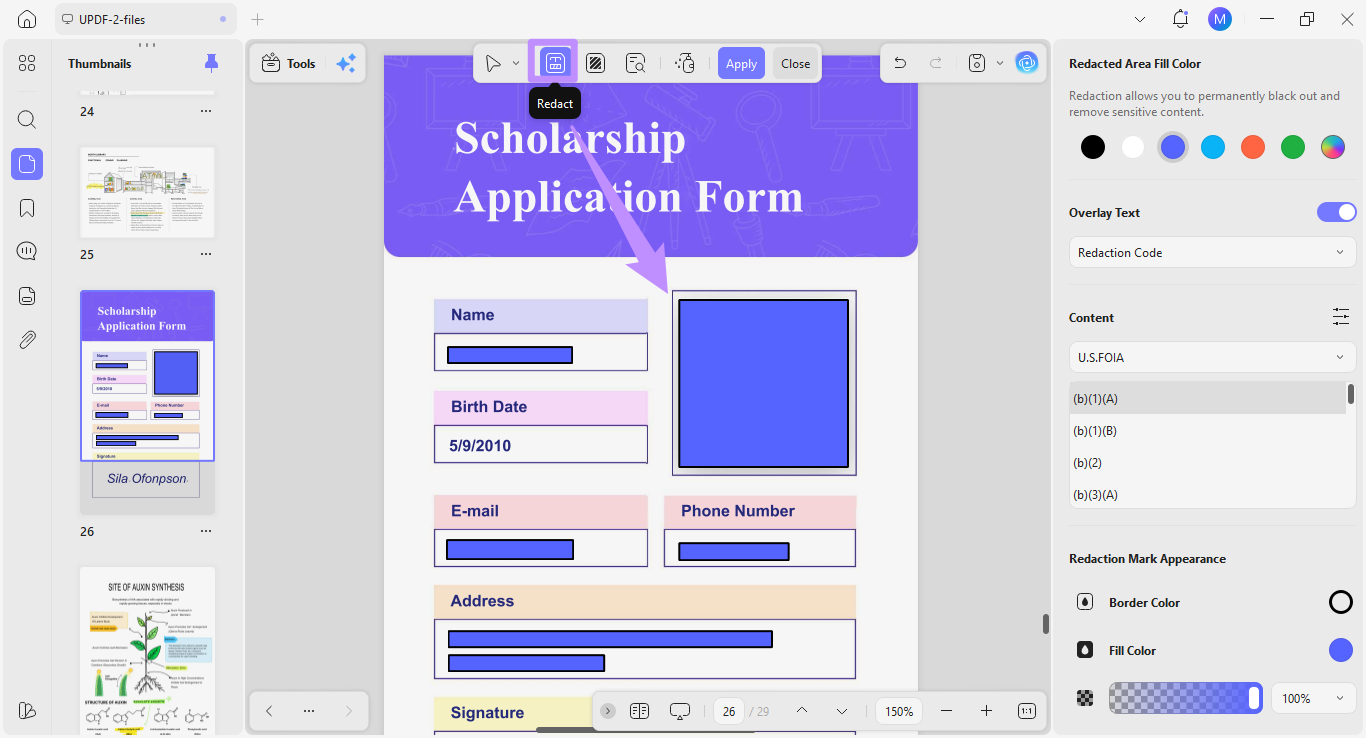
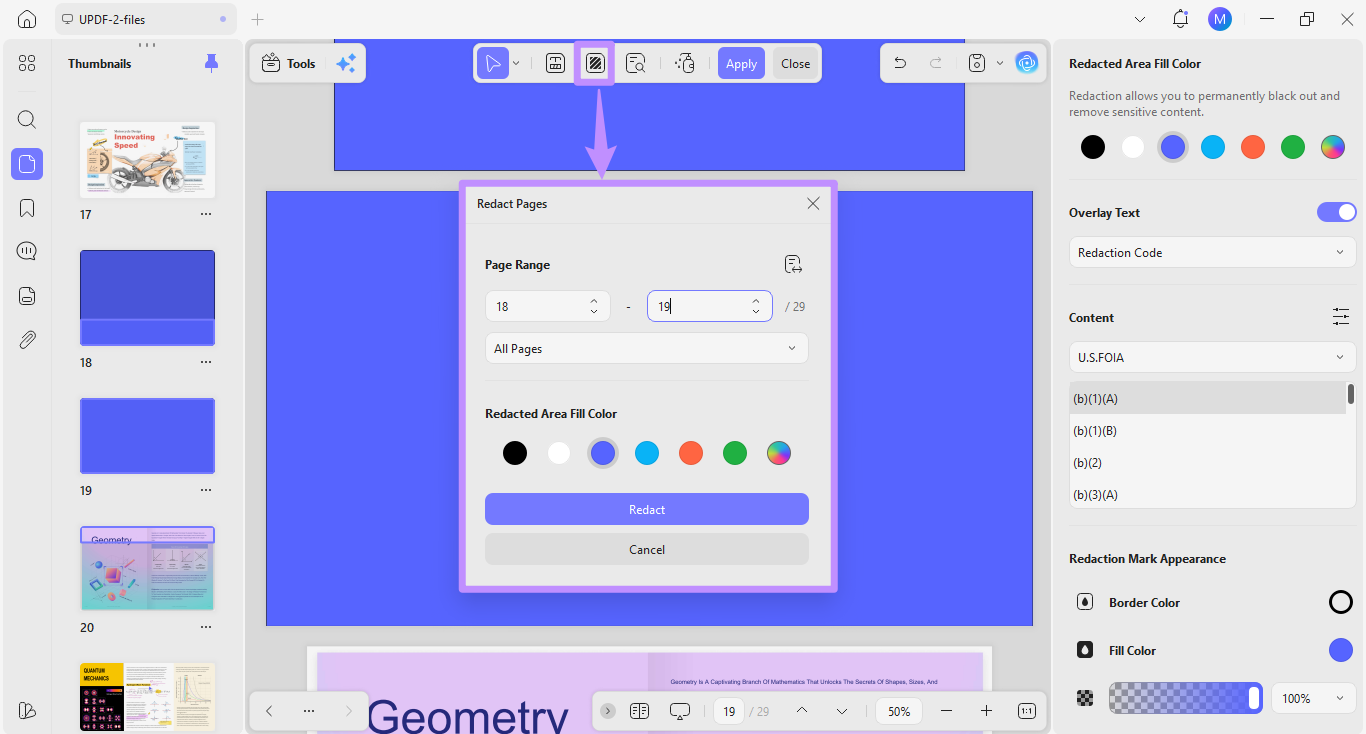
- Redact Pages: You can remove an entire page's content and even redact multiple pages at once.
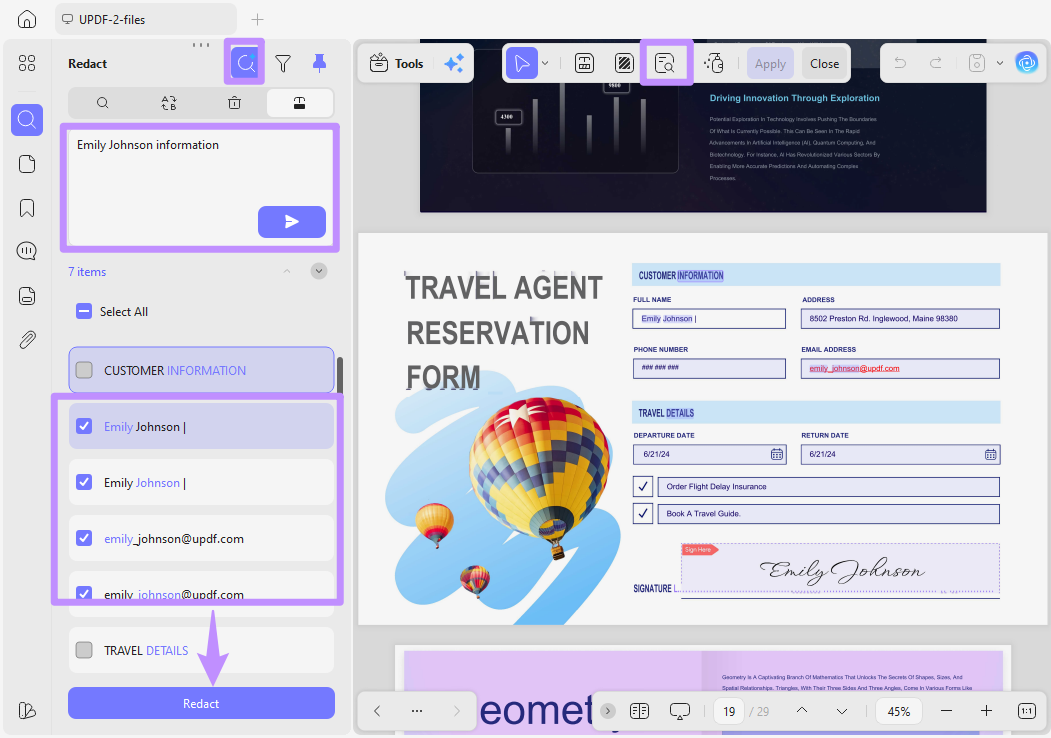
- Search & Redact: Find and redact every mention of a keyword in the document. Its search also surfaces synonyms, so results include related terms and not only exact matches.
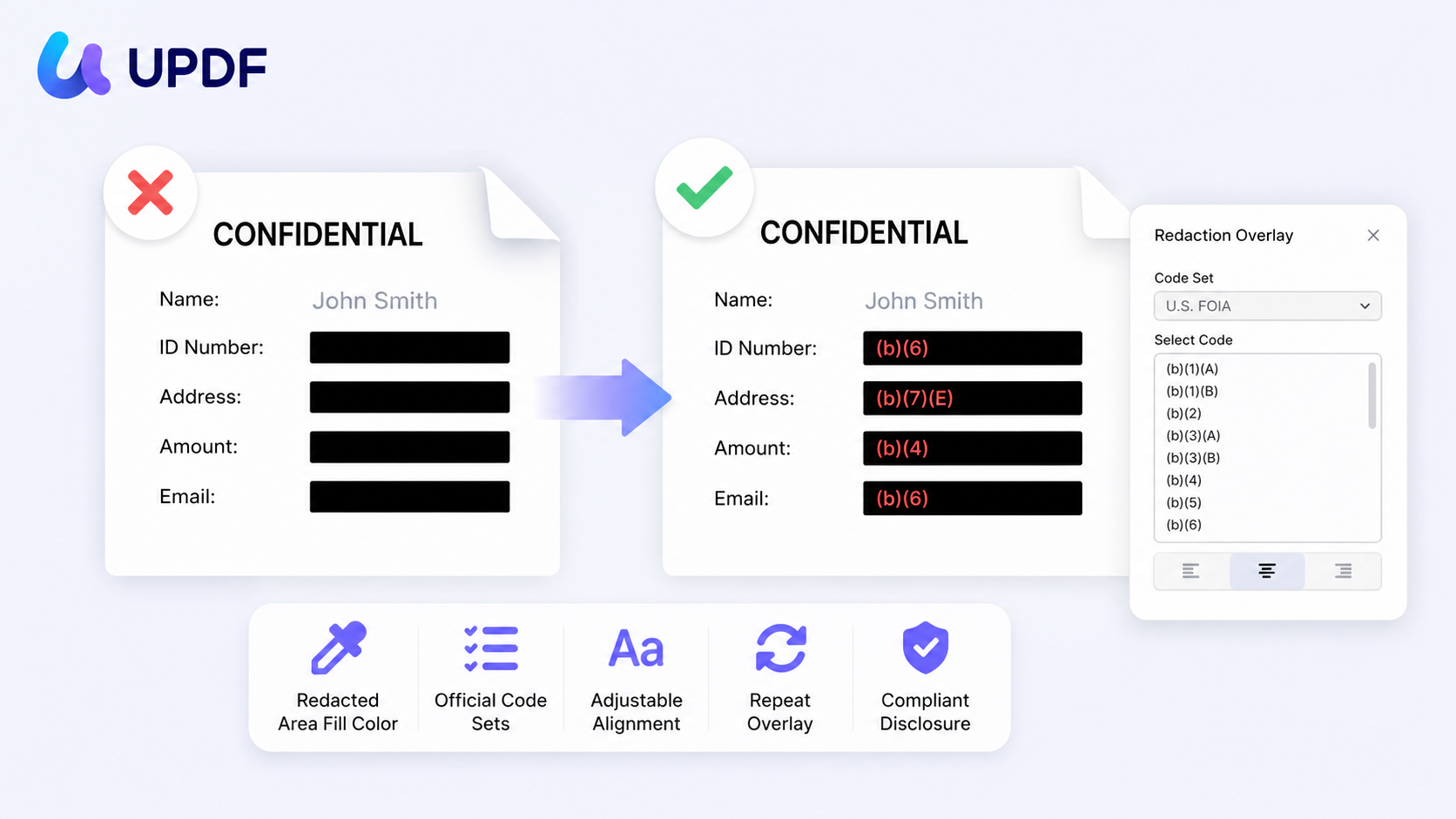
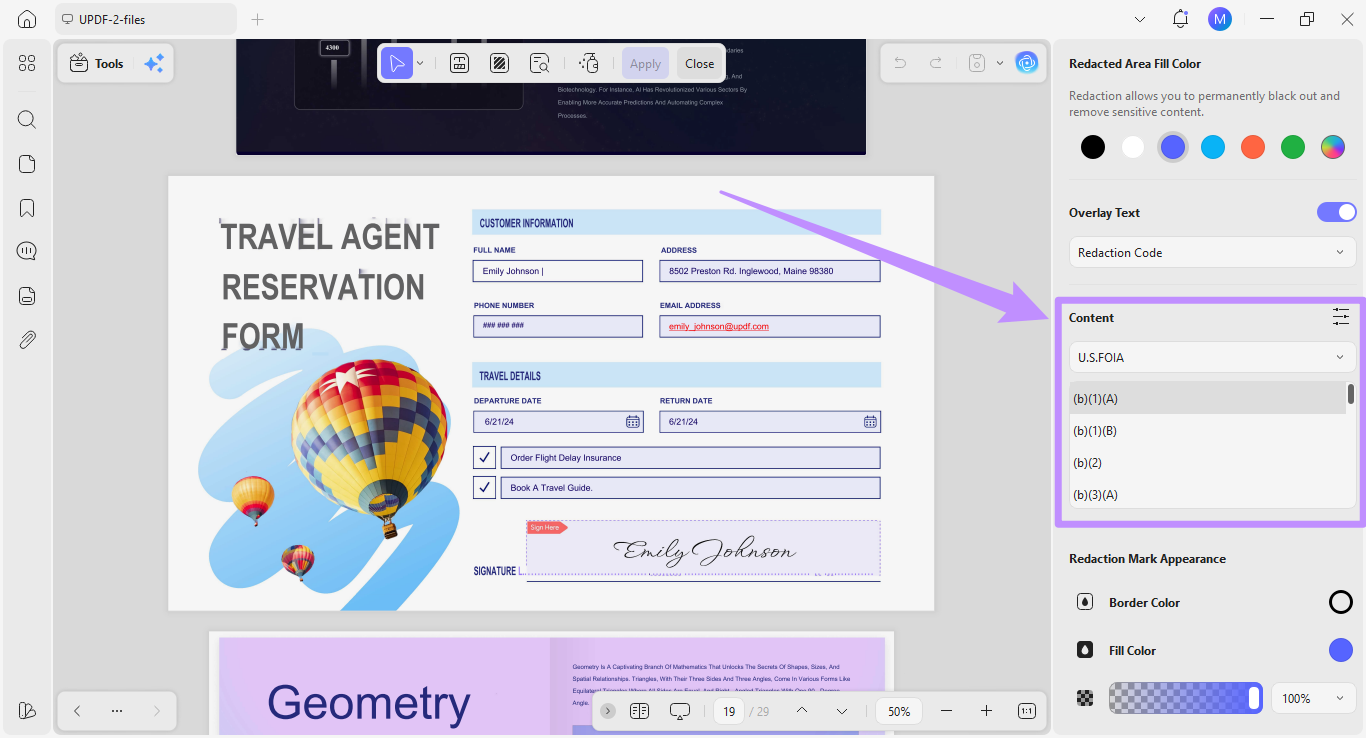
- Redaction Codes: You can add exemption codes or reason labels to provide context for the redacted areas.
- Customize Redaction Style: Adjust the color, opacity, and overlay text of redaction marks.
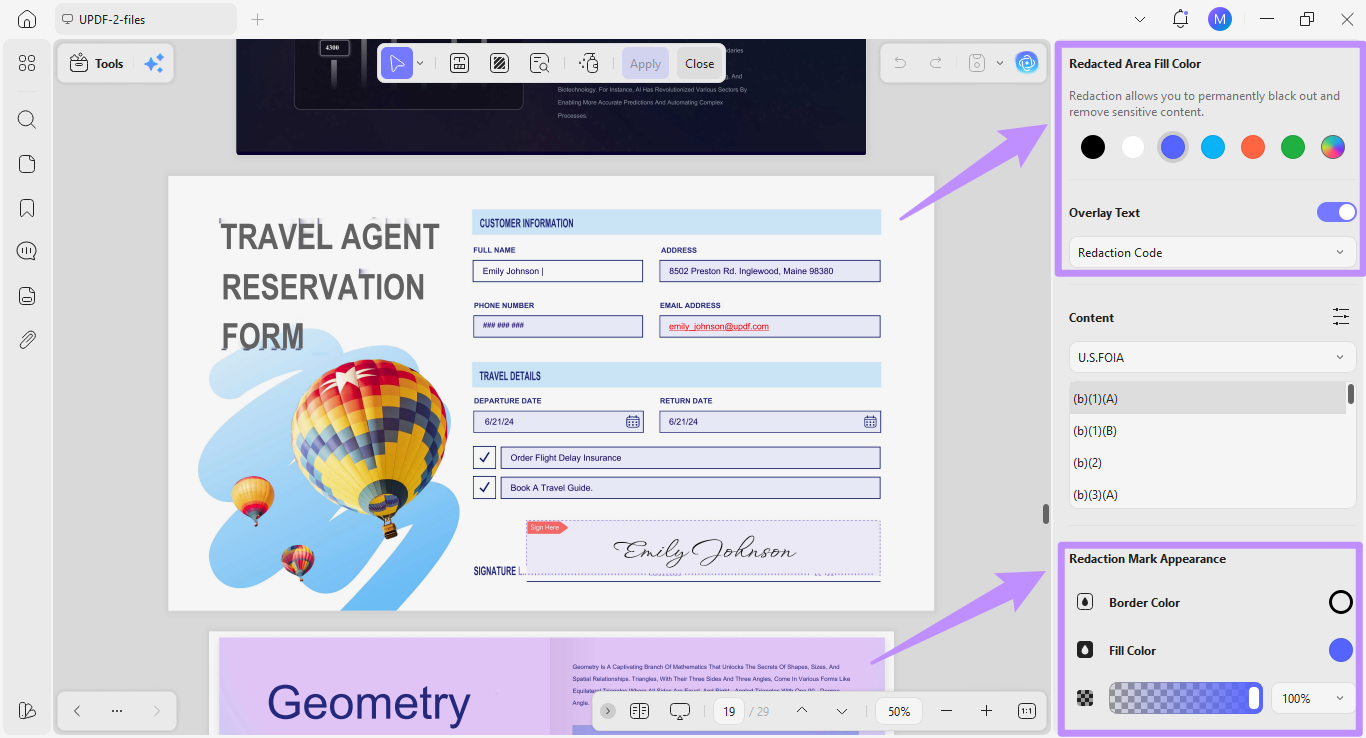
- Permanent Removal: The content cannot be recovered through copy, search, or metadata extraction.
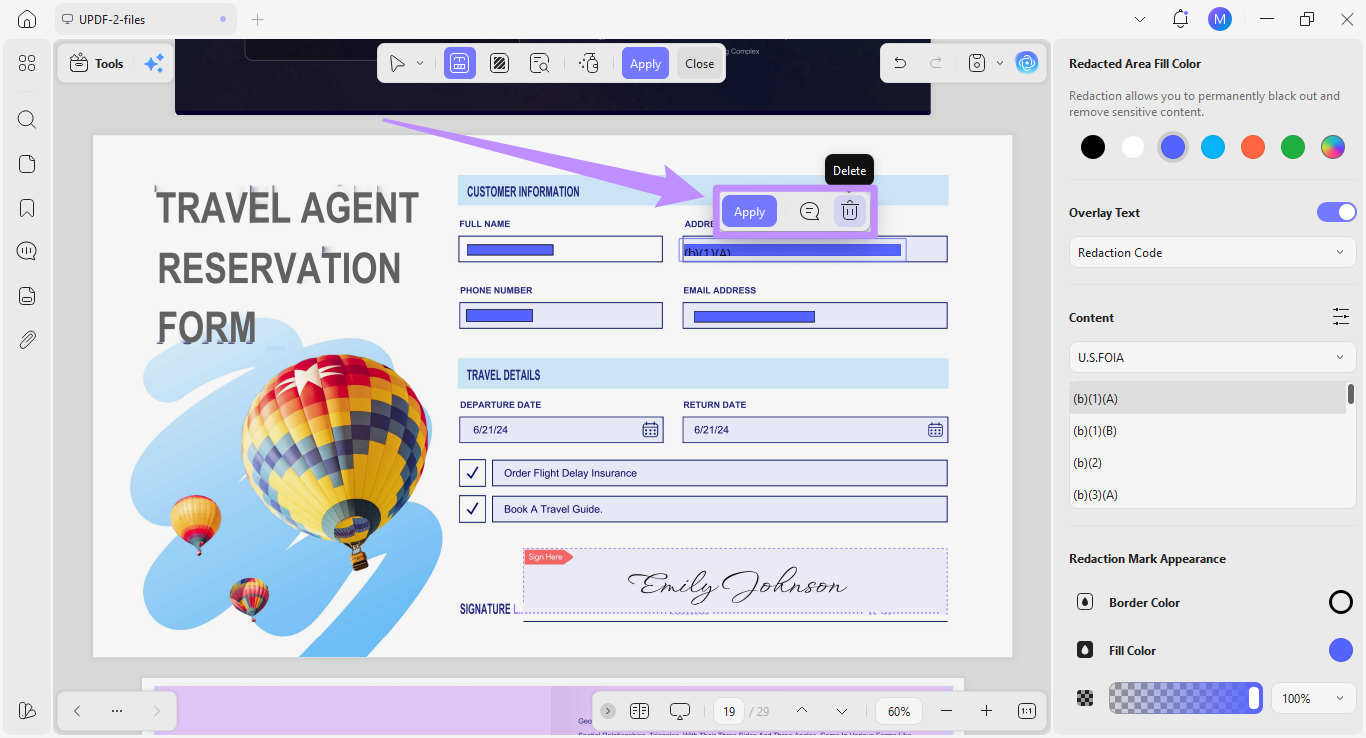
- Apply or Remove Redactions: You can preview the results and add or remove redactions before applying them permanently.
Pros:
- Multiple redaction methods for text, images, areas, page ranges, exact keywords, and related terms.
- Local desktop workflow, so sensitive files stay on your device.
- Preview and remove marks before applying irreversible redactions.
- One license covers Windows, Mac, iOS, and Android, alongside a full PDF editing toolset.
Cons:
- The desktop workflow requires installation.
- Confirm plan-level access to AI search and batch processing before purchase.
- Synonym and pattern suggestions still need human review.
Pricing:
You can use UPDF across all devices on one license with the following plans:
- UPDF Pro: $49.99/year, $79.99/lifetime
- AI Assistant: $79/year
✅ Best for: Everyday users, professionals, and businesses who need a full-featured redaction workflow at a lower cost than subscription-only alternatives.
Windows • macOS • iOS • Android 100% secure
2. Adobe Acrobat Pro
Adobe Acrobat is a widely trusted PDF editor for Windows and Mac. Its built-in redaction tool permanently removes specific words, patterns, text, images, and entire pages.
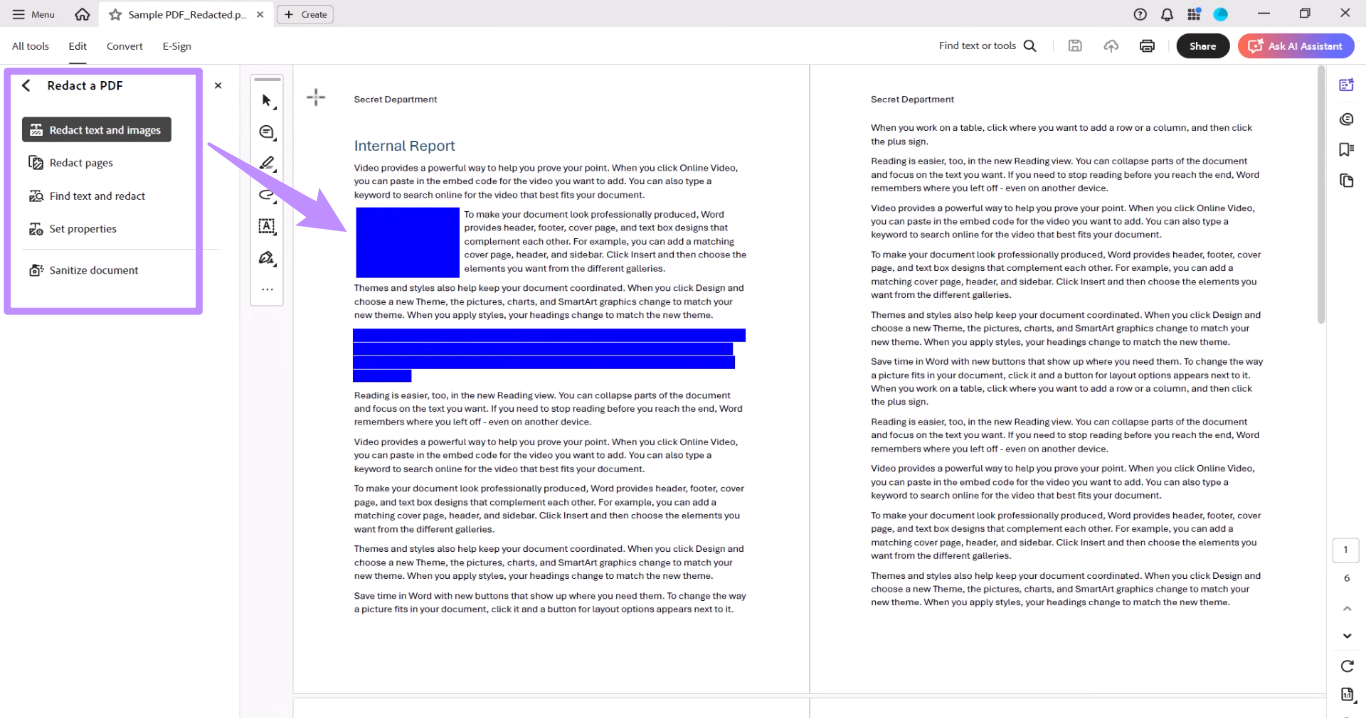
Key Features for Redaction:
- Search and redact specific words, numbers, and patterns.
- Redact text, images, areas, or entire pages.
- Customize redaction marks, color, and replacement text.
- Preview all redactions before finalizing permanent removal.
- Apply the same redaction mark to identical positions on multiple pages.
Pricing: Acrobat Pro runs about $19.99/month on an annual plan (roughly $239.88/year), or $29.99 month-to-month. Note that permanent redaction is not available in the free Acrobat Reader — it requires a paid Pro subscription.
Pros:
- Comprehensive redaction toolset with pattern search and repeated-position marks.
- Widely used in enterprise and government environments
Cons:
- Complex interface for new users
- Subscription-only pricing that's expensive for occasional use.
- No permanent perpetual license (Adobe discontinued perpetual Acrobat licensing).
✅ Best for: Large organizations already standardized on Acrobat that can absorb the subscription cost.
3. Smallpdf (Online Free Option)
Smallpdf is a browser-based PDF platform that lets you redact directly online, with no installation. You draw over areas or select text to mark for redaction, and its redact tool removes the underlying text from the produced file.
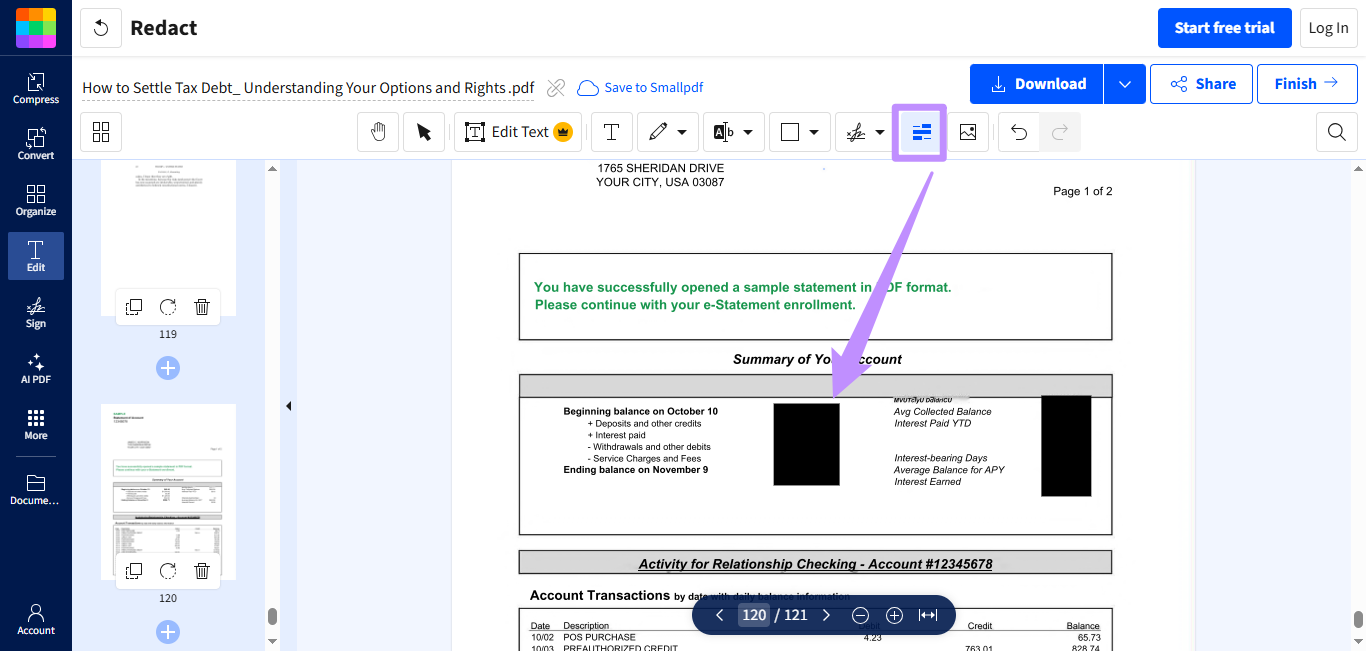
Key Features for Redaction:
- Access redaction from any browser on any device.
- Draw over sections to remove content.
- Draw over sections to remove content.
Pricing: Free with a small daily task and file-size limit; Pro is around $10–15/month depending on billing.
Pros:
- No download or software installation.
- Works across Windows, Mac, Linux, and mobile browsers.
- Simple interface with almost no learning curve.
Cons:
- Files are uploaded to Smallpdf's servers to process — a privacy consideration for sensitive documents.
- Free plan is capped at a couple of tasks per day with a small file size limit.
- No batch redaction, and it doesn't automatically sanitize metadata or hidden content.
Best for: Quickly redacting a low-sensitivity document without installing software. If browser-only tools are too limited, compare online and desktop PDF redaction options before deciding.
Among these, UPDF offers the best balance of true data removal, ease of use, and affordability. Here's how to use it.
Part 3. How to Redact a PDF with UPDF (Step-by-Step Guide)
UPDF offers several ways to redact. These steps show its Search & Redact feature — download and install it first so you can follow along.
Windows • macOS • iOS • Android 100% secure
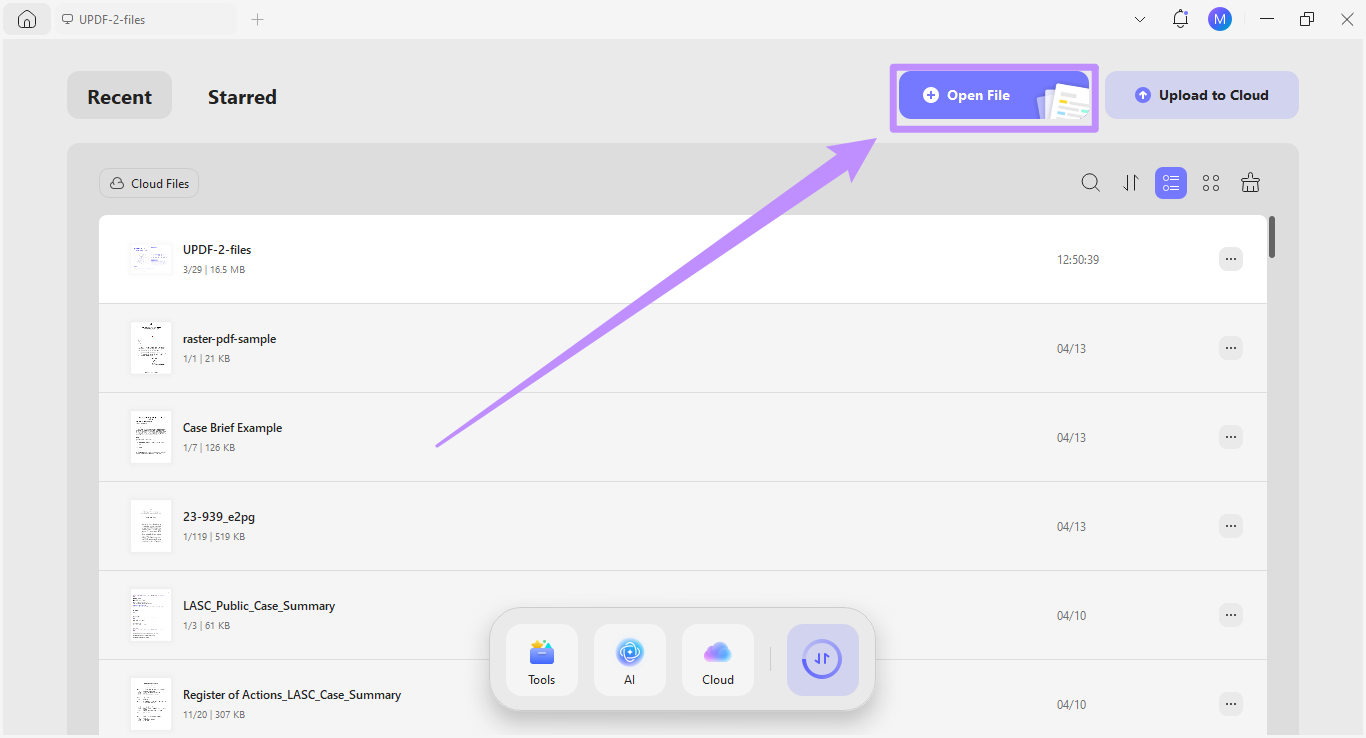
Step 1. Launch UPDF and click “Open File” to import the PDF you want to work with.
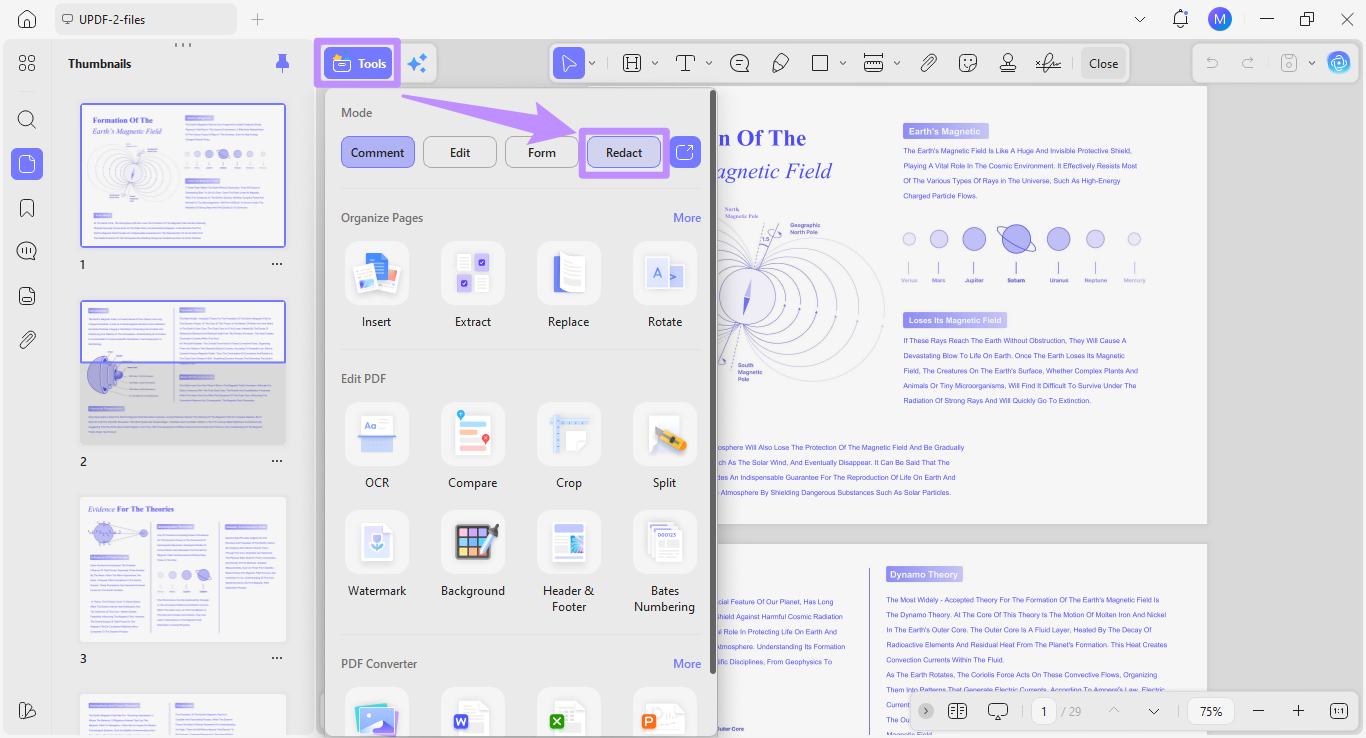
Step 2. Once your document opens, click “Tools” from the top and select “Redact.”
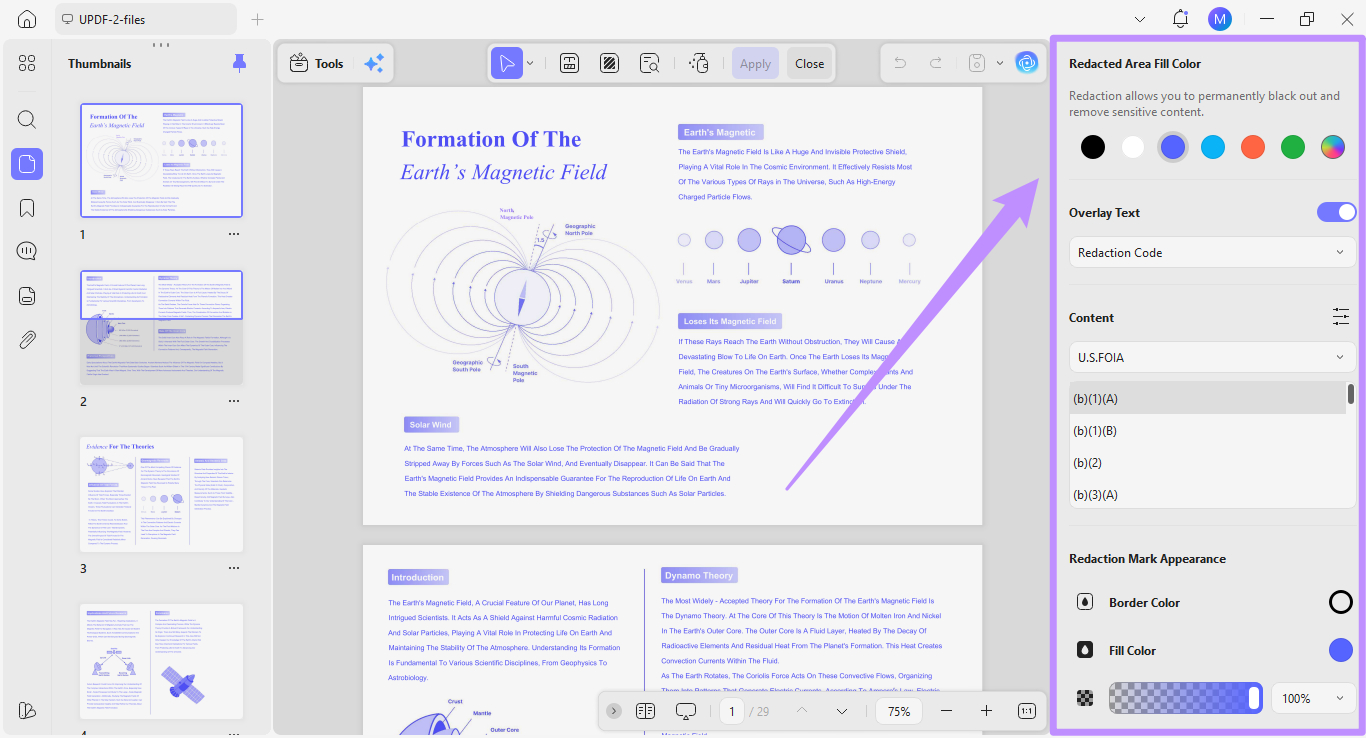
Step 3. The redaction tool opens. Use the panel on the right to adjust the fill color, add overlay text, set content such as exemption codes, and modify the mark's border color, fill color, and opacity.
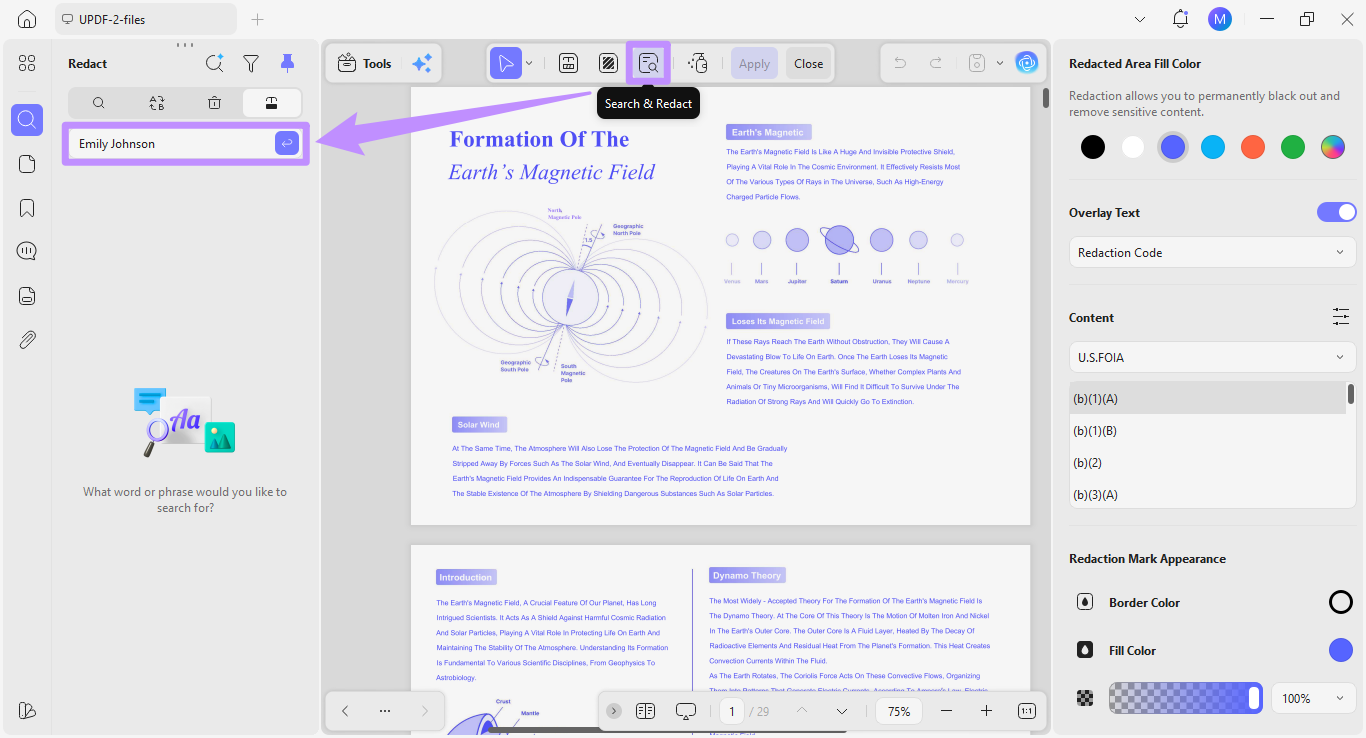
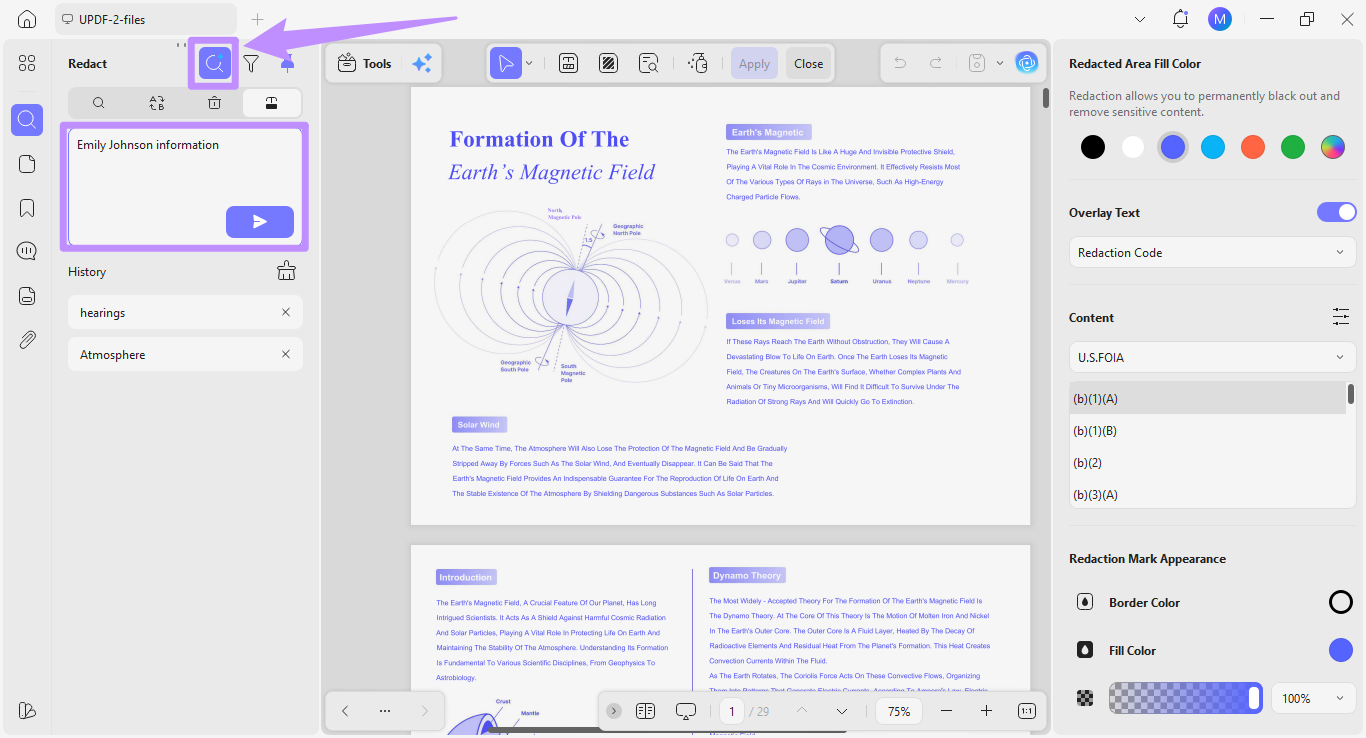
Step 4. Click "Search & Redact" in the top toolbar. In the search box on the left, enter the words you want to find, then click "Send."
Step 5. You can also use "AI Search" at the top of the panel. Type your keywords — it finds both exact matches and related terms.
Step 6. From the results, select the items to remove permanently, then click "Redact" at the bottom.
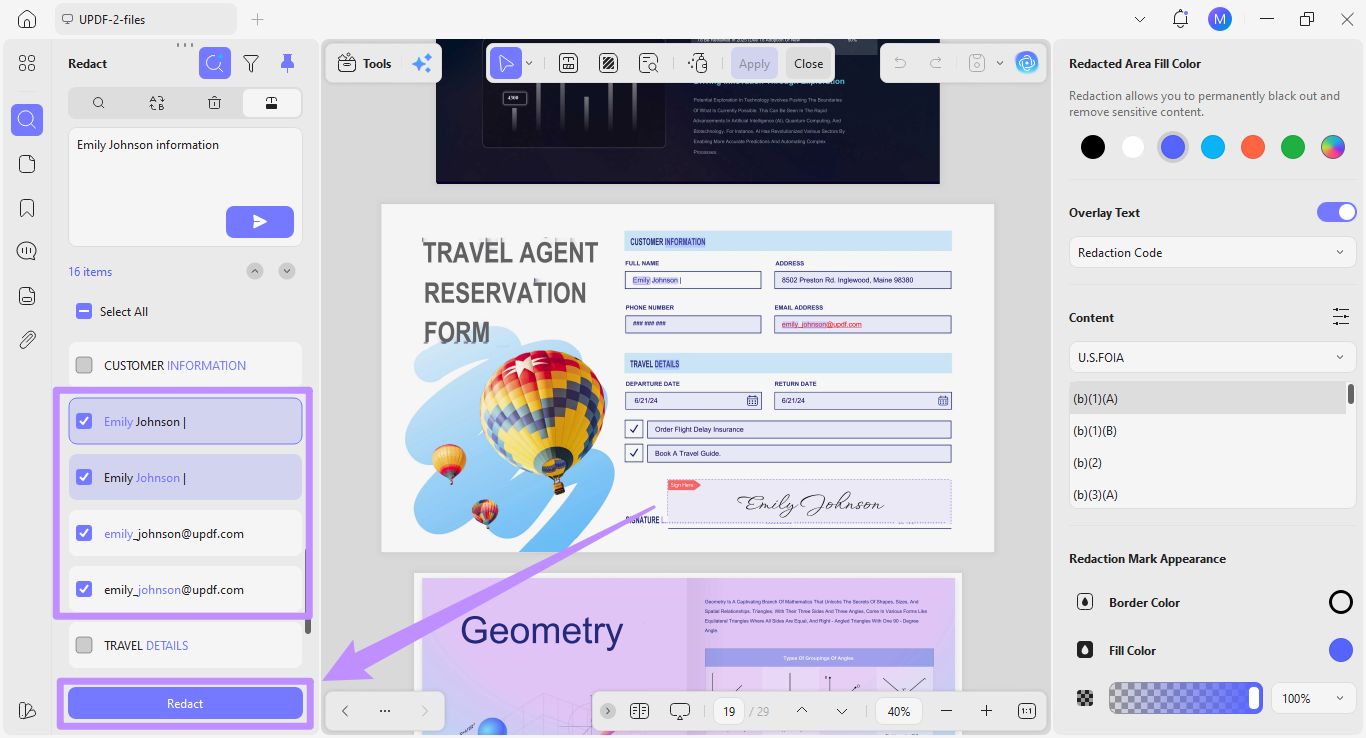
After you apply and save, verify it: try to select and copy the redacted area, or search for a redacted term. A truly redacted file returns nothing. Only redact documents you own or are authorized to edit.
Windows • macOS • iOS • Android 100% secure
Part 4. FAQs
Q1. What is the best redaction software?
With multiple ways to permanently remove sensitive data, UPDF is one of the best. It lets you search and redact keywords or related terms, mark entire pages, or manually redact text and images — with permanent, data-level removal across Windows and Mac.
Q2. Can redacted content be recovered?
No. True redaction permanently deletes the marked content from the file's data layer. This makes recovery impossible. However, if the content is only hidden behind a black box or highlight, the underlying text will still remain in the file and can be extracted.
Q3. What types of information should be redacted?
Most commonly, personally identifiable information — Social Security numbers, phone numbers, and email addresses. It's also used for financial data, legal case details, and classified government information before sharing.
Q4. Is there free redaction software?
Most PDF editors include basic redaction in their free plans; professional features usually require a paid plan. UPDF lets you test its full redaction for free — the output simply carries a trial watermark until you upgrade.
Q5. Is a PDF redaction tool the same as a blackout or sanitization tool?
No. A true redaction tool removes selected content from the released file. A blackout or annotation may only cover the visible page and can leave the underlying data searchable or copyable. Sanitization is broader still: it removes hidden information such as metadata, comments, attachments, and document properties. For sensitive files, redact the visible content first, then run the tool's sanitization or hidden-information check before sharing.
Q6. Can redaction software guarantee GDPR or HIPAA compliance?
No software alone guarantees compliance. GDPR, HIPAA, and CCPA also depend on why data is processed, who can access it, where it's stored, how long it's retained, and how releases are reviewed. Redaction software can support a compliant workflow, but organizations still need documented policies, access controls, human review, and appropriate legal guidance.
Conclusion
Redaction software protects your clients' information and helps you stay compliant with rules like HIPAA. The one thing to remember when choosing: real redaction removes the data itself, while fake redaction only hides it — so judge any tool by whether it passes a copy-paste and search test after saving.
If you want a full redaction toolset without the high cost of subscription-only programs, UPDF delivers permanent data-level removal, Search & Redact with synonym-aware matching, and redaction codes — all with local processing across every platform. Download UPDF for free to try redaction on your file and verify the result yourself; installation is free, and Pro removes the export watermark when you need it.
Windows • macOS • iOS • Android 100% secure



 Lizzy Lozano
 Enola Miller
 Enrica Taylor
 Enya Moore
 Engelbert White