UPDF
UPDF
 UPDF for Windows
 UPDF for Mac
 UPDF for iPhone/iPad
 UPDF for Android
 Nomostar
 UPDF AI Online
 UPDF Sign
 IvyCraft
 Edit PDF
 Annotate PDF
 Create PDF
 PDF Form
 Edit links
 Convert PDF
 OCR
OCR PDF to Word
 PDF to Image
 PDF to Excel
 Organize PDF
 Merge PDF
 Split PDF
 Crop PDF
 Rotate PDF
 Protect PDF
 Sign PDF
 Redact PDF
 Sanitize PDF
 Remove Security
 Read PDF
 UPDF Cloud
 Compress PDF
 Print PDF
 Batch Process
 About UPDF AI
 UPDF AI Solutions
 AI User Guide
 FAQ about UPDF AI
 Summarize PDF
 Translate PDF
 Chat with PDF
 Chat with AI
 Chat with image
 PDF to Mind Map
 Explain PDF
 PDF AI Tools
 Image AI Tools
 AI Chat Tools
 AI Writing Tools
 AI Study Tools
 AI Working Tools
 Other AI Tools
 AI Bookmark Generation
 AI Bookmark Summary
 AI Watermark Generation
 AI Background Generation
 AI Sticker Generation
 AI Stamp Generation
 AI Editing Suite
 UPDF Copilot
 AI Page Management
 AI Semantic Search
 PDF to Word
 PDF to Excel
 PDF to PowerPoint
 Enterprise Solution
 Enterprise Sign
 Enterprise AI
 Enterprise Plan
 Enterprise User Guide
 Enterprise Webinar
 IT
IT Education
 Construction
 Financial Service
 Healthcare
 Insurance
 Legal
Legal Manufacturing
 Government
 Researchers & PhDs
 Solopreneurs & Freelancers
 Lawyers & Legal Professionals
 Real Estate Agents & Brokers
 Education Solution
 Customer Stories
 User Guide
 UPDF Tricks
 FAQs
FAQs UPDF Reviews
 Download Center
 Blog
Blog Newsroom
 Tech Spec
 Updates
 UPDF vs. Adobe Acrobat
 UPDF vs. Foxit
 UPDF vs. PDF Expert

April and May are not casual months for compliance teams. They mark the height of corporate audit cycles and regulatory filing deadlines triggered by GDPR, CCPA, HIPAA, and other growing regional privacy laws. This makes handling massive volumes of sensitive data (PII) a top priority for legal and finance departments.
Today, CCPA fines can lead to $2,500-$7,500 per violation, while GDPR penalties can climb as high as €20 million or 4% of annual global turnover. However, many teams still prefer online redaction tools without realizing the compliance time bomb they are setting.
Cloud solutions may seem convenient, but they require uploading sensitive documents to external servers. This creates immediate exposure to data residency violations and third-party access risks.
Even a single unauthorized data transfer for organizations operating under strict compliance frameworks can trigger penalties and legal complications.
The right solution in this audit season is local PDF redaction. It ensures that your sensitive documents never leave your device. UPDF is built with exactly this principle at its core, as it offers a local-first and AI-assisted redaction workflow designed for the high-stakes demands of compliance season. Download UPDF for 100% local compliance.
Windows • macOS • iOS • Android 100% secure
Part 1. Why "Local" Redaction is Essential
Where sensitive data is processed is now just as important as how it is done. Local PDF redaction performs the entire redaction process directly on your device so that confidential documents never leave your controlled environment.
Local PDF redaction ensures that:
- Documents remain on your device at all times
- No data is transmitted to external servers
- You maintain full control over file access and storage
Cloud redaction tools provide the convenience of instant access and no installation/cost. However, that convenience comes with a hidden price tag.
Data residency laws in many countries require specific types of data (financial/biometric/personal identifiers) to be stored and processed only within national borders. When you upload a PDF containing client data to a foreign-hosted cloud service, even for a brief moment to perform redaction, you may have already committed a cross-border data transfer without authorization.
Other than that, online PDF redaction tools also increase risk for third-party exposure and temporary storage risks (files cached even after deletion). During audits, regulators usually scrutinize the final document and the handling process. So, using a cloud tool briefly can raise compliance concerns.
Local PDF redaction eliminates these risks and creates a closed-loop environment, where sensitive data is identified and removed without leaving your system. This makes it the safest and most defensible approach during audits.
Part 2. How to Do Local PDF Redaction with UPDF Securely
A secure redaction process requires more than blacking out text. It's about identifying sensitive information and removing it permanently without breaking document integrity.
UPDF is an advanced local PDF redaction and editing tool available for Windows, Mac, iOS, and Android. It is an offline tool, which means no dependence on the internet and no exposure to external security threats.
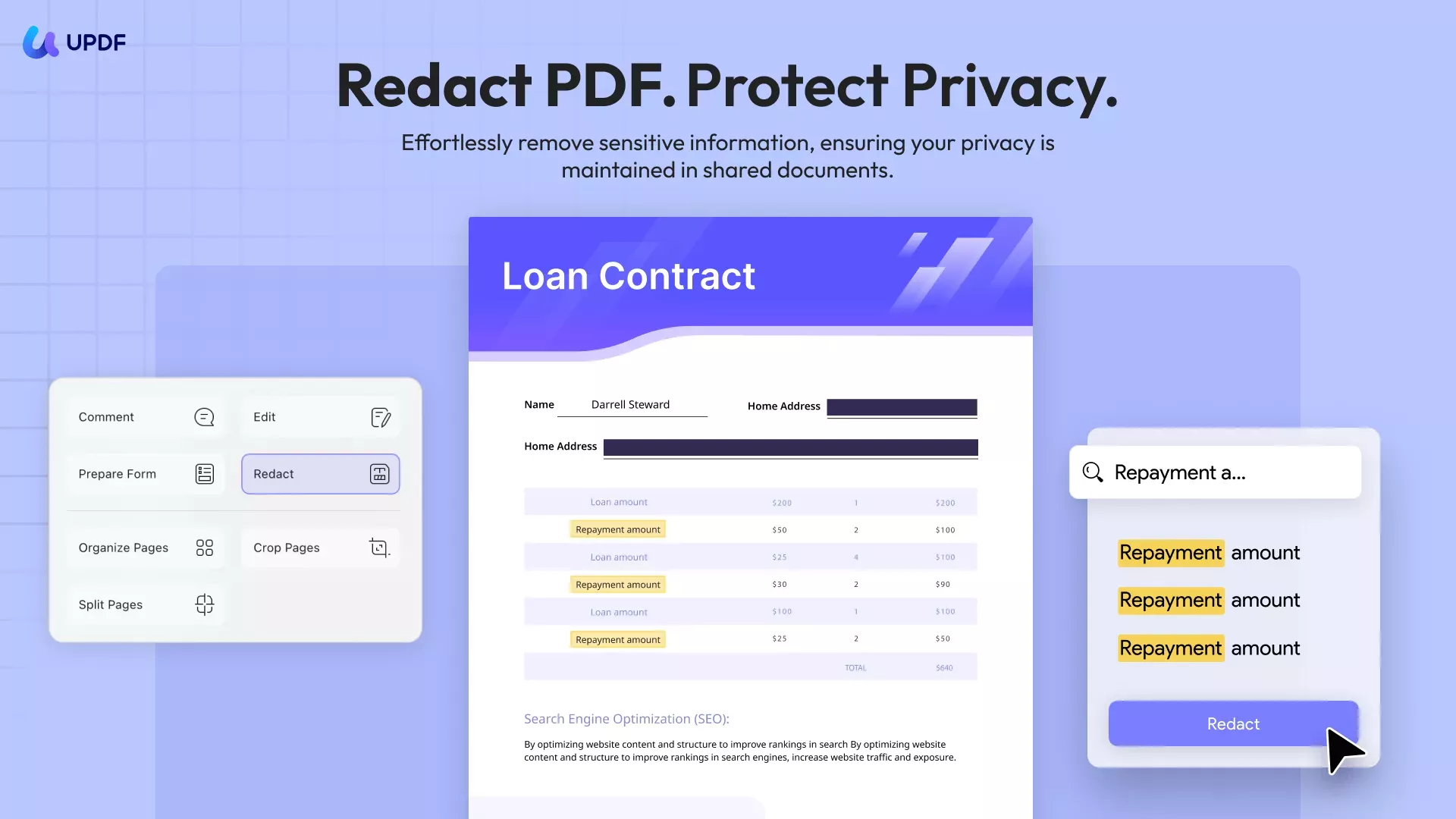
What distinguishes UPDF is its powerful "Search-to-Scrub" workflow, which is the AI Semantic Search agent feature. This approach ensures that sensitive data is found quickly and also reviewed in context before being irreversibly removed.
The following steps will clarify how UPDF offers the modern AI-backed and permanent local PDF redaction:
Step 1: Identify Sensitive Data Using Local Semantic Search
Install and launch UPDF on your Windows/Mac computer and open the PDF you want to redact.
Windows • macOS • iOS • Android 100% secure
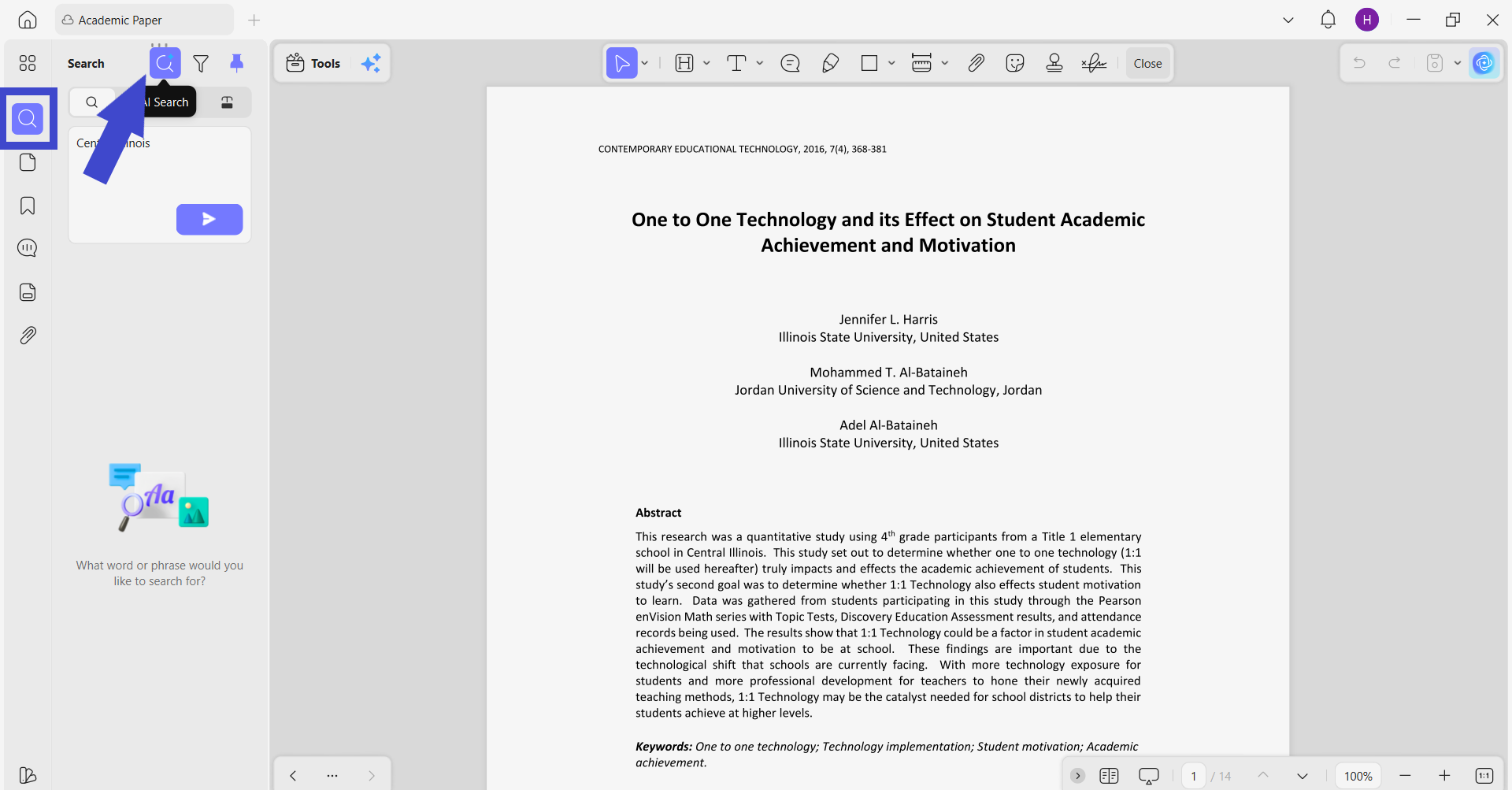
Click the "Search" icon from the left panel and then select the "AI Search" icon.
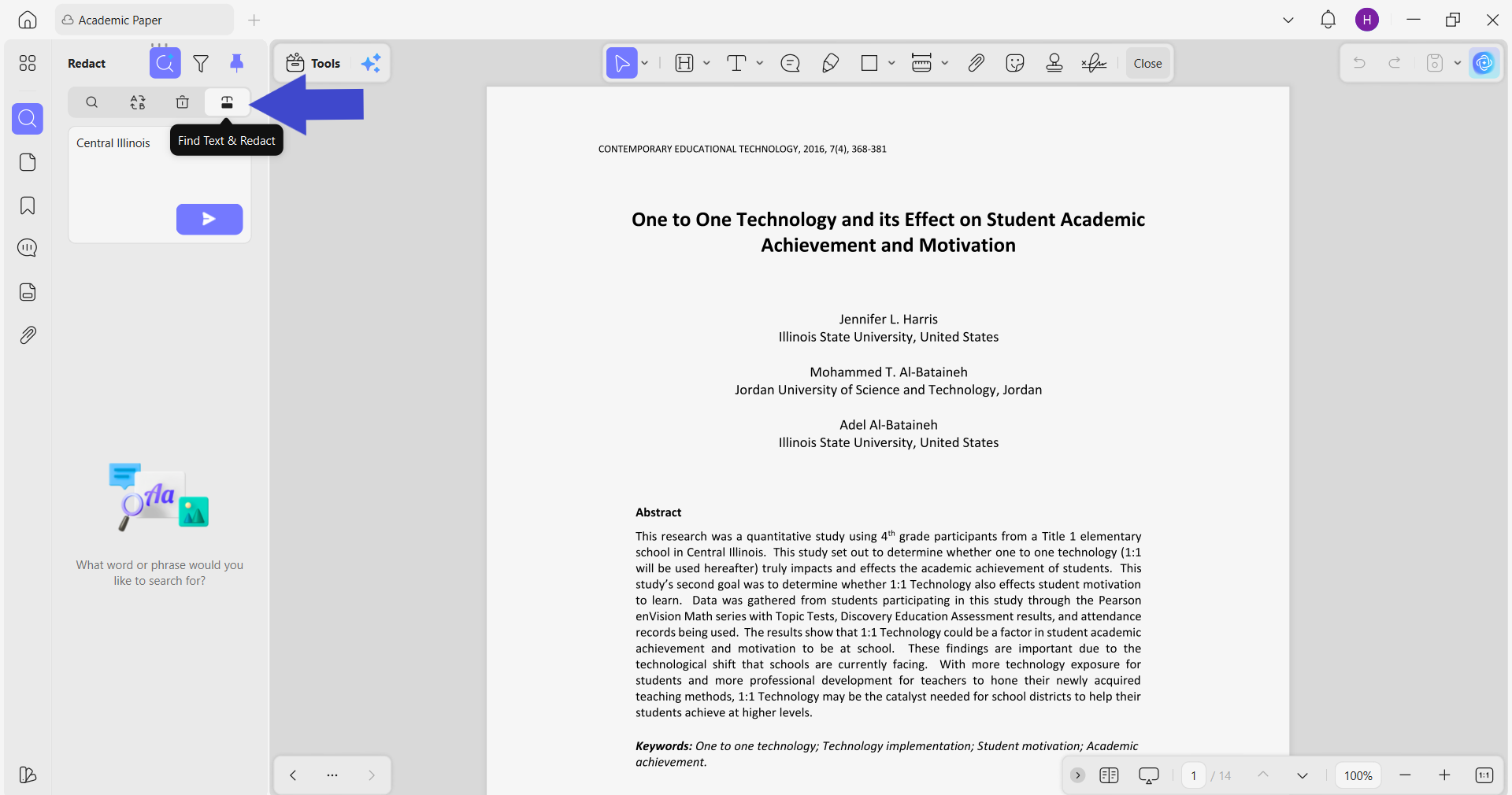
Choose the "Find Text & Redact" option. In the text box, type the specific keyword you want to search for in the document and hit the "Send" button.
The AI will analyze the entire PDF to pinpoint the exact matches and semantic synonyms for your query. Afterward, it will display all semantically relevant words highlighted in blue.
From there, you can now select the words you want to redact and then press the "Redact" button.
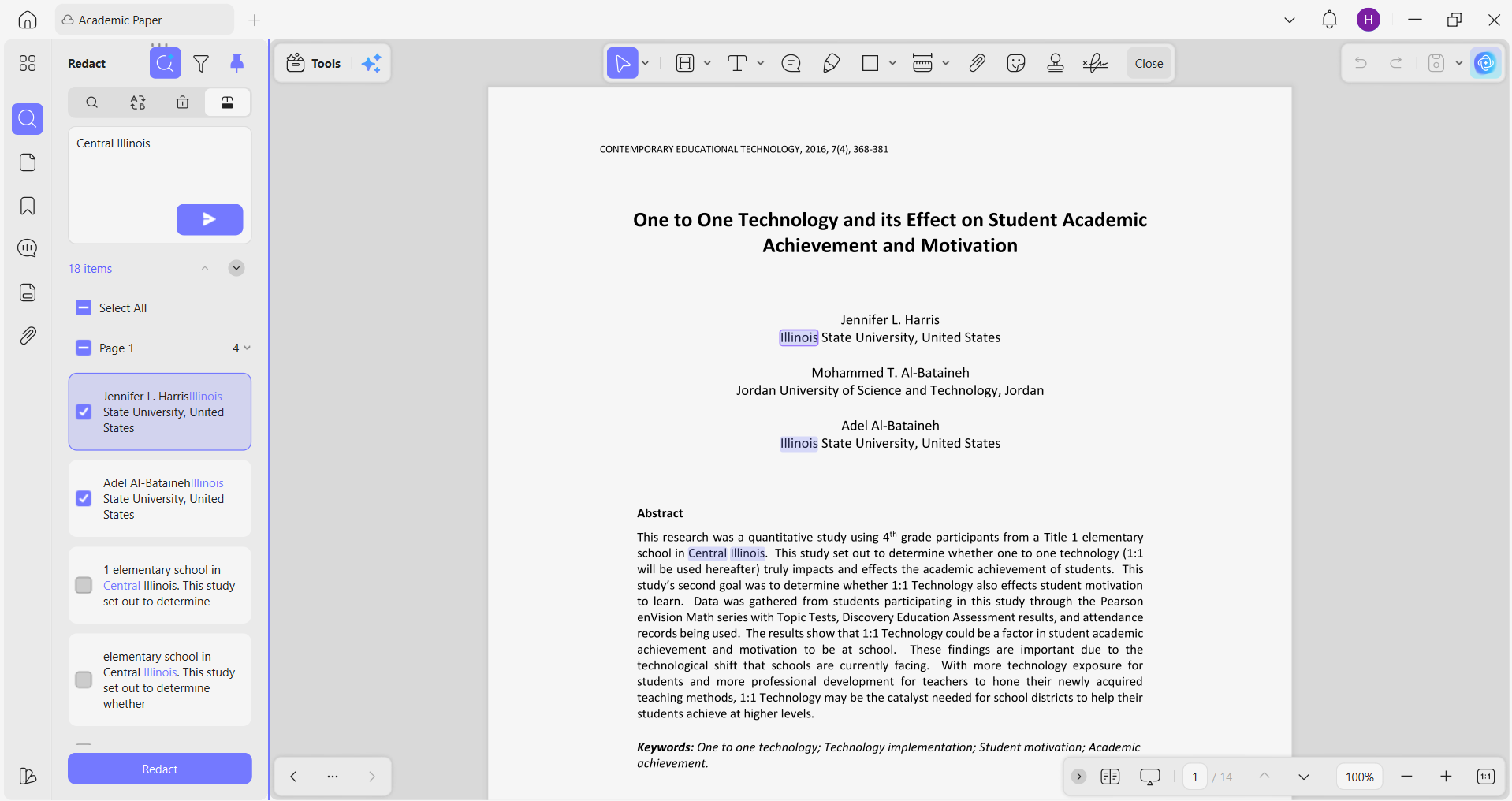
This way, this AI-backed search functionality lets you:
- Search for email patterns (e.g., @domain.com)
- Identify numeric patterns (e.g., SSNs, account numbers)
- Locate repeated sensitive terms (names, addresses, IDs)
UPDF performs this search locally on your device with no data transmitted externally.
Bonus
UPDF has improved its AI assistant, it now supports automatically generating bookmarks, summarizing PDFs via bookmarks, generating watermarks/stickers/backgrounds with AI, etc. Watch the video below to learn more about the new AI features. You can also grab the chance to buy any AI plan with a $10 discount to experience more.
Step 2: Use AI for Contextual Understanding
Sometimes, understanding the context behind the content is important in complex legal or financial documents. For example, a contract may reference a personal identifier that is legally required for compliance. Removing it without understanding the context could invalidate the document.
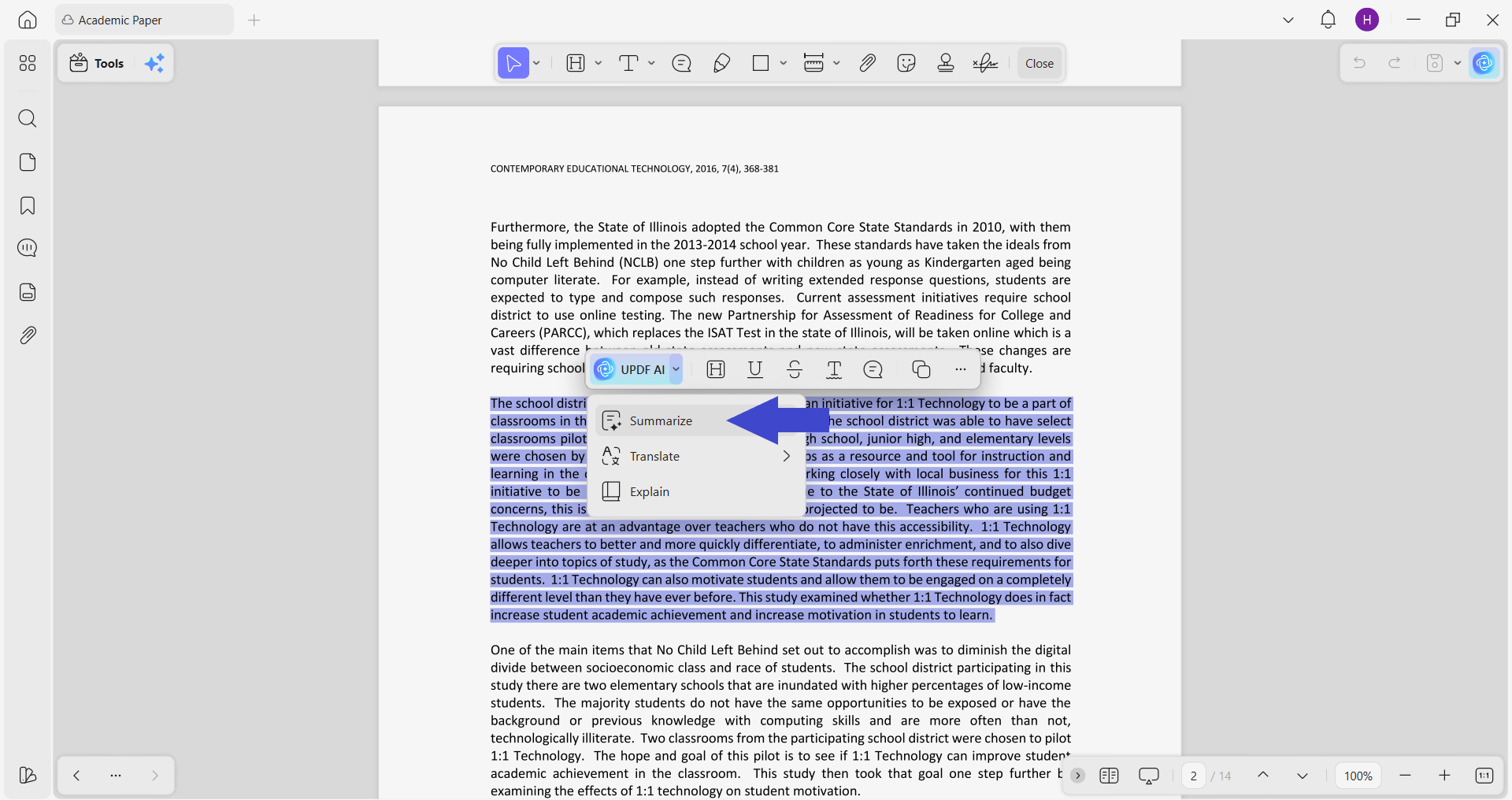
UPDF comes built-in with an AI assistant that lets you "Summarize" dense sections to quickly understand their context before redacting. To access it, select the paragraph and press UPDF AI > Summarize.
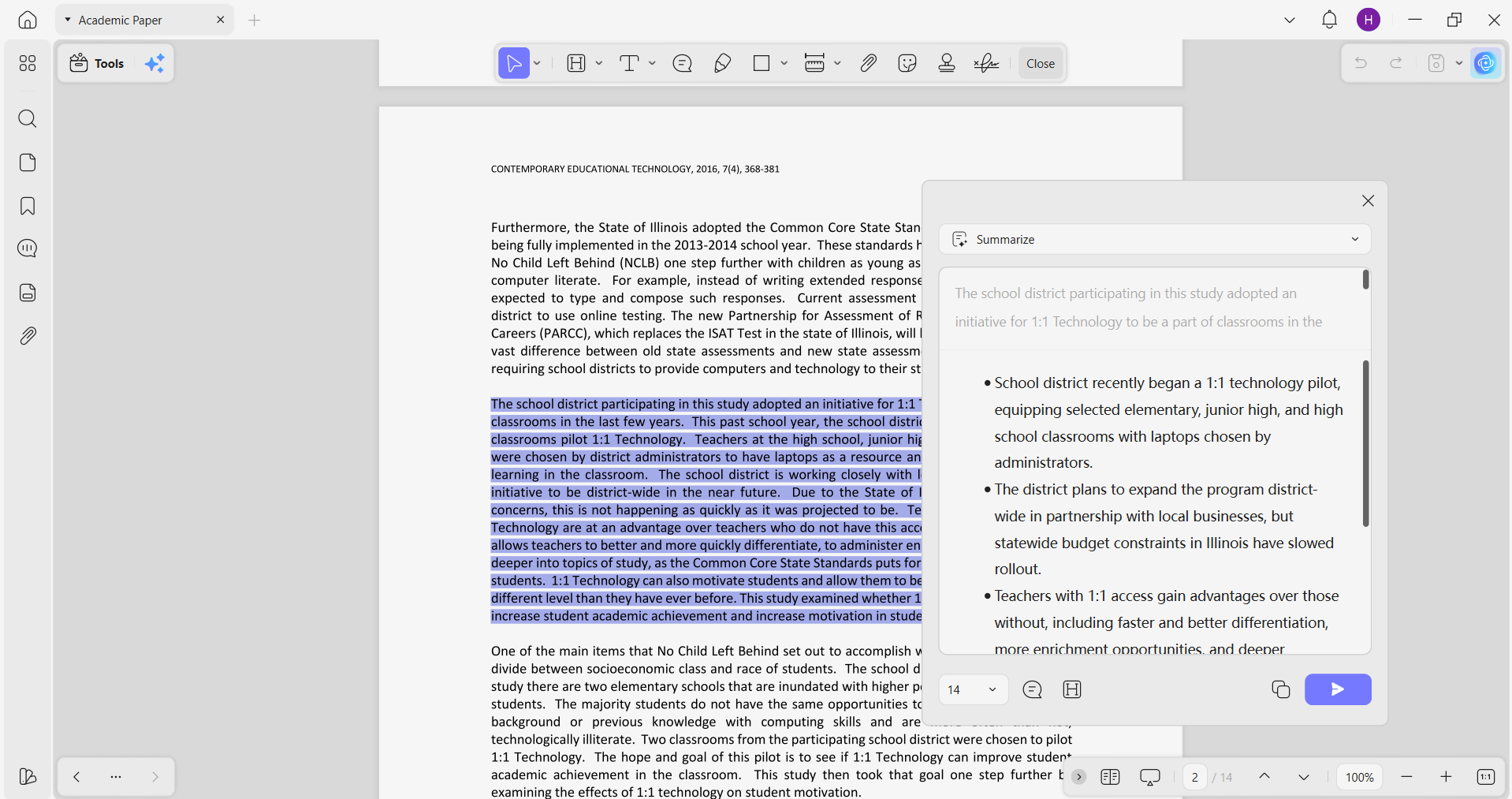
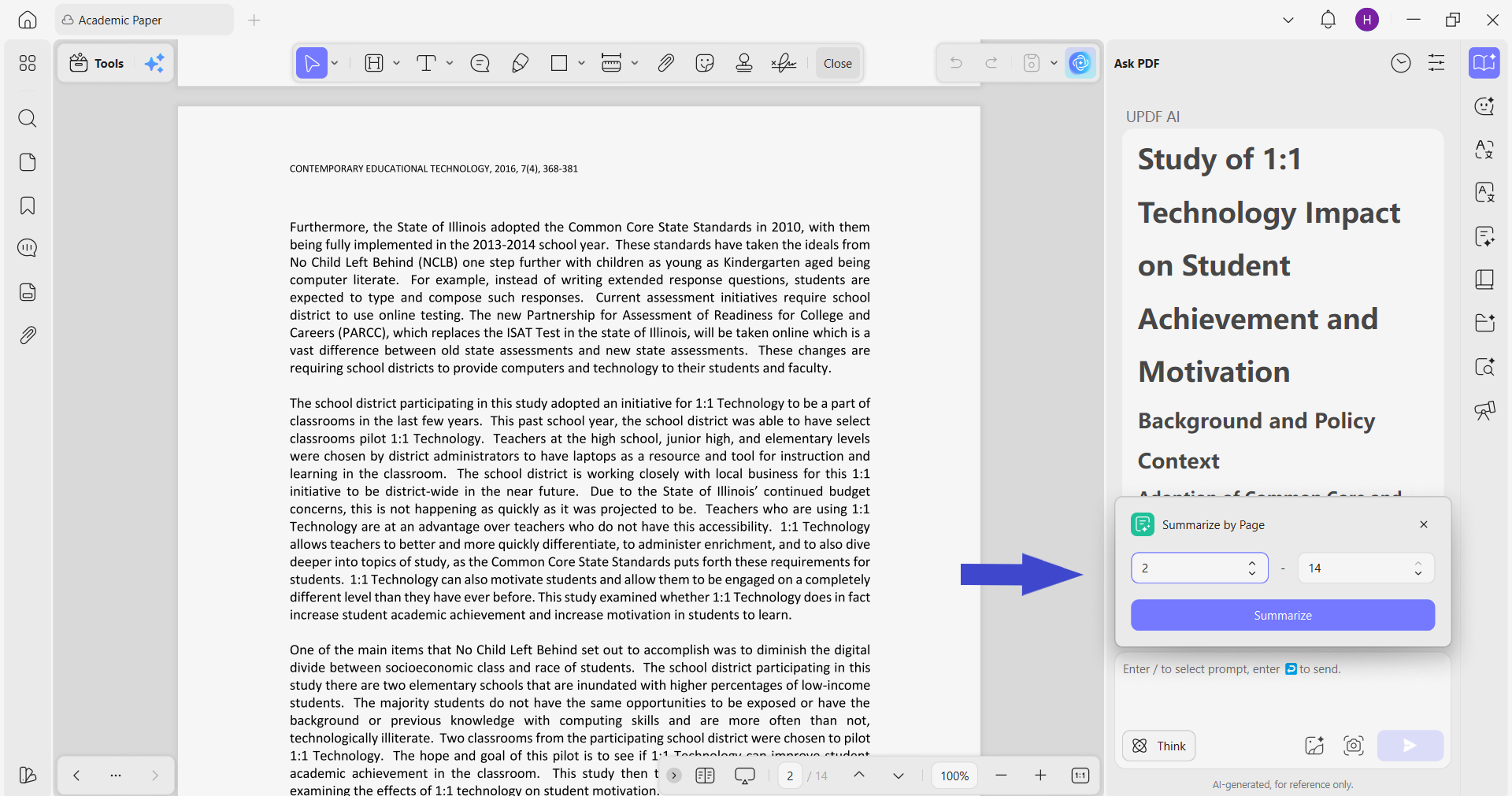
If you want to summarize page(s), click the "UPDF AI" icon from the top right corner. Click the "Summarize" quick prompt, select the page range, and get the instant summary.
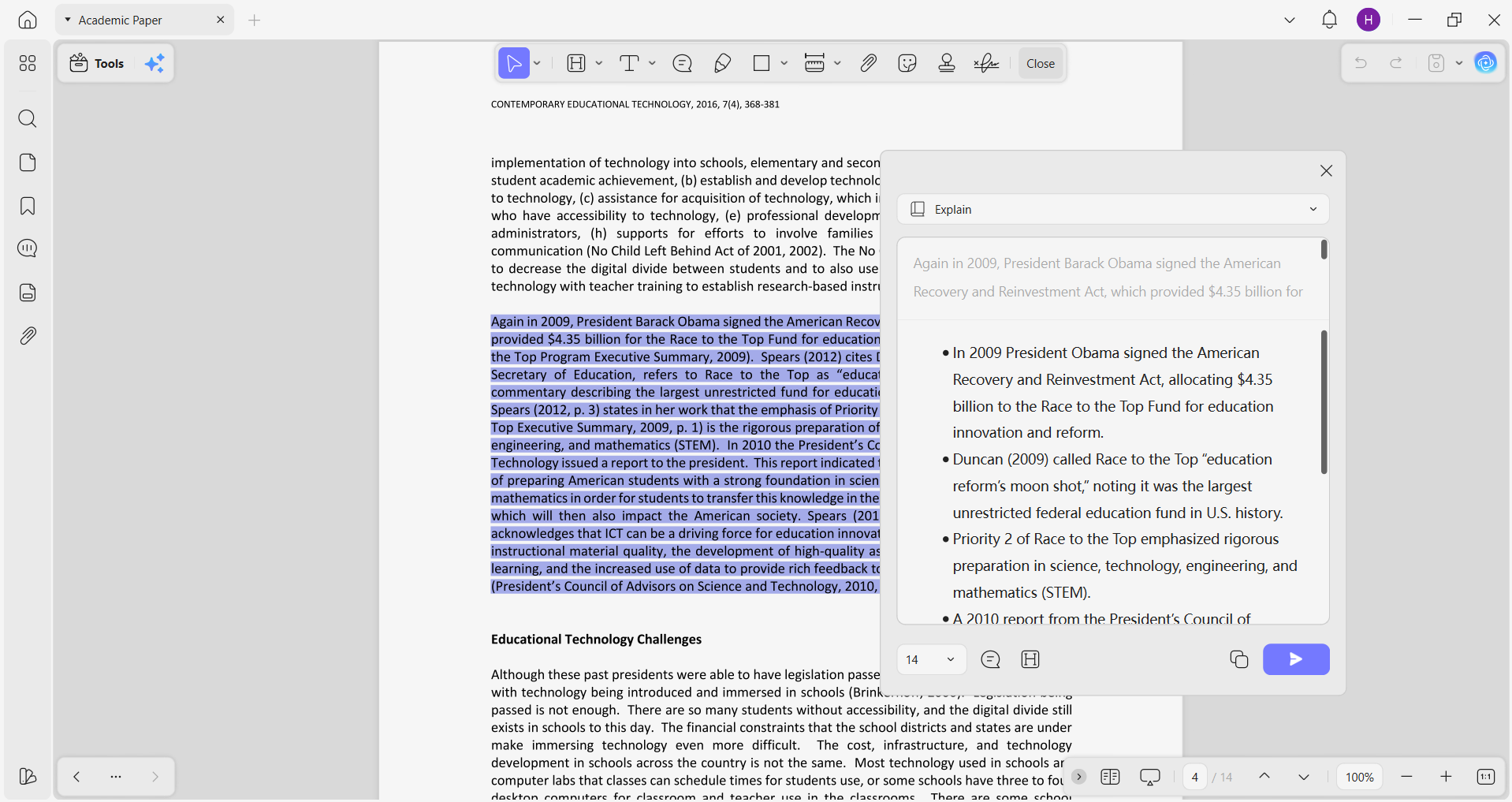
UPDF AI also lets you ask to "Explain" dense legal jargon before you redact. This ensures that you don't accidentally remove critical contextual information. To access it, select the content and press UPDF AI > Explain to get a quick explanation.
Tip
You can also use UPDF Copilot to instantly instruct AI on what you want instead of hunting for the right buttons. Click its icon from the top right and tell AI about your desired function, such as summarize, explain, etc. It will then open the exact tool.
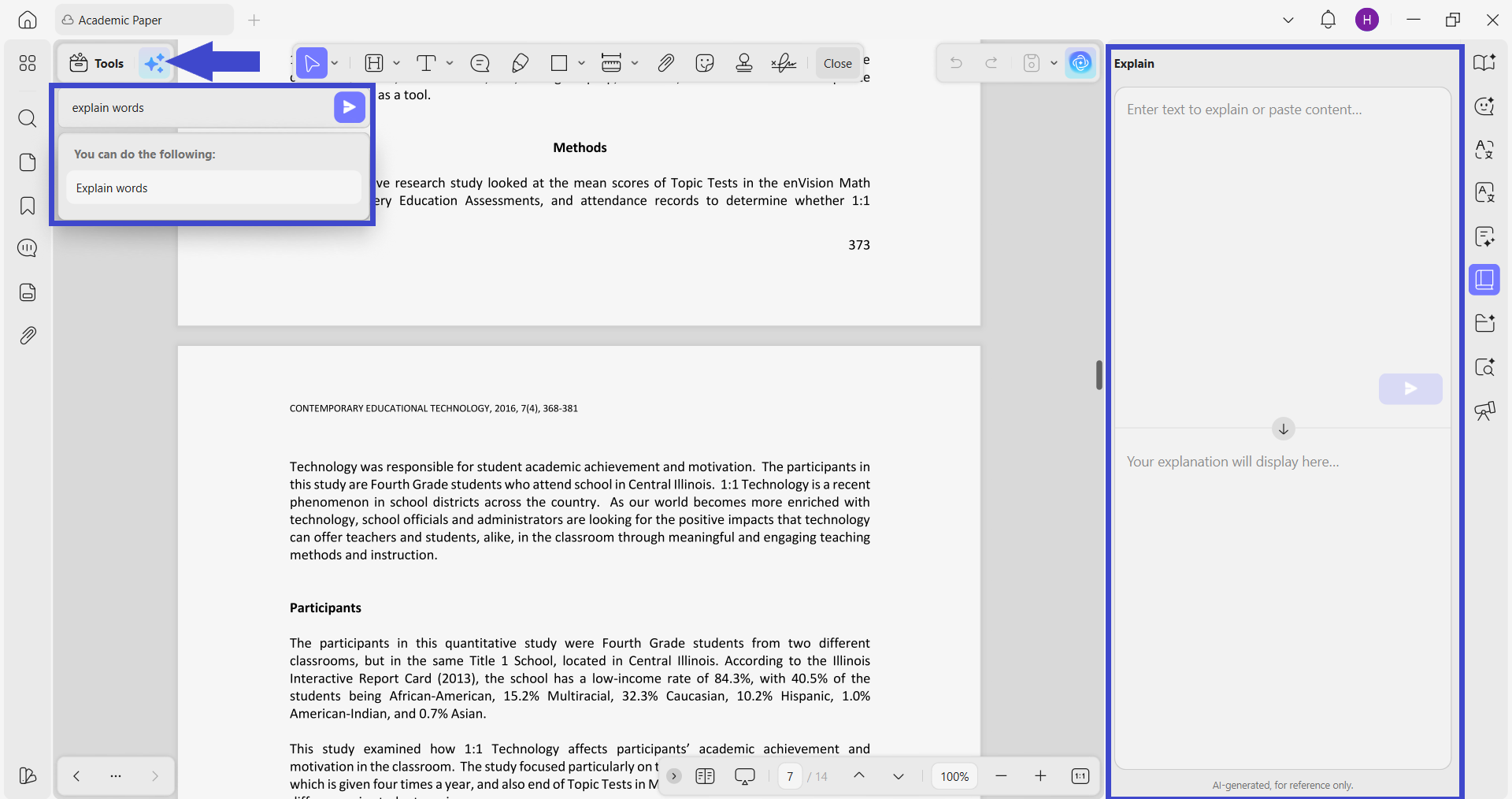
UPDF's AI-assisted analysis is user-triggered. You decide when to invoke it and what to ask. Plus, the AI assistant has no involvement in redaction. The actual redaction process still remains local and offline.
Windows • macOS • iOS • Android 100% secure
Step 3. Redact Specific Paragraphs and Pages Permanently
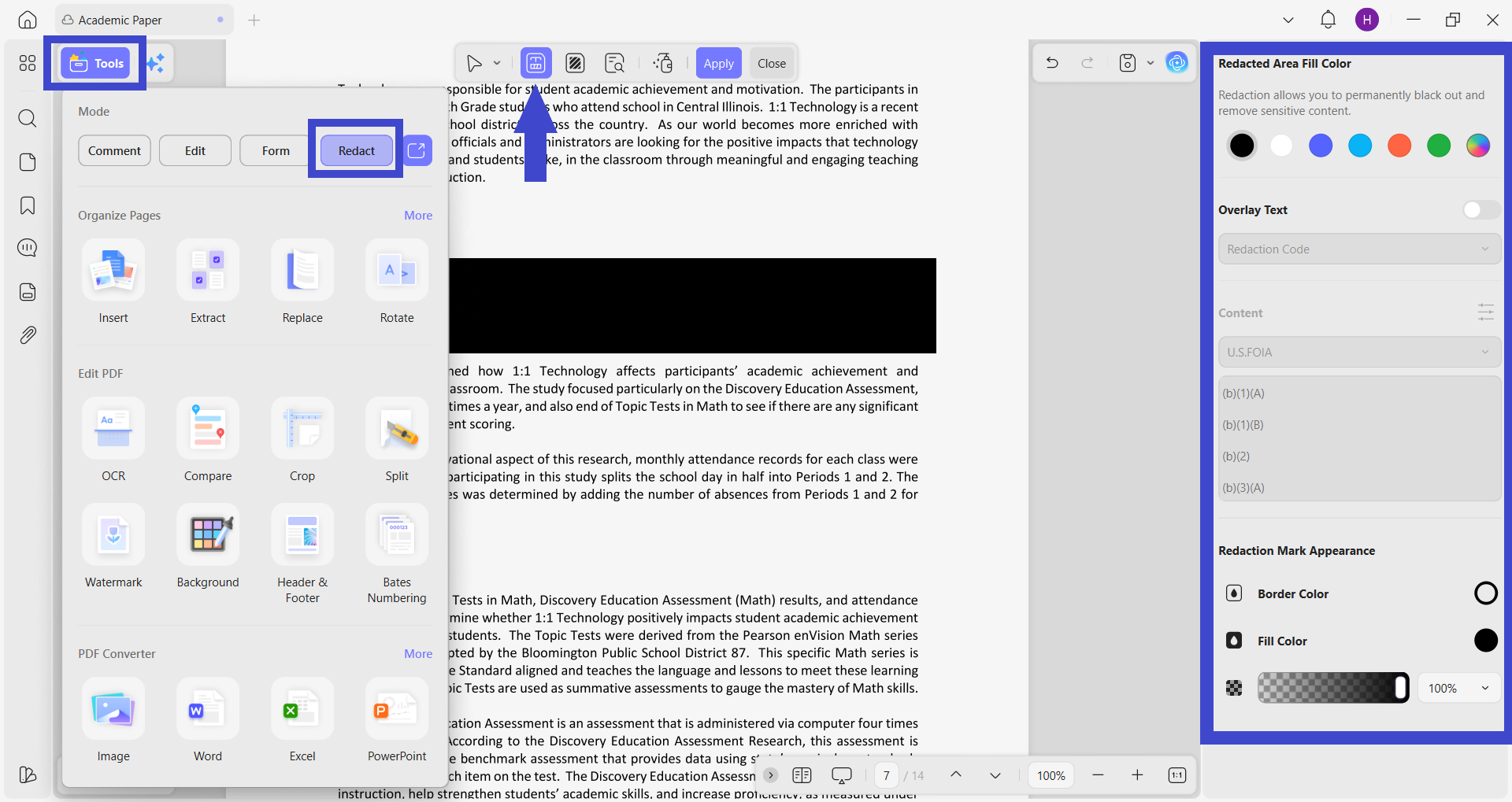
Other than redacting PII phrases, sometimes there is the need to redact entire paragraph(s) or pages. UPDF addresses that need with the dedicated local PDF redaction mode. Click Tools > Redact to enter that mode.
Click the "Redact" option from the menu and select the paragraph(s) you want to redact with your mouse. You can also change the color and appearance of the redaction mark.
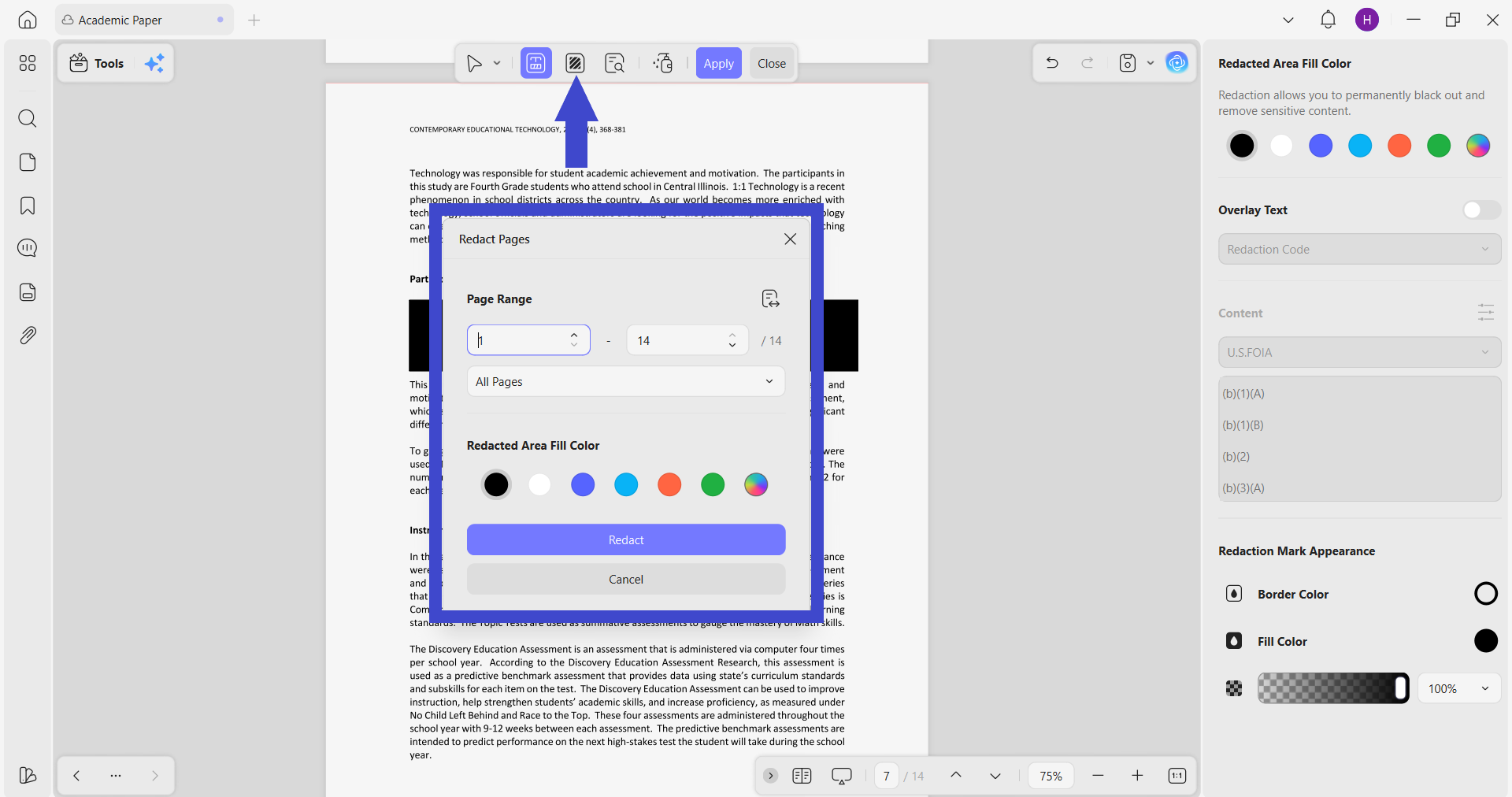
To redact an entire page, click the "Redact Pages" option. Select the page range and redaction color. Afterward, hit the "Redact" button.
After you have redacted all the sensitive content, click "Apply" to make the redaction permanent. That's how UPDF offers a modern and secure local PDF redaction experience to avoid unintentional penalties during audit season.
Windows • macOS • iOS • Android 100% secure
Enterprise Note: UPDF also offers a dedicated enterprise version for organizations handling large-scale compliance operations. It includes an admin console, advanced redaction, a full AI Assistant built in, and more.
So, upgrade to the Enterprise plan for advanced features or read this article and watch this video for deeper insights.
Part 3. Quick Comparison: Other Local Methods
Other than UPDF, you will also find other options for local PDF redaction. So, let's discuss two of those options and compare them with UPDF:
1. macOS Preview
macOS Preview is built into every Mac and can be used to redact sensitive content manually. The steps include:
- Open the PDF in Preview.
- Click the "Markup" icon from the top right corner.
- Tap the "Redact" icon from the top left corner.
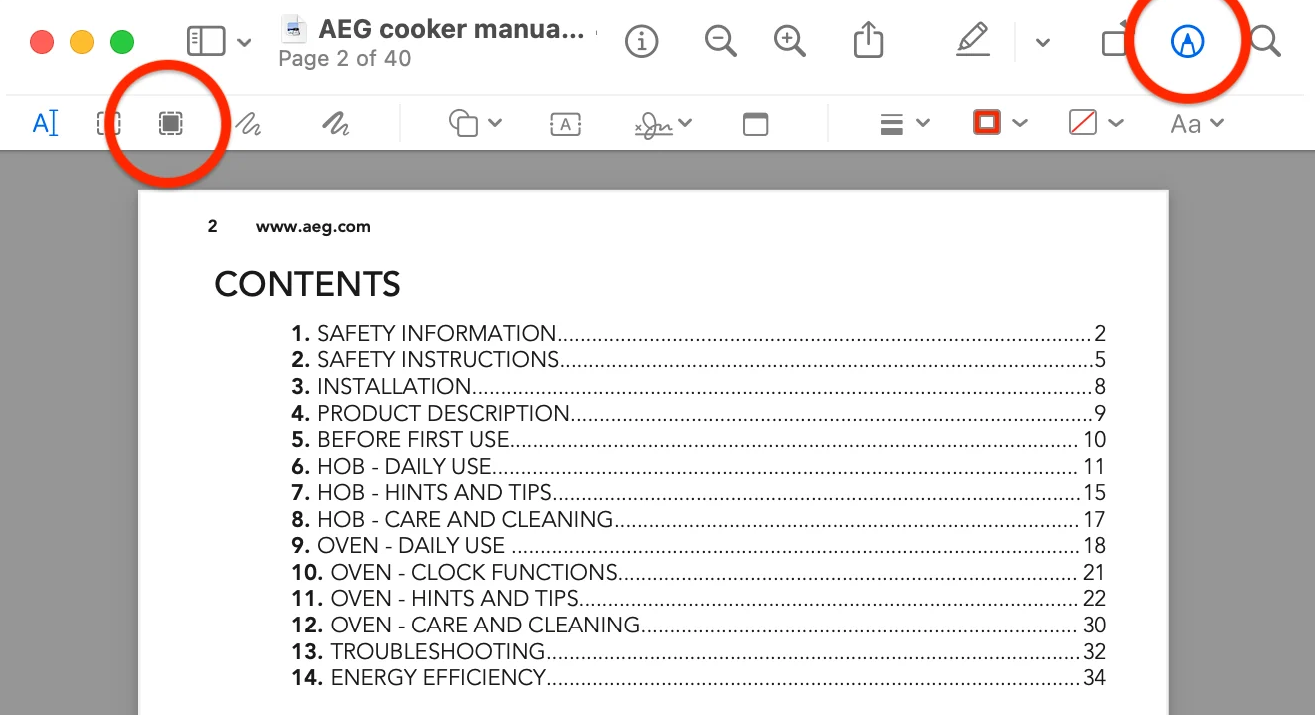
- Select the text to redact.
- Save the file.
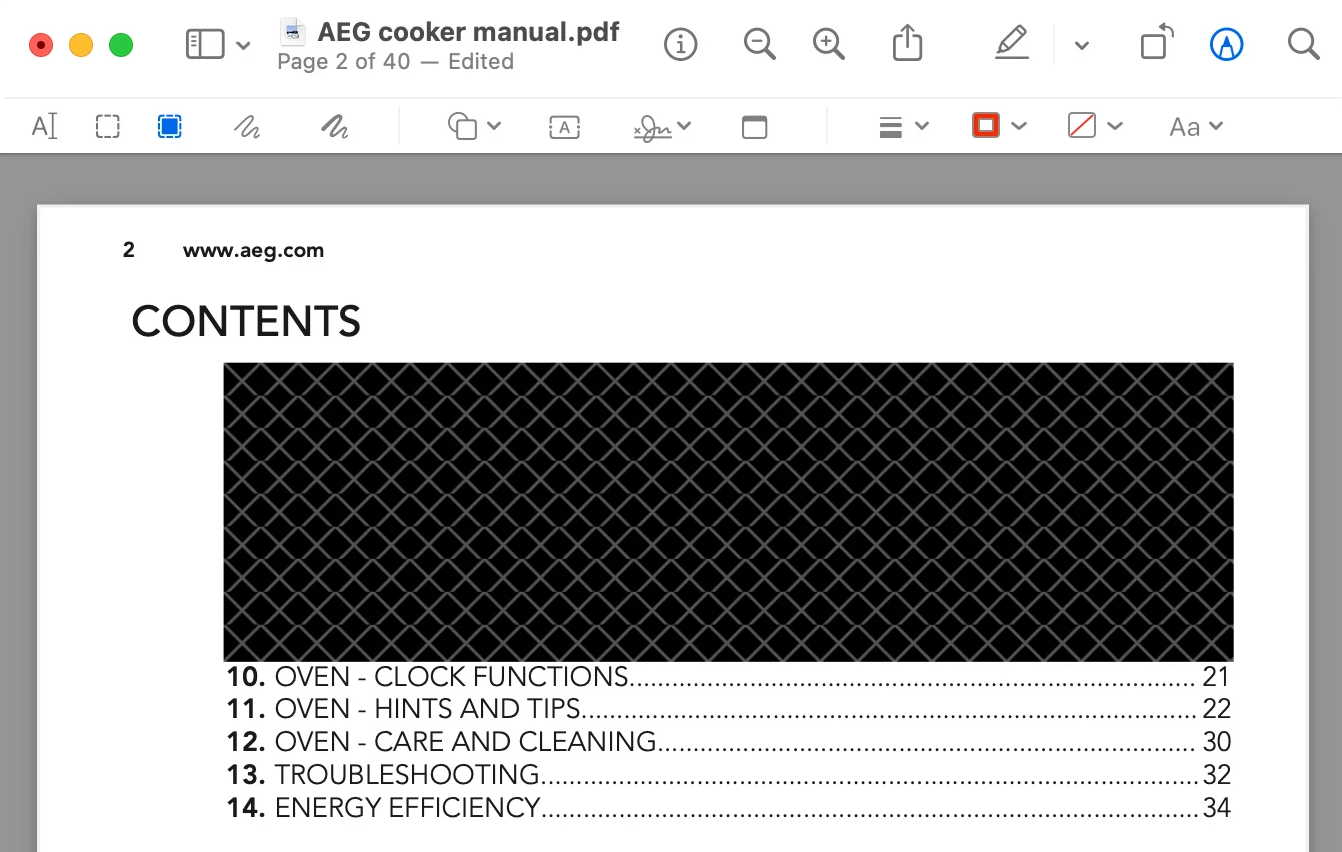
The Preview approach of redacting documents is inefficient and time-consuming. It does not offer an automated "search-and-redact" functionality, which is crucial when redacting large numbers of documents.
1. Command Line Tools
There are many command-line tools that use scripts or commands to manipulate PDF content. For example, PyMyPDF is a Python library that can redact all instances of the "John Mike" name from a document using the following script:
| import pymupdf # Open the PDF document doc = pymupdf.open('test.pdf') # Iterate over each page of the document for page in doc: # Find all instances of "John Mike" on the current page instances = page.search_for("John Mike") # Redact each instance of "John Mike" on the current page for inst in instances: page.add_redact_annot(inst) # Apply the redactions to the current page page.apply_redactions() # Save the modified document doc.save('redacted_document.pdf') # Close the document doc.close() |
When an average audit-season compliance team is working under deadline pressure, writing and validating custom scripts for every document type is an unrealistic task. Any script error can result in missed PII.
Why UPDF wins
UPDF has the upper hand over other local PDF redaction tools because of its intuitive user interface, advanced semantic search feature, AI assistant to understand context, and permanent redaction. It does all of this without a single upload to an external server, which is the foundational requirement during regulatory filing season.
Part 4. FAQs
Is local redaction required for GDPR/CCPA compliance?
Local redaction is not explicitly mandated, but it is the safest and most compliant approach to ensure no unauthorized data transfer. GDPR/CCPA emphasizes minimizing data exposure and controlling data transfer. Therefore, local processing makes certain that sensitive files are never transmitted externally.
Can UPDF AI see my sensitive data?
UPDF AI operates on a user-triggered basis, which means it analyzes content only when you request it. It is also compliant with ISO 27001 privacy standards to guarantee the responsible handling of sensitive information.
Conclusion
Audit season demands precision and absolute data security. Cloud redaction tools are convenient, but they introduce unnecessary risks that organizations can no longer afford. Local PDF redaction is a secure and compliant way of handling sensitive data. And UPDF makes that process practical with its local-first architecture and intuitive workflow. Therefore, get UPDF on the team's systems to ensure every document is processed securely and in full compliance with regulatory requirements.
Windows • macOS • iOS • Android 100% secure





 Engelbert White
 Enola Davis
 Enola Miller
 Enrica Taylor