 UPDF
UPDF
 UPDF for Windows
 UPDF for Mac
 UPDF for iPhone/iPad
 UPDF for Android
 UPDF AI Online
 UPDF Sign
 Edit PDF
 Annotate PDF
 Create PDF
 PDF Form
 Edit links
 Convert PDF
 OCR
OCR PDF to Word
 PDF to Image
 PDF to Excel
 Organize PDF
 Merge PDF
 Split PDF
 Crop PDF
 Rotate PDF
 Protect PDF
 Sign PDF
 Redact PDF
 Sanitize PDF
 Remove Security
 Read PDF
 UPDF Cloud
 Compress PDF
 Print PDF
 Batch Process
 About UPDF AI
 UPDF AI Solutions
 AI User Guide
 FAQ about UPDF AI
 Summarize PDF
 Translate PDF
 Chat with PDF
 Chat with AI
 Chat with image
 PDF to Mind Map
 Explain PDF
 Scholar Research
 Paper Search
 AI Proofreader
 AI Writer
 AI Homework Helper
 AI Quiz Generator
 AI Math Solver
 PDF to Word
 PDF to Excel
 PDF to PowerPoint
 Enterprise Solution
 Enterprise Sign
 Enterprise AI
 Enterprise Plan
 Enterprise User Guide
 Enterprise Webinar
 Banking
 Healthcare
 Insurance
 Legal
Legal Manufacturing
 Government
 Education Solution
 Customer Stories
 User Guide
 UPDF Tricks
 FAQs
FAQs UPDF Reviews
 Download Center
 Blog
Blog Newsroom
 Tech Spec
 Updates
 UPDF vs. Adobe Acrobat
 UPDF vs. Foxit
 UPDF vs. PDF Expert


Do you need to convert a bunch of scanned files into searchable documents? If yes, you've landed in the right place to find the best solution.
A professional-grade OCR tool can help you recognize the text from those stubborn images and convert them into editable files. A popular among these tools is HP IRIS OCR.
IRIS OCR is recognized by the professionals worldwide. But is it worth all the hype? In this article, we will do an in-depth review of IRIS OCR software, with its pros, cons, pricing, and a guide on how to use it. As a bonus, we also introduce a better and more cost-effective IRIS OCR alternative - UPDF OCR. Try it now and you will love it.
Windows • macOS • iOS • Android 100% secure
Let's get started!
What is IRIS OCR?
IRIS OCR is a powerful OCR technology developed by I.R.I.S. (a Cannon Company) that converts scanned documents into searchable and editable PDFs, allowing users to easily search, copy, extract, and edit text from scanned files. IRIS OCR is the leading tool in the world of OCR technology. With its professional-grade features, you do not have to retype text from images or scans.
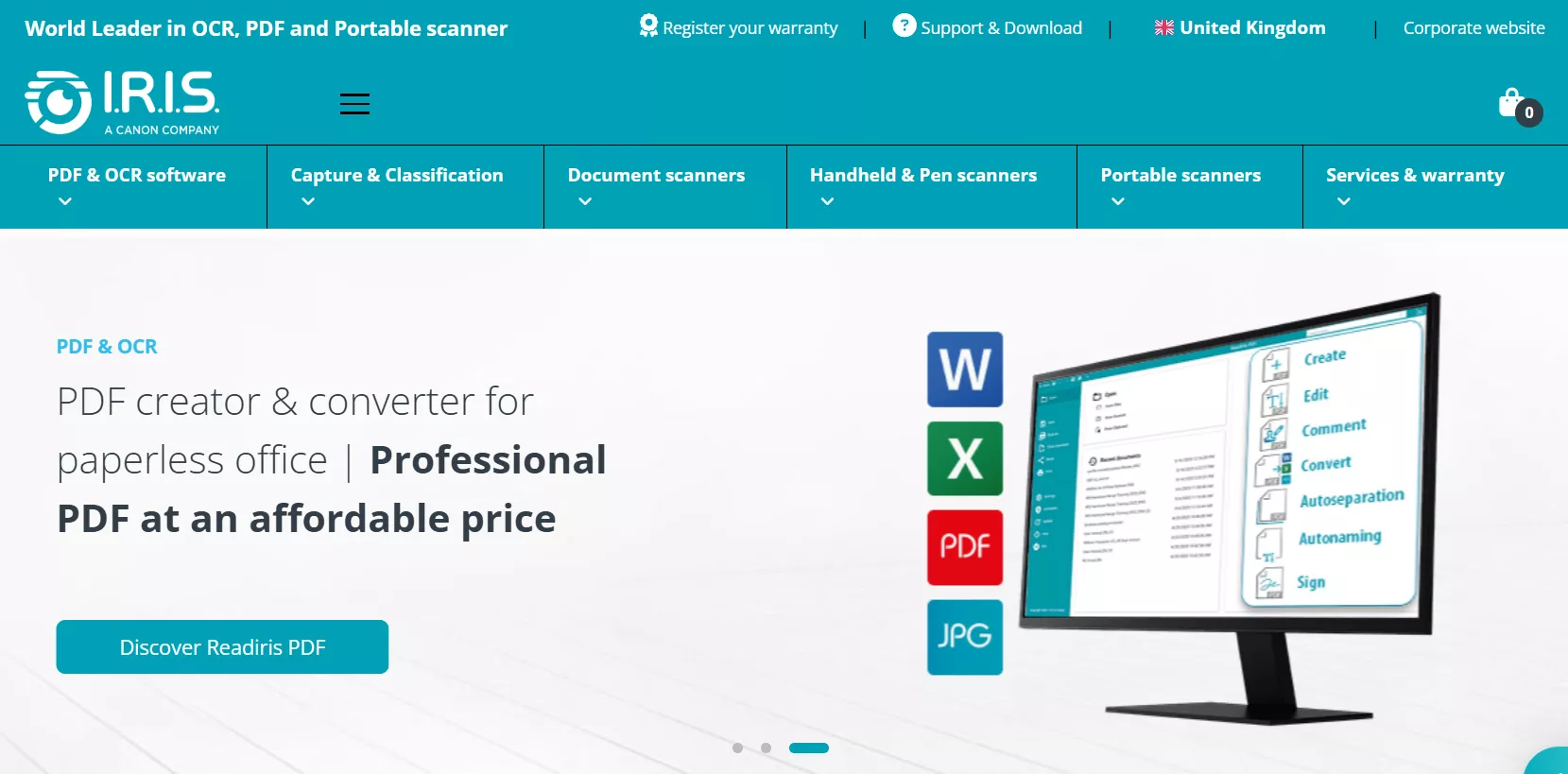
It provides a full suite of advanced PDF and AI-powered OCR solutions for personal, business, family, and corporate use. From converting scans, images, and PDFs to creating, editing, and annotating, it has all the features under its belt. For integrated PDF and OCR solutions, IRIS’s main products include Readiris PDF Elite for Windows/Mac, Readiris PDF Essentials for Windows/Mac, Readiris Pro 17 for Windows/Mac, and Readiris Corporate 17 for Windows/Mac.
What makes it even more interesting is its ability to recognize over 137 languages. You can easily convert scans into a large variety of formats such as DOC, PPT, JPG, and XLS.
If you would rather have an audio version of your documents, it does that too! You can listen to your favorite books or any files by converting them to MP3 or WAV files.
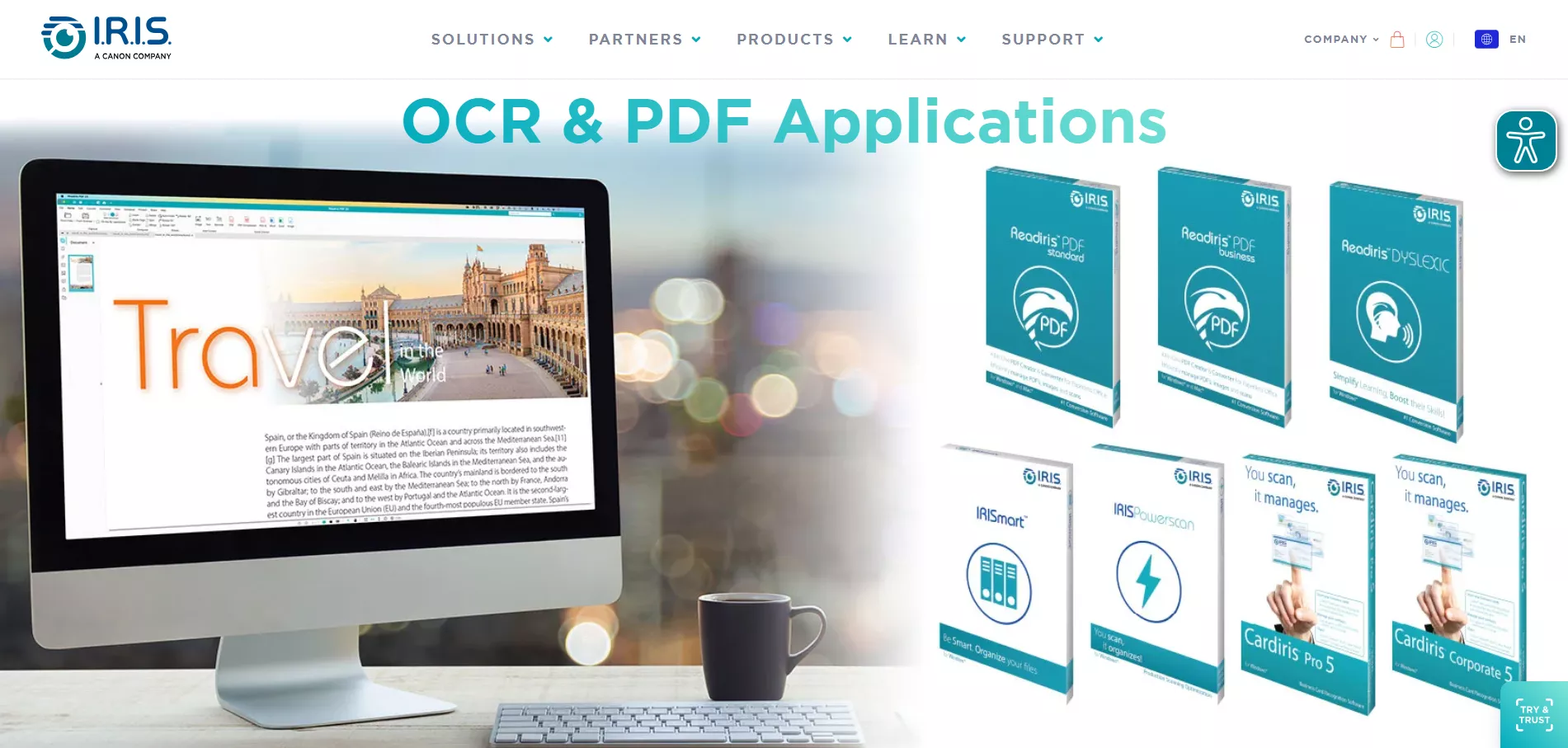
Apart from a dedicated OCR, Readiris allows you to collaborate with your documents. You can add comments, and sticky notes or bring attention to the key information with highlights and shapes.
Plus, you can e-sign, merge, and hyper-compress your PDF documents. Let's look at the pricing options of this powerful tool.
What is the Pricing of IRIS OCR?
IRIS OCR software has a variety of pricing options to choose from depending on how you want to use it. You can get the software for individual, family, business, and corporate use. Before purchasing, you can visit their official website to try it for free and see the actual PDF conversion and OCR results.
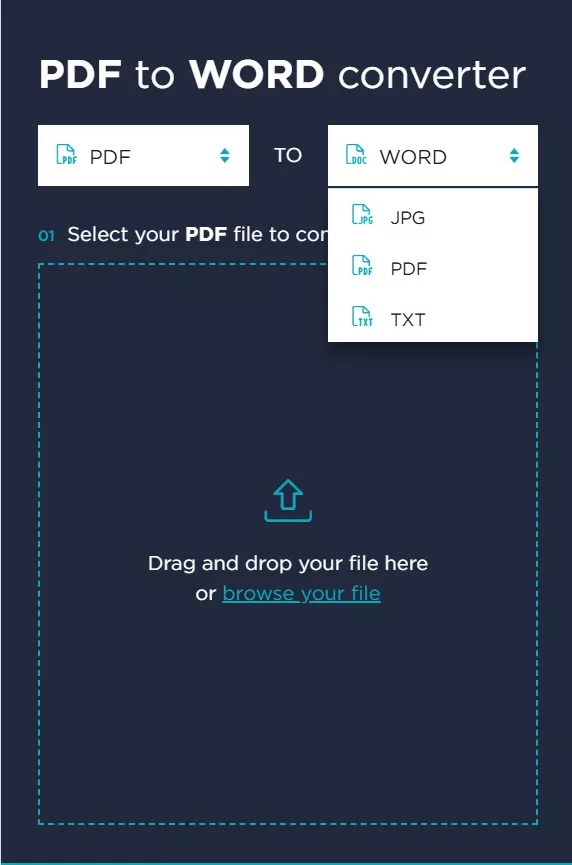
This free online PDF converter supports converting PDFs, including scanned documents, into Word, JPG, or TXT, as well as converting Word and image files into PDFs. However, the free conversion service is limited to a maximum of 20 pages per document.
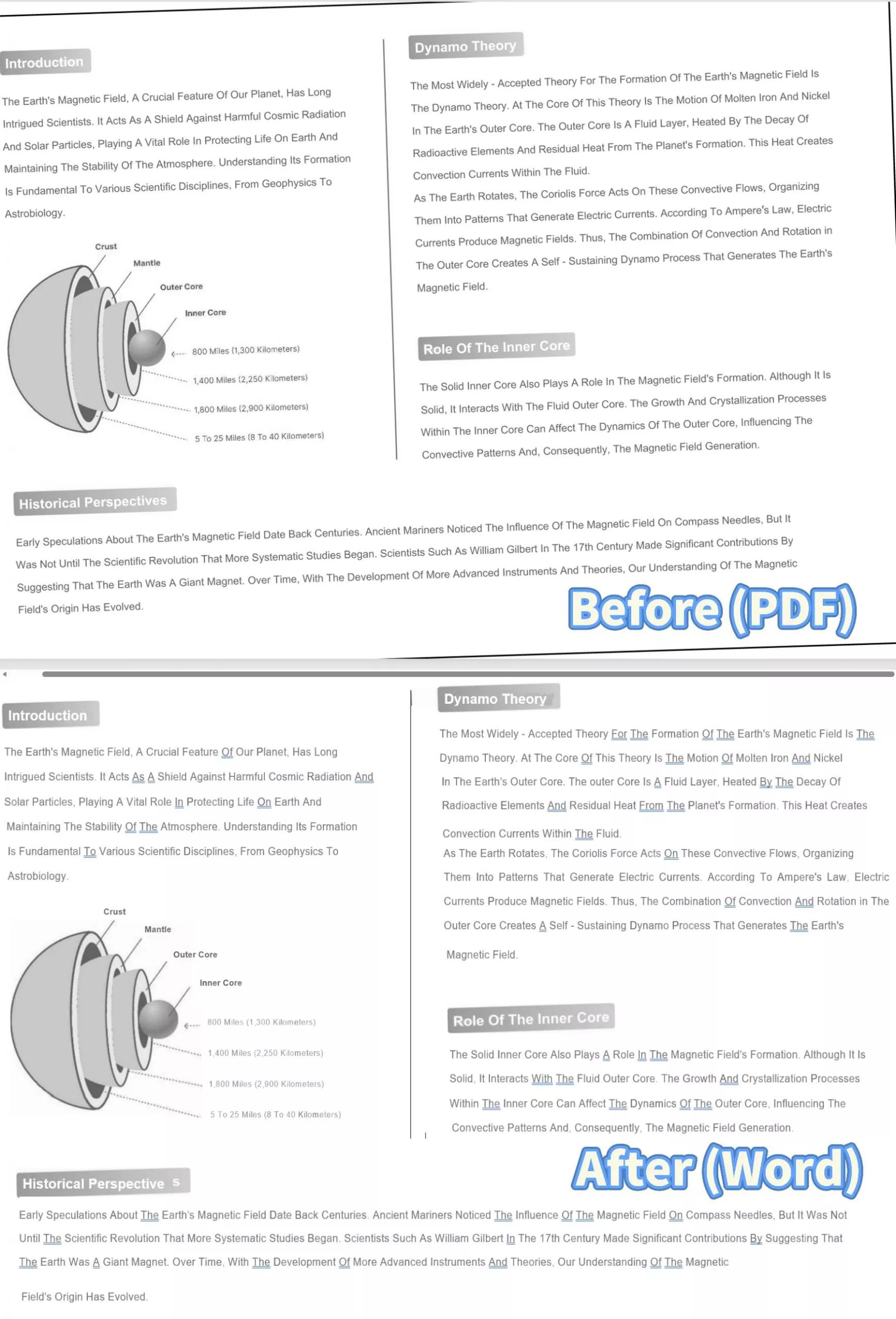
Additionally, the older versions are slightly cheaper than the new ones. But they do not have all the latest features.
The HP IRIS OCR software download is available for free with a 10-day trial period. The diverse pricing options also make it convenient to choose the package that fits your budget.
Following are the pricing options of its main OCR & PDF Applications:
Readiris PDF Essentials
- $79 perpetual (1 PC)
- $237 perpetual (3 PC)
Readiris PDF Elite
- $129 perpetual (1 PC)
- $389 perpetual (3 PC)
Readiris - Pro 17
- $99 perpetual (1 PC)
Readiris - Corporate 17
- $199 perpetual (1 PC)
How to Use IRIS OCR to Extract Text from PDF
Before we start with the step-by-step guide, download IRIS OCR on your Windows or Mac PC. Then use the following steps to extract text from PDF with Readiris.
Step 1
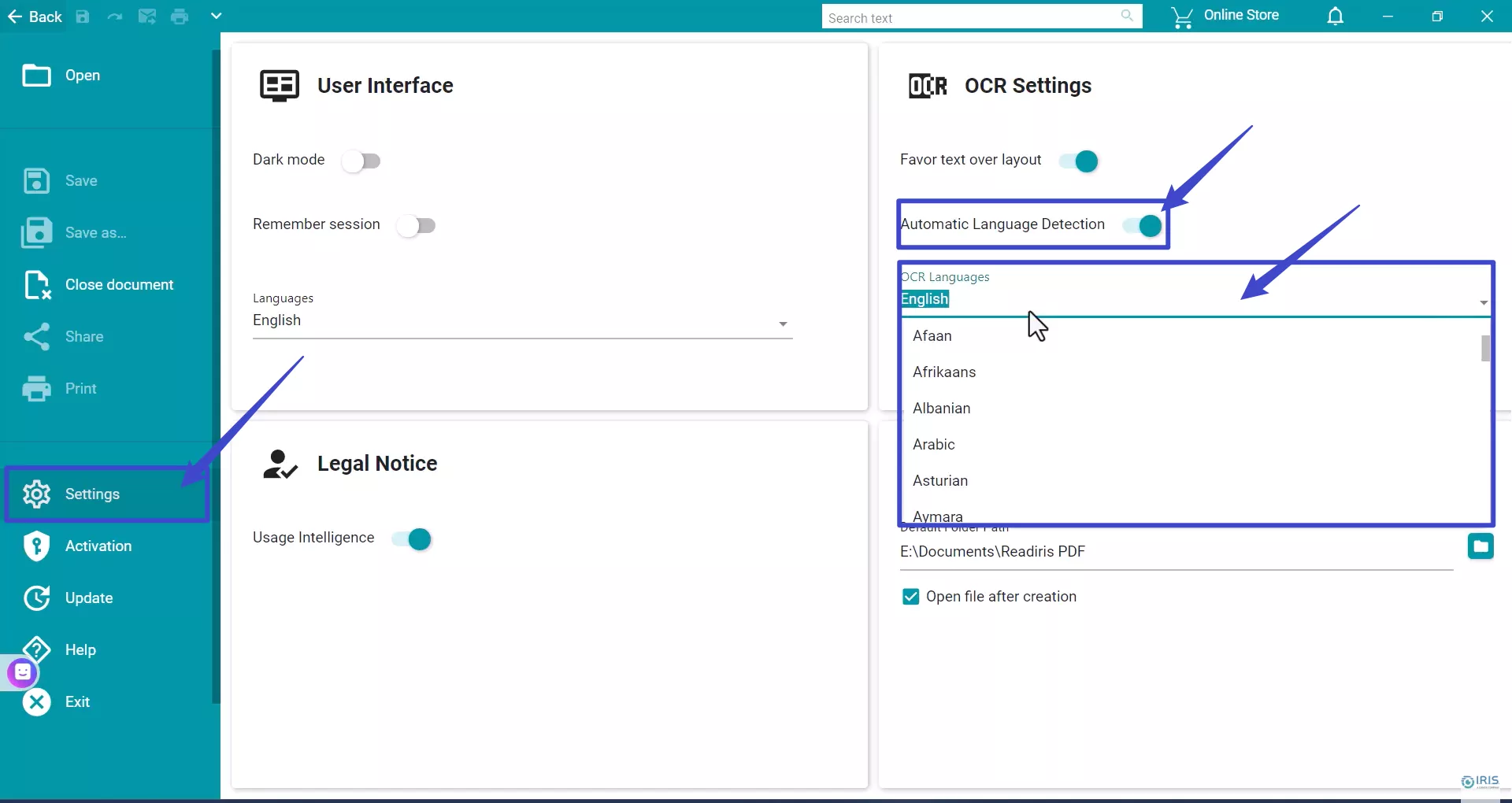
Launch Readiris OCR on your PC. Go to the "Settings" and turn on "Automatic Language Detection." You will find it under the "OCR Settings." Then, choose the OCR languages. It can detect over 65 languages.
Step 2
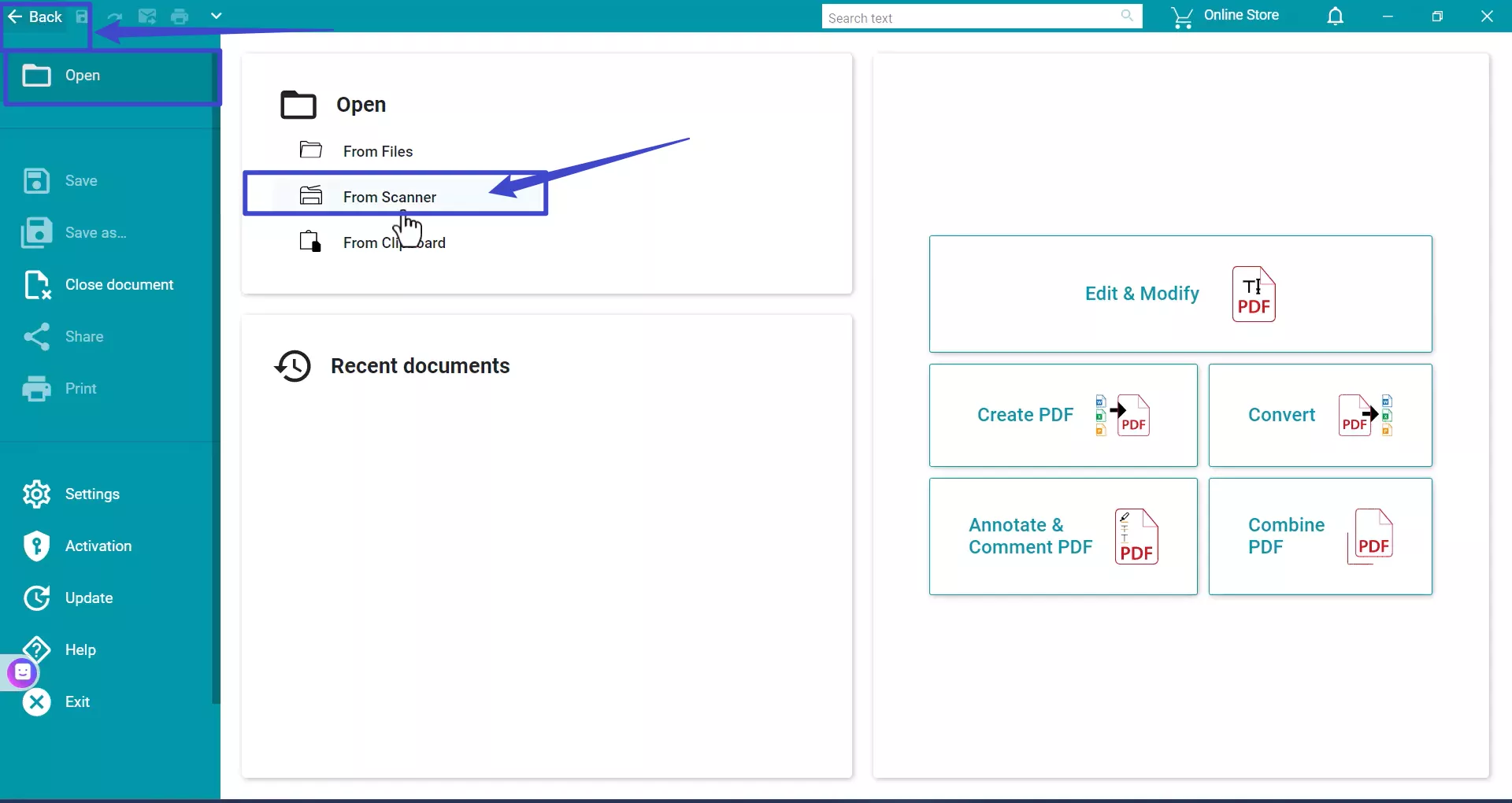
Go back by clicking the arrow on the top left or click on "Open" and choose "From Scanner" to enter the main screen.
Step 3
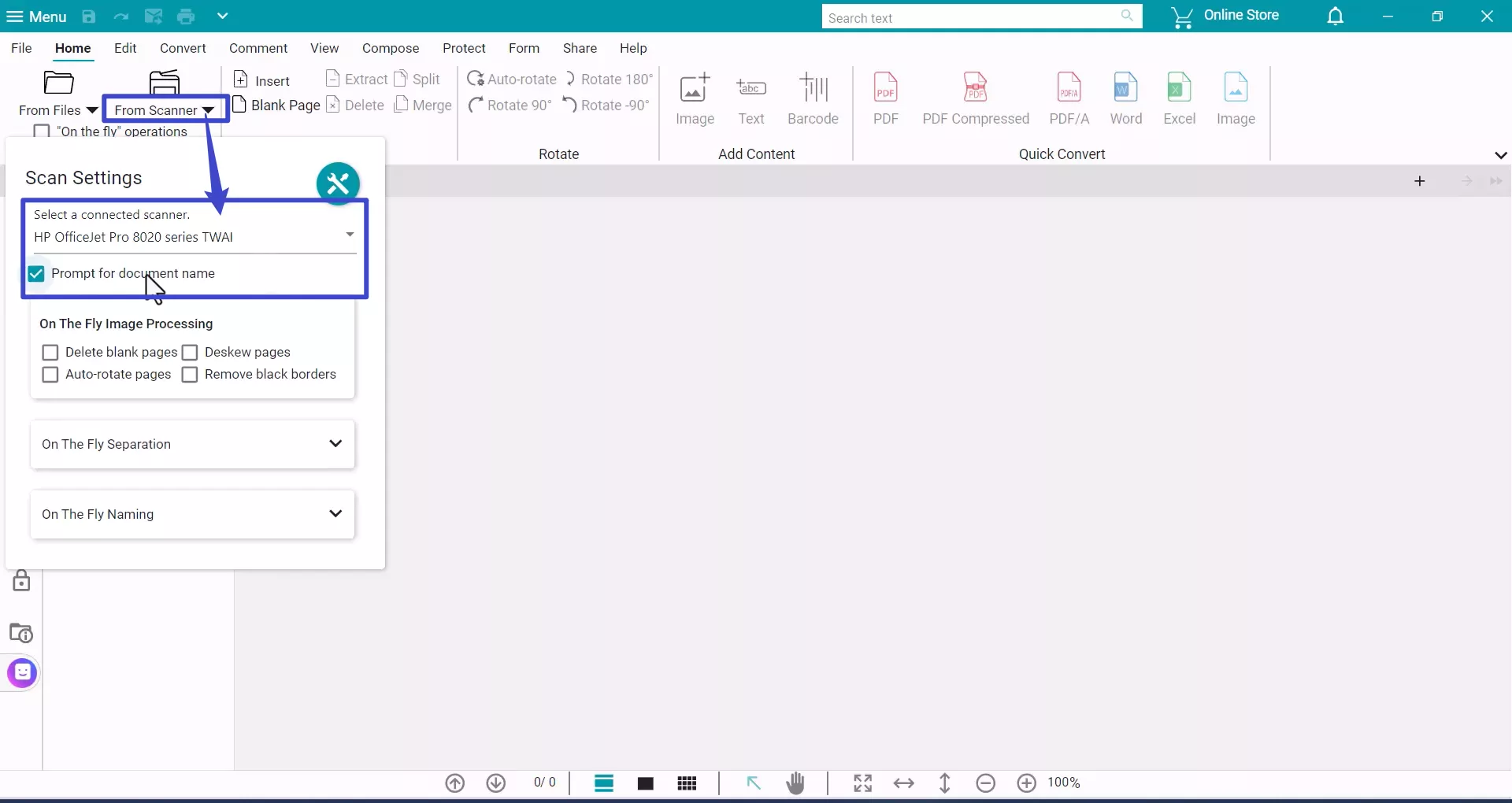
Your scanner software must be installed so the driver is available for selection. After entering the main screen, click the drop-down arrow next to “From Scanner.” In the pop-up window, choose your scanner from the list. If you want to name the document at this stage, check the “Prompt for document name” option.
Step 4
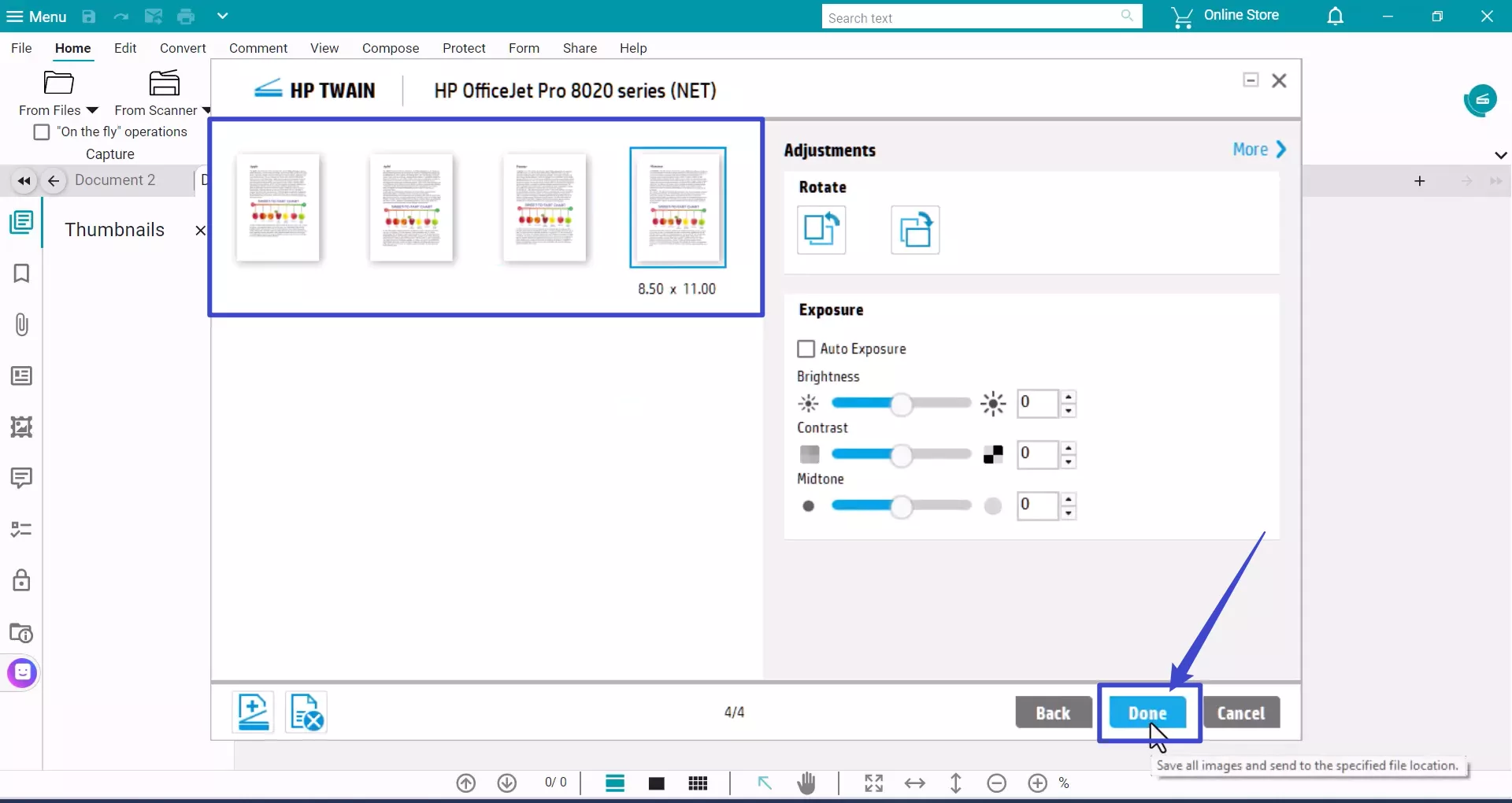
Next, click the "From Scanner" icon. In the pop-up window, select "Scan" to import the pages into the software. The scanned pages will appear in the left panel.

Once finished, click "Done" to open the document from your scanner.
Step 5
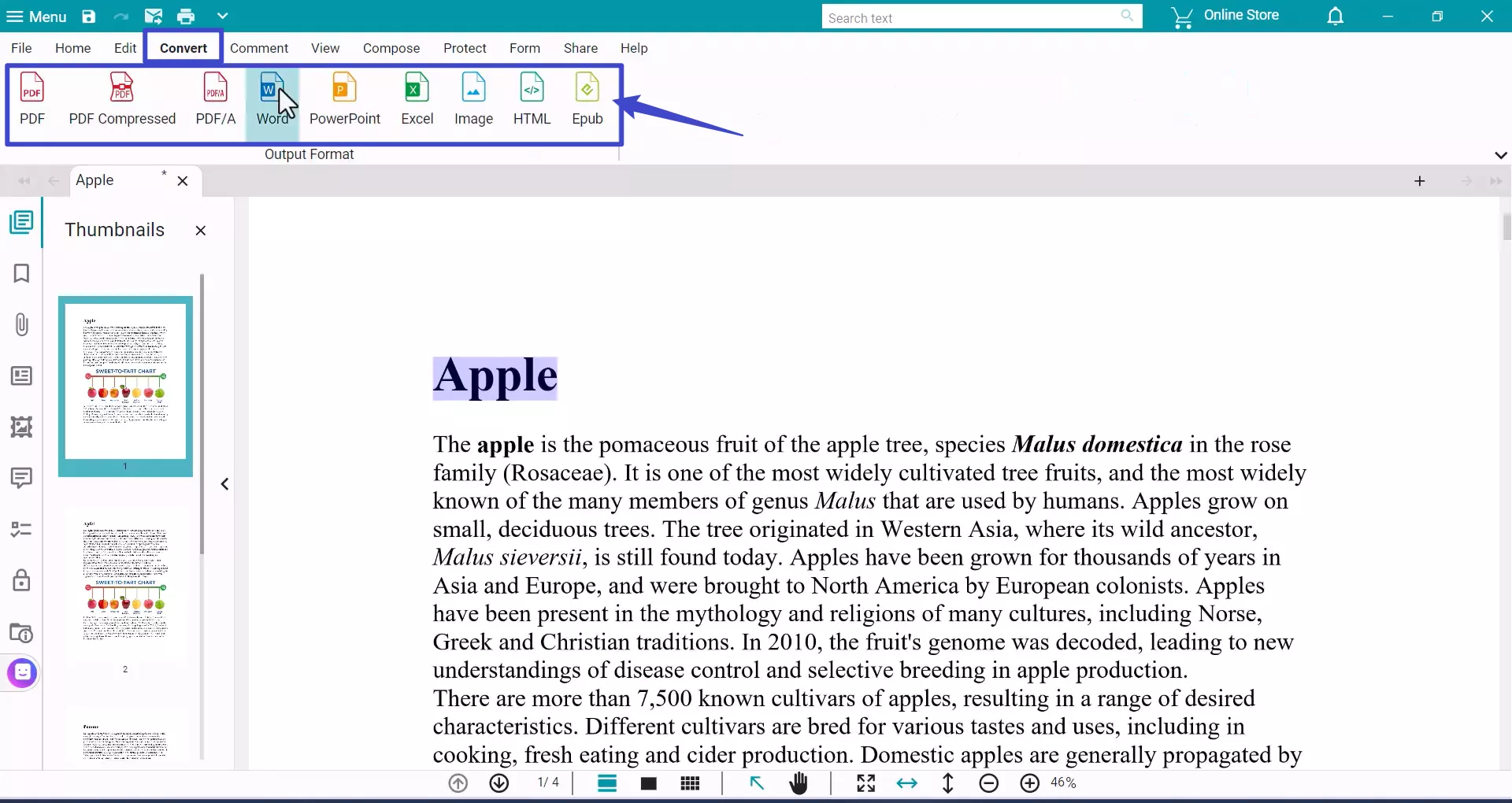
Go to the "Convert" tab once your file has been imported. Choose the format you want for the conversion. You can choose Word, PPT, or else.
Step 6
From the pop-up window, set the save location and click the convert button.

Step 7
It will automatically open in Word or whichever format you have selected. You can now edit the document as per your need.
Now let's move forward and explore the pros and cons of using this advanced software.
Pros, Cons, and User Reviews of IRIS OCR
If you are new to OCR tools, it is a good idea to know all of their lowdowns before investing in them. Ease of use, language support, OCR performance, and compatibility are some key points to factor in. Let's shed light on the pros and cons of HP IRIS OCR.
Pros
● User-friendly Interface
Readiris has a neat and minimal MS Word-style user interface. Plus, the ability to translate the interface into 24 languages makes it still more convenient.
● Extensive Language Support
Readiris converts files from up to 137 languages. This makes it suitable for recognizing text from documents using more than one language.
● Faster OCR Speed
Readiris automatically analyzes and processes the documents while they are still uploading. The speed is faster compared to most OCR tools.
● Compatibility
IRIS OCR is compatible with Twain Scanners making it a convenient tool to directly pull your scans for conversion. It also supports both Windows and Mac operating systems.
Cons
● Exorbitant Pricing
The biggest factor for Readiris losing shine is its hefty price tag. While you can find various pricing options, none of them are easily affordable for single use.
● OCR Accuracy
Although Readiris offers great speed, it lacks accuracy. Especially if your scans are older documents and less than clean images. Plus, it might struggle to recognize handwritten or cursive text.
● Performance
Readiris requires significant resources to give the best performance. It can slow down the overall speed of your PC if you are using an older system.
● Limited PDF Solutions
You would expect IRIS OCR to offer an extensive range of PDF solutions with its hefty price tag. But while you can carry out most PDF tasks, they are not exceptional. Other PDF programs also offer similar features. And at a more affordable price.
Ratings
- 4/5 on Capterra.
- 4/5 on Software Advice.
Real user review
"(Pros) Readiris 17 supports multiple languages, making it suitable for many users and organizations with multilingual document requirements. Also, Readiris 17 offers many powerful table recognition capabilities.
(Cons) Although Readiris 17 boasts high accuracy in OCR conversion, it may encounter challenges with complex document layouts, handwritten text, or low-quality scans. In such cases, the accuracy of the OCR results may vary, requiring manual corrections or reprocessing," as read on Learn more about the review.
The Best IRIS OCR Alternative
IRIS OCR may be the go-to tool for fast OCR conversions. But, the lack of accurate output, limited PDF solutions, and the exorbitant price tag are off-putting. So, why not consider an alternative with advanced OCR and PDF solutions at a more affordable price?
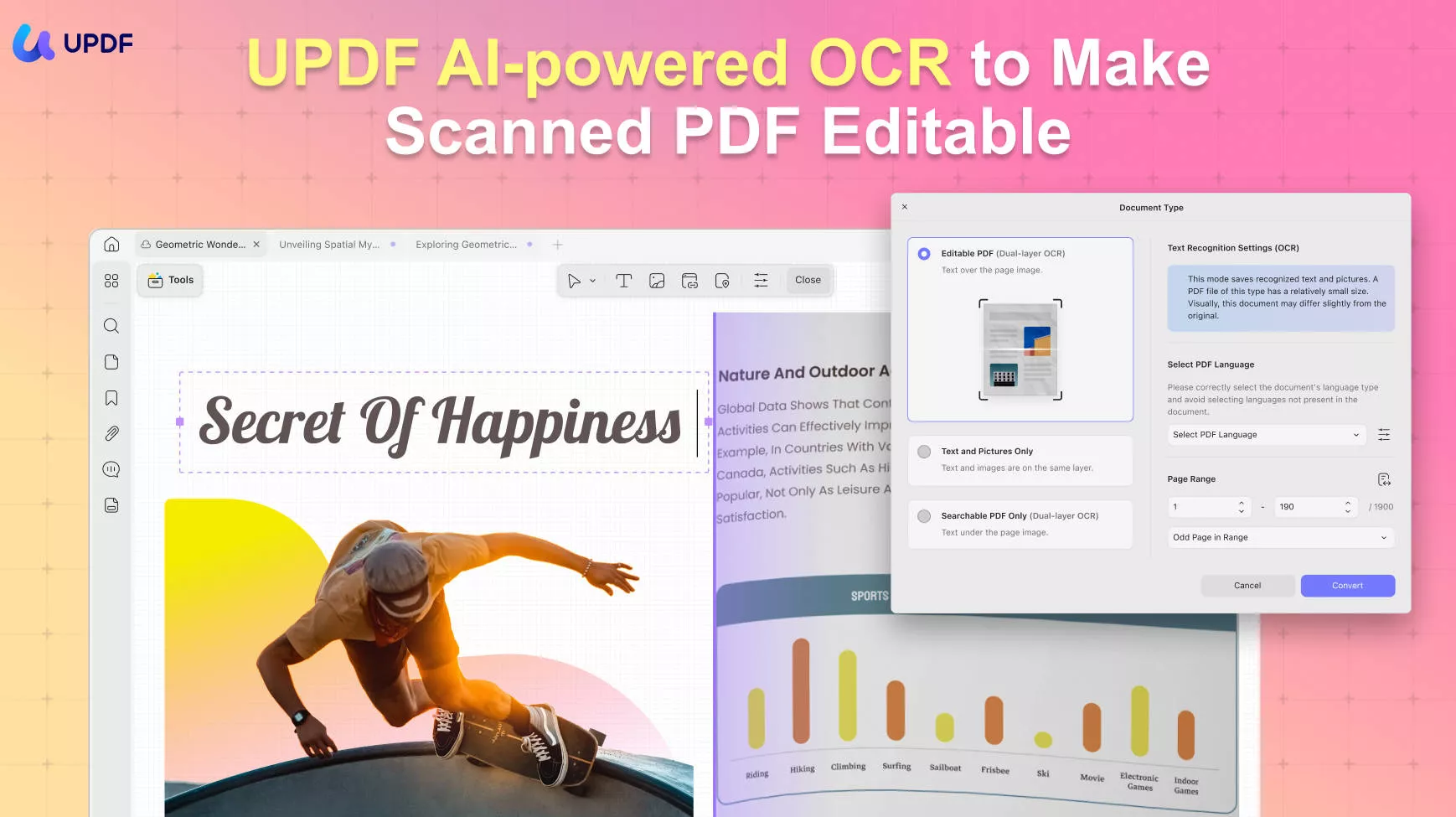
UPDF OCR is your answer! Powered with AI, it recognizes the text in your scans and images with impressive accuracy. With the support of over 38 languages, nothing can stop your OCR conversions no matter the language of your document! It will provide up to 99% accuracy along with content integrity. If your document contains multiple languages, there’s no need to switch software or repeat the process multiple times—UPDF can accurately recognize all the languages in your multilingual document in one go.
Whether you use Windows, macOS, iOS, or Android, UPDF is the ideal software for performing OCR across all your devices. Try it now and explore its capabilities for yourself.
Windows • macOS • iOS • Android 100% secure
Why Choose UPDF OCR?
Here's why UPDF OCR shines among other OCR tools.
- Accurate Outputs: With powerful AI integration, UPDF accurately recognizes the text in your scans providing outputs with precisely retained formatting.
- Versatile Layouts: UPDF OCR conveniently lets you select the type of conversion you want. You can extract the text from an image, search the text, or convert it to an editable and searchable document.
- Handy Opposite Mode: Need to reverse your PDFs to an image-only format? No worries! UPDF OCR lets you convert editable files to static images to prevent tampering.
- Affordable Pricing: Despite UPDF OCR's AI-powered advanced capabilities, it is super budget-friendly costing only half of the IRIS OCR price.
- Modern UI Design: UPDF uses a modern and minimalist UI design with subtle hints of carefully used bright colors. It makes working with your PDFs a refreshing experience.
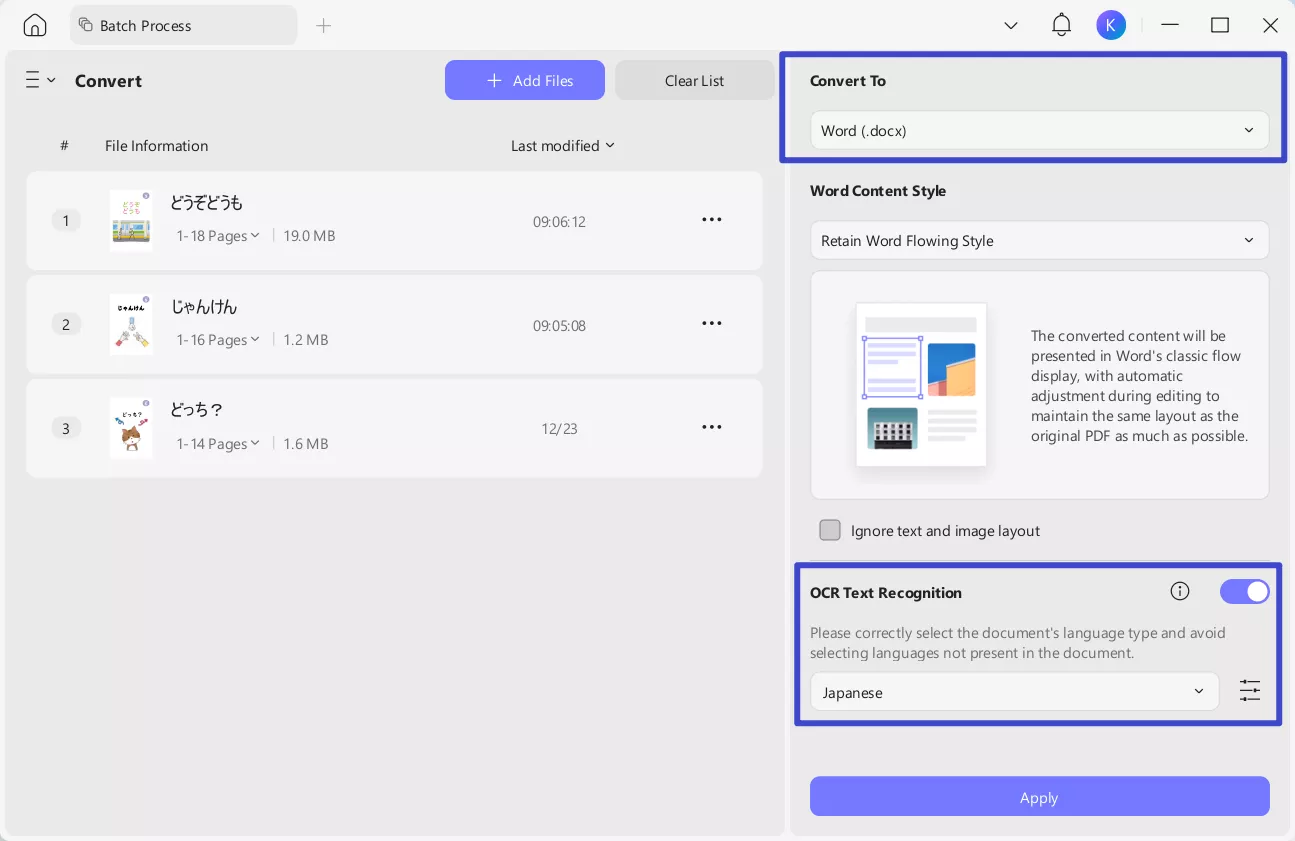
- Similar to IRIS OCR, UPDF also supports performing OCR while converting file formats. You only need to toggle the OCR option ON when using UPDF’s conversion feature.
How to Use the UPDF OCR on Desktop
Ready to try UPDF OCR to tackle those pesky scanned documents? Download and install UPDF on your desktop or mobile. Then use our step-by-step guide to use UPDF OCR.
Windows • macOS • iOS • Android 100% secure
Step 1
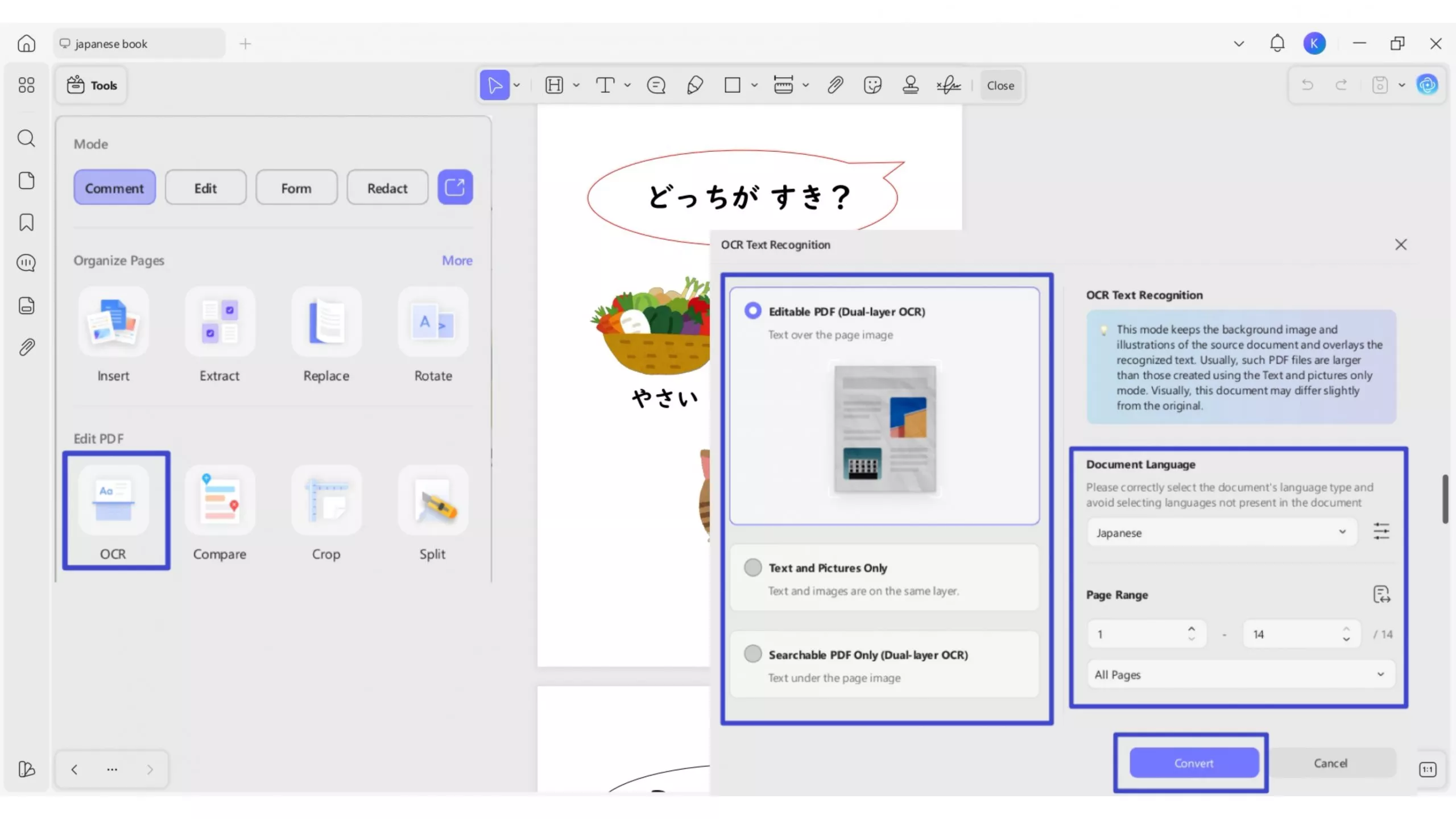
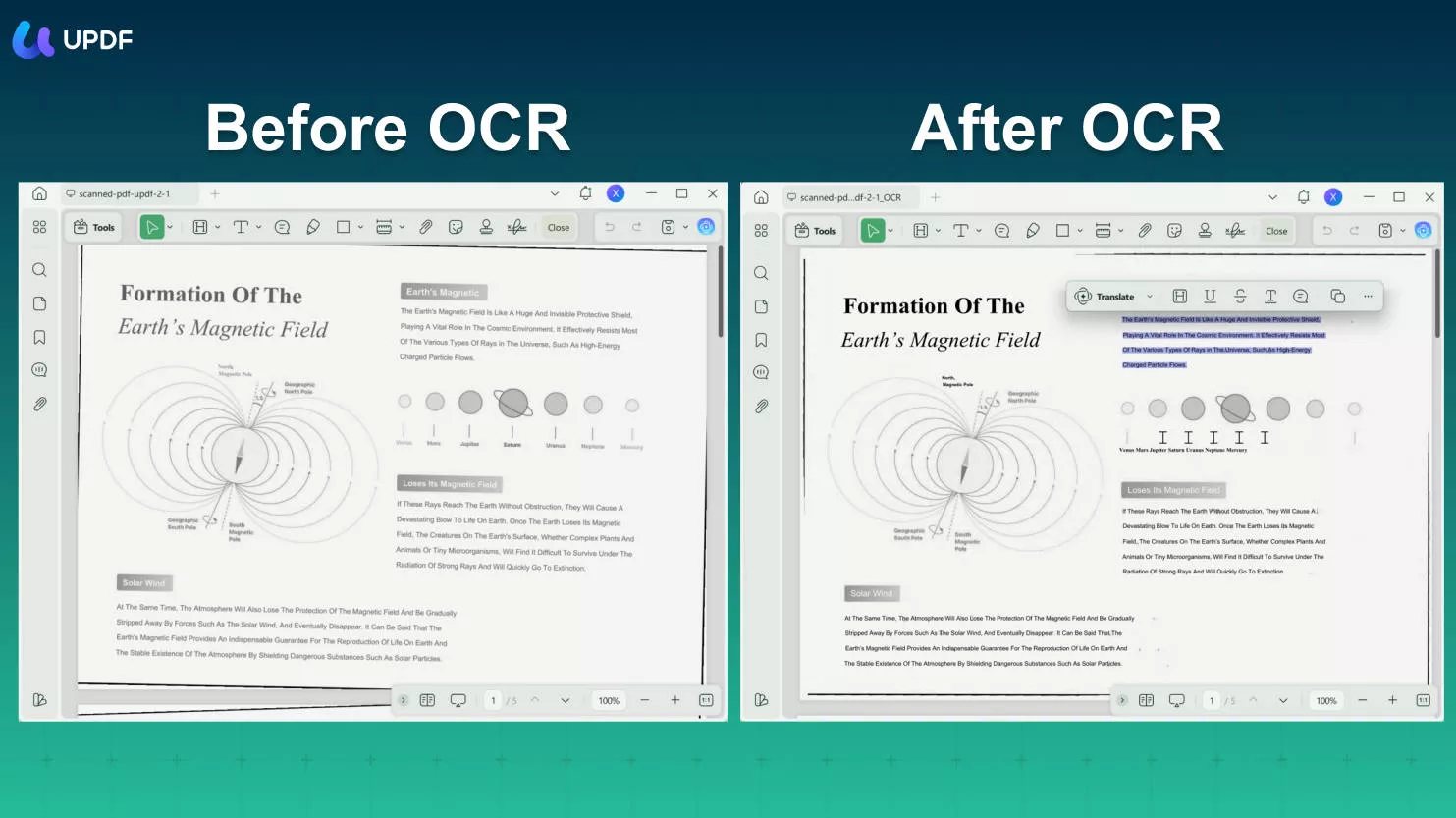
Launch UPDF on your PC and click on "Open Files" to upload your scanned document. Once your file is opened, go to the right side and click on the icon labeled "OCR" in "Tools".
Step 2
Download the UPDF OCR. Then click on the OCR tool again. You can choose "Editable PDF", "Text and Pictures Only", "Searchable PDF Only" for different needs and choose your desired layout.
- Editable PDF: This mode preserves the background images and illustrations from the original document and places the
recognized text on top. As a result, the file size is usually larger than those created with the "Text and Pictures Only" mode. Visually, the output may look slightly different from the original. - Text and pictures only: This mode saves the recognized text and images, resulting in a smaller PDF file. However, the
appearance may differ slightly from the original document. - Searchable PDF Only: In this mode, the page image is preserved, and the recognized text is added in an invisible layer
beneath it. This keeps the document visually almost identical to the original.
Step 3
Click on the gear icon next to access more advanced "Layout Settings." You can choose to keep the pictures and background, compress the images with MRC, and more.
Step 4
Now, select the language of your file by clicking on the "Document Language" drop-down list. As my document language is English, here, I choose "English". You can also specify the page range and image resolution.
Step 5
Once you are satisfied with all the settings, click on the "Perform OCR" button to start the conversion.
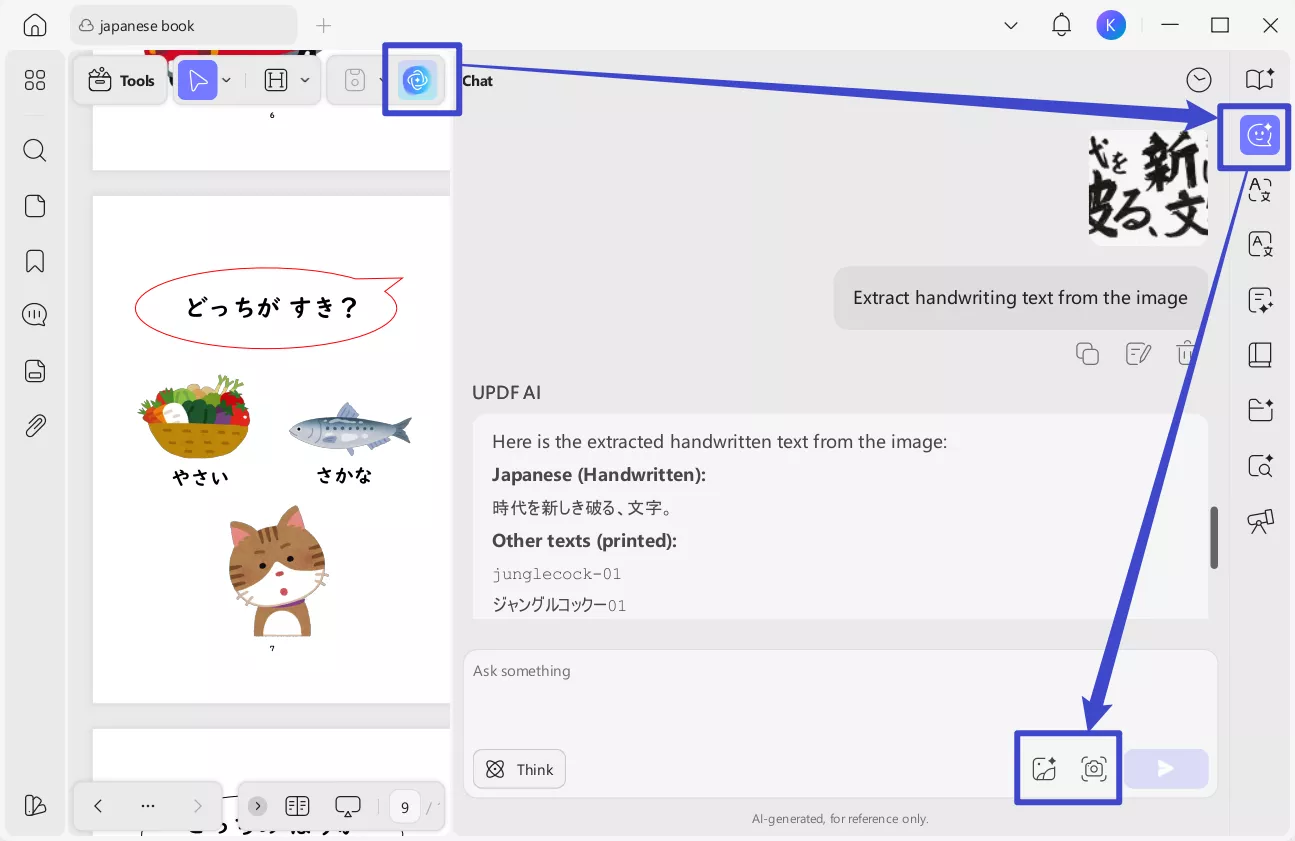
Alternatively, if you only want to extract the text from the scanned PDF, you can use AI to do that. Just open the scanned PDF with UPDF, click on the "UPDF AI" > "Chat" > "Screenshot" to screenshot the scanned PDF. Enter the prompt to extract the text from the PDF.
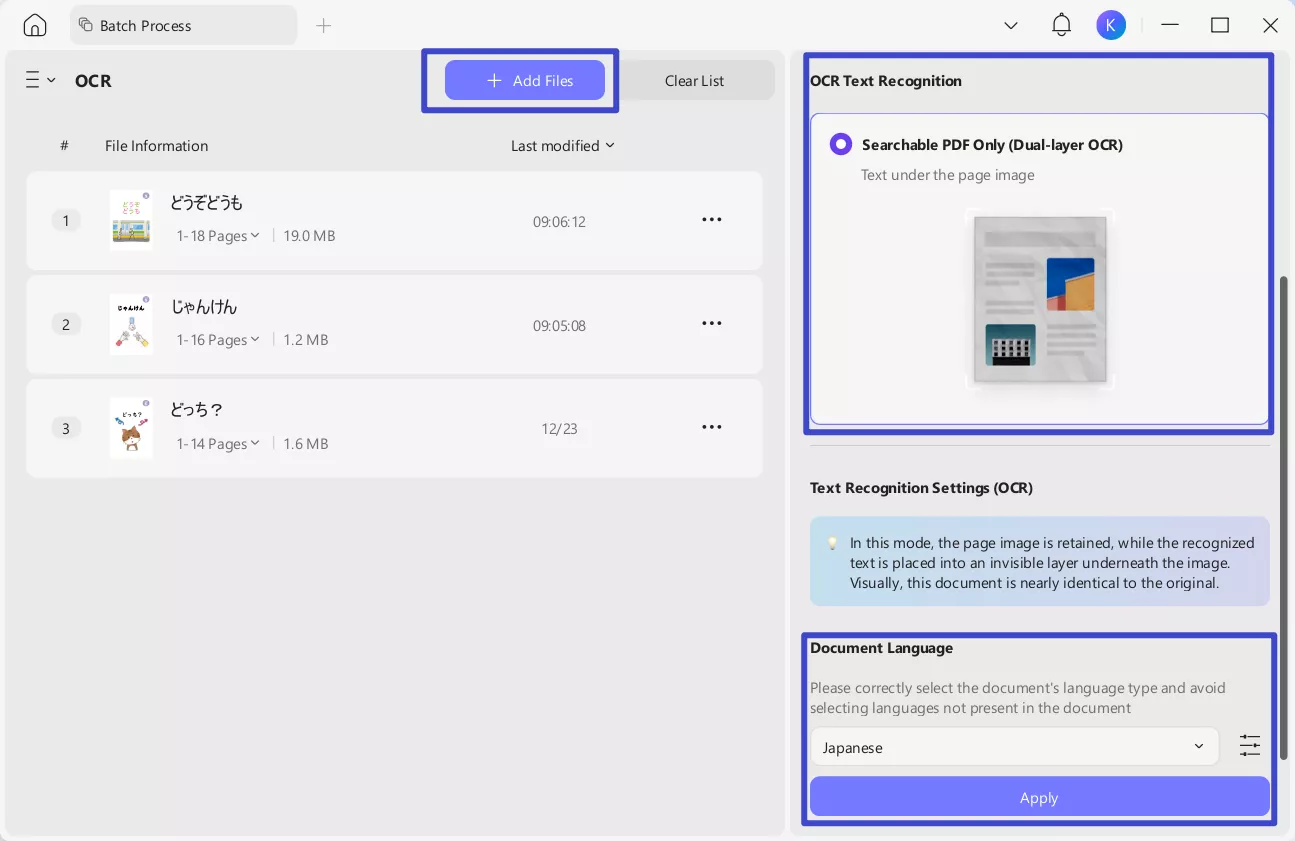
UPDF understands that users may want to process multiple documents at once, so it includes a Batch OCR option in the batch processing panel. Simply add all the scanned documents you want to recognize, follow the instructions shown in the UPDF interface, and you can complete OCR on multiple scanned files very quickly.
Windows • macOS • iOS • Android 100% secure
How to Use the UPDF OCR on Mobile
Step 1
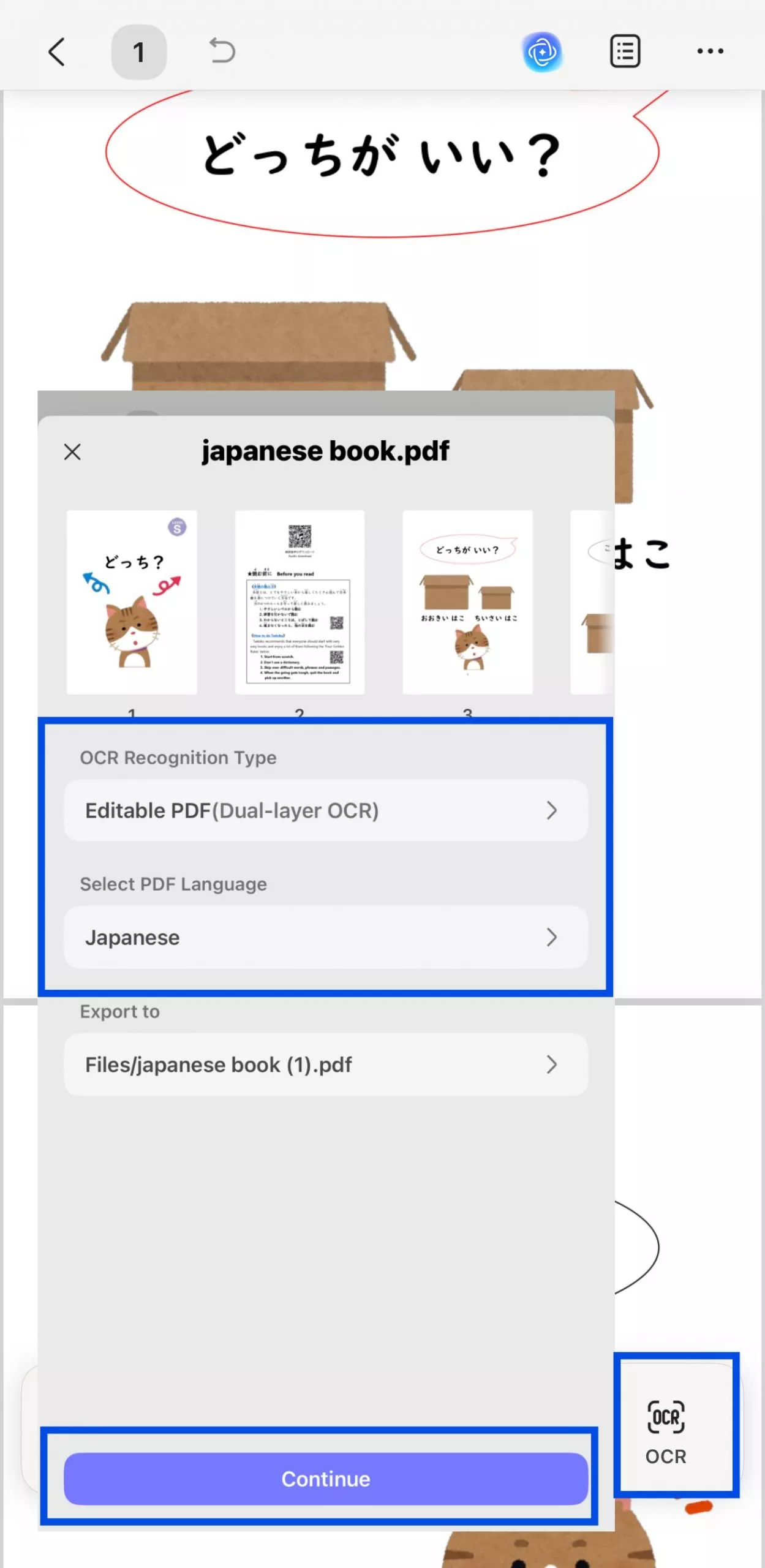
Download UPDF app from App Store or Google Play. Open your scanned document in UPDF app, and select OCR from the bottom menu (mobile).
Step 2
As it opens up, it will provide you with three different document options of "Editable PDF", "Text and Pictures Only", "Searchable PDF Only". Select your desired mode and the correct document language to ensure accurate OCR results. Afterward, click "Continue" to proceed.
Step 3
Then, click Done to make your scanned document editable.
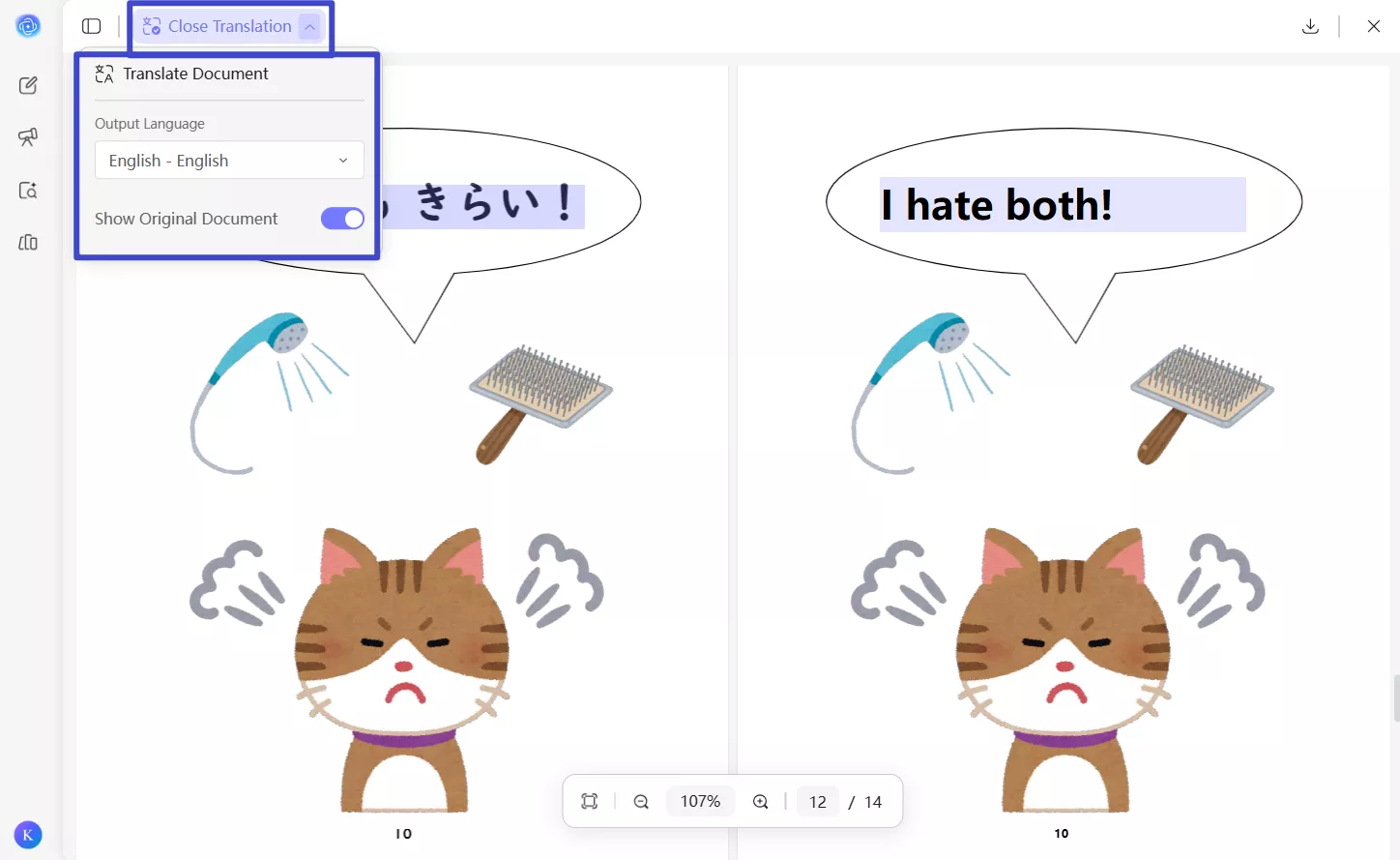
If you don’t want to download the software, you can also use UPDF AI Online to recognize and extract text from your scanned documents. UPDF AI Online also supports uploading scanned PDF files and images — you can enter commands to let UPDF AI Online recognize and extract the text inside. Extracting handwritten text is also supported by UPDF AI. The UPDF AI free plan includes 100 prompts. You can click the button below to try it out for free and let the AI extract scanned text from your document.
That's all. It was easy, right? Now, the only thing left is to sit back and leisurely edit your document. You can try UPDF's editing tools or chat with its AI, there is so much to explore! If you would like to learn more about UPDF, you can watch the short video below.
Windows • macOS • iOS • Android 100% secure
Watch the video below to learn more about UPDF's powerful capabilities. It can do more than just OCR.
And guess what? If you get UPDF now, you can enjoy a whopping big discount. Now is your golden chance to buy this powerhouse of OCR and PDF solutions at an unbeatable price! Plus, you can use a single license for up to 4 devices (2 mobiles and 2 desktops) at once, no matter the platform you use.
FAQs about IRIS OCR
Is IRIS OCR free?
IRIS OCR is not a free software. It offers a 10-day trial for its products. After the trial period, you need to buy it otherwise it goes back to just being a PDF reader.
Can I remove IRIS OCR from my computer?
OCR is used to convert scanned files into editable and searchable documents. If you do not need to use an OCR tool you can remove IRIS OCR from your computer. On windows, you can type "Panel Control" from the search button, and then choose "Programs > Programs and Features". Find IRIS OCR and right-click on it to uninstall. On Mac, you can simply hold the software logo and drag it to the trash bin.
IRIS OCR vs. ABBYY OCR, which is better?
IRIS OCR and ABBY OCR both offer exceptional features with some key differences. If you want more accurate outputs ABBY OCR is a good choice. But for faster conversions, you can choose Readiris OCR. Both come with a hefty price tag. For a more affordable solution, you can also try UPDF OCR.
Conclusion
IRIS OCR is the industry-leading tool with professional-grade OCR and PDF solutions. Its OCR is fast and efficient while boosting extensive language support. However, it is not the best option for accurate recognition of text.
Plus, the hefty price tag with limited PDF solutions makes it not a worthwhile investment for personal use. Comparatively, UPDF OCR is not only affordable but also accurately recognizes text from over 38 languages.
Learn more about its capabilities by reading UPDF's review on the high-authority website PDF Association. Don't settle for less! Download UPDF now and transform your OCR conversions for the best!
Windows • macOS • iOS • Android 100% secure




 Enid Brown
 Engelbert White
 Enrica Taylor