UPDF
UPDF
 UPDF for Windows
 UPDF for Mac
 UPDF for iPhone/iPad
 UPDF for Android
 Nomostar
 UPDF AI Online
 UPDF Sign
 IvyCraft
 Edit PDF
 Annotate PDF
 Create PDF
 PDF Form
 Edit links
 Convert PDF
 OCR
OCR PDF to Word
 PDF to Image
 PDF to Excel
 Organize PDF
 Merge PDF
 Split PDF
 Crop PDF
 Rotate PDF
 Protect PDF
 Sign PDF
 Redact PDF
 Sanitize PDF
 Remove Security
 Read PDF
 UPDF Cloud
 Compress PDF
 Print PDF
 Batch Process
 About UPDF AI
 UPDF AI Solutions
 AI User Guide
 FAQ about UPDF AI
 Summarize PDF
 Translate PDF
 Chat with PDF
 Chat with AI
 Chat with image
 PDF to Mind Map
 Explain PDF
 PDF AI Tools
 Image AI Tools
 AI Chat Tools
 AI Writing Tools
 AI Study Tools
 AI Working Tools
 Other AI Tools
 AI Bookmark Generation
 AI Bookmark Summary
 AI Watermark Generation
 AI Background Generation
 AI Sticker Generation
 AI Stamp Generation
 AI Editing Suite
 UPDF Copilot
 AI Page Management
 AI Semantic Search
 PDF to Word
 PDF to Excel
 PDF to PowerPoint
 Enterprise Solution
 Enterprise Sign
 Enterprise AI
 Enterprise Plan
 Enterprise User Guide
 Enterprise Webinar
 IT
IT Education
 Construction
 Financial Service
 Healthcare
 Insurance
 Legal
Legal Manufacturing
 Government
 Researchers & PhDs
 Solopreneurs & Freelancers
 Lawyers & Legal Professionals
 Real Estate Agents & Brokers
 Education Solution
 Customer Stories
 User Guide
 UPDF Tricks
 FAQs
FAQs UPDF Reviews
 Download Center
 Blog
Blog Newsroom
 Tech Spec
 Updates
 UPDF vs. Adobe Acrobat
 UPDF vs. Foxit
 UPDF vs. PDF Expert

Quick Answer:
Sometimes the images that are on the PDF document you are working on can be very large. This can make it difficult to effectively share the PDF document via certain channels. One of the ways to mitigate this problem is to compress images in PDF.
The process of compressing PDF images can be very simple if you choose the right PDF editor and follow the right processes. In this guide, we look at this process in greater detail and the best ways to do it.
Which Image-Compression Method Should You Use?
| Your situation | Use this method | Why | Main limitation |
|---|---|---|---|
| A photo-heavy PDF is too large to email or upload | Reduce File Size in UPDF | Compresses the PDF in one pass and lets you choose the quality-size balance | Lower quality settings can soften photos and small text |
| One image contains unnecessary content | Crop, replace, or delete that image | Removes content you do not need before final compression | Cropping alone may hide pixels without removing their stored data |
| The entire PDF consists of scanned page images | Compress first; use OCR only if you also need searchable text | Preserves the page-image workflow and avoids unnecessary conversion | OCR is an accessibility/editability step, not a guaranteed compressor |
For most readers, Reduce File Size is the correct first choice because it changes the saved PDF rather than only an image's appearance.
Why UPDF is the Best Tool for You
If you work with PDF documents regularly, then you know that some of the best PDF tools in the market can be quite expensive. But now there is a revolutionary PDF tool that gives you all the features you would expect on some of these expensive alternatives but at a lower cost to you.
Windows • macOS • iOS • Android 100% secure
UPDF can help you manage your PDF documents in various ways, including:
- It offers the best PDF reading experience, allowing you to read and annotate any PDF document with ease.
- It is also one of the best ways to edit a PDF document. You can very easily edit the text including the font and size. It also comes with an image editor, allowing you to replace, resize, reposition, crop, or delete any images within the document.
- UPDF can also be a great way to manage the pages on a PDF document, allowing you to rotate, reorder, replace, extract, delete and even add new pages to any section of the document.
- UPDF offers annotation functions that allow highlighting, underlining, adding stamps, including stickers, and signing documents. To manage documents and provide feedback, you can use the commenting function of UPDF.
- If you want to protect the PDF document, UPDF can be used to secure the documents with the help of passwords. These passwords can range from open passwords to permission passwords, where you can specify the restriction that you are to put on a document.
- The OCR feature of UPDF is one of the most elaborate tools in the PDF editor. It provides two different document types to perform OCR on. With the support of 38 languages, performing OCR with UPDF is easy.
Way 1: How to Compress Image in PDF by Cropping
To manage the size of a PDF document, you must manage the media it contains. The best way to manage the size is to reduce the image you used in the PDF document.
For this, you have two different approaches that you can use to reduce the image size. Firstly, UPDF provides the option of "Crop", which can easily decrease the size of the image. If the image is too large, you can remove the extra spaces by cropping them out.
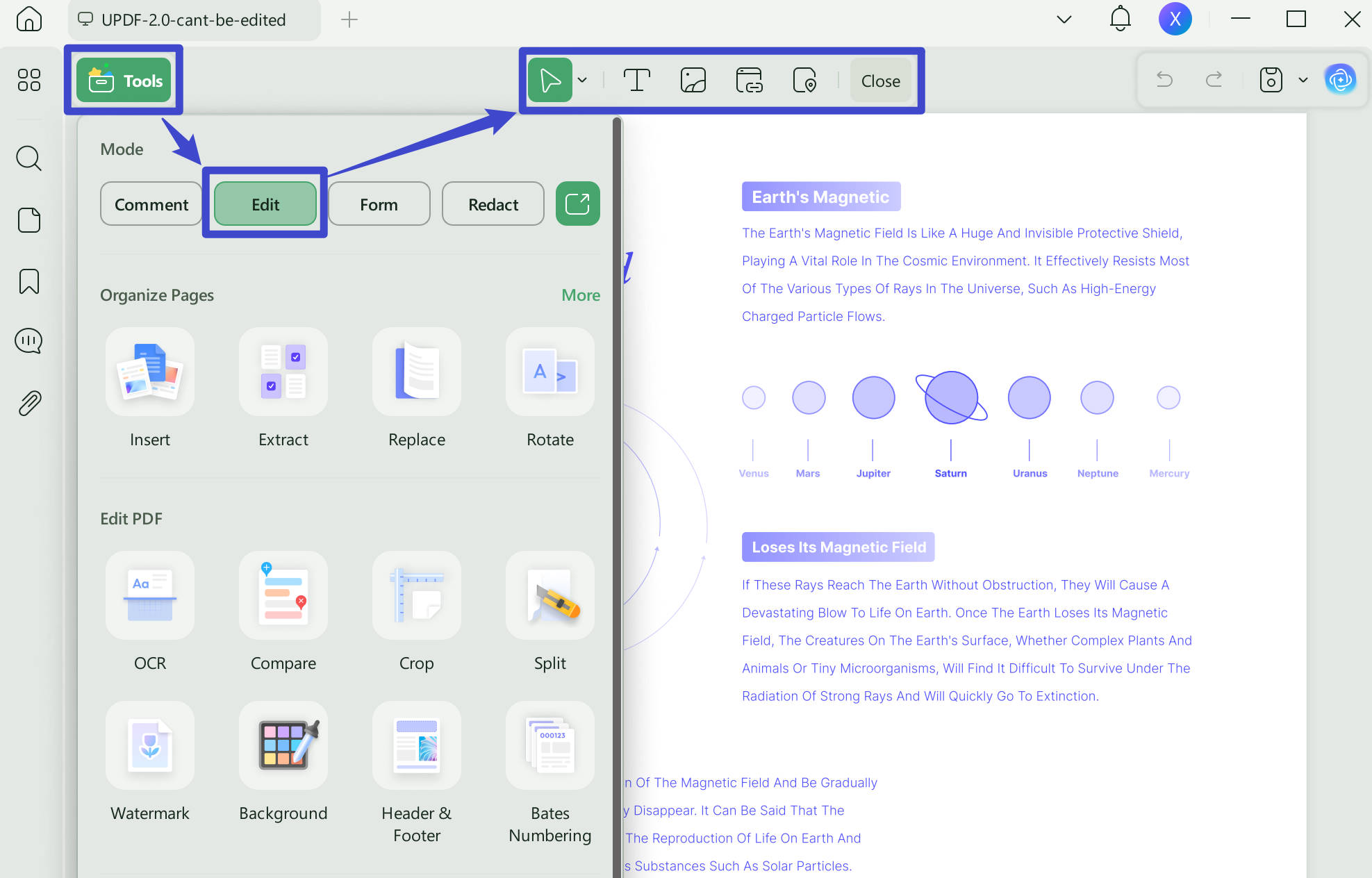
Step 1. Enter into the Editing Mode
First of all, you should enter the editing mode by clicking the "Edit" icon in Tools displayed on the left toolbar.
Step 2. Crop the Image to Reduce the Size
Double click the select the image, and then you will see that there is a "Crop Image" icon on the floating toolbar that appears above or below the image. Click on it.
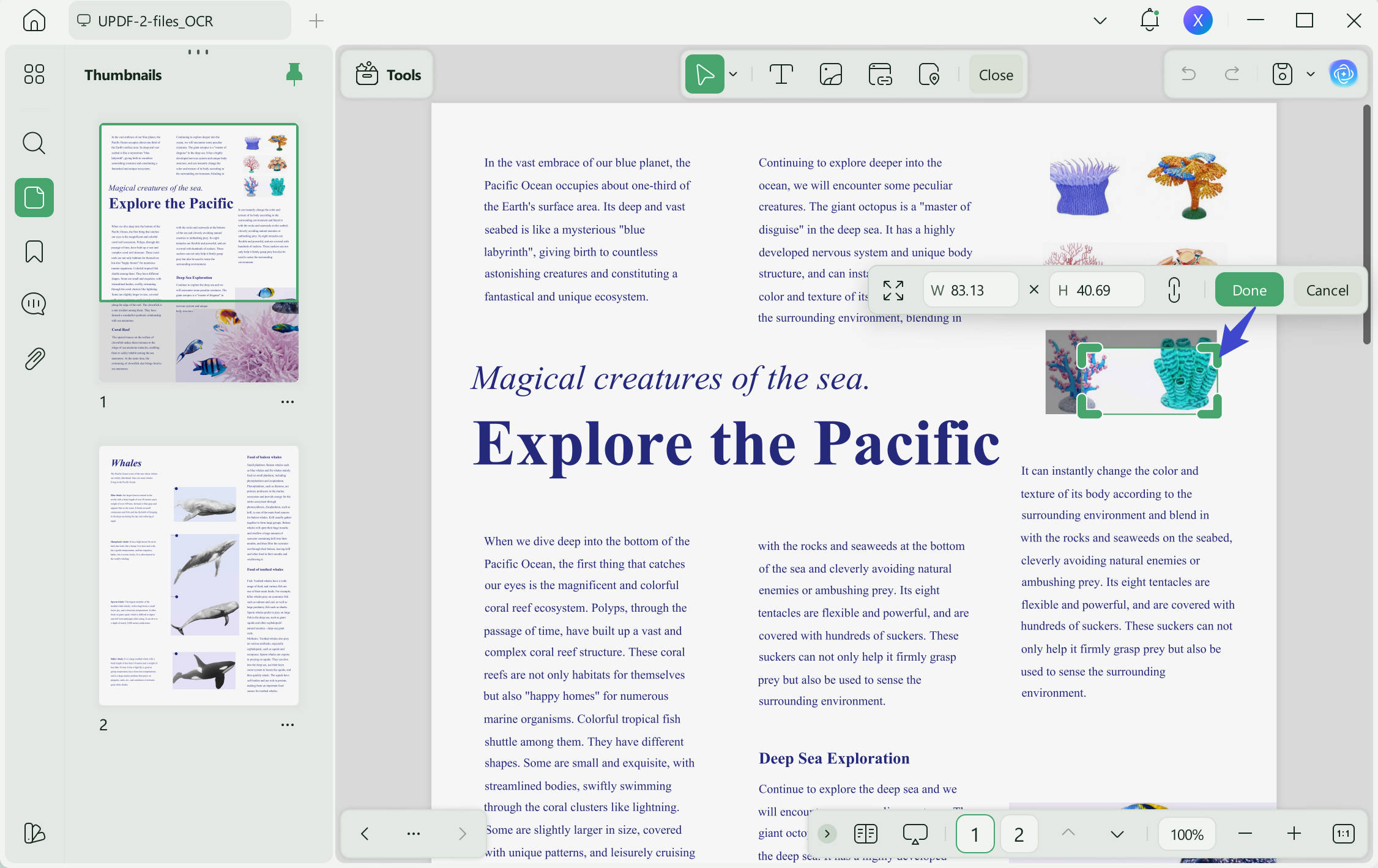
Then you can either drag the purple dashed box to begin cropping, or you can enter the width and height. Your image will become smaller.
Windows • macOS • iOS • Android 100% secure
Way 2. How to Compress Image in PDF by Resizing
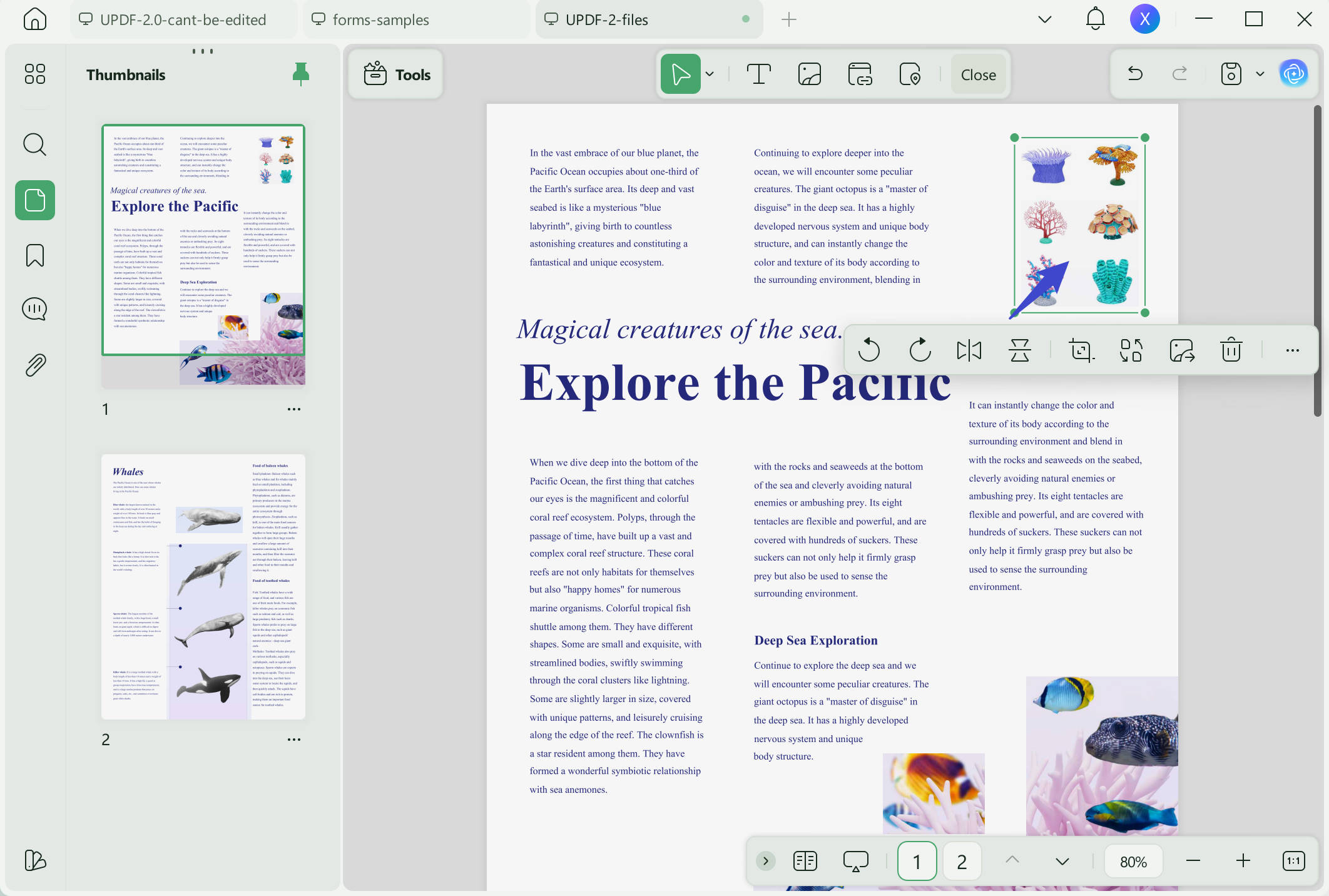
Additionally, UPDF also offers the option of resizing the image size with the "Resize" option. The resizing function allows you to reduce the image size and easily manage your document.
It provides the opportunity of managing the images of the PDF under such defined settings. The tool's longevity makes it look straightforward and elegant in all cases.
- The same with the first way, you need to enter into the edit mode first.
- Click to select the image you want to resize and make it smaller.
- Drag the outside box to resize it as per your requirement.
Windows • macOS • iOS • Android 100% secure
Way 3. How to Compress Image-Based PDF Effectively
When you deal with scanned PDF or image-based PDF documents, you will find that they have a really big file size. This is the problem with scanned documents and they will take up too much of your storage.
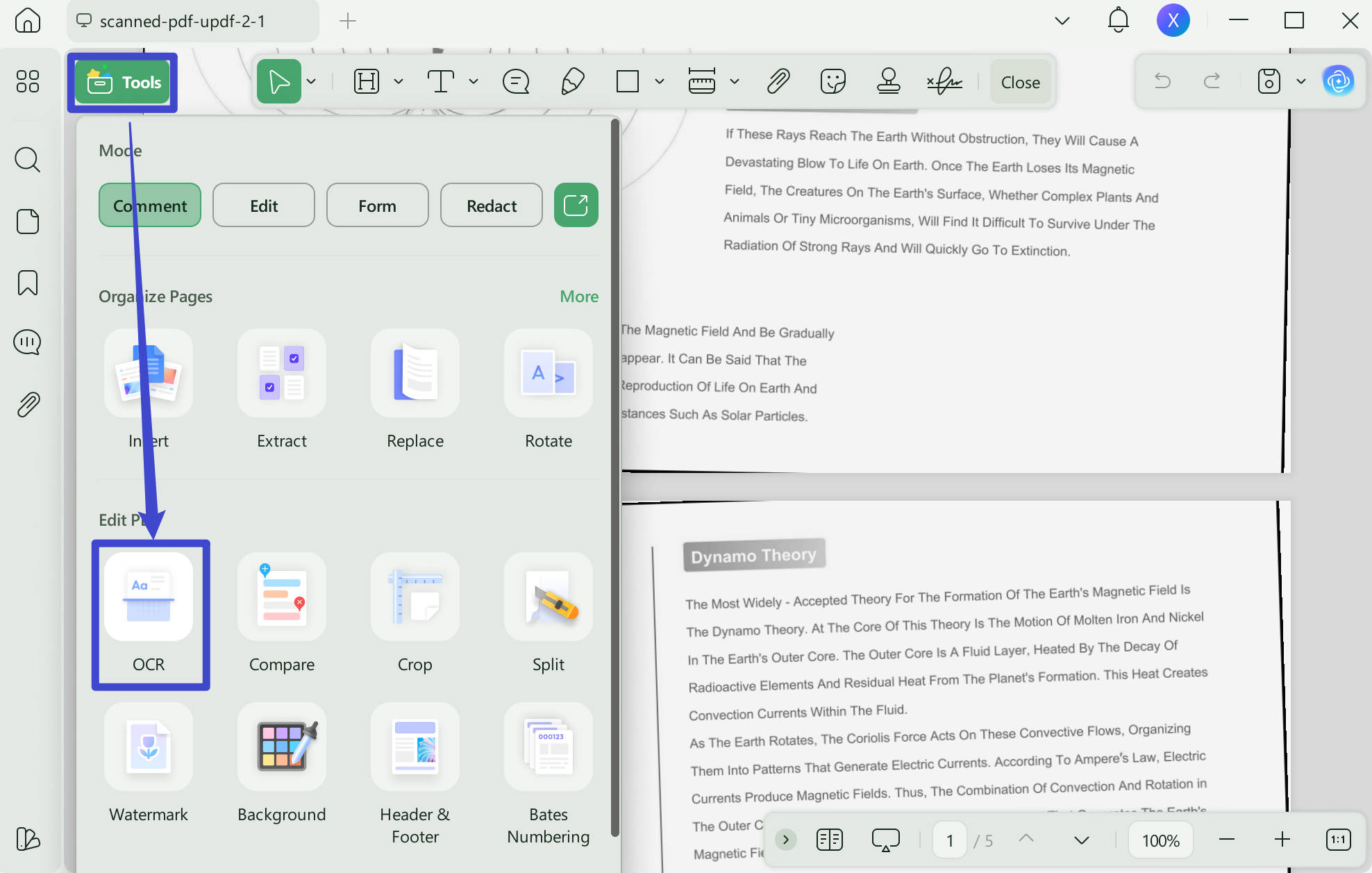
Luckily, UPDF provides an OCR feature to help you make the image-based PDFs much smaller than the original files. Follow the steps:
Step 1. Click the OCR Button
After you open your PDF document, you will find a button about OCR displayed on the right side of the toolbar. When your cursor hovers on it, it displays "OCR" in Tools.
Step 2. Perform OCR to Get a Smaller Sizes PDF
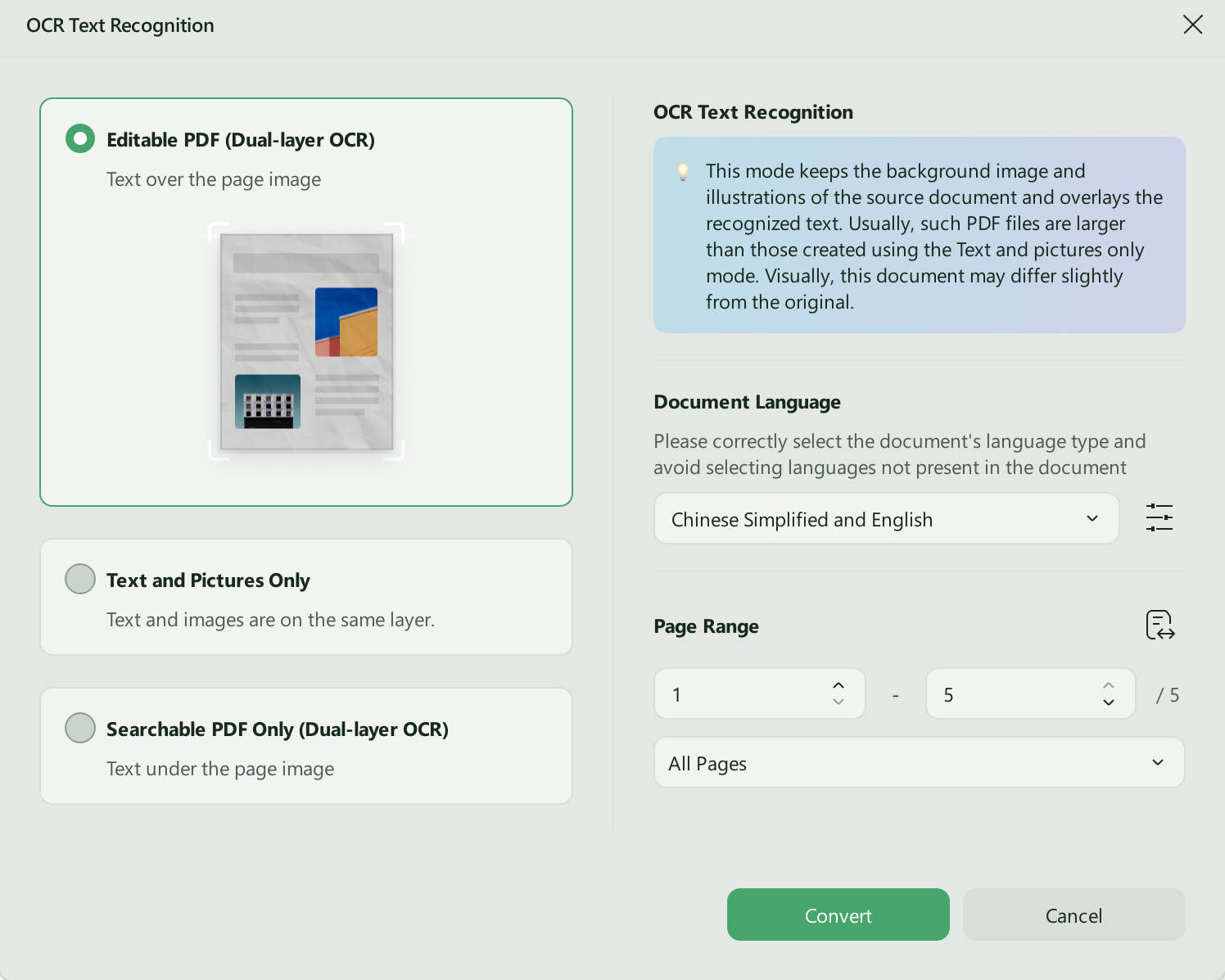
In the new window, you will find the option "Editable PDF". Then you need to choose the layout, the document language, the image resolution, and the page range.
Enter the Layout Settings and set the image resolution also helps you reduce the file size.
Finally, click the "Convert" button and within a few seconds, you will get a PDF file with a smaller size. What's more? The texts in it become searchable and editable.
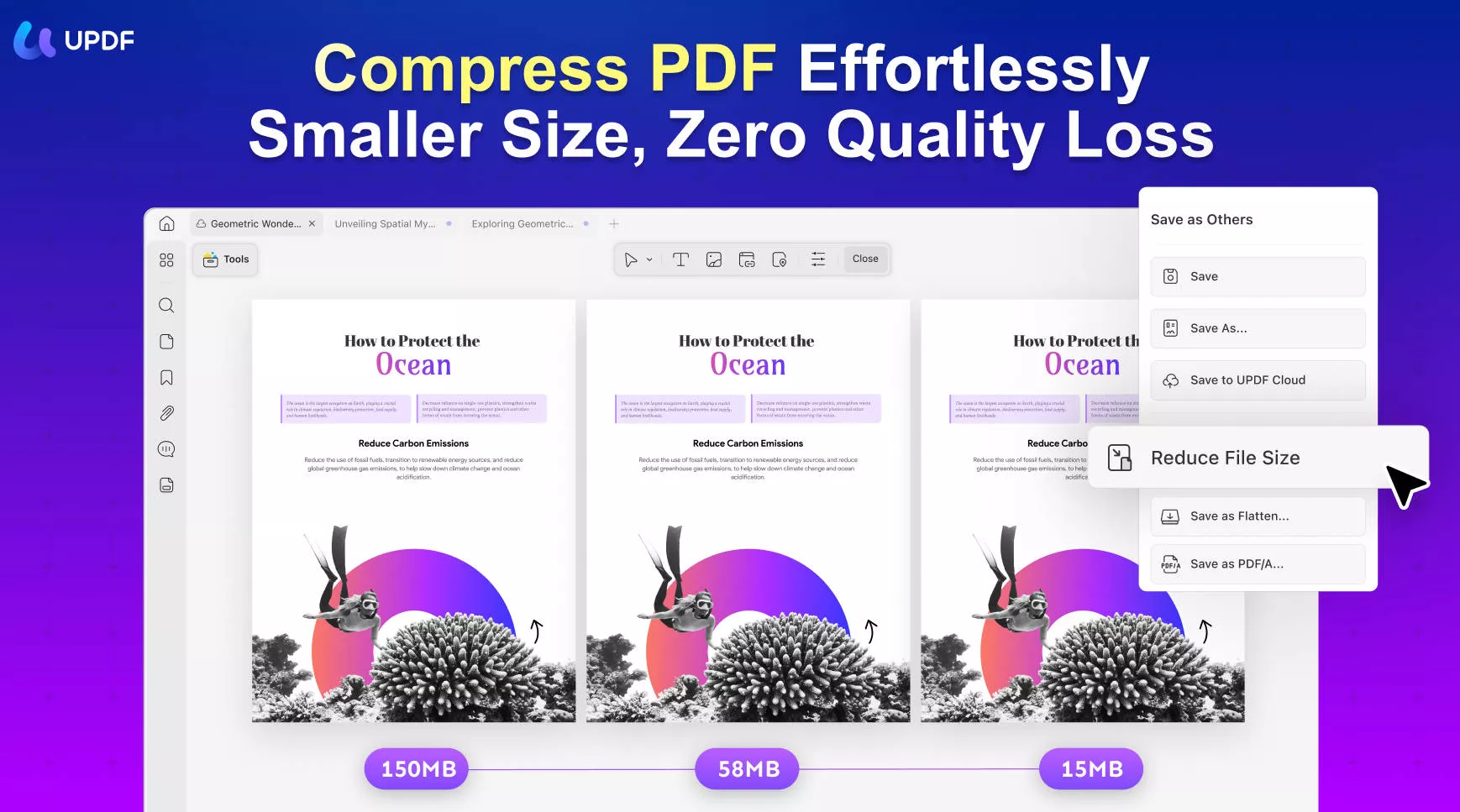
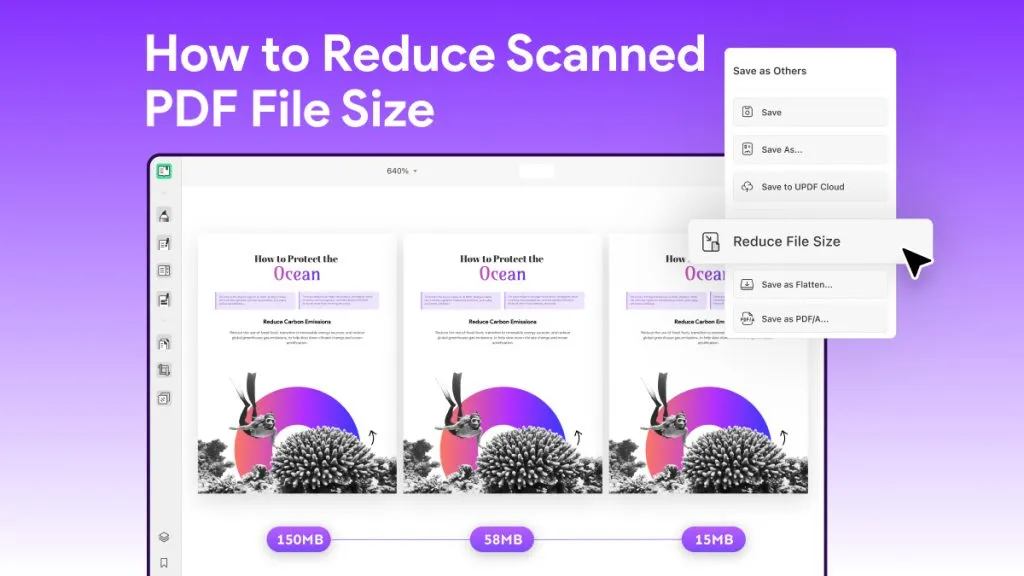
Alternatively, you can compress PDF file size by optimizing PDF file with UPDF. To do this, you can tap on "The narrow next to save" > "Reduce File Size..."
Before sending the document, check how it looks after reducing the file size. For a visual companion, the video below focuses on compressing PDFs in UPDF.
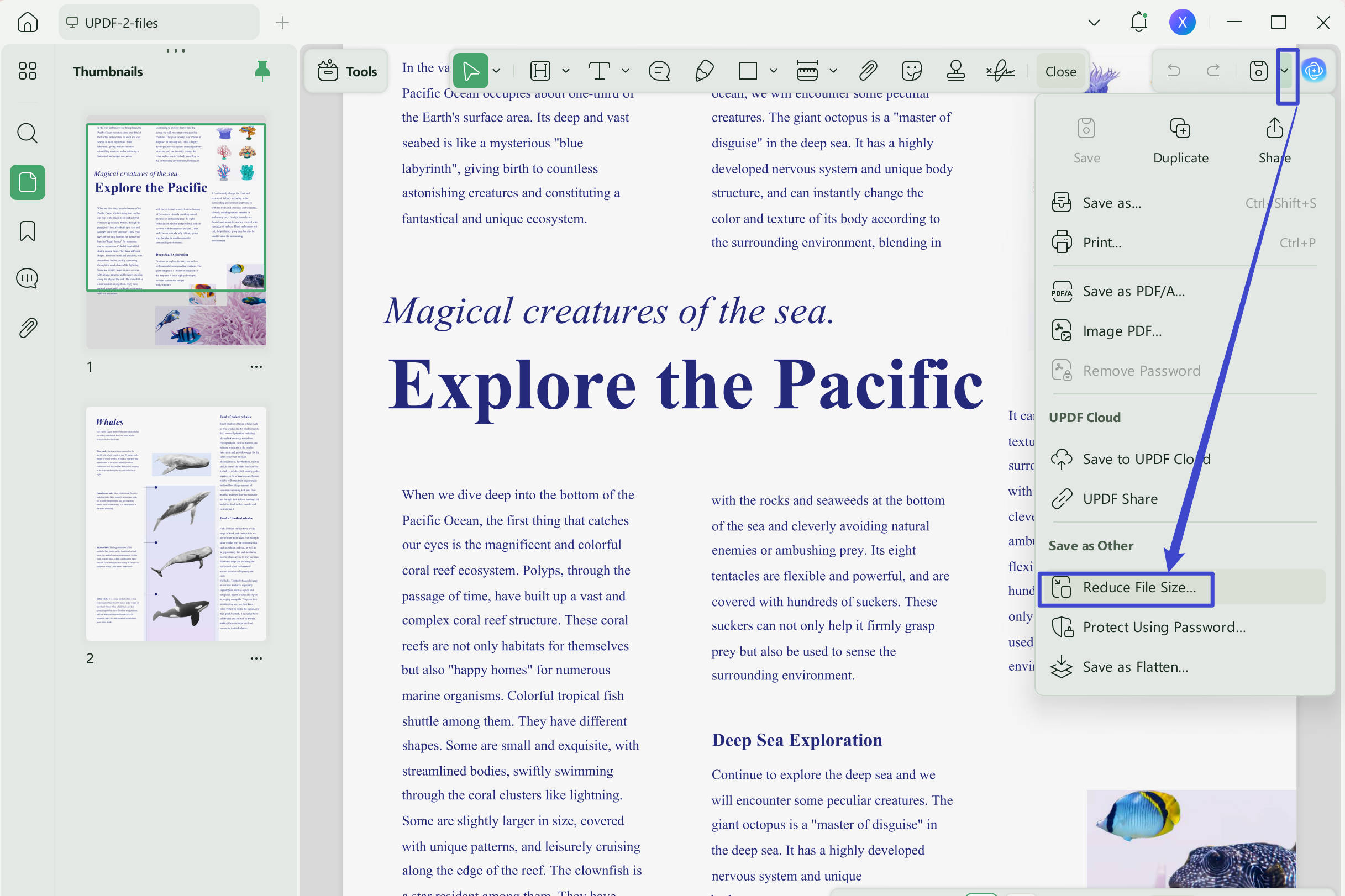
Then you can select any of the document qualities to compress the PDF file size. Once done, click the "Save As" button.
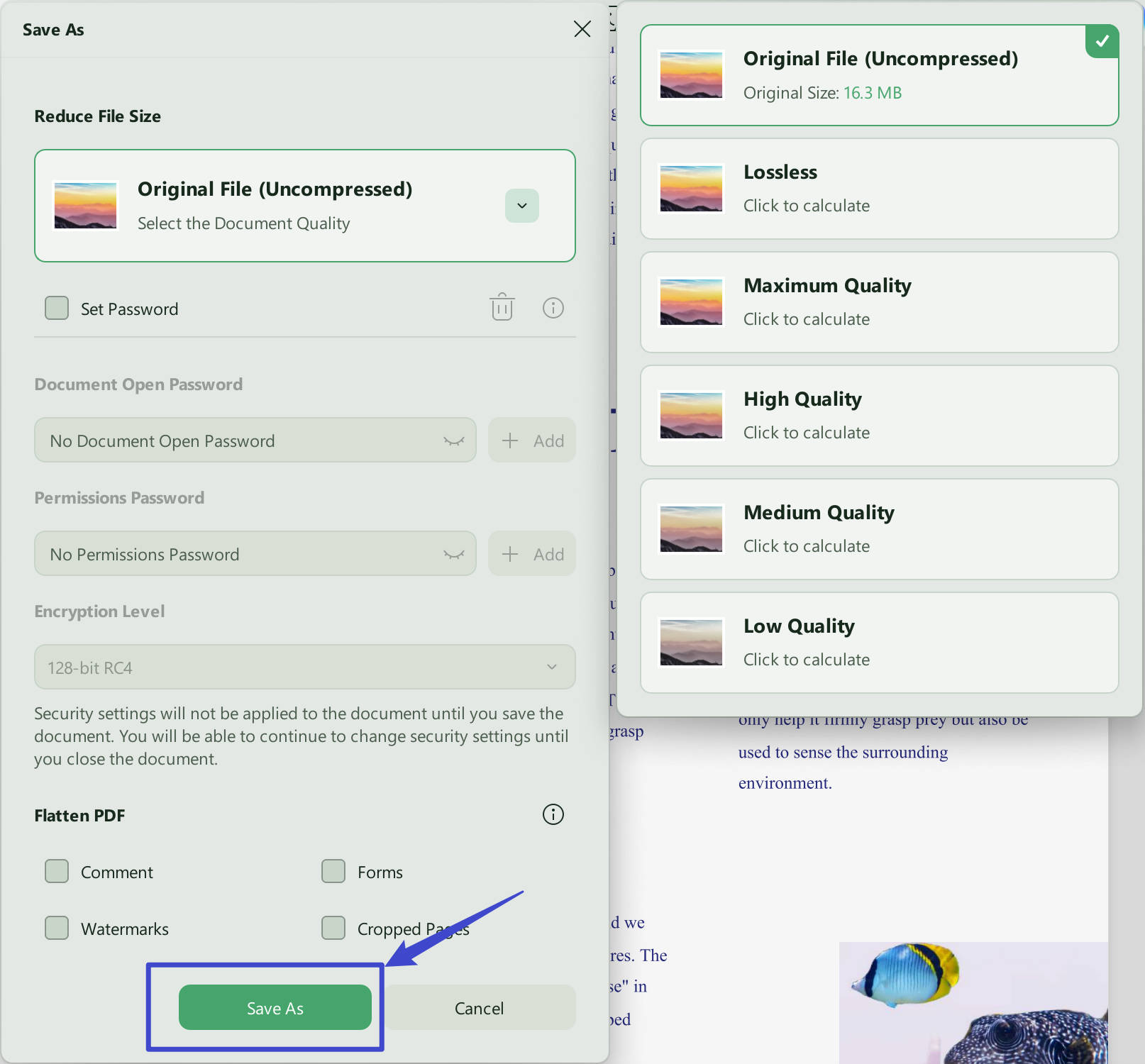
These are all the steps you need for compressing PDF files. Only 2 steps to solve your problem because of user-friendly interface of UPDF.
FAQs
Q1: Can I compress a PDF to an exact size?
Not in one guaranteed pass. Save copies at different quality levels until one meets the limit, then inspect readability.
Q2: Why did the compressed PDF become larger?
The source may already be optimized. Re-saving can add structure or use less efficient settings. Keep the original if the copy is larger.
Q3: What PDF size can I attach to Gmail?
Personal Gmail allows up to 25 MB. The limit covers all attachments in one message; larger totals become a Google Drive link.
Q4: Is offline PDF compression safer for confidential files?
It avoids uploading the document. A desktop workflow removes the upload step, but organizational storage and access rules still apply.
Conclusion
The developers of this very useful PDF tool are constantly improving its function to make it easier to use and also to introduce new features. Upcoming features include PDF forms, digital signatures, and so on.
Windows • macOS • iOS • Android 100% secure


 Enola Miller
 Enid Brown