UPDF
UPDF
 UPDF for Windows
 UPDF for Mac
 UPDF for iPhone/iPad
 UPDF for Android
 Nomostar
 UPDF AI Online
 UPDF Sign
 IvyCraft
 Edit PDF
 Annotate PDF
 Create PDF
 PDF Form
 Edit links
 Convert PDF
 OCR
OCR PDF to Word
 PDF to Image
 PDF to Excel
 Organize PDF
 Merge PDF
 Split PDF
 Crop PDF
 Rotate PDF
 Protect PDF
 Sign PDF
 Redact PDF
 Sanitize PDF
 Remove Security
 Read PDF
 UPDF Cloud
 Compress PDF
 Print PDF
 Batch Process
 About UPDF AI
 UPDF AI Solutions
 AI User Guide
 FAQ about UPDF AI
 Summarize PDF
 Translate PDF
 Chat with PDF
 Chat with AI
 Chat with image
 PDF to Mind Map
 Explain PDF
 PDF AI Tools
 Image AI Tools
 AI Chat Tools
 AI Writing Tools
 AI Study Tools
 AI Working Tools
 Other AI Tools
 AI Bookmark Generation
 AI Bookmark Summary
 AI Watermark Generation
 AI Background Generation
 AI Sticker Generation
 AI Stamp Generation
 AI Editing Suite
 UPDF Copilot
 AI Page Management
 AI Semantic Search
 PDF to Word
 PDF to Excel
 PDF to PowerPoint
 Enterprise Solution
 Enterprise Sign
 Enterprise AI
 Enterprise Plan
 Enterprise User Guide
 Enterprise Webinar
 Banking
 Healthcare
 Insurance
 Legal
Legal Manufacturing
 Government
 Education Solution
 Customer Stories
 User Guide
 UPDF Tricks
 FAQs
FAQs UPDF Reviews
 Download Center
 Blog
Blog Newsroom
 Tech Spec
 Updates
 UPDF vs. Adobe Acrobat
 UPDF vs. Foxit
 UPDF vs. PDF Expert

You found the sheet music for a song you want to learn — but the site only shows a low-resolution preview image or a locked PDF, with no way to hear how it actually sounds. Before paying for the full version, you want to know whether it's the right arrangement and whether the part is playable for you.
That's what "play sheet music from PDF" means here: the right tool reads the notation on the page and turns it into audio you can listen to, slow down, and loop. This guide covers three tools that do exactly that — on the web, on desktop, and on mobile — plus a free shortcut worth trying first, and how to prep a messy PDF sheet music with UPDF.
Windows • macOS • iOS • Android 100% secure
Part 1. Before You Scan: Check If the Song Is Already Playable
Before converting anything, try the fastest free shortcut. Two community notation platforms — MuseScore.com and Flat.io — host large libraries of user-uploaded scores (MuseScore alone has millions). If someone has already transcribed the song you want, you can open it in your browser and play it back right away — change the tempo, loop a section, and judge whether it's the arrangement you need — without scanning anything or paying a cent.
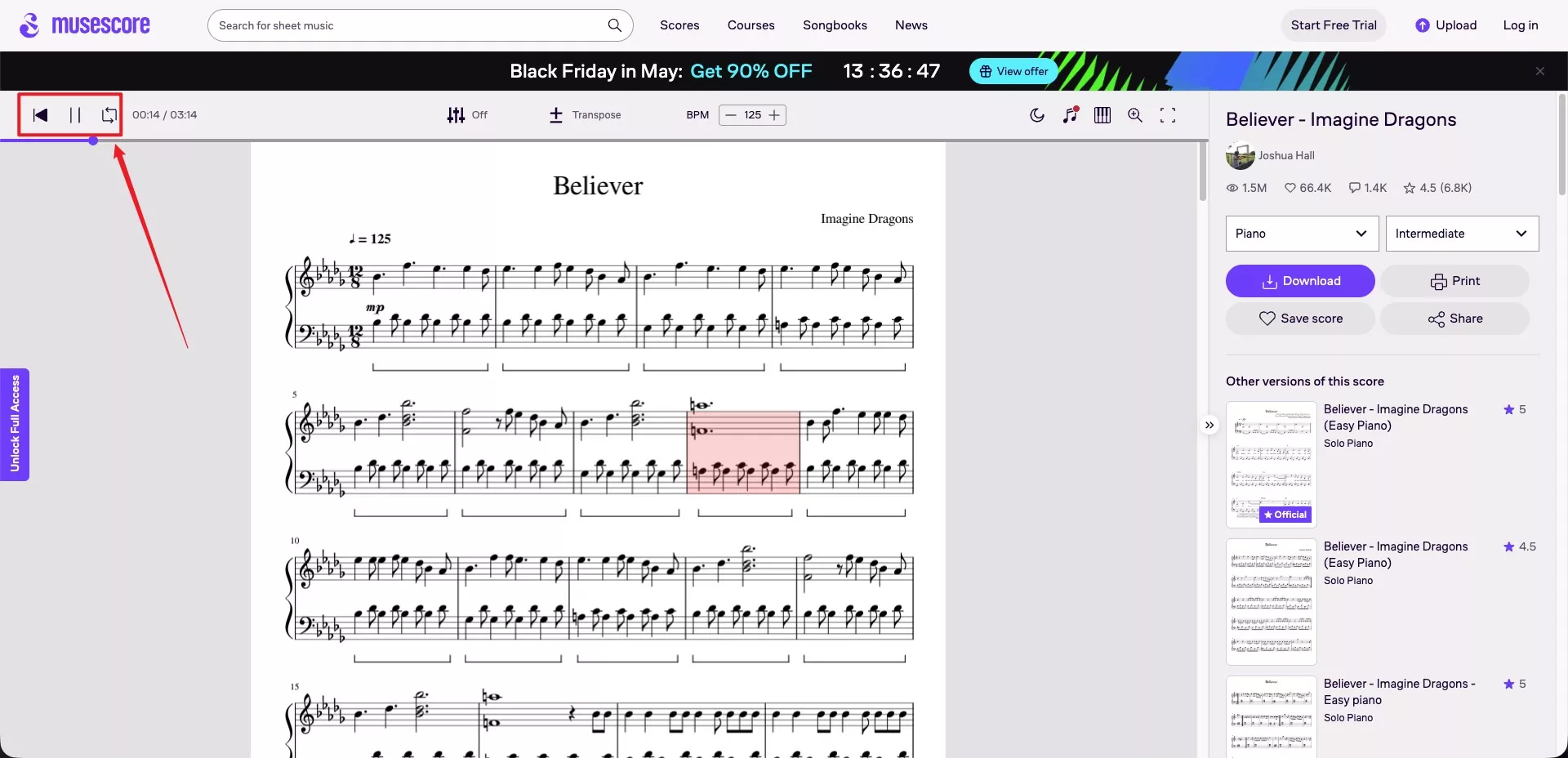
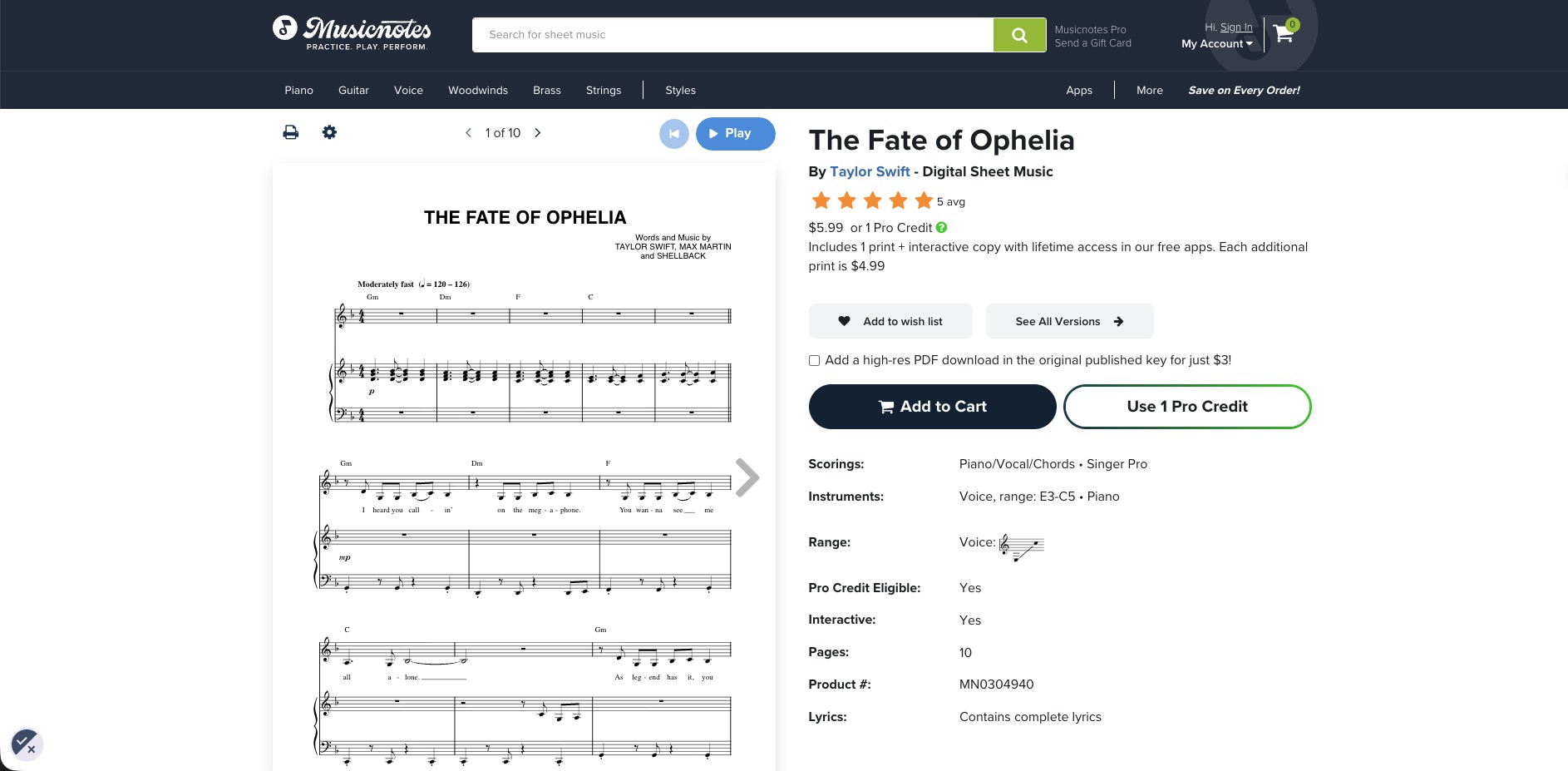
If the song isn't in either library, you'll need the PDF itself. For classical pieces, IMSLP offers public-domain scores that are free and legal to download. For popular songs, retailers like Musicnotes sell official arrangements with a preview page or two before you buy — which is exactly the situation the rest of this guide addresses.
One caution: be wary of sites offering current pop songs as "free" PDF downloads. Free to download doesn't mean copyright-free — many host arrangements without permission, and downloading them may not be legal where you live.
Part 2. Play Sheet Music from a PDF Online with Soundslice
Soundslice was built by musicians and runs entirely in your browser, so there's nothing to install. Its scanning engine uses Optical Music Recognition to read a PDF or photo and turn it into an interactive score you can play back, slow down, transpose, and loop.
One thing to know upfront: scanning is now a paid feature. It's included with the Plus plan ($5 per month) and the Teacher ($20 per month) and Licensing plans ($100 per month). A free account still lets you view and practice scores, but not scan new PDFs.
To play your sheet music PDF free online using Soundslice, follow these simple steps:
- Step 1. Go to the Soundslice website, create an account, then open the sheet music scanner.
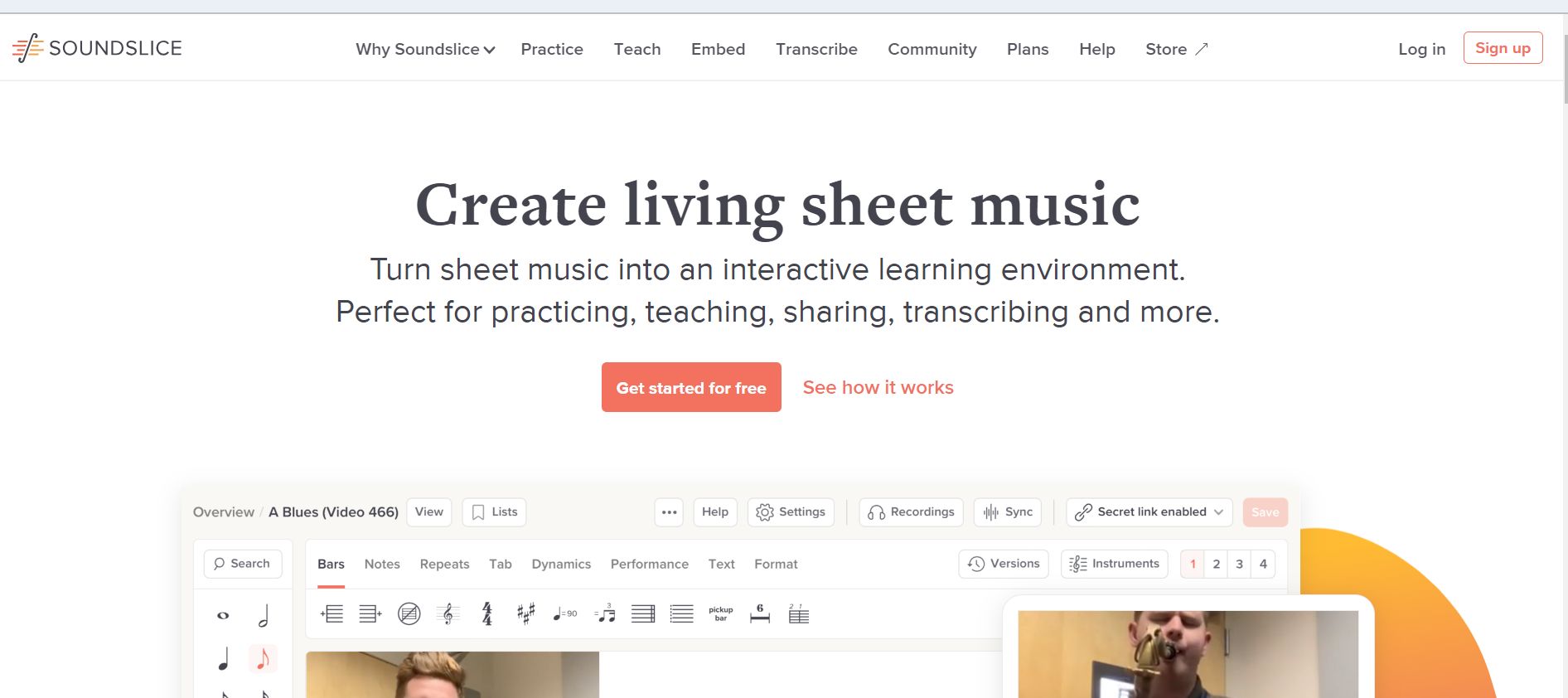
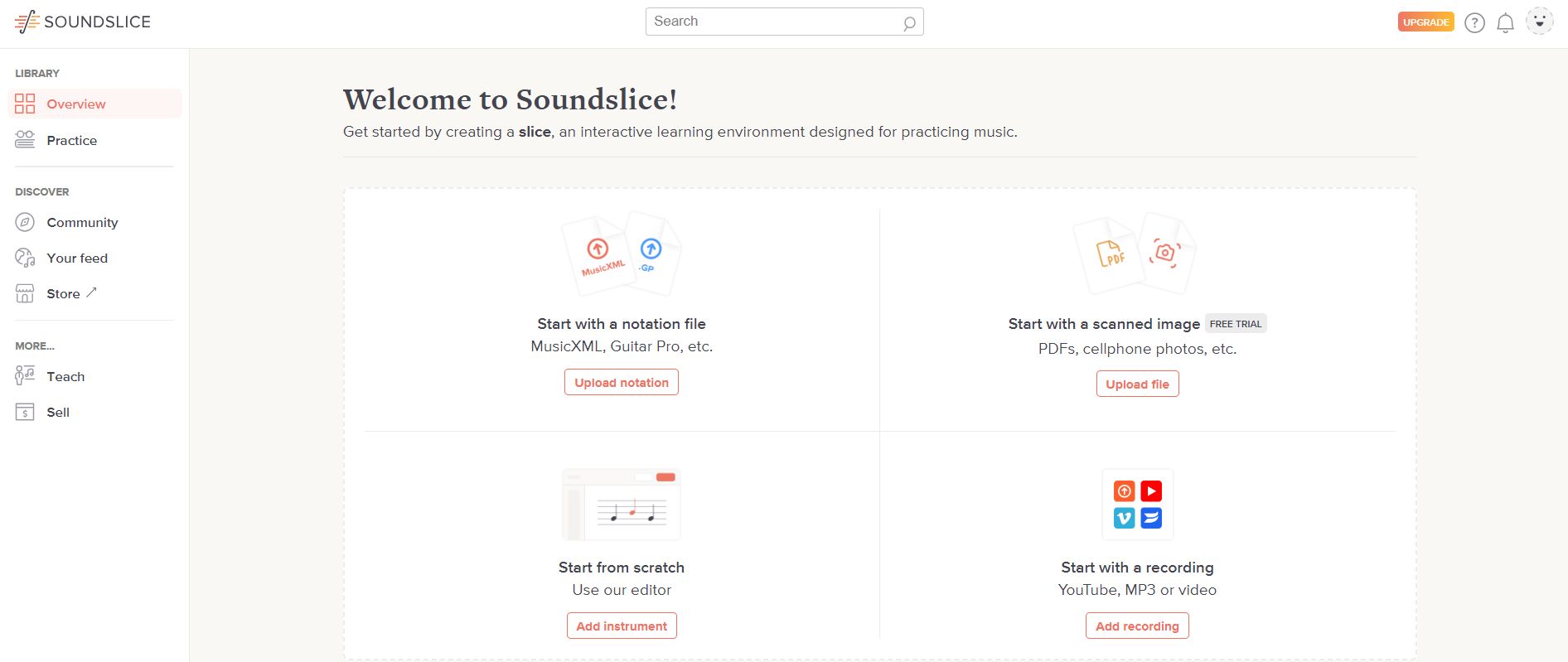
- Step 2. Once you have signed up, you'll be taken to the welcome page. Go to the Start with a scanned image option and click Upload file.
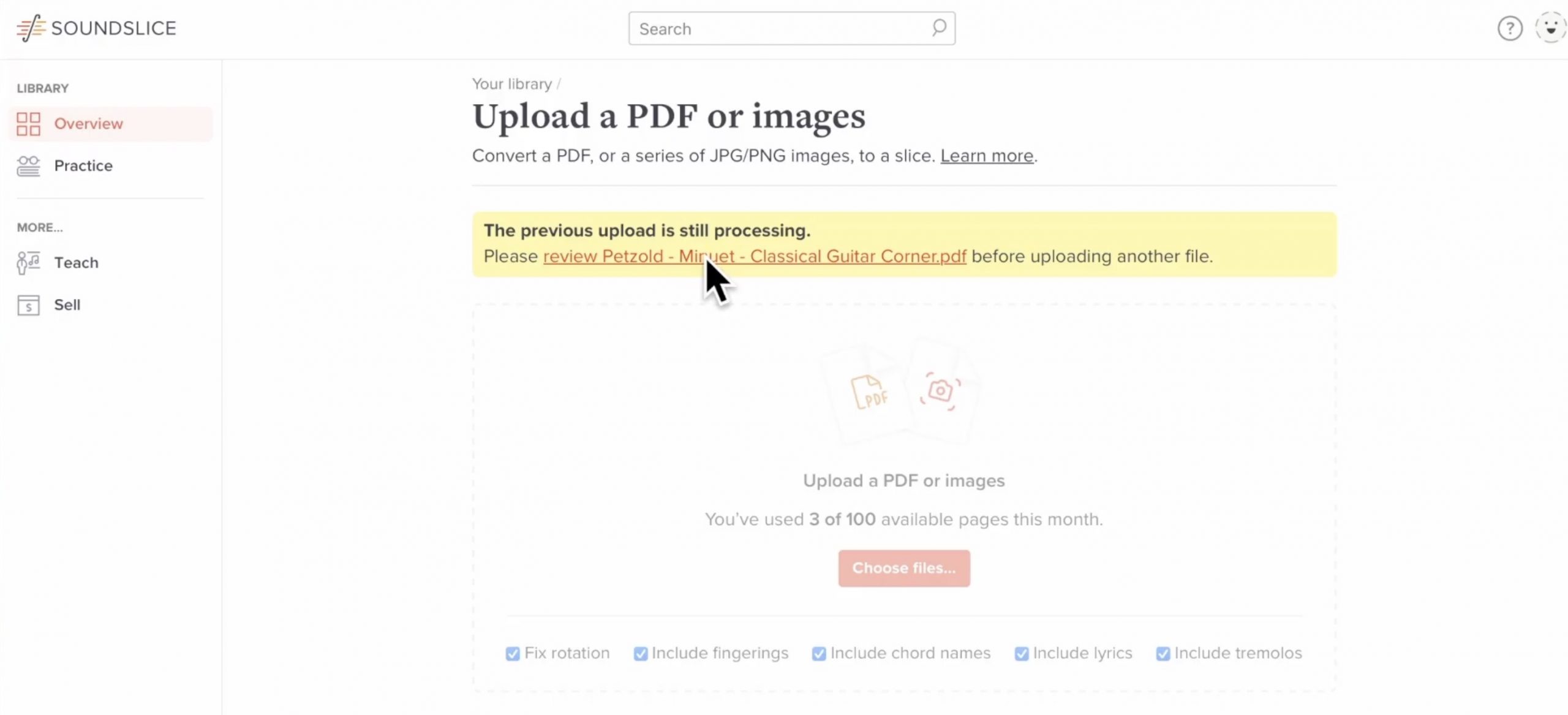
- Step 3. Upload your chosen music sheet and wait for the scan to finish, then review the result in the built-in notation editor and correct any misread notes.
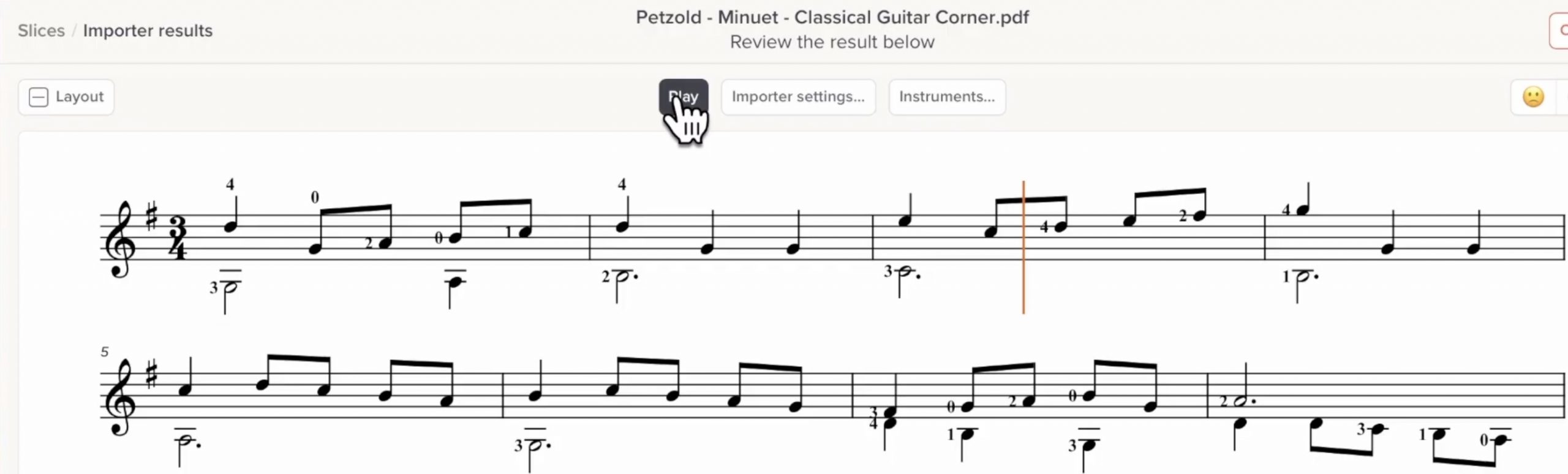
- Step 4. Press play to hear the score. You can mute or solo individual parts, view a piano-keyboard visualization, and slow the tempo down for practice.
Part 2. Play Sheet Music from a PDF on a Computer with MuseScore
Describing itself as "The world's most popular notation app," MuseScore is another great tool that enables musicians to play sheet music online. It is an open-source notation app for Windows, Mac, and Linux, with a large online community library. From beginners to professionals, there is something for everyone. It helps musicians learn, create, and edit music notation. It can't open a PDF directly; instead, it sends the file to an online converter that turns it into an editable score.
Following these few easy steps, you can play sheet music from PDF online:
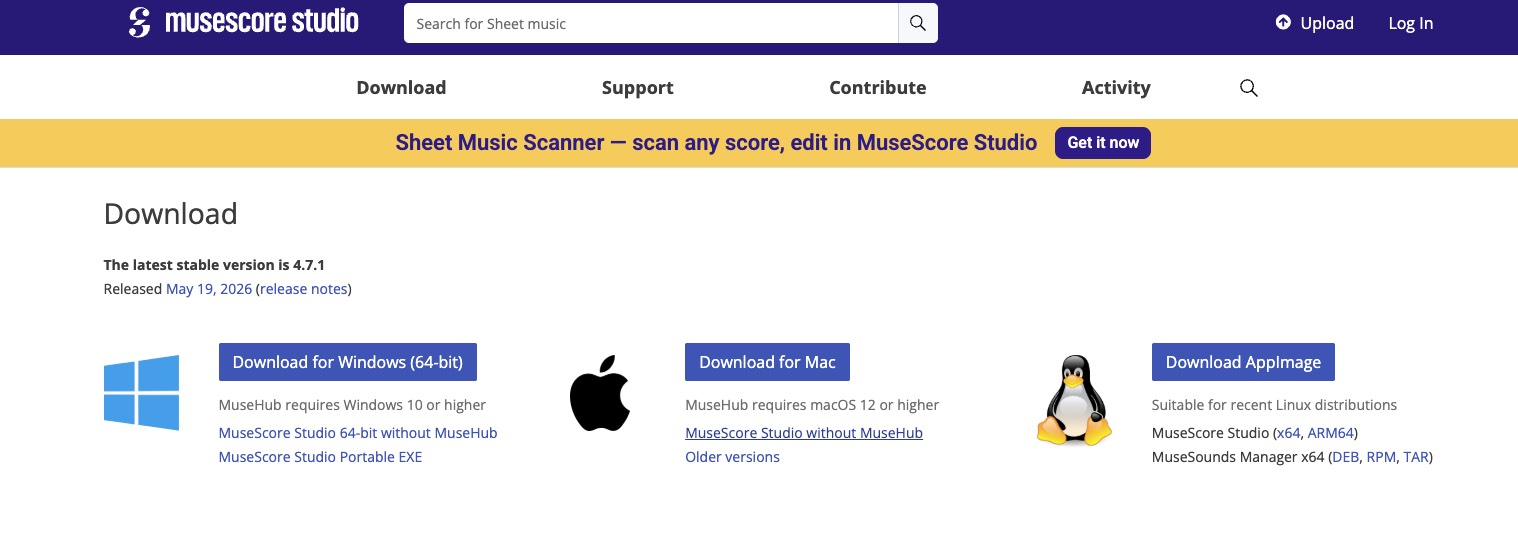
- Step 1. Download and install MuseScore Studio, then open it. Make sure your computer is connected to the internet.
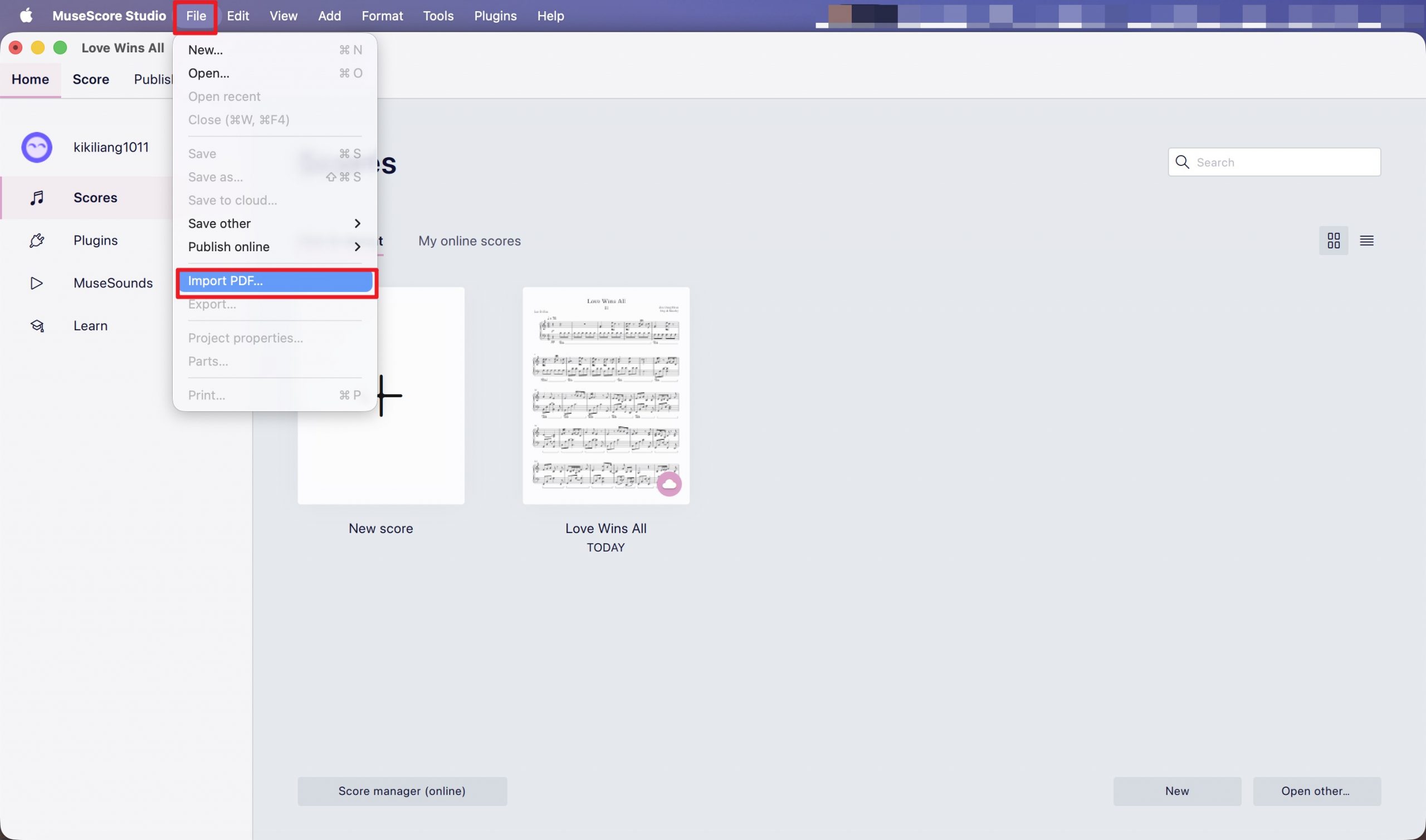
- Step 2. In MuseScore, go to File → Import PDF. This opens the musescore.com import page in your browser.
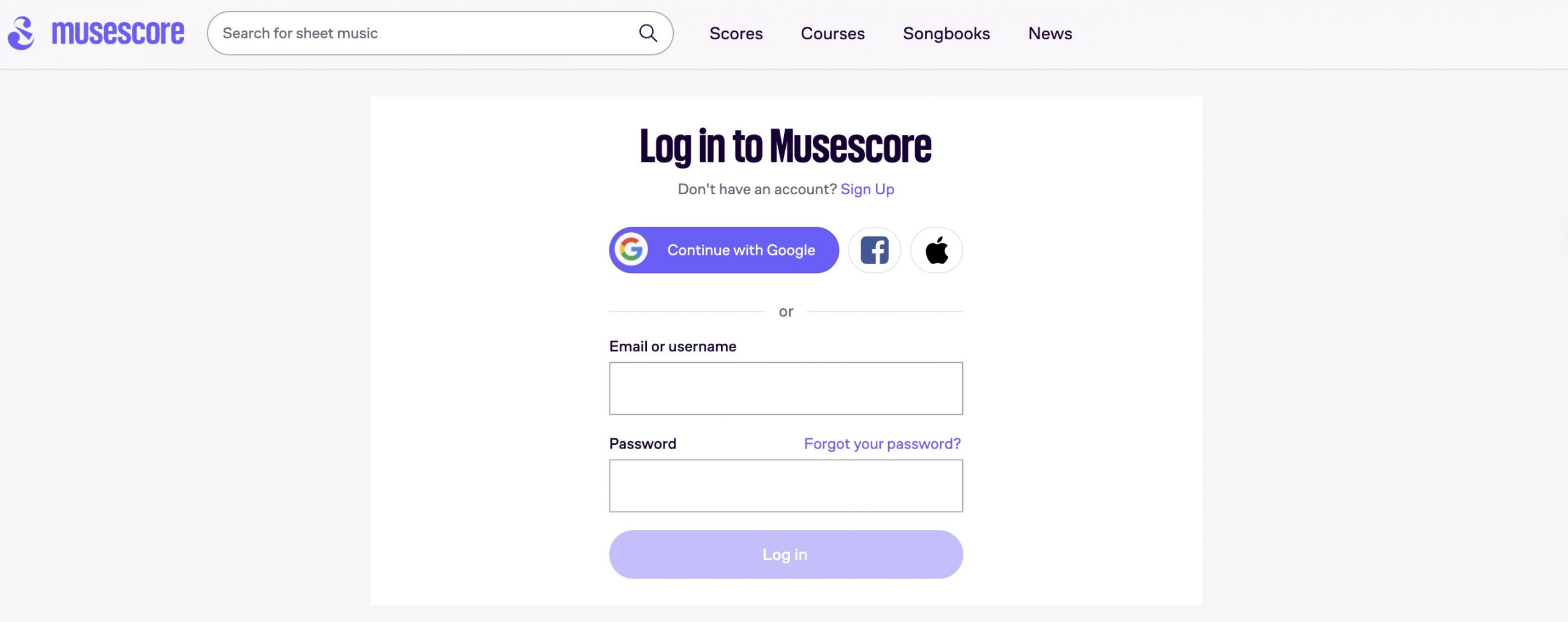
- Step 3. Log in to your MuseScore account. A free account is enough (With a free account, you are limited to one PDF conversion per 24 hours).
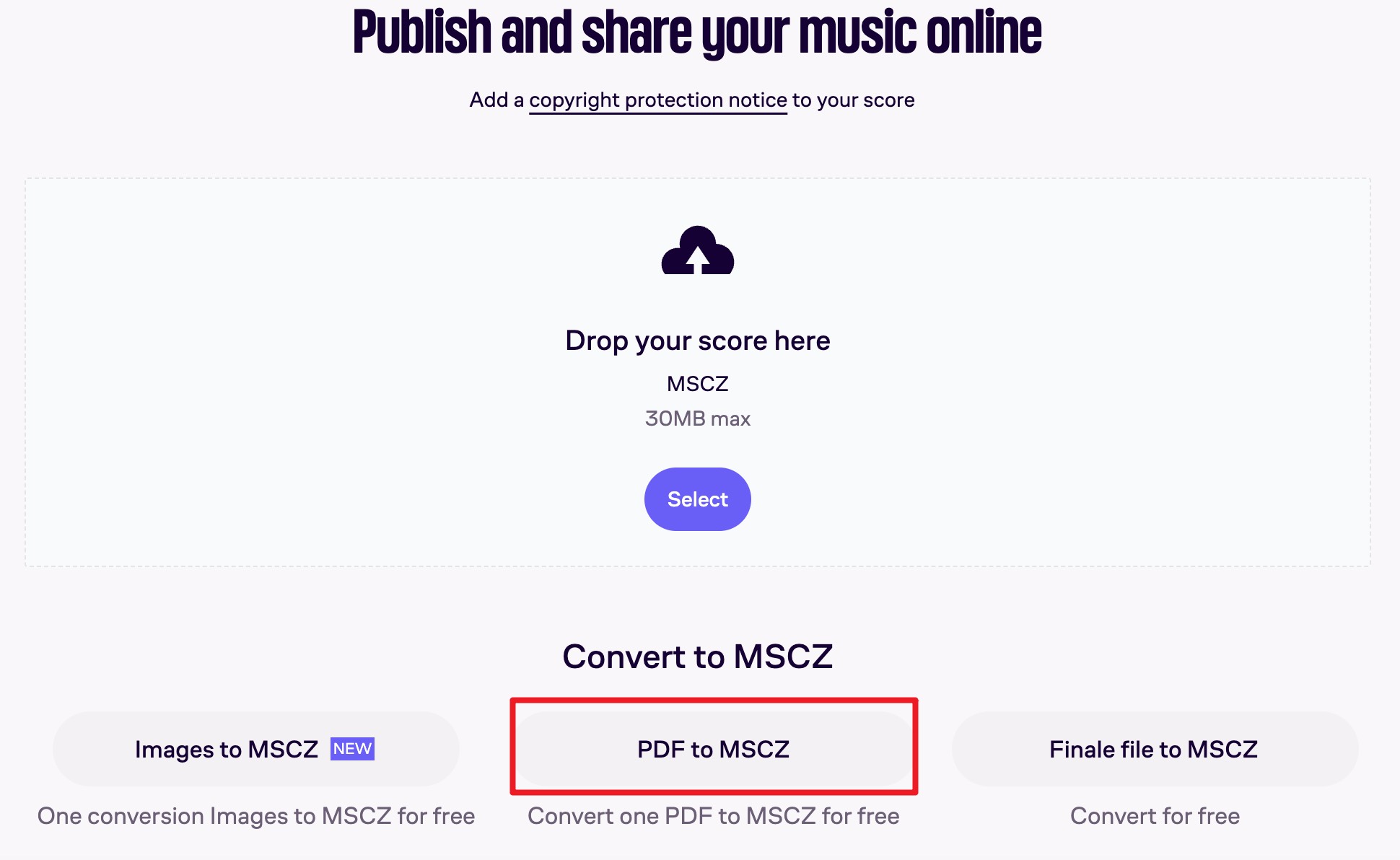
- Step 4. On the website, click Upload, then choose PDF to MSCZ.
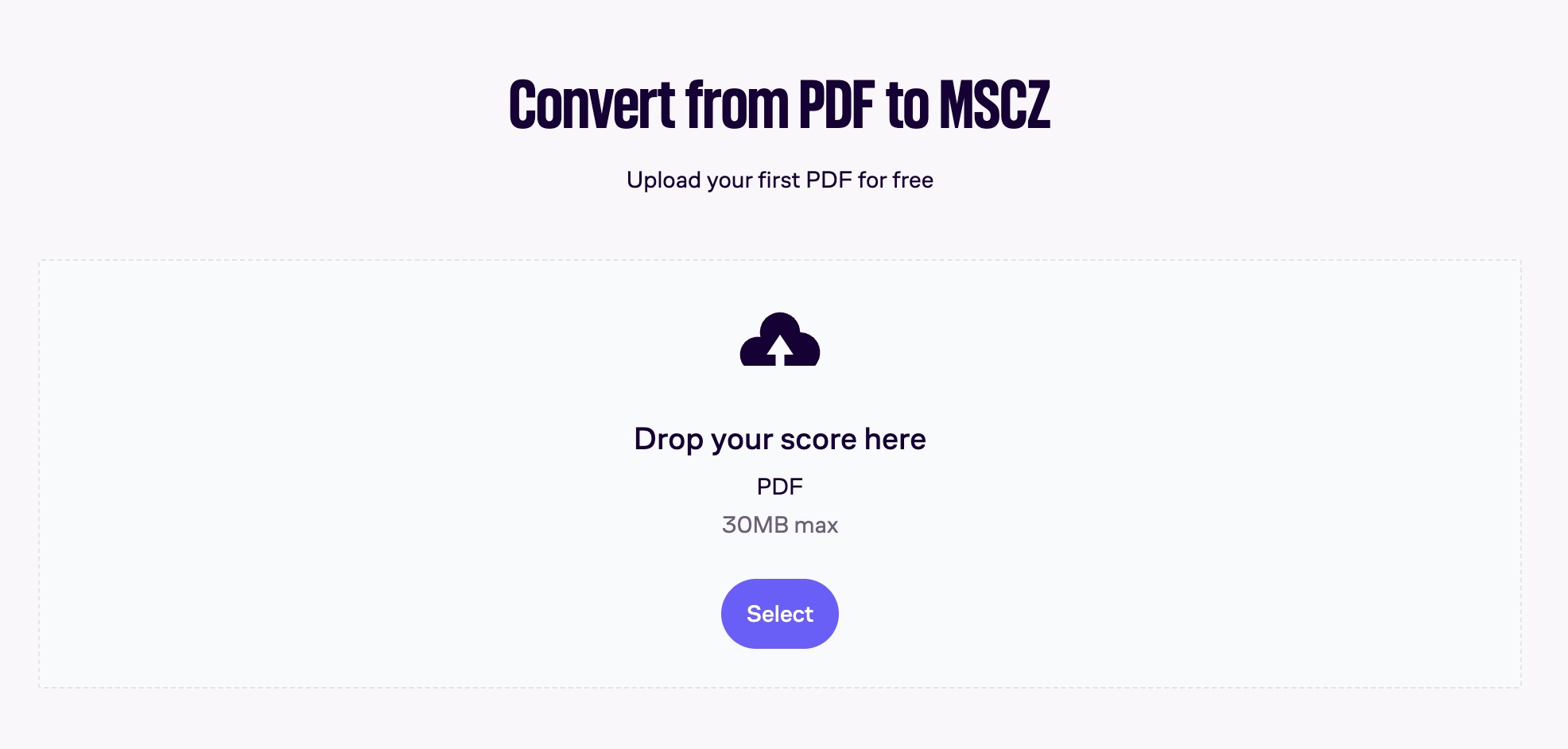
- Step 5. Drag and drop your PDF file into the upload area, or click Select to choose the file from your computer. Close any subscription pop-up if it appears. The PDF file size must be under 30 MB.
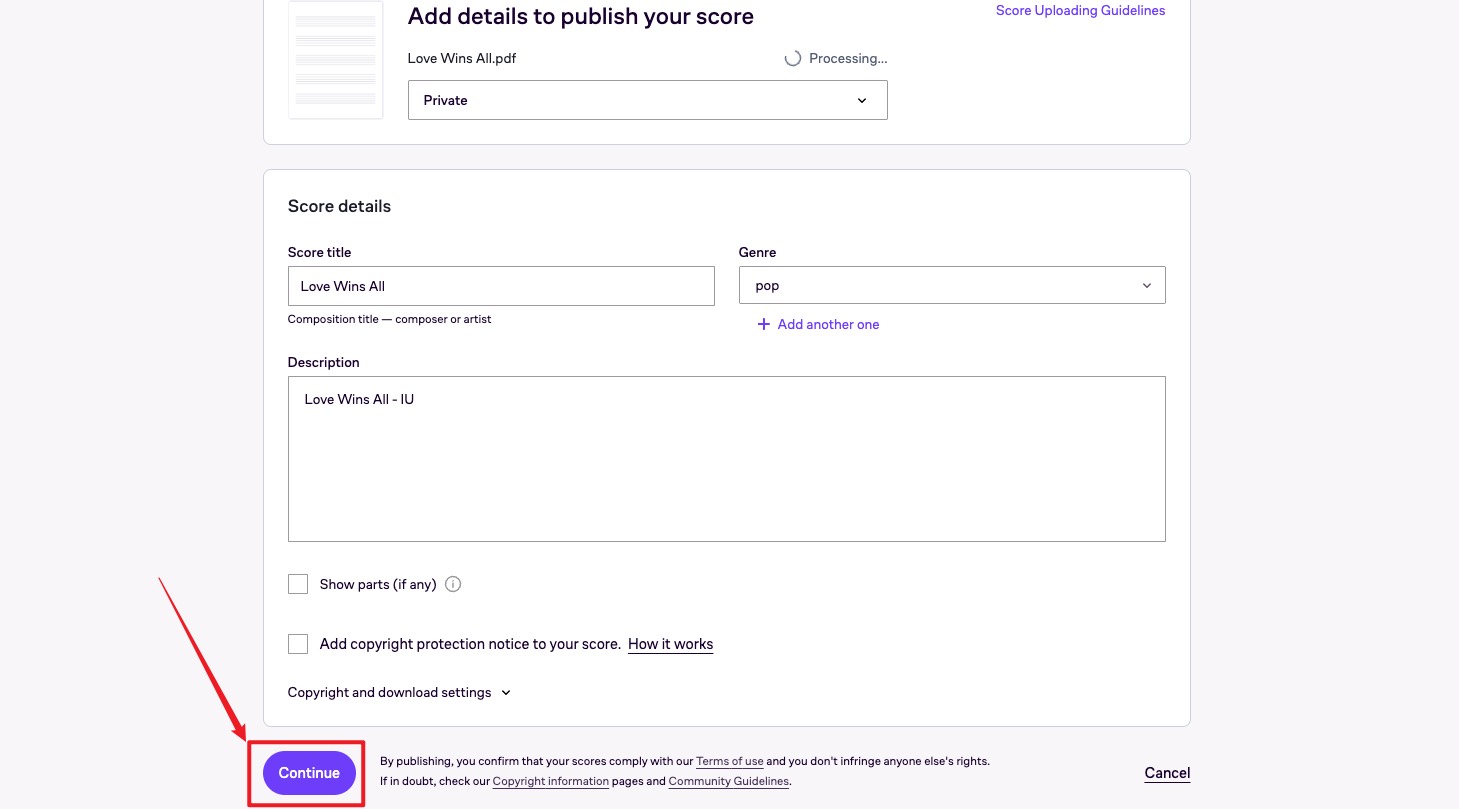
- Step 6. Set the score privacy to Private if you do not want other people to see it. Enter at least a title for the score. The other fields are optional. Click Continue.
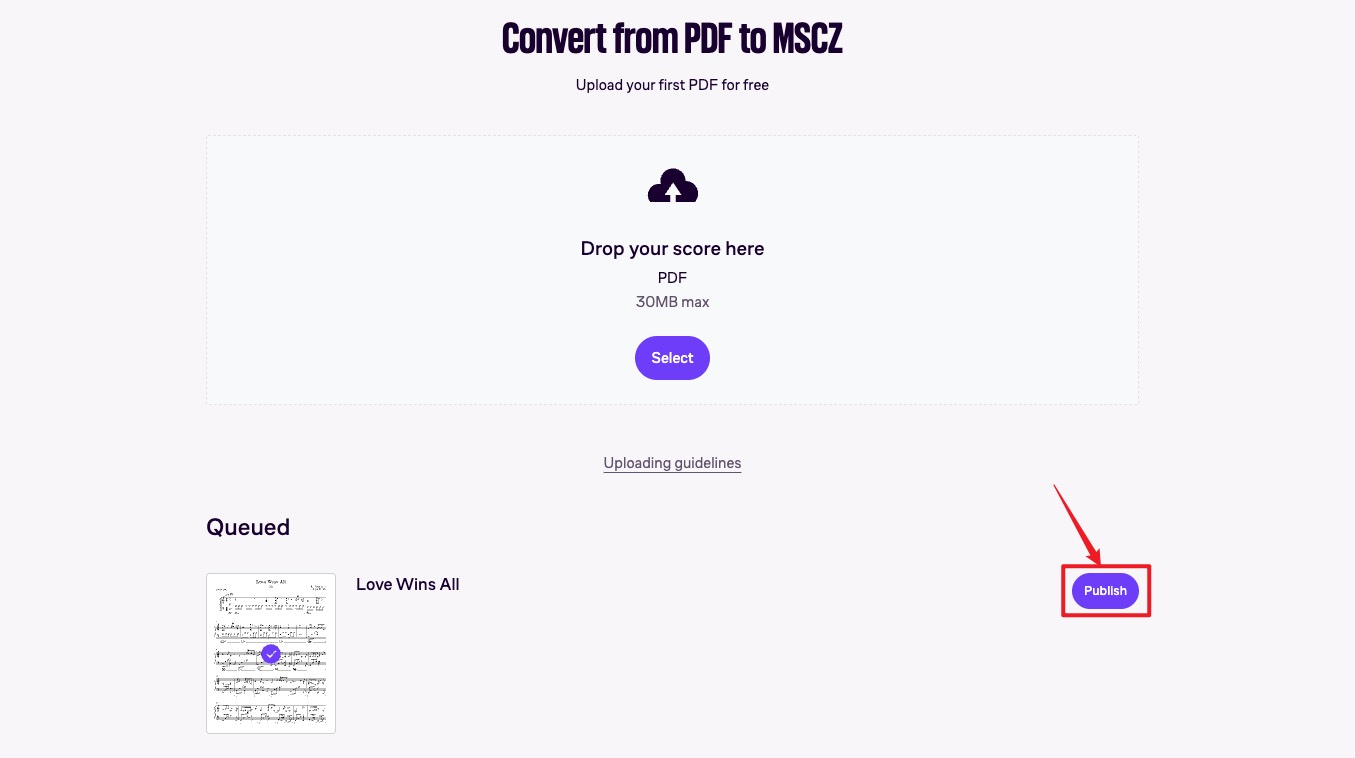
- Step 7. Wait while MuseScore processes the PDF and converts it into an MSCZ file. When the conversion is ready, click Publish > Edit on desktop to open the result page.
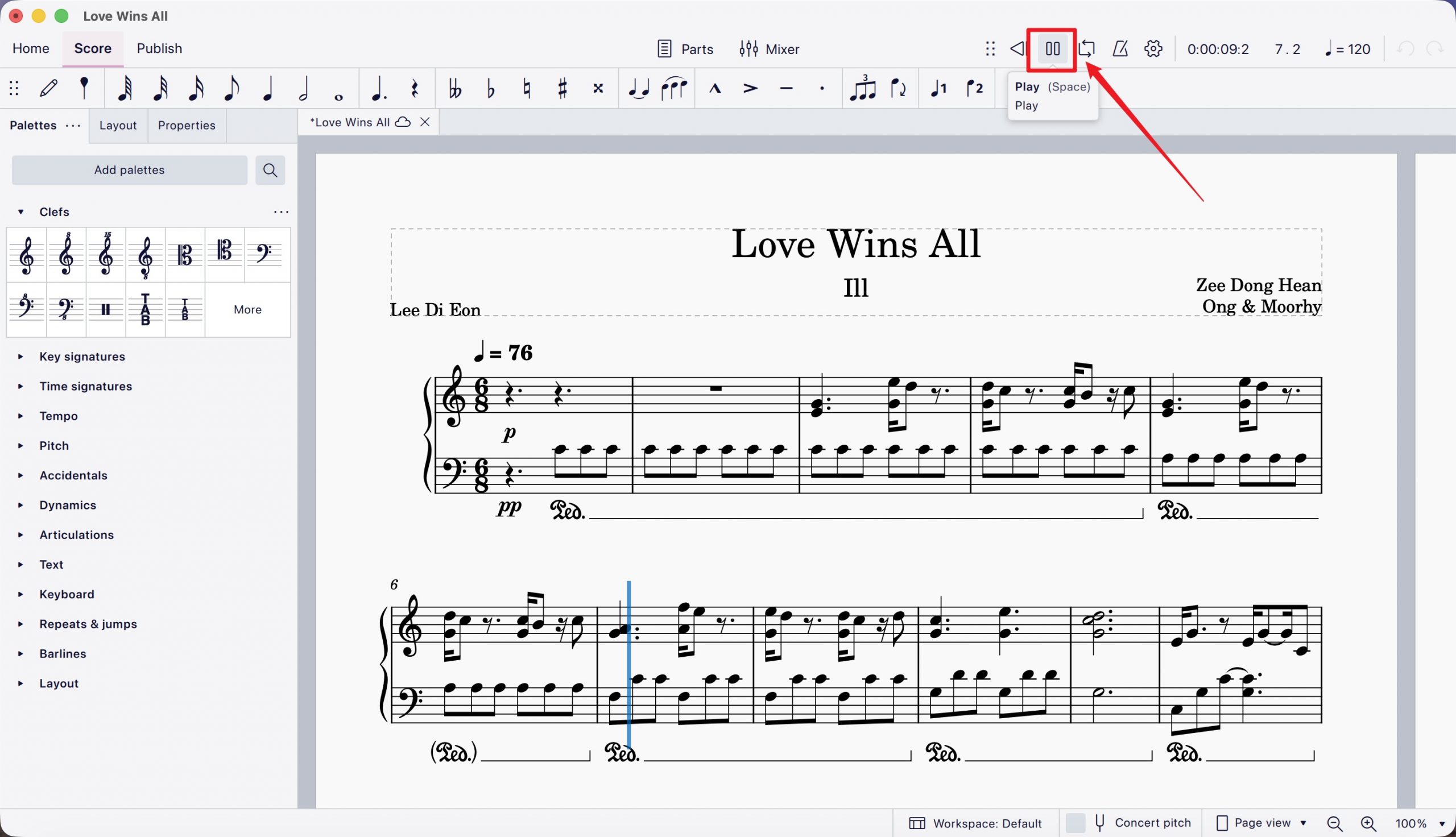
- Step 8. The converted score will open in MuseScore Studio. Press the spacebar or the play button to hear the score, and use the side panel for additional playback options.
- Step 9 (Optional). If you want, you can later go to My Scores on the website and delete the uploaded private score.
Part 4. Play Sheet Music from a PDF on Mobile with Sheet Music Scanner
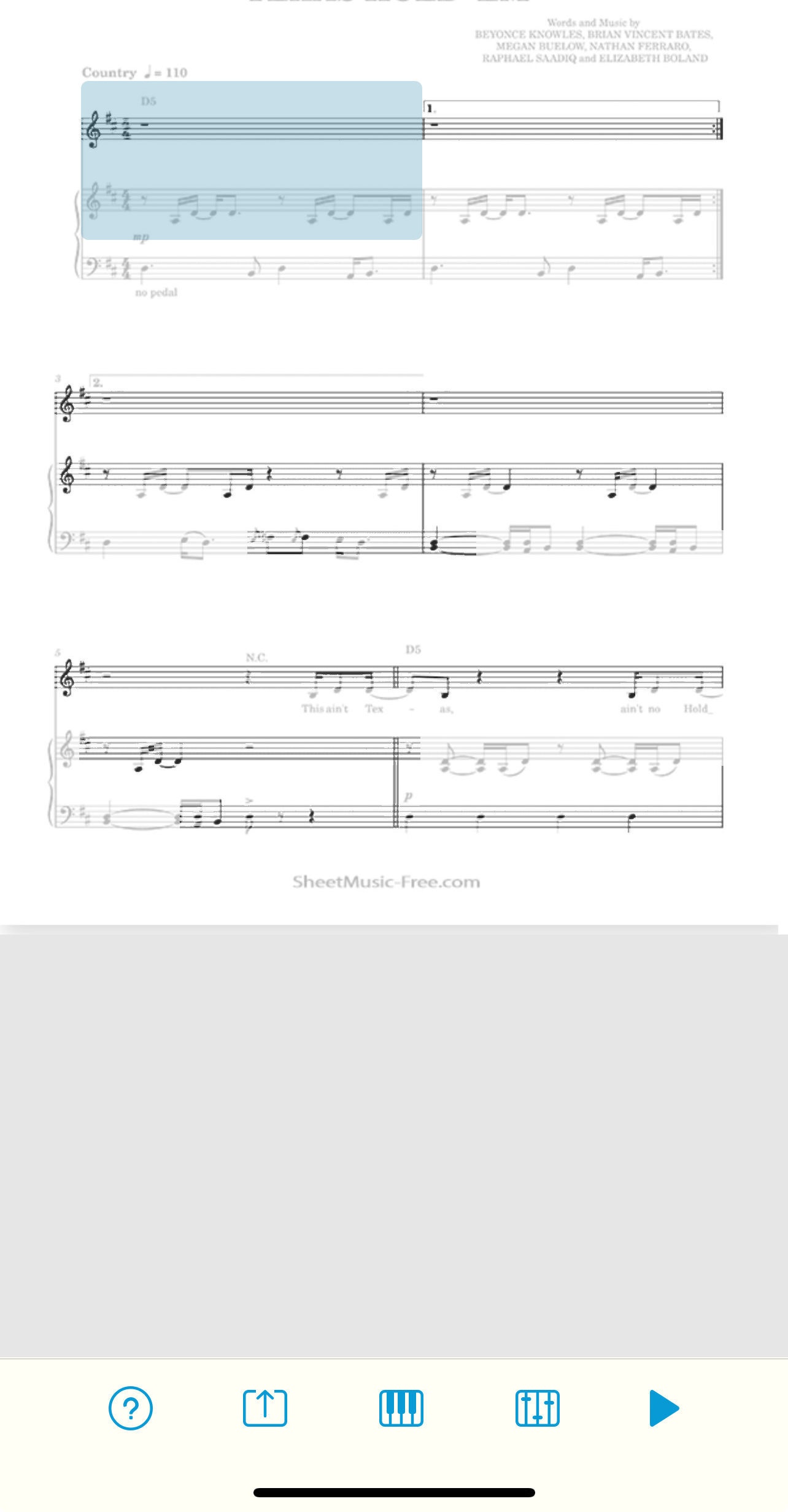
If you want to listen on your phone, Sheet Music Scanner (iOS and Android) scans printed or PDF sheet music and plays it back instantly. You can pick the instrument, adjust the tempo, and tap any single measure to hear just that part — handy for checking one tricky passage. The full playback and export features are unlocked through an in-app purchase.
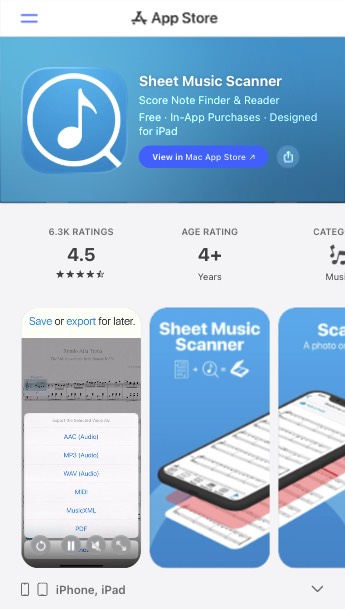
Using this step-by-step guide, play sheet music from PDF using Sheet Music Scanner:
- Step 1. Download Sheet Music Scanner from the App Store or Google Play, then open it.
- Step 2. Tap to scan a page with your camera, or import a PDF or photo from your device.
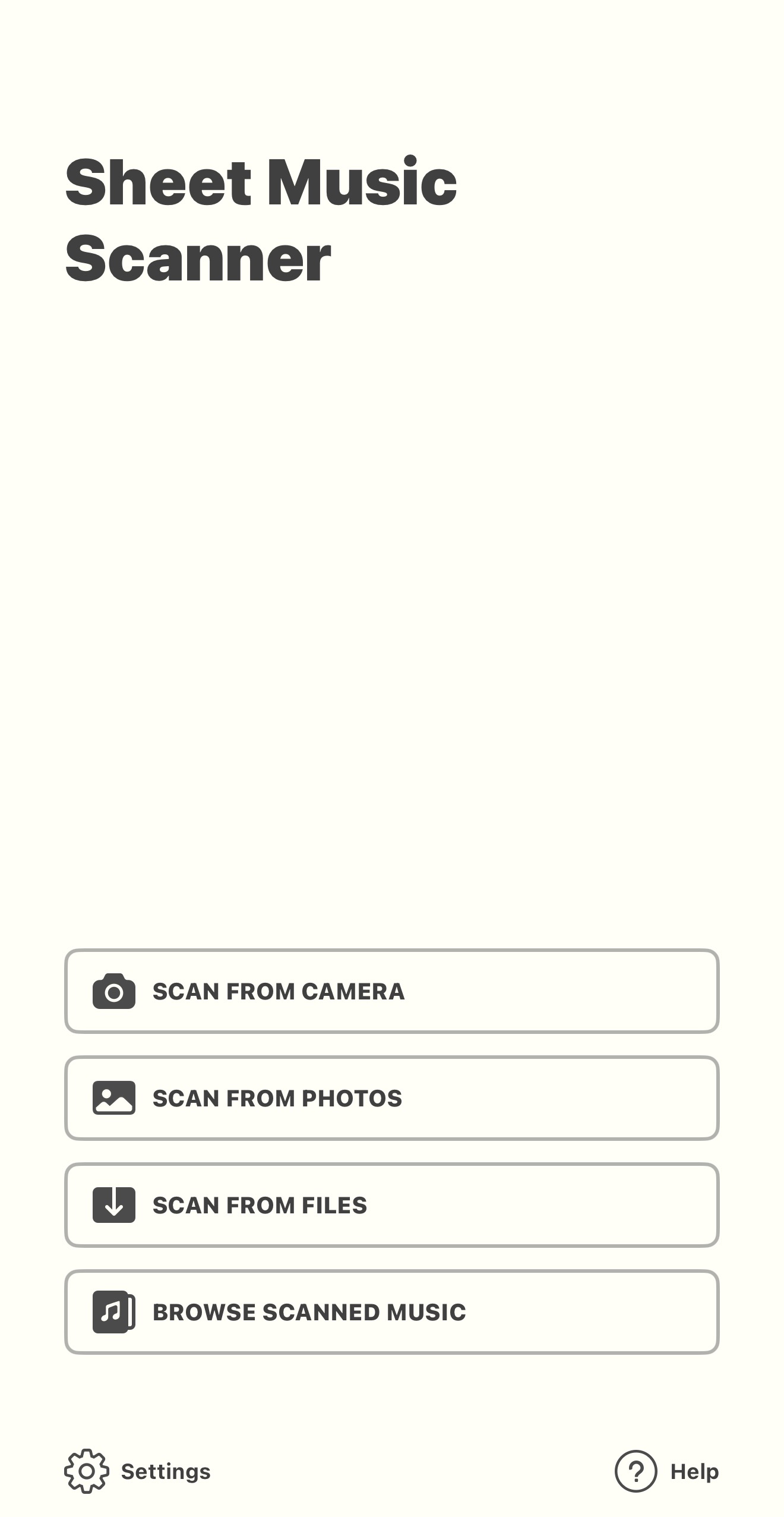
- Step 3. Let the app convert the page into playable notation.
- Step 4. Use the playback controls to play, pause, or change speed — or tap a measure to hear a specific section.
Part 5. Get Your Sheet Music PDF Scan-Ready with UPDF
Every tool above depends on one thing: a clean, single-piece PDF. In practice, the file you start with rarely is. Maybe a site gave you each page as a separate JPG preview, or you downloaded a 200-page scorebook when you only want one piece, or you snapped a crooked photo of a page. Feed that straight into a scanner and you usually get a messy, error-filled result.
UPDF — a PDF editor for Windows, Mac, iOS, and Android — handles that prep step:
- Combine preview images into one PDF. If a site delivered each page as a separate image, use Tools → Merge to merge them into one file the scanner can read in a single pass.
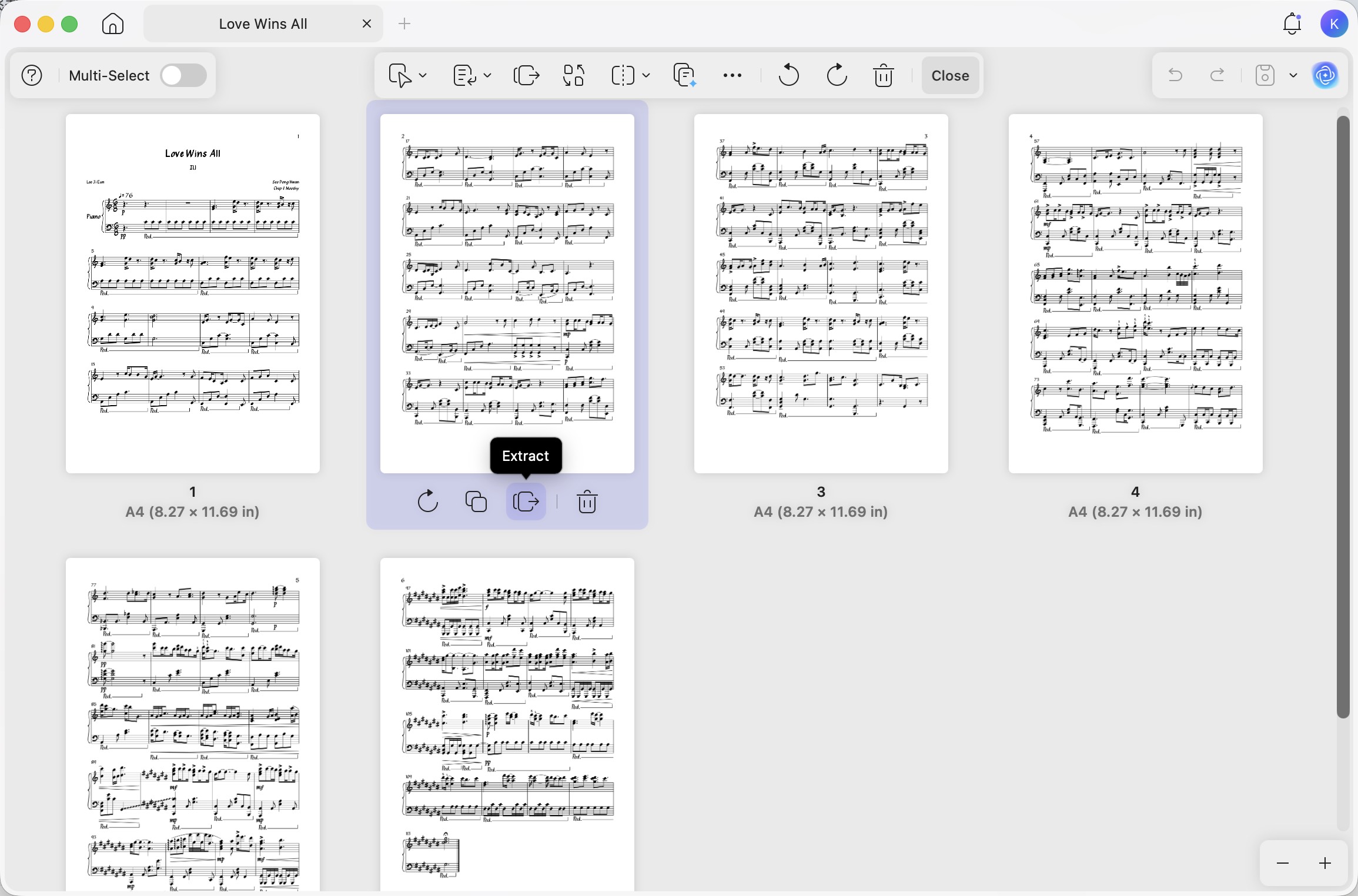
- Extract only the piece you need. From a large scorebook, open Organize Pages and split out just the pages of your song. This matters because Soundslice caps a scan at 25 pages and MuseScore allows one upload a day — sending only the pages you need avoids wasting either limit.
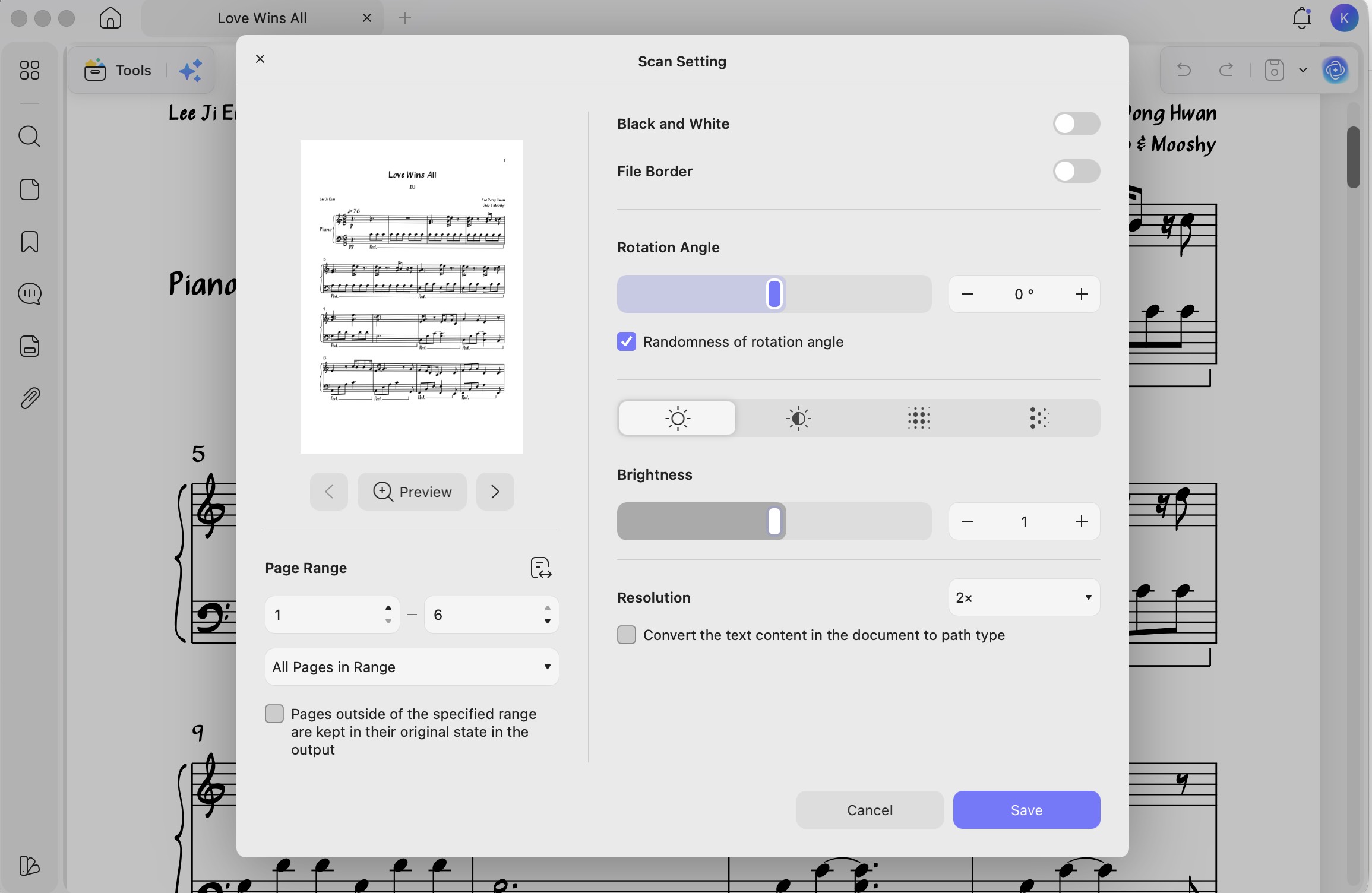
- Straighten and crop a scan. Use leftside Tools → Crop and Save as Other → Image PDF → adjust the Rotation Angle option to square up a skewed photo and trim wide margins, giving the recognition engine a cleaner image.
- Read and mark up the score. Once you've confirmed it's the right arrangement, UPDF's reader lets you zoom, switch to two-page view, and add fingering notes for practice.
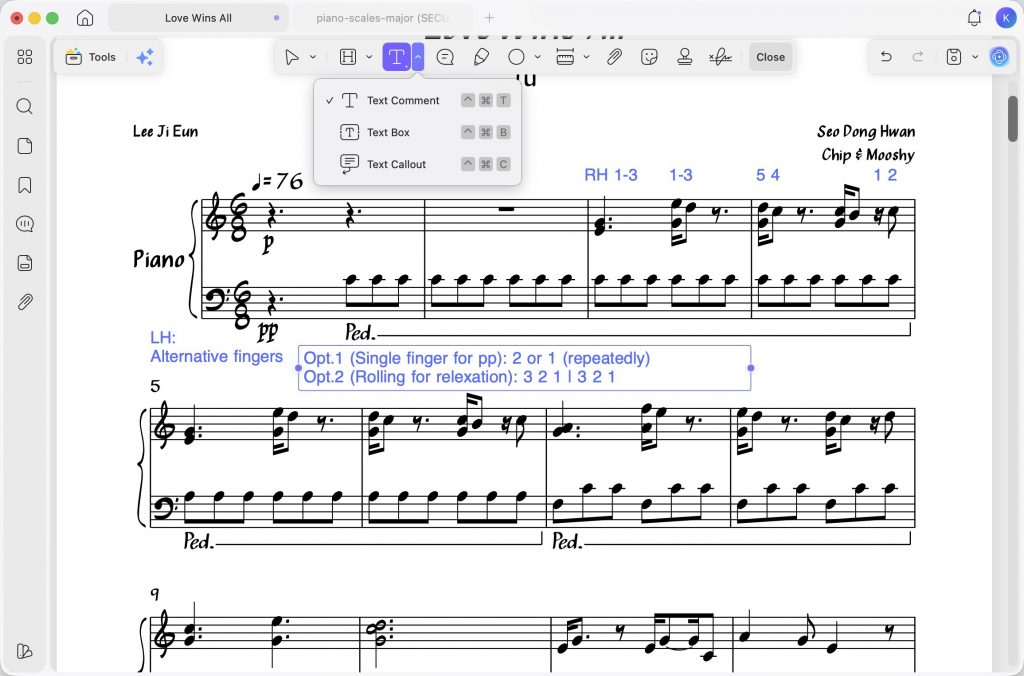
In addition, if you're a complete beginner and are not sure where to start when it comes to sheet music, that is where UPDF AI comes in handy. You can use this AI tool to give you some idea about the music and ask it write some samples for you. What you need to do is to enter the prompts with your requirements.
Download UPDF for free and prep your sheet music PDF before scanning — no subscription required to get started.
Windows • macOS • iOS • Android 100% secure
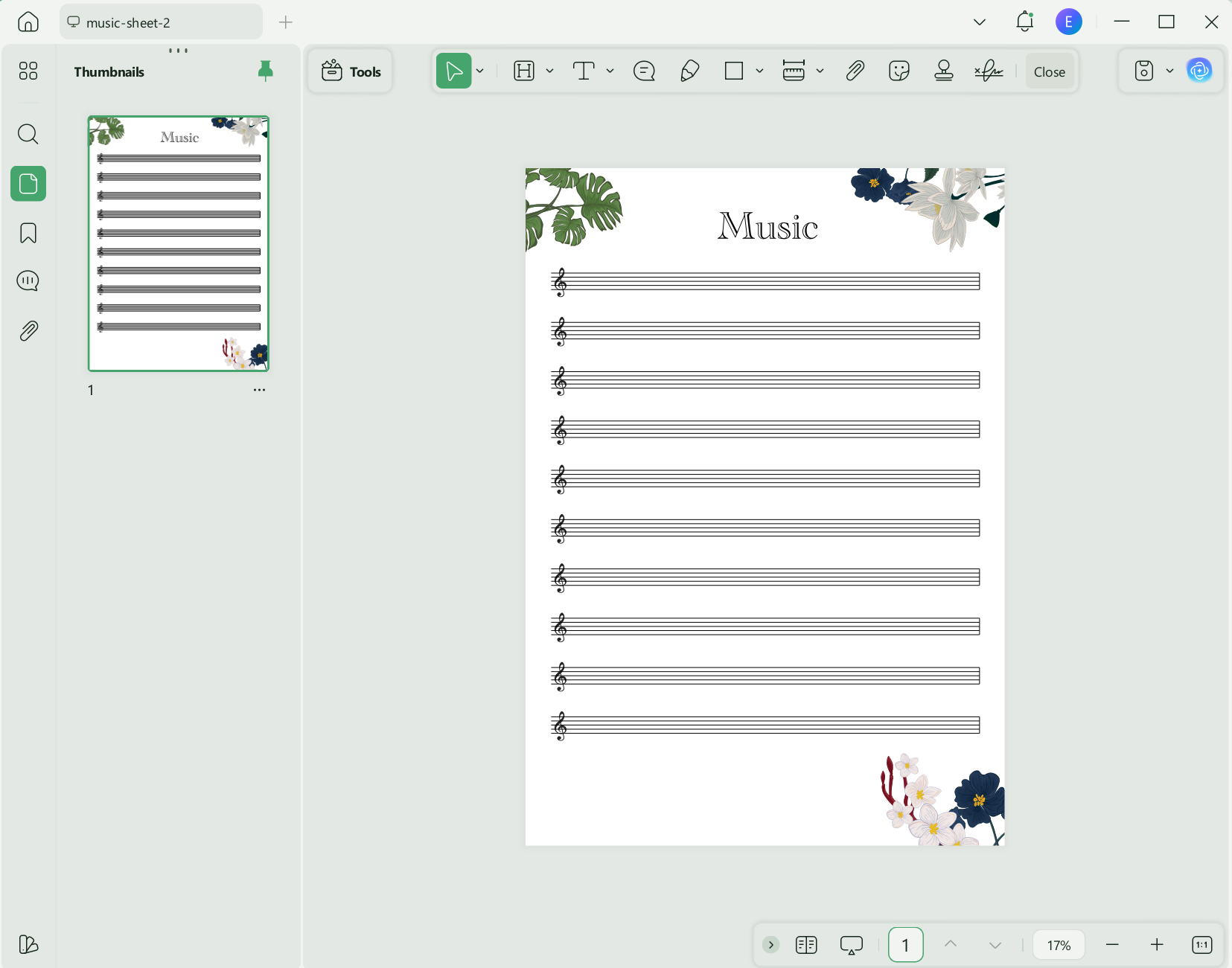
For those looking to begin their musical composition journey, UPDF provides a range of practical sheet music PDF templates. These can be downloaded and imported into the application for immediate use.
Here's how to download sheet music using UPDF:
- To download sheet music, simply go to the UPDF template library, scroll download and find the music sheet. Click "Edit with UPDF" button.
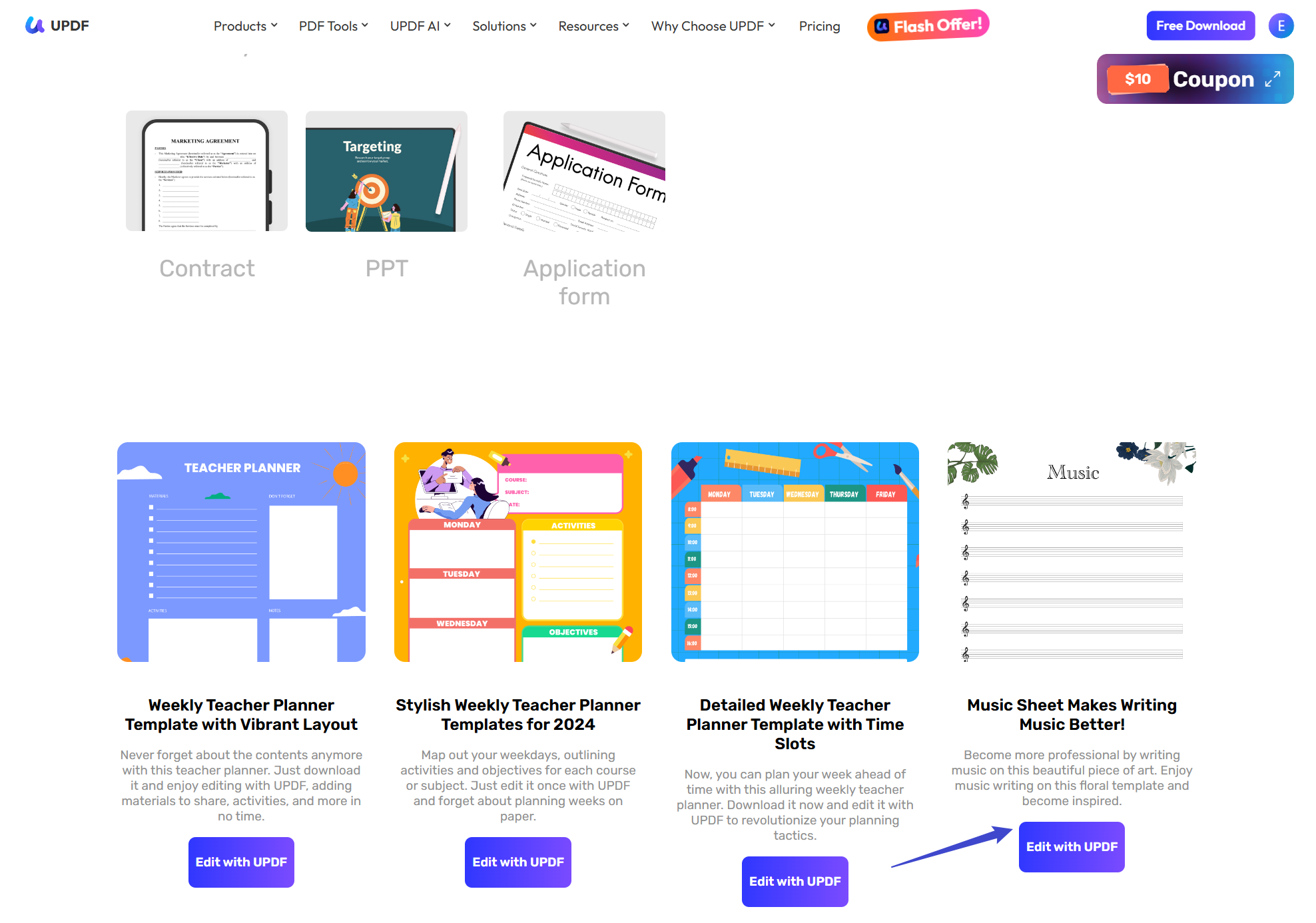
- The PDF sheet music will be downloaded automatically. And you will then be taken to a page on the 'How to Edit UPDF Templates' with instructions on how to install UPDF.
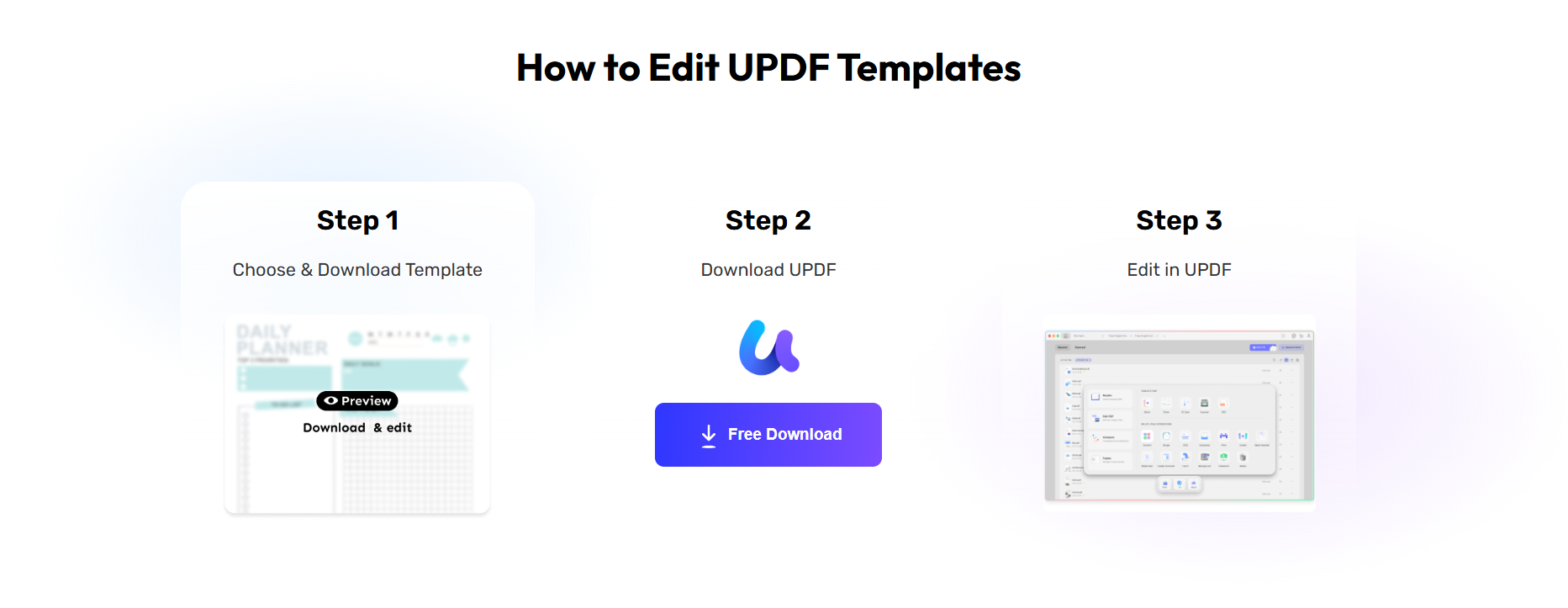
- Once UPDF has been installed, select your chosen sheet music template, and upload it by clicking Open File. You can now edit and print out your sheet music using the free template.
How to use UPDF AI to help write and improve the music:
- Once you've downloaded it, open the sheet music document and access the "UPDF AI" tool located in the upper right of the screen and choose the "Chat" feature.
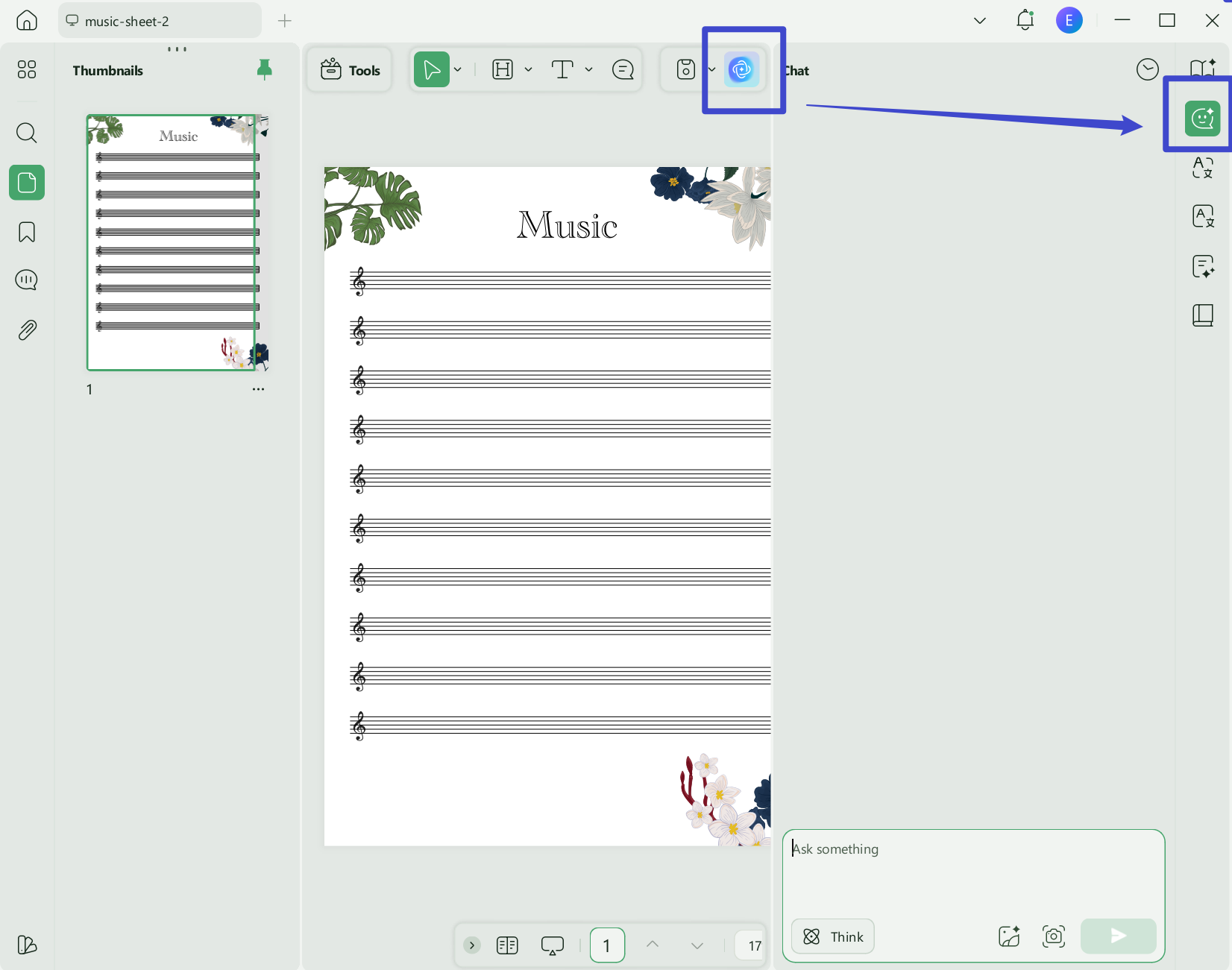
- Now, you can enter some prompts to let UPDF AI write the music for you. Or help give some ideas about music writing, etc.
Here are a few prompt examples:
- Suggest a rhythm example for a new piece of music using an upbeat tone.
- Give me some samples about love music.
- Write one sad music for me with rain and bad mood.
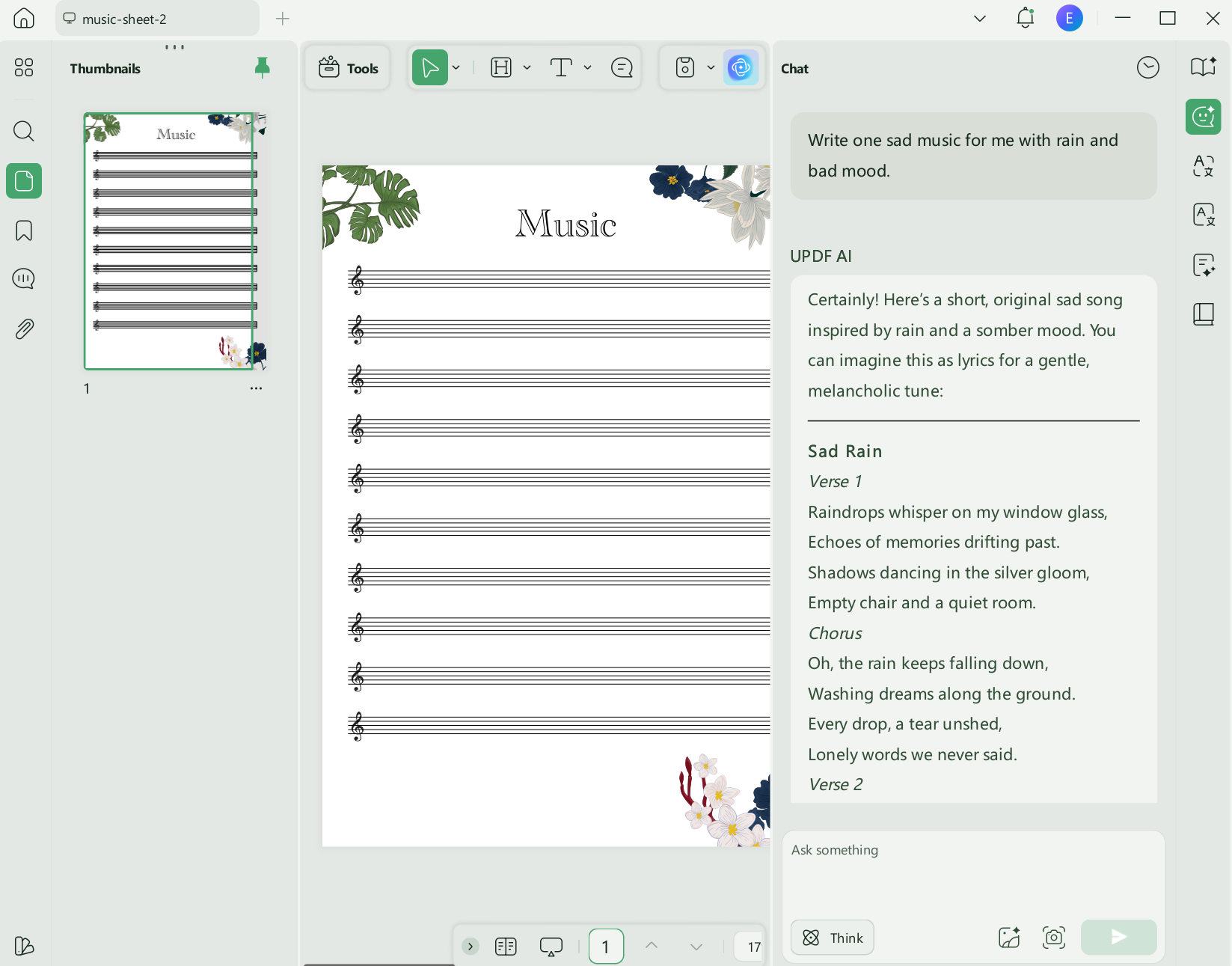
To better understand what features of UPDF has, take a look at this review. You can also watch the below video for more visual illustrations.
Part 6. FAQs
1. Can you turn a PDF into playable music for free?
Partly. MuseScore's app and converter are free (with a one-PDF-per-day import limit), and Sheet Music Scanner is with paid playback features. Soundslice's scanning requires a paid plan.
2. Why is my scanned score full of wrong notes?
Optical Music Recognition struggles with low-resolution scans, handwriting, skewed photos, and dense notation. A higher-quality, straightened, single-piece PDF gives noticeably better results.
3. Can I edit the music after scanning?
Yes. MuseScore, Sheet Music Scanner, and Soundslice all allow you to correct misread notes, and most of them can export MusicXML so you can refine the score in other notation software.
Conclusion
Playing a sheet music PDF comes down to two things: picking the tool that fits your device — Soundslice in the browser, MuseScore on desktop, or Sheet Music Scanner on mobile — and starting with a clean file. That second part is where most scans go wrong, and it's also the easiest to fix. Download UPDF for free to merge, trim, straighten and create your sheet music PDF before you scan it — no subscription required to get started.
Windows • macOS • iOS • Android 100% secure







 Enid Brown
 Enrica Taylor
 Enola Miller
 Enola Davis