 UPDF
 UPDF for Windows
 UPDF for Mac
 UPDF for iPhone/iPad
 UPDF for Android
 Nomostar
 UPDF AI Online
 UPDF Sign
 IvyCraft
 Edit PDF
 Annotate PDF
 Create PDF
 PDF Form
 Edit links
 Convert PDF
 OCR
 PDF to Word
 PDF to Image
 PDF to Excel
 Organize PDF
 Merge PDF
 Split PDF
 Crop PDF
 Rotate PDF
 Protect PDF
 Sign PDF
 Redact PDF
 Sanitize PDF
 Remove Security
 Read PDF
 UPDF Cloud
 Compress PDF
 Print PDF
 Batch Process

 About UPDF AI
 UPDF AI Solutions
 AI User Guide
 FAQ about UPDF AI
 Summarize PDF
 Translate PDF
 Chat with PDF
 Chat with AI
 Chat with image
 PDF to Mind Map
 Explain PDF
 PDF AI Tools
 Image AI Tools
 AI Chat Tools
 AI Writing Tools
 AI Study Tools
 AI Working Tools
 Other AI Tools
 AI Bookmark Generation
 AI Bookmark Summary
 AI Watermark Generation
 AI Background Generation
 AI Sticker Generation
 AI Stamp Generation
 AI Editing Suite
 UPDF Copilot
 AI Page Management
 AI Semantic Search
 PDF to Word
 PDF to Excel
 PDF to PowerPoint
 Enterprise Solution
 Enterprise Sign
 Enterprise AI
 Enterprise Plan
 Enterprise User Guide
 Enterprise Webinar
 IT
 Education
 Construction
 Financial Service
 Healthcare
 Insurance
 Legal
 Manufacturing
 Government
 Researchers & PhDs
 Solopreneurs & Freelancers
 Lawyers & Legal Professionals
 Real Estate Agents & Brokers
 Education Solution
 Customer Stories
 User Guide
 UPDF Tricks
 FAQs
 UPDF Reviews
 Download Center
 Blog
 Newsroom
 Tech Spec
 Updates
 UPDF vs. Adobe Acrobat
 UPDF vs. Foxit
 UPDF vs. PDF Expert


Quick answer:
Converting a PDF to Markdown makes its content easier to edit, search, and reuse in notes, documentation, and AI workflows. The important part is recovering the document’s structure: headings should become headings, table values should stay in the correct columns, and images should remain accessible.

For a desktop workflow without coding, UPDF can export a PDF directly to Markdown and convert multiple files in a batch. For a browser-based option, pdfmarkdown.app lets you compare the original PDF with the converted result. Developers can use Docling, Marker, or MarkItDown, while pdfplumber offers more control over custom text and table extraction.
Part 1. Which PDF to Markdown Method Should You Use?
Choose a method based on your document and how you want to work.
| Tool | Best suited to | How you use it | Main consideration |
|---|---|---|---|
| UPDF | Desktop conversion, selected pages, and batches without coding | Graphical desktop app | Choose whether to export images; review the resulting structure |
| pdfmarkdown.app | Quick browser conversion with a side-by-side preview | Website | Check table structure and reading order before downloading |
| Docling | Local document parsing and structured processing workflows | Python or command line | Configure image export when you need actual image files |
| Marker | PDFs with figures, tables, equations, and complex content | Python or command line | Processing modes and model setup affect the workflow |
| MarkItDown | Text-focused PDFs and multi-format automation | Python or command line | More advanced OCR requires an additional integration |
| pdfplumber | Custom extraction from predictable PDF layouts | Python code | You build the Markdown structure yourself |
For illustrated documents, choose a workflow that exports the images as well as the text. For scanned PDFs, use OCR. For invoices and reports, prioritize table values and their relationships over visual similarity.
Part 2. How to Convert PDF to Markdown with UPDF
UPDF is a practical choice when you want to export Markdown through a desktop interface and also need to prepare or organize the PDF before conversion. You can export selected pages from one document or process several PDFs together. The steps below show the Mac interface.
Windows • macOS • iOS • Android 100% secure
Convert a Single PDF to Markdown
- Open your PDF in UPDF.
- Click Tools, then select More under PDF Converter.
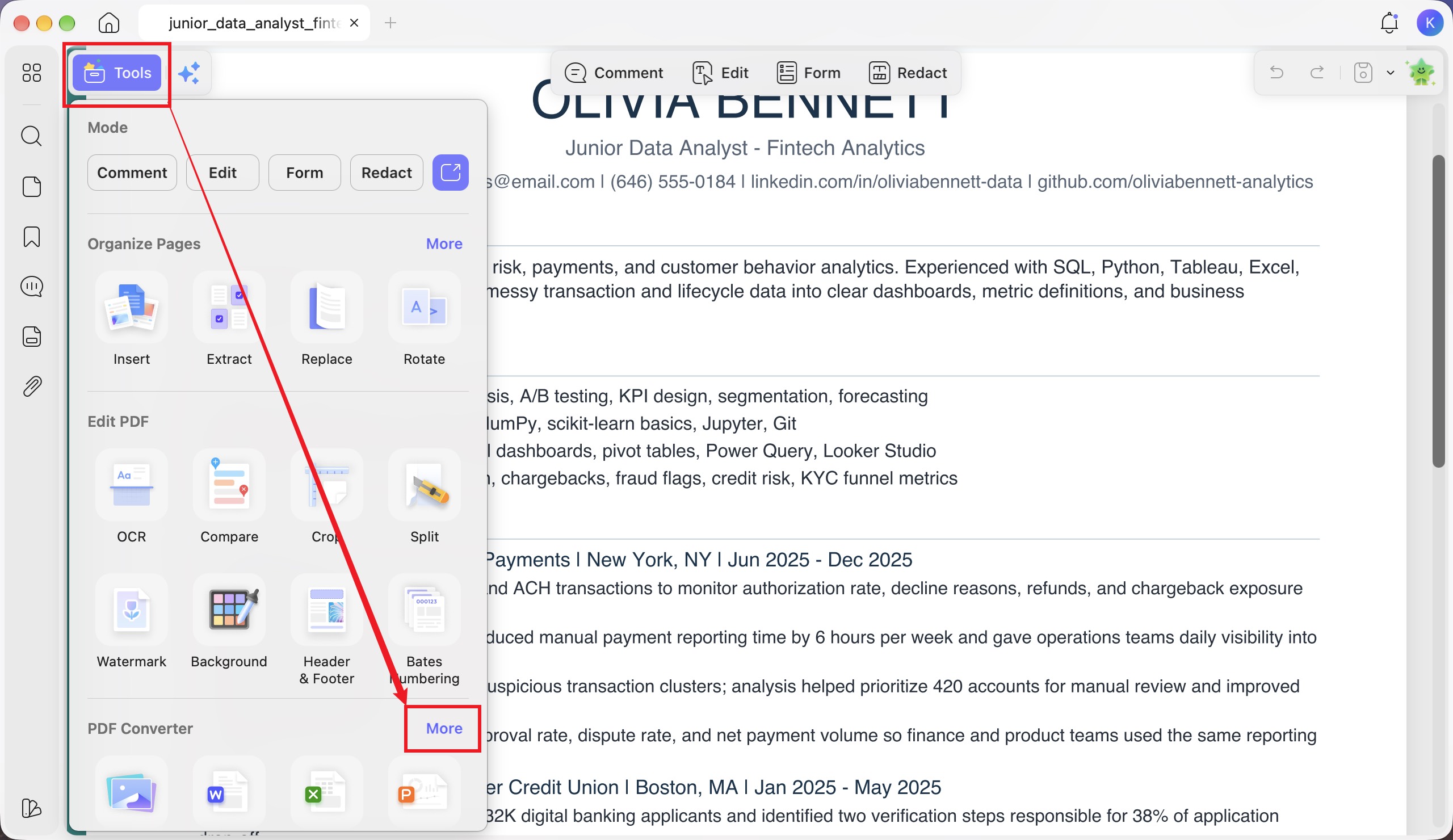
- Set Output Format to Markdown (.md).
- Under Markdown Settings, choose Save Images Separately to export images to a separate folder and link them from the Markdown file, or Exclude Images to leave them out.
- Set the Page Range if you only need part of the document.
- Click Convert and choose where to save the result.
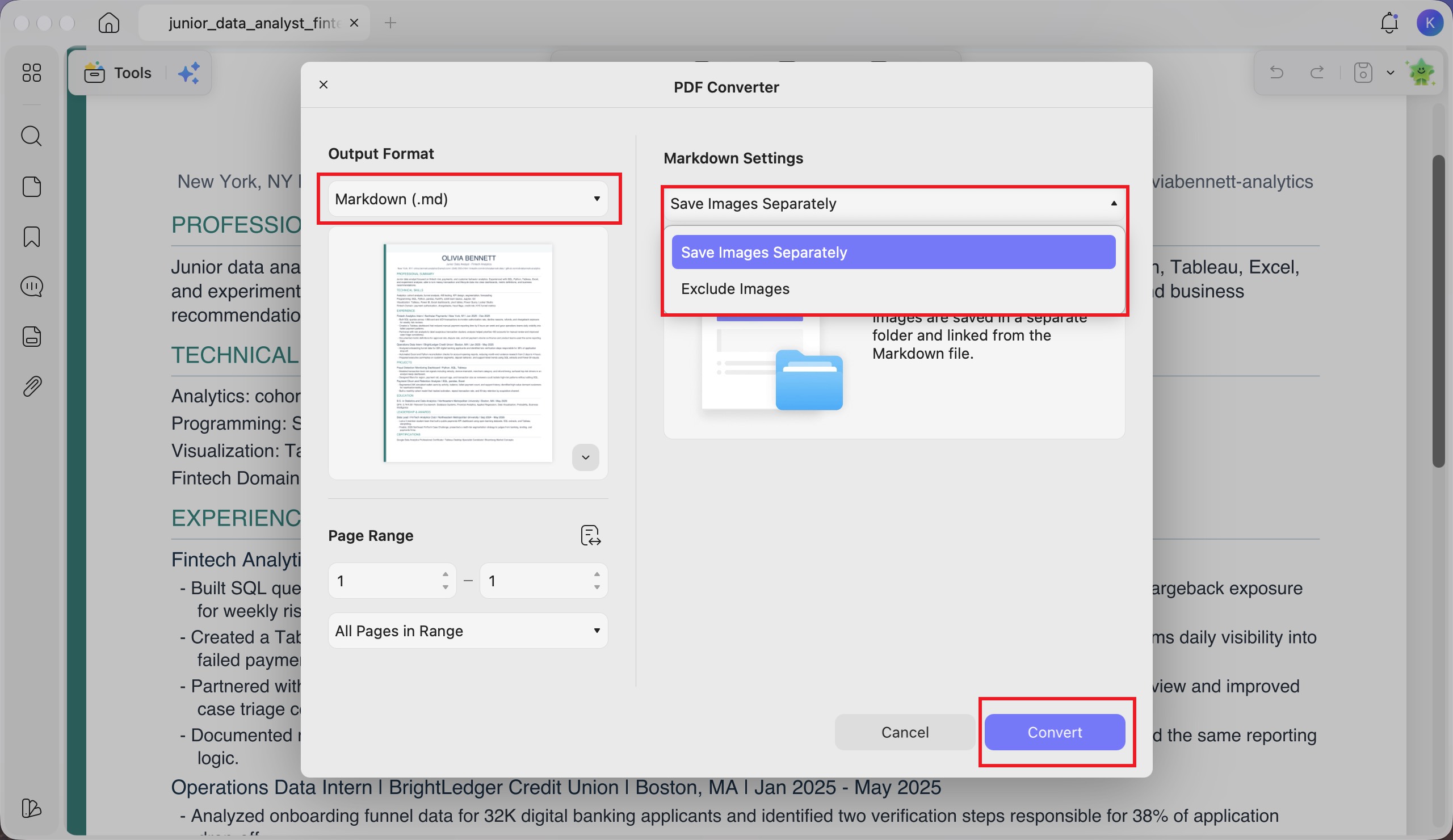
When you select Save Images Separately, keep the Markdown file and its image folder together. If you move the document into a notes app or documentation project, preserve the relative paths so the images continue to display.
What Does the Exported Markdown Look Like?
In the resume example shown below, the exported document contains the visible section headings, including “Professional Summary,” “Technical Skills,” and “Experience,” along with their body text. The output is displayed in a separate Markdown editor beside the original PDF.
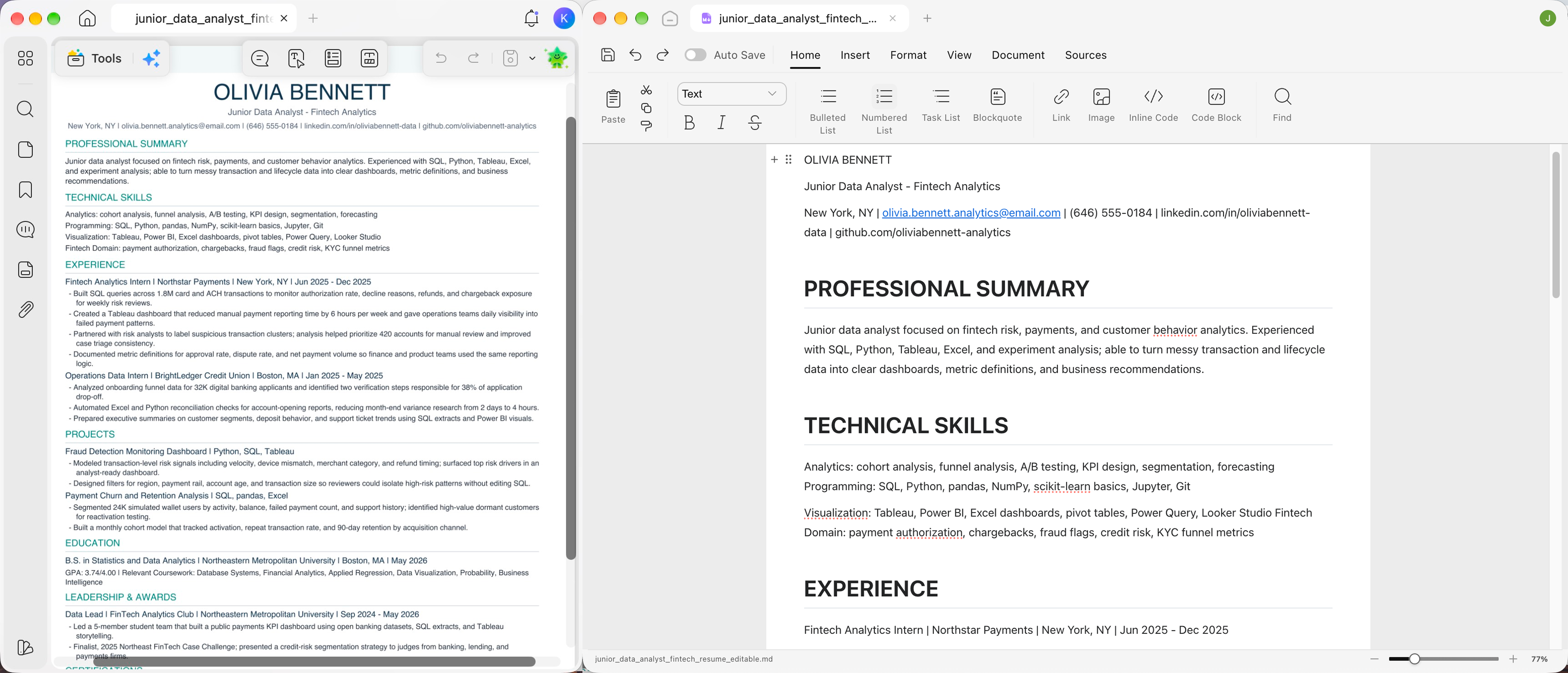
The example also shows where a quick edit helps: “Fintech Domain” follows the visualization skills on the same paragraph instead of starting on its own line. After export, review paragraph breaks and list boundaries before reusing the content.
Batch Convert PDFs to Markdown
For a folder of reports, resumes, or reference documents, use batch conversion instead of exporting each file separately.
- From the UPDF home screen, open Tools.
- Under Batch PDFs, select Convert.
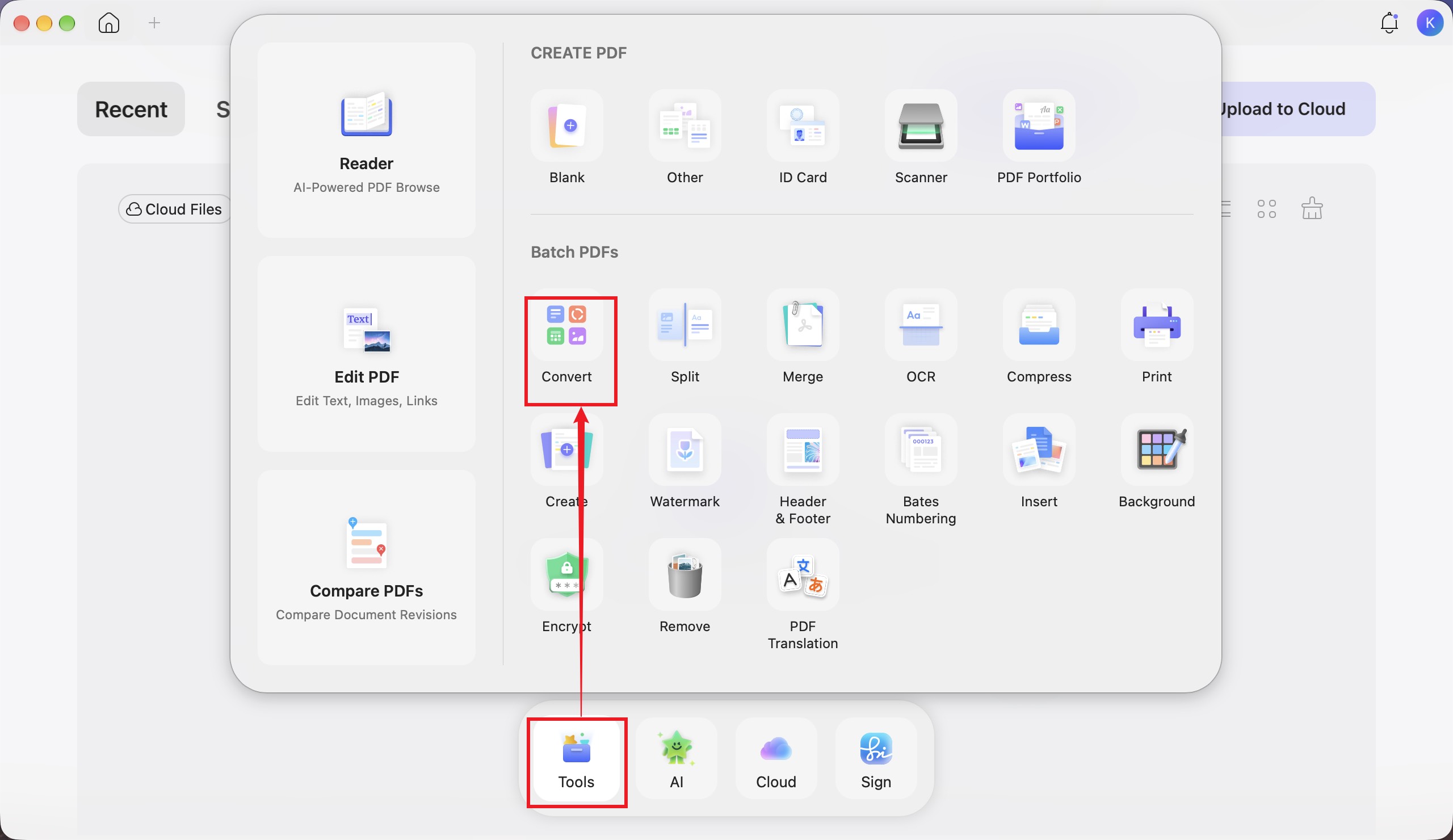
- Click Add Files and select the PDFs you want to process.
- Set Output Format to Markdown (.md).
- Choose Save Images Separately or Exclude Images.
- For scanned documents, enable OCR Text Recognition and select the appropriate recognition language.
- Click Apply and choose the output location.
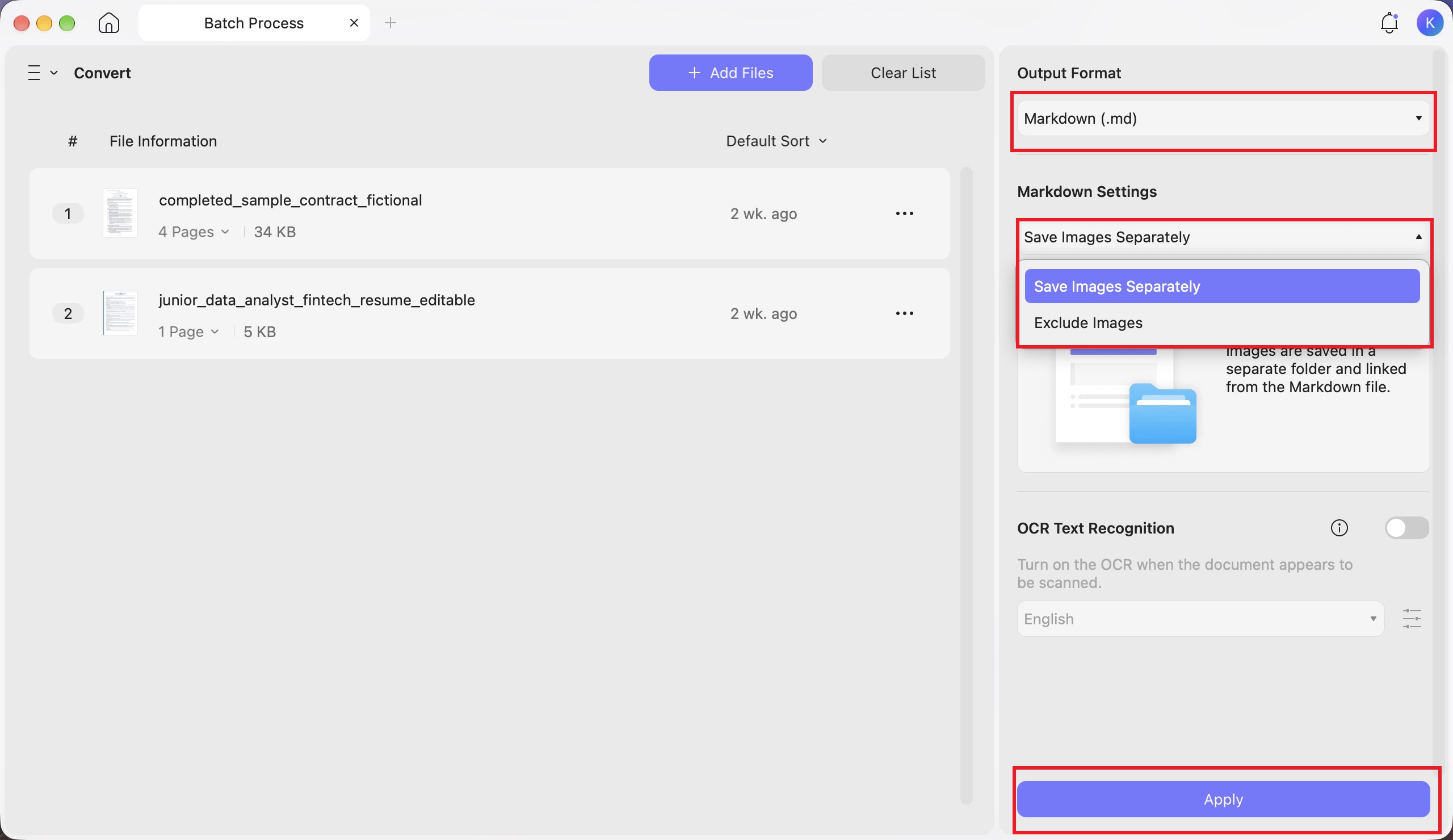
Start by converting a representative document from the batch. Once its headings, images, and tables meet your needs, apply the same workflow to the remaining files.
Part 3. How to Convert PDF to Markdown with pdfmarkdown.app
pdfmarkdown.app provides a browser-based converter with the original PDF and the converted content displayed side by side. Its current feature set includes OCR for scanned pages and image extraction, with figures saved as separate files referenced by the Markdown.
Steps
- Open pdfmarkdown.app and select your PDF.
- Wait for the conversion to finish.
- Use Preview to inspect the rendered content.
- Switch to Markdown to check headings, lists, image references, and table syntax.
- Use Copy or Download to save the result. Save any image assets required by the document.
The side-by-side view is useful for spotting missing text and incorrect reading order before moving the result into your notes or publishing workflow.
Check Tables Before Downloading
In the invoice example below, the converted preview contains the client details and payment information. However, the visible service descriptions appear as continuous text rather than the original five-column table.
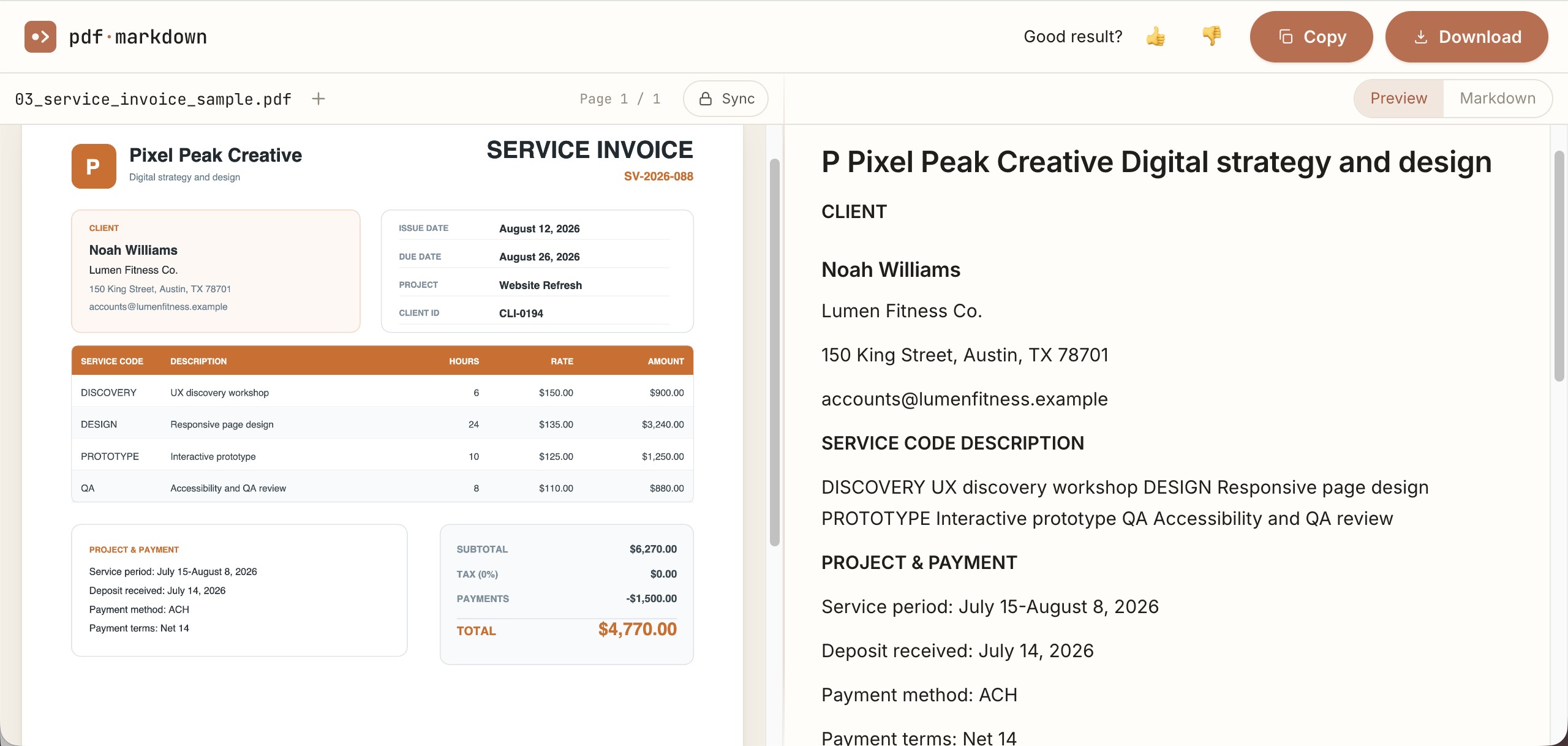
For this type of document, inspect the Markdown source and check that each service description remains associated with its hours, rate, and amount. Rebuild affected rows before using the output for financial reference or data processing.
Part 4. How to Convert PDF to Markdown with Docling
Docling is a document-processing toolkit for recovering content and structure from PDFs. It supports OCR, table recognition, and Markdown export, making it useful for local processing and repeatable document workflows.
For complex PDFs, table reconstruction can vary by document. A comparison using technical documents found that Docling and Marker each performed better on different files. Use a document with your typical layout when choosing between them.
Basic Conversion
Install Docling in a Python environment:
python -m pip install doclingConvert a local PDF:
docling "input.pdf"The official quickstart explains the command-line and Python workflows. The basic command generates a Markdown file from the document.
Export Images with the Markdown
For illustrated PDFs, use Docling’s figure-export examples to generate image assets and reference them in the output. A Markdown image placeholder alone does not contain the original figure.
Docling is particularly useful when conversion forms part of a larger process, such as organizing document collections or preparing content for retrieval. For occasional conversions, a graphical or browser-based tool involves less setup.
Part 5. How to Convert PDF to Markdown with Marker
Marker converts PDFs into Markdown and other structured formats. Its workflow includes image extraction and processing for tables and equations, with optional LLM assistance for difficult content.
In an independent academic-document comparison, local Marker and Docling both produced useful results, while Marker with an additional model performed better on the tested paper.
Basic Conversion
Install Marker in a Python environment:
python -m pip install marker-pdfConvert a PDF and specify an output folder:
marker_single "input.pdf" --output_dir "output"Open the generated Markdown and check its associated image files.
Choose the Processing Mode for Your Document
Marker’s current setup distinguishes text-layer extraction, faster processing, and more model-intensive processing. Follow the current installation and mode instructions for your hardware, particularly when enabling VLM-backed processing.
Start with a representative file before processing a large collection. Check equations, tables spanning multiple pages, and captions. If you enable an additional LLM backend, configure it before running the conversion.
Part 6. How to Convert PDF to Markdown with MarkItDown
Microsoft’s MarkItDown converts PDFs and several other document formats into Markdown. It is useful when you want one command-line tool for a text-focused document ingestion workflow.
Basic Conversion
Install MarkItDown with PDF support:
python -m pip install "markitdown[pdf]"Convert the PDF:
markitdown "input.pdf" -o "output.md"Open output.md in a Markdown editor and review its structure.
When to Add OCR
For PDFs that already contain selectable text, begin with the basic conversion. For scanned pages or text inside images, MarkItDown provides additional OCR and document-service integrations, including an OCR plugin that requires a configured vision-model client.
Basic conversion and these extended workflows have different setup requirements. If your document depends on figures or complex tables, check those elements explicitly rather than treating successful text extraction as a complete conversion.
Part 7. How to Use pdfplumber for Custom PDF Extraction
pdfplumber is a Python library for extracting text, tables, and positional information from PDFs. It is useful when documents follow a predictable layout and you want to control how the extracted information becomes Markdown.
It does not automatically reconstruct a complete Markdown document with headings, images, and tables.
A Minimal Text-to-Markdown Script
Install the library:
python -m pip install pdfplumberSave the following as extract_pdf.py:
from pathlib import Path

import pdfplumber

pages = []

with pdfplumber.open("input.pdf") as pdf:
    for page in pdf.pages:
        text = page.extract_text() or ""
        if text.strip():
            pages.append(text)

Path("output.md").write_text(
    "\n\n".join(pages),
    encoding="utf-8",
)
Run it:
python extract_pdf.pyThis creates a .md file containing the extracted text. To produce structured Markdown, extend the script with rules for headings, lists, tables, and image references.
For example, a recurring report may use the same table position on every page. You can extract that region, process its rows, and generate a Markdown table using your own rules. For scanned documents, add an OCR stage first; pdfplumber itself does not provide OCR.
Part 8. How to Check Your Converted Markdown
Before importing the result into a knowledge base, publishing system, or AI workflow, compare a few representative pages with the source PDF.
Headings and Reading Order
Check that section titles use the appropriate Markdown heading levels and that paragraphs appear in the intended sequence. Two-column papers, sidebars, and text boxes deserve particular attention. Remove repeated headers and footers if they interrupt the main text.
Images and File Paths
Open the Markdown in the application where you intend to use it. Confirm that figures display and that their captions remain nearby. If the converter produces an image folder, move it together with the .md file. A link to a missing image will remain broken even when the document’s text looks correct.
Tables and Numbers
Check column headers, row labels, decimal values, negative signs, and totals. In an invoice, each amount must remain associated with the correct service. For merged cells or multi-level headers, consider retaining an HTML table inside the Markdown when your destination supports it, or keeping a separate spreadsheet alongside the document.
Equations and Scanned Text
Preview equations in the destination editor because math rendering depends on its supported syntax. For OCR output, review easily confused characters such as 0 and O, 1 and l, and punctuation within numbers. For long documents, inspect pages containing ordinary paragraphs, figures, tables, and equations.
Related UPDF Conversion Video
If you also need Word, Excel, PowerPoint, or image output, the following UPDF video demonstrates those additional conversion workflows. Use the Markdown steps above for .md export.
Part 9. FAQs About Converting PDF to Markdown
1. Can I convert a scanned PDF to Markdown?
Yes. Use a workflow with OCR to recognize the text before or during conversion. In UPDF’s batch converter, enable OCR Text Recognition and select the document language. Review names, numbers, and table entries after conversion.
2. Can I keep images when converting PDF to Markdown?
Yes. In UPDF, choose Save Images Separately to export the images and link them from the Markdown file. Keep the image folder with the .md file so the references continue to work.
3. Why does my PDF table become plain text?
The converter may have recovered the words without reconstructing the rows and columns. Try a table-aware workflow such as Docling or Marker, then compare the output with the original. For complex merged cells, use a supported HTML table or a separate spreadsheet.
4. How can I convert PDF to Markdown for free?
Docling and MarkItDown offer locally installable tools, and pdfmarkdown.app offers browser-based conversion. Check the current service limits before processing a large document. Marker’s code and model weights have separate licensing terms, which matter when selecting it for commercial use.
5. Can I insert a PDF into a Markdown file?
You can link to a PDF using ordinary Markdown link syntax. Displaying the PDF inside the page depends on the application or publishing platform. To make its text editable as Markdown, convert the document first.
Choose the Method That Fits Your Workflow
Use UPDF for desktop conversion, selected-page exports, and batches without coding. Choose pdfmarkdown.app for browser-based conversion with a side-by-side view. For programmable workflows, use Docling or Marker for document structure, MarkItDown for text-focused multi-format conversion, or pdfplumber for custom extraction rules.
To start with a desktop workflow, download UPDF, export a representative PDF as Markdown, and check its headings, images, and tables before converting the rest of your files.
Windows • macOS • iOS • Android 100% secure







 Enrica Taylor



 Enya Moore

 Lizzy Lozano