 UPDF
UPDF
 UPDF for Windows
 UPDF for Mac
 UPDF for iPhone/iPad
 UPDF for Android
 Nomostar
 UPDF AI Online
 UPDF Sign
 IvyCraft
 Edit PDF
 Annotate PDF
 Create PDF
 PDF Form
 Edit links
 Convert PDF
 OCR
OCR PDF to Word
 PDF to Image
 PDF to Excel
 Organize PDF
 Merge PDF
 Split PDF
 Crop PDF
 Rotate PDF
 Protect PDF
 Sign PDF
 Redact PDF
 Sanitize PDF
 Remove Security
 Read PDF
 UPDF Cloud
 Compress PDF
 Print PDF
 Batch Process
 About UPDF AI
 UPDF AI Solutions
 AI User Guide
 FAQ about UPDF AI
 Summarize PDF
 Translate PDF
 Chat with PDF
 Chat with AI
 Chat with image
 PDF to Mind Map
 Explain PDF
 PDF AI Tools
 Image AI Tools
 AI Chat Tools
 AI Writing Tools
 AI Study Tools
 AI Working Tools
 Other AI Tools
 AI Bookmark Generation
 AI Bookmark Summary
 AI Watermark Generation
 AI Background Generation
 AI Sticker Generation
 AI Stamp Generation
 AI Editing Suite
 UPDF Copilot
 AI Page Management
 AI Semantic Search
 PDF to Word
 PDF to Excel
 PDF to PowerPoint
 Enterprise Solution
 Enterprise Sign
 Enterprise AI
 Enterprise Plan
 Enterprise User Guide
 Enterprise Webinar
 IT
IT Education
 Construction
 Financial Service
 Healthcare
 Insurance
 Legal
Legal Manufacturing
 Government
 Researchers & PhDs
 Solopreneurs & Freelancers
 Lawyers & Legal Professionals
 Real Estate Agents & Brokers
 Education Solution
 Customer Stories
 User Guide
 UPDF Tricks
 FAQs
FAQs UPDF Reviews
 Download Center
 Blog
Blog Newsroom
 Tech Spec
 Updates
 UPDF vs. Adobe Acrobat
 UPDF vs. Foxit
 UPDF vs. PDF Expert

CliffsNotes has been a go-to study resource for students tackling complex literature, history, science, and exam prep. The problem is that saving guides for offline use is not straightforward — the official download option sits behind a paid subscription, and even paying subscribers face limits on how many files they can download.
That’s where the need for best CliffsNotes downloaders comes in. This guide covers two free, tested methods to save CliffsNotes content as a PDF without a subscription, plus the official paid method for those who prefer it. In Part 4, you will also see how to use UPDF to study your saved CliffsNotes more efficiently with AI-powered summarization, semantic search, and automatic chapter navigation — available on Windows, Mac, iOS, and Android.
Windows • macOS • iOS • Android 100% secure
Part 1. How Do I Download Files from CliffsNotes? (Official Method)
CliffsNotes offers a built-in download option, but it requires an active subscription. Monthly subscribers can download up to 5 PDFs, and Yearly subscribers can download up to 10 PDFs — after which additional downloads require a new billing cycle. You can also upload 10 documents to get 7 days of Premium access. If you have already subscribed, follow the steps below to save your guides.
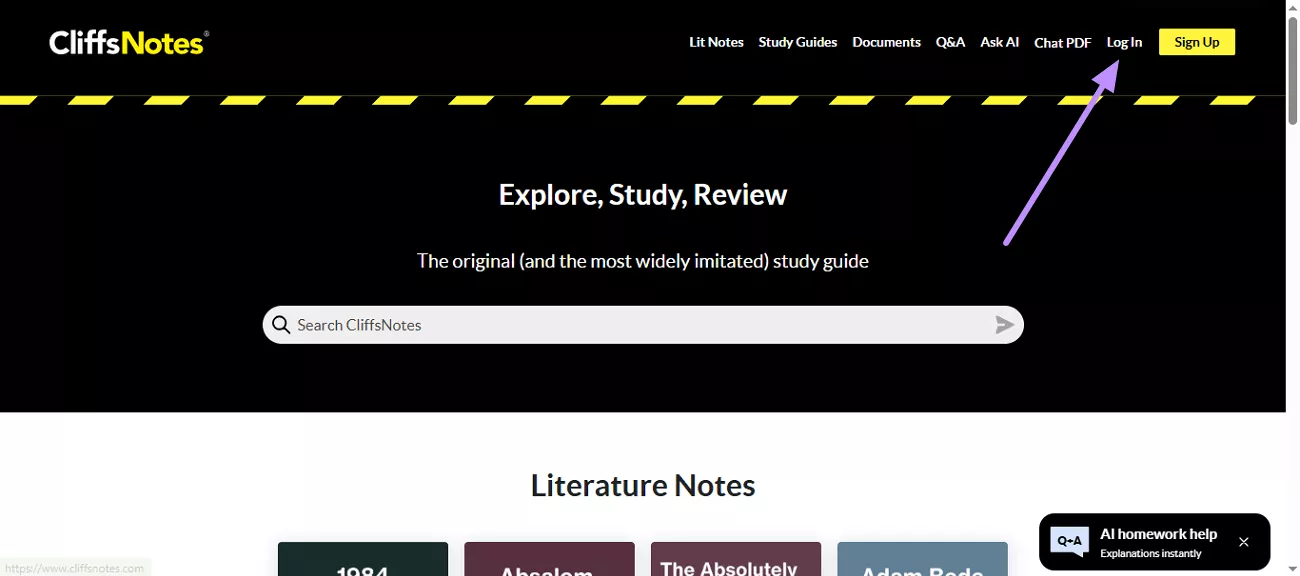
Step 1. You need to access the official website of CliffsNotes on your browser. Then, click on the Log In button on its main interface and enter your account credentials.
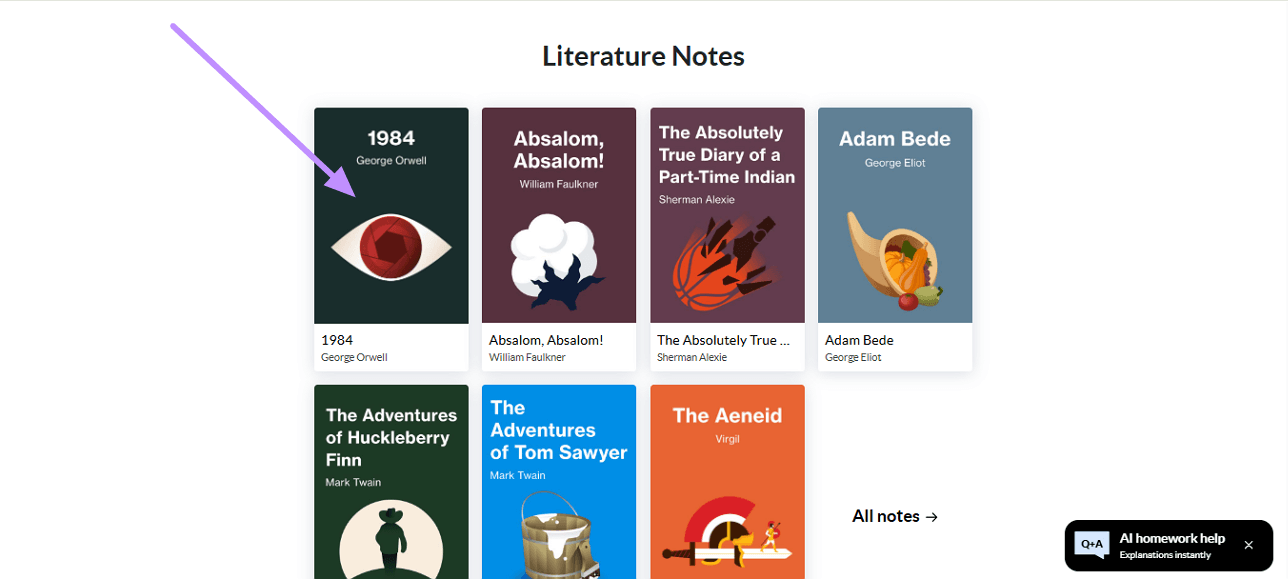
Step 2. After you log in, browse through the categories to find the guide you want to download and click on it.
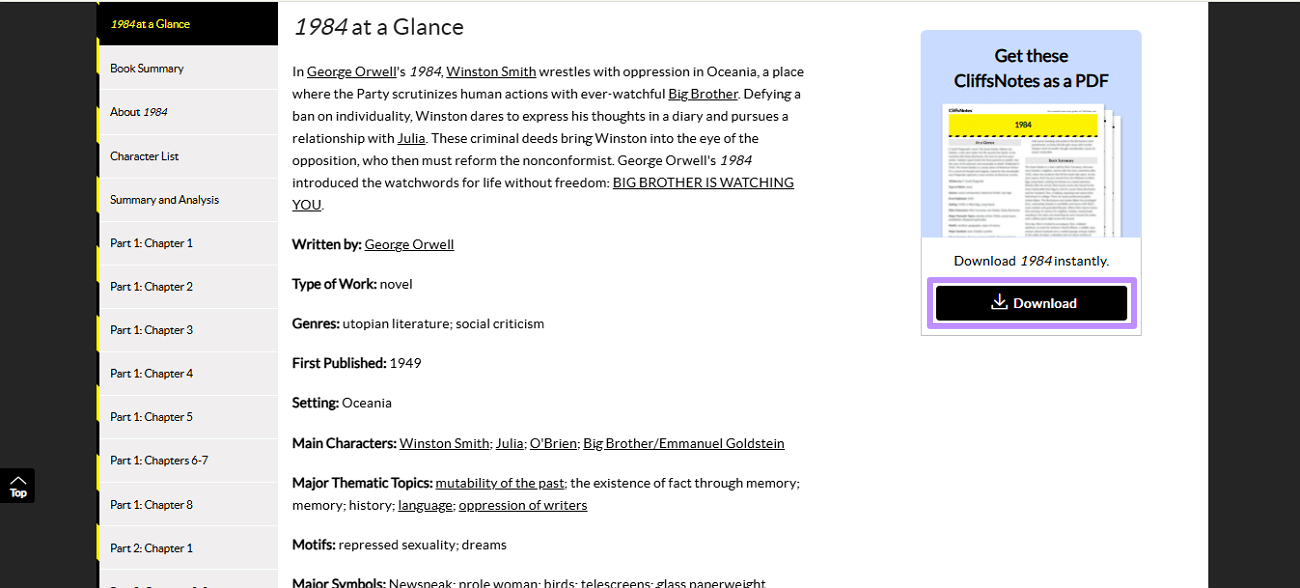
Step 3. Click the Download button on the right side of the page. The guide will be saved automatically to your device's Downloads folder as a PDF.
Also Read: How to Download Nook Books? Effective Ways
Part 2. Why Students Look for Free CliffsNotes Download Methods?
CliffsNotes is a genuinely useful study resource, but several practical limitations push students toward workarounds:
- Cost: A subscription is required to access premium guides, which adds up quickly for students who need materials across multiple subjects.
- Online-only access: Many guides are only available to read in-browser, with no built-in offline option for free users.
- Format restrictions: Official downloads are provided as PDFs, but the formatting is sometimes inconsistent, making editing or annotation harder.
- Download limits: Paid subscribers are capped at 5 PDFs per month (Monthly plan) or 10 PDFs total (Yearly plan) — a significant constraint for heavy users.
- Ads: Free browsing is interrupted by frequent advertisements that disrupt reading focus.
Because of these problems, many students look for the best CliffsNotes downloaders to save, summarize, or reformat the content for personal study. In Part 3, I’ll share the best options I’ve tested.
Also Read: 4 Best Free Comic PDF Download Websites (100% Workable)
Part 3. 2 Best CliffsNotes Downloaders
If the official subscription is not an option, the two methods below offer practical workarounds. Both are browser-based, require no third-party downloader software, and have been personally tested.
Tool 1. Print to PDF
The simplest way to save a CliffsNotes page is using your browser's built-in Print to PDF function. No additional software or account is needed — you just print the page directly to a PDF file on your computer.
Step 1. Open CliffsNotes in your browser and navigate to the guide you want to save.
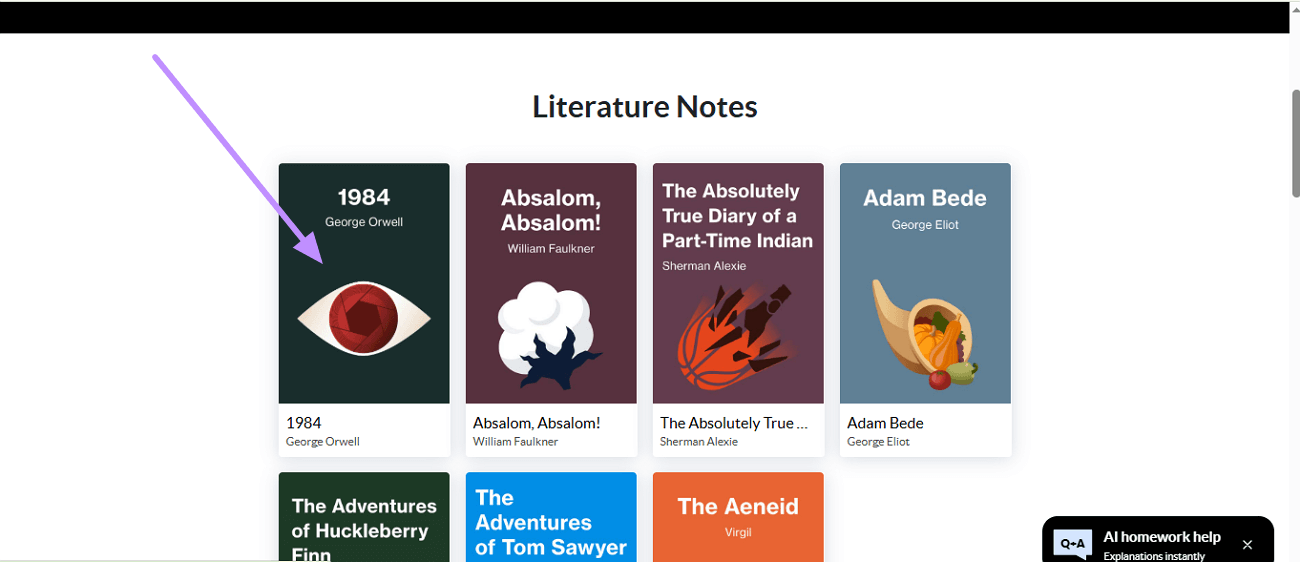
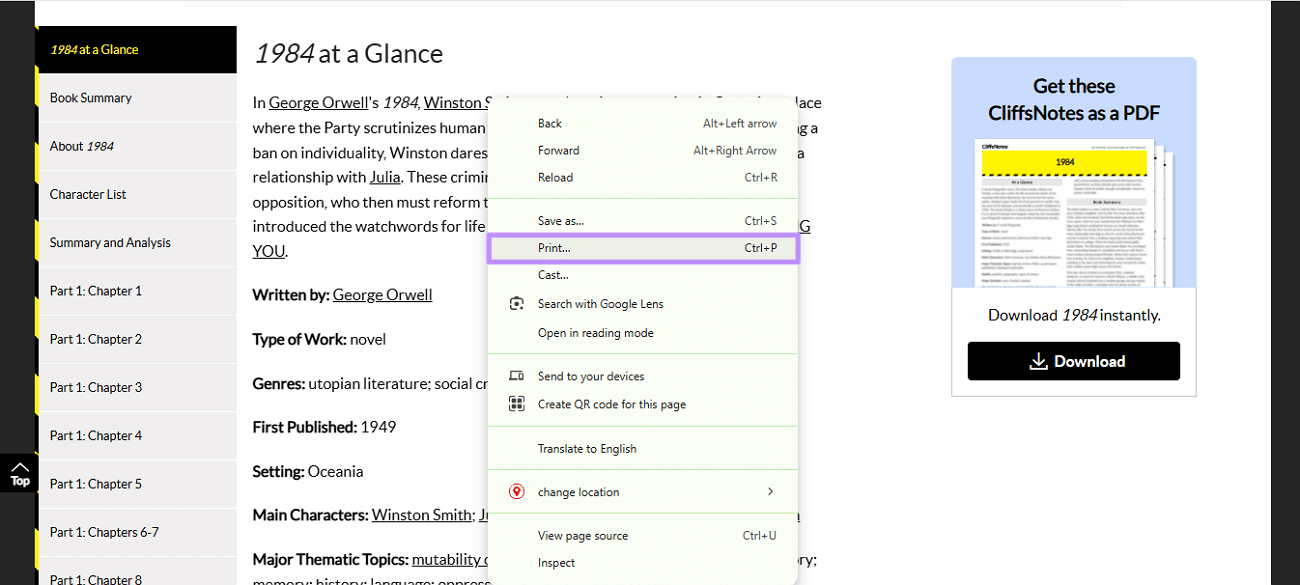
Step 2. After opening the CliffNotes page, right-click on it and select the Print option from the pop-up menu.
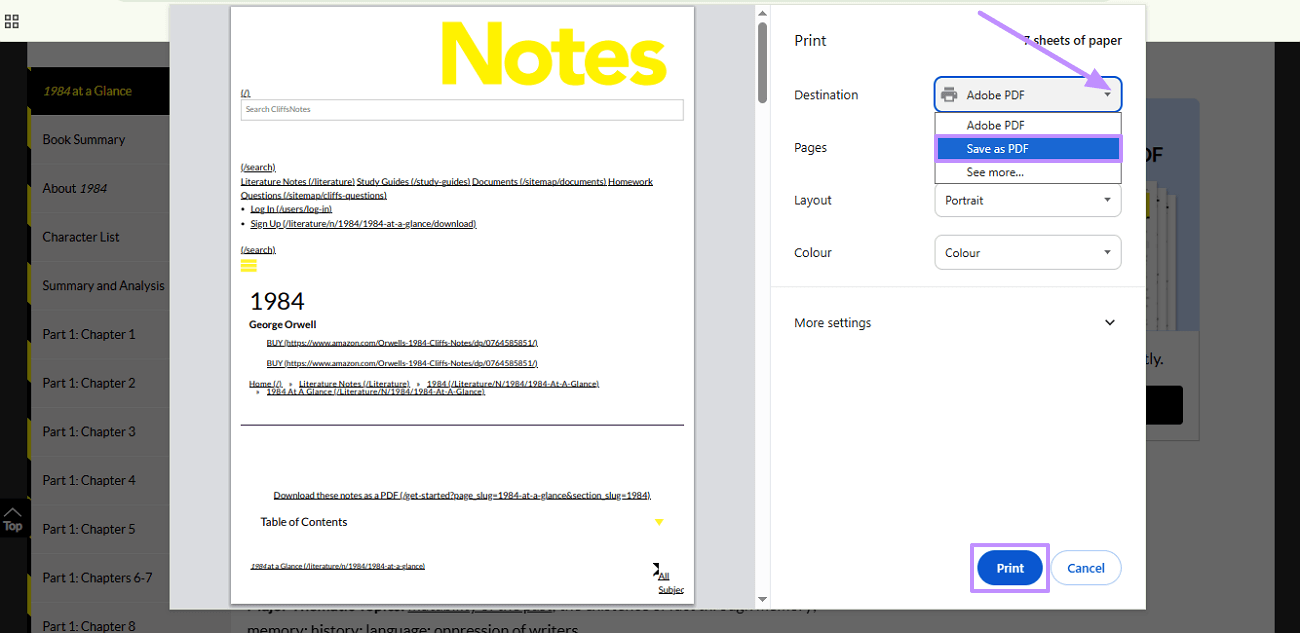
Step 3. In the Print dialog box that opens, click the Destination drop-down and select Save as PDF. Then click Print to choose a save location and download the CliffsNotes page as a PDF file.
Limitations of this Method:
The Print to PDF output captures everything visible on the page — including ads, navigation sidebars, cookie banners, and other browser chrome — which clutters the saved document. Formatting is also inconsistently preserved; multi-column layouts and certain fonts may break or reflow. For cleaner results, use Method 2 (screenshots) for more control over what gets captured.
Tool 2. Screenshot and Combine
Method 2 gives you more control over what gets captured. By zooming out the browser and taking precise screenshots of each section, you avoid ads and navigation elements entirely. UPDF then merges all the screenshots into a single, clean PDF.
Windows • macOS • iOS • Android 100% secure
Here are the steps that you can follow to save CliffsNotes using the screenshot tool and UPDF to combine them together as a PDF.
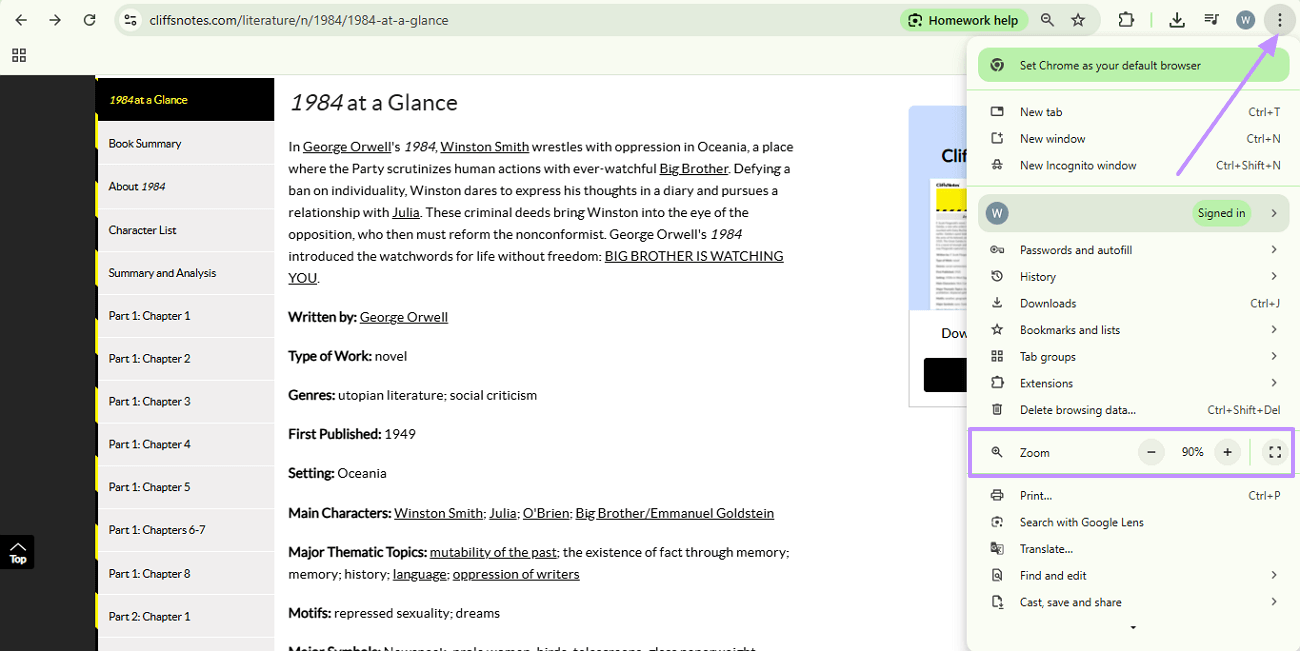
Step 1. Open the CliffsNotes guide you want to save in your browser. Click the three-dot menu (⋮) in the top-right corner of Chrome (or the equivalent menu in your browser) and adjust the Zoom level to make the content fit better.
Step 2. Use the built-in screenshot shortcut to capture each section of the page:
- Mac: Press Command + Shift + 4, then drag to select the area.
- Windows: Press Windows + Shift + S, then drag to select the area.
Work your way down the page section by section. Save all screenshots into a single folder in PNG or JPG format, and make sure they are numbered in order — UPDF will merge them in the sequence you add them.
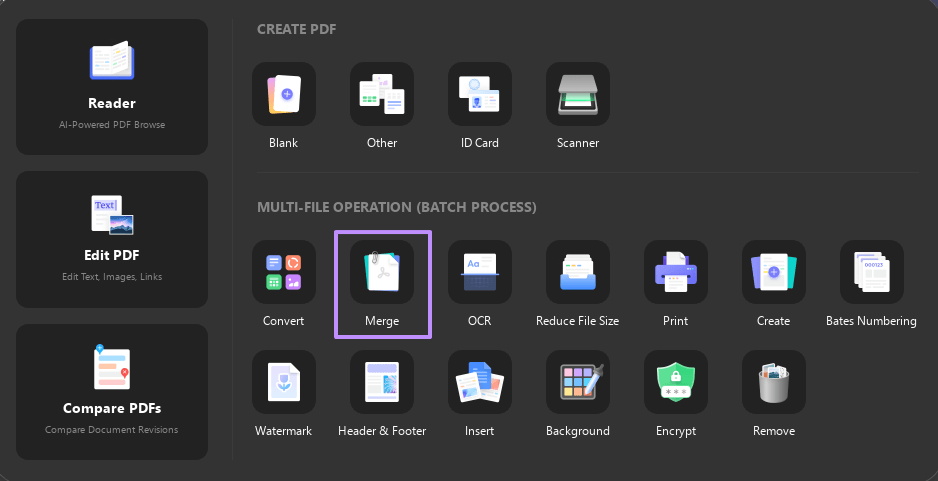
Step 3. Launch UPDF on your computer. Click the Tools tab at the bottom of the main interface, then select Merge.
Windows • macOS • iOS • Android 100% secure
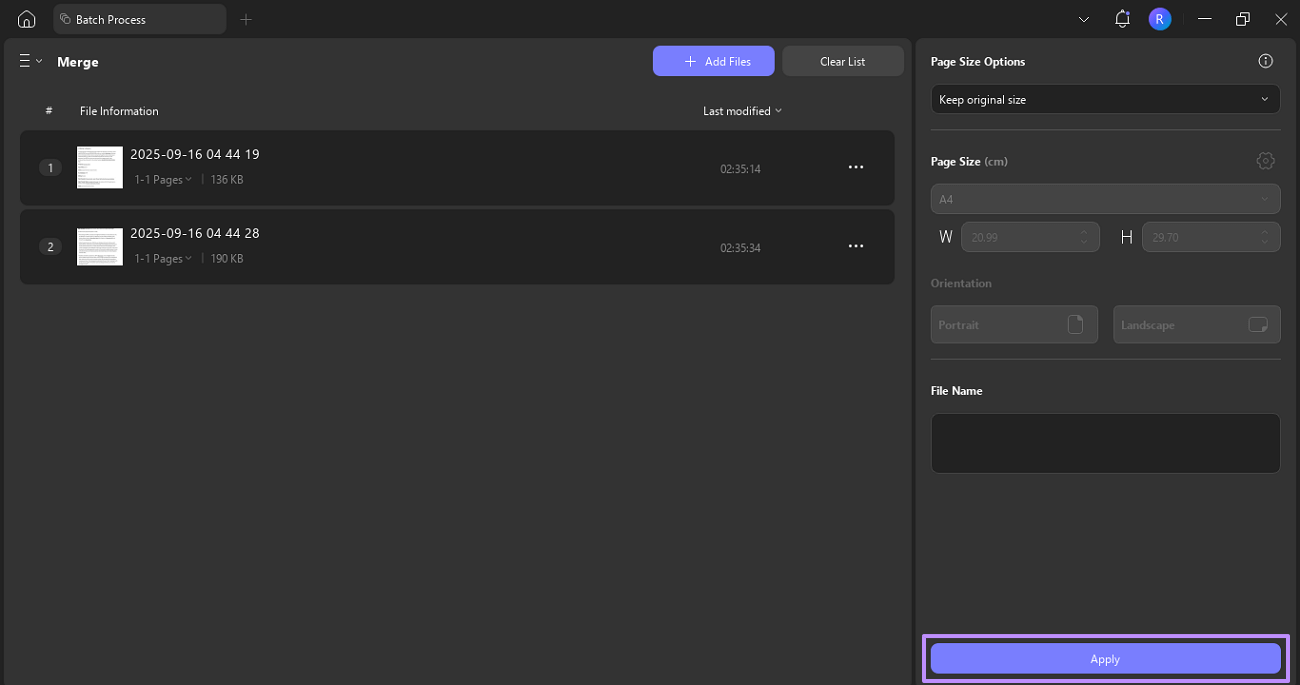
Step 4. Click + Add Files and select all the screenshots from your folder. Make sure they appear in the correct page order in the file list — drag to reorder if needed.
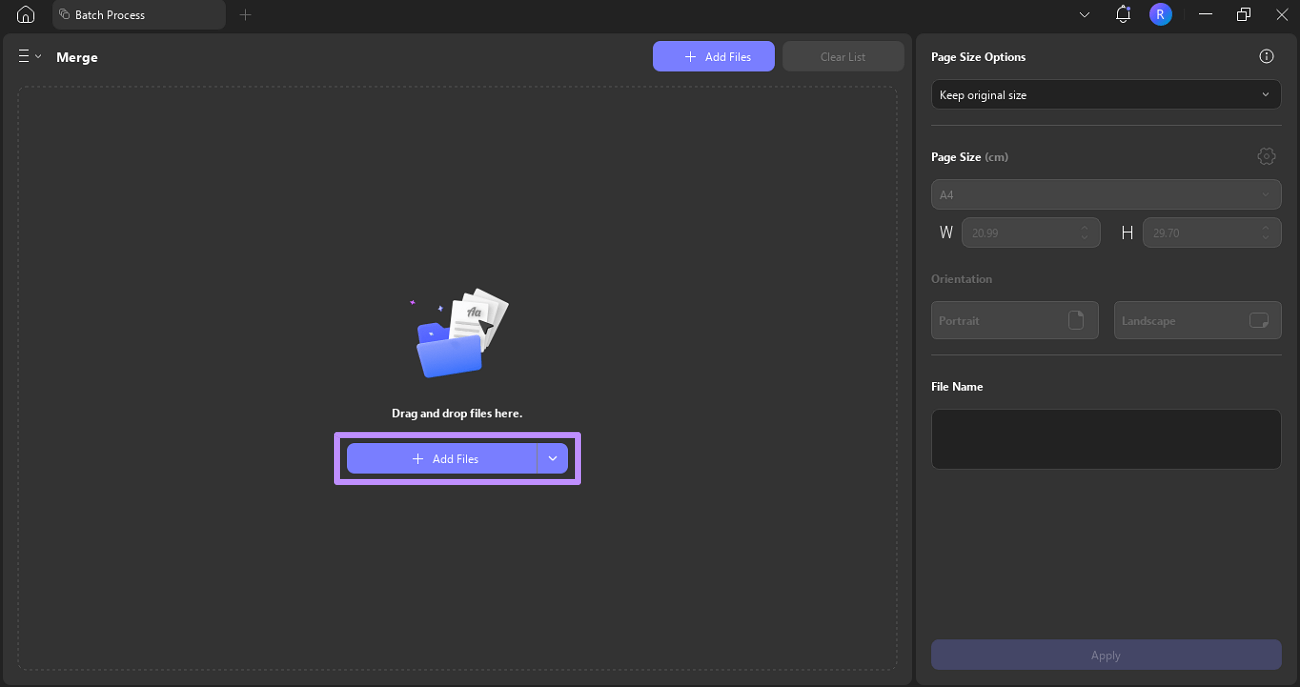
Step 5. Click Apply, choose a destination folder, and UPDF will merge all images into a single PDF file.
Part 4. Bonus Tips: Study Smarter — Read and Analyze Your CliffsNotes PDFs with UPDF
Once you have saved your CliffsNotes content as a PDF — using either method above — UPDF gives you a complete environment for reading, studying, and extracting value from it. However, because Method 2 involves merging screenshots, your newly created PDF is initially image-based. This is where UPDF truly shines, offering powerful text recognition to make your file fully interactive, alongside a comfortable reading experience, a full annotation toolkit, and a suite of advanced AI agents that make working with long or complex documents significantly faster.
Windows • macOS • iOS • Android 100% secure
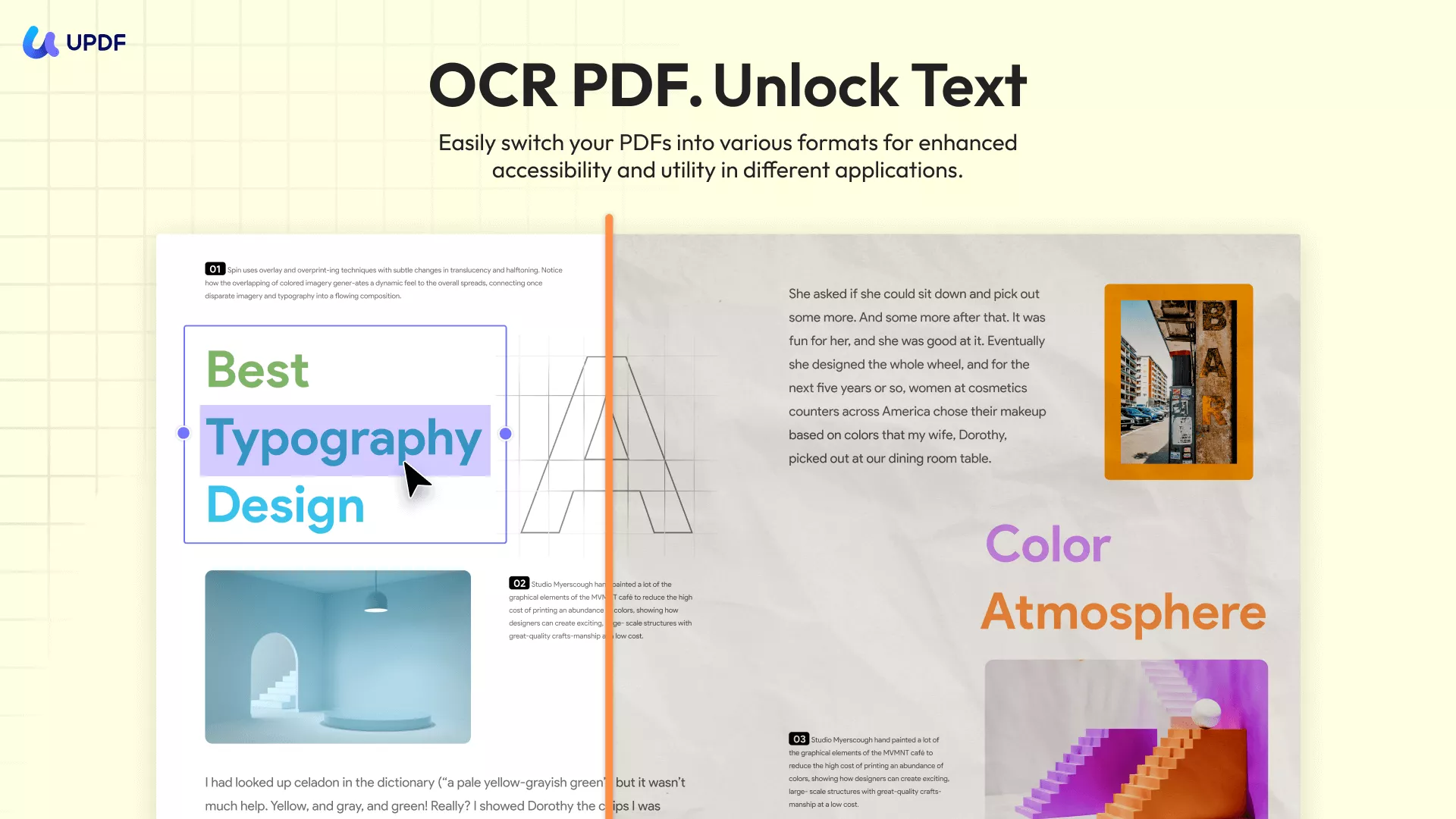
OCR for Screenshot-Based PDFs
- Since your captured CliffNotes document consists of screenshot images rather than a text-based PDF, you initially cannot highlight, search, or copy text from it. UPDF's advanced OCR engine (supporting 38 languages) solves this by converting these image-only pages into fully searchable, editable text documents in seconds. This essential step unlocks all of UPDF's reading, annotation, and AI capabilities for your image-based PDF.
Annotation tools for active study
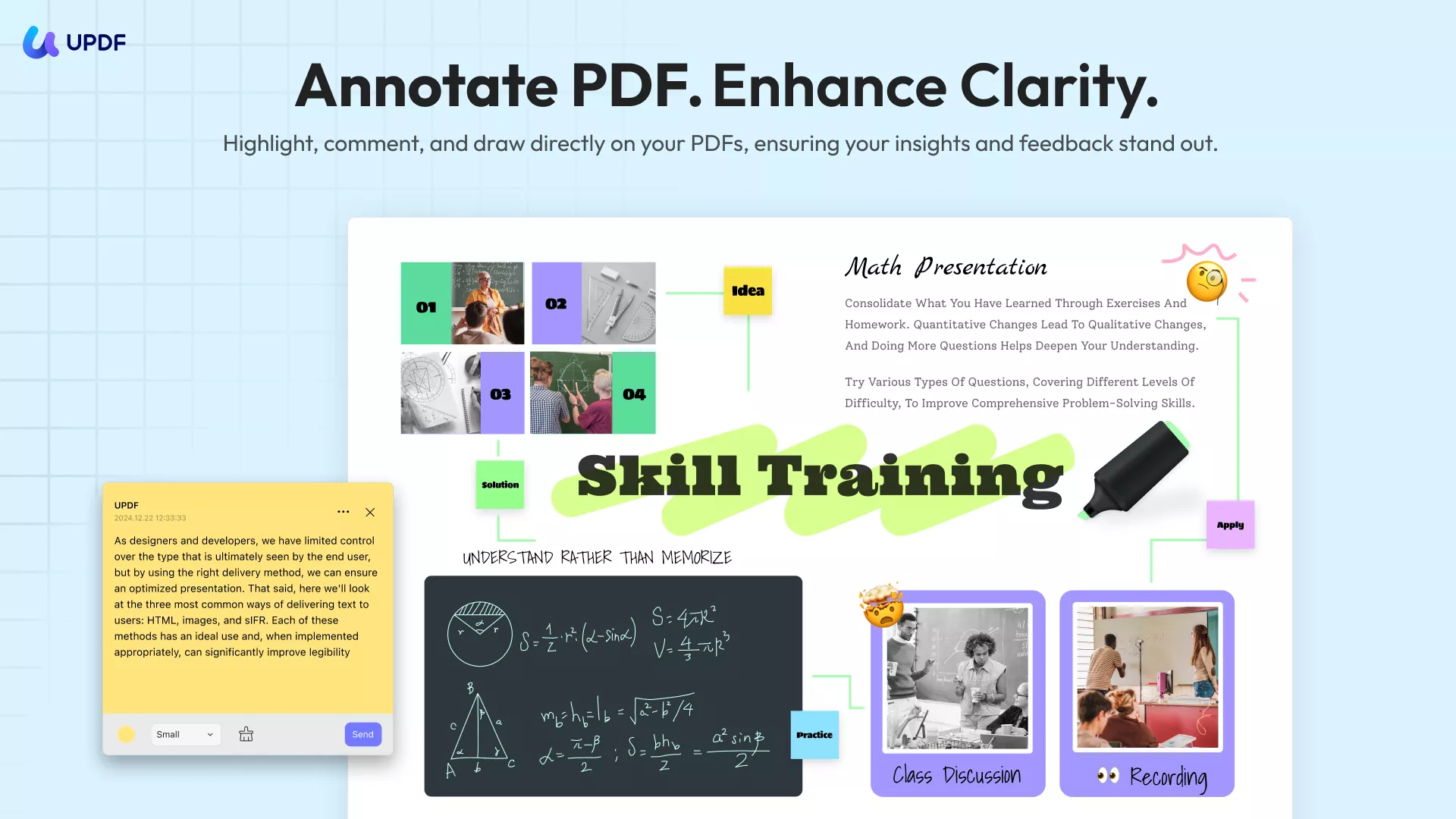
- Highlight key passages, underline topic sentences, add sticky notes with your own analysis, and draw connections between sections using shapes and arrows. All annotations sync across devices via UPDF Cloud, so your study notes follow you from laptop to phone.
AI-powered study features
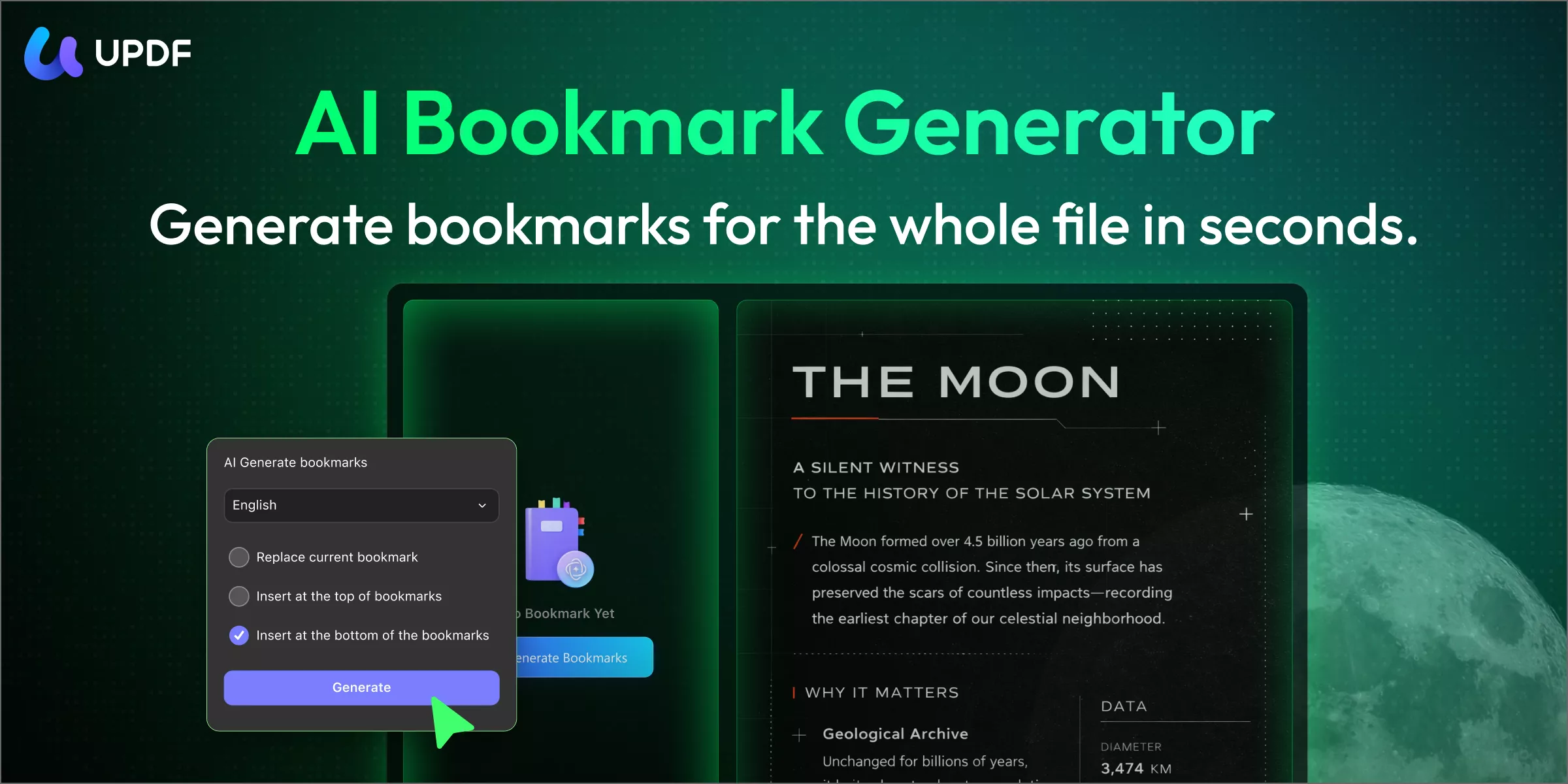
- AI Bookmark Generator: CliffsNotes guides — especially longer ones covering full novels or subjects — often have no built-in chapter bookmarks when saved via screenshot or Print to PDF. The AI Bookmark Generator automatically reads the document structure and builds a complete, navigable outline in one click, letting you jump between chapters and sections instantly.
- AI Bookmark Summarizer: Once chapter bookmarks are generated, this agent produces a concise summary for each bookmarked section — useful for quickly reviewing what each part of the guide covers before a test, without re-reading the whole document.
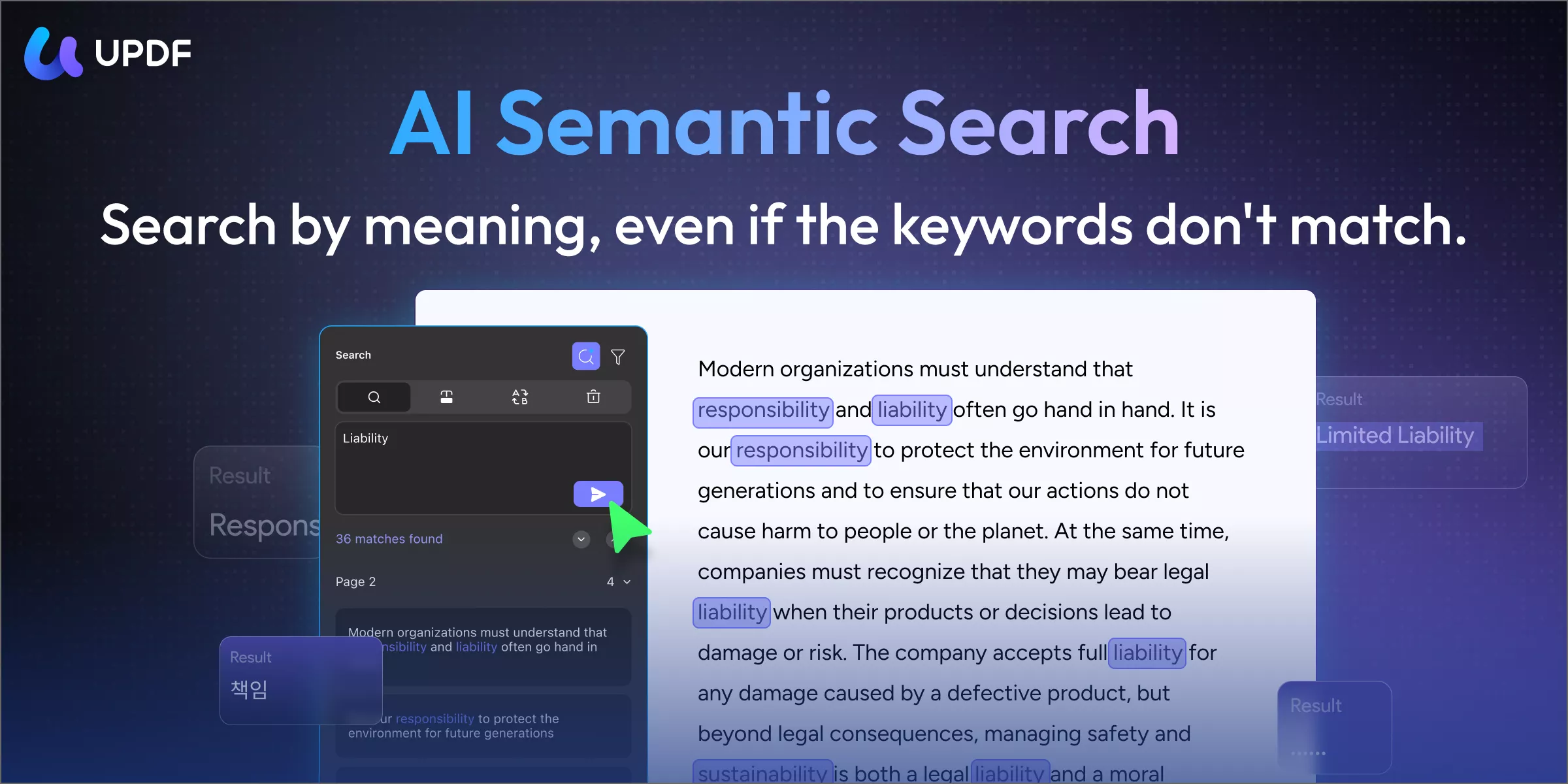
- AI Semantic Search: Unlike standard keyword search, UPDF's Semantic Search also finds synonyms automatically when you enter a search term — so your results include not just exact matches but also related words, helping you locate relevant content across a study guide even when different terms are used.
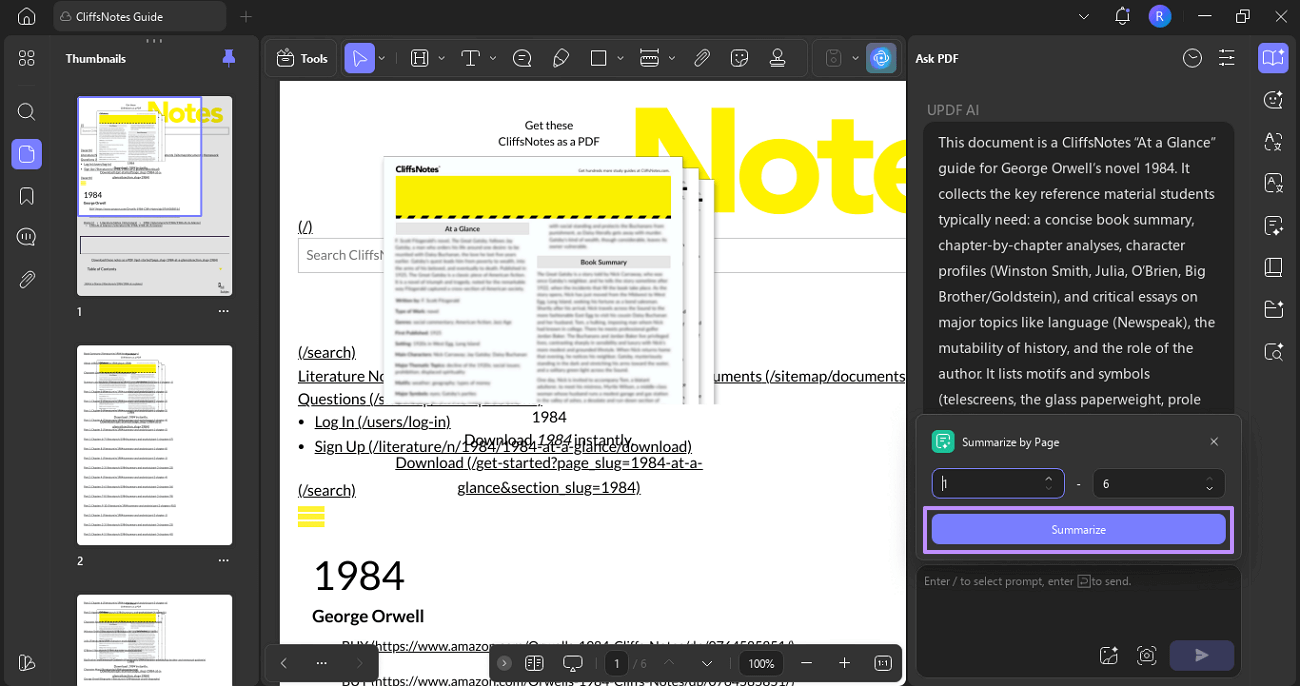
- Summarize: Select a chapter or section and ask UPDF AI to condense it into key bullet points — ideal for creating revision notes from a dense CliffsNotes guide. You can export the summary as plain text or Markdown for use in other study apps.
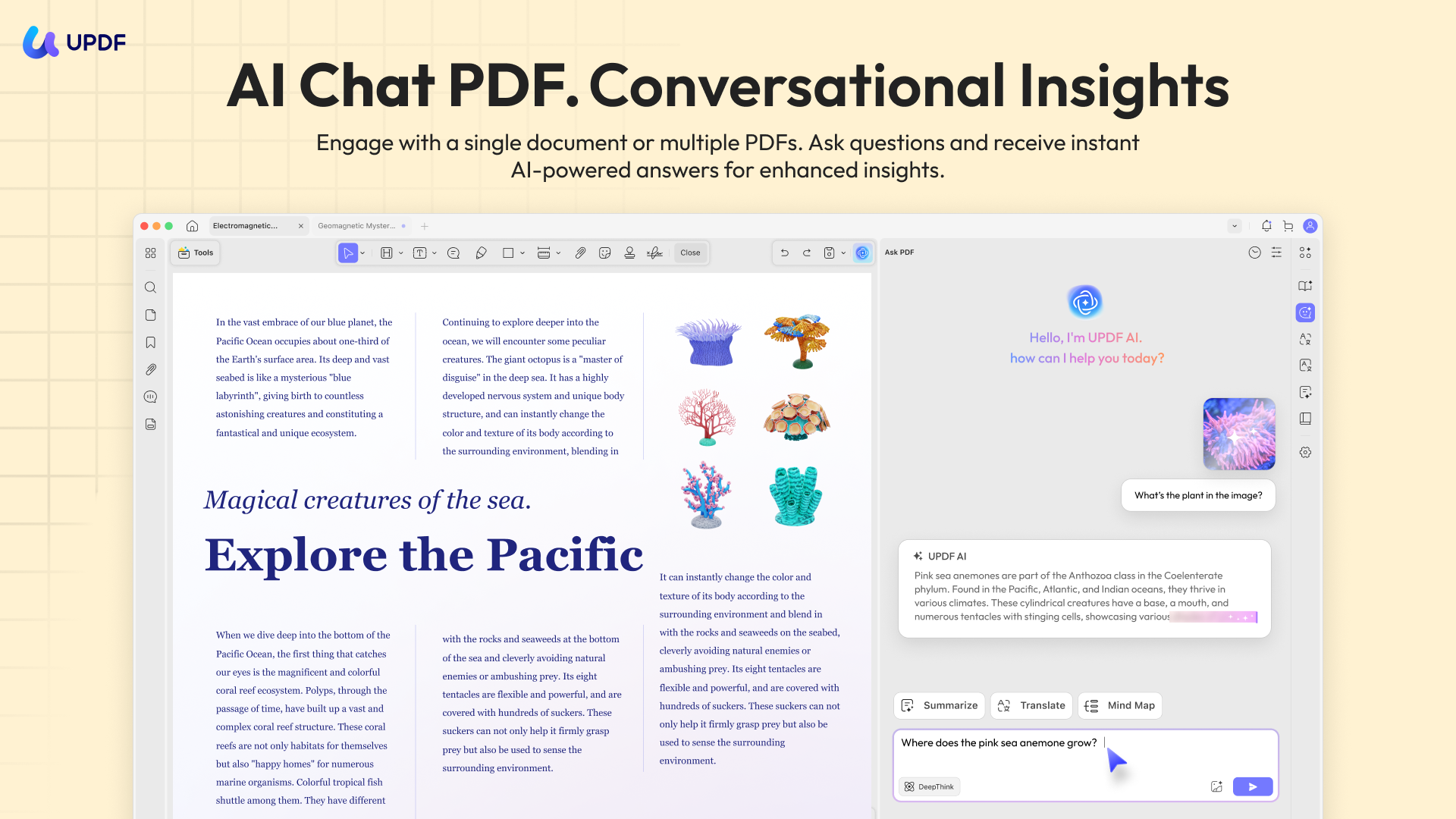
- Chat with PDF: Open the guide in UPDF AI and ask it direct questions about the content. Particularly useful for literature CliffsNotes — ask about character motivations, themes, or plot structure and get answers drawn directly from the document.
- Translate: If you are studying a CliffsNotes guide in a language other than your native one, UPDF AI can translate selected passages or entire sections into your preferred language directly within the PDF.
Try UPDF today by downloading the app to simplify your study process.
Windows • macOS • iOS • Android 100% secure
Apart from the above-discussed features, UPDF AI offers many other practical features specifically beneficial for students.
- PDF to Mind Map: Convert PDFs into clear and structured visual mind maps.
- Paper Search: lets you instantly find and explore relevant academic papers from a huge database using keywords or research questions. In AI (DeepThink) Mode, UPDF AI analyzes your query, finds relevant studies, and gives you concise, citation-backed answers — no need to read every paper yourself. You can filter results, explore citation networks, download papers (when available), and even view abstracts and metadata all in one place.
- Scholar Research: goes a step further by automating the workflow from basic searches to structured insights and literature reviews. You simply enter your topic, choose a response mode (such as Standard or High Quality), and UPDF AI will comb through papers, extract key findings, and help you organize the results into a clear, research-ready format. This is especially helpful for essays, theses, reports, or professional analyses where you need both breadth and depth of information quickly.
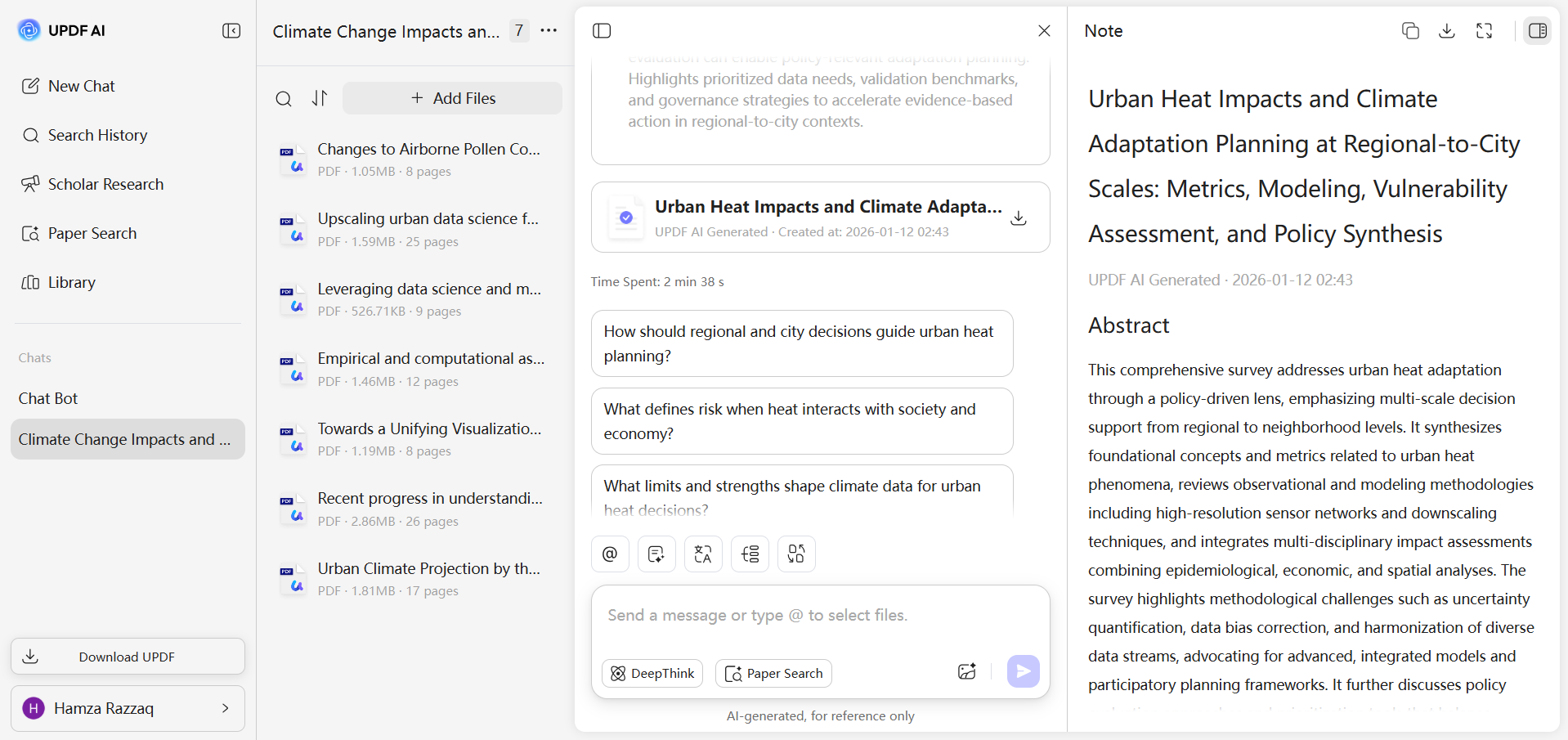
Ready to try it yourself? You can click the button below use UPDF AI Online now. You can upload up to 5 PDFs and ask up to 100 questions with the free version — see how AI can simplify your workflow before upgrading for unlimited access.
Conclusion
CliffsNotes is a valuable study resource, but its download limits and subscription costs push many students toward alternatives. The two methods in this guide — Print to PDF and Screenshot + Merge — both work without a subscription and give you a proper PDF file you can study from anywhere.
Once you have your CliffsNotes PDF, use UPDF to make the most of it. Download UPDF for free and open your next CliffsNotes PDF with it today.
Windows • macOS • iOS • Android 100% secure







 Enya Moore
 Engelbert White
 Lizzy Lozano