 UPDF
UPDF
 UPDF for Windows
 UPDF for Mac
 UPDF for iPhone/iPad
 UPDF for Android
 UPDF AI Online
 UPDF Sign
 Edit PDF
 Annotate PDF
 Create PDF
 PDF Form
 Edit links
 Convert PDF
 OCR
OCR PDF to Word
 PDF to Image
 PDF to Excel
 Organize PDF
 Merge PDF
 Split PDF
 Crop PDF
 Rotate PDF
 Protect PDF
 Sign PDF
 Redact PDF
 Sanitize PDF
 Remove Security
 Read PDF
 UPDF Cloud
 Compress PDF
 Print PDF
 Batch Process
 About UPDF AI
 UPDF AI Solutions
 AI User Guide
 FAQ about UPDF AI
 Summarize PDF
 Translate PDF
 Chat with PDF
 Chat with AI
 Chat with image
 PDF to Mind Map
 Explain PDF
 PDF AI Tools
 Image AI Tools
 AI Chat Tools
 AI Writing Tools
 AI Study Tools
 AI Working Tools
 Other AI Tools
 AI Bookmark Generation
 AI Bookmark Summary
 AI Watermark Generation
 AI Background Generation
 AI Sticker Generation
 AI Stamp Generation
 AI Editing Suite
 UPDF Copilot
 AI Page Management
 AI Semantic Search
 PDF to Word
 PDF to Excel
 PDF to PowerPoint
 Enterprise Solution
 Enterprise Sign
 Enterprise AI
 Enterprise Plan
 Enterprise User Guide
 Enterprise Webinar
 Banking
 Healthcare
 Insurance
 Legal
Legal Manufacturing
 Government
 Education Solution
 Customer Stories
 User Guide
 UPDF Tricks
 FAQs
FAQs UPDF Reviews
 Download Center
 Blog
Blog Newsroom
 Tech Spec
 Updates
 UPDF vs. Adobe Acrobat
 UPDF vs. Foxit
 UPDF vs. PDF Expert

It won’t be wrong to say that handwritten signatures aren’t enough for business and legal documents anymore. You need something faster and more reliable, like PAdES. Many people don’t know what PAdES is or how it works. If you’re not familiar with this term, don’t worry. In this guide, we’ll explain how PAdES works and why it’s a smart and secure way to sign documents online.
Also, to work with PAdES PDFs, you need a good PDF tool that supports signing PAdES, such as UPDF Sign. With this online tool, you can view and sign PDFs, and even send agreements to multiple recipients simultaneously, and much more. You can get real-time visibility for every document out for signature. Interested readers can click the button below to have a try.
Part 1. What is a PAdES Signature and Why Does it Matter?
PAdES, also known as PDF Advanced Electronic Signatures, is a safe and secure way to sign PDF documents online. Instead of using a pen or an old-fashioned wax seal, it uses digital technology to prove that a document is real and hasn’t been changed after it was signed. It was first introduced in 1999 with PDF version 1.3, and since then, it has been commonly used to safely sign important documents online.
PAdES signed PDFs are helpful for many things, such as business contracts, school forms, and legal papers. On the other hand, many European countries use PAdES as a standard method for signing official PDF documents. When it comes to PAdES, it is divided into four levels:
- PAdES-B-B: The first level is the basic one that shows who signed the document. This level is best for simple documents that don’t need long-term proof.
- PAdES-B-T: The next one is PAdES-B-T, which adds a timestamp to show the exact signing time. It is often used for business documents.
- PAdES-B-LT: It adds extra verification information to the PDF so the signature stays valid and can be used for a long time. PAdES-B-LT is commonly used for business contracts and official documents.
- PAdES-B-LTA: It is the highest and most secure level of a PAdES signature. It has all the proof needed inside the PDF, such as important information about the signer, security certificates, and regular time stamps. This one is used for government and business documents.
Part 2. How To Create PAdES Signature on PDF?
When you want to create a PAdES signature on a PDF, you can do it in two different ways: using UPDF Sign or Adobe Acrobat.. I will explain both methods so you can easily decide which one works best for you.
Method 1. Using UPDF Sign
UPDF Sign is an online tool that you can use on different devices like PC and mobile. This tool lets you send, sign, and track PDF documents online without printing paper or using a pen. With one click, you can manage signed documents and share them more quickly and securely.
Moreover, with this tool, you can also keep track of who has signed and who hasn’t yet. Apart from that, there are many other benefits of using this tool; some of the common ones are discussed below.
- Simple and Secure: You don’t need any technical skills, as this tool is simple and easy to use. With one click, you can add your digital signature. Recently, I tested the sign feature, and it worked smoothly for me. Moreover, this tool uses advanced digital technology to make sure your signatures are safe.
- Bundled with UPDF: Registering UPDF Sign also lets you log in to UPDF. You can use UPDF to scan paper agreements into digital ones, then use UPDF Sign to electronically sign documents as needed. You can also use UPDF to edit, annotate, fill forms, and sign PDFs.
- Use Online : I love that UPDF Sign is an online tool, so you can sign documents right from your phone or tablet, even if you’re not at your computer.
- Free to Use: It offers a free version that allows you to sign up to two documents for testing. Also, it’s hassle-free, which means no watermarks, no credit card, no downloads, and no ads. Just complete the sign-up process, and you are ready to use it.
Pricing Plans and Limits:
Moreover, UPDF Sign supports three PAdES signature levels: PAdES-B-B, PAdES-B-T, and PAdES-B-LT, which means you can choose the level of security according to your business requirements. When it comes to pricing, it offers three different plans. Let’s discuss them.
- Free Plan: In the free plan, you get 2 signature requests and +0G, 10MB max per file Cloud storage. This plan doesn’t offer other features like Notifications and reminders, batch signing, and so on.
- Individual Yearly Plan: For this plan, you will get 300 signature requests, +20 GB,30MB max per file Cloud storage, Signer authentication (OTP) via email, batch mode, Adobe Approved Trust List (AATL) digital certificate, and more. The yearly plan costs US$69 per year, and monthly plans start at US$9 per month.
- Enterprise Plan: This plan is for businesses and offers unlimited signature requests, +100 GB,30MB max per file Cloud storage, batch signature option, Real-time audit trail, Signer authentication (OTP) via email, Adobe Approved Trust List (AATL) digital certificate, and so on. UPDF Enterprise Plan is available for US$99 per year.
For full details on plan pricing and features, visit the official UPDF pricing page.
Important Note:
Steps to Create a Document that Needs to be Signed with PAdES
Here is a step-by-step guide that you can follow to create PAdES signature on PDF using UPDF.
1. Create Signature PDF
Before signing with PAdES, you have to create the document. Let’s see how I created my first PDF using UPDF.
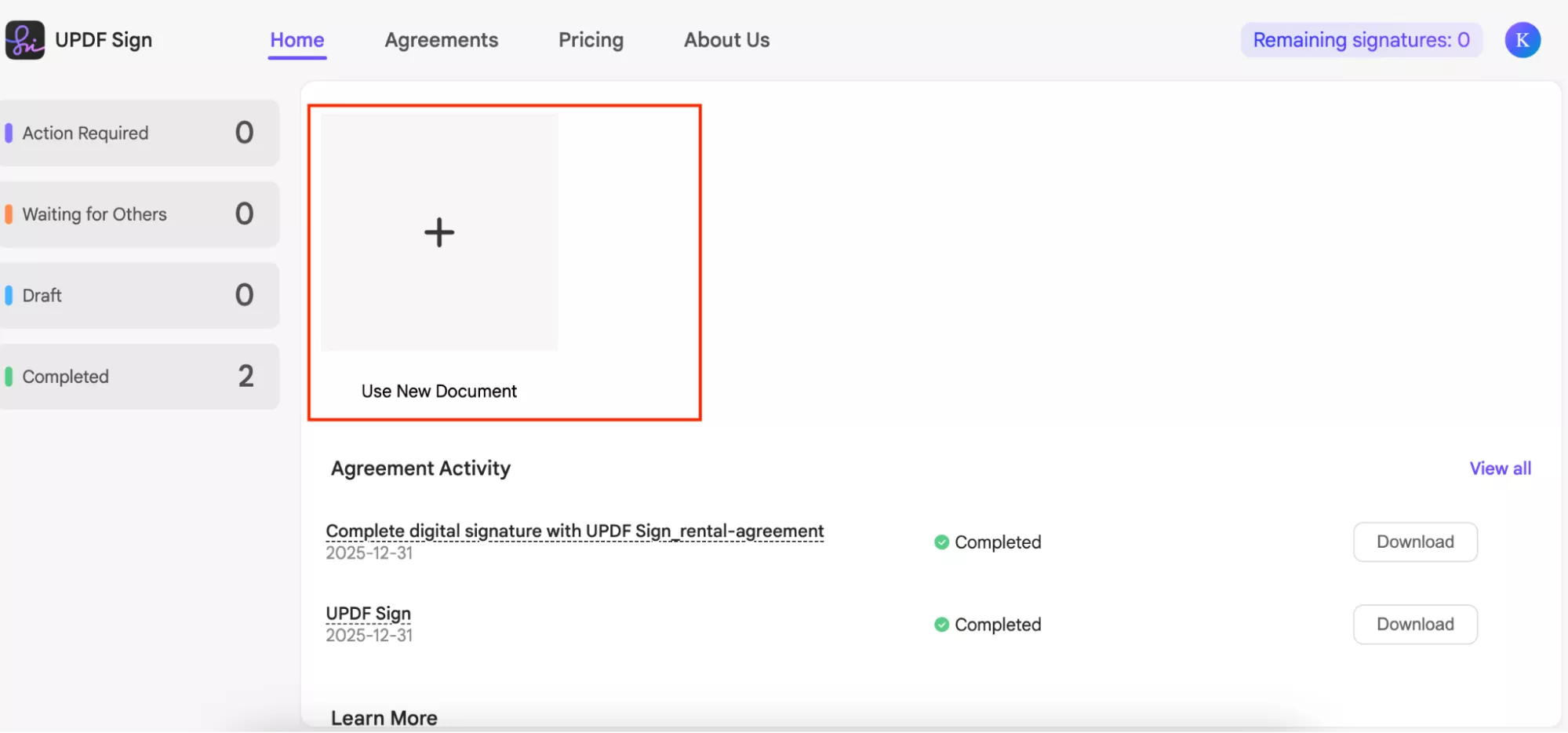
Step 1: Visit UPDF Sign and enter your login credentials. Once you are on the dashboard, click the “ Use New Document” option.
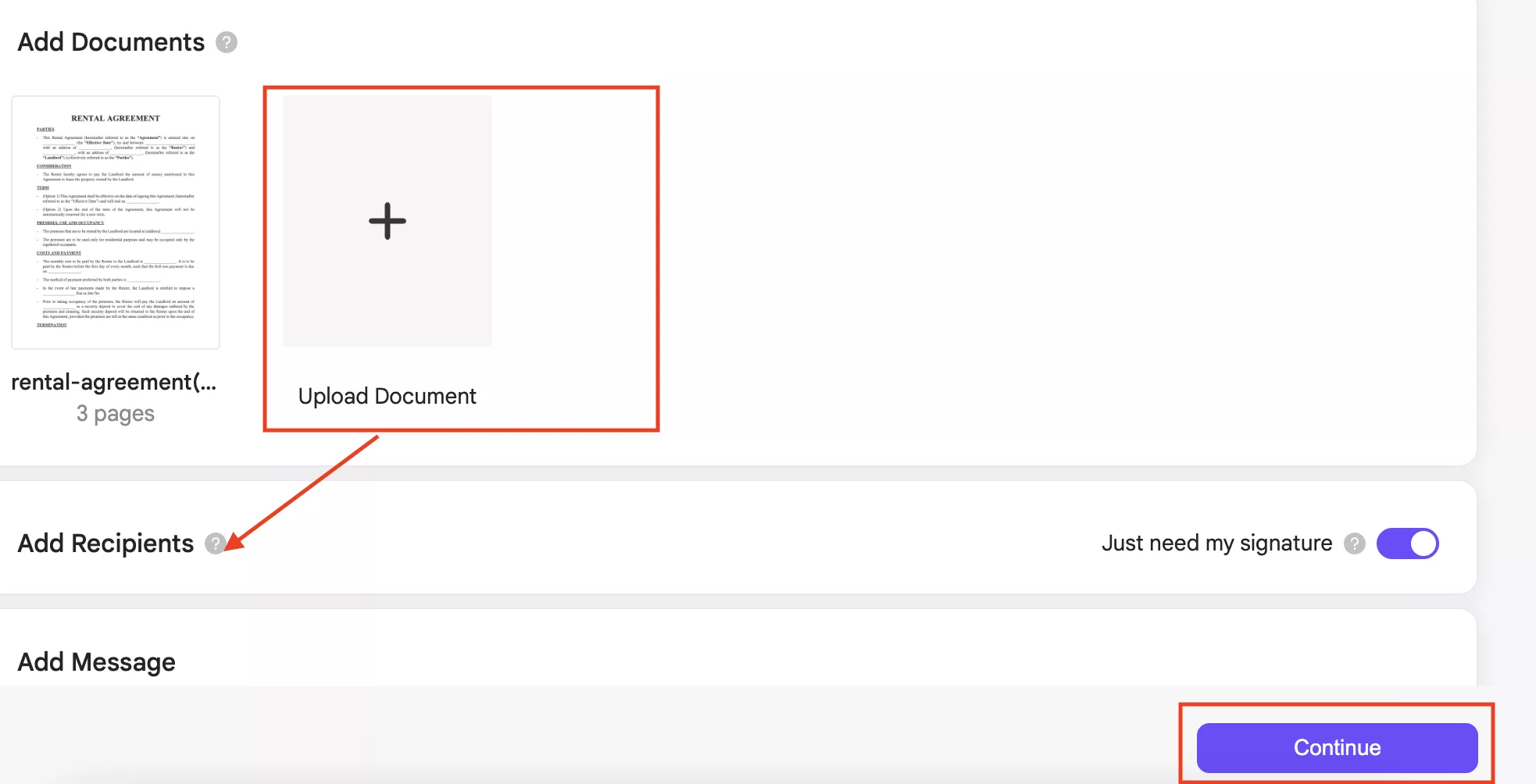
Step 2: Next, click the “Upload Document” option to upload your PDF where you need the sign. Once done, click the “Continue” option.
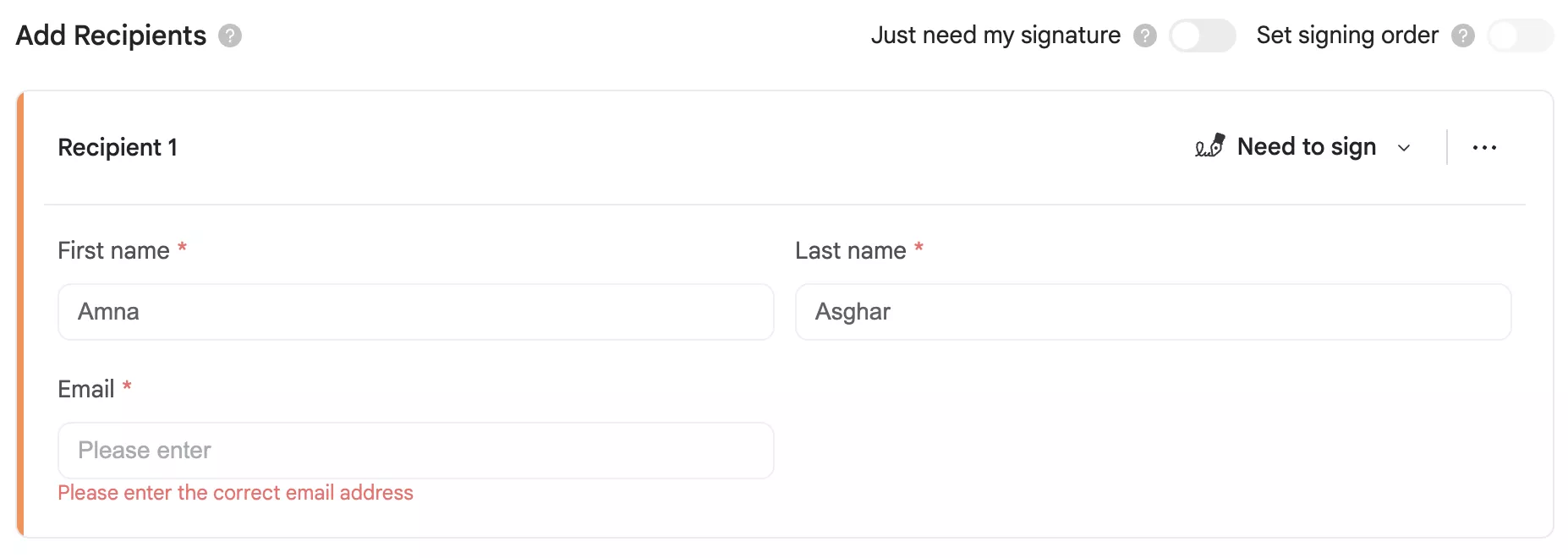
Note:
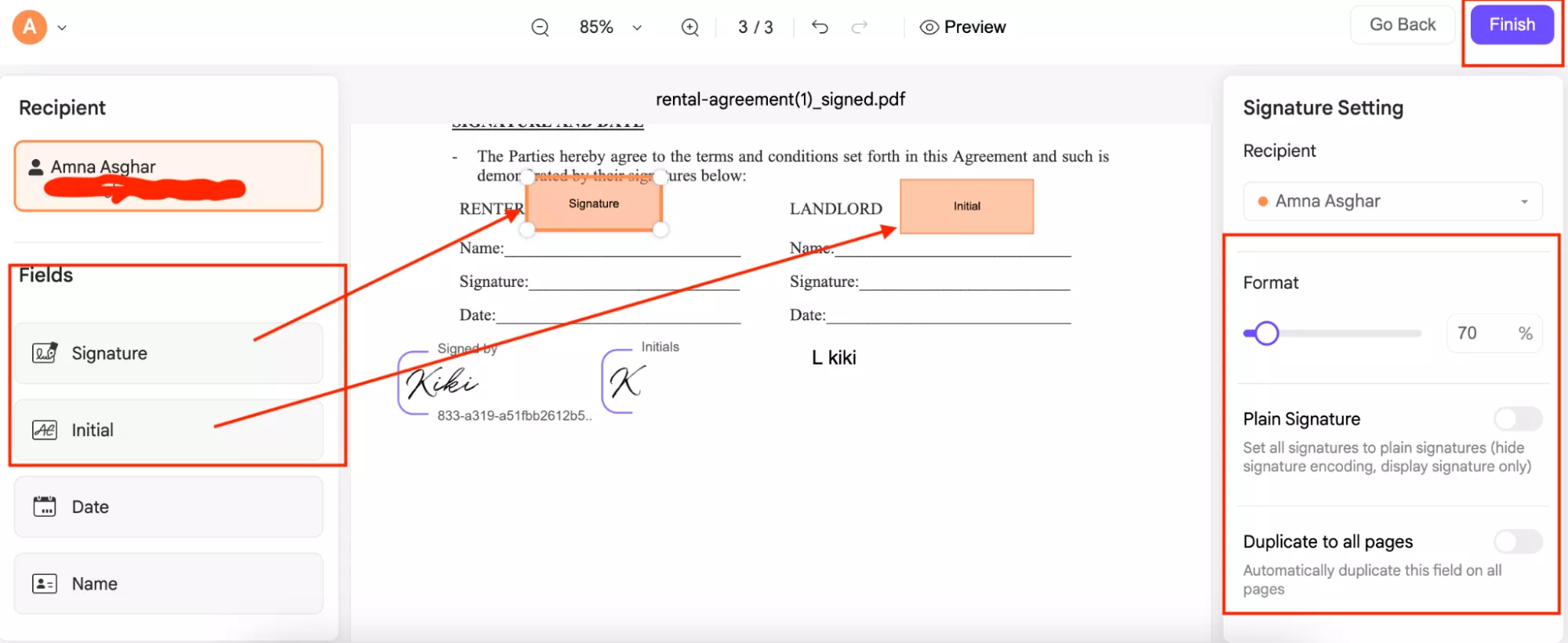
Step 3: Now, choose two fields, Signature and Initial, as shown in the image below. Don’t forget to adjust the font and other settings, such as Plain Signature and Duplicate pages. Once you are done with the settings, click the “Finish” button to start the sending document process.
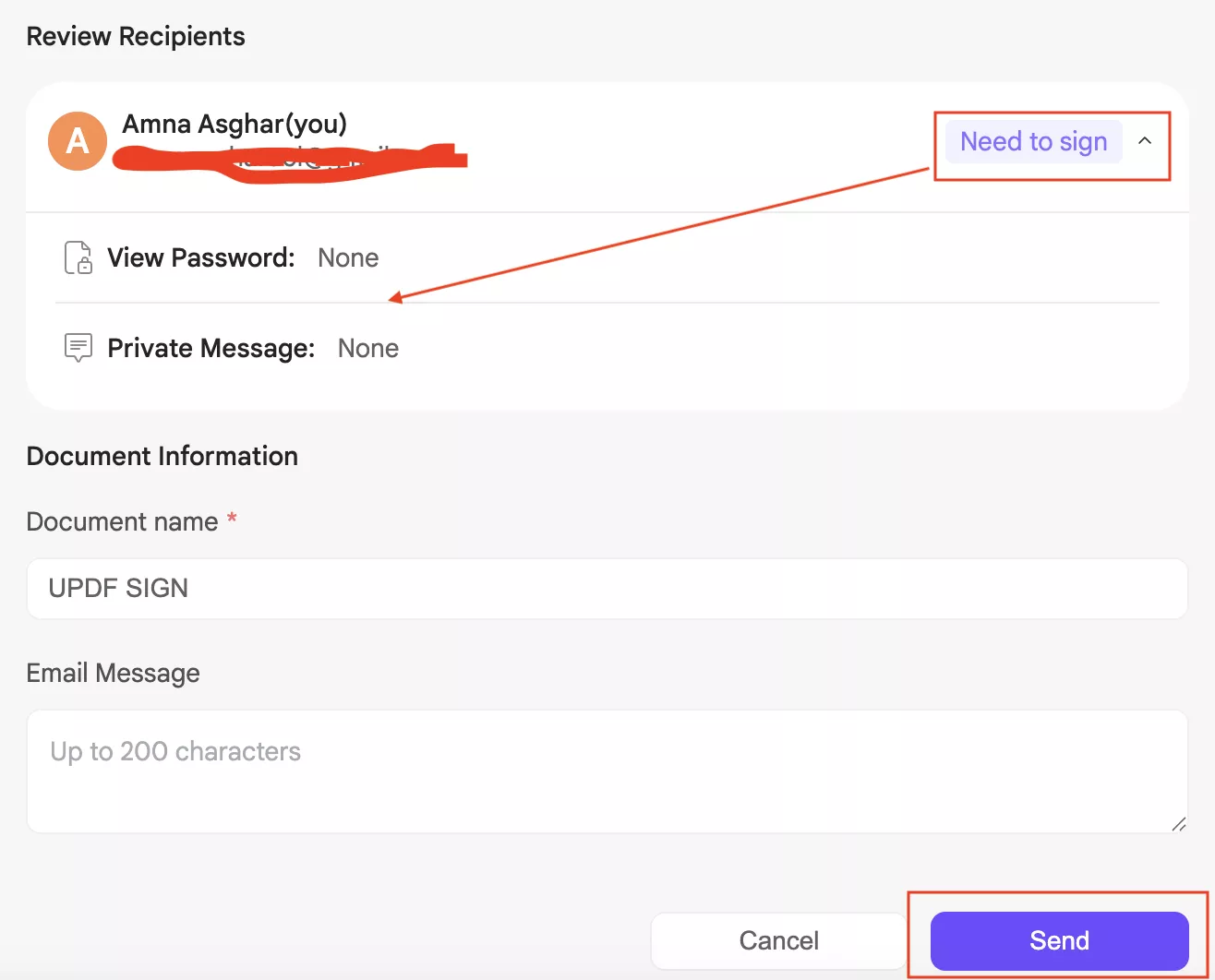
Step 4. Next, choose the “Need to Sign” option to verify the document's privacy. Also, don’t forget to check your Document Name and Email message. Next, click “Send” to successfully send the Signature request.
2. Sign with PAdES
To sign with UPDF, you have to follow a few simple steps mentioned below.
Step 1: Open the document you received and click the “Signature” box where you want to add your signature.
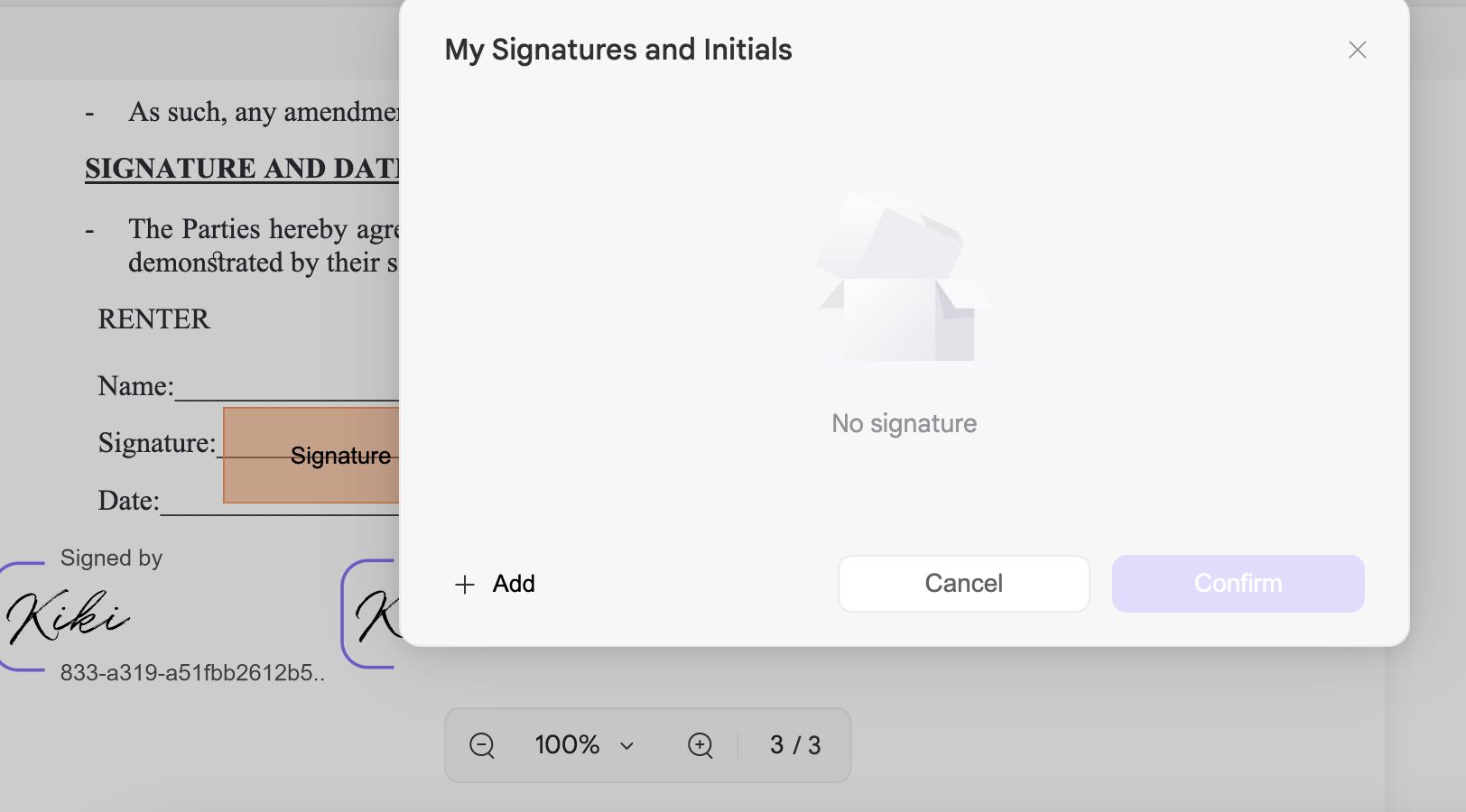
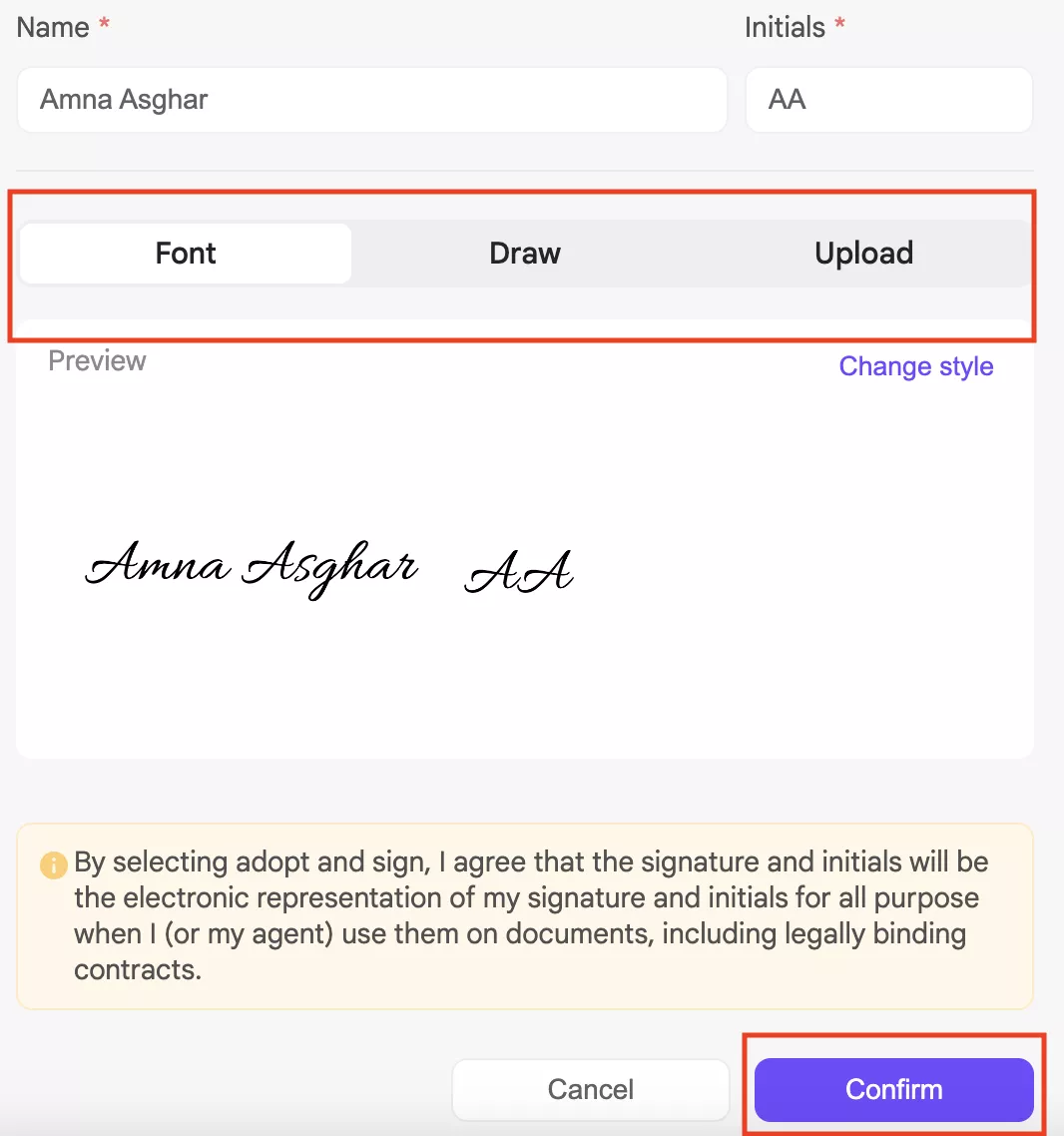
Step 2: You will be redirected to a new page where you can choose your signature style, upload a new one, and draw your signature as well. Click “Confirm” to continue the process.
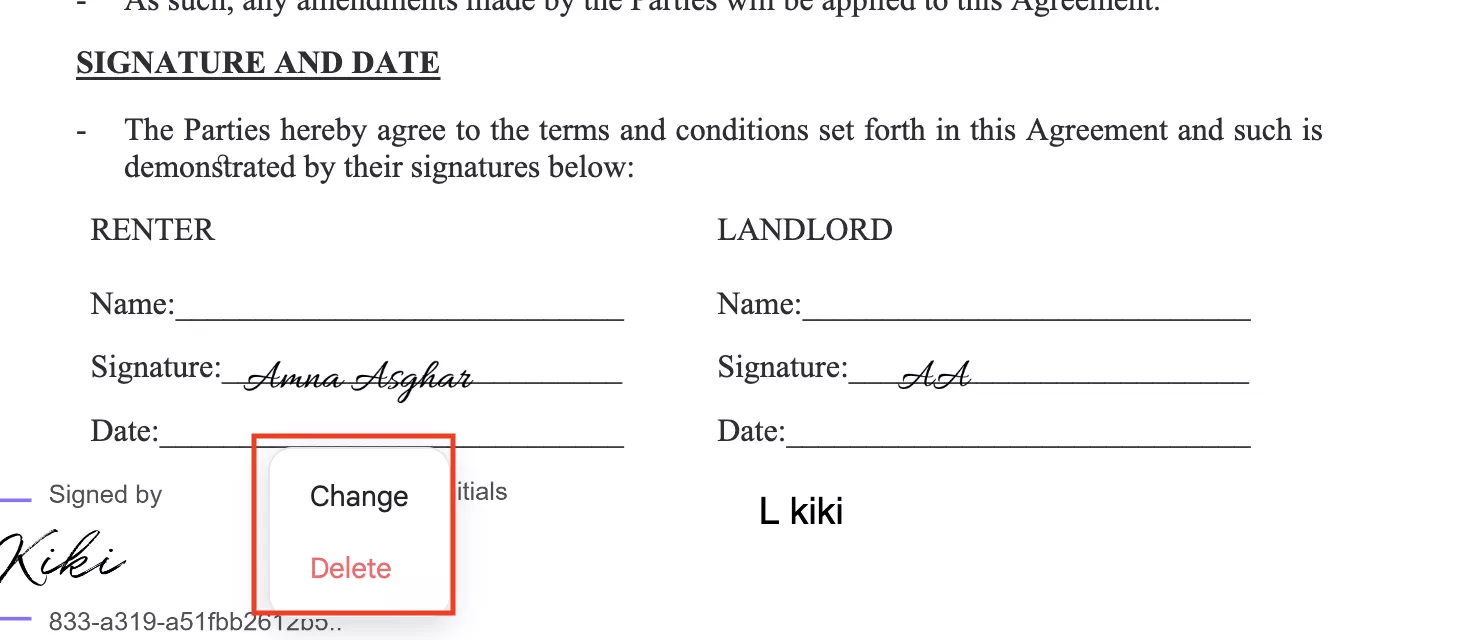
Step 3: After creating a signature, you can easily edit or delete it if you’re not satisfied. Click “Confirm” to add your final signature.
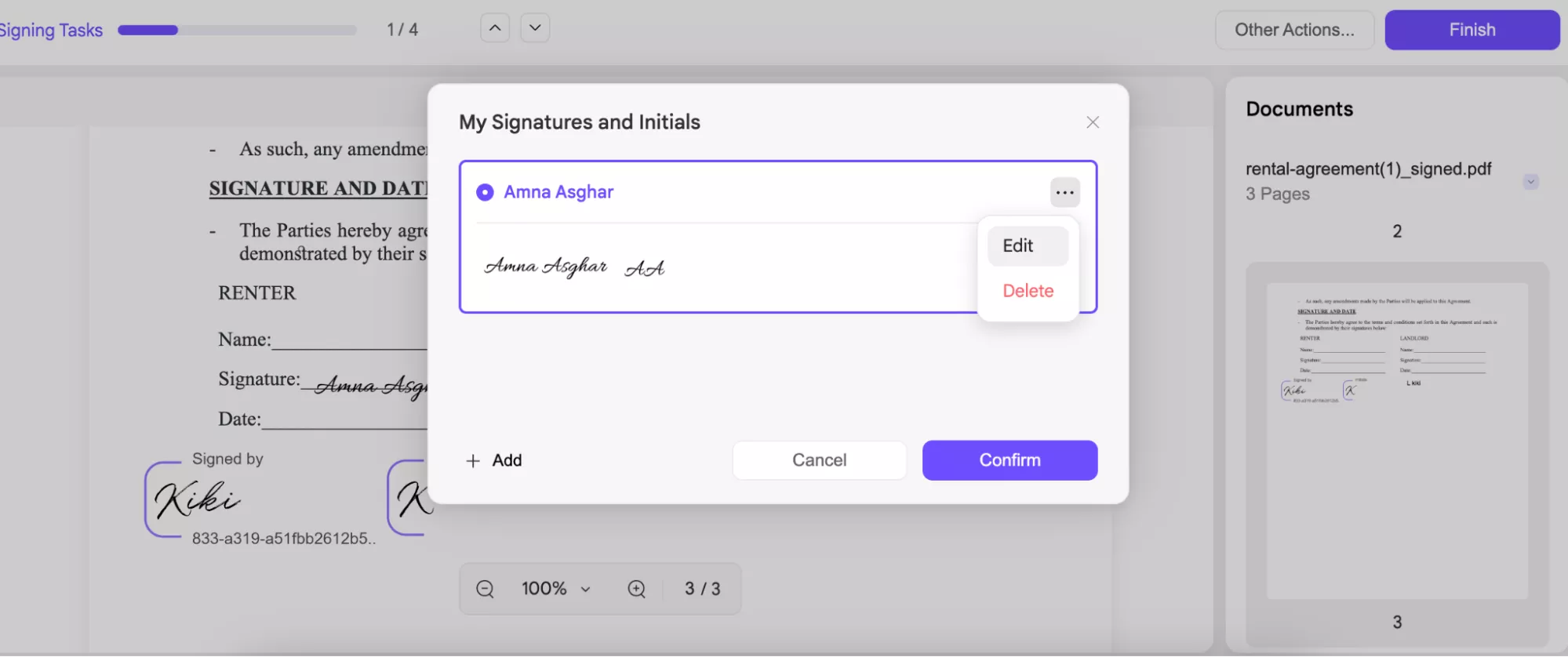
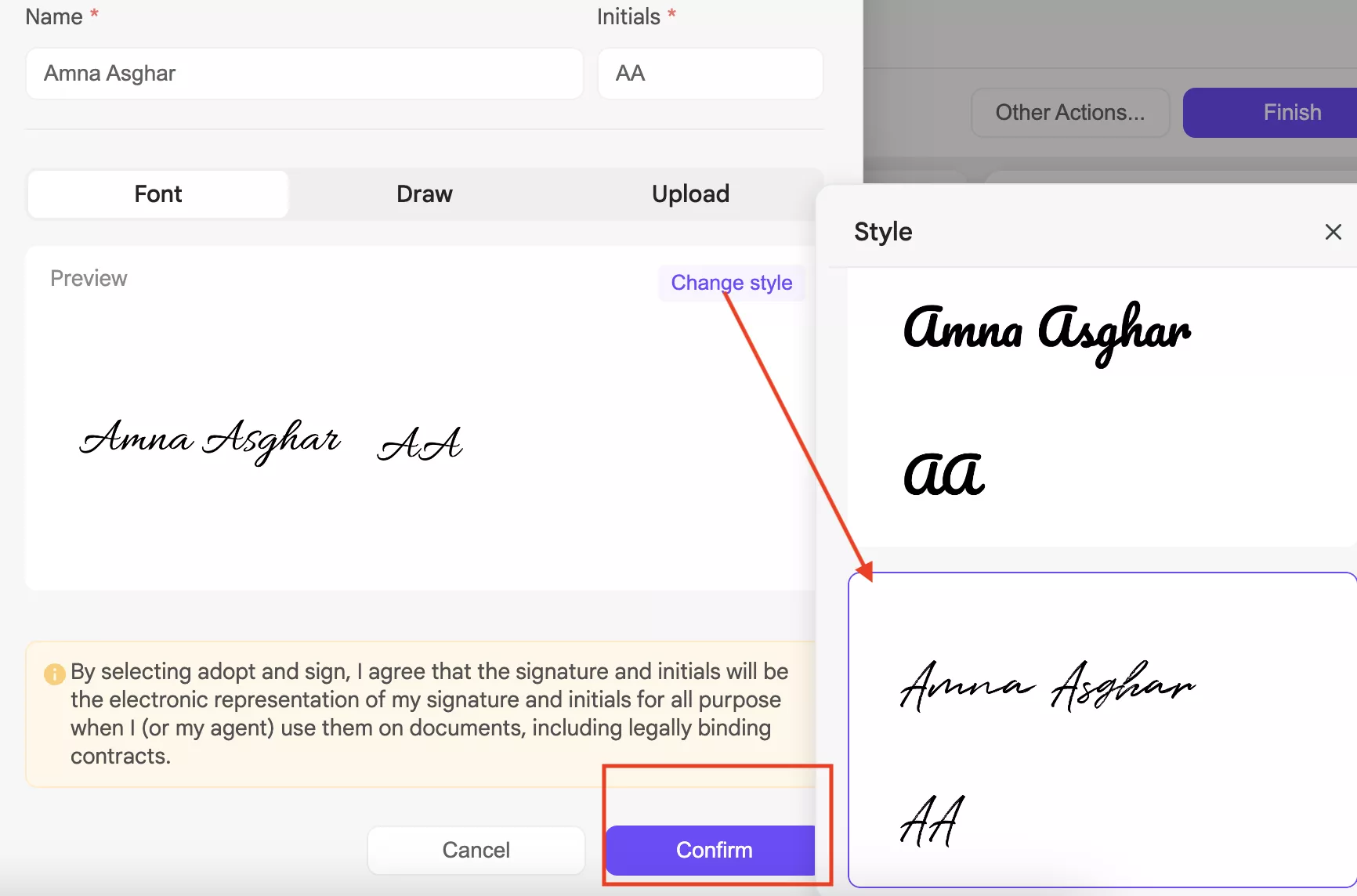
Step 4: You can also change the signature and add a new style as shown in the image below.
Step 5: After you have selected the new signature, click the “Confirm” option again to add your signature to PDF.
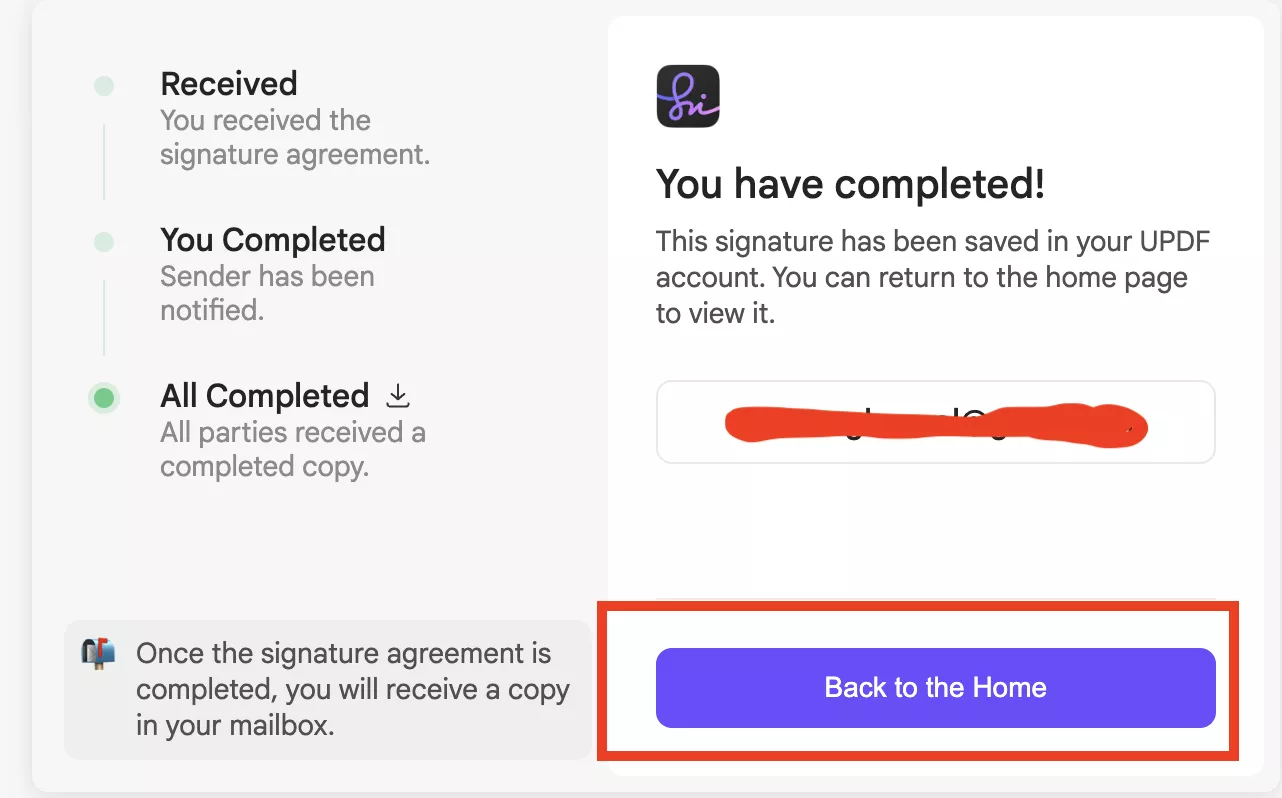
Step 6: After adding the signature, click the “Back to Home” option to see your document. You can now download, view, copy, and delete it.
Important Note:
Windows • macOS • iOS • Android 100% secure
Method 2. Using Adobe
If you’re already an Adobe user, you can also create a PAdES-compliant signature directly with Adobe Acrobat by following a few simple steps.
Step 1: Open your PDF file in Adobe Acrobat and go to the “Tools” section.
Step 2: Now, choose the "Forms and Certificates" option and select “Digitally Sign”.
Step 3: Next, choose where you want to add your signature. If you don’t have your sign, click the “Configure New Digital ID” to add a new one.
Step 4: Review your signature and click the “Confirm” option to sign the document.
Step 5: Save your signed PDF, and that’s it.
Part 3. How to Check the Validity of PAdES Signatures?
There are many ways to check the validity of PAdES signatures, but the authentic way is to use an online validation tool like EU DSS Validator, provided by the European Commission. This tool helps you check the validity of signatures directly in your browser. To use this tool, you can follow the following steps.
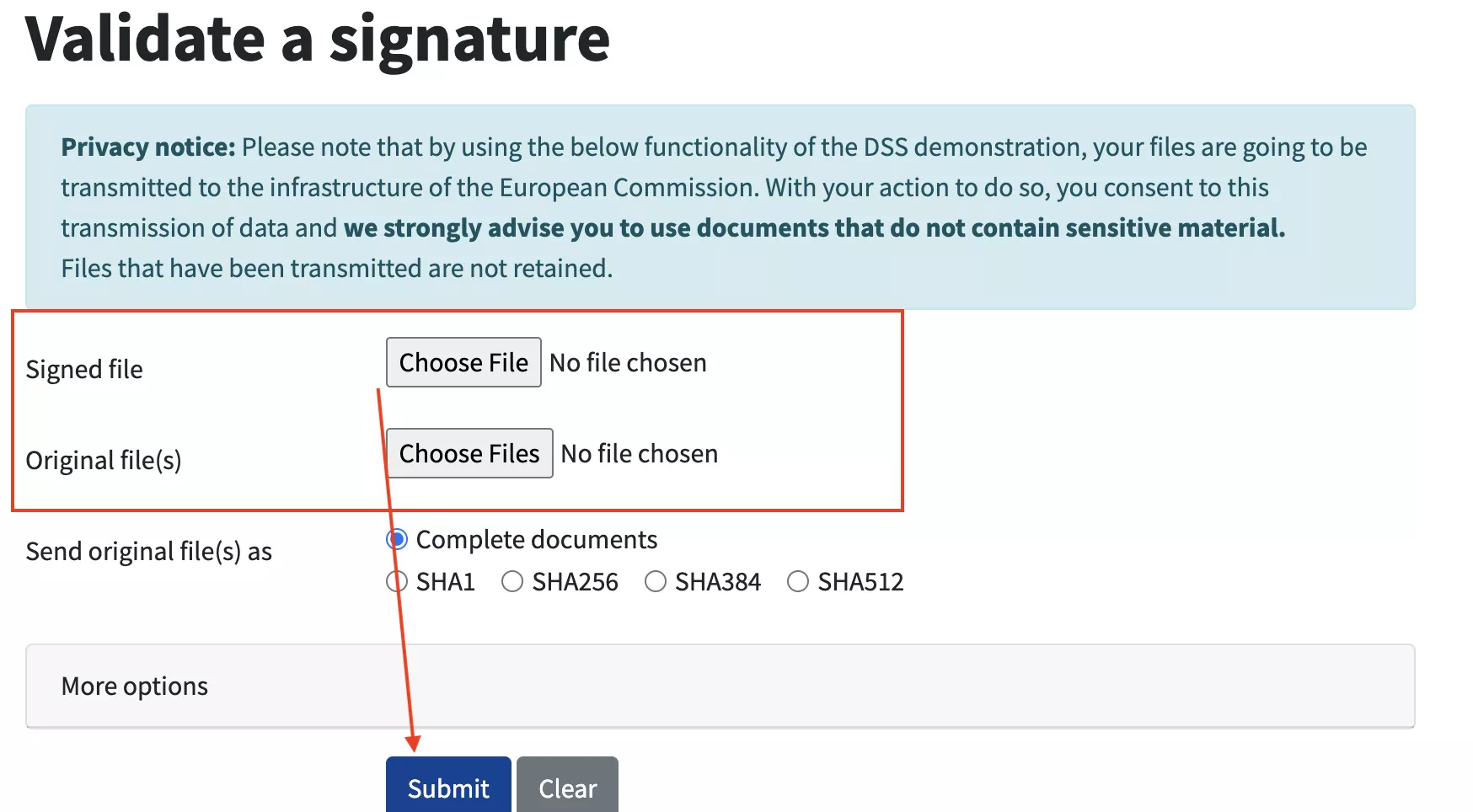
Step 1: Go to the EU DSS Validator web page and under the Server Side section, click the “Validate a Signature” option.
Step 2: Now, under the Signed file, upload the PDF you want to check. You can also upload your original file.
Step 3: After uploading your PDF file, click the “Submit” button to check the validation.
Conclusion
Undoubtedly, PAdES signatures are a safe way to sign and check PDF files. You can use different tools like UPDF Sign and Adobe to create signatures, and EU DSS Validator to check the validity of signatures. However, if you want to use an easy way to sign and edit PDFs without any hassle, and don't specifically need to sign PAdES, I would recommend using UPDF. It is compatible with both mobile and desktop devices and lets you sign, read, edit, and manage PDFs all in one place.
Windows • macOS • iOS • Android 100% secure





 Enola Miller
 Enola Davis
 Lizzy Lozano
 Engelbert White