 UPDF
 UPDF for Windows
 UPDF for Mac
 UPDF for iPhone/iPad
 UPDF for Android
 Nomostar
 UPDF AI Online
 UPDF Sign
 IvyCraft
 Edit PDF
 Annotate PDF
 Create PDF
 PDF Form
 Edit links
 Convert PDF
 OCR
 PDF to Word
 PDF to Image
 PDF to Excel
 Organize PDF
 Merge PDF
 Split PDF
 Crop PDF
 Rotate PDF
 Protect PDF
 Sign PDF
 Redact PDF
 Sanitize PDF
 Remove Security
 Read PDF
 UPDF Cloud
 Compress PDF
 Print PDF
 Batch Process

 About UPDF AI
 UPDF AI Solutions
 AI User Guide
 FAQ about UPDF AI
 Summarize PDF
 Translate PDF
 Chat with PDF
 Chat with AI
 Chat with image
 PDF to Mind Map
 Explain PDF
 PDF AI Tools
 Image AI Tools
 AI Chat Tools
 AI Writing Tools
 AI Study Tools
 AI Working Tools
 Other AI Tools
 AI Bookmark Generation
 AI Bookmark Summary
 AI Watermark Generation
 AI Background Generation
 AI Sticker Generation
 AI Stamp Generation
 AI Editing Suite
 UPDF Copilot
 AI Page Management
 AI Semantic Search
 PDF to Word
 PDF to Excel
 PDF to PowerPoint
 Enterprise Solution
 Enterprise Sign
 Enterprise AI
 Enterprise Plan
 Enterprise User Guide
 Enterprise Webinar
 IT
 Education
 Construction
 Financial Service
 Healthcare
 Insurance
 Legal
 Manufacturing
 Government
 Researchers & PhDs
 Solopreneurs & Freelancers
 Lawyers & Legal Professionals
 Real Estate Agents & Brokers
 Education Solution
 Customer Stories
 User Guide
 UPDF Tricks
 FAQs
 UPDF Reviews
 Download Center
 Blog
 Newsroom
 Tech Spec
 Updates
 UPDF vs. Adobe Acrobat
 UPDF vs. Foxit
 UPDF vs. PDF Expert


Apple Wallet stores passes rather than ordinary PDF documents. The safest option is to use the ticket issuer’s official Add to Apple Wallet button. On iOS 27, Create a Pass can also turn supported ticket or QR information into a Wallet pass. If neither option is available, a third-party pass creator can read a supported barcode from your PDF and generate a .pkpass file.
Choose the method that fits your ticket: use the issuer’s official Wallet button when available, try Create a Pass on iOS 27 for a supported ticket or QR code, or use Pass2U Wallet when an older iPhone or unsupported PDF needs a third-party fallback.
Before creating the pass, UPDF can help you isolate the correct ticket page, check names and booking details, scan a paper ticket, and preserve the original PDF as a cross-device backup. It does not create PKPASS files, but it gives you a clean source file if the Wallet conversion fails.
Windows • macOS • iOS • Android 100% secure
Part 1. 3 Methods to Add a PDF to Apple Wallet
Apple Wallet is designed for passes, not ordinary PDF documents. First, use the ticket issuer’s official Add to Apple Wallet button when one is provided. On iOS 27, Create a Pass may work with supported ticket or QR information. If neither route is available, use a third-party pass creator to generate a compatible .pkpass file.
| Method | Best For | Privacy | Platform | Time |
|---|---|---|---|---|
| Pass2U Wallet | Older iOS versions and supported barcodes | Review the current App Store privacy details | iOS | Varies by ticket |
| NeatPass | Users who prefer an iPhone workflow | Review the current App Store privacy details | iOS | Varies by ticket |
| WalletPass | Users processing PDFs on desktop | Desktop extension | Chrome + iPhone | Varies by ticket |
Warning
⚠️All three methods require the PDF to contain a supported barcode type (QR code, Aztec, PDF417, Code 128). PDFs with Code 39 or other unsupported barcodes cannot be converted to Wallet passes.
Let’s see how you can do it in easy steps.
Method 1: Adding PDF to Apple Wallet with Pass2U
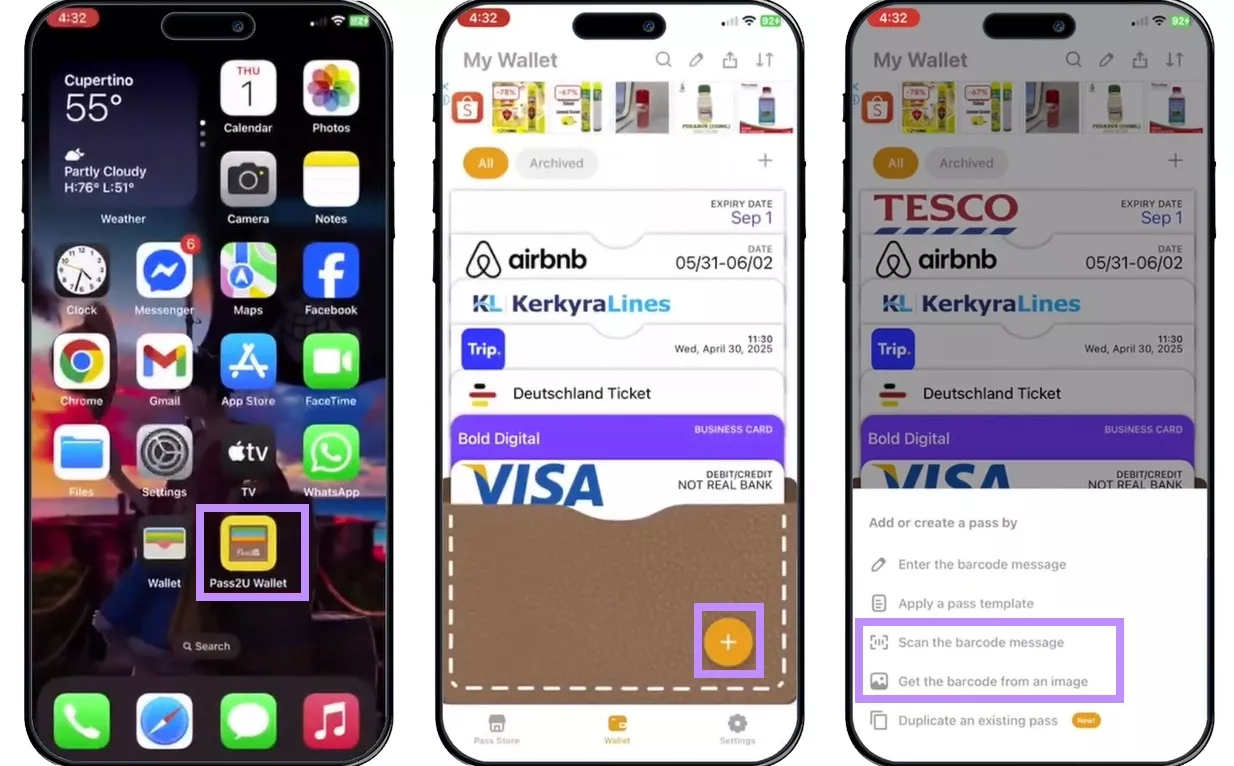
Step 1: Download and install the Pass2U app from the App Store. Open the Pass2U app and click the “+” sign. Click on “Scan the barcode message” or “Get the barcode from the image” option.
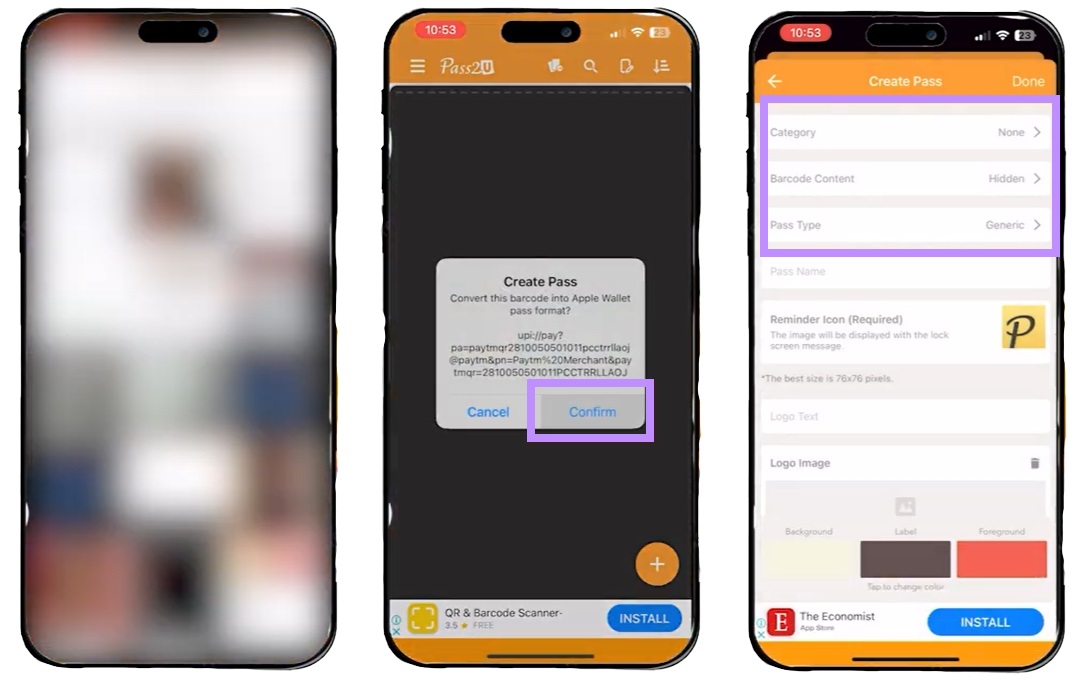
Step 2: Select the PDF you want to add to the Apple Wallet and choose the image with the pass. You'll see a prompt to convert this pass to Apple Wallet format. Click "Confirm."
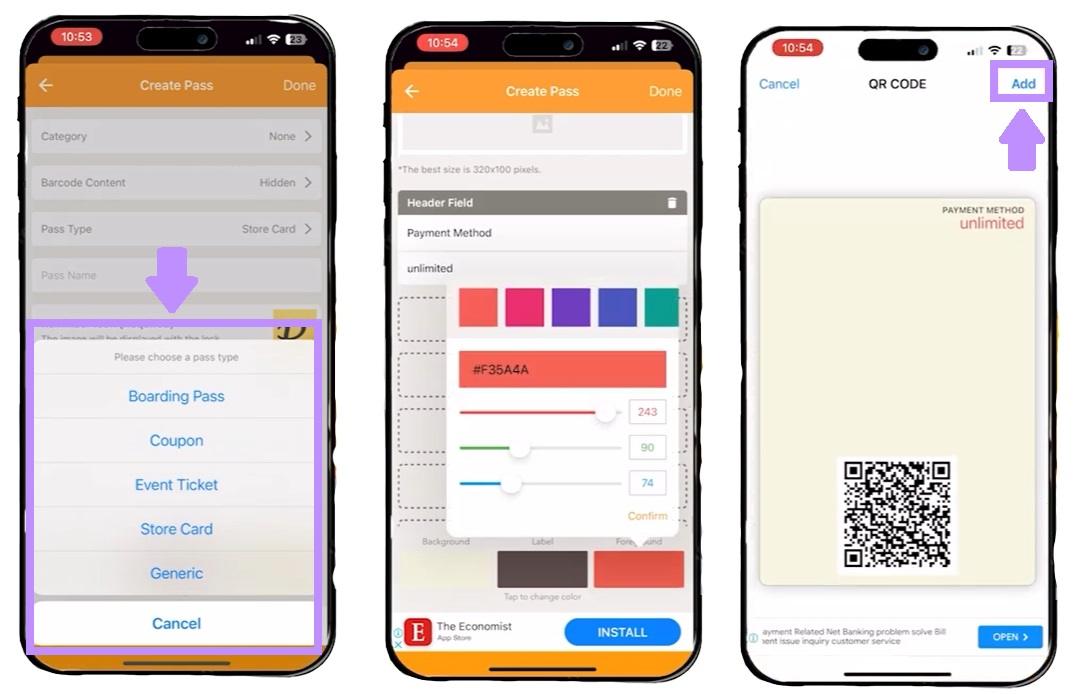
Step 3: Choose the details like Category, Barcode content, pass type, etc. Click on “Done” to set the details. Then review your pass and click “Add” to add it to Apple Wallet.
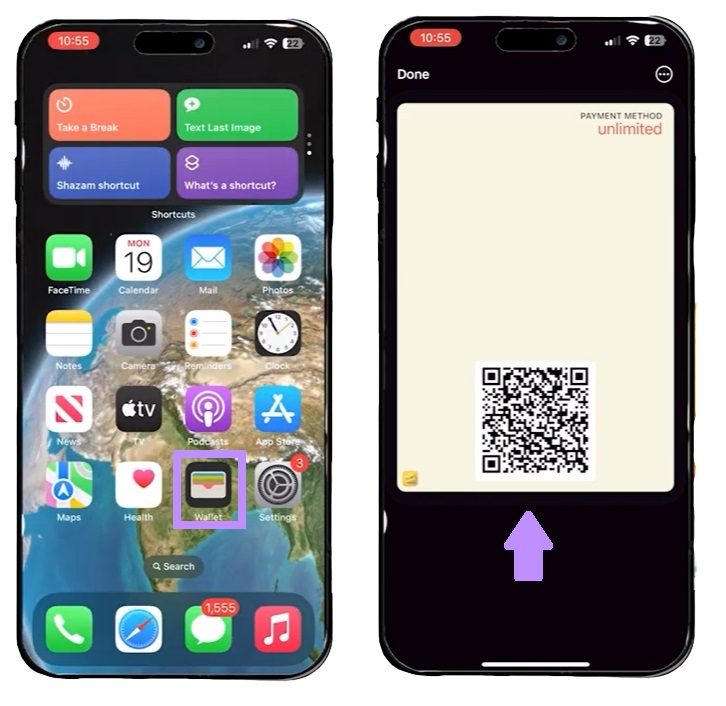
Step 4: Open the Apple Wallet and check your newly added pass.
Method 2: Adding PDF to Apple Wallet in NeatPass (Privacy-First, On-Device)
NeatPass converts PDF tickets to Apple Wallet passes entirely on your iPhone — no cloud upload, no server processing. The app uses on-device machine learning to extract ticket data.
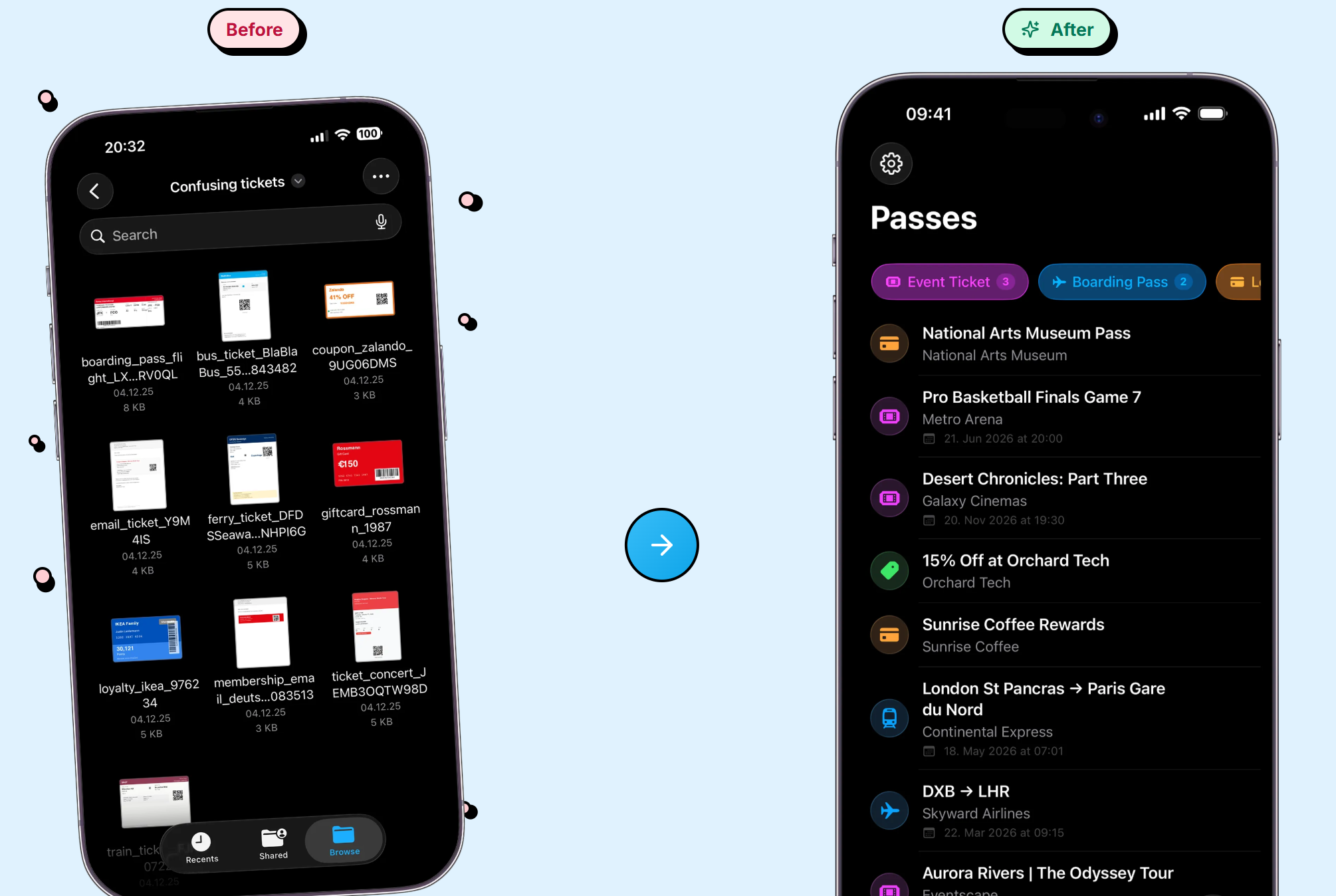
Step 1. Download NeatPass from the App Store.
Step 2. Open the app and tap the + button.
Step 3. Select your PDF from Files, email, or share it via the share sheet.
Step 4. NeatPass automatically extracts the ticket information.
Step 5. Tap Add to Wallet — the pass appears in your Apple Wallet.
This method is best for users handling sensitive documents (boarding passes with personal details, event tickets with account numbers) who don't want to upload to a third-party server.
Method 3: Adding PDF to Apple Wallet via WalletPass (Desktop Chrome Extension)
If your PDF is on your computer, WalletPass lets you convert it without transferring the file to your phone first.
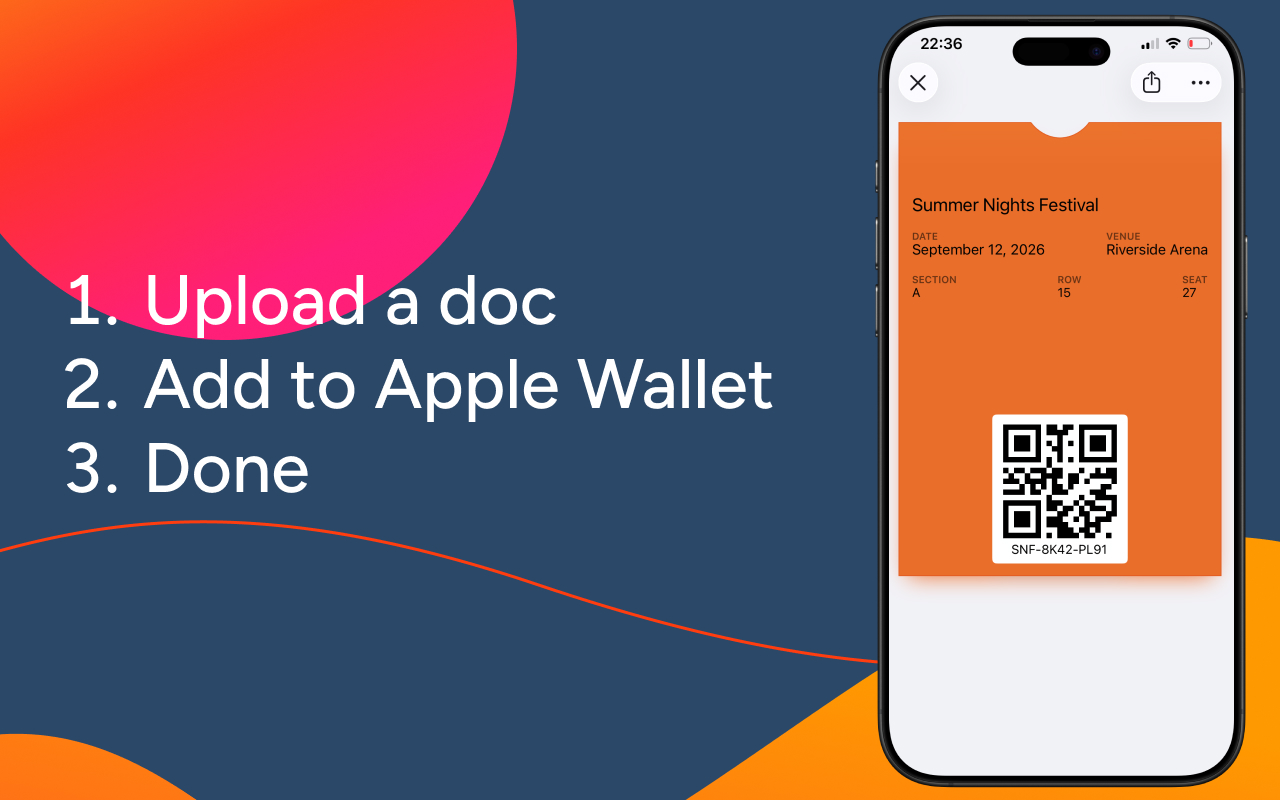
Step 1. Install the WalletPass Chrome extension.
Step 2. Drag and drop your PDF into the extension.
Step 3. Click Convert — a QR code appears.
Step 4. Scan the QR code with your iPhone camera.
Step 5. The pass opens in Apple Wallet — tap Add.
This method is best for users who receive PDF tickets via email on their computer and want to avoid the email-yourself-to-your-phone routine.
Part 2. Prepare and Back Up a PDF Ticket with UPDF
A PDF-to-Wallet conversion can fail when the ticket page is buried in a long document, the barcode is cropped or blurry, or the source is a photo of a paper ticket. UPDF cannot create a PKPASS file, but it can prepare a clear source PDF and preserve the original ticket before you use Apple Wallet or a pass creator.
- Blurry or distorted barcode — Pass2U and NeatPass need a clear, complete barcode
- Wrong page — A 12-page itinerary where only page 4 has the barcode
- Scanned physical ticket — The barcode is part of an image, not a vector
Use UPDF to inspect the source, isolate the correct page, and keep a readable backup before running the ticket through Apple Wallet or a third-party pass creator.
Try UPDF free to prepare and back up your ticket. 🛍️ View the limited-time Black Friday offer and save up to 48% on eligible plans.
Windows • macOS • iOS • Android 100% secure
Extract and Check the Correct Ticket Page
Before creating a Wallet pass, open the ticket in UPDF for iOS. Confirm the passenger or attendee name, date, seat, booking reference, and barcode. If the ticket is part of a multi-page confirmation, use the page tools to keep only the relevant page before sharing it with a pass creator.
1.1 Steps to View PDF Tickets On PC:
Step 1: Open UPDF on your computer and click “Open Files.”
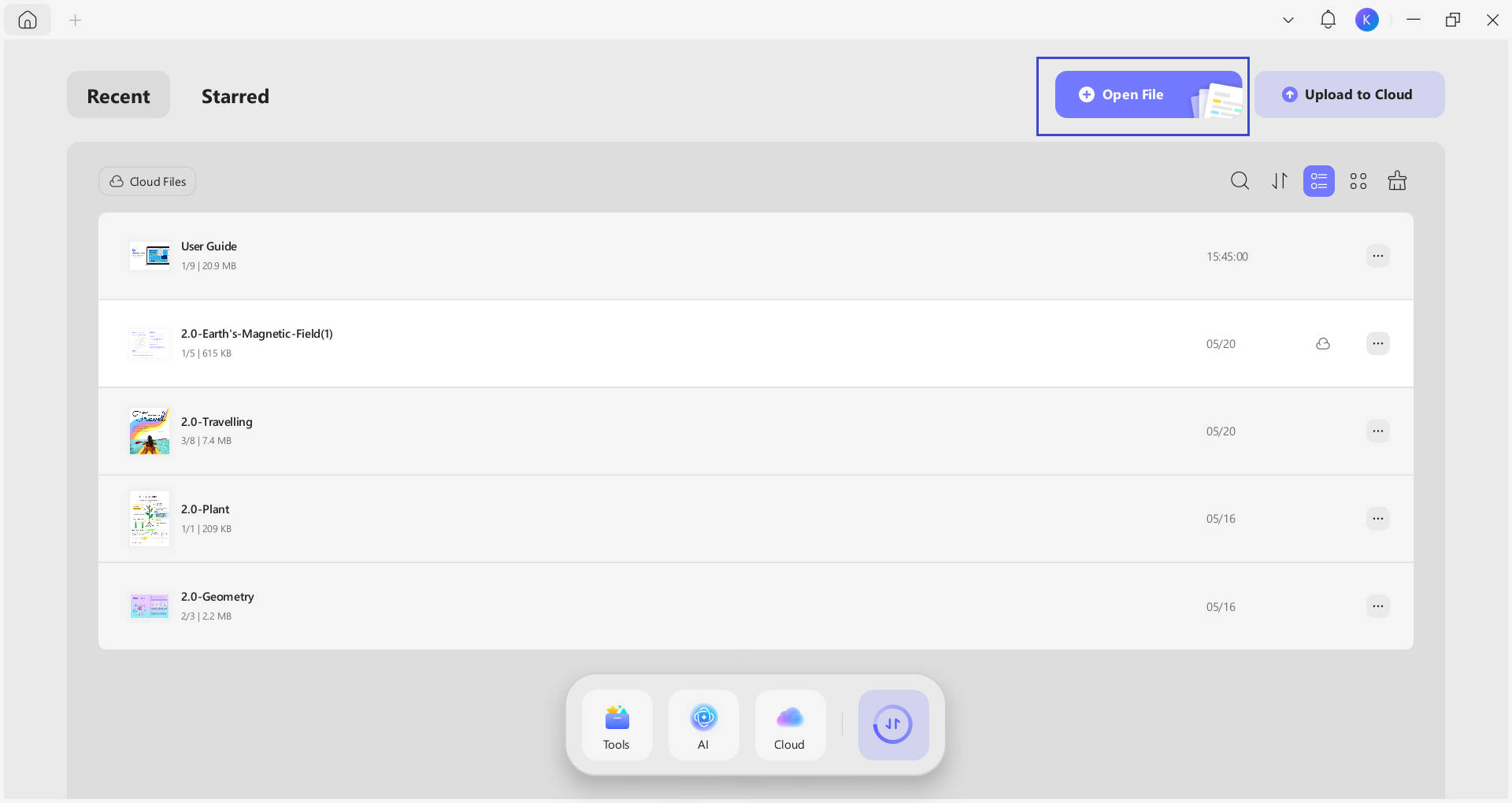
Step 2. Select your PDF ticket file to import it.
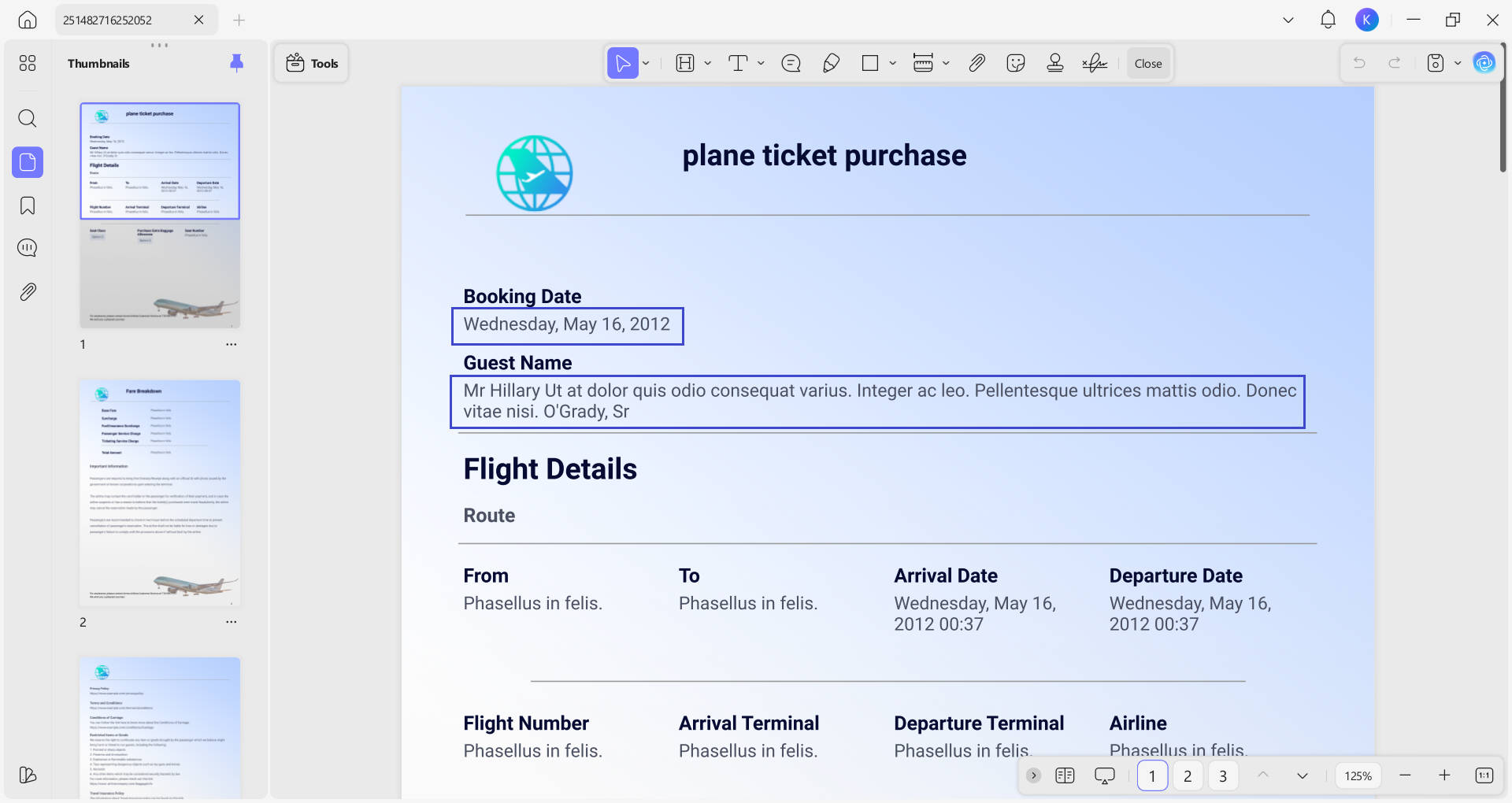
Review the ticket carefully. Check the date, name, seat, and booking reference, then confirm the barcode is complete and undistorted. If needed, organize the PDF pages on iPhone and keep only the ticket page before continuing.
1.2 Steps to View PDF Tickets On Mobile:
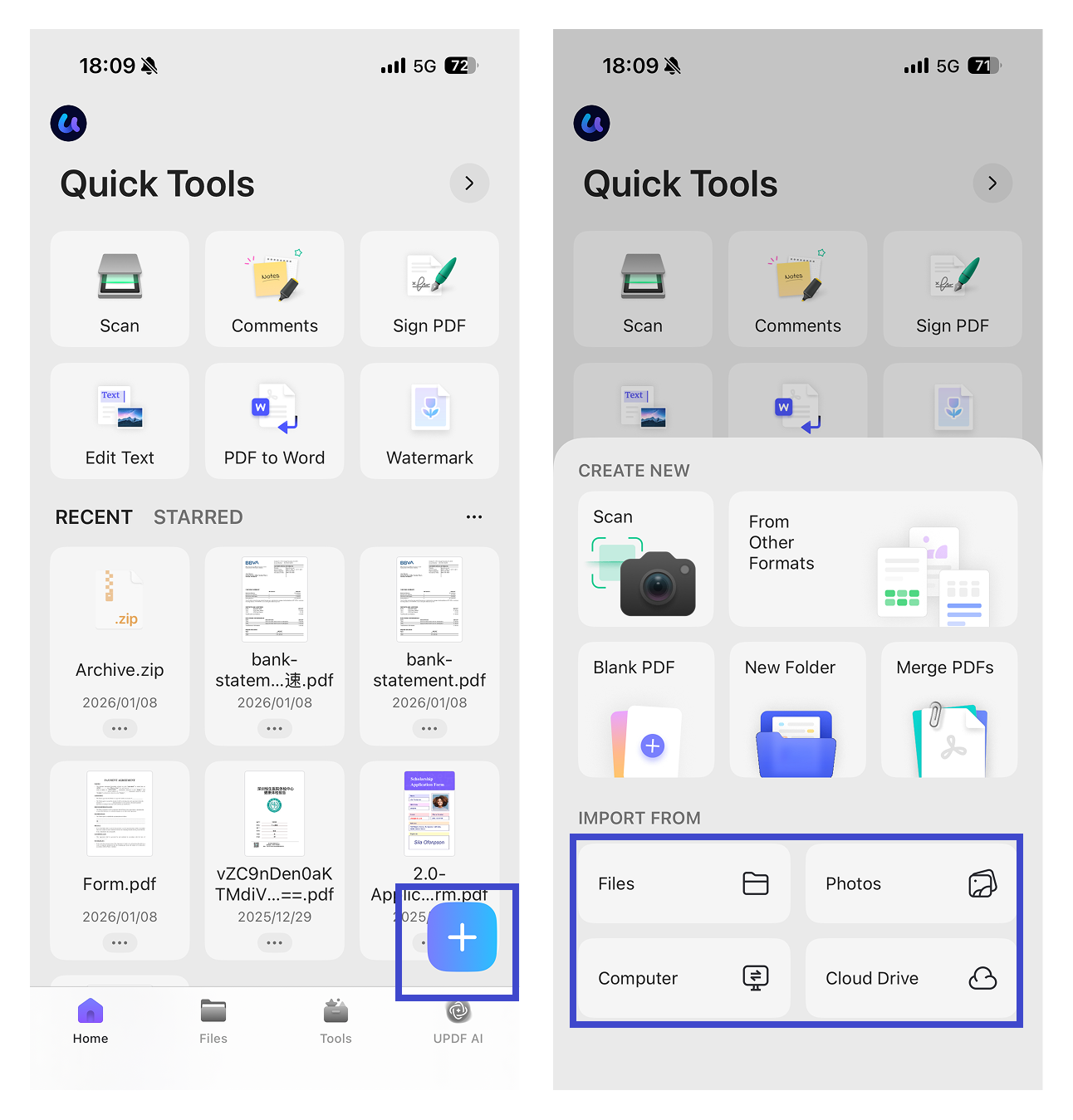
Install UPDF on your phone and open the ticket. If you regularly handle travel documents, this guide to reading PDF files on iPhone explains the import and viewing options in more detail.
Tap the “+” icon and import the ticket PDF from Files, Photos, a computer, or a connected cloud drive.
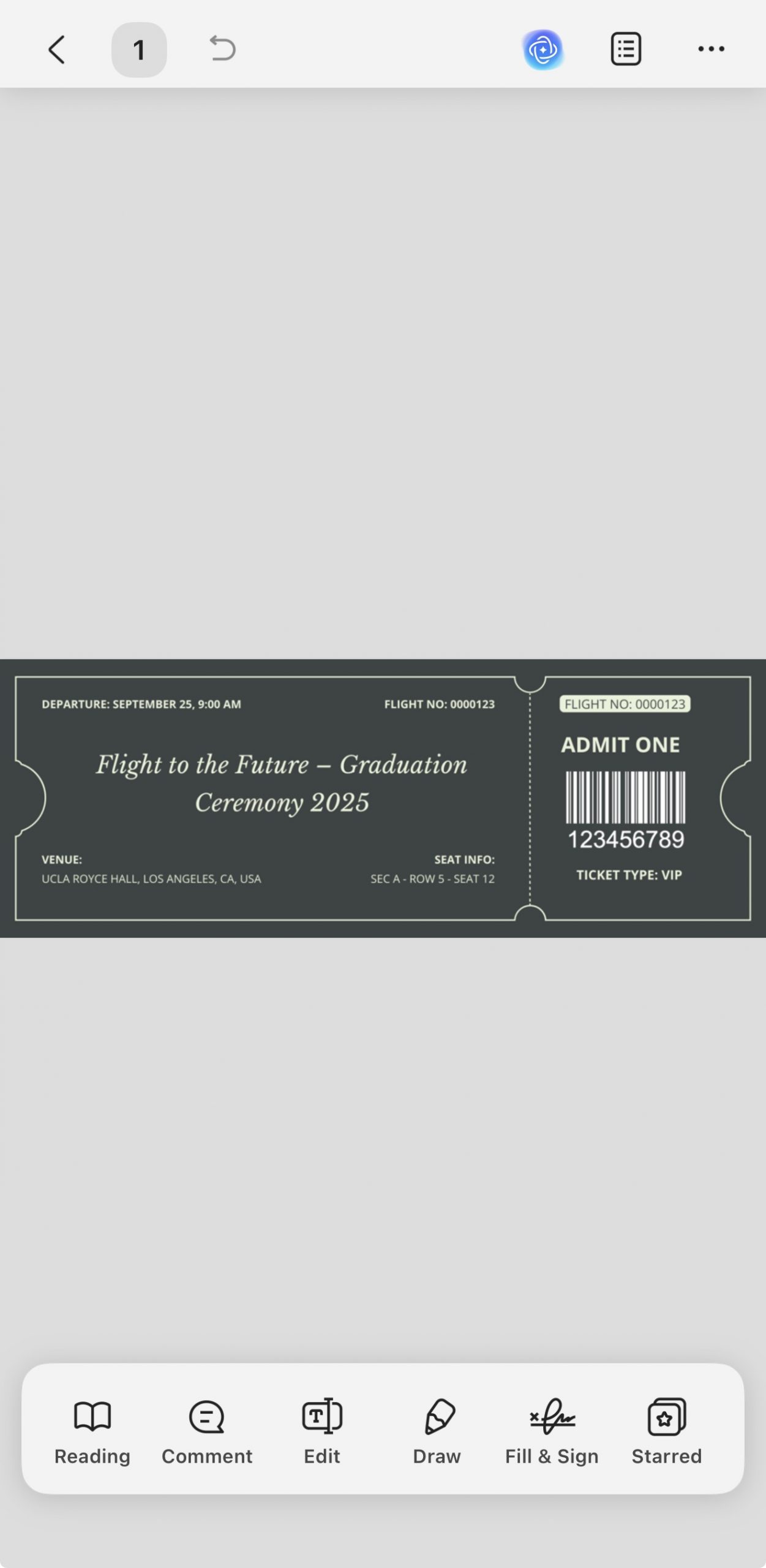
Step 3: Pinch to zoom in on the barcode area and confirm it's sharp and complete — Pass2U needs a clear barcode to generate your wallet pass correctly.
2. For Physical Paper Tickets
A pass creator may capture only the barcode from a paper ticket, so its artwork and full layout may be lost. Use the UPDF mobile app to scan the complete ticket first. This is useful for travel records, expense documentation, or keepsake concert and sports tickets.
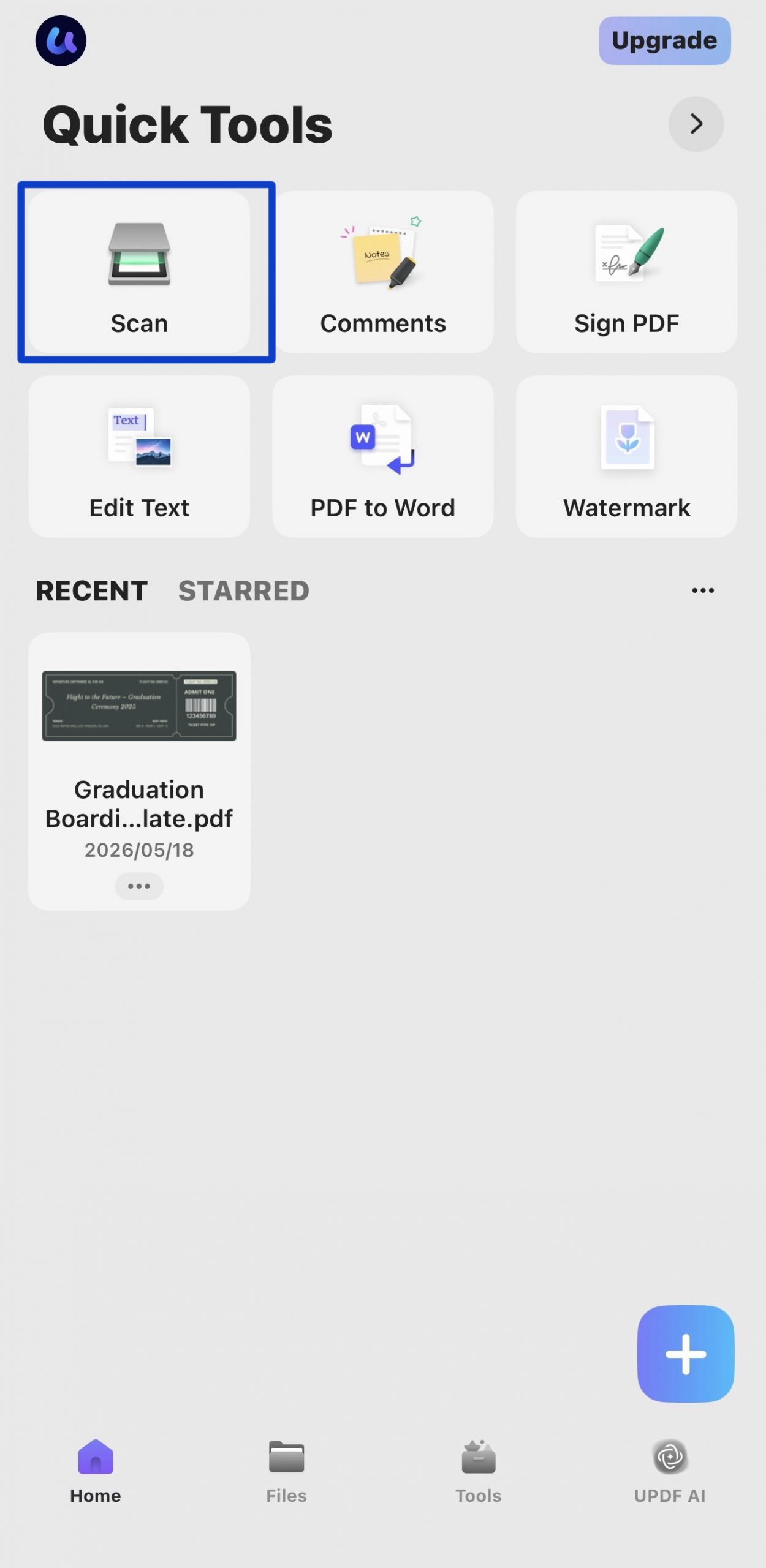
Open UPDF on your iPhone and tap the scan icon. Follow the scan to PDF guide to capture the ticket squarely and avoid shadows over the barcode.
Step 2. Position the physical ticket flat and capture it. Then, save the scan as a PDF with the full ticket design intact.
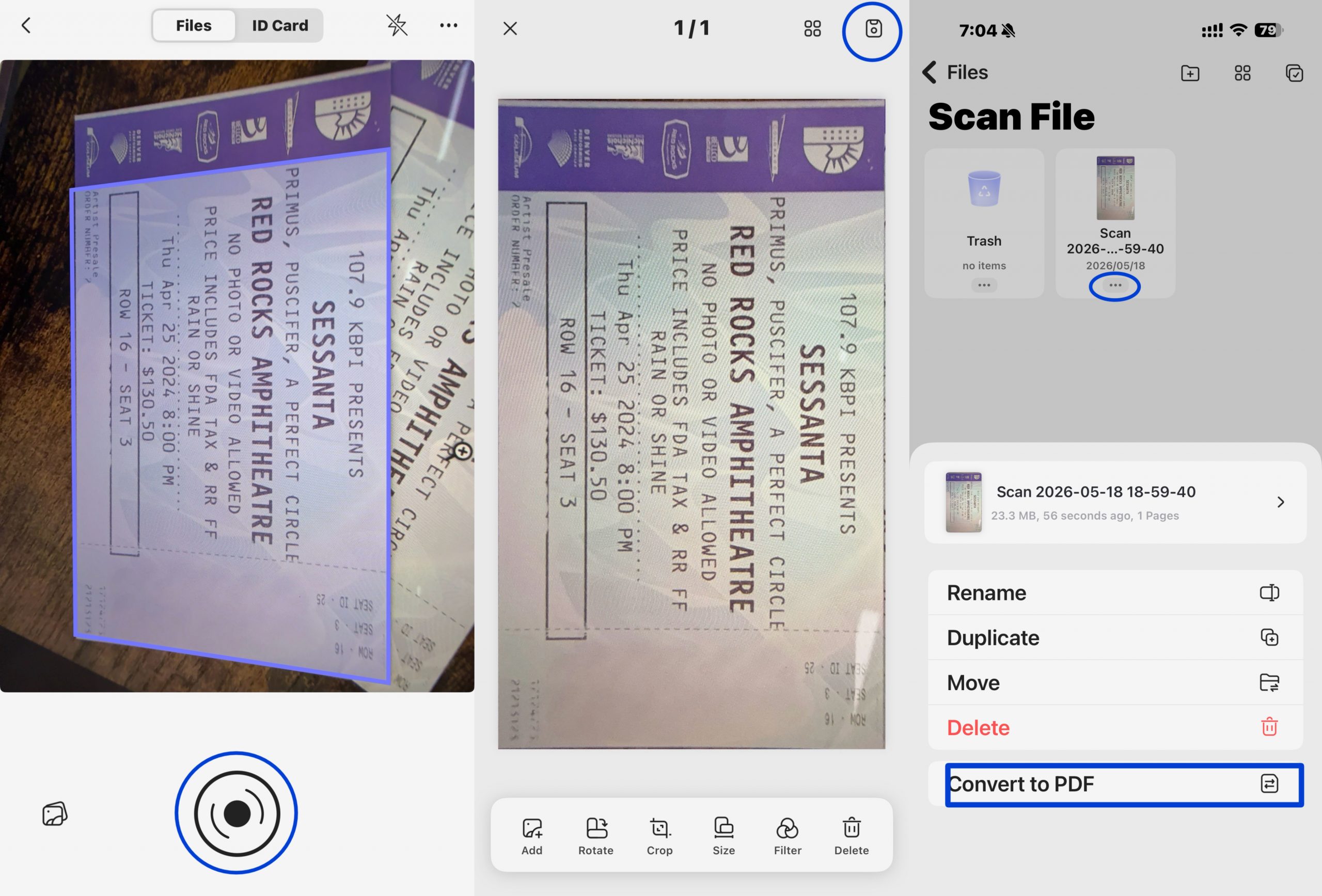
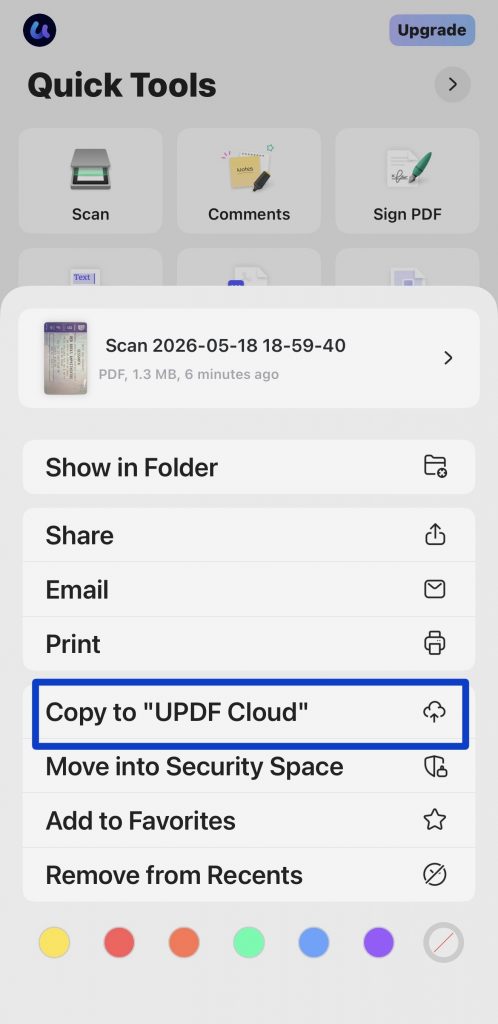
Step 3. Go to the "Home" page, click the three-dot option of the PDF file, and select "Copy to 'UPDF Cloud'" to sync automatically via UPDF Cloud. This makes the file accessible on your Mac, Windows PC, or any other device whenever needed.
Part 3. What to Do If the PDF or PKPASS Won’t Add to Apple Wallet
- No Add to Apple Wallet button: open the original airline, venue, or ticketing app and contact the issuer if the pass is account-bound.
- The PDF barcode is not recognized: check that it is fully visible and not blurred, cropped, or covered by a shadow.
- A .pkpass file opens as a download: open it from Safari, Mail, or Files on the iPhone; some desktop browsers do not hand the file to Wallet correctly.
- You received a .pkpasses archive: extract it first, then open the individual .pkpass file.
- The ticket uses a changing barcode, NFC, or account verification: use the issuer’s official app. A static PDF conversion cannot reproduce those security features.
OCR tip: UPDF OCR can make a scanned ticket searchable and help you copy a booking reference, but it does not create a Wallet pass or repair a damaged barcode.
Windows • macOS • iOS • Android 100% secure
Part 4. Benefits of Adding Tickets to Apple Wallet
Adding a PDF to Apple Wallet has several benefits that can simplify your life and reduce stress. It helps in better organization and centralized storage for your tickets. Let's see some advantages of that:
1. Centralized Storage of Tickets
All of your tickets are held in one easy place with an Apple Wallet. You don't need to go through email or apps to get to them.
2. Better Organization
Apple Wallet sorts out your passes by date, so you can readily access the required ones. Apple Wallet also provides timely reminders and notifications for near-future events or flights. So, you can better keep up with your schedule.
3. Peace of Mind
Physical tickets are easily lost, damaged, or forgotten. You can eliminate this risk by holding them in an Apple Wallet. Your digital tickets are always safe and readily available.
4. Quick and Easy Access
Apple Wallet works perfectly with your device, making it easy to access your tickets quickly. This is especially helpful in busy places like airports or concerts.
5. Eco-Friendly Solution
Storing tickets digitally removes the need for printed copies — a straightforward step toward reducing paper waste across dozens of events and trips.
Part 5. FAQs
1. How Do I Add Documents to My Apple Wallet?
If the document is supported, look for an "Add to Apple Wallet" button in your email, app, or notification and tap it. If no such button appears, contact the issuer or use Pass2U Wallet to manually create a compatible pass from the barcode.
2. Can Anything be Added to Apple Wallet?
You can add boarding passes, event tickets, vouchers, rewards cards, transit cards, loyalty cards, and some government-issued IDs depending on your region.
3. How do I Add a QR Code to My Apple Wallet?
You can add a QR code to the Apple Wallet if supported. The QR code is present on a boarding pass or a ticket. Look for the "Add to Wallet” icon. It will simply add it to your wallet.
If that doesn’t work, use the Pass2U Wallet App to scan the QR code and make a pass for Apple Wallet.
4. What barcode types are supported?
QR code, Aztec, PDF417, and Code 128 (Code 128 not supported on Apple Watch). Code 39 and other barcode types cannot be added to Wallet.
Can iOS 27 Create a Pass from a PDF Ticket?
iOS 27 includes Create a Pass for supported ticket and QR information, but Apple Wallet still does not store an arbitrary PDF as a document. If Create a Pass cannot read the ticket, use the issuer’s official app or a compatible third-party pass creator.
Conclusion
Apple Wallet works best with an issuer-provided pass or the iOS 27 Create a Pass feature. When a PDF is unsupported, Pass2U or another compatible pass creator can generate a .pkpass file from a readable barcode. UPDF helps you verify the ticket, isolate the correct page, scan a paper original, and keep a cross-device backup—but it does not replace the pass creator.
Download UPDF free to prepare, check, and preserve ticket PDFs across Windows, macOS, iOS, and Android.
Windows • macOS • iOS • Android 100% secure




 Enrica Taylor
 Enya Moore

 Lizzy Lozano

 Enid Brown
