 UPDF
UPDF
 UPDF for Windows
 UPDF for Mac
 UPDF for iPhone/iPad
 UPDF for Android
 UPDF AI Online
 UPDF Sign
 Edit PDF
 Annotate PDF
 Create PDF
 PDF Form
 Edit links
 Convert PDF
 OCR
OCR PDF to Word
 PDF to Image
 PDF to Excel
 Organize PDF
 Merge PDF
 Split PDF
 Crop PDF
 Rotate PDF
 Protect PDF
 Sign PDF
 Redact PDF
 Sanitize PDF
 Remove Security
 Read PDF
 UPDF Cloud
 Compress PDF
 Print PDF
 Batch Process
 About UPDF AI
 UPDF AI Solutions
 AI User Guide
 FAQ about UPDF AI
 Summarize PDF
 Translate PDF
 Chat with PDF
 Chat with AI
 Chat with image
 PDF to Mind Map
 Explain PDF
 Scholar Research
 Paper Search
 AI Proofreader
 AI Writer
 AI Homework Helper
 AI Quiz Generator
 AI Math Solver
 PDF to Word
 PDF to Excel
 PDF to PowerPoint
 Enterprise Solution
 Enterprise Sign
 Enterprise AI
 Enterprise Plan
 Enterprise User Guide
 Enterprise Webinar
 Banking
 Healthcare
 Insurance
 Legal
Legal Manufacturing
 Government
 Education Solution
 Customer Stories
 User Guide
 UPDF Tricks
 FAQs
FAQs UPDF Reviews
 Download Center
 Blog
Blog Newsroom
 Tech Spec
 Updates
 UPDF vs. Adobe Acrobat
 UPDF vs. Foxit
 UPDF vs. PDF Expert


Are you editing a PDF document, but when you attempt to save the document, you keep seeing an error message saying that you can't save PDF? If it takes a long time to make a lot of changes to the PDF document, it is annoying when you find that you cannot save the PDF files. We understand your case, so if you are having trouble saving your PDF document after editing, the solutions in this guide will be very helpful. Let's start with why you are unable to save the file.
Part 1: Why Can't I Save A PDF After Editing?
There are many reasons why you may be unable to save your PDF document after editing. The following are the most common:
- Editor Incompatibility: This can happen if the PDF editor you are using is incompatible with the document or is in conflict with other processes on your system.
- Incorrect Settings: You may also have altered some of the settings on the application you are using or on the PDF document, therefore preventing certain processes such as saving.
- PDF is Password-Protected or Restricted: The PDF document you are trying to edit has security settings that prevent editing or saving changes so that you may need to unlock it before you can save it.
- App Conflict or Outdated System: It is possible that any other application or process running on your Mac/Windows may have blocked the operation of PDF files being saved. This problem may also happen if your system is running on an old or outdated firmware version.
- PDF Viewer or Editor Limitation: Some free PDF viewers only allow reading, not editing or saving.
- Account or Cloud Issue: If you are using Adobe Acrobat, a problem with your Adobe account could prevent you from saving the file, particularly if you are saving it on the cloud.
- Corrupted PDF File: You may also be unable to save the file if the file itself is corrupt.
Part 2. The Best Solution to Fix Can't Save PDF Error Without Lossing Data
When you try to save the PDF, you must already finish editing. And at this time, if you have the error that you cannot save the PDF, you may feel upset about losing the content you update as you do not want to spend time do editing again.
No worry, you can create a copy of the PDF file on your computer, open the PDF copy with another PDF editor like UPDF and copy all the contents from the edited PDF, paste them to the PDF copy, then, save it with this PDF editor, UPDF. Follow the below steps to fix can't save PDF error without losing data.
Step 1. Click the below button to download UPDF here. Follow the on window guide to install the software on your computer. Run the UPDF.
Windows • macOS • iOS • Android 100% secure
Step 2. Navigate to the location where you store the PDF file that you are editing and try to save. Click to select it, hold on "Ctrl + C" and "Ctrl + V" to create one PDF copy.
Step 3. Click "Open File" on UPDF, select the copy of PDF to open it, click on the "Edit" icon in "Tools" and now the whole copy of the PDF can be edited with UPDF.
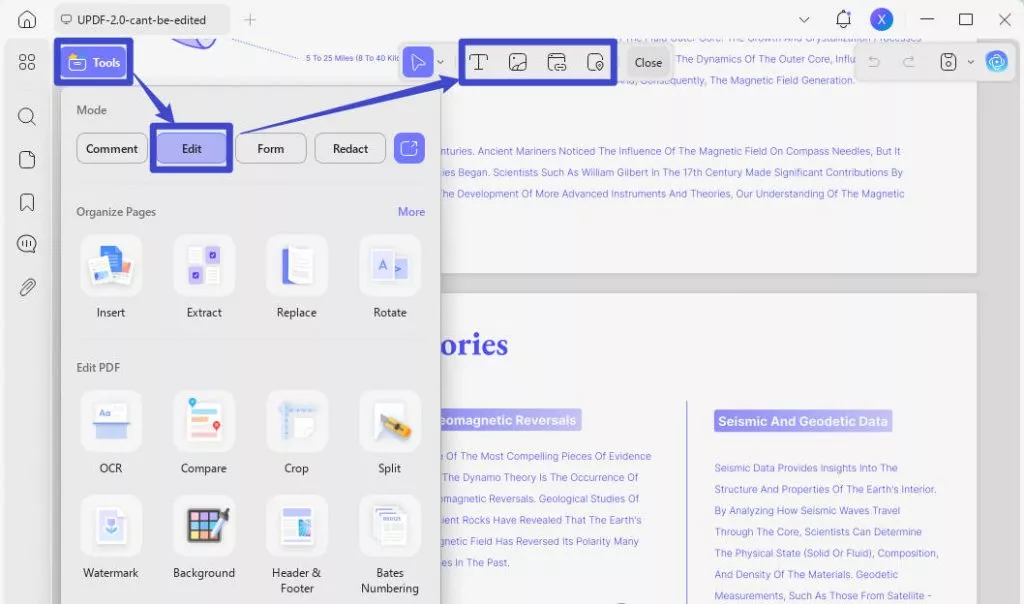
Step 4. Open the PDF editor with the edited PDF that you cannot save. Copy all contents from this PDF, then, paste them to the copy of PDF in UPDF. After you finish copying all contents, you can click "Save" icon in UPDF to save the PDF without losing data.
It is so easy to use UPDF to fix this error and beyond this feature, UPDF is a fast and productive program that works across all platforms. If you want to have an overview of UPDF, you can read this review article from PDF association or watch the below video tutorial.
Windows • macOS • iOS • Android 100% secure
Part 3: 3 Other Solutions to Fix Can't Save PDF Error
If you did not make a lot of changes for the PDF, do not care about spending time editing again, and do not want to switch to another one PDF, then, you can try the follow solutions:
1. Reconfigure Storage Settings for Adobe Acrobat Reader
If you are using Adobe Acrobat Reader, you can change the storage settings in Adobe Acrobat Reader fix PDF can't save. Here's how to change the storage settings;
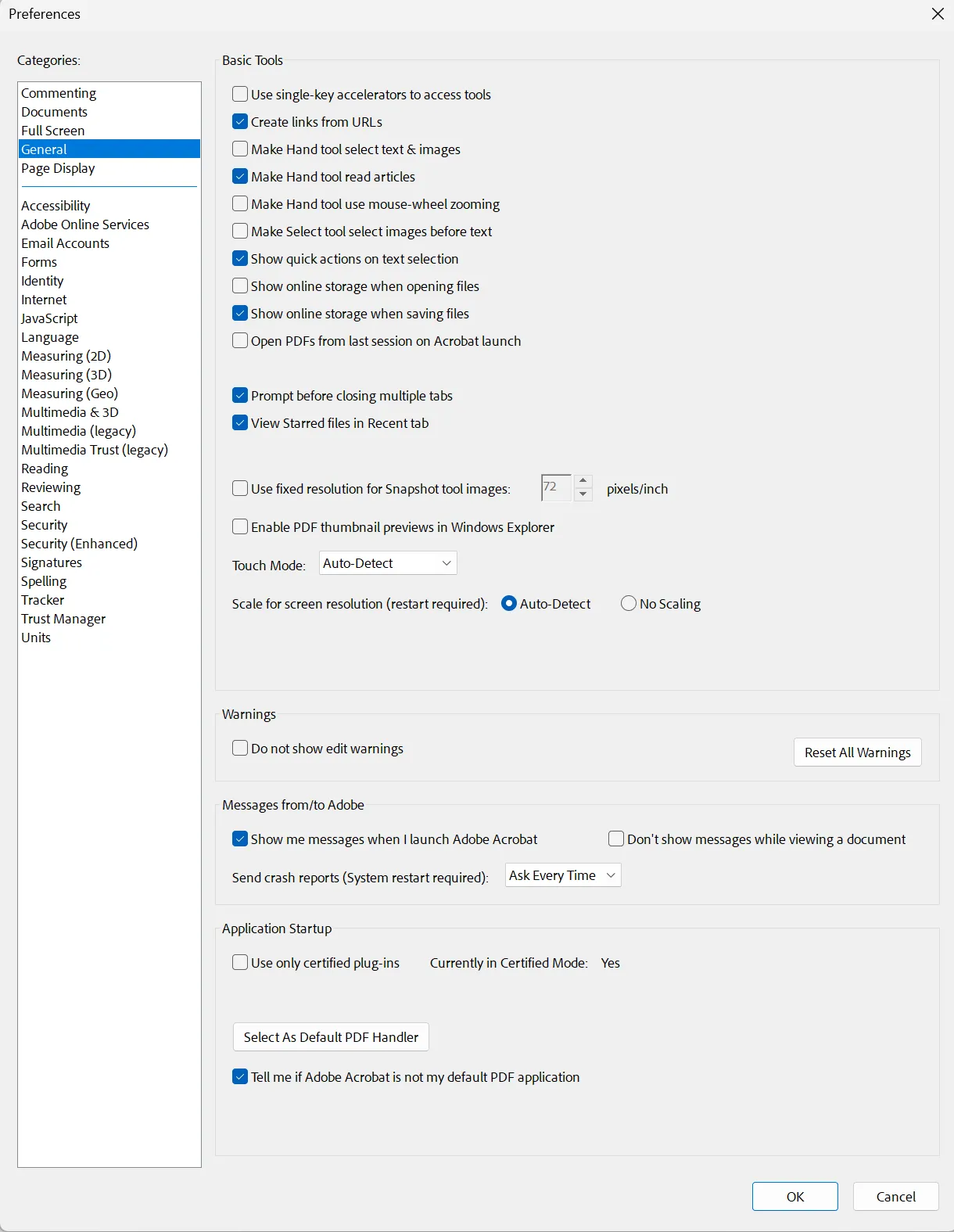
Step 1: Tap on "Menu" and choose "Preferences."
Step 2: Click on "General" and ensure that "show online storage when saving files" is enabled. Save the changes and then try to save the file again.
2. Update the PDF Editor or Reader to Fix Can't Save a PDF File
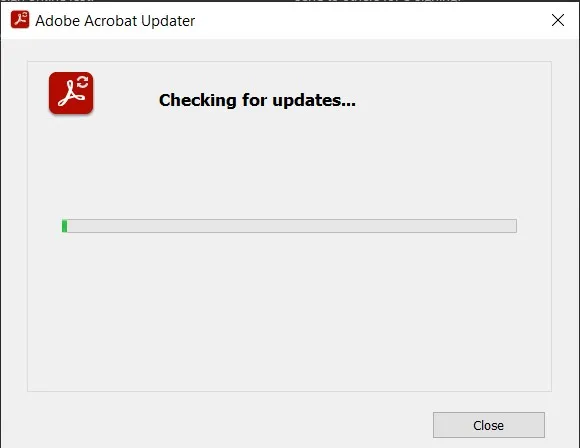
If you cannot save the PDF file, you can try to update the PDF editor or reader you are using. Here, we will take Adobe Acrobat as an example as most users are using this tool.
Just go to "Menu" > "Help" > "Check for Updates". It will start to check if there is new version. If so, you can click "Install" to update to the latest version.
3. Quit/Uninstall the PDF Editor/Reader and Restart Your Computer
When you encounter problems saving a PDF, you can first try quitting your PDF editor or reader by pressing "Ctrl+Alt+Delete" > "Task Manager" > Select the PDF editor/reader > "End Task". After that, restart your computer and open the PDF editor/reader again to see if the issue is resolved.
If the problem persist, you can consider to uninstall the PDF editor/reader, restarting your computer, and then reinstalling it from its official website.
This process can eliminate possible software conflicts or file corruption, increasing the chances of successfully saving your PDF.
Part 4: All-in-One PDF Solution to Avoid Any PDF Saving Issues
One of the best Adobe Acrobat alternatives in the market is UPDF. It is a fairly uncomplicated solution that allows users to create, edit, convert, annotate, and even reorganize their PDF documents. Its greatest advantage is its affordable price, starting from $39.99/year, making it a more cost-effective choice compared to Adobe Acrobat. Additionally, the integration with AI makes UPDF an even better option in the PDF editor field.
And most importantly, if you are using UPDF to edit PDFs, you can easily save the edited content without encountering any issues with PDF saving. So, what are you waiting for? Download UPDF and get a better PDF editor to streamline your PDF editing and annotating process.
Windows • macOS • iOS • Android 100% secure
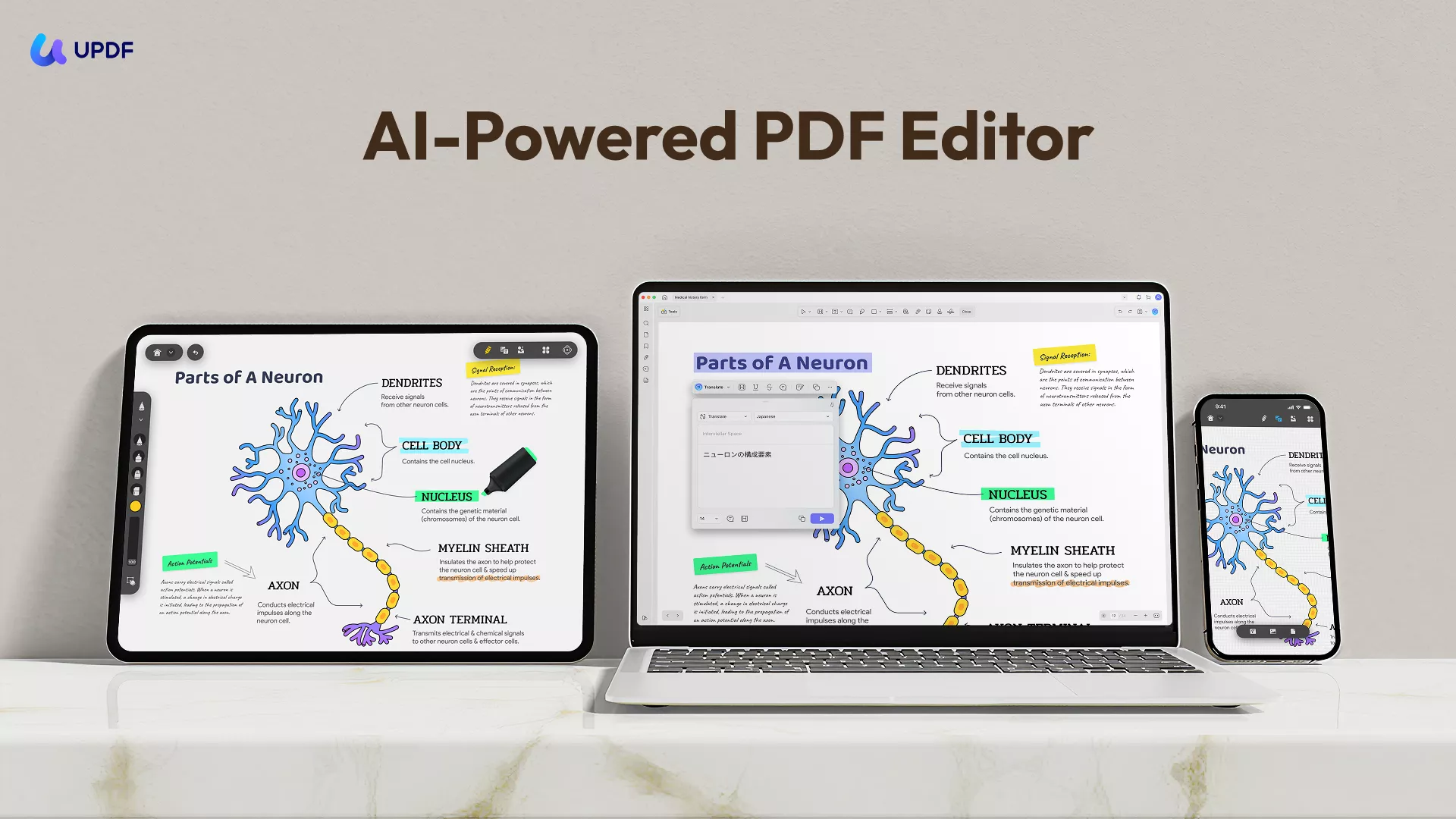
It has all the tools you would expect to find in a professional PDF management tool including:
- Advanced Reading Services: UPDF makes opening and reading PDF documents very easy. You can adjust the page layout according to your device and change PDF background color. It not only supports dark mode but also offers an eye-protection color, which is especially suitable for people who read PDFs for long periods, such as students and office workers, further enhancing the reading experience.
- Efficient Editing: UPDF provides editing of all types, so you effortlessly add or remove images, text, links, pages, and other elements. Moreover, UPDF lets you crop, rotate, and extract images from your file using UPDF. It can also edit and add the link to the PDF.
- PDF Creation: Not only it can create PDF from various forms, including Word, images and even clipboard, but also create a PDF Portfolio for you.
- Extract Text with OCR: Turn scanned PDFs into searchable, editable text in various languages. The batch-perform OCR feature can help you handle PDF files more efficiently!
- Chat with UPDF AI: UPDF is powered by the advanced UPDF AI with ChatGPT‑5 so that it can instantly summarize and translate PDF documents, dramatically boosting your efficiency in reading and annotating key points.
Advantages of Choosing UPDF
- UPDF is easy to use, and there are no complicated settings to remember.
- It is easily accessible on all platforms, allowing you to open and read your PDF on any device including Windows, Mac, Android, and iOS.
- You can edit the PDF directly.
- PDF conversion is highly accurate.
If you are interested in the above features. You can download UPDF for a trial.
Windows • macOS • iOS • Android 100% secure
Discount Notice
Part 5: Frequently Asked Questions to Fix Can't Save PDF Issues
Q1. Why Can't I Save a PDF on My Mac?
You may be unable to save a PDF on your Mac if the PDF reader or editor you are using is outdated and therefore incompatible with the version of macOS running on your computer. The best solution in this case is to update the PDF tool you are using.
Q2. How Do I Save a PDF in Windows 11?
To save PDF files in Windows 11, just click "Save" to save PDF files. Or you can use the keyboard to hit "Ctrl+S" to save the file directly. Select the folder you need to save and name the file, then click "Save". This method is also applicable to other Windows versions.
Q3. Why Can I Not Save a Word Document as a PDF on Mac?
You may be unable to save Word documents as PDF on Word for Mac if there are some Word add-ins that are active. These can interfere with the proper function of Word for Mac, preventing simple processes. You may therefore want to remove any add-ins and then try saving the file again.
Q4. Why Can't I Save PDFs on my iPhone?
You may need to update the app or update iOS. You may also be unable to save a PDF file on your iPhone if there is inadequate storage space on the device. Check the storage and delete some items to make room for the document.
Conclusion
The above summarizes several situations and solutions that can not save PDF files. We feel that the use of UPDF is the best solution to fix can't save PDF and can reduce the problem of saving PDF files from the root because of its powerful features to ensure that PDF opening and saving are carried out properly.
So we recommend you download UPDF here on your Windows, Mac, Android or iOS and edit your PDF files without any problem at any time.
Windows • macOS • iOS • Android 100% secure






 Lizzy Lozano

 Enrica Taylor
