 UPDF
UPDF
 UPDF for Windows
 UPDF for Mac
 UPDF for iPhone/iPad
 UPDF for Android
 Nomostar
 UPDF AI Online
 UPDF Sign
 IvyCraft
 Edit PDF
 Annotate PDF
 Create PDF
 PDF Form
 Edit links
 Convert PDF
 OCR
OCR PDF to Word
 PDF to Image
 PDF to Excel
 Organize PDF
 Merge PDF
 Split PDF
 Crop PDF
 Rotate PDF
 Protect PDF
 Sign PDF
 Redact PDF
 Sanitize PDF
 Remove Security
 Read PDF
 UPDF Cloud
 Compress PDF
 Print PDF
 Batch Process
 About UPDF AI
 UPDF AI Solutions
 AI User Guide
 FAQ about UPDF AI
 Summarize PDF
 Translate PDF
 Chat with PDF
 Chat with AI
 Chat with image
 PDF to Mind Map
 Explain PDF
 PDF AI Tools
 Image AI Tools
 AI Chat Tools
 AI Writing Tools
 AI Study Tools
 AI Working Tools
 Other AI Tools
 AI Bookmark Generation
 AI Bookmark Summary
 AI Watermark Generation
 AI Background Generation
 AI Sticker Generation
 AI Stamp Generation
 AI Editing Suite
 UPDF Copilot
 AI Page Management
 AI Semantic Search
 PDF to Word
 PDF to Excel
 PDF to PowerPoint
 Enterprise Solution
 Enterprise Sign
 Enterprise AI
 Enterprise Plan
 Enterprise User Guide
 Enterprise Webinar
 IT
IT Education
 Construction
 Financial Service
 Healthcare
 Insurance
 Legal
Legal Manufacturing
 Government
 Researchers & PhDs
 Solopreneurs & Freelancers
 Lawyers & Legal Professionals
 Real Estate Agents & Brokers
 Education Solution
 Customer Stories
 User Guide
 UPDF Tricks
 FAQs
FAQs UPDF Reviews
 Download Center
 Blog
Blog Newsroom
 Tech Spec
 Updates
 UPDF vs. Adobe Acrobat
 UPDF vs. Foxit
 UPDF vs. PDF Expert

Your PDF opens normally on iPhone, yet editing, printing, copying, or form filling remain unavailable. Most searches for without owner password PDF iPhone describe permission restrictions rather than damaged documents. PDF protection uses two systems: an open password blocks viewing, while an owner password allows reading but limits document actions. These restrictions protect intellectual property and should only be removed with proper authorization.
Moreover, you can follow how to protect a PDF to secure your own documents. If you own the file or have permission, authorized tools can remove restrictions; otherwise, request an unrestricted copy from the document author. On iPhone, UPDF for iOS handles the authorized route without a trip to a computer. It takes the permission password on the phone, then saves a clean copy you can edit right away.
Windows • macOS • iOS • Android 100% secure
Part 1. Quick Diagnostic: Why Is Your PDF Restricted on iPhone?
Before searching for an iPhone PDF without an owner password, identify which restriction affects your document. Each lock requires a different solution, so compare your iPhone's behavior with the matching row below:
| PDF Status on iPhone | What Can You Do Right Now? | What Is Restricting It? | Recommended Solution |
| Opens and Reads Normally, but Edit, Copy, and Print Are Greyed Out | View content only | Owner password (permission restrictions) | Method 1: UPDF for iOS |
| Will Not Open or Display at All; Asks for a Password Immediately | Nothing, blocked completely | Open password (user or document protection) | Method 2: aJoysoft PDF Password Remover |
| Opens Fine, but Unlocking Editing Rights Requires a Password You Already Hold | View and basic annotations | Known permission password | Method 1: UPDF for iOS |
| Locked File With a Lost or Forgotten Open Password | Nothing, blocked completely | Lost open password | Request an unrestricted copy from the document owner |
Most iPhone cases land in the first or third row. The document renders fine, and only the actions are sealed off. The next section starts there, then covers the harder case where nothing displays at all.
Part 2. How to Handle and Remove PDF Restrictions on iPhone Safely
Once the issue is identified, the next step is removing the PDF restrictions safely. Choose the method that matches your PDF password type.
Method 1: Remove Permission Restrictions via UPDF for iOS (When You Have the Password)
Best for:
- Users who can open the PDF and hold the permission password, and want editing, printing, and page management restored on the iPhone itself.
Files and Books on iOS cannot remove permission flags from protected PDF files. A restricted contract remains read-only even after reopening it repeatedly. Adobe staff confirm Acrobat Reader mobile limits for protected PDFs and cannot save protected changes. Users searching for a password-free PDF iPhone need the correct solution.
UPDF for iOS accepts the permission password and creates an unrestricted PDF version. The app supports iOS 14.0 or later with one license across multiple platforms. For related steps, see how to remove a password from a PDF on iPhone and remove restrictions from a PDF. Now, follow the steps below to clear the restrictions and save an editable copy:
Step 1. Once you install and open UPDF on your iPhone, press "+" and tap the "File" option to import a locked PDF. Enter the open password if prompted.
Windows • macOS • iOS • Android 100% secure
Step 2. Next, press "Three-Dots" in the top right corner and use the "Password" option. Then, choose the "Remove Password" option to remove the restrictions.
Step 3. Save the unlocked PDF. Editing, copying, and form filling all work in the saved copy.
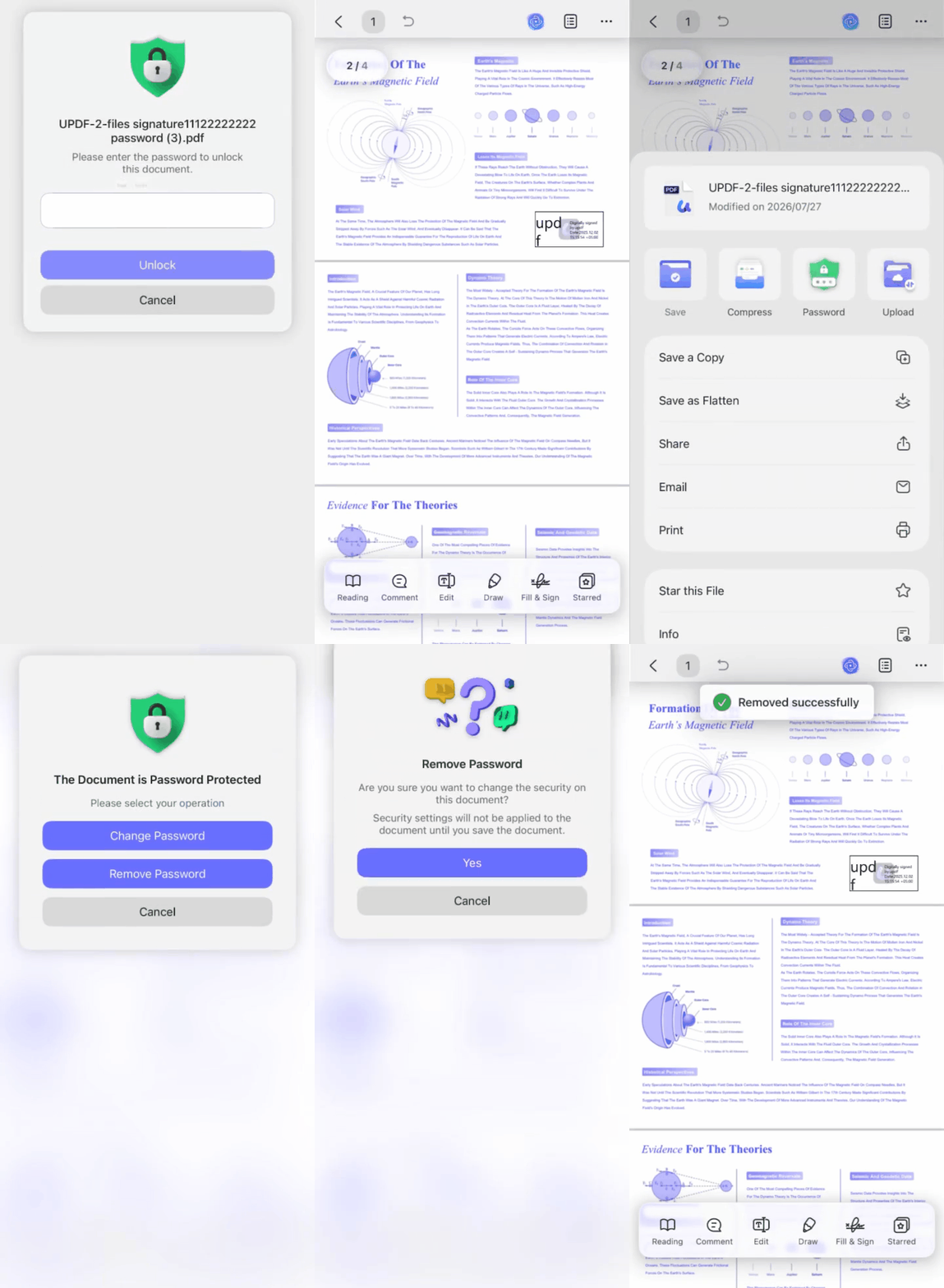
Note: UPDF requires your authorized password first, then creates an unrestricted copy while preserving the original file.
Method 2: Handling Locked Files That Require an Open Password (aJoysoft Desktop Companion)
Best for:
- Files that show nothing at all on the iPhone, because an open password blocks the document before iOS can render a page.
aJoysoft PDF Password Remover works with UPDF because both solve different PDF security problems. Both tools come from Superace Software and manage separate password protection tasks. iOS sandboxing prevents opening encrypted PDFs without access, so desktop support remains necessary. It runs on Windows and Mac, where users enter passwords to remove encryption safely.
Moreover, it also removes permission restrictions, as explained in removing encryption from a PDF, during the same process. The trial version exports only one page per file before requiring a license. Licensed batch processing supports around 200 documents, making larger tasks easier to complete. Here is how the desktop detour works from start to finish:
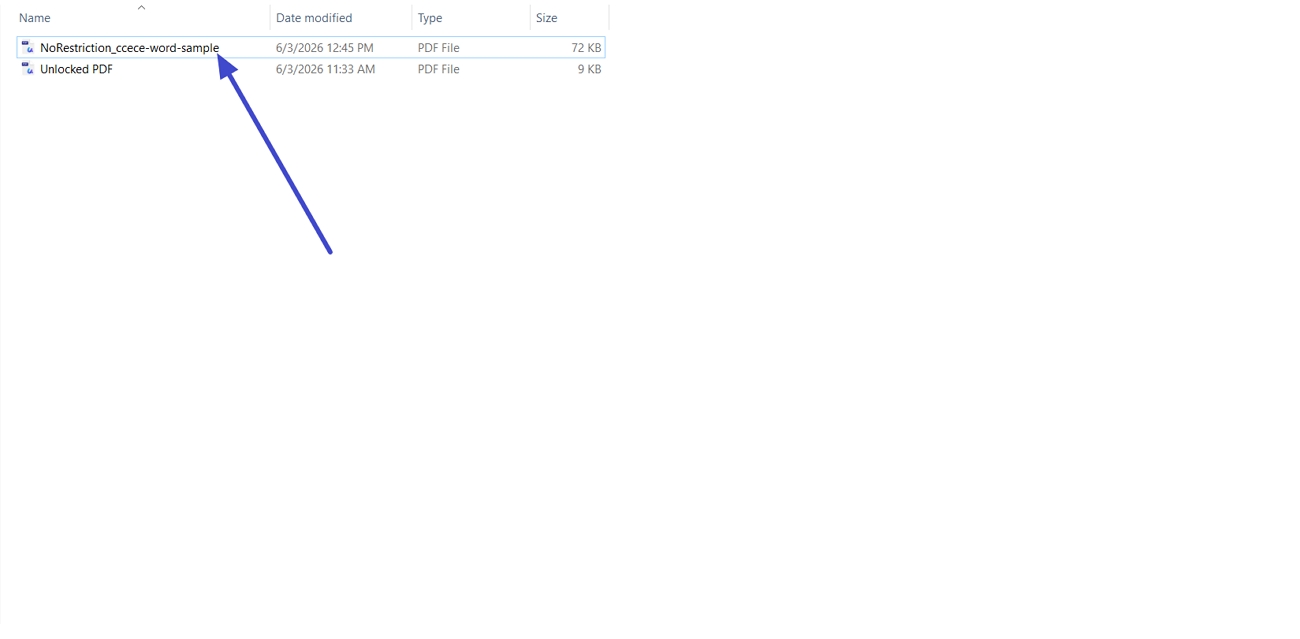
Step 1. AirDrop the PDF to your Mac or send it to a Windows PC through iCloud Drive or email. Then, open aJoysoft and press the "Add Files" button to import the restricted PDF into the tool.
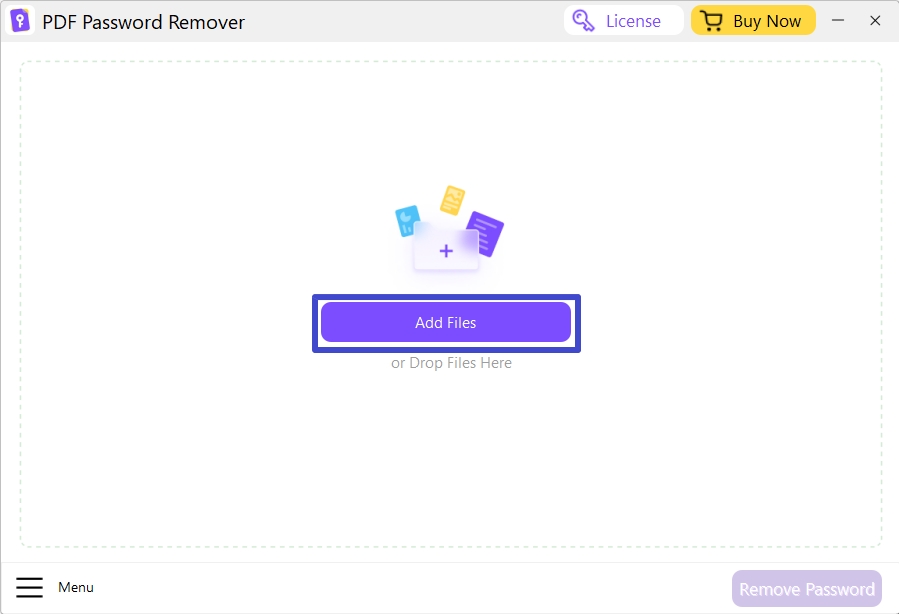
Step 2. Once the locked PDF opens, click the "Remove Password" button and select the new location to save the new PDF file.
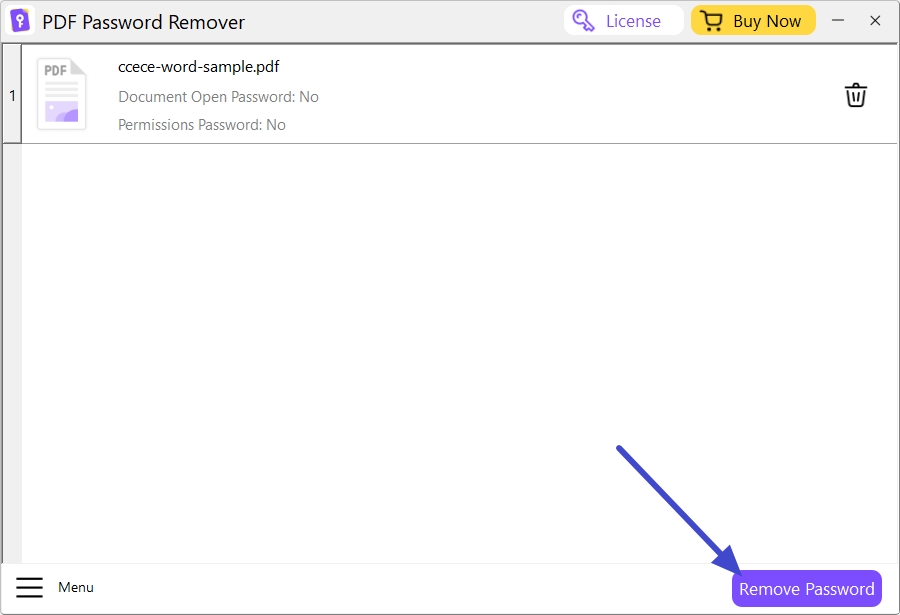
Step 3. Access the unlocked files and check if you can edit, copy, and print the PDF.
Important Note: aJoysoft needs the correct open password to lift that lock. It is a decryption utility, not a password recovery service. A genuinely forgotten open password is a different problem.
Part 3. Can You Remove a PDF Owner Password Without Knowing It?
No, not reliably, and usually not appropriately either. Tools that promise instant recovery of an unknown password are guessing by brute force or overstating what they do. Using one on a document that belongs to someone else raises copyright and privacy problems.
When Removing an Owner Password Is Possible
You are on solid ground if you created the file, or if the sender has explicitly authorized you to modify it. Three routes work, and each takes minutes:
- Retrieve the password from your own records or password manager.
- Ask the administrator or colleague who applied the protection.
- Request an unencrypted version directly from the document author.
When Removing an Owner Password Is Not Allowed
Someone may have encrypted the PDF to protect intellectual property, confidential data, or licensing terms. In that case, searching "without owner password PDF iPhone" should not lead to bypass tools, regardless of their effectiveness.
It helps to distinguish opening the PDF from making changes to its contents. For a practical example of protecting PDFs in UPDF, watch the walkthrough below.
Contact the document owner and request an unrestricted copy instead. This approach is usually faster, ethically appropriate, and provides a clear record of permission.
Frequently Asked Questions
What is the difference between a PDF owner password and a user password?
A user password, also called an open password, prevents anyone from opening or viewing the document. An owner password, also called a permission password, lets people read the PDF. It blocks actions such as editing, printing, copying text, and filling in form fields.
Can I edit a restricted PDF on iPhone if I can already open it?
Yes, provided you hold the permission password or have the owner's authorization. Open the file in UPDF for iOS and enter the permission password to clear the restriction flags. The editing, printing, and copying tools then become available on the phone.
Why can I open my PDF on iPhone but not print it?
The creator set an owner password that specifically disables printing. PDF permissions are granular, so reading can stay open while printing, copying, and form filling are switched off individually. Our cross-platform guide on how to remove a password from a PDF covers the same fix on Windows and Mac.
Can UPDF crack or remove unknown PDF passwords without permission?
No. UPDF asks for the open or permission password before it unlocks anything, and it does not attempt unauthorized cracking. That is a deliberate design decision rather than a missing feature.
Conclusion
To conclude, a PDF that opens but blocks editing or printing usually has an owner password, not corruption. When an open password prevents access completely, you can use aJoysoft on a desktop before transferring the file back. For authorized documents, restore permissions and continue editing directly on your iPhone with UPDF for iOS.
Windows • macOS • iOS • Android 100% secure



 Enid Brown
 Delia Meyer

 Enrica Taylor