 UPDF
UPDF
 UPDF for Windows
 UPDF for Mac
 UPDF for iPhone/iPad
 UPDF for Android
 Nomostar
 UPDF AI Online
 UPDF Sign
 IvyCraft
 Edit PDF
 Annotate PDF
 Create PDF
 PDF Form
 Edit links
 Convert PDF
 OCR
OCR PDF to Word
 PDF to Image
 PDF to Excel
 Organize PDF
 Merge PDF
 Split PDF
 Crop PDF
 Rotate PDF
 Protect PDF
 Sign PDF
 Redact PDF
 Sanitize PDF
 Remove Security
 Read PDF
 UPDF Cloud
 Compress PDF
 Print PDF
 Batch Process
 About UPDF AI
 UPDF AI Solutions
 AI User Guide
 FAQ about UPDF AI
 Summarize PDF
 Translate PDF
 Chat with PDF
 Chat with AI
 Chat with image
 PDF to Mind Map
 Explain PDF
 PDF AI Tools
 Image AI Tools
 AI Chat Tools
 AI Writing Tools
 AI Study Tools
 AI Working Tools
 Other AI Tools
 AI Bookmark Generation
 AI Bookmark Summary
 AI Watermark Generation
 AI Background Generation
 AI Sticker Generation
 AI Stamp Generation
 AI Editing Suite
 UPDF Copilot
 AI Page Management
 AI Semantic Search
 PDF to Word
 PDF to Excel
 PDF to PowerPoint
 Enterprise Solution
 Enterprise Sign
 Enterprise AI
 Enterprise Plan
 Enterprise User Guide
 Enterprise Webinar
 Banking
 Healthcare
 Insurance
 Legal
Legal Manufacturing
 Government
 Researchers & PhDs
 Solopreneurs & Freelancers
 Lawyers & Legal Professionals
 Real Estate Agents & Brokers
 Education Solution
 Customer Stories
 User Guide
 UPDF Tricks
 FAQs
FAQs UPDF Reviews
 Download Center
 Blog
Blog Newsroom
 Tech Spec
 Updates
 UPDF vs. Adobe Acrobat
 UPDF vs. Foxit
 UPDF vs. PDF Expert

The last time I set a wallpaper on my iPhone, iOS automatically zoomed it in, cropped the edges, and pushed the best part of the image behind the lock screen clock.
That was when I realized the problem.
Most online images are poorly cropped for different devices, covered with watermarks, or locked behind paywalls. As a result, they rarely display correctly on iPhone or Android devices.
So, what was the solution? Creating custom wallpapers with a phone background creator.
In this article, I will explain the specifications to look for and how to create your own wallpapers using UPDF and IvyCraft.
While UPDF is suitable for quick results, IvyCraft gives you the customization freedom to make an iPhone wallpaper that actually fits your screen. So, read till the end to learn about these tools.
Part 1. Why Most Phone Wallpapers Don't Fit Your Phone
If your phone wallpaper does not properly fit your phone screen, here are the specific reasons behind it.
- The lock screen clock: iOS and Android both display a large clock and date across the upper third of the lock screen. Any subject placed in this area gets hidden when the screen locks.
- Home screen icons: A grid of app icons overlays your wallpaper, especially on the Home screen. Using a busy background with heavy texture makes the icons less readable.
- Automatic zoom in. iPhone's parallax effect automatically enlarges the screen wallpaper and cuts off its edges. So the resulting wallpaper looks more pixelated than the original image.
To avoid these problems, it helps to use a wallpaper app that previews how the image will actually appear on your screen before downloading it. However, many wallpaper apps include intrusive ads, watermarks on free downloads, or unnecessary tracking permissions just to save an image. Because of these limitations, creating my own wallpapers has been a great help for me.
Part 2: The Specs That Actually Matter (150-200 words)
Before using a phone background creator, first check your phone screen specifications. This prevents resizing issues and saves time during editing. Focus on the following details.
- Resolution. Your wallpaper should always match or exceed your phone's screen resolution. So it doesn’t look pixelated when iOS zooms it in. Recent iPhone Pro models use around 1290 x 2796 pixels. However, going slightly above this is fine as iOS scales larger images down quite cleanly.
- Orientation. Your wallpaper should always be a portrait image, so it is taller than it is wide. A landscape or square image will either get cropped or not fill the screen correctly.
- Composition. Keep the top third of the image uncluttered since that is where the lock screen clock will appear. Place the main subject in the lower or middle area. Also, leave some space around the edges so the iOS parallax crop does not cut off important details.
Note: The same principles also apply to Android smartphones. However, as most Android brands have their own screen dimensions and resolution, make sure to check your exact requirements in your phone’s Settings.
The most reliable way to make an iPhone wallpaper is to generate your image aligned with these rules.
Part 3: The Quick Way: A Custom iPhone Wallpaper with UPDF's AI Background Generator
Built-in phone wallpaper apps include the same overused images that appear on every device. And third-party apps offer free download credits but place a watermark on the final image, which makes it pretty useless.
Because of these limitations, I started using UPDF’s AI Background Generator, which allows me to generate backgrounds from simple text prompts. As a result, I can describe the exact specifications that match my device perfectly.
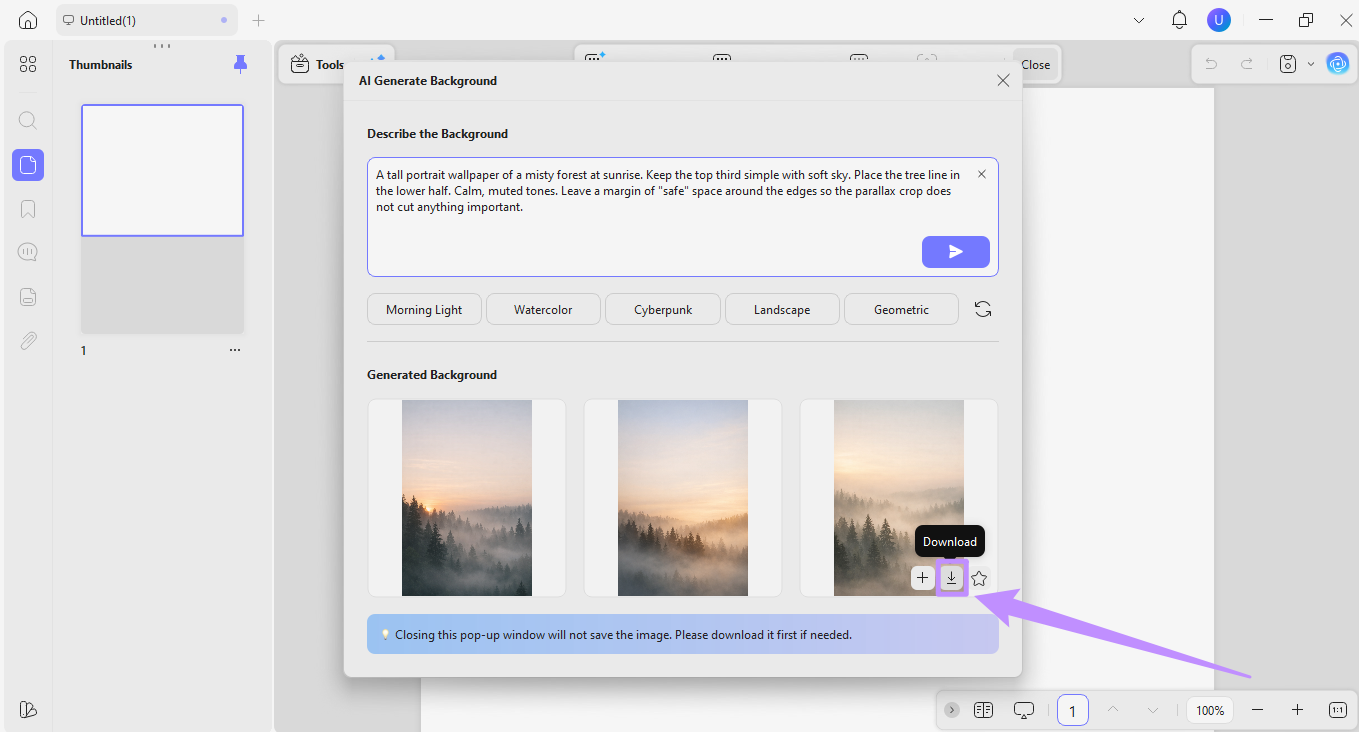
Moreover, each prompt generates three different PNG wallpapers in high resolution (1024 × 1536). Although the process consumes three AI credits, the final images are completely free of watermarks. So, the wallpapers feel original and genuinely yours.
Steps to Generate Wallpapers with UPDF
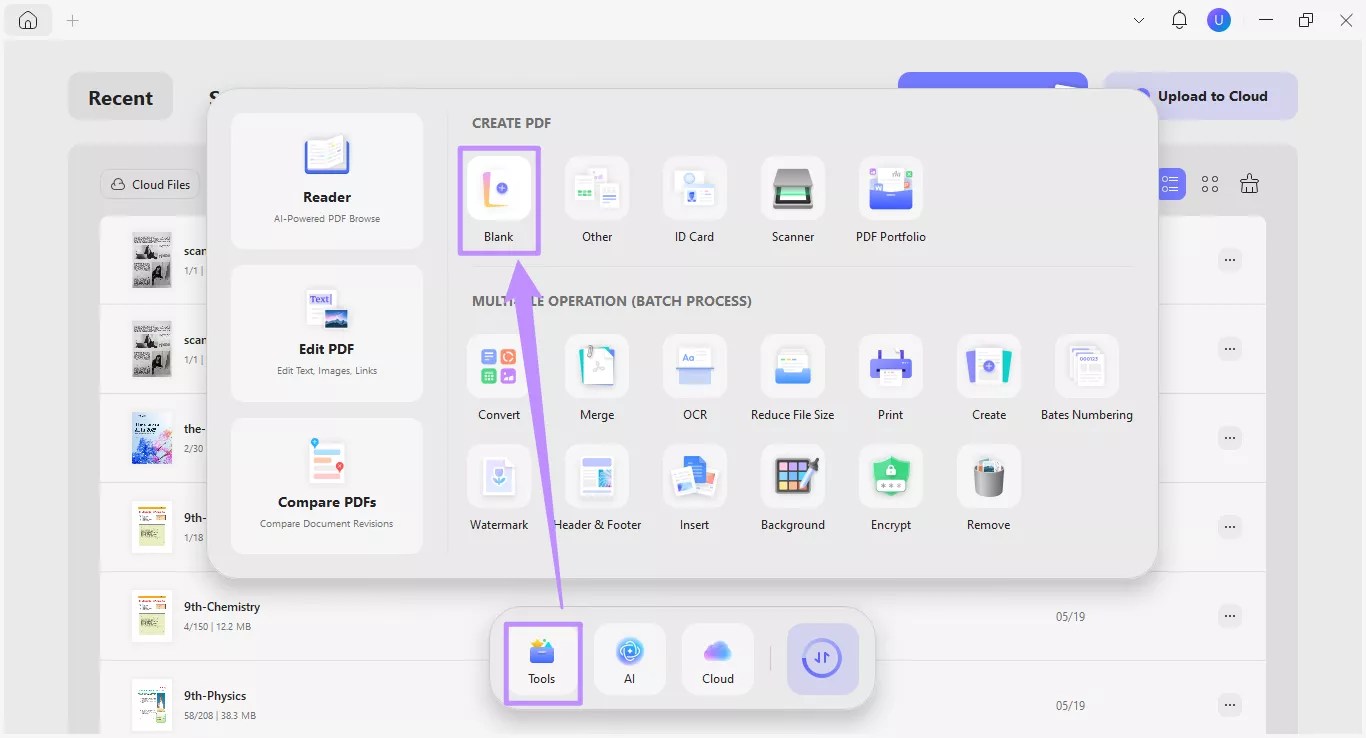
Step 1. Launch UPDF and click “Tools” from the bottom. Then choose “Blank” and click “Apply” from the window.
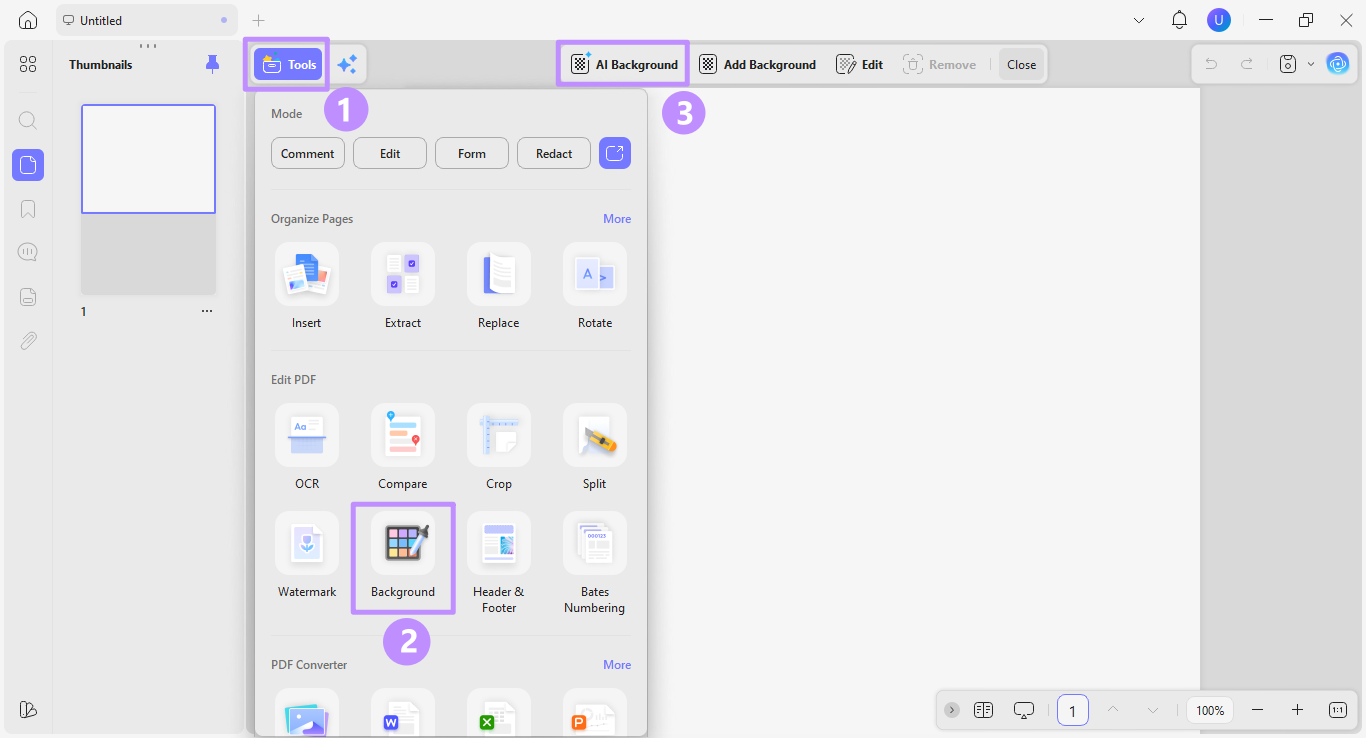
Step 2. Click “Tools” from the top and select “Background.” Then, click the “AI Background” option at the top.
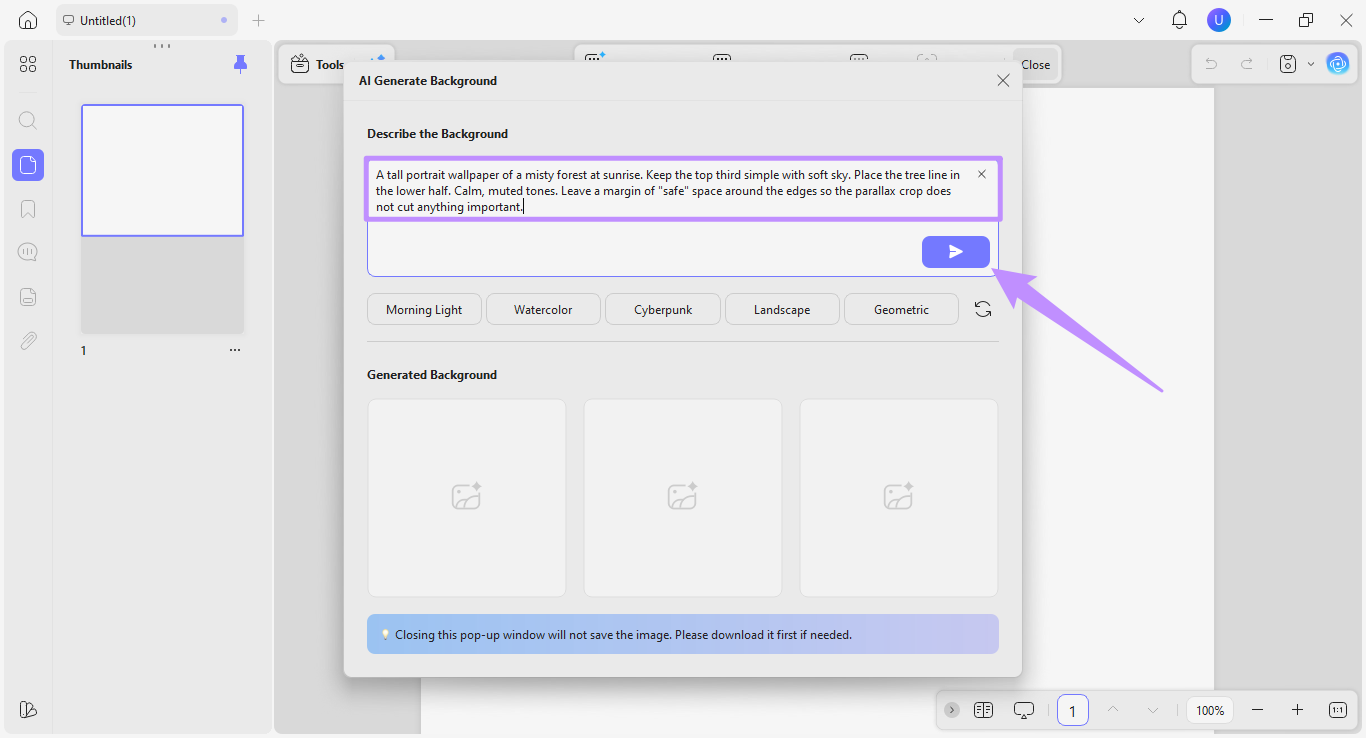
Step 3. Write detailed instructions about the wallpaper you want in the text input box. Then, click the “Send” button.
Here are some example prompts you can use to make an iPhone wallpaper.
- Nature: A tall portrait wallpaper of a misty forest at sunrise. Keep the top third simple with soft sky. Place the tree line in the lower half. Calm, muted tones. 1290 x 2796 px.
- Abstract: A smooth vertical gradient wallpaper shifting from deep navy at the top to warm amber at the bottom. Subtle abstract texture in the mid-section. Portrait orientation.
- Cityscape: A portrait-oriented night city skyline wallpaper. Keep the upper third as a clear, dark sky. Place the lit buildings along the lower half. Cinematic and moody.
Step 4. Once your images are generated, click the “Download” button to save them. Then, you can send the images to your phone.
For me, the best part about getting started with UPDF is that the tool comes with 100 free AI credits. So, I could fully test the AI Background Generator before committing. For heavy users, UPDF also offers affordable price plans for its PDF and AI tools. So, download UPDF for free today or upgrade to the Pro version here.
Part 4. Going Further: Fine-Tuned Phone Backgrounds with IvyCraft
UPDF’s phone background creator is a convenient in-app option if you also work with documents. However, if you want a standalone solution for creating highly personalized wallpapers, you can use IvyCraft instead.
IvyCraft is an online AI Creation Workspace developed by Superace, the same company behind UPDF. Launching in 2026, IvyCraft includes multiple AI agents to help you automate complex professional tasks. One of its capabilities is creating custom images from text prompts; sample documents, images, and links.
Moreover, you can set all parameters for the image, including the settings below.
- Ratio: Set the desired dimensions, including 3:4, 4:5, 16:9, and 4:3.
- Quality: Select 1K, 2K, or 4K resolution for clear details.
- Style: Choose Handdrawn, Minimal, Blueprint, Dark Tech, Soft Glass, or Retro themes.
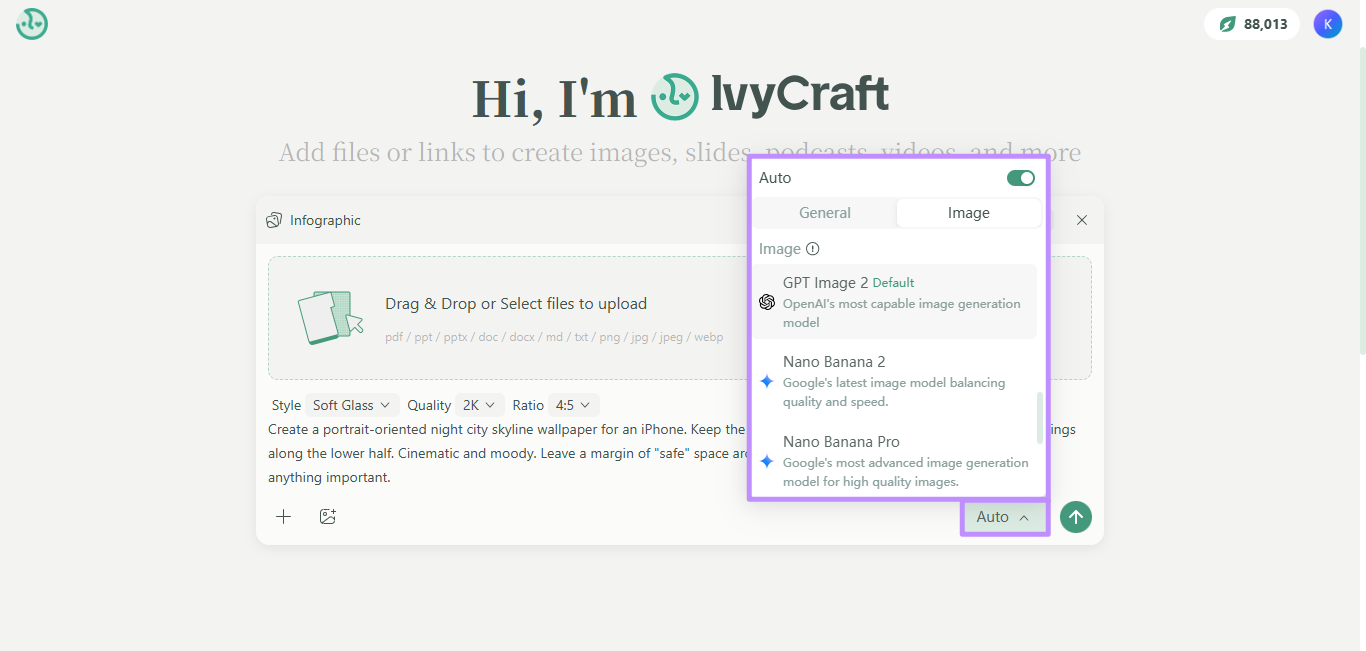
- AI models: Supports GPT Image 2, Nano Banana 2 and Pro, and Seedream 4, 4.5, and 5.0 lite.
Steps to Generate Wallpapers with IvyCraft
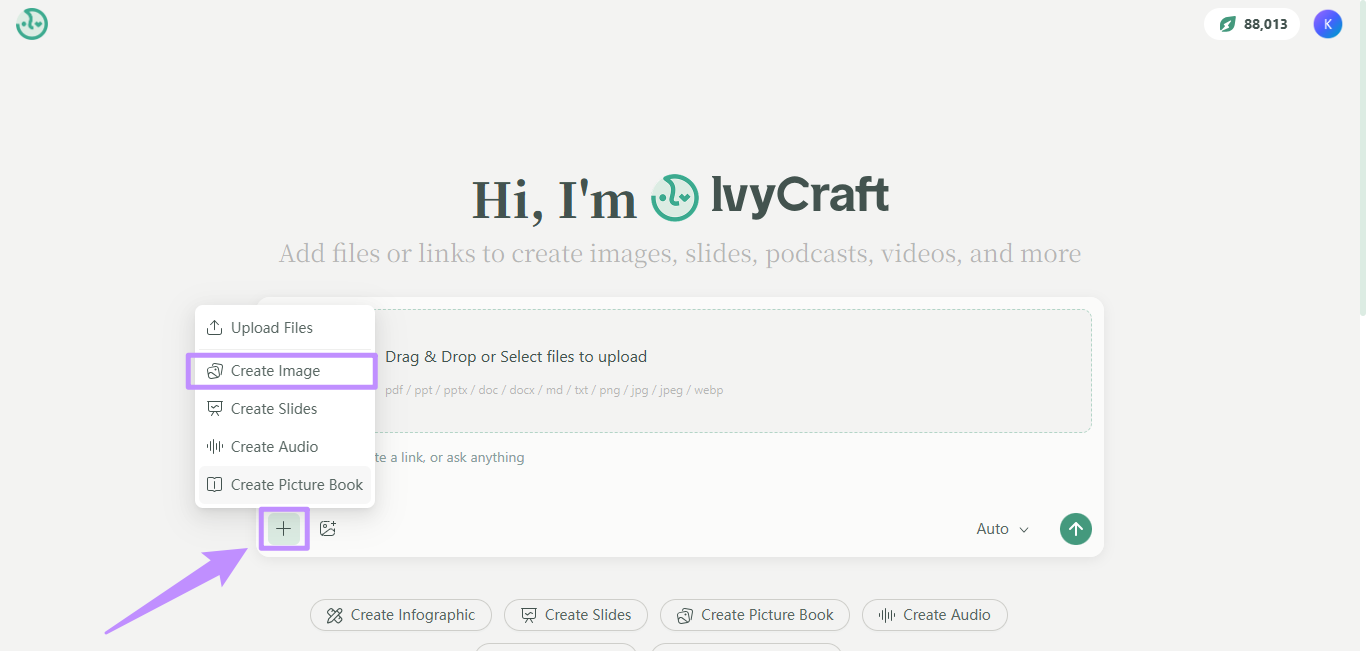
Step 1. Open IvyCraft’s web app and click the “+” button below the prompt area. Then, choose “Create Image” from the menu.
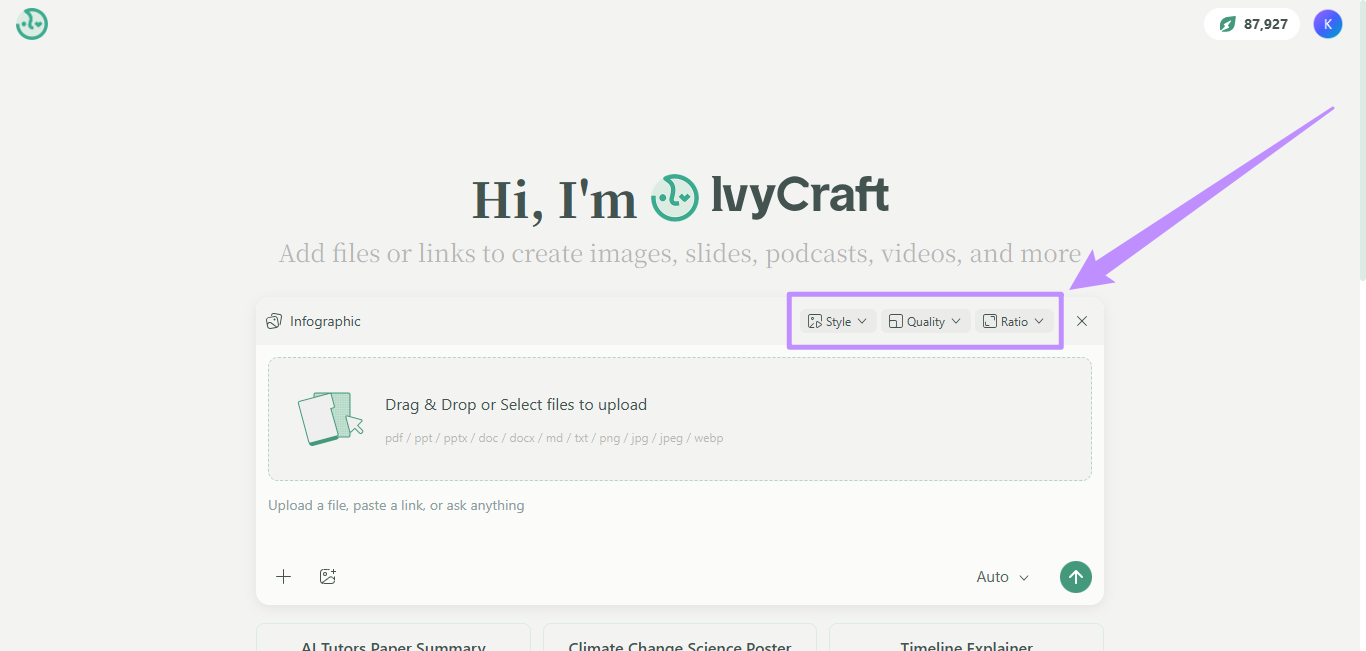
Step 2. Select your desired image Style, Quality, and Ratio from the dropdown menus above the upload button.
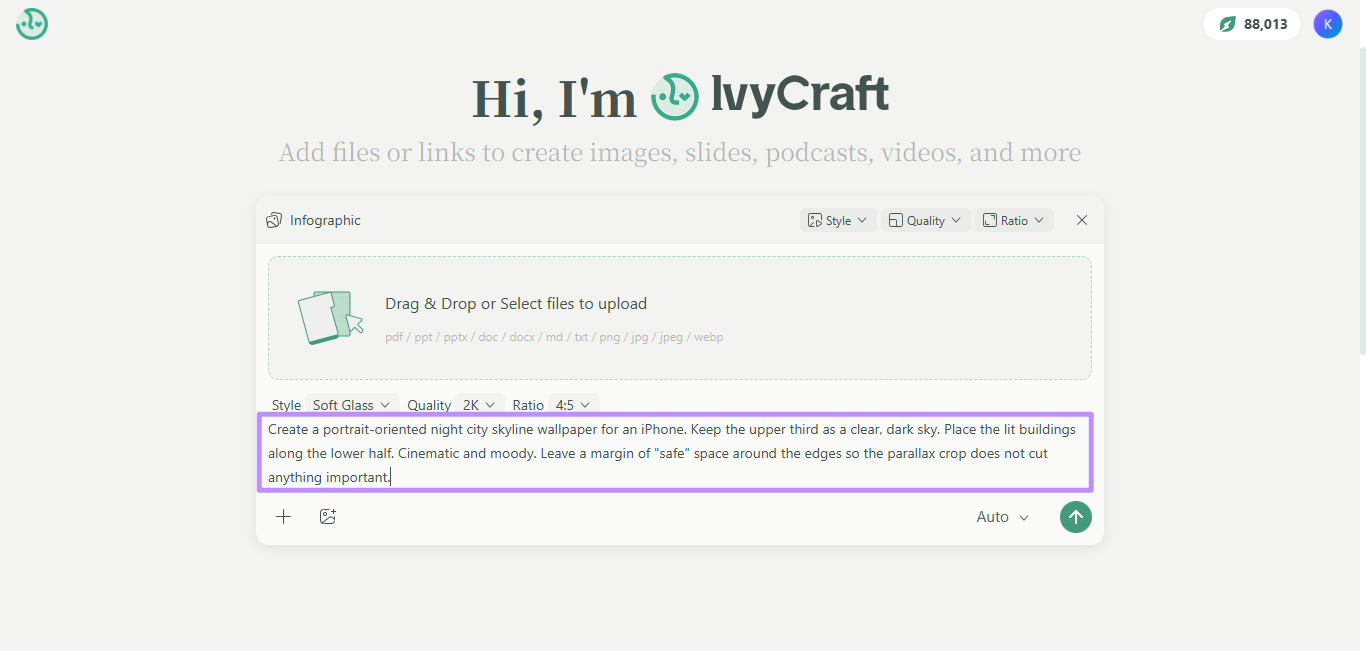
Step 3. Click the Upload button to add any sample images or documents if needed. Alternatively, you can only write a prompt about your desired background image.
Step 4. Click the “Auto” dropdown and choose an image generation AI model. Otherwise, leave it at auto.
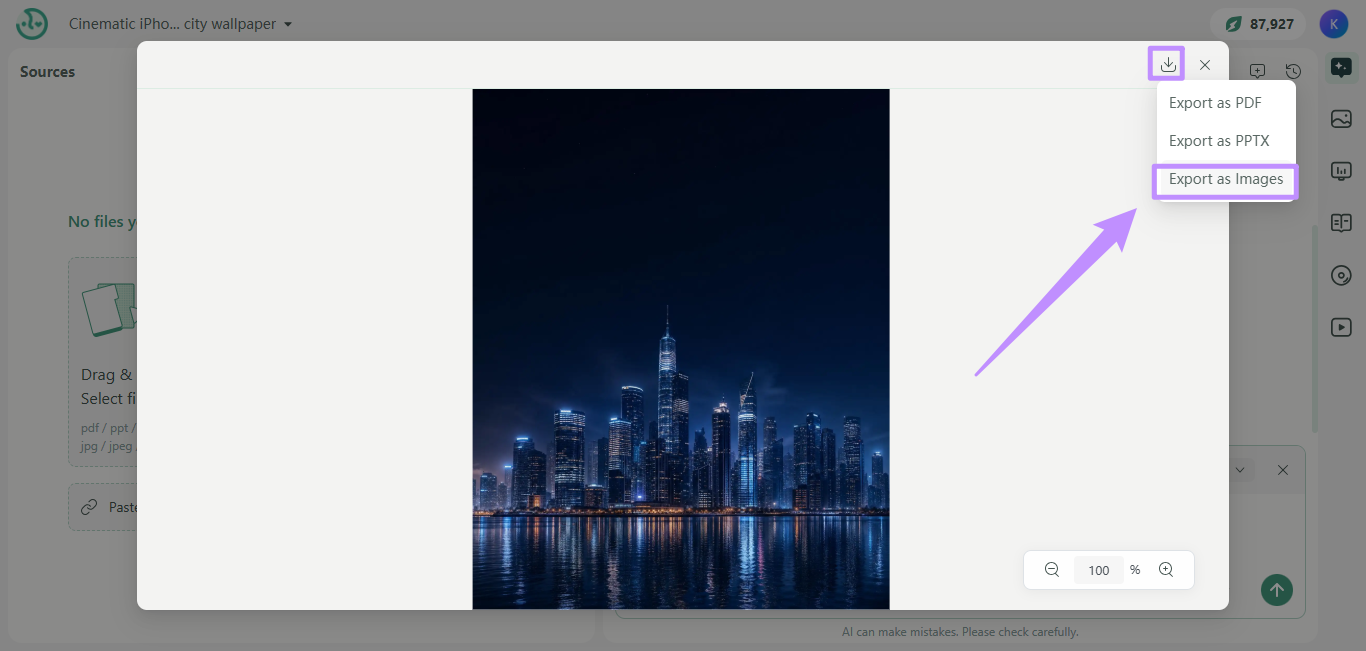
Step 5. Once your image is generated, click on it to open it in the preview window. Then, click the “Export” button at the top right and choose “Export as Images” to save it.
Part 5. Setting Your New Background – iPhone & Android
Once your wallpaper is saved to your phone, you can use the following steps to set it.
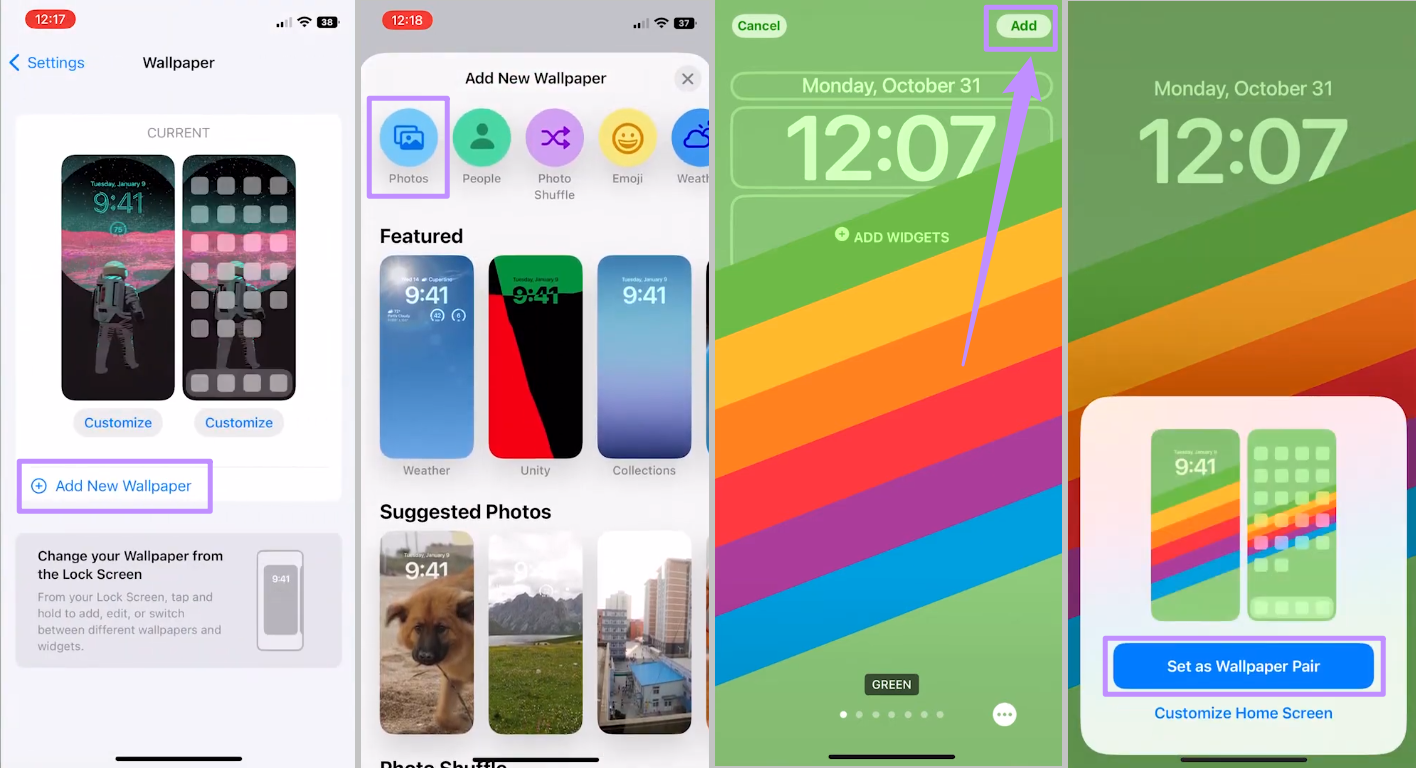
On iPhone:
- Open your iPhone Settings and tap on “Wallpaper.”
- Tap “Add New Wallpaper” and select the Photos option.
- Choose the desired image and tap “Add” at the top right.
- Tap “Add as Wallpaper Pair”
On Android:
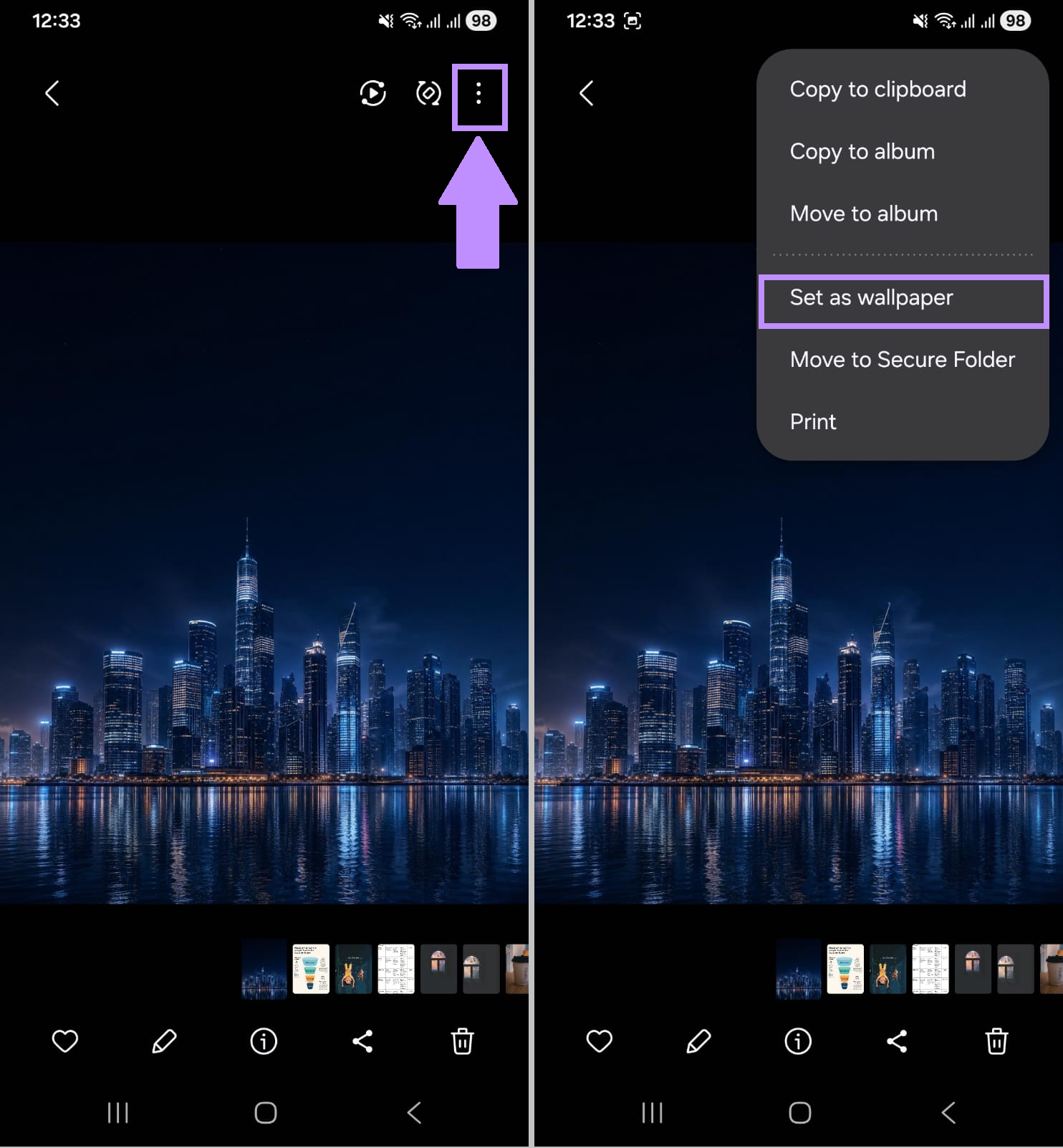
- Go to the Gallery app and open your wallpaper image.
- Tap the three-dot menu at the top and choose Set as Wallpaper.
- Choose to use the wallpaper for the Lock Screen, Home Screen, or both.
- Adjust the crop if needed. Then tap Set.
Tip: If your phone still zooms in more than you would like, you can use a 2K or 4K quality in IvyCraft. The higher resolution gives you extra room to absorb the crop without losing any important detail.
Part 6. FAQs
Q1. Can I set a different wallpaper for my lock screen and home screen on iPhone?
Yes. When setting a wallpaper, you can choose the "Customize Home Screen" option instead of "Set Wallpaper as Pair." Then, you can add another wallpaper from photos to the home screen.
Q2. Can I create wallpapers for my iPad or Mac the same way?
Yes. But the screen dimensions are different. For iPad and Mac wallpapers, you can use IvyCraft as it lets you set a custom ratio and resolution before generating. Meanwhile, UPDF's Background Generator is fixed at 1024x1536 portrait outputs.
Q3. Why does my wallpaper look blurry after I set it?
This can happen when the wallpaper image is of a lower resolution than your screen. Your phone will have to stretch the image for it to fit. To prevent this, use an image that matches or exceeds your screen's native resolution.
Conclusion
To sum up, UPDF's phone background creator gives you three watermark-free options from a single prompt for a quick result, and IvyCraft lets you fine-tune the ratio, resolution, and style when you want exact control. Both tools are from the same team, so the quality is consistent. So, download and try UPDF or visit IvyCraft to get started.





 Enrica Taylor
 Enid Brown

 Delia Meyer