 UPDF
UPDF
 UPDF for Windows
 UPDF for Mac
 UPDF for iPhone/iPad
 UPDF for Android
 Nomostar
 UPDF AI Online
 UPDF Sign
 IvyCraft
 Edit PDF
 Annotate PDF
 Create PDF
 PDF Form
 Edit links
 Convert PDF
 OCR
OCR PDF to Word
 PDF to Image
 PDF to Excel
 Organize PDF
 Merge PDF
 Split PDF
 Crop PDF
 Rotate PDF
 Protect PDF
 Sign PDF
 Redact PDF
 Sanitize PDF
 Remove Security
 Read PDF
 UPDF Cloud
 Compress PDF
 Print PDF
 Batch Process
 About UPDF AI
 UPDF AI Solutions
 AI User Guide
 FAQ about UPDF AI
 Summarize PDF
 Translate PDF
 Chat with PDF
 Chat with AI
 Chat with image
 PDF to Mind Map
 Explain PDF
 PDF AI Tools
 Image AI Tools
 AI Chat Tools
 AI Writing Tools
 AI Study Tools
 AI Working Tools
 Other AI Tools
 AI Bookmark Generation
 AI Bookmark Summary
 AI Watermark Generation
 AI Background Generation
 AI Sticker Generation
 AI Stamp Generation
 AI Editing Suite
 UPDF Copilot
 AI Page Management
 AI Semantic Search
 PDF to Word
 PDF to Excel
 PDF to PowerPoint
 Enterprise Solution
 Enterprise Sign
 Enterprise AI
 Enterprise Plan
 Enterprise User Guide
 Enterprise Webinar
 Banking
 Healthcare
 Insurance
 Legal
Legal Manufacturing
 Government
 Researchers & PhDs
 Solopreneurs & Freelancers
 Lawyers & Legal Professionals
 Real Estate Agents & Brokers
 Education Solution
 Customer Stories
 User Guide
 UPDF Tricks
 FAQs
FAQs UPDF Reviews
 Download Center
 Blog
Blog Newsroom
 Tech Spec
 Updates
 UPDF vs. Adobe Acrobat
 UPDF vs. Foxit
 UPDF vs. PDF Expert

Quick answer:

I learned the limit the hard way. Pulling 3 pages out of a 10-page file? Preview's drag-to-desktop trick is genuinely the fastest thing on a Mac. But the week I had to break a 200-page scanned report into 20 even chunks, selecting pages by hand became a nightmare of miscounts and re-dos. This guide gives you the exact Preview method first — because for a few pages it's the right tool — then shows the rule-based way to split when Preview runs out of road, on Mac, iPhone, and iPad.
Part 1. How to Split a PDF in Preview on Mac
Built‑in Preview approach saves me from installing extra tools whenever I just need to split PDF Mac files. Small tasks feel easy because I can pull out only the pages I actually care about. My workflow stays light, since the original PDF remains untouched, and I still get a clean copy. Now, follow the steps below to see how this simple Preview method turns those advantages into real time‑savers:
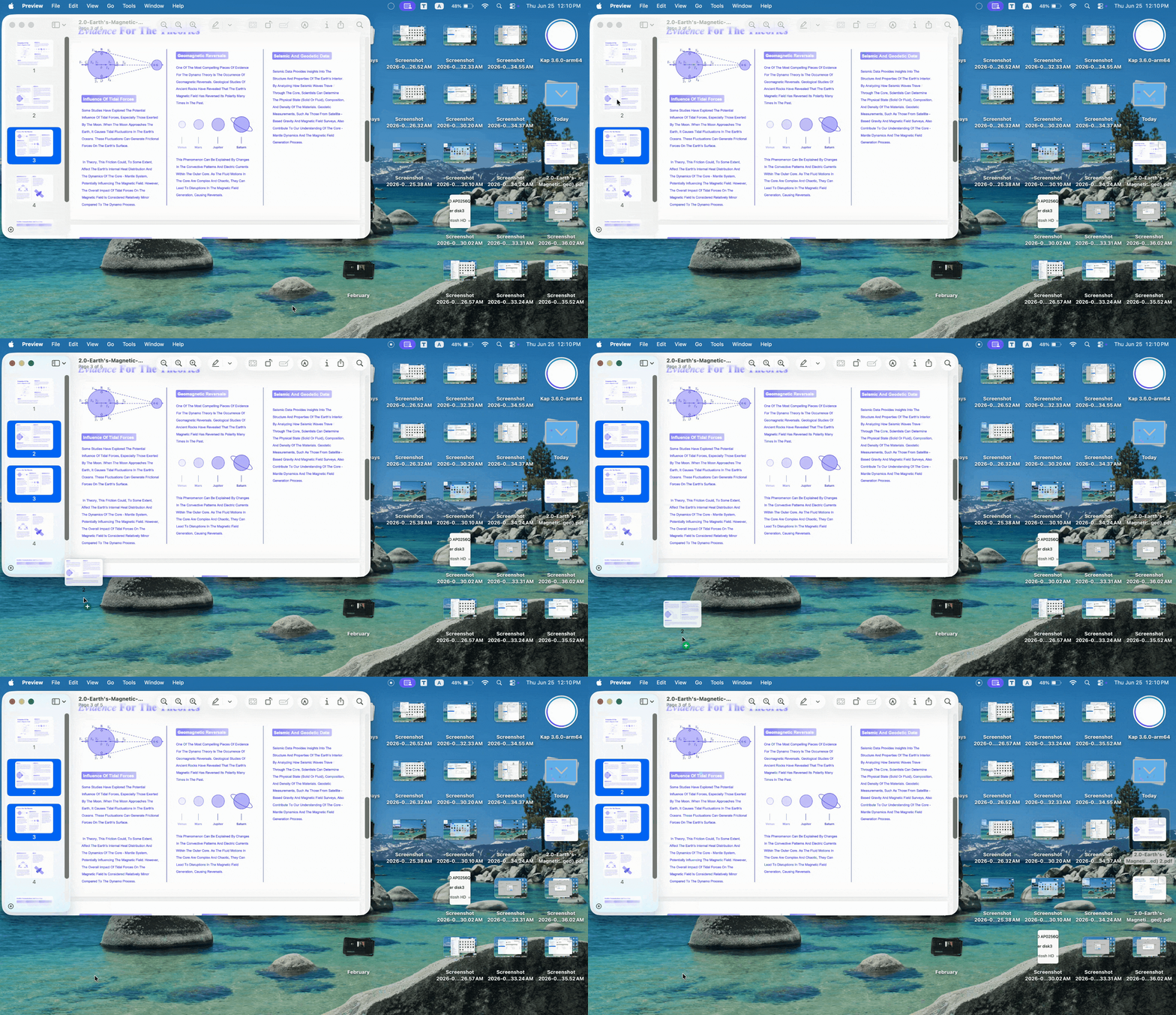
Step 1. First, open a PDF file with Preview on your Mac.
Step 2. Then, press the View option in the top menu and choose the Thumbnails option in the drop-down menu to view them.
Step 3. Once the Thumbnails are visible, pick a PDF page and drop it at the location where you want it to appear in the page order. To split multiple pages, hold the Command button and select multiple pages to drag and drop.
Part 2. Where Preview Runs Out of Road
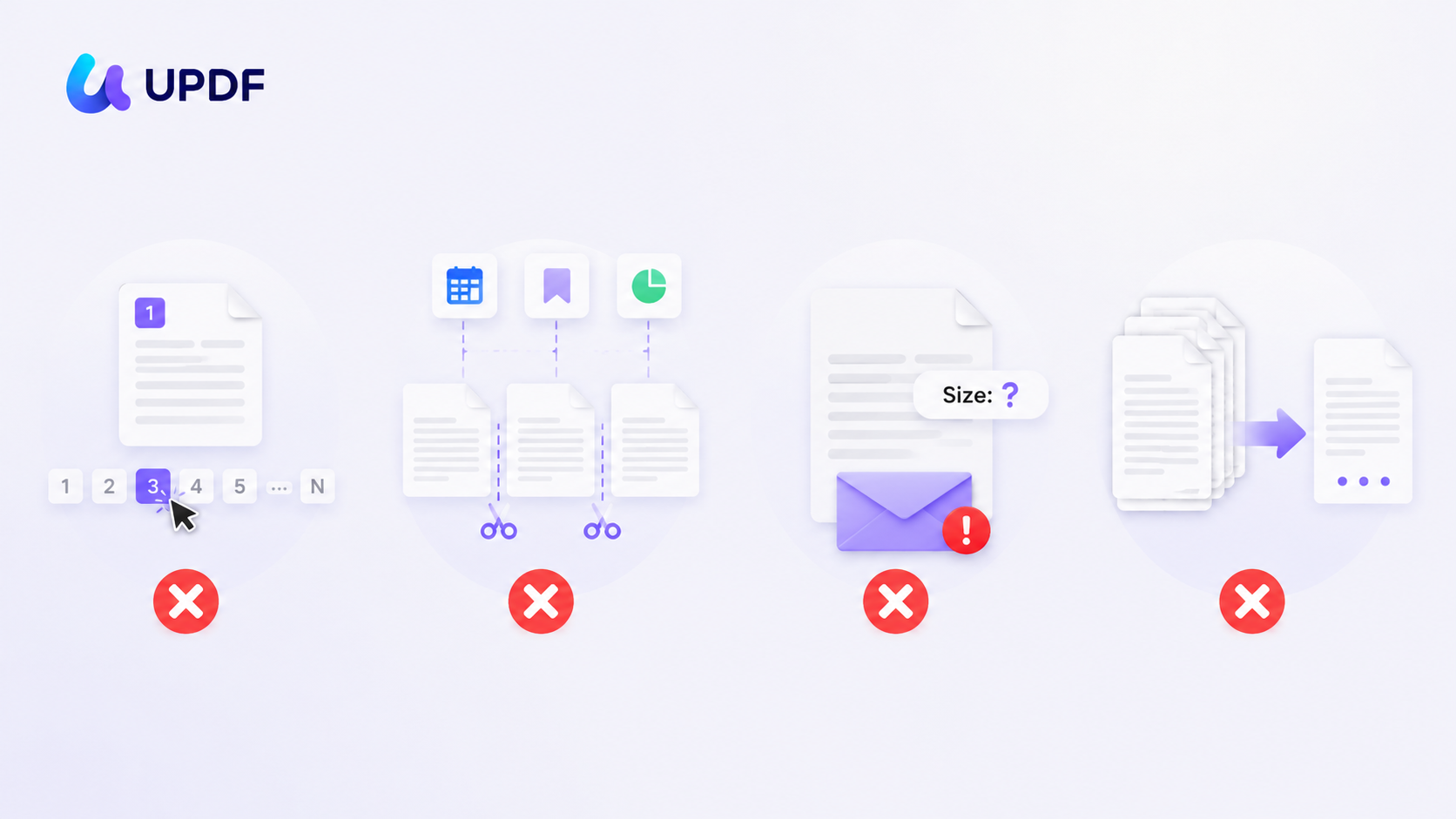
Preview works well for small jobs, but every split PDF Preview Mac action stays completely manual. Next, I’ll walk through the limits that make bigger splitting tasks slow, risky, and frustrating.
- All By Hand: Every page choice is manual, so I keep counting and clicking instead of setting rules. Large documents quickly feel tiring, and one wrong click can throw off the whole split.
- No Rule-Based Splitting: Preview can't split every N pages, or by file size, or at each bookmarked chapter for me. Any pattern I want has to be repeated by hand, page group after page group.
- No Size Target: Email limits matter, but Preview never lets me aim for a specific output file size. I end up guessing, exporting files, and checking sizes over and over again manually.
- One File at a Time: Preview only handles one document per split, so batches need to repeat the process from scratch. Multiple reports or client files turn into a long queue of identical manual splitting sessions.
If your job is "pull two pages out," none of this matters. If it's "split this consistently, or by a rule, or because of size," you want a tool built for that.
Part 3. How to Split a PDF on Mac With UPDF
Big PDFs make me crazy when I need smart, consistent splits that Preview simply can’t handle. This is where UPDF comes in, giving me rule-based control instead of endless manual clicks. Everything runs locally on my Mac, so my documents stay private and never leave my device.
One license lets me keep the same splitting workflow on Windows, my iPhone, and my iPad. UPDF lets me split PDF macOS files by page count, file size, main bookmarks, or exact custom ranges. Go through the steps below to see how I manage complex documents more cleanly with this tool:
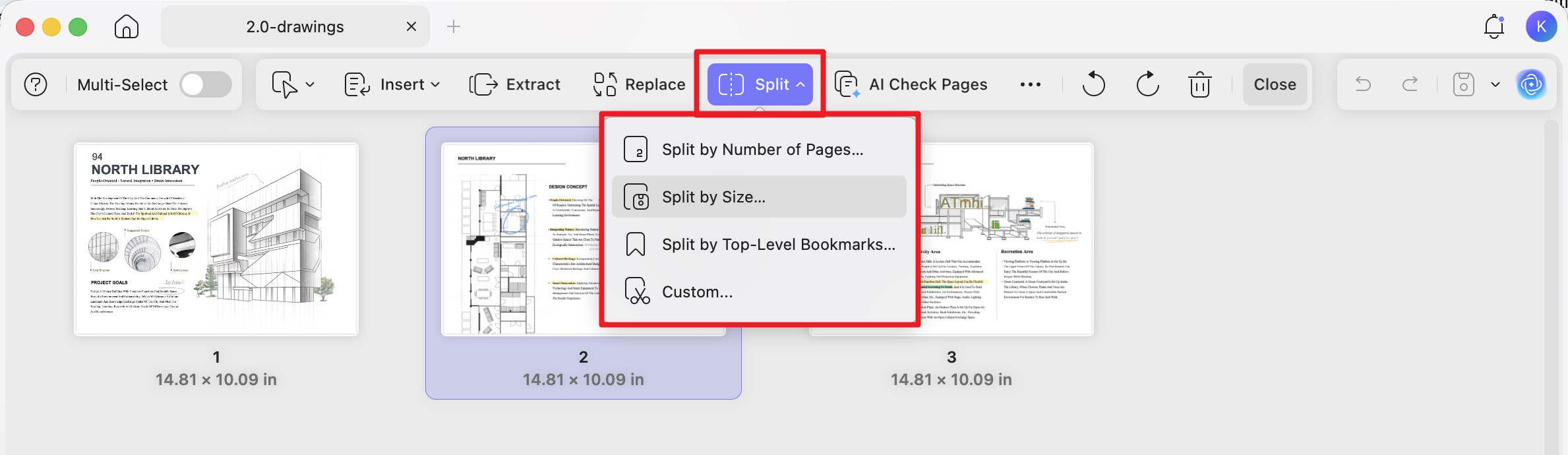
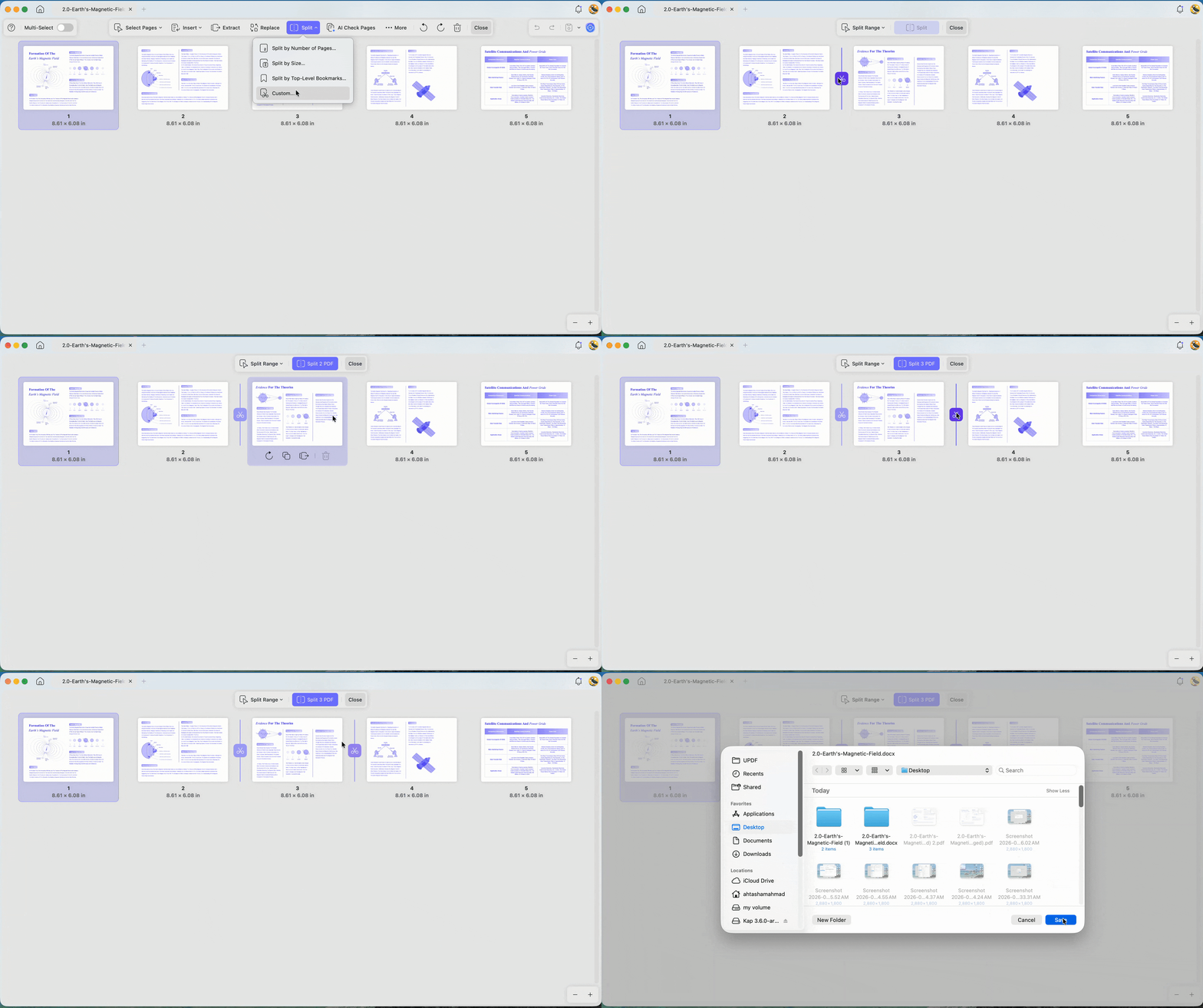
All methods start the same way: open the PDF in UPDF, click Organize Pages in the left toolbar, then click Split in the top toolbar. From there you pick how to split.
Windows • macOS • iOS • Android 100% secure
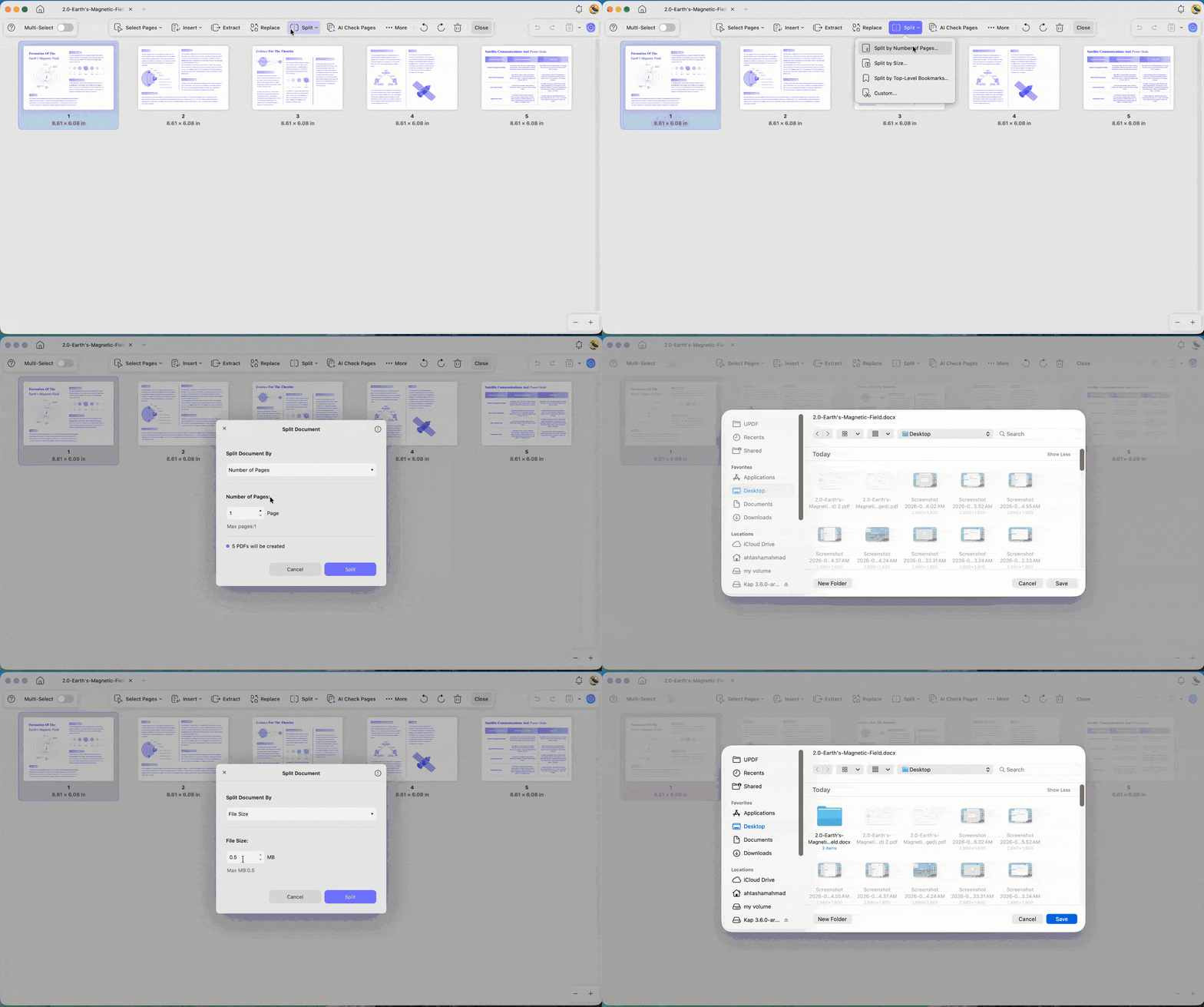
- Split by number of pages
Choose Split by Number of Pages, type how many pages each output file should contain (enter 5 to turn a 200-page file into forty 5-page PDFs), click Split, and pick a save location. This is the one that turns the manual 200-page nightmare into a single action.
- Split by file size
Choose Split by Size and enter a target size. UPDF divides the document into files at or under that size — the right method when the goal is fitting an email or upload limit, exactly the case Preview can't handle.
- Split by top-level bookmarks
If the PDF has bookmarks (a report with chapters, a contract with sections), choose Split by Top-Level Bookmarks and click Split. UPDF creates one file per top-level bookmark, so a bookmarked manual splits cleanly into its chapters with no page-counting at all.
- Split random pages of a PDF
When you want to split random pages of a PDF, select the Custom option and press the “Scissor” icon between the pages. It will split the PDF into the custom pages you selected.
Excepting the spliting PDF features, UPDF has many other features like editing PDF, converting PDF, compressing PDF, and more. You can read this review blog or watch this video to learn more about this powerful tool.
So, download UPDF for free to test rule-based splitting on your own PDFs without any upfront cost. Installation stays free, and saved exports include a small trial watermark until I choose to upgrade.
Windows • macOS • iOS • Android 100% secure
Part 4. How to Split a PDF on iPhone & iPad
After learning how to split PDF Mac files, I still couldn’t do the same on my phone. So, UPDF offers an app for iOS that finally gives me proper mobile splitting tools and on iOS it carries the same rule-based options as the desktop. Using that app, I keep working on the same PDFs across Mac, iPhone, and iPad smoothly. On trips or away from my desk, this iOS workflow saves me from waiting to organize anything.
Now, adhere to the steps below to see how I split and manage pages directly on iPhone:
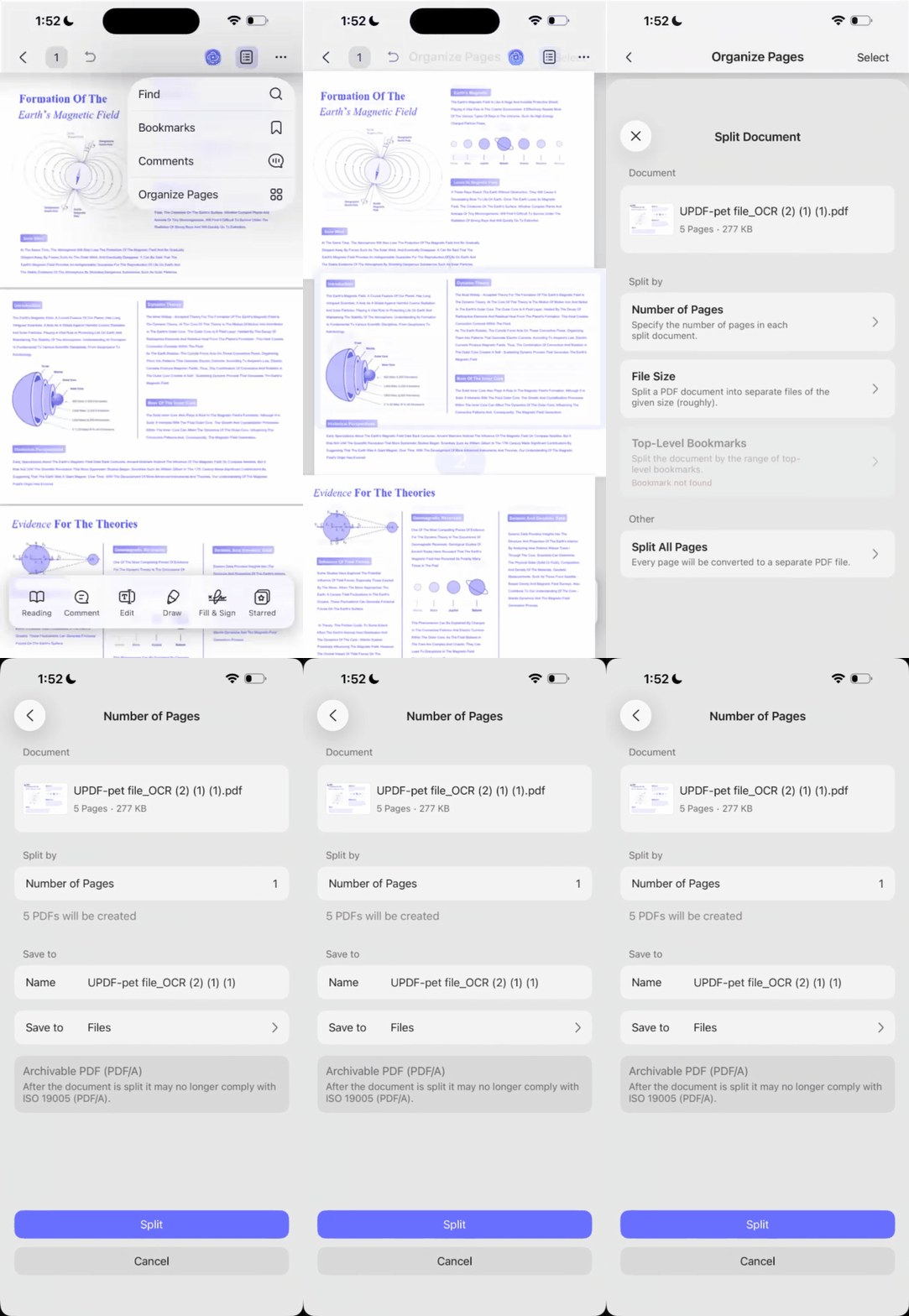
Step 1. First, open a PDF in the UPDF app and tap on the “Three-Dots” icon in the top right corner and press the “Organize Pages” option.
Windows • macOS • iOS • Android 100% secure
Step 2. Next, use the Split option from the bottom toolbar and choose the Number of Pages option as a split type.
Step 3. After that, enter the number of pages that you want to split and tap on the Split option. Next, choose the location to save the split PDF files.
Step 5. To split pages by file size and bookmarks, choose the File Size or Top-Level Bookmarks split types.
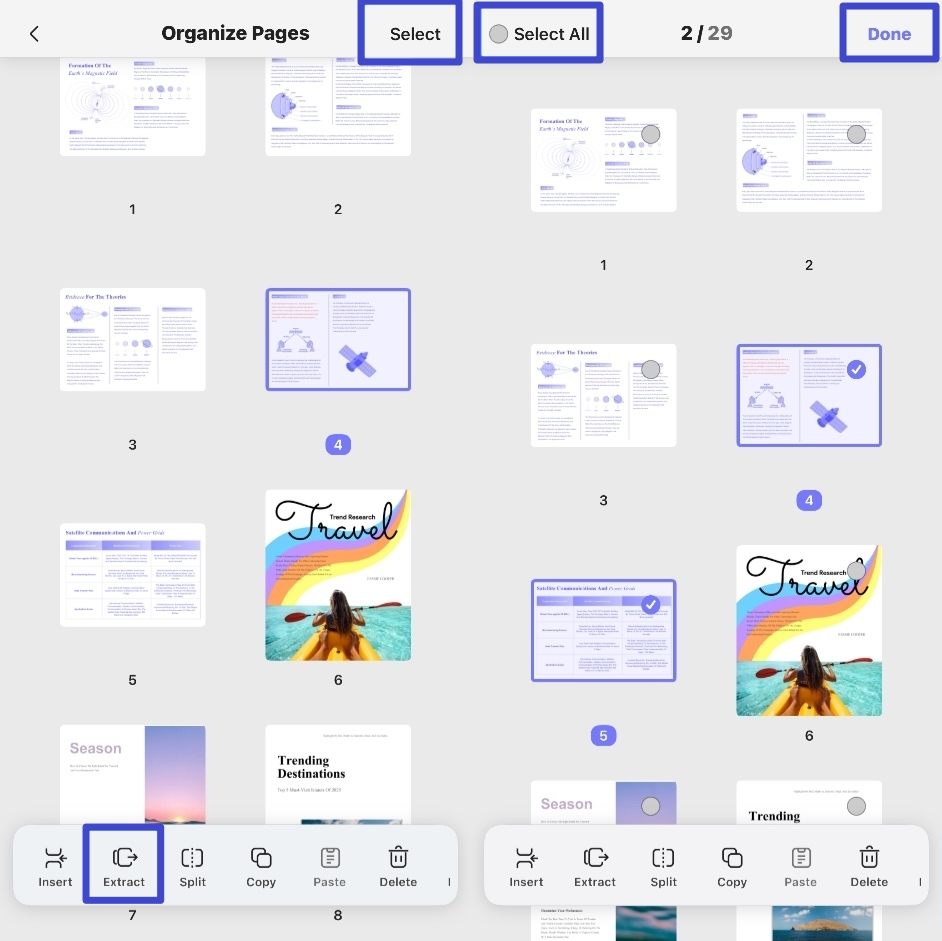
Step 6. As an alternate method, choose the Extract tool to pull selected pages into a separate file. This extract flow feels like the mobile version of Preview’s drag-to-desktop trick on Mac.
Important Note for Android Users
On Android, the UPDF app doesn’t include a full Split feature for rule-based splitting yet. Instead, I can still use Extract (Organize Pages > select pages > Extract) to pull the pages I need into a new file. Automatic splitting by page count, file size, or top-level bookmarks only exists on desktop and iOS versions. For those advanced rules, I move to UPDF on my Mac, Windows, iPhone, or iPad.
Part 5. Comparison: Preview vs. UPDF for Splitting — Which to Reach For?
On Mac, I use Split PDF in Preview Mac for tiny tasks, but bigger projects quickly expose its limits. UPDF became my rule-based choice whenever I needed cleaner, more controlled splitting across different devices and platforms. The table below shows where each tool fits, from quick page pulls to heavy splitting work:
| Feature | Preview (Mac) | UPDF |
| Pull out a Few Pages | ✗ | ✓ |
| Split by Page Count | ✗ | ✓ |
| Split by File Size | ✗ | ✓ |
| Split by Bookmarks/Chapters | ✗ No bookmark-based splitting controls | ✓ split at top-level bookmarks |
| Batch/Long Documents | Manual, one file and group at a time | Batch-friendly, handles long PDFs efficiently |
| Platforms | macOS only desktop app | Mac, Windows, iPhone, iPad (split); Android extract only |
| Cost | Free, built into macOS | Free trial; exports add watermark until upgrade |
The honest split: for two or three pages, Preview is already on your Mac and wins on speed. The moment you're splitting by a rule — every N pages, to a size, or at each chapter — Preview has no setting for it and UPDF does.
Part 6. Edge Cases — When Splitting Doesn't Go to Plan
Sometimes, even after I split PDF Preview Mac style, weird little problems still slow everything down. Let’s explore the main edge cases and the simple fixes that usually get me unstuck.
- "I dragged pages to the desktop but got separate one-page PDFs instead of one file." Select all the thumbnails first (Command-click each, or Shift-click a range) and drag them out together in a single motion. Dragging them one at a time creates one file per page.
- "The split option is greyed out / the file won't change." Sometimes the split or edit controls stay disabled, even though the document looks fine inside Preview or UPDF. In many cases, removing a permissions password or protection layer lets splitting and editing start working again.
- "My bookmarked PDF split into the wrong number of files." Bookmark-based splits only look at top-level bookmarks, not nested sub-bookmarks hiding under each main heading. If chapters are nested, I either promote them to the top level or switch to page-count splitting.
FAQs
1. Can I split a PDF into equal parts in Preview?
No, Preview can’t split into equal parts automatically, so I end up counting pages manually. For even chunks, I use a rule-based tool like UPDF, which does it in one step.
2. Does splitting a PDF in Preview change the original file?
Dragging pages to the desktop doesn't — it copies them into a new PDF and leaves the original intact. The original only changes if you then select pages, delete them, and save.
3. How do I split a PDF that’s too large to email?
Split by file size rather than by page, since page count doesn't map neatly to megabytes. Preview can't target a size; a tool with a split-by-size option can. If parts are still too large, compress first.
Conclusion
Splitting a PDF in Preview comes down to one move — show the thumbnails, select your pages, and drag them to the desktop — and for a few pages that's the fastest path on a Mac. The moment you need to split by a rule (every N pages, to a file size, or at each bookmark), Preview has no button for it, and that's the line where a dedicated tool earns its place. UPDF covers both the quick extract and the rule-based split, on Mac, Windows, iPhone, and iPad.
Download UPDF for free to split your own PDFs by page, size, or bookmark — installation is free, and exports come with a trial watermark until you upgrade.
Windows • macOS • iOS • Android 100% secure






 Lizzy Lozano

 Enrica Taylor
 Enola Davis