UPDF
UPDF
 UPDF for Windows
 UPDF for Mac
 UPDF for iPhone/iPad
 UPDF for Android
 UPDF AI Online
 UPDF Sign
 Edit PDF
 Annotate PDF
 Create PDF
 PDF Form
 Edit links
 Convert PDF
 OCR
OCR PDF to Word
 PDF to Image
 PDF to Excel
 Organize PDF
 Merge PDF
 Split PDF
 Crop PDF
 Rotate PDF
 Protect PDF
 Sign PDF
 Redact PDF
 Sanitize PDF
 Remove Security
 Read PDF
 UPDF Cloud
 Compress PDF
 Print PDF
 Batch Process
 About UPDF AI
 UPDF AI Solutions
 AI User Guide
 FAQ about UPDF AI
 Summarize PDF
 Translate PDF
 Chat with PDF
 Chat with AI
 Chat with image
 PDF to Mind Map
 Explain PDF
 PDF AI Tools
 Image AI Tools
 AI Chat Tools
 AI Writing Tools
 AI Study Tools
 AI Working Tools
 Other AI Tools
 AI Bookmark Generation
 AI Bookmark Summary
 AI Watermark Generation
 AI Background Generation
 AI Sticker Generation
 AI Stamp Generation
 AI Editing Suite
 UPDF Copilot
 AI Page Management
 AI Semantic Search
 PDF to Word
 PDF to Excel
 PDF to PowerPoint
 Enterprise Solution
 Enterprise Sign
 Enterprise AI
 Enterprise Plan
 Enterprise User Guide
 Enterprise Webinar
 Banking
 Healthcare
 Insurance
 Legal
Legal Manufacturing
 Government
 Education Solution
 Customer Stories
 User Guide
 UPDF Tricks
 FAQs
FAQs UPDF Reviews
 Download Center
 Blog
Blog Newsroom
 Tech Spec
 Updates
 UPDF vs. Adobe Acrobat
 UPDF vs. Foxit
 UPDF vs. PDF Expert

Recently, I was searching for a reliable tool to create accurate citations and check plagiarism for improved writing. I tested EasyBib across research papers and academic projects that required precise referencing and formatting. Many features impressed me with their speed and ease of use for daily writing tasks.
However, I noticed a few limitations when managing complex citation styles and large research projects. In this article, I will share my experience using EasyBib com and explore its main features in detail. As a bonus, I will also share how UPDF AI can simplify academic writing and improve overall research workflow.
Part 1. What EasyBib Offers: Citations, Writing Help, and Plagiarism Checks
Using EasyBib for accurate referencing and proper academic formatting has become an essential part of my routine. It simplifies the research process by organizing sources and helping structure bibliographies. It is widely used in schools and universities to manage sources in different writing styles. Now, let’s explore its primary uses in detail below.
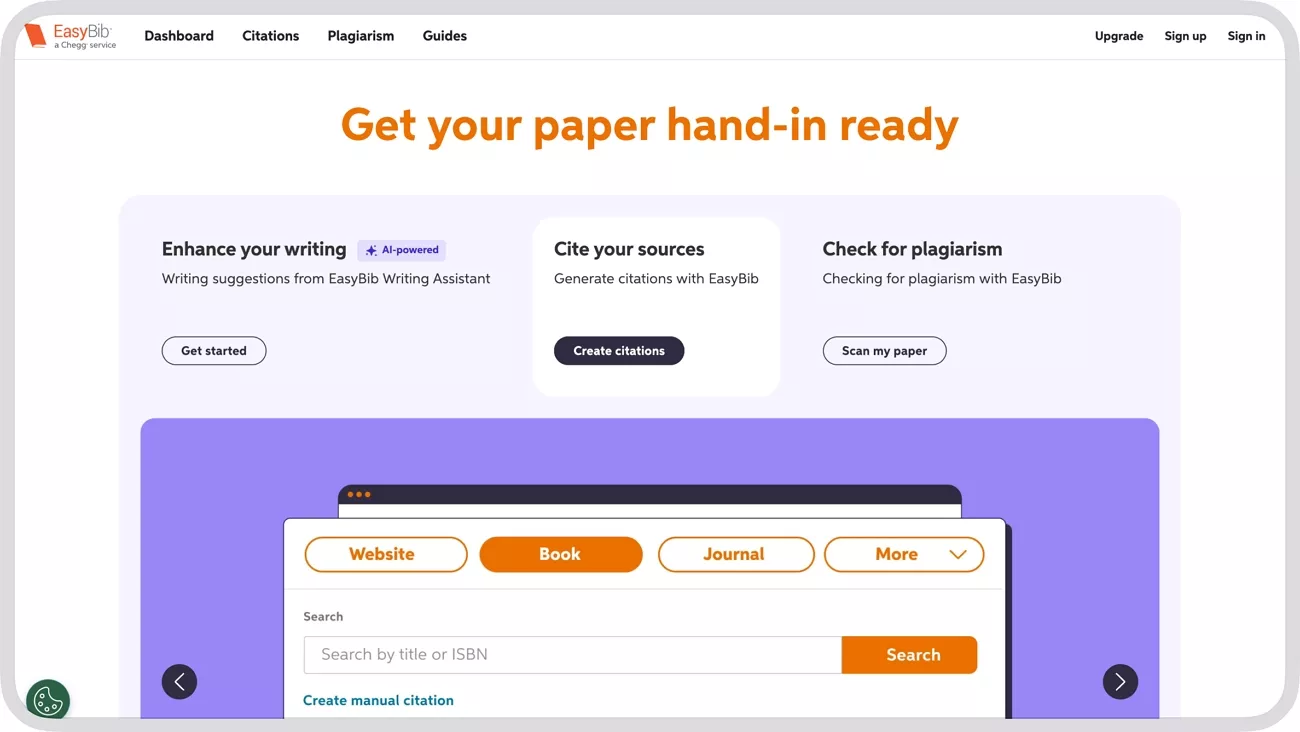
1. Citation Generator That Supports Multiple Formats
EasyBib also allows me to create references in MLA and other formats. This allows me to insert web address links to websites and journal articles, and the references are automatically generated. I also tried the Chrome extension named EasyBib Toolbar for quick citations while browsing online. It did it well, and the citations produced were ready to be inserted into my papers.
2. Enhance My Writing
EasyBib’s writing tools suggest improvements in grammar and sentence structure. While it’s not as comprehensive as dedicated grammar checkers, it helped me polish small errors in essays quickly.
3. Plagiarism Checker
The plagiarism checker on EasyBib is easy to use for detecting copied and unoriginal content. I uploaded sections of my essay, and EasyBib carefully scanned them to flag any potential plagiarism and citation issues. Using this tool gave me confidence that all my work remained original and properly cited.
How to Access EasyBib and Use Its Features
Accessing EasyBib is simple and can be done through any web browser or the EasyBib Chrome extension. Before exploring EasyBib alternative tools, follow the steps below to learn how I use its features for my academic work management:
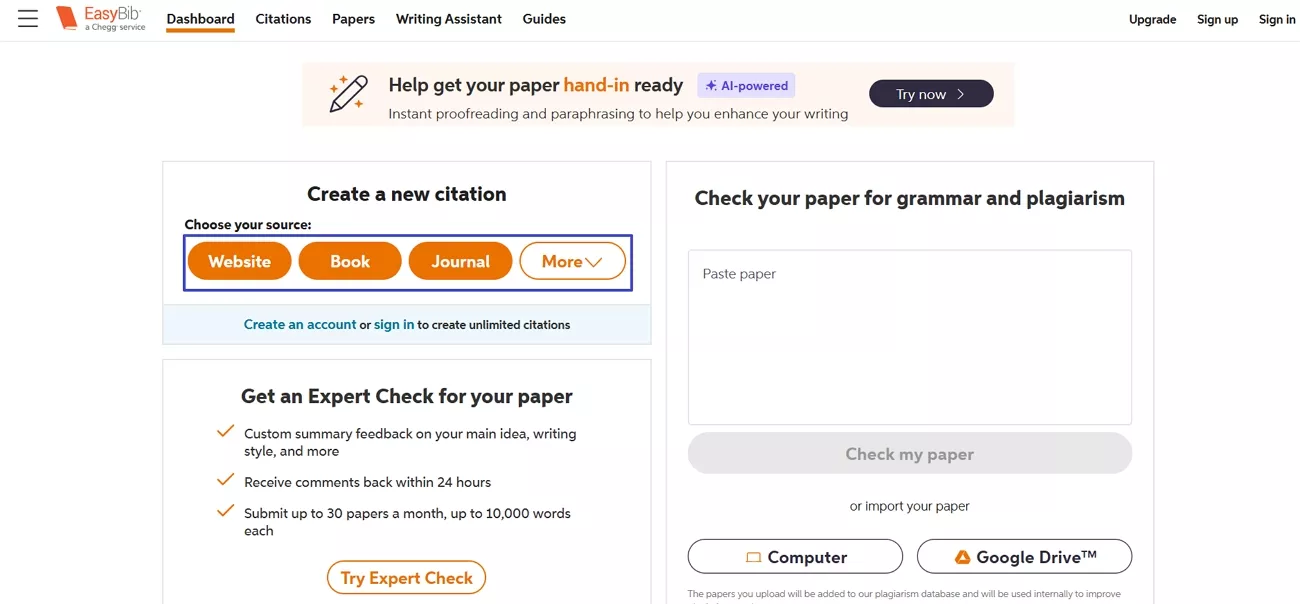
Step 1. Once you enter the EasyBib’s dashboard, you’ll see different tools. To generate citations, choose the type of source. For reference, I’ll select the “Website” option here.
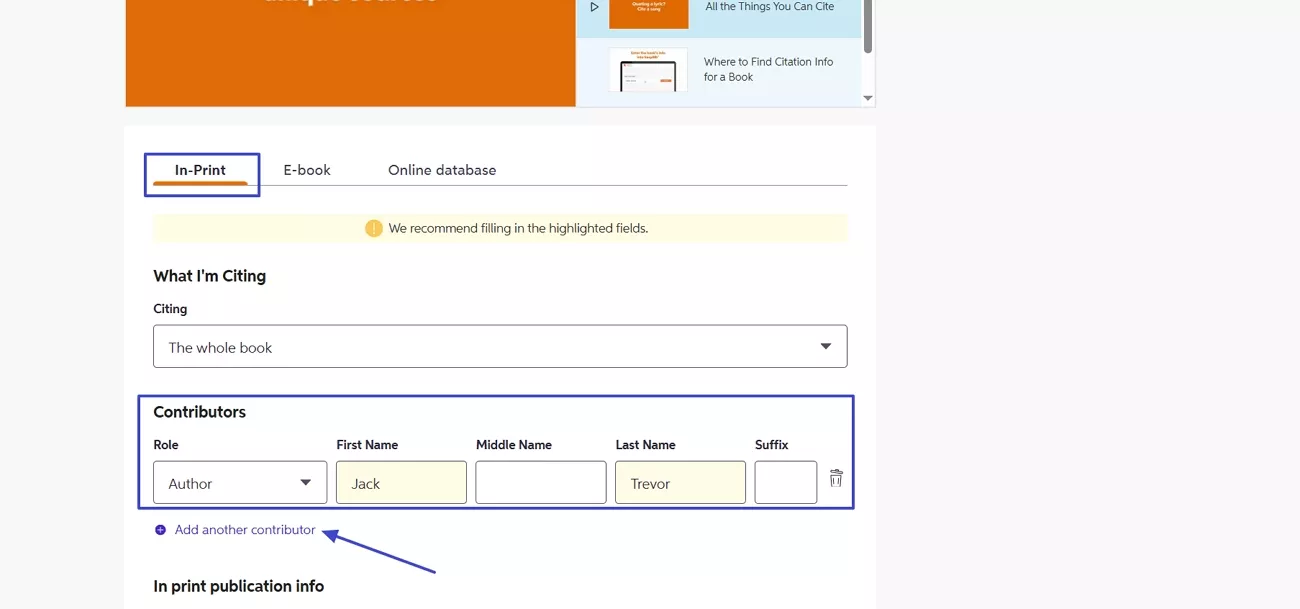
Step 2. Next, press the “Create Manual Citation” option and click the “In Print” option. Afterwards, fill in the contributor's name and press the “Add Another Contributor” if needed.
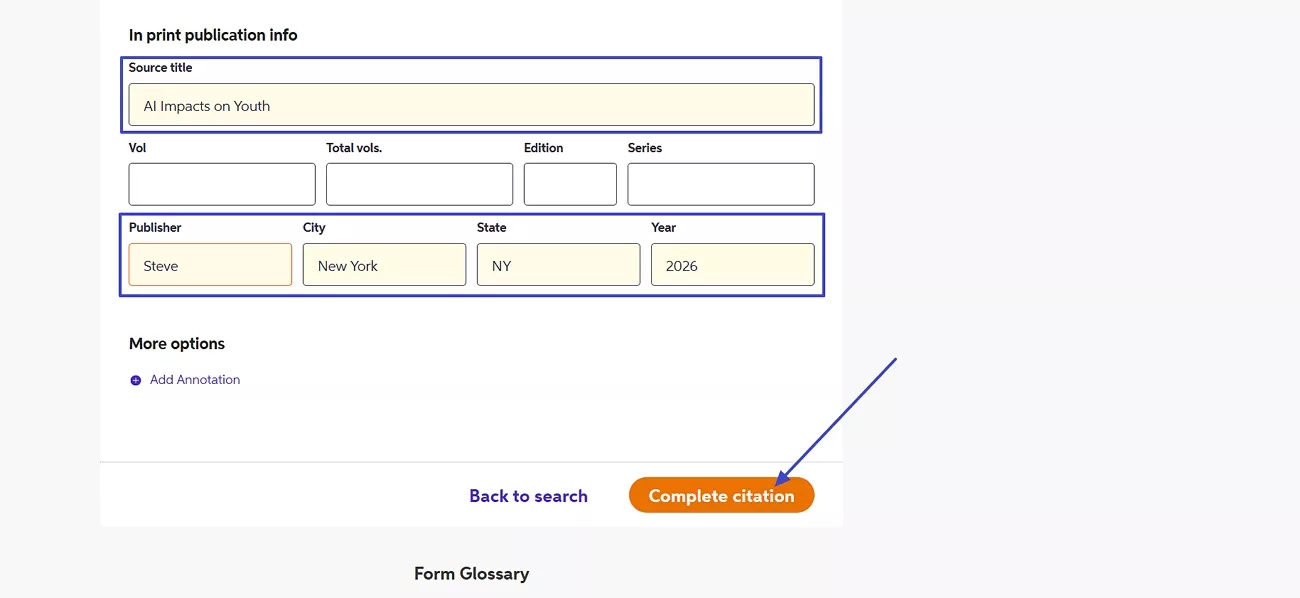
Step 3. After scrolling down, enter the Source title, Publisher, and other details before pressing the “Complete Citation” button.
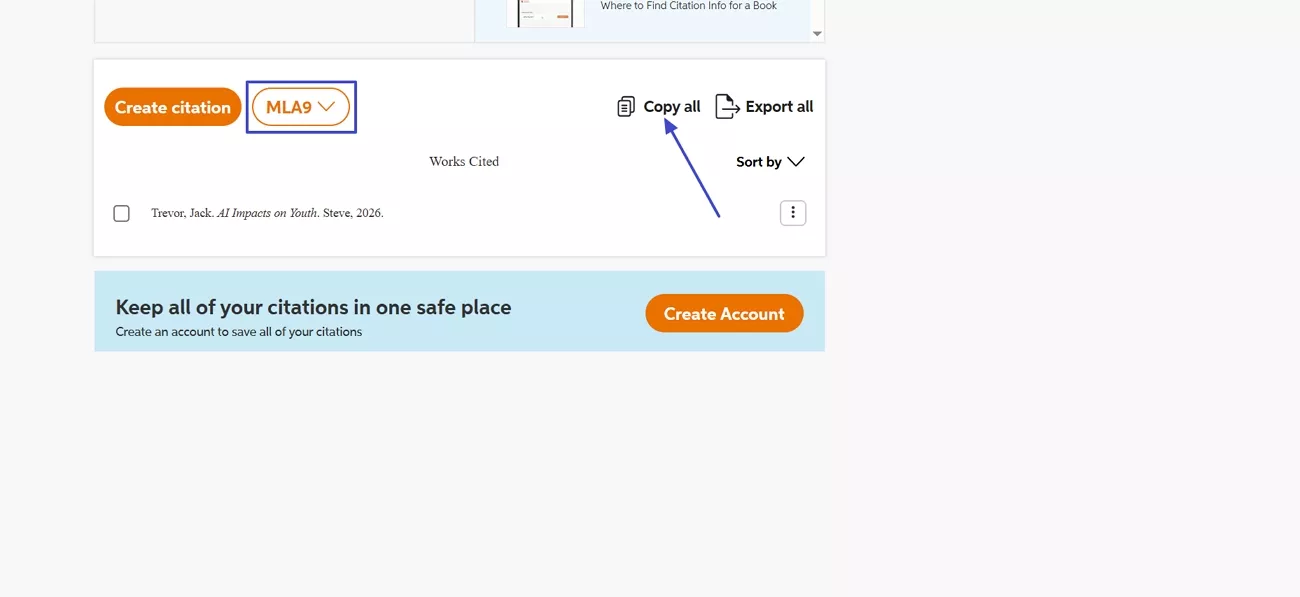
Step 4. Once done, you’ll get the generated citations in MLA style. To change the style, use the “Styles” option and press the “Copy All” option to copy the citation for use.
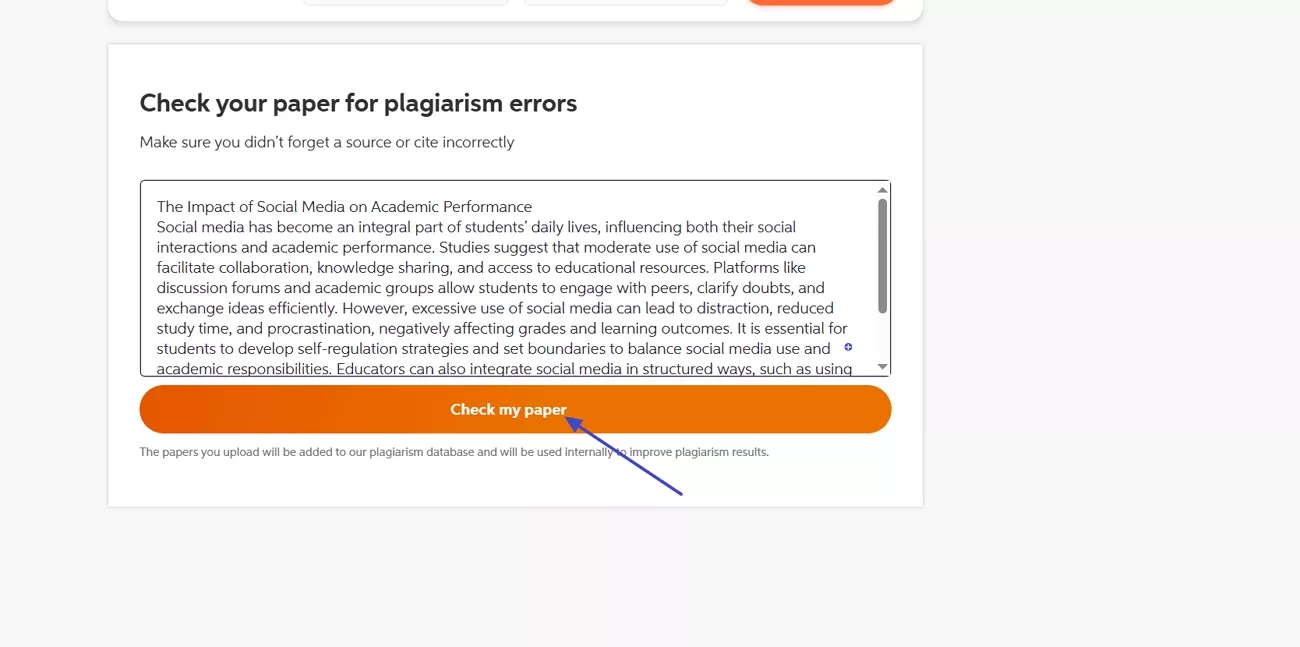
Step 5. On the same page, scroll down and paste your paper in the Plagiarism box. Next, press the “Check my Paper” option to check the plagiarism report of your paper.
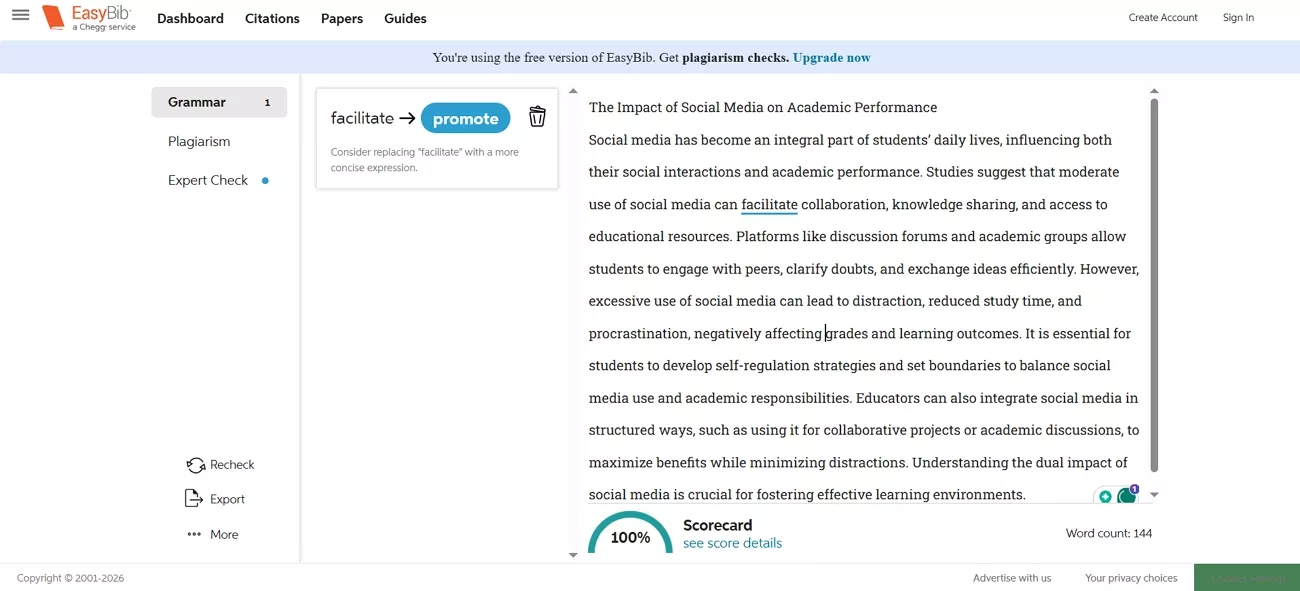
Step 6. Afterwards, you’ll see a combined score of grammar and plagiarism. You can also consider the suggestions provided by the tool to enhance your writing.
EasyBib Pricing Plan
Before choosing a subscription, I compared the available pricing plans to see which would meet my needs. Look at the table below to see what I explored.
| Plan | Price | Papers Limit | Features |
| EasyBib Plus | $9.95/month | 30 Papers/month | Unlimited grammar checks, 7000+ styles including APA & Chicago |
| EasyBib Plus & Chegg | $19.95/month | Unlimited Papers/month | Plagiarism detection, practice problems, math solver, 7000+ citation styles |
User Reviews
Many students praise EasyBib for its simplicity, while some note that advanced writing suggestions are limited. Let me share some user reviews posted on public review platforms.
- G2: “The plagiarism detection of Easybib rally helps in making authentic content. The implementation of the Easybib is also super easy.”
Trustpilot: “It’s proving impossible to cancel my subscription. The steps lead nowhere. It should be straightforward.”
Part 2. How to use EasyBib in Word?
After exploring its web platform, I wanted to see how EasyBib com works directly in Word. Integrating it into Word made generating citations and managing references much faster and more convenient for my writing projects. Now, go through the steps to learn how to use EasyBib in Word:
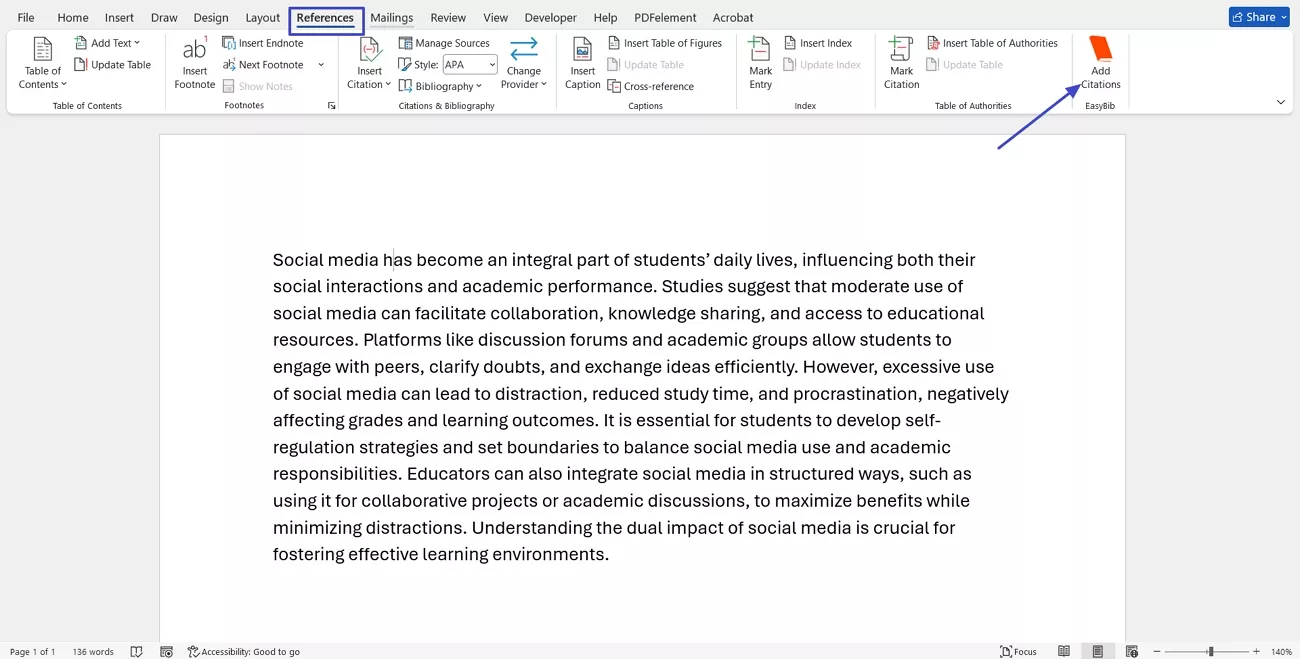
Step 1. To start, install the EasyBib add-in from the Microsoft Store. Once installed, open Word and press the “References” tab. Next, click the “Add Citations” option at the end to open the EasyBib side panel.
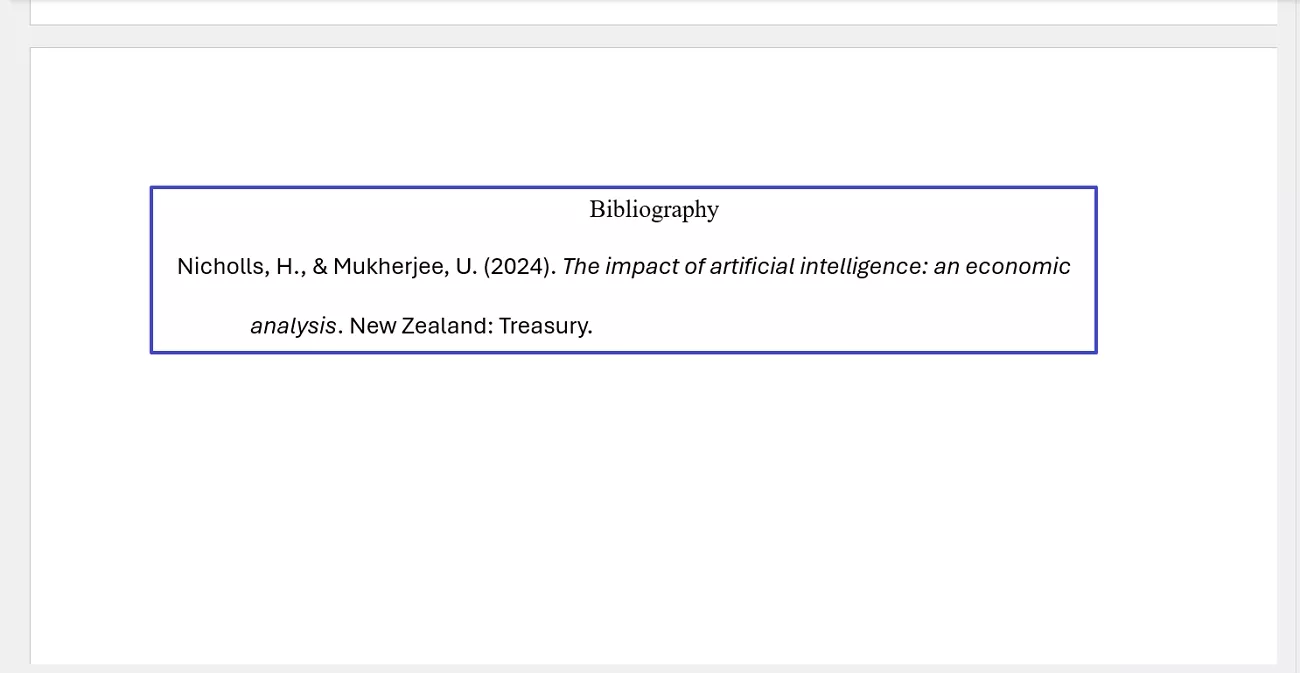
Step 2. Once done, choose the type of your source and enter the name of the source to search. Next, select the target style from the “References” section and press the “Insert Bibliography” button.
Step 3. This way, you’ll get the citation generated in your preferred format. You can copy and use it in writing long research papers.
Part 3. EasyBib Alternatives I Considered
While EasyBib worked well for my citation needs, I also explored other tools to see if they offered additional features. These alternatives provided different approaches to citation generation and plagiarism checking that I wanted to compare. Now, I will share the EasyBib alternative tools I considered and how they performed compared to the original platform.
1. QuillBot Citation Generator
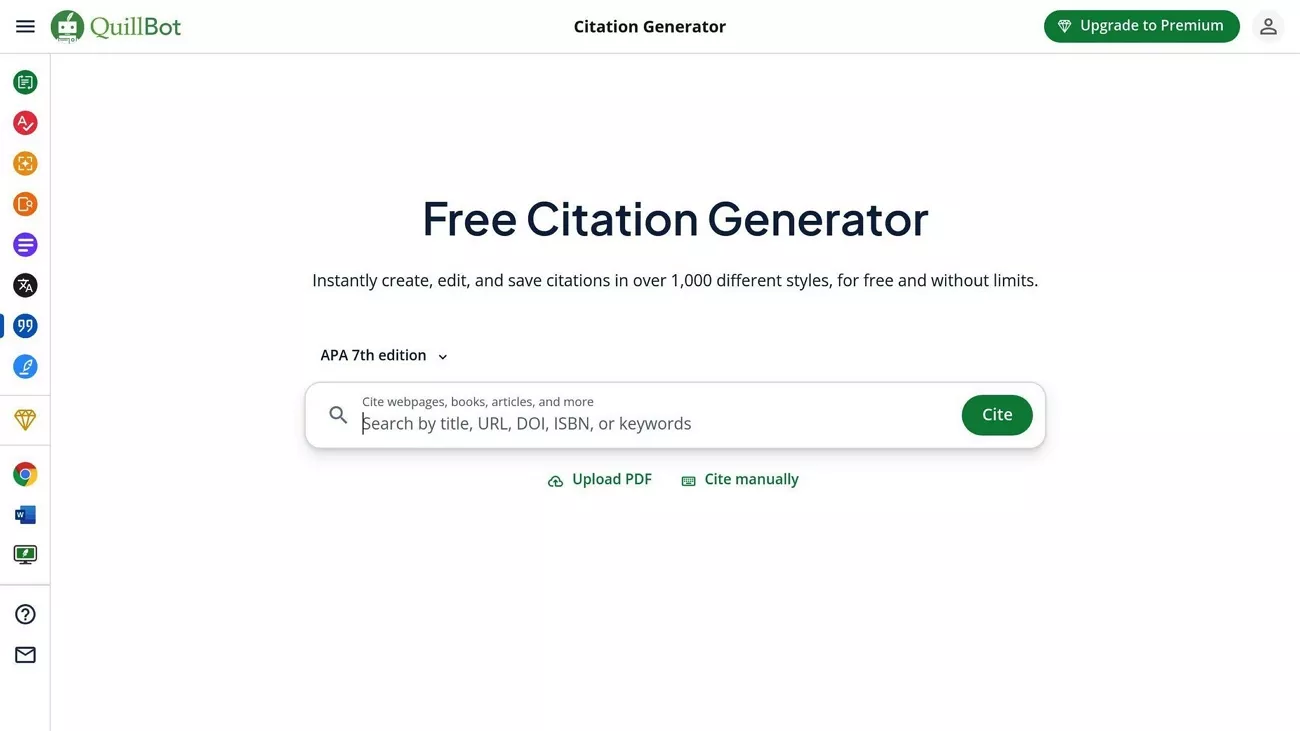
When I first needed a reliable tool to create accurate citations, I decided to try QuillBot Citation Generator. I used its interface to test how easily it could produce references for books, articles, and other sources in over 1,000 different styles. Using it helped me quickly produce properly formatted citations while checking how it compared to other tools I regularly use.
2. Grammarly Citation Generator
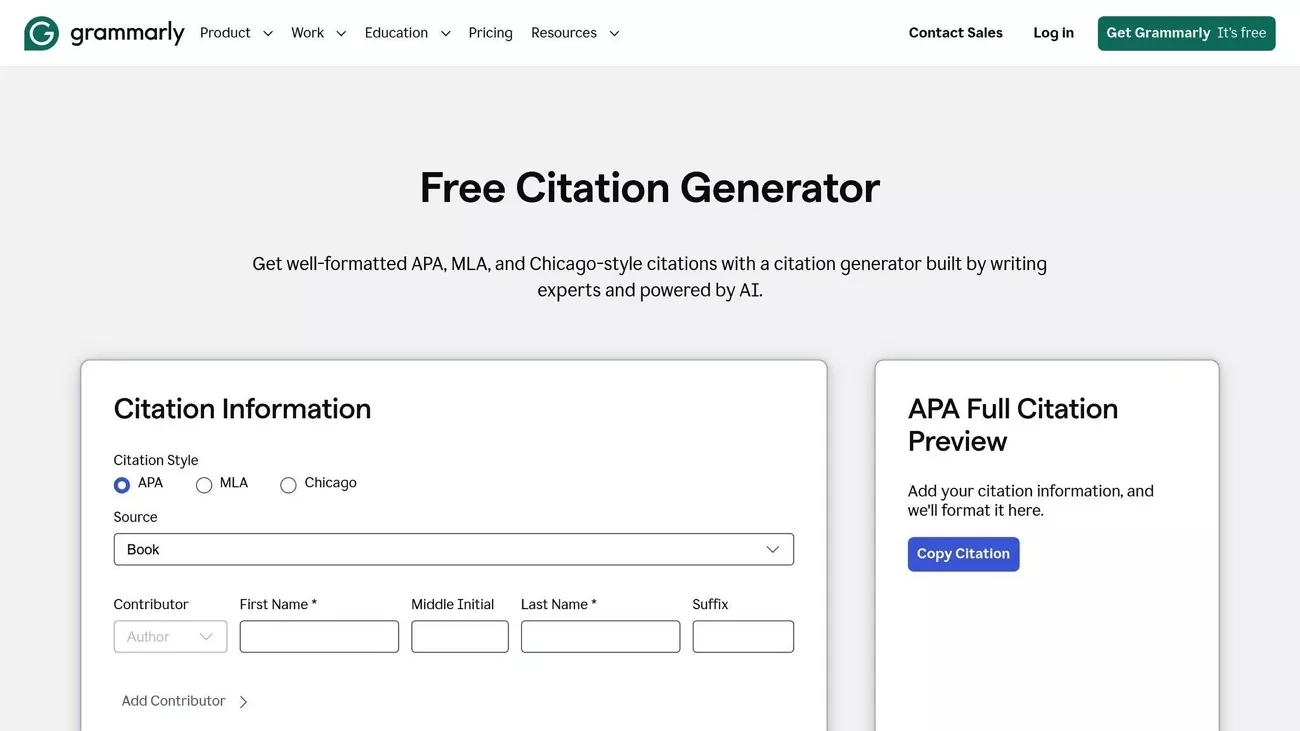
An online tool that helps me create formatted references in 99 citation styles for a wide range of sources. I used it to generate the references to various sources, including books, journal articles, and websites. It not only saved me a lot of time but also let me compare its accuracy with that of other citation tools.
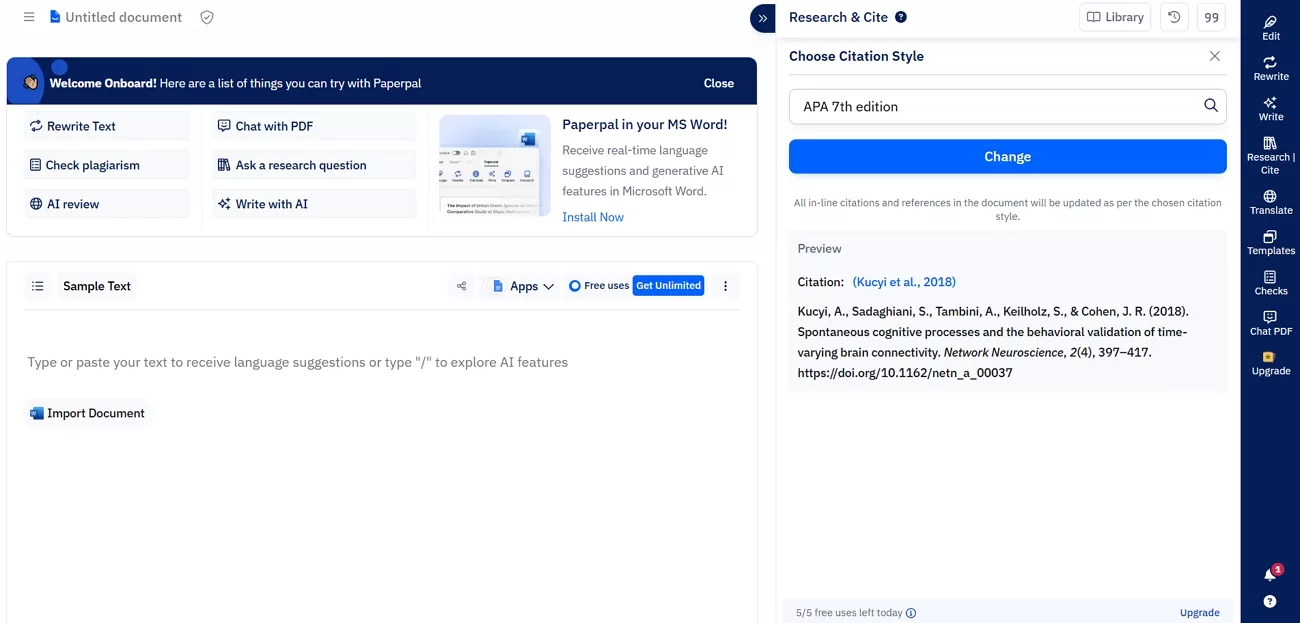
3. Paperpal Citation Generator
EasyBib com is the main site I use for creating citations, but I also tried Paperpal’s citation generator to see how well it works. This tool lets you quickly make references for books, articles, and online sources with very little effort. I tested it with different types of sources and found that it helped me work faster on my academic writing.
How to Use an EasyBib Alternative to Generate Citations
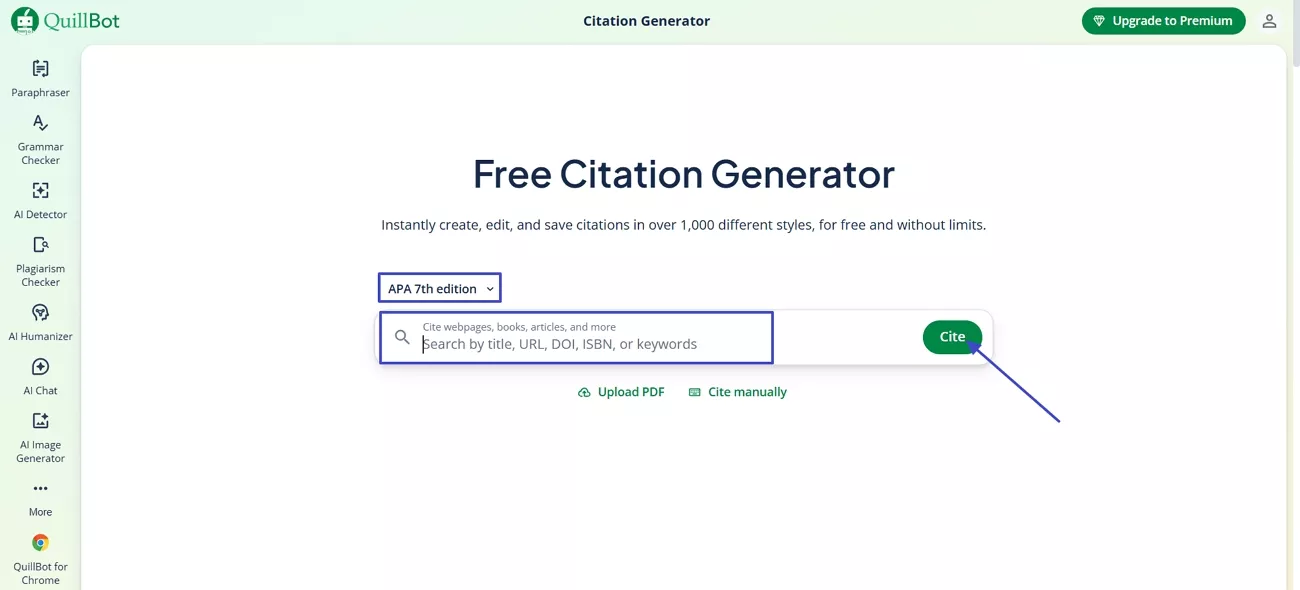
After exploring the EasyBib alternatives, I realized that these tools handle unusual website formats better than EasyBib. Follow the steps below to see how I use QuillBot to generate citations:
Step 1. Once you enter the main interface, you’ll see different methods such as upload PDF, citing manually, and importing from a URL. Choose the citation style, enter the book name, and press the “Cite” button.
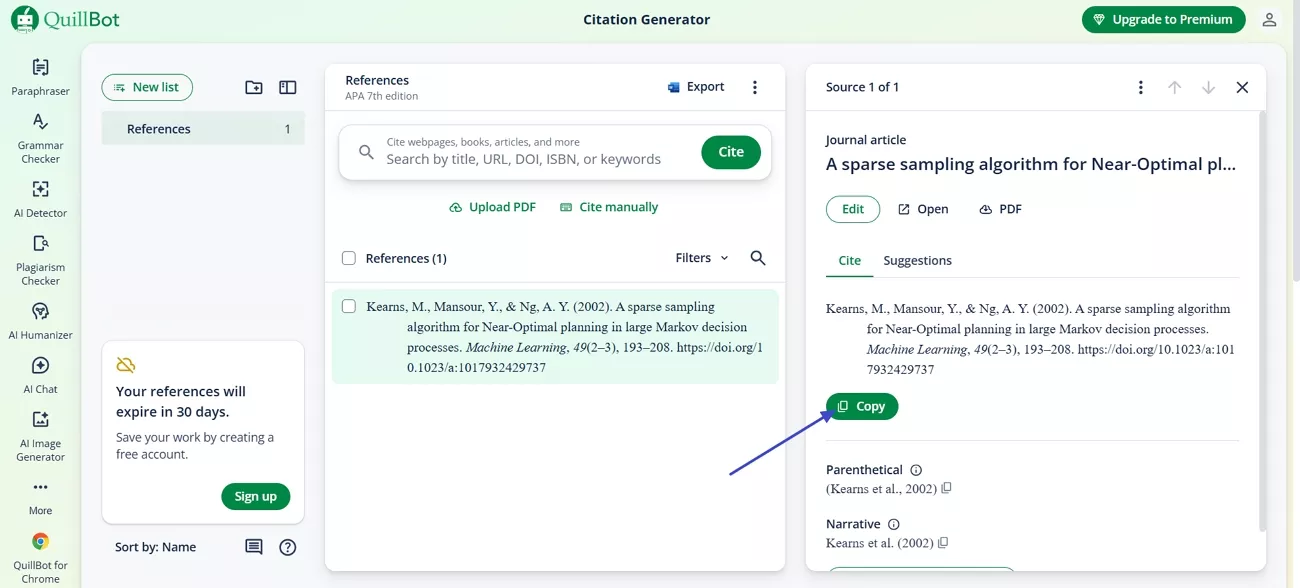
Step 2. Afterwards, you’ll see the generated citation carrying the style you selected. Press the “Copy” button to copy the citation for future use.
How UPDF Helps in Advanced Citation and Writing Assistance
After exploring several tools as an EasyBib alternative, I still found it challenging to manage multiple research papers and extract insights. This is where UPDF AI became a game-changer for me by letting lets me upload research papers or metadata to generate accurate citations. This way, I was able to focus on writing and referencing rather than managing multiple tools.
UPDF AI Online provides similar assistance through a web interface for citation generation and writing enhancement. Using this AI support, I can quickly summarize sections, extract key insights, and manage references for my projects. For those working on a thesis, I also referred to this helpful guide on Referencing Thesis using UPDF AI.
Useful Features
Explore the useful features below that helped me manage my academic sources.
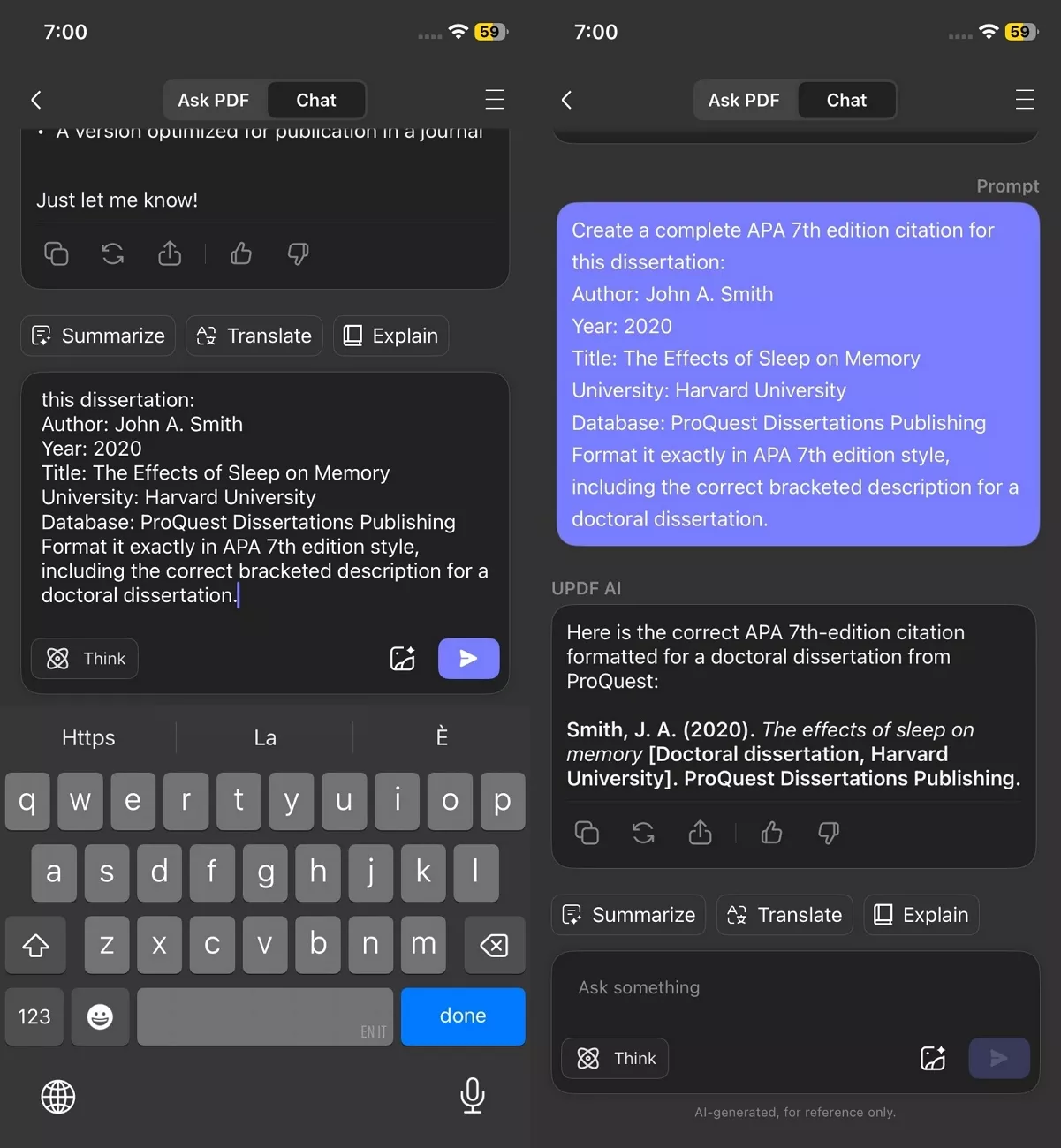
Citation Generation in any Style: With UPDF AI, I can generate citations in any style I need, whether MLA, APA, Chicago, or more.
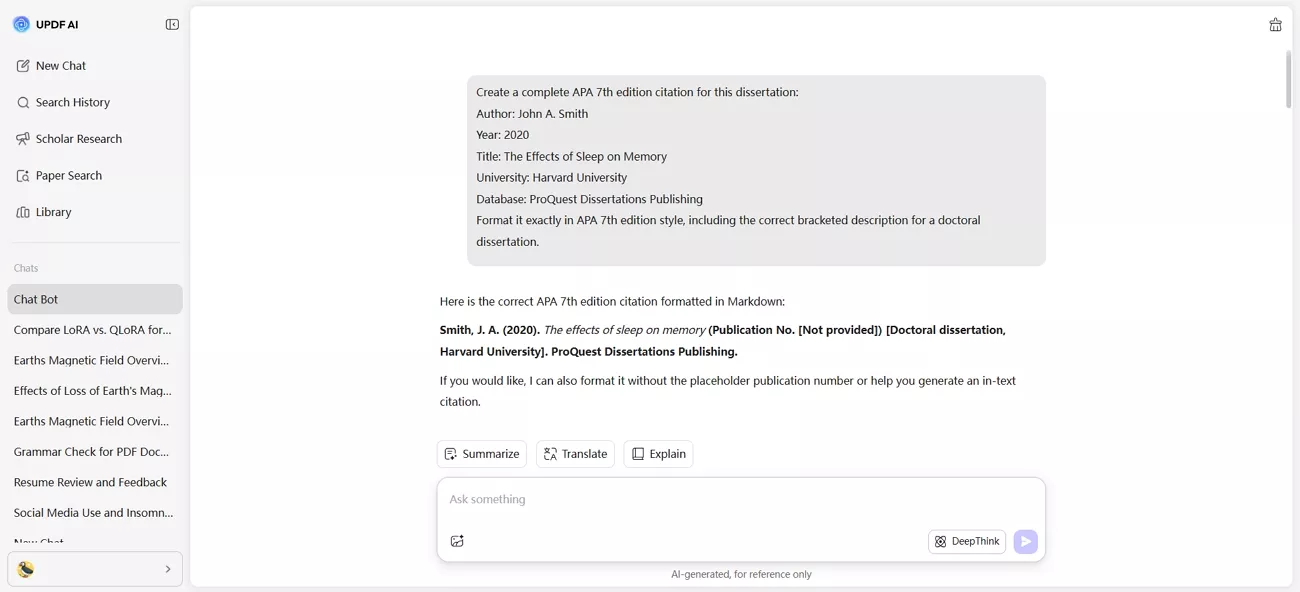
I use it across desktop, web, and mobile app, which makes referencing my research papers convenient no matter where I work. It saves me time and ensures that all my references are accurate and properly formatted.
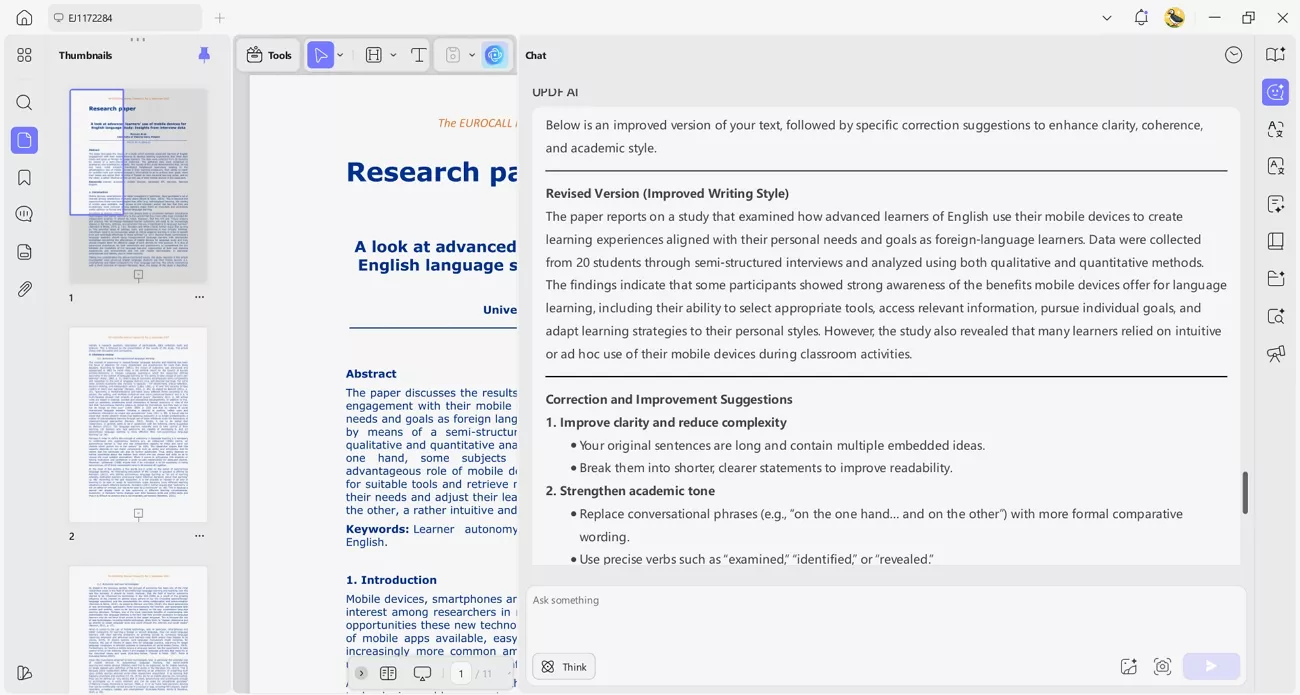
Writing Assistance: UPDF AI also helps me improve my writing by suggesting grammar corrections, sentence enhancements, and clarity improvements. I can access these writing assistance features on desktop, web, and mobile app, so I can refine my work anytime.
Bonus Tip: Use UPDF AI for Paper Search and Scholar Research
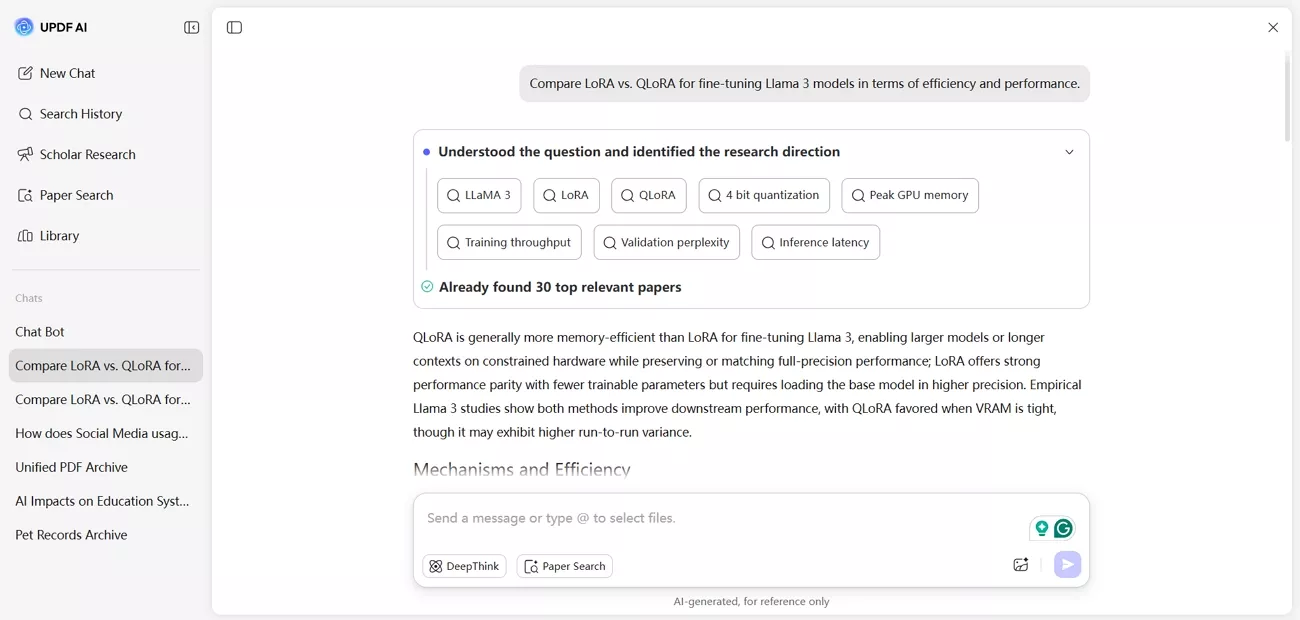
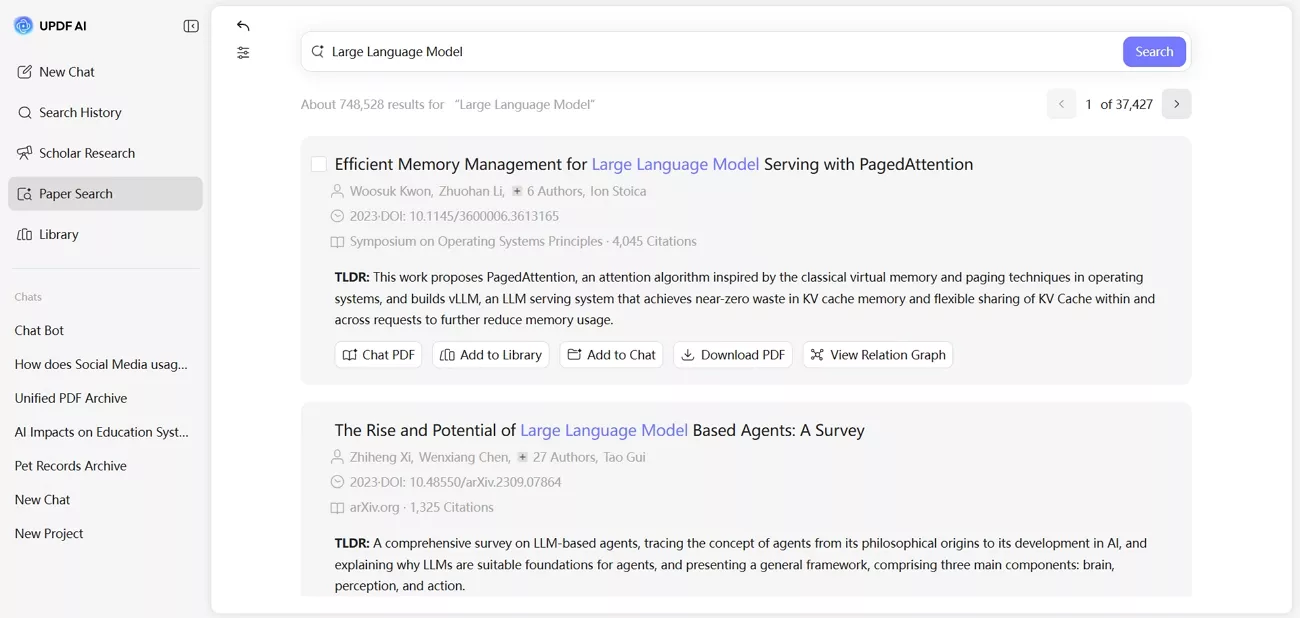
After testing EasyBib com, I started using UPDF AI Online to search for academic papers and generate insights across multiple studies. Its Paper Search feature provides 2 modes for discovering papers. DeepThink mode provides referenced answers that help me understand complex research questions.
While Keyword mode surfaces relevant journal articles from multiple academic databases to reduce the need for manual searching.
On the other hand, Scholar Research mode divides broad academic questions into smaller themes and collects studies from reliable scholarly sources. The AI then produces a structured overview for the literature review without repeated searching.
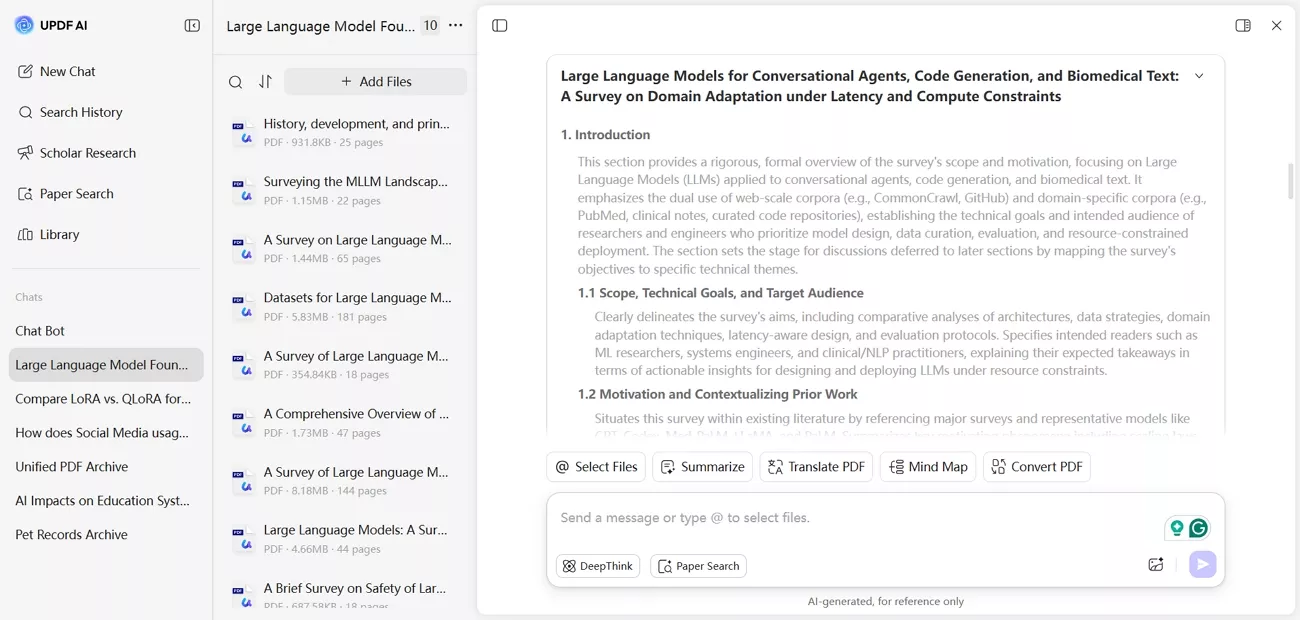
If you want to combine citation generation, writing enhancement, and academic research in one place like me, download UPDF for a free trial and use UPDF AI.
Part 4. FAQs
Q1. Is EasyBib.com a reliable source?
EasyBib.com is reliable for generating properly formatted citations in common academic styles. However, users should always review the generated references to ensure accuracy and completeness.
Q2. Can a works-cited page be plagiarized?
Yes, a works-cited page can be plagiarized if sources are copied without proper credit or falsely presented as original research. When using an EasyBib alternative, it is important to verify that all references truly reflect the sources used.
Q3. How to cite without plagiarizing?
To cite without plagiarizing, always credit the original author and follow the required citation style. You can also use reliable tools like UPDF for citation generation, but confirming source details remains essential.
Conclusion
In summary, EasyBib com plays an important role in generating accurate citations and supporting academic writing. However, relying only on manual formatting or basic tools can lead to mistakes and wasted time. For better citation management and writing support, I recommend trying UPDF AI and downloading UPDF for a free trial.





 Enola Davis
 Enola Miller
 Lizzy Lozano