UPDF
UPDF
 UPDF for Windows
 UPDF for Mac
 UPDF for iPhone/iPad
 UPDF for Android
 Nomostar
 UPDF AI Online
 UPDF Sign
 IvyCraft
 Edit PDF
 Annotate PDF
 Create PDF
 PDF Form
 Edit links
 Convert PDF
 OCR
OCR PDF to Word
 PDF to Image
 PDF to Excel
 Organize PDF
 Merge PDF
 Split PDF
 Crop PDF
 Rotate PDF
 Protect PDF
 Sign PDF
 Redact PDF
 Sanitize PDF
 Remove Security
 Read PDF
 UPDF Cloud
 Compress PDF
 Print PDF
 Batch Process
 About UPDF AI
 UPDF AI Solutions
 AI User Guide
 FAQ about UPDF AI
 Summarize PDF
 Translate PDF
 Chat with PDF
 Chat with AI
 Chat with image
 PDF to Mind Map
 Explain PDF
 PDF AI Tools
 Image AI Tools
 AI Chat Tools
 AI Writing Tools
 AI Study Tools
 AI Working Tools
 Other AI Tools
 AI Bookmark Generation
 AI Bookmark Summary
 AI Watermark Generation
 AI Background Generation
 AI Sticker Generation
 AI Stamp Generation
 AI Editing Suite
 UPDF Copilot
 AI Page Management
 AI Semantic Search
 PDF to Word
 PDF to Excel
 PDF to PowerPoint
 Enterprise Solution
 Enterprise Sign
 Enterprise AI
 Enterprise Plan
 Enterprise User Guide
 Enterprise Webinar
 IT
IT Education
 Construction
 Financial Service
 Healthcare
 Insurance
 Legal
Legal Manufacturing
 Government
 Researchers & PhDs
 Solopreneurs & Freelancers
 Lawyers & Legal Professionals
 Real Estate Agents & Brokers
 Education Solution
 Customer Stories
 User Guide
 UPDF Tricks
 FAQs
FAQs UPDF Reviews
 Download Center
 Blog
Blog Newsroom
 Tech Spec
 Updates
 UPDF vs. Adobe Acrobat
 UPDF vs. Foxit
 UPDF vs. PDF Expert

Quick answer:
To DocuSign a PDF you have, upload it, add a Signature field, and click Finish. If you received a signing request by email, open its link, complete the sender's fields, and finish there. Do not upload the file again.
DocuSign is the most recognized e-signature platform in the world, and for sending contracts to other people it earns that reputation. Where it feels heavy is the one-off case: to sign a single PDF yourself, you upload it to DocuSign's cloud and start a time-limited trial with a send cap — a two-week window that expires whether or not you use it up.
This guide also shows two alternatives depending on what you're doing: signs a file locally in the UPDF desktop app (no trial countdown; the free version adds a watermark on export until you upgrade), and uses UPDF Sign — the closer DocuSign match — to send documents out and collect others' signatures online.
Part 1. Which DocuSign Workflow Do You Actually Need?
"How to DocuSign a PDF" hides two separate tasks. Pick your row before following any steps — the screens differ, and doing the wrong one wastes time.
| Your situation | Use this workflow | Best for |
|---|---|---|
| I need to sign a PDF I have on my computer | Sign in, upload the file, add your own signature, Finish | Signing your own contract, NDA, or form before sending it back |
| I received a DocuSign email ("… sent you a document to sign") | Open the email link, agree to disclosure, fill fields, sign | Responding to a sender — a landlord, HR, a client, a clinic |
| I only need to sign one PDF without a trial clock | Skip DocuSign — sign locally in UPDF | A single signature with no send limit or trial countdown |
| You need to send a document to others for legally binding e-signatures | UPDF Sign or DocuSign | This is a sender workflow, not just a personal signing workflow. |
DocuSign's Business Pro trial gives you 14 days and 5 sends. If you need to send documents for signature, check your remaining trial time and sends before relying on DocuSign for a deadline.
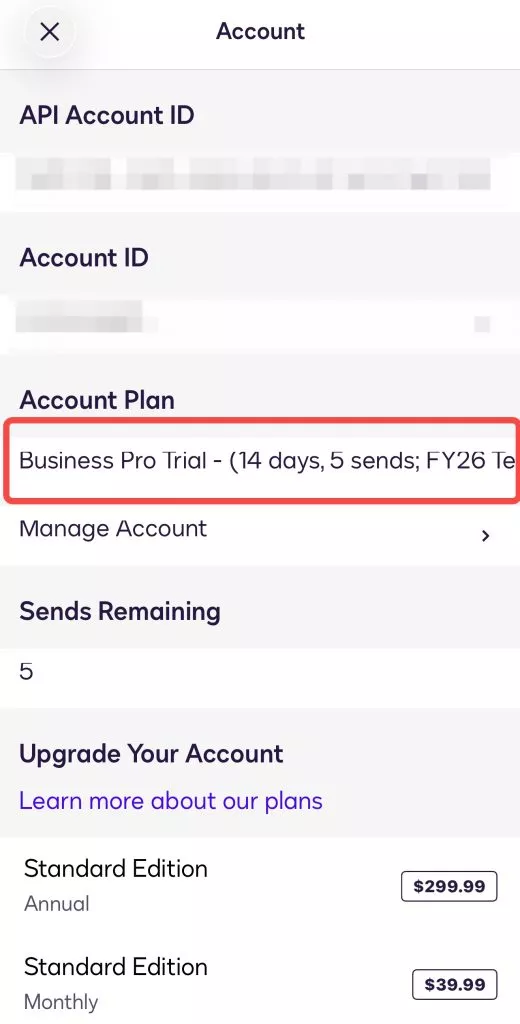
Also, don't be surprised if DocuSign asks you to log in again after a stretch of inactivity. Signing platforms commonly expire sessions for account security, so keep access to your email or login method nearby while working on a document.
Part 2. How to DocuSign a PDF You Upload Yourself
Use this method when the PDF is on your computer and you are the person placing the signature field.
Best for:
- signing your own PDF, adding a signature to a downloaded contract, or testing DocuSign with a file you control.
Not for:
- a document someone already sent you through DocuSign. Uploading a separate copy means the sender may never receive the completed envelope — use Part 3 instead.
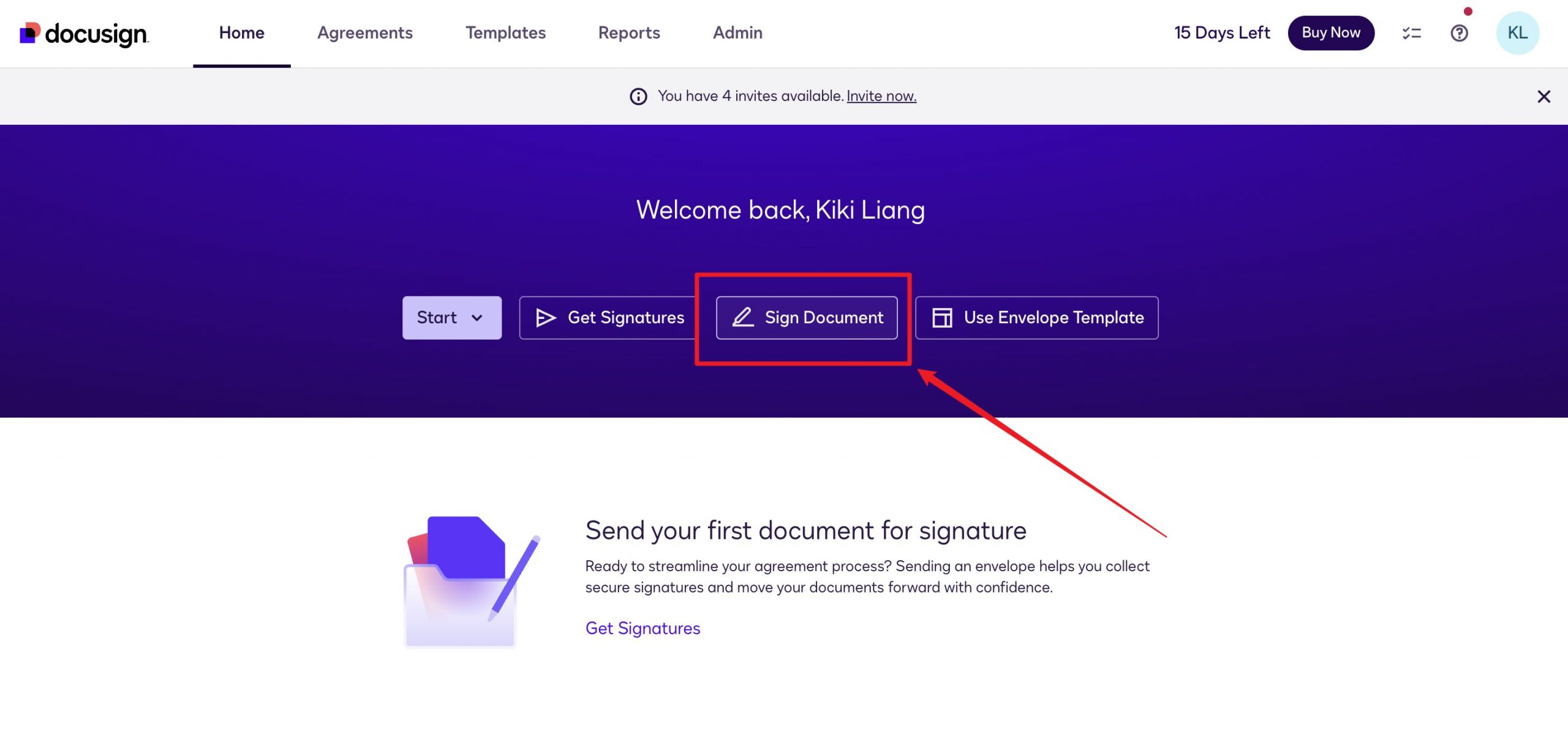
Step 1. Open DocuSign and log in to DocuSign. On the Home screen, click Sign Document.
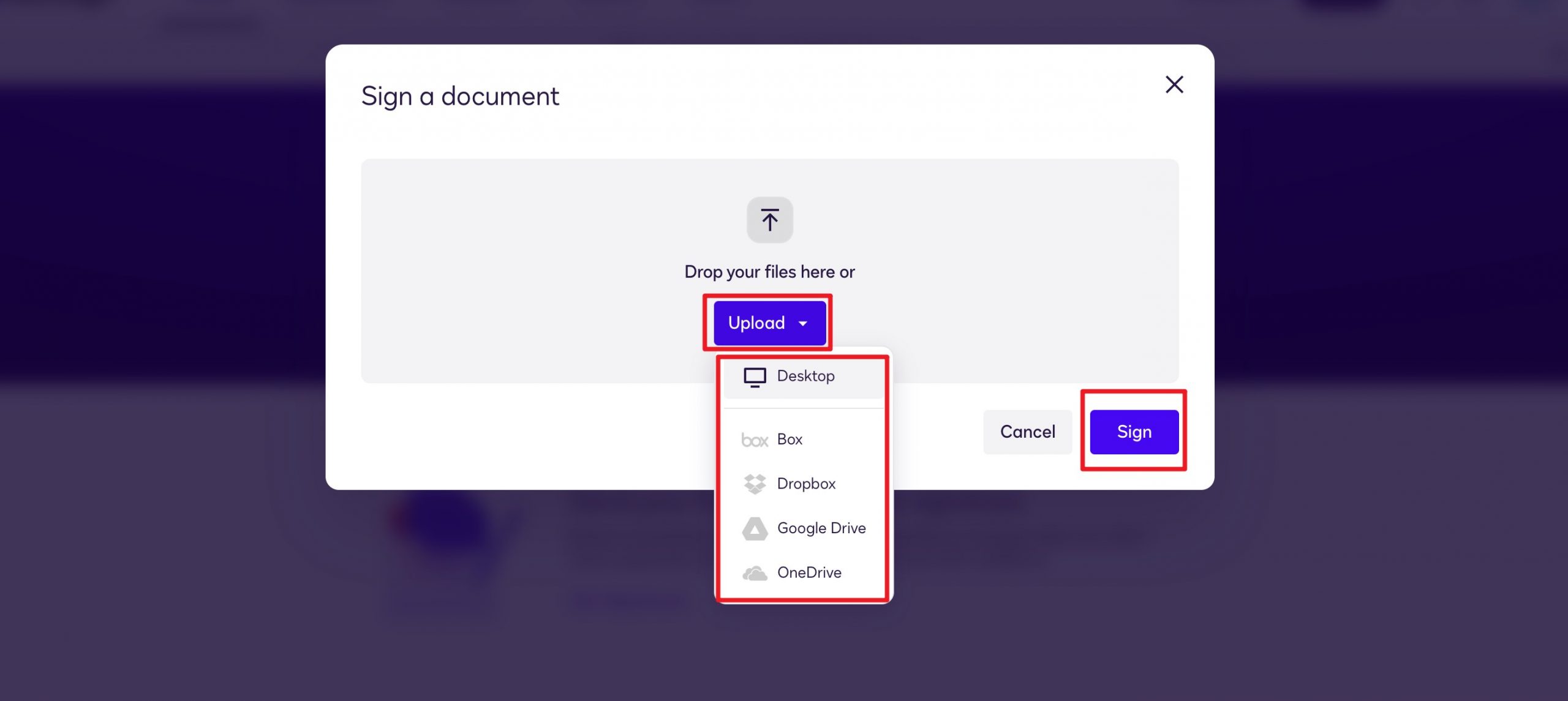
Step 2. Upload your PDF. In the Sign a document window, click Upload and pick the source — Desktop, Box, Dropbox, Google Drive, or OneDrive. Select your PDF, then click Sign.
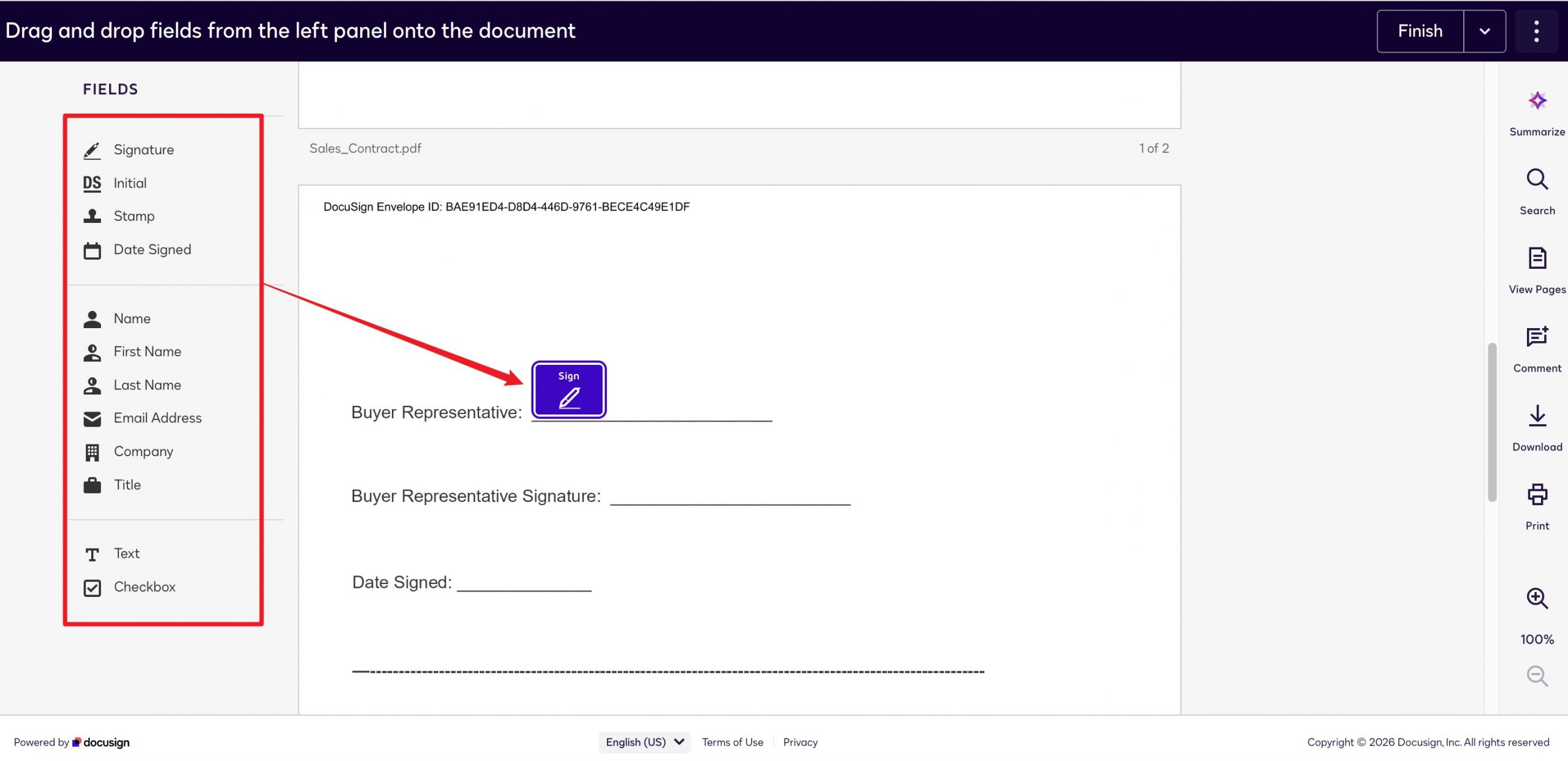
Step 3. Adopt your signature. When the PDF opens, drag the Signature field from the left panel onto the spot where you need to sign (add initials, date, text, or checkboxes if the PDF needs them).
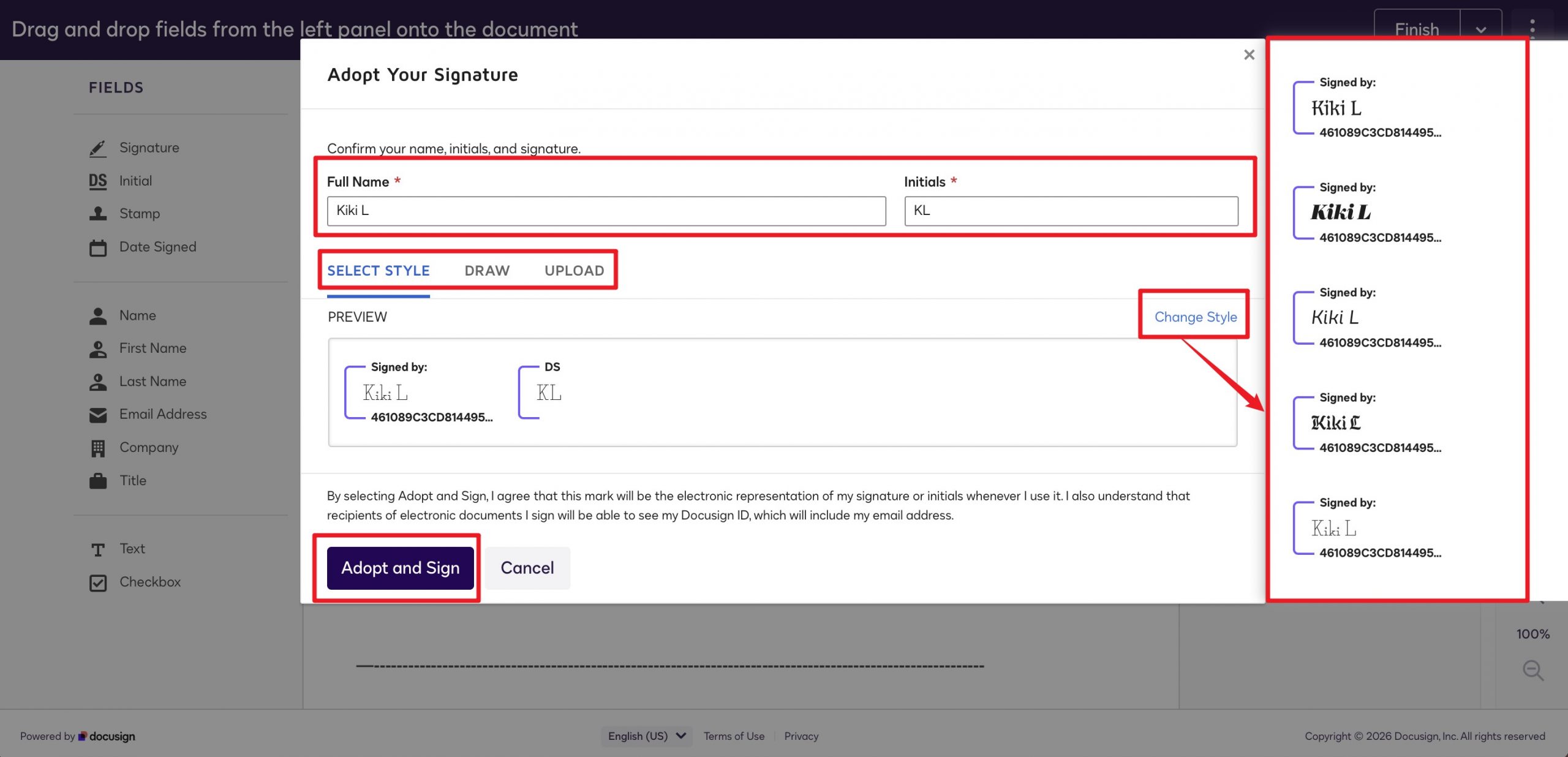
Step 4. Confirm your full name and initials in the Adopt Your Signature window, choose a style — or switch to Draw or Upload — and click Adopt and Sign.
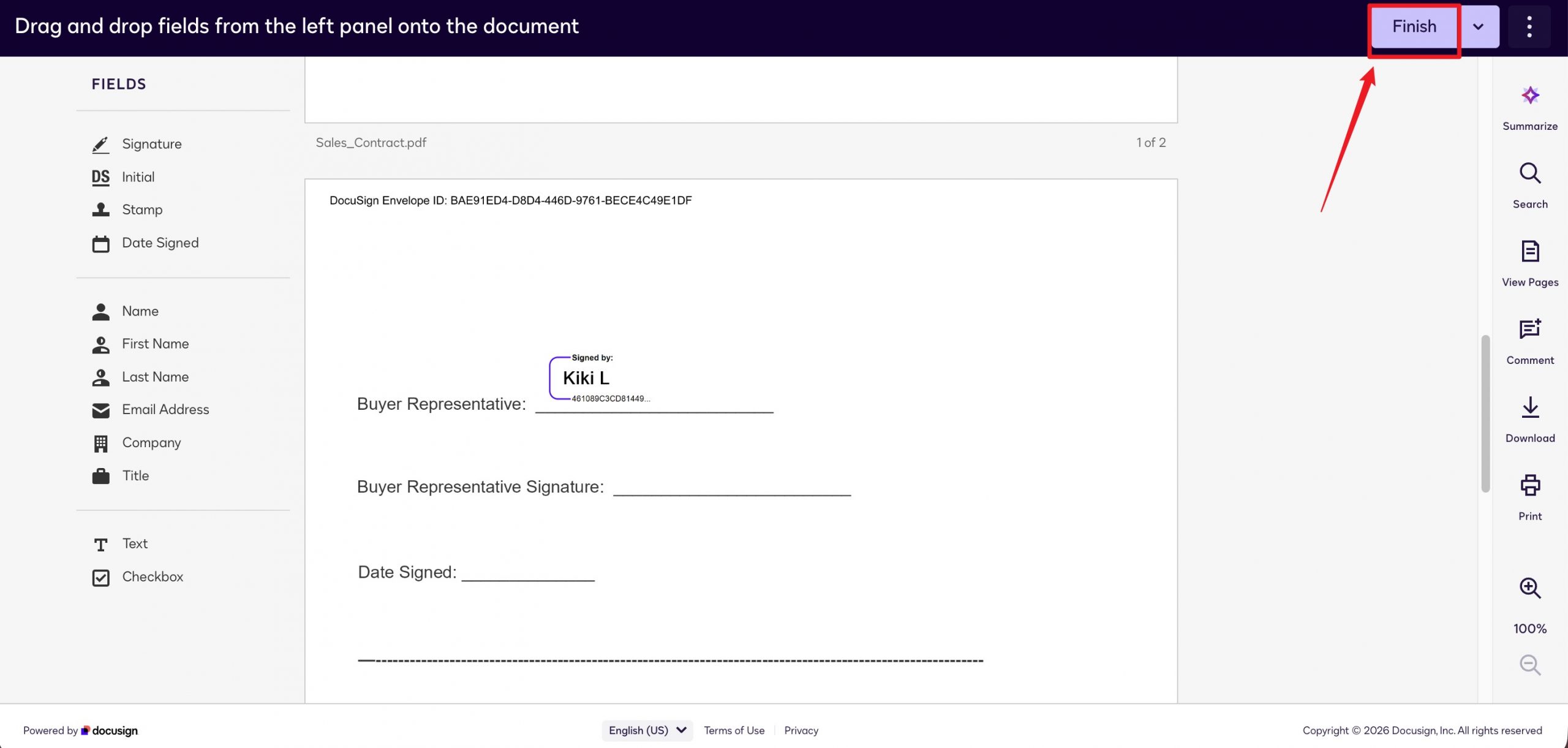
Step 5. Finish signing. Click Finish in the top-right corner.
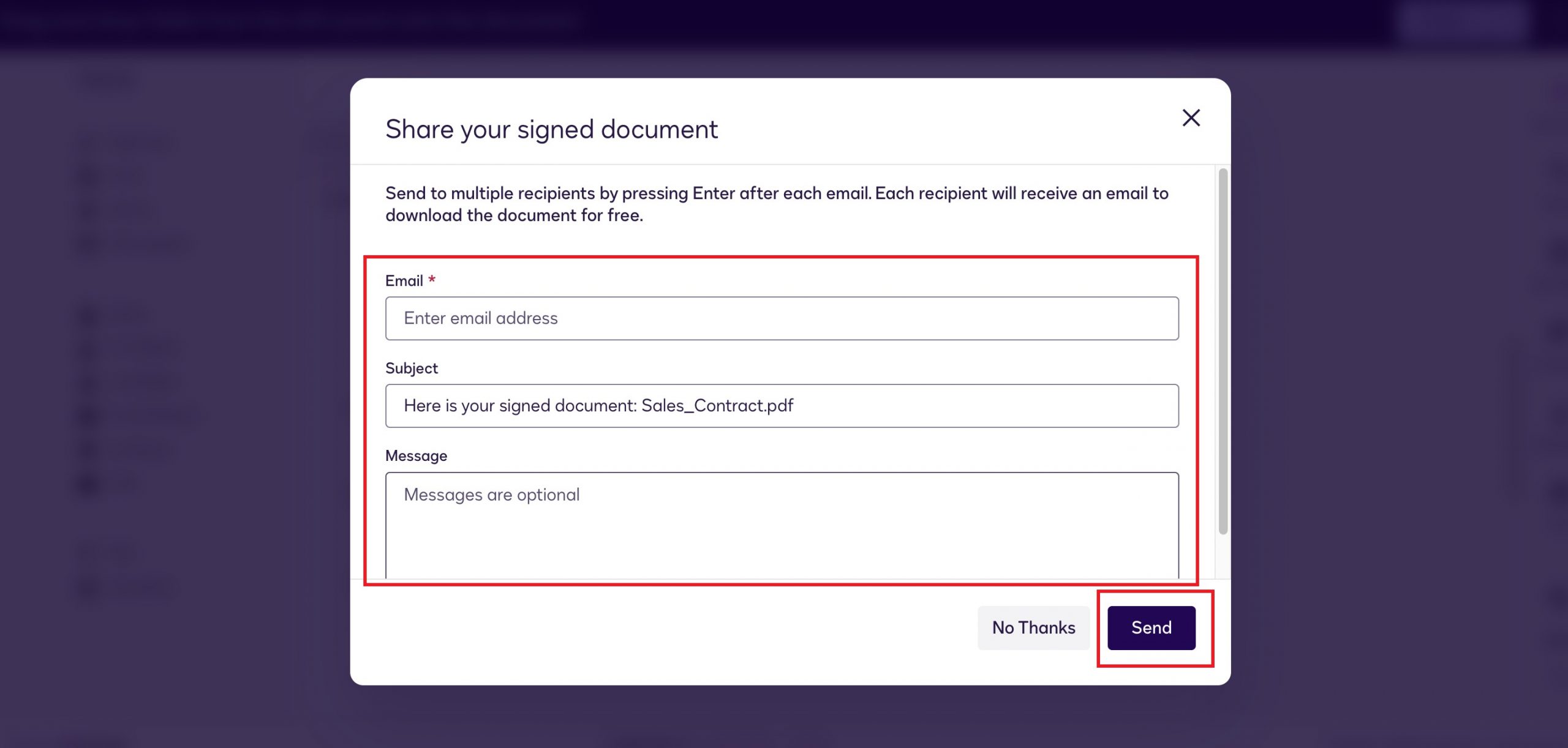
Step 6. DocuSign then offers to share the signed document — enter a recipient email and click Send, or choose No Thanks to keep the signed copy.
That signs a PDF you own. If instead a signing request landed in your inbox, the flow is different — go to Part 3.
Part 3. How to Sign a DocuSign Document Emailed to You
Use this method when someone else sends you a DocuSign email — a contract, intake form, consent form, HR document, or vendor agreement. You do not need a DocuSign account to sign one someone sent you.
Best for:
- completing a document that must go back to the sender through DocuSign.
Not for:
- editing the original layout, adding fields the sender forgot, or changing terms. If something is wrong in the file, ask the sender to correct and resend it.
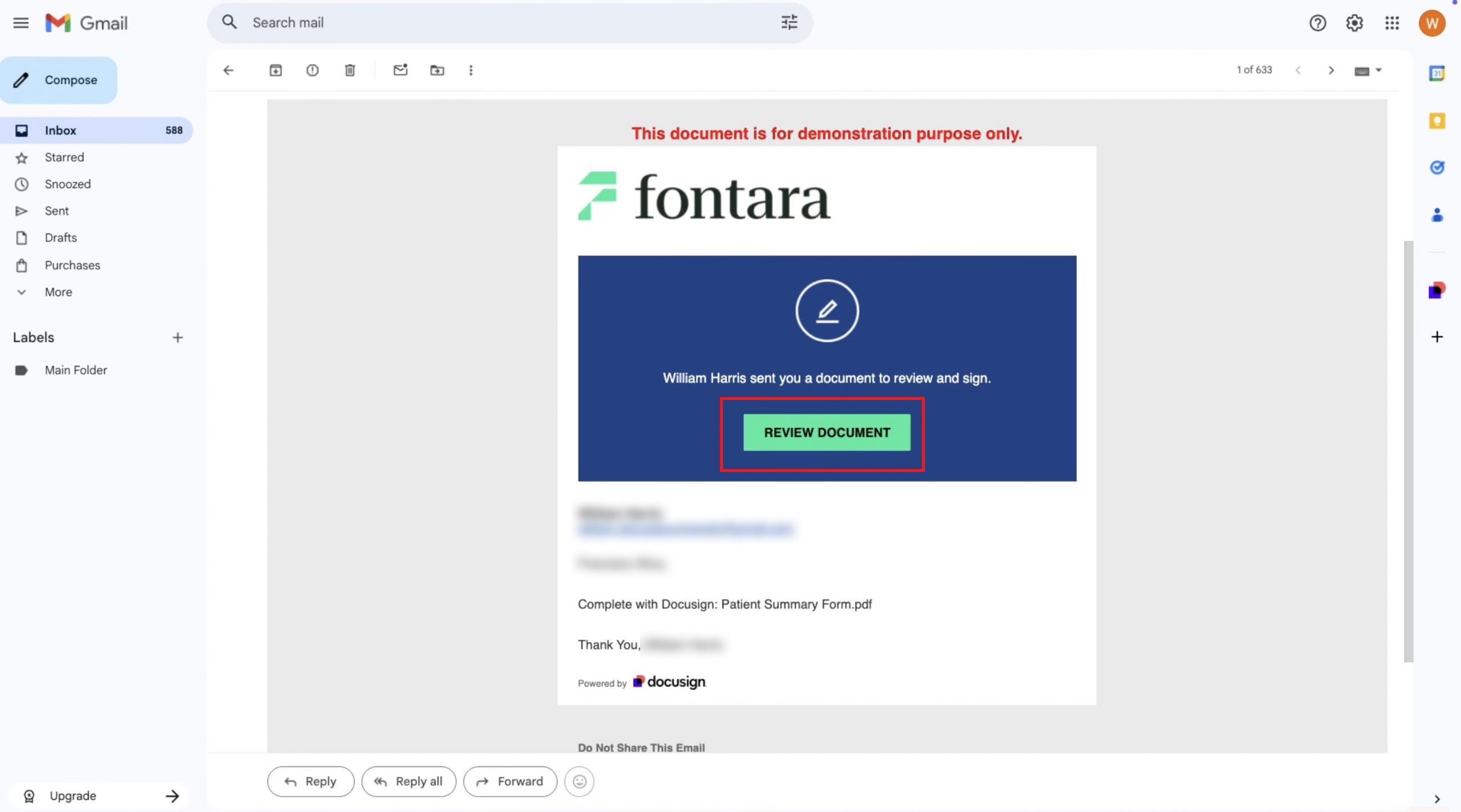
Step 1. Open the DocuSign email. Open the email (subject usually reads "… sent you a document to review and sign") and click REVIEW DOCUMENT.
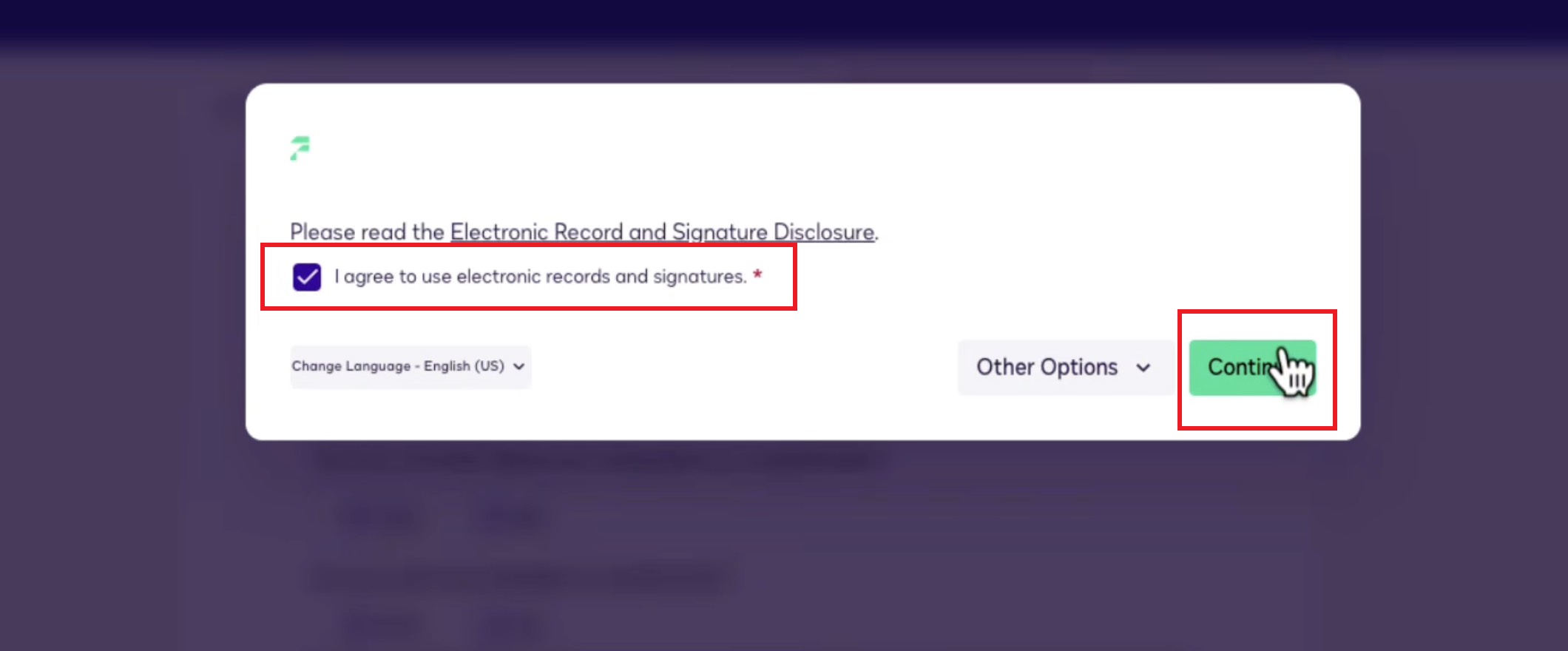
Step 2. Agree to electronic records and signatures. Tick I agree to use electronic records and signatures, then click Continue.
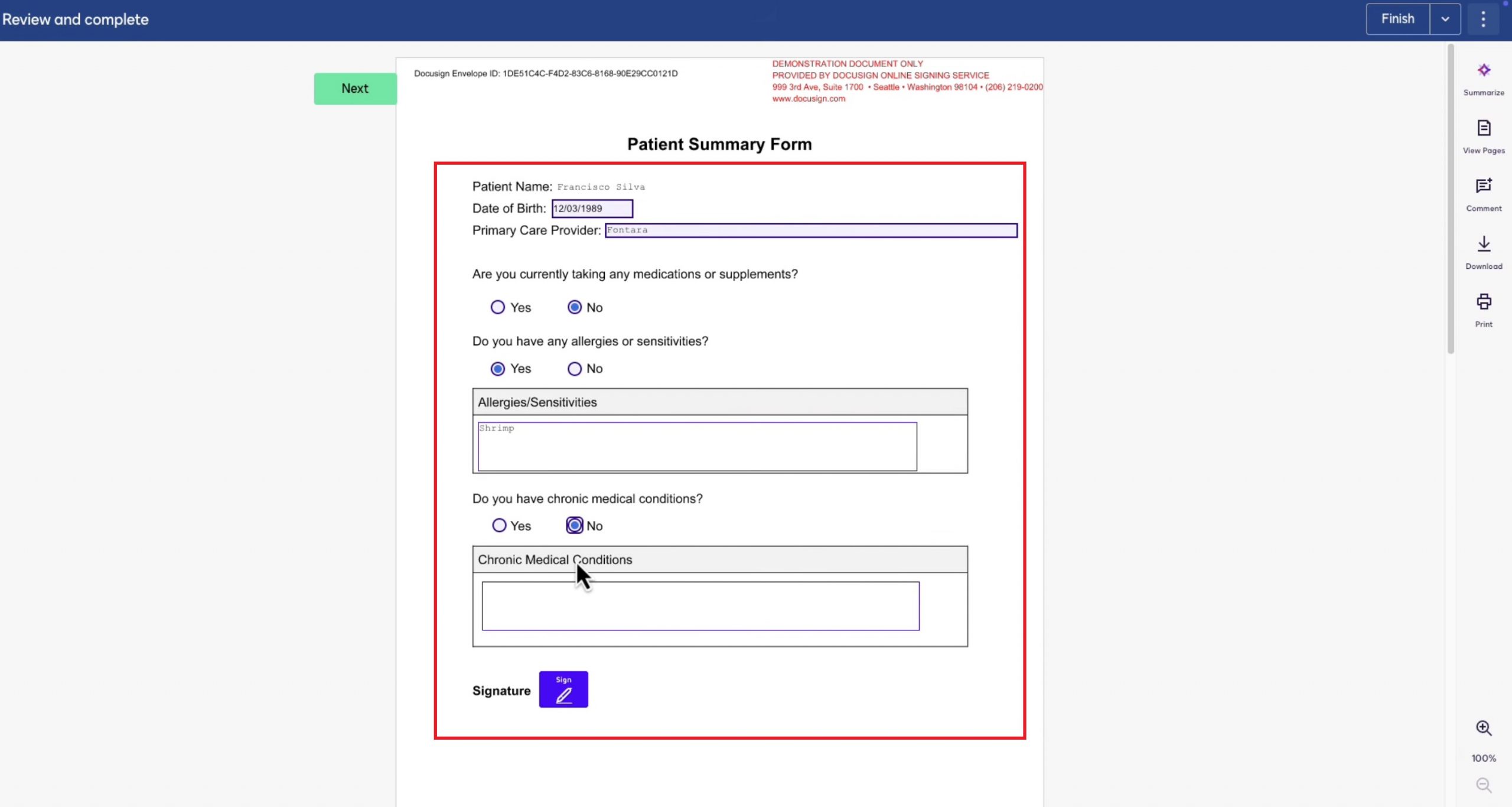
Step 3. Fill out the fields the sender marked. Complete the highlighted fields. Depending on the sender's setup, you may type text, choose radio buttons, check boxes, enter dates, or click Next to move between required fields.
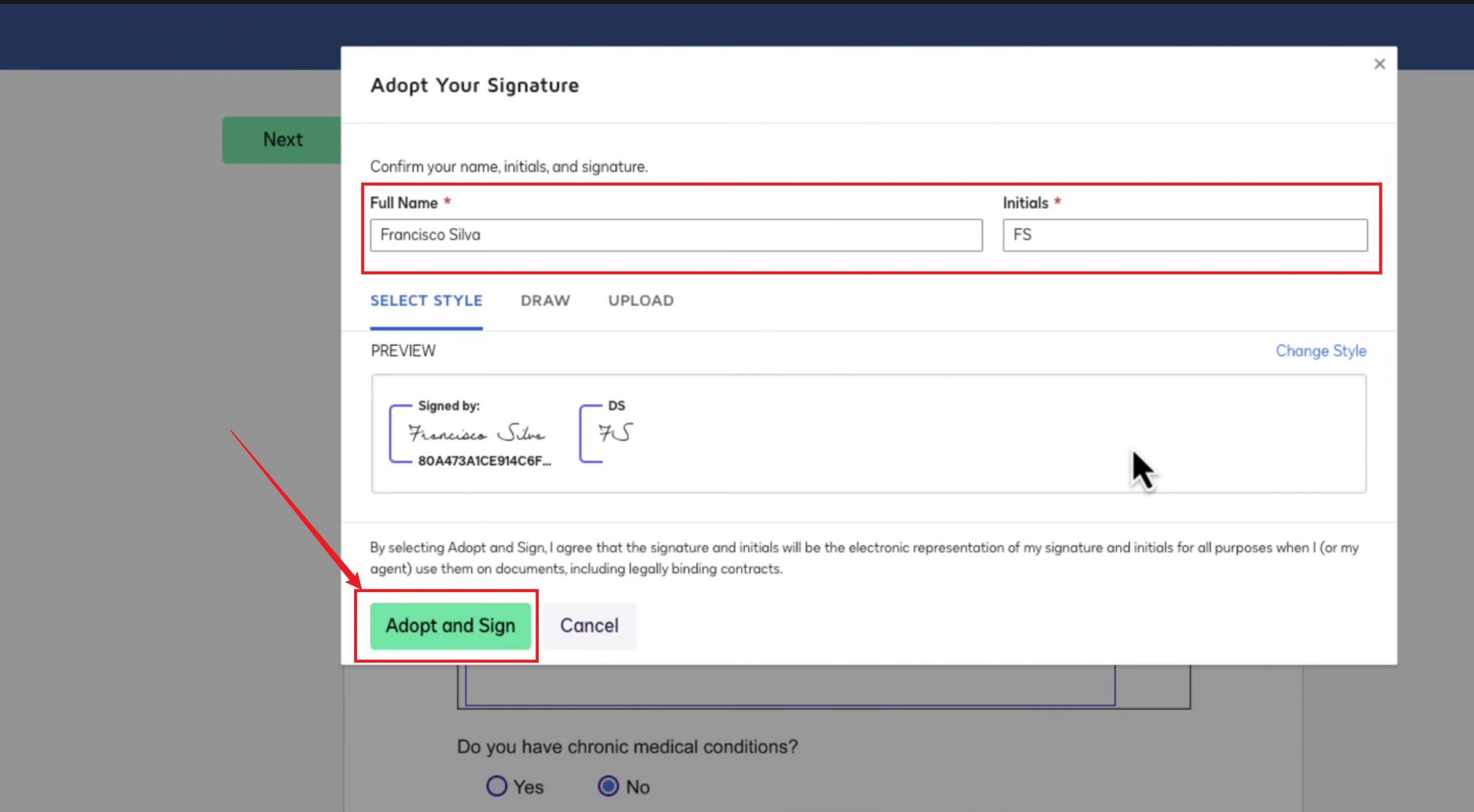
Step 4. Adopt and apply your signature. At the Signature field, confirm your name and initials, pick a style (or Draw / Upload), and click Adopt and Sign.
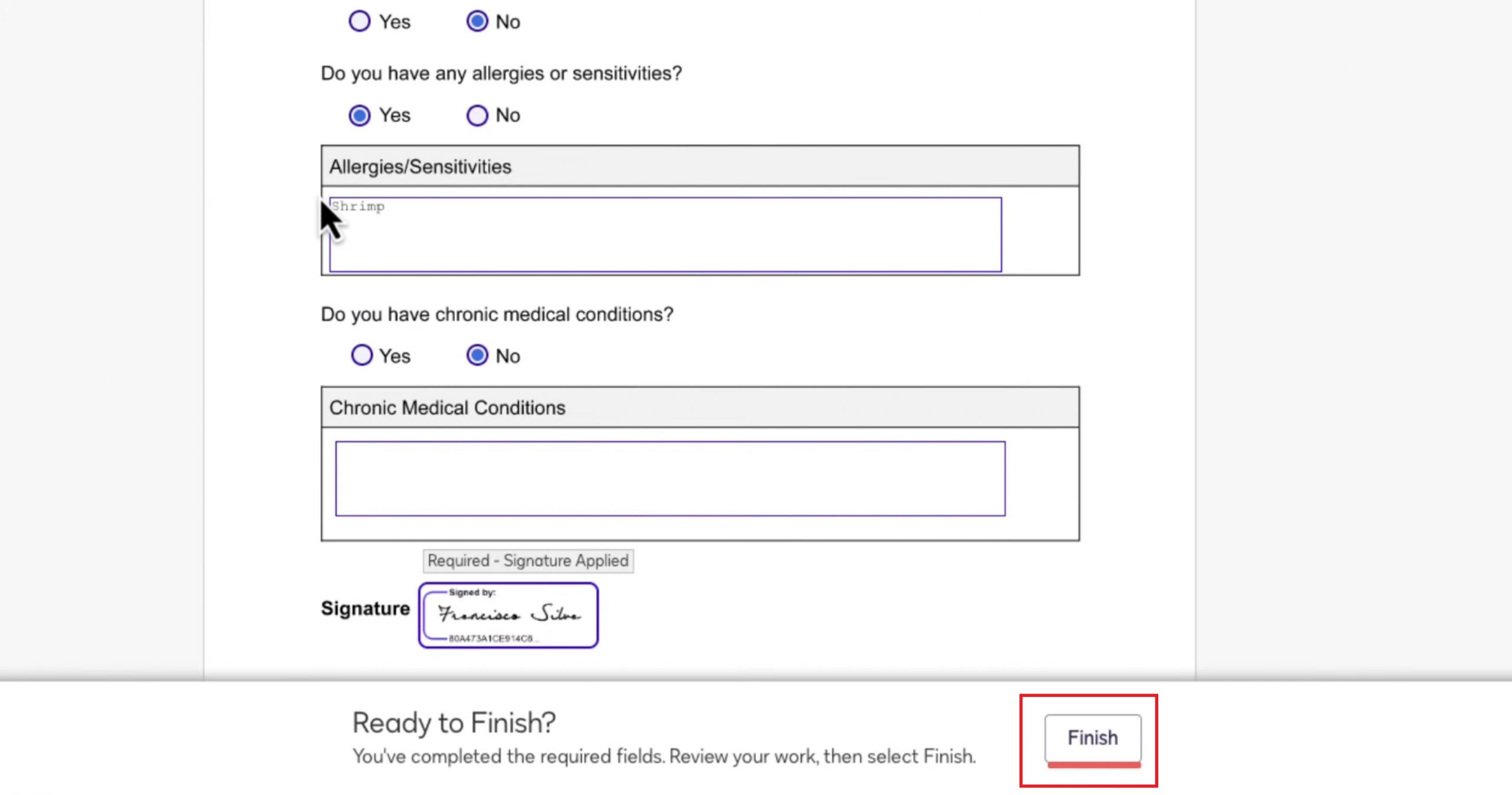
Step 5. Click Finish. With every required field complete, DocuSign shows "Ready to Finish?" Review your entries and click Finish. The signed copy goes back to the sender, and you can download your own.
Part 4. Sign One PDF Without a DocuSign Trial Clock — UPDF
Both DocuSign workflows work. The question is whether you need the full workflow at all. If you're only signing a PDF for yourself, DocuSign still puts you inside a time-limited online environment with send limits in some account views — the Business Pro trial lasts 14 days and includes 5 sends, and once it ends, a free account can still sign and return documents freely but if you’re collecting signatures, you can only send three documents. Login sessions also time out after a short stretch of inactivity, so stepping away and coming back can log you out and prompt you to sign in again. For a one-off signature, that is a lot of overhead.
UPDF fits that smaller case. Open the PDF locally, create a signature, place it on the page, and save. This is especially handy when the signature line is part of a larger form-filling task: you can fill the fields, add text to non-fillable areas, organize pages, and sign without turning the file into a routed envelope.
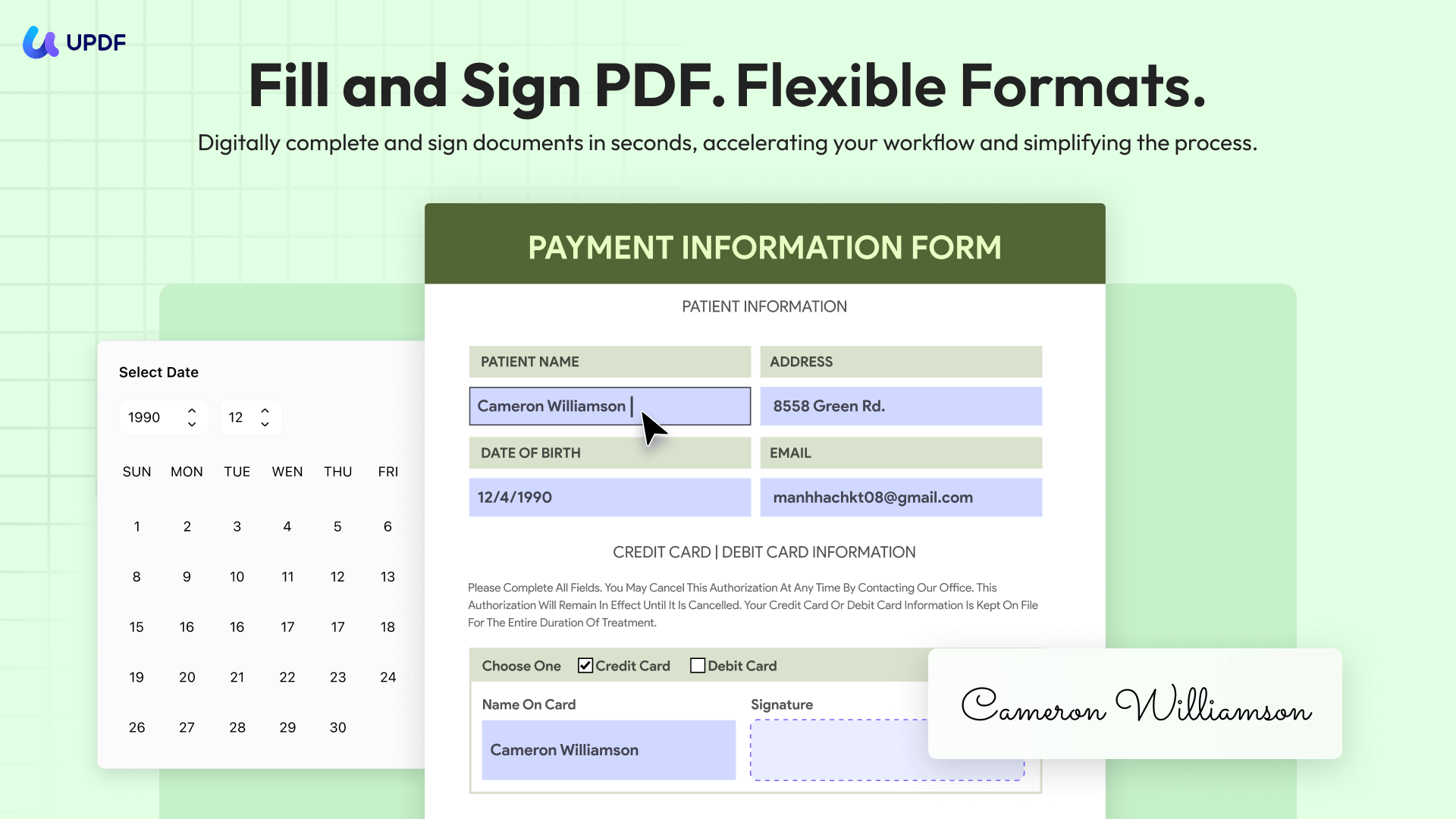
UPDF can also handle a stricter signing need: a digital signature. Use the ordinary Signature tool when you only need a visible mark on the page. Use UPDF's Digital Signature tool when the PDF needs a certificate-based signature tied to a Digital ID, so the recipient can inspect the signature properties and see whether the document changed after signing.
How to add a visible signature in UPDF (Windows or Mac):
Step 1. Open the PDF in UPDF. If you don't have UPDF yet, download UPDF for free and install it in under a minute.
Windows • macOS • iOS • Android 100% secure
Step 2. Go to Comment, choose the Signature tool, and create a signature by typing, drawing, or importing an image.
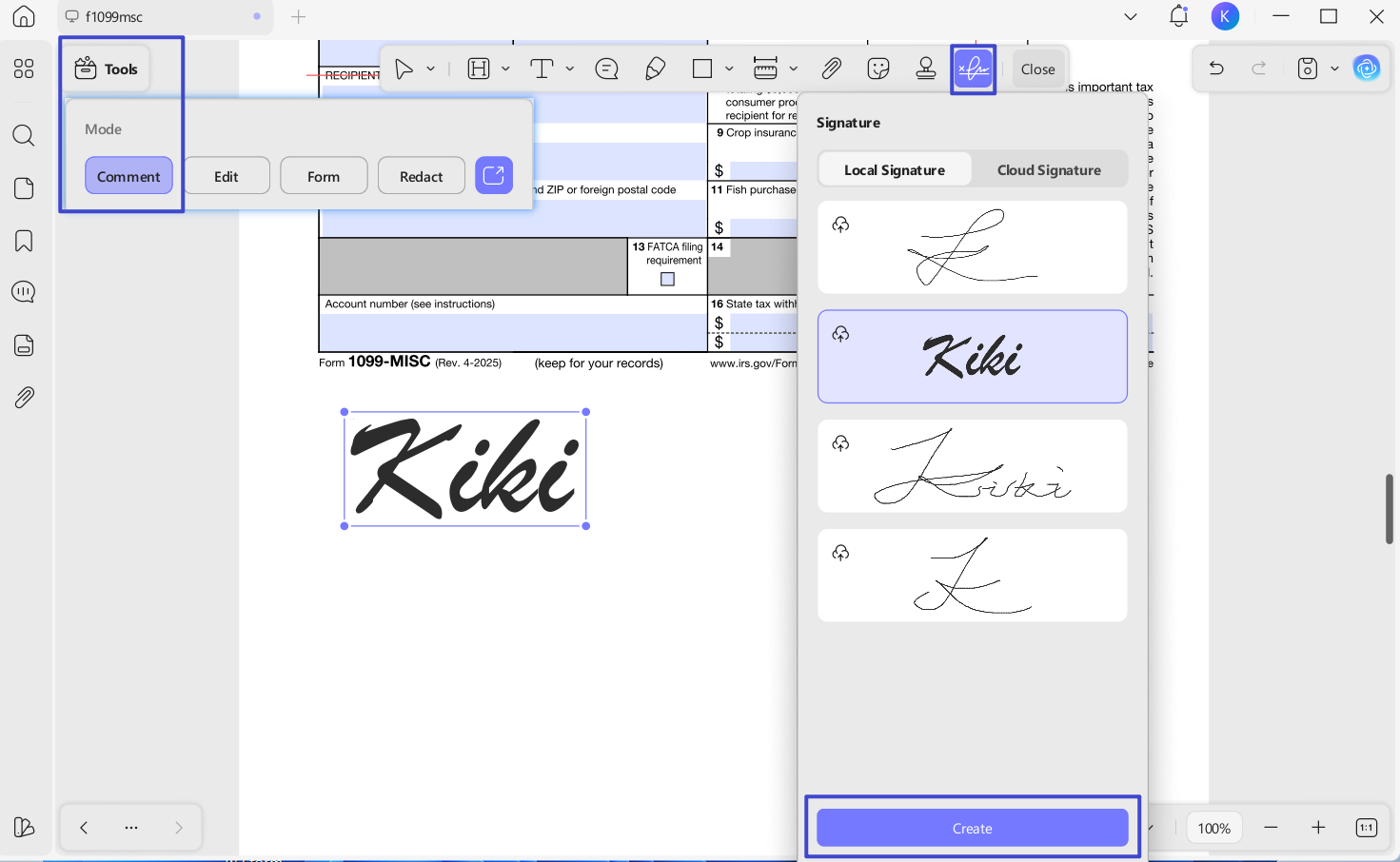
Step 3. Click the page to place the signature, resize it if needed, and save the file.
Your signature is applied and the PDF never leaves your computer. The free version adds a trial watermark on export; removing it and unlocking full editing is handled by Pro, which is a one-time-or-yearly license rather than a per-envelope charge.
Electronic vs digital signature — which one do you need?
The steps above add an electronic signature: a typed, drawn, or adopted mark that shows intent to sign. A digital signature is different: it binds the document to a certificate-based Digital ID, so anyone opening the file can verify who signed and confirm the content hasn't changed since — any edit after signing invalidates it. Think of it this way: an electronic signature is your handwriting on the page; a digital signature is a tamper-evident seal that also proves who applied it.
Use an electronic signature for everyday forms and internal approvals. Use a digital signature when a document needs verifiable identity and tamper-proofing — tax filings, formal contracts, or anything a counterparty may need to validate. UPDF can apply a true certificate-based digital signature locally on Windows or Mac:
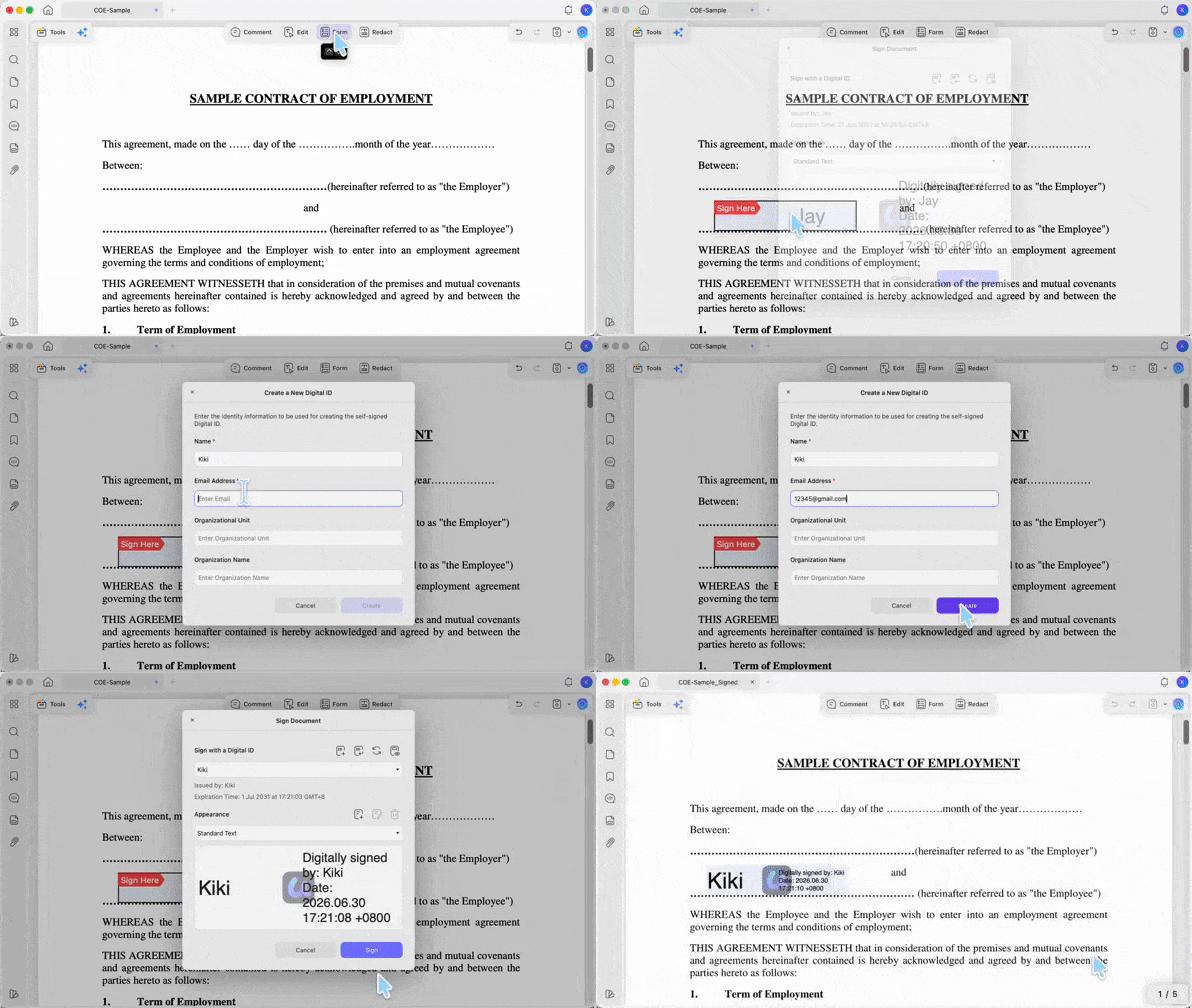
Step 1. With the PDF open, go to Tools and select Form.
Step 2. Click the Digital Signature icon in the top toolbar, then draw a signature box where it belongs.
Step 3. Switch to Comment mode and double-click the box to open the Sign Document window.
Step 4. Click Create to build a new Digital ID (you can save it and set a password), or Import to load an existing one. Click Sign, then choose where to save the signed file. Make all edits first — changing the PDF after signing can affect the signature status.
If the document is a form, start with how to fill in a PDF form so the fields are correct before you add the final signature.
Before sharing the signed copy, check that the signature sits in the right place. The demonstration below gives some context for working with PDF forms in UPDF.
Download UPDF for free to fill, edit, organize, and sign PDFs on your own file before sending it out — installation is free, and Pro features are available when you need export or advanced tools.
Windows • macOS • iOS • Android 100% secure
Part 5. When You Need to Send a PDF for Others to Sign — UPDF Sign
Signing locally covers the "just me" case. Once your real job is to send a document and collect signatures from other people, you need a sending platform — and DocuSign already does this well. UPDF Sign is an alternative worth knowing mainly on cost: its paid individual plan is cheaper per year than DocuSign's and includes more yearly signature requests. Both offer only a small free allowance to test with — DocuSign a time-limited trial, UPDF Sign 2 requests — so the real comparison is the paid plans. UPDF Sign does the same core job: it sends a PDF out for legally binding e-signatures, tracks who has signed, and lets recipients sign from an emailed link without creating an account, just like DocuSign.
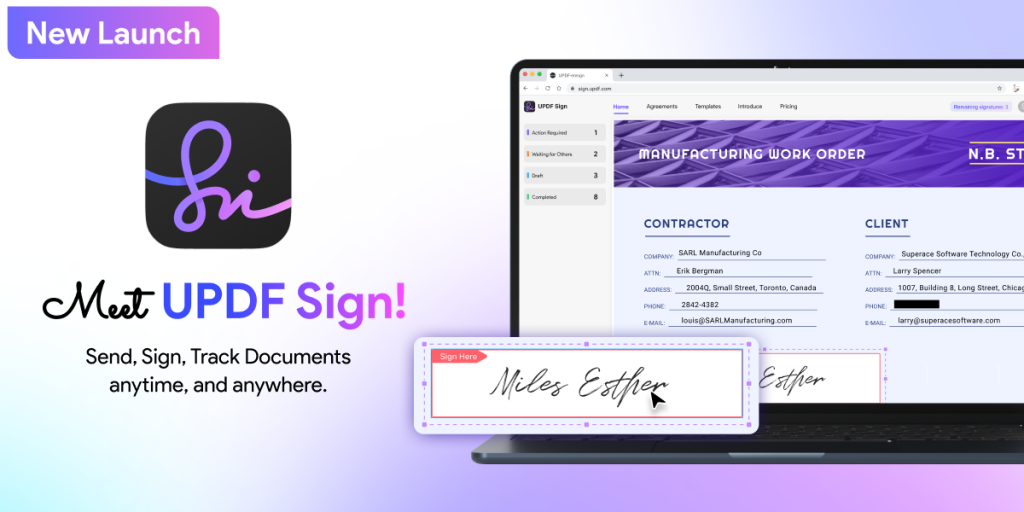
Steps in UPDF Sign:
Step 1. Open UPDF Sign and click Initiate Signatures.
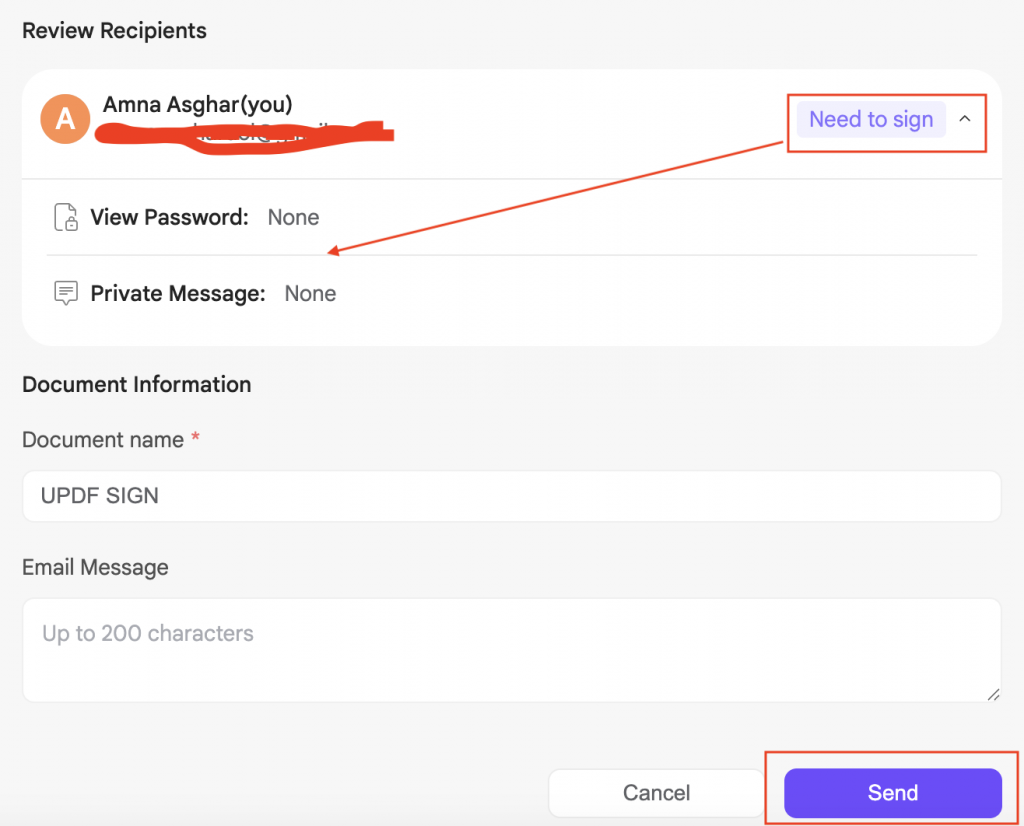
Step 2. Upload the document. Turn on Just need my signature if you are the only signer, or add recipients and toggle Set signing order if they must sign in sequence. Enter a document name and message, then click Continue.
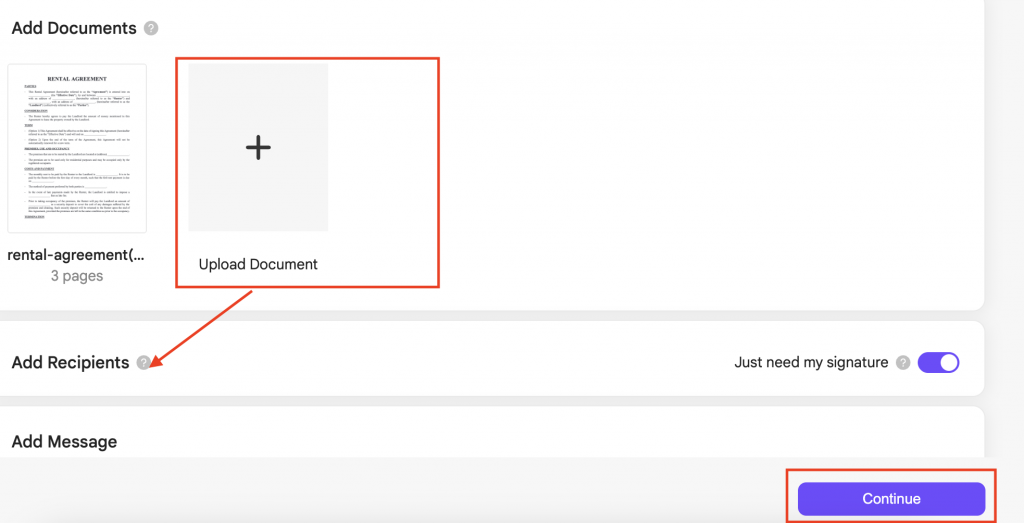
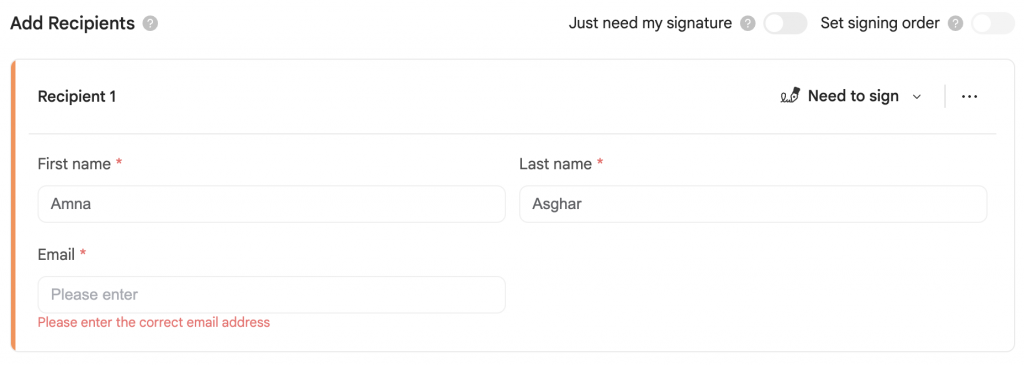
Step 3. Drag a Signature field onto the page for each recipient, then click Finish to send.
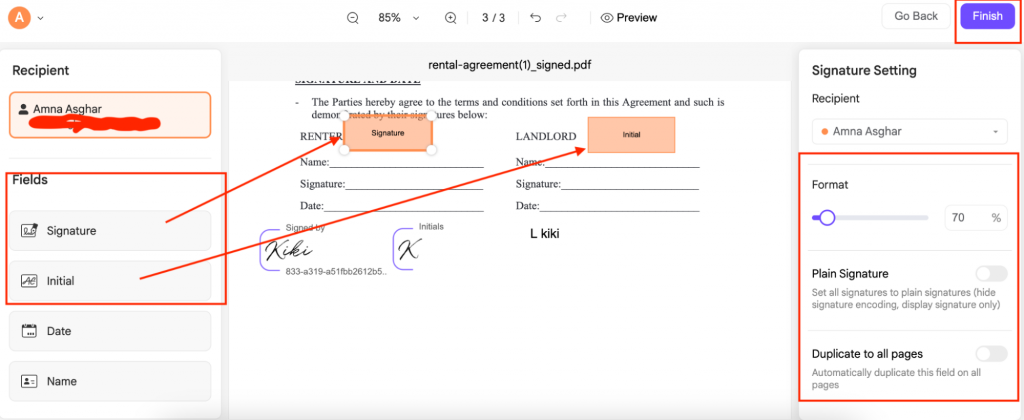
Step 4. Next, choose the “Need to Sign” option to verify the document's privacy. Also, don’t forget to check your Document Name and Email message. Next, click “Send” to successfully send the Signature request.
On pricing, DocuSign's cheapest individual plan, Personal, runs about $132/year (5 envelopes a month). UPDF Sign is a separate product from UPDF Pro with its own plans: an Individual plan at US$99/year that includes 300 signature requests plus 20GB of cloud storage — cheaper per year and more yearly requests than DocuSign Personal. Both have only a token free allowance for testing (DocuSign a time-limited trial, UPDF Sign 2 requests), so neither is meant for ongoing free use. A UPDF account logs you straight into UPDF Sign without a second registration, but the two are billed independently.
One more difference on recipients: DocuSign caps a single envelope at 99 recipients. UPDF Sign doesn't hand you a fixed tier to choose from — you add as many recipients as the document needs, and each gets their own signing email. For most everyday agreements neither limit matters, but it's worth knowing if you ever collect signatures from a very large group at once. Those recipients do not need their own UPDF Sign accounts to sign. They open the email link, review the document, and complete the assigned fields.
If someone already sent you a DocuSign/UPDF Sign link, complete that request instead of creating a separate signed copy. If you're the sender and still preparing the PDF, use UPDF first to get the file right, then choose DocuSign or UPDF Sign for the collection step.
Part 6. DocuSign vs UPDF vs UPDF Sign — Which Fits Your Task?
All three can be part of a signing workflow, but they solve different jobs. Pick by what you're doing, not by brand.
| DocuSign | UPDF | UPDF Sign | |
|---|---|---|---|
| Best task | Send envelopes for others to sign | Fill, edit, organize, and sign your own PDF (visible or digital) | Send PDFs out and collect others' signatures |
| File handling | Uploaded to DocuSign cloud | Works as a local file on your device | Uploaded for an online signing workflow |
| Free access | Trial/account allowance varies; sending capped | Free; trial watermark on export | 2 signature requests to test |
| Entry price | Personal $11/mo ($132/yr), 5 envelopes/mo | Pro ~$49.99/yr or ~$79.99 lifetime | $99/yr individual, 300 requests |
| Signature type | Electronic (audit trail) | Electronic + certificate-based digital | Electronic (tracked, audit trail) |
| Recipients per document | Up to 99 per envelope | Local signing (self) | No fixed tier — add as many as needed |
| Also does | E-signature workflow | Edit, convert, OCR, annotate, protect, organize, fill forms | Send, track, audit trail, templates |
| Platforms | Web, mobile | Windows, Mac, iOS, Android | Web |
DocuSign pricing verified on its official plans page; UPDF pricing on the UPDF pricing page; UPDF Sign is priced separately on its own pricing page. Prices change — check each before purchasing.
DocuSign and UPDF Sign are sending platforms; UPDF is the local PDF workspace around the signature. If you regularly send contracts to many people, DocuSign or UPDF Sign is the right shape. If you mostly sign documents that come to you — or fix and sign your own before sending — a local editor like UPDF handles it without a trial countdown.
Windows • macOS • iOS • Android 100% secure
Part 7. Edge Cases Before You Click Finish
"I signed a downloaded copy, but the sender says I haven't completed it." This happens when you treat a DocuSign request like an ordinary attachment. If the sender used DocuSign, complete the signing link inside the envelope — signing a separate downloaded PDF won't update the sender's status.
"I reopened the signing link later and had to log in again." Normal for secure web apps. If your session expires, log back in from the official DocuSign page or reopen the original email link. Don't start a new upload flow unless you're sure you're no longer completing the sender's envelope.
"The PDF needs a correction, but DocuSign only lets me fill assigned fields." As a recipient, you usually can't redesign the document or add missing fields. Ask the sender for a corrected version. If you own the PDF and need to fix the form first, prepare it in UPDF, then send it through UPDF Sign or DocuSign.
The email link says "already signed" or won't open. DocuSign links are single-recipient and can expire. Ask the sender to resend the envelope to your exact email address — forwarding the original email to someone else does not transfer signing rights.
Part 8. Frequently Asked Questions
1. Can I DocuSign a PDF on my phone?
Yes. Received-document links open in a mobile browser or the DocuSign app, and you can adopt and sign there.
2. Is DocuSign the same as signing a PDF in a PDF editor?
No. DocuSign manages a signing transaction, while a PDF editor manages the PDF file itself. For form filling and PDF changes, use a PDF editor such as UPDF; for routed signing and tracking, use DocuSign or UPDF Sign.
3. What should I do if the DocuSign email looks suspicious?
Do not click immediately. Verify the sender, document context, and email domain. If the request is unexpected, contact the sender through a separate channel before opening the signing link.
Conclusion
To DocuSign a PDF, first identify the workflow. If the PDF is yours, upload it, place the signature field, adopt your signature, and click Finish. If someone sent you a DocuSign request, open Review Document from the email, agree to electronic records and signatures, complete the required fields, and finish the envelope — no account needed for the second.
For a simpler DocuSign alternative, use UPDF to sign your own PDFs locally, including visible signatures and certificate-based digital signatures on Windows, Mac, iOS, and Android.
Windows • macOS • iOS • Android 100% secure
When you need to send documents to others and collect e-signatures, use UPDF Sign. It offers a DocuSign-like signing workflow at a lower annual cost for individual users.






 Enola Davis
 Enrica Taylor
 Engelbert White