 UPDF
UPDF
 UPDF for Windows
 UPDF for Mac
 UPDF for iPhone/iPad
 UPDF for Android
 Nomostar
 UPDF AI Online
 UPDF Sign
 IvyCraft
 Edit PDF
 Annotate PDF
 Create PDF
 PDF Form
 Edit links
 Convert PDF
 OCR
OCR PDF to Word
 PDF to Image
 PDF to Excel
 Organize PDF
 Merge PDF
 Split PDF
 Crop PDF
 Rotate PDF
 Protect PDF
 Sign PDF
 Redact PDF
 Sanitize PDF
 Remove Security
 Read PDF
 UPDF Cloud
 Compress PDF
 Print PDF
 Batch Process
 About UPDF AI
 UPDF AI Solutions
 AI User Guide
 FAQ about UPDF AI
 Summarize PDF
 Translate PDF
 Chat with PDF
 Chat with AI
 Chat with image
 PDF to Mind Map
 Explain PDF
 PDF AI Tools
 Image AI Tools
 AI Chat Tools
 AI Writing Tools
 AI Study Tools
 AI Working Tools
 Other AI Tools
 AI Bookmark Generation
 AI Bookmark Summary
 AI Watermark Generation
 AI Background Generation
 AI Sticker Generation
 AI Stamp Generation
 AI Editing Suite
 UPDF Copilot
 AI Page Management
 AI Semantic Search
 PDF to Word
 PDF to Excel
 PDF to PowerPoint
 Enterprise Solution
 Enterprise Sign
 Enterprise AI
 Enterprise Plan
 Enterprise User Guide
 Enterprise Webinar
 IT
IT Education
 Construction
 Financial Service
 Healthcare
 Insurance
 Legal
Legal Manufacturing
 Government
 Researchers & PhDs
 Solopreneurs & Freelancers
 Lawyers & Legal Professionals
 Real Estate Agents & Brokers
 Education Solution
 Customer Stories
 User Guide
 UPDF Tricks
 FAQs
FAQs UPDF Reviews
 Download Center
 Blog
Blog Newsroom
 Tech Spec
 Updates
 UPDF vs. Adobe Acrobat
 UPDF vs. Foxit
 UPDF vs. PDF Expert

Adobe Acrobat may display “The document could not be saved. Bad parameter” when it finds a problem in the PDF’s underlying structure, tags, permissions, interactive elements, or save location. Before changing the file, make a copy so you do not overwrite the only version containing your edits.
Start with the least disruptive fix: save a local copy under a new name. If that fails, combine the PDF with another file, rebuild the PDF, or open the copy in another editor such as UPDF. The four methods below explain what each fix changes and when it may remove interactive content.
Windows • macOS • iOS • Android 100% secure
Part 1. Why You’re Getting the “Bad Parameter” Save Error in Adobe
Adobe states that a “Bad Parameter” error can occur when Acrobat encounters a problem with the PDF’s underlying tag structure. Similar save failures can also appear when the file is stored in a synced folder, opened by another process, restricted by permissions, or contains forms, signatures, annotations, fonts, or other elements that Acrobat cannot process correctly.
| Likely cause or situation | Best fix to try first |
|---|---|
| Cloud folder, file lock, or destination issue | Use Save As and save a renamed copy to a local folder |
| Problem in the PDF’s tags or page structure | Combine the PDF with a blank PDF and save the result |
| Conflicting form fields, annotations, layers, or embedded content | Flatten, print, or recreate a copy of the PDF |
| The file saves in another editor but not Acrobat | Update or repair Acrobat; continue with the working copy if appropriate |
If Acrobat displays a different message or PDFs fail to save for several unrelated reasons, see this broader guide to fix a PDF that cannot be saved.
Part 2. How to Fix “The Document Could Not Be Saved. Bad Parameter” Error (4 Fixes)
Before you begin: Keep the original PDF and work on a copy. Flattening, printing, or converting through PostScript can remove form fields, comments, links, bookmarks, multimedia, or signature functionality.
Fix 1. Save a Renamed Copy to a Local Folder
This is the safest first step because it does not intentionally change the PDF’s contents.
- In Acrobat, choose File > Save As rather than overwriting the current file.
- Give the copy a short new name and save it to a local folder such as Desktop or Documents, not Google Drive, OneDrive, a network drive, or an email attachment location.
- Close any File Explorer/Finder preview of the PDF and make sure the file is not open in another app. Then try saving the local copy again.
If the local copy saves correctly, the problem was likely related to the original path, synchronization, or another process using the file.
Fix 2. Combine the PDF with Another PDF
Adobe officially recommends combining the affected PDF with another PDF when damaged tags or page structure trigger the error. A one-page blank PDF is sufficient. This method is especially relevant when the error appears while inserting, deleting, or organizing PDF pages.
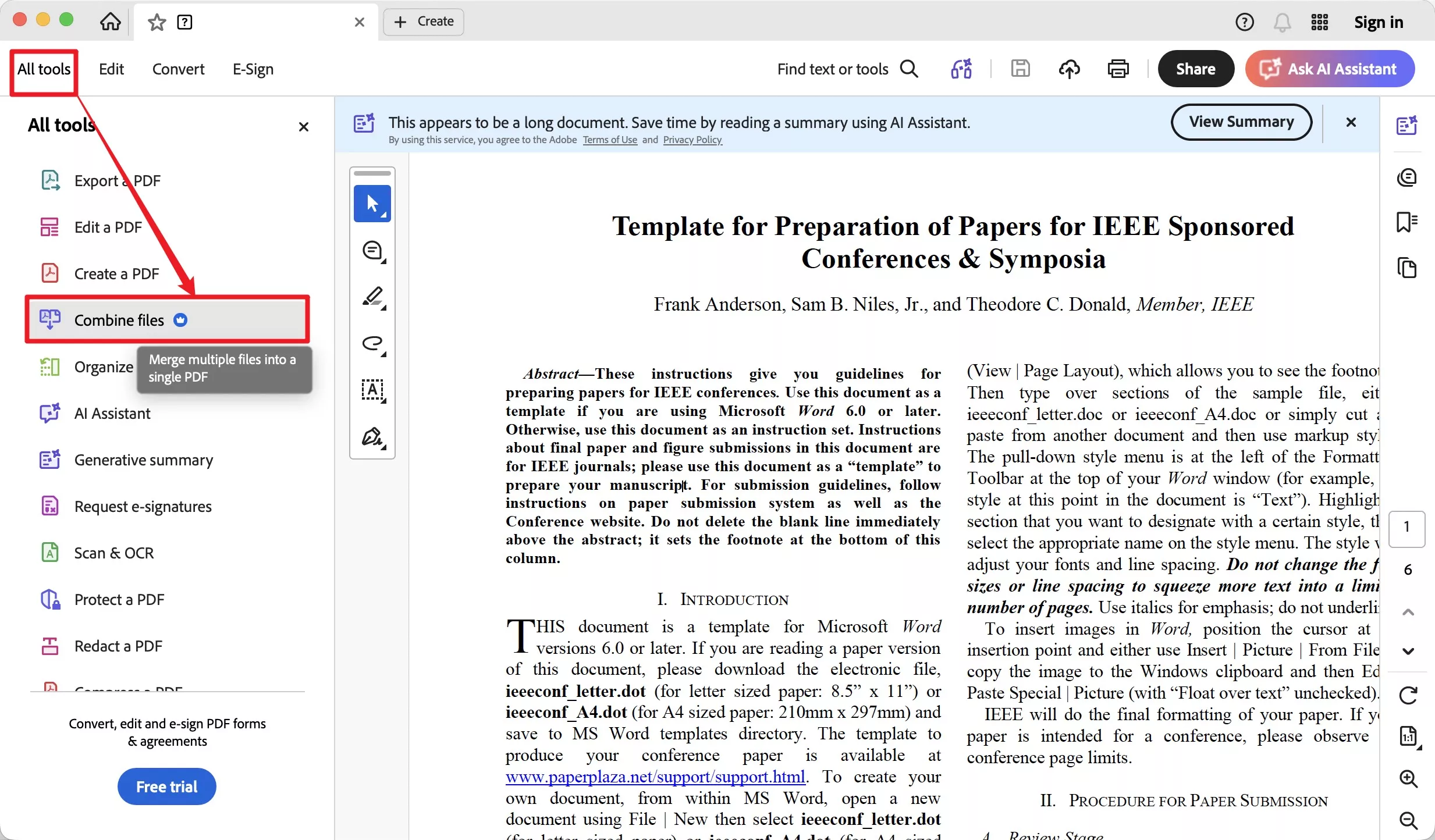
Step 1. In Acrobat, select All Tools > Combine Files > Add Files. Add the affected PDF and a second PDF.
Step 2. Select Combine, save the new file under a different name, and check that every page and interactive element still works.
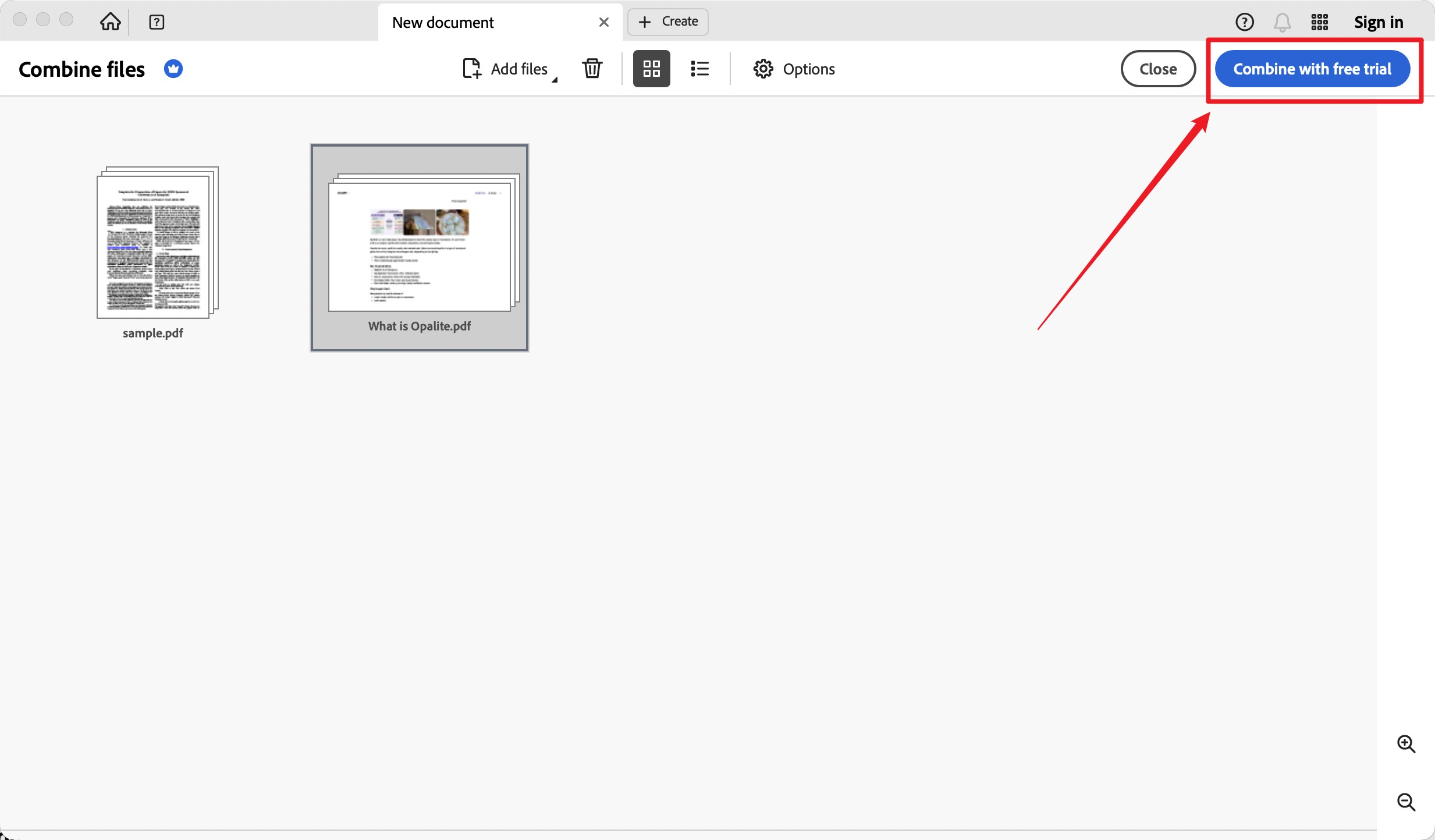
Note: Adobe warns that workflows which rebuild a PDF may affect interactive elements. Keep the original if the document contains forms, multimedia, scripts, or digital signatures.
Fix 3. Rebuild the PDF by Flattening, Printing, or Using PostScript
These methods create a less interactive copy and may bypass a structural conflict. Use them only after preserving the original.
Option A: Flatten the PDF in Acrobat Pro
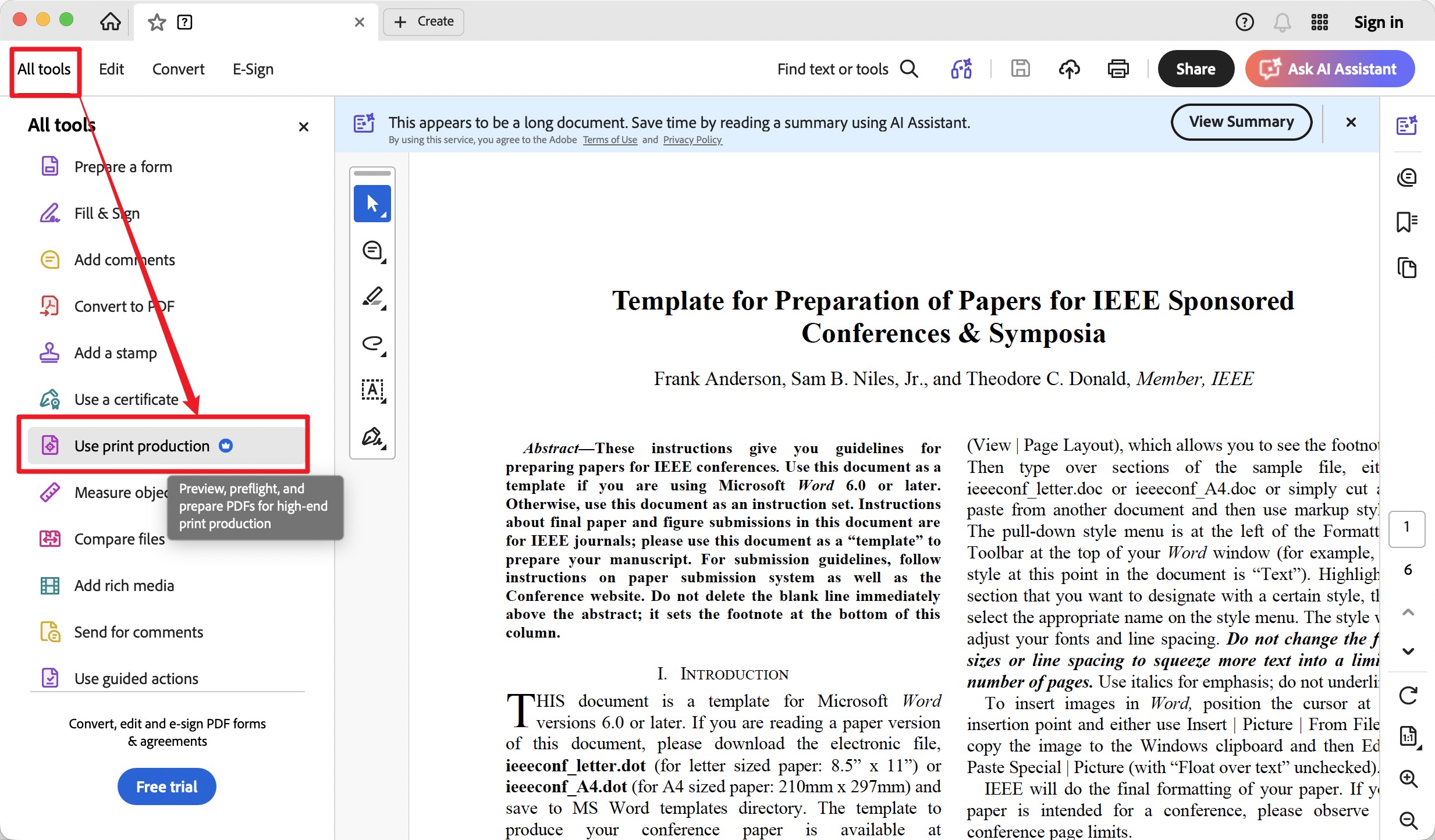
Open All Tools > Use Print Production, choose Flattener Preview, select the appropriate settings, and apply them to a copy. For a separate walkthrough, see how to flatten a PDF form.
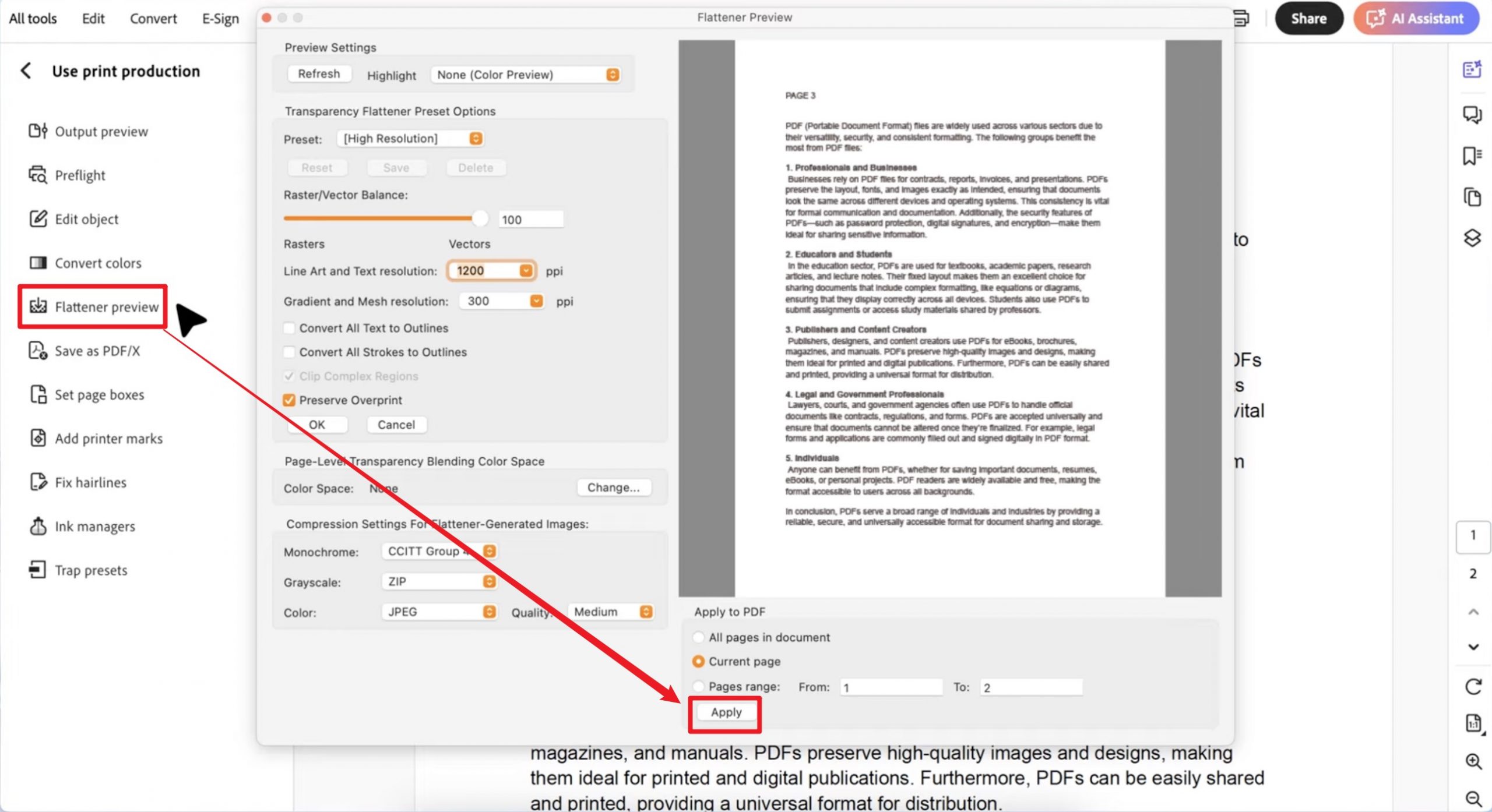
Flattening can make annotations and form fields non-editable, so confirm that the output is suitable before sharing it.
Option B: Print the PDF to a New PDF
Press Ctrl + P on Windows or Cmd + P on Mac. Choose Microsoft Print to PDF on Windows or Save as PDF on Mac, then save the output under a new name.
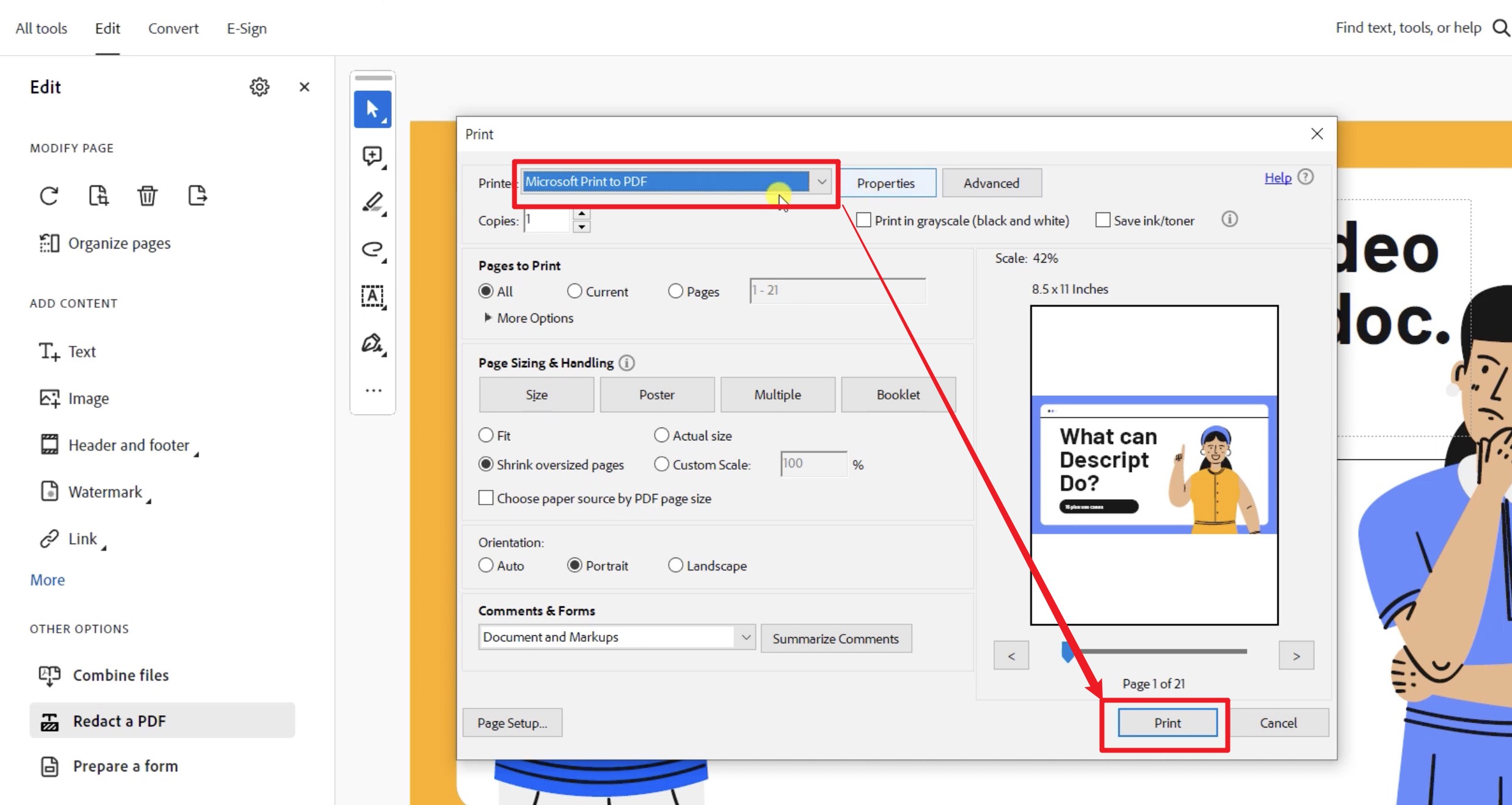
The printed copy may lose editable form fields, links, bookmarks, comments, layers, and signature validation. Compare it with the original before relying on it.
Option C: Export to PostScript and Use Acrobat Distiller
Adobe also recommends exporting a copy through File > Export a PDF > PostScript, then opening the resulting file with Acrobat Distiller to create a new PDF. This option requires Acrobat Distiller and should not be used when interactive form fields, multimedia, or other interactive elements must remain functional. See Adobe’s official Bad Parameter instructions for the current Windows and macOS menu paths.
Fix 4. Open and Save a Copy with UPDF
If Acrobat still cannot save the file, open a copy in UPDF and use Save As to create another PDF. Because UPDF processes the document independently from Acrobat, this test can help determine whether the failure is limited to Acrobat or remains embedded in the PDF. It is an alternative workflow, not a guarantee that every damaged PDF can be repaired.
Windows • macOS • iOS • Android 100% secure
Step 1. Download UPDF, launch it, and select Open File. Always open a copy of the affected PDF rather than the only original.

Step 2. Check the pages, text, images, forms, annotations, and signatures. If necessary, use UPDF’s editing tools to make the required changes.
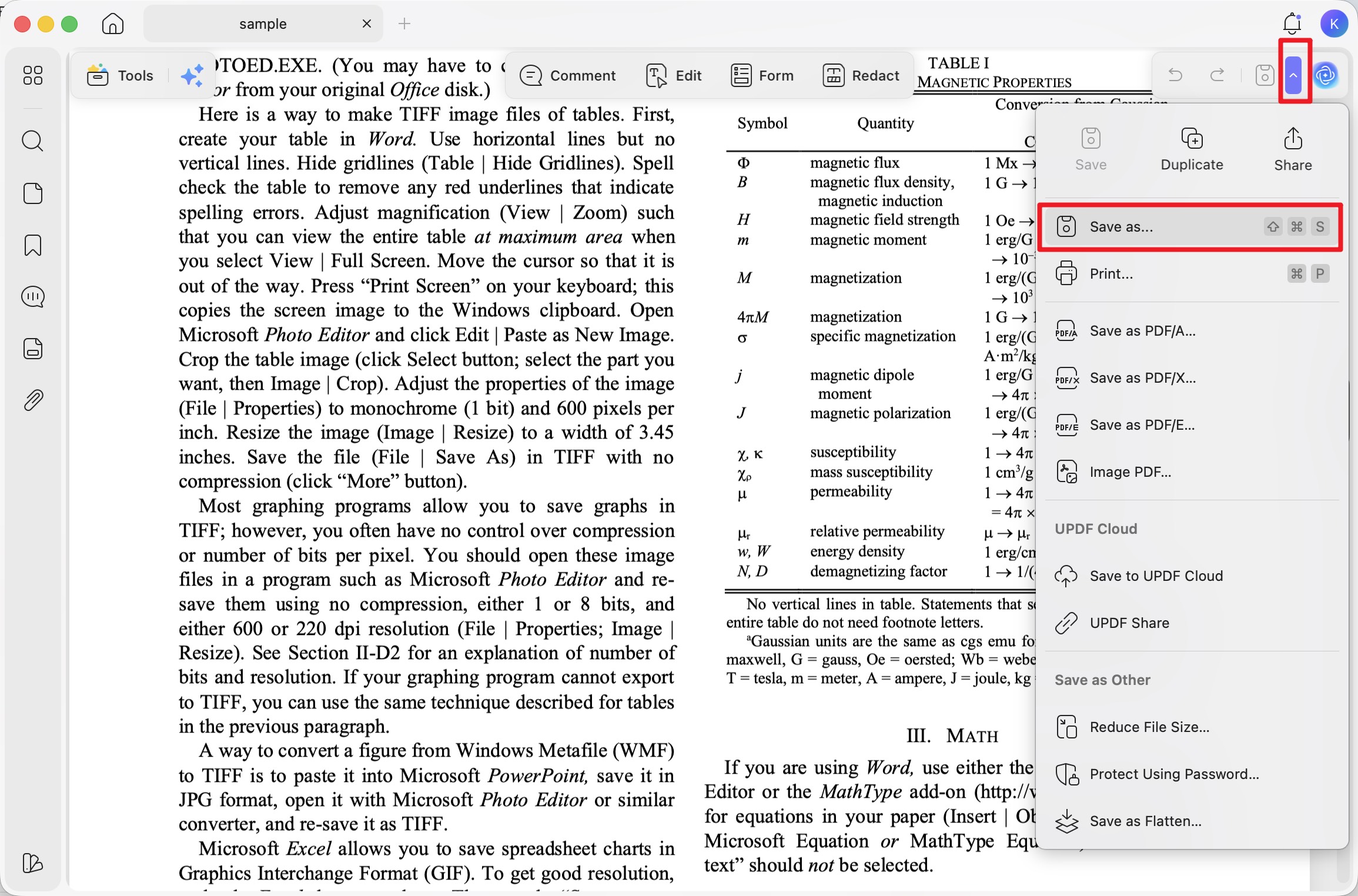
Step 3. Open the Save menu and choose Save As. Give the PDF a new name and save it locally, then reopen it to verify the contents.
UPDF can also combine files, flatten PDFs, print PDFs, edit content, run OCR, and convert PDF files. It is free to download and try, with yearly and lifetime upgrade options available on the UPDF pricing page.
Conclusion
The “The document could not be saved. Bad parameter” error usually points to a structural, permission, interactive-content, or save-location conflict. Begin with Save As in a local folder because it preserves the document. If the error remains, try Adobe’s combine method before using flattening, printing, or PostScript conversion, all of which can remove interactive features.
If Acrobat alone continues to fail, open a copy in UPDF and save it under a new name. Verify the resulting PDF carefully and keep the original until you are certain that no forms, signatures, links, comments, or other content was lost.








 Delia Meyer
 Enola Miller

 Lizzy Lozano