 UPDF
UPDF
 UPDF for Windows
 UPDF for Mac
 UPDF for iPhone/iPad
 UPDF for Android
 Nomostar
 UPDF AI Online
 UPDF Sign
 IvyCraft
 Edit PDF
 Annotate PDF
 Create PDF
 PDF Form
 Edit links
 Convert PDF
 OCR
OCR PDF to Word
 PDF to Image
 PDF to Excel
 Organize PDF
 Merge PDF
 Split PDF
 Crop PDF
 Rotate PDF
 Protect PDF
 Sign PDF
 Redact PDF
 Sanitize PDF
 Remove Security
 Read PDF
 UPDF Cloud
 Compress PDF
 Print PDF
 Batch Process
 About UPDF AI
 UPDF AI Solutions
 AI User Guide
 FAQ about UPDF AI
 Summarize PDF
 Translate PDF
 Chat with PDF
 Chat with AI
 Chat with image
 PDF to Mind Map
 Explain PDF
 PDF AI Tools
 Image AI Tools
 AI Chat Tools
 AI Writing Tools
 AI Study Tools
 AI Working Tools
 Other AI Tools
 AI Bookmark Generation
 AI Bookmark Summary
 AI Watermark Generation
 AI Background Generation
 AI Sticker Generation
 AI Stamp Generation
 AI Editing Suite
 UPDF Copilot
 AI Page Management
 AI Semantic Search
 PDF to Word
 PDF to Excel
 PDF to PowerPoint
 Enterprise Solution
 Enterprise Sign
 Enterprise AI
 Enterprise Plan
 Enterprise User Guide
 Enterprise Webinar
 IT
IT Education
 Construction
 Financial Service
 Healthcare
 Insurance
 Legal
Legal Manufacturing
 Government
 Researchers & PhDs
 Solopreneurs & Freelancers
 Lawyers & Legal Professionals
 Real Estate Agents & Brokers
 Education Solution
 Customer Stories
 User Guide
 UPDF Tricks
 FAQs
FAQs UPDF Reviews
 Download Center
 Blog
Blog Newsroom
 Tech Spec
 Updates
 UPDF vs. Adobe Acrobat
 UPDF vs. Foxit
 UPDF vs. PDF Expert

Seeing the message "An incorrect structure was found in the PDF" can be frustrating. It usually means that something in the file's structure is not right.
Many users face this problem, just like the person from the Adobe Community. In this article, we will explore how to fix this error. We will cover easy steps that anyone can follow.
We'll also introduce UPDF, a tool that can help you avoid this issue. Keep reading to learn how to solve this problem and keep your PDFs working smoothly.
Let's dive in!
Part 1. How to Check if a Document is a Valid PDF
Determining whether a document has an invalid PDF format is essential to ensure it can be properly processed. Fortunately, you can check the PDF's integrity through the following aspects:
- Open in a PDF Viewer – Try opening the file in Adobe Acrobat, UPDF, or a web-based viewer. If it opens smoothly, it’s likely valid.
- Check the File Extension – Ensure it ends with .pdf. (Extensions alone don’t confirm validity.)
- Inspect File Size – A valid PDF’s size should match its content. Suspiciously small files (e.g., a few bytes) may be corrupted.
- Examine File Structure – A valid PDF has a header, body, and trailer. Use tools like text editors (for binary viewing) or specialized software to confirm.
- Look for Errors – Messages like “File is damaged” or “Unsupported PDF version” indicate corruption or invalidity.
These checks cannot always prove that a PDF is fully valid. A file may display correctly while still containing a damaged page object, tag tree, cross-reference entry, or embedded resource. If the error appears only during page extraction or organization, proceed with the fixes below using a backup copy.
Part 2. How to Fix “An Incorrect Structure Was Found in the PDF File” in Adobe?
In this section, we are going to explore some of the common ways to fix "An incorrect structure was found in the PDF file." You can go through them one by one and follow what you think would work for you.
Fix 1. Use Adobe Alternative to Finish Your Urgent Task
If you have an urgent task to organize pages, extract pages, or edit your PDF, consider using UPDF. This tool’s organize pages features are more powerful than other tools. Here’s why you should choose UPDF:
- Insert Pages: You can insert pages from a file, clipboard, blank page, or interleaving insertion.
- Extract Pages: Extract pages to one file or multiple files and delete pages after extracting.
- Split PDF: Split your PDF by page count, file size, top-level bookmarks, or custom page range.
- Manage Pages: Rotate, delete, move, duplicate, reverse order, and more.
UPDF offers free access to try its PDF tools, while some exports or advanced operations may be subject to free-version limitations. Check the current UPDF price plans for the latest feature and licensing details.
Steps to Move/Extract/Replace the Pages Using UPDF
First, download and install the UPDF tool on your PC/laptop. Then, follow the instructions given below:
Windows • macOS • iOS • Android 100% secure
Step 1: Launch the UPDF software on your PC/laptop. Click "Open File" to open the PDF. You can also drag and drop it here.
Step 2: Once your PDF file is opened, click "Organize Pages" on the left side menu.
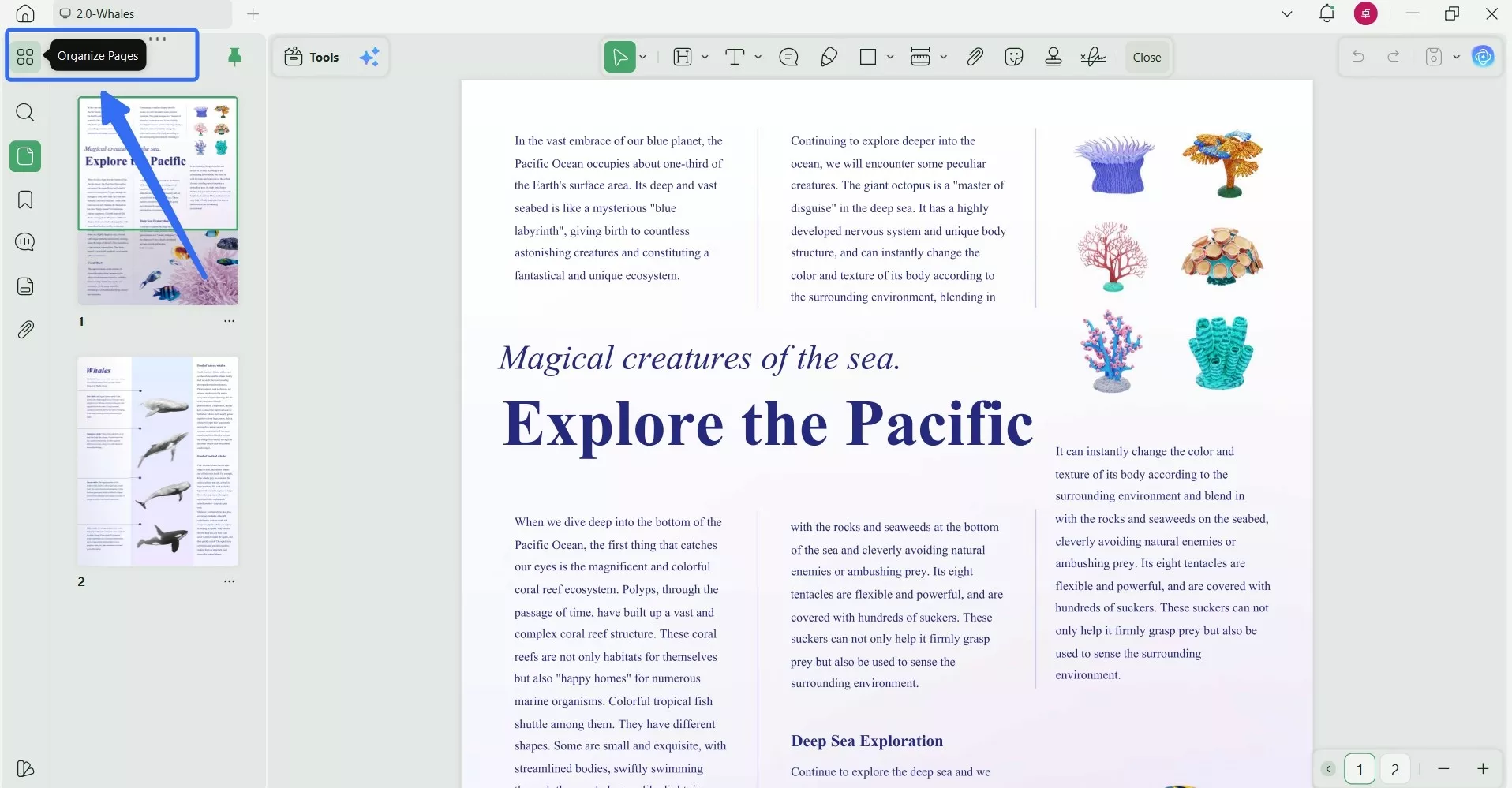
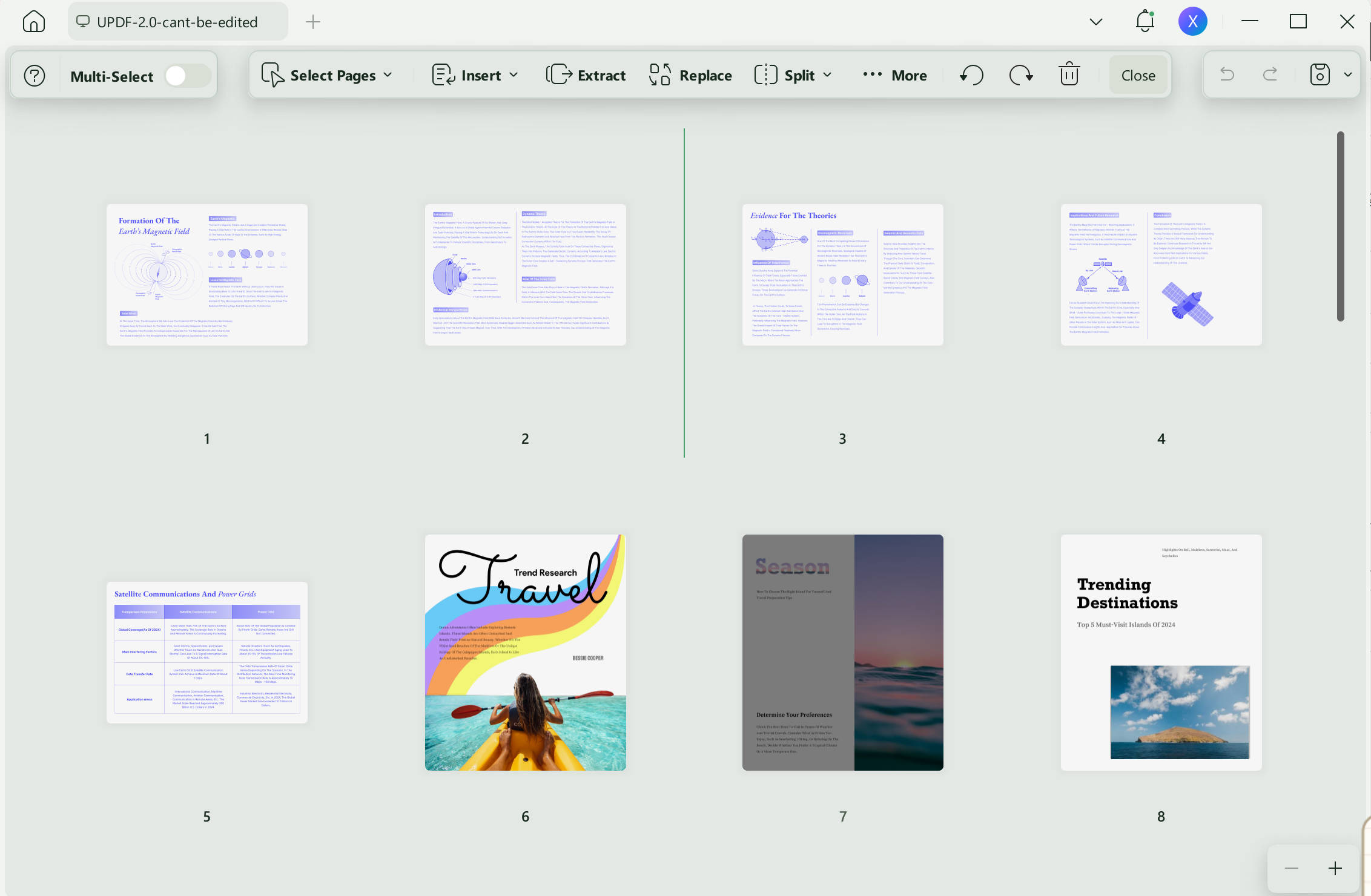
Step 3: You will see all of your PDF pages with their page number. Select options from the above menu to make any changes. Here is how:
- If you want to move the page, select it and drag it to the position where you want to place it.
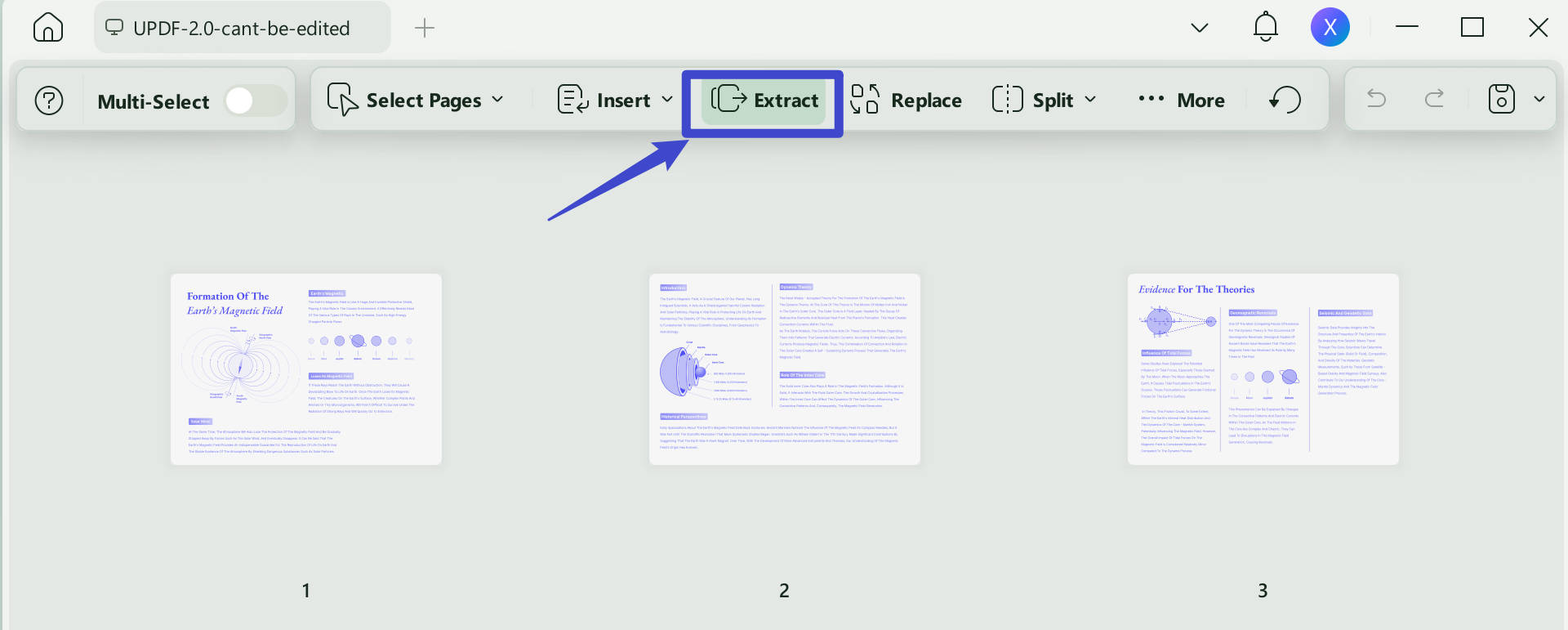
- If you want to extract the page, click "Extract" on the top menu. A window will appear on the right side. Click "Extract," and your PDF page will be extracted and saved as a separate PDF file.
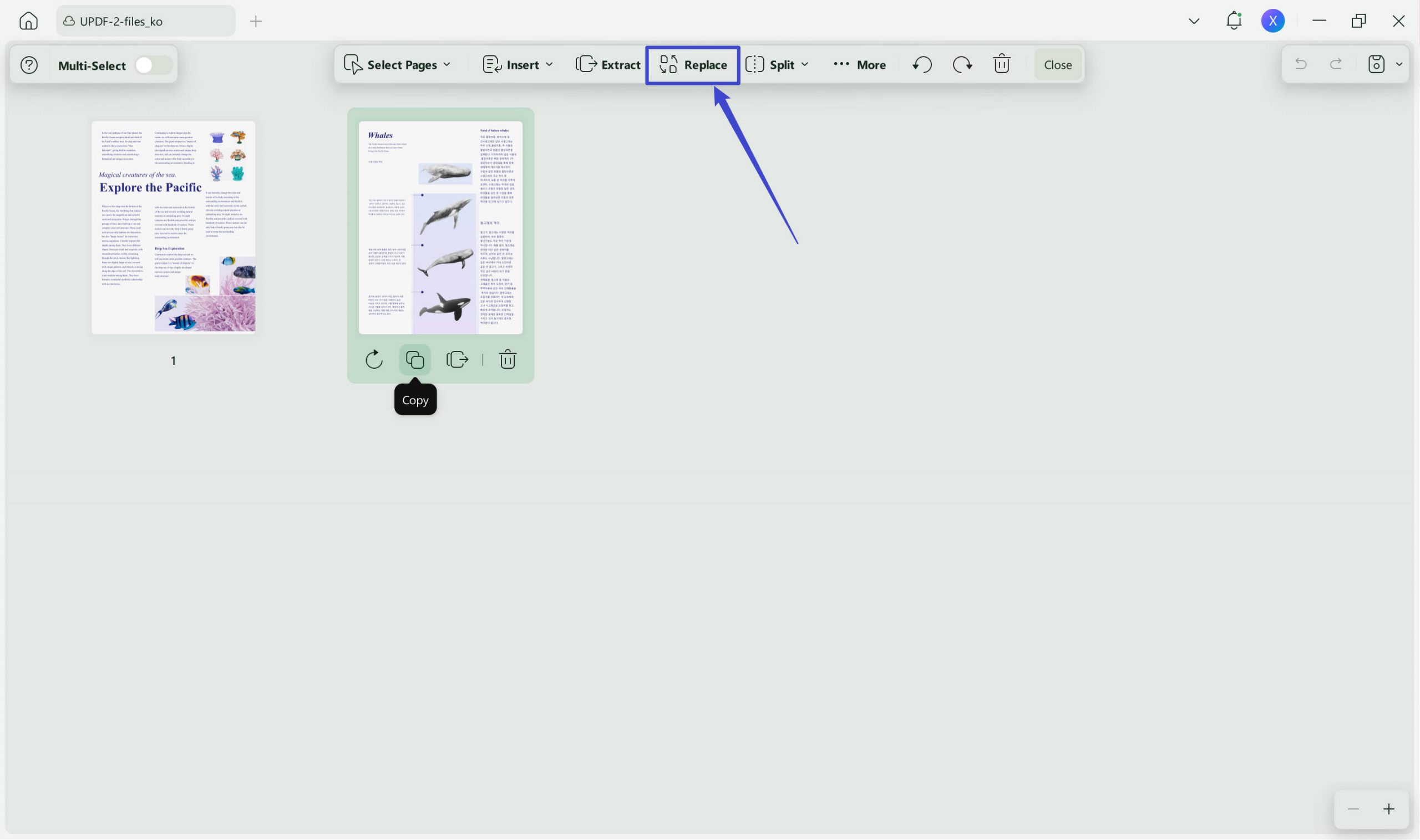
- To replace a page, select it and click "Replace" on the top toolbar. Choose the PDF containing the replacement page, specify the page range you want to import, and confirm the replacement. Save the result as a new PDF so that the original file remains unchanged.
Ready to experience the benefits of UPDF? Download it now and handle your PDFs with ease. For a closer look at how UPDF works, watch the below video.
Windows • macOS • iOS • Android 100% secure
Fix 2. Delete Accessibility Tags
Sometimes, deleting accessibility tags can fix the "An incorrect structure was found in the PDF" error. These tags are supposed to help disabled people, but they can be troublesome. You can follow the steps given below to delete them:
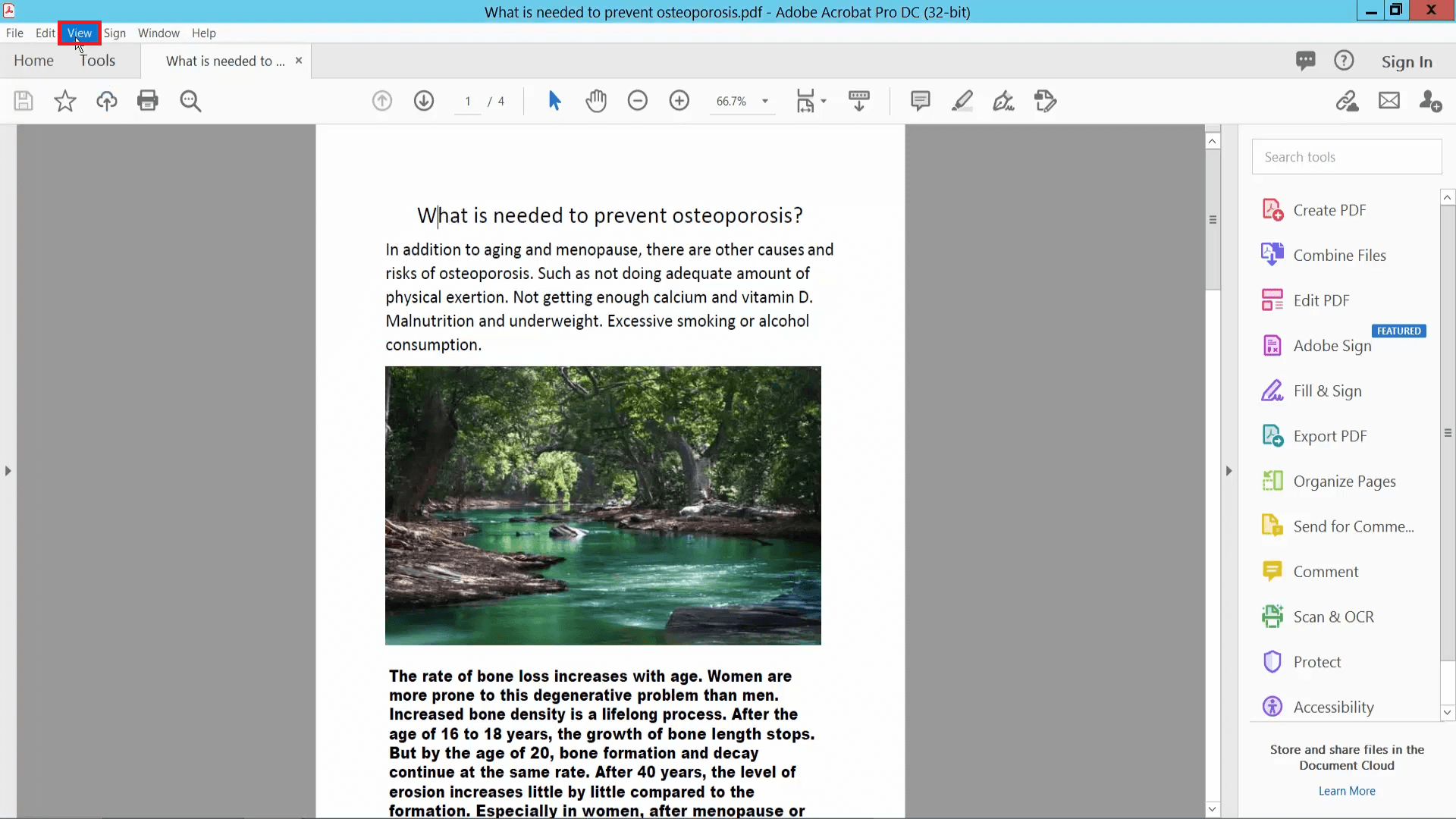
Step 1: Open your PDF in Adobe Acrobat. Then, go to the "View" menu at the top.
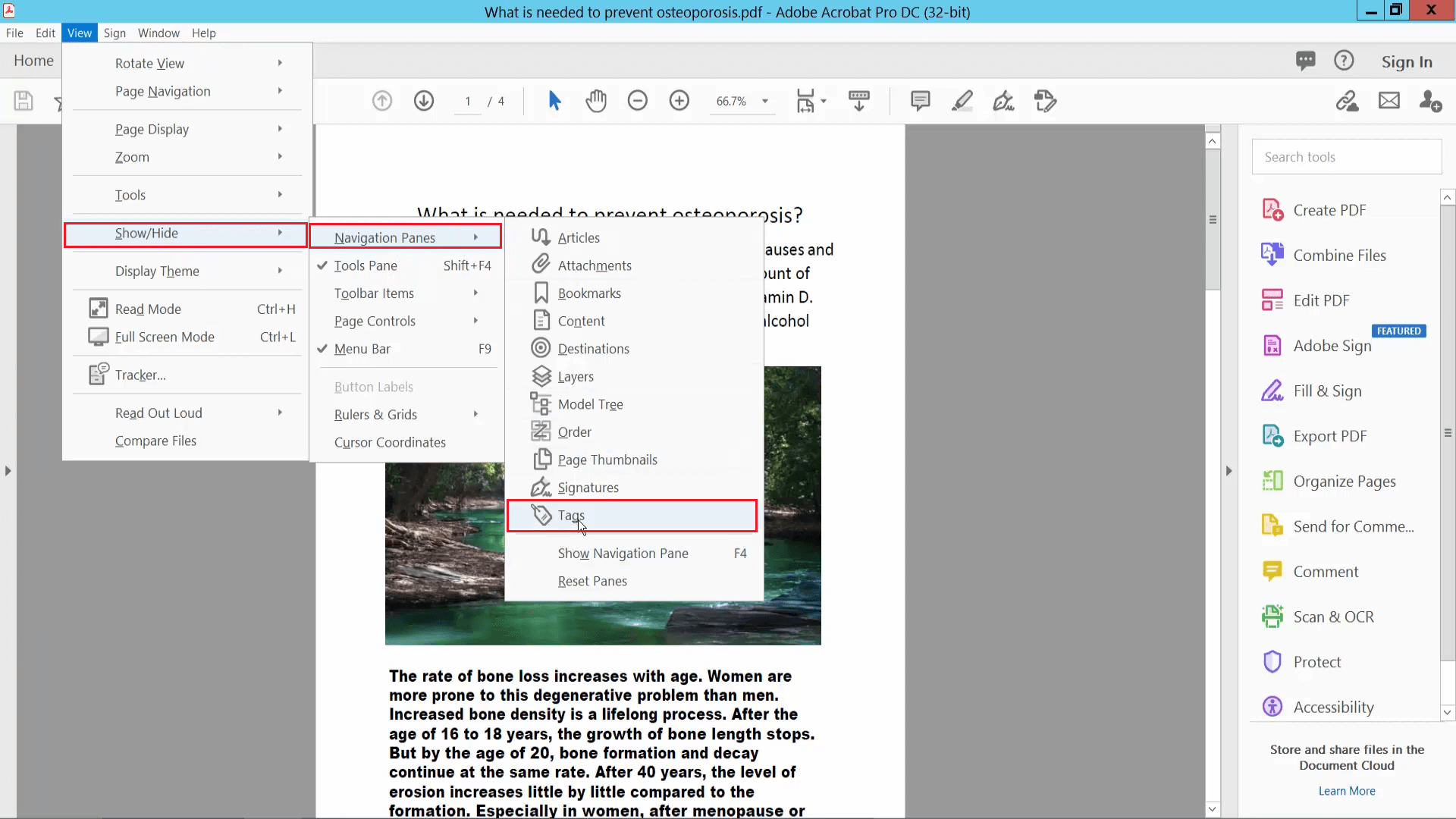
Step 2: Select "Show/Hide" from the dropdown menu. Then click on "Navigation Panes" and select "Tags."
Step 3: In the Tags pane, right-click on the top tag (it will be called "Tags" or "Tagged PDF"). Then, select "Delete Tag" from the context menu.
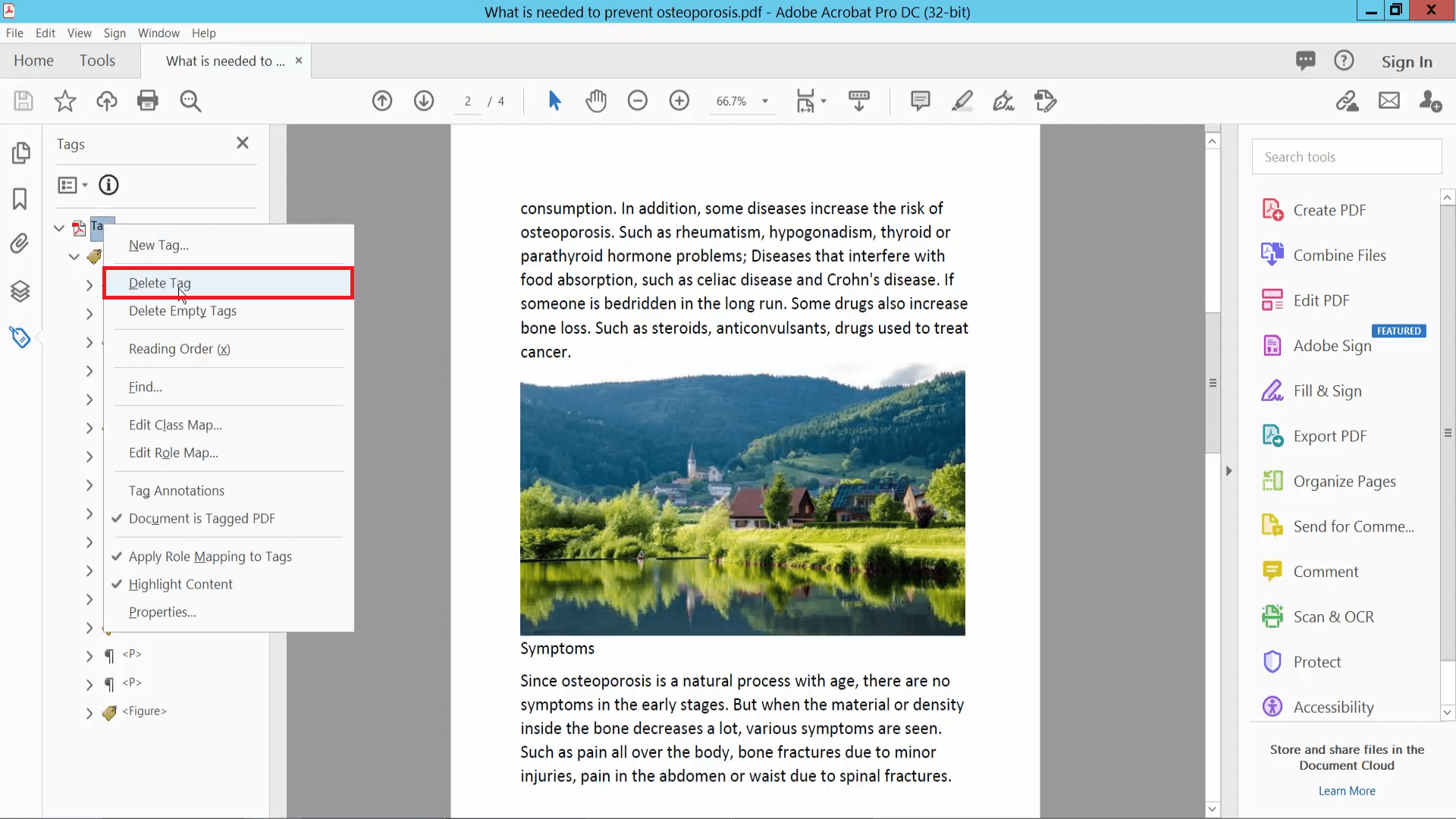
After these steps, save your PDF. This should remove the accessibility tags and fix the structure error. If you keep having issues, consider using UPDF to manage your PDFs.
Also Read: How to Create a Tagged PDF Easily? (Step by Step)
Fix 3. Print to PDF
Printing your PDF to a new PDF file can sometimes resolve the "An incorrect structure was found in the PDF" error. This method creates a fresh copy of the document, which can fix structural issues. You can follow the steps given below:
Step 1: Open your PDF in Adobe Acrobat. Then, click the "File" or "Menu" button at the top. Select "Print" from the dropdown menu.
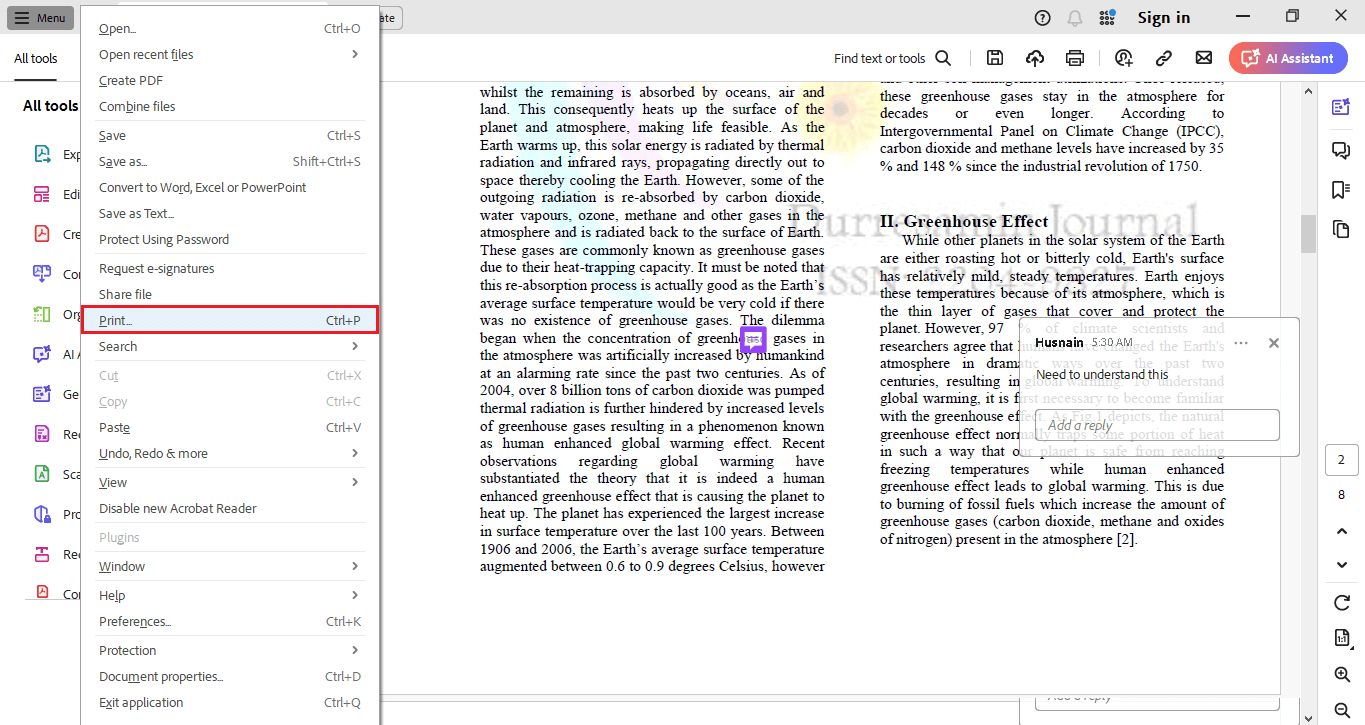
Step 2: In the Print window, select the "Microsoft Print to PDF" option right next to the printer and click "Print."
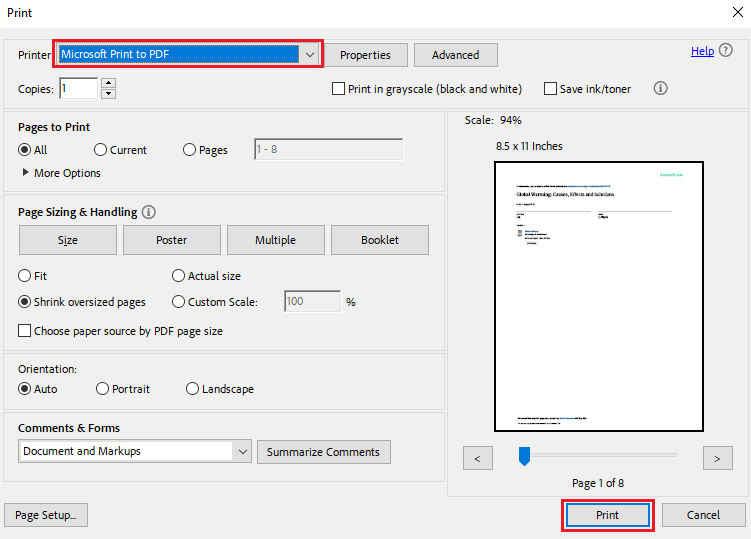
Step 3: You will see a new window asking where to save the new PDF. Select a location and name for your file, then click "Save."
Once saved, open the new PDF. You can now organize the pages without encountering the error.
Fix 4. Split the Pages and Combine
Sometimes, the "An incorrect structure was found in the PDF" error occurs because the problem might be with the whole PDF file. In that case, we can split the PDF into smaller parts and combine them again. It may fix the issue.
Here is how you can split and combine the PDF:
Step 1: Open your PDF in Adobe Acrobat. Then, click "Tools" at the top and select "Organize Pages" from the list.
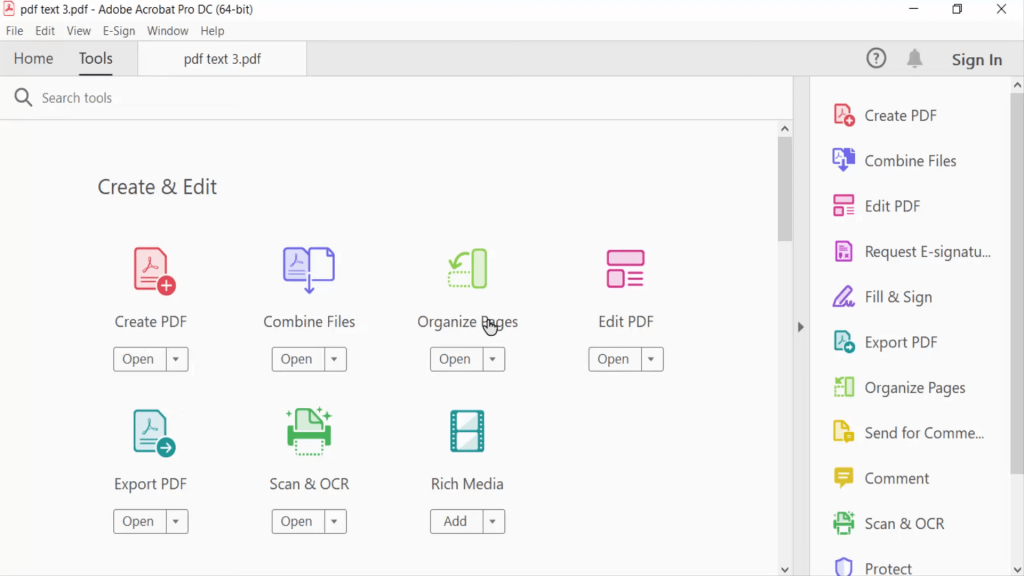
Step 2: Select the page you want to split. Click "Split" on the above menu.
Step 3: Choose how you want to split the PDF (by number of pages, file size, etc.).
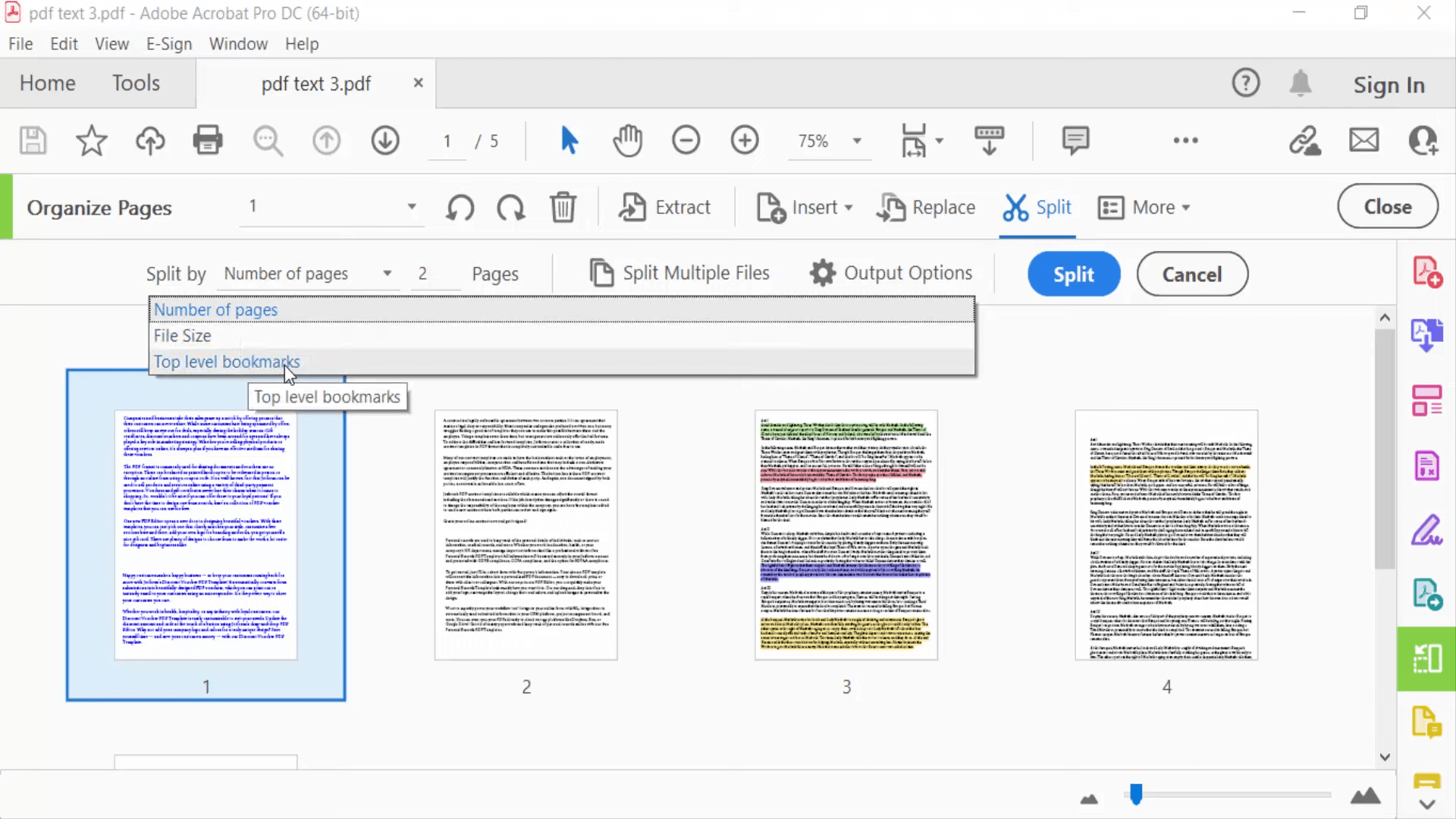
Step 4: Click "Output Options" to choose where to save the new files and click "Ok."
Combine the split PDFs
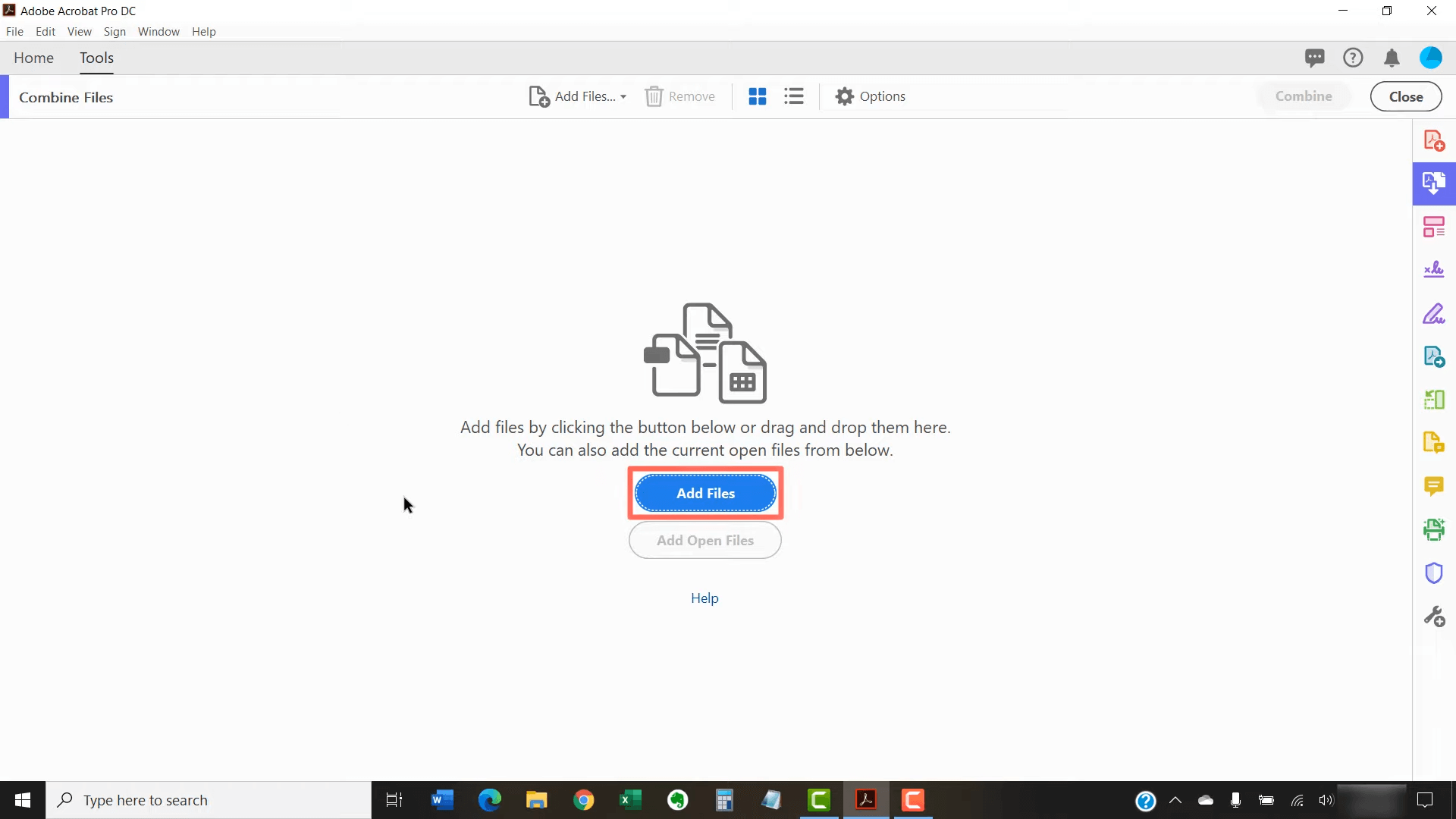
Step 1: Go to the "Tools" tab again. Select "Combine Files."
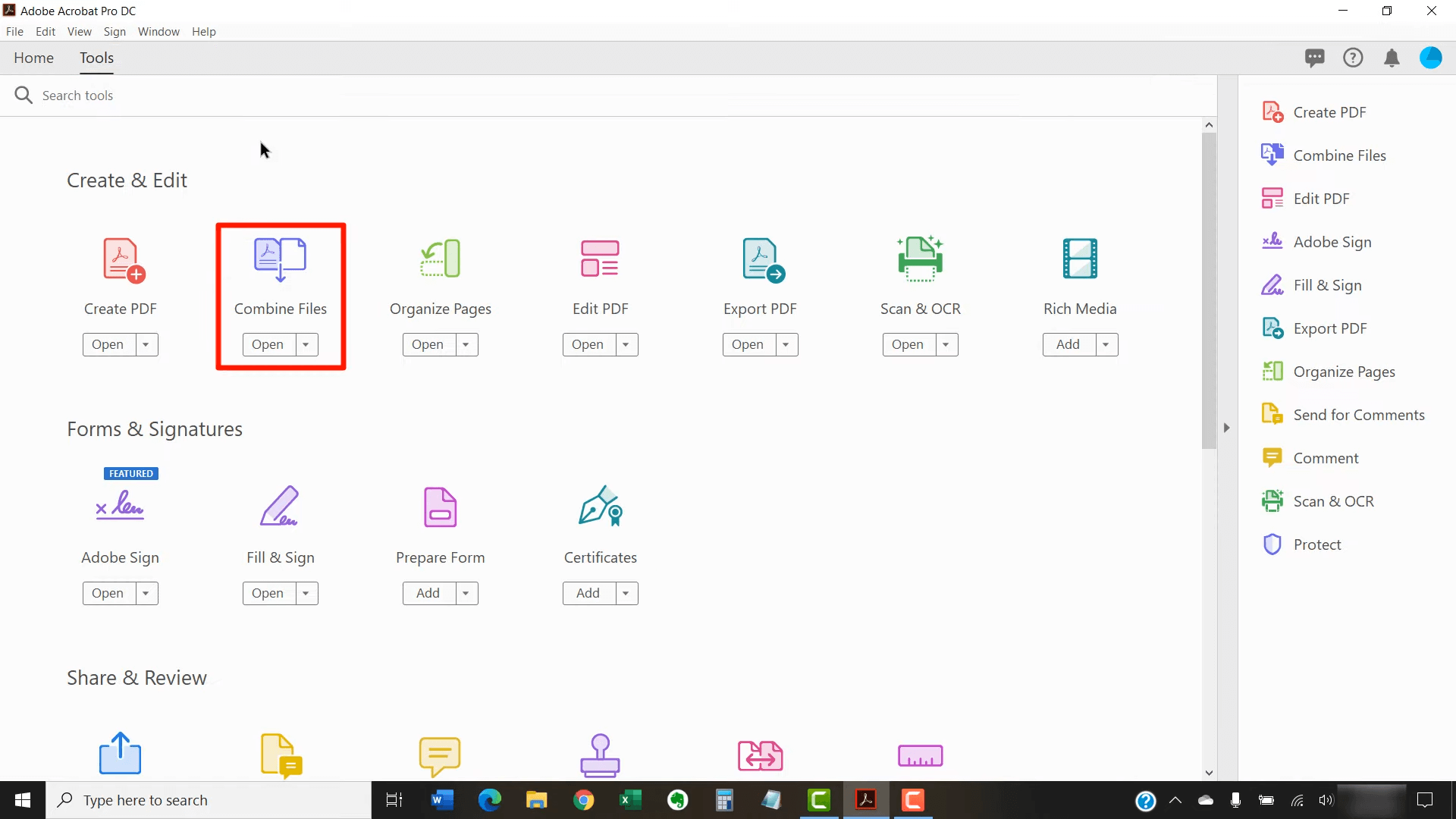
Step 2: Click "Add Files" and select the split PDFs you saved.
Step 3: Click "Combine" to merge them into a single PDF.
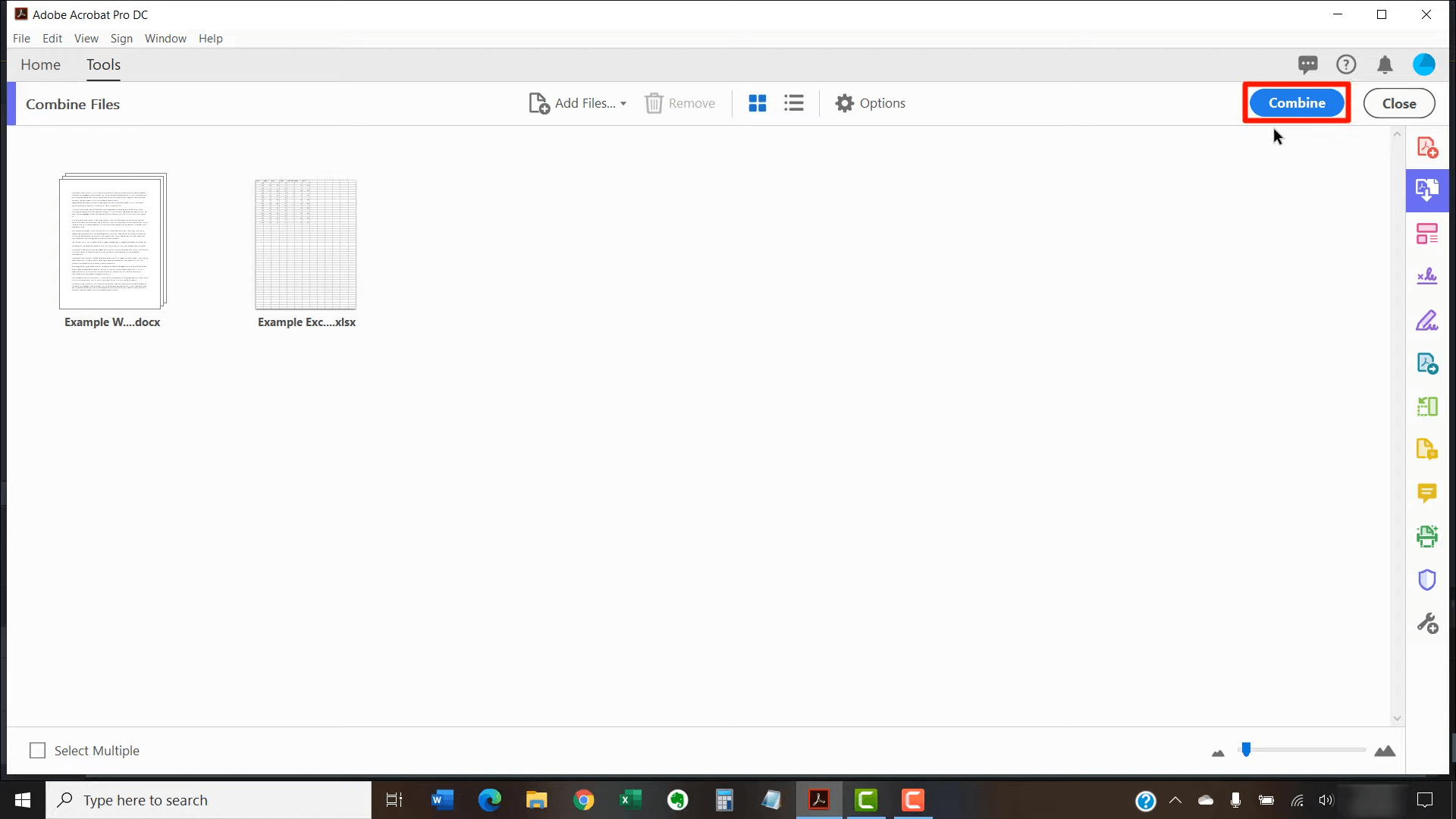
Now, open the combined PDF. You won't see the "An incorrect structure was found in the PDF" error.
Fix 5. Convert PDF to Other Formats and Convert Back
Converting your PDF to another format and then converting it back can sometimes resolve the "An incorrect structure was found in the PDF" error. This method refreshes the file structure. You can follow the instructions given below to do that:
Step 1: Open your PDF in Adobe Acrobat. Click the "Tools" menu at the top.
Step 2: Select "Export PDF" and choose a different format like Word or Excel.
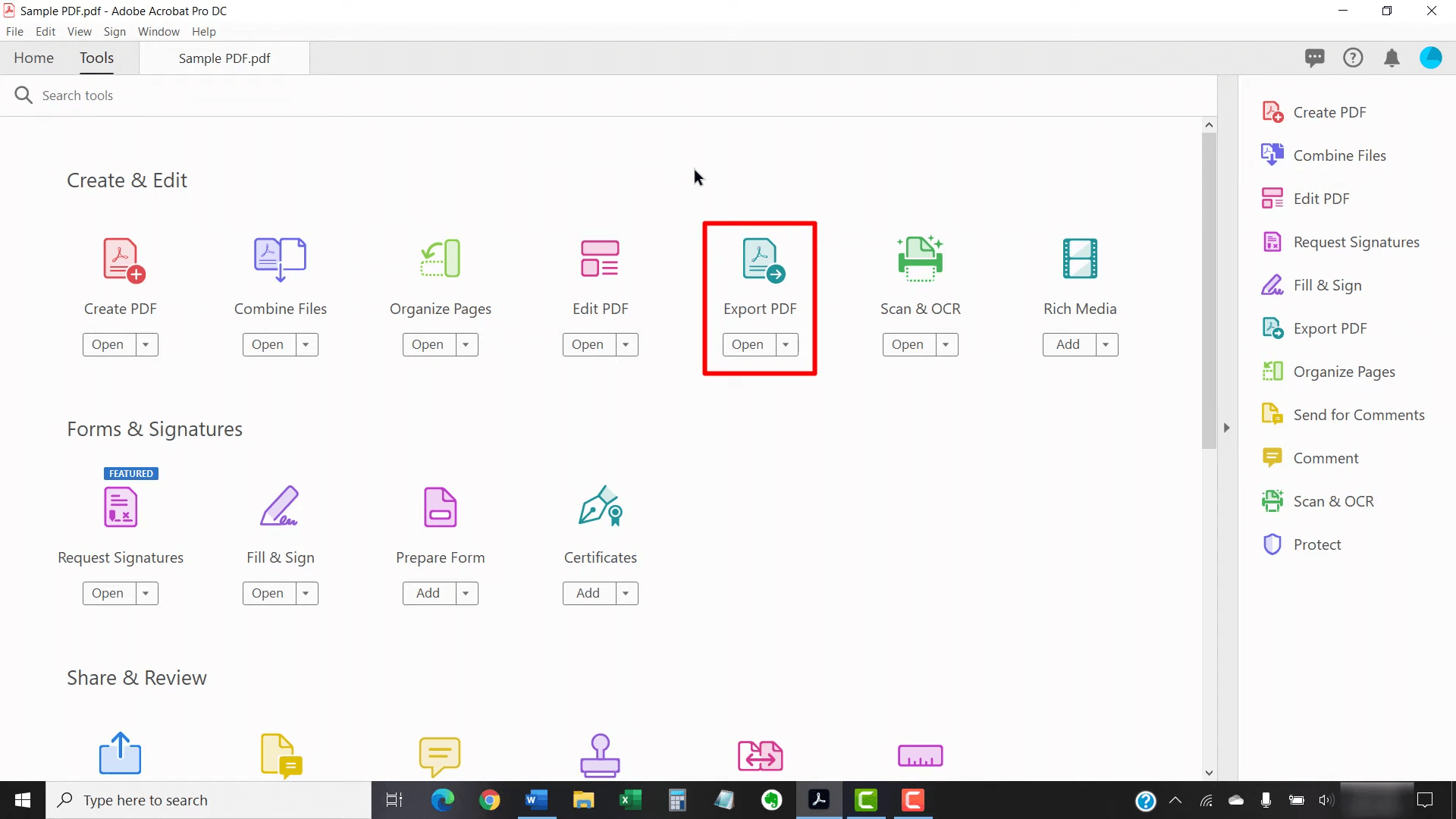
Step 3: Save the file in the new format.
Convert the file back to PDF
Step 1: Open the newly saved Word or Excel file and Go to the "File" menu again.
Step 2: Select "Save As" and choose PDF as the file format. Save the file as a PDF.
Open the new PDF. You should now be able to work with it without encountering the structure error.
FAQs
Q1: Does opening a damaged PDF in UPDF mean the file has been repaired?
Not necessarily. If UPDF opens a PDF that triggers an error in Acrobat, it may mean that UPDF can interpret the affected file differently. The original PDF may still contain structural inconsistencies. After reviewing the content, save the document as a new file and test the new copy in the applications required by your workflow.
Q2: Can UPDF help me check whether content was lost after rebuilding a PDF?
Yes. Open the original PDF and the rebuilt copy in UPDF and compare the page count, text, images, page order, links, and annotations. For important documents, also verify form fields, signatures, bookmarks, attachments, and accessibility information with the appropriate validation tools.
Q3: Should I overwrite the original PDF after processing it with UPDF?
No. Save the processed document under a new filename until you have confirmed that every page and required document feature is intact. Keeping the original file makes it possible to recover information that may be lost during extraction, printing, conversion, or other rebuilding operations.
Conclusion
The "An incorrect structure was found in the PDF" error does not always mean that the entire document is unreadable. In many cases, a malformed page object, tag tree, or other internal element becomes visible only when you extract, rearrange, or combine pages. Start by backing up the original file, then try the least destructive solution first.
If you need to complete an urgent page-management task, try opening the PDF in UPDF and extracting or organizing the affected pages. If that does not work, move on to rebuilding methods such as printing, splitting, or format conversion, while checking carefully for lost content and interactive features. Download UPDF to test the affected PDF and manage its pages in a separate working copy.
Windows • macOS • iOS • Android 100% secure









 Enola Davis


 Enya Moore
–from Adobe Community