UPDF
UPDF
 UPDF for Windows
 UPDF for Mac
 UPDF for iPhone/iPad
 UPDF for Android
 UPDF AI Online
 UPDF Sign
 Edit PDF
 Annotate PDF
 Create PDF
 PDF Form
 Edit links
 Convert PDF
 OCR
OCR PDF to Word
 PDF to Image
 PDF to Excel
 Organize PDF
 Merge PDF
 Split PDF
 Crop PDF
 Rotate PDF
 Protect PDF
 Sign PDF
 Redact PDF
 Sanitize PDF
 Remove Security
 Read PDF
 UPDF Cloud
 Compress PDF
 Print PDF
 Batch Process
 About UPDF AI
 UPDF AI Solutions
 AI User Guide
 FAQ about UPDF AI
 Summarize PDF
 Translate PDF
 Chat with PDF
 Chat with AI
 Chat with image
 PDF to Mind Map
 Explain PDF
 PDF AI Tools
 Image AI Tools
 AI Chat Tools
 AI Writing Tools
 AI Study Tools
 AI Working Tools
 Other AI Tools
 AI Bookmark Generation
 AI Bookmark Summary
 AI Watermark Generation
 AI Background Generation
 AI Sticker Generation
 AI Stamp Generation
 AI Editing Suite
 UPDF Copilot
 AI Page Management
 AI Semantic Search
 PDF to Word
 PDF to Excel
 PDF to PowerPoint
 Enterprise Solution
 Enterprise Sign
 Enterprise AI
 Enterprise Plan
 Enterprise User Guide
 Enterprise Webinar
 Banking
 Healthcare
 Insurance
 Legal
Legal Manufacturing
 Government
 Education Solution
 Customer Stories
 User Guide
 UPDF Tricks
 FAQs
FAQs UPDF Reviews
 Download Center
 Blog
Blog Newsroom
 Tech Spec
 Updates
 UPDF vs. Adobe Acrobat
 UPDF vs. Foxit
 UPDF vs. PDF Expert

If you’ve ever tried performing OCR on handwritten text, you likely ended up with garbled characters and broken text that’s nothing like the original content.
That’s because OCR is specifically designed to recognize printable text. It cannot work with the fluid and unpredictable nature of human writing.
AI handwriting recognition solves this problem. This article explains how it works, how it differs from OCR, and introduces 6 best tools available.
Everything about AI Handwriting Recognition
The technical term for AI handwriting recognition is Handwritten Text Recognition (HTR). It is an AI-driven technology that recognizes the fluid and unpredictable nature of human handwriting from images and converts it into digital text.
This is something traditional OCR cannot do. Let’s see exactly how it differs from HTR.
| Dimensions | Traditional OCR | AI Handwriting Recognition (HTR) |
| Input object | Digital or printable text | Cursive or handwritten text |
| Core challenges | Mixed fonts or languages | Irregular strokes, writing complexity |
| Technical methods | Template matching, character libraries | Deep learning on handwriting datasets |
| Recognition accuracy | Great for high-quality scans | Medium based on the clarity of handwriting |
| Contextual understanding | None, only reads characters | Great, uses language models |
Core Technology Architecture of AI Handwriting Recognition
The handwriting recognition in AI uses multiple models to recognize the complexity of human writing. Let's review these.
1. Deep Learning Models:
These systems use Convolutional Neural Networks (CNNs) to study the visual details of handwriting like letter shapes, spacing, and signs of pen pressure. The CNN then passes this information to the Transformer models to create the final output text.
2. Self-Supervised and Contextual Learning:
In self-supervised learning, the AI models study large amounts of unlabeled text to read how common words are written and the proper use of grammar. It then refines its understanding using smaller sets of labeled handwriting samples.
In addition, if some characters are unclear or messy, the HTR uses bidirectional language models to understand the context around these characters. This helps provide a more accurate output.
3. Multimodal Large Models:
The multimodal AI tools can analyze both the image of handwritten content and its meaning at the same time. This way, they can recognize not just individual letters and words but also more complex elements such as diagrams, mathematical equations, tables, and notes that mix text with other graphical components.
Key Factors Affecting Recognition Accuracy
Just like OCR, there are factors that can affect the accuracy of handwriting recognition in AI. Here are the common reasons.
- Image quality: blurry images or busy backgrounds make it harder for AI to extract the writing from the background.
- Consistency of handwriting: Writing that is highly stylized, tightly connected, or faded can increase the chances of errors.
- Language and script: Some AI systems may struggle to recognize languages other than English or historical scripts.
- Specialized vocabulary: Technical words used in fields like medicine or law can be difficult to understand for AI if it's not trained with them.
- Color and background: Writing on colored or graph paper can make it harder for the system to correctly identify the text.
- Level of model training: Systems trained with a specific person’s handwriting perform better when reading only that person’s writing.
Top 6 AI Handwriting Recognition Tools
Before we get into the details, here’s a quick side-by-side comparison of the top AI handwriting recognition tools online and offline.
| Dimensions | UPDF AI | Google Keep | Transkribus | iWeaver | Nebo (MyScript) | Goodnotes 6 |
| Handwriting accuracy | Very High | Moderate | High | Moderate | High | High |
| Supported platform | Windows, Mac, iOS, Android, Web | Web, iOS, Android, Chrome Extension | Web | Web | iOS, Android, Windows, Mac | iOS, Mac, Android, Windows |
| Input format | PDF, Image, Scan | Photo | Photo | Photo | Stylus | Stylus |
| Output format | PDF, Word, Excel, PPT, TXT | Plain text (copied) | PDF, DOCX, TXT, TEI XML | Text, Mind Map, Summary | PDF, DOCX, HTML, TXT | PDF, Image, GoodNotes format |
| AI-assisted functions | Summarize, translate, AI chat, OCR, mindmaps, deep research, etc | Smart suggestions, label auto-sort | Custom AI model training | AI summarize, mind map, analysis, knowledge base | Math solver, diagram recognition, generative AI notes | AI flashcards, spellcheck, study tools |
| PDF handwriting processing | Yes | No | No | No | Not on existing handwriting | Not on existing handwriting |
| Batch process | Yes | No | Yes | Yes | No | No |
| Applicable Scenarios | PDF workflows | Note capture | Restoring old texts | Enterprise knowledge management | Tablet note-taking | Digital journaling |
Now let’s review these tools in detail.
Top 1: UPDF AI
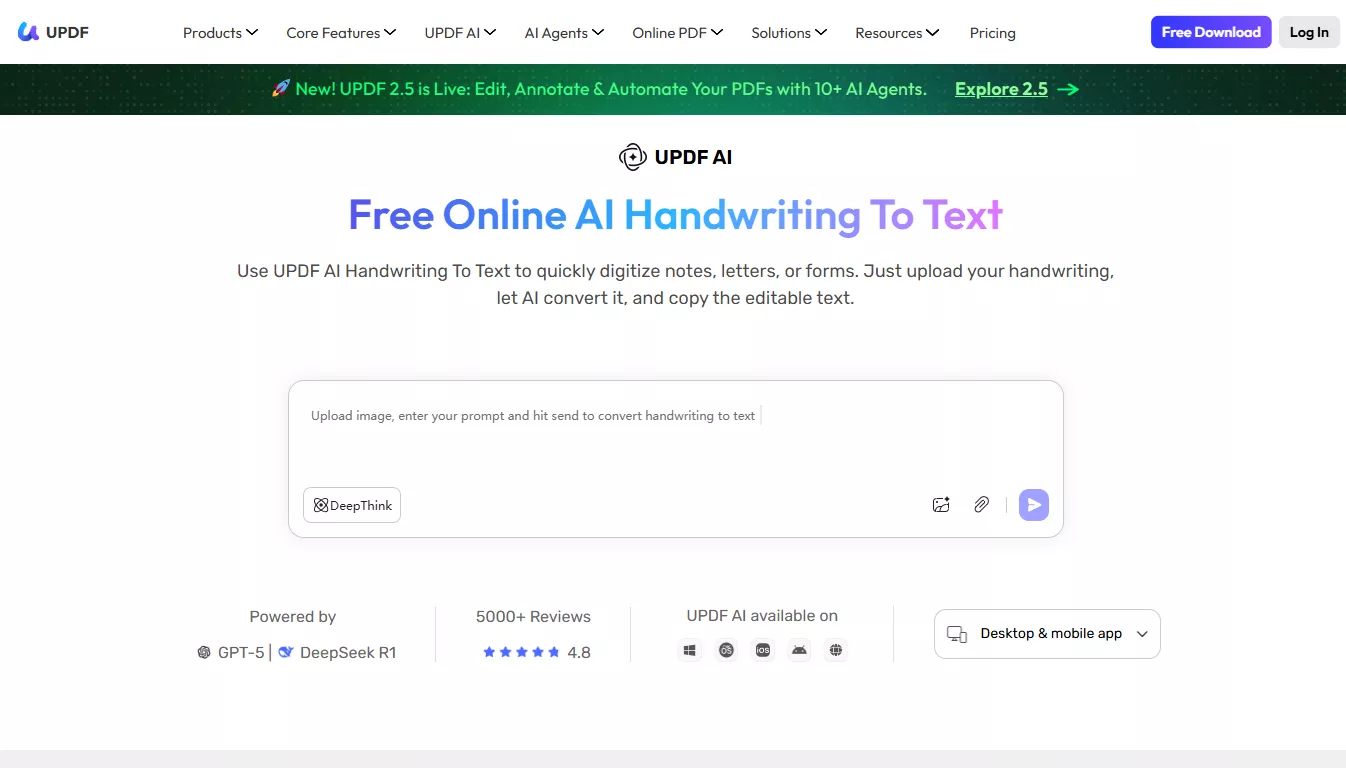
UPDF AI is an AI-driven PDF editor that helps you recognize handwritten text from images and PDF files. It works via custom text prompts, which gives you the flexibility to control the AI output using your own instructions.
In addition, the AI uses the advanced models of GPT 5 and DeepSeek R1 to accurately understand context and recognize the handwritten characters. Being a cross-platform tool, you can use it anywhere on desktop, mobile, and online.
Key Features:
- Recognize handwriting from photos, scans, and PDFs.
- Can batch-process 5 PDFs or 5 images at once.
- Works with 100+ languages.
- Available for online, Windows, Mac, Android, and iOS.
- Many other AI-driven PDF tools in the app.
Pros:
- Convert entire handwritten PDFs to text.
- Custom prompt-based instructions.
- Great accuracy for cursive handwriting.
- Free to use.
- No word limits
Cons:
- Paid use.
Top 2: Google Keep
Google Keep is a free AI handwriting recognition app that uses Google’s Vision AI to recognize and convert handwriting into editable text. It includes a feature called “Grab Image Text,” which lets you extract text from any photo and adds it to the note for further editing.
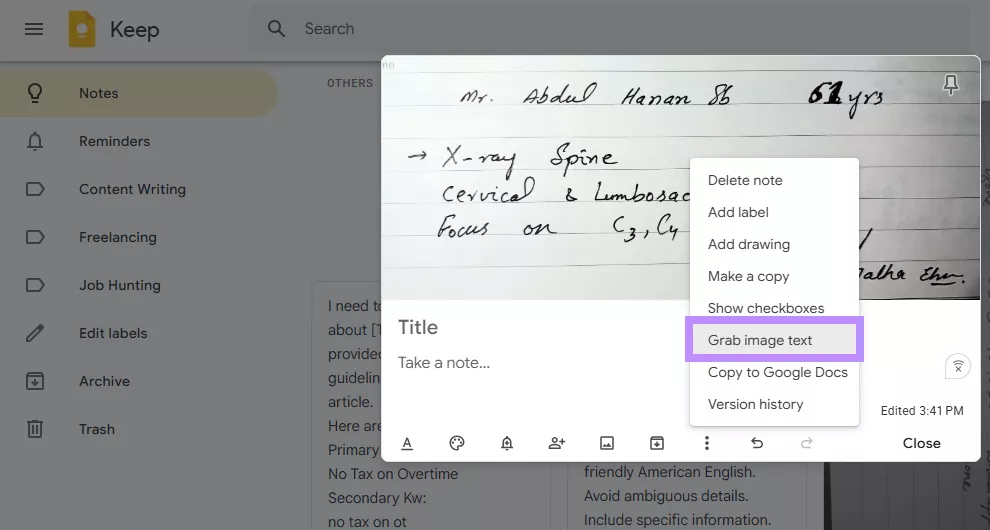
Key Features:
- Grab image text from any photo added to a note.
- Upload photos or capture images directly with the camera.
- Supports most types of handwriting.
- Available on mobile, desktop, and online.
Pros:
- Provides output within seconds.
- Can accurately recognize more cursive handwriting.
- Both letters and numbers are supported.
Cons:
- May not recognize text on the first attempt.
- Fails to keep the original structure of the text.
Top 3: Transkribus
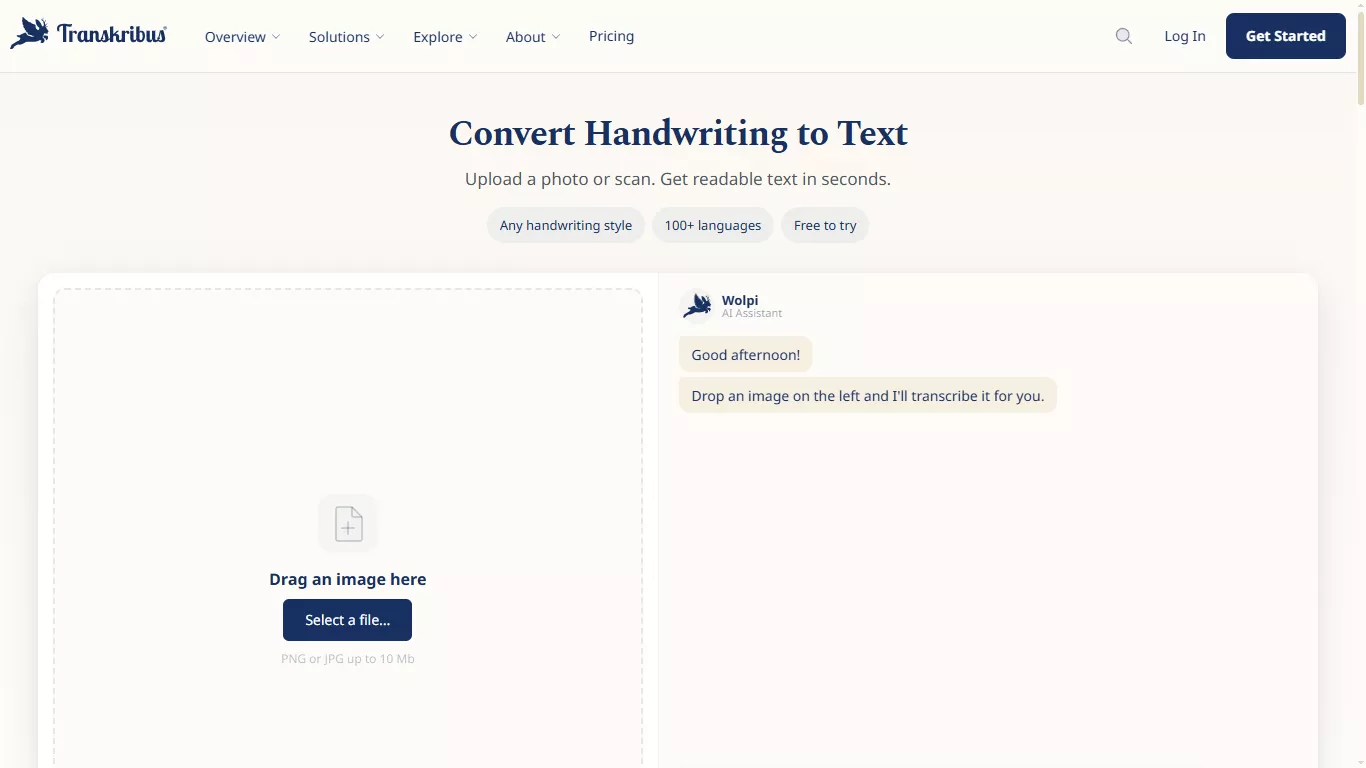
Transkribus is a specialized AI handwriting recognition online tool designed to convert historical handwritten documents into digital text. It can read documents in more than 100 languages. This includes difficult scripts such as medieval Latin, 18th-century German Kurrent, and early modern cursive writing.
Key Features:
- Train custom AI models on your own handwritten documents.
- Automatically detects page structure like text, lines, and tables.
- Export to structured formats like TEI XML.
- Credit-based pricing with a free trial available.
Pros:
- High accuracy for old scripts
- Adapts well to unique handwriting via custom training
- Free plan for smaller projects
Cons:
- Model training requires time to learn
- Does not preserve original text layout
Top 4: iWeaver
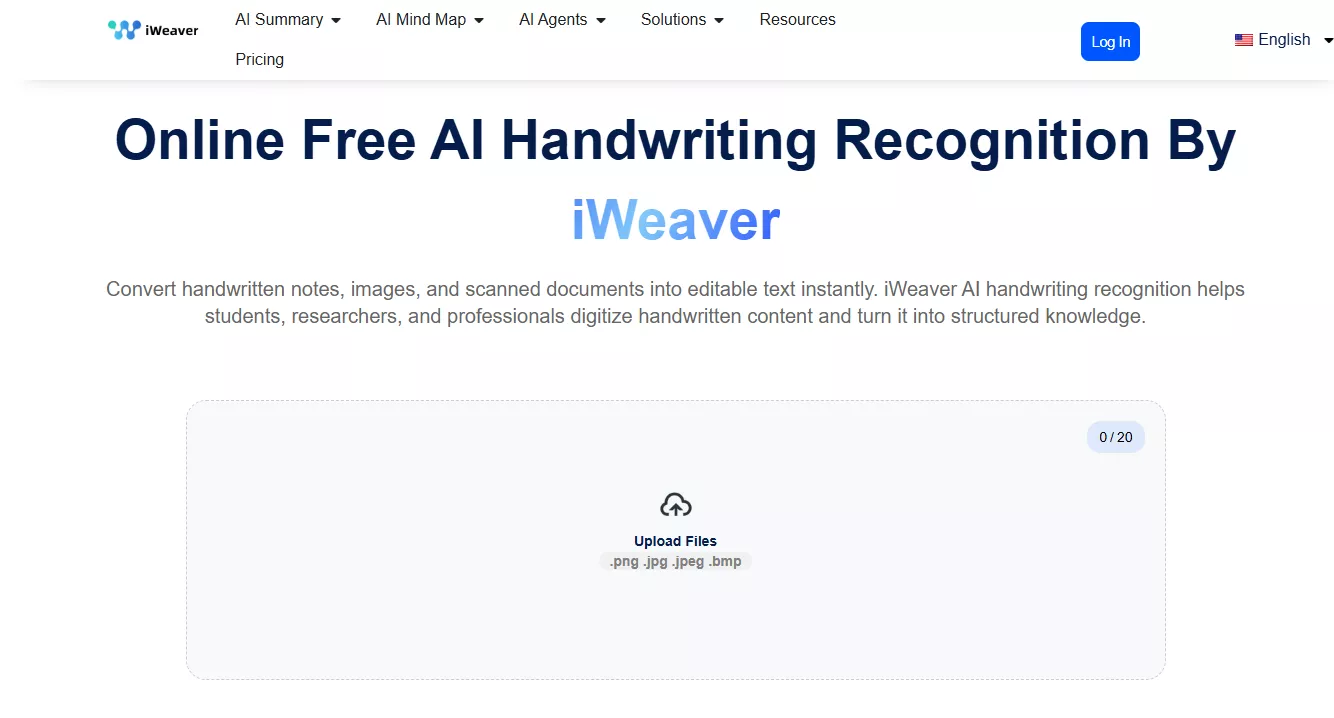
iWeaver is an AI handwriting recognition online free platform that helps you convert handwritten documents and scanned images into text. But instead of only recognizing individual characters, iWeaver reads the document as a whole and understands what each piece of information means, such as names, dates, or totals.
Key Features:
- Accepts .png, .jpg, .jpeg, and .bmp files.
- Extracts meaning using document structure
- Handwritten notes to AI-generated mind maps and summaries
- Supports batch processing
Pros:
- Can recognize cursive and messy handwriting
- Understands context for accurate output
- Links and organizes information across documents
Cons:
- Struggles with highly stylized handwriting
- Only 3 free uses per day.
- Only works online.
Top 5: Nebo (MyScript)
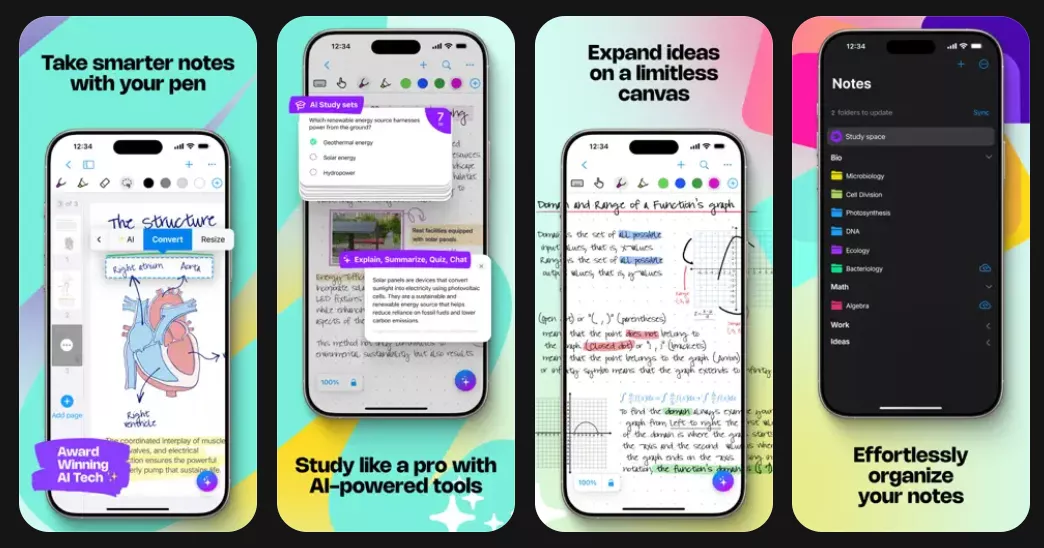
Nebo is a note-taking app by MyScript. It converts your handwriting into typed text as you write with a stylus in real-time. Instead of working with a static image input, Nebo reads how you write and tracks the speed, pressure, and direction of each stroke. As a result, it can provide a more accurate output.
Key Features:
- Real-time handwriting to text conversion
- Supports equations and simple diagrams
- Natural editing through pen gestures
- Exports to PDF, DOCX, HTML, and plain text
Pros:
- Accurate stroke-based recognition
- Handles text and technical content
- On-device processing
Cons:
- Only works with live stylus input
- Less accurate on low-quality stylus
Top 6: Goodnotes 6
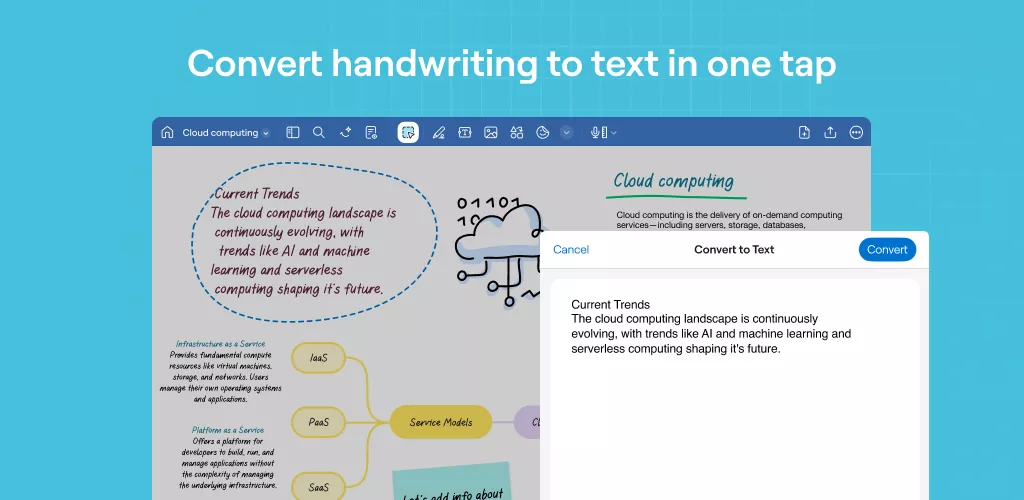
GoodNotes 6 is a digital notebook app with powerful tools for organizing and searching notes. It uses an integrated version of the MyScript recognition engine to help you search your notebook for any handwritten word. Moreover, its AI handwriting recognition allows you to select handwritten text with the lasso tool and convert it into typed text.
Key Features:
- Search handwritten notes.
- Convert selected handwriting to text.
- Generate AI flashcards from handwritten notes.
- Available on iOS, macOS, Android, and Windows.
Pros:
- Directly replace handwriting in notes with digital text.
- Keeps the original size and color of handwritten text.
- Drag and drop handwriting to other iOS apps.
Cons:
- Subscription model with a limited free trial.
- Cannot process scanned handwriting.
FAQ
Q1: Why does Google Keep always display garbled characters when recognizing my handwriting?
Google Keep uses Google’s general Vision AI, which works best with neat handwriting in common Latin-script languages like English, French, or Spanish. If your handwriting is messy or you're writing in unsupported scripts, it may show the characters as garbled text.
Q2: What is the difference between Nebo and Goodnotes?
While both Nebo and GoodNotes support the same HTR engine, they work very differently. Nebo converts your handwriting to text directly as you write it. Meanwhile, Goodnotes works only on previously handwritten text, which you must manually select for conversion.
Q3: Can UPDF handle handwritten signatures and annotations in PDFs?
Yes. UPDF’s OCR can read everything on the visible PDF layer, including handwritten signatures and annotations. These can be ink annotations or any notes added using a stylus. The OCR can recognize and convert these elements into editable and searchable text.
Q4: Can the handwriting recognition accuracy reach 100%?
No. Even the best handwriting recognition tools aren’t 100% accurate. That’s because human handwriting changes constantly, and one person can write the same word differently depending on their mood and speed. This makes it difficult for AI systems to accurately read characters every time.
Conclusion
Unlike OCR, AI handwriting recognition focuses on extracting manually written human language. All tools mentioned here are great to use, depending on where and how you work.
If you frequently handle PDF documents, UPDF AI can help you extract handwritten text directly when viewing your PDFs. Its built-in AI and powerful set of PDF tools are designed to help you work smarter and more productively. So, don’t wait. Download and try it now.





 Lizzy Lozano
 Enola Miller
 Enrica Taylor
 Enya Moore