 UPDF
UPDF
 UPDF for Windows
 UPDF for Mac
 UPDF for iPhone/iPad
 UPDF for Android
 UPDF AI Online
 UPDF Sign
 Edit PDF
 Annotate PDF
 Create PDF
 PDF Form
 Edit links
 Convert PDF
 OCR
OCR PDF to Word
 PDF to Image
 PDF to Excel
 Organize PDF
 Merge PDF
 Split PDF
 Crop PDF
 Rotate PDF
 Protect PDF
 Sign PDF
 Redact PDF
 Sanitize PDF
 Remove Security
 Read PDF
 UPDF Cloud
 Compress PDF
 Print PDF
 Batch Process
 About UPDF AI
 UPDF AI Solutions
 AI User Guide
 FAQ about UPDF AI
 Summarize PDF
 Translate PDF
 Chat with PDF
 Chat with AI
 Chat with image
 PDF to Mind Map
 Explain PDF
 PDF AI Tools
 Image AI Tools
 AI Chat Tools
 AI Writing Tools
 AI Study Tools
 AI Working Tools
 Other AI Tools
 PDF to Word
 PDF to Excel
 PDF to PowerPoint
 Enterprise Solution
 Enterprise Sign
 Enterprise AI
 Enterprise Plan
 Enterprise User Guide
 Enterprise Webinar
 Banking
 Healthcare
 Insurance
 Legal
Legal Manufacturing
 Government
 Education Solution
 Customer Stories
 User Guide
 UPDF Tricks
 FAQs
FAQs UPDF Reviews
 Download Center
 Blog
Blog Newsroom
 Tech Spec
 Updates
 UPDF vs. Adobe Acrobat
 UPDF vs. Foxit
 UPDF vs. PDF Expert

If you have scanned documents that look dark or have uneven gray patches, the best option is to increase PDF brightness. However, most PDF viewers don’t have built-in brightness or contrast sliders.
But don’t worry. In this guide, I’ll share 3 effective ways to adjust PDF brightness on Windows, Mac, and online. And if you want an all-in-one tool to brighten pages and improve text clarity, UPDF is the best option. Download and try it now to make your PDFs neat and professional.
Windows • macOS • iOS • Android 100% secure
Part 1. Why Do I Need to Increase the Brightness of PDF?
You may need to increase PDF brightness when the document has a low contrast between the content and the background. This occurs when your document is a scanned PDF or has a much darker backdrop.
For example, you might have scanned an old book using a mobile scanner app in low light conditions. This will result in a scanned image that has a gray background and uneven light areas. As a result, it would be difficult to differentiate the text and pictures from the page background.
As the contrast decreases, reading will become tiring. You may end up misreading words or even overlooking important information. Therefore, enhancing the PDF’s brightness is the most effective way to reduce eye strain and improve readability.
Part 2. How to Edit Brightness of PDF with UPDF?
If you want to brighten PDFs to improve their readability, UPDF offers everything you need in one place. It lets you brighten the entire document, recognize text with OCR, adjust backgrounds, and customize fonts for better clarity. Apart from this, it is a complete solution to convert, organize, and edit PDF documents, so they’re ready to share anytime. Plus, you can use it to brighten documents on both Windows and Mac.
Steps to Adjust PDF Brightness with UPDF
Download and install UPDF on your computer. Launch it and click “Open File” at the top. Then, import the PDF you want to adjust.
Windows • macOS • iOS • Android 100% secure
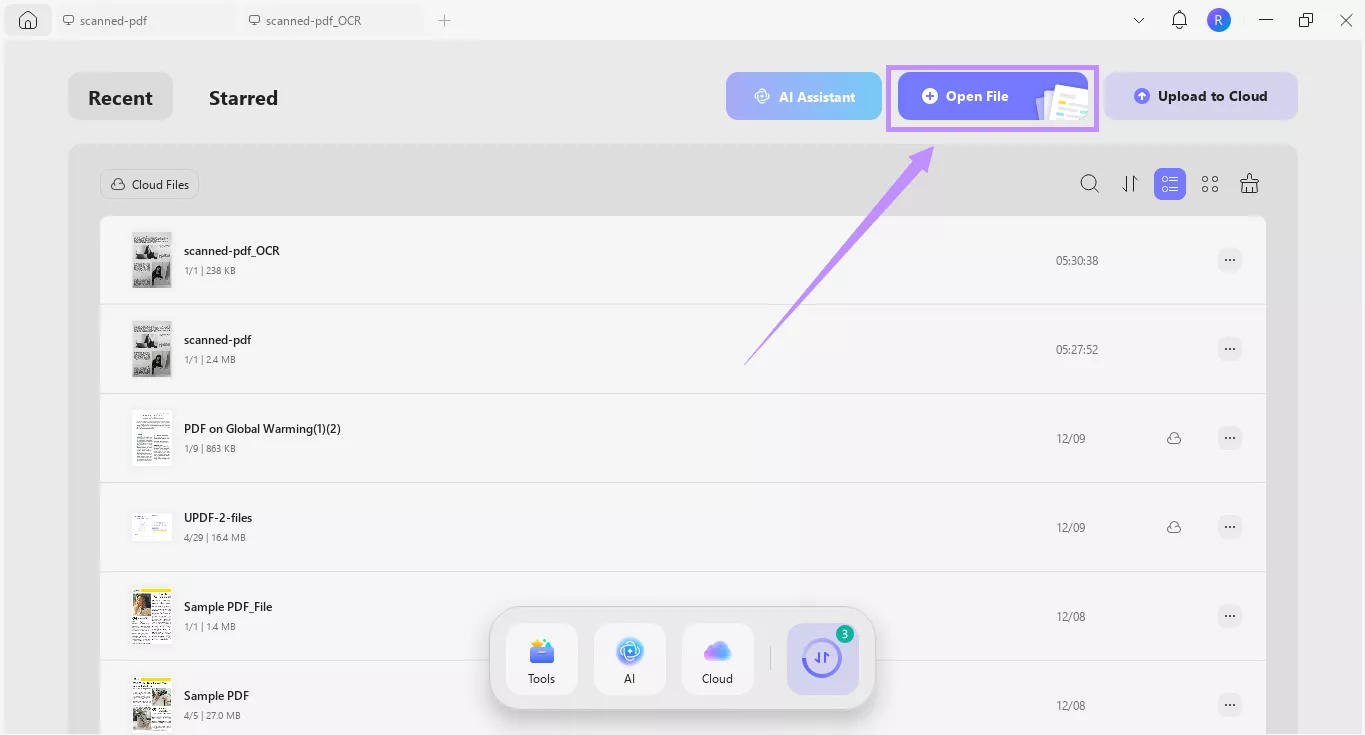
UPDF offers 3 ways to edit brightness of PDF and enhance text clarity:
1. Adjust the Brightness of the Entire PDF:
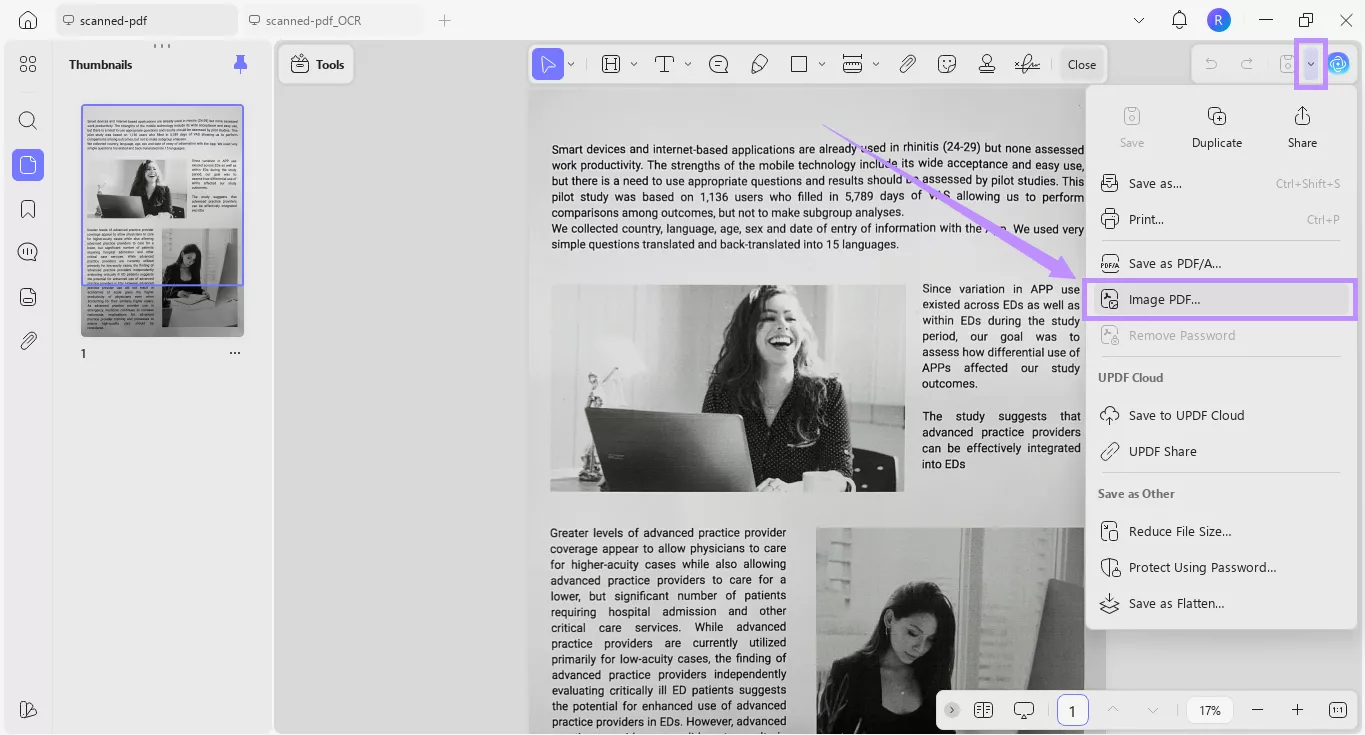
Step 1. With your PDF open, click the down arrow button at the top right. Then, choose “Image PDF” from the list.
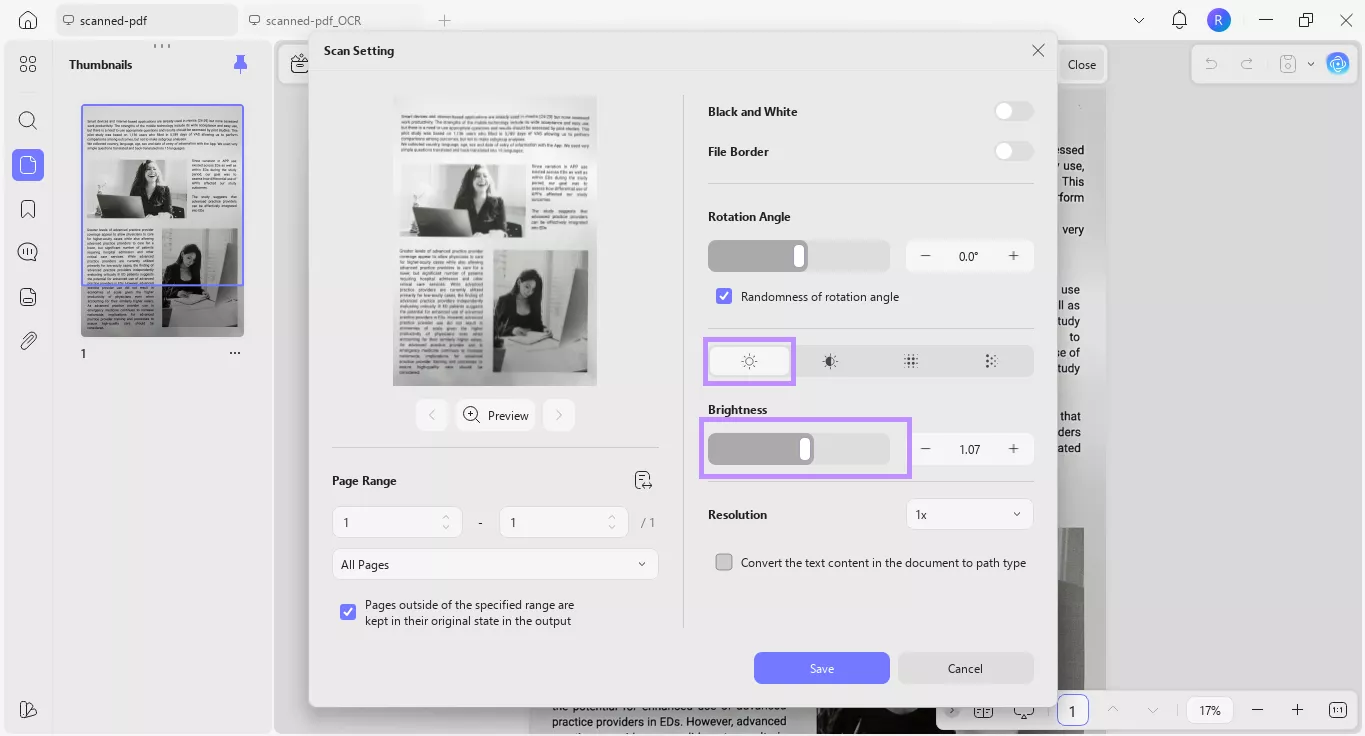
Step 2. From the new window, select the “Brightness” tool on the right. Drag the slider to adjust the PDF brightness as needed. Then, click “Save” to store the file.
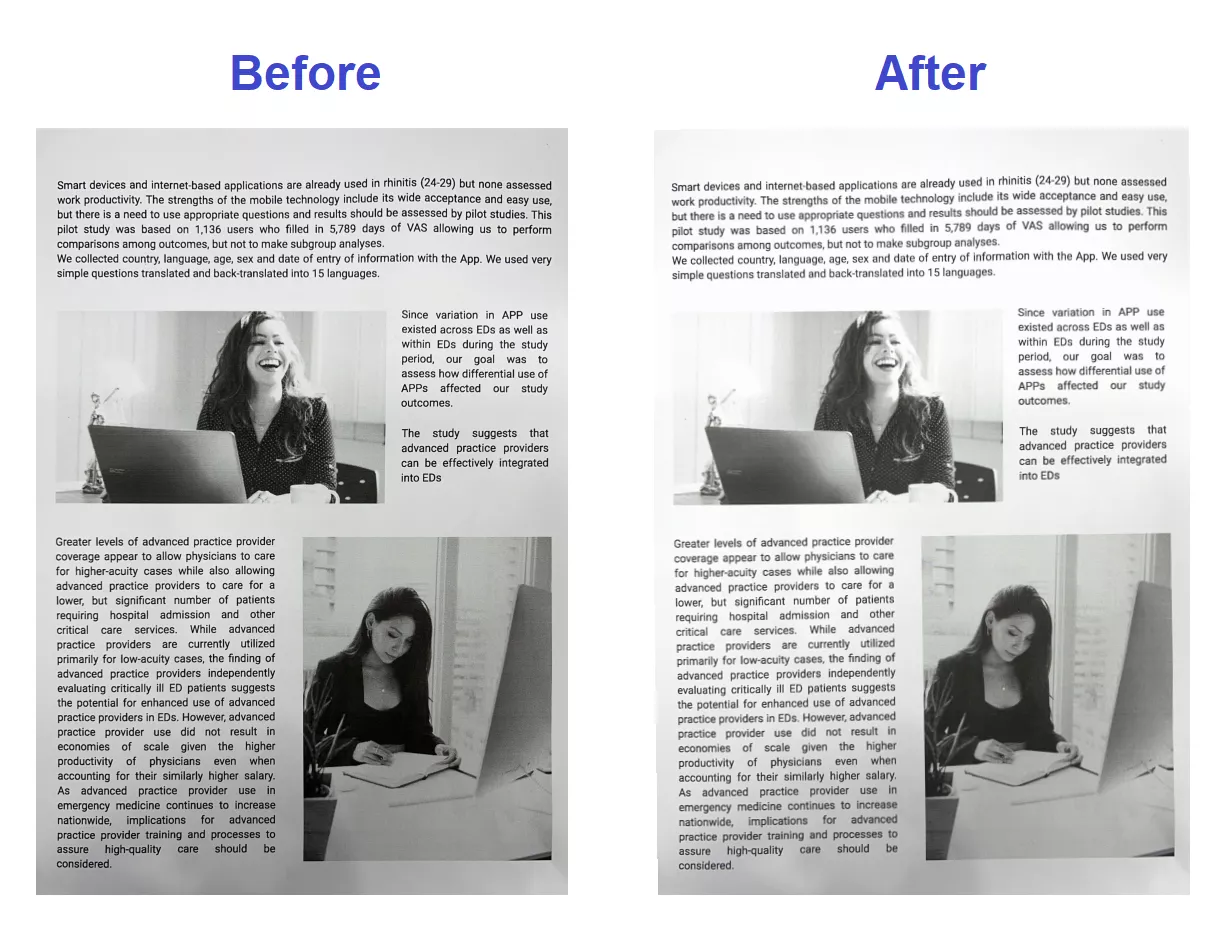
Here’s a quick comparison of the PDF before and after adjusting brightness with UPDF:
Tip:
2. Improve PDF Text Clarity:
Step 1. Click “Tools” from the top and choose “OCR” under the Edit PDF section.
Windows • macOS • iOS • Android 100% secure
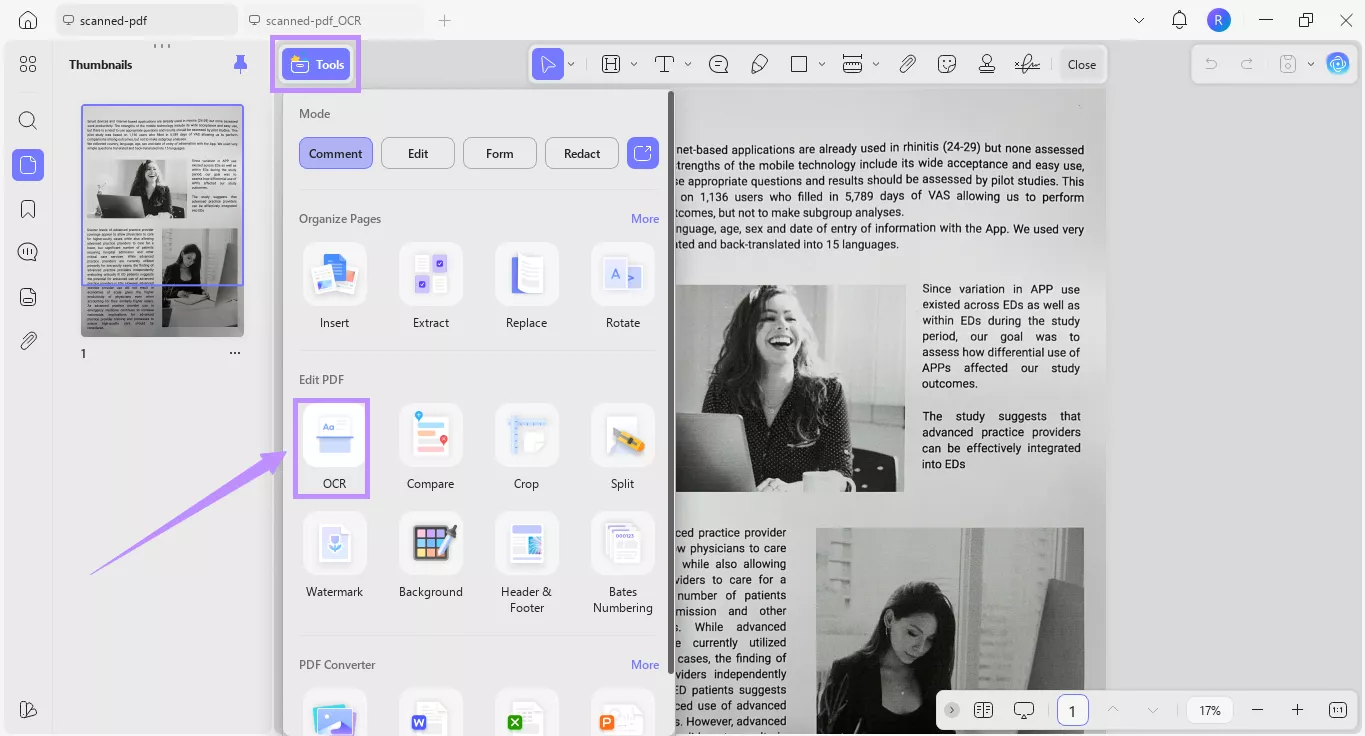
Step 2. Select the “Text and Pictures Only” mode for a clear background. Then, choose the document language and click “Convert” to save the file.
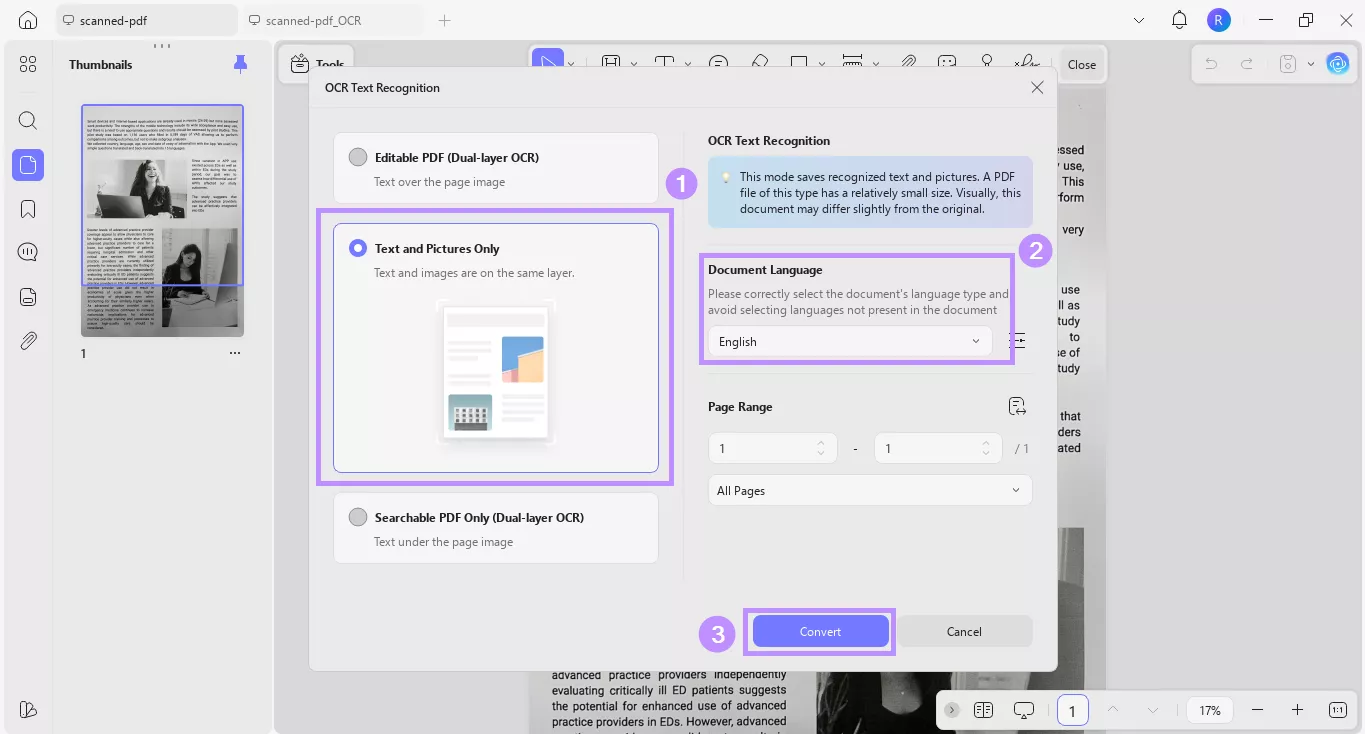
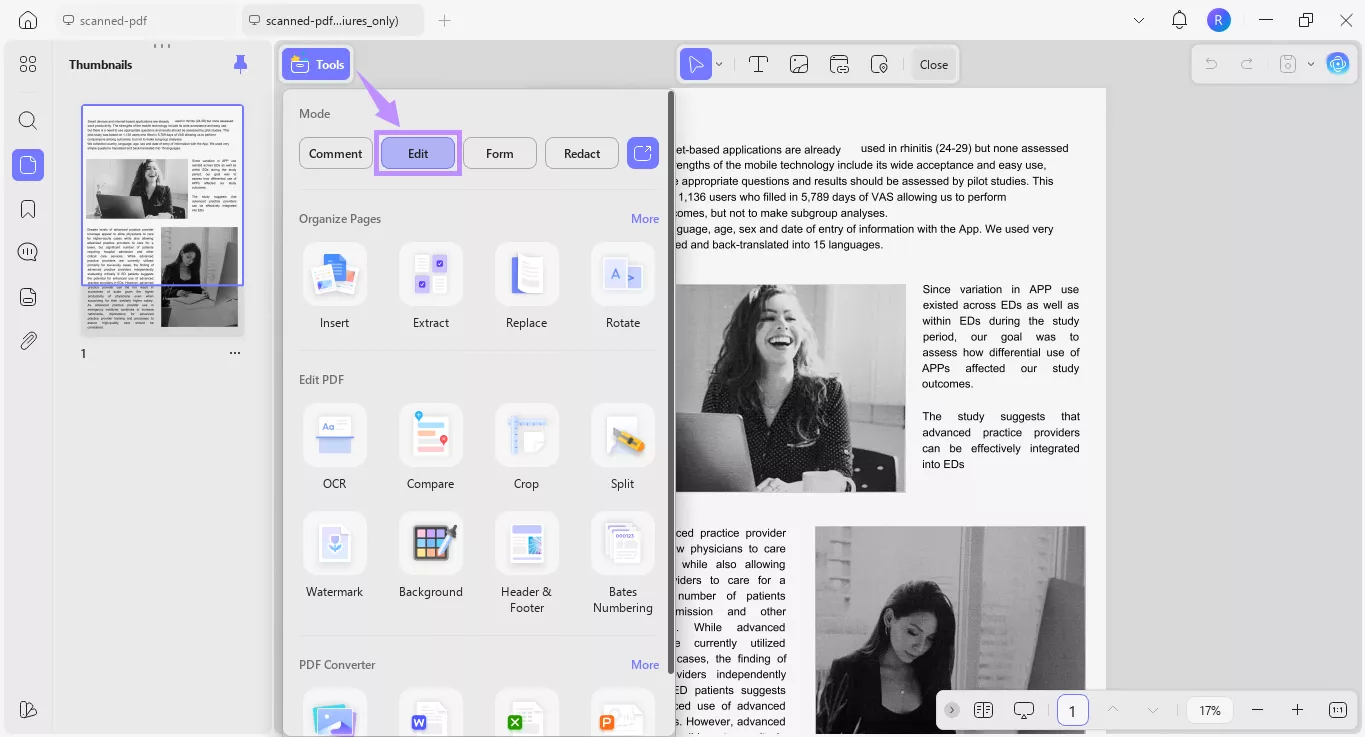
Step 3. Once the OCR is complete, your new PDF will open automatically. From here, click “Tools” and choose “Edit.”
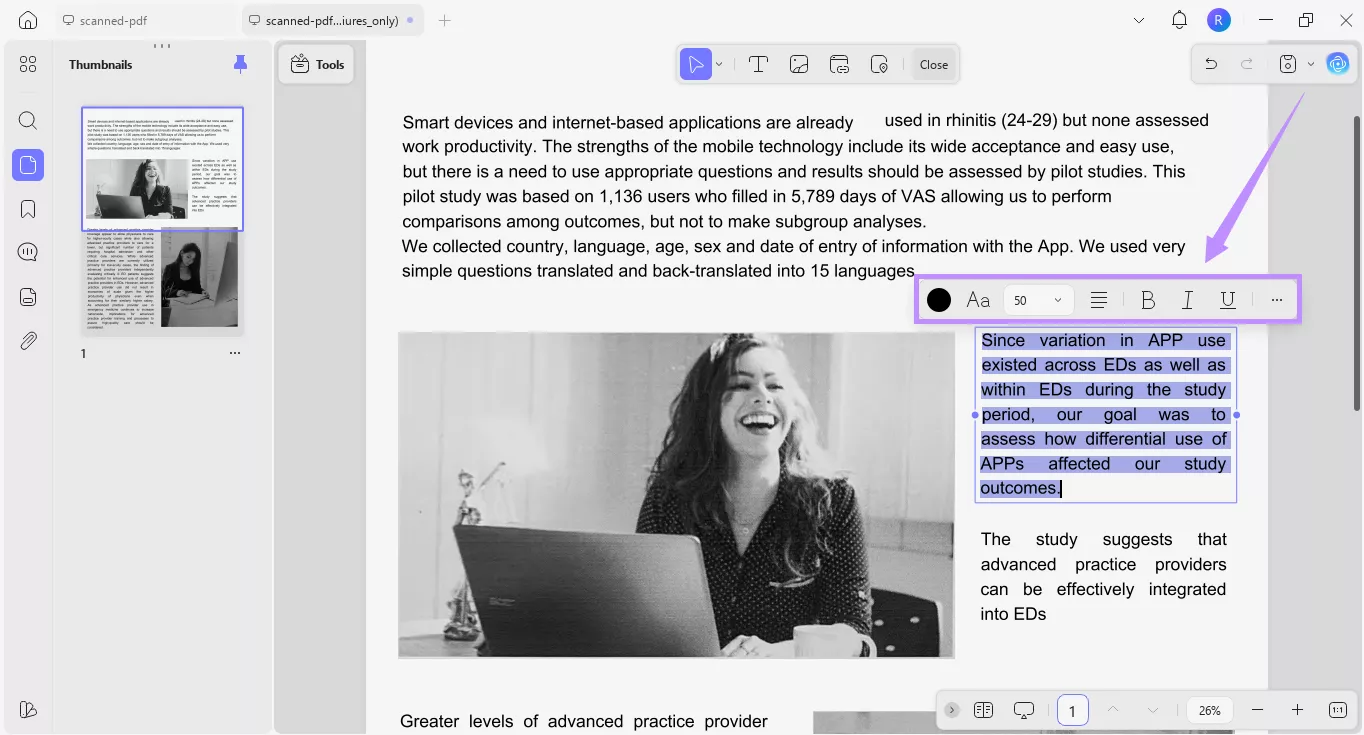
Step 4. Select the desired text. From the floating toolbar, adjust the text color, font, size, alignment, and more to make it more legible.
Step 5. Alternatively, click the “More” option from the toolbar to open a properties panel on the right. This will give you expanded options to edit the text style and layout.
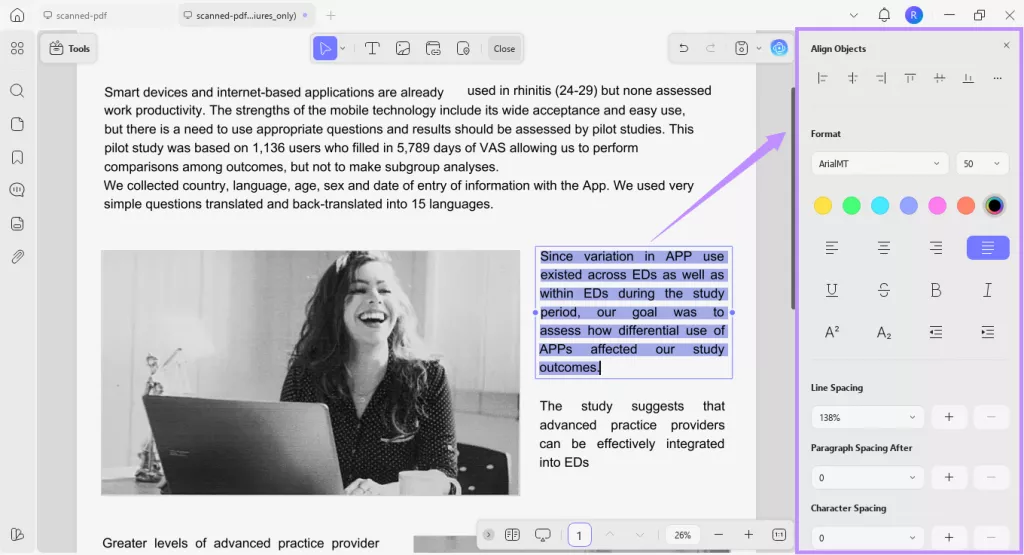
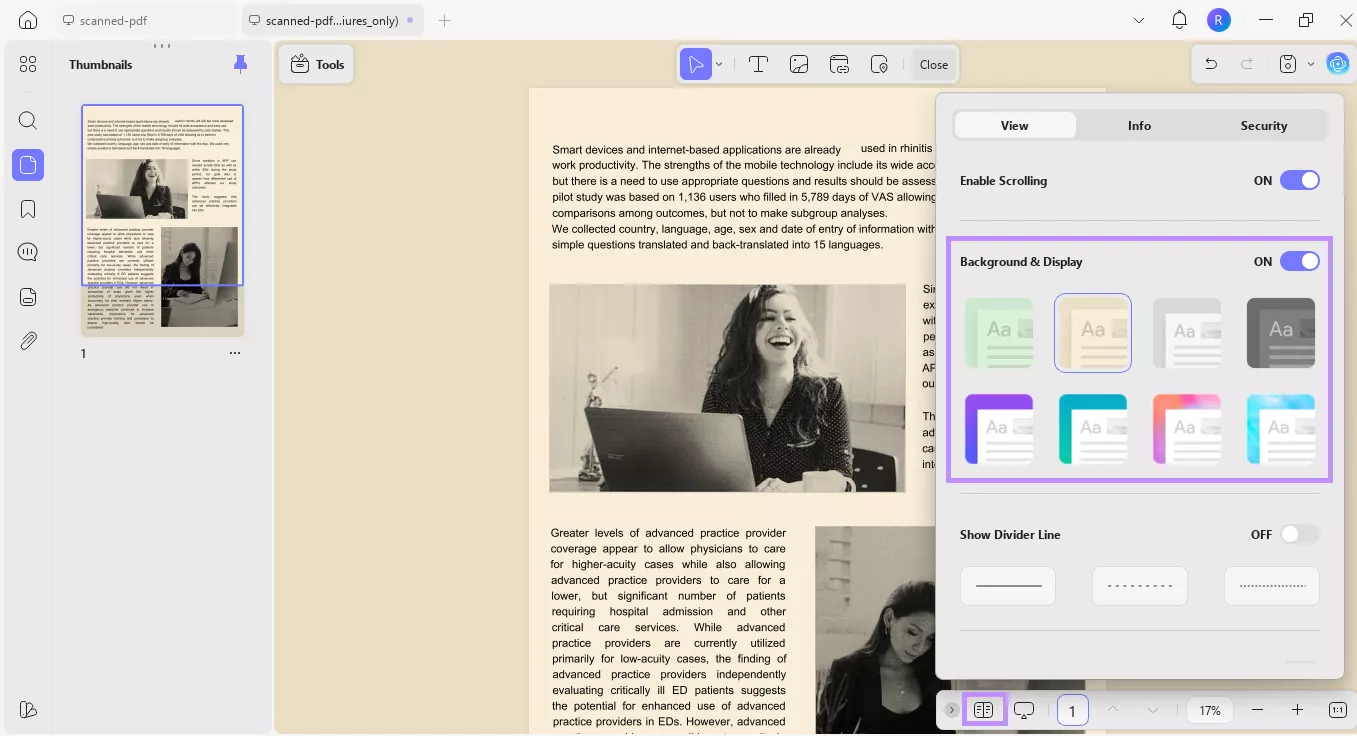
You can also improve readability by editing the PDF background and reading mode. To change the background, open “Document Properties” at the bottom and select a backdrop under “Background & Display.”
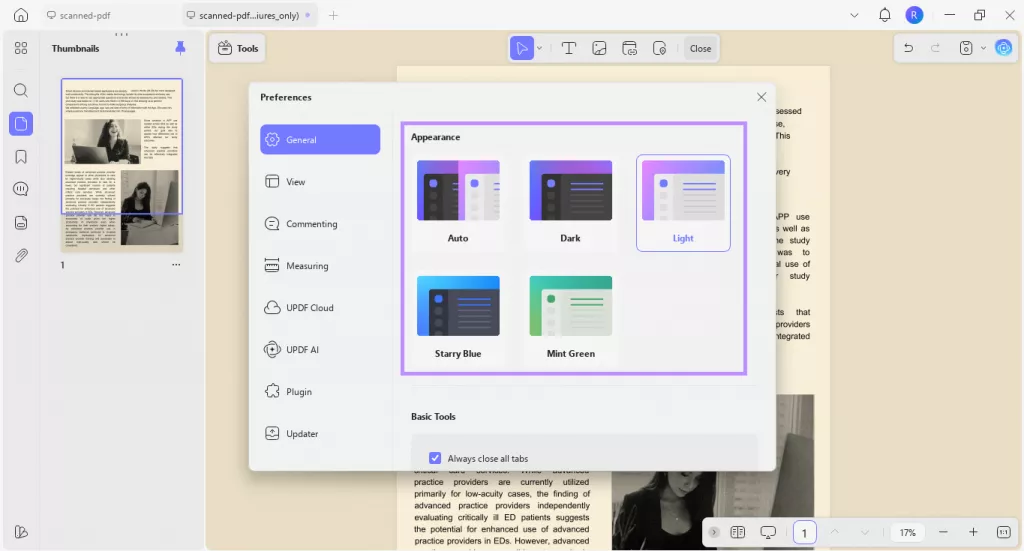
To adjust the reading mode, open your profile, go to “Settings > General,” and choose your preferred option under “Appearance.”
3. Enhance a Single Image in the PDF:
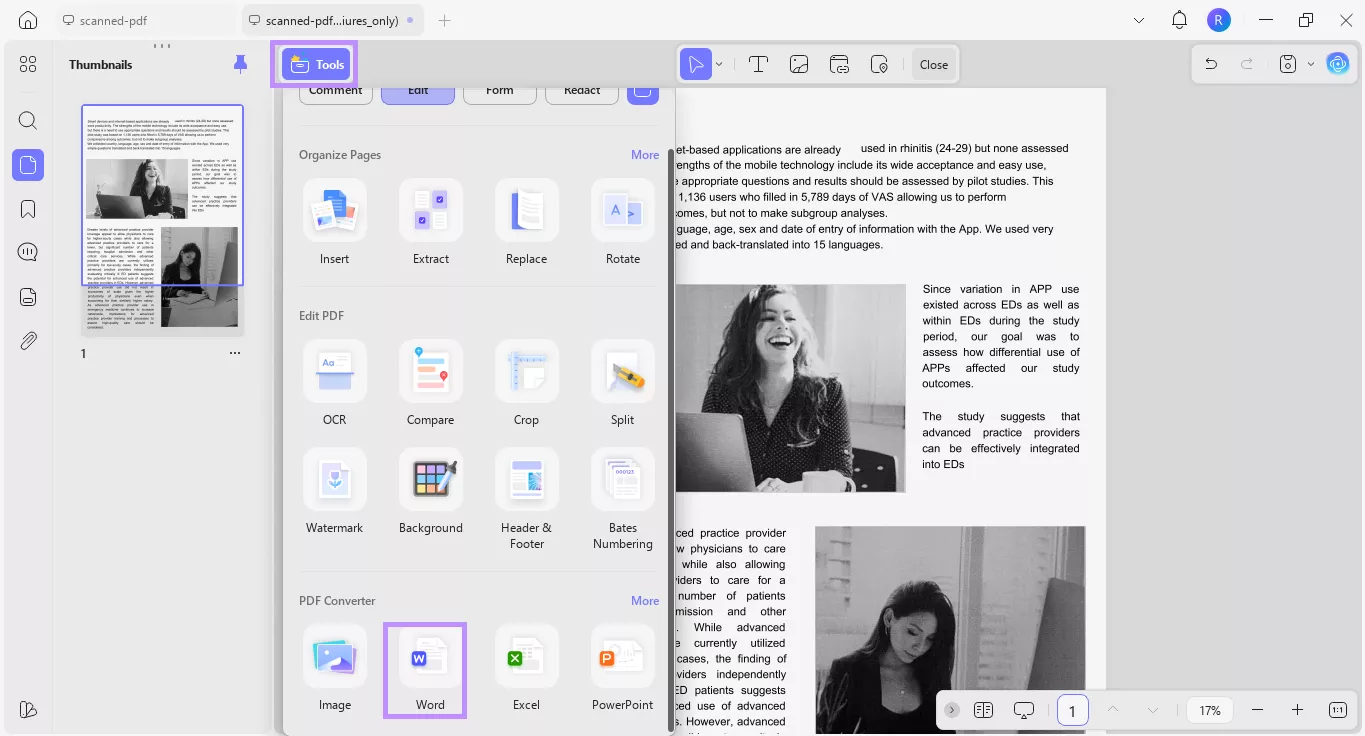
If you want to enhance an embedded image in the PDF, you can convert your PDF to Word while performing OCR. To do this:
Step 1. Click “Tools” and choose “Word” under the PDF Converter section.
Windows • macOS • iOS • Android 100% secure
Step 2. From the new window, define the page range. Then, click the Word Content Style dropdown and choose whether to “Retain Word Flowing Style” or “Retain Word Textbox Style.”
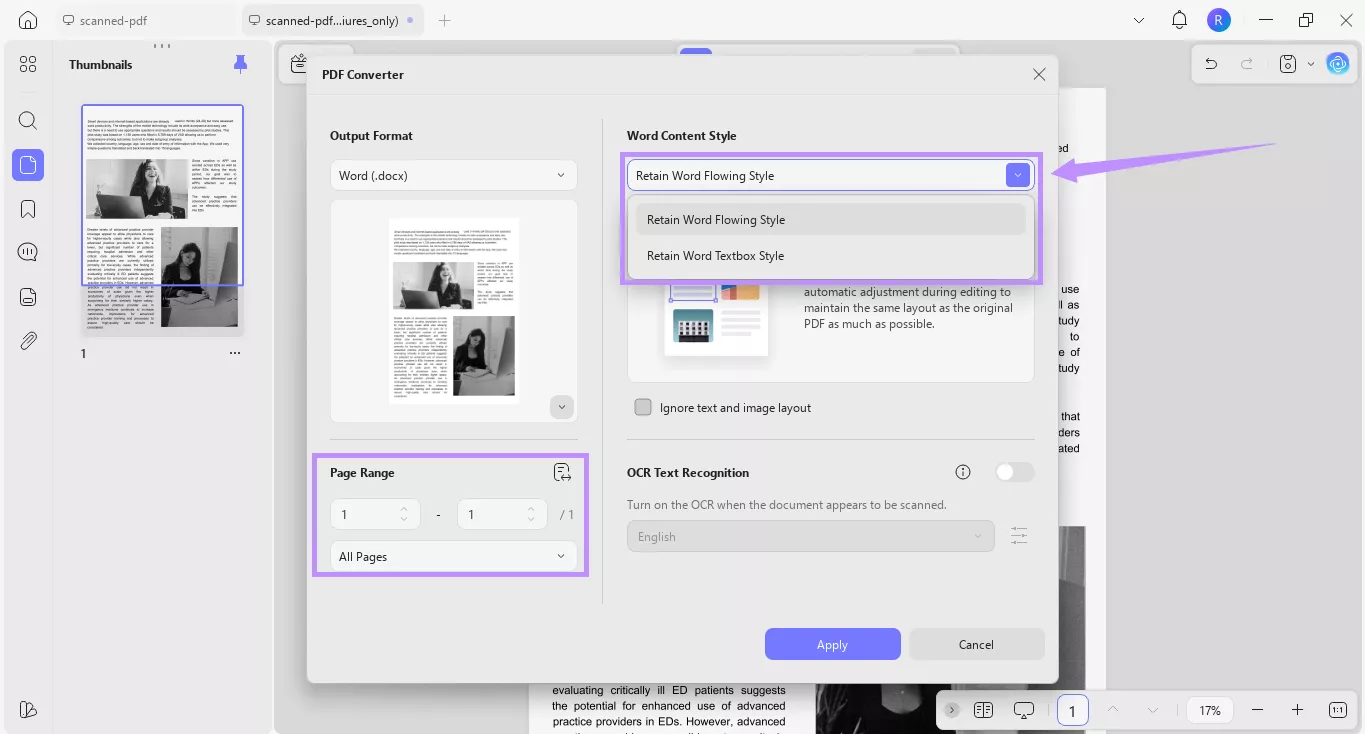
Step 3. Toggle on “OCR Text Recognition” and choose an appropriate language from the dropdown menu.
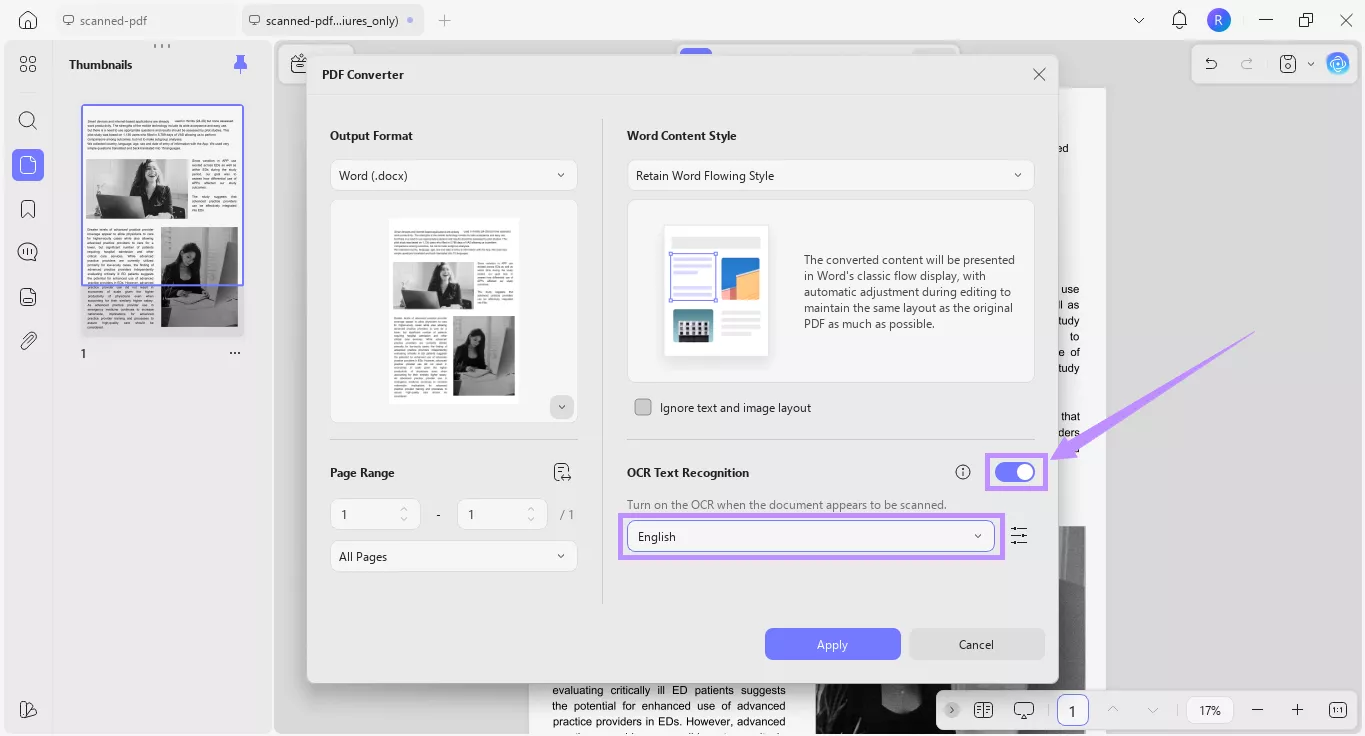
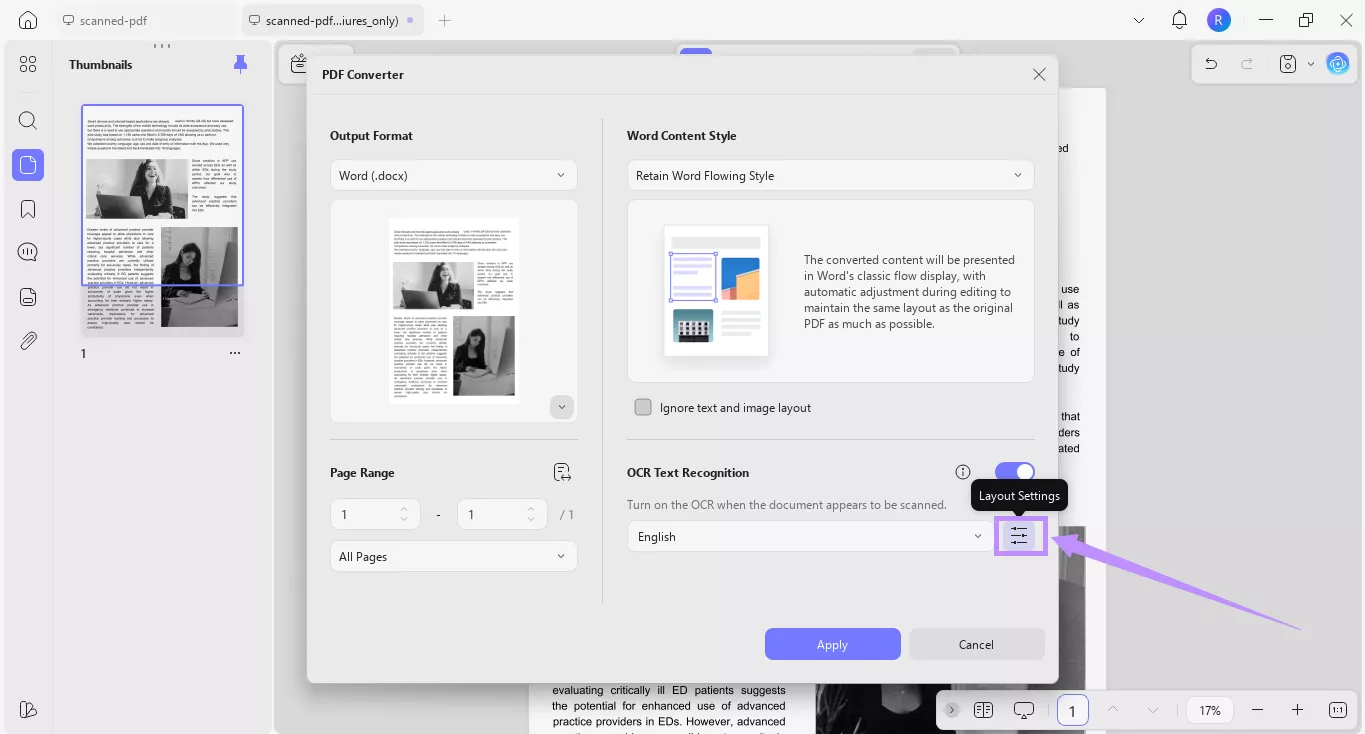
Step 4. Click the “Layout Settings” option. Then, choose the PDF elements you want to keep and even compress images using MRC. Lastly, click “Apply” and save the file.
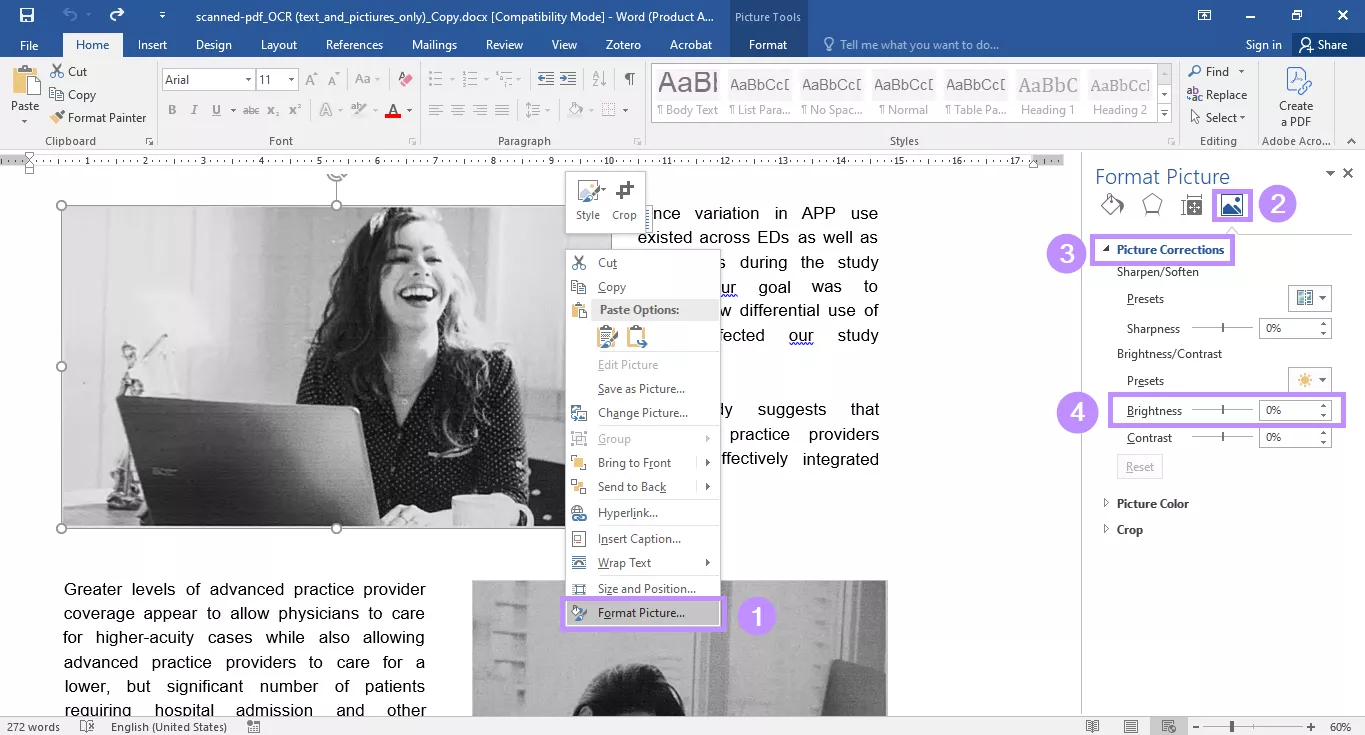
Step 5. Now open your new Word file. Then:
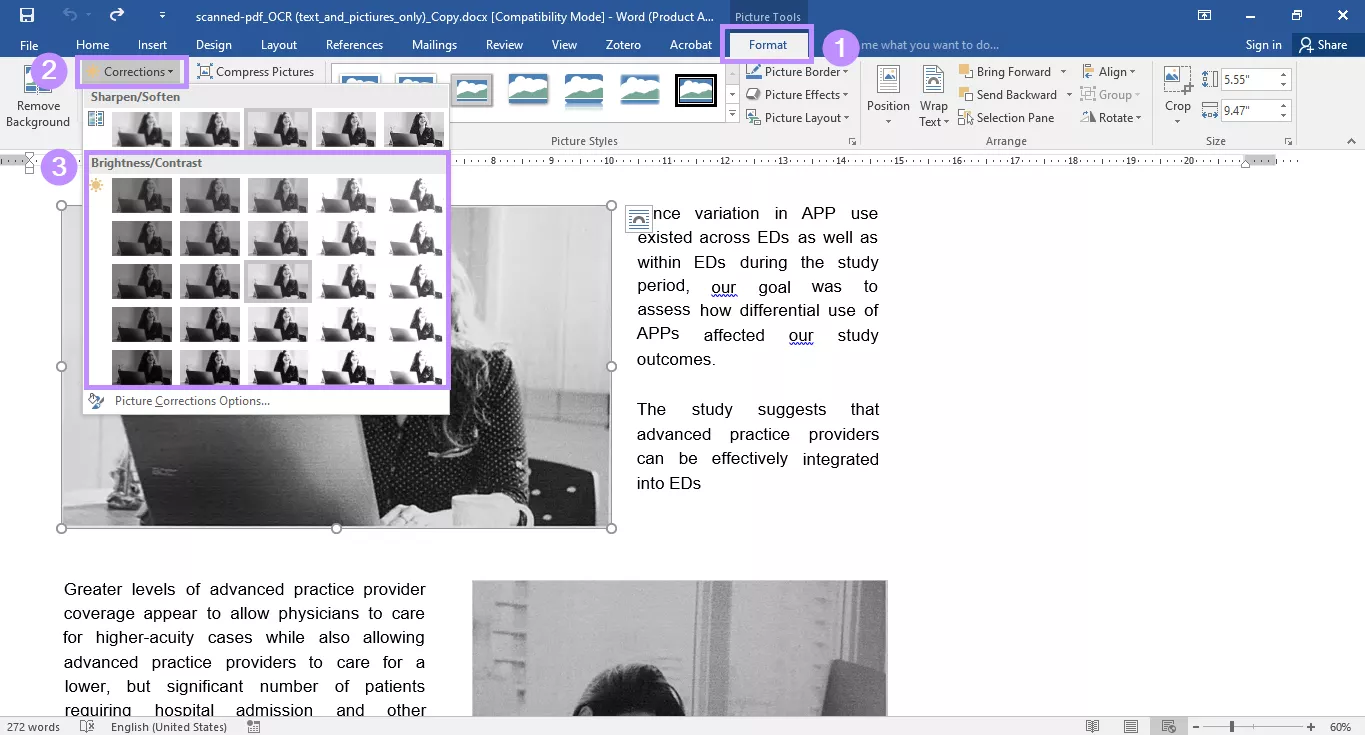
- Right-click the image you want to brighten and choose “Format Picture” or “Format Object” from the list.
- Select the “Picture” tab from the right panel. Then expand the “Picture Corrections” menu. Under “Brightness/Contrast” drag the brightness slider to adjust as needed.
Step 6. Alternatively, click the desired image. Then:
- Select the “Format” or “Picture Format” tab from the top menu.
- Click on “Corrections” and select a preset brightness filter you need.
Part 3. How to Increase PDF Brightness with Preview on Mac?
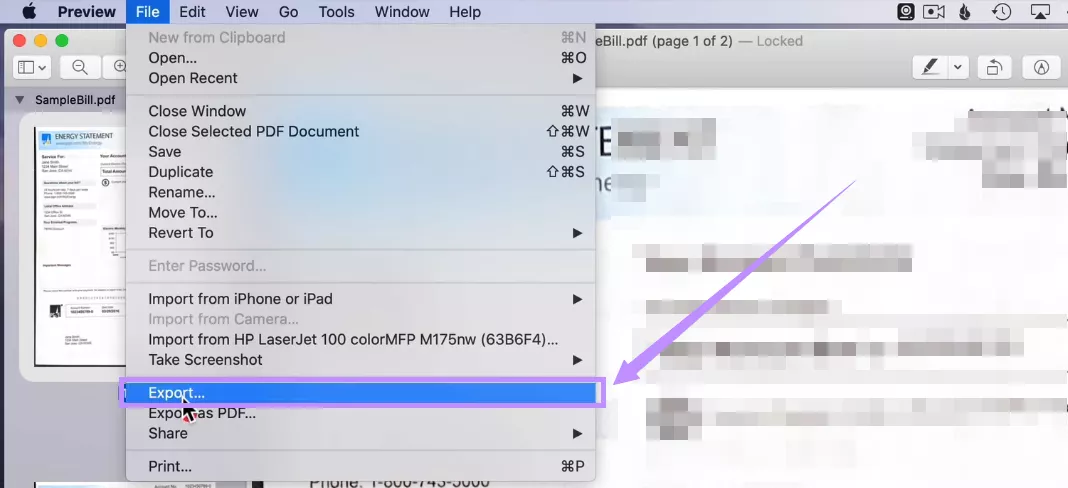
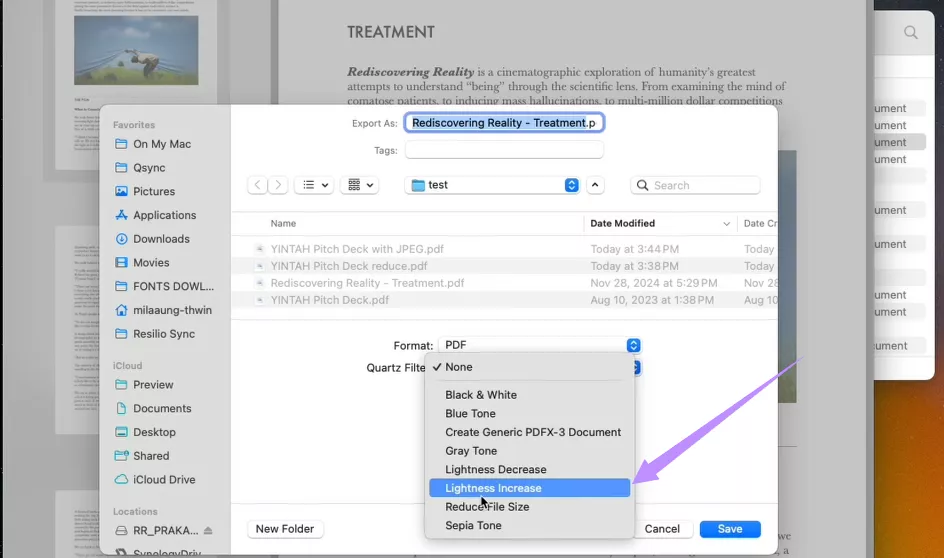
If you're using a Mac, you can increase PDF brightness in Preview by applying a lighter Quartz Filter. However, be aware that this method doesn’t offer any custom brightness controls.
Here are the steps.
Step 1. Open your PDF file in Preview. Then, click “File” at the top and choose “Export” from the menu.
Step 2. From the new window, click the Quartz Filter dropdown. Then, select “Lightness Increase” and click “Save.”
Part 4. How to Increase PDF Brightness Online?
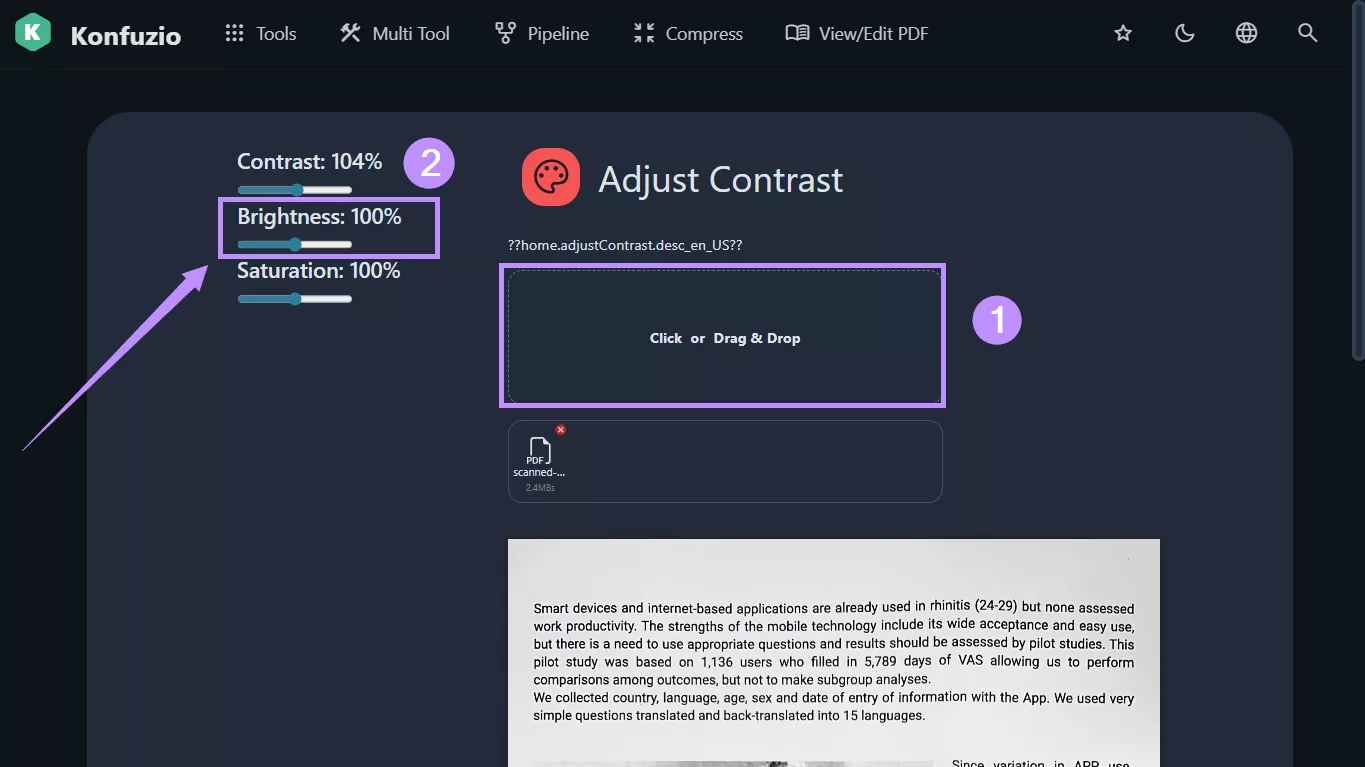
You can also increase PDF brightness online, using PDF editor platforms like Konfuzio. It offers a contrast adjustment tool that lets you fine-tune brightness with custom controls.
Here’s how to use it.
Step 1. Visit the adjust contrast page on the Kunfuzio website. Then, drag and drop your PDF file.
Step 2. Once your PDF is uploaded, you will see adjustment controls on the top left. From here, adjust the “Brightness” slider as needed. Then, click “Download.”
Conclusion
To sum up, you can increase PDF brightness using online tools like Konfuzio, Preview on Mac, and UPDF on both Windows and Mac platforms. However, if you want an all-in-one solution to make your PDF clearer and easier to read, UPDF is the perfect option. It offers several ways to improve your document's clarity. Even better, you can get started for free! So, don’t wait. Download and try it today!
Windows • macOS • iOS • Android 100% secure





 Enid Brown
 Delia Meyer
 Engelbert White

 Enrica Taylor