 UPDF
UPDF
 UPDF for Windows
 UPDF for Mac
 UPDF for iPhone/iPad
 UPDF for Android
 UPDF AI Online
 UPDF Sign
 Edit PDF
 Annotate PDF
 Create PDF
 PDF Form
 Edit links
 Convert PDF
 OCR
OCR PDF to Word
 PDF to Image
 PDF to Excel
 Organize PDF
 Merge PDF
 Split PDF
 Crop PDF
 Rotate PDF
 Protect PDF
 Sign PDF
 Redact PDF
 Sanitize PDF
 Remove Security
 Read PDF
 UPDF Cloud
 Compress PDF
 Print PDF
 Batch Process
 About UPDF AI
 UPDF AI Solutions
 AI User Guide
 FAQ about UPDF AI
 Summarize PDF
 Translate PDF
 Chat with PDF
 Chat with AI
 Chat with image
 PDF to Mind Map
 Explain PDF
 PDF AI Tools
 Image AI Tools
 AI Chat Tools
 AI Writing Tools
 AI Study Tools
 AI Working Tools
 Other AI Tools
 AI Bookmark Generation
 AI Bookmark Summary
 AI Watermark Generation
 AI Background Generation
 AI Sticker Generation
 AI Stamp Generation
 AI Editing Suite
 UPDF Copilot
 AI Page Management
 AI Semantic Search
 PDF to Word
 PDF to Excel
 PDF to PowerPoint
 Enterprise Solution
 Enterprise Sign
 Enterprise AI
 Enterprise Plan
 Enterprise User Guide
 Enterprise Webinar
 Banking
 Healthcare
 Insurance
 Legal
Legal Manufacturing
 Government
 Education Solution
 Customer Stories
 User Guide
 UPDF Tricks
 FAQs
FAQs UPDF Reviews
 Download Center
 Blog
Blog Newsroom
 Tech Spec
 Updates
 UPDF vs. Adobe Acrobat
 UPDF vs. Foxit
 UPDF vs. PDF Expert

Changing fonts in a PDF — whether you need to adjust the typeface, resize text, or update the color — is one of the most common editing tasks in Foxit PDF Editor. Whether you're polishing a report, standardizing a template, or making a form more readable, knowing exactly where Foxit's font controls live saves time.
This guide covers three scenarios in Foxit PDF Editor: changing font type and size in regular PDF content, changing font color, and changing font size inside fillable form fields. We also compare the same workflow in UPDF, which handles font editing with fewer steps and adds AI-powered text refinement.
Windows • macOS • iOS • Android 100% secure
Part 1. How to Change Font in Foxit PDF Editor (3 Tasks Covered)
Foxit PDF Editor is an effective tool that is expected to meet the needs of numerous users due to its multiple functions for working with PDF documents. The user can easily change the fonts, change their size, type, color, and style in a simple process. The options allow the users to easily set the desired font size and type so that it meets the business rules for the typed documents.
The font color issue is another main feature of the application and can therefore be used to make the text more attractive, or even use highlighters. Furthermore, Foxit PDF Editor has multiple font options that enable the users to highlight the important points by making them bold, italicized, or underlined.
How to Change Font Type and Size in Foxit PDF Editor?
Here are the steps for you to follow if you want to change the type of the fonts in your PDF document:
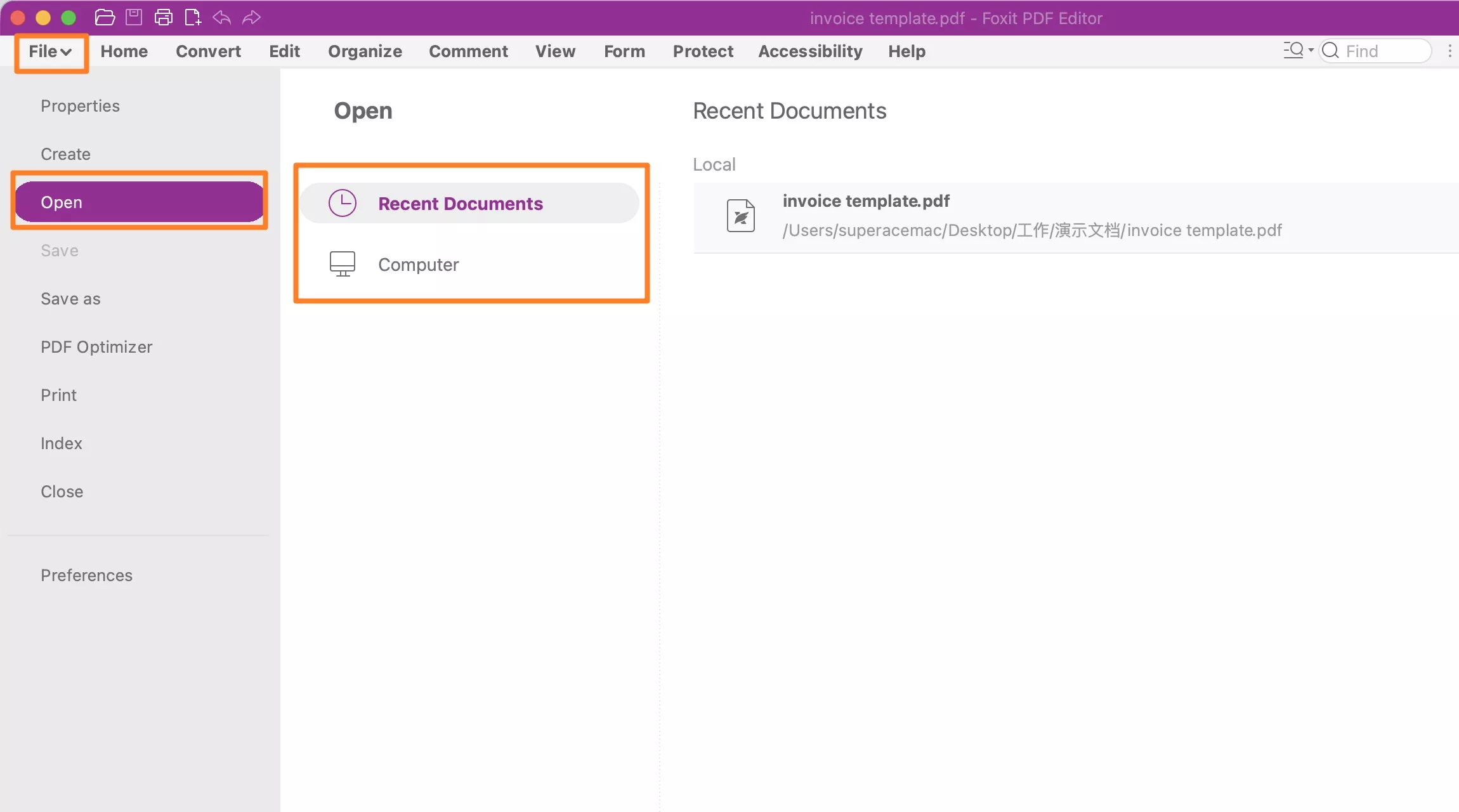
Step 1. Open Foxit PDF Editor and go to File → Open → Recent Documents/Computer to load your PDF document.
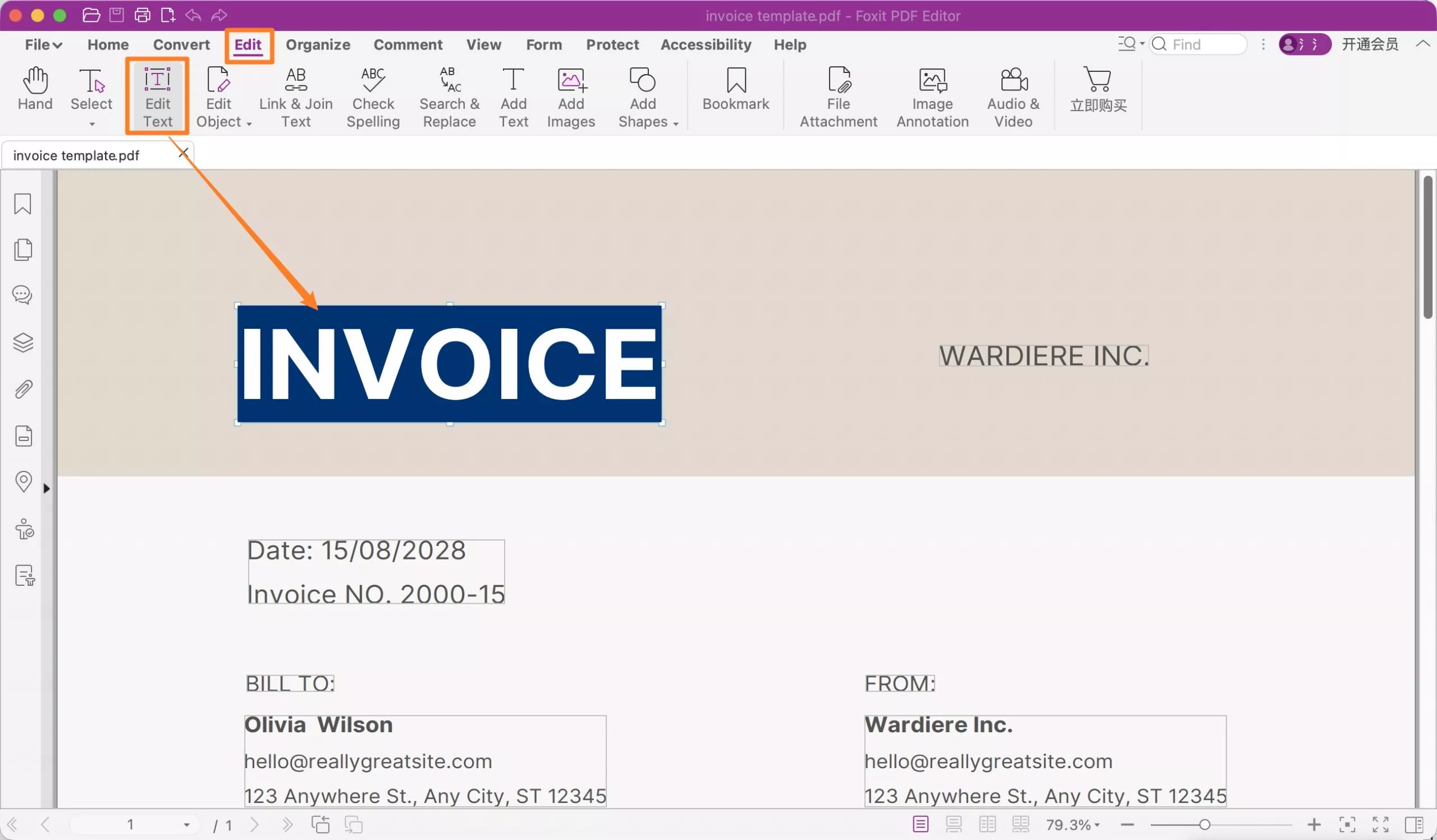
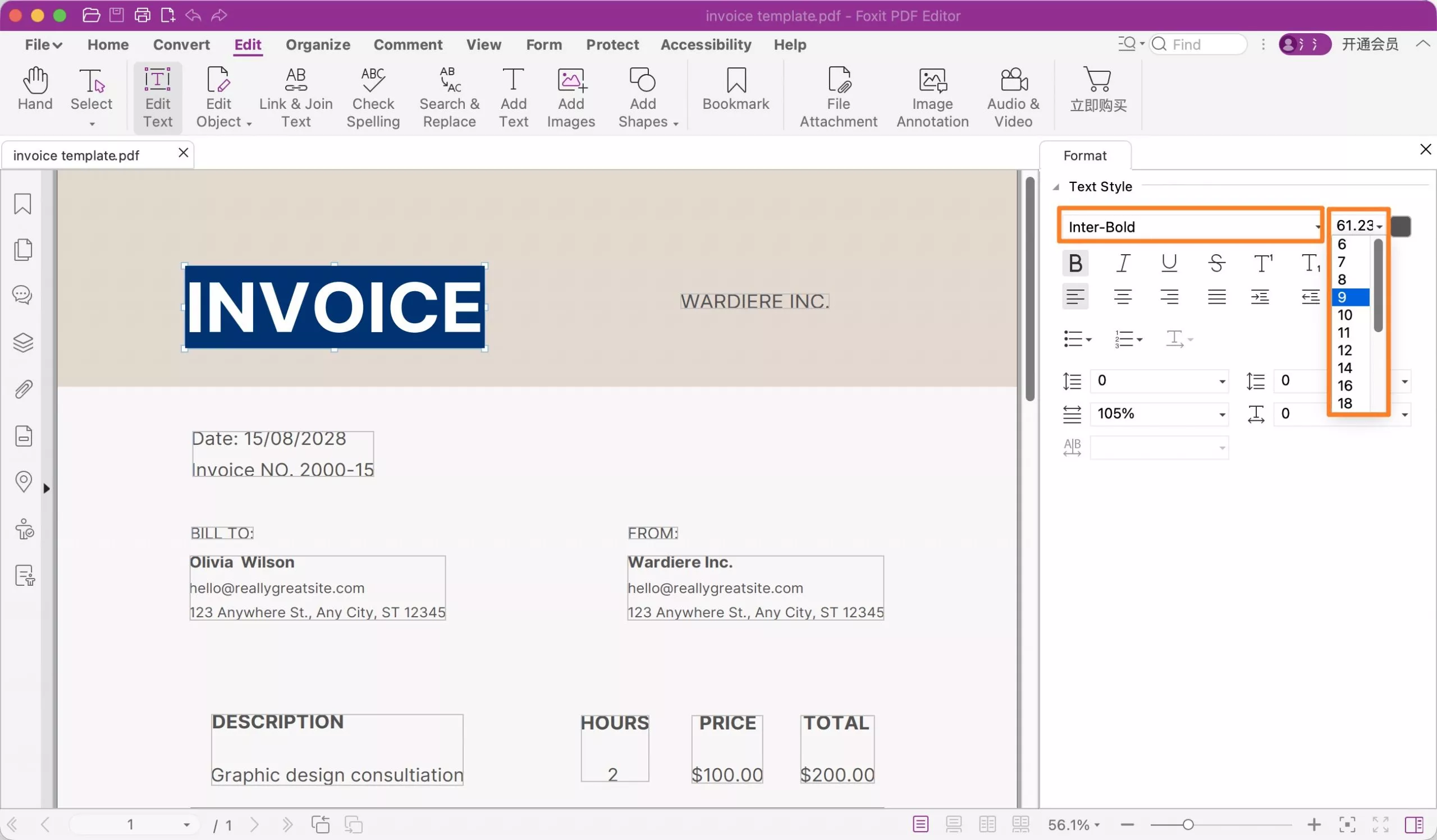
Step 2. In the top toolbar, click the Edit tab, then select Edit Text to enter text editing mode. Click and drag to select the text whose font you want to change.
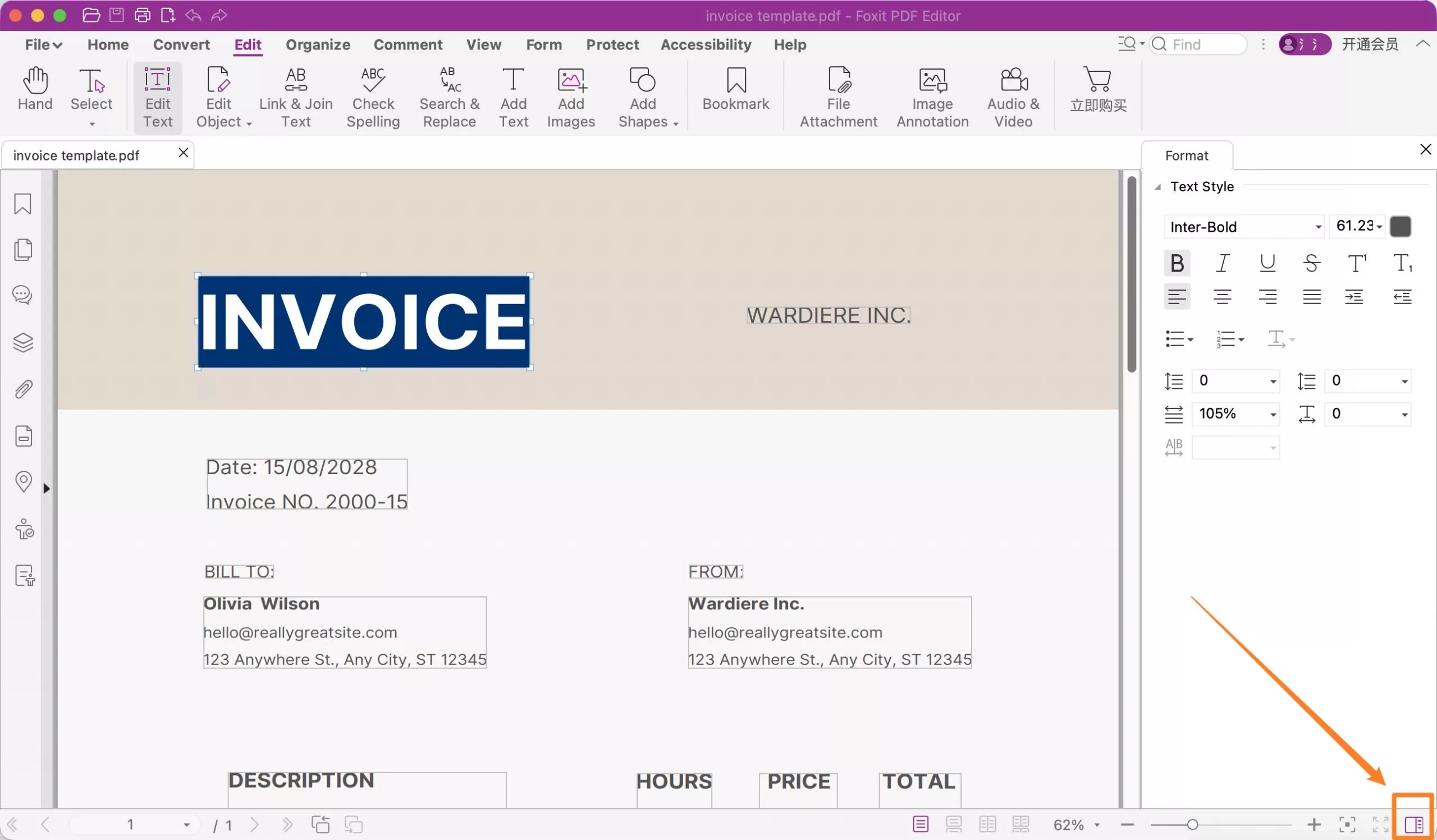
Step 3. The Format panel will appear on the right side, showing font name, size, and style options. If the Format panel isn't visible, click the Right Panel button at the bottom-right of the interface to show it.
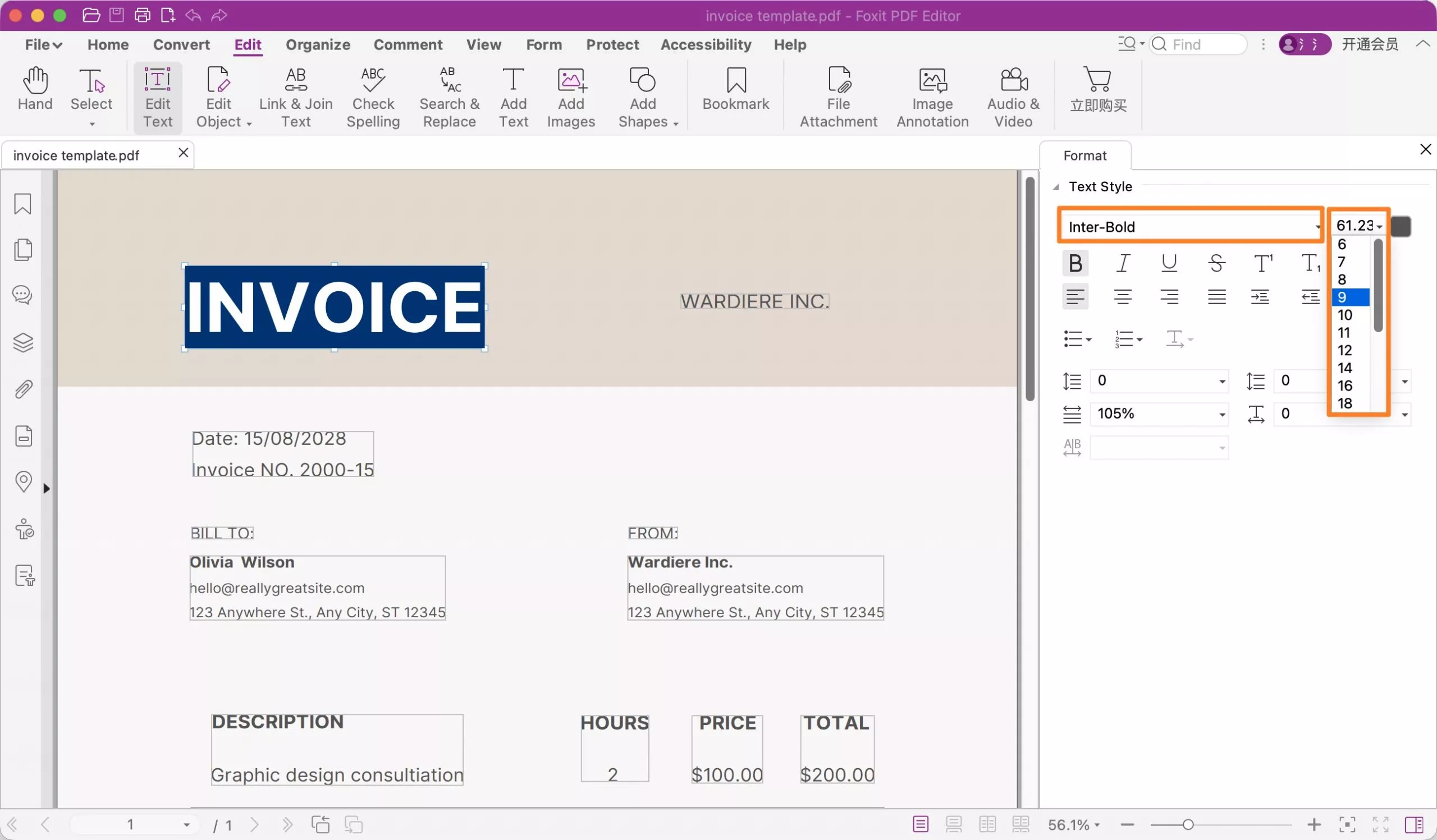
Step 4. Click the Font dropdown to select your preferred typeface. Click the Size field next to it to set the font size. Changes apply to your selection immediately.
How to Change Font Color in Foxit PDF Editor?
Changing the color of the font in the Foxit PDF Editor is a similarly simple and easy process as changing the font size. Here are the steps for you to follow:
Step 1. Open Foxit PDF Editor and go to File → Open → Recent Documents/Computer to load your PDF document.
Step 2. In the top toolbar, click the Edit tab, then select Edit Text to enter text editing mode. Click and drag to select the text whose font you want to change.
Step 3. The Format panel will appear on the right side, showing font name, size, and style options. If the Format panel isn't visible, click the Right Panel button at the bottom-right of the interface to show it.
Step 4. In the Format panel, locate the Font Color option (shown as a color swatch). Click it to open the color picker and choose your preferred color. Click OK, the change applies immediately to the selected text.
How to Change Font Size in Fillable PDF Form Foxit?
When working with Foxit, you can also change the font size of fillable PDF forms. The process is very easy with the following steps:
Step 1. Open the fillable PDF in Foxit PDF Editor. Switch to the Form tab in the top toolbar.
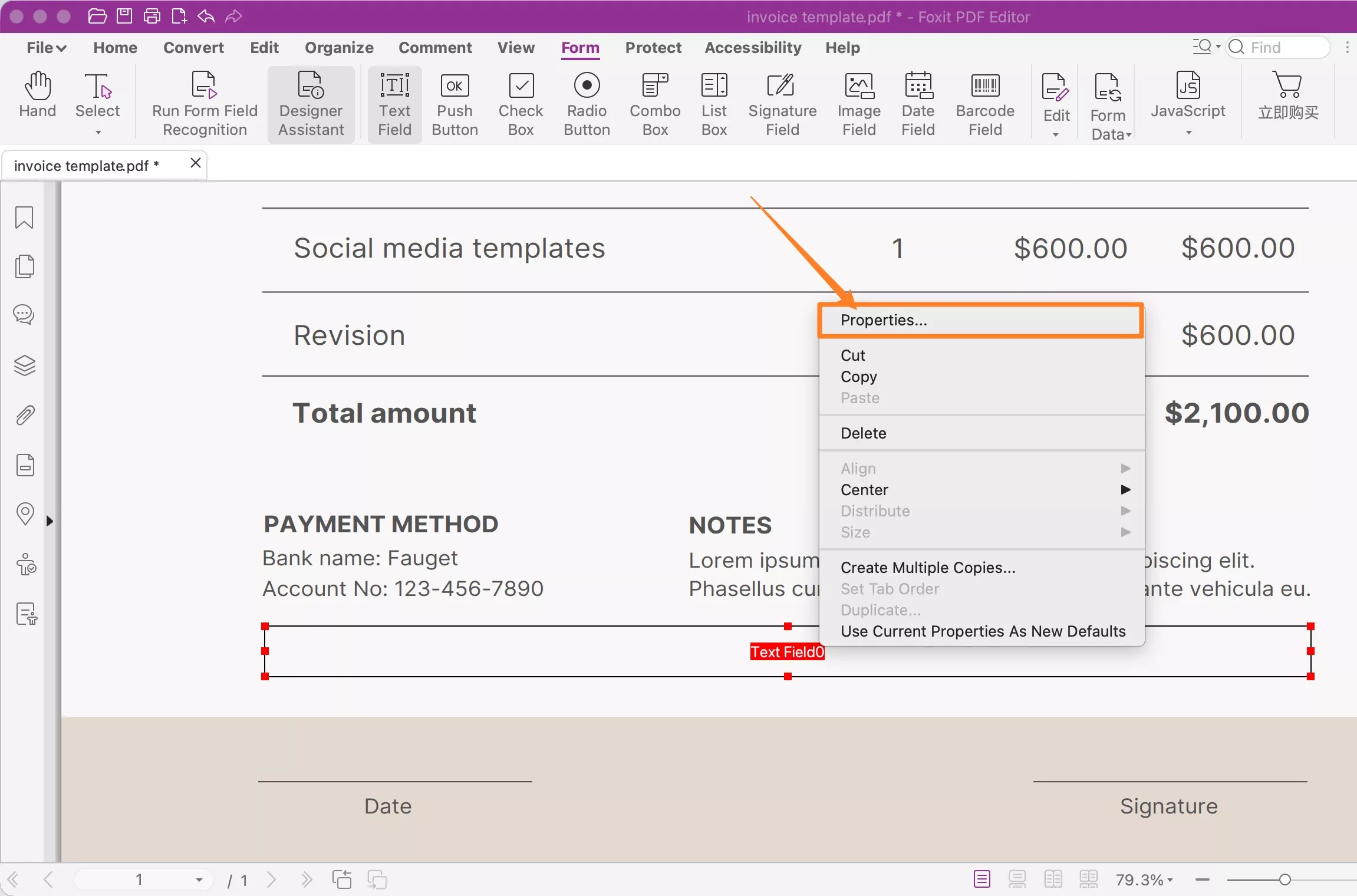
Step 2. Right-click on the text form field whose font size you want to change → select Properties from the context menu.
Step 3. In the Properties dialog, go to the Appearance tab. Under the Text section, adjust the Font Size dropdown to your preferred value.
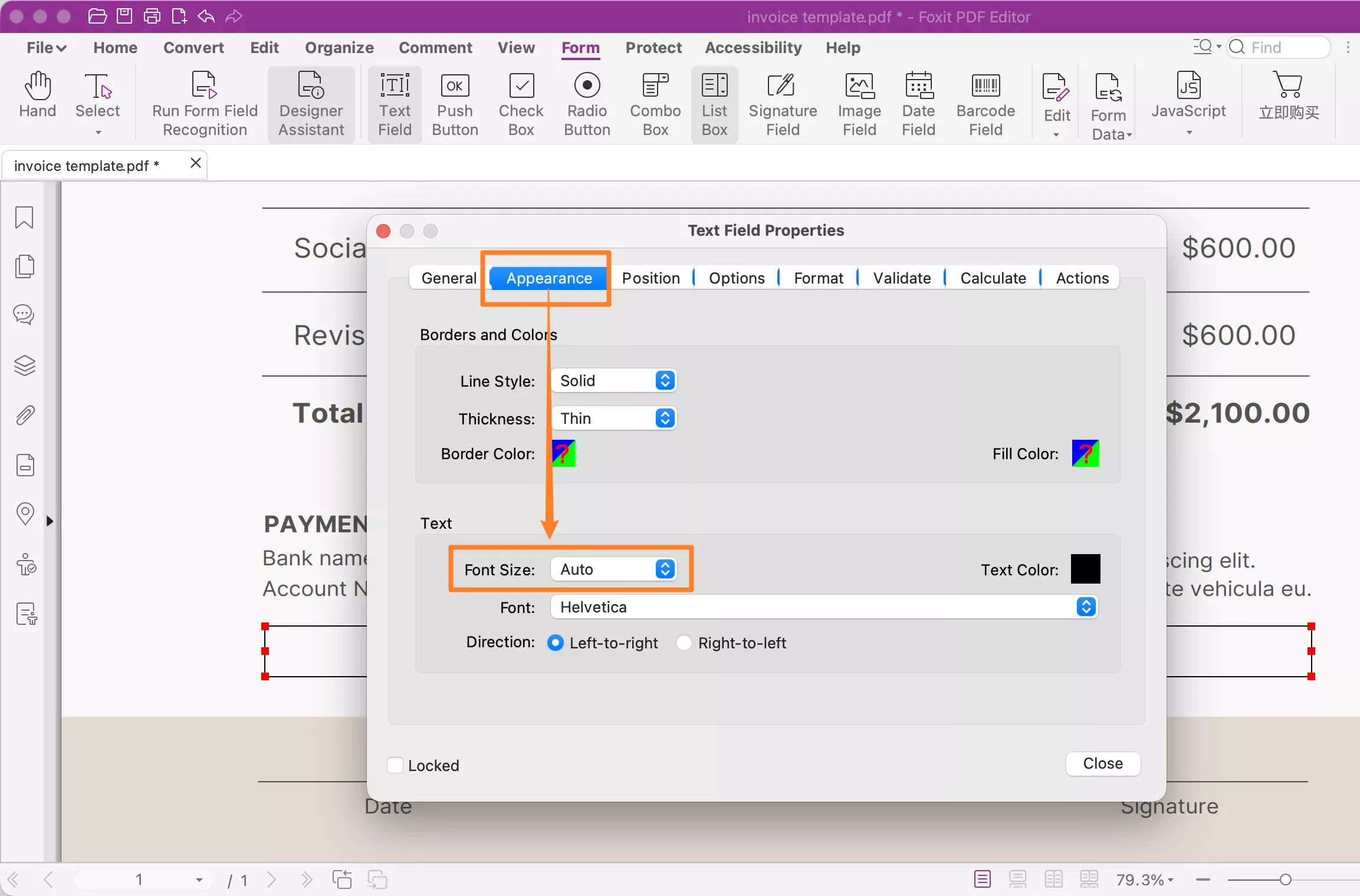
Step 4. Click Close to apply the change.
Part 2. How to Change Font in UPDF — Fewer Steps, More Control
UPDF is a full-featured AI-powered PDF editor that handles font editing in a more streamlined workflow than Foxit PDF Editor — and goes further with AI-assisted text refinement. Here's how the same three tasks work in UPDF.
How to Change Font Size in UPDF?
Changing font size in UPDF takes no effort as it takes only the following single step.
Step 1: Click the below button to download UPDF, then run the app and open the PDF document in it by clicking "Open File" (or drag and drop the file onto the UPDF window).
Windows • macOS • iOS • Android 100% secure
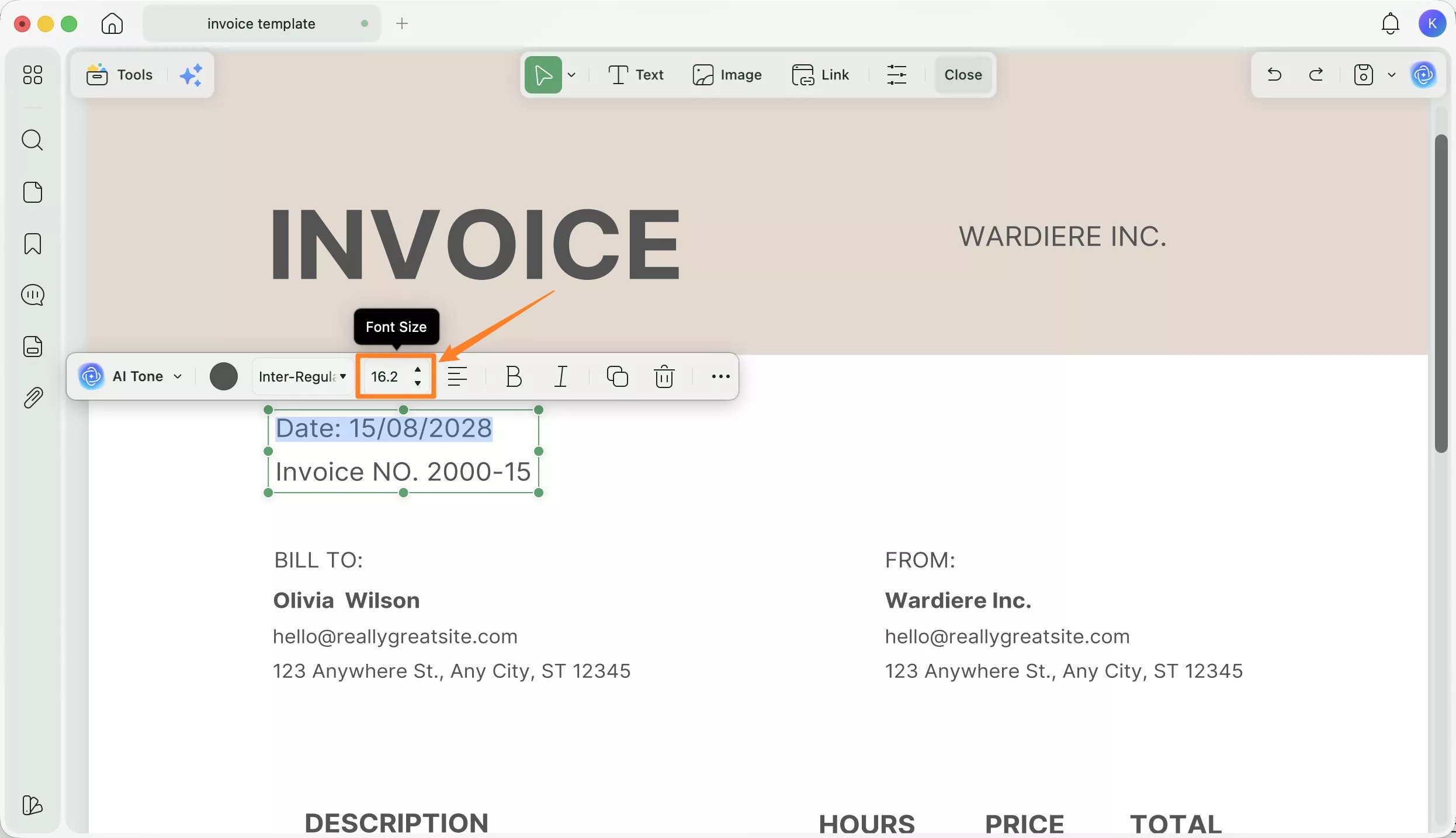
Step 2: Click the Edit button at the top to enter Edit mode.
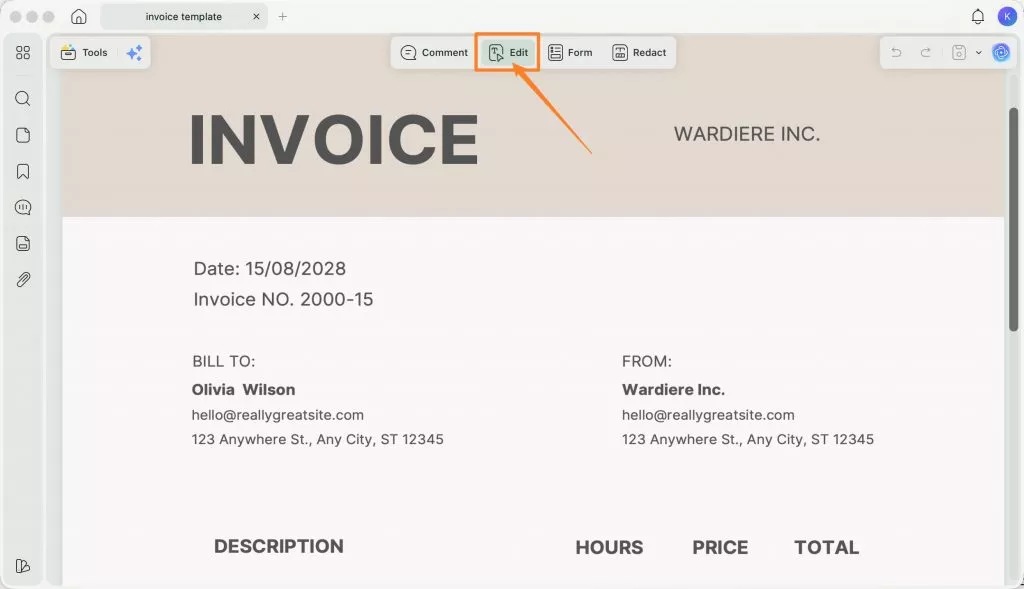
Step 3: Click and drag to select the text whose font you want to change. A floating toolbar will appear above the text, allowing you to type a font size or use the up/down arrows to adjust it. All changes apply in real time.
How to Change Font Color in UPDF?
Step 1: Step 1. Open UPDF open the PDF document in it by clicking "Open File" (or drag and drop the file onto the UPDF window).
Windows • macOS • iOS • Android 100% secure
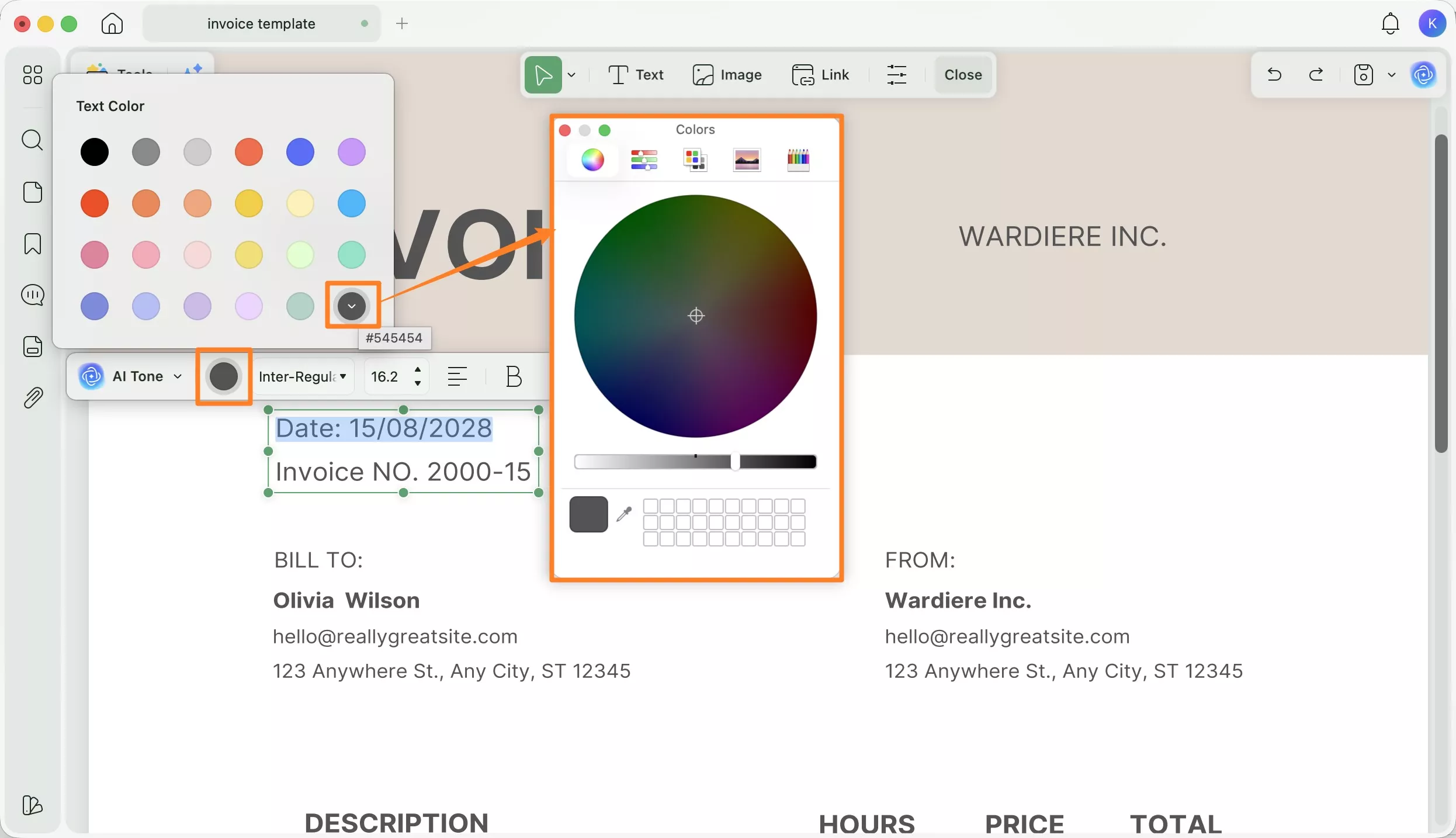
Step 2: Click the Edit button at the top to enter Edit mode.
Step 3: Click and drag to select the text you want to recolor. A floating toolbar will appear above the text. Click the Text Color swatch to open the color picker and select your color — changes apply immediately to the selected text.
Why Switch from Foxit PDF Editor to UPDF?
Multiple factors make UPDF the better option in comparison and here we have listed only a few:
Also Read: Foxit or UPDF? The Ultimate Guide to Selecting Your Perfect PDF Tool
1. Cleaner Interface with a Shorter Learning Curve
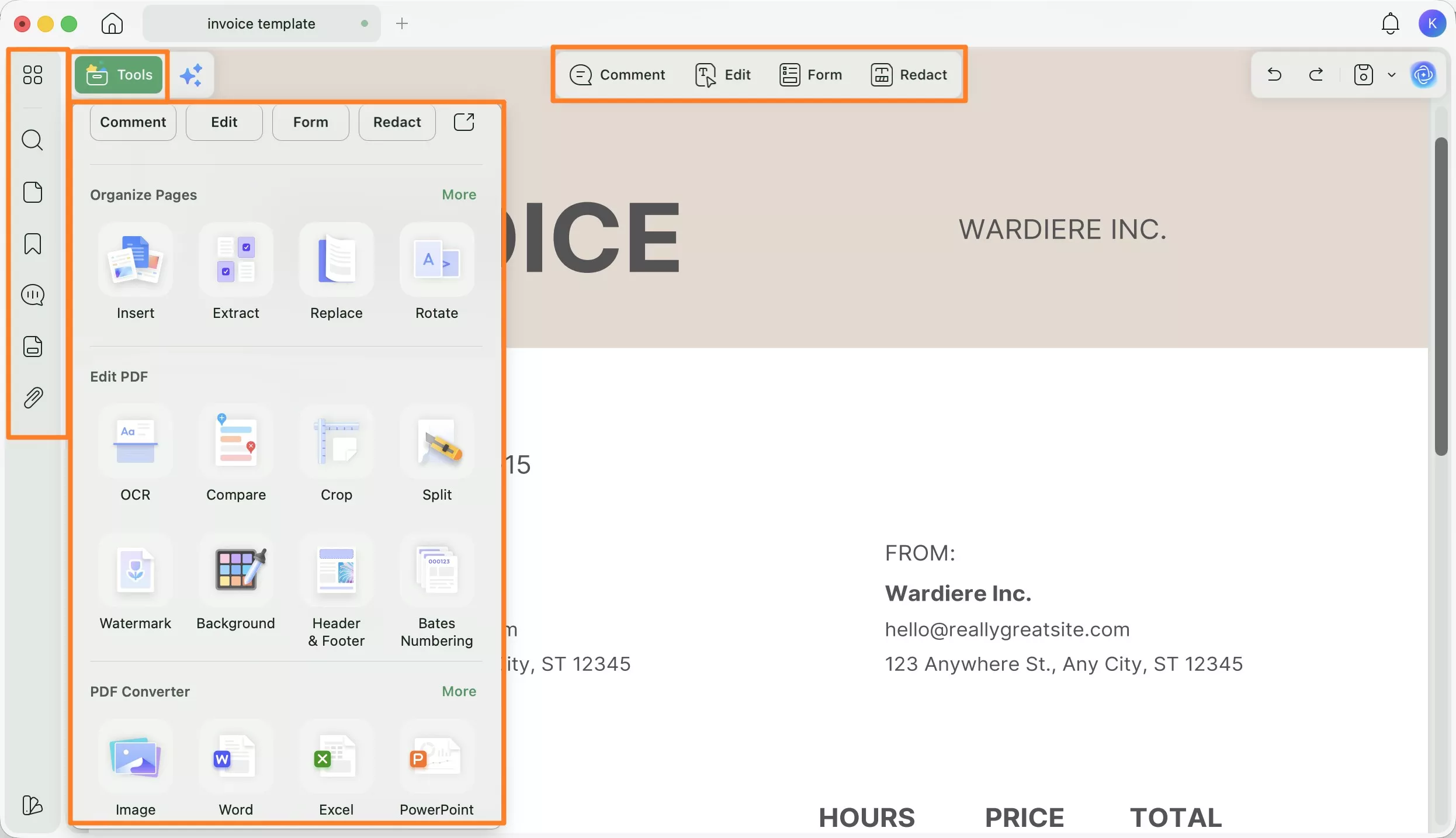
UPDF's interface is organized around a top toolbar for mode switching (Comment, Edit, Form, Redact) and a versatile left panel—meaning the tools you need are always visible without navigating nested menus. In contrast, Foxit PDF Editor's toolbar-heavy layout, while feature-rich, has a steeper learning curve for users who primarily need straightforward editing tasks like font changes.
2. Single License Covers All Platforms — Including Mobile
A single UPDF Pro license costs $49.99/Year and covers Windows, macOS, iOS, and Android simultaneously. If you start editing a document on your desktop, you can continue on your iPhone or Android phone via UPDF Cloud without re-uploading. In contrast, Foxit PDF Editor requires its PDF Editor+ plan ($159.99/year) to access support for Windows, macOS, iOS, Android, and the web. For users who work across multiple devices, UPDF offers significantly broader platform coverage at a much lower entry price.
3. Unlock AI Capabilities After Styling Your Text
Beyond font and text formatting, UPDF includes a suite of AI-powered tools that are particularly relevant once you've finished editing the visual appearance of your text:
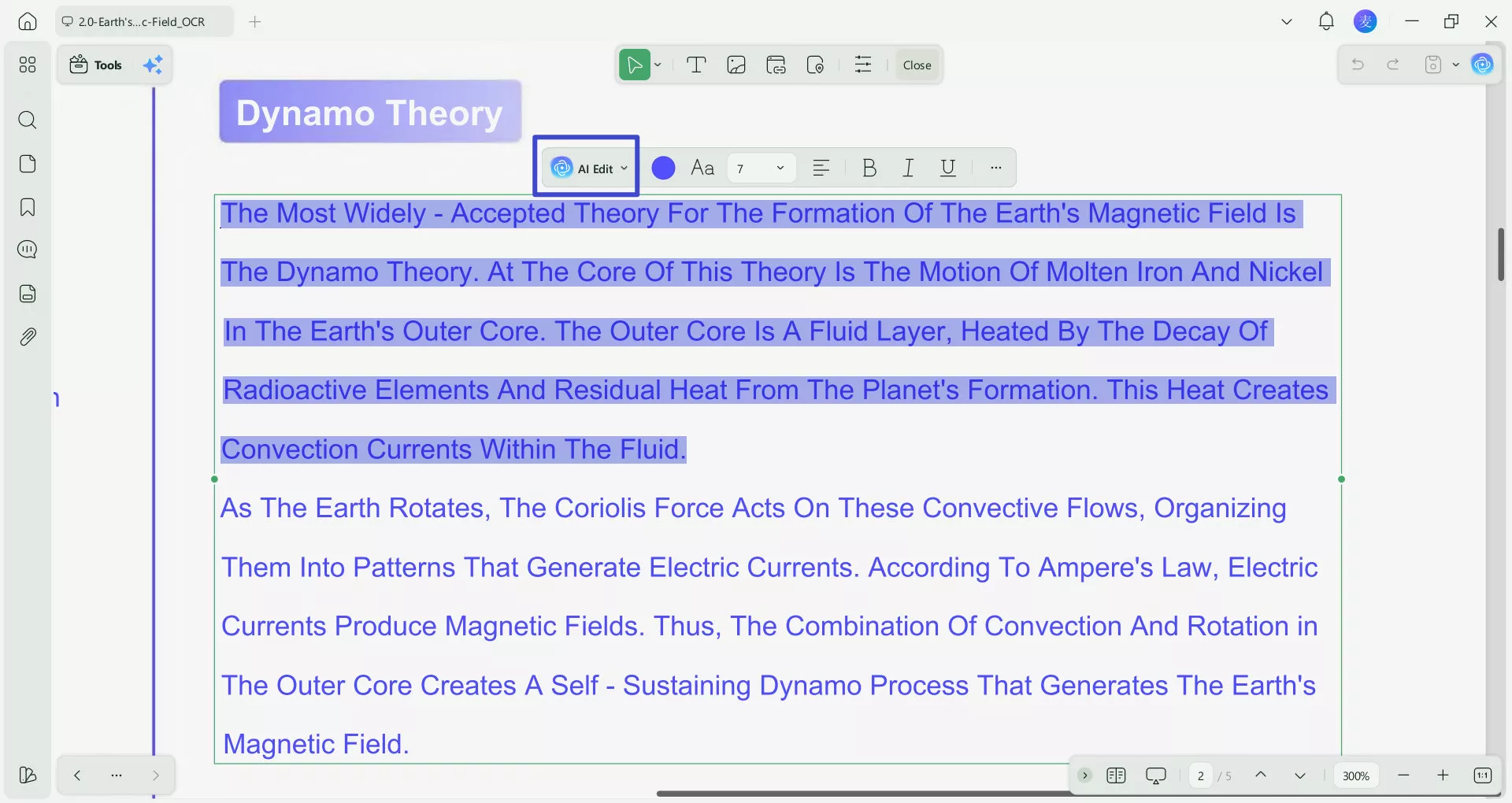
- AI Editing Suite: After adjusting font type, size, and color, you may also want to refine the content of the text itself — rewriting a sentence for clarity, adjusting the tone of a paragraph, or correcting grammar within the PDF text box. UPDF's AI Editing Suite does this directly inside the PDF without switching to a separate word processor. Select any text, open the AI panel, and choose from Rewrite, Tone Adjust, or Grammar Correct.
- Chat with PDF, Summarize, Translate: UPDF AI also lets you ask questions about the PDF content, get summaries of selected sections, or translate passages into another language — all within the same app you used to change the font.
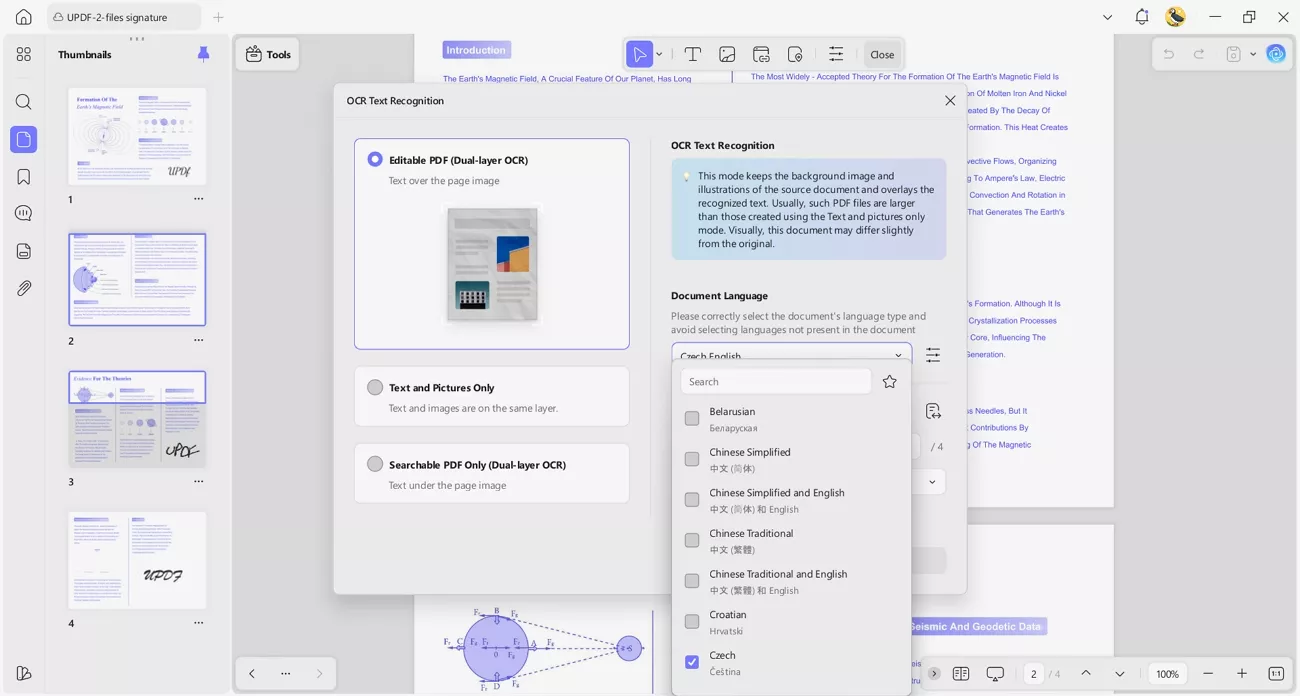
4. OCR for Scanned Documents — Including Batch Processing
If you need to change fonts in a PDF that came from a scanned source (a scanned contract, a photocopied form, or an image-based document), neither Foxit nor UPDF can edit the text directly until the document is converted to text-based format first. UPDF's OCR engine handles this in 38 languages, including handwritten and low-quality scans, and outputs a fully text-editable PDF that you can then edit with the font tools covered above.
Batch OCR lets you process multiple scanned files simultaneously — a significant time-saver if you regularly receive scanned documents that need to be standardized with consistent fonts.
Windows • macOS • iOS • Android 100% secure
If you are interested in the powerful features of UPDF, feel free to watch the following video to learn more about its characteristics and unique advantages.
🚀Boost Your Productivity!
Conclusion
Foxit PDF Editor gives you straightforward controls for changing font type, size, and color — both in regular PDF content and in fillable form fields. The steps above cover all three scenarios. If Foxit is already part of your workflow and you only occasionally need font edits, it gets the job done.
If you find yourself editing PDFs more regularly — or if you also need to refine the text content itself after adjusting its appearance — UPDF offers the same font editing tools with a cleaner interface, a single cross-platform license, and AI features like the AI Editing Suite (for rewriting text in-place).
Download UPDF for free and try editing your next PDF's fonts with it — no subscription required to get started.
Windows • macOS • iOS • Android 100% secure





 Engelbert White
 Enola Miller
 Enrica Taylor
 Enya Moore