 UPDF
UPDF
 UPDF for Windows
 UPDF for Mac
 UPDF for iPhone/iPad
 UPDF for Android
 UPDF AI Online
 UPDF Sign
 Edit PDF
 Annotate PDF
 Create PDF
 PDF Form
 Edit links
 Convert PDF
 OCR
OCR PDF to Word
 PDF to Image
 PDF to Excel
 Organize PDF
 Merge PDF
 Split PDF
 Crop PDF
 Rotate PDF
 Protect PDF
 Sign PDF
 Redact PDF
 Sanitize PDF
 Remove Security
 Read PDF
 UPDF Cloud
 Compress PDF
 Print PDF
 Batch Process
 About UPDF AI
 UPDF AI Solutions
 AI User Guide
 FAQ about UPDF AI
 Summarize PDF
 Translate PDF
 Chat with PDF
 Chat with AI
 Chat with image
 PDF to Mind Map
 Explain PDF
 Scholar Research
 Paper Search
 AI Proofreader
 AI Writer
 AI Homework Helper
 AI Quiz Generator
 AI Math Solver
 PDF to Word
 PDF to Excel
 PDF to PowerPoint
 Enterprise Solution
 Enterprise Sign
 Enterprise AI
 Enterprise Plan
 Enterprise User Guide
 Enterprise Webinar
 Banking
 Healthcare
 Insurance
 Legal
Legal Manufacturing
 Government
 Education Solution
 Customer Stories
 User Guide
 UPDF Tricks
 FAQs
FAQs UPDF Reviews
 Download Center
 Blog
Blog Newsroom
 Tech Spec
 Updates
 UPDF vs. Adobe Acrobat
 UPDF vs. Foxit
 UPDF vs. PDF Expert


If you want to convert protected PDF to Word, you may come across multiple methods offered by different tools. Whenever selecting a method, you must remember to pick the tool that ensures data integrity and maintains the formatting of your PDF document. In this article, we will be discussing the 3 proven methods to perform this conversion with their detailed step-by-step guides.
Part 1. Convert Locked PDF to Word Via UPDF
UPDF is the prime choice for converting locked PDF documents to Word documents. It is a comprehensive PDF editor tool that comes with every feature you will need when working with PDF documents. The following are the conversion formats that UPDF currently supports:
- PDF to Word (.docx)
- PDF to PowerPoint (.pptx)
- PDF to Excel (.xlsx)
- PDF to Image (.png, .jpg, .bmp, .gif, .tiff)
- PDF to CSV (.csv)
- PDF to Rich Text Format (.rtf)
- PDF to Text (.txt)
- PDF to XML (.xml)
- PDF to HTML (.html)
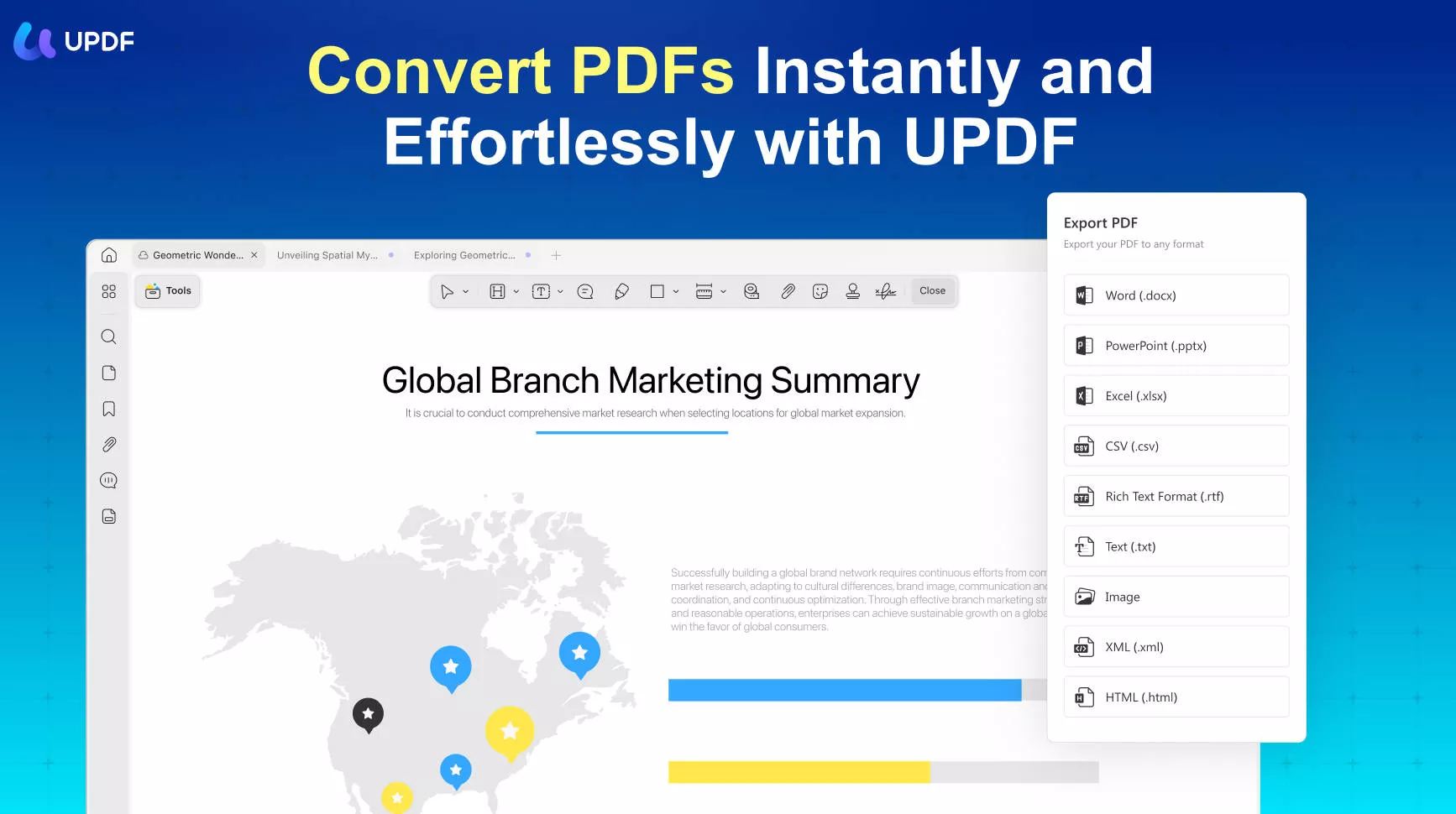
One of the reasons why we use it for conversion is that it ensures to maintenance of formatting and data integrity after the conversion, which is a major plus point. With UPDF, we can not only convert normal protected PDF documents to Word format, but it can also work on scanned PDF documents with passwords for converting them to Word (needs to perform OCR).

Moreover, if you want to permanently remove security from your PDF documents, UPDF allows you to do that too and make your PDF files completely protection-free.
UPDF currently integrates the Convert PDF feature across its online (Files with passwords are not supported), desktop, and mobile versions. Download UPDF today and try all these features while you follow the steps below to convert locked PDF documents to Word:
Windows • macOS • iOS • Android 100% secure
1. Convert a Locked PDF to Word on Desktop (Including Scanned PDF Methods)
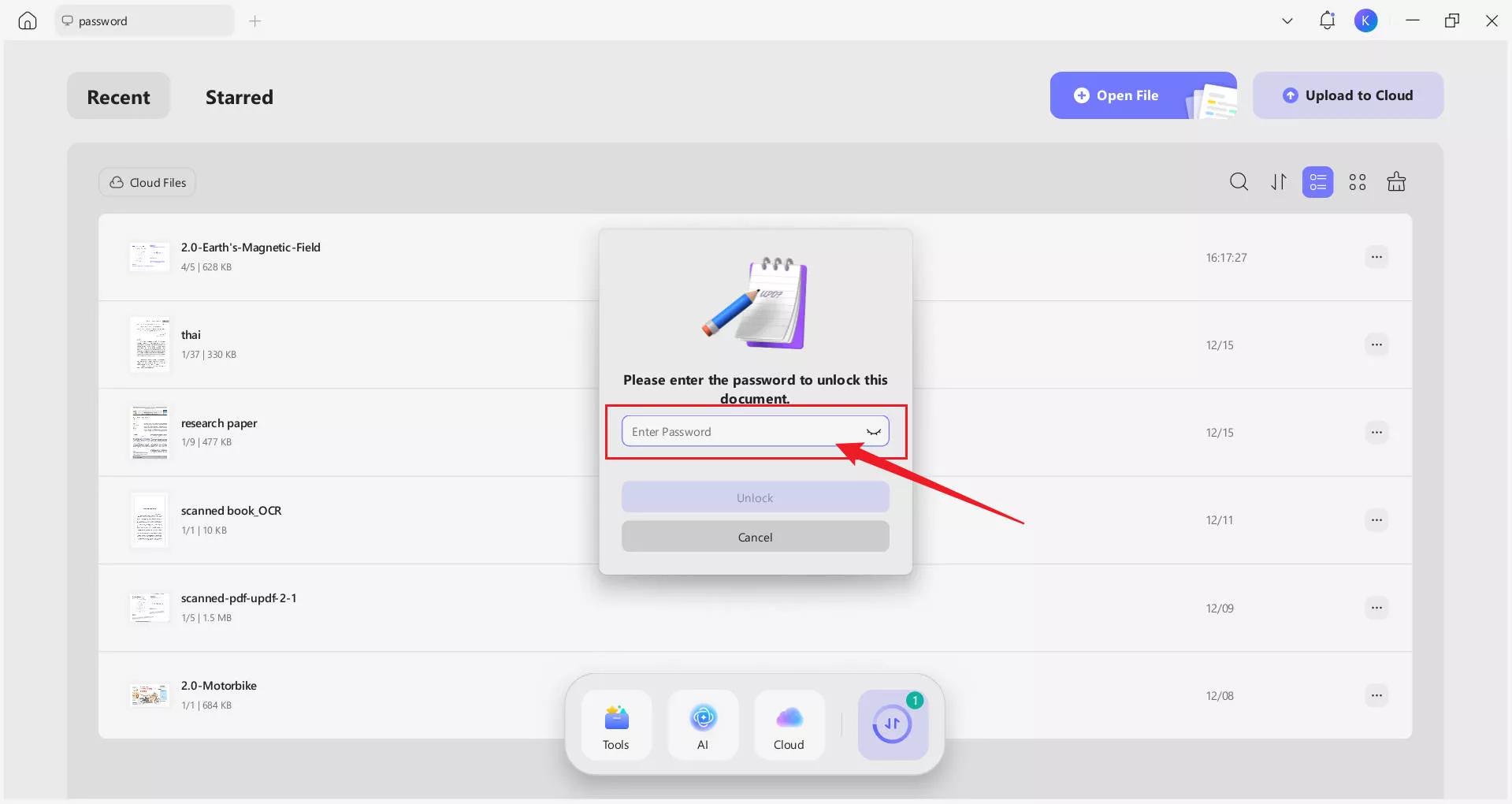
Step 1. Launch UPDF. Click “Open File,” or drag and drop the password-protected PDF from your device into UPDF. to open it in UPDF. As UPDF opens, it will ask you for the password to that file. To proceed, you must authenticate with the password. If your file has no access password, then it will not ask for it here, but the permission password will be asked later.
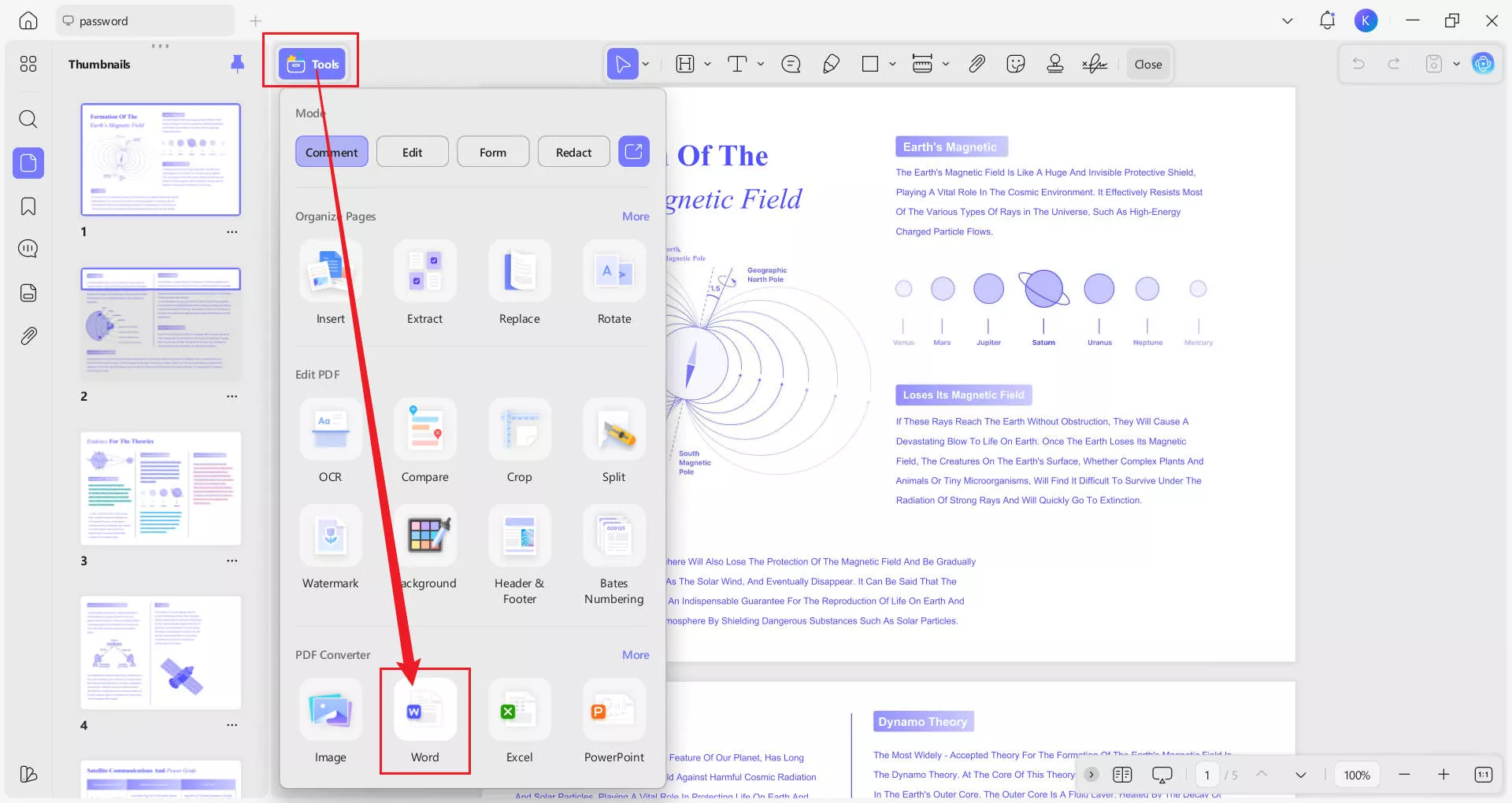
Step 2. Click "Tools" from the right side menu and choose "Word". If your PDF file has a permission password set, you need to authenticate with that password before proceeding to the next part.
Step 3. Once authenticated, a new window will appear on your screen. When you choose Word format, UPDF provides you with further settings, which include Page Range, Word Content Style, OCR option, and Document Language.
- The Word Content Style allows you to choose between Retain Word Flowing Style and Retain Word Textbox Style.
- If your PDF document is a scanned file, be sure to enable OCR Text Recognition and select the correct document language. This step allows you to convert the PDF to Word while turning the scanned text into searchable and selectable text.

Step 4. Click Apply and choose a location to save the file. UPDF will then begin the process.
2. Convert Multiple Locked PDFs to Word on Desktop (Including Scanned PDF Methods)
UPDF allows you to batch convert locked PDFs to Word on desktop. However, each file must be unlocked manually before conversion, including scanned PDFs. Here are the steps:
Step 1: Launch UPDF. Click the Tools icon. In the pop‑up panel, click the Convert tool from the section MULTI‑FILE OPERATION (BATCH PROCESS).
Windows • macOS • iOS • Android 100% secure

Step 2. On the new window, use Add Files to import the PDFs you want to convert. After you add password-protected PDFs, “Password required” will appear. You need to click this icon and enter the password to unlock the PDFs one by one.
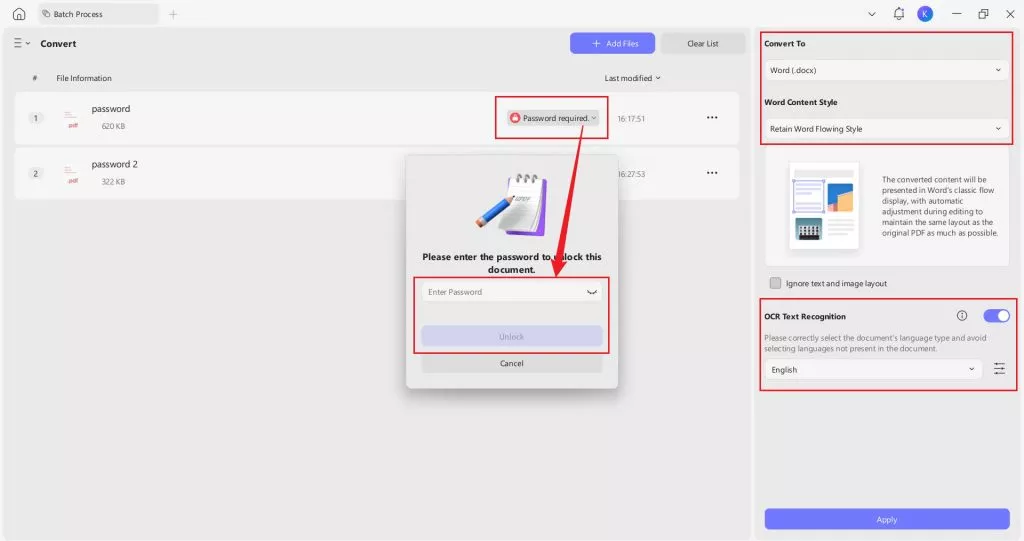
Step 3. Then, on the right side, under Convert To, select Word and choose the Word Content Style. Enable OCR Text Recognition if your PDF is scanned or contains non‑selectable text. After setting everything, click the Apply button and choose a location to save the files.
3. Convert a Locked PDF to Word on Mobile (Including Scanned PDF Methods)
You can also convert a locked PDF to Word on mobile. Install UPDF for iOS from the App Store and UPDF for Android from Google Play to begin.
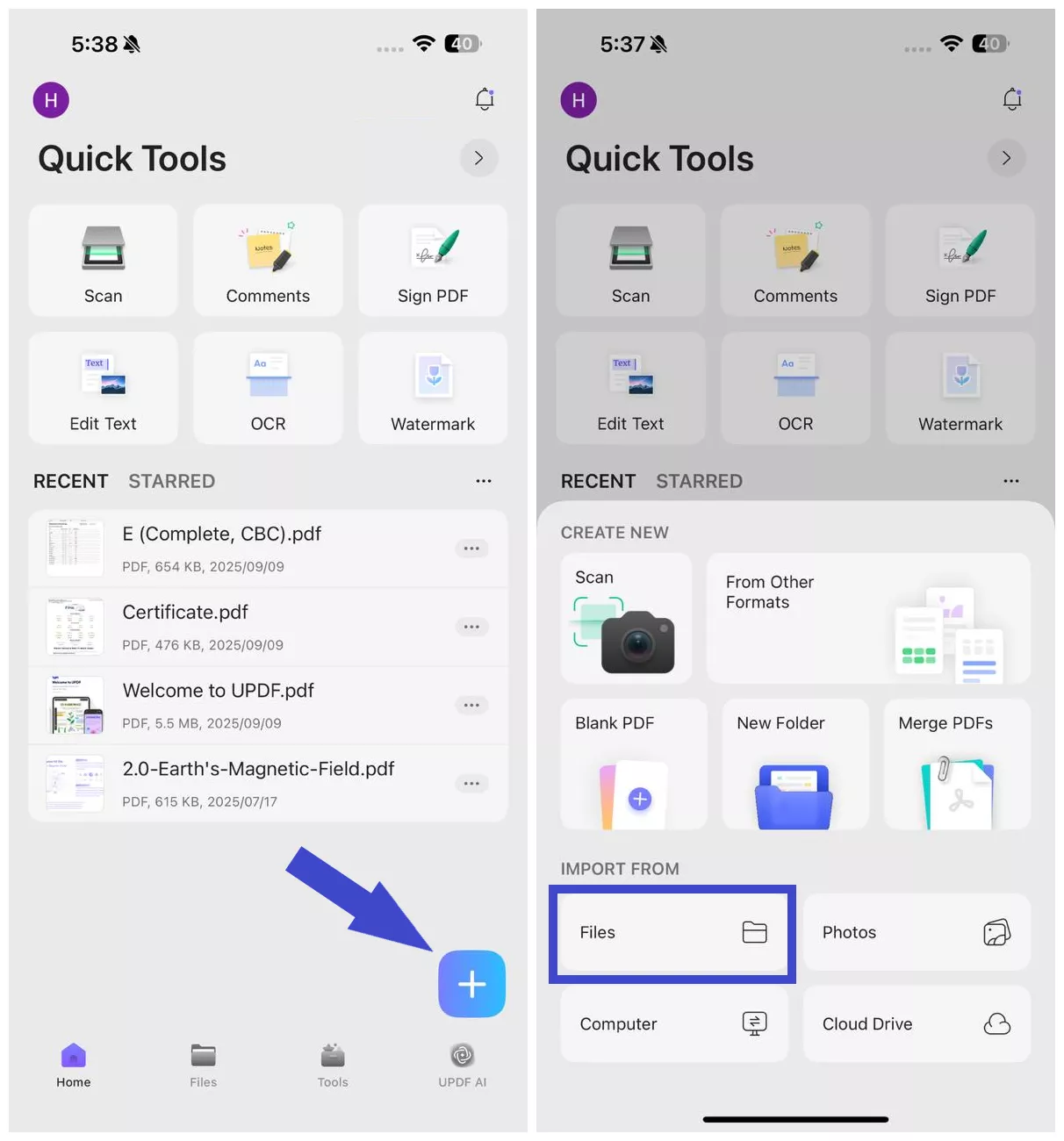
Step 1. Launch the UPDF for iOS app. Click "+" and select "Files" under the "Import From" option. Select the PDF file to import into the UPDF app.
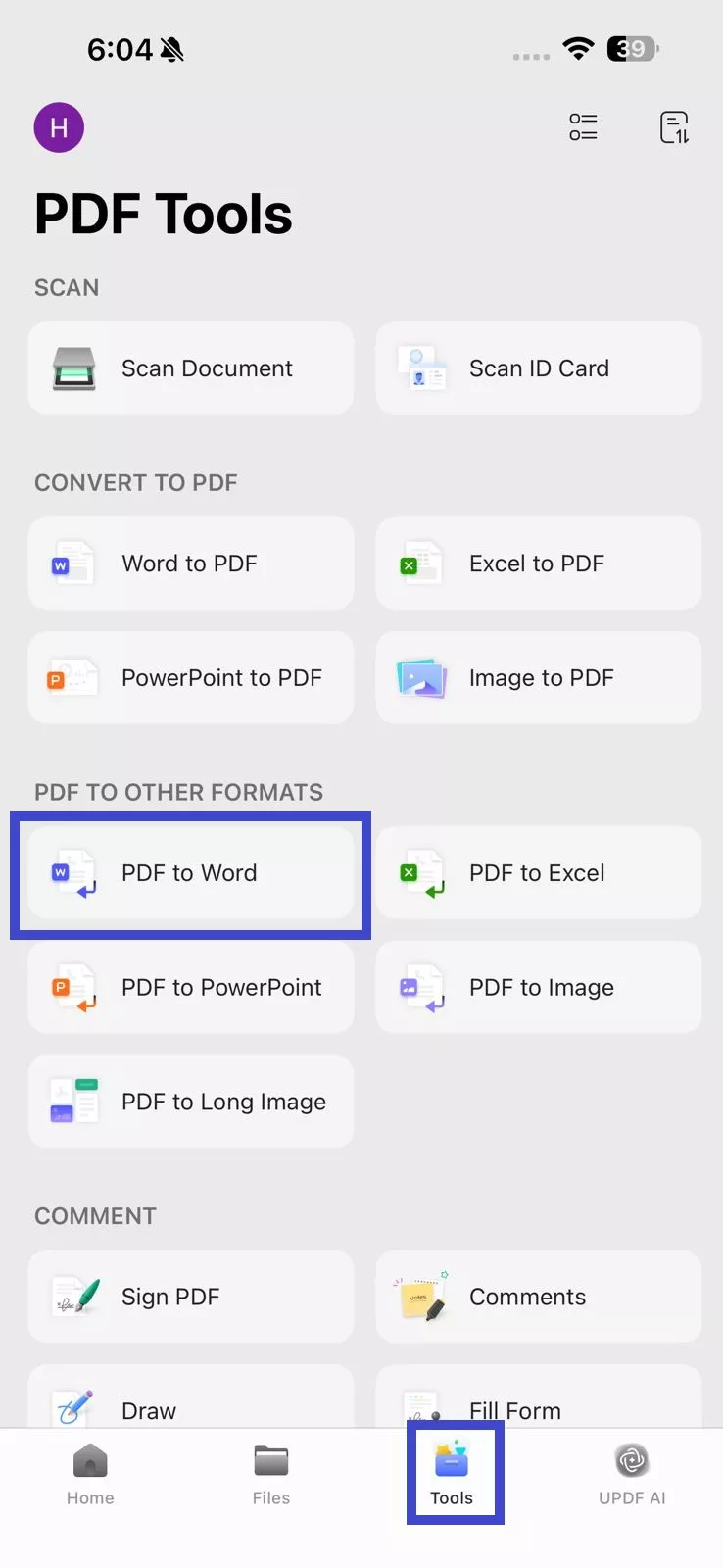
Step 2. Click "Tools" and tap "PDF to Word". Select the imported PDF file.
Step 3. As UPDF opens, it will ask you for the password to that file. To proceed, you must authenticate with the password.

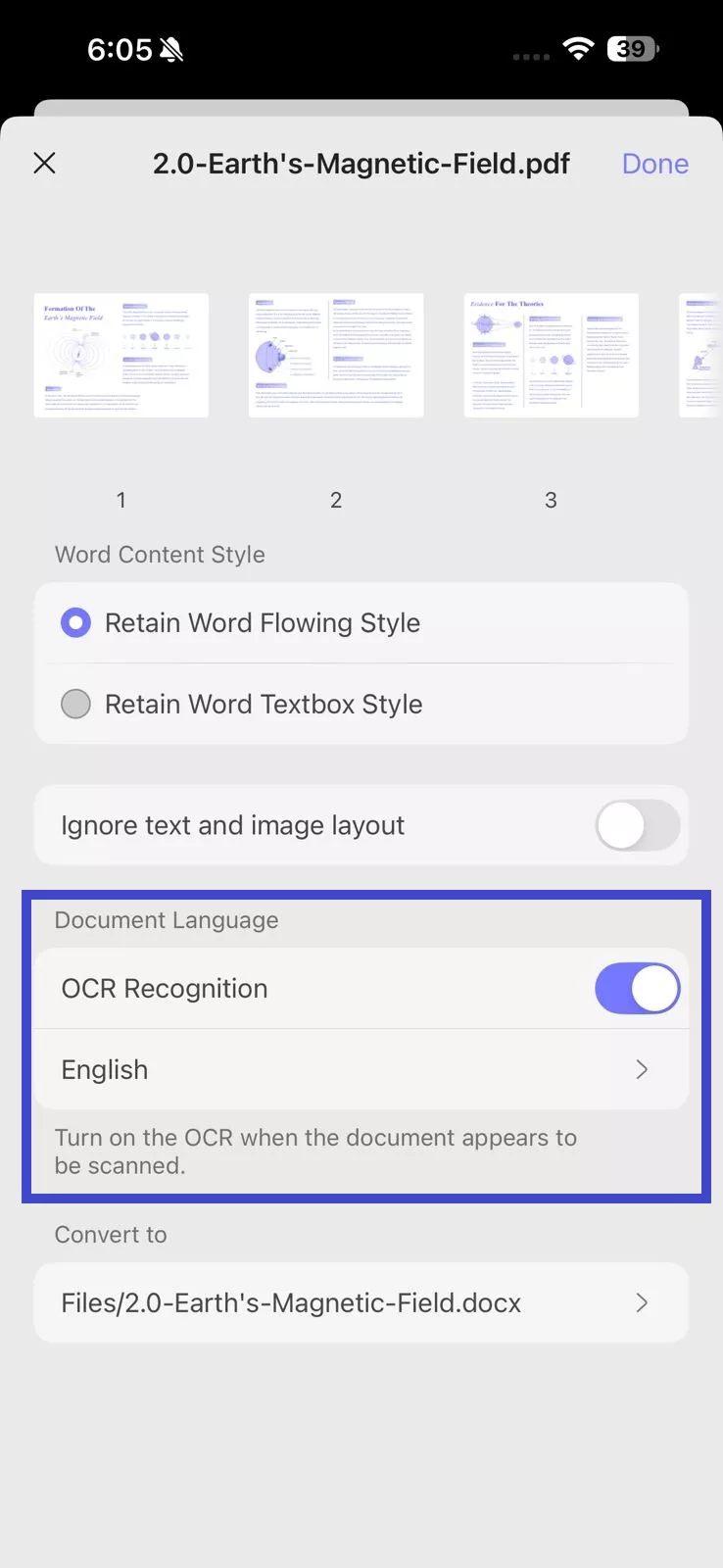
Step 4. From the new window, choose your desired "Word Content Style". If your PDF is scanned, enable "OCR Recognition" to extract the text and make it editable. Also, remember to choose the document language for accurate OCR.
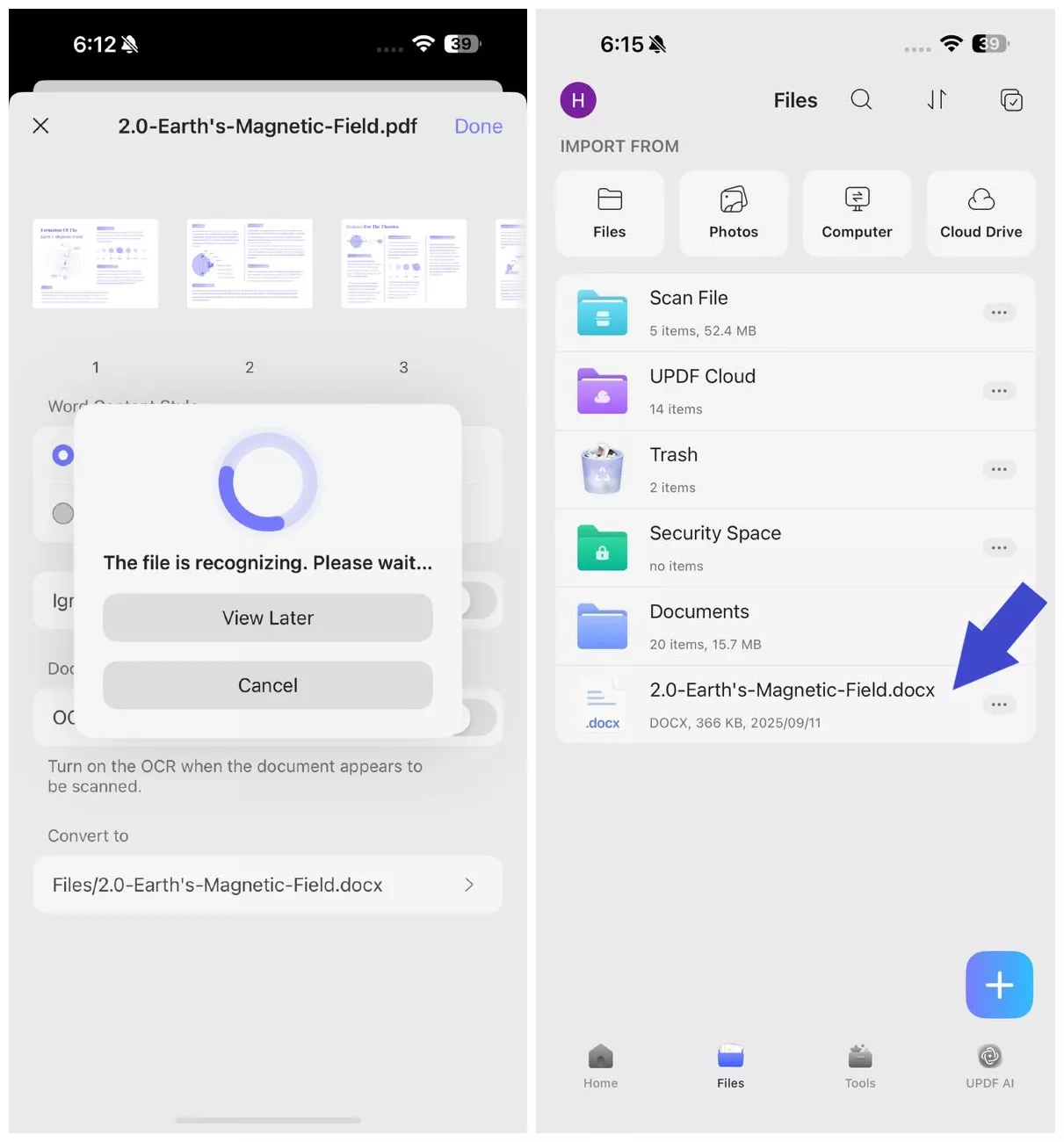
Step 5. Under "Convert to", select the location within UPDF where you want to save the converted Word file. Once all settings are configured, click "Done" in the top right corner. Wait for the tool to generate the Word file. Afterward, you can access the newly created Word file from the selected save location in "Files".
Other Key Features
UPDF is powerful enough to convert locked PDF documents into other file formats. Additionally, it packs several other advanced features that will significantly improve your overall experience of working with PDF documents. Here are some of the best features offered by UPDF:
- UPDF Cloud for securely organizing all your PDF files in a centralized cloud storage
- UPDF AI for explaining, translating, and summarizing the contents of a PDF document
- Sharing PDF via QR, email, and links for easier collaboration
- PDF conversion is supported both ways for multiple file formats
- Work on interactive PDF forms.
If you can't convert PDF to Word correctly, just click on here to know how to fix it under different circumstances.
Such a wide library of powerful features makes it one of the best tools for working with PDF documents, and that's also the reason why we are recommending it here. So, you can download UPDF and try all these features on your smartphone and computer. For a premium experience, we recommend you purchase UPDF Pro and unlock all the premium features.
Windows • macOS • iOS • Android 100% secure
Video guide on How to Convert PDF into multiple different format:
Part 2. Convert Locked PDF to Word Doc with Adobe Acrobat
Adobe Acrobat is known to be among the most powerful and reliable PDF tools, and if you want to convert a locked PDF document into a Word file, Adobe could be the right choice. With its powerful performance, the file conversion is quick, but the interface is outdated, and the process may take some learning curve. The most important thing to consider here is the price.
You can use this tool with the following steps to convert a locked PDF file into a Word document:
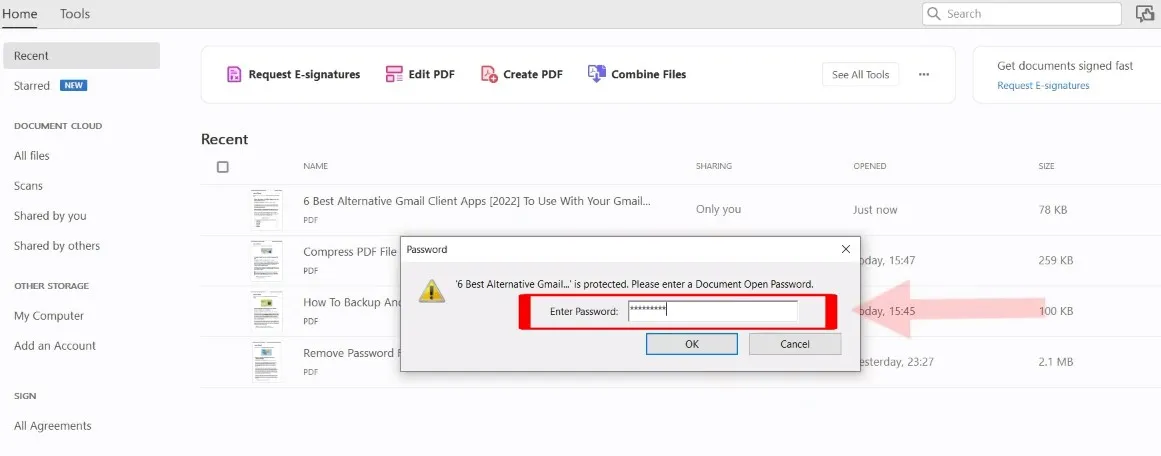
1. Open the PDF file by providing its password.
Press "Ctrl + O" in Adobe Acrobat to open the locked file. Adobe will ask for the password that you need to provide for authentication and confirm it to open the file.
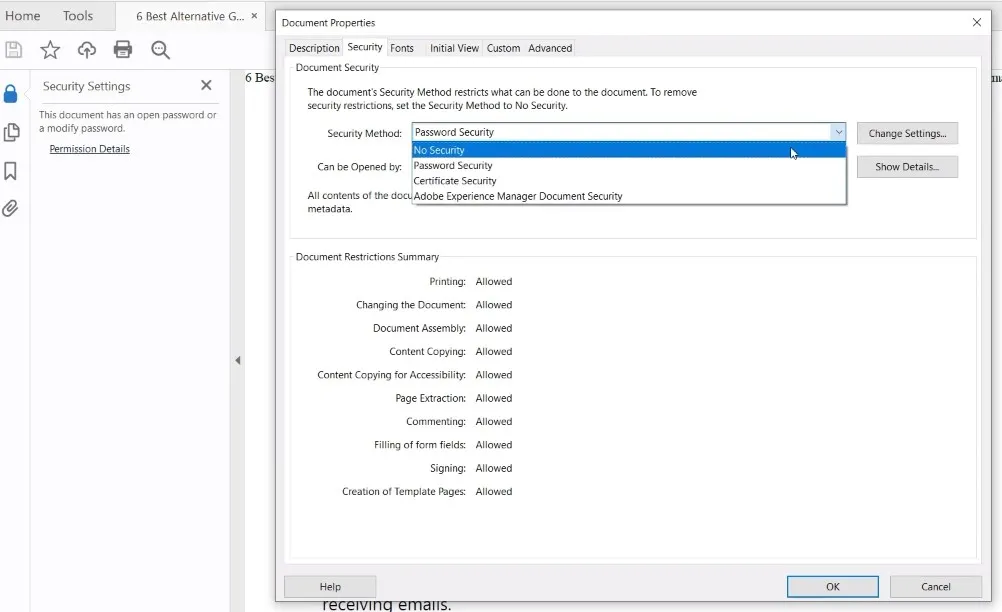
2. Open permission details and reset the security method
Click the "Lock" button present at the extreme left and then click "Permission Details." Now move to the "Security" tab in the document properties window and click on the "Security Method" dropdown menu. You must set it to "No Security" and click "OK" below. Now, the password from the PDF has been removed, and we have completed the first part of this process.
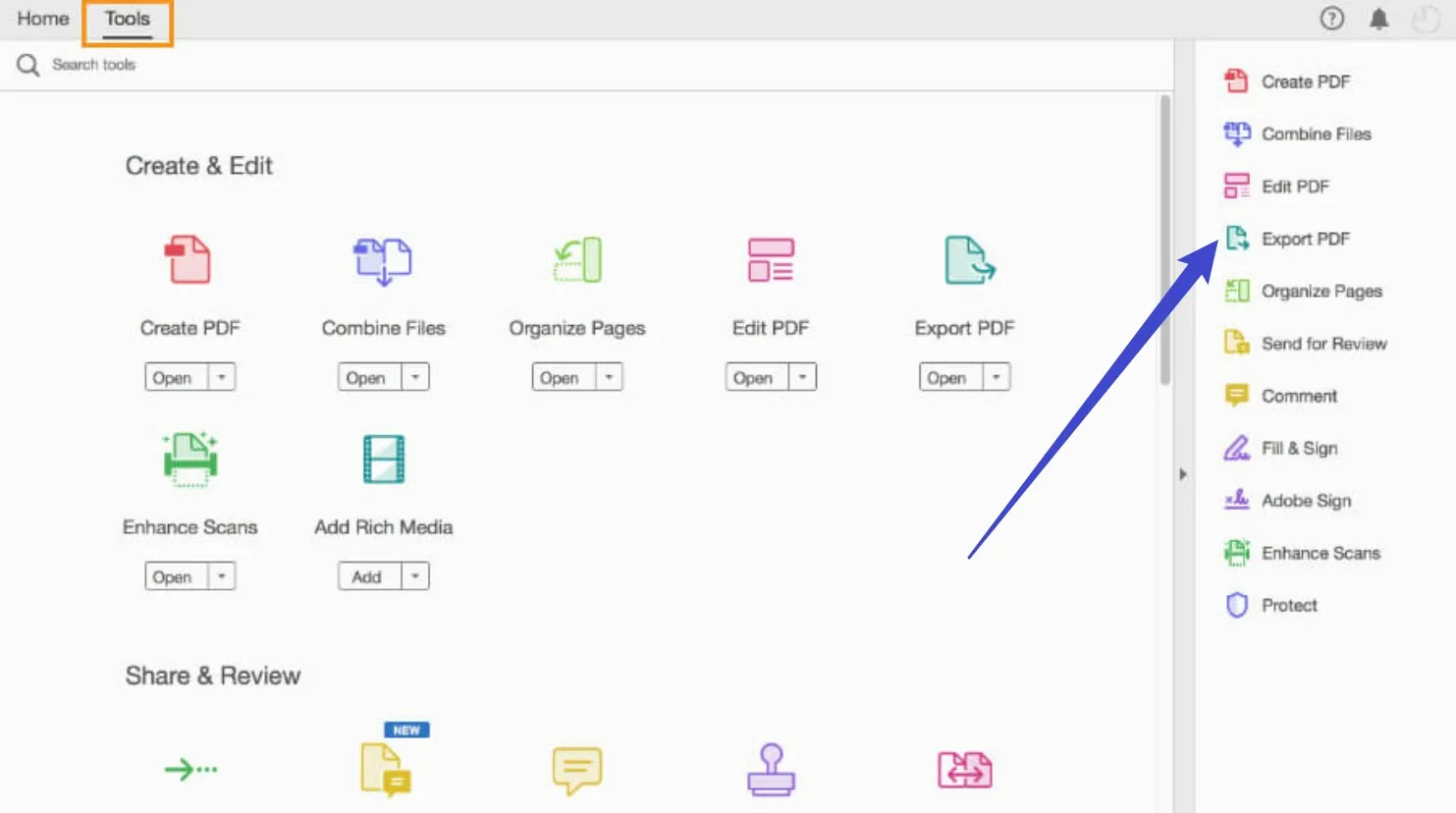
3. Open Tools and select Export PDF
Click "Tools" in the top menu to open Adobe Acrobat Tools Center and click "Export PDF" since we want to convert PDF to Word, and that is done with the Export feature.
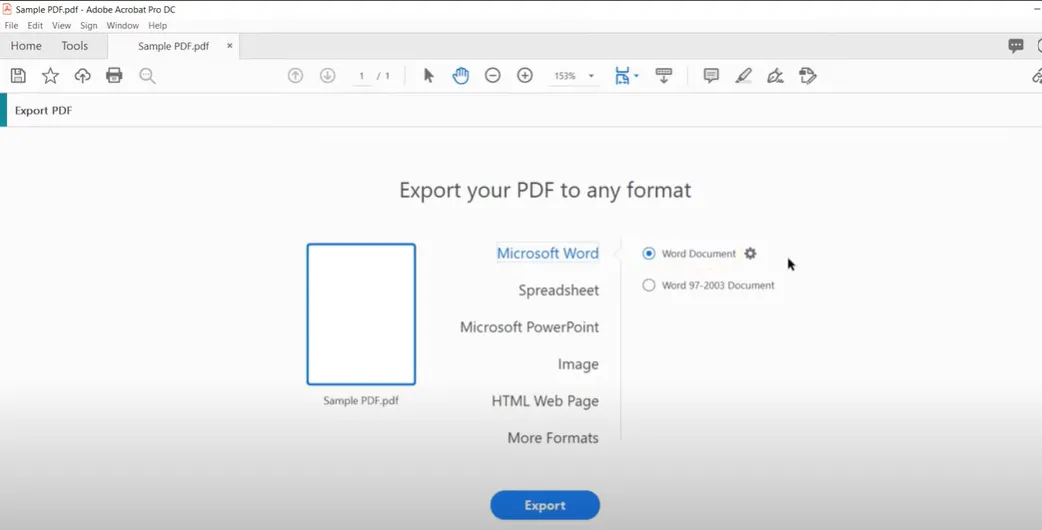
4. Export to Microsoft Word
Select Microsoft Word and click the radio button against the Microsoft Word button to which you want to export that PDF. Click the "Export" button and follow through with the on-screen steps, which will include the process to save the converted Word file on your PC. As you finish this step, you will have your password-protected PDF file converted to Word.
Part 3. Convert Password Protected PDF to Word Free Online
Sometimes, you don't have a tool installed on your device, you need a free tool, or you want to perform this conversion on the go. Using an online free tool for the conversion will be the right decision. Since there are many options available, the one that we recommend is iLovePDF. It is a free online tool that comes with a bunch of features, including PDF to word conversion.
The best part is that it works free if your file size stays within the maximum limit. Moreover, being an online tool, it performs exceptionally well regardless of the device that you use it on. Here are the steps to follow on iLovePDF for this conversion:
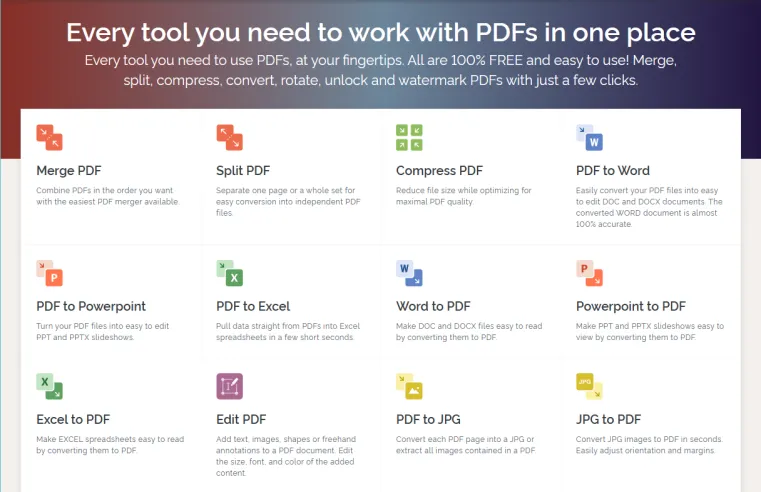
1. Select PDF to Word in iLovePDF
Head to the iLovePDF website, and on its home screen, you will find the "PDF to Word" feature. You need to click it. Now, upload a PDF file from your computer storage or cloud storage to iLovePDF.
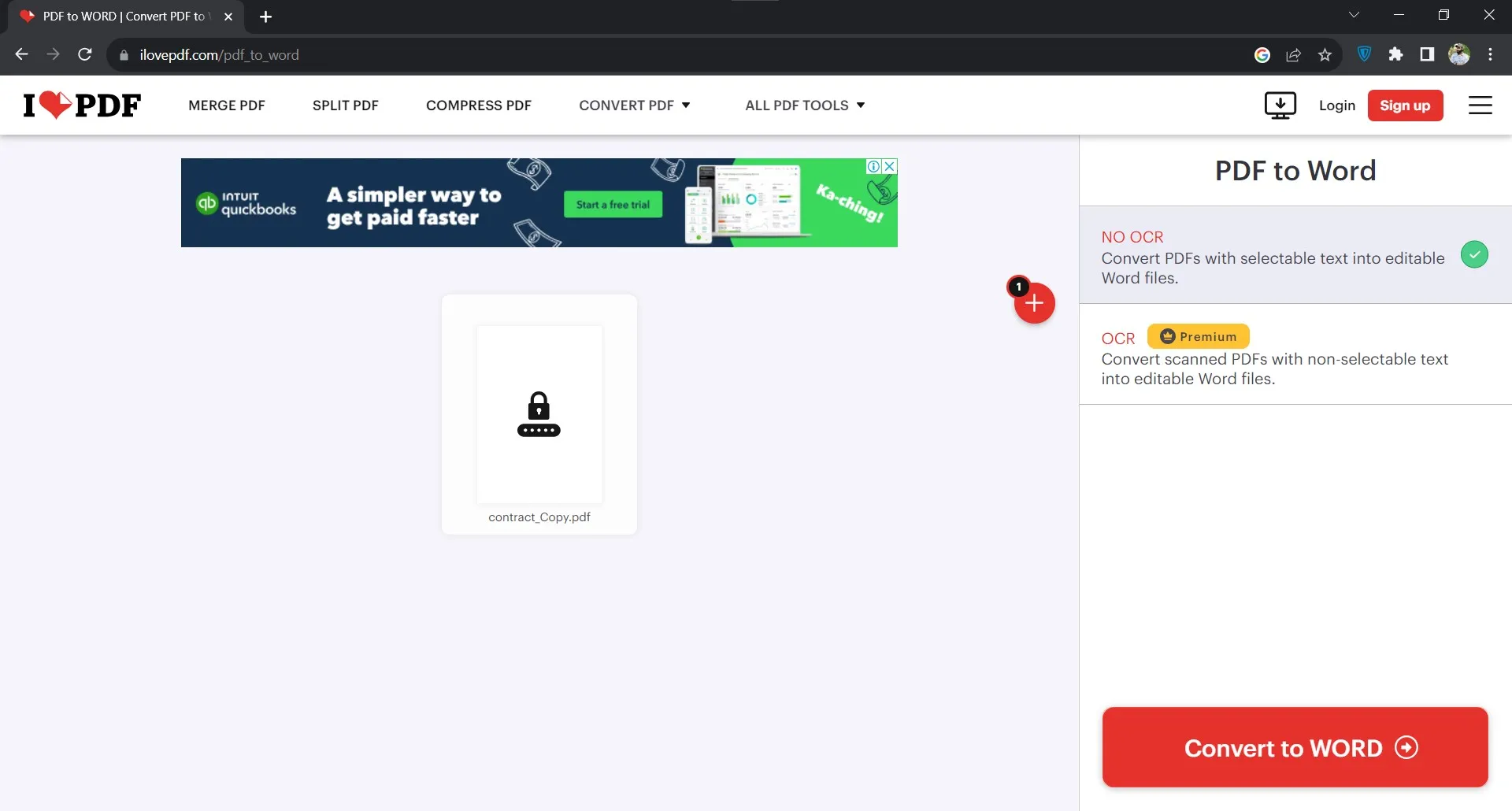
2. Convert to Word
As the file completes uploading, you will move to a new screen showing the "Convert to Word" button. Click this button to initiate the conversion.
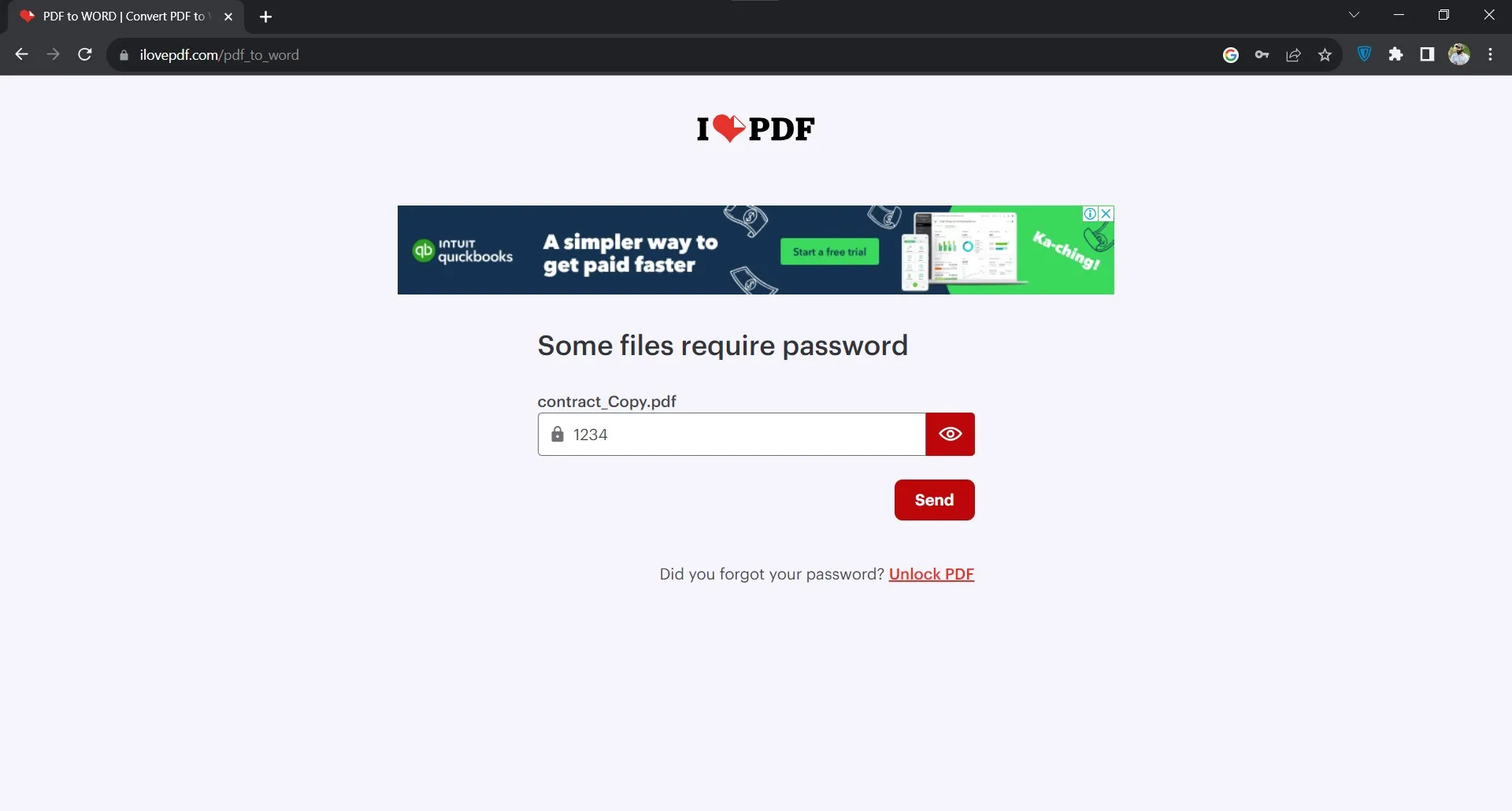
3. Authenticate with password
Since we are working with a password-protected PDF file, iLovePDF will ask for its password to convert the file into Word. Provide the correct password and click "Send". Now iLovePDF will authenticate your file, convert it to Word and initiate automatic download on your PC. If the download does not start automatically, you may click the "download" button to start it manually.
Part 4. FAQS About Converting Encrypted PDF to Word
Q1. How to export a password-protected PDF without a password?
If a PDF document comes protected with a password, you need that password to open that PDF file in any tool. If you don't have the password, it is impossible to open that PDF in any software, so exporting it will also be impossible. When you have the password to such documents, you can export them using UPDF.
Q2. How do I convert encrypted PDF to normal PDF?
You can use UPDF for converting encrypted PDF files to normal PDF files, but it is necessary to know the password to the PDF documents for this conversion. For this conversion, you must first enter the password to open the PDF in UPDF and click the narrow next to "Save" and select "Remove Password," and "Save." Then, you have successfully converted an encrypted PDF to a normal PDF.
Final Words
Sometimes, it is crucial to convert protected PDF to Word for multiple reasons. You may want in-depth editing access to that document, or you may need to convert it into text without losing the formatting of your document. For all such use cases, UPDF makes the best choice since the conversion is effortless and quick here without causing any changes to the content present in your documents.
While there are other options available, UPDF provides the best features, pricing, performance, and overall experience. So, you can download UPDF on your devices to try this conversion feature.
Windows • macOS • iOS • Android 100% secure


 Enola Miller
 Enrica Taylor

 Enid Brown