 UPDF
UPDF
 UPDF for Windows
 UPDF for Mac
 UPDF for iPhone/iPad
 UPDF for Android
 Nomostar
 UPDF AI Online
 UPDF Sign
 IvyCraft
 Edit PDF
 Annotate PDF
 Create PDF
 PDF Form
 Edit links
 Convert PDF
 OCR
OCR PDF to Word
 PDF to Image
 PDF to Excel
 Organize PDF
 Merge PDF
 Split PDF
 Crop PDF
 Rotate PDF
 Protect PDF
 Sign PDF
 Redact PDF
 Sanitize PDF
 Remove Security
 Read PDF
 UPDF Cloud
 Compress PDF
 Print PDF
 Batch Process
 About UPDF AI
 UPDF AI Solutions
 AI User Guide
 FAQ about UPDF AI
 Summarize PDF
 Translate PDF
 Chat with PDF
 Chat with AI
 Chat with image
 PDF to Mind Map
 Explain PDF
 PDF AI Tools
 Image AI Tools
 AI Chat Tools
 AI Writing Tools
 AI Study Tools
 AI Working Tools
 Other AI Tools
 AI Bookmark Generation
 AI Bookmark Summary
 AI Watermark Generation
 AI Background Generation
 AI Sticker Generation
 AI Stamp Generation
 AI Editing Suite
 UPDF Copilot
 AI Page Management
 AI Semantic Search
 PDF to Word
 PDF to Excel
 PDF to PowerPoint
 Enterprise Solution
 Enterprise Sign
 Enterprise AI
 Enterprise Plan
 Enterprise User Guide
 Enterprise Webinar
 IT
IT Education
 Construction
 Financial Service
 Healthcare
 Insurance
 Legal
Legal Manufacturing
 Government
 Researchers & PhDs
 Solopreneurs & Freelancers
 Lawyers & Legal Professionals
 Real Estate Agents & Brokers
 Education Solution
 Customer Stories
 User Guide
 UPDF Tricks
 FAQs
FAQs UPDF Reviews
 Download Center
 Blog
Blog Newsroom
 Tech Spec
 Updates
 UPDF vs. Adobe Acrobat
 UPDF vs. Foxit
 UPDF vs. PDF Expert

Quick Answer
PDFs are often treated as final documents, but many continue to change through legal review, design approval, procurement, translation, or client feedback. Problems begin when several people download a file, rename it independently, and return comments against different revisions.
Goal: anyone should be able to answer three questions in seconds: Which version is current? What changed? Who approved it? A reliable workflow combines naming rules with controlled PDF annotation and review.
Part 1. Why PDF Version Control Fails
Common failures include filenames such as final.pdf, final-v2.pdf, and final-really-final.pdf; edits made to an obsolete copy; comments scattered across email attachments; and an approved PDF silently replaced without a new version number.
| Failure | Risk | Control |
| Parallel local copies | Comments apply to different content | Distribute one review copy or one controlled location |
| Unclear filenames | Wrong file sent or approved | Use a shared naming convention |
| Untracked edits | No explanation for change | Maintain a brief change log |
| Approval by message only | Weak audit trail | Record approver, date, and exact file identifier |
Part 2. Use a Simple Version Naming System
Choose a convention that is short enough to use consistently. One workable pattern is project-document-vMajor.Minor-status-date.pdf. Example: atlas-proposal-v1.3-review-2026-09-08.pdf.
- Increase the minor version for review changes that do not redefine the approved scope.
- Increase the major version when the document is formally reissued or materially restructured.
- Use controlled status labels such as draft, review, approved, and superseded.
- Never reuse a version number for different content.
Store the version number inside the document as well as in the filename when practical. If a file is printed or detached from its folder, the footer or cover page still identifies it. For longer files, a consistent header, footer, or page-number convention also helps reviewers confirm that every page belongs to the same release.
Part 3. Control the Review Cycle
Nominate an owner for each review round. The owner issues the review copy, defines the deadline, consolidates comments, and releases the next version. Reviewers should annotate the issued PDF rather than editing separate source files unless the workflow explicitly requires source editing.
- Freeze and label the issued review PDF.
- Share the same copy with all reviewers.
- Use highlights, comments, stamps, and replies to make feedback traceable.
- Resolve or record each comment.
- Generate the next version and preserve the prior one.
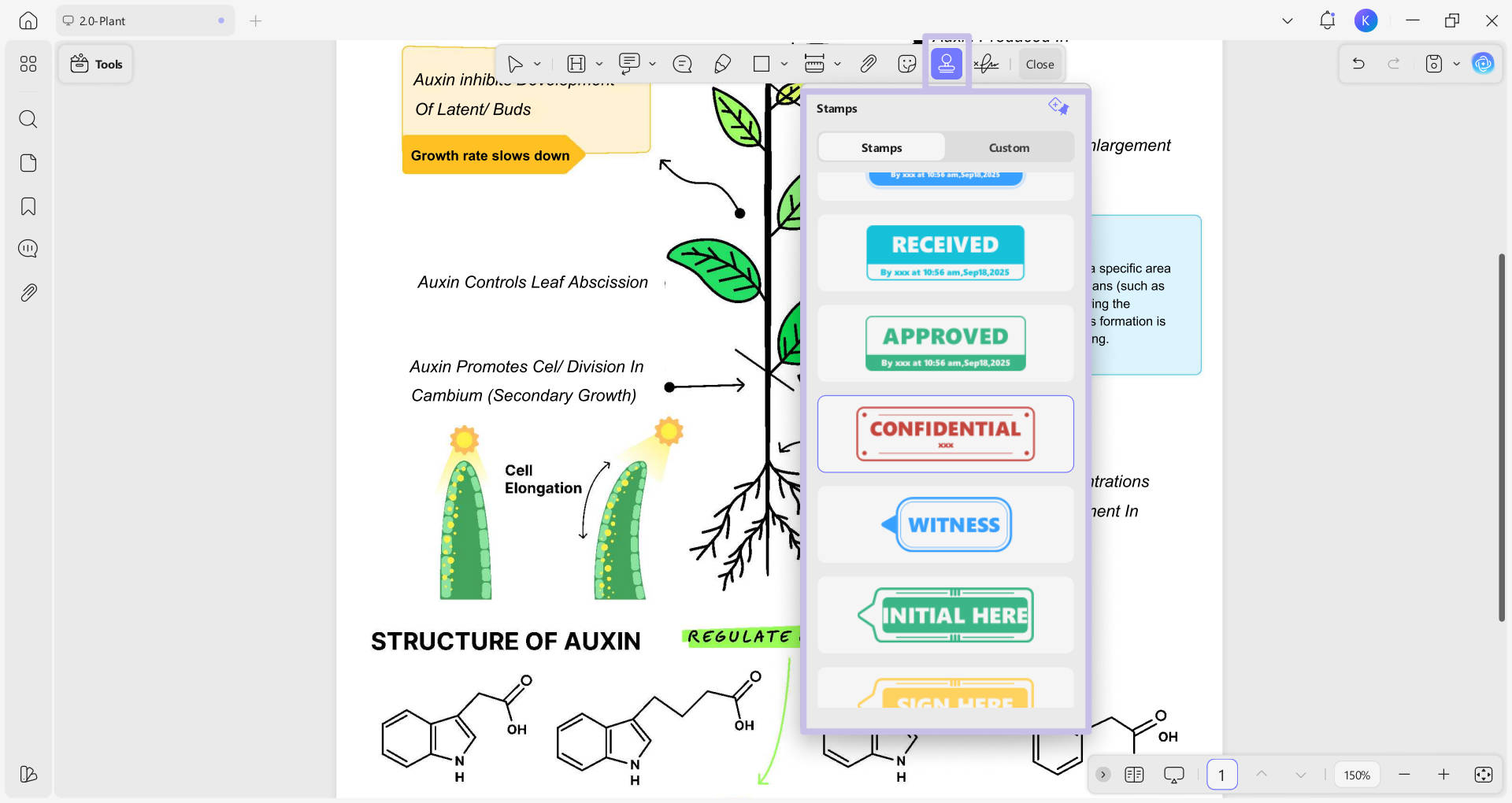
In UPDF, open the issued copy and choose Tools > Comment. Reviewers can add highlights, sticky notes, text boxes, stamps, and replies without changing the underlying document text. The Comments panel makes it easier to search, sort, filter, and revisit feedback; if the owner needs a separate record, UPDF can also export PDF comments as a PDF summary or text file. For shorter reviews, the owner can keep the comment panel open while resolving feedback one item at a time.

To make the review state visible, choose Tools > Comment > Stamp and place the built-in Reviewed stamp on the issued copy. A dated custom stamp can make the status clearer, but a stamp is only a workflow marker—it does not verify the reviewer’s identity or replace the approval log. Learn more about using a PDF stamp.
Best for
Not for
Download UPDF for free to annotate review copies, reply to comments, and manage pages during the PDF review cycle.
Windows • macOS • iOS • Android 100% secure
Part 4. Compare Revisions Before Approval
Do not approve a revision based only on a change log. Compare the previous and proposed files. A visual or text comparison can reveal edits that were not mentioned, including moved paragraphs, changed numbers, deleted clauses, and altered page order.
- Check high-risk values such as prices, dates, names, quantities, and obligations.
- Review headers, footers, page numbers, and appendices.
- Confirm that resolved comments did not introduce collateral changes.
- Record the compared filenames and comparison date.
For a short document, a side-by-side review may be sufficient. For a long or high-risk PDF, use a compare function and then verify important differences in context. Comparison detects differences; a human still decides whether they are correct.
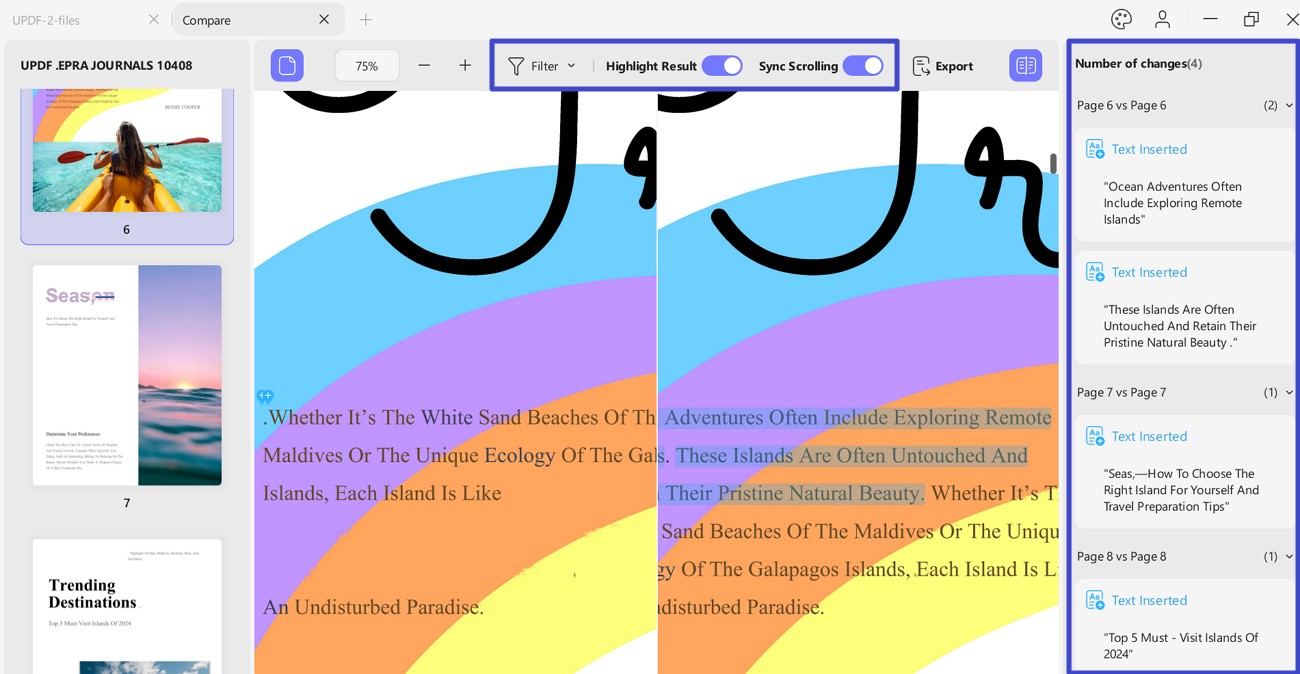
UPDF can compare two revisions directly: launch UPDF, select Tools > Compare, load the previous and current PDFs, choose the page range and the change types to include, and run the comparison. The results panel identifies text, image, path, shading, and page changes, helping the reviewer focus on material differences. You can also review other ways to compare PDF files.
Download UPDF for free to compare the previous and proposed PDFs before approval.
Windows • macOS • iOS • Android 100% secure
Part 5. Archive the Final Record
Once approved, move the exact approved PDF into a protected archive. Record its version, approver, approval date, source-file location, and any effective or expiry date. Mark older copies as superseded rather than deleting them when retention rules require history.
| Record | Example |
| Document ID | POL-SEC-014 |
| Approved version | v3.0 |
| Approval | A. Chen, 2026-09-08 |
| Source | SharePoint / Policies / Source |
| Status | Approved; effective 2026-10-01 |
If a correction is required after approval, release a new version. Never silently overwrite the approved binary: doing so breaks the connection between the approval record and the actual file.
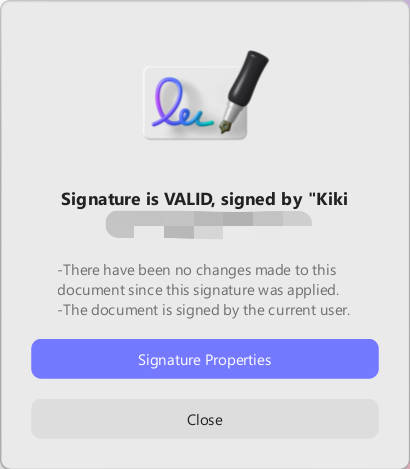
For contracts, policies, and other high-risk approvals, UPDF also supports certificate-based digital signatures. If the PDF has no signature field, choose Tools > Form > Digital Signature and draw one; then leave Form mode, click the field, and create or import a password-protected Digital ID before selecting Sign. The signed copy lets recipients inspect the certificate and detect changes made after signing. This is different from a typed, drawn, or image-based electronic signature. See how to add a digital signature field to a PDF.
For a distributed archive copy, UPDF can add an open password or a permissions password from the Save menu via Protect Using Password. Permissions can restrict editing, copying, and printing, while encryption options include 128-bit RC4, 128-bit AES, and 256-bit AES. This can help prevent casual changes, but it does not replace retention policies, access logs, or a document-management system. See the difference between controls in this guide to locking a PDF from editing.
Download UPDF for free to protect the issued copy after approval and keep the archived original separate from later revisions.
Windows • macOS • iOS • Android 100% secure
FAQs About PDF Version Control
Is renaming files enough for PDF version control?
No. Reliable control also requires one source of truth, review ownership, change verification, approval records, and an archive policy.
Should old PDF versions be deleted?
Not automatically. Retain or mark them as superseded according to legal, contractual, and organizational retention requirements.
How do I compare two PDF versions?
Use side-by-side review or a PDF comparison tool, then verify important differences such as numbers, clauses, and page order in context.
What is the difference between a draft and an approved PDF?
A draft is still open to change. An approved PDF is tied to a recorded decision, a specific version identifier, and usually a protected archive copy.
Conclusion
PDF version control works when the team controls behavior, not just filenames. A shared naming scheme, one issued review copy, documented comparisons, explicit approval, and protected archiving create a dependable chain from draft to final record.






 Enola Davis
 Delia Meyer
 Enid Brown
 Lizzy Lozano
 Enya Moore