 UPDF
UPDF
 UPDF for Windows
 UPDF for Mac
 UPDF for iPhone/iPad
 UPDF for Android
 Nomostar
 UPDF AI Online
 UPDF Sign
 IvyCraft
 Edit PDF
 Annotate PDF
 Create PDF
 PDF Form
 Edit links
 Convert PDF
 OCR
OCR PDF to Word
 PDF to Image
 PDF to Excel
 Organize PDF
 Merge PDF
 Split PDF
 Crop PDF
 Rotate PDF
 Protect PDF
 Sign PDF
 Redact PDF
 Sanitize PDF
 Remove Security
 Read PDF
 UPDF Cloud
 Compress PDF
 Print PDF
 Batch Process
 About UPDF AI
 UPDF AI Solutions
 AI User Guide
 FAQ about UPDF AI
 Summarize PDF
 Translate PDF
 Chat with PDF
 Chat with AI
 Chat with image
 PDF to Mind Map
 Explain PDF
 PDF AI Tools
 Image AI Tools
 AI Chat Tools
 AI Writing Tools
 AI Study Tools
 AI Working Tools
 Other AI Tools
 AI Bookmark Generation
 AI Bookmark Summary
 AI Watermark Generation
 AI Background Generation
 AI Sticker Generation
 AI Stamp Generation
 AI Editing Suite
 UPDF Copilot
 AI Page Management
 AI Semantic Search
 PDF to Word
 PDF to Excel
 PDF to PowerPoint
 Enterprise Solution
 Enterprise Sign
 Enterprise AI
 Enterprise Plan
 Enterprise User Guide
 Enterprise Webinar
 IT
IT Education
 Construction
 Financial Service
 Healthcare
 Insurance
 Legal
Legal Manufacturing
 Government
 Researchers & PhDs
 Solopreneurs & Freelancers
 Lawyers & Legal Professionals
 Real Estate Agents & Brokers
 Education Solution
 Customer Stories
 User Guide
 UPDF Tricks
 FAQs
FAQs UPDF Reviews
 Download Center
 Blog
Blog Newsroom
 Tech Spec
 Updates
 UPDF vs. Adobe Acrobat
 UPDF vs. Foxit
 UPDF vs. PDF Expert

You designed a perfect form in Google Docs — tables, labels, checkboxes drawn with shapes, everything looks organized. You export it as PDF and send it to your team, expecting them to fill it out digitally. Instead, they reply: "This PDF doesn't have any fields I can type into. Do I need to print it and scan it back?"
Here's the truth: Google Docs cannot create true fillable PDFs with interactive form fields. It can create documents that look like forms (tables, text boxes, drawn checkboxes), but when you download as PDF, those elements become static images — not clickable, not typeable, not submit-able.
This guide shows you two honest paths: (1) How to create a "static form" in Google Docs when a simple printable layout is all you need, and (2) How to convert your Google Docs design into a real fillable PDF using UPDF — with actual text fields, checkboxes, and radio buttons that recipients can fill out on any device without printing.
Windows • macOS • iOS • Android 100% secure
Can You Make Fillable Forms or PDFs in Google Docs?
No — not as true interactive PDFs. Google Docs has no built-in mechanism to add PDF form fields (text boxes, dropdowns, radio buttons, checkboxes) that remain interactive after exporting to PDF.
What Google Docs can do:
- Create documents that look like forms using tables, drawings, and text boxes
- Export those documents as static PDFs (printable, but not fillable)
- Use Google Forms (a separate product) for digital data collection — but Google Forms exports as response summaries, not as standard fillable PDFs
What Google Docs cannot do:
- Export a PDF with clickable, typeable form fields
- Preserve interactive checkboxes or dropdown menus in PDF format
- Create a PDF that works with Adobe Reader's form auto-fill features
If you need a real fillable PDF — one that recipients can complete on their computer or phone without printing — you have two options: design the layout in Google Docs and then convert it using a PDF editor, or skip Google Docs entirely and build the form directly in a PDF tool.
Method 1: Create a Printable Form Layout in Google Docs (Static PDF, Not Interactive)
Use this method when you only need a printable form that people will fill out by hand, or when you plan to convert it to a real fillable PDF later using UPDF (see Method 2).
Step 1: Open Google Docs and create a new blank document.
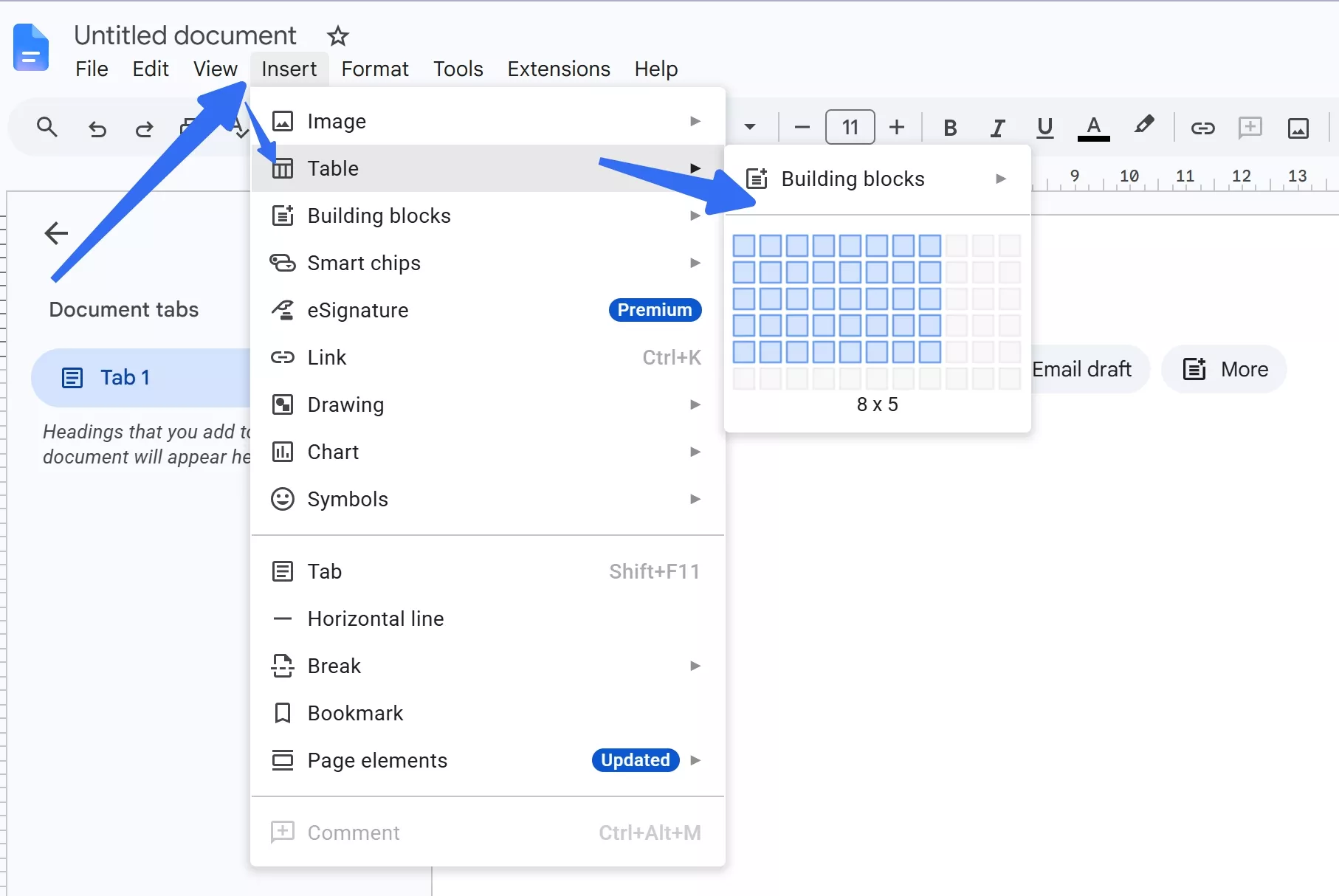
Step 2: Design your form layout using tables:
- Go to Insert > Table and select the rows and columns you need
- Merge cells for labels, resize columns for input areas
- Use Insert > Drawing > New to add shapes (rectangles for text fields, circles for radio buttons) — these are visual guides only, they will not become interactive fields in the PDF
Step 3: Add visual checkboxes:
- Use Insert > Special characters and search for "checkbox" (☐) to insert empty boxes
- Or use the Drawing tool to draw small squares
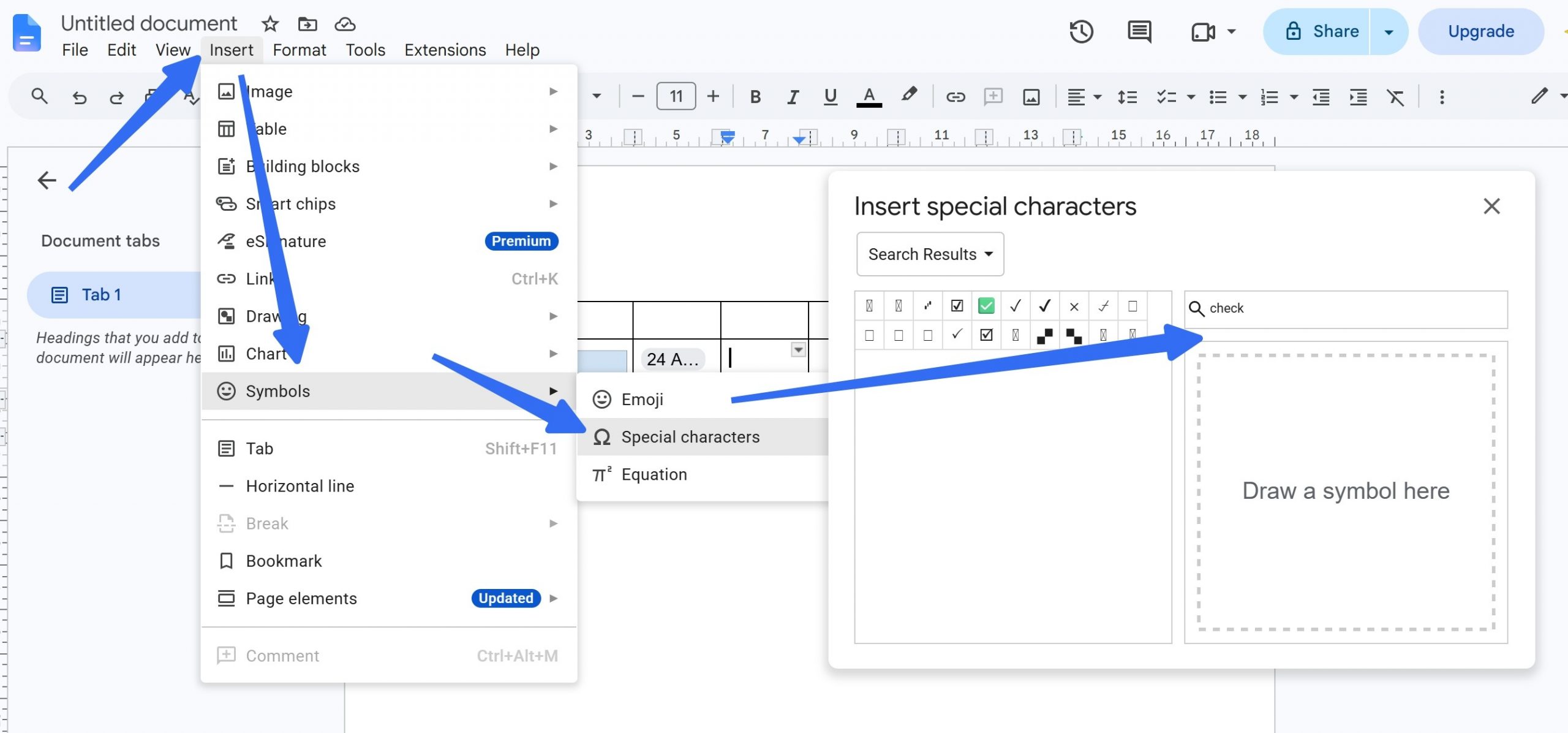
Important: These are static symbols. Recipients cannot click them in the PDF; they will appear as empty squares or lines
Step 4: Format for print:
- Go to File > Print preview to check how the layout looks on paper
- Adjust margins and table widths so nothing gets cut off when exported
Step 5: Export as PDF:
- Go to File > Download > PDF Document (.pdf)
- The resulting file is a static PDF — it looks like a form, but has no interactive fields
Critical limitation:
Method 2: Turn Your Google Docs Design into a Real Fillable PDF with UPDF
If you need a PDF with actual interactive fields — where recipients can type text, click checkboxes, and select radio buttons — you need to convert your Google Docs layout into a true PDF form. UPDF does this in two ways: auto-detecting form fields from an existing PDF, or building a form from scratch.
Option A: Convert Your Google Docs PDF to a Fillable Form (Fastest)
Use this when you already created the layout in Google Docs and exported it as a static PDF.
Step 1: Download and launch UPDF on your computer.
Windows • macOS • iOS • Android 100% secure
Step 2: Drag your exported Google Docs PDF into UPDF.
Step 3: Go to Tools > Form. Click "Form Field Recognition" under the toolbar.
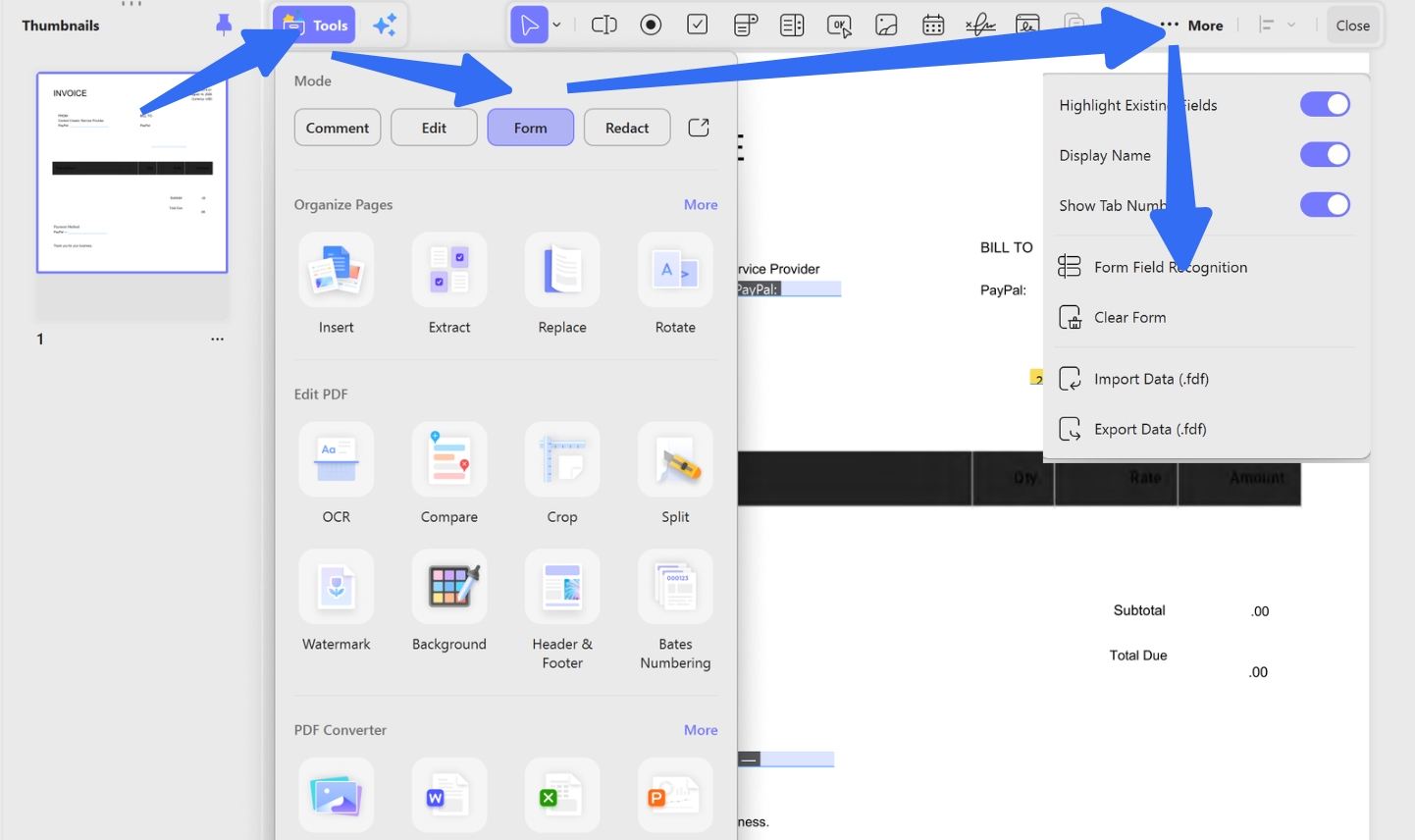
Step 4: UPDF will automatically analyze the layout and convert table cells, underlined spaces, and labeled areas into actual form fields (text fields, checkboxes, radio buttons).
Step 5: Review the auto-detected fields. Click any field to move, resize, or delete it. Add missing fields manually from the toolbar if needed.
Step 6: Click File > Save to save your fillable PDF.
Option B: Build a Fillable Form from Scratch in UPDF (Most Control)
Use UPDF this PDF form filler when you want precise control over field behavior or when auto-recognition doesn't match your layout.
Step 1: In UPDF, go to Tools > Blank to create a new PDF, or open a non-fillable PDF/Word template.
Step 2: Go to Tools > Form. Select field types from the toolbar:
- Text Field — for names, addresses, short answers
- Check Box — for multiple selections (select all that apply)
- Radio Button — for single-choice questions (only one option)
- Dropdown — for lists like states, departments, or priority levels
- List Box — for multi-select lists
- Button — for actions like "Submit" or "Reset"
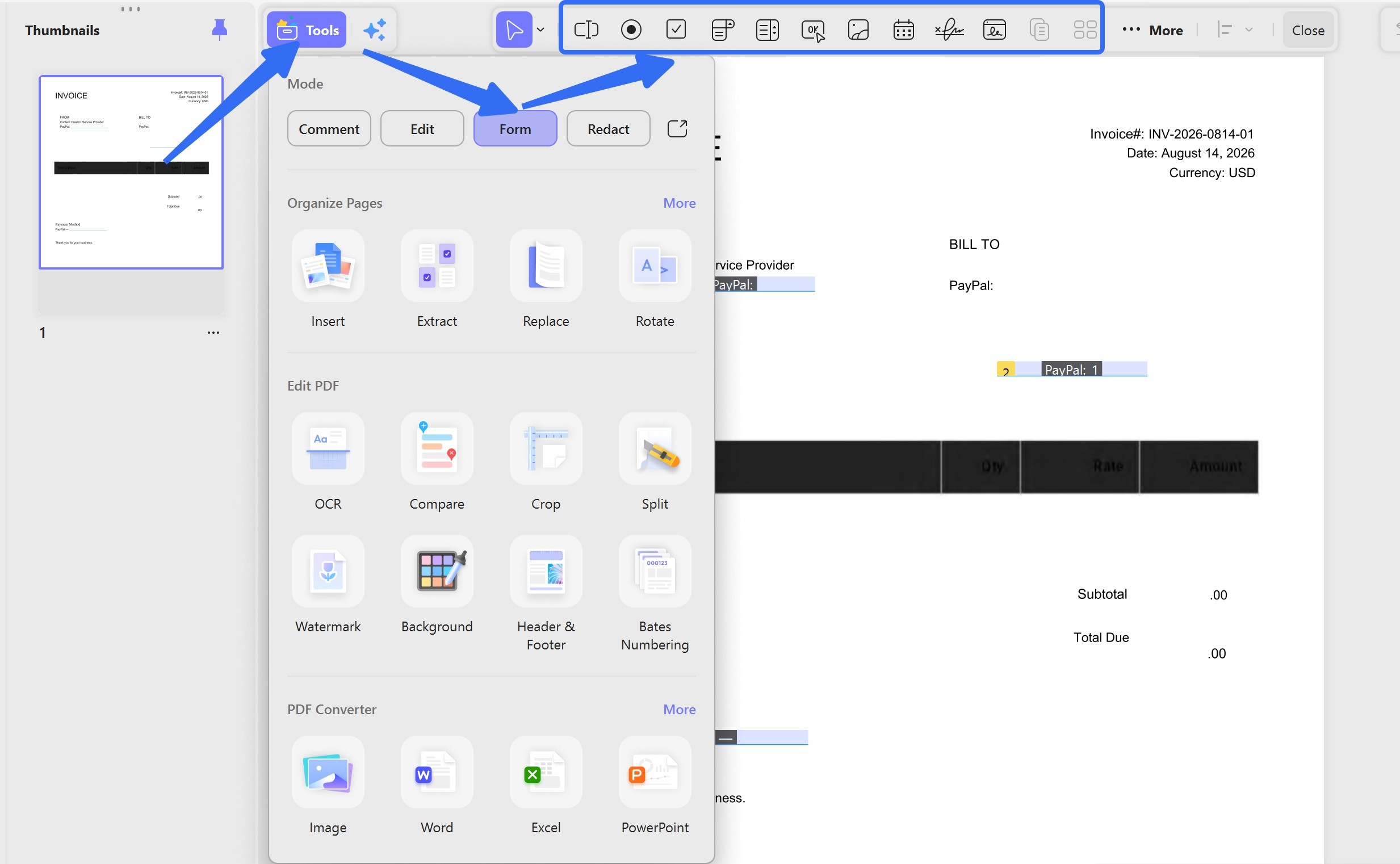
Step 3: Click and drag on the page to place each field. Double-click a field to set properties:
- Text fields: Set font, size, character limit, multi-line vs single-line
- Checkboxes/Radio buttons: Set export value, default state (checked/unchecked)
- Dropdowns: Add list items and set default selection
Step 4: Test the form by switching to Reader mode and filling out each field yourself.
Step 5: Save as File > Save (keeps it editable for future changes) or File > Export > Flattened PDF (bakes fields into static text for final submission).
Google Docs vs. Google Forms vs. Fillable PDF: Which Should You Use?
If you're already in the Google ecosystem, you might wonder whether to use Google Forms instead of building a fillable PDF. Here's how to decide:
| Use Case | Best Tool | Why |
|---|---|---|
| Simple survey or data collection; responses go to a spreadsheet | Google Forms | Fastest to build, automatic response aggregation, free |
| Legal contract requiring signatures and permanent record | Fillable PDF | Tamper-evident, works offline, standard for legal docs |
| Form that must look exactly like a paper document (government forms, applications) | Fillable PDF | Pixel-perfect layout matching, prints identically |
| Form that needs to be emailed and filled out by external clients who don't have Google accounts | Fillable PDF | No login required, works in any PDF reader |
| Form with complex conditional logic (show/hide questions based on answers) | Google Forms | Native conditional branching; PDF requires JavaScript scripting |
| Form where you need to retain the exact formatting of a Word/Google Docs design | Fillable PDF (via UPDF conversion) | Preserves fonts, spacing, and branding |
The hybrid workflow: Design the visual layout in Google Docs → Export as PDF → Convert to fillable form in UPDF → Distribute as PDF. This gives you the design flexibility of Google Docs plus the interactivity of a real PDF form.
Windows • macOS • iOS • Android 100% secure
FAQ
What is the difference between fillable and editable PDFs?
A fillable PDF has interactive form fields (text boxes, checkboxes, dropdowns) that anyone can complete using a standard PDF reader like Adobe Reader or UPDF — no editing software needed. It's designed for data collection.
An editable PDF allows you to change the actual document content — text, images, layout — using a PDF editor like UPDF. It's designed for document modification, not data collection.
Example: A job application with fields for name and experience is a fillable PDF. A marketing brochure where you need to change the company logo is an editable PDF. UPDF handles both.
Can I create fillable text boxes inside Google Docs?
No — not in the PDF sense. Google Docs has a Drawing tool (Insert > Drawing > New) that lets you draw rectangles and insert text boxes for visual layout. However, when you export the document as PDF, these become static images — not clickable, not typeable.
If you need real fillable text boxes in a PDF, you must either:
1. Export from Google Docs and convert using UPDF's Form Field Recognition
2. Build the form directly in UPDF using the Form tool
What's the difference between an interactive PDF and a non-interactive PDF?
A non-interactive PDF (what Google Docs exports by default) contains only static text and images. You can view and print it, but you cannot click, type, or select anything beyond basic text highlighting.
An interactive PDF (fillable PDF) contains live form fields, buttons, bookmarks, or hyperlinks. Recipients can type into fields, click checkboxes, and trigger actions.
Google Docs only creates non-interactive PDFs. To make an interactive PDF from a Google Docs design, you need a PDF editor like UPDF to add the form field layer after export.
Why does my Google Docs form look different when exported to PDF?
Google Docs and PDF renderers use different layout engines. Common issues include: page breaks shifting table rows, fonts substituting, and drawing objects moving slightly. To minimize this, use simple tables instead of complex drawings for form layout, and always check the exported PDF before distributing.
Can I convert a Google Form to a fillable PDF?
Not directly. Google Forms collects responses in a Google Sheet. You can print a Google Form as PDF, but it will be a static image of the form, not an interactive fillable PDF. If you need a fillable PDF version of a Google Form, recreate the layout in Google Docs, export to PDF, then use UPDF to add form fields.
Will a fillable PDF created from Google Docs work on mobile phones?
Yes, if created properly in UPDF. The key is using standard AcroForm fields (text, checkbox, radio, dropdown) rather than advanced JavaScript or XFA forms. UPDF creates standard AcroForms that work in Adobe Reader mobile app, UPDF mobile app, and most third-party PDF readers on iOS and Android.
Conclusion
Google Docs is an excellent tool for designing form layouts and collaborating on text, but it has a hard limit: it cannot export true fillable PDFs. What it creates are static, printable documents that only look like forms.
If you need a form that recipients can actually fill out on their computer or phone — without printing, scanning, or handwriting — you need to add an interactive field layer. The most reliable workflow is: design your layout in Google Docs, export as PDF, then use UPDF to auto-detect fields or build them manually.
For a broader guide on creating fillable PDFs from any source (Word, Excel, scans, or scratch), see: [How to Create a Fillable PDF: Complete Guide]
Ready to turn your Google Docs design into a real working form? Download UPDF and try the Form Field Recognition feature on your exported PDF.
Windows • macOS • iOS • Android 100% secure






 Enola Miller
 Enrica Taylor

 Enid Brown