UPDF
UPDF
 UPDF for Windows
 UPDF for Mac
 UPDF for iPhone/iPad
 UPDF for Android
 Nomostar
 UPDF AI Online
 UPDF Sign
 IvyCraft
 Edit PDF
 Annotate PDF
 Create PDF
 PDF Form
 Edit links
 Convert PDF
 OCR
OCR PDF to Word
 PDF to Image
 PDF to Excel
 Organize PDF
 Merge PDF
 Split PDF
 Crop PDF
 Rotate PDF
 Protect PDF
 Sign PDF
 Redact PDF
 Sanitize PDF
 Remove Security
 Read PDF
 UPDF Cloud
 Compress PDF
 Print PDF
 Batch Process
 About UPDF AI
 UPDF AI Solutions
 AI User Guide
 FAQ about UPDF AI
 Summarize PDF
 Translate PDF
 Chat with PDF
 Chat with AI
 Chat with image
 PDF to Mind Map
 Explain PDF
 PDF AI Tools
 Image AI Tools
 AI Chat Tools
 AI Writing Tools
 AI Study Tools
 AI Working Tools
 Other AI Tools
 AI Bookmark Generation
 AI Bookmark Summary
 AI Watermark Generation
 AI Background Generation
 AI Sticker Generation
 AI Stamp Generation
 AI Editing Suite
 UPDF Copilot
 AI Page Management
 AI Semantic Search
 PDF to Word
 PDF to Excel
 PDF to PowerPoint
 Enterprise Solution
 Enterprise Sign
 Enterprise AI
 Enterprise Plan
 Enterprise User Guide
 Enterprise Webinar
 Banking
 Healthcare
 Insurance
 Legal
Legal Manufacturing
 Government
 Researchers & PhDs
 Solopreneurs & Freelancers
 Lawyers & Legal Professionals
 Real Estate Agents & Brokers
 Education Solution
 Customer Stories
 User Guide
 UPDF Tricks
 FAQs
FAQs UPDF Reviews
 Download Center
 Blog
Blog Newsroom
 Tech Spec
 Updates
 UPDF vs. Adobe Acrobat
 UPDF vs. Foxit
 UPDF vs. PDF Expert

Scanning paper pages into simple PDF files on Windows is easy when you use WinScan2PDF on your computer. It focuses on simple scanning to help you turn bills, forms, and notes into PDFs. The software keeps things light and fast for users working on older PCs or busy office machines.
This article explains WinScan2PDF’s key strengths and limits, shows how to fill the gaps with UPDF, offering full PDF editing, OCR, and management tools when you need to change text or reuse document content, and guides you through everyday uses.
Part 1. WinScan2PDF Latest Overview: Core Functions & User Guide
This tool is made for people who only need one thing: turning paper scans into clean PDF documents. WinScan2PDF cuts out extra buttons and menus, helping new users save their pages without any confusion. Office workers and home users can quickly archive records, homework, and forms in a format everyone can open.
It is built around a simple “Scan → PDF” flow, so it fits busy days without space for complex software. For people who move between different PCs, the WinScan2PDF portable option keeps the same simple scan flow wherever they work.
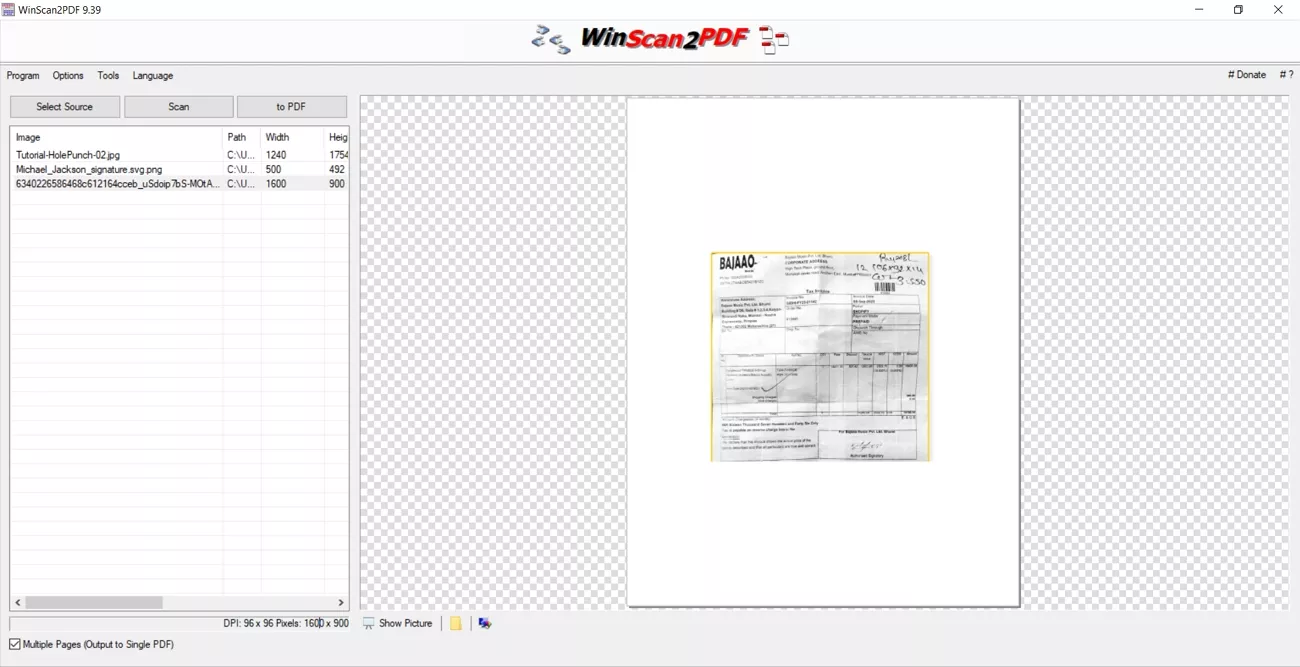
Clear At‑A‑Glance Feature List
WinScan2PDF’s functions support everyday scanning tasks at home or work, keeping the process short, clear, and stress‑free. Look at the table below to see how each feature supports simple “Scan → PDF” workflows:
| Feature | Description |
| Scan Directly to PDF | Send scanned pages straight into a PDF file with one simple action. |
| Multi‑Page PDF Support | Add several scanned pages into one combined PDF document for easier sharing. |
| Adjust Scan Quality | Adjust basic scan settings to balance file size and document readability. |
| Rotate Before Scanning | Turn page orientation correctly to keep document pages aligned in the final PDF. |
| Save as JPEG | Store scanned pages as image files when a picture format works better than PDF. |
| Auto‑Clean Up Temporary JPEGs | Remove temporary JPEG files after saving to keep the computer's storage tidy. |
| Portable Design | Run the program from a folder or drive without a long installation process. |
| Minimal Resource Usage | Use very little memory and processing power while scanning and saving documents. |
| Multilingual Support | Work with the interface in several languages to match different users’ preferences. |
| Optional Translation | Offer translation help for some interface text when another language is more comfortable. |
| Compatible With Mainstream Scanners | Connect easily with the most common scanner models used in homes and offices. |
How to Scan Paper Documents With WinScan2PDF
Many users want a simple way to scan documents correctly, especially when first trying the WinScan2PDF latest version. So, follow the simple steps below to see how paper pages become clear PDF files:
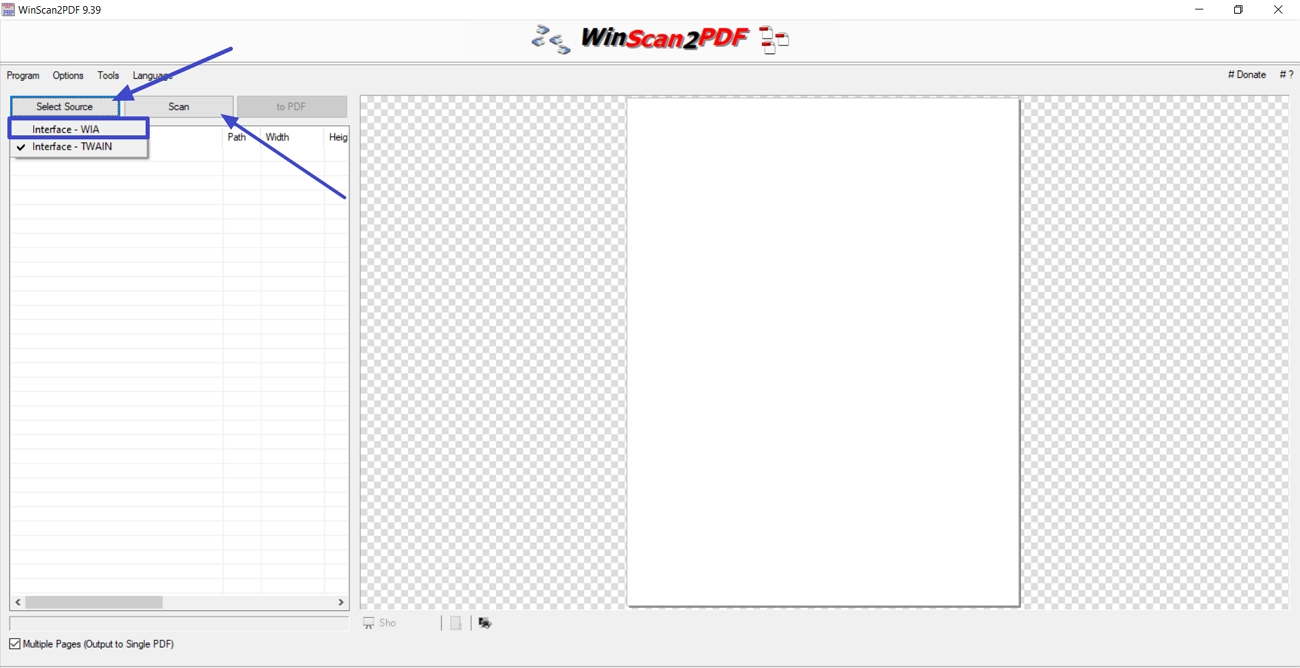
Step 1. Once you open the WinScan2PDF, click the “Select Source” option and choose the “Interface - WIA” option. Then, press the “Scan” option to start scanning.
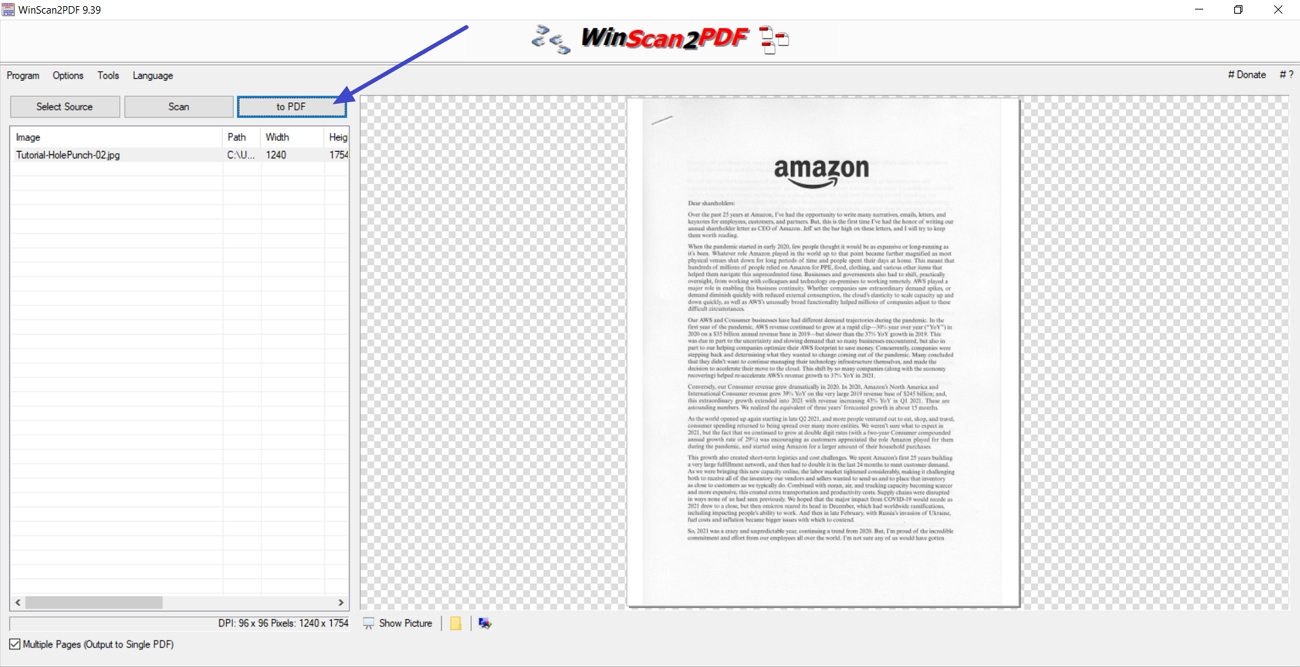
Step 2. After the paper is scanned, click the “To PDF” button and select the target location for the PDF.
Pros and Cons of WinScan2PDF
As per the WinScan2PDF official site, this tool keeps scanning simple and focused. Users get speed and low system load but must accept fewer advanced features and options. Look at the points below to understand where it works best and where it feels limited:
Pros
- Small program size, ideal for older or low‑spec Windows computers.
- Starts quickly, so users can scan documents without long loading times.
- A simple layout helps beginners scan documents without learning complex menus.
- The portable version runs from a USB, handy when using different computers.
Cons
- Only supports Scan To PDF, with no OCR or format conversion.
- The small preview area makes it hard to check page details clearly.
- Network scanners may not work, depending on the driver and setup.
- Some scanner models are not supported, so compatibility testing is recommended first.
Part 2. WinScan2PDF Alternative | Mac & Windows & iOS & Android Supported
As discussed above, some users outgrow WinScan2PDF when they need deeper control over their PDF work. This is where UPDF comes in as a flexible workspace for people who handle many documents every day. It suits office workers and freelancers who must review and reuse client files across both Mac and Windows.
Students and researchers also benefit when managing long readings and notes that move between multiple devices. For home users organizing bills and family documents, UPDF helps keep everything easier to handle long-term.
Windows • macOS • iOS • Android 100% secure
Scan and OCR Benefits With UPDF
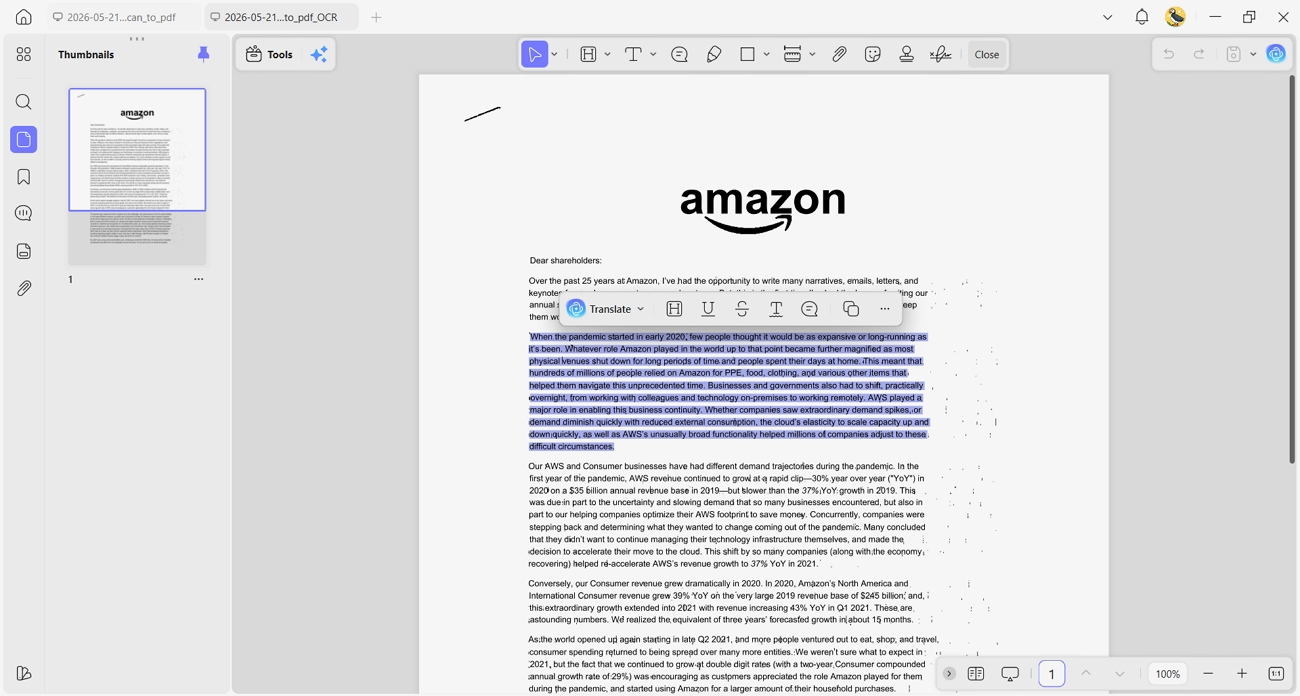
Many users need more than simple scanning when working with long or important documents. Explore the features and see how UPDF improves scanned pages for work, school, and daily life:
1. Accurate OCR Languages
UPDF’s OCR recognizes text in about 38 languages with 99% accuracy. This helps users search, copy, and reuse text from many different scanned documents.
2. Multi‑Page Scanning
It scans multiple pages of paper and combines them into a single, ordered PDF file. This makes reports and contracts easier to store, share, and read later.
3. Editable Output Formats
UPDF supports converting scanned documents to all editable formats, not just fixed-image-based PDFs. Users can update wording, correct mistakes, and reuse content without retyping everything from scratch.
4. Live Document Capture
It can capture live documents using a camera and then convert them into editable text. This is useful when you only have paper copies and need quick digital versions.
5. UPDF AI Text Help
Other than standard OCR, UPDF AI further helps recognize text in scanned paper pages. This extra intelligence improves understanding of complex layouts and tricky fonts in real documents.
A Smart Camera Scanner For Busy Users
Many people scan documents on their phone but need clean results, quick translations, and simple controls, just like WinScan2PDF portable users value simplicity on a PC. Other than the UPDF's mobile app, NomoStar gives busy users focused tools for scanning, translating, and organizing. It functions as an AI PDF scanner and translator, converting IDs, passports, visas, and other documents into clear digital files.
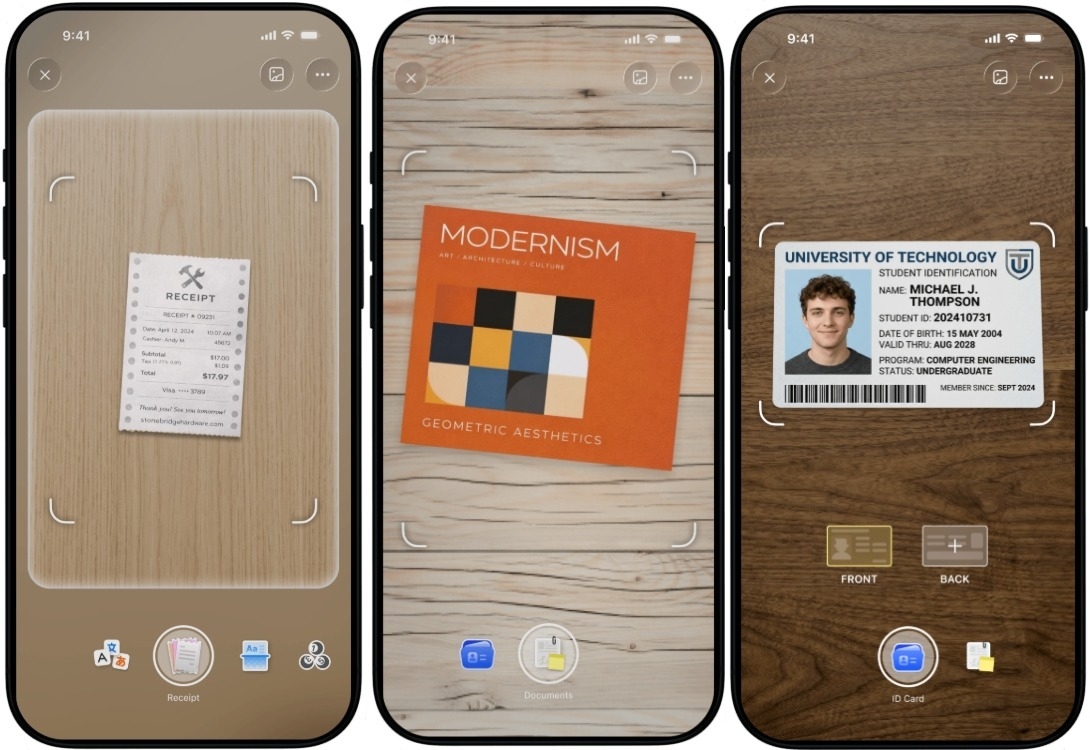
You can rotate, crop, and filter scans, then organize everything into tidy groups like Paper, ID Cards, and Books. Its AI can translate text in 12 languages while keeping layouts clear and easy to follow.
FAQs
- Is WinScan2PDF completely free? Does it contain ads or feature limitations?
WinScan2PDF is free to use on Windows and does not show ads in its interface. It stays focused on basic scanning, while UPDF adds advanced tools if you later need more features.
- How do I combine all the pages into a single PDF file?
After scanning each page, keep adding new pages inside WinScan2PDF until your document is complete. When you save the file, all scanned pages are stored together in a single PDF.
- How can I reduce the scanned PDF file size?
You can lower the scan quality or resolution in your scanner settings before creating the PDF. If you still need smaller files, UPDF can compress PDFs further while keeping good readability.
- Does WinScan2PDF support OCR text recognition?
WinScan2PDF only creates image-based PDFs and does not include OCR to make text searchable. For editable text from scans, you can switch to UPDF or Nomostar for OCR.
- Is there a Mac version of WinScan2PDF?
WinScan2PDF is designed only for Windows systems and does not have a native Mac version. Mac users who need scanning and OCR can use UPDF instead for their workflows.
Wrap Up
In conclusion, this guide explained how WinScan2PDF helps with simple scanning needs on Windows systems. It also showed where its features feel limited for editing, OCR, and advanced document management tasks. For a more complete workflow, using UPDF or Nomostar is a better option for scanning, editing, and protection.
Windows • macOS • iOS • Android 100% secure





 Lizzy Lozano
 Enid Brown
 Enrica Taylor
 Enya Moore