 UPDF
UPDF
 UPDF for Windows
 UPDF for Mac
 UPDF for iPhone/iPad
 UPDF for Android
 UPDF AI Online
 UPDF Sign
 Edit PDF
 Annotate PDF
 Create PDF
 PDF Form
 Edit links
 Convert PDF
 OCR
OCR PDF to Word
 PDF to Image
 PDF to Excel
 Organize PDF
 Merge PDF
 Split PDF
 Crop PDF
 Rotate PDF
 Protect PDF
 Sign PDF
 Redact PDF
 Sanitize PDF
 Remove Security
 Read PDF
 UPDF Cloud
 Compress PDF
 Print PDF
 Batch Process
 About UPDF AI
 UPDF AI Solutions
 AI User Guide
 FAQ about UPDF AI
 Summarize PDF
 Translate PDF
 Chat with PDF
 Chat with AI
 Chat with image
 PDF to Mind Map
 Explain PDF
 PDF AI Tools
 Image AI Tools
 AI Chat Tools
 AI Writing Tools
 AI Study Tools
 AI Working Tools
 Other AI Tools
 AI Bookmark Generation
 AI Bookmark Summary
 AI Watermark Generation
 AI Background Generation
 AI Sticker Generation
 AI Stamp Generation
 AI Editing Suite
 UPDF Copilot
 AI Page Management
 AI Semantic Search
 PDF to Word
 PDF to Excel
 PDF to PowerPoint
 Enterprise Solution
 Enterprise Sign
 Enterprise AI
 Enterprise Plan
 Enterprise User Guide
 Enterprise Webinar
 Banking
 Healthcare
 Insurance
 Legal
Legal Manufacturing
 Government
 Education Solution
 Customer Stories
 User Guide
 UPDF Tricks
 FAQs
FAQs UPDF Reviews
 Download Center
 Blog
Blog Newsroom
 Tech Spec
 Updates
 UPDF vs. Adobe Acrobat
 UPDF vs. Foxit
 UPDF vs. PDF Expert

When working on photo project layouts, I often find that printing multiple images is more complicated than it should be. Printing images one by one wastes paper, disrupts alignment, and leads to inconsistent sizing across printers. I've faced this issue while preparing personal albums, academic materials, and professional handouts where layout accuracy matters most.
Over time, I tested different approaches to organizing multiple images onto a single page without sacrificing clarity. In this article, I demonstrate how to print multiple photos on one page and explain how UPDF fits naturally into real printing workflows.
Windows • macOS • iOS • Android 100% secure
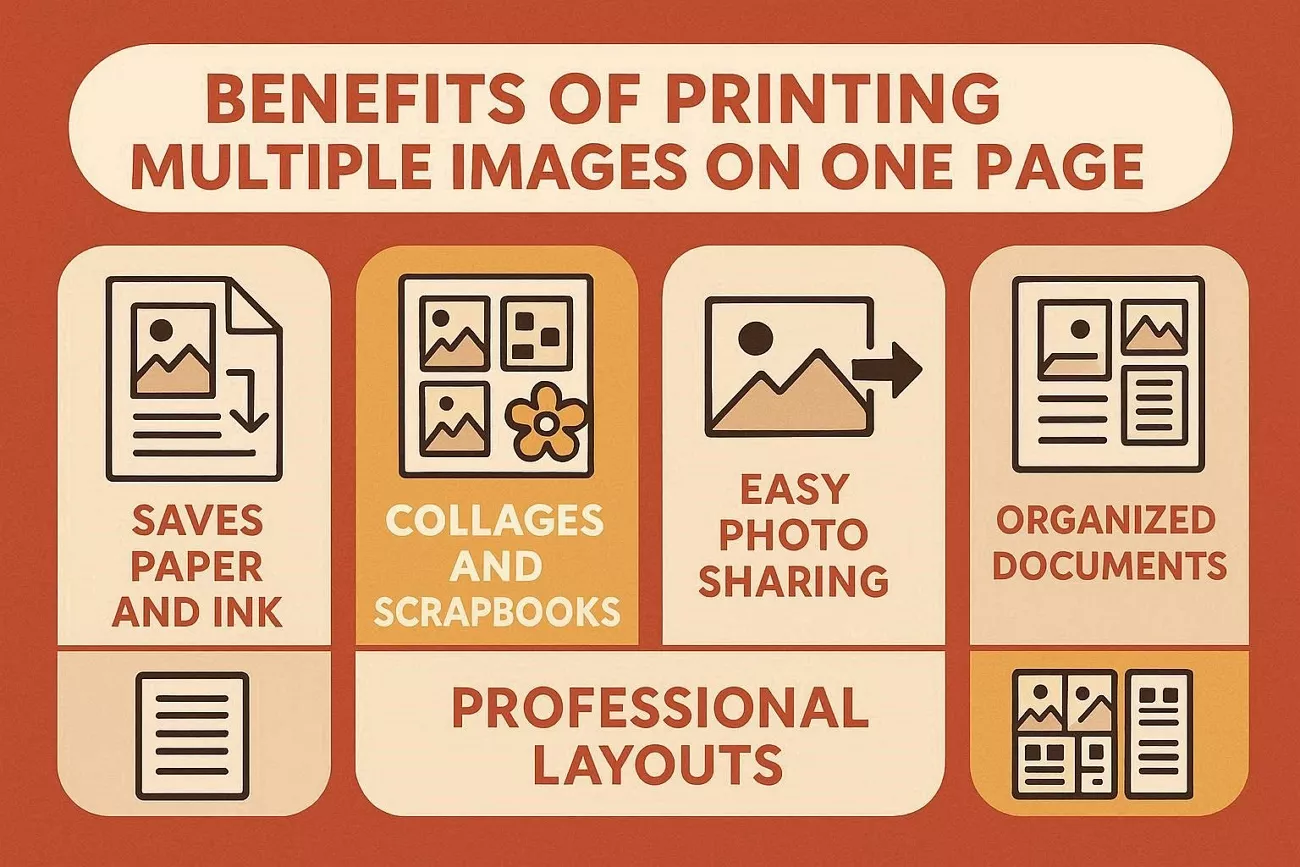
Part 1. Benefits of Printing Multiple Images on One Page
Understanding why this process matters can save both time and resources in the long run. Before moving towards how to print multiple images on one page, let me share its benefits.
1. Saves Paper And Ink
Using a single sheet for multiple photos reduces paper consumption and preserves supplies for future projects. This approach also cuts overall ink usage, which matters when handling frequent, large image batches.
2. Perfect For Collages And Scrapbooks
When multiple images are placed on a sheet, collage planning becomes simpler, as well as providing the images with a more attractive appearance. This approach is useful in making creative work quicker and with a professional appearance.
3. Easy Photo Sharing
A single page that contains many photos allows convenient sharing of memories with friends, family, or clients. This format removes the need to send individual files separately and reduces the time and effort required for each task.
4. Organized Documents
Pages that hold several images keep project documents neat and manageable over time. This structure makes specific photos easier to locate without searching through numerous separate files or scattered sheets.
5. Professional Layouts
Layouts with multiple photos on one page support consistent alignment for every image. Uniform spacing, margins, and sizing contribute to a polished, professional presentation for any project.
Part 2. How To Print Multiple Photos On One Page?
After understanding the benefits of printing multiple images, I learned how to print multiple photos on one page on a desktop and a mobile device. Look at the guides below to see how you can do this by using UPDF and other built-in methods.
Method 1. Using UPDF (Mac, Windows, Android, and iOS)
When I import my images into UPDF, it automatically converts them into PDF and allows me to print or perform any other task. Let’s explore multiple methods of printing multiple images on one page via the UPDF Desktop and Mobile App.
Windows • macOS • iOS • Android 100% secure
UPDF Desktop: Via Batch Merge
Follow the steps below to see how you can print multiple images by merging multiple images:
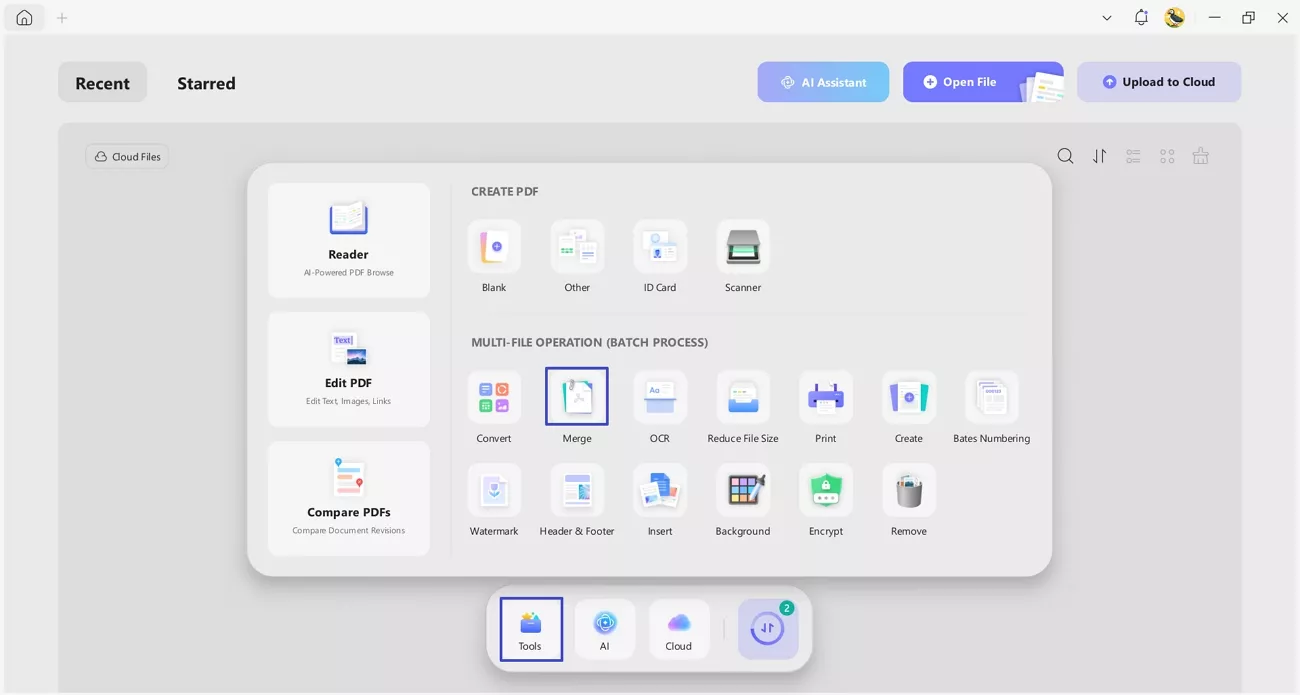
Step 1. Access Batch Merge Tool
Once you reach the main interface, press the “Tools” option and click the “Merge” tool under the Batch Process section.
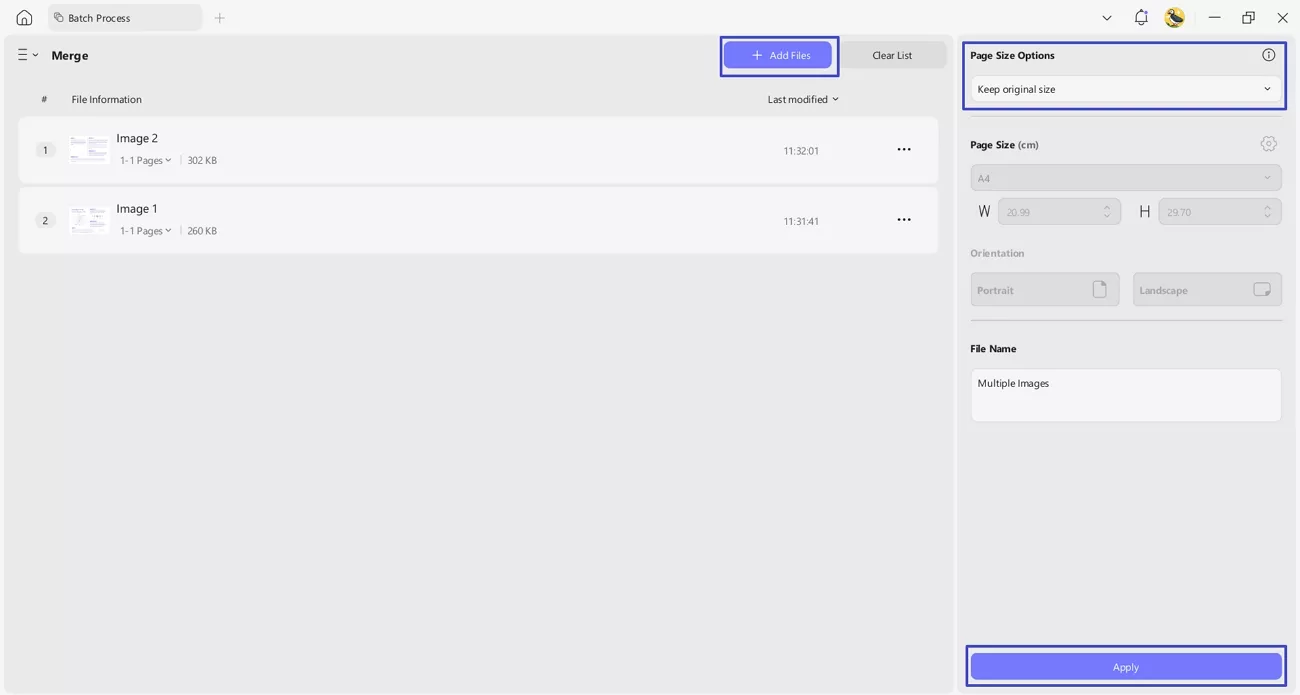
Step 2. Import Images and Merge into a PDF
Next, press the “Add Files” option to import all images, choose a size from “Page Size Options”, and click the “Apply” to merge all images.
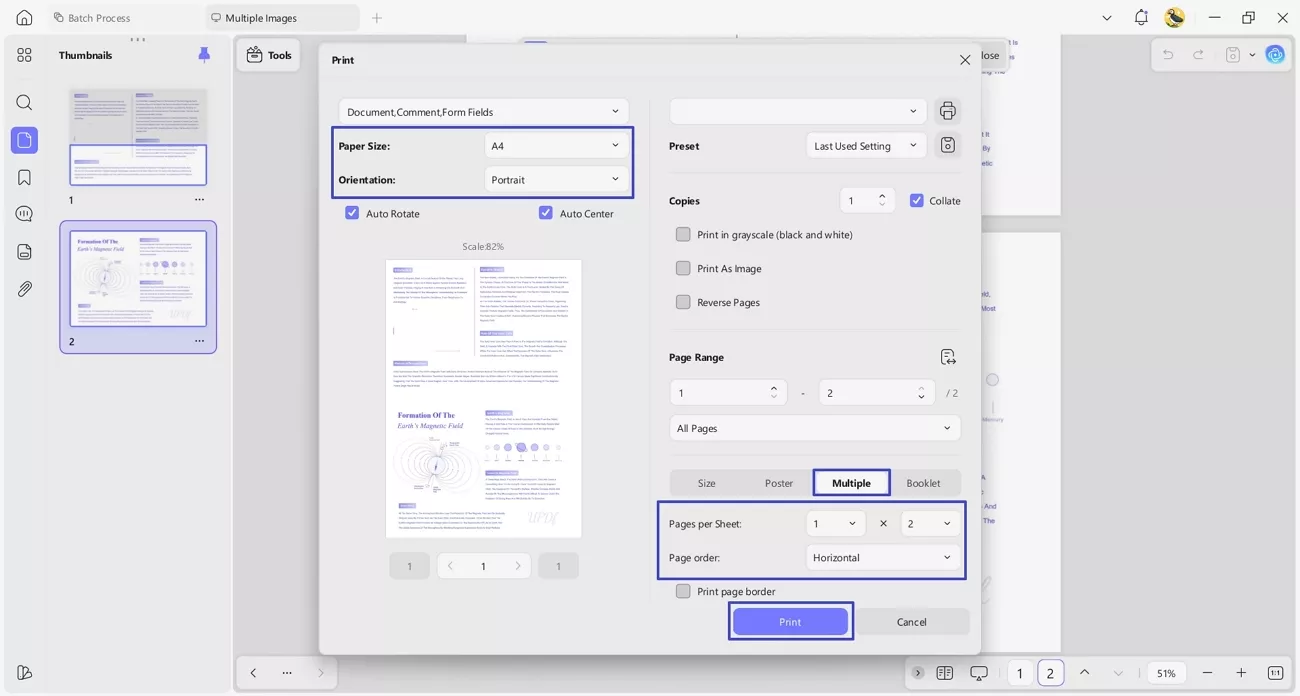
Step 3. Print Merge Images PDF
Open the merged images PDF and press the “Ctrl + P” keys to open the Print interface. Next, choose an appropriate “Page Size”, “Orientation”, and select the “Multiple” mode. Afterwards, choose “Paper Per Sheet” and press the “Print” button to get the print.
UPDF Desktop: Via Insert Images
Next, go through the steps below to learn how to print multiple images on one page by inserting them into a blank PDF:
Windows • macOS • iOS • Android 100% secure
Step 1. Create a Blank PDF on UPDF
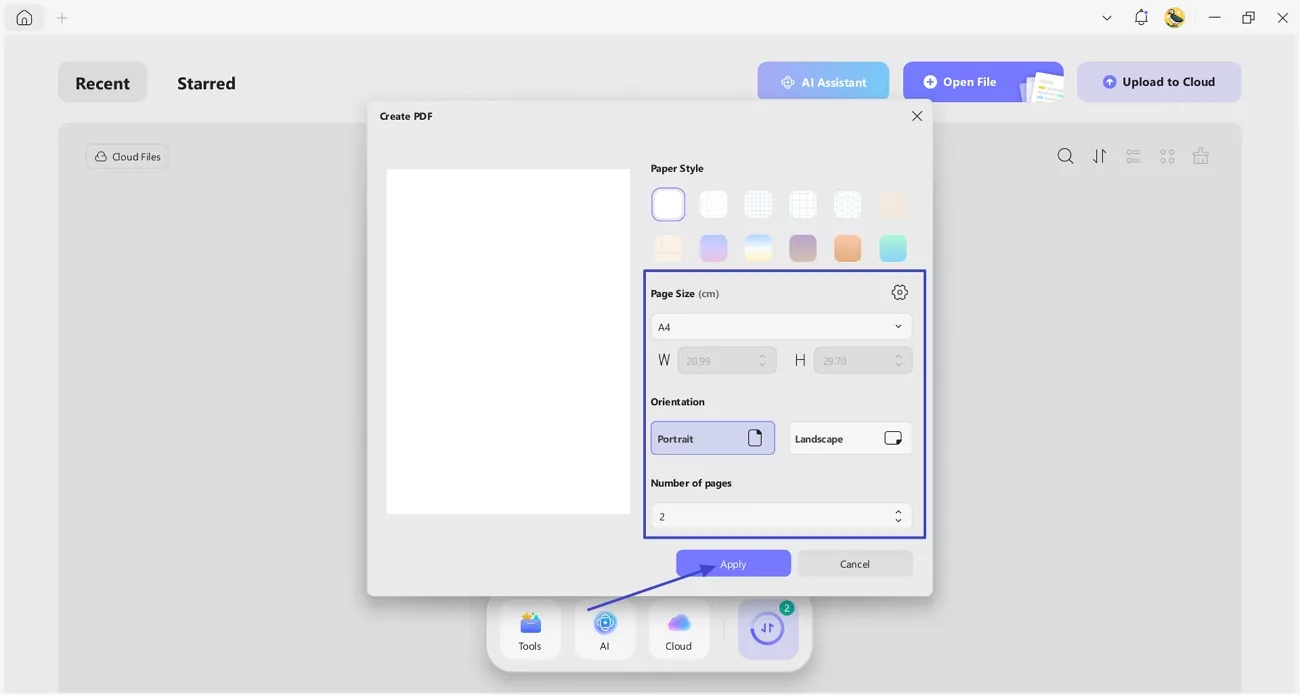
First, press the “+” icon and click the “Blank PDF” option. Next, choose the “Page Size” option and select “Orientation”, and insert the “Number of Pages” you want. Press the “Apply” button to create a blank PDF.
Step 2. Insert Images on Blank PDF
Once the blank PDF is created, press the “Tools” option and click the “Edit” button to access the editing interface. Next, press the “Insert & Edit Images” icon and click anywhere on the image to import images. To make multiple images the same size, use the “Crop” icon to crop the image.

Step 3. Print Multiple Images on One Page
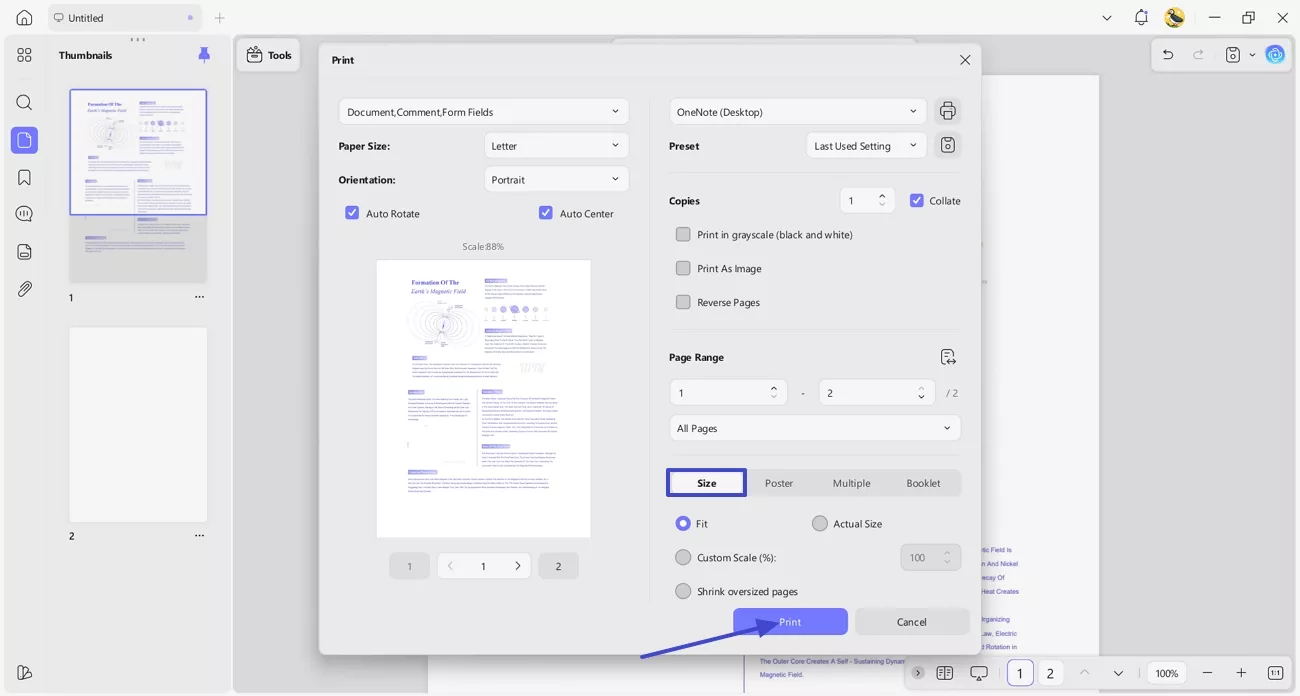
Lastly, access the Print interface and choose the “Size” option. Afterwards, press the “Print” button to print all the images.
UPDF Mobile: Via Combine Images
Follow the steps below to print multiple images on a single page by combining images using UPDF Mobile. You can click the button below to download UPDF Mobile, or download it on App Store or Google Play.
Windows • macOS • iOS • Android 100% secure
Step 1. Combine Multiple Images
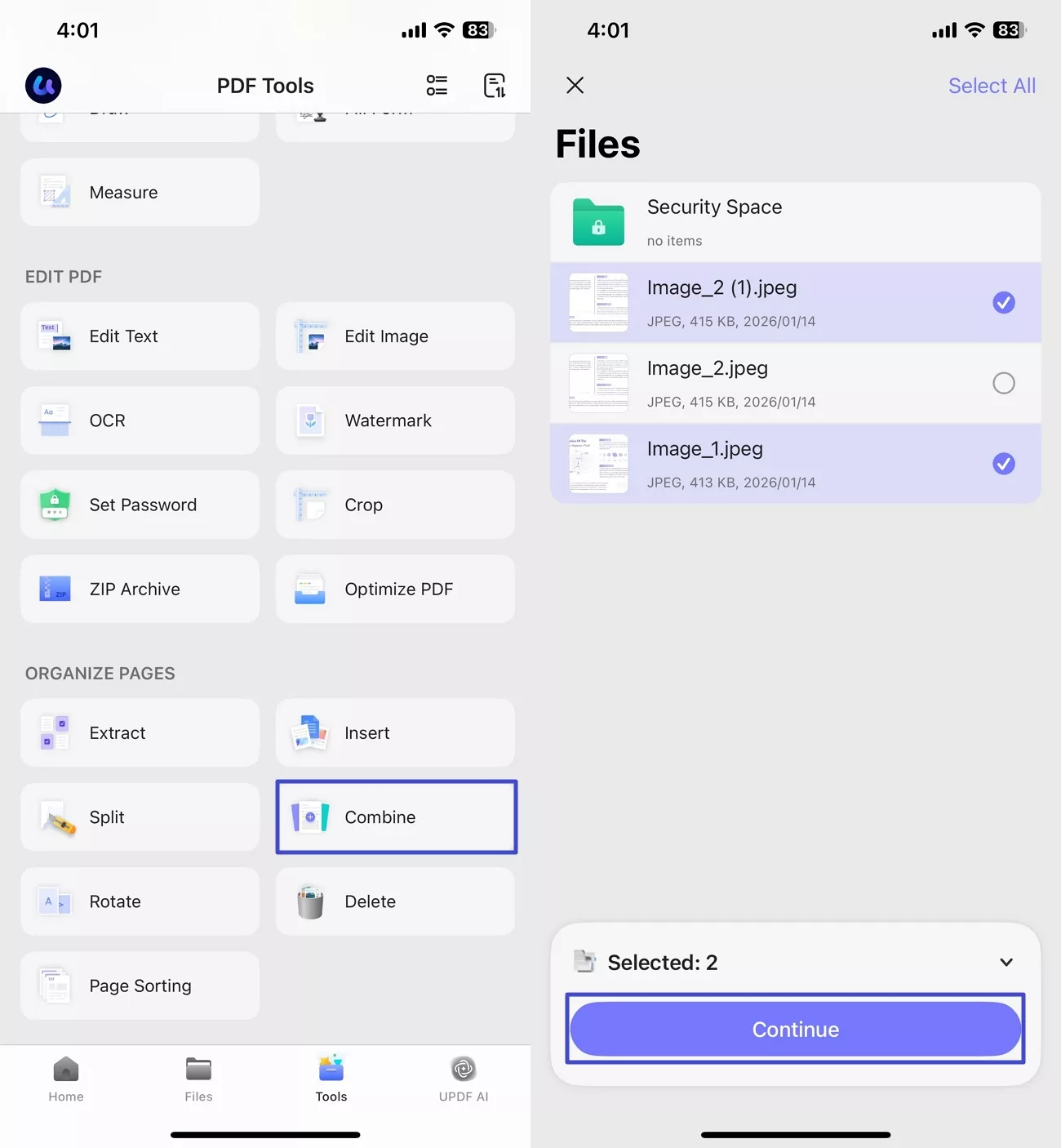
On the main screen, tap on the “Tools” option and use the “Combine” option. Next, select the images you want to combine and tap on the “Continue” option.
Step 2. Print Combined Image PDF
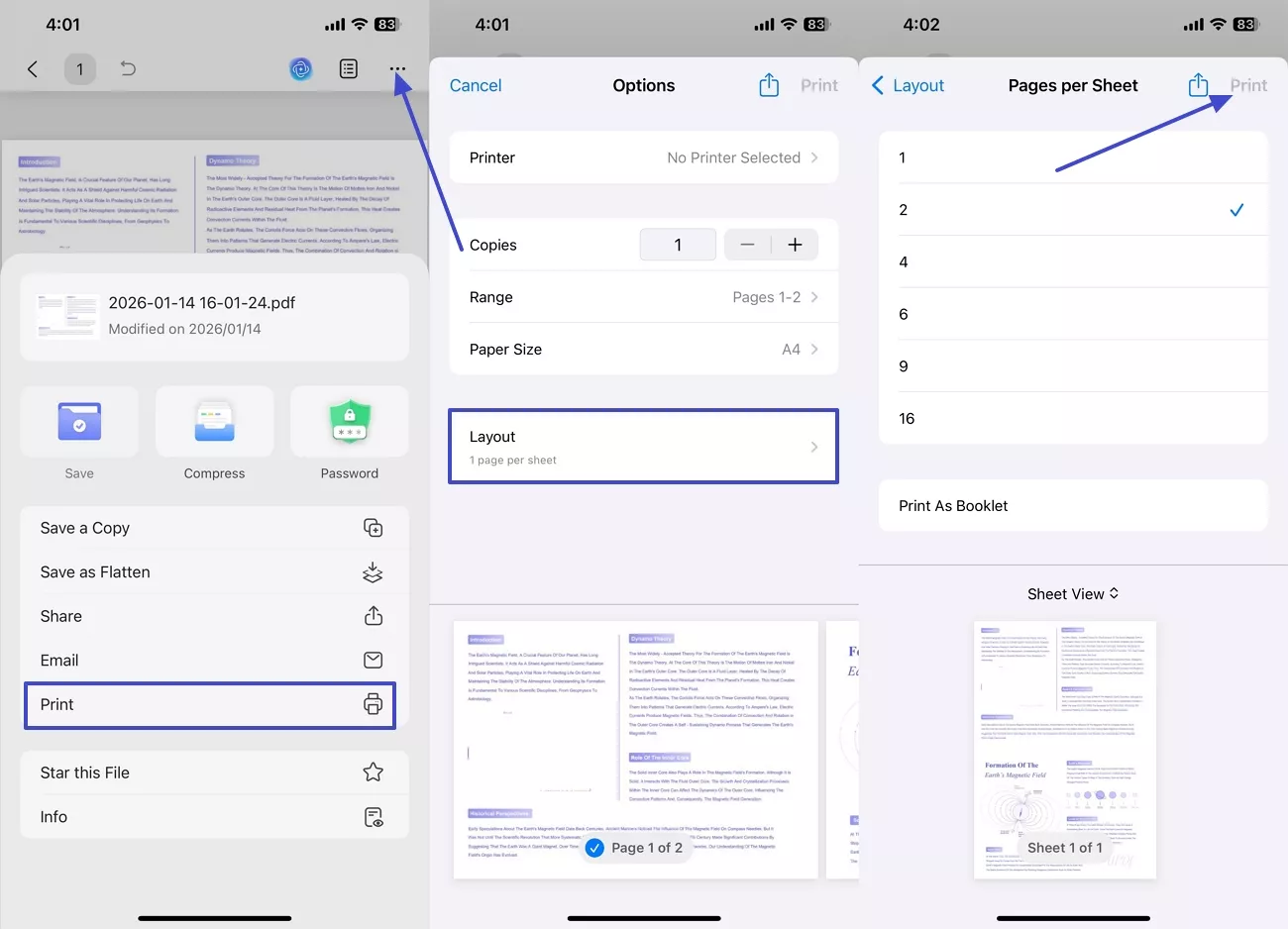
Once the images are combined in a single PDF, tap on the “Three-Dots” icon and use the “Print” option. Next, tap on the “Layout” option and choose the number of pages per sheet before using the “Print” option.
UPDF Mobile: Via Insert Images
Next, follow the steps below to learn how to print multiple photos on one page by inserting images on a blank PDF using UPDF Mobile:
Windows • macOS • iOS • Android 100% secure
Step 1. Create a Blank PDF
On the main screen, use the “+” and tap on the “Blank PDF” option. Next, choose the “Page Style” to create a blank PDF.

Step 2. Insert Images on Blank PDF
Next, tap on the “Edit” option, use the “Image” icon, and hit the “Photos” option to import and set images on a blank PDF page.
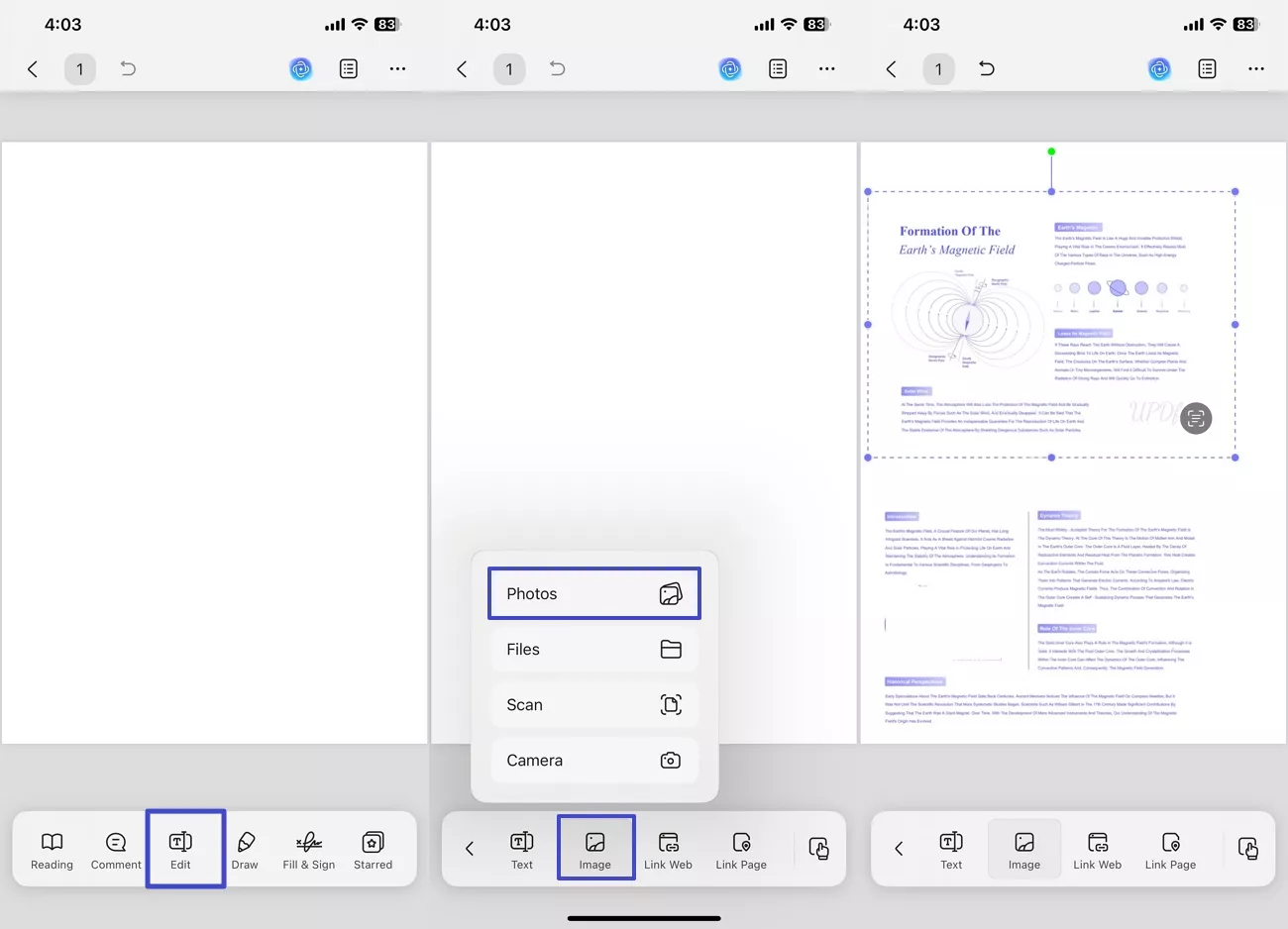
Step 3. Print Final PDF
Afterwards, tap on the “Three-Dots” icon and use the “Print” option. Next, choose the printer, select “Paper Size”, and tap on “Print” to print the PDF.
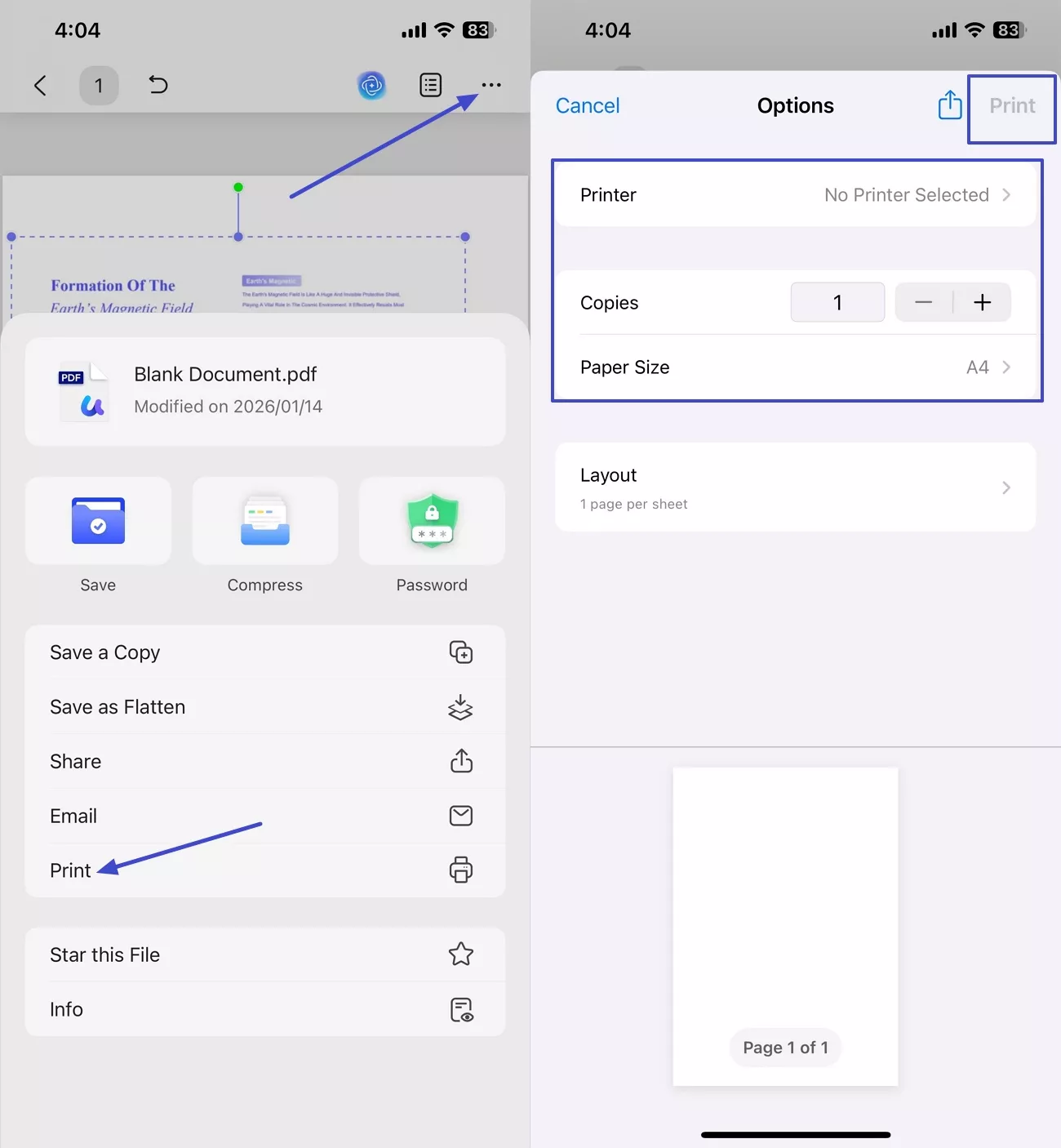
Cross-Device Printing and Premium Features
UPDF works across Windows, macOS, iOS, and Android, so I can prepare my multi-image page on one device and print from another. There are certain restrictions to the free trial that include limited features and having watermarks, which complicate some tasks. For an unrestricted experience, purchase the premium version to handle every printing task across all my devices.
Method 2. Using Windows Built-in Tools
Having learned how to print multiple images on one page using UPDF, look at the guide below to see how to do this via Windows' built-in tools:
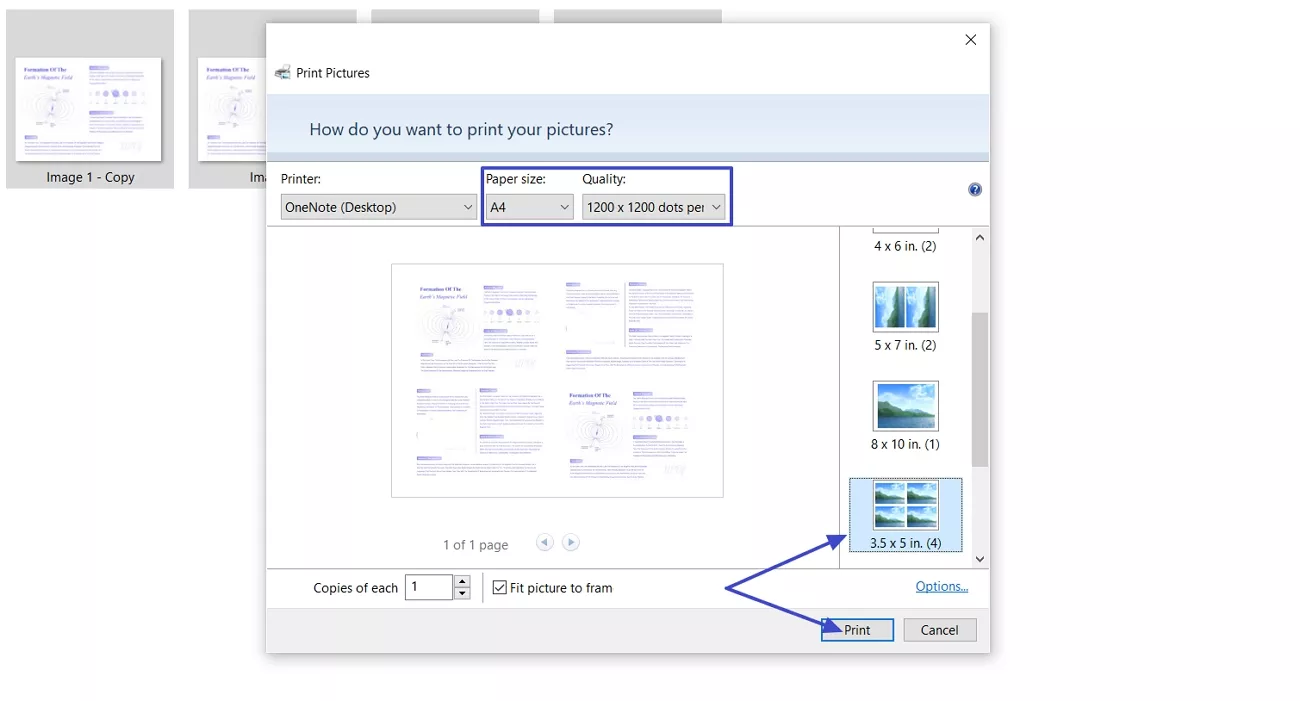
Step 1. First, press the “Ctrl” key to select all the images, right-click the images, and click the “Print” option in the context menu.

Step 2. Next, choose an appropriate “Paper Size” and “Quality” you want for the printed paper. Choose the “Layout” that fits all images on one page and click the “Print” button to print the images.
Method 3. Using Mac Built-in Tools
After printing multiple images on one page, I turned to my Mac and explored how printing multiple images works on it. Adhere to the steps below to learn how you can print multiple images on one page on a Mac:
Step 1. Firstly, select all images you want to print and right-click to view the context menu. Hover your mouse over the “Open With” option and click the “Preview” tool to open all images.
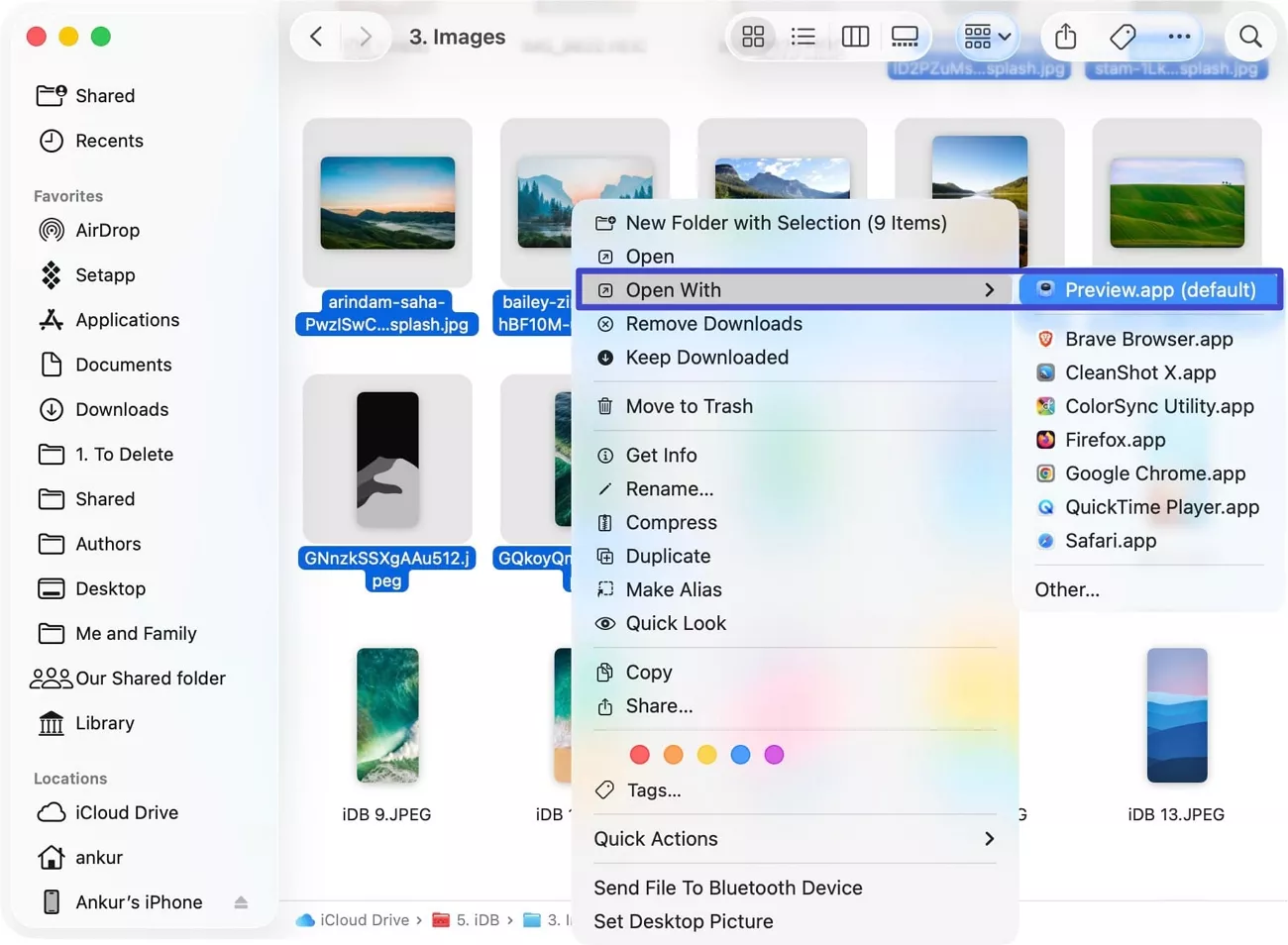
Step 2. Next, press the “File” option and click the “Print” option from the drop-down menu.

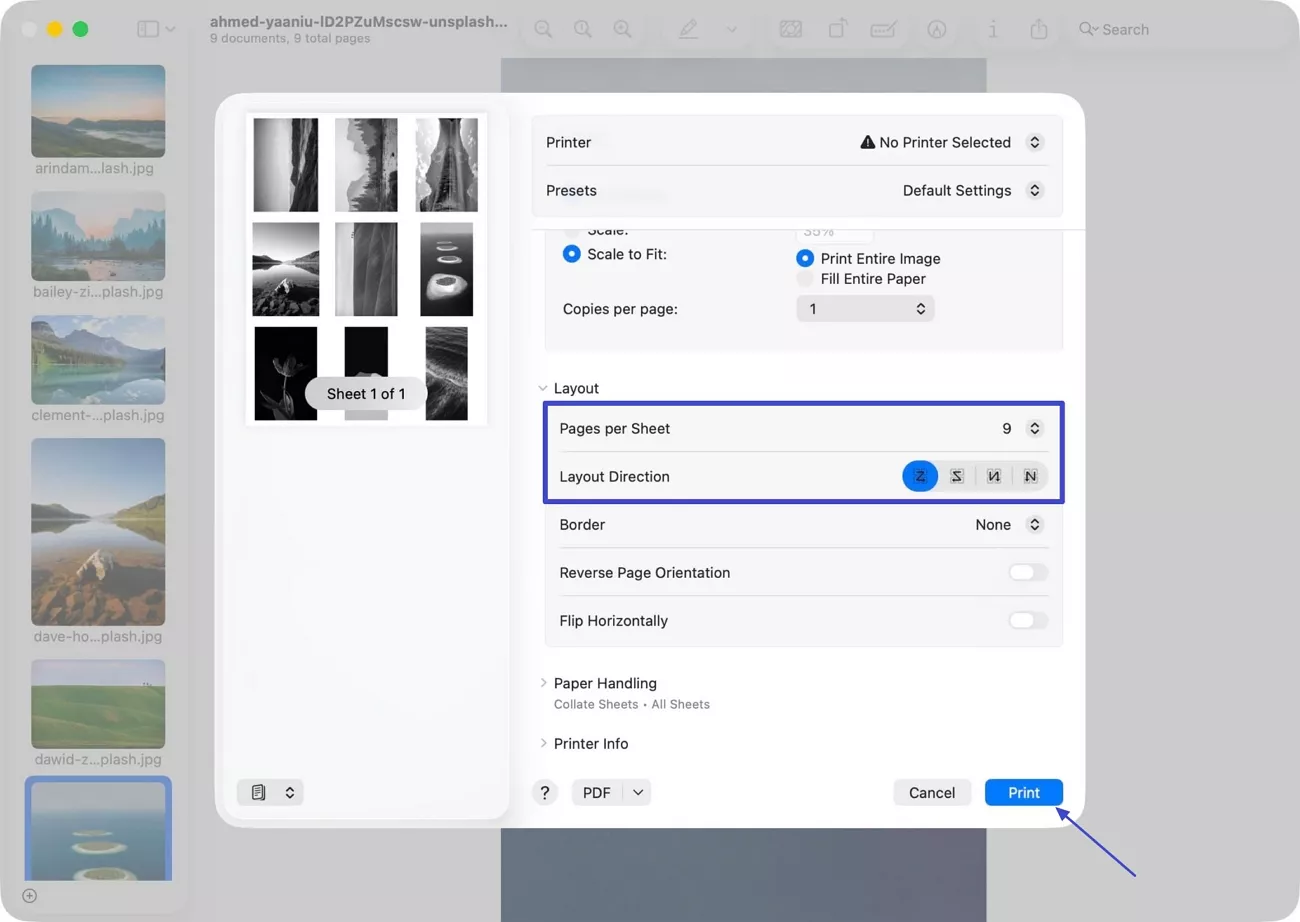
Step 3. Once done, choose the “Layout Direction” option under the “Layout” section and select the number of sheets/images you want on one page. Afterwards, press the “Print” button to print all images.
Method 4. Using Free Online Tools
After understanding how to print multiple photos on one page, I started exploring for tools that can help me print multiple images directly via browser. Now, follow the steps below to print multiple images on one page with Canva:
Step 1. Once you enter the main Canva interface, press the “Create” option to create a blank page.

Step 2. Next, press the “Elements” option and search for “Grid” to choose a grid with the number of images you want to print on a single page.
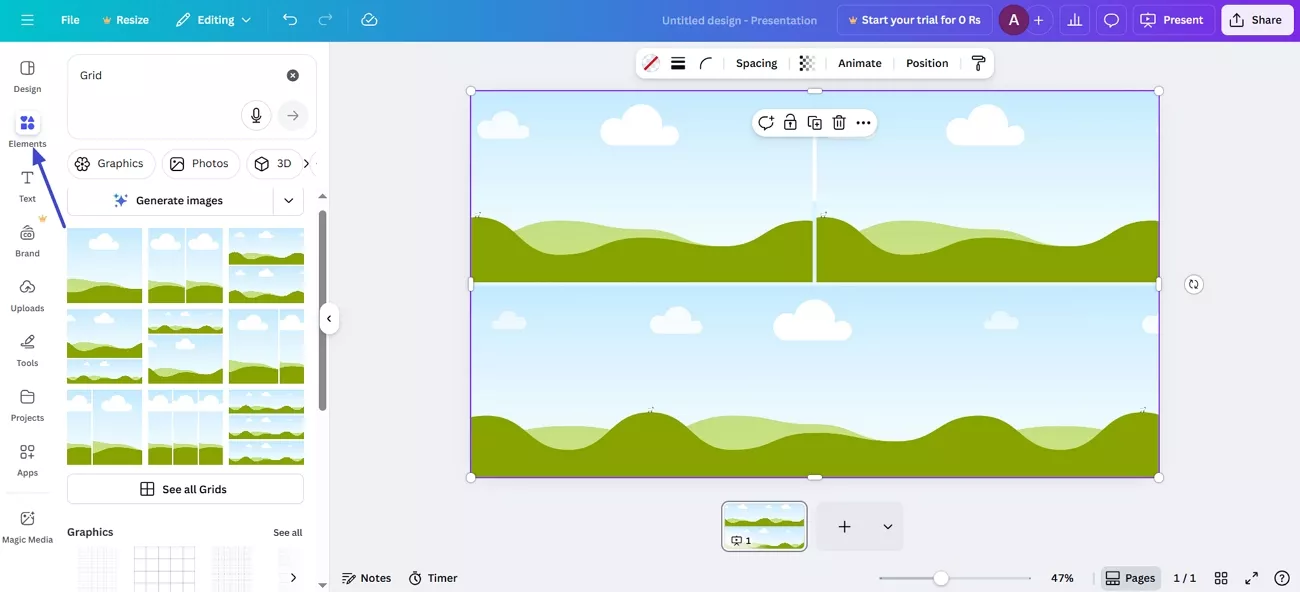
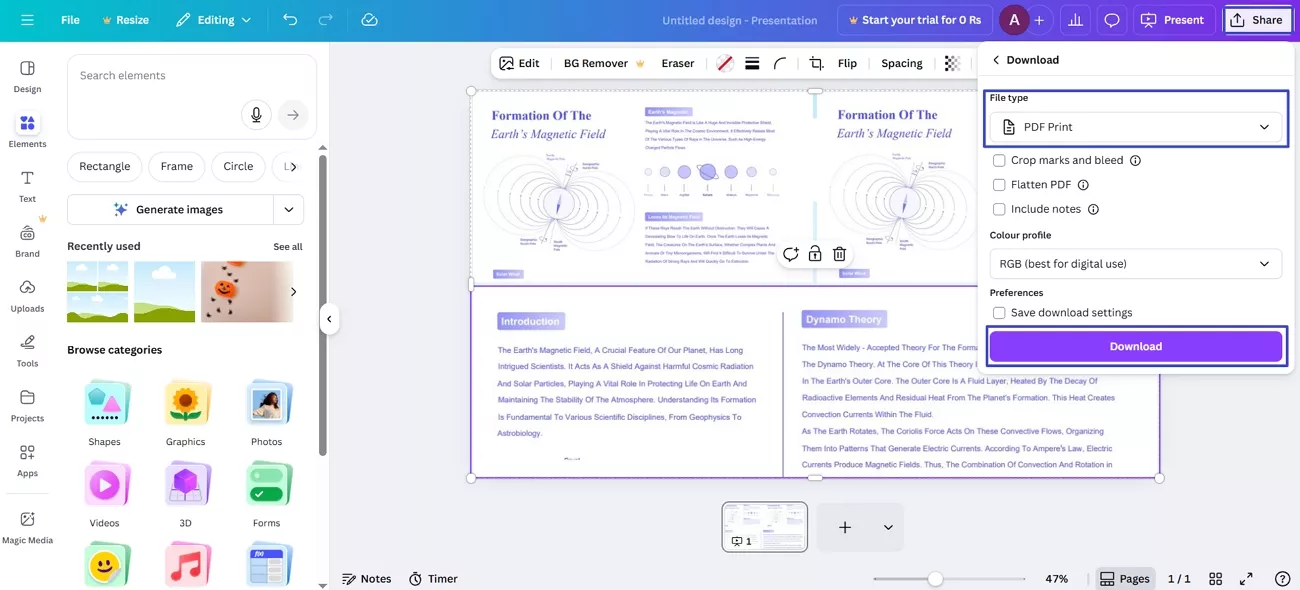
Step 3. Now, drag and drop your images in the grid. Lastly, press the “Share” option and choose the “Download” option. Afterwards, select the “PDF Print” file type and press the “Download” button to download the printable PDF.
Part 3. Bonus Tip: Print a Large Image on Multiple Pages
Having learnt how to print multiple images on one page, I needed to print one picture on several pages. Managing this manually can be tricky because scaling and alignment often get distorted when using standard printing methods. This is where UPDF becomes incredibly useful with tools that let me divide a large image into multiple pages while maintaining proper proportions.
More Printing Options by UPDF
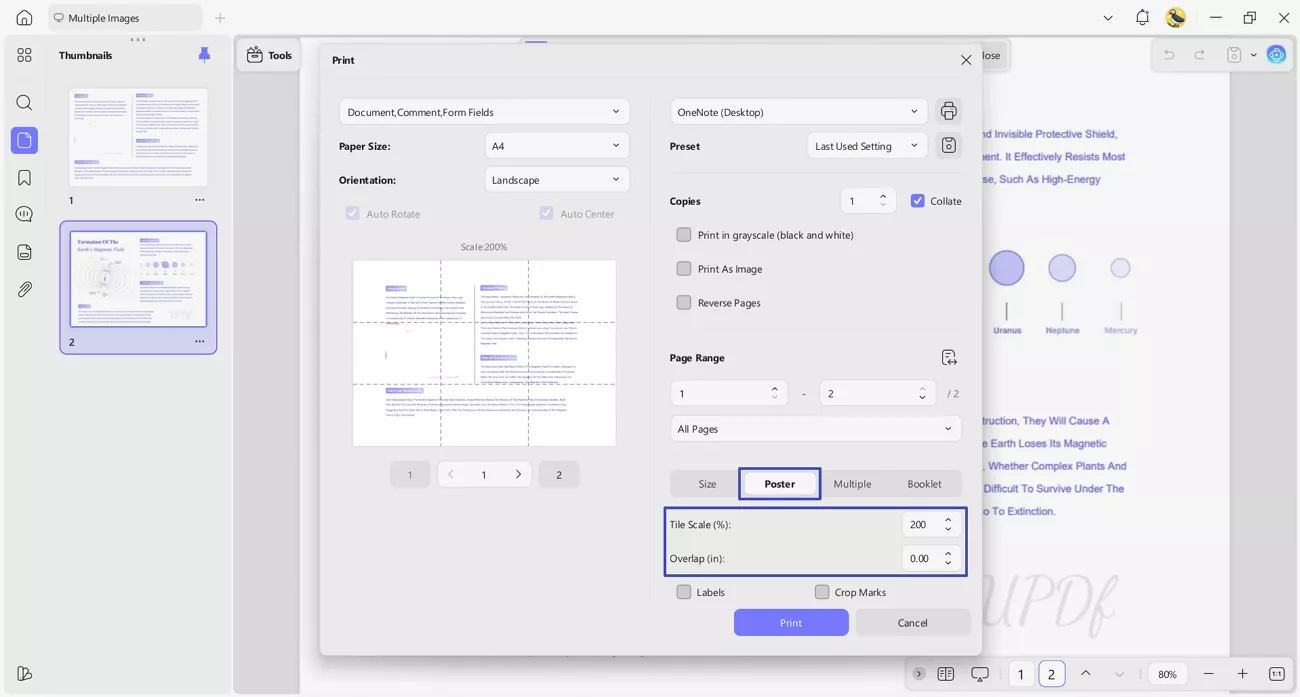
Based on the buttons and tools in UPDF, I can handle a variety of other printing needs beyond multi-page images. When I open a large image, I select “Poster Mode,” then adjust scale and overlap settings for perfect alignment. I can also create custom layouts and adjust documents for different paper sizes.
These features make UPDF my go-to solution for all kinds of printing tasks. If you try these options yourself, download UPDF and see how easily it handles all your printing tasks.
Read more: How To Tile Print PDF: A Practical Guide to Poster-Size Printing
Conclusion
In conclusion, this article showed how to print multiple photos on one page using different methods and tools. While built-in and online options work for simple tasks, UPDF makes it easier to organize layouts, print across devices, and handle multiple images. If you work with many photos or need to print a large image across multiple pages, UPDF is a reliable option.
Windows • macOS • iOS • Android 100% secure





 Enola Miller

 Lizzy Lozano
  Čserná Anna
Is there possibly a program I can download to do this? Any advice is greatly appreciated!