 UPDF
UPDF
 UPDF for Windows
 UPDF for Mac
 UPDF for iPhone/iPad
 UPDF for Android
 UPDF AI Online
 UPDF Sign
 Edit PDF
 Annotate PDF
 Create PDF
 PDF Form
 Edit links
 Convert PDF
 OCR
OCR PDF to Word
 PDF to Image
 PDF to Excel
 Organize PDF
 Merge PDF
 Split PDF
 Crop PDF
 Rotate PDF
 Protect PDF
 Sign PDF
 Redact PDF
 Sanitize PDF
 Remove Security
 Read PDF
 UPDF Cloud
 Compress PDF
 Print PDF
 Batch Process
 About UPDF AI
 UPDF AI Solutions
 AI User Guide
 FAQ about UPDF AI
 Summarize PDF
 Translate PDF
 Chat with PDF
 Chat with AI
 Chat with image
 PDF to Mind Map
 Explain PDF
 Scholar Research
 Paper Search
 AI Proofreader
 AI Writer
 AI Homework Helper
 AI Quiz Generator
 AI Math Solver
 PDF to Word
 PDF to Excel
 PDF to PowerPoint
 Enterprise Solution
 Enterprise Sign
 Enterprise AI
 Enterprise Plan
 Enterprise User Guide
 Enterprise Webinar
 Banking
 Healthcare
 Insurance
 Legal
Legal Manufacturing
 Government
 Education Solution
 Customer Stories
 User Guide
 UPDF Tricks
 FAQs
FAQs UPDF Reviews
 Download Center
 Blog
Blog Newsroom
 Tech Spec
 Updates
 UPDF vs. Adobe Acrobat
 UPDF vs. Foxit
 UPDF vs. PDF Expert


Before You Read
Windows • macOS • iOS • Android 100% secure
Today, PDF editors have become an essential tool to handle PDFs. They are usable in various scenarios, including editing existing PDF text/images/links, adding annotations, converting PDFs, organizing PDF pages, and more.
However, the main challenge is selecting the right PDF editor for Mac. There are dozens of PDF editors, each offering unique features. Therefore, it becomes overwhelming to pick the best PDF editing software for Mac that includes the right set of features and is still cost-effective.
This article reviews 5 of the best PDF editors for Mac, highlighting their features and providing a detailed comparison to help you make the right decision.
Part 1. Top 5 PDF Editors for Mac
Out of plenty of PDF editors for Mac, below we have hand-picked the top 5 choices to have feature-packed PDF editing experience:
1. UPDF – The All-in-One PDF Solution
UPDF is a modernized and advanced PDF editor that dominates for its AI backed features. It can handle all aspects of PDFs, such as edit, annotate, convert, organize, OCR, and more. It also offers an exceptional AI assistant to chat with PDFs and beyond.
Windows • macOS • iOS • Android 100% secure
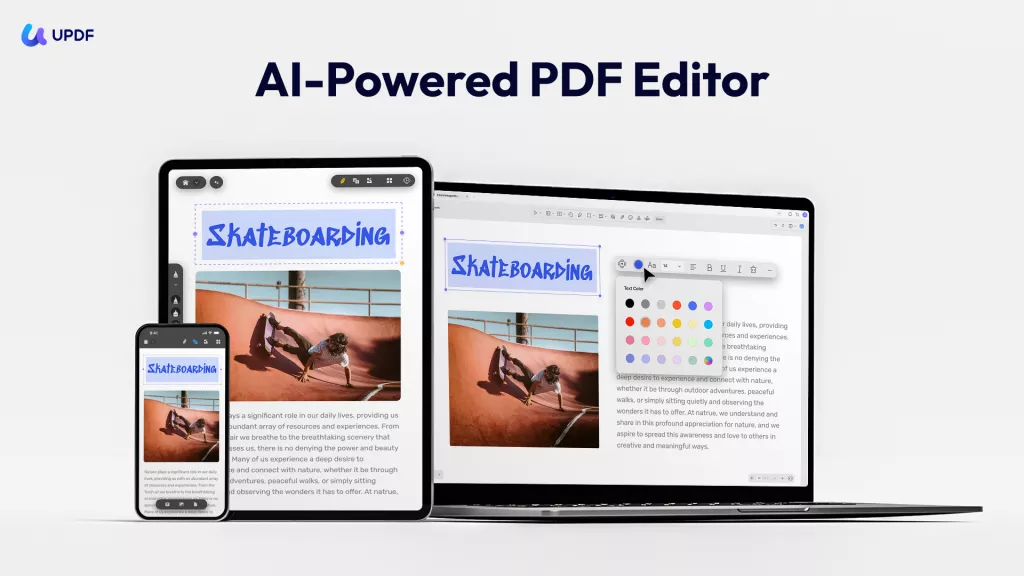
Talking specifically about PDF editing, UPDF offers powerful PDF editing features that can edit all elements on PDFs. With UPDF, you can:
- Edit All Elements on PDFs: UPDF makes editing PDF as in Word. It is easy to edit the text, images, watermarks, links, background, headers and footers, forms, pages, and more in PDFs.
- Create, Fill, and Sign PDF Forms: Create interactive PDF forms, fill out PDF forms with intelligent field recognition. Duplicate fields across pages for perfect alignment and precision. Add electronic or digital signatures into your PDF forms!
- Organize PDF: Rearrange PDF pages: add, delete, rotate, replace, extract, split, crop, and change PDF page order
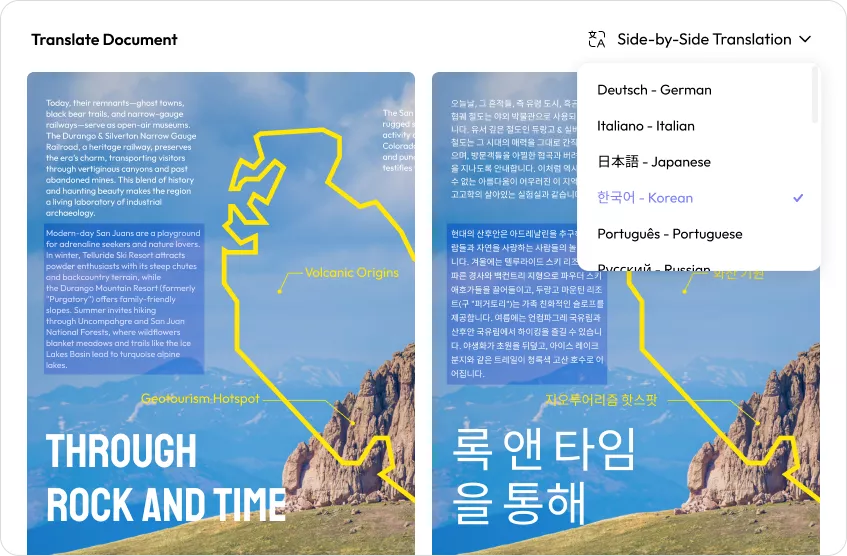
- Side-by-side Translation: View the original text and translated version side-by-side while keeping the document layout intact on UPDF AI Online.
- Compress PDF: Reduce your large PDF size from six output quality: lossless, maximum, high, medium and low.
- Combine documents: Merge Word, Excel, PDF, and PowerPoint files all at once into a single PDF.
- PDF Portfolio: combine multiple files of any format into a single organized PDF package for easy sharing and professional presentation.
- Annotate PDF: Highlight, mark, underline, strikethrough, draw, and insert comments/sticky notes/stamps/stickers/attachments, etc..
- Convert: UPDF can convert PDF to Word, Excel, PowerPoint, and images; it also supports creating PDFs from these formats.
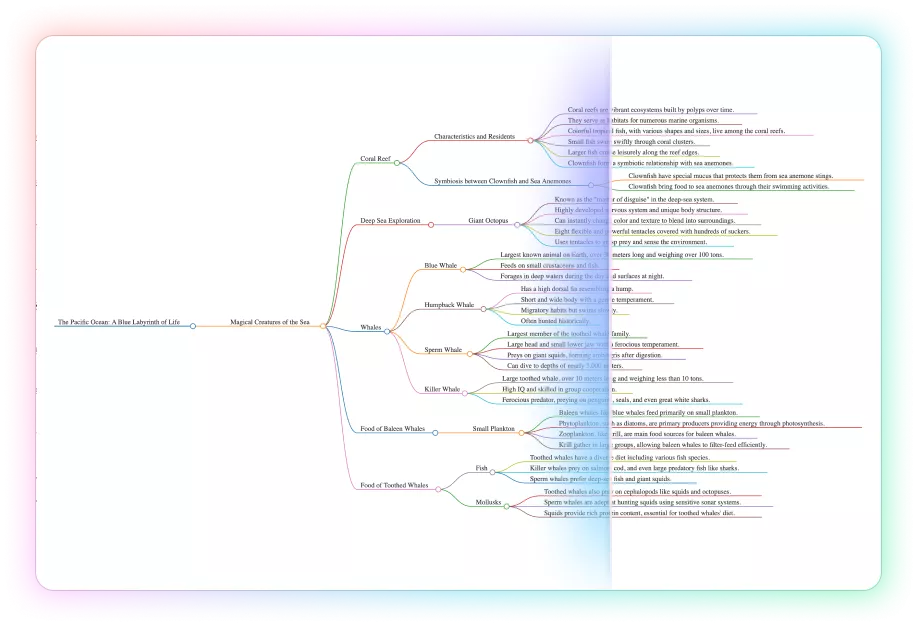
- UPDF AI: With the smart AI assistant within UDPF, you can read PDF documents more easily by summarizing, translating, converting them to mind maps. UPDF AI Online also integrates with Paper Search and Scholar Research features, let you search for more than 220M papers with citations and synthesize papers into a structured literature review.
- More: UPDF provides many other features, including protecting PDFs, performing OCR, scanning and converting your paper files into digital files, and syncing your documents to other devices.
Strengths
- Reliable for high‑volume, cross‑border workflows — Ideal for managing large volumes of documents between attorneys, consulates, moving companies, utilities, etc.
- Extremely flexible & feature‑rich — Stands out as the most flexible, feature‑packed PDF tool available for complex, multi‑party document processes.
- Highly affordable — Offers excellent value for money with a low-cost paid plan suited to everyday tasks.
- Seamless cross‑platform workflow — Effortlessly moves between Win, Mac, Android, iPad, and iPhone, especially with UPDF Cloud for smooth file handling.
- Responsive support & continuous improvement — Developers actively support and update the product.
- Intuitive editing & conversion — Easily edits PDFs, converts spreadsheets, Word contracts, and photos with an intuitive interface.
Pricing
- UPDF offers pricing plans for personal, enterprise, and education use. For detailed prices, please refer to the official website.
Supported Platforms: One account to use on four platforms (Windows, macOS, Android, and iOS)
Watch the video below to learn how to edit a PDF on Mac with UPDF.
Click the button below to download UPDF and try it for free. You will get a free 1GB of cloud space after downloading.
Windows • macOS • iOS • Android 100% secure
2. Adobe Acrobat – The Industry Standard
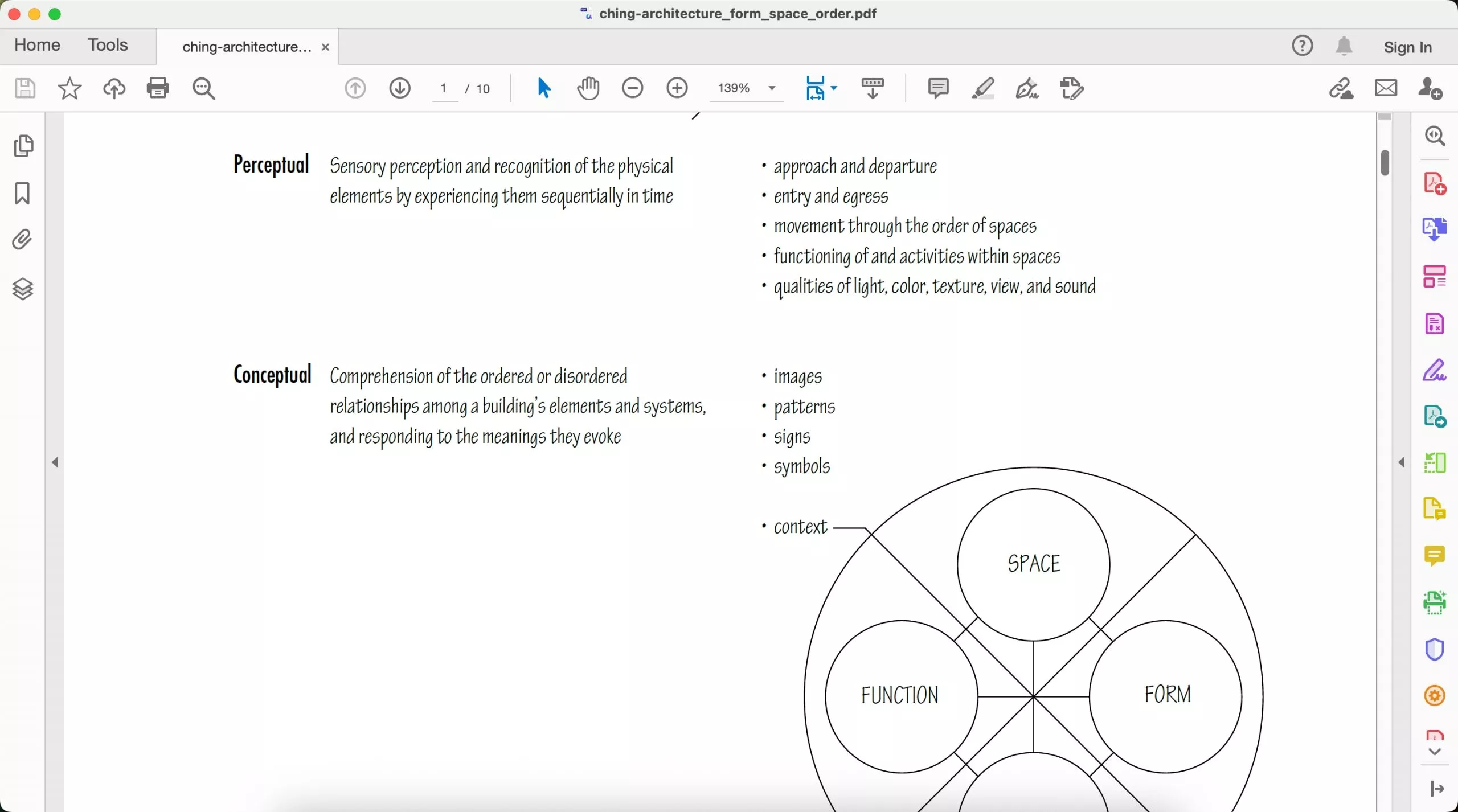
When we are talking about the best PDF editing software for Mac, we cannot skip Adobe Acrobat. It is a feature-packed PDF editor that helps individuals, professionals, and enterprises fulfill almost every PDF need.
Adobe Acrobat's has many PDF editing features, including:
- Add, edit, and remove text and images in a PDF.
- Add or edit background, header, and footer.
- Annotate PDF with different markup options.
- Extract and edit text with OCR.
- Merge and split PDFs.
Advantages
- Powerful PDF editing capabilities
- Preserve original formatting while editing
- Extensive features beyond PDF editing
- Wide compatibility
Weaknesses
- Expensive (almost 4 times the price of UPDF)
- Steep learning curve
- Security flaws
- Laggy performance
- High disk space requirements
Also Read: UPDF vs. Adobe Acrobat >>
Pricing
- Acrobat Standard: $12.99/month or $155.88/year
- Acrobat Pro: $19.99/month or $239.88/year
Supported Platforms: Windows, macOS, iOS, Android, and web.
Rating and Reviews in G2
"Adobe is an amazing tool"
"I've had some issues with this tool that make it less convenient for my needs."
Overall, Adobe Acrobat is best suited for enterprises that need a reliable PDF editor and can afford its expensive pricing plans.
In contrast, UPDF offers almost similar features as Adobe Acrobat, but it is 4x times cheaper. So, why pay more when you can get the best PDF editing experience at a much lower cost? Download UPDF and test its features yourself for free.
Windows • macOS • iOS • Android 100% secure
3. PDF Expert – Quick and Intuitive
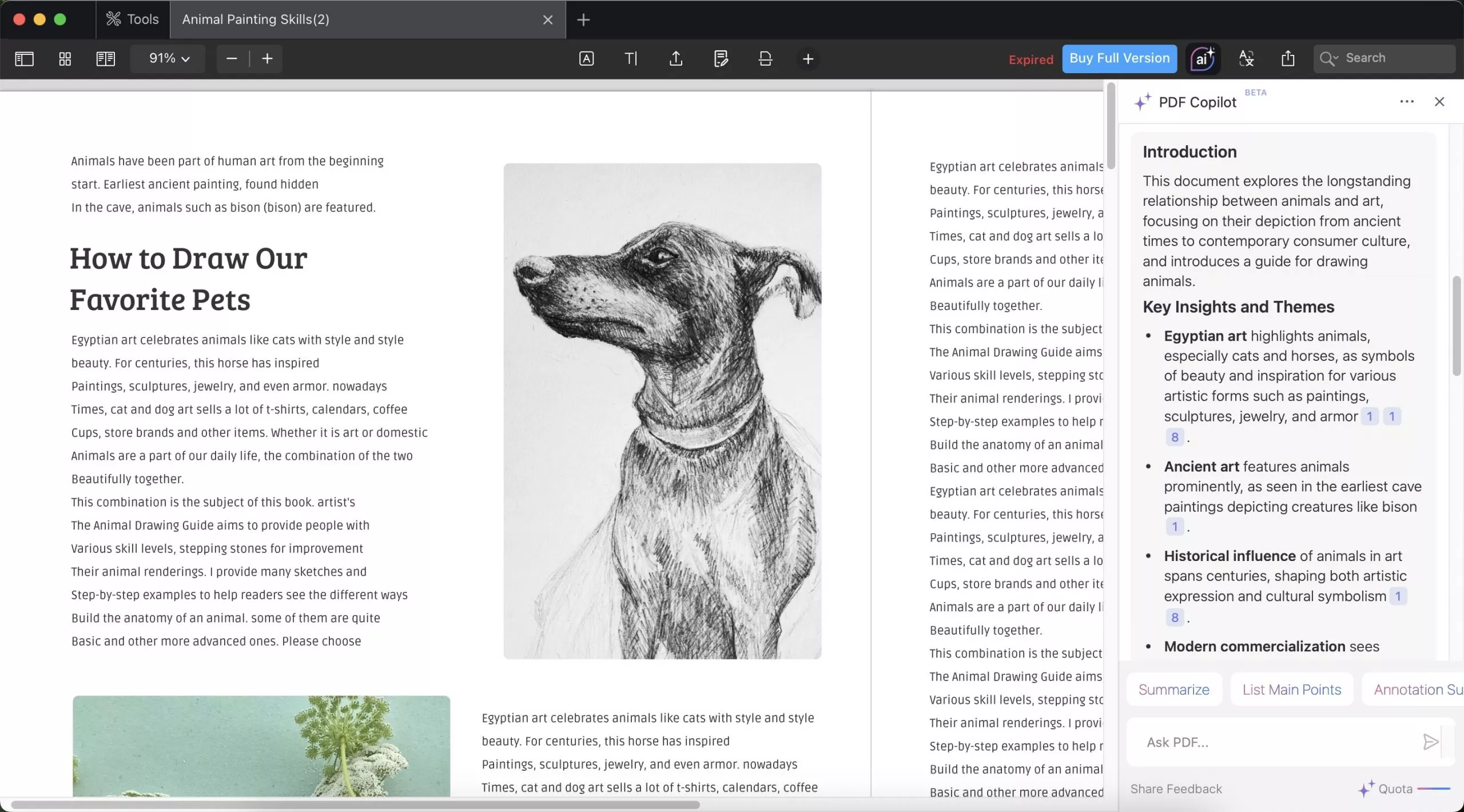
PDF Expert is another best PDF editor for Mac, known for its quick and intuitive interface. It makes it easy to edit, organize, annotate, and sign PDFs. With PDF Expert, you can:
- Edit PDF text by adding, altering existing text, or changing fonts.
- Add, resize, and replace PDF images.
- Add links to a PDF.
- Organize and merge PDF pages.
- Edit outlines for easy navigation.
- Add page numbers.
- Redact sensitive information.
Advantages
- Quick and intuitive interface
- Sync documents across Mac, iPad, and iPhone
- Fast processing
- Handy editing features
- Once summarized, the AI Chat feature provides clickable page references used to generate the answer and lets you highlight key points with one click.
Weaknesses
- Lack of advanced AI features.
- PDF Copilot could not generate visual mind map and upload images to ask AI.
- Occasional glitches.
- No compatibility with Windows and Android devices
Also Read: UPDF vs. PDF Expert >>
Pricing
- Yearly: $79.99/annually
- Lifetime: $139.99/one-time
- PDF Copilot: $11.99/month
Note:
Supported Platforms: Mac and iOS
Rating and Reviews in G2
"I love that this was a once off purchase"
"Sometimes there are certain glitches that occur when using some types of styluses."
Rating and Reviews in G2
- "I love that this was a once off purchase, and I'm able to use the app forever. I can edit any type of PDF document: the text, images and add / remove signatures."
- "On some documents, the formating of the document can take some extra time to make the edited text fit appropriately, but I have always managed to make it work."
Overall, PDF Expert is suited for individuals and businesses who rely on Apple ecosystem and need an easy-to-use PDF editor.
3. Foxit PDF Editor – Reliable and Cross-Platform
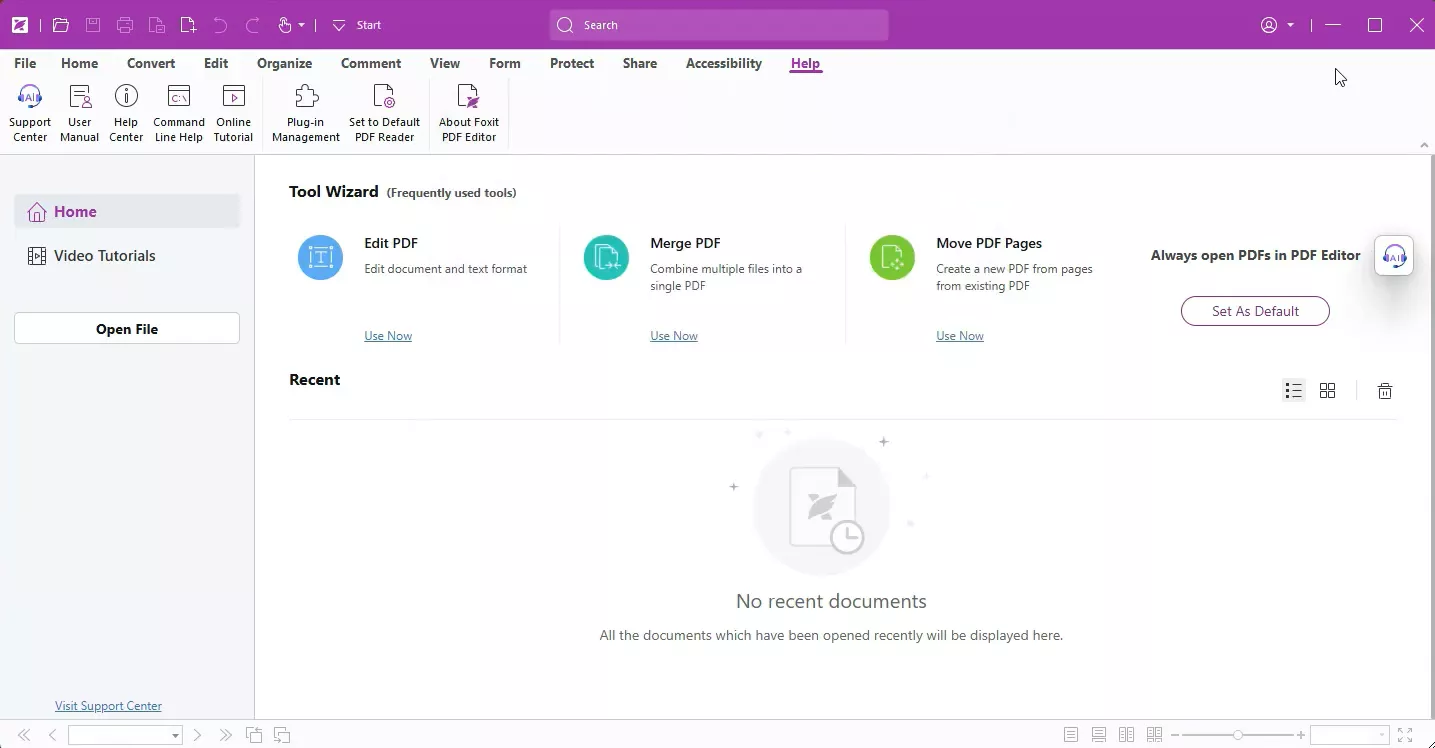
Foxit PDF Editor is a comprehensive free PDF editor Mac that provides an all-in-one PDF solution to edit, annotate, convert, fill, organize, and do more with PDFs. It also provides an AI assistant to summarize complex documents and chat with PDFs.
Talking about its PDF editing functionalities, you can:
- Edit PDF text by changing text, font, color, size, style, and more without altering the layout.
- Edit PDF images, objects, page layout properties, object shading, and more.
- Reduce file size by compression.
- Add videos, audio, images, and 3D.
Advantages
- Advanced PDF editing capabilities for complex PDF layout documents
- Versatile PDF features
- Regular updates
- Easy-to-use interface
Weaknesses
- Occasional crashes and glitches
- Slow processing for large files
- Steep cost for advanced features
Also Read: UPDF vs. Foxit >>
Pricing
- PDF Editor (desktop + web): $129.99/year (without admin console)
- PDF Editor+ (desktop + web + mobile): $159.99/year
Supported Platforms: Windows, macOS, iOS, Android, and web
Rating and Reviews in G2
"Foxit is a very user friendly program."
"What I don't like is that it takes a long time to open and consumes a lot of computer resources. "
Overall, Foxit PDF Editor is ideal for business users who need a cross-platform and advanced PDF editor and are not concerned with hefty pricing.
5. Nitro PDF Pro – Comprehensive Yet Accessible
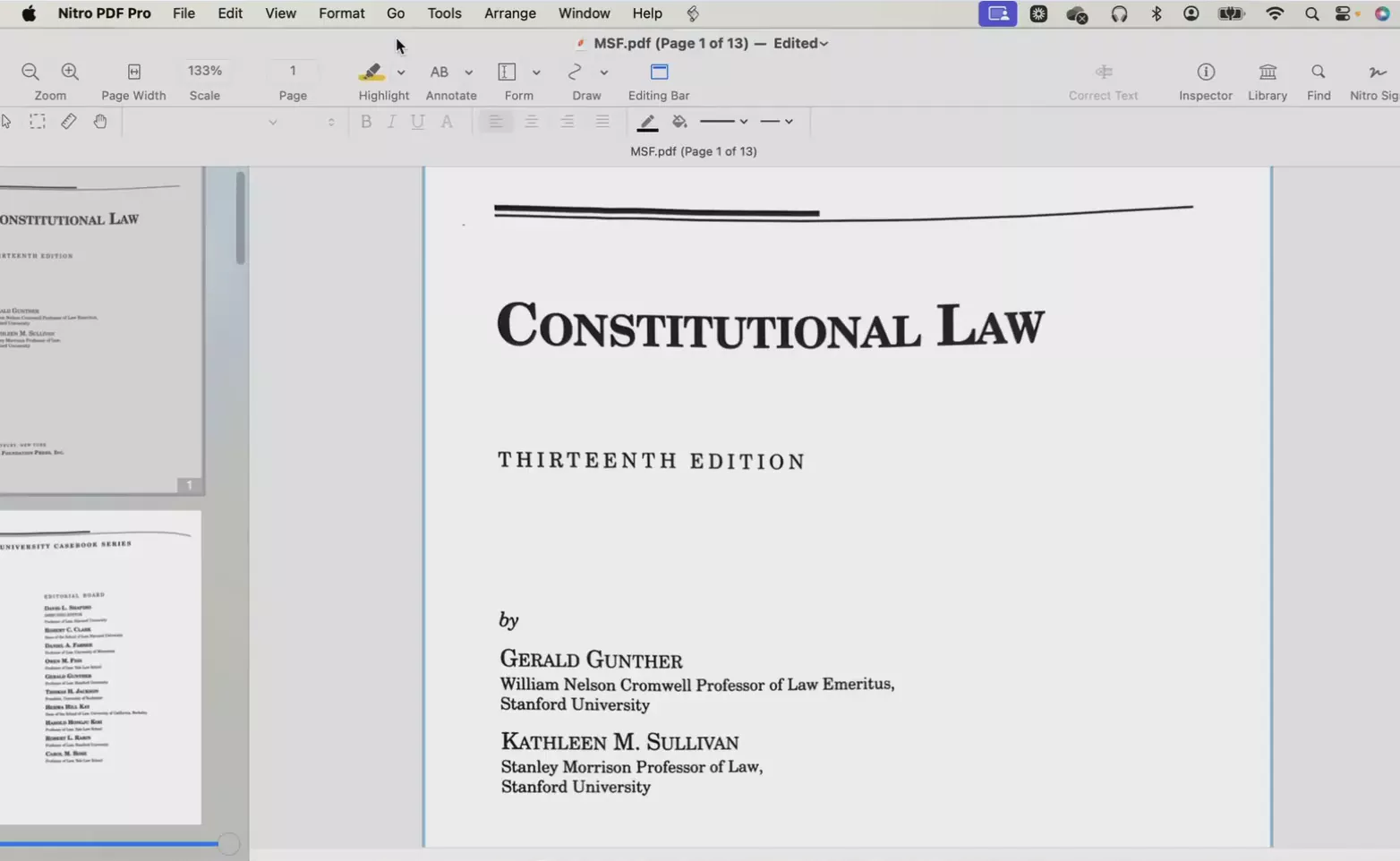
Last on our list of best PDF editing software for Mac is Nitro PDF Pro. It is an advanced PDF editor that allows you to edit, convert, sign, and secure PDFs. It lets you:
- Edit PDF text.
- Add links and images.
- Annotate PDF by highlighting, underlining, drawing, adding text box/shapes, etc.
- Scan and edit scanned documents.
- Redact sensitive information.
- Add watermarks and page numbers.
Advantages
- Intuitive and self-explanatory to use
- Versatile PDF editing features
- Multi-platform support
Weaknesses
- Slower customer support
- Slower performance for large PDFs
- Expensive
- Less extensive AI features
Also Read: UPDF vs. Nitro >>
Pricing
- Nitro Pro Standard: $15/month/user or $180 annually (Windows, macOS, and iOS)
- Nitro PDF Classic: $270/one-time/3-year license (Windows only)
- Nitro Pro Business: Customized plan
Support Platforms: Windows, macOS, and iOS.
Rating and Reviews in G2
"It is so easy to edit documents. "
No longer do I need to convert files to other formats just so I can edit them, you can do that right from the PDF (and if you do have to covert you can do that anyway!). As I work in the NHS I get countless requests from doctors and nurses who want to amend the wording to a guideline, or add in a picture, or combine multiple documents. In Nitro you can do all of this and more. It also has great document security, review functionality and form building tools.
"I find it difficult to administer Nitro PDF. "
The transition from an annual license key to an admin portal with login credentials is cumbersome. It's frustrating that it doesn't support Single Sign-On (SSO) without needing an enterprise license, which means I have to manage yet another set of usernames and passwords.
Overall, Nitro Pro is best for individuals and SMBs who want a feature-packed PDF editor to fulfill their day-to-day PDF editing needs.
Part 2. Detailed Comparison: Which One Should I Choose?
| Features | UPDF | Adobe Acrobat | PDF Expert | Foxit PDF Editor | Nitro PDF Pro |
| Platforms Covered by One License | Pro: Win, Mac, Android, iOS AI: Win, Mac, Android, iOS, Web | Win, Mac, iOS, Android, Web | iOS, Mac AI (PDF Copilot) : iOS, Mac, Web | Win, Mac, iOS, Android, Web | Win, Mac, iOS (Classic: Win only) |
| Simultaneous Device Limit | 4 (Pro)/6 (AI) | 2 | 1 | 2 | 2 |
| Free Trial | No limit on free trial days. | 7 days | 14 days | 14 days | 14 days |
| Pricing Plans | Please refer to the official website. | Standard: $12.99/Month Pro: $19.99/Month Studio: $24.99/Month | Premium Plan: $79.99 Annually; $139.99 Lifetime. PDF Copilot: $11.99/Month | Editor: $129/Year Editor +: $159.99/Year | Standard: $15/Month Classic: $270/One time/3-year license Business: Customized plan |
| Top PDF Features | |||||
| Edit PDF | |||||
| OCR PDF | |||||
| Convert PDF | |||||
| Read PDF | |||||
| Annotate PDF | |||||
| Organize PDF | |||||
| Batch Process | |||||
| Top AI Features | |||||
| Chat with PDF | |||||
| Chat with AI | |||||
| PDF to Visual Mind Map | |||||
| Chat with Uploaded Image | |||||
| Paper Search | (Online) | ||||
| Scholar Research | (Online) | ||||
| Tested Version | Version 2.1.0.0 Tested on December 25, 2025 | Version 25.001.20997 Tested on December 25, 2025 | Version 3.11 Tested on December 25, 2025 | Version 2025.3.0.69570 Tested on December 25, 2025 | Version 14.10.4 Tested on December 25, 2025 |
From the above comparison table, it is clearly evident that UPDF leads the race. Not only it dominates for its features, but it offers the most affordable PDF editor for Mac. Give UPDF a try and access its features yourself.
Windows • macOS • iOS • Android 100% secure
FAQs
Q1. Can Mac Preview edit PDFs?
Mac Preview does not allow you to edit the text of a PDF. You can use its markup tools to annotate the PDF, such as draw, add shapes/text boxes, highlight, sign, etc. You can also crop the PDF or fill out the PDF form.
Q2. Can Foxit Reader edit PDFs?
No, Foxit Reader cannot edit PDFs. It is meant to view, annotate, and print PDF files. To edit a PDF, you need to install Foxit PDF Editor, which supports editing PDF text, images, and other elements.
Q3. Are there free PDF editors for Mac?
If you are looking for a feature-packed free PDF editor for Mac, it will be difficult to find one. Most reputed PDF editors have limited free versions. They can either provide basic features in the free version or a limited free trial. So, the right approach is to pick a reliable paid PDF editor that is feature-packed and also cost-friendly.
Q4. Are there online PDF editors for Mac?
Yes, there are many online PDF editors for Mac. For example, you can use Adobe Acrobat Online, PDF Expert, Smallpdf, Xodo, and similar others that offer browser-based PDF editing support.
Conclusion and Recommendation
You have many options when choosing a PDF editor for Mac. Your choice will depend on the features you want and your budget. The above best PDF editing software for Mac can fulfill your basic to advanced PDF editing needs.
Out of all of them, UPDF gets the upper hand due to its exceptional PDF editing features, other advanced functionalities, powerful AI assistant, and cost-friendly pricing plans. Therefore, we will wrap up by recommending you try UPDF for free by clicking the below button.
Windows • macOS • iOS • Android 100% secure
Disclaimer





 Enola Davis
 Enola Miller
Rating and Reviews in G2 (4.7/5.0)
"I use UPDF frequently and it has become my go-to solution for managing PDFs."
"It's lightweight, with a fair subscription price and, the most important to me, PERPETUAL."