 UPDF
UPDF
 UPDF for Windows
 UPDF for Mac
 UPDF for iPhone/iPad
 UPDF for Android
 UPDF AI Online
 UPDF Sign
 Edit PDF
 Annotate PDF
 Create PDF
 PDF Form
 Edit links
 Convert PDF
 OCR
OCR PDF to Word
 PDF to Image
 PDF to Excel
 Organize PDF
 Merge PDF
 Split PDF
 Crop PDF
 Rotate PDF
 Protect PDF
 Sign PDF
 Redact PDF
 Sanitize PDF
 Remove Security
 Read PDF
 UPDF Cloud
 Compress PDF
 Print PDF
 Batch Process
 About UPDF AI
 UPDF AI Solutions
 AI User Guide
 FAQ about UPDF AI
 Summarize PDF
 Translate PDF
 Chat with PDF
 Chat with AI
 Chat with image
 PDF to Mind Map
 Explain PDF
 Scholar Research
 Paper Search
 AI Proofreader
 AI Writer
 AI Homework Helper
 AI Quiz Generator
 AI Math Solver
 PDF to Word
 PDF to Excel
 PDF to PowerPoint
 Enterprise Solution
 Enterprise Sign
 Enterprise AI
 Enterprise Plan
 Enterprise User Guide
 Enterprise Webinar
 Banking
 Healthcare
 Insurance
 Legal
Legal Manufacturing
 Government
 Education Solution
 Customer Stories
 User Guide
 UPDF Tricks
 FAQs
FAQs UPDF Reviews
 Download Center
 Blog
Blog Newsroom
 Tech Spec
 Updates
 UPDF vs. Adobe Acrobat
 UPDF vs. Foxit
 UPDF vs. PDF Expert

Managing PDF documents on a Mac can be frustrating without the right tools. PDF is a versatile format, but editing, annotating, or customizing these files often requires powerful software. As one Reddit user put it:
This is a common challenge for many Mac users who need more than just a PDF viewer. While Adobe PDF Editor for Mac lets you sign, fill, and share PDFs, its free version restricts text editing. UPDF for Mac solves this problem by providing a fully free and intuitive PDF editor that allows you to annotate, edit, and customize documents without limitations, all while being lightweight and fast.
Part 1. Is There a Free Adobe Acrobat for Mac?
Many Mac users wonder if there's a free version of Adobe Acrobat that allows full PDF editing. The answer is partially yes. Adobe offers Adobe Acrobat Reader DC for Mac, which is completely free and allows you to view, annotate, and comment on PDFs. You can also fill out forms and sign documents without paying.
However, Adobe Acrobat Reader DC does not allow full PDF editing. You cannot modify text, rearrange pages, or remove elements in PDFs using the free version. For Mac users who need complete PDF editing capabilities, including adding or deleting text, annotating, and reorganizing pages, a third-party PDF editor like UPDF for Mac is a better choice.
Windows • macOS • iOS • Android 100% secure
Part 2. Introduction of Adobe PDF Editor for Mac
Adobe PDF Editor for Mac (free version) allows basic interactions with PDFs. You can:
- Add comments or sticky notes anywhere in the document.
- Strike through, highlight, or underline text.
- Use the drawing tool for annotations or diagrams.
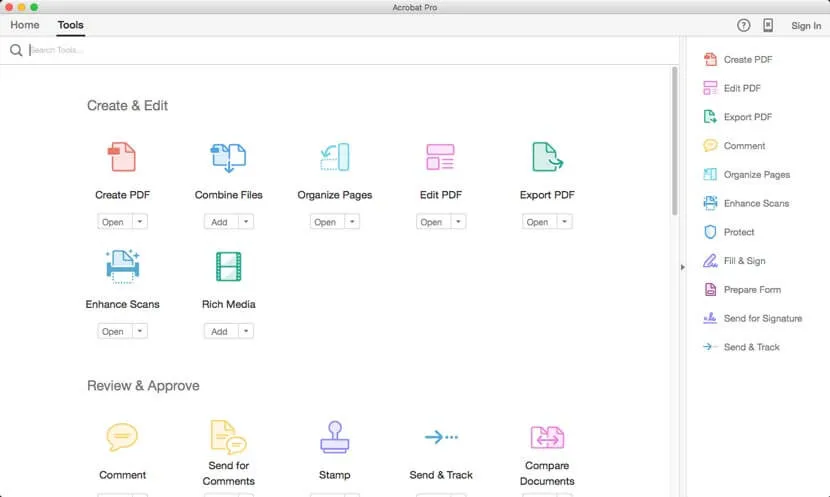
For advanced features, you need Adobe Acrobat Pro for Mac, which offers:
- Editing text, fixing typos, and adding new content.
- Adding, rotating, or moving images.
- Adding bullets, watermarks, and page numbers.
- Using OCR to edit scanned documents.
- Password protection, digital signatures, and converting PDFs to other formats.
The Pro version comes with a 7-day free trial, after which you need a paid subscription.
Part 3. The Best Alternative to Adobe PDF Editor on Mac
If you‘re looking for a full-featured PDF editor for Mac, UPDF for Mac is the top alternative to Adobe Acrobat. Unlike the free Adobe PDF Editor, which only allows limited viewing and annotation, UPDF lets you edit PDF text freely—you can add, delete, or modify text to match your needs.
UPDF for Mac offers a free trial, which allows you to try all its practical features.
Windows • macOS • iOS • Android 100% secure
Interested users can also watch the video below to learn more about UPDF for Mac:
Key Features of UPDF for Mac:
- Annotate and review PDFs efficiently: Highlight, underline, strike out text, or add notes directly on your PDFs. Whether you're studying, reviewing documents, or collaborating with colleagues, these annotation tools help you stay organized and focused.
- Smart AI assistant to improve work efficiency: UPDF is built in with a smart AI assistant, which can help with PDF summarizing, translating, analyzing, mind map conversion, and more.
- Advanced OCR for scanned documents: UPDF's OCR technology allows you to edit scanned PDFs as easily as regular text. This makes it fast and accurate to work with digitized documents.
- Secure and professional features: Set passwords and permissions to protect your PDFs, sign documents digitally or by hand, and share them instantly with your team.
- Convert PDFs to multiple formats: UPDF lets you convert PDFs into Word, Excel, PowerPoint, XML, Text, and image formats (JPG, PNG, BMP, GIF) and back to PDF without losing formatting.
- Fast, free, and cross-platform: All UPDF features are accessible for free, making it a time-saving solution for professionals, students, and anyone handling large numbers of PDFs. Plus, it works on Mac, Windows, iOS, and Android, so your documents are always accessible.
With UPDF for Mac, you get a complete PDF editing experience—fast, versatile, and unrestricted—making it the best alternative to Adobe PDF Editor Free for Mac.
If you're still unsure about choosing UPDF, read our UPDF vs. Adobe Acrobat comparison to learn more.
Part 4. How to Use Adobe PDF Editor Mac Alternative to Edit PDF
Follow these simple steps when editing PDF with UPDF editor for Mac.
Step 1. Enter into the Editing Mode
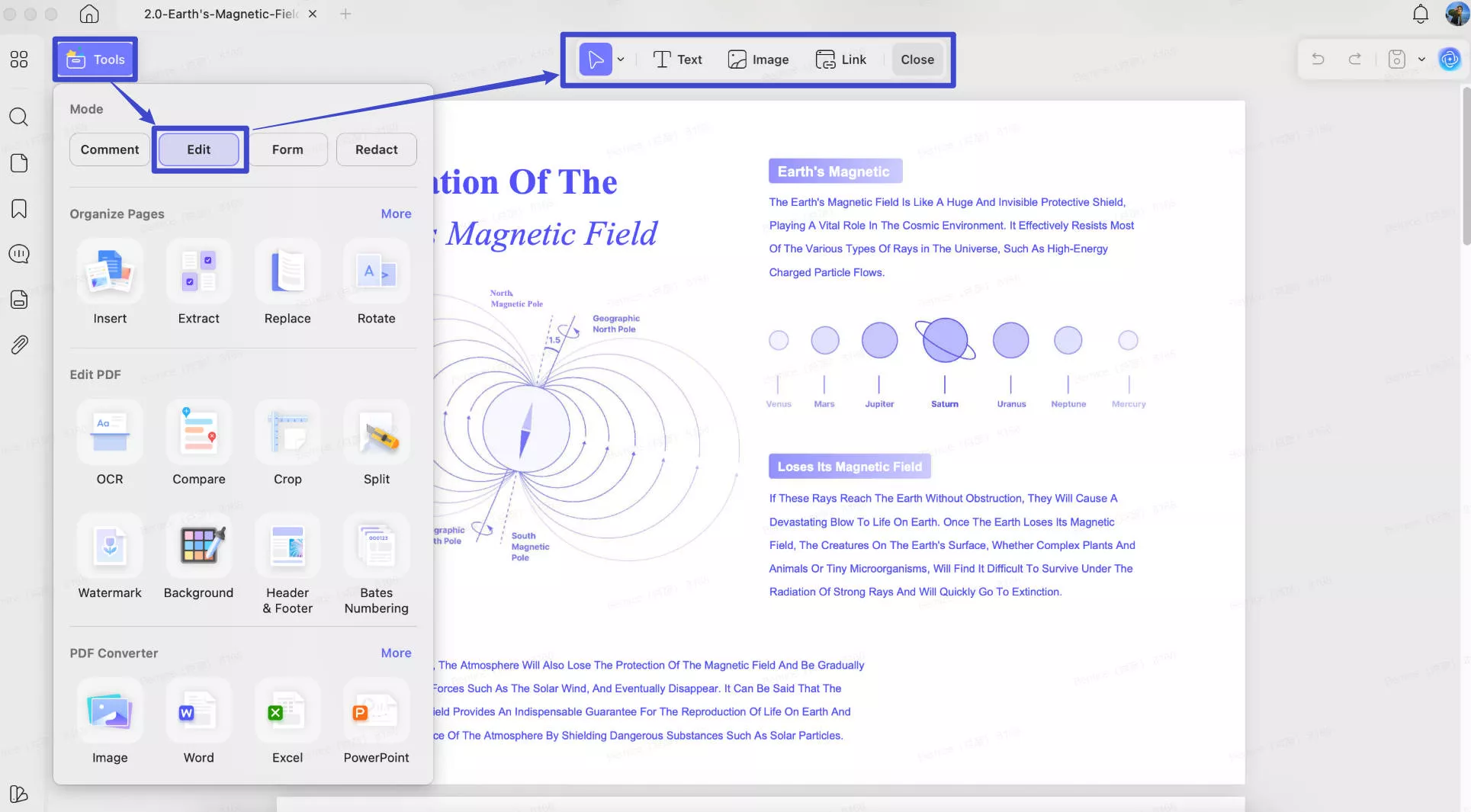
Begin the process by downloading and installing UPDF editor to your Mac system. Once the installation is complete, launch the editor and click the "Edit" button in "Tools" on the left menu bar.
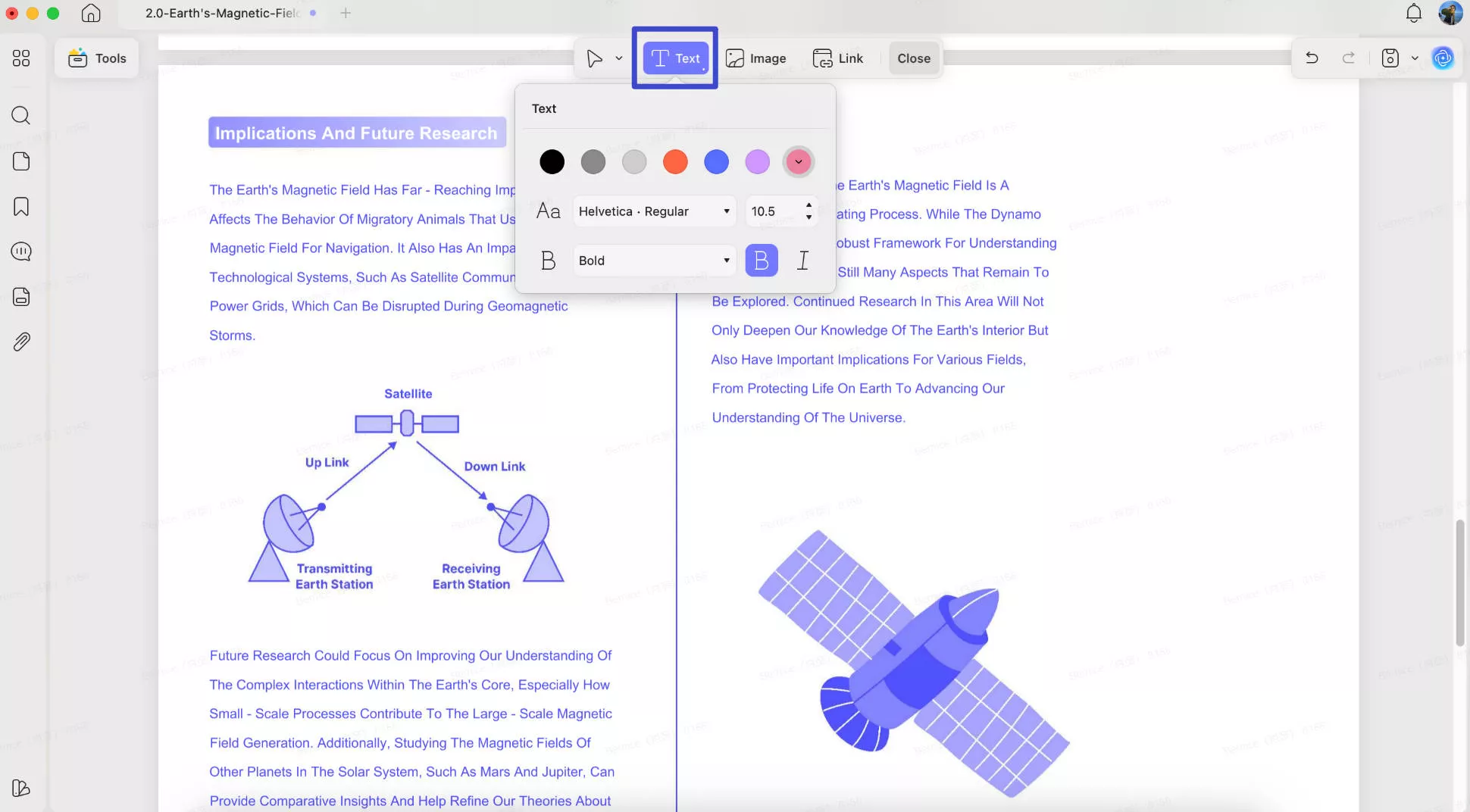
The UPDF goes into the editing mode and shows the editing toolbar including "Text" "Image" and "Link" .
Step 2. Edit PDF Document
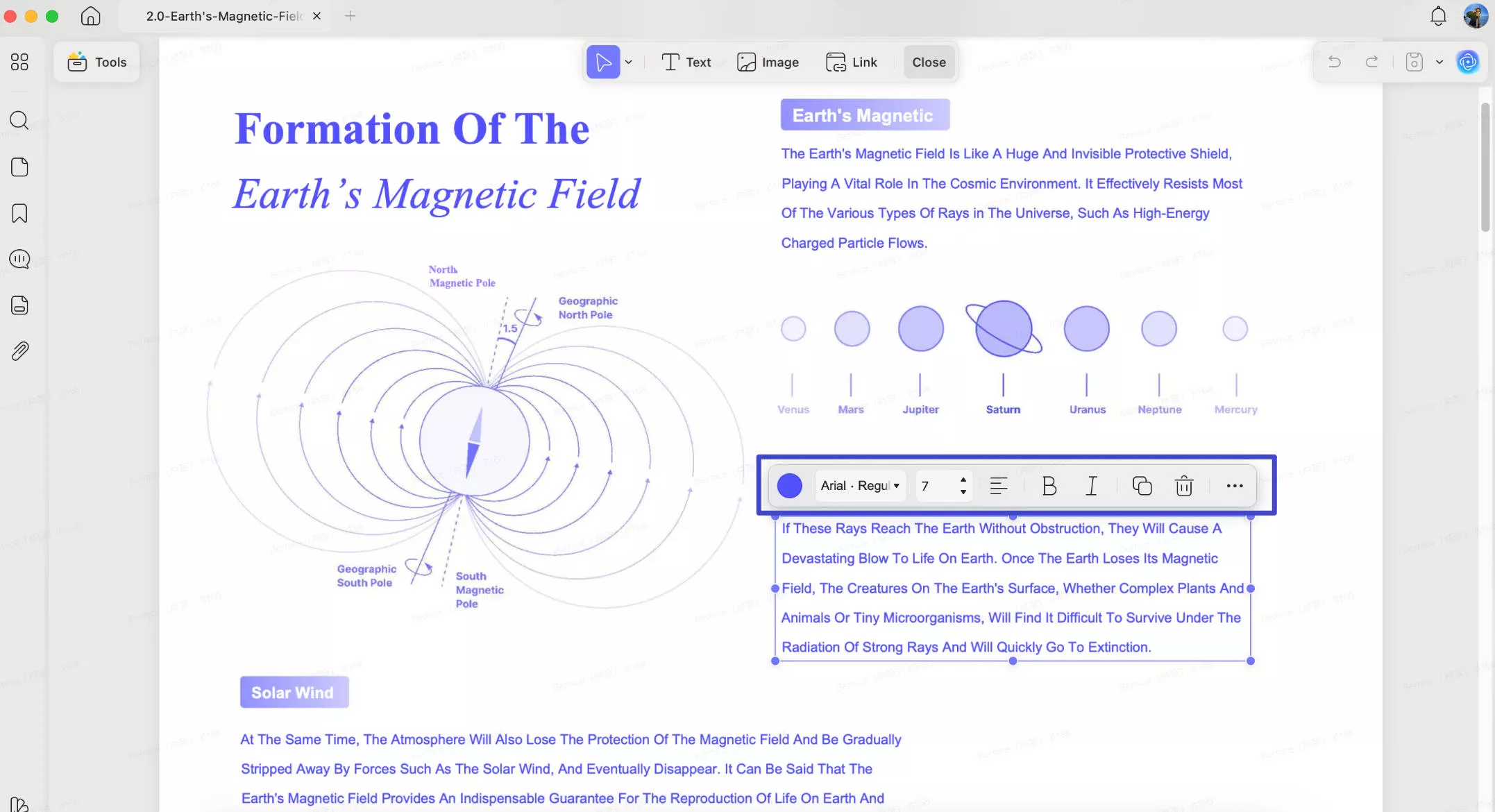
When the editor goes into the editing mode, you find a purple borderline when you click on the text. Here you will now be able to edit the images and texts on your PDF files. You do the edits the same way you edit when working on a Word document. The editing experience is flawless, easy, and fast. You have the freedom to delete, modify and add paragraphs and texts. When you select texts, you can alter the font type, size, and color change to bold, and italics according to your needs.
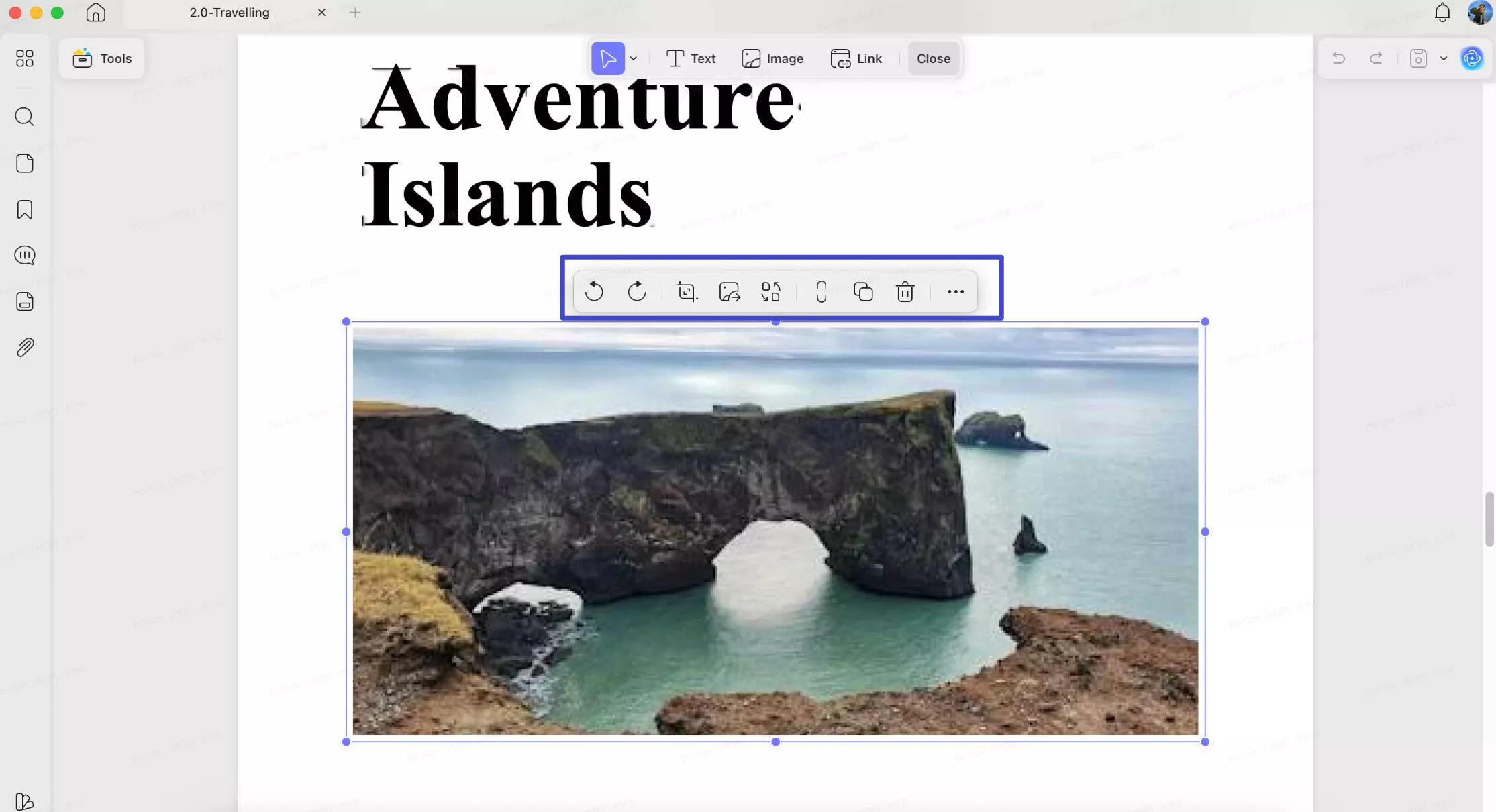
In case there are images on your files that you would like to edit, you can do it now. Perform the edit by picking the image then extract, crop, rotate or replace it on your PDF document.
Step 3. Add Text to PDF
On the editing toolbar, you will find "Text" which you click to add text. Click it, move and then click the mouse to the position where you would like to add text. When you do this, you can add a text box and add the text you want on your document. You can click to add text with unique text templates such as color, font and others.
Windows • macOS • iOS • Android 100% secure
You can also watch the review tutorial on YouTube.
To Wrap Up
Managing PDFs on a Mac doesn't have to be frustrating. While Adobe Acrobat Reader DC and Preview offer basic viewing and annotation tools, they fall short when it comes to full PDF editing, organizing, and advanced productivity features. UPDF for Mac provides a complete, lightweight, and intuitive solution for all your PDF needs. From editing text and images, annotating documents, organizing pages, to leveraging the AI assistant for summarizing, translating, and extracting insights, UPDF makes working with PDFs faster and easier.
Whether you're a student, researcher, or professional, UPDF helps you save time, stay organized, and get more out of your PDF files. Plus, it works seamlessly across Mac, Windows, iOS, and Android, so your documents are always accessible.
Ready to take control of your PDFs? Click the button below to download UPDF for free and experience a smarter, faster, and more versatile way to manage your PDF documents.
Windows • macOS • iOS • Android 100% secure





 Enola Davis
 Enid Brown
 Lizzy Lozano

ePowerXL