 UPDF
UPDF
 UPDF for Windows
 UPDF for Mac
 UPDF for iPhone/iPad
 UPDF for Android
 UPDF AI Online
 UPDF Sign
 Edit PDF
 Annotate PDF
 Create PDF
 PDF Form
 Edit links
 Convert PDF
 OCR
OCR PDF to Word
 PDF to Image
 PDF to Excel
 Organize PDF
 Merge PDF
 Split PDF
 Crop PDF
 Rotate PDF
 Protect PDF
 Sign PDF
 Redact PDF
 Sanitize PDF
 Remove Security
 Read PDF
 UPDF Cloud
 Compress PDF
 Print PDF
 Batch Process
 About UPDF AI
 UPDF AI Solutions
 AI User Guide
 FAQ about UPDF AI
 Summarize PDF
 Translate PDF
 Chat with PDF
 Chat with AI
 Chat with image
 PDF to Mind Map
 Explain PDF
 PDF AI Tools
 Image AI Tools
 AI Chat Tools
 AI Writing Tools
 AI Study Tools
 AI Working Tools
 Other AI Tools
 AI Bookmark Generation
 AI Bookmark Summary
 AI Watermark Generation
 AI Background Generation
 AI Sticker Generation
 AI Stamp Generation
 AI Editing Suite
 UPDF Copilot
 AI Page Management
 AI Semantic Search
 PDF to Word
 PDF to Excel
 PDF to PowerPoint
 Enterprise Solution
 Enterprise Sign
 Enterprise AI
 Enterprise Plan
 Enterprise User Guide
 Enterprise Webinar
 Banking
 Healthcare
 Insurance
 Legal
Legal Manufacturing
 Government
 Education Solution
 Customer Stories
 User Guide
 UPDF Tricks
 FAQs
FAQs UPDF Reviews
 Download Center
 Blog
Blog Newsroom
 Tech Spec
 Updates
 UPDF vs. Adobe Acrobat
 UPDF vs. Foxit
 UPDF vs. PDF Expert

When I opened a PDF and saw garbled text for the initial time, I was confused. Strange symbols and unreadable characters replaced the words I needed and made the PDF hard to read and edit. Over time, I learned that garbled text in PDF happens from corrupted files, missing fonts, or errors during scanning and conversion.
Understanding why this happens is essential to restoring the text and making the document usable again. In this article, I’ll explain the main causes of garbled text in PDFs and show how UPDF can make fixing and managing these files much easier.
Windows • macOS • iOS • Android 100% secure
Part 1. Why PDFs Show Garbled Text in the First Place
Garbled text in PDFs rarely happens by chance and usually has a clear cause. Before learning how to fix garbled text in PDF files, let’s explore the most common reasons why PDFs show garbled text.
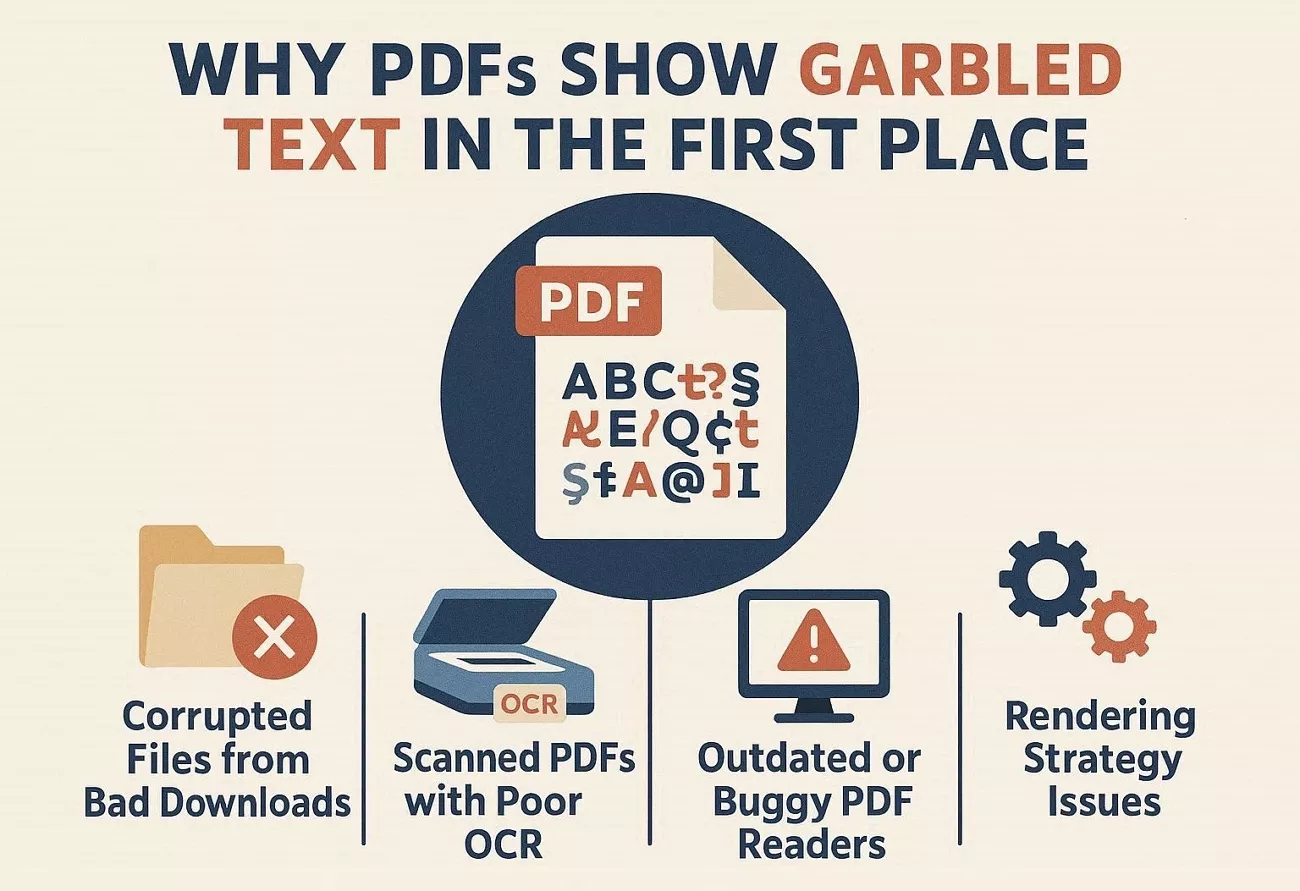
1. Corrupted Files from Bad Downloads
Sometimes, a PDF opens with unreadable text as the file got damaged during transfer. Files sent through email and downloaded online can make the entire document appear broken. Even a small interruption during download can create a PDF that looks fine but cannot be used.
2. Scanned PDFs with Poor OCR
Many PDFs I work with are scans, and the software often misreads letters in the text. Incorrect recognition can produce strange symbols and lines that make the document almost impossible to read. Documents with multiple languages or busy layouts usually have more errors, leaving content jumbled and confusing to understand.
3. Outdated or Buggy PDF Readers
Sometimes my PDF reader displays garbled text in PDF files even though the file itself is completely fine and readable. Older apps and buggy software can display strange symbols, making important parts of the document hard to understand.
4. Rendering Strategy Issues
Some PDFs show strange symbols because the fonts used in the file are missing from my device. Missing fonts and poor mapping can stop letters from displaying and make the text look broken. The text breaks into random symbols, and the PDF becomes confusing and hard to work with.
5. Embedded Fonts Missing Character-to-Glyph Mapping Table
I have seen PDFs, especially in Chinese or other scripts, where fonts do not display characters correctly. Without a complete mapping table, the text cannot appear properly in any PDF editor or reader I use. This usually happens when files are converted with unusual fonts or weak PDF tools that alter text.
6. Android PDF File Name Issues
Sometimes PDF filenames appear garbled when I share them between apps or devices on an Android system. The system does not always follow the correct naming rules, leading to incorrect file names. Even though the PDF content is fine, the garbled filenames make saving and sharing the files confusing.
Part 2. Quick Checks I Do Before Anything Else
Look at the quick checks to check if the issue is minor, or if you need to know how to fix garbled text in PDF files.
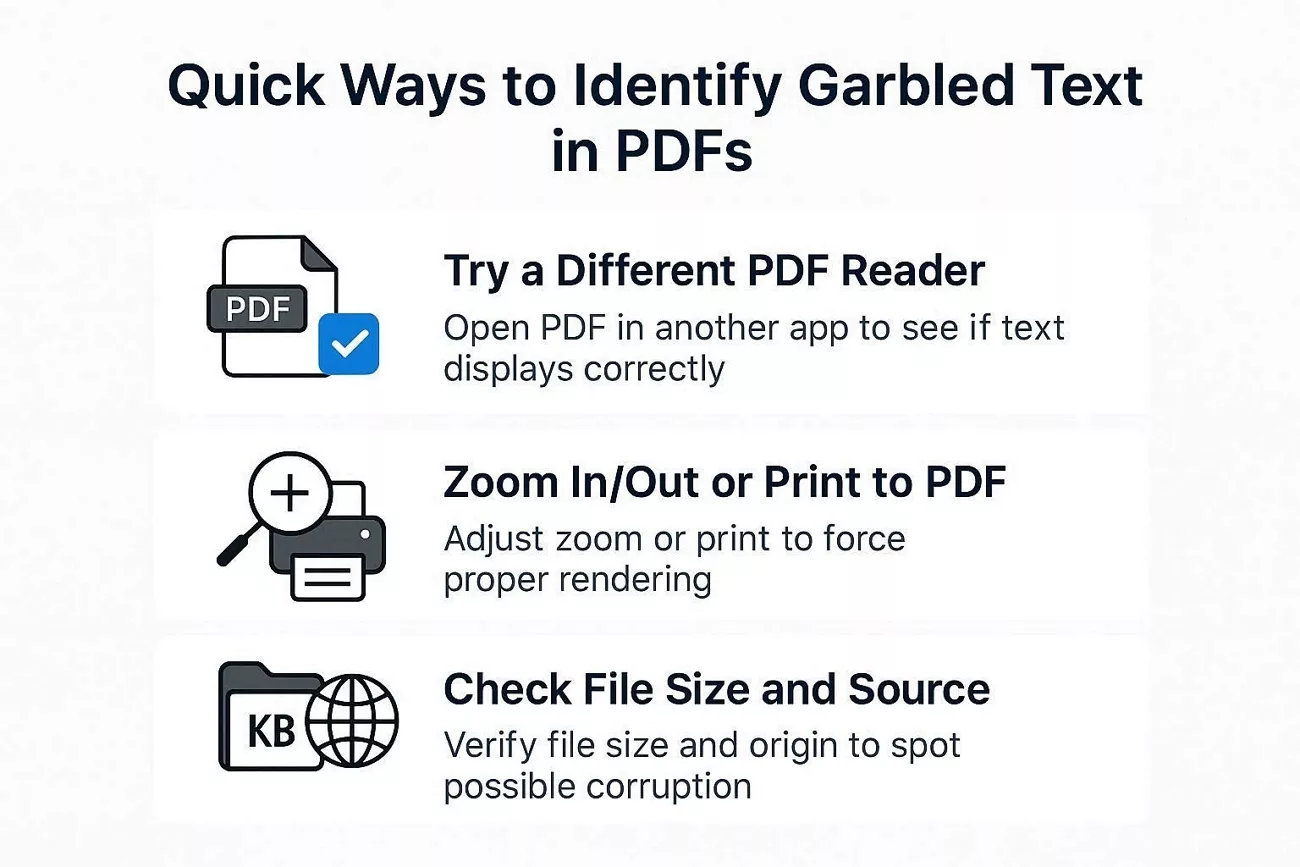
- Try a Different PDF Reader: Sometimes the PDF file is fine, yet the reader is the root cause of the problem. I open it in a different PDF reader and check how the text is displayed.
- Zoom In/Out or Print to PDF: I also adjust the zoom or print the file to a new PDF. This can force the text to render and fix minor display issues.
- Check File Size and Source: I look at the file size and its source. Small files or those from unreliable sources may be corrupted, which usually requires more extensive fixes.
These basic checks usually show me whether the problem is just a simple display issue. If the text still looks wrong after these steps, I know I need a deeper tool to repair or recreate the PDF file.
Part 3. How Do I Fix Garbled Text in Editable PDFs?
When text looks broken in an editable PDF, I focus on fixing the cause rather than guessing random solutions. Now, I’ll walk through the most effective ways to fix garbled text in PDF files based on the type of issue.
1. How to Repair a Corrupted PDF
When a PDF opens with unreadable text, I start by recreating the file. Sometimes, saving a new copy from the original source immediately fixes broken text layers. This is my first and easiest step before using more advanced tools.
2. How to Fix Text in Scanned PDFs
Scanned PDF files are unreadable and un-editable because text is contained as images. To solve this, I use UPDF to run OCR, convert the text into an editable form, and translate it if needed. OCR can recognize text in over 38 languages and make the PDF ready for editing. Adhere to the steps below to see how this works:
About UPDF:
Windows • macOS • iOS • Android 100% secure
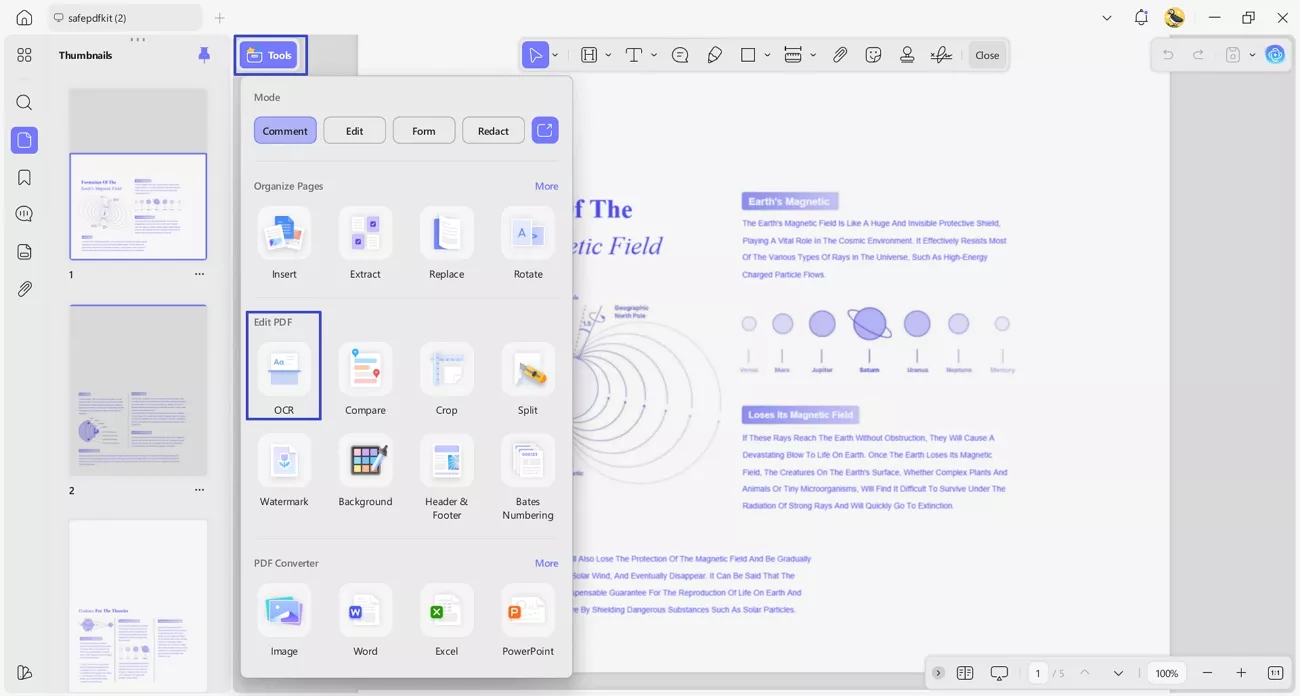
Step 1. Open Scanned PDF and Access OCR Feature
Once you import the scanned PDF into UPDF, press the “Tools” option and click on the “OCR” option.
Step 2. Choose OCR Mode and Select Languages
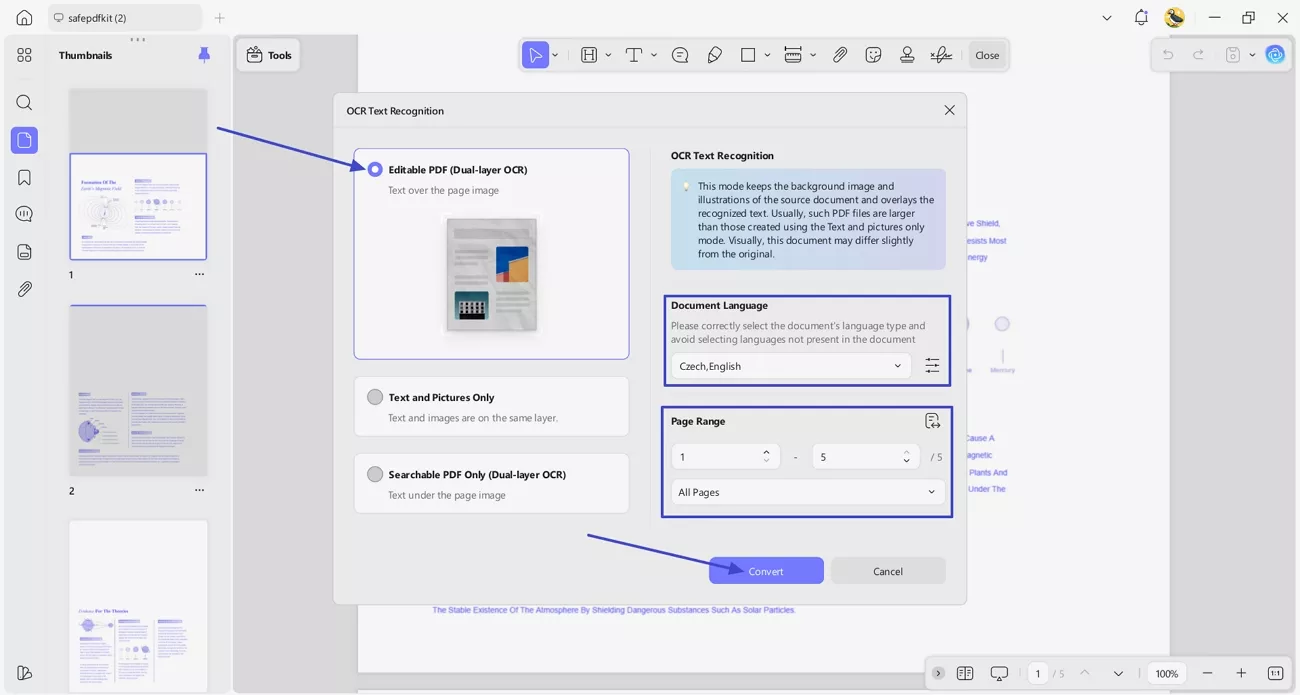
After that, press the “Editable PDF” option and choose the correct languages used in the PDF. Next, select the page range that you want to make editable and press the “Convert” button. This will create a new PDF that you want edit and search from.
Step 3. Bonus: Translate Entire PDF
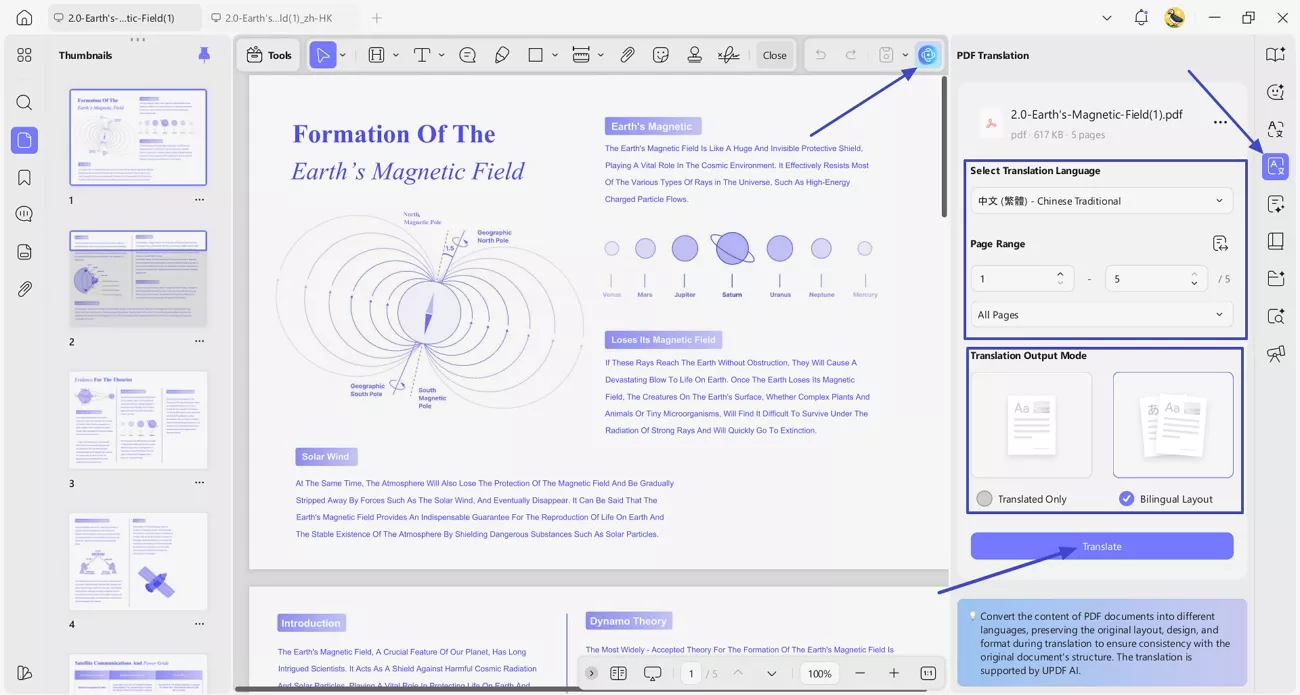
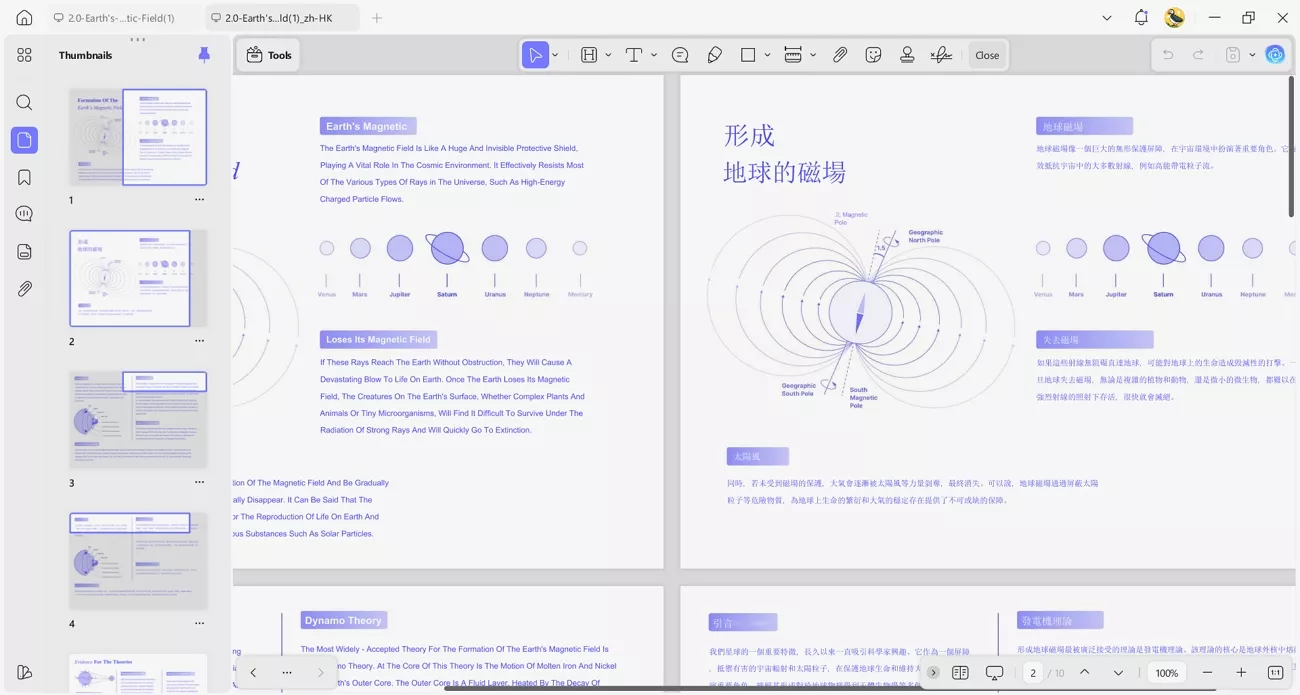
Afterwards, open the OCRed document and press the “UPDF AI” icon in the top right corner. Next, press the “PDF Translation” option and choose the targeted language. Select page range, output mode, and press the “Translate” button. It will create another translated PDF.
Once the translated document is created, open it and review the translation side-by-side.
3. Fix Display Issues in PDF Readers
For this concern, I use UPDF because it updates frequently to ensure that documents display correctly every time I open them. Now I'll outline the features that make it stand out.
Windows • macOS • iOS • Android 100% secure
1. PDF Conversion: You can convert PDFs to and from Word, Excel, PowerPoint, images, and more—vice versa. PDF conversion preserves the original layout and formatting, so documents appear exactly as intended.
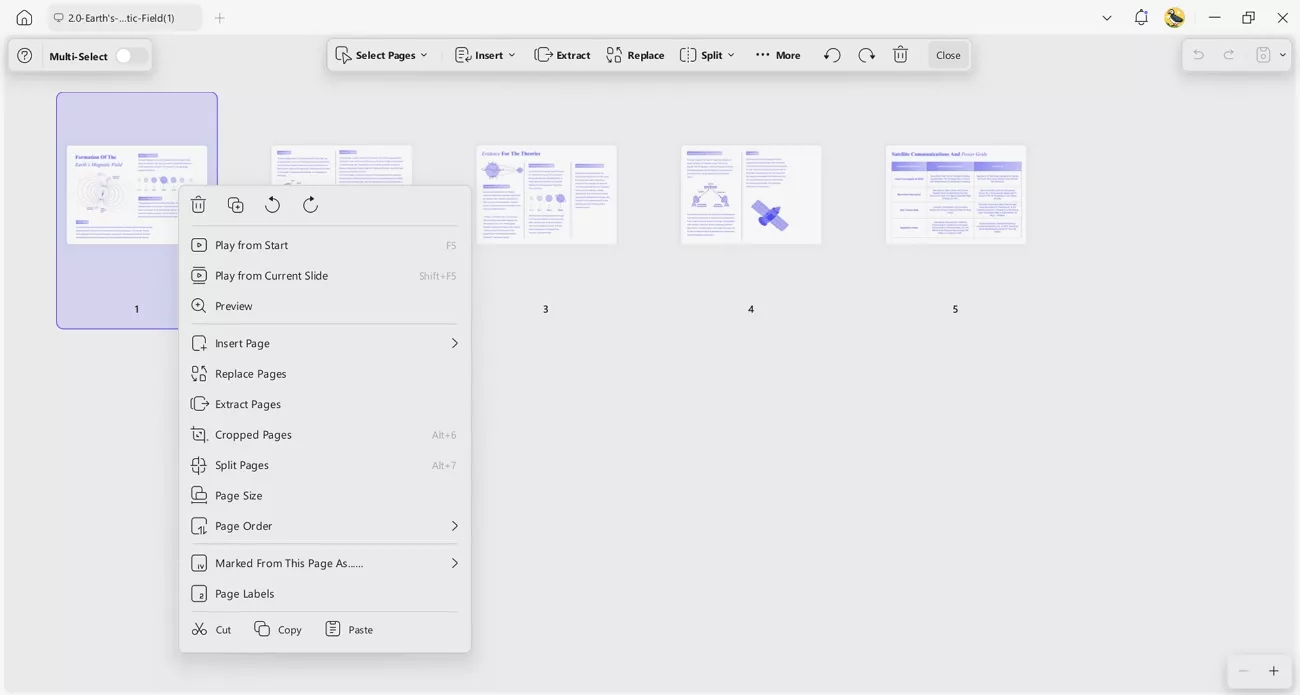
2. Document Management: It enables me to organize PDFs by merging, inserting, deleting, splitting, extracting, and rotating PDF pages.
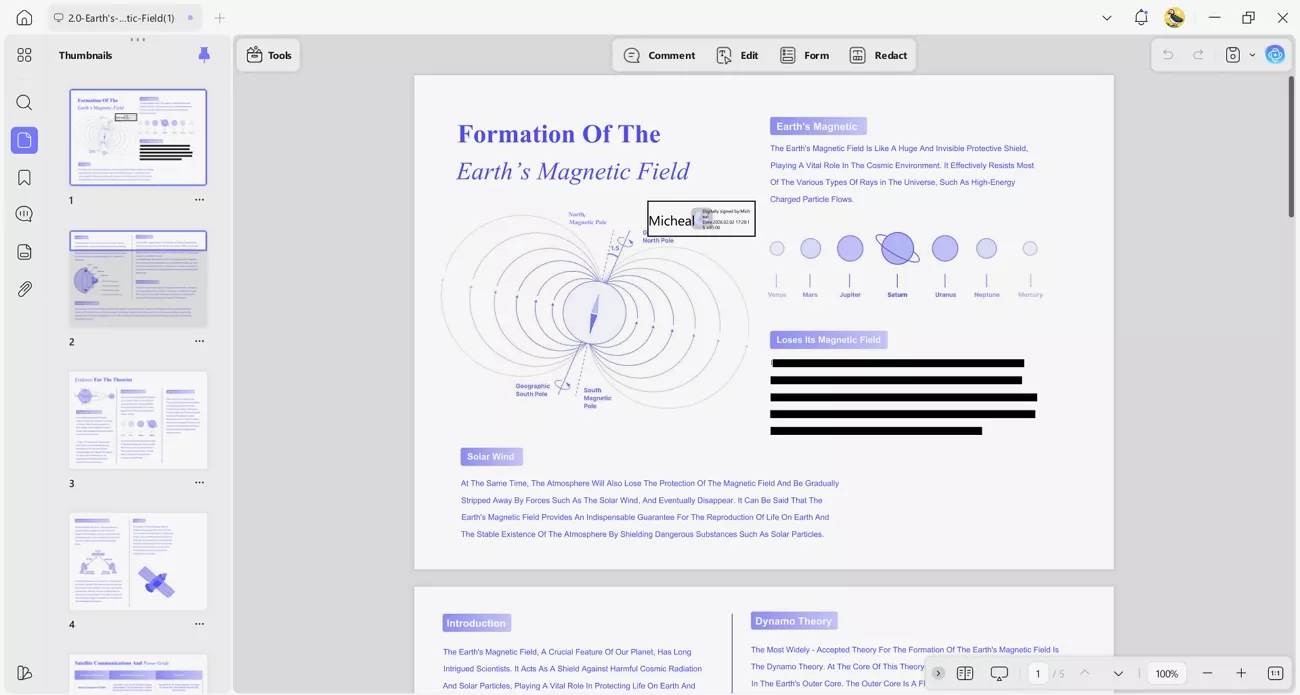
3. Security & Signing: PDF files receive passwords to prevent unauthorized access. Sensitive information gets redacted, and digital or electronic signatures are added.
4. Multiple Annotation Tools: Highlight functions, comment boxes, drawings, and marks make PDF pages clear and organized.
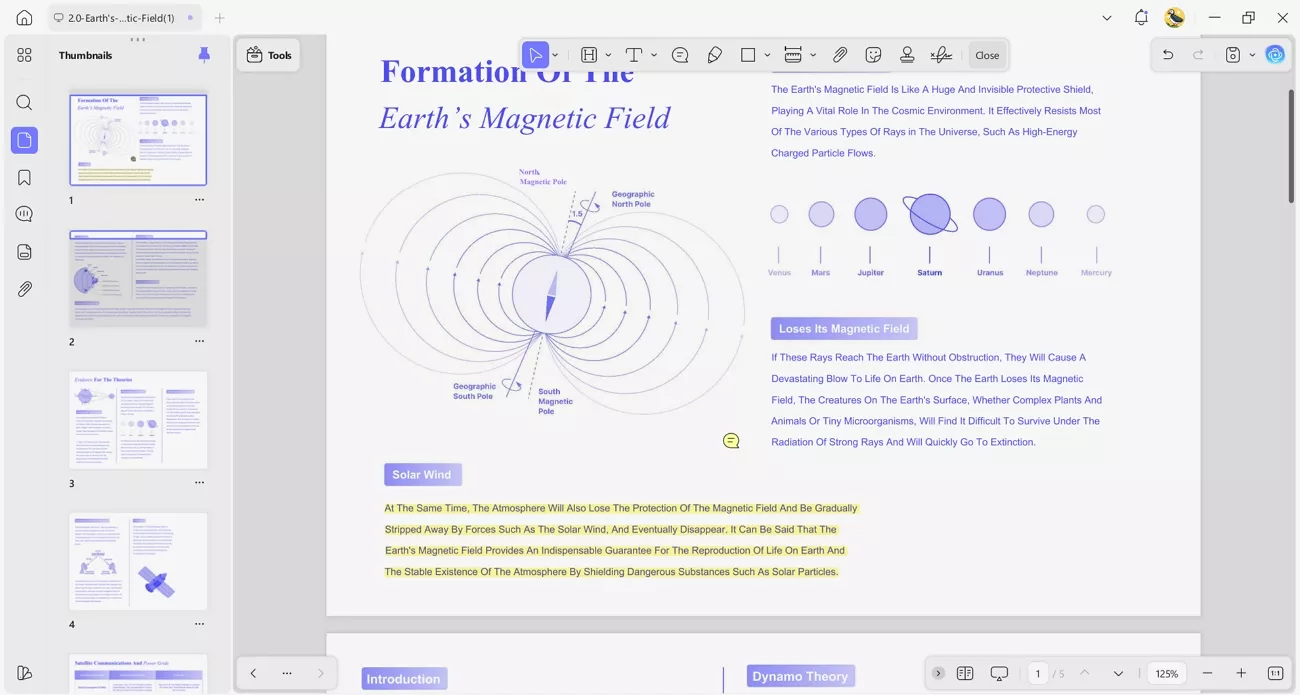
5. Device Flexibility: One license allows access on up to four devices while maintaining all functionality across platforms.
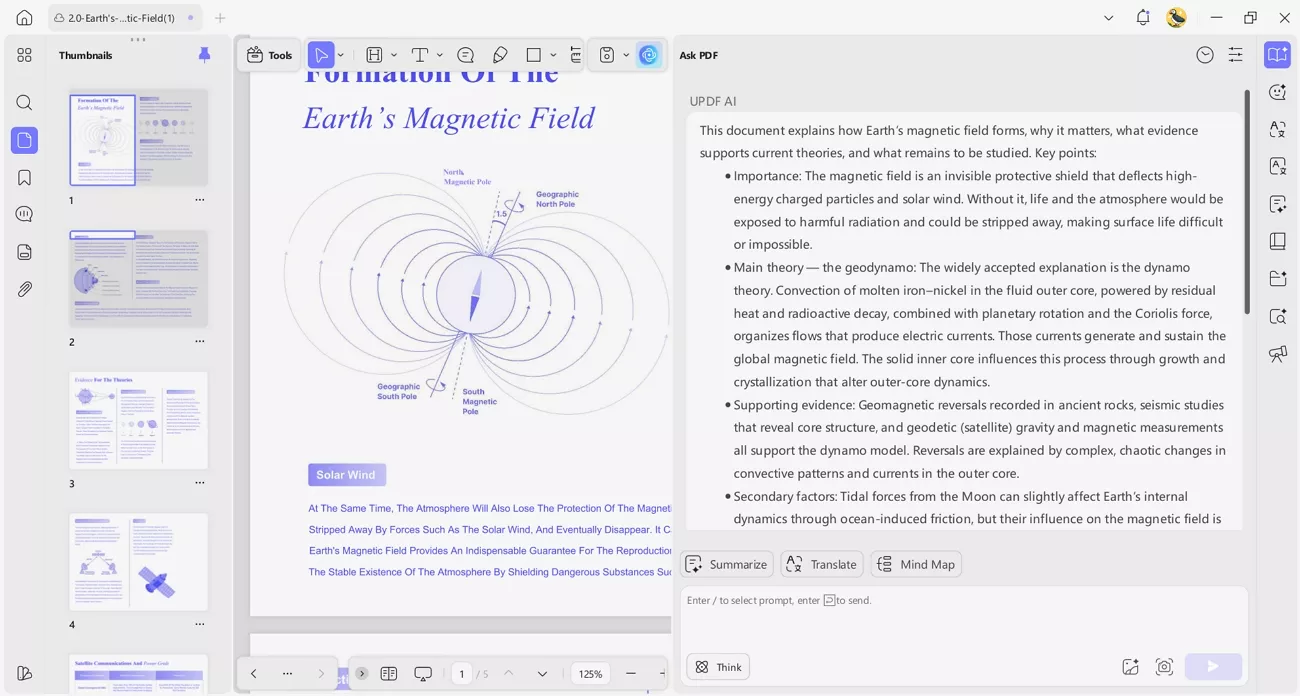
6. UPDF AI: The AI feature answers questions about PDF content and summarizes information accurately within seconds.
4. Fix Garbled Text Caused by Missing or Unsupported Fonts
If a PDF shows unreadable text because the fonts are missing or unsupported, I use UPDF to fix it. Now, follow the steps below to learn how to fix garbled text in PDF files and restore them to a readable format:
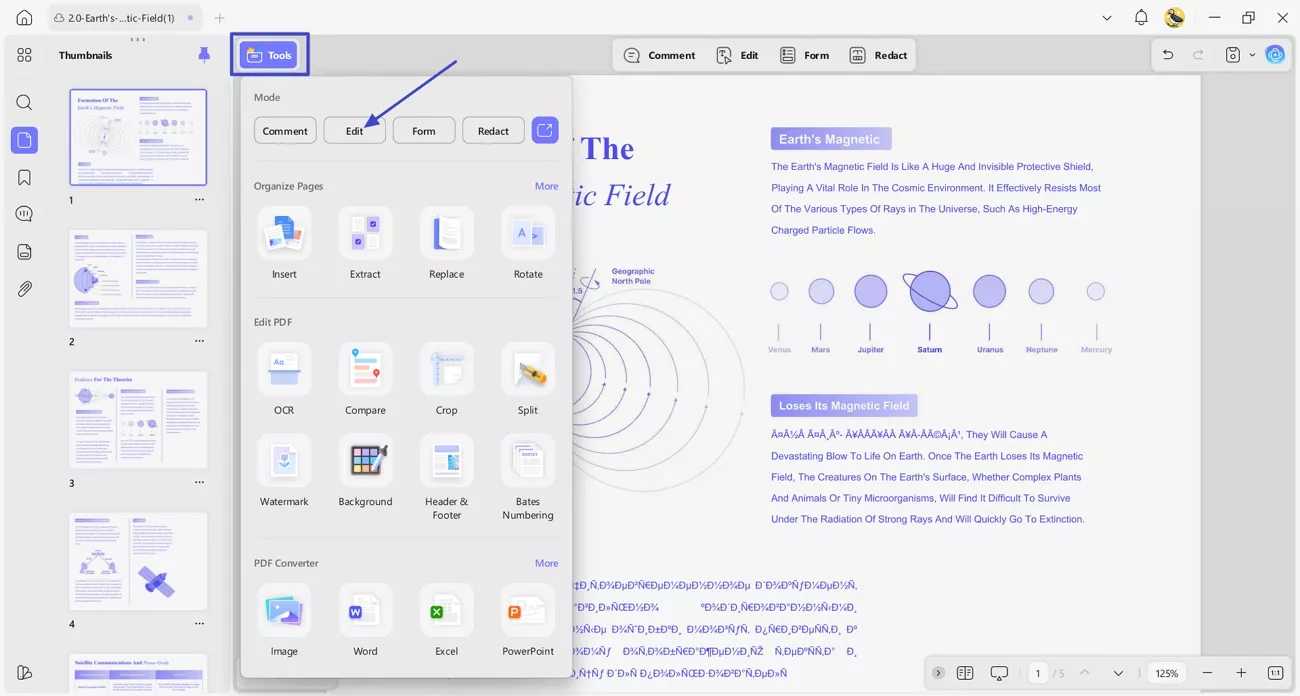
Step 1. Import a PDF and Access Edit Feature
After importing the PDF with garbled text, press the “Tools” option and use the “Edit” option to enter the editing interface.
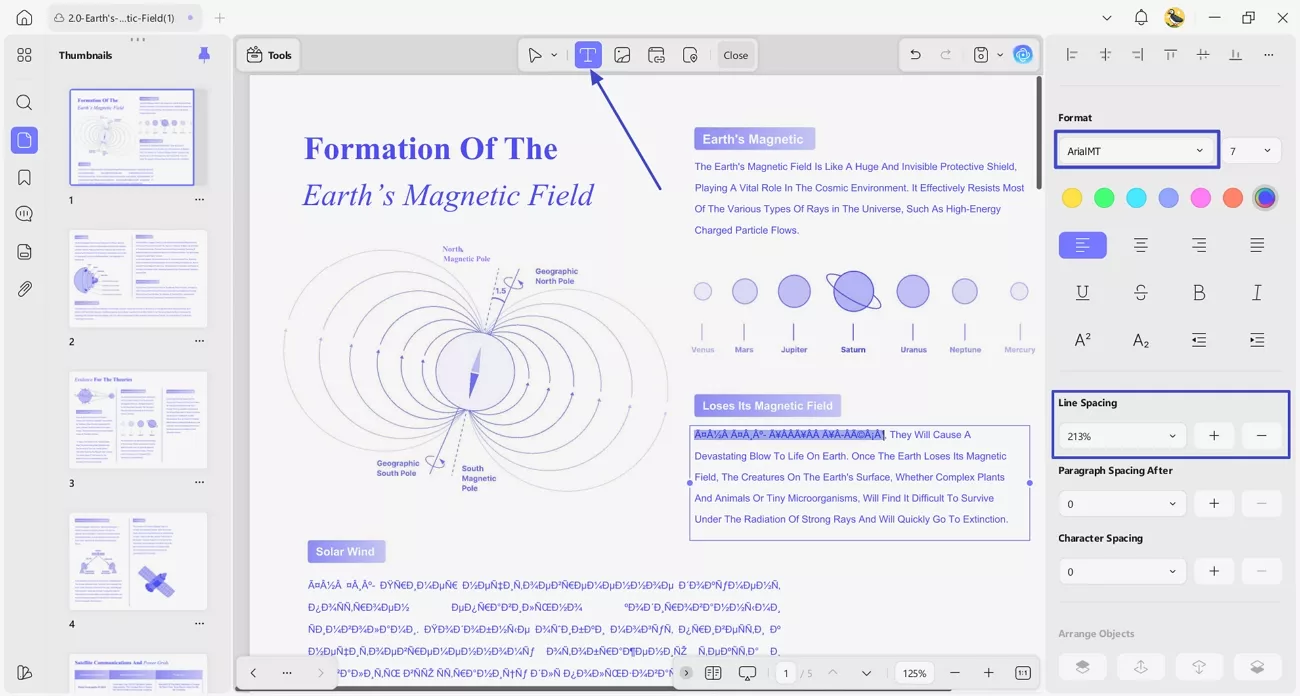
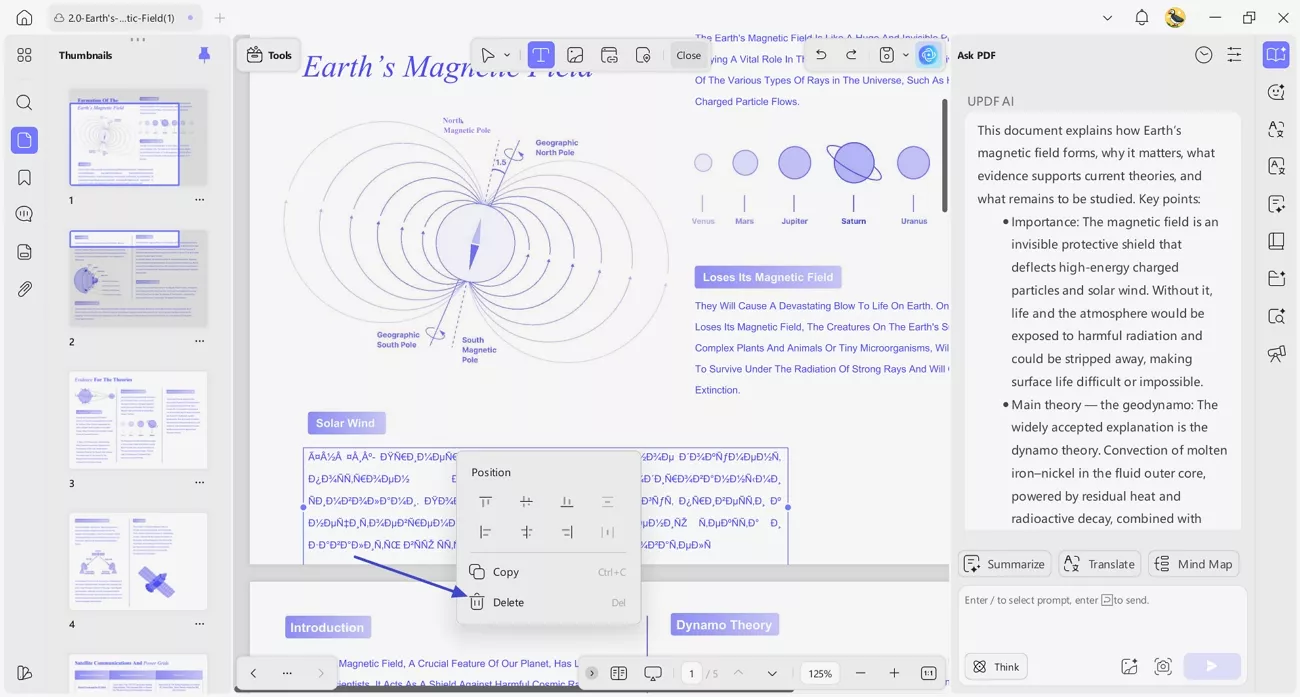
Step 2. Correct Garbled Words
Next, choose the “Insert & Edit Text” icon and select the words that are garbled. Retype the words, choose the correct font, and adjust line spacing to avoid overlapping.
Step 3. Fix the Entire Broken Paragraph
If the entire paragraph is broken, simply delete the paragraph and insert a new paragraph with new text.
If a PDF still shows garbled text after fixing fonts, the problem can be your PDF reader or device performance. Make sure the app and system are fully updated, which often resolves rendering issues. For example, UPDF mobile enables High Performance Mode for smooth text display. You can follow the steps below:
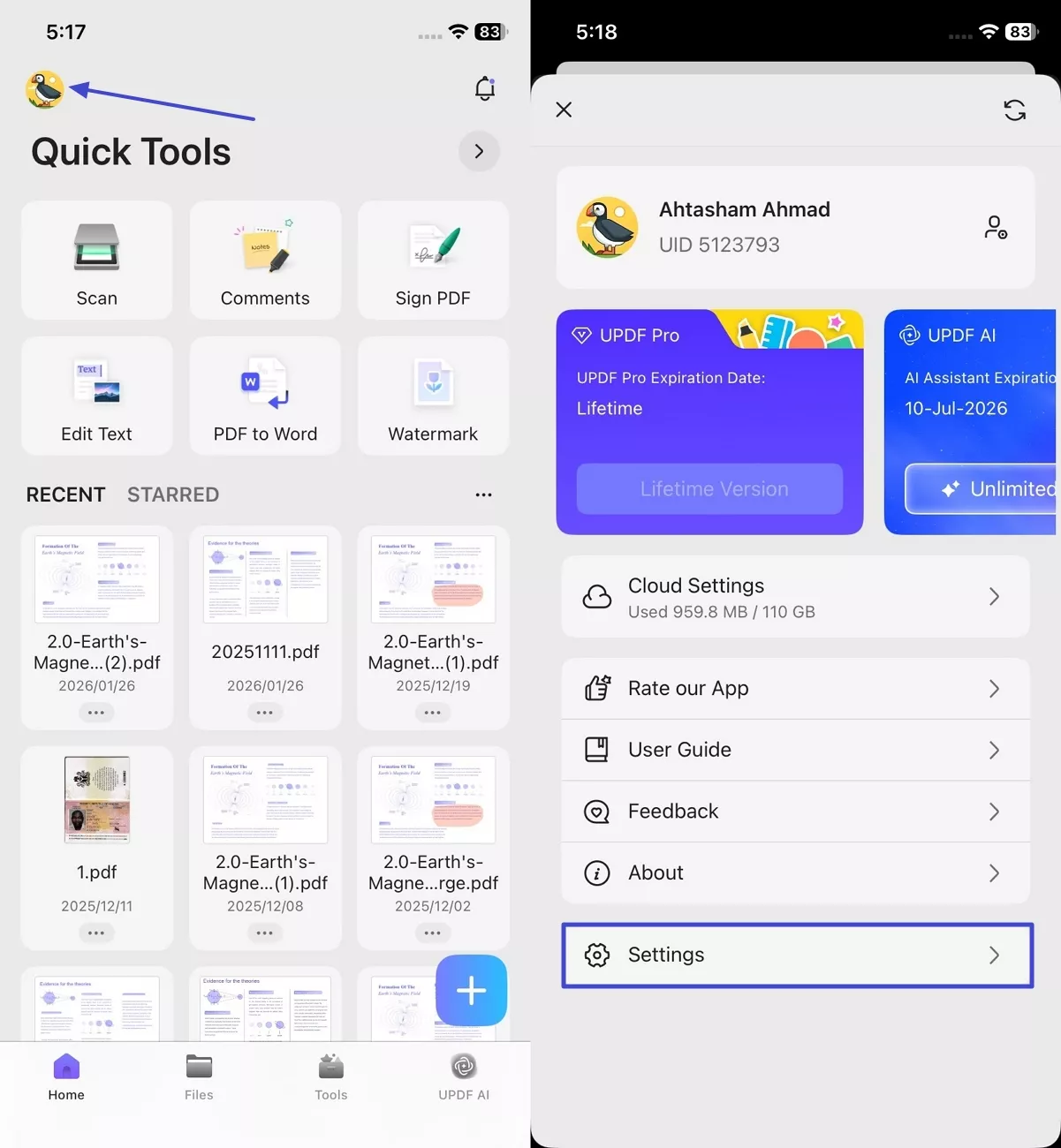
Step 1. Access UPDF Settings on Mobile App
Once you open the UPDF app (iOS/Android), tap on the “Profile” icon in the top left corner and use the “Settings” option.
Windows • macOS • iOS • Android 100% secure
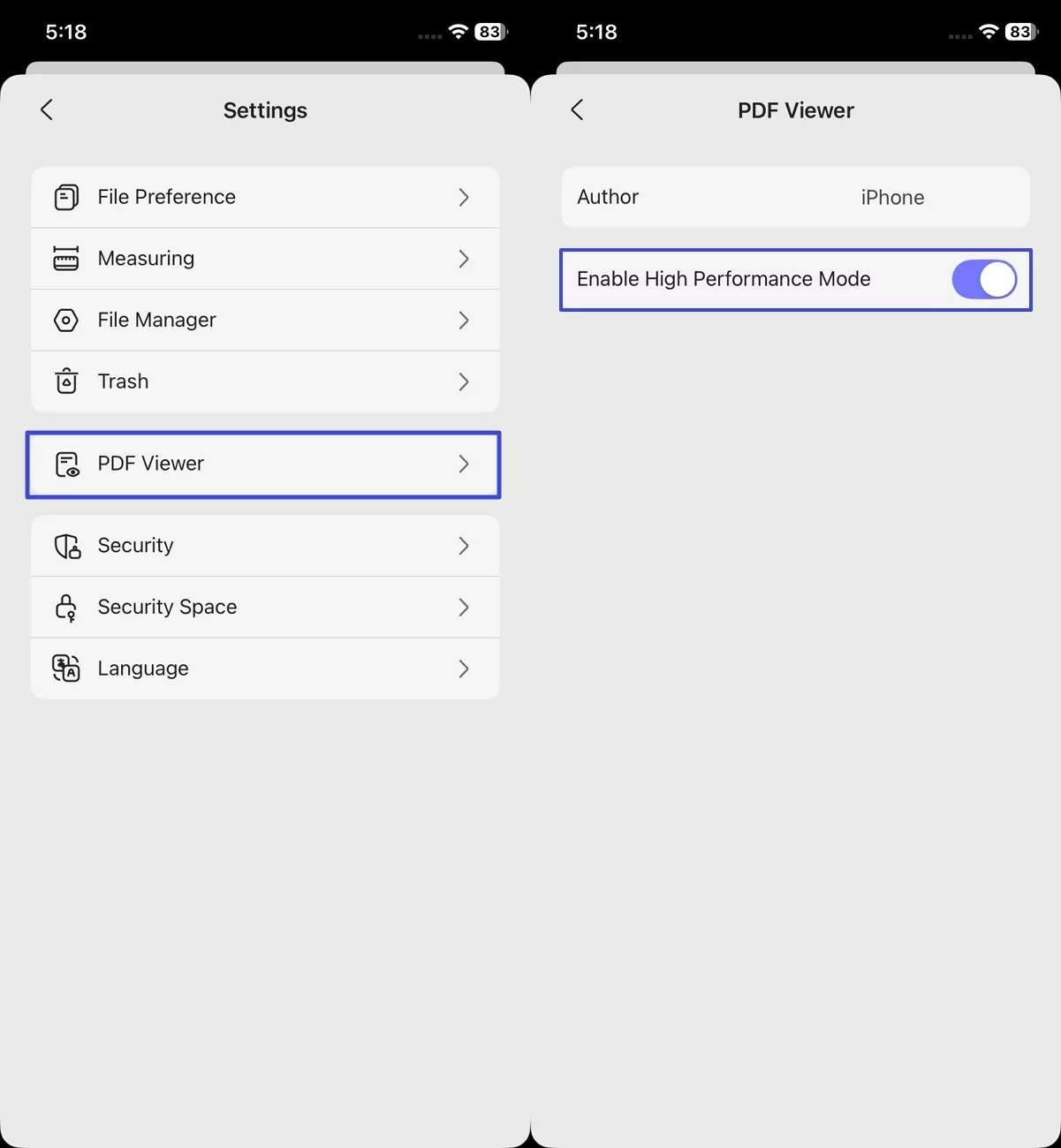
Step 2. Enable High Performance Mode
Next, use the “PDF Viewer” option and enable “Enable High Performance Mode.”
5. Fix Garbled Text Caused by Embedded Fonts Missing Character Mapping
If a PDF still shows unreadable text, the embedded fonts might lack a proper character-to-glyph mapping table. Now, let’s look at the methods I use to fix embedded font issues and restore PDF text.
Regenerate the PDF with Reliable Tools
Use UPDF or another trusted PDF editor to recreate the PDF. Re-exporting the document ensures fonts are embedded correctly, fixes broken characters, and preserves the original layout.
Windows • macOS • iOS • Android 100% secure
Check Font Format and Mapping Table
Verify that the fonts are TrueType (TTF) or OpenType (OTF) and include a complete .cmap table. This table links every character to the correct visual symbol to prevent garbled text in PDF files. Font inspection tools like FontForge can help confirm proper mapping.
Avoid Defective Fonts and Unreliable Conversion Tools
Do not use corrupted or low-quality fonts. Avoid online PDF converters that can damage font structures. Using reliable fonts and tools ensures all characters display correctly in the regenerated PDF.
6. Fix Garbled PDF File Names on Android
If PDF file names appear garbled, it shows why users need to learn how to fix garbled text in PDF files. To correct this, rename files using only letters, numbers, and underscores for compatibility. Reporting the issue to the device developer helps ensure future updates fix garbled filenames properly.
Part 4. FAQs
Q1. How to erase text from a PDF?
This task can be done easily with UPDF. Follow the steps below to learn how you can erase text with UPDF.
Step 1. First, access the Editing interface by clicking the “Edit” option.
Step 2. Next, select the text or paragraph you want to erase and press the “Delete” key on your keyboard to delete.
Q2. What is a garbled text?
Garbled text appears when characters in a PDF are scrambled and unreadable to users. It often happens due to missing fonts, poor OCR, or incorrect file encoding settings.
Q3. How do I extract text from a PDF?
Using UPDF’s OCR feature can extract text from a PDF. Now, go through the steps below to extract using another method on UPDF Desktop:
Step 1. Press the “UPDF AI” icon and press the “Chat” option. Next, press the “Screenshot” icon and capture the area with text.
Step 2. Ask AI to extract text from the image.
Conclusion
In this article, I explained the common causes of garbled text in PDF and how to fix them effectively. I shared practical methods for repairing corrupted files, correcting fonts, and restoring readability. If you want to fix garbled text in PDF efficiently, I recommend using UPDF.
Windows • macOS • iOS • Android 100% secure







 Enrica Taylor
 Enola Davis

 Enya Moore