 UPDF
UPDF
 UPDF for Windows
 UPDF for Mac
 UPDF for iPhone/iPad
 UPDF for Android
 UPDF AI Online
 UPDF Sign
 Edit PDF
 Annotate PDF
 Create PDF
 PDF Form
 Edit links
 Convert PDF
 OCR
OCR PDF to Word
 PDF to Image
 PDF to Excel
 Organize PDF
 Merge PDF
 Split PDF
 Crop PDF
 Rotate PDF
 Protect PDF
 Sign PDF
 Redact PDF
 Sanitize PDF
 Remove Security
 Read PDF
 UPDF Cloud
 Compress PDF
 Print PDF
 Batch Process
 About UPDF AI
 UPDF AI Solutions
 AI User Guide
 FAQ about UPDF AI
 Summarize PDF
 Translate PDF
 Chat with PDF
 Chat with AI
 Chat with image
 PDF to Mind Map
 Explain PDF
 PDF AI Tools
 Image AI Tools
 AI Chat Tools
 AI Writing Tools
 AI Study Tools
 AI Working Tools
 Other AI Tools
 PDF to Word
 PDF to Excel
 PDF to PowerPoint
 Enterprise Solution
 Enterprise Sign
 Enterprise AI
 Enterprise Plan
 Enterprise User Guide
 Enterprise Webinar
 Banking
 Healthcare
 Insurance
 Legal
Legal Manufacturing
 Government
 Education Solution
 Customer Stories
 User Guide
 UPDF Tricks
 FAQs
FAQs UPDF Reviews
 Download Center
 Blog
Blog Newsroom
 Tech Spec
 Updates
 UPDF vs. Adobe Acrobat
 UPDF vs. Foxit
 UPDF vs. PDF Expert

Nano Banana Pro caught my attention as soon as it appeared on my radar. As someone who works extensively with digital content, I am always looking for ways to make my work better without compromising quality. After thoroughly testing it, I realized this model is more than an AI image generator. It can turn notes, data, and ideas into professional, detailed visuals.
What impressed me most was its ability to connect with this model for real-time information and generate charts, infographics, and images accurately. After creating visuals, I turned to UPDF to organize them into my PDF reports and presentations. In this article, I'll share my firsthand experience and show how I use it alongside UPDF to create and organize visuals in my PDFs.
Windows • macOS • iOS • Android 100% secure
Part 1. Getting Started: My Setup and First Prompts
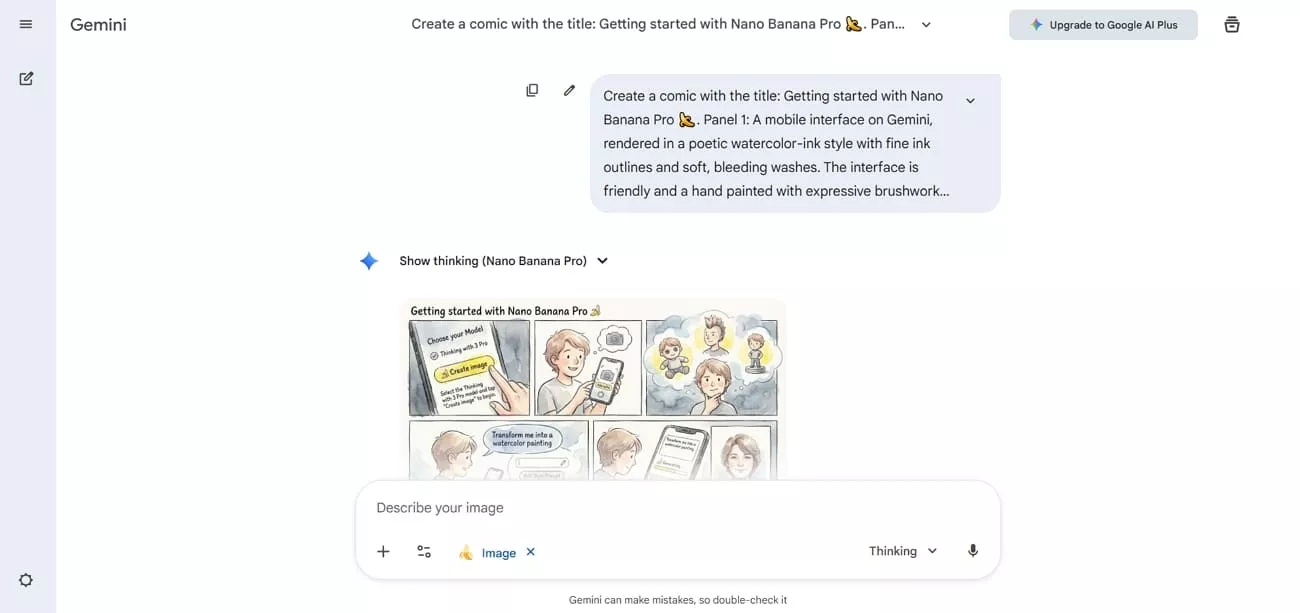
After accessing Google Banana Nano Pro, setting up my workspace was straightforward. The login process was smooth, and the system quickly loaded my account and preferences. I could immediately start experimenting with prompts, uploading images, and testing features. The setup felt intuitive, which made it easy to begin working without wasting time.
Once I looked at the interface layout, it seemed modern and well-organized, making key tools and features easy to locate. I was able to describe the nature of the images in the Input fields and give prompts through voice commands as well. Navigation between options remains seamless, so I can access visuals and advanced features without confusion or delays.
Free Tier and Pricing
The free tier gave limited usage, which was enough for me to explore most features and test the platform. Once I reached the quota, some features reverted to basic, but it was clear how much I could do without paying anything. Look at the pricing plans of Google One AI that offers Nano Banana Pro credits in the table below:
| Plan | Pricing (USD) | Cloud Storage | Monthly AI Credits (Flow + Whisk) |
| Google AI Plus | $4.99/month | 200 GB | 200 Credits |
| Google AI Pro | $19.99/month | 2 TB | 1000 Credits |
| Google AI Ultra | $249.99/month | 30 TB | 25000 Credits |
My First Practical Test
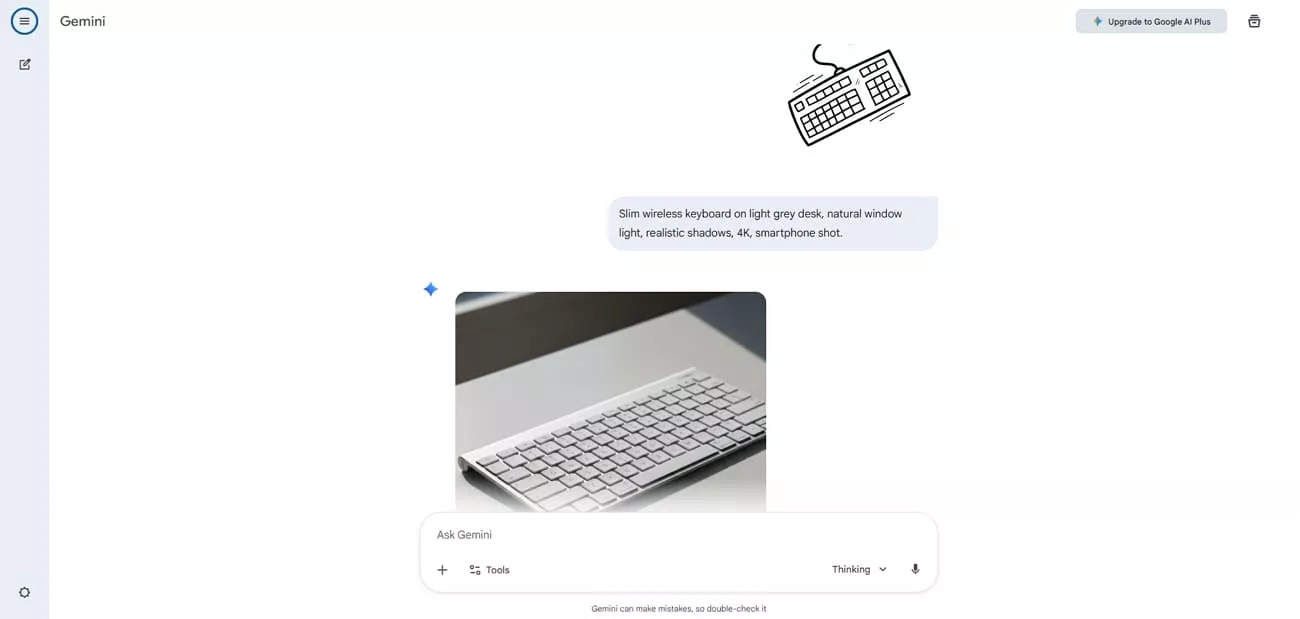
A practical case that really showed me how to use Google Nano Banana Pro was turning a messy product idea into a clean, “real” marketing shot. I started from a rough sketch of a minimalist wireless keyboard and used a detailed prompt like: “Slim wireless keyboard on light grey desk, natural window light, realistic shadows, 4K, smartphone shot.”
First Impressions
Look at my first impressions about how it handled lighting, reflections, and tiny text details far better than I expected.
- The depth of field looked like an authentic smartphone portrait shot, not a flat render.
- Small legends on the keys stayed crisp and readable even at 4K resolution.
- Minor prompt tweaks noticeably changed the angle and mood without breaking the product’s overall look.
- It felt reliable enough that I could imagine using it for real mockups and pitch decks.
Part 2. Core Feature: What Blew Me Away in Practice
I saw plenty of users on Nano Banana Pro Reddit sharing similar discoveries, and my own experience with the tool revealed features that stood out in real use.
1. Turning Notes Into Clear Charts
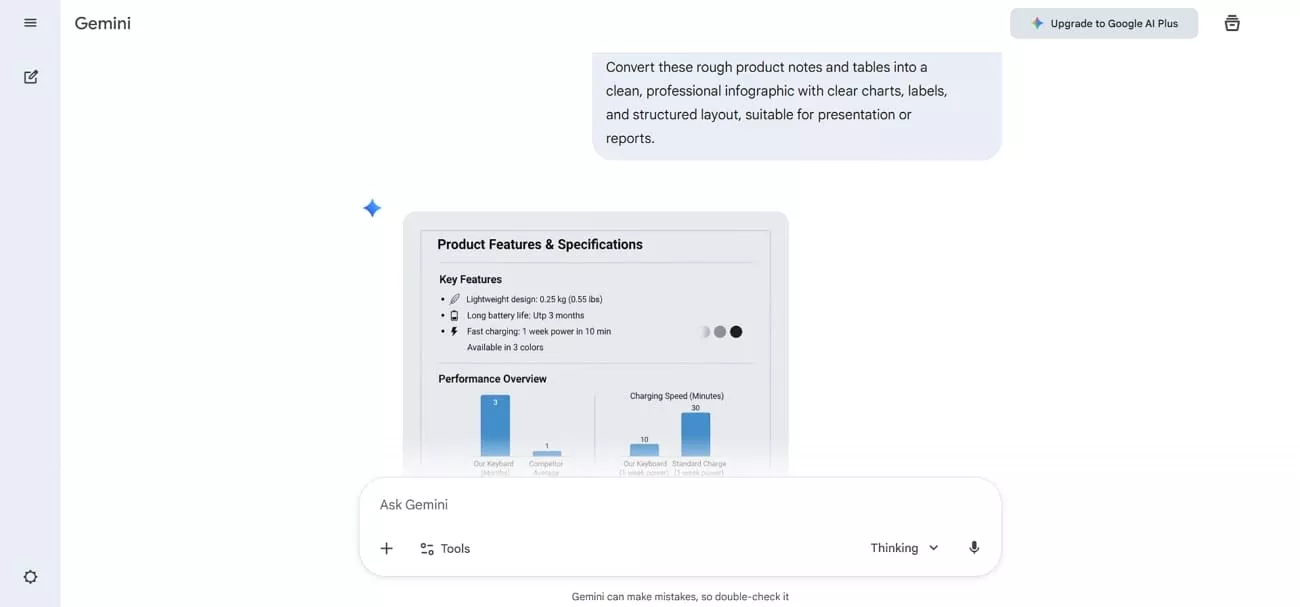
When I upload rough product notes or tables, nano banana pro turns them into neat diagrams. It feels like handing messy pages to a designer and getting back client‑ready charts instantly. This shift speeds up my transition from scattered thinking to structured, visual explanations for work.
2. Visualizing Live Search Information
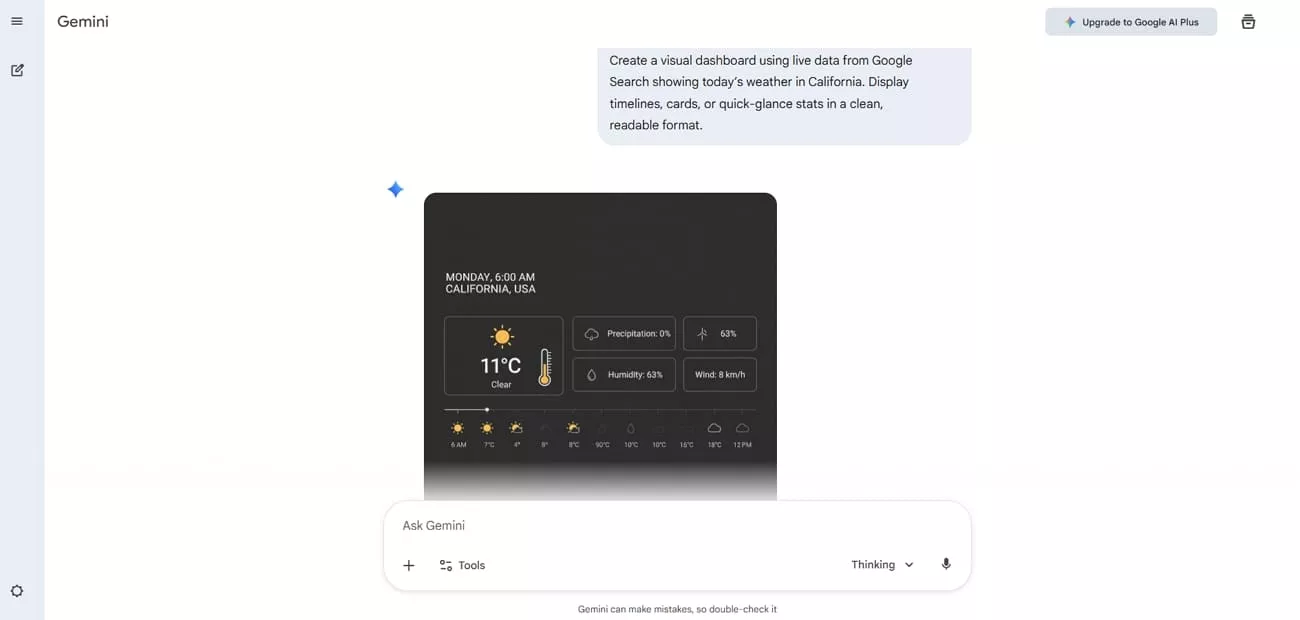
When I ask for today’s weather or scores, it builds graphics that reflect current information. I see timelines or cards that look like quick dashboards instead of random decorative art pieces. This makes it useful for fast status overviews, not just for pretty but disconnected illustrations.
3. Getting Closer To Real Facts
In my tests, diagrams and explainers usually stay close to the accurate notes I provide. If I structure my brief clearly, the images primarily preserve that structure without significant distortions. Still, I verify details, but I do fix fewer obvious factual errors than with earlier models.
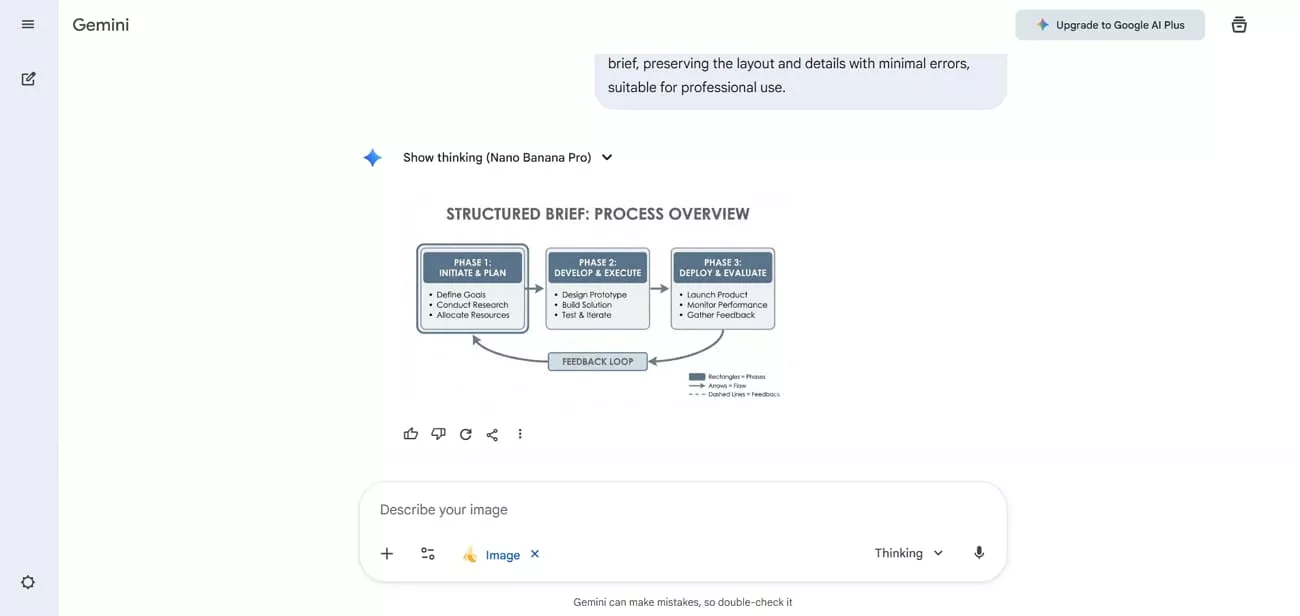
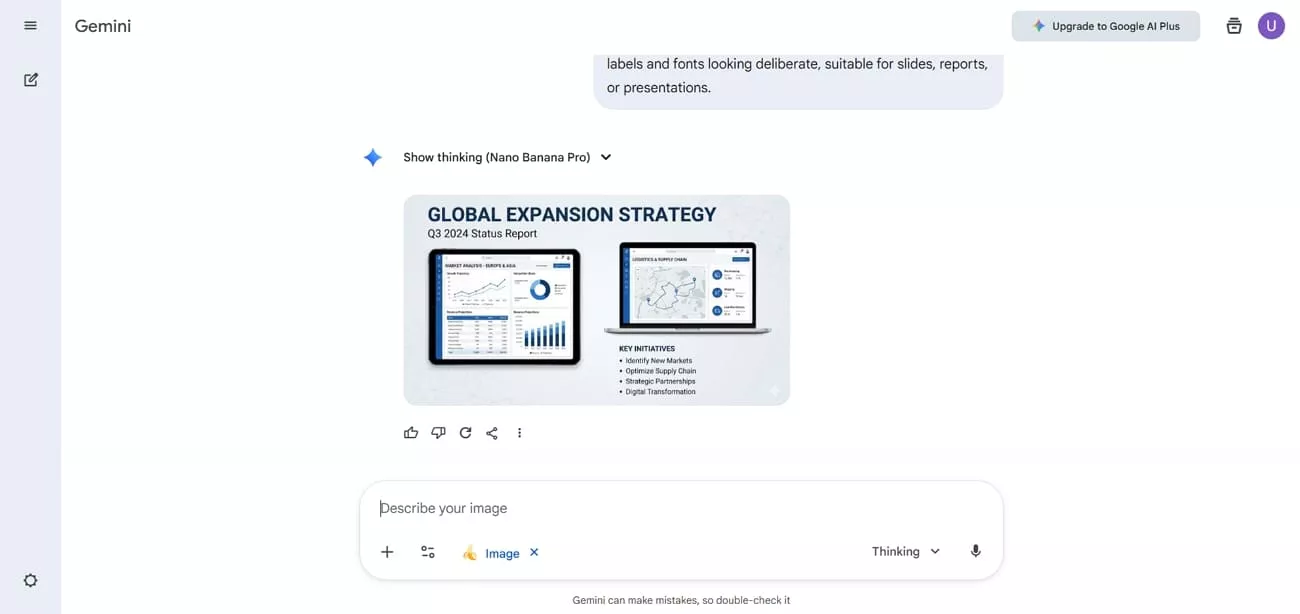
4. Richer Text And Visual Details
Text inside images finally looks deliberate, with sharper fonts and materials that resemble real design work. Labels and UI mockups feel less glitchy, so that I can reuse them in slides or reports. That polish reduces the need to rebuild everything later in a separate design program.
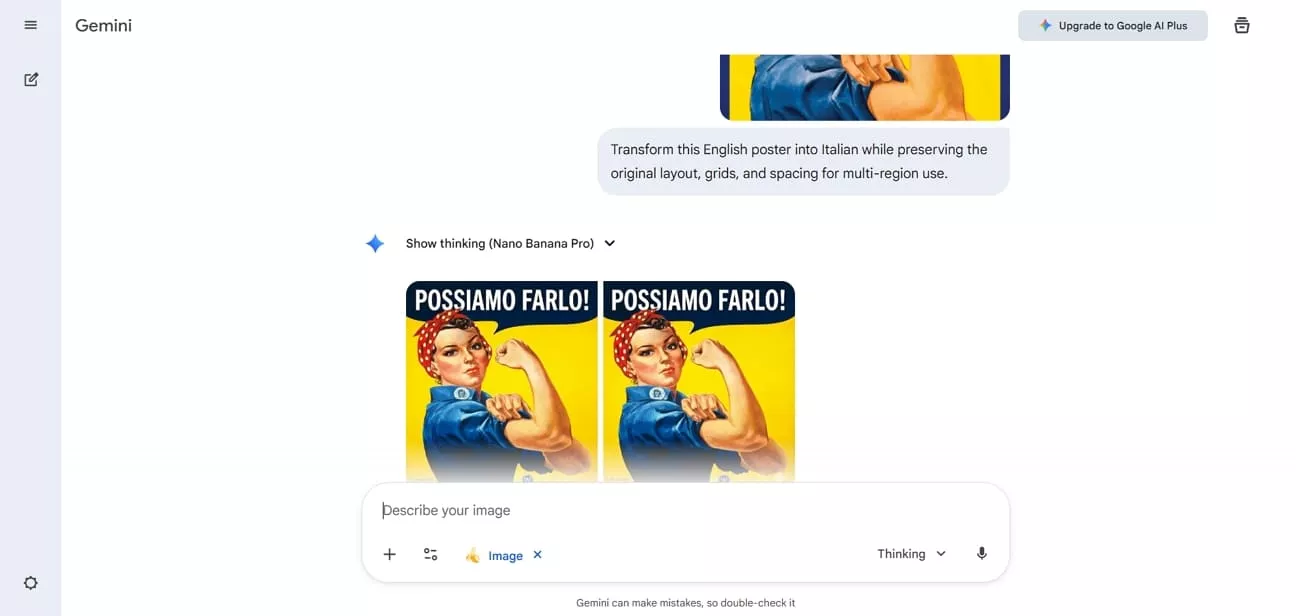
5. Multilingual And Localized Visual Text
When I switch languages, the layout usually stays intact while the in‑image words change correctly. I have turned English posters into other languages without redrawing grids or redoing spacing. This helps me prepare multi‑region assets from a single master visual concept.
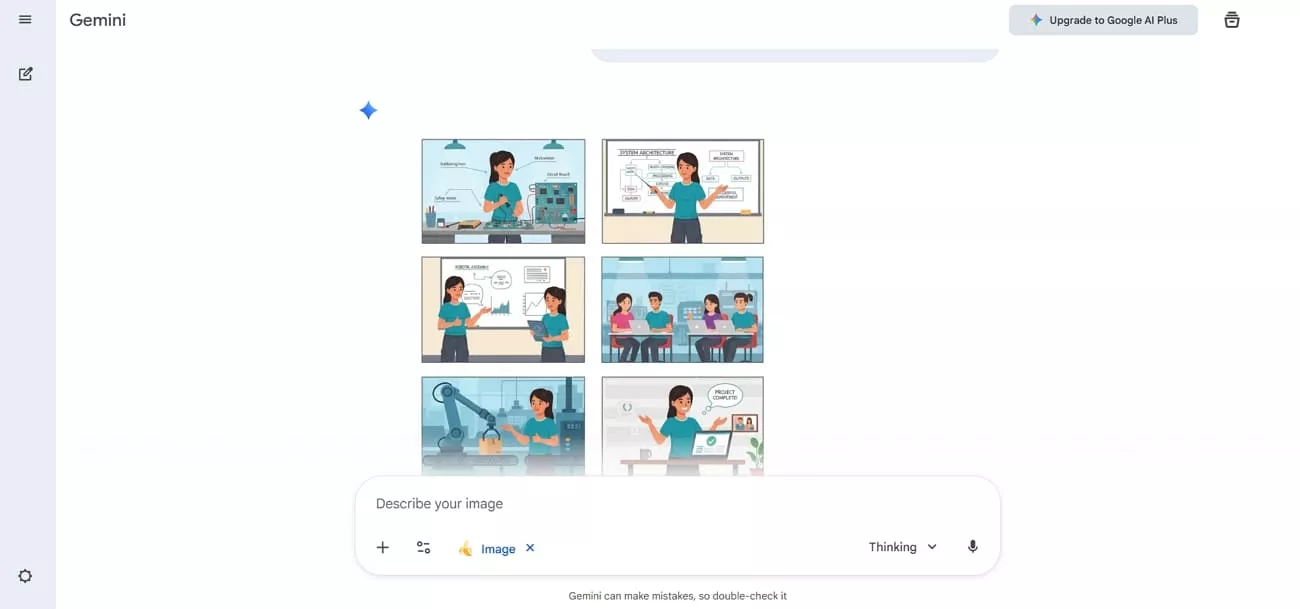
6. Consistent Characters Across Many Images
With a few references, the same character appears recognizably across several different scenes. Face, hair, and clothing stay similar enough that it feels like one continuous person. That consistency makes storyboards and learning materials feel more coherent and professional.
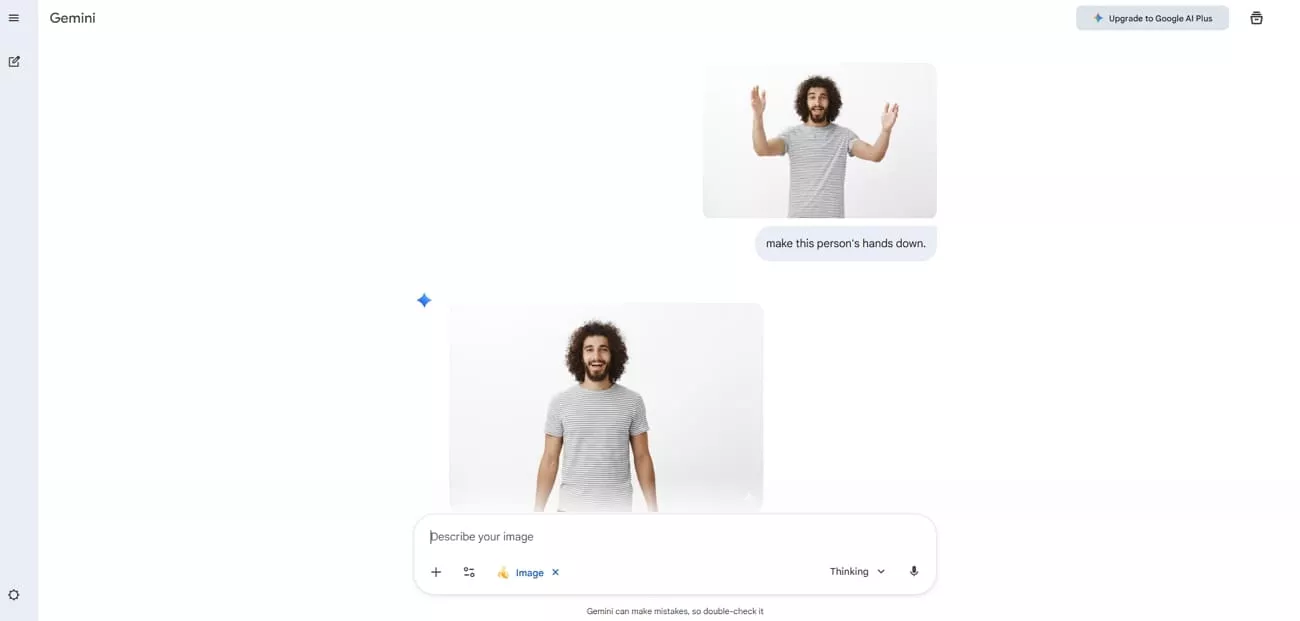
7. Precise Local Editing Control
If one area looks wrong, I can target only that spot for a revision. Changing a background or an object no longer forces the entire composition to be regenerated. This focused control keeps iterations fast while preserving parts of the image I already like.
Part 3. Combine UPDF and Nano Banana Pro for Real-World Projects
Once I produce an infographic or annotated diagram in Nano Banana Pro, I usually need to place it back into the original PDF textbook or article for easier explanation. That’s where UPDF fits perfectly into my workflow. I can generate visuals, export them instantly, and prepare them for clean integration into my documents.
Moreover, UPDF provides a straightforward way to insert images directly into any PDF while keeping the layout intact. I can add, resize, annotate, or adjust each visual without dealing with complicated steps. This makes it easier to build polished study materials, teaching resources, or research reports using both Nano Banana outputs and UPDF’s editing tools.
Windows • macOS • iOS • Android 100% secure
How to Add Infographics in PDFs With UPDF
After I learned how to use Nano Banana Pro, my main aim was to add generated infographics to my PDFs. Next, I’ll share the simple methods of adding infographics into your PDF with UPDF for both PC and Mobile versions.
For PC
When working on my PC, I easily add generated explainer infographics to my PDF files, so go through this guide to know how I do that:
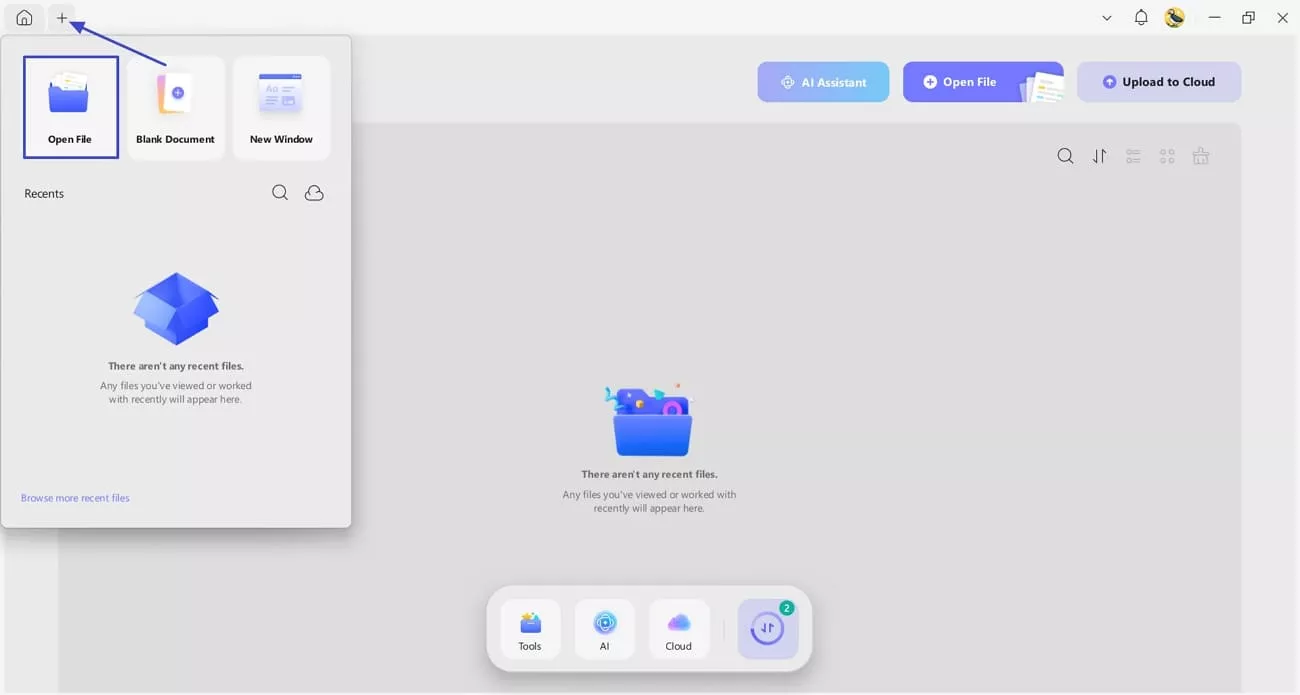
Step 1. Import PDF To UPDF
Once you enter the main interface, hit the “+” icon and press the “Open File” option to import your PDF.
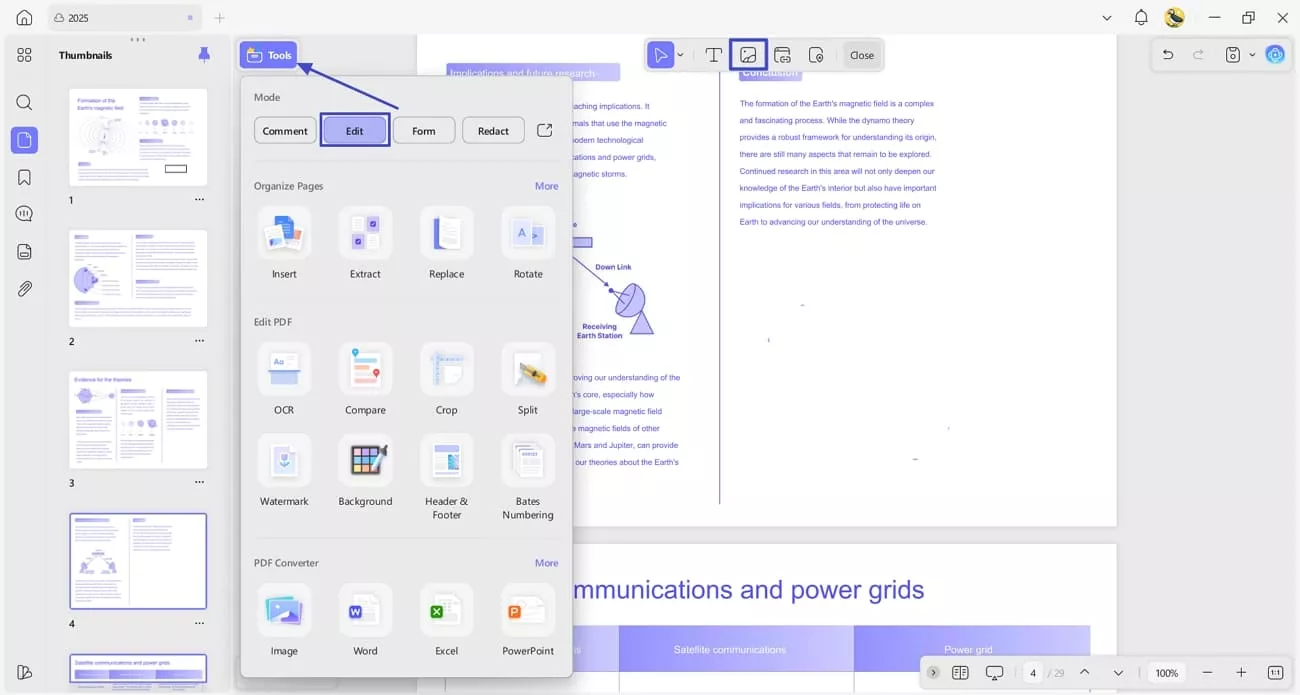
Step 2. Access Edit PDF Tool
Next, hit the “Tools” option and hit the “Edit” option under the “Mode” section to access the editing interface. Hit the “Insert & Edit Image” button to start working with images.
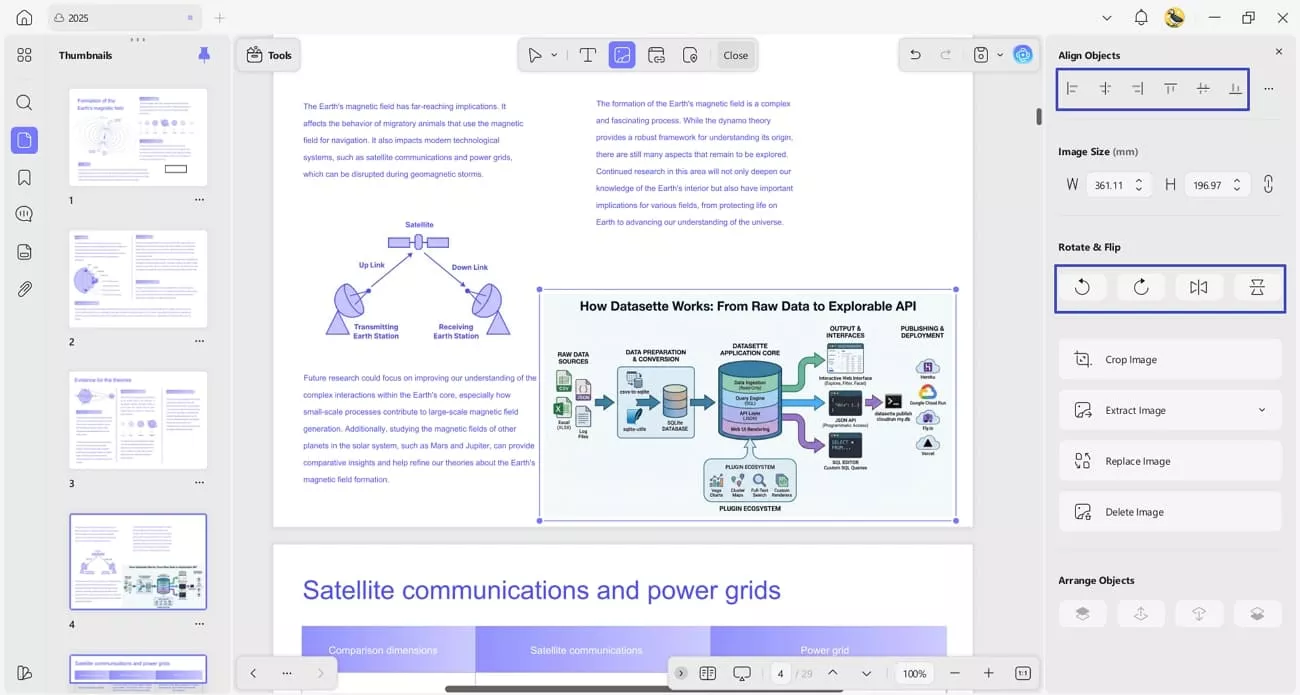
Step 3. Add Infographics to PDF
Afterwards, double-click anywhere in the PDF to import the infographic. Use the controls in the right-side menu to align or crop the image for customization.
For Mobile
Next, follow the steps below to add infographics generated by Google Nano Banana Pro into your PDF using UPDF Mobile:
Step 1. Open PDF and Access Edit Tool
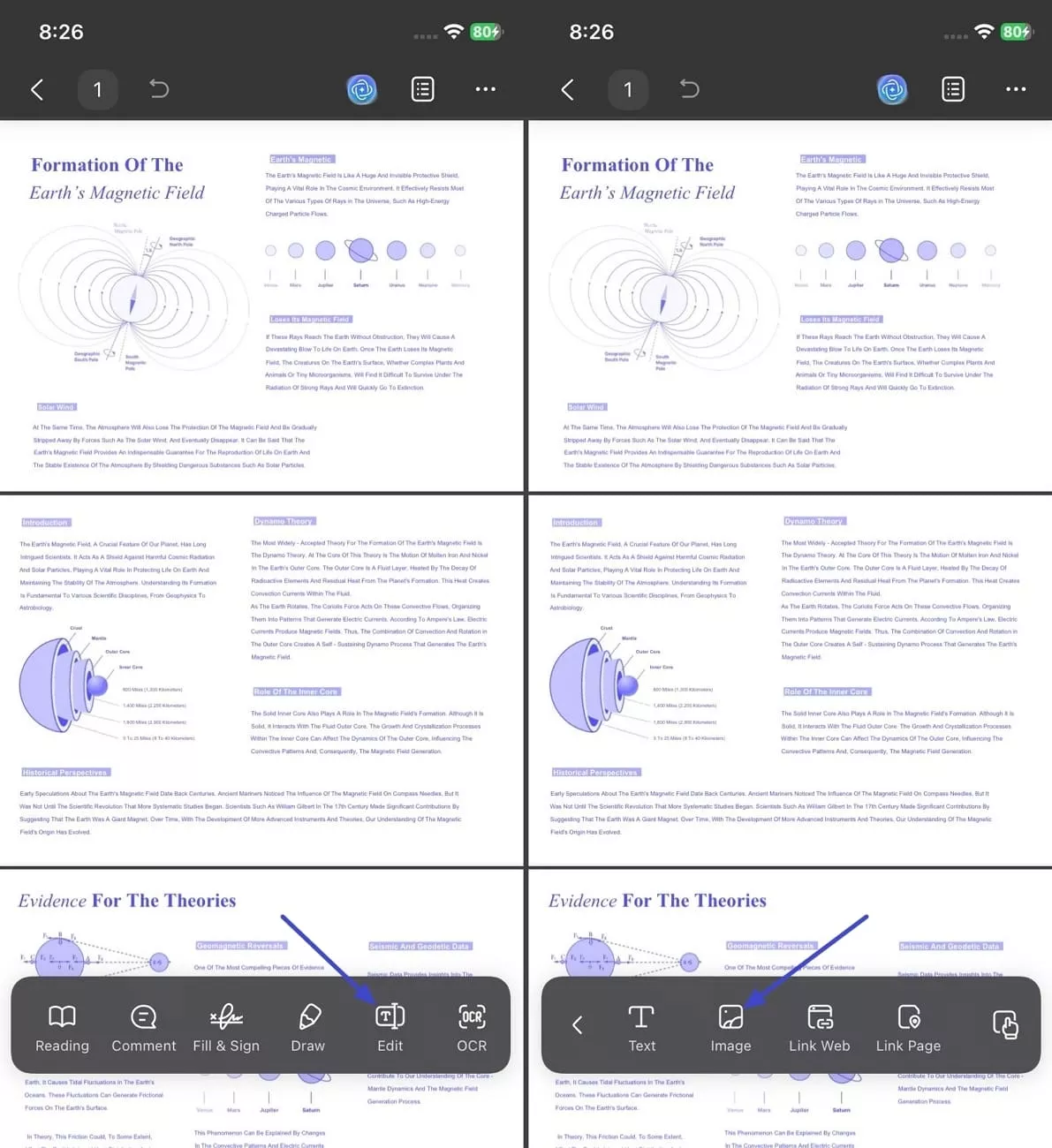
After you import the PDF into UPDF Mobile (iOS/Android), hit the “Edit” option in the bar below and tap on the “Image” option.
Step 2. Import Image and Adjust Sizing
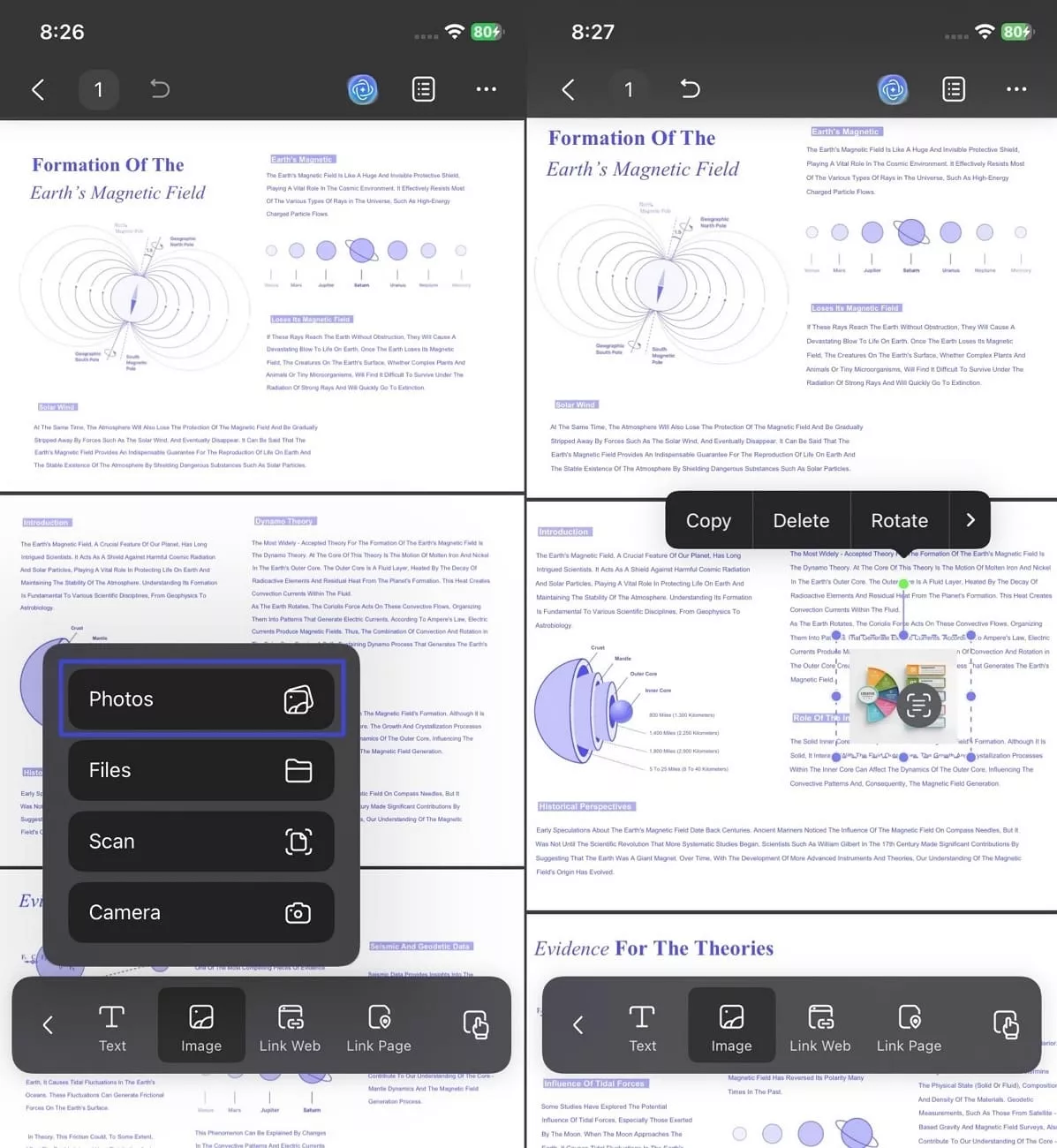
Next, tap the “Photos” option to import the infographic, then adjust the image size to fit in the PDF.
Other Notable Key Features of UPDF
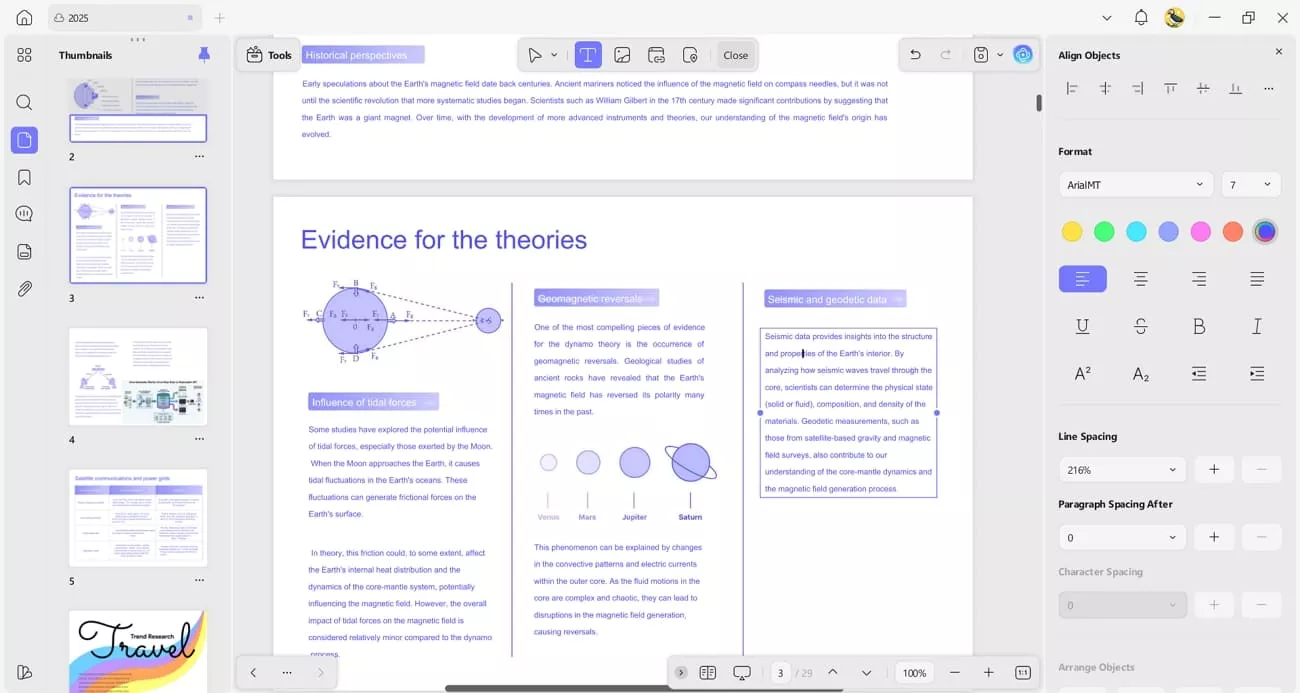
- Editing the PDF: What really helps during editing is the ability to modify text whenever adjustments are needed instantly. Font size, colors, and spacing can all be tuned to match the exact look I want.
- Annotate the PDF: Clear review becomes easier with highlights, comments, and sticky notes added where needed.
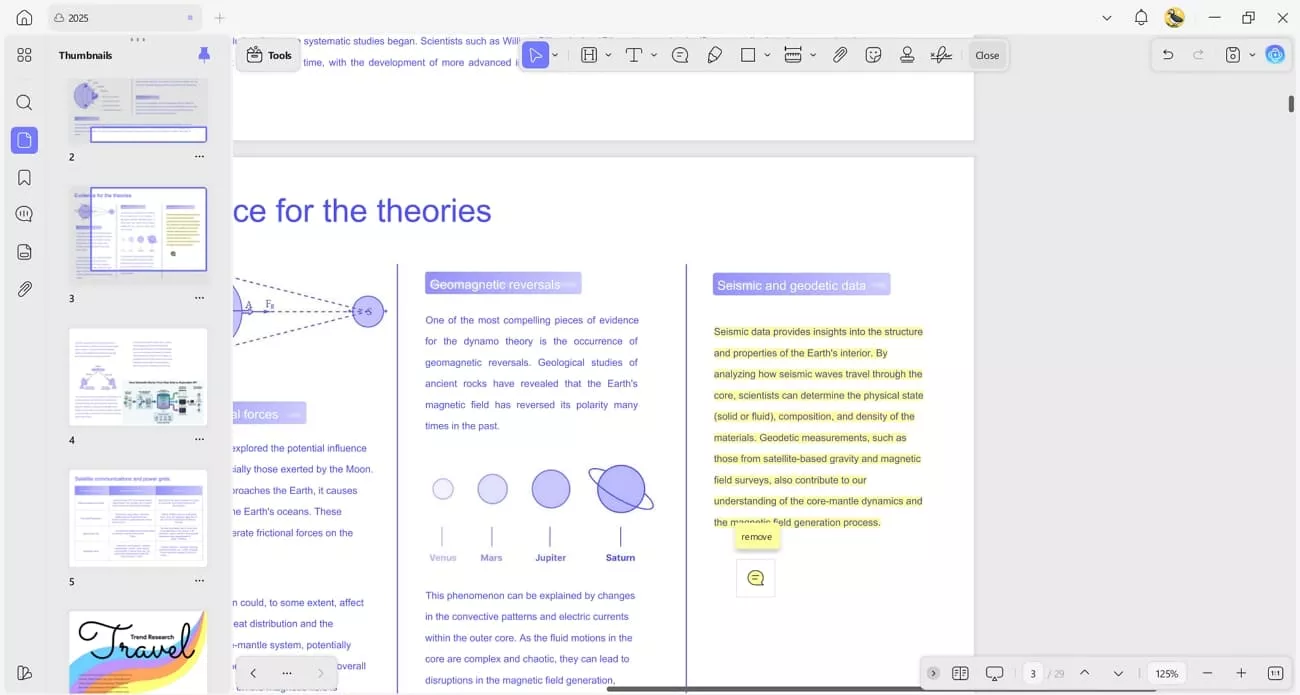
Shapes, markups, and signatures help me further personalize the document.
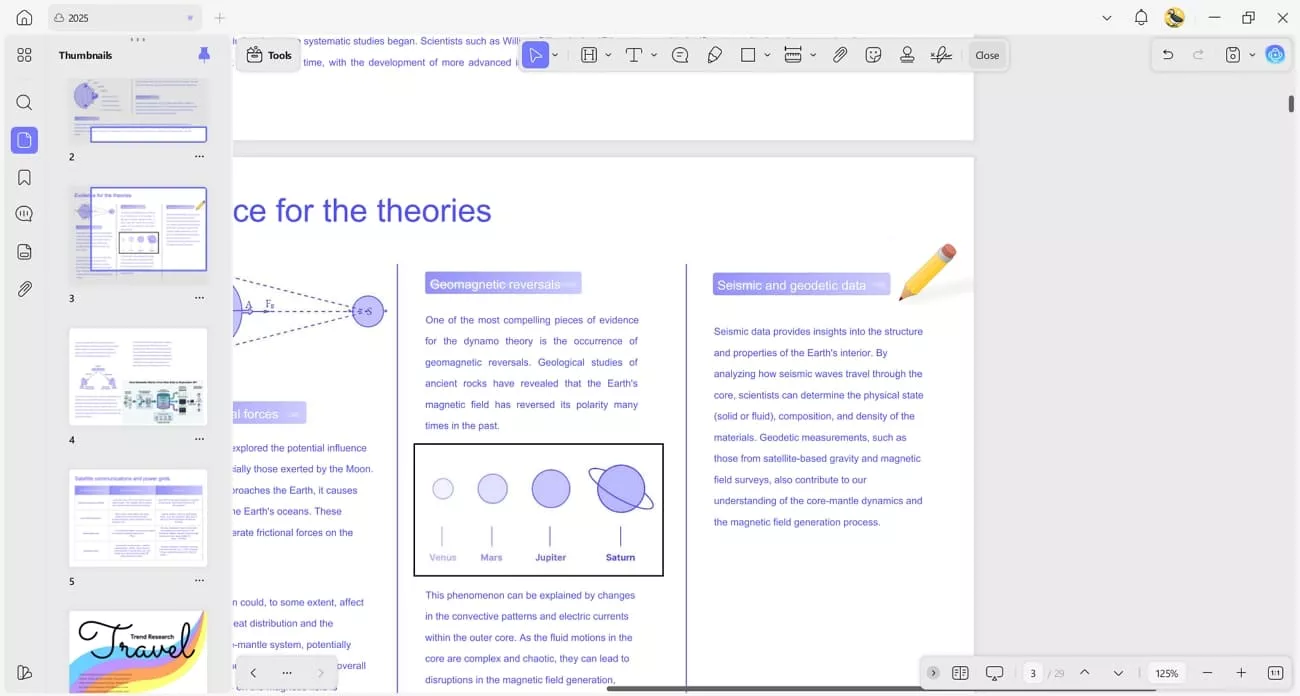
- Chat with PDF (UPDF AI): A standout experience is chatting with the PDF to get quick summaries without having to read everything. It also lets me translate the document into 12+ languages whenever required.
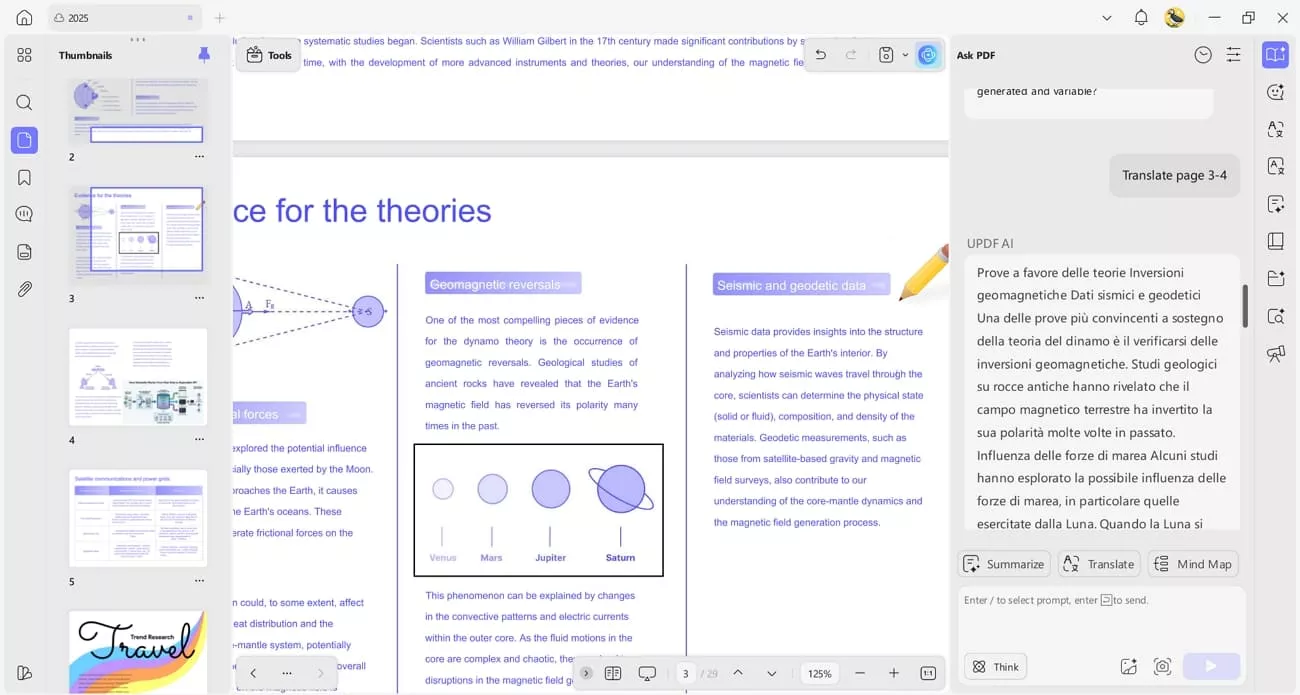
- Organize PDF: Managing the document layout becomes simple with options to crop, rotate, split, extract, and merge pages. This gives me complete control over how the PDF flows.
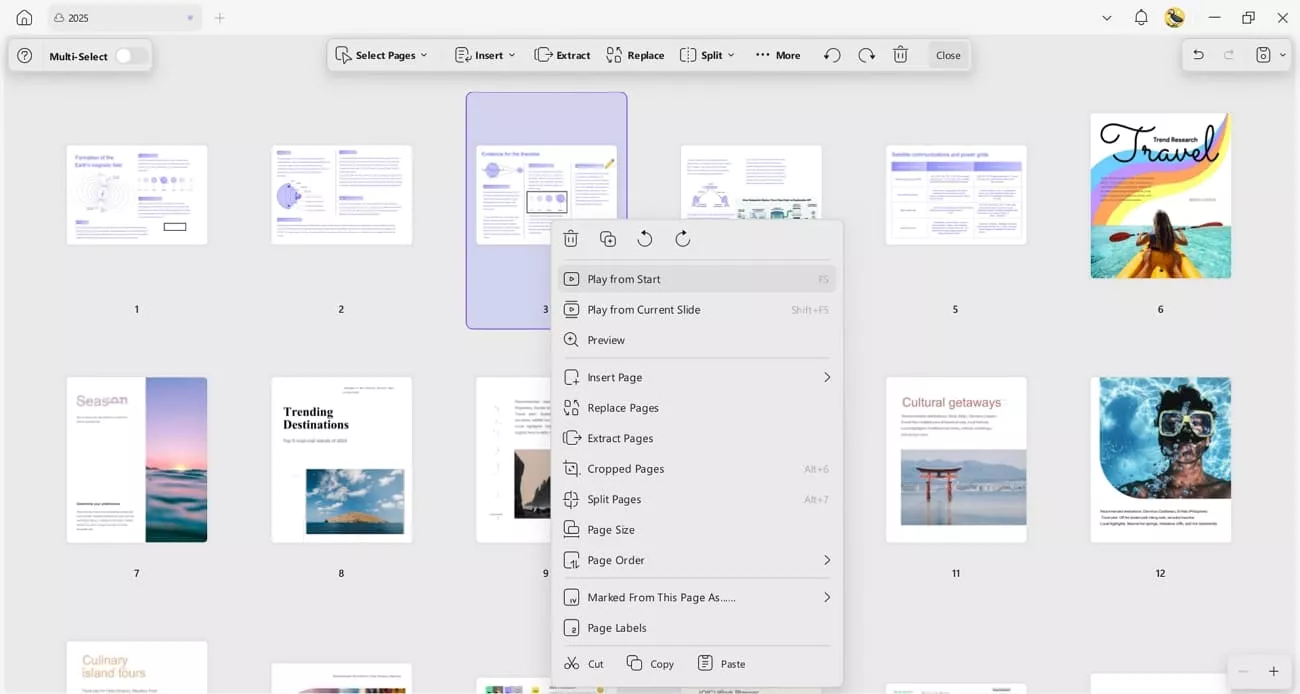
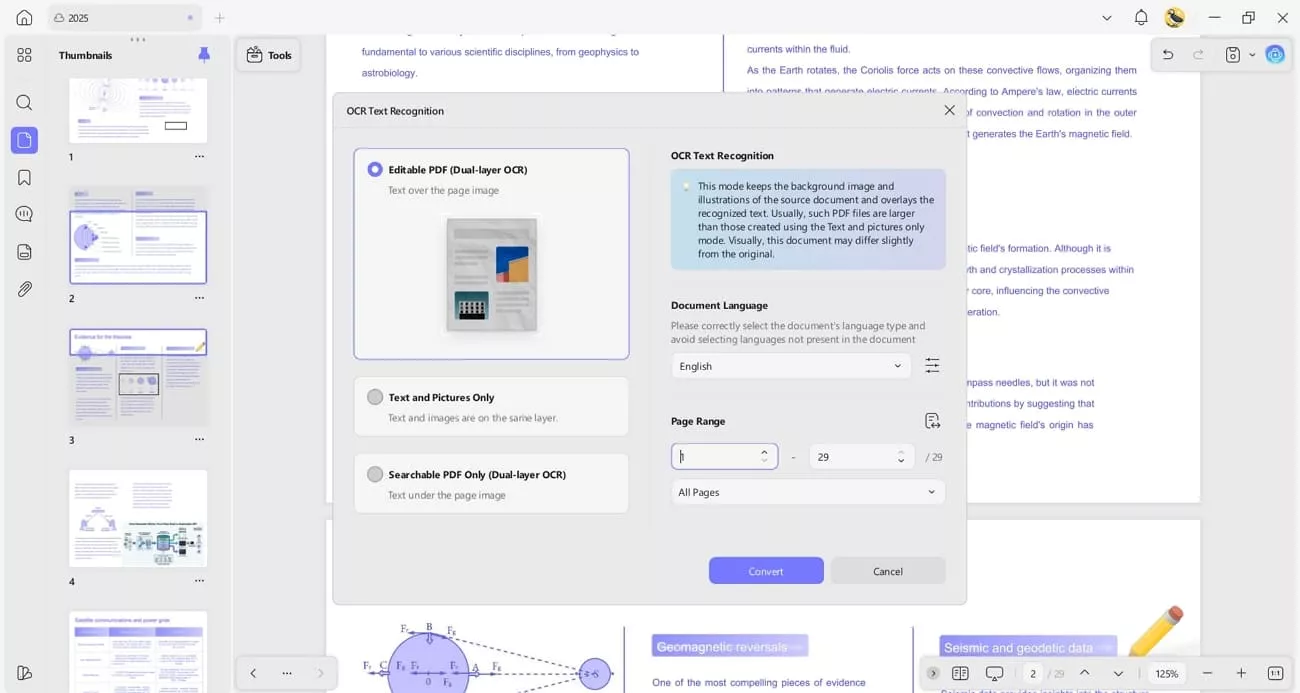
- OCR PDF: What saves me the most time is the OCR feature that converts scanned PDFs into searchable, editable text. It eliminates the need to manually retype content.
Click the button below to download UPDF and get started. If you need more advanced features, you can upgrade to a paid plan to unlock additional benefits. UPDF also includes a 30-day money-back guarantee for your peace of mind.
Windows • macOS • iOS • Android 100% secure
Conclusion
In this article, I showed how Nano Banana Pro transforms rough notes, tables, and ideas into polished visuals while maintaining accuracy and consistency. Pairing it with UPDF lets me insert, resize, annotate, and organize these visuals directly in PDFs to save hours of manual work. For anyone looking to turn digital content into professional, presentation-ready documents, UPDF is a must-have companion.
Windows • macOS • iOS • Android 100% secure




 Lizzy Lozano
 Enola Miller
 Enrica Taylor
-Reddit