 UPDF
UPDF
 UPDF for Windows
 UPDF for Mac
 UPDF for iPhone/iPad
 UPDF for Android
 Nomostar
 UPDF AI Online
 UPDF Sign
 IvyCraft
 Edit PDF
 Annotate PDF
 Create PDF
 PDF Form
 Edit links
 Convert PDF
 OCR
OCR PDF to Word
 PDF to Image
 PDF to Excel
 Organize PDF
 Merge PDF
 Split PDF
 Crop PDF
 Rotate PDF
 Protect PDF
 Sign PDF
 Redact PDF
 Sanitize PDF
 Remove Security
 Read PDF
 UPDF Cloud
 Compress PDF
 Print PDF
 Batch Process
 About UPDF AI
 UPDF AI Solutions
 AI User Guide
 FAQ about UPDF AI
 Summarize PDF
 Translate PDF
 Chat with PDF
 Chat with AI
 Chat with image
 PDF to Mind Map
 Explain PDF
 PDF AI Tools
 Image AI Tools
 AI Chat Tools
 AI Writing Tools
 AI Study Tools
 AI Working Tools
 Other AI Tools
 AI Bookmark Generation
 AI Bookmark Summary
 AI Watermark Generation
 AI Background Generation
 AI Sticker Generation
 AI Stamp Generation
 AI Editing Suite
 UPDF Copilot
 AI Page Management
 AI Semantic Search
 PDF to Word
 PDF to Excel
 PDF to PowerPoint
 Enterprise Solution
 Enterprise Sign
 Enterprise AI
 Enterprise Plan
 Enterprise User Guide
 Enterprise Webinar
 Banking
 Healthcare
 Insurance
 Legal
Legal Manufacturing
 Government
 Education Solution
 Customer Stories
 User Guide
 UPDF Tricks
 FAQs
FAQs UPDF Reviews
 Download Center
 Blog
Blog Newsroom
 Tech Spec
 Updates
 UPDF vs. Adobe Acrobat
 UPDF vs. Foxit
 UPDF vs. PDF Expert

You finished editing a PDF in Adobe Acrobat, hit Save — and got hit with "The document could not be saved. Bad parameter." Frustratingly, this error often shows up even on clean, uncorrupted files, and most commonly when you're applying security settings, adding a signature, or working with documents containing unusual fonts or media.
Below are 4 tested fixes for this Adobe error — flattening, print-to-PDF, combining with another PDF, and using a more stable PDF editor — UPDF.
Windows • macOS • iOS • Android 100% secure
Table of Contents
Part 1. Why You're Getting the "Bad Parameter" Save Error in Adobe
Before we fix this error, it is important to understand what causes it. This error usually appears in one of four situations:
- The most common scenario when you will face this error is when you are adding security to your PDF documents. It could be because of insufficient permissions to edit that document, and that's preventing you from adding security.
- Adding a digital signature to a document with restricted permissions or layered content.
- Saving in an outdated Adobe version, or running Adobe alongside conflicting software (older OCR utilities, third-party PDF plugins).
- You might be working with documents containing unusual fonts, media, or attachments that Adobe's save engine can't reconcile. Working with such unique content might be considered problematic for the Adobe PDF tool and that’s where you may face this problem.
Underneath these scenarios, the actual causes break down to three: (a) the PDF file itself is partially corrupted — often from interrupted downloads or transfers; (b) Adobe-side issues like installation bugs, memory pressure, or version conflicts; or (c) embedded content in the PDF contains parameters Adobe's save routine can't process correctly.
Part 2. How to Fix "The Document Could Not Be Saved. Bad Parameter" Error from Adobe? (4 Fixes)
Now that you know all the technical reason behind this error, here are some simple fixes that you can try. The fixes below are ordered from quickest to try first to most reliable long-term solution. If Fixes 1–3 don't hold up across multiple documents, Fix 4 is the permanent fix most users end up choosing.
Fix 1. Flatten the PDF in Adobe
A PDF document has multiple content layers — text, images, annotations, form fields. Flattening merges everything into a single layer, which removes interactivity but often clears the parameter conflict causing the save error. So, follow the steps below to flatten PDF with Adobe:
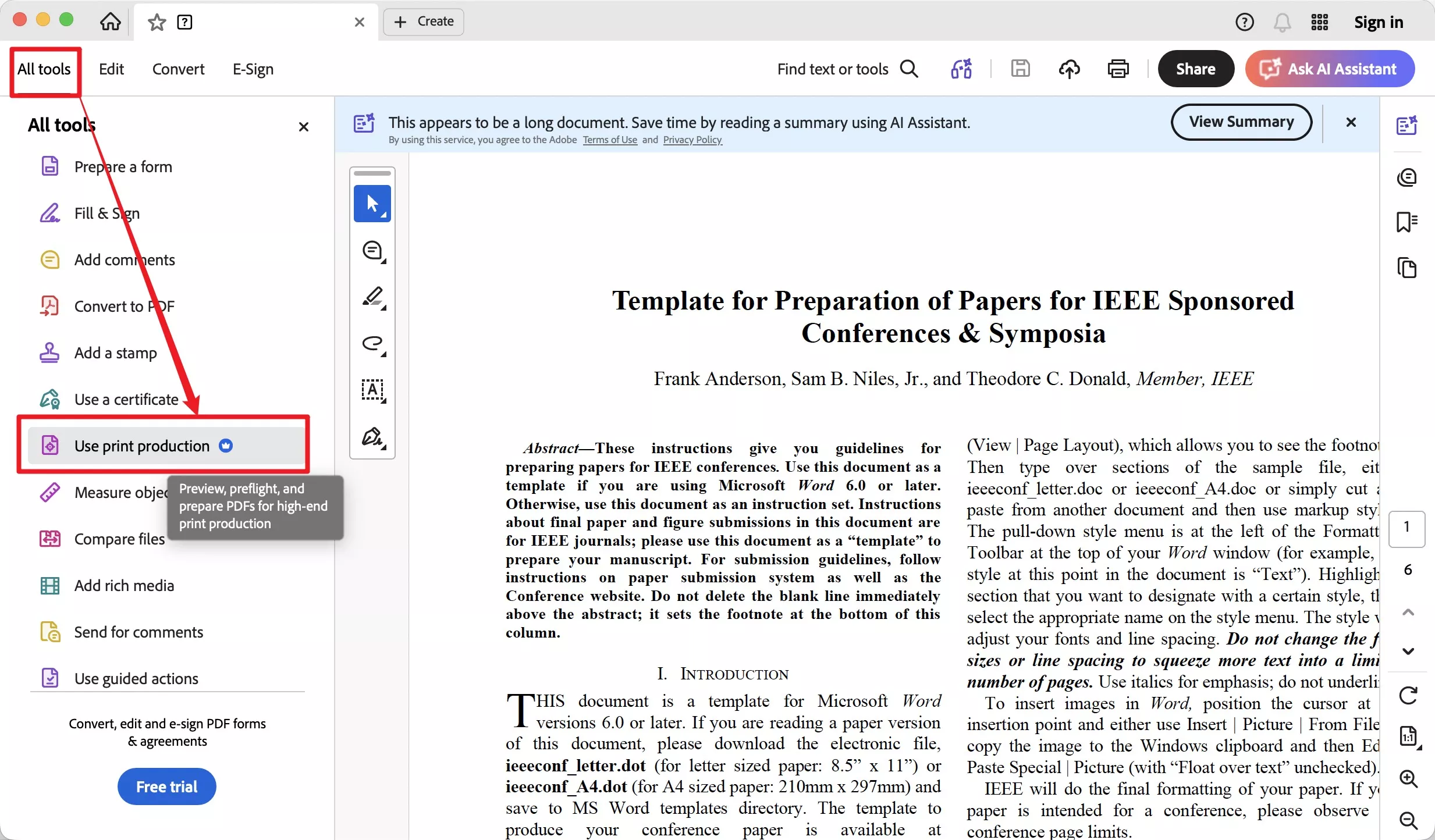
Step 1. Open the PDF in Adobe Acrobat. Go to Open file, then click Tools → Use Print Production.
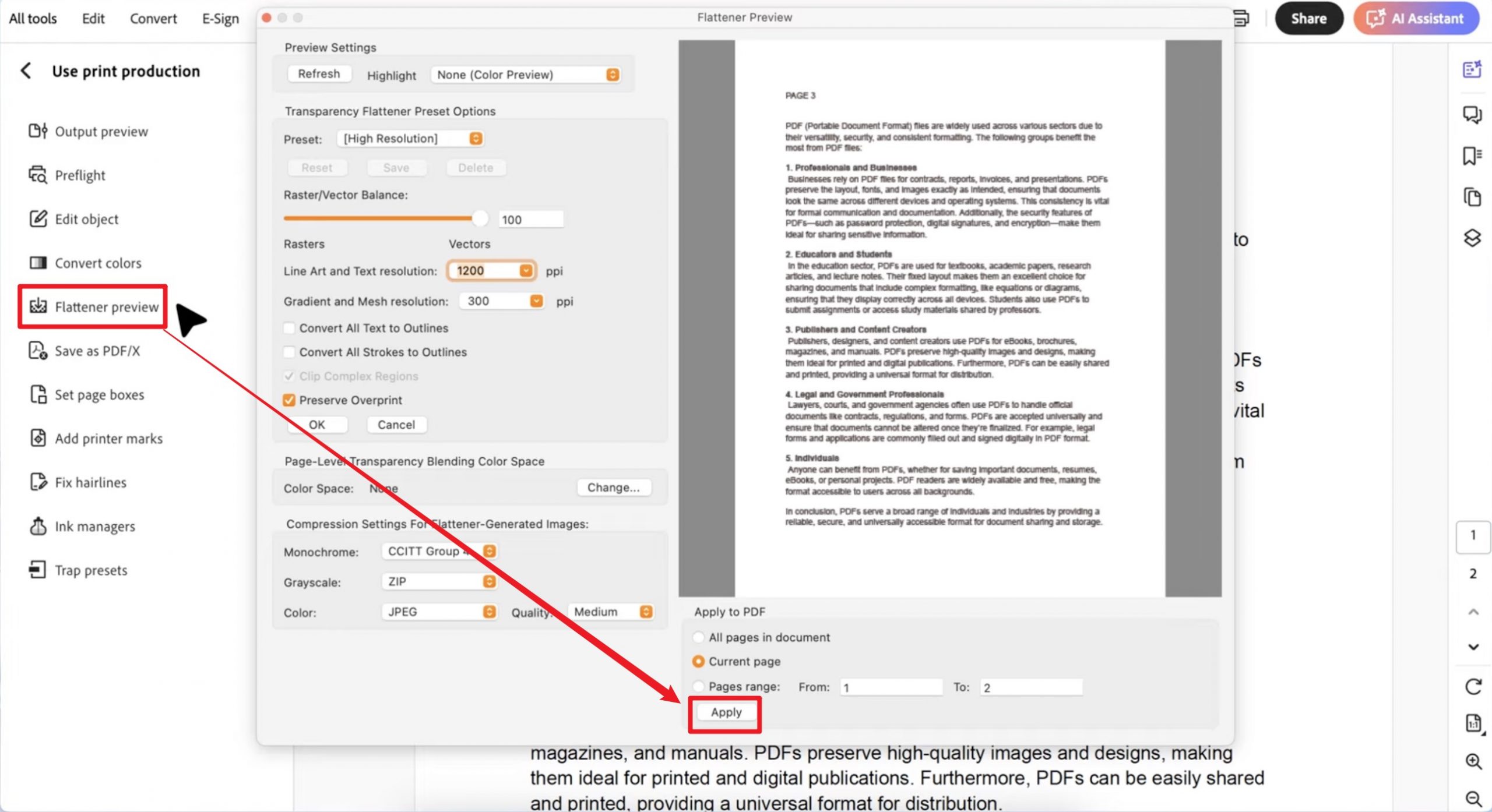
Step 2. Click Flatten Preview, adjust the flattening settings to fit your document, then click Apply to flatten your PDF. Press Ctrl + S (Windows) or Cmd + S (Mac) to save the flattened PDF.
Fix 2. Print the PDF to a New File
If flattening doesn't work, "printing" the PDF to a new PDF effectively rebuilds the file structure from scratch, which clears parameter errors caused by file-level corruption.
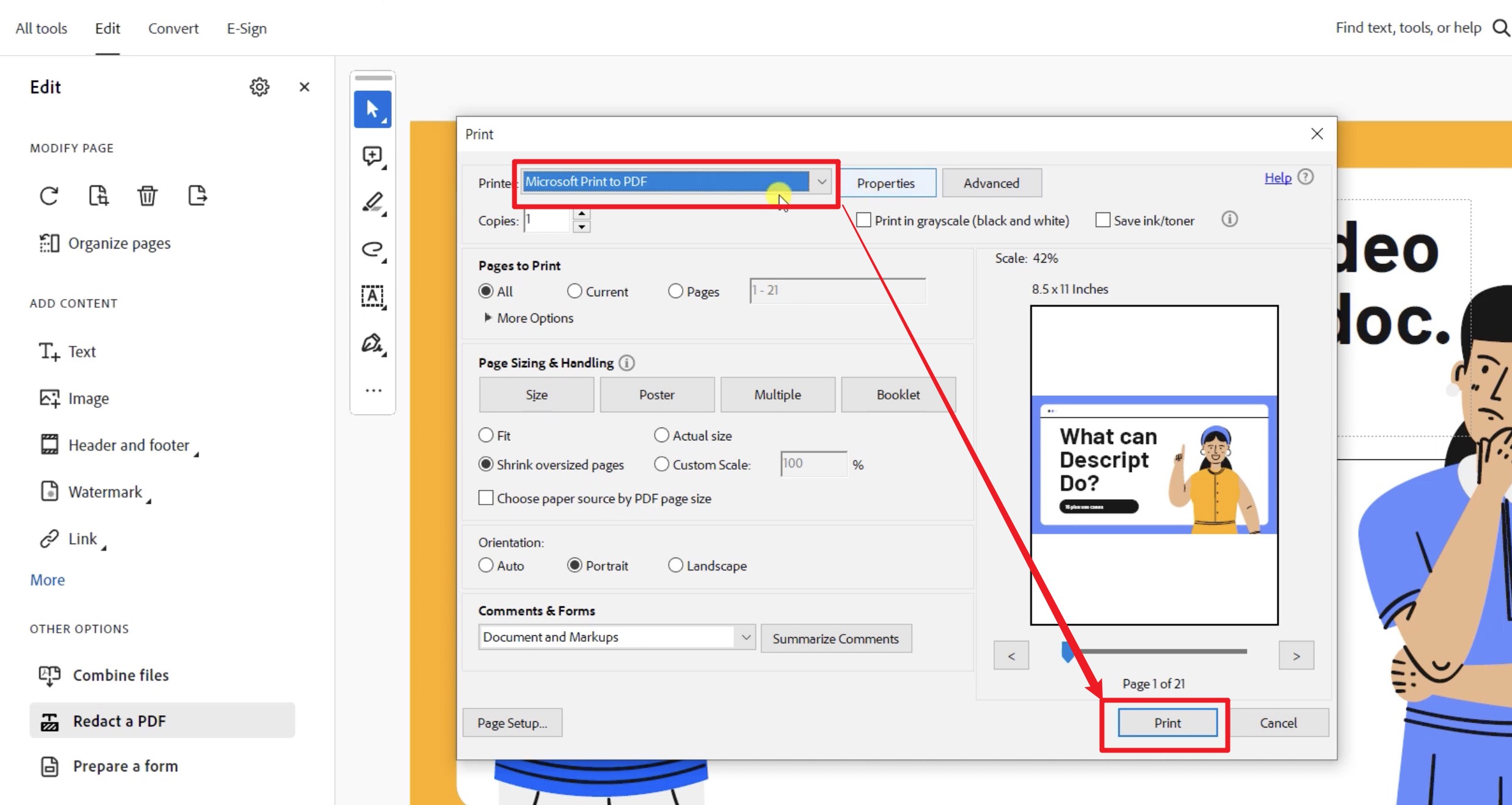
Step 1. Open the problem PDF in Adobe Acrobat. Press Ctrl + P (Windows) or Cmd + P (Mac) to open the print dialog.
Step 2. Set the printer to Microsoft Print to PDF (Windows) or Save as PDF (Mac). Click Print and save the new PDF to your chosen folder. The rebuilt copy should save without the error.
Fix 3. Combine the PDF with Another PDF
When a single document triggers the save error but you can't pin down which element is responsible, combining it with another PDF and re-saving the merged file often bypasses the problem. So, follow the steps below to combine your document with another PDF using Adobe.
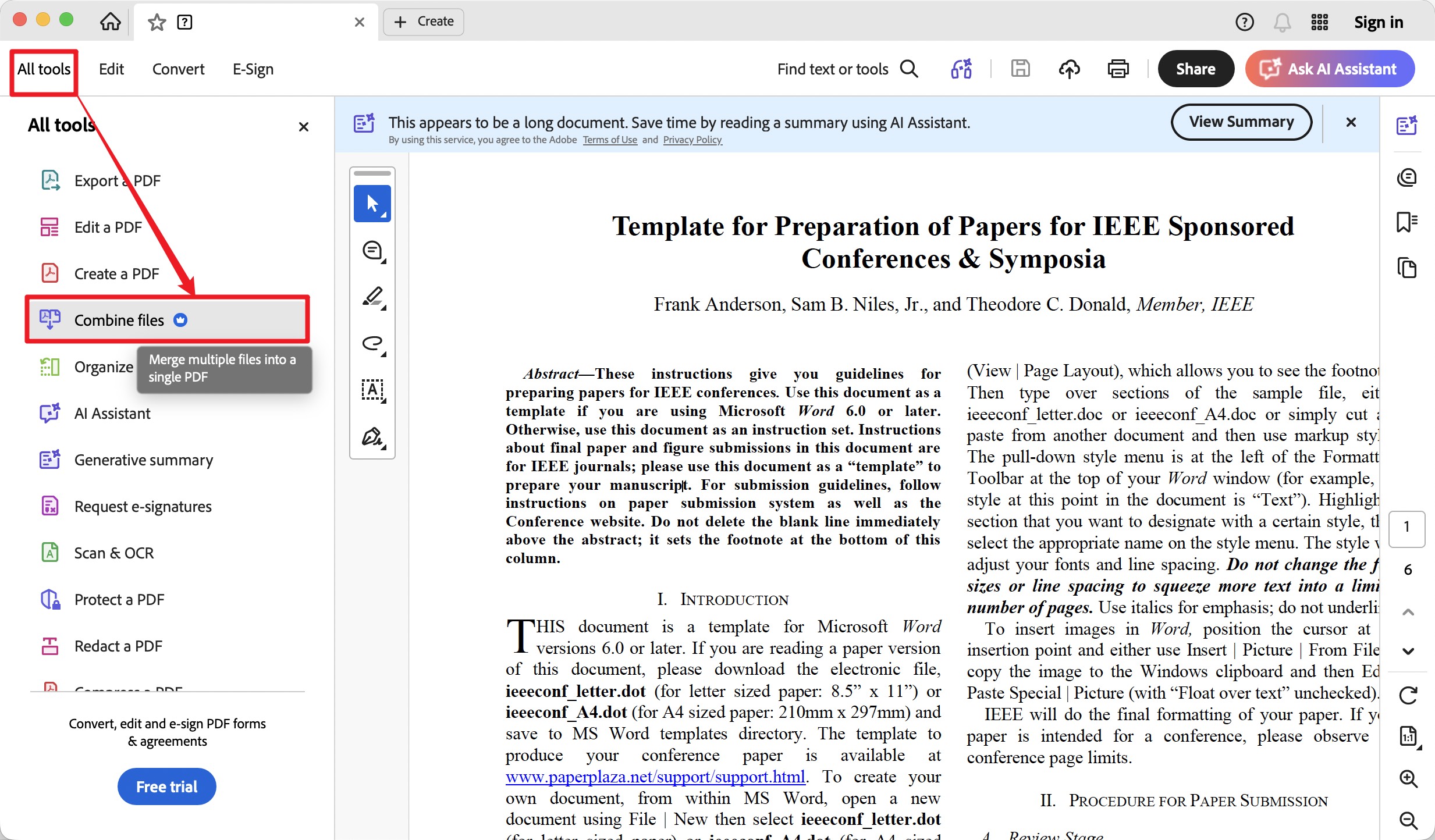
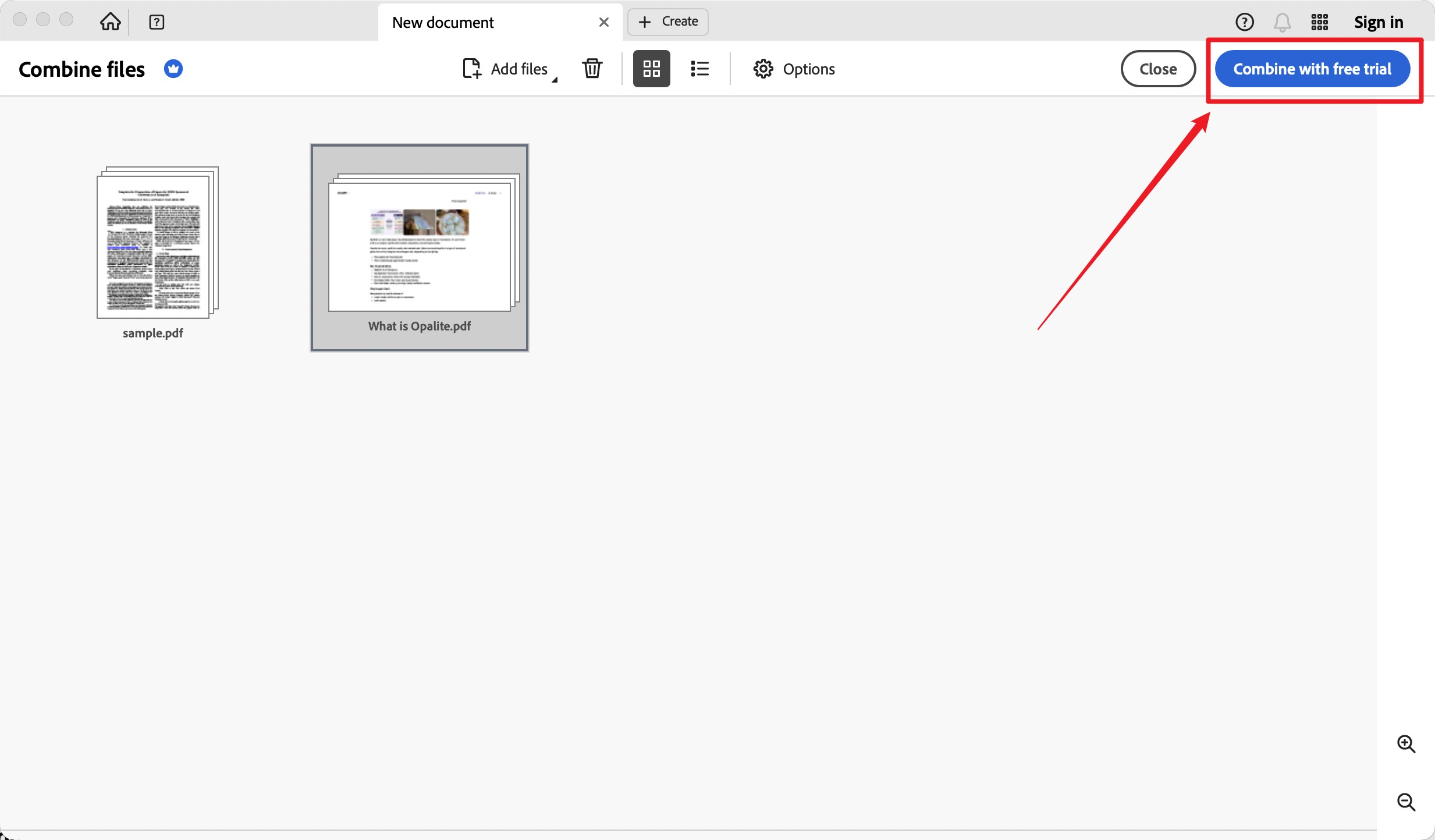
Step 1. Open Adobe Acrobat. Click All Tools → Combine Files → Add Files, then add the problem PDF along with any second PDF (a blank one works).
Step 2. Click Combine, then save the merged file.
Fix 4. Use UPDF — Save PDFs Without the "Bad Parameter" Error
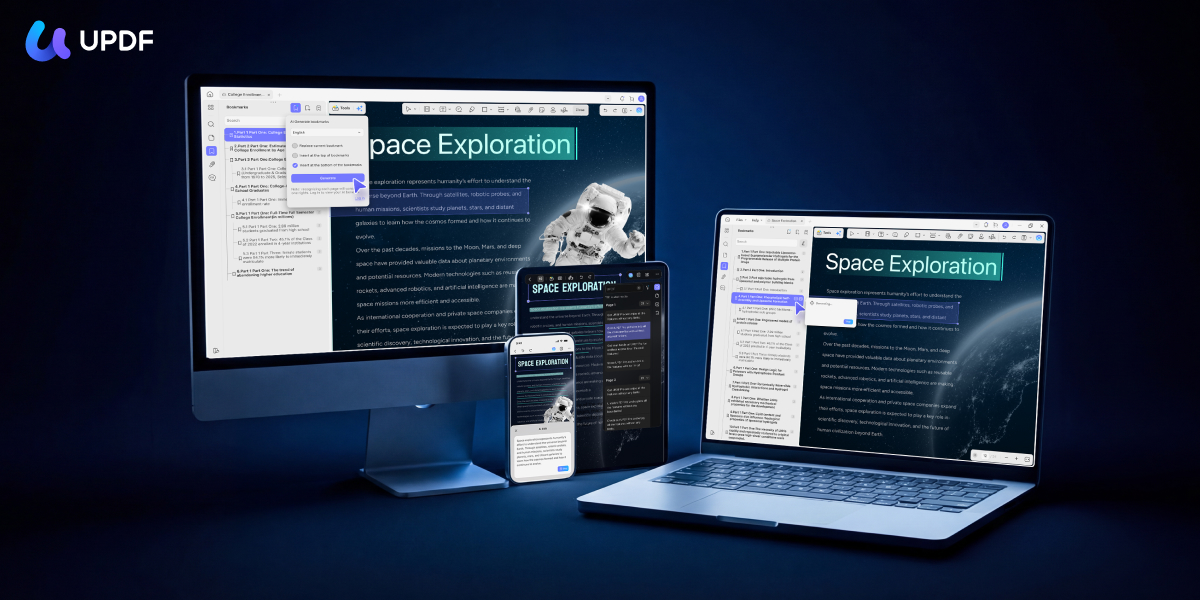
The first three fixes are workarounds. If you hit the "bad parameter" error on multiple documents, the underlying issue isn't your PDFs — it's Adobe's save engine struggling with certain content combinations. UPDF uses an independent PDF rendering and save engine, so the same files that fail in Adobe save cleanly in UPDF on the first try.
Windows • macOS • iOS • Android 100% secure
Good news for the techniques you just learned:
Beyond avoiding the error, two of UPDF's AI Agents directly address the causes of save failures:
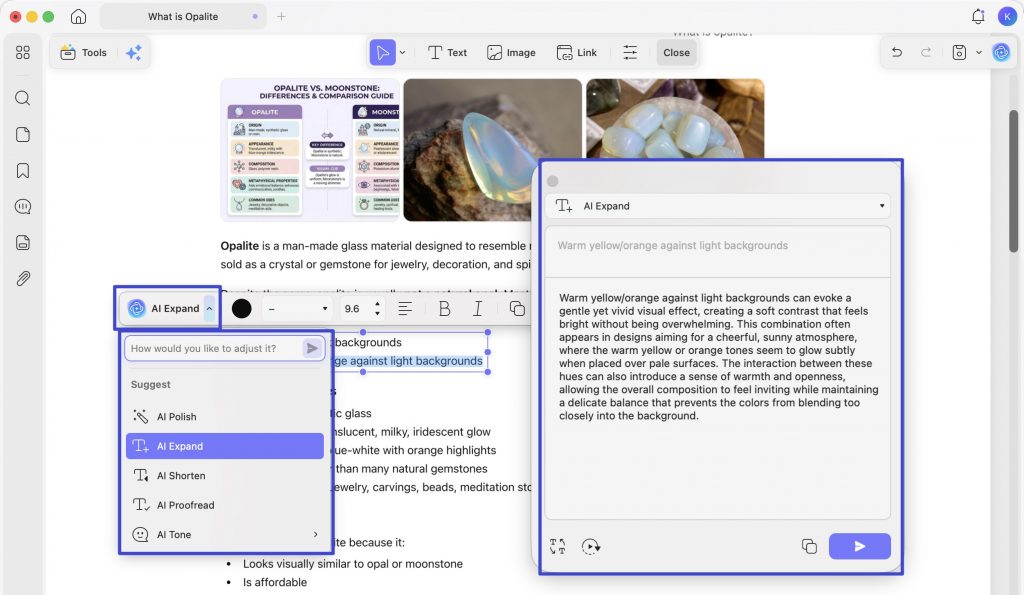
▶ AI Editing Suite — fix text issues in-place without re-exporting When the save error is triggered by problematic text content (broken fonts, mixed character sets, unusual formatting), UPDF's AI Editing Suite lets you rewrite, refine tone, or correct grammar directly inside the PDF text box — no need to export to Word, edit, and re-import (which is where Adobe often re-introduces corruption).
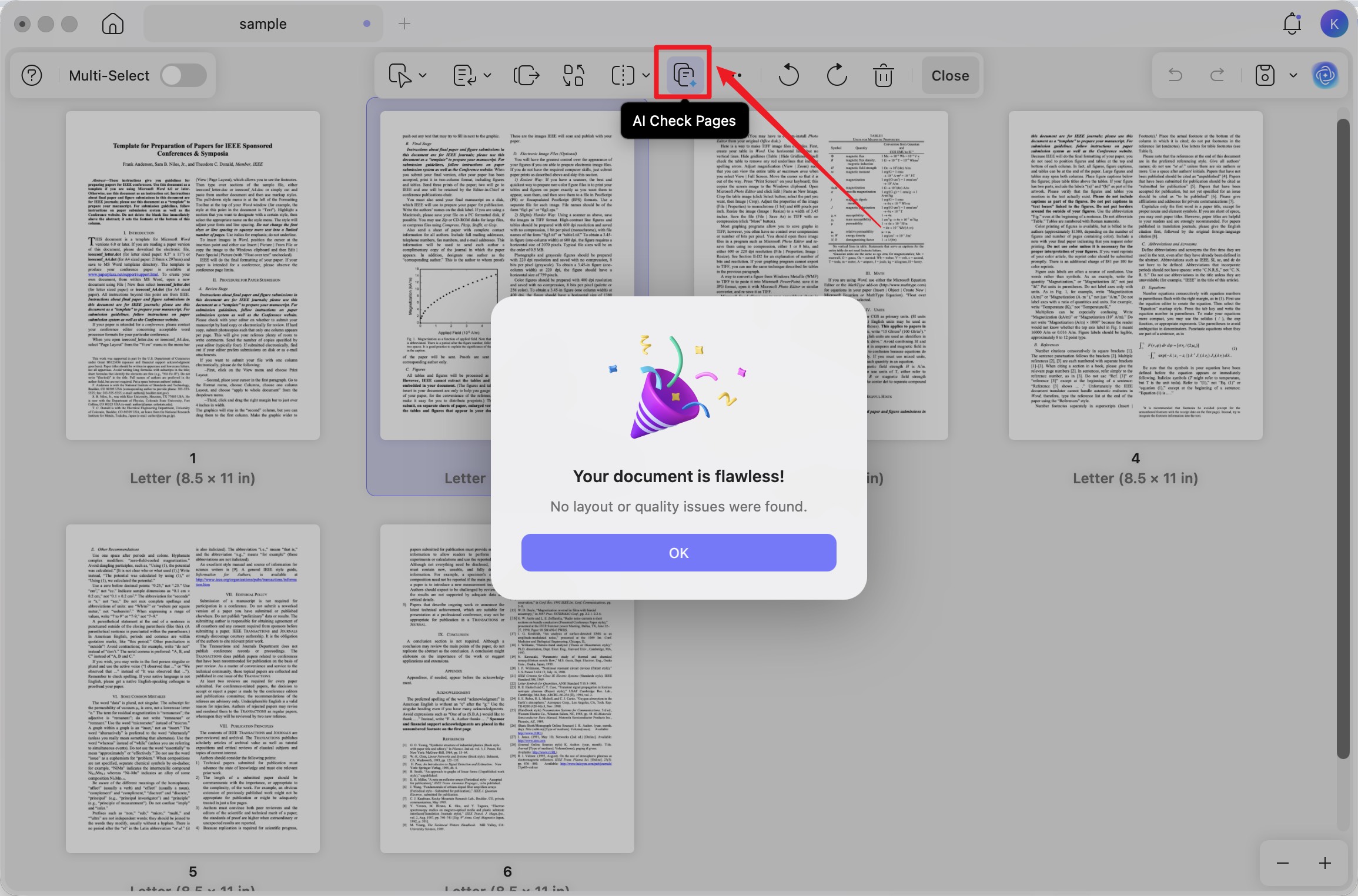
▶ AI Page Organizer — auto-detect corrupted or problem pages If your "bad parameter" error stems from one bad page in a long document, manually finding it is tedious. AI Page Organizer scans the whole PDF and flags page-level issues — blank pages, reversed pages, scan errors — with one-click actions to delete, extract, or OCR each one. Apply the fixes, save, and the error is gone.
Just follow the below steps to open and save your PDF to solve the error of "the document could not be saved bad parameter" when using Adobe Acrobat.
Step 1. Download and launch UPDF. Click Open File and select the PDF that's giving you the error in Adobe.
Windows • macOS • iOS • Android 100% secure

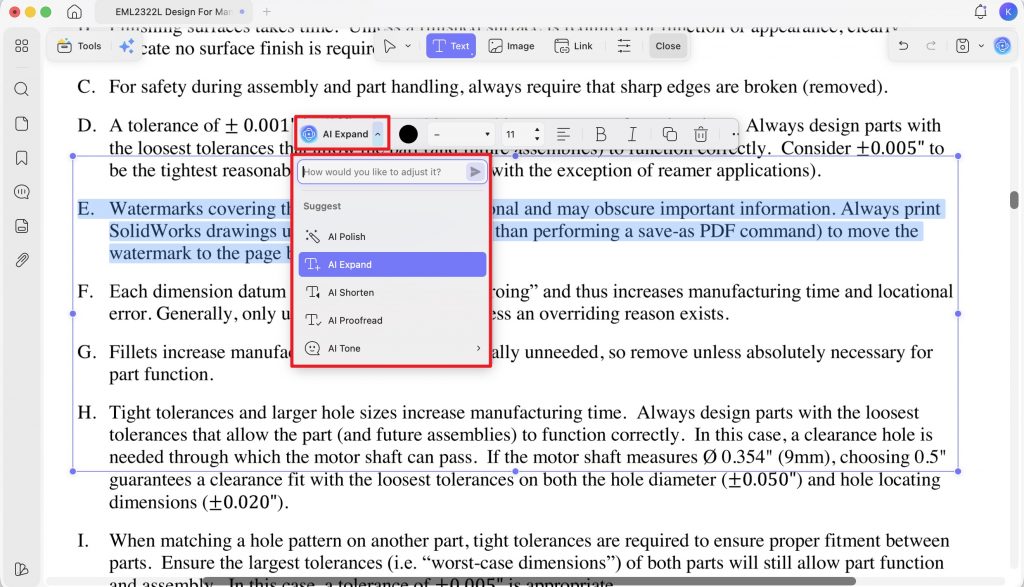
Step 2. Make any edits you need — click the top-toolbar Edit to modify text, images, or links. To use the AI Editing Suite, select any text block and choose AI Polish, AI Expand, AI Shorten, AI Proofread or AI Tone.
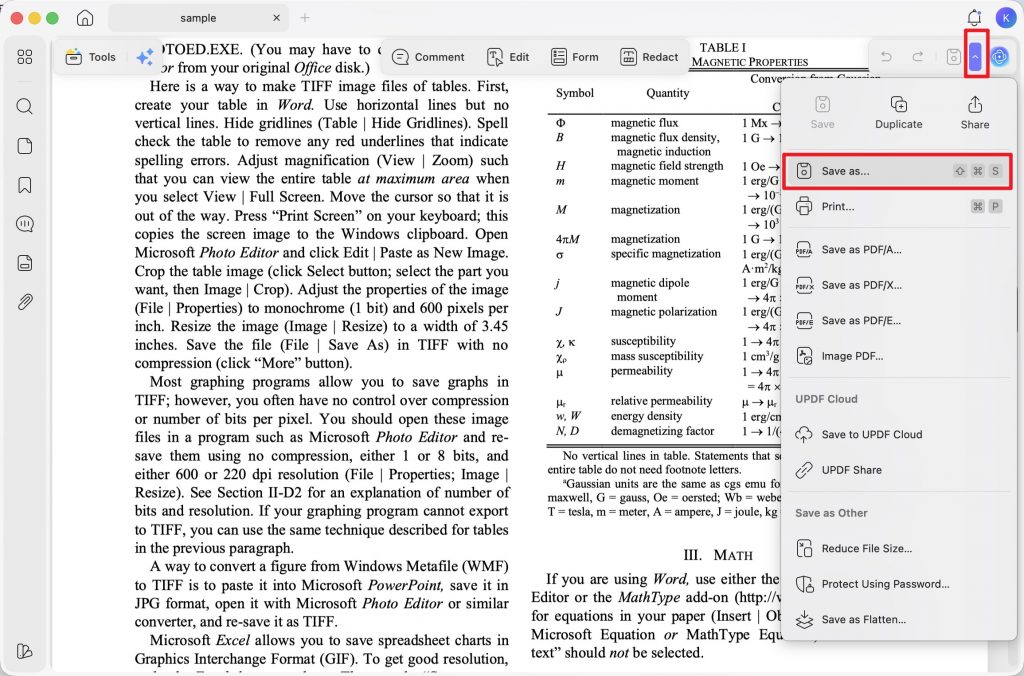
Step 3. Click Save in the top-right corner to overwrite the original, or click the dropdown arrow next to the Save button → Save As... to keep both files. UPDF saves cleanly without parameter errors.
Why UPDF for the long-term fix:
| Adobe Acrobat Pro | UPDF Pro | |
| Annual price | $239.88/year | $49.99/year |
| Perpetual license | No longer offered | $79.99 one-time |
| Platforms covered by one license | Two computers (Windows and/or Mac) | Windows + Mac + iOS + Android |
| AI Agents for content/page issues | Limited Acrobat AI | 10 specialized AI Agents |
| Core PDF tools (edit, convert, OCR, annotate, forms, sign, protect, organize, batch) | ✅ All included | ✅ All included |
| Triggers "bad parameter" save errors | ⚠️ Recurring issue | ❌ Not affected |
What Else You Can Do With UPDF
Once the save error is out of the way, here are the everyday features that make UPDF worth keeping installed:
- Edit PDF — Click any text, image, or link and modify it directly inside the document. No exporting to Word, editing, and re-importing — which is where most save-corruption issues quietly start.
- PDF OCR — Turn a scanned contract or photographed receipt into editable, searchable text. Useful for digitizing old printouts, archive documents, or anything you can only get in image form.
- Convert PDF — Export your PDF to Word, Excel, PPT, TXT, or PDF/A whenever you need to hand off a deliverable in a different format.
- Annotate PDF — Highlighter, sticky notes, freehand pencil, callouts, stickers, and stamps in a single toolbar — comfortable for long study sessions or team review.
- UPDF Cloud — Start a document on your laptop, finish it on your phone, and skip the "email it to yourself" workaround. Cross-device sync is included with every plan.
Download UPDF for free and save your PDFs without the bad parameter error — no subscription required to get started.
Windows • macOS • iOS • Android 100% secure
The video tutorial below further describes how you can use different UPDF features for multiple use cases.
Conclusion
The "bad parameter" save error usually comes down to one of three things: file corruption, unusual embedded content, or compatibility issues between the document and the editor processing it. Flattening, print-to-PDF, or combining files will resolve it on a case-by-case basis. If the error keeps reappearing across different documents, moving your PDF work into UPDF is the more reliable long-term option — and with AI Editing Suite for in-place text fixes and AI Page Organizer for detecting problem pages, you have tools to address what's causing the error, not just patch it each time.
Download UPDF for free and save your PDFs without the bad parameter error — no subscription required to get started.
Windows • macOS • iOS • Android 100% secure





 Enola Davis

 Lizzy Lozano
 Enid Brown
 Enola Miller