 UPDF
UPDF
 UPDF for Windows
 UPDF for Mac
 UPDF for iPhone/iPad
 UPDF for Android
 UPDF AI Online
 UPDF Sign
 Edit PDF
 Annotate PDF
 Create PDF
 PDF Form
 Edit links
 Convert PDF
 OCR
OCR PDF to Word
 PDF to Image
 PDF to Excel
 Organize PDF
 Merge PDF
 Split PDF
 Crop PDF
 Rotate PDF
 Protect PDF
 Sign PDF
 Redact PDF
 Sanitize PDF
 Remove Security
 Read PDF
 UPDF Cloud
 Compress PDF
 Print PDF
 Batch Process
 About UPDF AI
 UPDF AI Solutions
 AI User Guide
 FAQ about UPDF AI
 Summarize PDF
 Translate PDF
 Chat with PDF
 Chat with AI
 Chat with image
 PDF to Mind Map
 Explain PDF
 Scholar Research
 Paper Search
 AI Proofreader
 AI Writer
 AI Homework Helper
 AI Quiz Generator
 AI Math Solver
 PDF to Word
 PDF to Excel
 PDF to PowerPoint
 Enterprise Solution
 Enterprise Sign
 Enterprise AI
 Enterprise Plan
 Enterprise User Guide
 Enterprise Webinar
 Banking
 Healthcare
 Insurance
 Legal
Legal Manufacturing
 Government
 Education Solution
 Customer Stories
 User Guide
 UPDF Tricks
 FAQs
FAQs UPDF Reviews
 Download Center
 Blog
Blog Newsroom
 Tech Spec
 Updates
 UPDF vs. Adobe Acrobat
 UPDF vs. Foxit
 UPDF vs. PDF Expert

Kindle devices have revolutionized the way we read, offering a vast library from the latest bestsellers to timeless classics. Many readers, however, wonder how they can download Kindle books into a more versatile format like PDF—for detailed annotations, research, or easier sharing. This guide will walk you through the possibilities, limitations, and safe ways to interact with Kindle content.
It also introduces UPDF, a powerful PDF tool that enhances your reading and document management experience. With UPDF, you can read, annotate, and organize PDFs efficiently. Interested? Click the button below to try!
Windows • macOS • iOS • Android 100% secure
Continue reading to explore safe approaches to working with Kindle books and discover how to unlock the full potential of your digital library.
Part 1. Can I Download a Kindle Book as a PDF?
Due to digital rights management (DRM), you cannot directly download or convert Kindle books to PDFs. Kindle books are typically formatted in Amazon's proprietary formats such as AZW or MOBI, which are designed to be read on Kindle devices or apps only. This DRM ensures that content cannot be distributed without permission.
However, there are legitimate methods to read Kindle books on PDF-friendly devices:
- Kindle for PC/Mac or Kindle app: You can open your purchased Kindle books on desktop or mobile apps, then use printing options or Amazon’s Kindle Cloud Reader for offline reading in some cases.
- Personal note-taking & research: If your goal is to annotate or analyze content, you can use tools like UPDF to manage and annotate PDF versions of lecture notes, research papers, or DRM-free documents.
Why Use UPDF for Reading and Annotation
- Effortless PDF reading: Comfortable, customizable reading environment.
- Annotation & markup: Highlight text, add notes, draw, and manage important passages.
- Document organization: Keep your PDFs, research papers, and notes in one place with cloud sync across Windows, Mac, iOS, and Android.
Whether for research, studying, or reviewing multiple documents, UPDF provides a reliable all-in-one solution for managing and interacting with PDFs.
Windows • macOS • iOS • Android 100% secure
Part 2. How to Download/Save a Kindle Book as a PDF
Turning a Kindle book into a PDF requires a few steps, as Kindle books are not natively available in PDF format. This process involves transforming the Kindle file to a format that can be read as a PDF. It's important to note that while this conversion is technically possible, it should be done in compliance with digital rights and copyright laws. In this section, we will guide you through the steps to download and save a Kindle book as a PDF. This process is useful for those who prefer the versatility and accessibility of PDFs or need to use their Kindle content in a format that's more universally compatible.
Method 1. Kindle App:
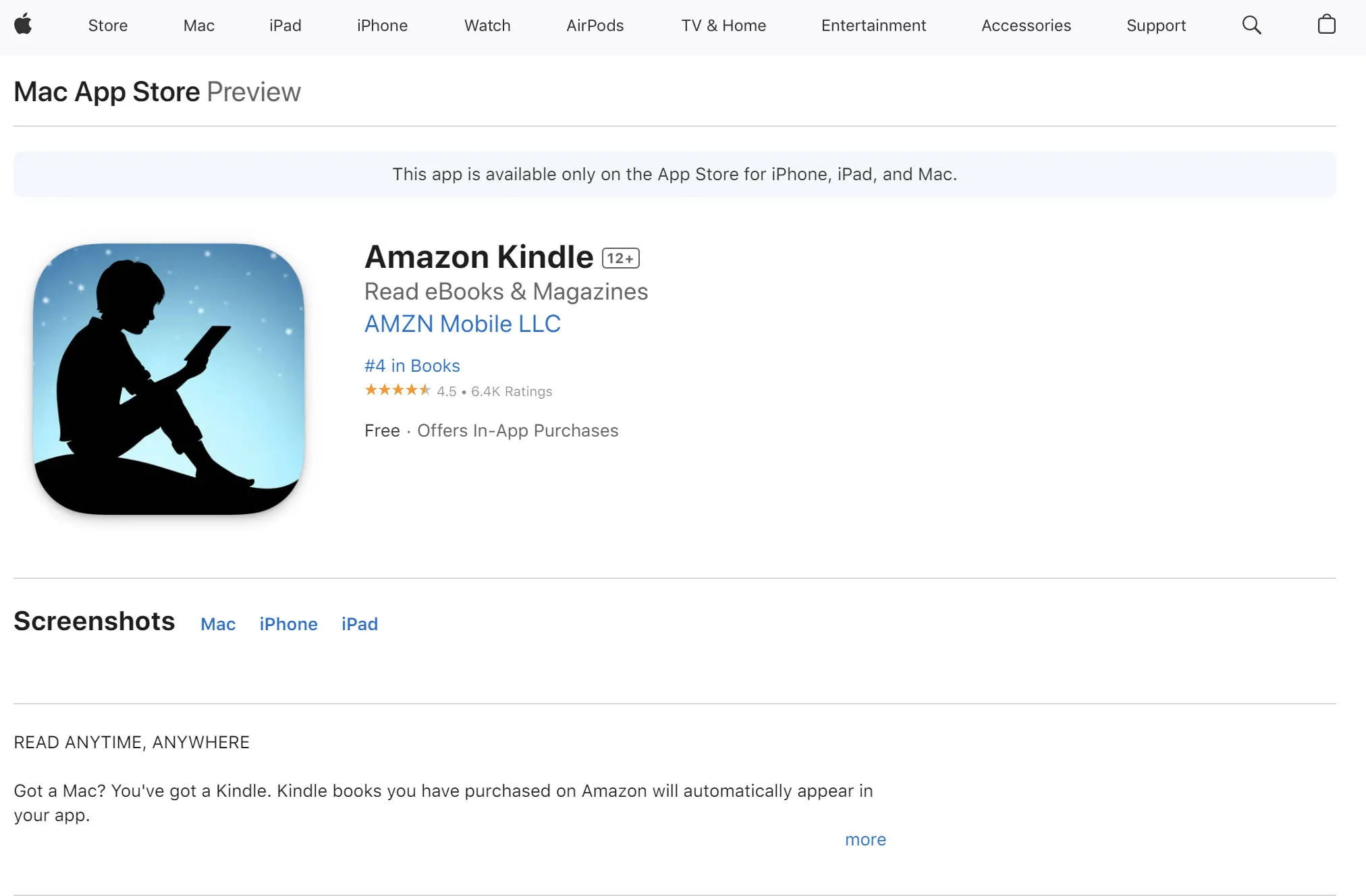
To download Kindle books as PDFs using the Kindle App on your smartphone or tablet, follow these detailed steps:
- Launch the Kindle App on your device and log in using your Amazon credentials.
- Head to the Library section, where you'll find your entire collection of Kindle books.
- Search for the specific book you wish to download in PDF format and select it to open.
- With the book open, you'll notice several icons at the top of the screen. Look for an icon resembling three dots or lines, and tap it to view additional options.
- In the menu that pops up, choose either the "Download" or "Export" option. This action will begin the process of converting and downloading the book as a PDF file.
- The time taken to complete the download depends on the book's size and your internet connection speed. It could vary from a few seconds to several minutes.
- After the download finishes, the PDF file will be saved either in the download folder of your device or within the Downloads area of the Kindle App.
- You can now effortlessly access and read the downloaded PDF version of the Kindle book using any PDF reader application, such as UPDF, on your device.
Windows • macOS • iOS • Android 100% secure
Method 2. Kindle e-Reader:
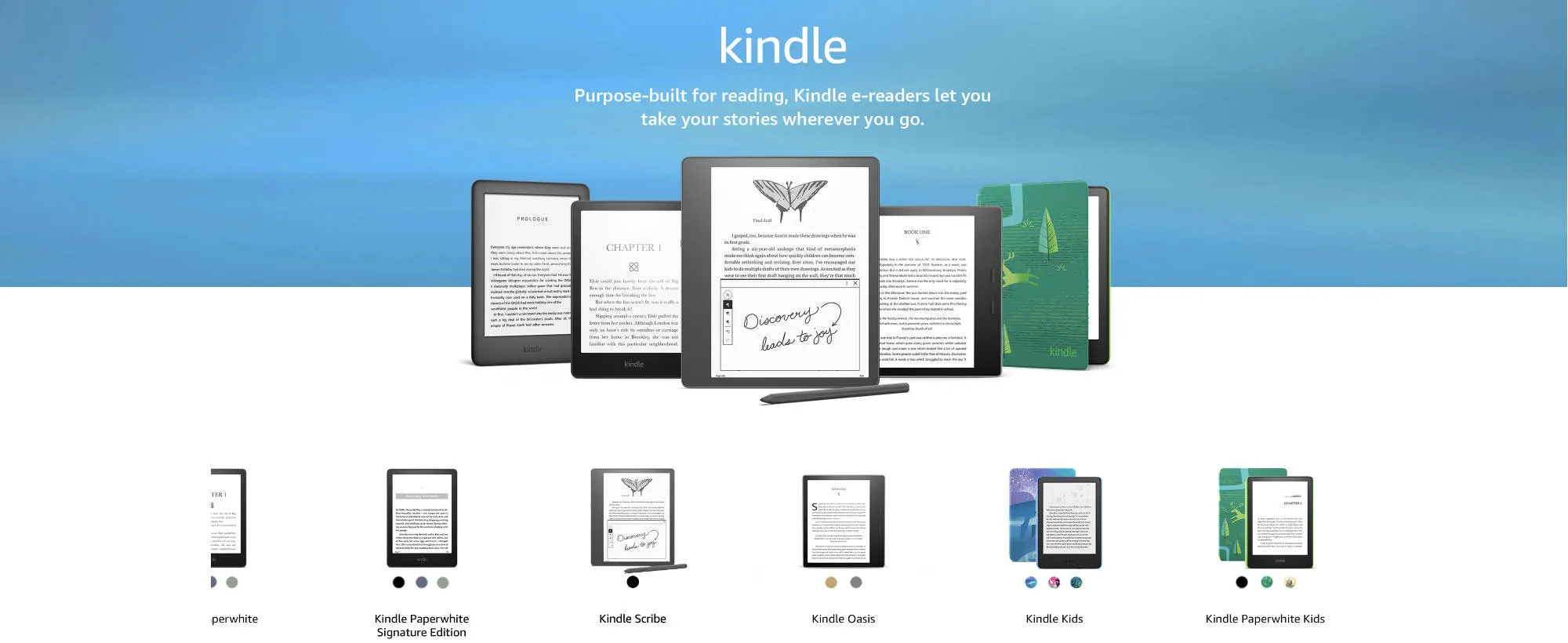
For Kindle e-reader owners, converting Kindle books to PDFs directly on the device is a straightforward process. Here is a step-by-step guide
- Power on your Kindle e-reader and ensure it is connected to a Wi-Fi network.
- On the home screen, go to the "Library" or "All Items" section, which houses your Kindle book collection.
- Use the directional buttons on your Kindle to navigate to the book you want to convert into a PDF. Press the center button to open the selected book.
- With the book open, access the "Menu" or "Options" button on your Kindle. This action will display a variety of choices.
- In the menu, look for and select the "Export" or "Save as PDF" function. This will commence the conversion of the book into a PDF format.
- The Kindle e-reader will take a short while to process and create the PDF version of the book.
- Once the conversion process is successfully completed, a notification will confirm the creation of the PDF file. You can find the newly created PDF in the "Documents" or "My Files" area of your Kindle e-reader.
- If you wish to transfer this PDF file to a different device or a computer to access a PDF annotator like UPDF, connect your Kindle e-reader to the computer using a USB cable. Your Kindle will appear as an external storage device, allowing you to copy the PDF file to a preferred location on your computer or another device.
Method 3. Amazon.com
Downloading Kindle books as PDFs via a computer or laptop is a convenient process that can be done through Amazon's website. Here's a detailed guide on how to do it:
- Begin by launching your preferred web browser and navigating to the Amazon website.
- Log in to your Amazon account with your username and password.
- After logging in, locate and click on the "Account & Lists" button at the top right corner of Amazon's homepage.
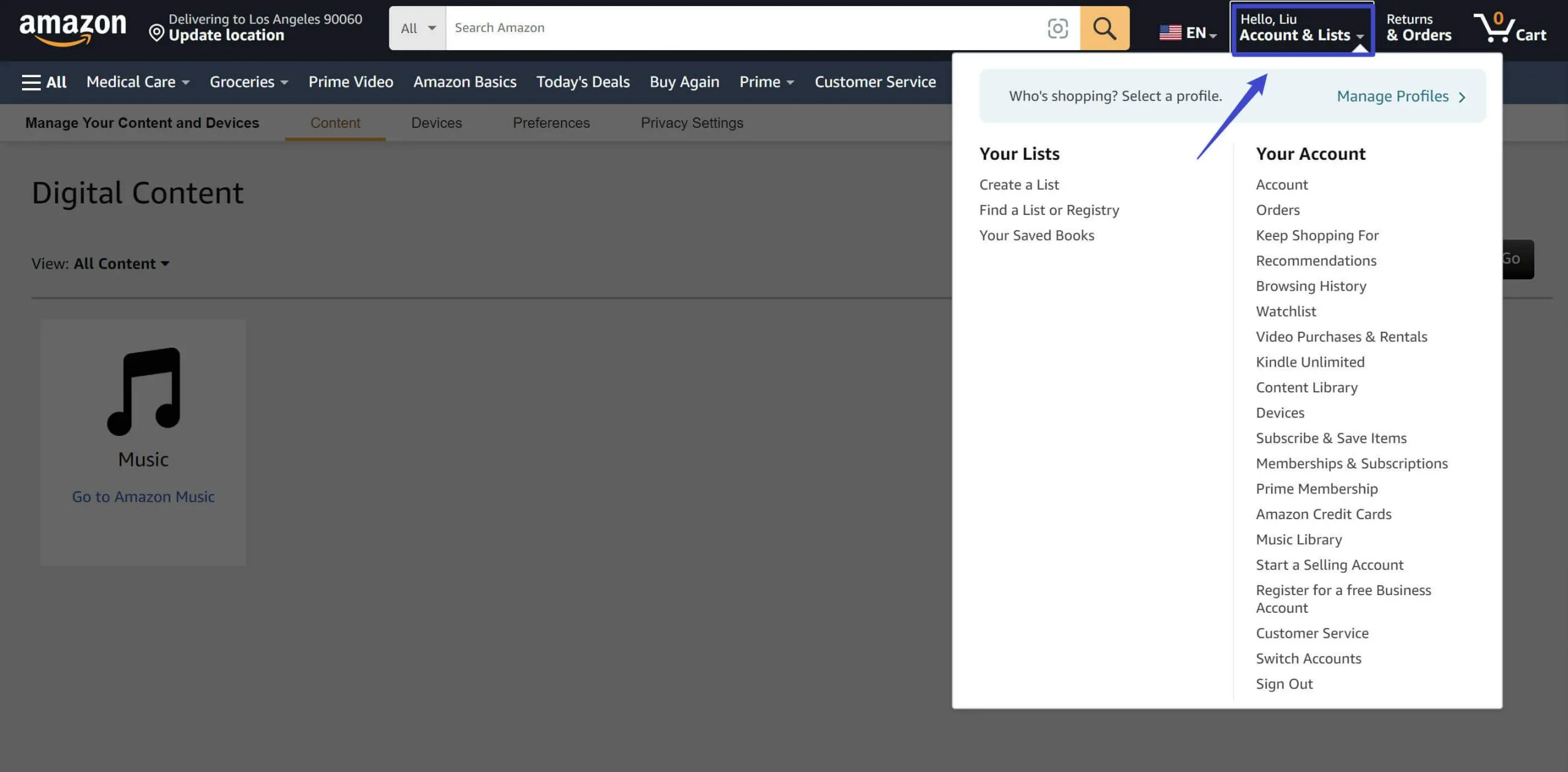
- In the dropdown menu that appears, select the "Content and Devices" option. This action directs you to a page where you can manage and view all your Kindle books.
- On this content management page, find the specific book you wish to download as a PDF. You can either use the search function or browse through your Kindle library to locate the book.
- When you find the book, select it by clicking the checkbox next to the book's title. You have the option to choose multiple books for simultaneous download.
- After selecting the book(s), click on the "…" button associated with the selected book(s) to reveal more options.
- A download prompt may then appear, depending on your web browser settings. Choose a suitable location on your computer to save the PDF file and confirm the download by clicking "Save" or "OK".
- Once the download is finished, the Kindle book in PDF format will be available on your computer. You can open it using any PDF reader software installed on your computer, such as UPDF, to further annotate and modify your document.
- If you need to transfer the downloaded PDF file to a different device, connect that device to your computer using an appropriate cable. Then, copy the PDF file to your preferred location on the connected device.
These method offers a great way to access Kindle books in a more versatile format, allowing for ease of reading on various devices and the capability to share with others.
Part 3. Maximizing Your PDF Experience with UPDF After Modifying Kindle Books
Users often want to access Kindle books in PDF format for the flexibility and convenience PDFs provide. Unlike Kindle“s proprietary formats, PDFs can be opened on virtually any device—smartphones, tablets, or computers—ensuring a seamless reading experience across platforms. This makes PDFs a preferred choice for students, professionals, and avid readers worldwide.
UPDF enhances this PDF experience by combining powerful reading, editing, and AI-assisted features in a single platform:
- PDF Reading & Annotation: Highlight text, add notes, draw, and organize pages by adding, deleting, or rearranging them.
- AI Assistant for Efficient Reading: Summarize documents, extract key insights, and quickly understand complex content—ideal for study, research, or professional work.
- Multilingual Support & Text-to-Speech: Read PDFs aloud in multiple languages, making it easier to study or review content in your preferred language.
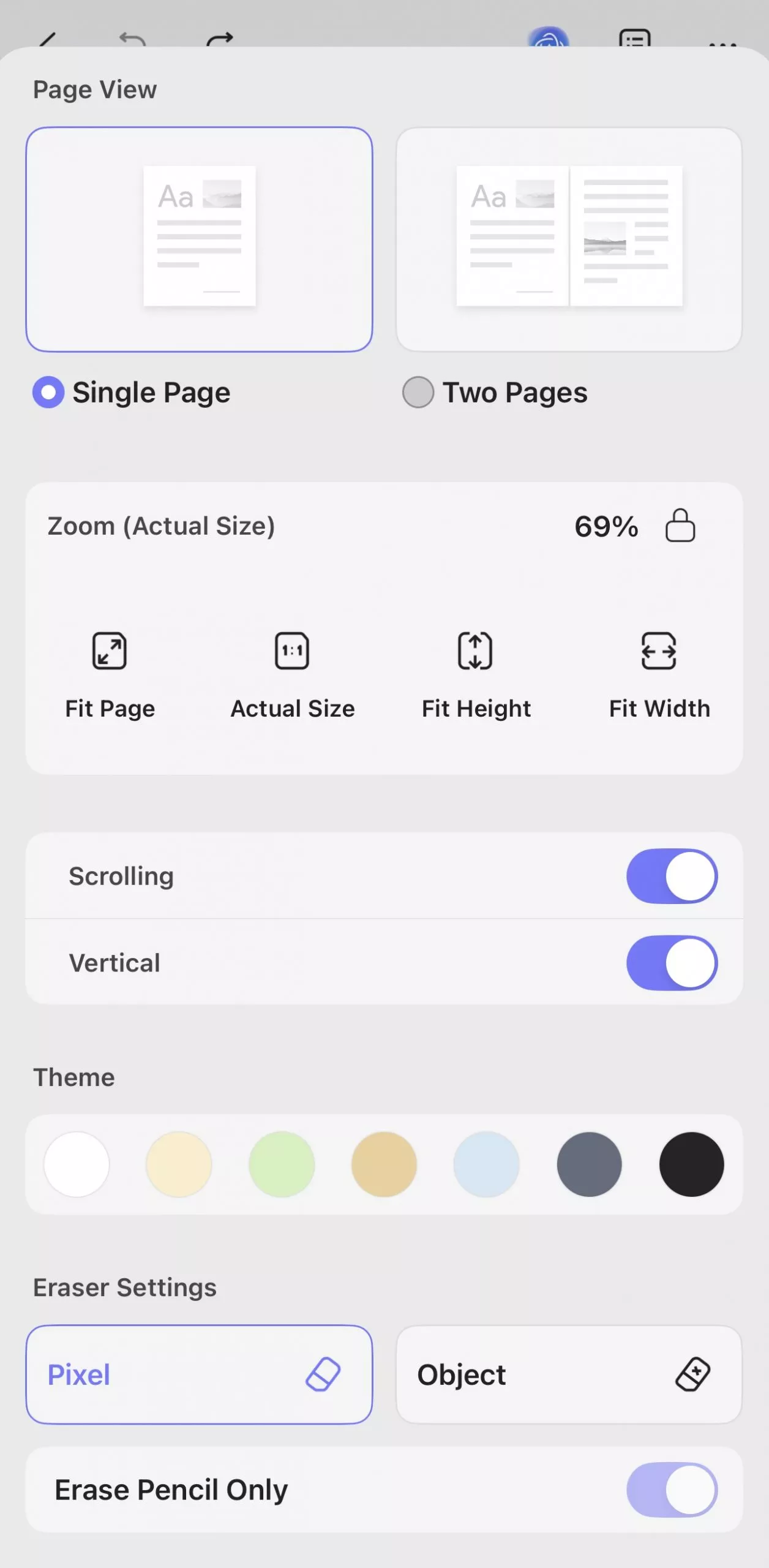
- Eye Comfort Modes: Choose from several eye-friendly reading modes, including Dark Mode, to reduce strain during long reading sessions.
With these features, UPDF helps users read, annotate, and manage PDFs efficiently while protecting eye health and improving comprehension, no matter which device or location they are in.
Windows • macOS • iOS • Android 100% secure
Conclusion
In summary, the conversion of Kindle books to PDFs is a game-changer for digital libraries, introducing a new level of versatility and accessibility. This transformation allows readers to access their favorite books on a wider range of devices, transcending the limitations of Kindle-specific formats. However, it's the integration with UPDF that truly elevates this experience to new heights. UPDF, with its advanced PDF editing and annotation capabilities, enables users to interact with their PDFs in ways that are both dynamic and personalized. Download UPDF today to learn more!
Windows • macOS • iOS • Android 100% secure





 Delia Meyer
 Enola Davis

 Engelbert White
 Enya Moore