UPDF
UPDF
 UPDF for Windows
 UPDF for Mac
 UPDF for iPhone/iPad
 UPDF for Android
 Nomostar
 UPDF AI Online
 UPDF Sign
 IvyCraft
 Edit PDF
 Annotate PDF
 Create PDF
 PDF Form
 Edit links
 Convert PDF
 OCR
OCR PDF to Word
 PDF to Image
 PDF to Excel
 Organize PDF
 Merge PDF
 Split PDF
 Crop PDF
 Rotate PDF
 Protect PDF
 Sign PDF
 Redact PDF
 Sanitize PDF
 Remove Security
 Read PDF
 UPDF Cloud
 Compress PDF
 Print PDF
 Batch Process
 About UPDF AI
 UPDF AI Solutions
 AI User Guide
 FAQ about UPDF AI
 Summarize PDF
 Translate PDF
 Chat with PDF
 Chat with AI
 Chat with image
 PDF to Mind Map
 Explain PDF
 PDF AI Tools
 Image AI Tools
 AI Chat Tools
 AI Writing Tools
 AI Study Tools
 AI Working Tools
 Other AI Tools
 AI Bookmark Generation
 AI Bookmark Summary
 AI Watermark Generation
 AI Background Generation
 AI Sticker Generation
 AI Stamp Generation
 AI Editing Suite
 UPDF Copilot
 AI Page Management
 AI Semantic Search
 PDF to Word
 PDF to Excel
 PDF to PowerPoint
 Enterprise Solution
 Enterprise Sign
 Enterprise AI
 Enterprise Plan
 Enterprise User Guide
 Enterprise Webinar
 IT
IT Education
 Construction
 Financial Service
 Healthcare
 Insurance
 Legal
Legal Manufacturing
 Government
 Researchers & PhDs
 Solopreneurs & Freelancers
 Lawyers & Legal Professionals
 Real Estate Agents & Brokers
 Education Solution
 Customer Stories
 User Guide
 UPDF Tricks
 FAQs
FAQs UPDF Reviews
 Download Center
 Blog
Blog Newsroom
 Tech Spec
 Updates
 UPDF vs. Adobe Acrobat
 UPDF vs. Foxit
 UPDF vs. PDF Expert

A design proof for a client and a bank statement for a landlord both need blurring differently. The first protects finished work from use before payment, while the second hides only private details. These jobs need different tools, so blur PDF searches often provide mixed and confusing advice. Understanding both methods first can save time and prevent unnecessary trial, confusion, and repeated errors:
- Document-Wide Visual Blur: Converts pages into image-based PDFs with adjustable blur for protected visual previews. This works for teasers, samples, and drafts where the original content should remain unreadable throughout.
- Selective Element Masking: Hides individual figures, phrases, or images while leaving all surrounding content readable. Account numbers, signatures, faces, and other private details are good examples for this masking method.
Need to blur sensitive details or generate a blurred Image PDF? Download UPDF for free and customize your document blur settings today.
Windows • macOS • iOS • Android 100% secure
Method 1: How to Blur an Entire PDF Using UPDF (Image PDF Blur)
Best For:
- Turning complete documents or selected pages into image-based PDFs with customizable blur effects for previews.
Not For:
- Hiding one sensitive detail while keeping surrounding text clear, searchable, selectable, and easy to read.
UPDF lets users blur PDF pages by converting them into image-based documents with adjustable effects applied. Unlike simple masking, this method applies a genuine blur filter instead of covering content with shapes. The adjustable intensity slider helps create softened previews suitable for samples, teasers, drafts, and sharing. Now, let's explore how to blur an entire PDF using UPDF with simple steps below:
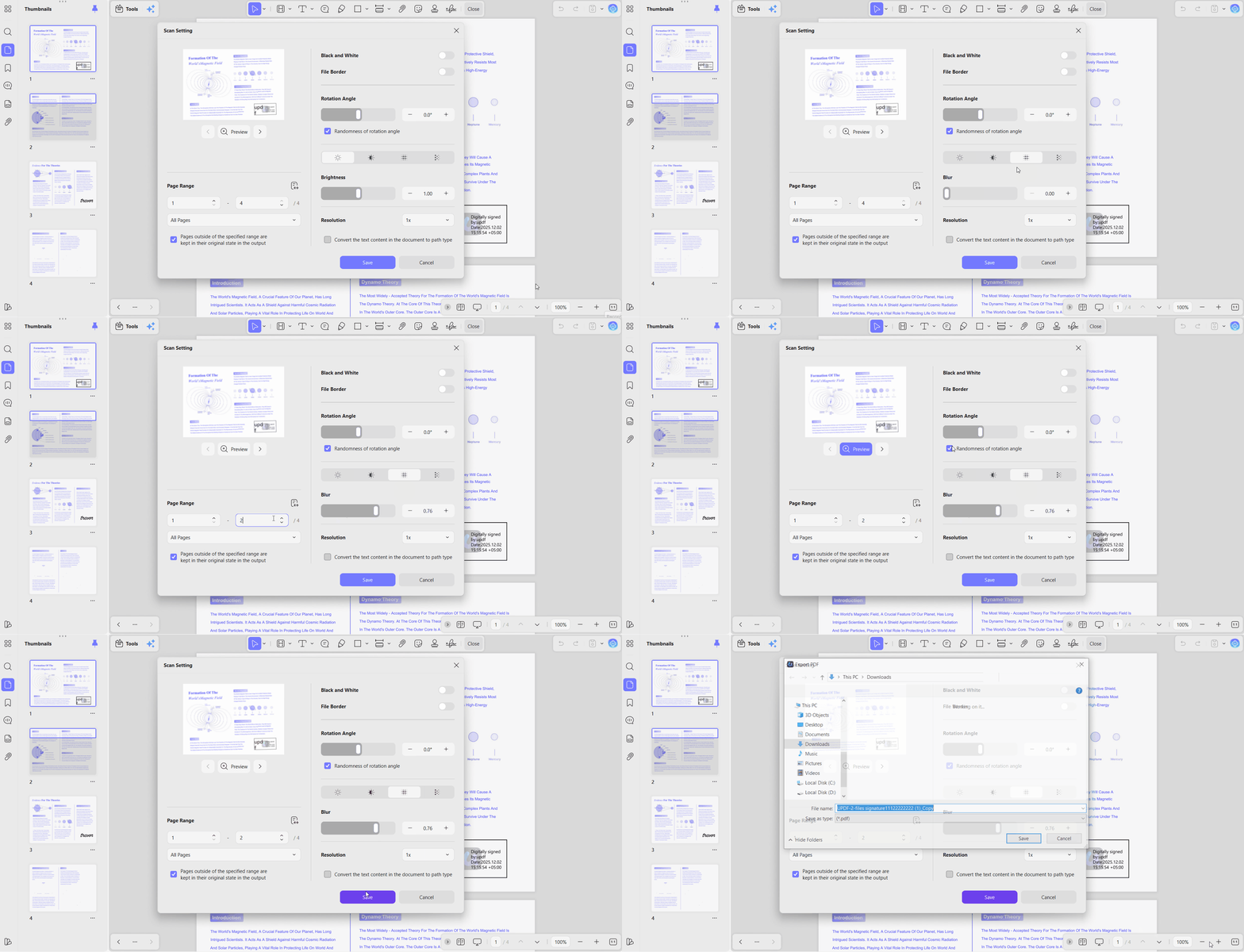
Step 1. Once you open UPDF, press the "+" icon and choose "Open Files" to import your PDF.
Step 2. Next, click the "Arrow" icon beside the "Save" option and choose the "Image PDF" option.
Step 3. Switch to the "Blur" filter and use the slider to adjust the amount of blur you need. Here, high values remove the legibility entirely.
Step 4. Choose the page range you want to blur and press the "Preview" button to view the real-time results. Once done, press the "Save" button to apply the blur and save the PDF.
The Blur Settings Explained
Here is how each blur PDF setting controls the appearance of your exported document.
- Blur Degree Slider: This slider controls how strongly the blur effect appears across your selected pages. Lower settings create softer previews, while higher settings make document content harder to read.
- Page Range: This setting lets you choose exactly which PDF pages receive the blur effect. You can keep summary pages clear while blurring pricing tables or private sections.
- Resolution: Lower resolution reduces file size but can make image-based pages appear less sharp. Higher resolution improves page clarity but usually creates a larger exported PDF file.
- Preview: Preview lets you check the final blur appearance before saving your PDF document. Text and images react differently, making preview useful before completing the final export.
Method 2: How to Blur Parts of a PDF (Text, Images, or Sensitive Info)
Best For:
- Hiding specific text, account numbers, signatures, or faces while keeping remaining document content unchanged.
Not For:
- Applying artistic blur effects or visual styling across complete PDF documents and selected pages.
Partial masking helps blur PDF details safely without changing the remaining document content or layout. These options belong to document security, as explained in how to protect a PDF. Before following the steps, understanding one important difference helps keep your sensitive information properly protected.
Why Masking Beats Pixel Blur on Sensitive Text
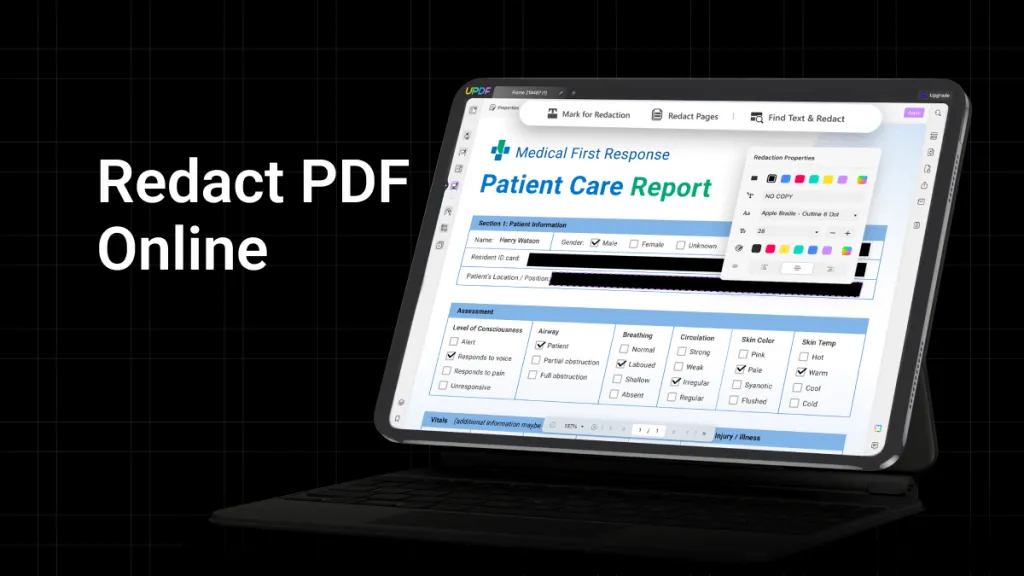
Pixel blur applied to text can be reversed because original character shapes still affect the remaining pixels. AI reconstruction tools can sometimes recover blurred or pixelated characters by analyzing these remaining visual patterns. UPDF handles partial obscuration through Redact, removing underlying content instead of simply smearing sensitive information visually.
A colored block replaces removed content, creating a clean mask that provides stronger protection for confidential information. To blur PDF content securely with partial masking, use the simple steps below:
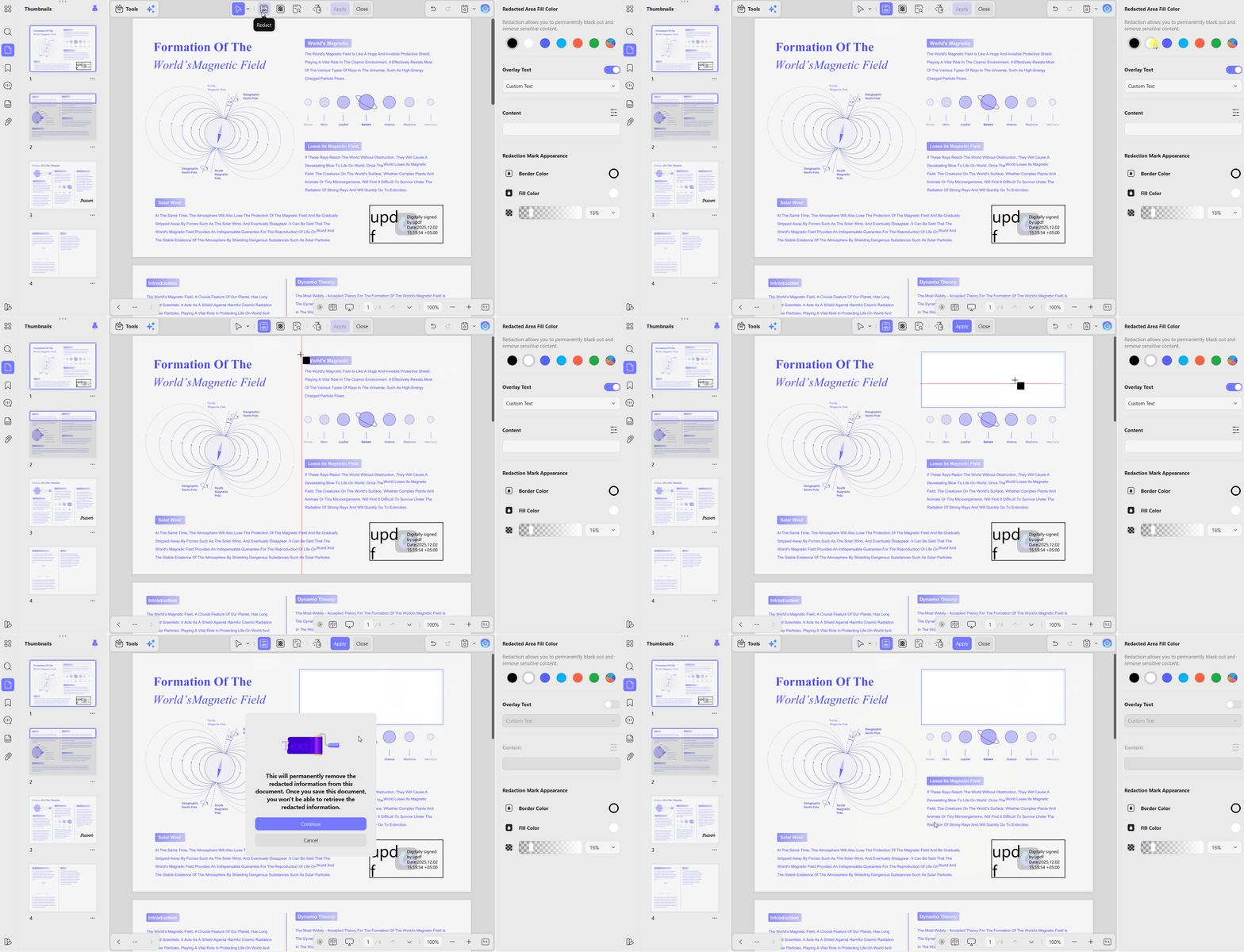
Step 1. After opening a PDF in UPDF, press the "Tools" option and select the "Redact" tool.
Step 2. Pick the "Redact" option from the top toolbar and drag your mouse pointer over the text or image that you want to hide.
Step 3. Head to the right side panel and choose a white or grey color in the "Fill Color" section if you dislike the harsh colors.
Step 4. Once the content is hidden, press the "Apply" button and save the edited PDF.
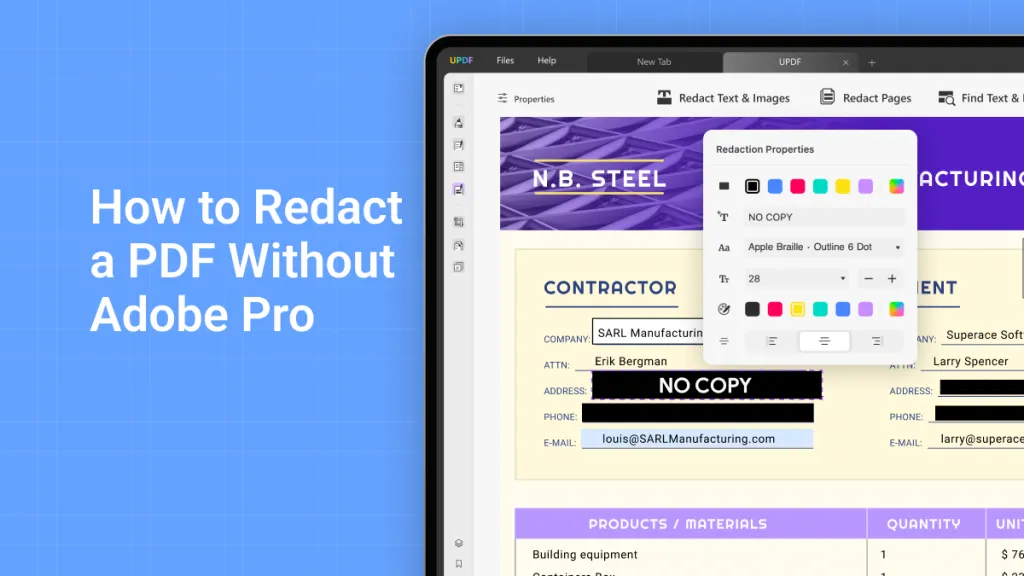
Readers can explore two related guides covering these document security methods in detail. Choose how to redact a PDF for legal-grade data removal with clear step-by-step instructions. Visit black out text in PDF for the traditional black-bar treatment and focused practical guidance.
Method 3: How to Blur PDF Content in Adobe Acrobat
Best For:
- Existing Acrobat Pro subscribers needing a masking workaround without installing another PDF editing application.
Not For:
- Users wanting native one-click Image PDF blurring or working with a limited software budget.
Existing Acrobat users can avoid installing another application when they only need this single task. This method follows Method 2, removing selected content instead of visually softening the information. Acrobat has no blur PDF filter, so redaction with adjusted fill colors works closest. Go through the simple steps below to apply this masking method correctly in Acrobat:
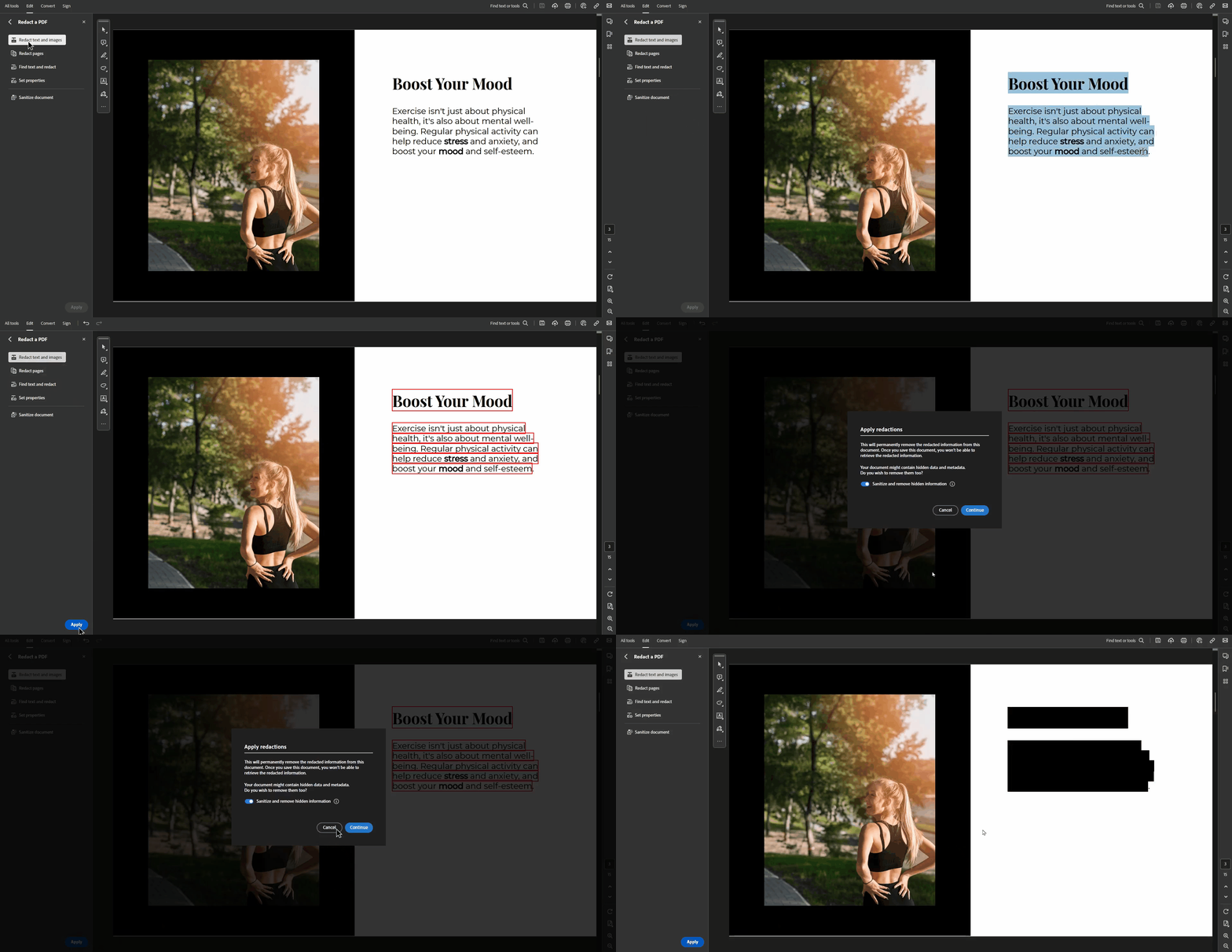
Step 1. First, open your PDF in Adobe Acrobat Pro and import your PDF file.
Step 2. Next, open the tools and choose the "Redact a PDF" tool. You need a paid subscription to use this tool.
Step 3. Choose the "Redact Text and Images" mode and drag your mouse over the text you want to hide. Once done, press the "Apply" button to confirm the redaction.
Adobe Acrobat Honest Drawbacks
- No Native Image PDF Blur Filter: Acrobat cannot create blurred image-based PDFs using a built-in intensity slider directly. Users must export pages, blur them elsewhere, then rebuild the PDF file.
- High Cost of Entry: Acrobat redaction tools require users to maintain a paid Pro subscription plan. Occasionally blurring alone rarely justifies paying this recurring software expense for users.
For quick text masking during normal editing, see how to blur text in PDF instead of security redaction. UPDF routes cover opposite ends of the same requirement, making your choice straightforward overall.
Whether you need a fully blurred Image PDF or seamless partial text masking, UPDF offers the complete solution. Download UPDF for free today!
Windows • macOS • iOS • Android 100% secure
Quick Comparison: Image PDF Blur vs. Partial Masking
To understand which blur PDF approach fits your needs across 5 criteria, look at the table below:
| Feature/Scenario | UPDF Image PDF Blur | UPDF Partial Masking | Adobe Acrobat |
| Primary Focus | Whole document or page visual blur | Selective text and image obscuration | Selective text obscuration |
| Adjustable Blur Intensity | Yes, with blur controls | No, uses a solid color mask | N/A |
| Custom Mask Appearance | Not applicable; pages are rasterized | Yes, with customizable fill colors | Yes, with redaction appearance settings |
| Selectable Text Kept | No, exported pages become images | Yes, for unmasked areas | Yes, for unmasked areas |
| Cost & Trial | Lower-cost option; trial availability may vary | Lower-cost option; trial availability may vary | Expensive Pro tier |
Frequently Asked Questions
Can I blur out text in a PDF without turning it into an image?
Yes, UPDF partial masking hides sensitive words without turning the document into images. Remaining text stays completely searchable and selectable for everyone receiving the PDF file. Only marked areas change, so the file continues behaving like a normal PDF.
Why does my PDF look blurry after exporting?
Unwanted blurriness usually happens when exporting an Image PDF using low DPI settings. Lower rasterization resolution softens every page element, not only the content you intended originally. Raising UPDF resolution keeps text sharp while your chosen blur filter still applies.
How do I blur an image inside a PDF document?
Different image-blurring needs can be handled through 2 methods depending on the required scope. Using Redact mode covers a selected photo or signature with a solid fill mask. Choosing Image PDF blurs the entire page, meaning surrounding text no longer stays selectable.
Is blurred PDF text recoverable?
Yes, blurred PDF text from photo editors can be recovered using AI tools. Rasterizing through Image PDF removes text, although light blur may leave characters legible. Permanent masking remains the dependable option when protecting confidential material from possible recovery.
Conclusion
To conclude, choosing how to blur PDF content depends on the file's purpose and intended use. Image PDF Blur provides adjustable softening for whole documents or selected pages, previews, and samples easily. Partial masking in UPDF obscures confidential text and images while surrounding content remains intact and searchable.
Effortlessly blur PDF text, images, or entire pages. Download UPDF for free and take control of your document presentation today!
Windows • macOS • iOS • Android 100% secure





 Enola Miller
 Idham Wijaya