 UPDF
UPDF
 UPDF for Windows
 UPDF for Mac
 UPDF for iPhone/iPad
 UPDF for Android
 Nomostar
 UPDF AI Online
 UPDF Sign
 IvyCraft
 Edit PDF
 Annotate PDF
 Create PDF
 PDF Form
 Edit links
 Convert PDF
 OCR
OCR PDF to Word
 PDF to Image
 PDF to Excel
 Organize PDF
 Merge PDF
 Split PDF
 Crop PDF
 Rotate PDF
 Protect PDF
 Sign PDF
 Redact PDF
 Sanitize PDF
 Remove Security
 Read PDF
 UPDF Cloud
 Compress PDF
 Print PDF
 Batch Process
 About UPDF AI
 UPDF AI Solutions
 AI User Guide
 FAQ about UPDF AI
 Summarize PDF
 Translate PDF
 Chat with PDF
 Chat with AI
 Chat with image
 PDF to Mind Map
 Explain PDF
 PDF AI Tools
 Image AI Tools
 AI Chat Tools
 AI Writing Tools
 AI Study Tools
 AI Working Tools
 Other AI Tools
 AI Bookmark Generation
 AI Bookmark Summary
 AI Watermark Generation
 AI Background Generation
 AI Sticker Generation
 AI Stamp Generation
 AI Editing Suite
 UPDF Copilot
 AI Page Management
 AI Semantic Search
 PDF to Word
 PDF to Excel
 PDF to PowerPoint
 Enterprise Solution
 Enterprise Sign
 Enterprise AI
 Enterprise Plan
 Enterprise User Guide
 Enterprise Webinar
 IT
IT Education
 Construction
 Financial Service
 Healthcare
 Insurance
 Legal
Legal Manufacturing
 Government
 Researchers & PhDs
 Solopreneurs & Freelancers
 Lawyers & Legal Professionals
 Real Estate Agents & Brokers
 Education Solution
 Customer Stories
 User Guide
 UPDF Tricks
 FAQs
FAQs UPDF Reviews
 Download Center
 Blog
Blog Newsroom
 Tech Spec
 Updates
 UPDF vs. Adobe Acrobat
 UPDF vs. Foxit
 UPDF vs. PDF Expert

If you accidentally delete or lose your personal records, such as a birth certificate or property deed, it can create serious financial and legal problems.
A digital vault helps you avoid this problem by protecting your most critical files with strong encryption and security controls. It is not the same as basic cloud storage. Therefore, in this guide, I will explain exactly how to identify a trustworthy vault and the best platforms you can use.
Also, other than finding the right vault, you'll also need to access and prepare your documents without leaving any digital footprint. UPDF makes this possible by helping you prepare, encrypt, and mobilize your documents before they reach a vault. You can download and try it now.
Windows • macOS • iOS • Android 100% secure
Part 1. What Makes a Digital Vault "Trustworthy"?
A trustworthy digital vault keeps your data fully private using zero-knowledge encryption and international security standards, such as ISO certifications. It should also store your files in formats that remain accessible for many years in the future.
Below, you'll find exactly what these requirements mean.
Zero-Knowledge Encryption
Zero-knowledge encryption platforms ensure that only you hold the keys needed to unlock your data. This means the service provider cannot view, access, or share your files under any circumstances, including court orders. A true vault uses this kind of system to protect your critical information.
Industry Certifications (ISO 27001)
ISO 27001 is a global standard that requires strong controls for data protection, risk management, and daily operations. In my own experience of evaluating different storage platforms, I've learned that ISO certification can really differentiate the most reliable vaults from the rest. So, always check for this certification before trusting any digital vault with sensitive information.
Format Stability
If you save important documents, such as a birth certificate, as a JPEG image or in a proprietary format, they might become outdated or lose quality over the years. A secure vault supports formats designed for long-term storage, such as PDF/A, which is used specifically for long-term storage.
Part 2. The Gold Standard: Top 2 Digital Vaults for Long-Term Storage
Not all digital vaults offer the same level of encryption and access control. Below, you'll find two reliable tools that provide strong protection and long-term storage.
1. NordLocker (The Encryption Powerhouse)
Best for: Massive file encryption and "Zero-Knowledge" digital vault for documents and folders.
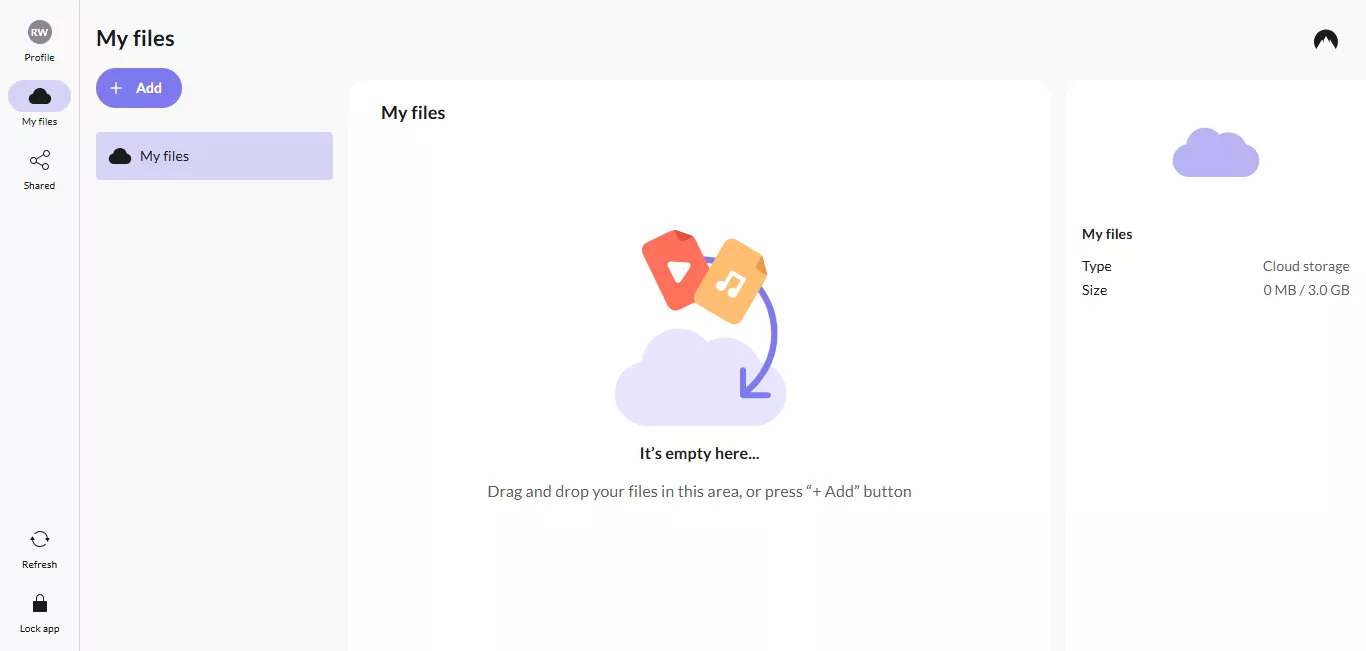
NordLocker is an encrypted cloud storage platform created by the team behind NordVPN. It helps you protect sensitive files using a "zero-knowledge" system. Moreover, the platform uses reliable encryption methods, including AES-256 and XChaCha20, to protect financial data, government systems, and personal information.
Key Features:
- End-to-end encrypted cloud storage
- Zero-knowledge architecture
- Cross-device syncing
- Drag-and-drop file upload
- 3 GB (free), 500 GB to 2 TB storage plans
- Share protected files via link and security codes.
- Available on Website, Windows, iOS, and Android
Writer's Experience:
When testing NordLocker, I attempted to upload a 15GB folder containing a decade's worth of family financial scans and high-definition legacy videos. While the AES-256 and XChaCha20 encryption standards gave my security-paranoid side peace of mind, the reality was a bit of a grind: CPU usage spiked during the local encryption process, making my laptop fans roar and slowing down other tasks.
The 'Recovery Key' system is a sobering reminder of what 'Zero-Knowledge' truly means—if you lose that code, even support can't help you. However, in daily use, I found the mobile app frustratingly limited; it functions more like a 'read-only' viewer. Trying to reorganize complex folder structures or process multi-page documents on the go felt clunky. Furthermore, user feedback on Reddit often points to sync conflicts during large batch uploads, which is a stressful risk when dealing with irreplaceable original legal deeds.
Pros & Cons
Pros:
- Uncompromising end-to-end encryption.
- Ideal for "cold storage" of absolute privacy.
Cons:
- Significant performance lag with large files.
- Restrictive mobile productivity.
2. 1Password (The Granular Vault)
Best for: best digital vaults for long-term birth certificate storage and emergency access.
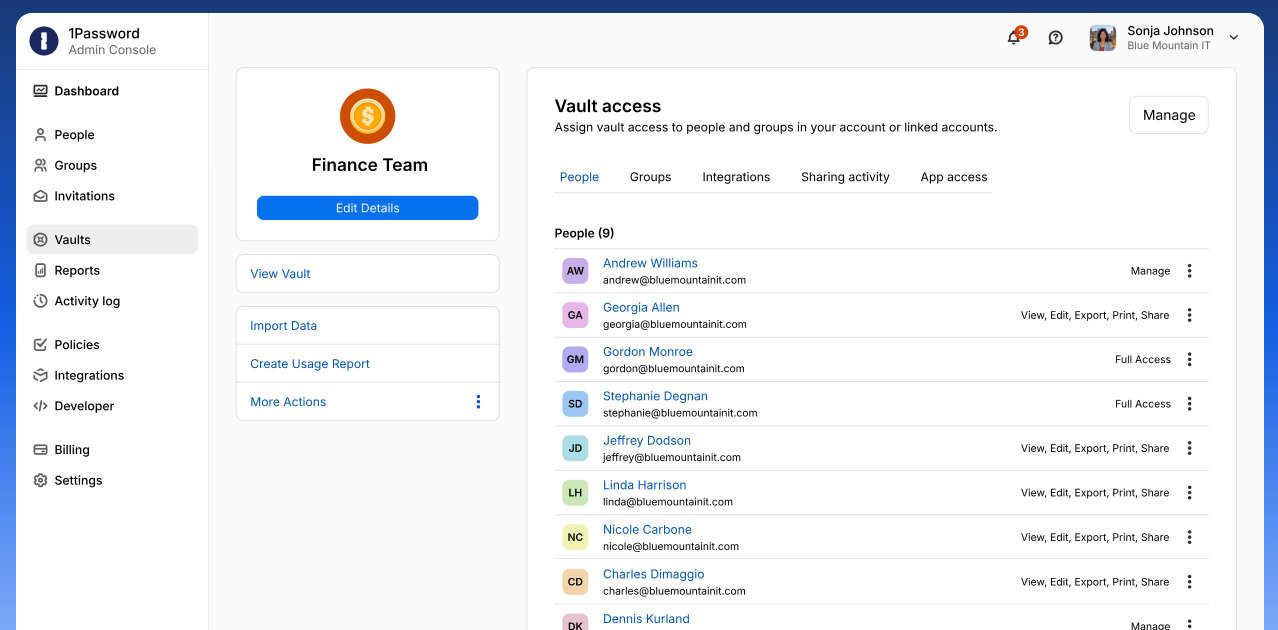
1Password is primarily known as a password manager platform. However, it also supports the creation of unlimited private and shared vaults for record keeping. Moreover, you can control how others can access your files. To protect your data, it uses 256-bit AES encryption, a zero-knowledge policy, and two-factor authentication.
Key Features:
- 1 GB encrypted storage for files and attachments
- Secure Notes for confidential data (end-to-end encrypted)
- Travel Mode hides selected vaults for safer travel
- Watchtower alerts for breaches and security risks
- Vaults automatically restore after Travel Mode
- Available on Windows, Mac, Linux, iOS, Android, and browsers.
Writer's Experience:
I trust 1Password with my family's birth certificates and passport copies primarily because of its 'Secret Key' architecture—a 34-character physical layer that is far superior to a simple password. During a recent international trip, I put 'Travel Mode' to the test. This feature is hardcore: it doesn't just hide folders; it physically wipes the sensitive vaults from my phone's local memory. This 'zero-trace' security is unbeatable for crossing borders or in case of device theft.
However, 1Password falls short as a primary 'document' vault due to its strict 1GB storage cap and 50MB per-file limit. If you have high-resolution property contracts or multi-volume tax records, you’ll hit that ceiling almost instantly. More importantly, its PDF handling is rudimentary. You cannot annotate or redact sensitive info within the app; you have to download, decrypt, and edit the file locally, which creates a massive privacy risk if you're on a public network. This is why I use it for credentials but move my active sensitive document workflows to UPDF Cloud.
Pros & Cons
Pros:
- Extreme privacy isolation (Travel Mode).
- Perfect for identity credentials and emergency access.
Cons:
- Severe storage limitations (only 1GB total).
- Lack of deep document editing tools.
Part 3. The "Missing Link": Preparing Documents with UPDF
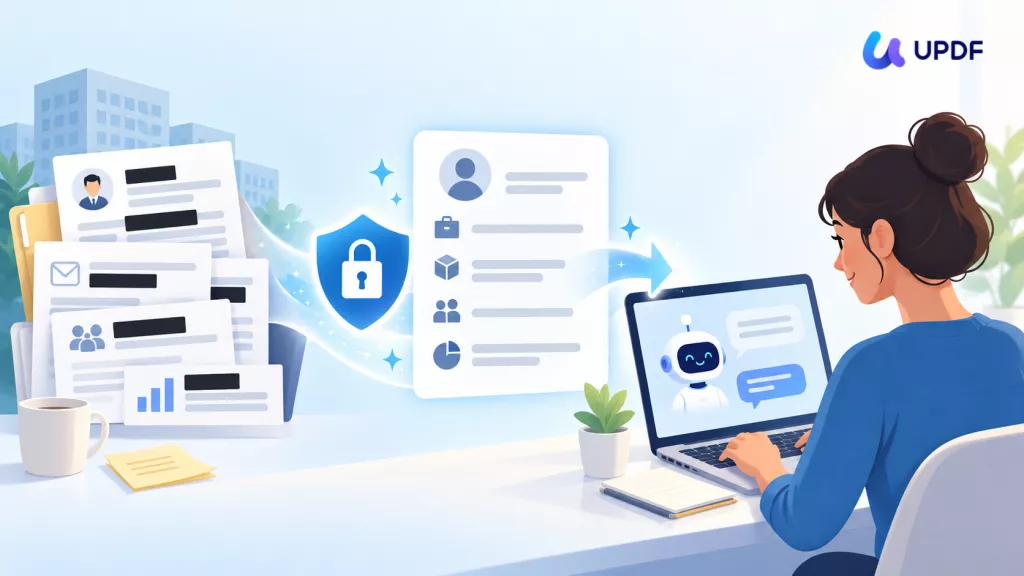
Just as you would never drop a loose paper birth certificate into a safe without first securing it properly, your digital documents need the same treatment before you put them inside a vault.
That's why UPDF allows you to convert your sensitive documents to the standard PDF/A format and redact personal data before storing the file in an encrypted environment inside UPDF Cloud.
If you want to try it, you can download UPDF to get started for free. But if you want more storage space or additional features, you can upgrade to the Pro version at an affordable price.
Windows • macOS • iOS • Android 100% secure
Now, let's see how UPDF helps you prepare and store PDFs securely.
Step 1. Standardize Format:
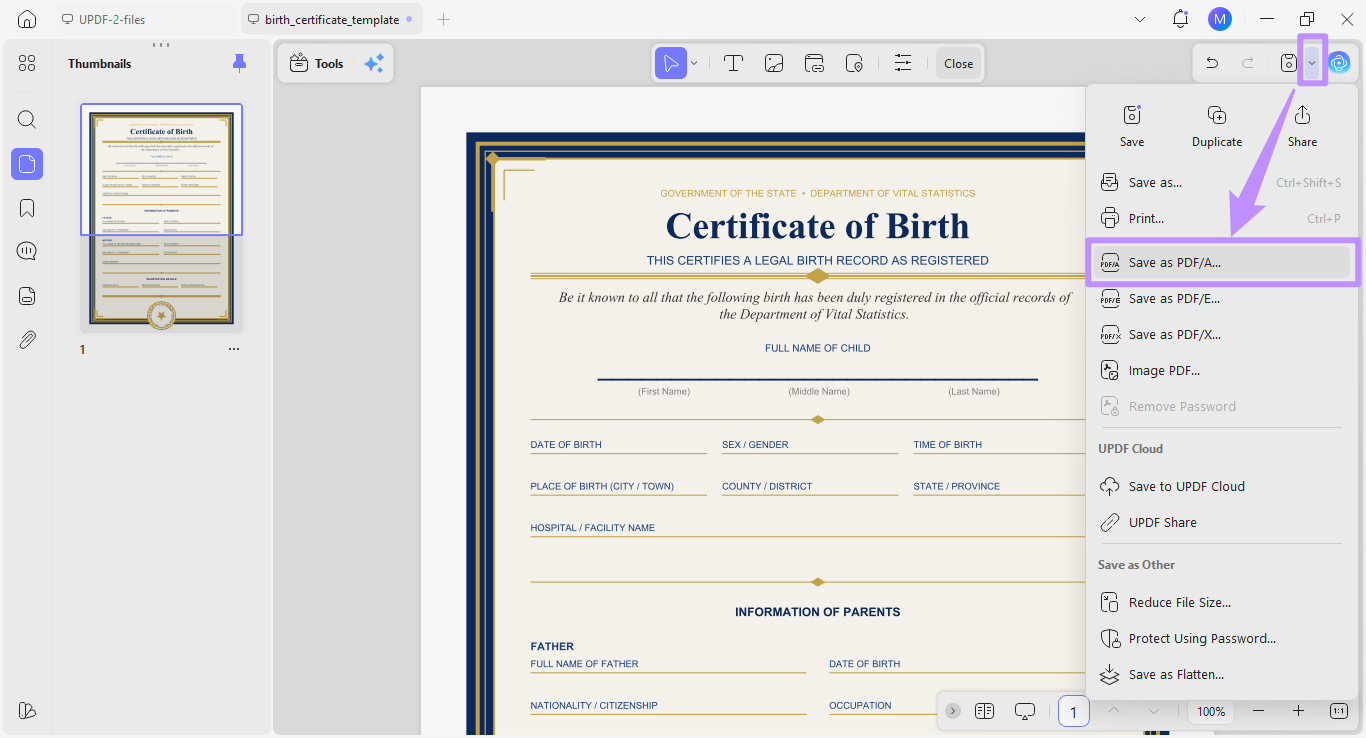
UPDF allows you to convert images and PDFs, such as birth certificates, to a PDF/A format, which is the ISO standard for record-keeping.
- Start by opening UPDF and clicking "Open File" to import your PDF.
- Next, click the down arrow at the top right and select "Save as PDF/A" from the list.
Step 2. Protect Sensitive Data
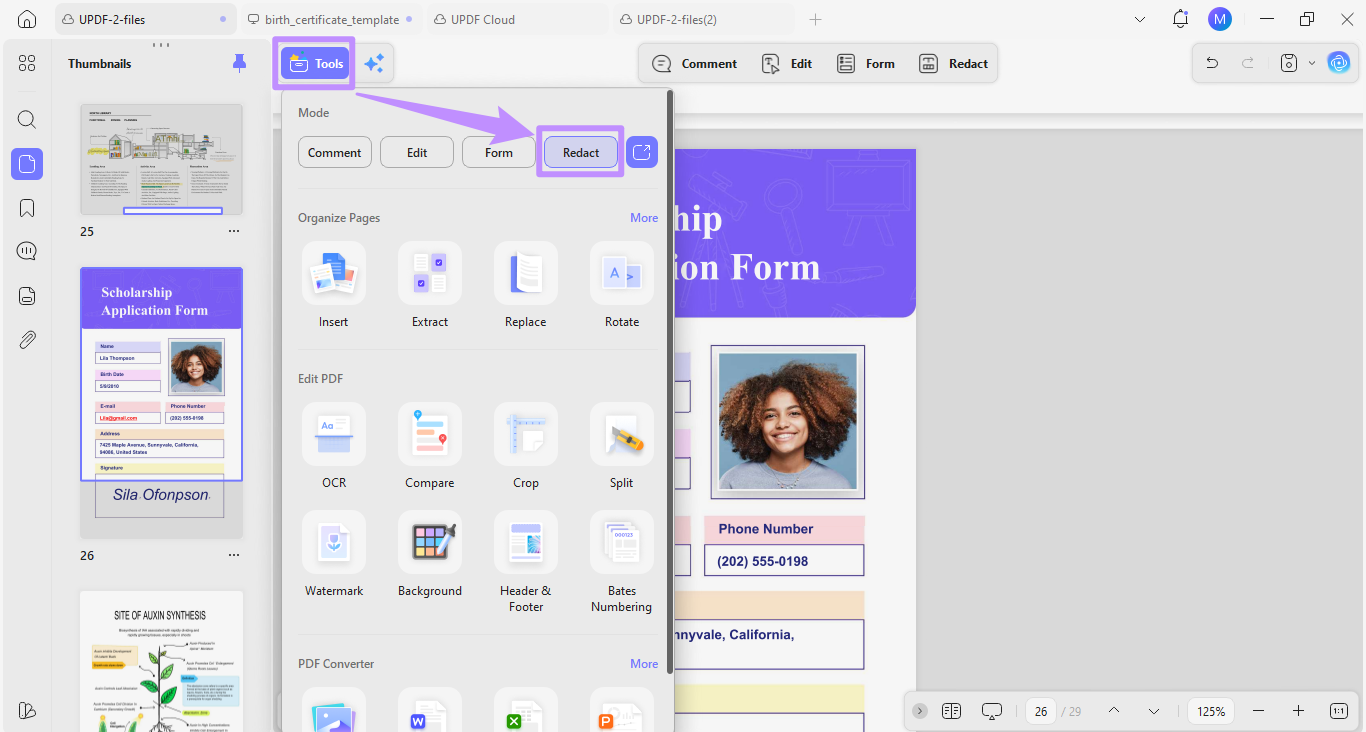
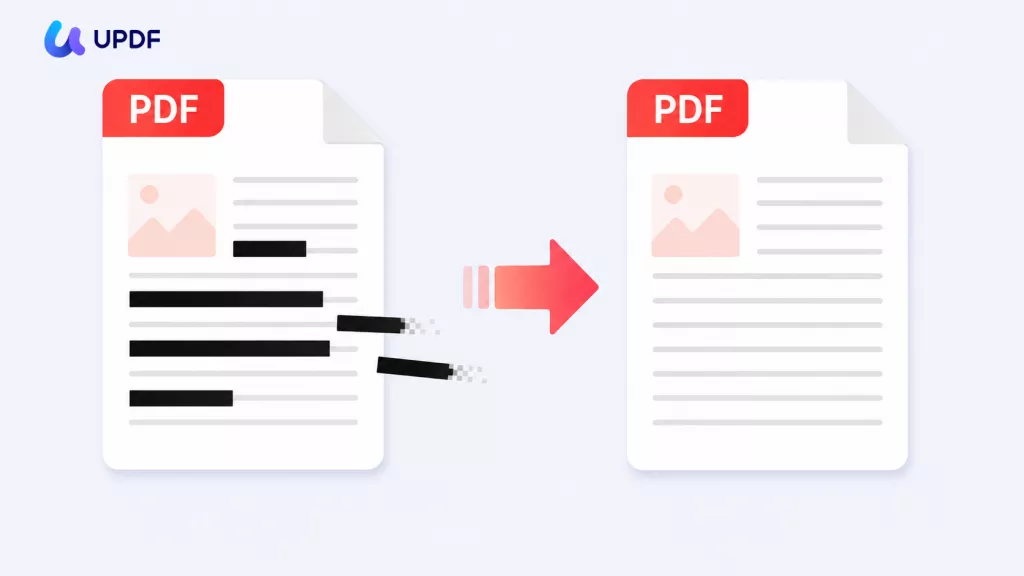
Before storing any document that contains Personal Identifiable Information (PII), such as names, addresses, or ID numbers, you can use UPDF's Redaction tool to remove this data permanently.
- Click "Tools" at the top and select "Redact."
- Alternatively, click the UPDF Copilot icon and type "Redact" in the text field. Then, select "Redact Text and Images" from the AI suggestions.
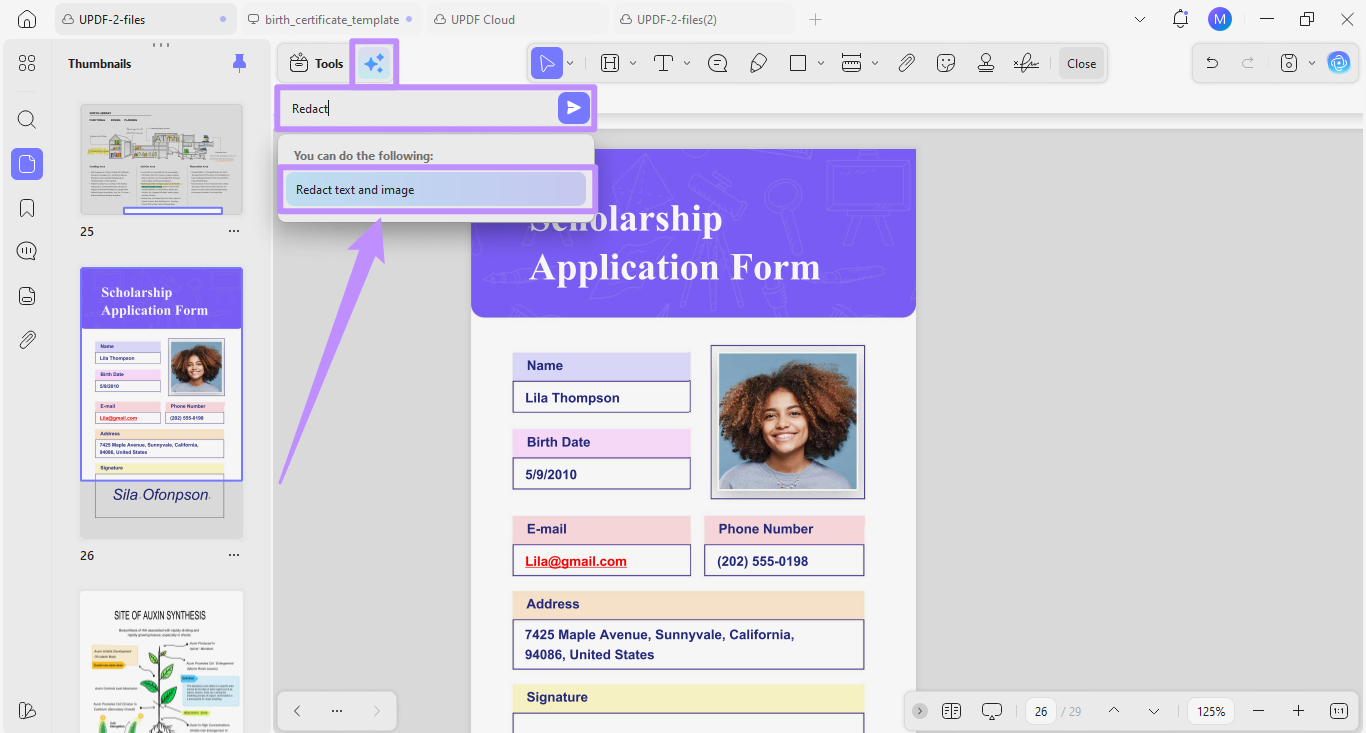
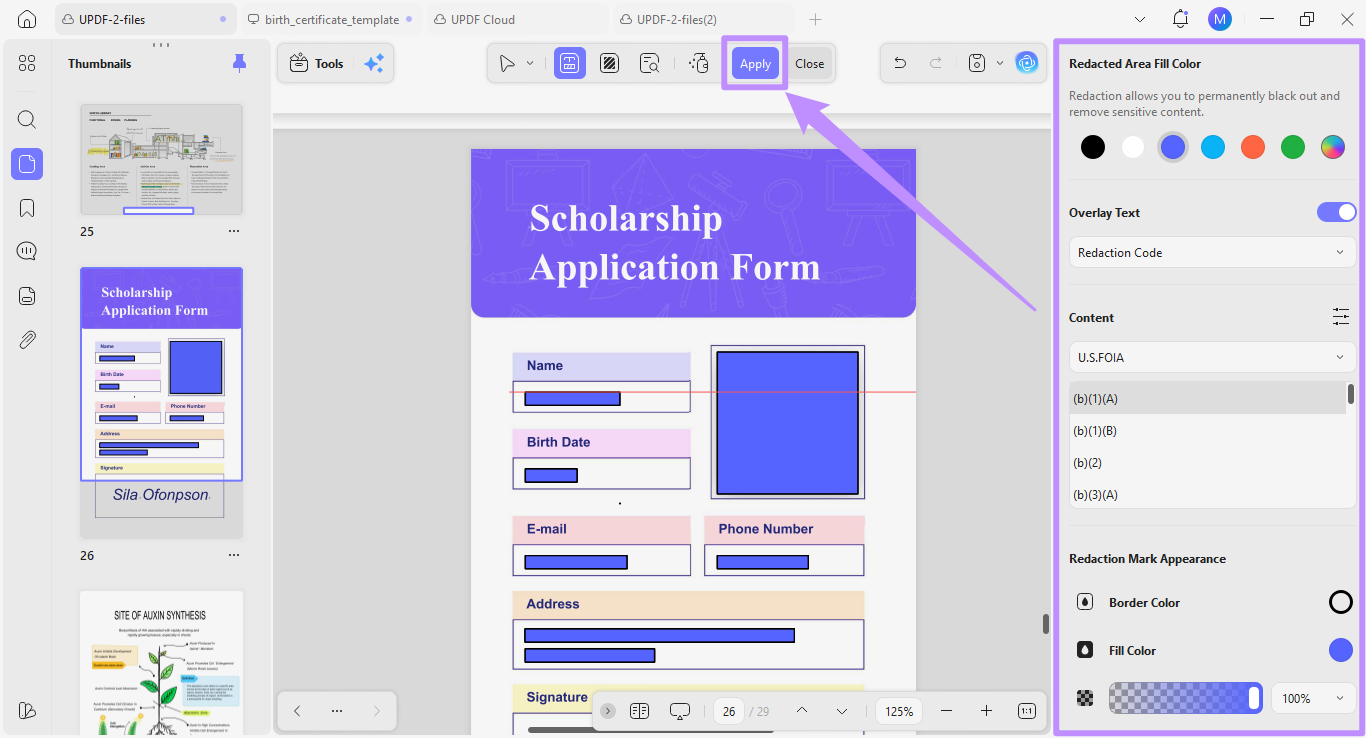
- Select the "Redact" tool from the top. Then, highlight the text or areas you want to remove.
- Use the panel on the right to customize the appearance of the redaction mark. Then, click "Apply" to make the redaction permanent.
Step 3. Upload to UPDF Cloud
Unlike NordLocker, UPDF Cloud lets you open, edit, annotate, and sign your stored documents. Plus, you can access files across Windows, Mac, iOS, and Android without leaving an unprotected footprint of your data on a shared or public device.
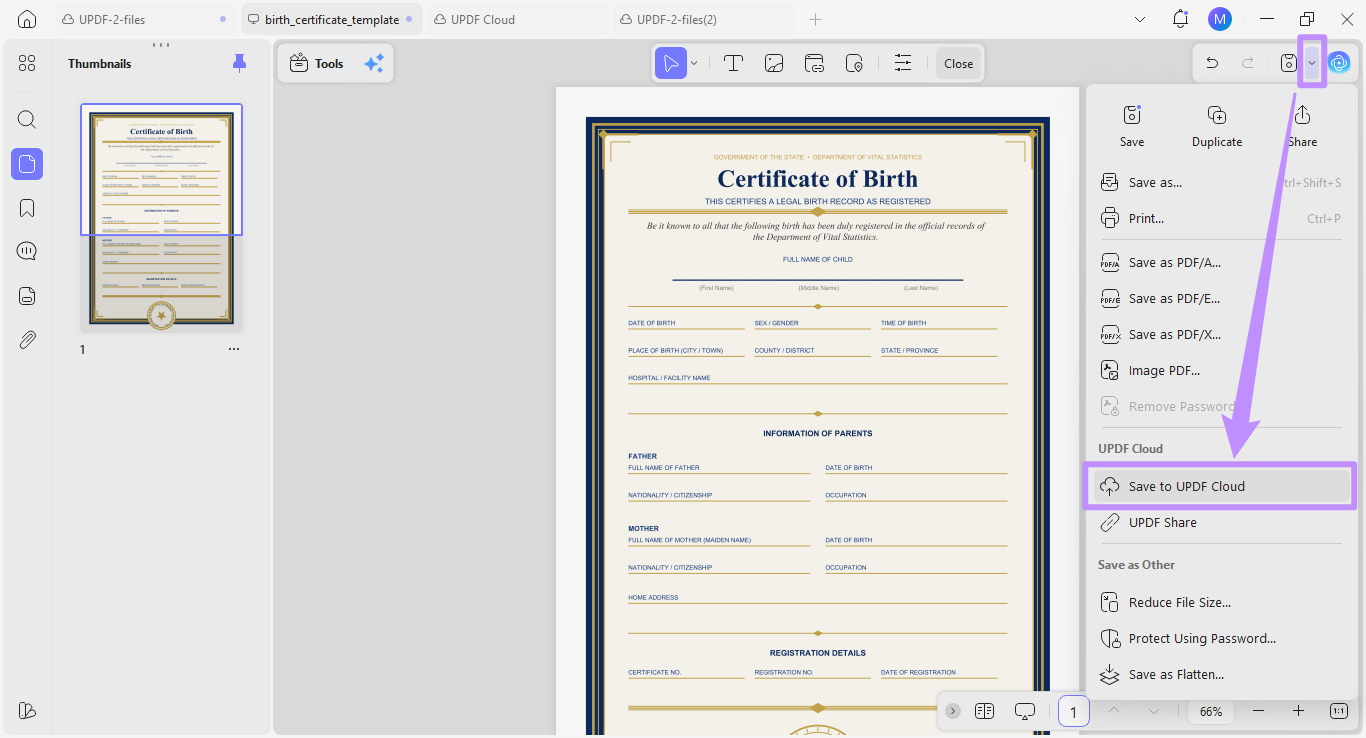
- Click the down arrow next to the Save icon and select "Save to UPDF Cloud."
Tip:
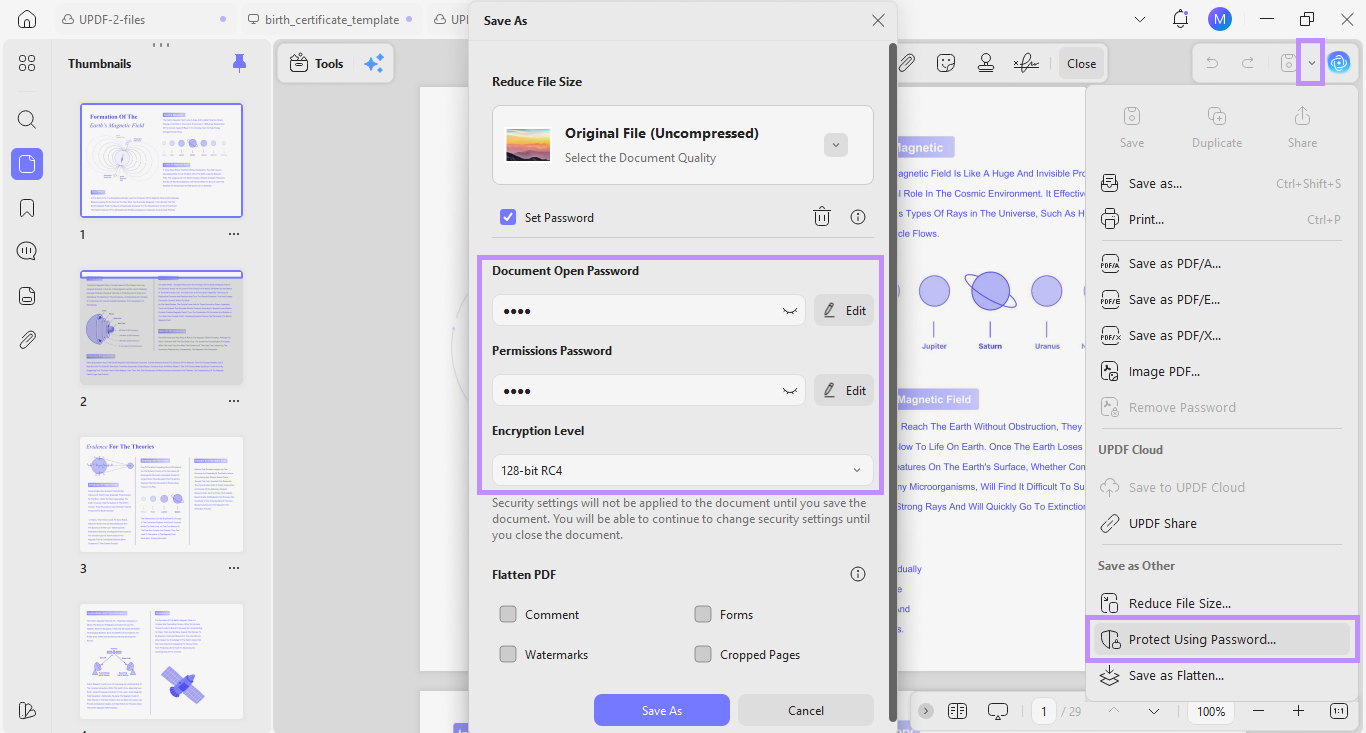
To control access to a file, click the down arrow in the top right and select "Protect Using Password." Set an open password and a permissions password, save the file, and then upload it to UPDF Cloud.
Personally, I like using UPDF Cloud alongside a traditional vault so that when I need to sign and share a legal document, I can do so within an ISO-certified environment, without ever exposing an unprotected copy.
FAQs
Q1. Why is PDF/A recommended for birth certificates?
PDF/A is a self-contained archival format. It includes all fonts, color profiles, and metadata inside the file itself. Because it does not rely on external files or software, the document will stay readable many years from now, even if programs or operating systems change.
Q2. How do I manage a digital vault for my heirs?
You can create a secure emergency kit that provides instructions on how to access your vault and store it separately from your devices. 1Password makes this easy by allowing you to create shared vaults and give trusted family members access only to certain items, such as your will or insurance records, while keeping the rest of your information private.
Q3. Is UPDF Cloud secure enough for legal documents?
Yes. UPDF Cloud meets the ISO 27001 standard, which is a widely accepted security certification for managing sensitive information. It also uses end-to-end encryption, which protects your files from unauthorized access. This level of security is suitable for storing legal documents.
Q4. How much do digital vaults cost?
The exact cost of a digital vault can vary based on the provider and the plan you choose. For example, NordLocker and 1Password offer paid plans starting at $2.99 per month.
Conclusion
To sum up, a trustworthy digital vault helps you secure your files with zero encryption and comply with international data security standards. You can use tools like NordLocker or 1Password to secure and access critical records.
In addition to an encrypted storage, if you also want to prepare your documents, edit or sign them afterwards, UPDF is the perfect tool to use. Download and try it today to give your documents the protection they need.
Windows • macOS • iOS • Android 100% secure


 高美季子
高美季子 
 Enya Moore
 Enrica Taylor
 Enola Miller