 UPDF
UPDF
 UPDF for Windows
 UPDF for Mac
 UPDF for iPhone/iPad
 UPDF for Android
 UPDF AI Online
 UPDF Sign
 Edit PDF
 Annotate PDF
 Create PDF
 PDF Form
 Edit links
 Convert PDF
 OCR
OCR PDF to Word
 PDF to Image
 PDF to Excel
 Organize PDF
 Merge PDF
 Split PDF
 Crop PDF
 Rotate PDF
 Protect PDF
 Sign PDF
 Redact PDF
 Sanitize PDF
 Remove Security
 Read PDF
 UPDF Cloud
 Compress PDF
 Print PDF
 Batch Process
 About UPDF AI
 UPDF AI Solutions
 AI User Guide
 FAQ about UPDF AI
 Summarize PDF
 Translate PDF
 Chat with PDF
 Chat with AI
 Chat with image
 PDF to Mind Map
 Explain PDF
 PDF AI Tools
 Image AI Tools
 AI Chat Tools
 AI Writing Tools
 AI Study Tools
 AI Working Tools
 Other AI Tools
 PDF to Word
 PDF to Excel
 PDF to PowerPoint
 Enterprise Solution
 Enterprise Sign
 Enterprise AI
 Enterprise Plan
 Enterprise User Guide
 Enterprise Webinar
 Banking
 Healthcare
 Insurance
 Legal
Legal Manufacturing
 Government
 Education Solution
 Customer Stories
 User Guide
 UPDF Tricks
 FAQs
FAQs UPDF Reviews
 Download Center
 Blog
Blog Newsroom
 Tech Spec
 Updates
 UPDF vs. Adobe Acrobat
 UPDF vs. Foxit
 UPDF vs. PDF Expert

In the digital reading world of 2026, finding a reliable platform that balances quality, legality, and variety is essential. Feedbooks has established itself as a premier destination for bibliophiles, offering everything from public domain masterpieces to the latest trending titles. However, most modern downloads from Feedbooks are in the EPUB format—a great format for basic reading, but limited if you want to take notes or analyze text.
In this guide, we’ll take a fresh look at Feedbooks and show you how a simple conversion to PDF allows you to unlock the full power of UPDF. By turning your eBooks into PDFs, you can use AI to summarize chapters, annotate key passages, and sync your library across all your devices.
Windows • macOS • iOS • Android 100% secure
Part 1. What is Feedbooks?
Feedbooks is a versatile digital library and bookstore headquartered in Paris. It caters to a global audience by offering three distinct sections: a public domain repository, an original self-publishing platform, and a commercial bookstore for the latest bestsellers. Known for its clean typography and high-quality eBook formatting, Feedbooks ensures that every file is optimized for mobile devices and eReaders.
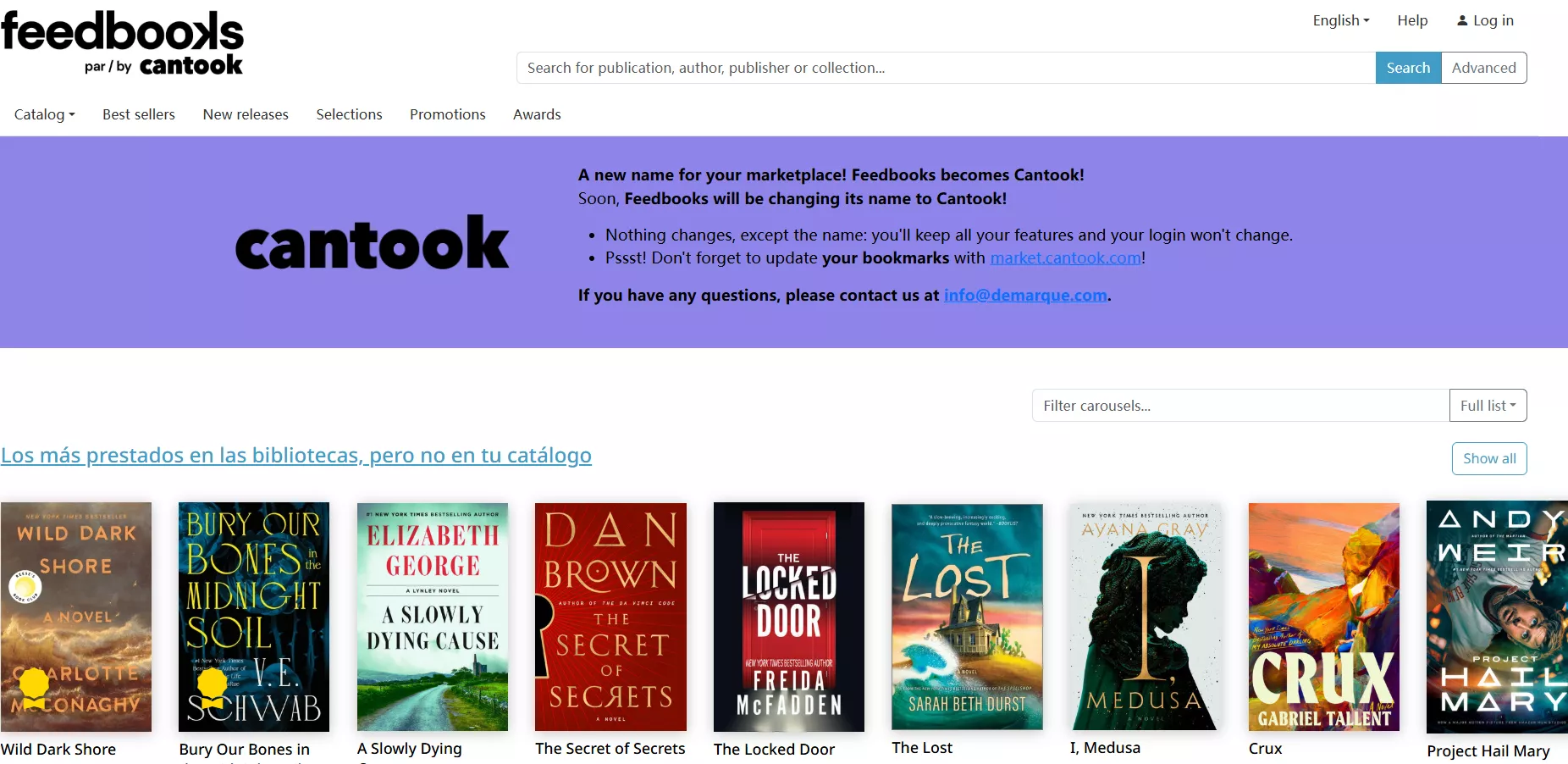
Feedbooks is now renamed as Cantook. If you've ever desired a flexible way to dive into books, Cantook offers Feedbooks free download of vast library titles. It simply brings thousands of books to your fingertips, whether you're on a train or waiting for an appointment.
Moreover, by renaming it Cantook, the platform signals a fresh beginning while maintaining its core mission of making reading accessible. With its beginner-friendly interface and an extensive collection of downloadable books, Feedbooks continues its legacy by being available as an application.
Key Features of Feedbooks
- It provides support for public libraries while making it easier for users to connect with their local library's catalog right from the app.
- With the help of its mobile app, book lovers can import their digital books in EPUB or PDF format.
- This platform allows users to add custom catalogs so they can easily integrate other sources of eBooks, such as those created with Calibre.
- The Cantook app facilitates you with customization features where you can enhance your readability by experiencing multiple fonts and themes.
To truly enjoy the refined layouts Feedbooks offers, using a professional tool like UPDF allows you to open these high-quality PDF Ebooks with unmatched clarity and speed.
Windows • macOS • iOS • Android 100% secure
Part 2. How to Download Books from Feedbooks: Should I Buy Books from It?
On this platform, you have to put your credit card credentials to be able to purchase the book. For some users, this may be non-convenient due to privacy concerns. First, we recommend you download the excerpt to make up your mind before making the purchase. To get on with this process, here's a quick guide to using the Feedbooks download process:
Step 1. Start by accessing the main webpage for Feedbooks by Cantook, then select your desired book to download.
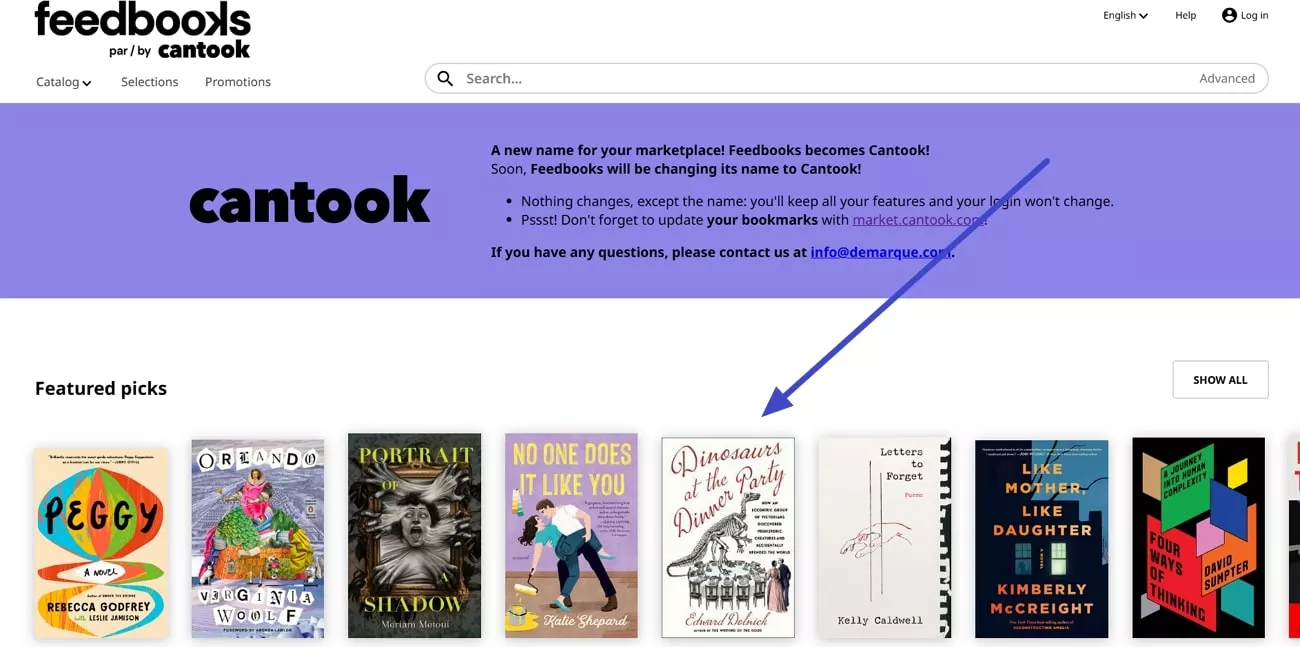
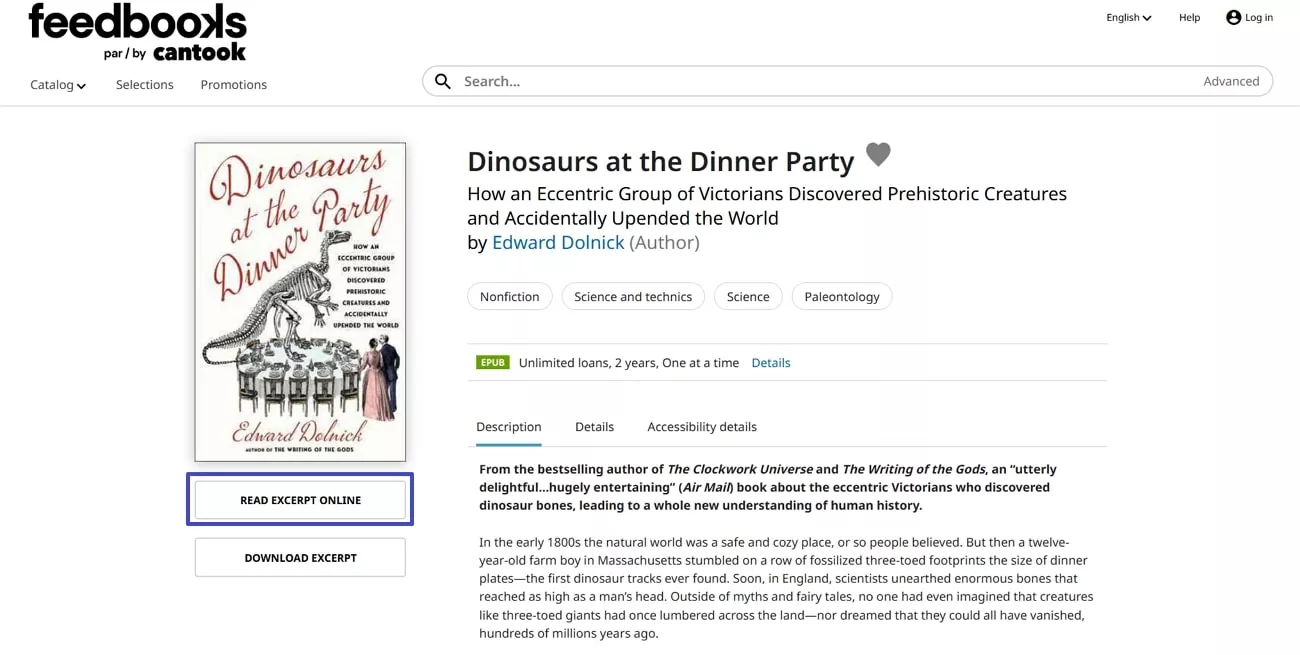
Step 2. Once you are done selecting your book, it will appear on the next interface with all its details of publishing and genre. Move forward and press the "Read Excerpt Online" option to have an overview of your book before accelerating the downloading process.
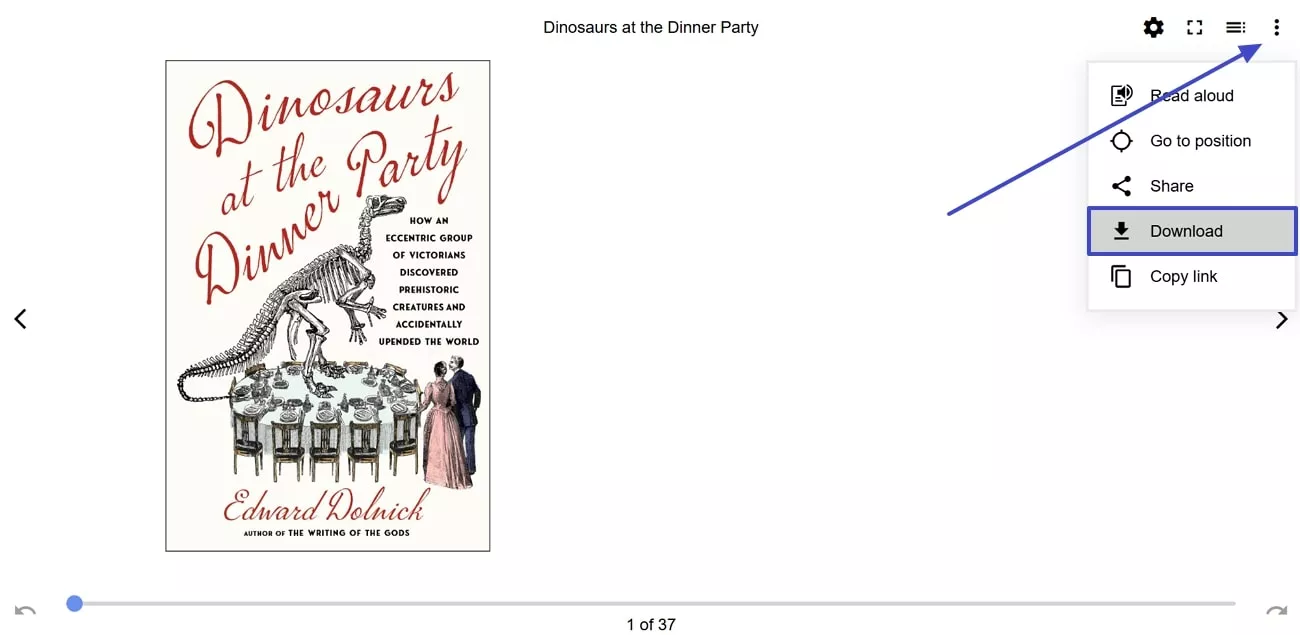
Step 3. In the current interface, your favorite book will be revealed to you. Now, for free access to your book, head to the three dots option at the left corner and press the "Download" button from the drop-down menu.
Bonus Tip
If you're looking for ways to quickly get key ideas from your readings, UPDF AI's PDF-to-mind-map feature is a great choice to consider. This AI-driven tool enables users to convert PDFs into visually structured mind maps, breaking complex contents into easy-to-grasp concepts. Watch this video to learn more about this feature or click the button below to try it for free.
Since Feedbooks downloads are in EPUB format and UPDF AI supports PDFs, you'll need to convert your EPUB files into PDF to take advantage of this feature. Interested users can read Part 4 to learn how to convert EPUB into PDFs to make the book readily accessible.
Part 3. Is There a Feedbooks Alternative?
Yes, there are several other alternatives to Feedbooks books that you can utilize to get access to various types of books. Moreover, if you want to explore literary masterpieces or niche topics, the following alternatives will provide you with a variety of reading material at a minimum cost:
1. Smashwords
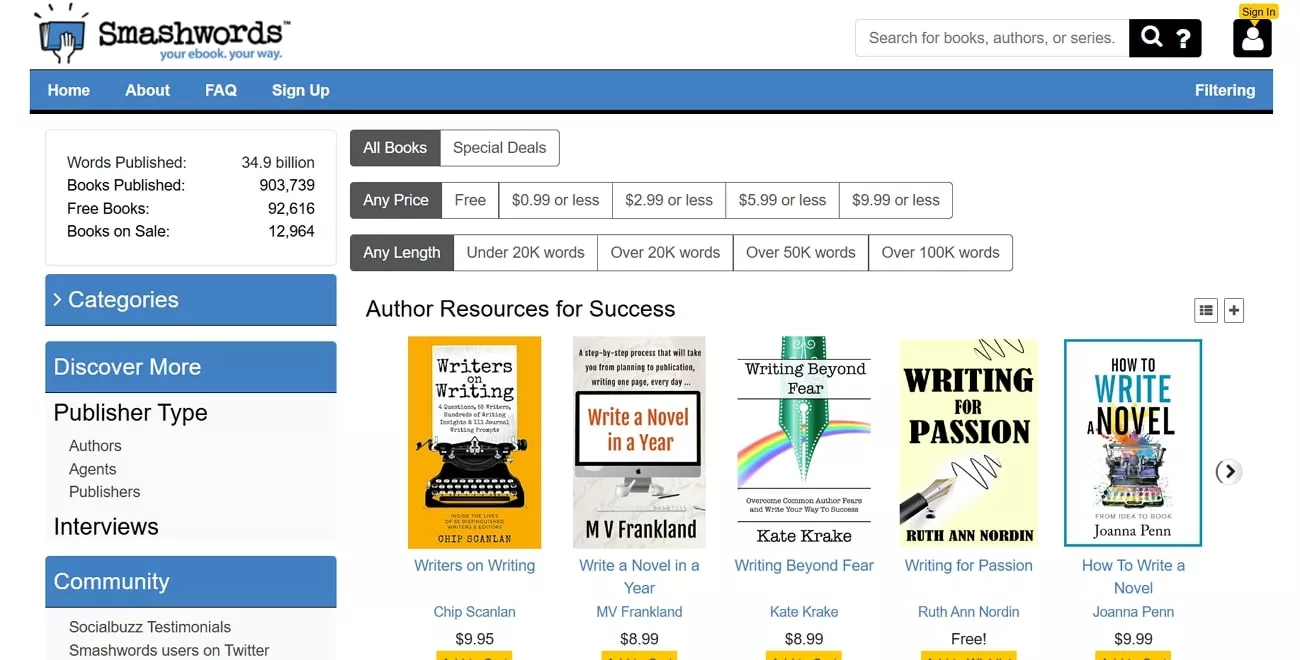
This popular platform is known for its diversity in genres, which includes niche topics and genres that might not be found elsewhere. Furthermore, you can also browse through thousands of free titles and download them in multiple formats, like EPUB. It also allows users to choose any price option, which includes movies in the range of free, less paid, or higher paid.
2. BookBub
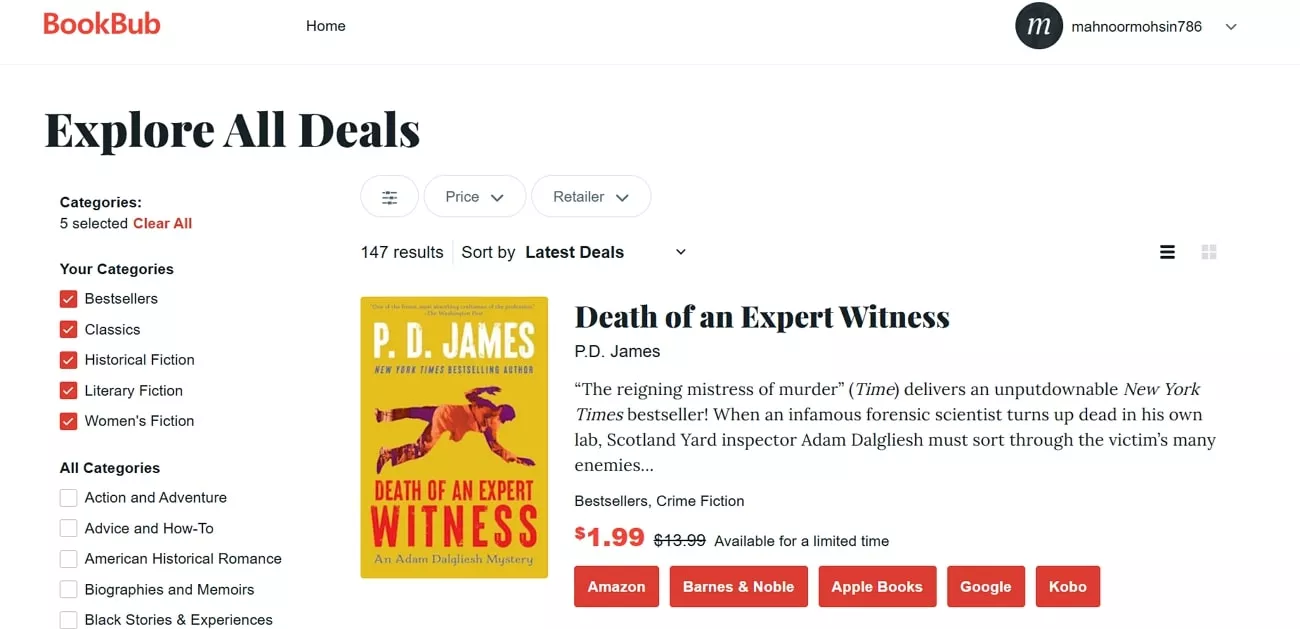
It's an exceptional source for finding free or discounted eBooks, especially if you are interested in bestselling or indie books. In the category section, this platform provides a variety of action, mysterious, and fantasy movies to choose from. Moreover, if you are a fan of Feedbooks, you'll appreciate BookBub as it showcases a similar model for readers.
3. Project Gutenberg
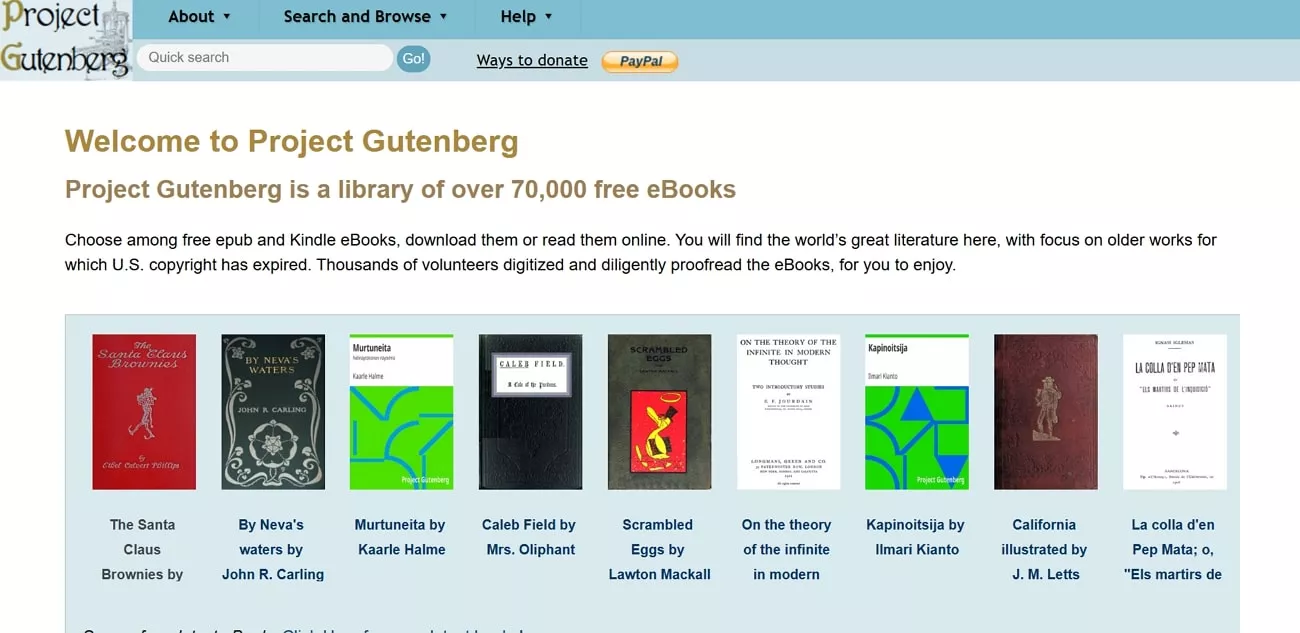
Project Gutenberg is one of the oldest and most well-known platforms offering free eBook downloading with over 70,000 public domain books. In addition, it now assists users with audiobooks that are freely available for easy playback on computers and mobile phones. The platform is easy to navigate, and books are available in multiple formats, such as HTML and Kindle.
The websites mentioned above offer a vast range of free and paid eBooks, making them an excellent alternative to Feedbooks downloads. However, if you wish to explore even more great reading options, you can unveil this article and have endless reading options.
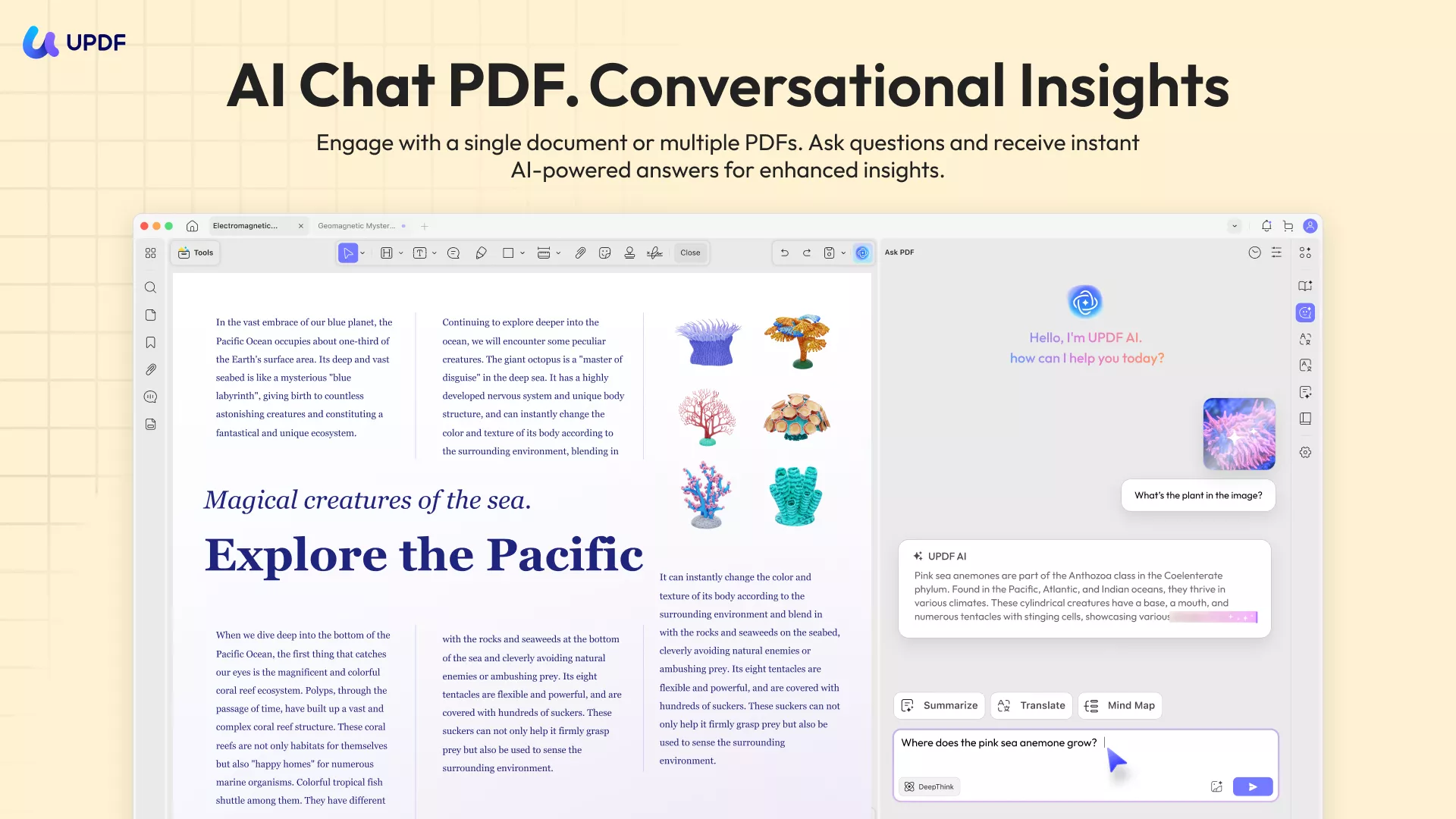
If you have downloaded a PDF book and want a book reader with powerful compatibility, consider UPDF. It is an ideal PDF book reader which allows users to read on computer and mobile devices anytime, anywhere. Additionally, the AI assistant (with the PDF-to-mind-map feature provided) is integrated into this app. Interested users can click the button below to give it a try.
Windows • macOS • iOS • Android 100% secure
Part 4. Bonus Tip: How to Turn an EPUB File into PDF Format?
Upon downloading an amazing book from Feedbooks in EPUB format, it is necessary to convert it to PDF format for versatile utility. For this purpose, CloudConvert is an excellent choice as it facilitates users with a wide range of file conversions, from EPUB to PDF. By following the steps in the guide below, you can easily convert your EPUB file into PDFs for further usage without downloading or installing anything.
Step 1. Open your web browser and search for the main web page of CloudConvert. After accessing, press the "Select File" button to upload your EPUB file on the platform.
Step 2. Once your file is uploaded, click the "Convert to" options to select your output format as PDF from the given options. In the end, hit the "Convert" button and swiftly transform your EPUB file to PDF format for other usage.
By converting a Feedbooks download to PDF, you gain the ability to use UPDF's professional layout tools, such as "Two-Page View" or "Dark Mode," which provide a more immersive "book-like" experience on your computer.
Windows • macOS • iOS • Android 100% secure
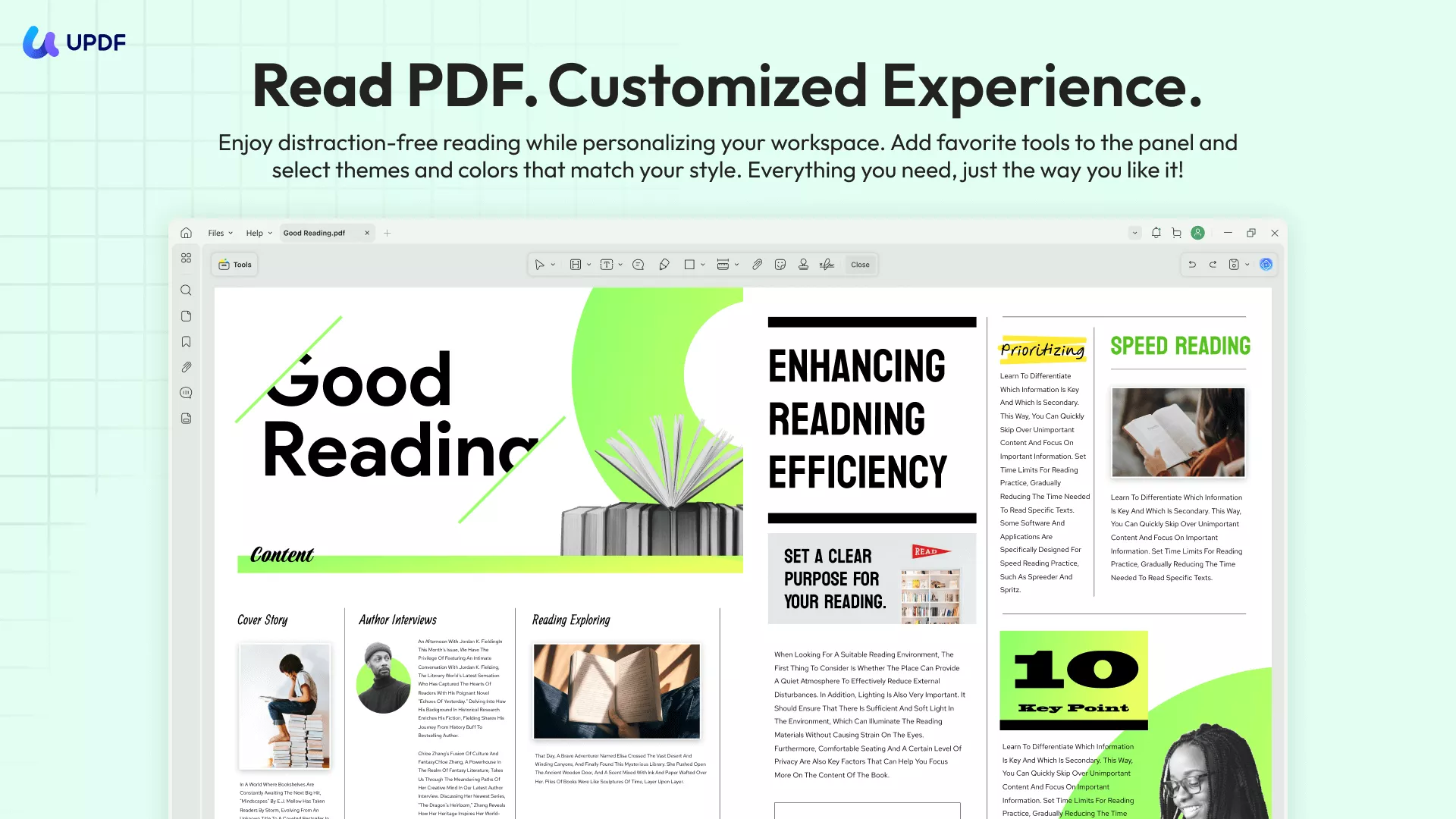
UPDF is a dedicated PDF powerhouse, converting your Feedbooks EPUBs into PDFs opens up a world of productivity features that standard eBook readers lack:
- AI-Powered Reading Assistant: Stuck on a complex chapter in a classic novel? UPDF AI can summarize long sections, explain archaic language, and even translate the whole book.
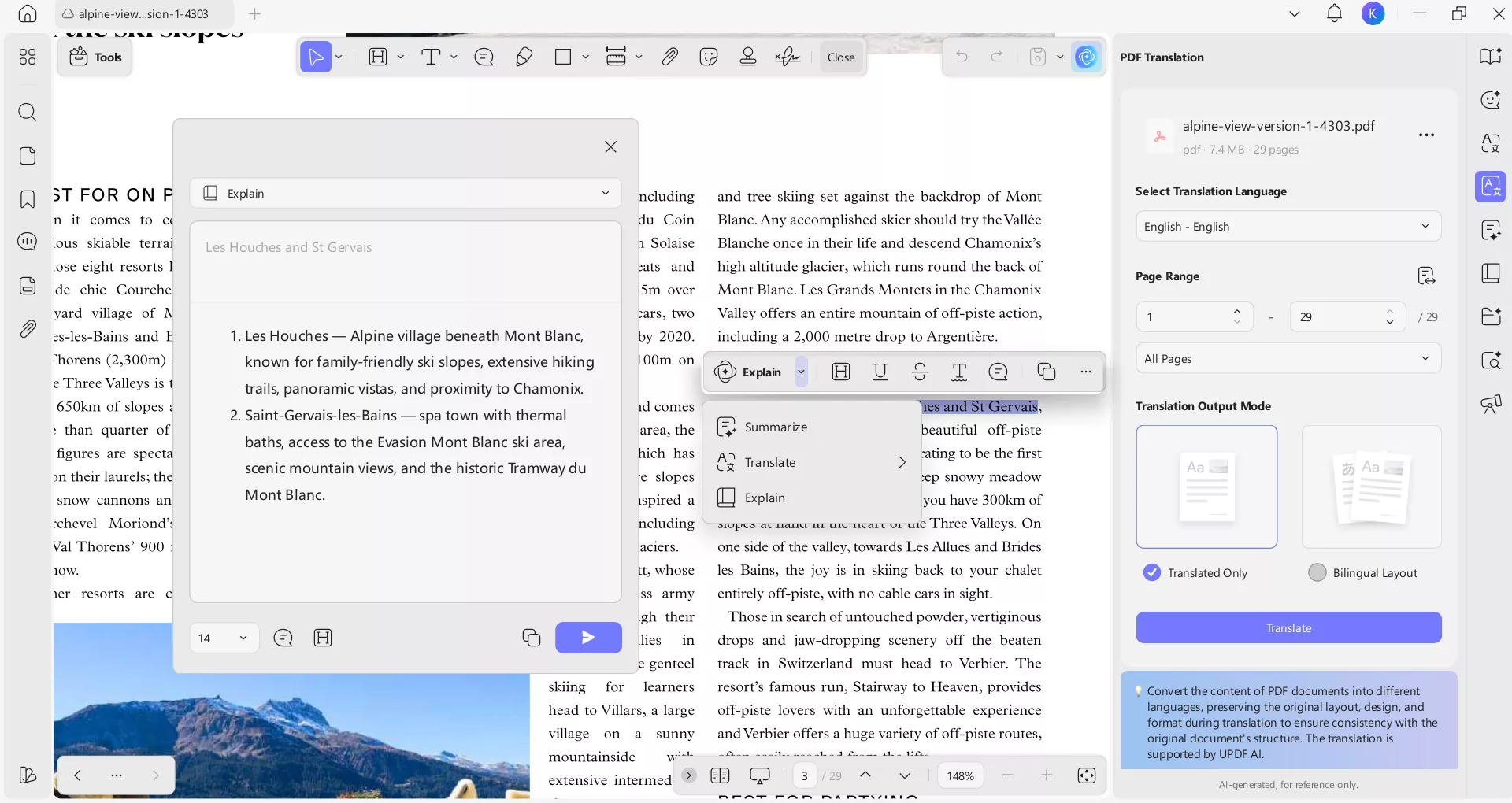
- Professional Annotation: Standard EPUB readers offer basic highlighting. With UPDF, you can add sticky notes, stamps, shapes, and more—essential for students and researchers.
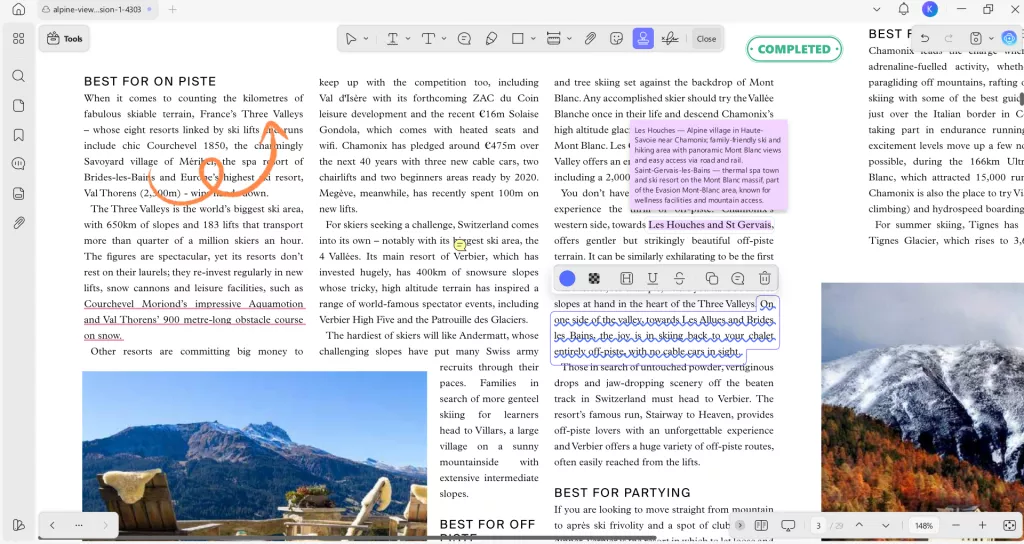
- True Document Editing: Notice a typo in a public domain book? Once converted to PDF, UPDF allows you to edit the actual text and images as easily as a Word document.
- Cloud Synchronization: Store your converted Feedbooks library in UPDF Cloud. Start reading and annotating on your Windows PC at home and pick up exactly where you left off on your Android or iOS device during your commute.
Both UPDF and UPDF AI can be used for free. Under the UPDF free version, all features are available with trial watermarks added. The UPDF AI free version allows you to ask up to 100 questions.

Windows • macOS • iOS • Android 100% secure
Conclusion
Feedbooks remains a top-tier source for high-quality eBooks in 2026. However, don't let the EPUB format limit your productivity. By converting your Feedbooks downloads to PDF, you unlock the full suite of UPDF’s AI and editing tools, turning a simple reading session into a powerful learning experience.
Download UPDF for Free and start building a smarter, more interactive digital library today!
Windows • macOS • iOS • Android 100% secure




 Italo Rossi
 Enid Brown
 Enola Davis
 Lizzy Lozano