UPDF
UPDF
 UPDF for Windows
 UPDF for Mac
 UPDF for iPhone/iPad
 UPDF for Android
 UPDF AI Online
 UPDF Sign
 Edit PDF
 Annotate PDF
 Create PDF
 PDF Form
 Edit links
 Convert PDF
 OCR
OCR PDF to Word
 PDF to Image
 PDF to Excel
 Organize PDF
 Merge PDF
 Split PDF
 Crop PDF
 Rotate PDF
 Protect PDF
 Sign PDF
 Redact PDF
 Sanitize PDF
 Remove Security
 Read PDF
 UPDF Cloud
 Compress PDF
 Print PDF
 Batch Process
 About UPDF AI
 UPDF AI Solutions
 AI User Guide
 FAQ about UPDF AI
 Summarize PDF
 Translate PDF
 Chat with PDF
 Chat with AI
 Chat with image
 PDF to Mind Map
 Explain PDF
 PDF AI Tools
 Image AI Tools
 AI Chat Tools
 AI Writing Tools
 AI Study Tools
 AI Working Tools
 Other AI Tools
 PDF to Word
 PDF to Excel
 PDF to PowerPoint
 Enterprise Solution
 Enterprise Sign
 Enterprise AI
 Enterprise Plan
 Enterprise User Guide
 Enterprise Webinar
 Banking
 Healthcare
 Insurance
 Legal
Legal Manufacturing
 Government
 Education Solution
 Customer Stories
 User Guide
 UPDF Tricks
 FAQs
FAQs UPDF Reviews
 Download Center
 Blog
Blog Newsroom
 Tech Spec
 Updates
 UPDF vs. Adobe Acrobat
 UPDF vs. Foxit
 UPDF vs. PDF Expert

A password is a great tool to protect your PDF from being opened, copied, edited, printed, and more. However, in many cases, you may need to remove the PDF passwords. To remove passwords from PDF, you need to use one correct tool. There are too many tools in the market, it is not easy to pick the tool you need. So, in this article, you will learn 4 easy and effective methods to help you remove passwords from PDFs. Read on to find more.
How to Remove a Password from a PDF File with aJoysoft
aJoysoft PDF Password Remover is a specialized, lightweight tool for batch decryption. It is particularly powerful because it can:
- Decrypt in Bulk: Import up to 200 PDFs at once to remove restrictions.
- Remove Permission Passwords Without Knowing Them: If you can't copy or print a PDF, aJoysoft unlocks these features even if you don't have the original permission password.
- Remove Open Passwords: If you have the correct open password, aJoysoft can remove it permanently for future access.
Step 1: Upload PDF Files
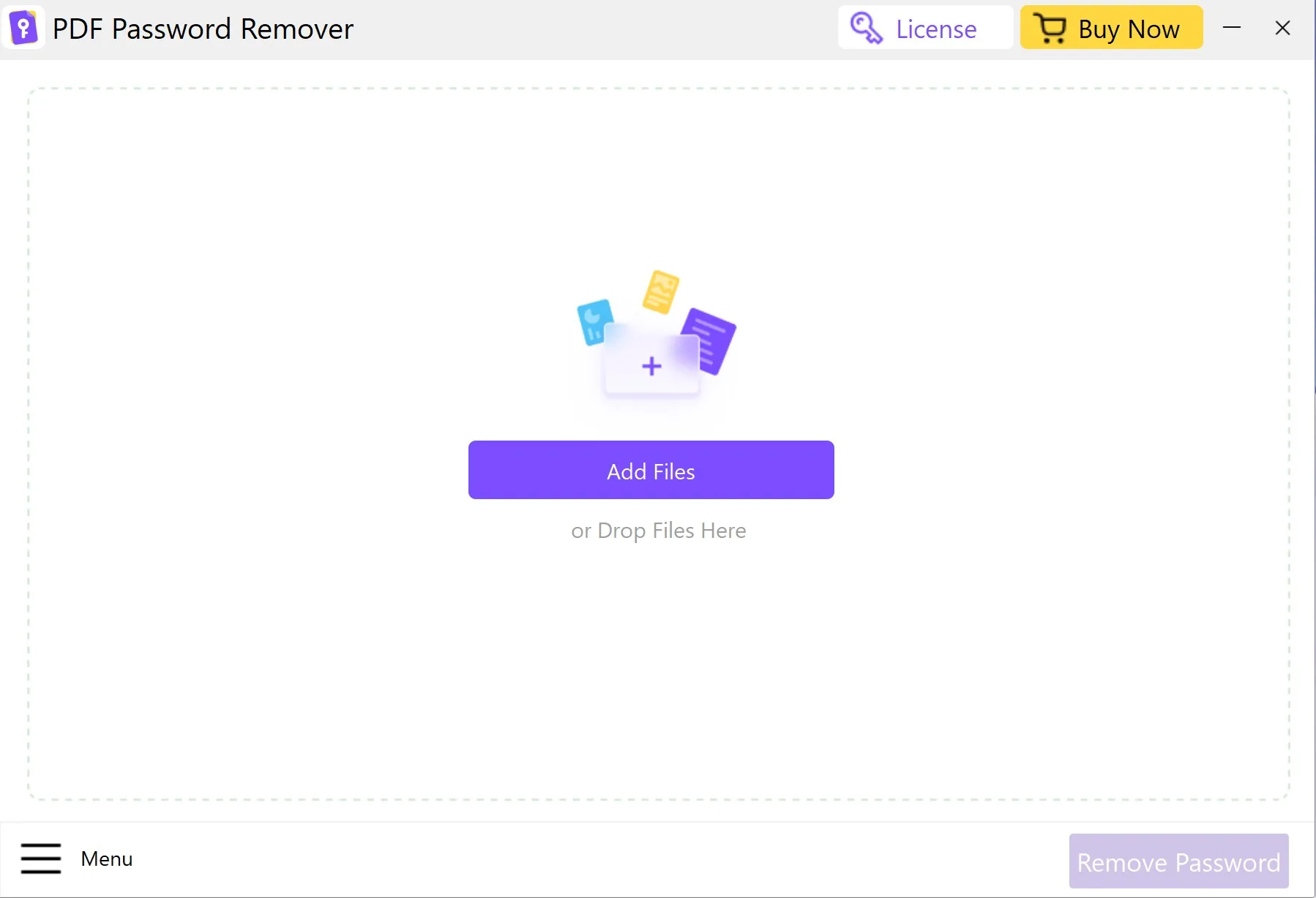
Click "Add Files" or use the quicker drag-and-drop approach to import your PDF files. Since batch decryption is supported, you may import as many files as you need to decrypt in a single session. This is the first step to removing unknown passwords from PDFs.
Step 2: Remove Permission Password from PDF Without Knowing the Password
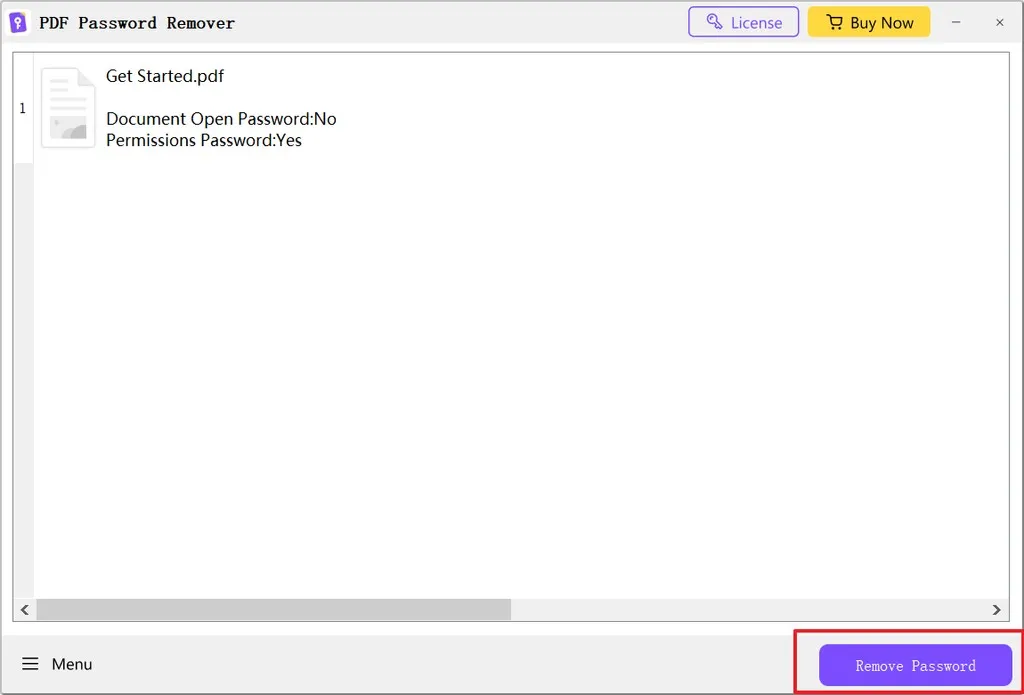
If your PDF does not have an Open or User password, aJoysoft will not display a lock symbol next to the file. Simply clicking "Remove Password" will remove all limitations and enable you to print, modify, and copy the document's contents.
Step 3: Remove Open Password from PDF With Password
If your PDF is an open password protect PDF, you'll see the padlock symbol. To unlock the open password, click the lock symbol and enter the password in the pop-up box.
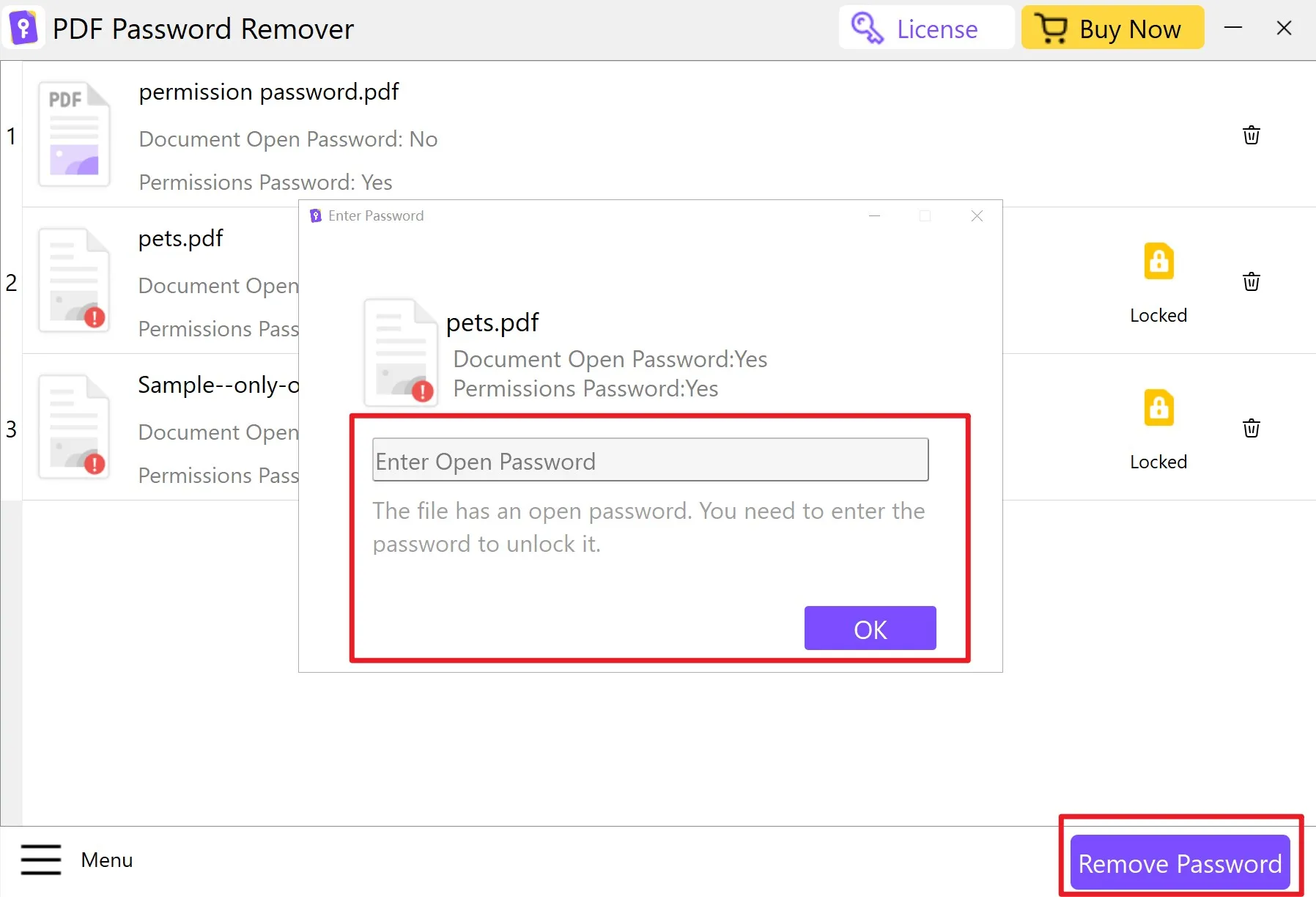
Click "Remove Password" to remove all limitations. When asked, pick a folder to store unlocked imports.
Note: A simple file removal mechanism for security-conscious users guarantees sensitive files aren't left in the queue. To remove the PDF file queue, right-click any document and choose "Remove" or "Clear All."
How to Remove Security from PDF with UPDF
If you know the password and want more than just an unlocked file, UPDF is the ultimate solution. It is an all-in-one PDF editor that combines security removal with powerful AI and editing tools.
Windows • macOS • iOS • Android 100% secure
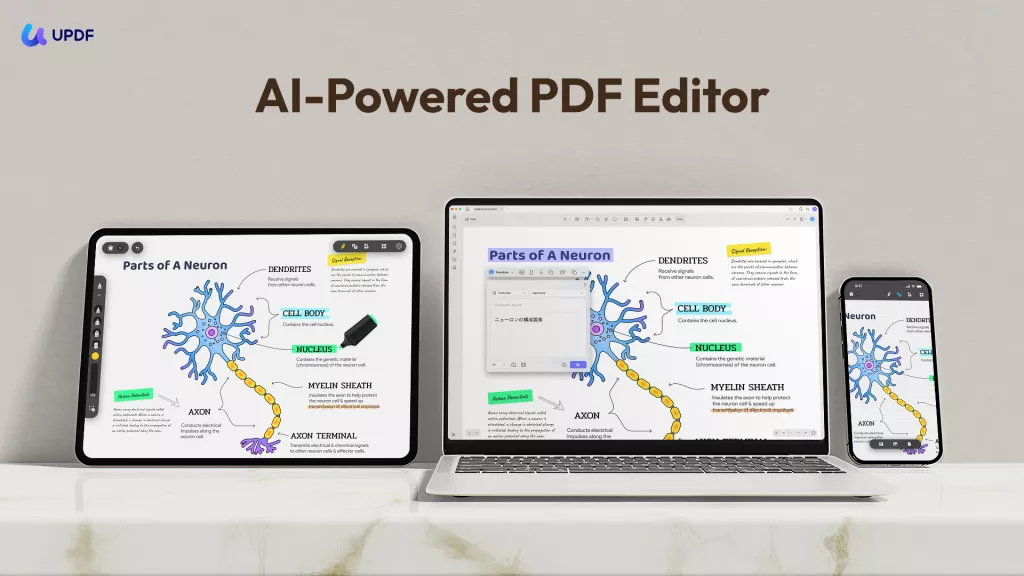
Why Choose UPDF?
- Comprehensive Editing: Modify text, images, and links directly after unlocking.
- UPDF AI: Summarize, translate, and explain the content of your decrypted PDFs.
- High Efficiency: Handle large files quickly with a beautiful, user-friendly interface.
Smart Tip
Windows • macOS • iOS • Android 100% secure
To know more about UPDF, you can read this UPDF review article from Howtogeek and watch the below review video.
UPDF allows you to remove passwords from PDF if you know the password. You can follow the below guide to remove PDF password with UPDF.
Step 1. Open the Protected PDF
Run UPDF and you will see there is an "Open File" button on the main interface. Click on it and select the PDF file you want to open. If it has an open password, it will ask you to enter the open password.
Step 2. Unprotect PDF
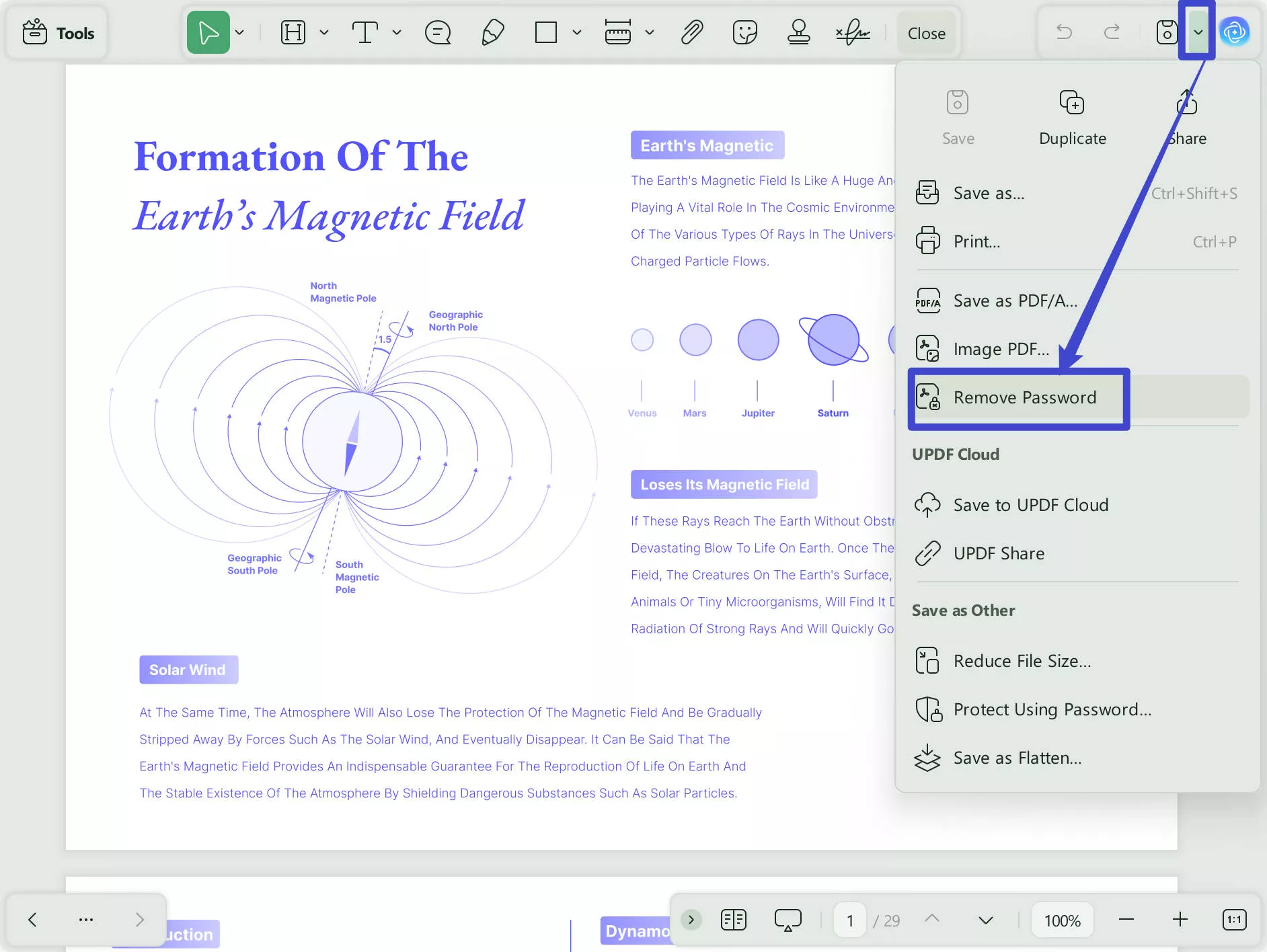
If you want to unprotect PDF, you should click the narrow next to "Save" and choose the "Remove Password" option. Then click "Unlock". This is how you use UPDF to remove password protection from PDF.
It is super easy to remove PDF passwords with UPDF. Just click the below button to download UPDF and start using it.
Windows • macOS • iOS • Android 100% secure
How to Remove Password Protection from PDF in Chrome
You may not want to use the desktop software to remove the PDF password. For this case, if you have the password, you can use Chrome to remove it by following the below steps:
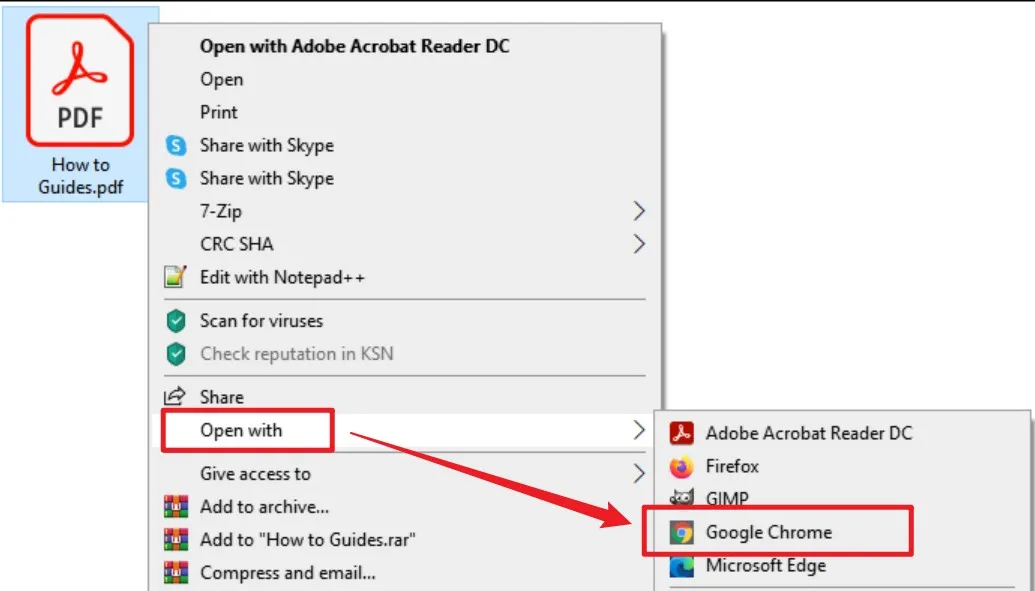
Step 1: Open the protected PDF on Google Chrome. If the PDF has no printing constraints, this method will work. You can open it by dragging the PDF file into Chrome or you can right-click the PDF document and then choose "Open with > Google Chrome".
Step 2: Click the "Print" icon on the top right corner, or you can press "Ctrl + P" on Windows, and "Command + P" on Mac.
Step 3: Now you can save the PDF without a password. Click the "Change" button under Destination and select "Save as PDF", finally, click "Save". This will help you save a new PDF document that includes the same information but without passwords.
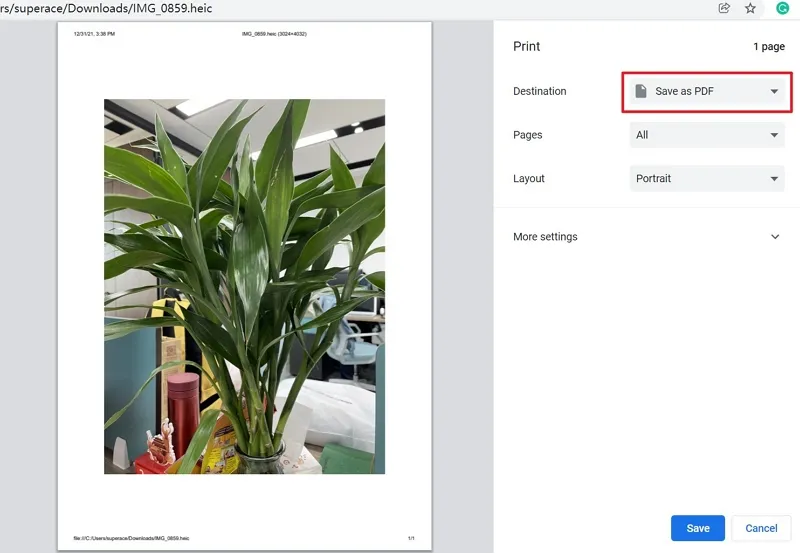
Note: This method will only work if there are no printing limitations on the PDF. And if the PDF contains an open password, it must be entered first.
How to Remove Security from PDF with Google Drive
If you have Google Drive, you can also use it to remove password from PDF with the below guide.
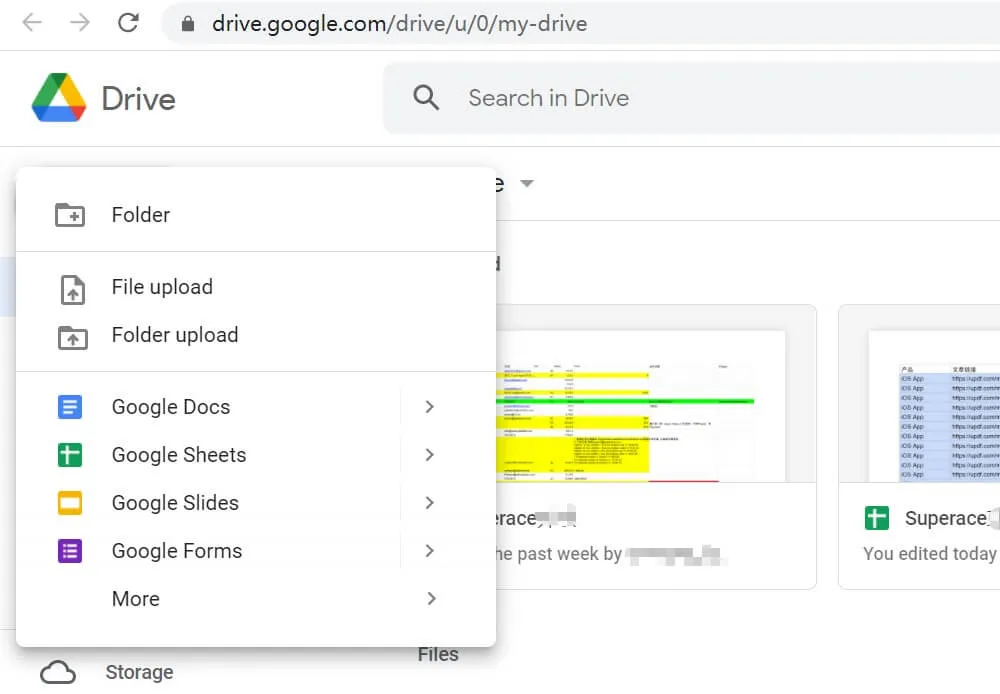
Step 1: Upload the encrypted PDF by clicking "My Drive" > "File upload". Select the PDF file and upload it to Google Drive.
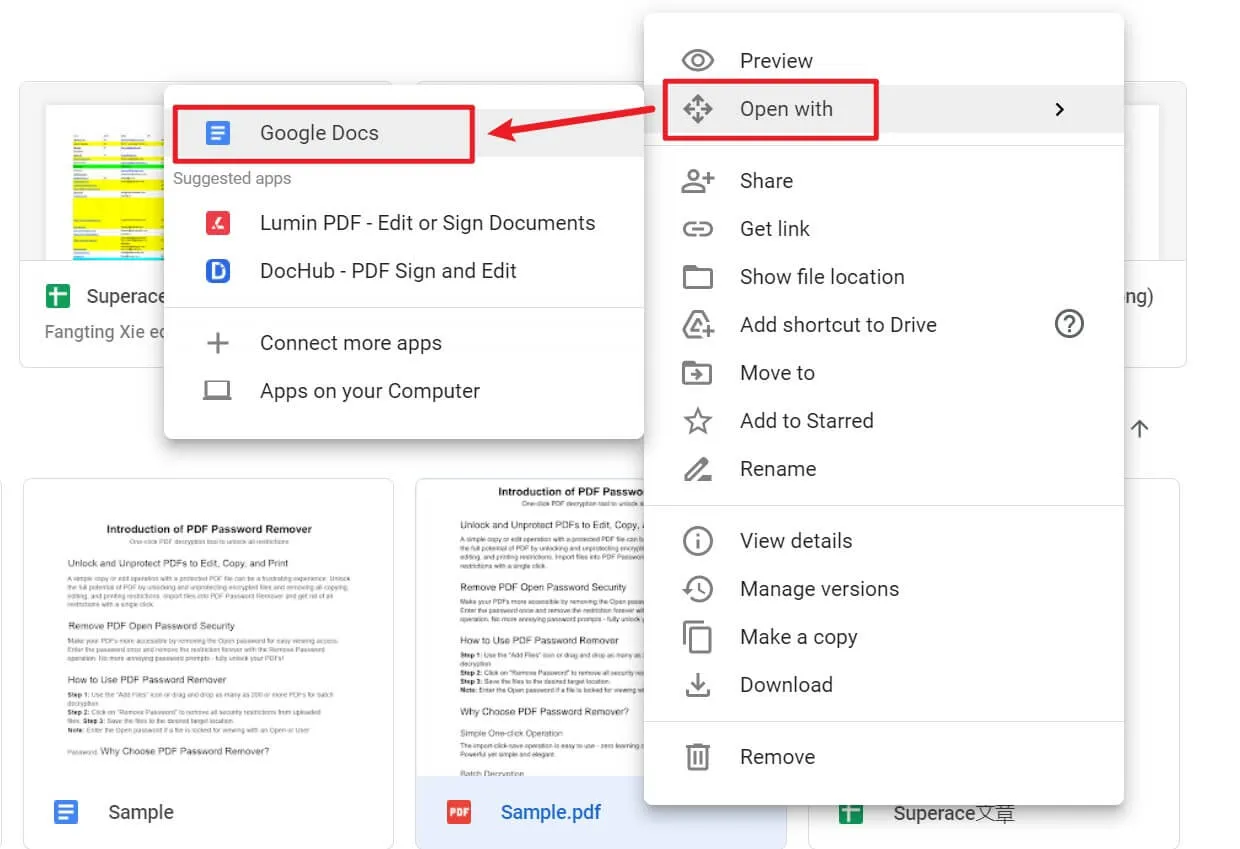
Step 2: Right-click the PDF and choose "Open with" > "Google Docs". Opening PDF with Google Docs can help you create a new document without a password.
Step 3: Then you need to go to "File" > "Download" > "PDF Document(.PDF)". This is for you to save a duplicated PDF document without a password.
Also Read: How To Print Password Protected PDF?
Conclusion
If your PDF has a password that prohibits opening, copying, editing, and printing, you can use any method above to remove the password from the PDF. However, suppose you still do not know which method to use. In that case, we recommend you to use aJoysoft PDF Password Remover, if you do not have a password for permission password-protected PDF, and UPDF if you have a password for open or permission password! And what we want to say further is UPDF as it is really powerful. It can not only remove PDF passwords, but also edit PDFs, convert PDFs, annotate PDFs, summarize PDFs, and more. Why not download UPDF via the below button to have a try?
Windows • macOS • iOS • Android 100% secure





 Delia Meyer
 高美季子
高美季子 
 Enola Miller
 Lizzy Lozano