 UPDF
UPDF
 UPDF for Windows
 UPDF for Mac
 UPDF for iPhone/iPad
 UPDF for Android
 Nomostar
 UPDF AI Online
 UPDF Sign
 IvyCraft
 Edit PDF
 Annotate PDF
 Create PDF
 PDF Form
 Edit links
 Convert PDF
 OCR
OCR PDF to Word
 PDF to Image
 PDF to Excel
 Organize PDF
 Merge PDF
 Split PDF
 Crop PDF
 Rotate PDF
 Protect PDF
 Sign PDF
 Redact PDF
 Sanitize PDF
 Remove Security
 Read PDF
 UPDF Cloud
 Compress PDF
 Print PDF
 Batch Process
 About UPDF AI
 UPDF AI Solutions
 AI User Guide
 FAQ about UPDF AI
 Summarize PDF
 Translate PDF
 Chat with PDF
 Chat with AI
 Chat with image
 PDF to Mind Map
 Explain PDF
 PDF AI Tools
 Image AI Tools
 AI Chat Tools
 AI Writing Tools
 AI Study Tools
 AI Working Tools
 Other AI Tools
 AI Bookmark Generation
 AI Bookmark Summary
 AI Watermark Generation
 AI Background Generation
 AI Sticker Generation
 AI Stamp Generation
 AI Editing Suite
 UPDF Copilot
 AI Page Management
 AI Semantic Search
 PDF to Word
 PDF to Excel
 PDF to PowerPoint
 Enterprise Solution
 Enterprise Sign
 Enterprise AI
 Enterprise Plan
 Enterprise User Guide
 Enterprise Webinar
 IT
IT Education
 Construction
 Financial Service
 Healthcare
 Insurance
 Legal
Legal Manufacturing
 Government
 Researchers & PhDs
 Solopreneurs & Freelancers
 Lawyers & Legal Professionals
 Real Estate Agents & Brokers
 Education Solution
 Customer Stories
 User Guide
 UPDF Tricks
 FAQs
FAQs UPDF Reviews
 Download Center
 Blog
Blog Newsroom
 Tech Spec
 Updates
 UPDF vs. Adobe Acrobat
 UPDF vs. Foxit
 UPDF vs. PDF Expert

Need to translate a PDF online without losing formatting or compromising privacy? You're not alone. Most free online PDF translators work for simple text, but they break tables, miss scanned text, and may store your files on remote servers.
This guide covers the 4 best tools to translate PDFs online in 2026 — including their real file size limits, formatting accuracy, and privacy risks. If you need to translate scanned PDFs, preserve complex layouts, or handle confidential documents, the last section covers UPDF, an offline AI translator that keeps your data on your device.
Windows • macOS • iOS • Android 100% secure
Part 1. Translate PDF Online via UPDF AI Online
UPDF AI is an online tool that works in your browser — no installation needed. It allows you to translate specific pages, selected text, or an entire PDF into the language you need. The free version includes 30 AI prompts, enough for several short documents or targeted translations.
Tip
If you do not have many translation tasks, you can use it for free as it offers 30 prompts to use in the free version. You can click the below button to visit UPDF's Online AI Assistant to use it now.
Want to know how to use UPDF AI to translate PDFs online? Follow the below two guides.
Way 1. Translate PDF Online by Pages
If you need to translate one, several or all pages of the PDF, you can follow this guide.
Step 1. Visit the UPDF AI website. Click on the "Log in" icon to sign up or log in with your account.
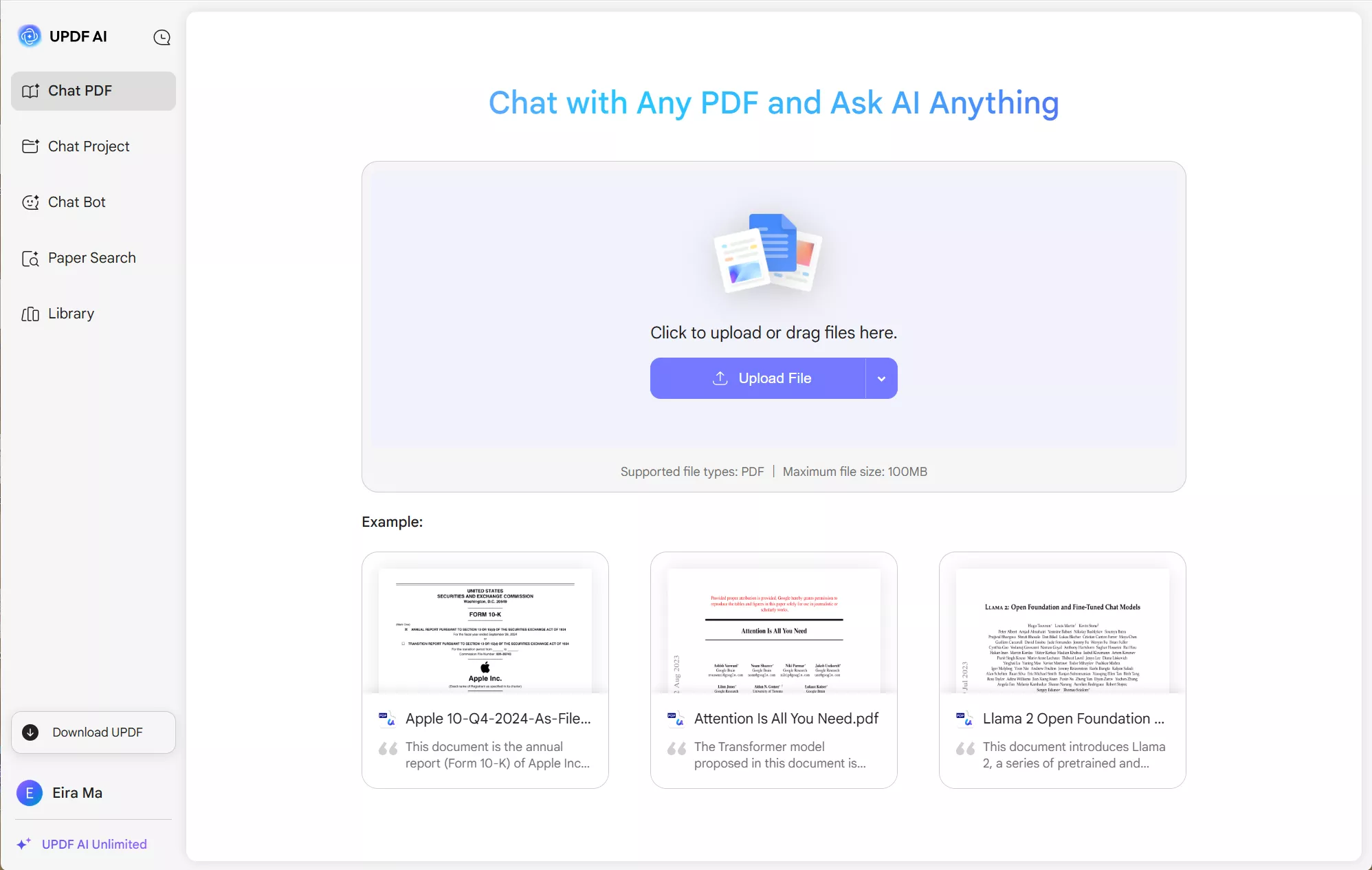
Step 2. When you log in, you can click on "Upload File", select the PDF file you want to translate online, and click on "Get Started". Then, click on the star icon at the front of the "Ask Something" box, select "Translate by Page"
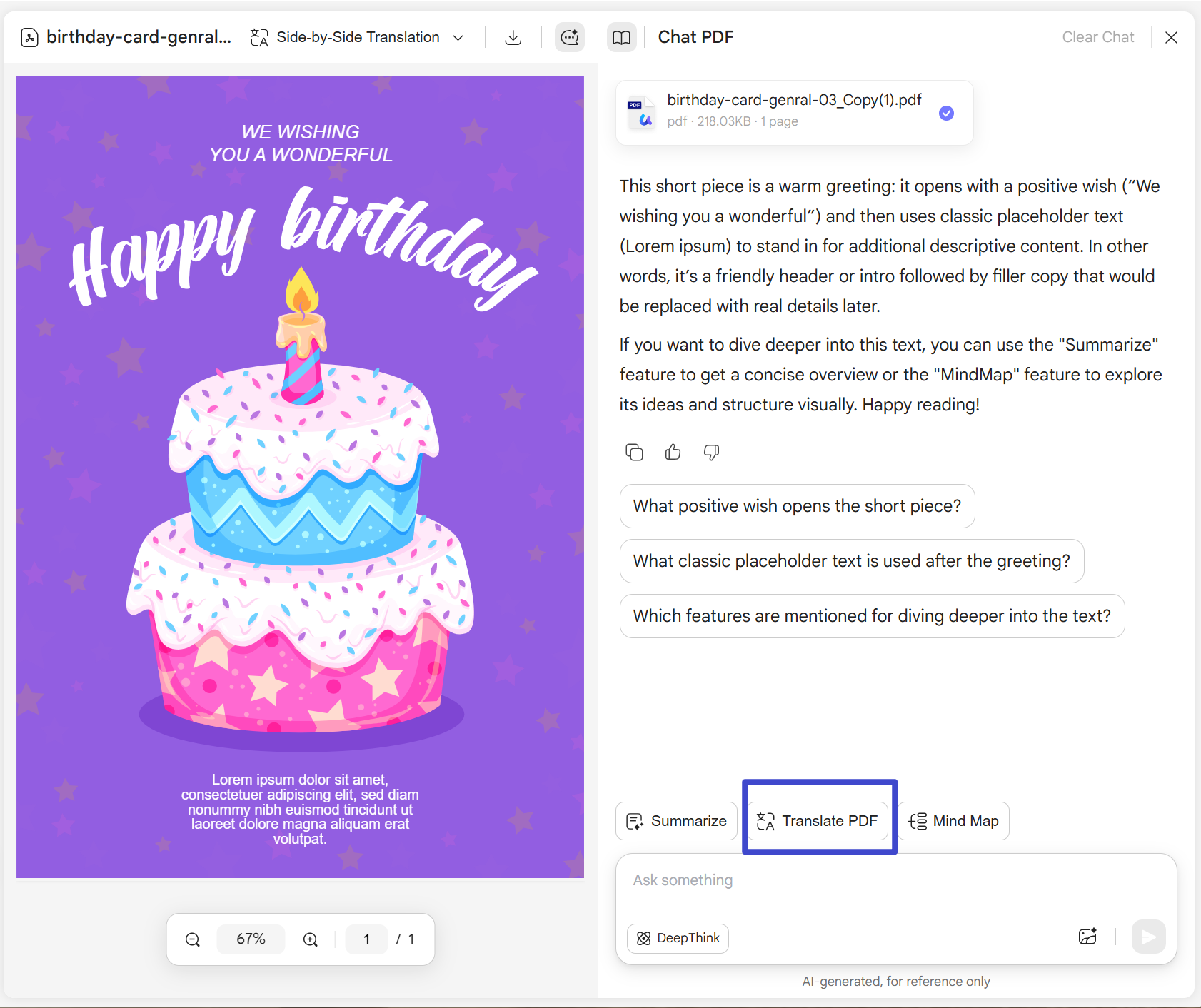
Select the destination language and the page number you want to translate. UPDF AI Web version will help you translate the page to the language you need. You can copy the translated PDF content after the translation process ends or regenerate if you are not satisfied with the result.
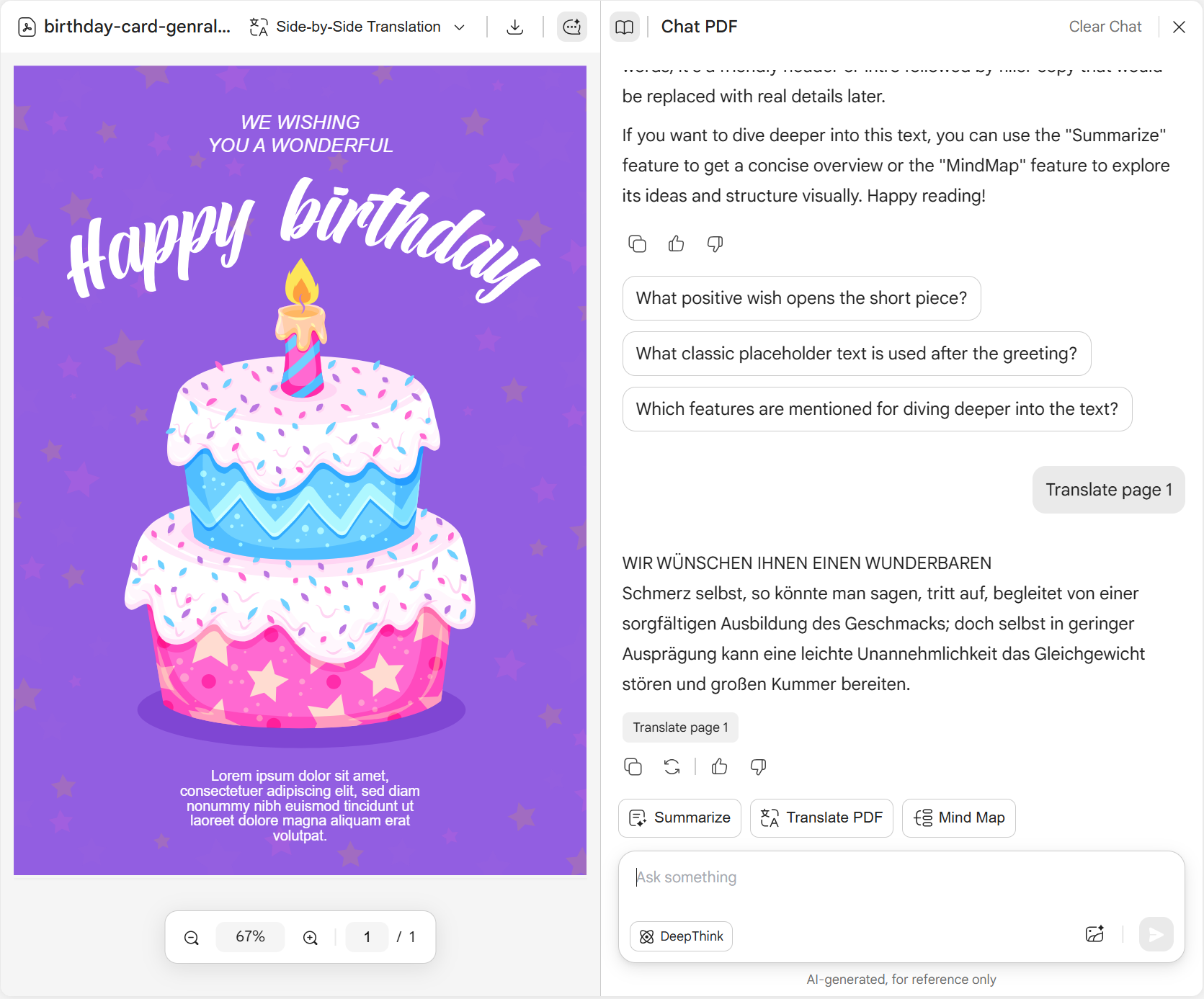
Way 2. Translate PDF Online by Entering Prompts
To those who only want to translate a small part of the PDF file. You can follow this guide.
Step 1. You can use your mouse to highlight all the contents in the PDF after you upload the PDF to the UPDF AI. Hold on "Crtl+C" on Windows or "CMD+C" on Mac to copy all the contents.
Step 2. Enter the prompt "Translate to German: [Paste the content here]" in the "Ask Something" box and paste the copied content after the prompt. Press enter to start translating your content.
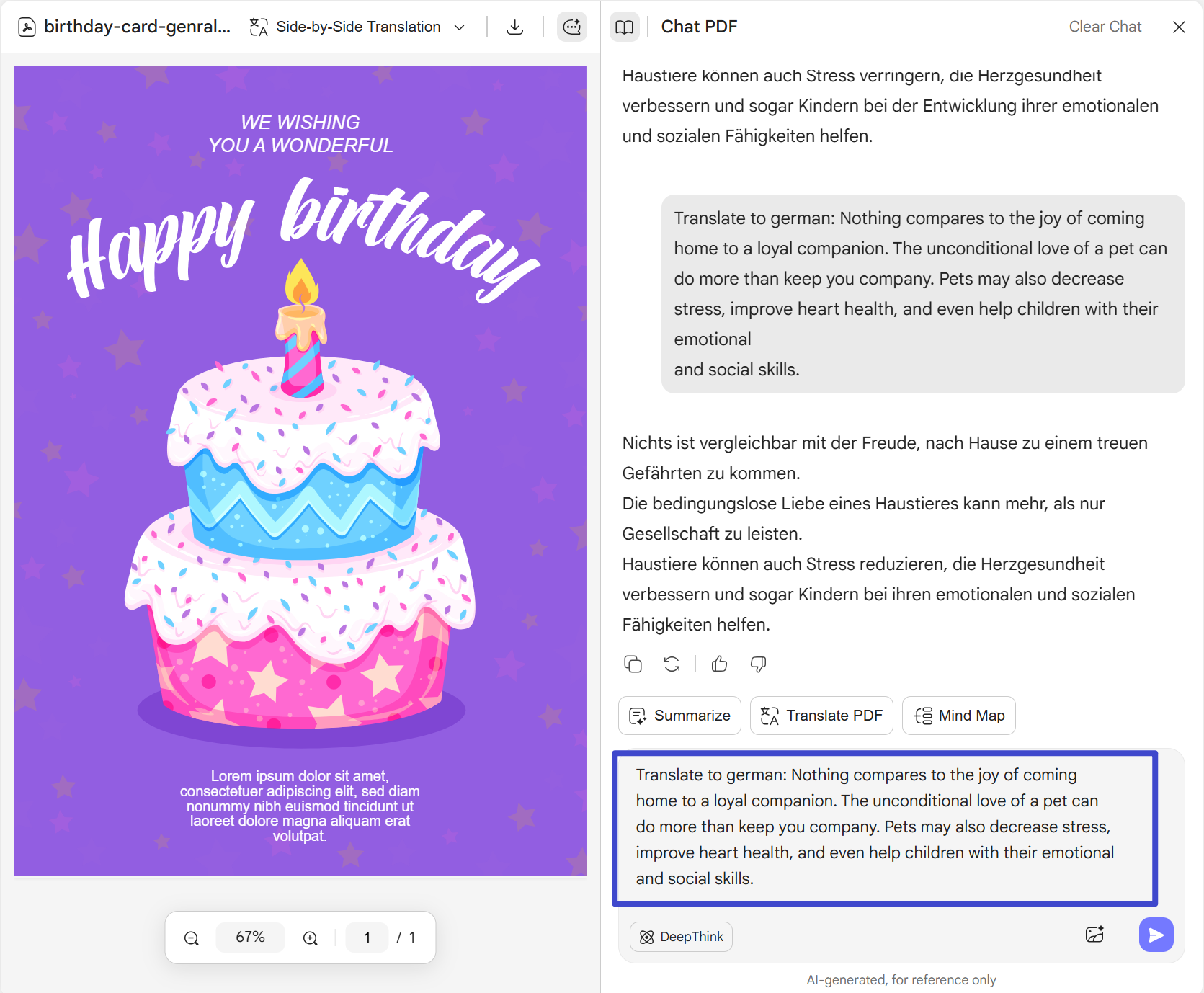
It is easy to translate PDF online with the UPDF AI online version. Why not go to use it now by clicking the below button?
Part 2. Translate PDF Online with Google Translate
Google Translate is the most widely used free PDF translator online. It supports over 130 languages and requires no account. However, it has strict limits: PDFs must be under 10 MB and fewer than 300 pages. It also does not support scanned PDFs (image-based text is not translated) and often breaks complex formatting such as tables, columns, and embedded images.
Warning
Instead, it usually goes from the original language to English and then to the language you want. Since many things are available in English online, this translation method makes it much easier. The app has many features you can use on a regular web browser. So, check out the simple steps below to give a try to this tool and start using it:
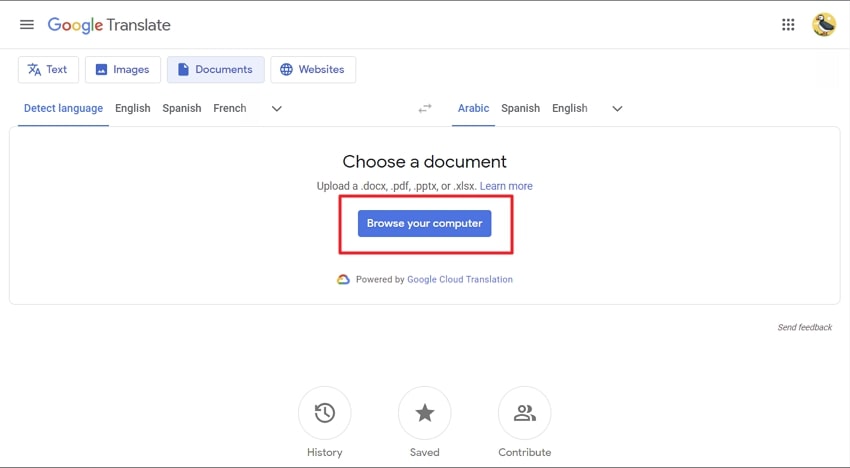
Step 1: Access the official website of Google Translate and choose the "Documents" option from the toolbar. Afterward, press the "Browse your Computer" button and upload your PDF file.
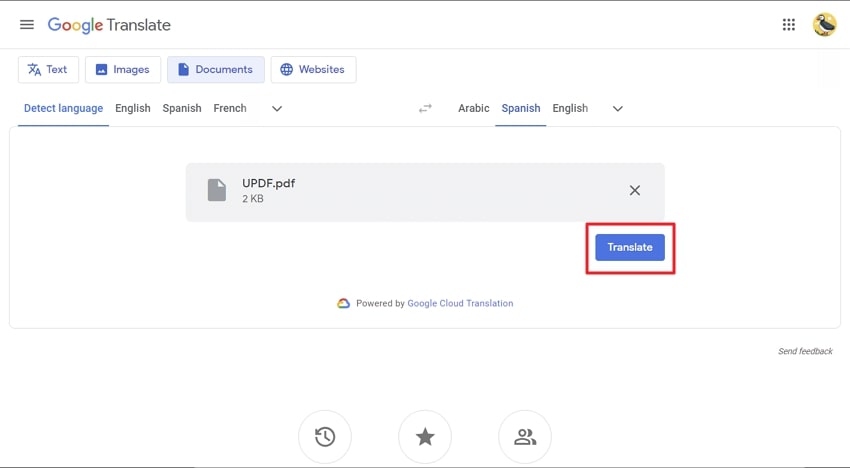
Step 2: Next, select the language you want to translate the document. To initiate the process of Google Translate, press the "Translate" button. You can see the progress on your screen, and once the translation is completed, click on the "Download Translation" button.
Tip
Part 3. Translate PDF Online with Google Drive (Docs Method)
Google Drive offers a free way to translate PDFs by converting them into editable Google Docs first. This method often preserves basic formatting better than Google Translate's direct PDF upload, and it works entirely within Google's ecosystem. However, like Google Translate, it requires an internet connection and uploads your file to Google's servers.
Best for
Now, you don't need to struggle with foreign language PDFs anymore. Just upload the PDF to Google Drive, use the translate PDF file online tool, and you'll have a translated version ready to read and understand. Let’s try this tool using the given steps and start translating PDFs:
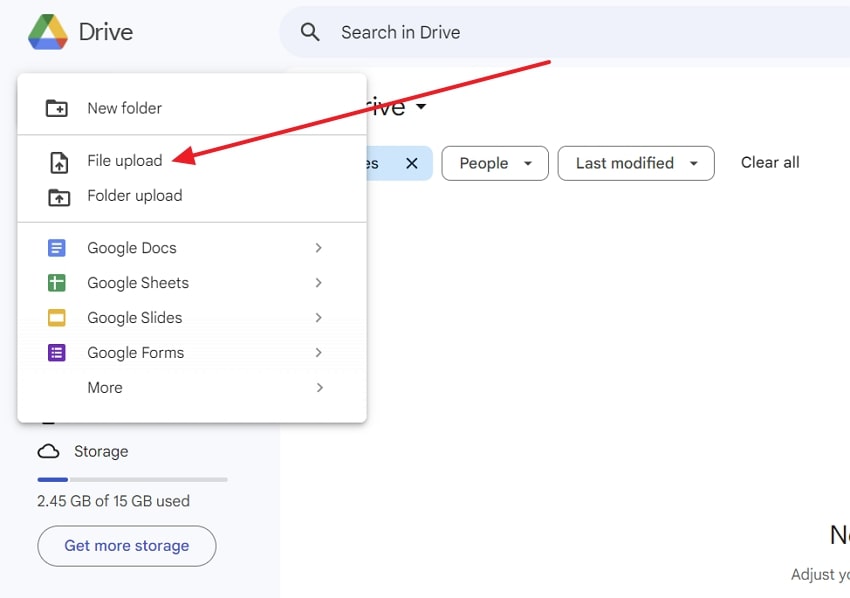
Step 1: Open Google Drive on your preferred web browser and log into your Google account. Afterward, click the "New" button and choose the "File upload" option to import the PDF file from your device.
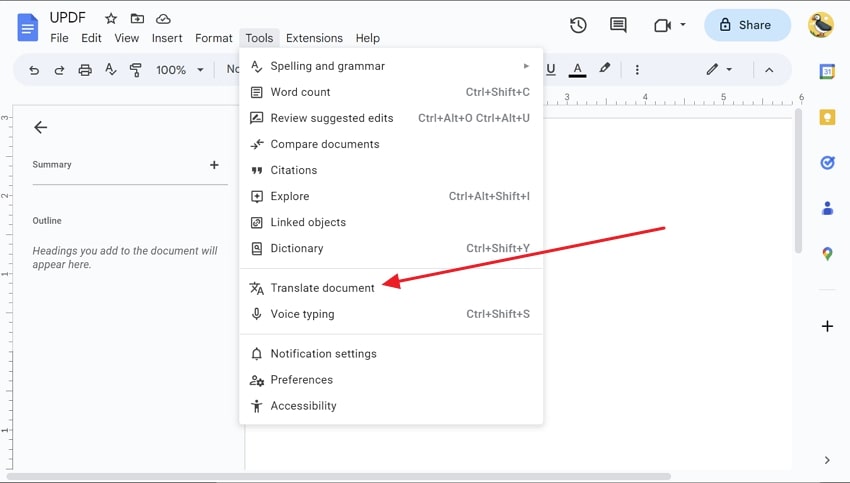
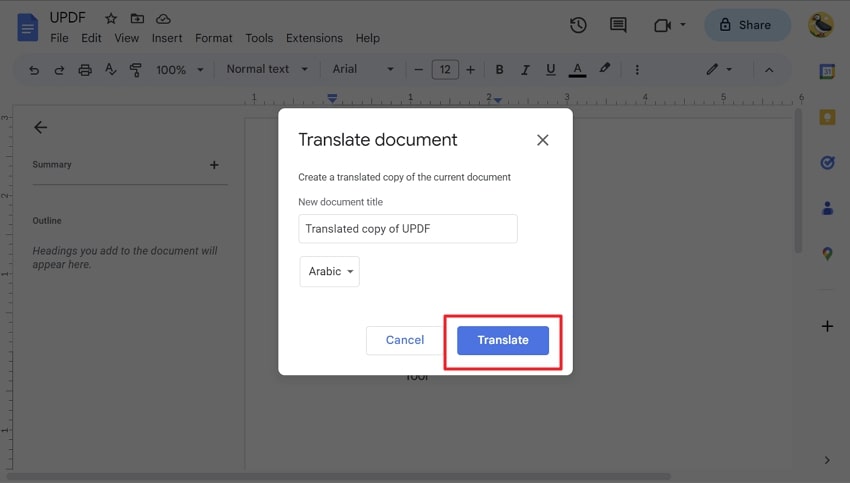
Step 2: Right-click on the uploaded PDF document and hover over the "Open With" option to open the PDF file in Google Docs. Access the "Tools" tab and choose the "Translate Document" option from the drop-down menu.
Step 3: From the small "Translate Document" window, select the language you want to translate the document's content. Afterward, assign a new title to the translated document to differentiate it from the original one and press the "Translate" button.
Tip
Part 4. Translate PDF Online with DocTranslator
DocTranslator is an online tool that supports over 100 languages and focuses on preserving PDF layout during translation. It can handle large files (up to 1 GB or 5,000 pages on higher plans) and includes built-in OCR for scanned documents.
Best for
An incredible tool, DocTranslator can help you translate PDF documents online with ease. This tool assists you in a fast and efficient manner. With 109 supported language features, this AI-powered tool is super versatile. It uses AI to ensure your translations are top-notch while keeping the original PDF layout intact. Moreover, creating an account or logging in is unnecessary, as you can start translating immediately.
DocTranslator boasts an impressive 80-90% accuracy rate, ensuring reliable and precise translations for all your needs. So, why wait anymore? Read the steps below to get started with the DocTranslator translation process:
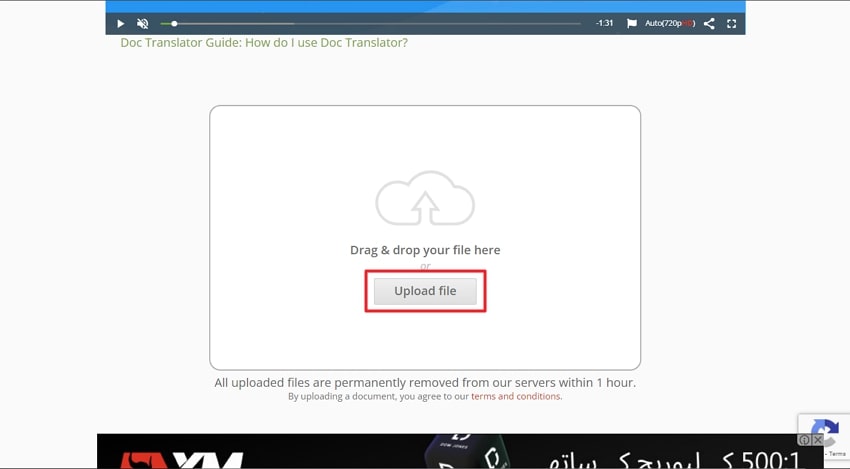
Step 1: Open your web browser on any device and access this link to open the DocTranslator tool. Next, click the “Upload File” button and locate and open the desired PDF file. DocTranslator will automatically detect the language of the document.
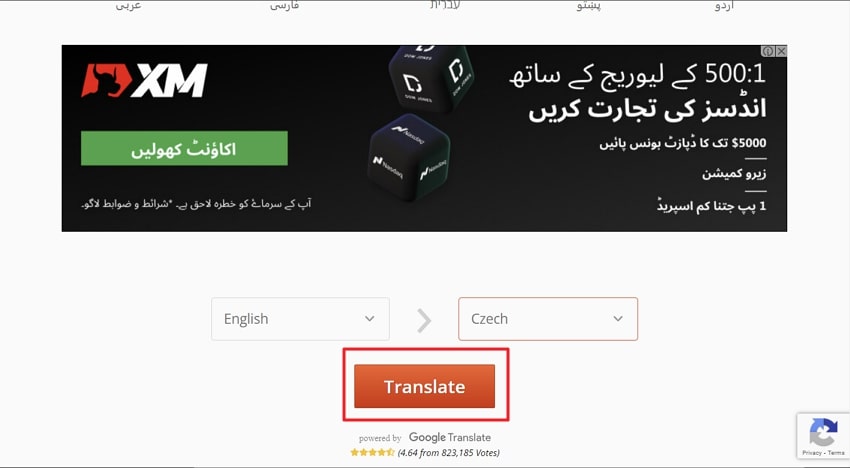
Step 2: After this, select the language you want to translate the document and hit the "Translate" button. Once the translation process is completed, tap the "Download your translated document!" link to download the translated document.
Warning
Part 5. Translate PDF Offline with UPDF AI (Windows, Mac, Android, iOS)
If you have encountered any of these limits with online tools — broken formatting, file size caps, no OCR support, or privacy concerns — UPDF AI offers an offline solution that resolves all of them.
UPDF AI is integrated into the UPDF desktop and mobile app. It translates PDFs directly on your device, which means your files never leave your computer. Unlike online tools that store uploads on remote servers, UPDF processes everything locally — ideal for confidential contracts, medical records, and legal documents. One license covers up to 4 devices simultaneously.
Best for
Windows • macOS • iOS • Android 100% secure
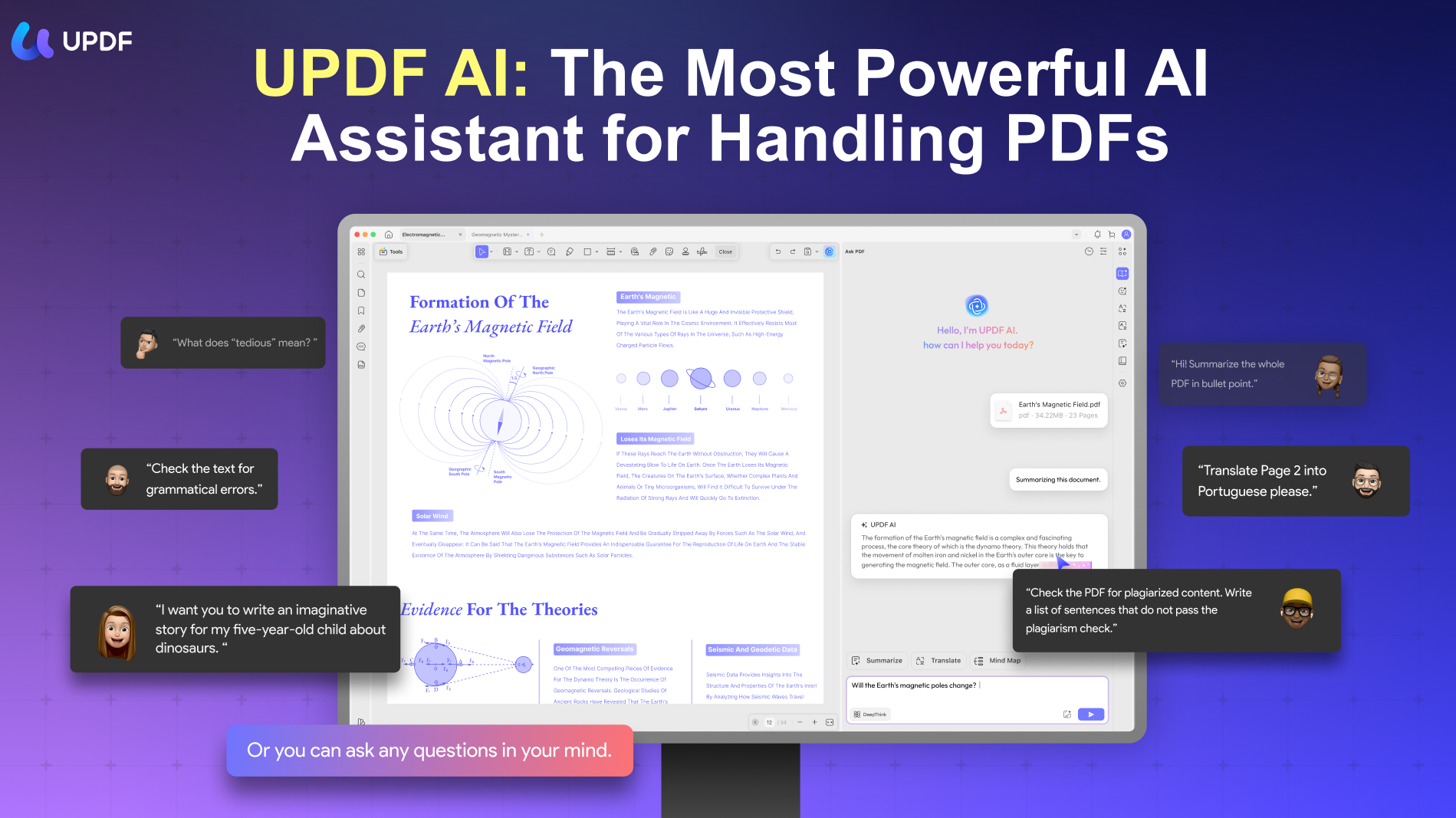
This means you can translate PDFs offline on the go using your Windows PC, MacBook, iOS, and Android devices. So, UPDF now empowers users to translate PDFs in various languages innovatively. This eventually breaks down language barriers with ease. You can even upload your translated PDFs on UPDF Cloud and access them from anywhere. With that, check the steps outlined below on how to translate PDFs using UPDF:
Step 1: Access the PDF File You Want to Translate
Beforehand, launch the UPDF tool and import the required PDF via the "Open File" option.
Step 2: Translate PDF with 3 Methods
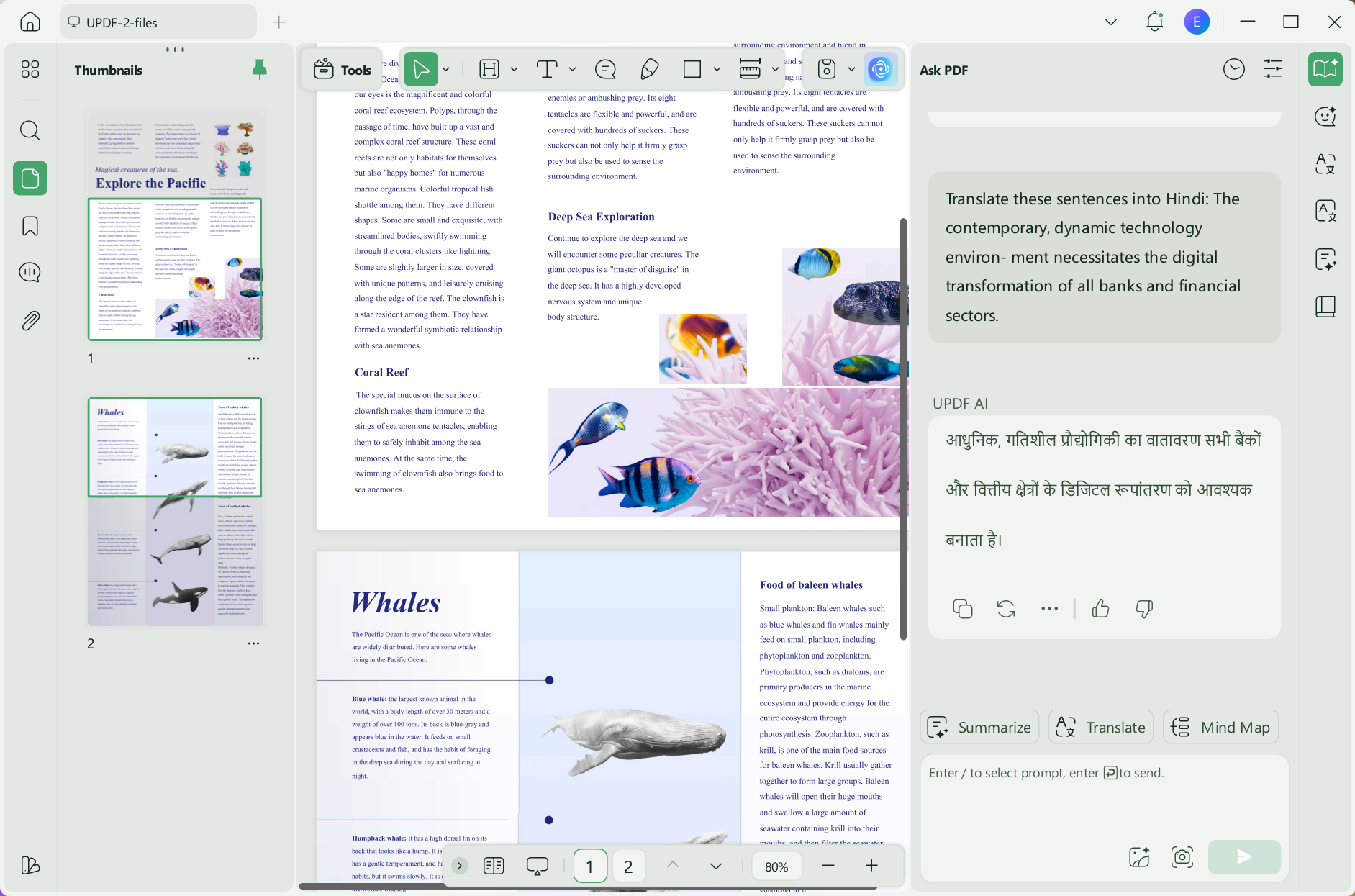
Method 1. Translate PDF in the Chat Mode
Next, in the bottom right of the right-side toolbar, press the "UPDF AI" button. Here, ensure you are in the "Chat" tab and then click the "Prompt" to open the extended options.
From there, choose the "Translate" option and tap on the arrow sign to select the language for translation. In the "Ask something" box, type or paste your content. Now, press the "Enter" key on your keyboard to get the results.
Extra Tip
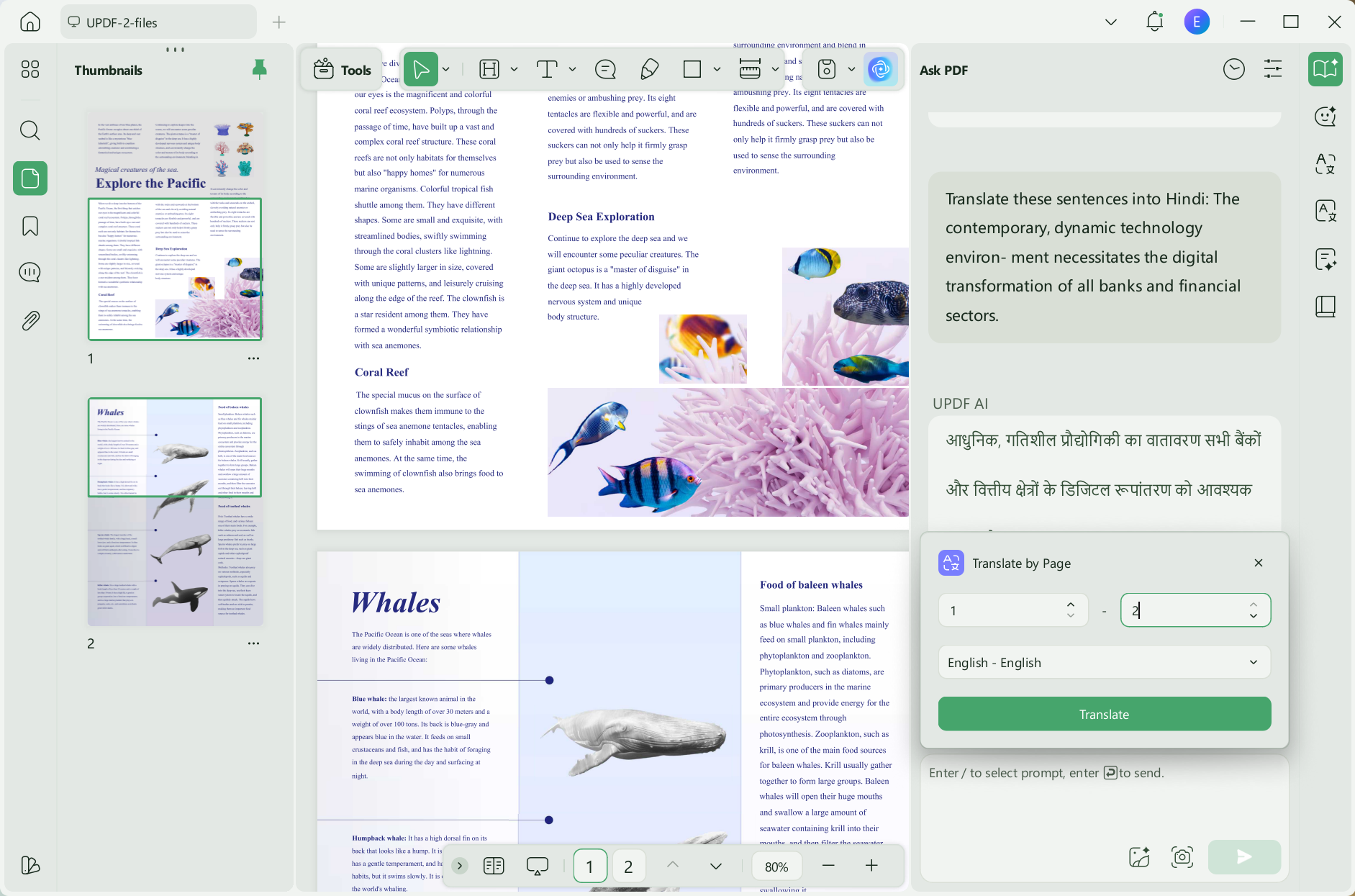
Method 2. Translate a Specific PDF Page with a Prompt
Within the "Ask PDF" tab, users can get the translation of specific pages by choosing the correct prompts. Proceed the process by clicking on the "Get Started" button to access the "Ask Something" text box.
Now, click on the small tip icon at the right-side corner of the "Ask Something" box, choose "Translate by Page" > select the desired language > type the page number you want to translate > click on "Go". Now the UPDF AI will start translating the page you select to the destination language.
Method 3. Translate Content within the Document in the Reader Mode
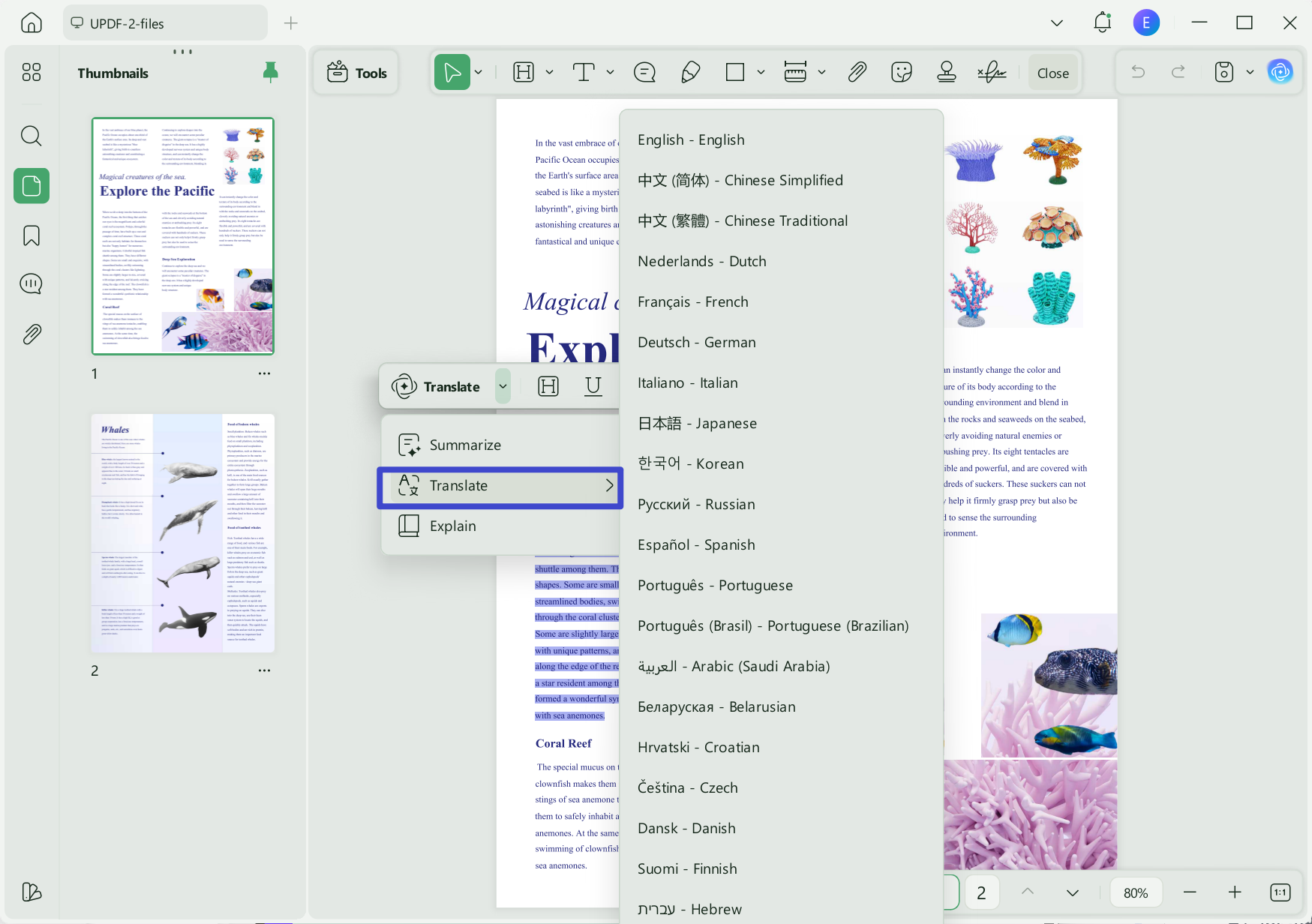
In the "Reader Mode," you can quickly translate specific text by selecting it with the cursor. This action will show a pop-up menu above the text where you can find the "UPDF AI" feature. From the UPDF AI drop-down menu, hover over the built-in "Translate" prompt to access a list of languages from the extended menu. Here, select any of the languages, and the text will be translated instantly.
Why choose UPDF AI over online translators?
- Privacy first: Your PDF stays on your device. No upload to external servers, no risk of data being used to train AI models.
- Format preservation: Translates within the original PDF structure — tables, images, and columns remain intact.
- OCR built-in: Scanned PDFs are recognized and translated without needing a separate tool.
- No file size limits: Works with large documents that exceed Google Translate's 10 MB cap.
- Works offline: Translate anywhere without an internet connection once the app is installed.
- Explain translations: Ask UPDF AI to explain terms or context you don't understand — not just translate.
Tip: The free version includes 30 AI prompts. For unlimited document analysis and questions, you can upgrade to UPDF AI Pro. Download UPDF below to start translating offline.
Windows • macOS • iOS • Android 100% secure
Here is a video to introduce UPDF latest V2.5. You can watch this video to explore UPDF.
Part 6. Translate Scanned PDFs Offline with UPDF (OCR + AI Translation)
Scanned PDFs — documents that are images of text rather than selectable text — cannot be translated by standard online tools like Google Translate. UPDF solves this with built-in OCR (Optical Character Recognition) that converts scanned images into editable text before translating.
Best for
As you have now gotten familiar with what UPDF is and how effective its AI translation feature is, here we would like to add something more. You can even translate scanned PDFs for free using this tool. Head to the steps below and start scanning and translating:
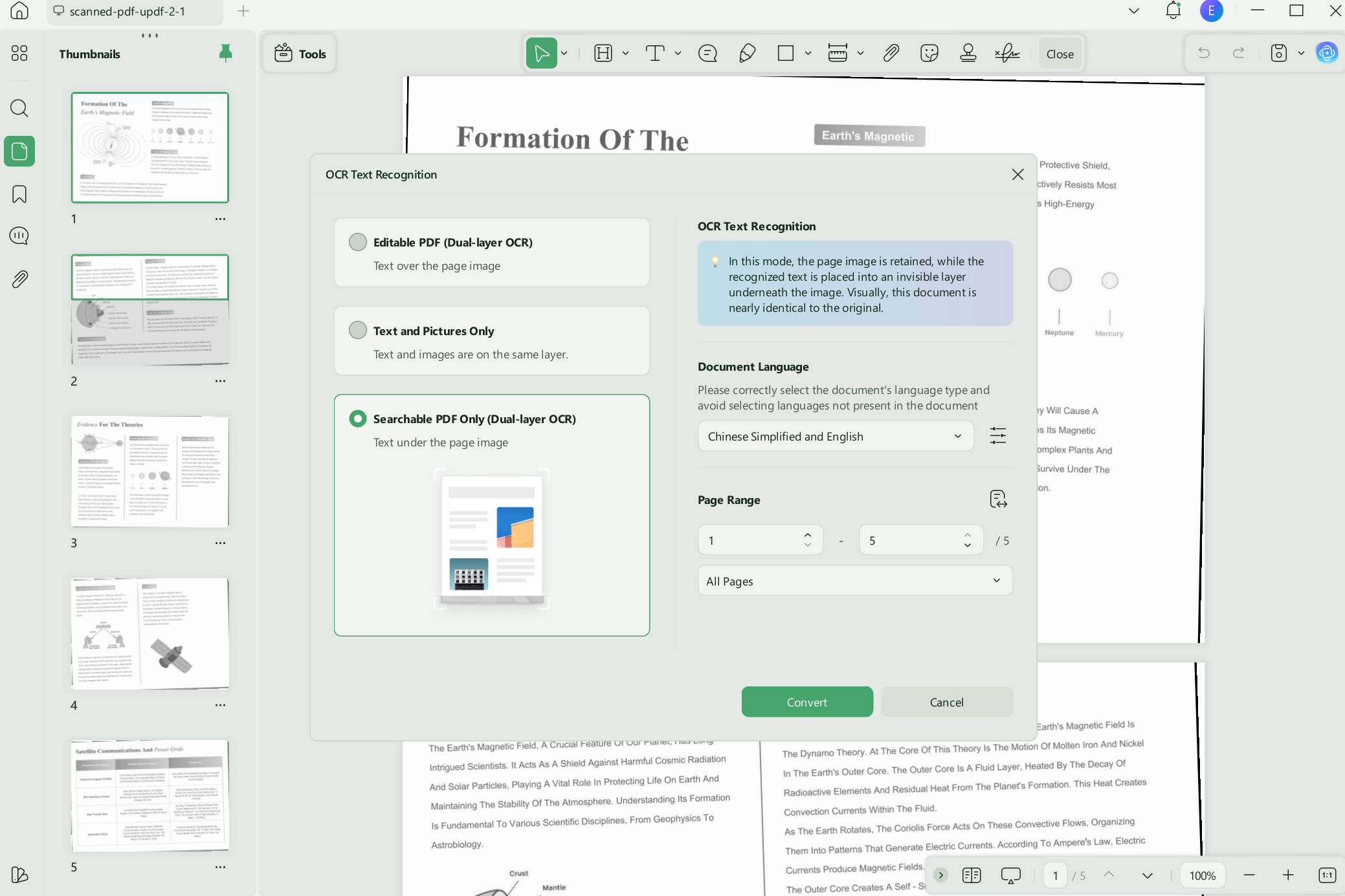
Step 1: Perform OCR on Your PDF
Once you have accessed the scanned PDF file with UPDF, move the cursor to the "Tools" and tap the "OCR" option. Under the "Document Type" section, stay on the "Searchable PDF" option. Then, continue by adjusting the "Layout," "Page Range," "Document Language," and "Image Resolution." You can tap on the "Gear" icon for further adjustments and the "Convert" button.
Step 2: Head to UPDF AI Features and Translate File
As it starts converting, wait for a few seconds. Then, navigate to the "Chat" tab in the "UPDF AI" feature in the bottom right corner. Now, from the "Prompt" list, choose the "Translate" AI feature, select the language as per requirements, add the required content, and hit the "Arrow" icon to translate the content within seconds. It also allows you to translate the PDF page. You can download UPDF and follow the instructions in Part 4.
Windows • macOS • iOS • Android 100% secure
Tip
Part 7. Online vs Offline PDF Translators: Feature Comparison (2026)
Choosing the right PDF translator depends on what matters most for your document: speed, cost, formatting, or privacy. Below is an updated comparison of the tools covered in this guide.
| Features | UPDF | Google Translator | Google Drive | DocTranslator |
| Accuracy Ratings | 4.9/5 | 4.8/5 | 4.6/5 | 4.7/5 |
| Translate Documents | ||||
| Translate Specific Page | ||||
| Translate within Documents | ||||
| Fast Processing | ||||
| Security and Privacy | ||||
| No File Size Limitations | ||||
| Safe to Use | ||||
| Internet Independence |
Best for quick decisions:
- Use Google Translate if you have a simple, small, non-confidential text PDF and don't care about formatting.
- Use Google Drive if you need slightly better formatting than Google Translate and already use Google Workspace.
- Use DocTranslator if you have a large, complex document, need layout preservation, and are willing to pay.
- Use UPDF if you handle sensitive files, scanned documents, or need offline access with full formatting control.
After the table:
Unlike online tools that pose data security concerns, UPDF prioritizes user privacy by processing documents locally on the user's device. Additionally, it excels in custom translation by providing users with the flexibility to adjust settings and terminology. It operates seamlessly without a constant internet connection to ensure consistent and dependable document translation.
Sum Up
In the end, if you have been looking to translate PDF online for free, we have explored three such tools, each with merits and limitations. However, online tools have many drawbacks. That is why we also mention one offline method, the UPDF PDF editor. It offers cutting-edge AI features like summarization, translation, and writing designed to make your work more effortless.
When using the UPDF PDF document translator, you can expect lightning-fast results. The AI-powered translation feature ensures that your PDFs are accurately translated in just a few seconds, saving you any hassle and effort. Try it now.
Windows • macOS • iOS • Android 100% secure





 Enola Miller
 Engelbert White

 Grace Curry