 UPDF
UPDF
 UPDF for Windows
 UPDF for Mac
 UPDF for iPhone/iPad
 UPDF for Android
 Nomostar
 UPDF AI Online
 UPDF Sign
 IvyCraft
 Edit PDF
 Annotate PDF
 Create PDF
 PDF Form
 Edit links
 Convert PDF
 OCR
OCR PDF to Word
 PDF to Image
 PDF to Excel
 Organize PDF
 Merge PDF
 Split PDF
 Crop PDF
 Rotate PDF
 Protect PDF
 Sign PDF
 Redact PDF
 Sanitize PDF
 Remove Security
 Read PDF
 UPDF Cloud
 Compress PDF
 Print PDF
 Batch Process
 About UPDF AI
 UPDF AI Solutions
 AI User Guide
 FAQ about UPDF AI
 Summarize PDF
 Translate PDF
 Chat with PDF
 Chat with AI
 Chat with image
 PDF to Mind Map
 Explain PDF
 PDF AI Tools
 Image AI Tools
 AI Chat Tools
 AI Writing Tools
 AI Study Tools
 AI Working Tools
 Other AI Tools
 AI Bookmark Generation
 AI Bookmark Summary
 AI Watermark Generation
 AI Background Generation
 AI Sticker Generation
 AI Stamp Generation
 AI Editing Suite
 UPDF Copilot
 AI Page Management
 AI Semantic Search
 PDF to Word
 PDF to Excel
 PDF to PowerPoint
 Enterprise Solution
 Enterprise Sign
 Enterprise AI
 Enterprise Plan
 Enterprise User Guide
 Enterprise Webinar
 Banking
 Healthcare
 Insurance
 Legal
Legal Manufacturing
 Government
 Researchers & PhDs
 Solopreneurs & Freelancers
 Lawyers & Legal Professionals
 Real Estate Agents & Brokers
 Education Solution
 Customer Stories
 User Guide
 UPDF Tricks
 FAQs
FAQs UPDF Reviews
 Download Center
 Blog
Blog Newsroom
 Tech Spec
 Updates
 UPDF vs. Adobe Acrobat
 UPDF vs. Foxit
 UPDF vs. PDF Expert

Quick Answer
Extracting citations sounds like a copy-and-paste task, but PDFs often break names across lines, scramble multi-column text, or hide the references inside scanned page images. AI can also return a perfectly formatted citation with an incorrect year or DOI. The safest workflow is therefore extract, structure, and verify—in that order.
This guide shows how to extract one citation or an entire reference list, handle scanned PDFs, use UPDF AI responsibly, and turn the results into records you can reuse in a paper or citation manager.
Part 1. Choose the Citation Output You Need
Before selecting a tool, define the output. “Extract citations” can describe four different jobs, and each requires a different level of processing.
| Goal | What to extract | Best starting method |
|---|---|---|
| Reuse a reference list | Every entry under References, Bibliography, or Works Cited | Copy text or export the relevant pages |
| Trace a claim | The in-text citation and its matching bibliography entry | Search by author, year, or citation number |
| Build a literature library | Author, title, year, journal/book, volume, issue, pages, DOI, and URL | Extract into separate fields and verify each record |
| Discover related research | Citing papers, cited papers, and topic relationships | Use a scholarly paper-search tool |
If you need only one source, search the PDF for the author’s surname, year, bracketed number, DOI, or a distinctive word from the title. If you need the complete bibliography, identify the first and last reference pages before copying anything. References may continue after appendices, notes, or supplementary material.
Part 2. Extract Citations from a Text-Based PDF
Start by dragging across one line of the reference section. If individual words can be selected, the PDF contains a text layer and you can usually extract the citations without OCR.
Step 1. Find the reference section
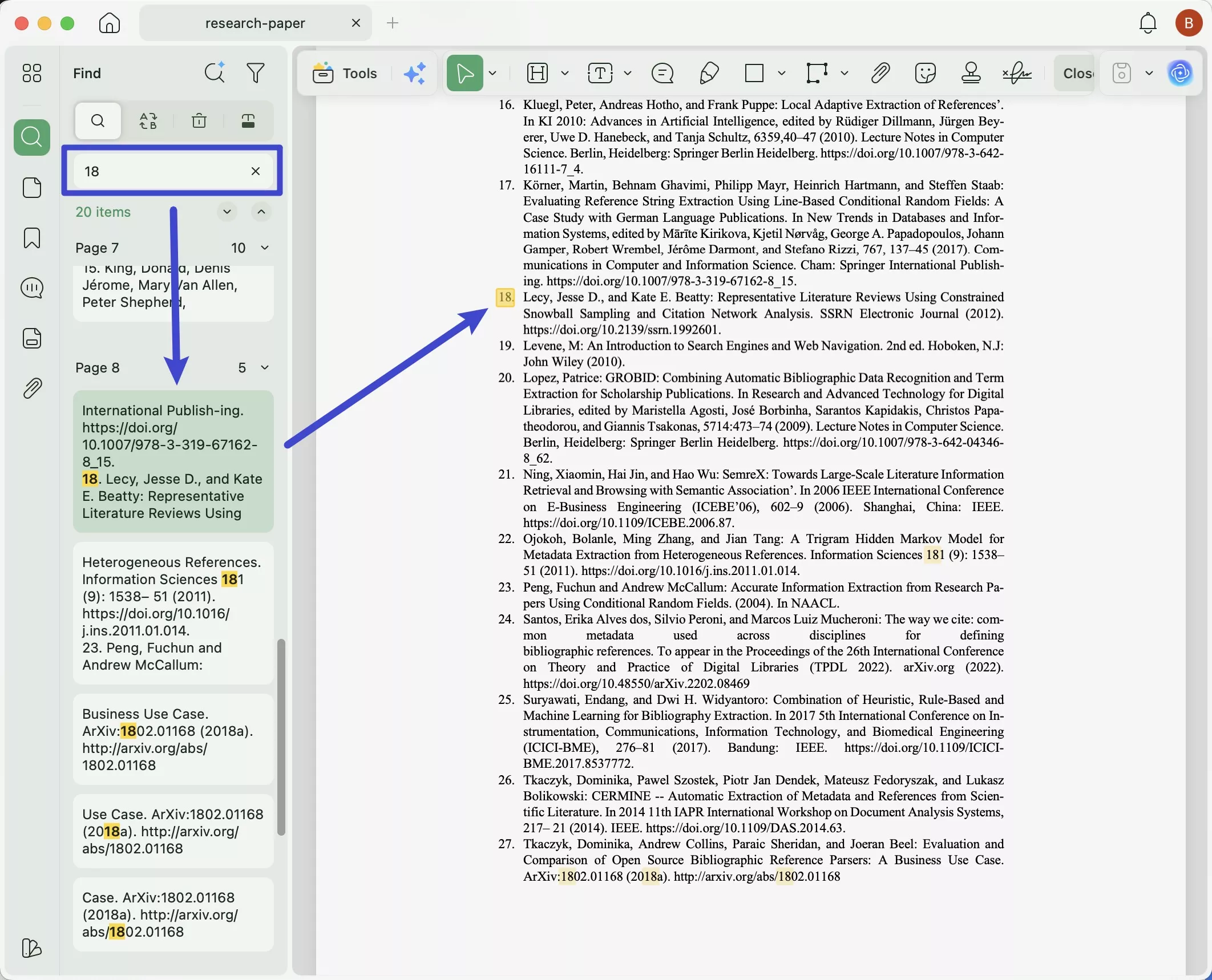
Open the PDF in UPDF and use Search to look for “References,” “Bibliography,” “Works Cited,” or the author you need. Page thumbnails and bookmarks can help you reach the final section quickly. When tracing a numbered citation such as [18], find [18] in the text and then locate entry 18 in the bibliography.
Windows • macOS • iOS • Android 100% secure
Step 2. Copy a small test batch
Copy five to ten entries first and paste them into a clean document. Check the reading order before extracting hundreds of references. Multi-column pages, hanging indents, superscript numbers, ligatures, and line-end hyphens can cause words to move or merge.
- Keep one reference per paragraph or spreadsheet row.
- Join line-wrapped titles without deleting real hyphens.
- Preserve accented names and initials.
- Do not assume that italics or punctuation survived the paste.
- Compare the first and last entries in every copied batch with the PDF.
Step 3. Separate the citation into fields
A formatted citation is convenient for immediate use, but separate fields are safer for long-term storage. Record the authors, year, title, publication, volume, issue, pages, DOI, URL, and the PDF page where you found it. This makes it easier to change from APA to MLA or Chicago style later.
Part 3. Extract Citations with UPDF AI
UPDF AI is useful when you need to identify references, explain citation relationships, or turn an untidy bibliography into structured fields. It can work alongside the PDF, so you can compare the answer with the original page instead of treating the AI output as an independent source.
Method 1. Ask questions about the uploaded PDF
1. Open the research PDF in UPDF and launch UPDF AI, or upload it to UPDF AI Online.
Windows • macOS • iOS • Android 100% secure
2. Ask AI to locate the reference section or a specific author, year, title, or citation number.
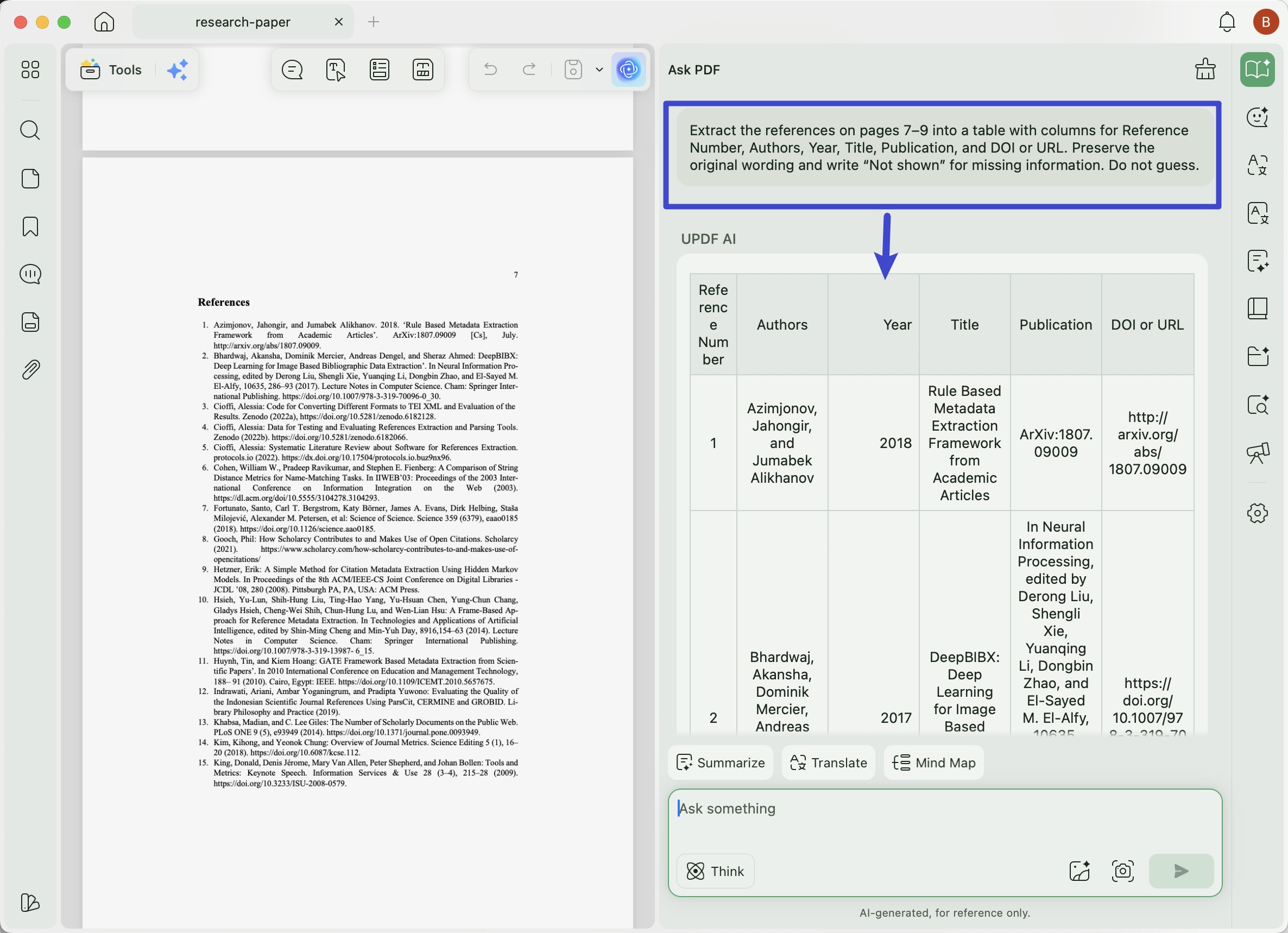
3. Request a table with fixed columns such as Authors, Year, Title, Source, Volume, Issue, Pages, DOI, and Missing Fields.
4. Tell AI to preserve the source wording and write “not shown” instead of guessing.
5. Compare each important field with the PDF and an authoritative online record.
A practical prompt is:
Extract the references on pages 7–9 into a table with columns for Reference Number, Authors, Year, Title, Publication, and DOI or URL. Preserve the original wording and write “Not shown” for missing information. Do not guess.
Method 2. Use UPDF AI Paper Search
If your goal is discovery rather than copying an existing bibliography, UPDF AI Paper Search can search by research question, keyword, paper title, DOI, or PMID. Results include paper metadata and can expose citing papers, references, and relationship graphs. When the full text is openly available, you can open or download it and continue with PDF chat.
Watch the following video to learn more:
Paper Search also provides a citation-copying option, but you should still compare the output with the paper record before placing it in a final bibliography. Citation styles differ, and source databases can contain incomplete metadata.
Best for
Not for
Try UPDF and UPDF AI for free to search, read, annotate, OCR, and analyze research PDFs in one workflow.
Windows • macOS • iOS • Android 100% secure
Part 4. Extract Citations from a Scanned PDF
If dragging across the bibliography selects the whole page as an image—or selects nothing—the PDF is scanned. Run PDF OCR before extracting the text. Choose the language used in the reference list, not merely the language of the paper title.
- Open the scanned PDF in UPDF.
- Select OCR from the tools.
- Choose Searchable PDF and the correct document language.
- Set the page range to the reference pages when you do not need the whole file.
- Run OCR and save the new searchable copy.
- Test-select several references and compare them with the original scan.
Pay special attention to 0/O, 1/l/I, rn/m, hyphens, accents, page ranges, URLs, and DOI slashes. These small OCR errors can point to the wrong paper. For handwriting, faded microfilm, or damaged pages, manual transcription may be faster than correcting a noisy OCR result.
Part 5. Verify and Format the Citations
Extraction recovers what the PDF says; verification establishes whether it is correct. Search the DOI first. If the reference has no DOI, search the exact title in quotation marks together with the first author. Prefer the publisher page, DOI record, official repository, or library catalog over a copied citation on an unrelated website.
| Field | What to check | Common problem |
|---|---|---|
| Authors | Spelling, initials, order, group authors | OCR swaps letters or drops an author |
| Title | Full title and subtitle | Running header is mistaken for the title |
| Date | Publication year and online-first date | Reference and publisher page use different dates |
| Source | Journal/book name, volume, issue, pages | Formatting loss hides the publication title |
| Identifier | DOI, ISBN, PMID, or stable URL | A single wrong character breaks the identifier |
After verifying the metadata, format the reference in the required style. Do not “repair” an entry merely because it looks unusual; editions, translated titles, group authors, datasets, preprints, and conference proceedings follow different rules. When the assignment is high stakes, check the current style manual or your institution’s guide.
Part 6. Organize and Reuse the Results
Store verified citations in a citation manager or a structured spreadsheet rather than one long formatted list. Separate fields support deduplication, sorting, style changes, and later corrections. Add a verification-status field and preserve the source URL or the date you checked it.
| Field | Example |
|---|---|
| Authors | Rivera, M.; Chen, L. |
| Year | 2025 |
| Title | Document review workflows |
| Source | Journal of Information Practice |
| DOI | 10.xxxx/xxxxx |
| PDF page | 21 |
| Verification status | Checked on publisher page |
Keep quotations separate from paraphrases and record page numbers at the moment you extract them. A correct bibliography entry does not prove that a source supports a particular claim, so open the cited work and confirm the relevant method, result, definition, or quotation before relying on it.
FAQs About Extracting Citations from PDFs
Can AI extract citations from a PDF?
Yes. AI can locate references and structure their fields, but names, dates, titles, page ranges, and DOI values should be checked against the PDF and an authoritative record.
How do I extract references from a scanned PDF?
Run OCR in the language used by the bibliography, save a searchable copy, extract a small batch, and compare punctuation, names, years, page ranges, and identifiers with the original scan.
Why do copied references lose their formatting?
PDFs store text by position. Columns, hanging indents, line breaks, ligatures, and font encoding can change the reading order when text is pasted.
Can I use an extracted citation without opening the source?
You can reuse the metadata after checking it, but responsible research also requires confirming that the source contains and supports the claim for which it is cited.
Conclusion
Reliable citation extraction is a short pipeline: choose the required output, recover the text, separate the fields, verify the record, and confirm the evidence. UPDF can handle searchable and scanned PDFs, while UPDF AI can speed up identification, structuring, and paper discovery. The final quality still depends on comparing important details with the original document and an authoritative source.










 Enola Davis
 Enrica Taylor

 Enid Brown