UPDF
UPDF
 UPDF for Windows
 UPDF for Mac
 UPDF for iPhone/iPad
 UPDF for Android
 Nomostar
 UPDF AI Online
 UPDF Sign
 IvyCraft
 Edit PDF
 Annotate PDF
 Create PDF
 PDF Form
 Edit links
 Convert PDF
 OCR
OCR PDF to Word
 PDF to Image
 PDF to Excel
 Organize PDF
 Merge PDF
 Split PDF
 Crop PDF
 Rotate PDF
 Protect PDF
 Sign PDF
 Redact PDF
 Sanitize PDF
 Remove Security
 Read PDF
 UPDF Cloud
 Compress PDF
 Print PDF
 Batch Process
 About UPDF AI
 UPDF AI Solutions
 AI User Guide
 FAQ about UPDF AI
 Summarize PDF
 Translate PDF
 Chat with PDF
 Chat with AI
 Chat with image
 PDF to Mind Map
 Explain PDF
 PDF AI Tools
 Image AI Tools
 AI Chat Tools
 AI Writing Tools
 AI Study Tools
 AI Working Tools
 Other AI Tools
 AI Bookmark Generation
 AI Bookmark Summary
 AI Watermark Generation
 AI Background Generation
 AI Sticker Generation
 AI Stamp Generation
 AI Editing Suite
 UPDF Copilot
 AI Page Management
 AI Semantic Search
 PDF to Word
 PDF to Excel
 PDF to PowerPoint
 Enterprise Solution
 Enterprise Sign
 Enterprise AI
 Enterprise Plan
 Enterprise User Guide
 Enterprise Webinar
 IT
IT Education
 Construction
 Financial Service
 Healthcare
 Insurance
 Legal
Legal Manufacturing
 Government
 Researchers & PhDs
 Solopreneurs & Freelancers
 Lawyers & Legal Professionals
 Real Estate Agents & Brokers
 Education Solution
 Customer Stories
 User Guide
 UPDF Tricks
 FAQs
FAQs UPDF Reviews
 Download Center
 Blog
Blog Newsroom
 Tech Spec
 Updates
 UPDF vs. Adobe Acrobat
 UPDF vs. Foxit
 UPDF vs. PDF Expert

If you frequently work with PDFs, sometimes you must wonder, “Is a PDF a vector file?” The truth is, a PDF is not always a vector file.
So, how do you know which type you're working with? This matters because it can affect tasks, like printing and how you edit or compress the document.
That's why, in this guide, I’ll explain the key differences between vector and raster PDFs, how to identify each type, and which one may suit your needs better.
You’ll also learn about UPDF, a tool for managing both vector and raster PDFs in one platform. You can download and try it for free.
Windows • macOS • iOS • Android 100% secure
Part 1. What Makes a PDF Vector or Raster?
A PDF is a container format, so it can be both vector and raster, based on the graphic types it contains. This means it can hold vector elements like text, shapes, and line art as well as raster elements such as scanned pages or embedded images. In many cases, a single PDF can even include both types at once.
What is a vector-based PDF?
Vector graphics are created using mathematical paths that can define shapes, lines, and text with great precision. As a result, vector content scales to any size without losing quality. In many PDFs, this format is used by text and logos so they stay sharp even at high zoom levels. That said, Vector PDFs often come from design or office tools like Illustrator, AutoCAD, PowerPoint, or Word.
What is a raster-based PDF?
On the other hand, Raster graphics are made of pixels arranged in a grid. As each pixel contains color information, when you zoom in on a rasterized PDF, the pixels become visible. As a result, the image can look blurry. Some common examples of raster content are photos and scanned documents. Therefore, raster PDFs usually come from scanners, photo exports, or screenshots saved as PDFs.
Part 2. How to Check If Your PDF Is Vector or Raster
You can check if your PDF includes vector or raster elements by testing how it behaves when zoomed, checking if the text is selectable, or inspecting its file properties. Let's see how to do each of these in detail.
Method 1: The Zoom Test (Simplest)
This is a simple yet most accurate test, as vector graphics scale smoothly, while raster images lose quality when enlarged. Here’s what to do.
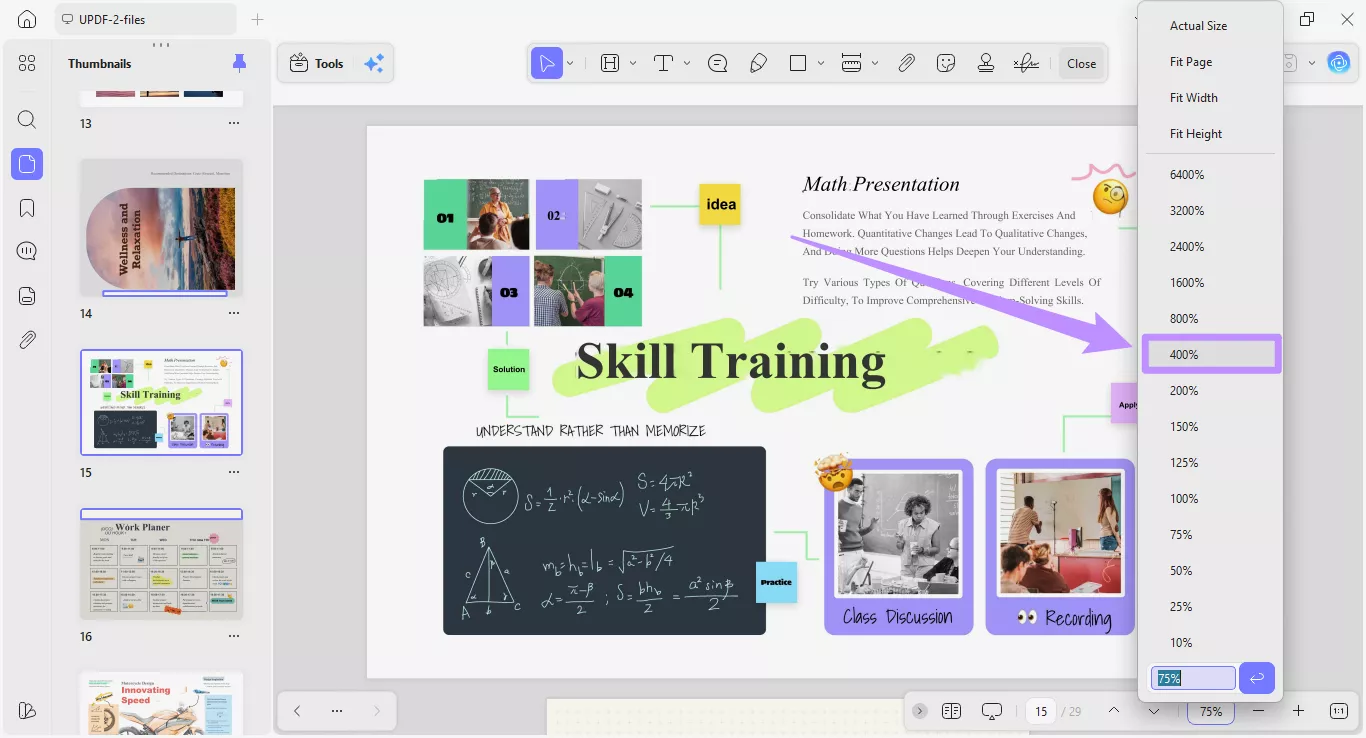
1. Open your PDF in any PDF viewer such as UPDF, Adobe Reader, or Preview on Mac.
2. Click the zoom percentage option and select a 400% zoom level.
Windows • macOS • iOS • Android 100% secure
3. If the text and graphics stay sharp, the PDF is a vector file. But if the edges become pixelated, it's a raster PDF.
Method 2: The Text Selection Test
This method works because vector PDFs store text as editable characters, while raster PDFs store text as images. Here are the steps.
1. Use the cursor to select or highlight text in the PDF.
2. If you can select the text, the PDF contains vector elements.
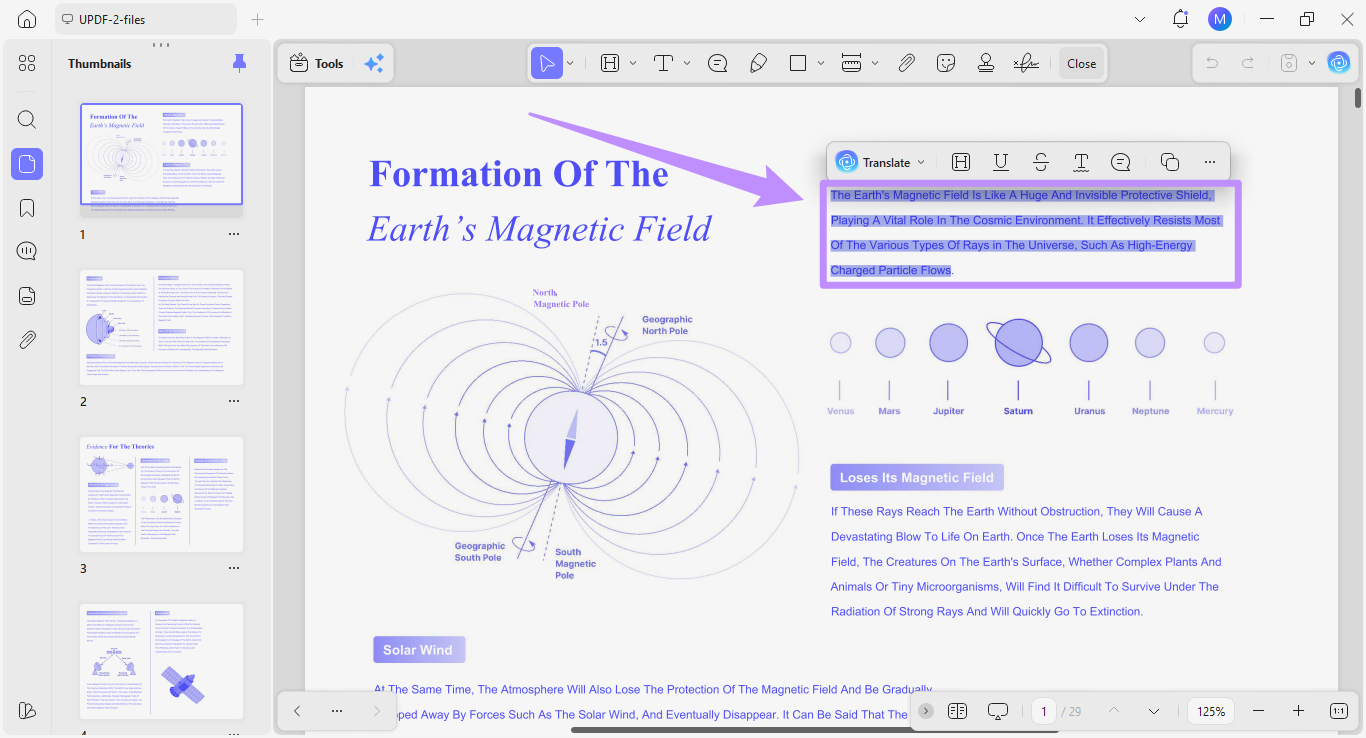
3. If you cannot select text, you’re working with a vector file, such as a scanned or image-based document.
4. If some text is selectable and some is not, the PDF is a mixed document.
Method 3: File Properties Check
You can also check the file's metadata to learn how the file was originally created. To do this:
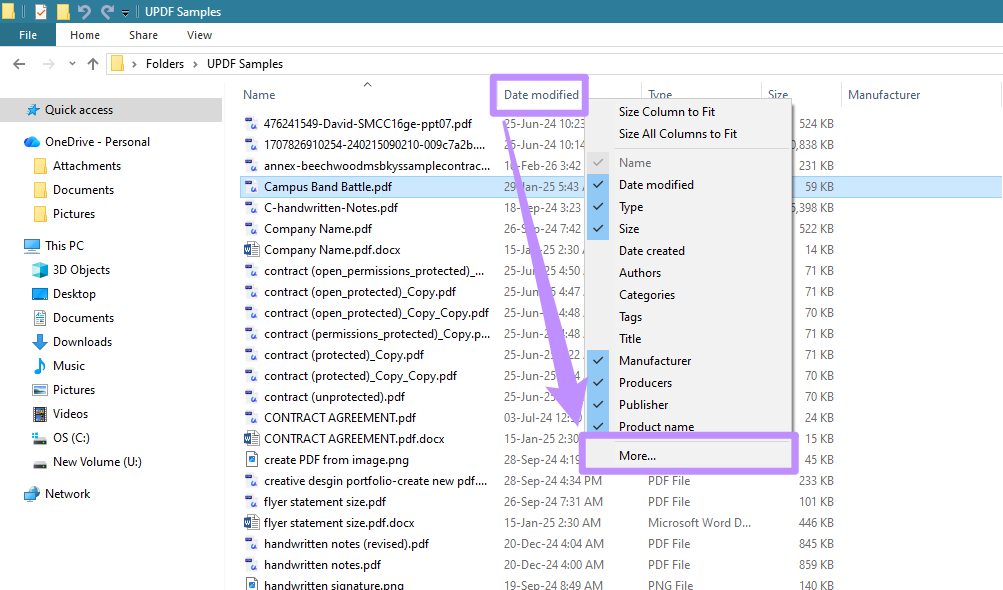
1. Open the folder containing the PDF. Then, click “View” at the top and choose “Details.”
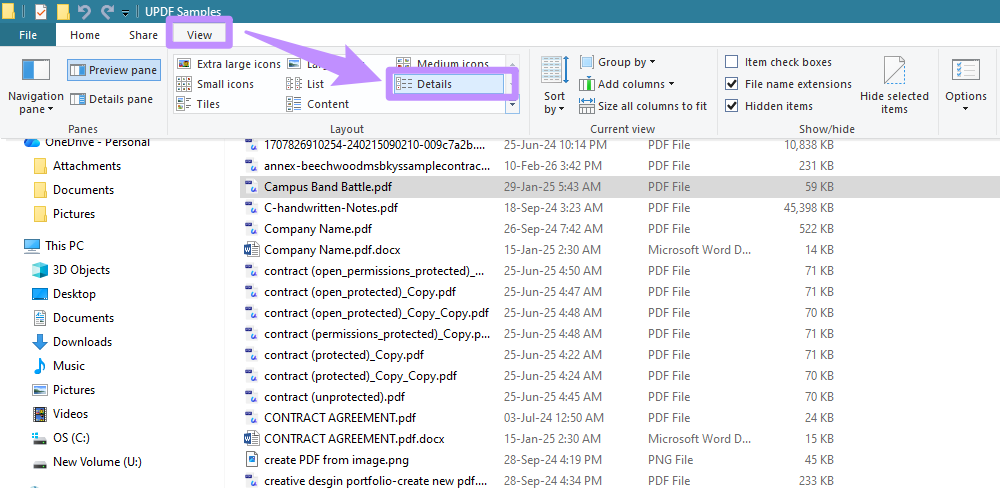
2. Right-click the “Date modified” column and select “More.”
3. From the list of options, check “Program name” and click “OK.”
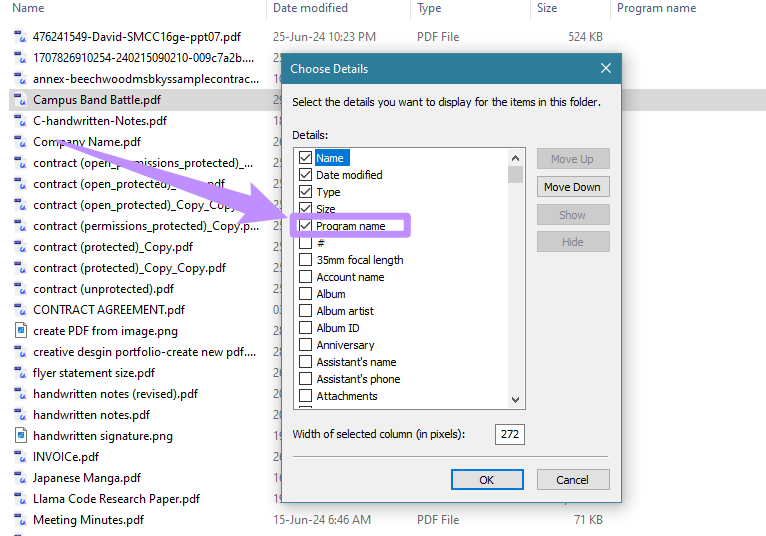
4. Check the Program name column for “Adobe Illustrator,” which indicates vector content. If it’s “Scanner,” it means it’s a raster PDF.
Part 3. Why Does It Matter? Vector vs Raster PDF Differences
The main difference between the two is that vector PDFs are designed to help you freely edit and search the document. Meanwhile, raster PDFs aim to visually preserve the PDF content. Let’s look at their unique benefits in detail.
Advantages of Vector PDF
- Scale to any size without losing quality, which is ideal for logos or diagrams.
- Smaller file size makes them easier to view and share.
- Text and graphics remain editable for making updates faster.
- Professional documents look clear and sharp when printed.
- Text remains searchable, which makes it easier to navigate.
Advantages of Raster PDF
- Keep the original look of scanned documents intact.
- Being non-editable, they display consistently across all PDF viewers.
- Great for capturing image details, as pixels preserve fine visual details.
Common Pain Points
Both Raster and vector PDFs also have their share of drawbacks:
- Printing a raster PDF results in low-resolution output
- Editing text in a raster PDF is impossible without OCR technology
- Sending or storing large raster PDFs can take a lot of time.
- Complex vector PDFs required specialized tools for viewing.
- Vector PDF text may display incorrectly on smaller-screen apps.
Regardless of the PDF type, UPDF can help you view and handle these files seamlessly.
Part 4. How UPDF Helps You Work with Any PDF Format
UPDF is an AI-driven PDF editor with a comprehensive set of tools to edit, organize, and convert any PDF format. With dedicated tools for handling both vector and raster-based PDFs, it helps you easily edit, annotate, compress, and share these PDF formats with one toolkit.
Windows • macOS • iOS • Android 100% secure
Key Features of UPDF
Here’s a closer look at its key features that can help you.
For Vector PDFs
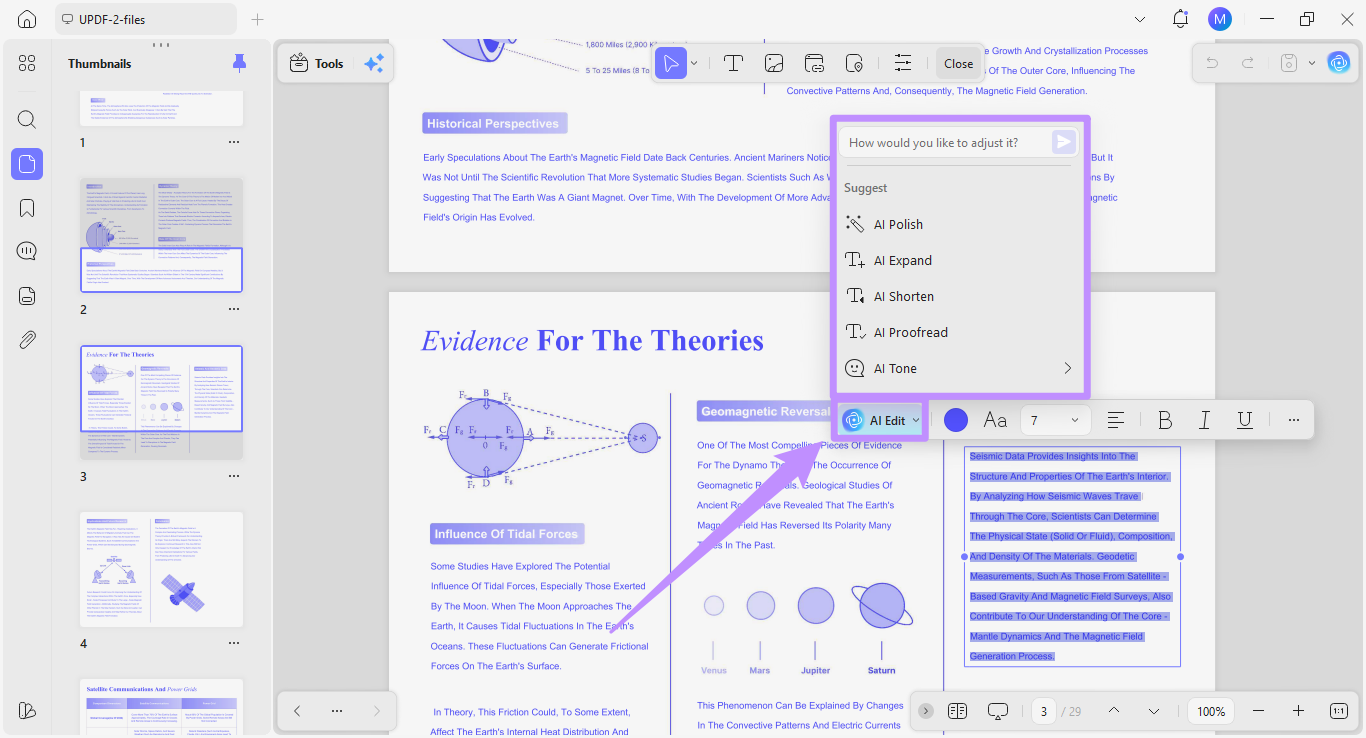
1. AI Editing Agent: Modify PDF content with AI using natural language prompts or manually update text, graphics, or links.
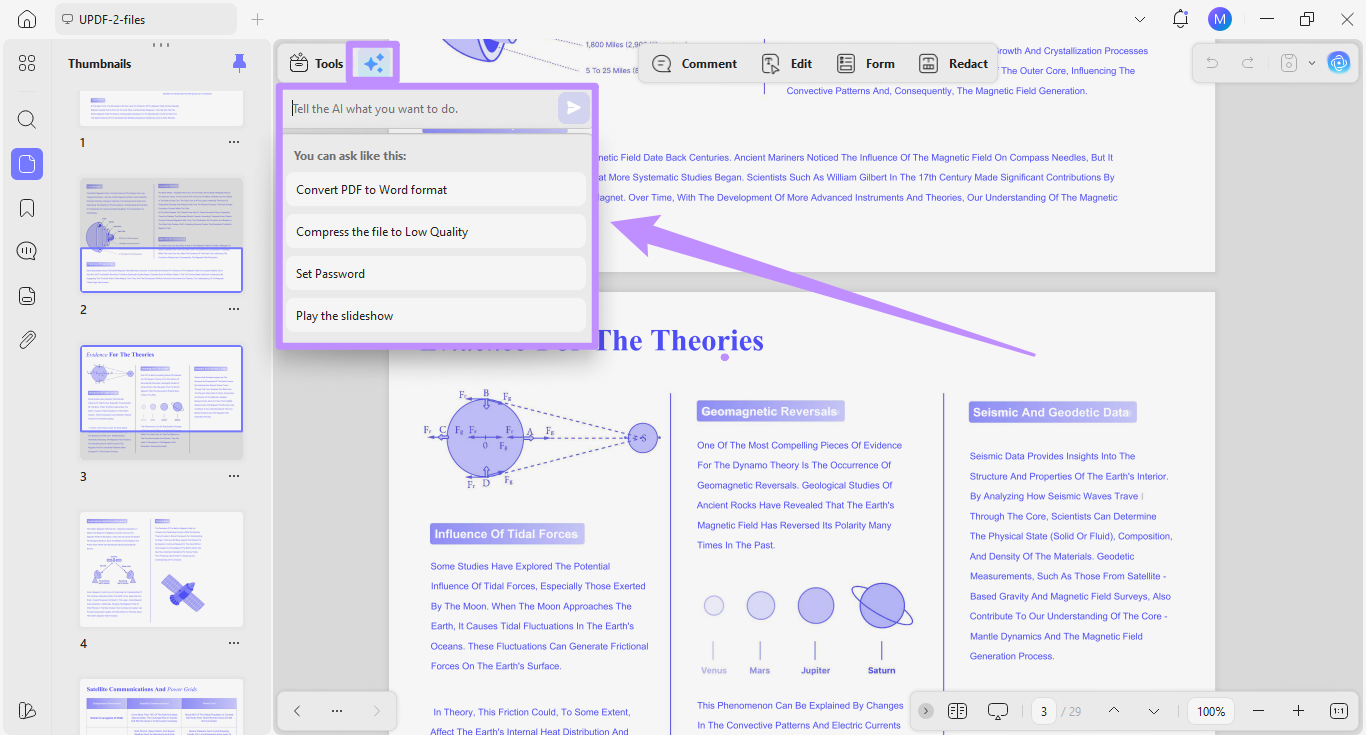
2. UPDF Copilot: Describe a function you want in natural language, such as Add a signature, “Convert to Word,” and the AI copilot pulls the exact tool to complete the task.
For Raster PDFs
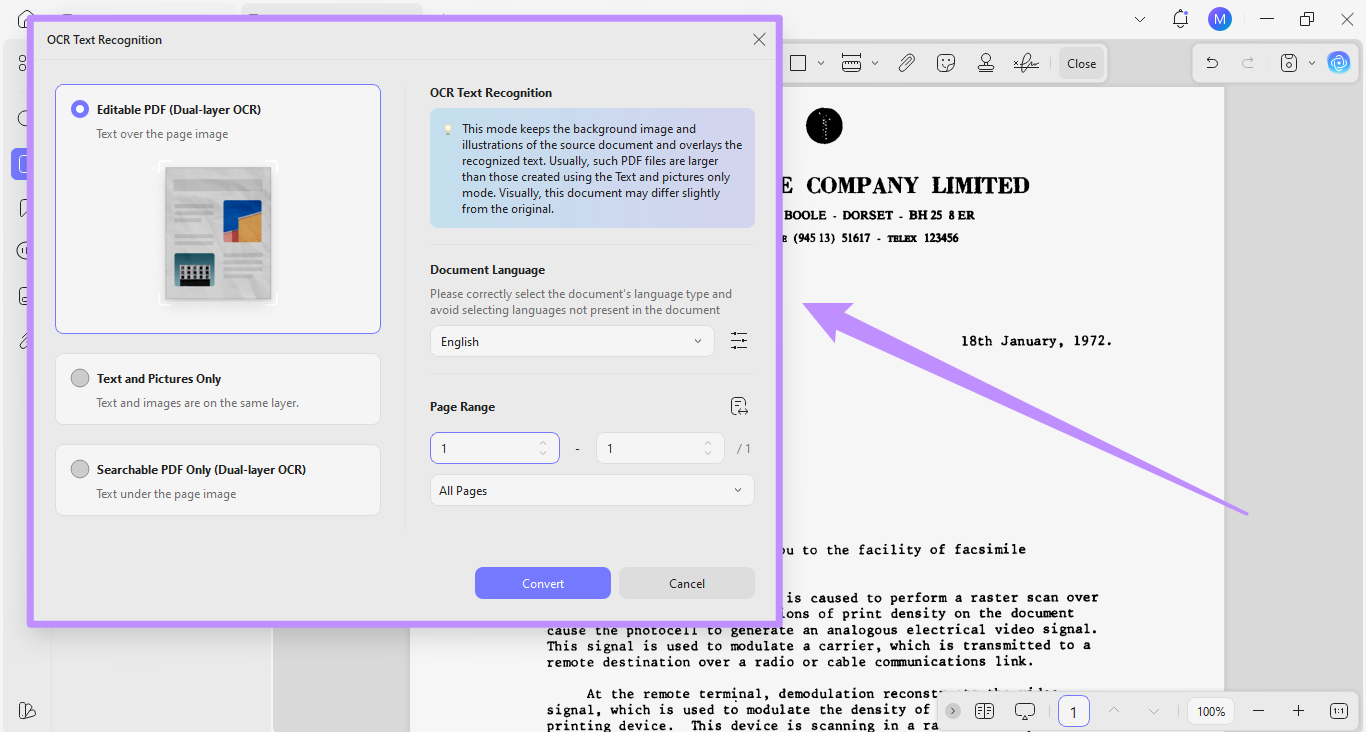
1. OCR Feature: Convert scanned and image PDFs into fully editable and searchable or only searchable PDFs, with support for over 38 languages.
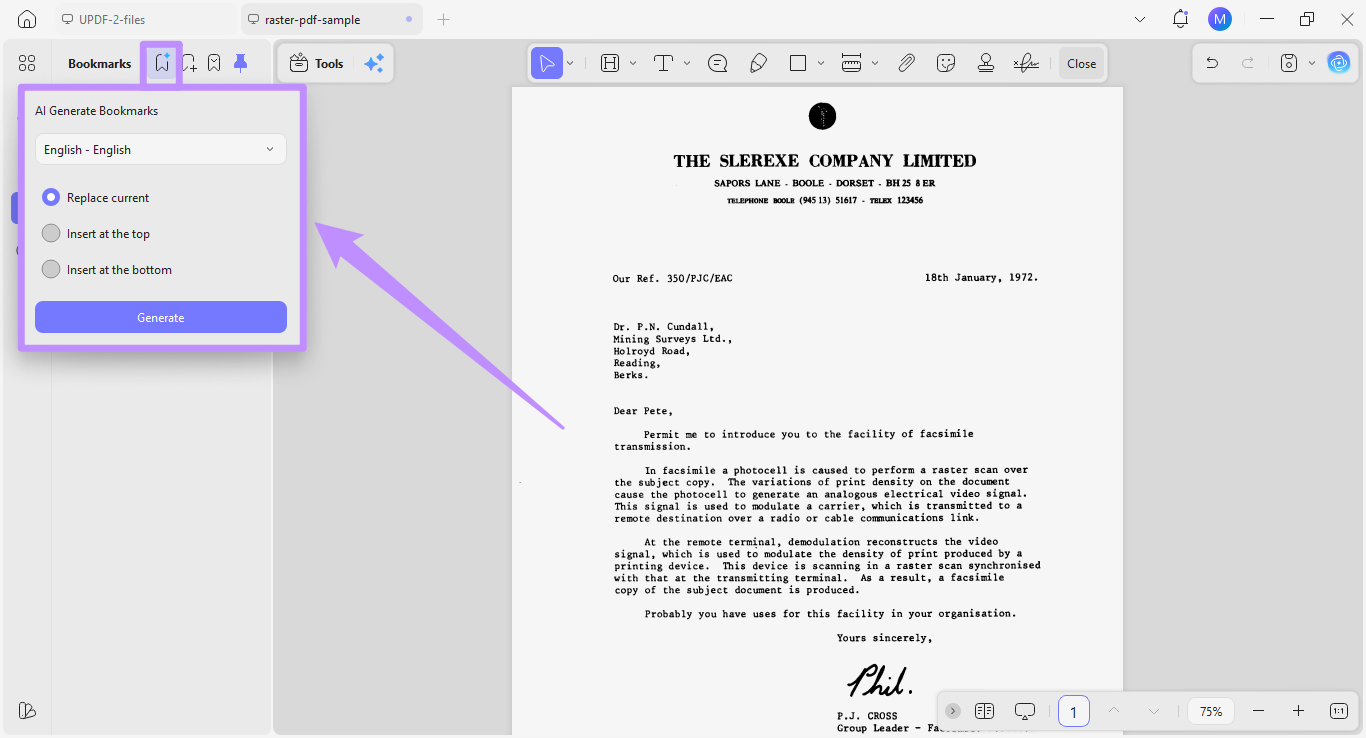
2. AI Bookmark Agent: Auto-generate parent and child bookmarks for long scanned documents. So, you don’t have to navigate the document manually.
Works for Both PDF Types
- Available on Windows, Mac, iOS, and Android.
- Built-in cloud storage for syncing and accessing files across devices.
- Convert PDFs into formats like Word, Excel, PDF/A, PNG, JPG, GIF, BMP, and more.
- Compress large PDFs with up to 5 levels of size reduction while controlling quality.
- Share PDFs instantly via email, link, or QR code.
You can download UPDF now to try all these features with a free trial. But the good news is that UPDF is available at an exclusive $10 discount for a limited time. Now is the perfect time to get unlimited access to all its features. If you’re ready to upgrade, you can buy UPDF Pro here.
Windows • macOS • iOS • Android 100% secure
Part 5. FAQs
Q1. Is a .PNG a vector file?
No. PNG is a raster format made up of pixels. It cannot scale without losing quality. If you need a scalable version of a PNG graphic, it must be manually redrawn or traced as a vector using design software and saved in a vector format like SVG or PDF.
Q2. Is PDF vector-based better than raster?
Vector PDFs are better for editing, printing, and searchability. Raster PDFs are better for preserving scanned documents and photographs. The right choice depends on what the document contains and how you intend to use it.
Q3. How do I turn a PDF into a vector file?
To turn your PDF into a vector file like SVG or EPS, you can use online file conversion tools like CloudConvert. But if you simply want to make the PDF editable, you can use UPDF's OCR tool to make the text in a scanned or image PDF editable and searchable.
Windows • macOS • iOS • Android 100% secure
Conclusion
So, is a PDF a vector file or a raster file? The short answer is that it can be any of these file types, based on whether it contains vector or raster elements, as it is a container file format. But regardless of which type you're working with, UPDF can help you view, edit, and share it directly from the app. Give it a try. Download and try UPDF today.
Windows • macOS • iOS • Android 100% secure







 Lizzy Lozano

 Enya Moore