 UPDF
UPDF
 UPDF for Windows
 UPDF for Mac
 UPDF for iPhone/iPad
 UPDF for Android
 Nomostar
 UPDF AI Online
 UPDF Sign
 IvyCraft
 Edit PDF
 Annotate PDF
 Create PDF
 PDF Form
 Edit links
 Convert PDF
 OCR
OCR PDF to Word
 PDF to Image
 PDF to Excel
 Organize PDF
 Merge PDF
 Split PDF
 Crop PDF
 Rotate PDF
 Protect PDF
 Sign PDF
 Redact PDF
 Sanitize PDF
 Remove Security
 Read PDF
 UPDF Cloud
 Compress PDF
 Print PDF
 Batch Process
 About UPDF AI
 UPDF AI Solutions
 AI User Guide
 FAQ about UPDF AI
 Summarize PDF
 Translate PDF
 Chat with PDF
 Chat with AI
 Chat with image
 PDF to Mind Map
 Explain PDF
 PDF AI Tools
 Image AI Tools
 AI Chat Tools
 AI Writing Tools
 AI Study Tools
 AI Working Tools
 Other AI Tools
 AI Bookmark Generation
 AI Bookmark Summary
 AI Watermark Generation
 AI Background Generation
 AI Sticker Generation
 AI Stamp Generation
 AI Editing Suite
 UPDF Copilot
 AI Page Management
 AI Semantic Search
 PDF to Word
 PDF to Excel
 PDF to PowerPoint
 Enterprise Solution
 Enterprise Sign
 Enterprise AI
 Enterprise Plan
 Enterprise User Guide
 Enterprise Webinar
 IT
IT Education
 Construction
 Financial Service
 Healthcare
 Insurance
 Legal
Legal Manufacturing
 Government
 Researchers & PhDs
 Solopreneurs & Freelancers
 Lawyers & Legal Professionals
 Real Estate Agents & Brokers
 Education Solution
 Customer Stories
 User Guide
 UPDF Tricks
 FAQs
FAQs UPDF Reviews
 Download Center
 Blog
Blog Newsroom
 Tech Spec
 Updates
 UPDF vs. Adobe Acrobat
 UPDF vs. Foxit
 UPDF vs. PDF Expert

Quick Answer
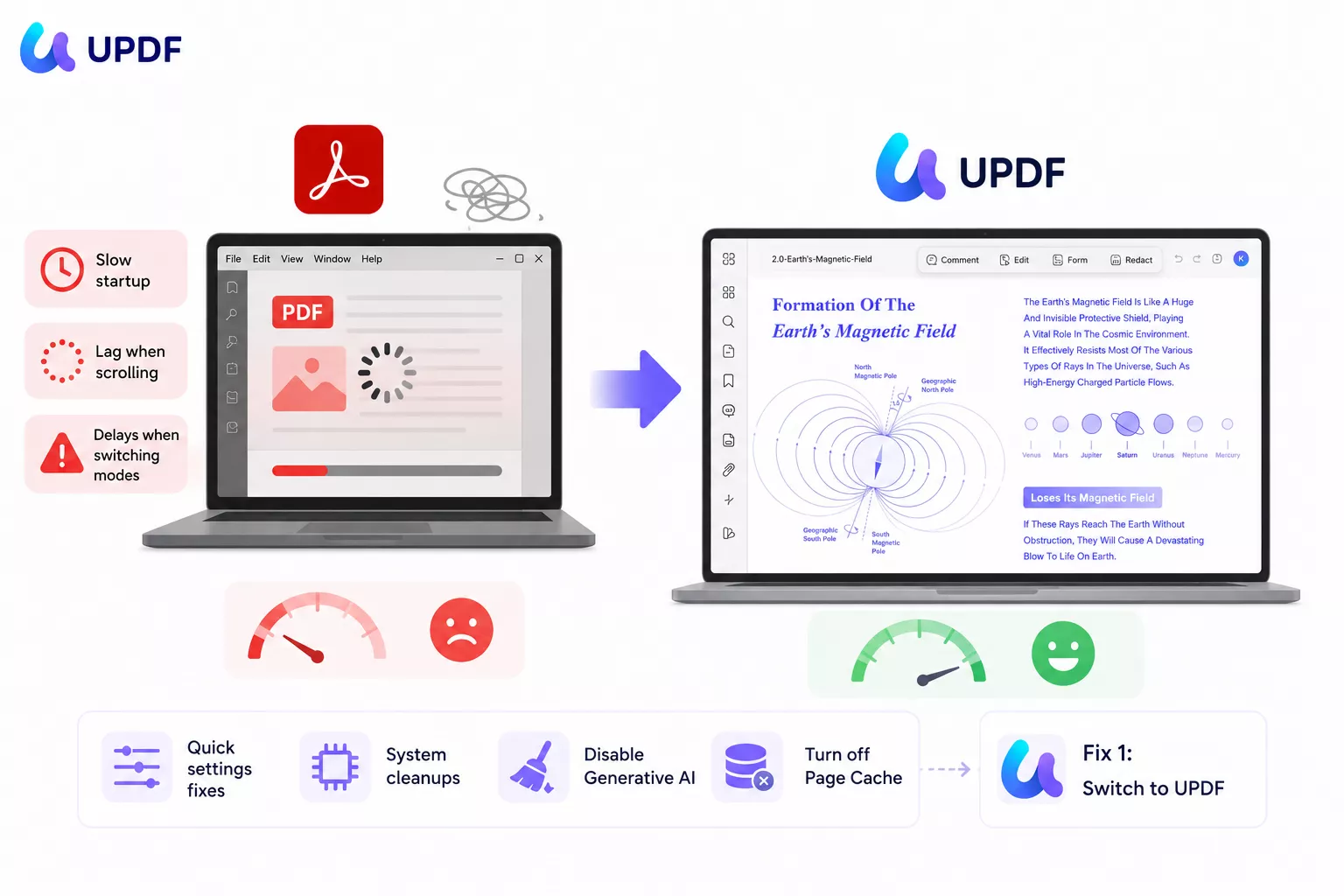
Adobe Acrobat is one of the most feature-complete PDF tools available — but it is also consistently one of the heaviest. Slow startup times, lag when scrolling through large documents, and delays when switching between editing modes are common complaints, and the causes are not always obvious.
If you are asking "why is Adobe Acrobat so slow" or "why is my Adobe Acrobat so slow even on a fast computer," the short answer is this: Acrobat's large software footprint, background AI processes, aggressive security settings, and memory-heavy rendering often conflict with modern workflows — especially on systems without dedicated GPU support or when cloud sync services are running.
This guide covers the 8 most effective fixes for Adobe Acrobat running slow, ordered by impact and ease of implementation. Fixes 2–8 are settings and system changes that take under five minutes each. Fix 1 covers UPDF, a significantly lighter and faster alternative that includes all the core PDF editing and AI features Acrobat offers, at a fraction of the cost.
Windows • macOS • iOS • Android 100% secure
Part 1: Why Is Adobe Acrobat So Slow? (on Windows/Mac)
It is essential to understand why Adobe Acrobat is running slow before applying fixes. Below are the eight most common causes, matched to the fix that resolves each one.
Tip
Heavy software footprint:
Adobe Acrobat is one of the largest PDF applications available. It launches multiple background processes even when idle. This overhead makes it disproportionately slow on older hardware or systems with limited RAM.
Typical symptom: Acrobat takes 15–30 seconds to open on an SSD, or the splash screen hangs at "Loading components."
Best fix: Fix 1 (switch to a lightweight alternative) or Fix 7 (free up RAM).
Generative AI features:
Adobe's built-in AI Assistant loads at startup and runs background processes even when you are not using it. On systems without dedicated GPU support, this can add significant lag — especially on the first document open.
Typical symptom: Slow startup after a recent Acrobat update, or lag when opening the first PDF of the session.
Best fix: Fix 4 (disable Generative AI).
Page Cache setting:
Counterintuitively, Acrobat's "Use Page Cache" option — designed to speed up rendering — can cause lag on some system configurations by consuming excess memory. On systems with 8 GB RAM or less, this pre-rendering competes with Acrobat's other memory needs.
Typical symptom: Sluggish page transitions, delay when scrolling through multi-page documents, or freezing when switching between pages.
Best fix: Fix 5 (uncheck "Use Page Cache").
Large or graphics-heavy files:
Documents with high-resolution images, embedded video, or complex layer structures require substantially more processing power to render. Opening a 200-page image-heavy PDF can cause Acrobat to stall for 30+ seconds on average hardware.
Typical symptom: Only specific files are slow; small text-only PDFs open fine.
Best fix: Optimize the PDF before opening (reduce image resolution, flatten layers) or use Fix 1 (alternative with faster rendering).
Limited device storage:
Acrobat uses your disk as temporary cache space. When your drive is nearly full (less than 10–15% free space), this caching process slows significantly.
Typical symptom: General system sluggishness, not just Acrobat; saves and exports take longer than usual.
Best fix: Fix 8 (free up storage and clear Acrobat cache).
Background applications competing for RAM:
Acrobat is RAM-intensive. With 8 GB of system RAM, running AAcrobat is RAM-intensive. With 8 GB of system RAM, running Acrobat alongside a browser with 20+ tabs, Microsoft Teams, Slack, and cloud sync services can push the system into memory pressure, causing persistent lag.
Typical symptom: Acrobat becomes responsive only after closing other apps; Task Manager shows RAM above 85%.
Best fix: Fix 7 (quit background apps).
Outdated version or corrupted installation:
Adobe releases frequent updates; running a version more than 2–3 cycles behind can introduce compatibility issues with current OS security patches, causing slowdowns. Corrupted preference files or incomplete updates can also degrade performance.
Typical symptom: Acrobat was fast last month but became slow after an update; or crashes with "Adobe Acrobat has stopped working."
Best fix: Fix 3 (reinstall) or Fix 6 (revert to older version).
Conflicting plugins or extensions:
Third-party Acrobat plugins — common in legal, print, and enterprise environments (e.g., Pitstop Pro, FusionPro) — can introduce startup and performance overhead that is difficult to diagnose. Protected Mode can amplify this conflict.
Typical symptom: Slowdown only occurs when opening specific file types or using specific tools (Preflight, printing).
Best fix: Fix 2 (change security settings, disable Protected Mode).
Warning
Part 2: How to Fix Adobe Acrobat's Slow/Lag Issue (8 Proven Fixes)
The eight fixes below are ordered by impact and ease of implementation — starting with switching to a faster alternative (Fix 1, for users who are done troubleshooting), followed by settings adjustments that take under two minutes each, through to system-level cleanups. Work through the fixes that match the cause you identified in Part 1.
| Symptom | Likely Cause | Fix to Try First |
|---|---|---|
| Slow startup, AI icon visible | Generative AI background load | Fix 4 |
| Slow scrolling, page transitions | Page Cache RAM conflict | Fix 5 |
| Slow only on large/image PDFs | File complexity | Optimize file or Fix 1 |
| Slow after recent update | Corrupted install / new version bugs | Fix 6, then Fix 3 |
| "Not responding" with plugins | Protected Mode + plugin conflict | Fix 2 |
| General lag with many apps open | RAM pressure | Fix 7 |
| Slow save/export, full disk | Low storage / cache bloat | Fix 8 |
Fix 1: Use Adobe Acrobat Alternative
If Adobe Acrobat's performance issues are recurring and the fixes below only provide temporary relief, switching to UPDF is the most effective long-term solution. UPDF opens in under 3 seconds on the same hardware, and it maintains smooth performance even with large, graphics-heavy PDFs that cause Acrobat to stall.
Windows • macOS • iOS • Android 100% secure
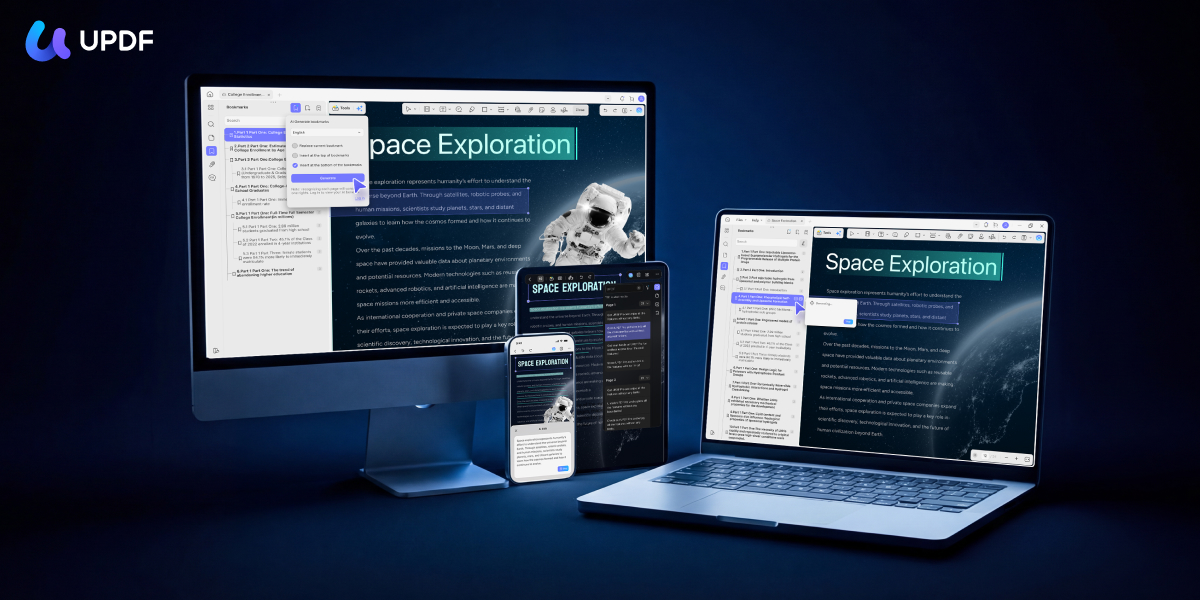
Why UPDF is faster than Adobe Acrobat:
- Faster Rendering: UPDF excels at rendering larger files, or files that contain high-quality images. This means you can open and edit your PDF documents freely without worry.
- No background AI loading: Unlike Acrobat's AI Assistant (which loads at launch regardless of whether you use it), UPDF's AI features activate only on demand, eliminating their contribution to startup lag.
- Lightweight Installation: The size of UPDF is significantly smaller than Adobe Acrobat, putting less strain on your device.
- Cost comparison: Adobe Acrobat Pro costs $239.88/year. UPDF Pro is priced at $49.99/year — roughly 21% of Acrobat's annual cost — with a single license covering Windows, Mac, iOS, and Android simultaneously.
UPDF delivers everything Acrobat does in core PDF features — and more:
- Full text and image editing directly within PDFs
- Annotation (highlights, sticky notes, shapes, stamps, freehand drawing)
- OCR in 38 languages for scanned documents
- Form creation with all standard field types
- PDF conversion to/from Word, Excel, PowerPoint, images, and more
- Digital signatures and password protection
- Batch processing for high-volume document operations
- Chat with PDF: Ask any document direct questions in plain language and get instant, context-aware answers.
- AI Editing Suite: Rewrite, rephrase, or adjust the tone of any text block directly inside the PDF — without exporting to Word.
- AI Page Organizer: Automatically scans multi-page documents for page-level issues — blank pages, reversed pages, misaligned scans — and presents one-click fixes for each.
- AI Semantic Search: Search any PDF by meaning rather than exact keyword — UPDF surfaces synonyms alongside exact matches, so you can find relevant content in a large document without remembering the precise wording used.
Best for
How to open and edit a PDF in UPDF:
Windows • macOS • iOS • Android 100% secure
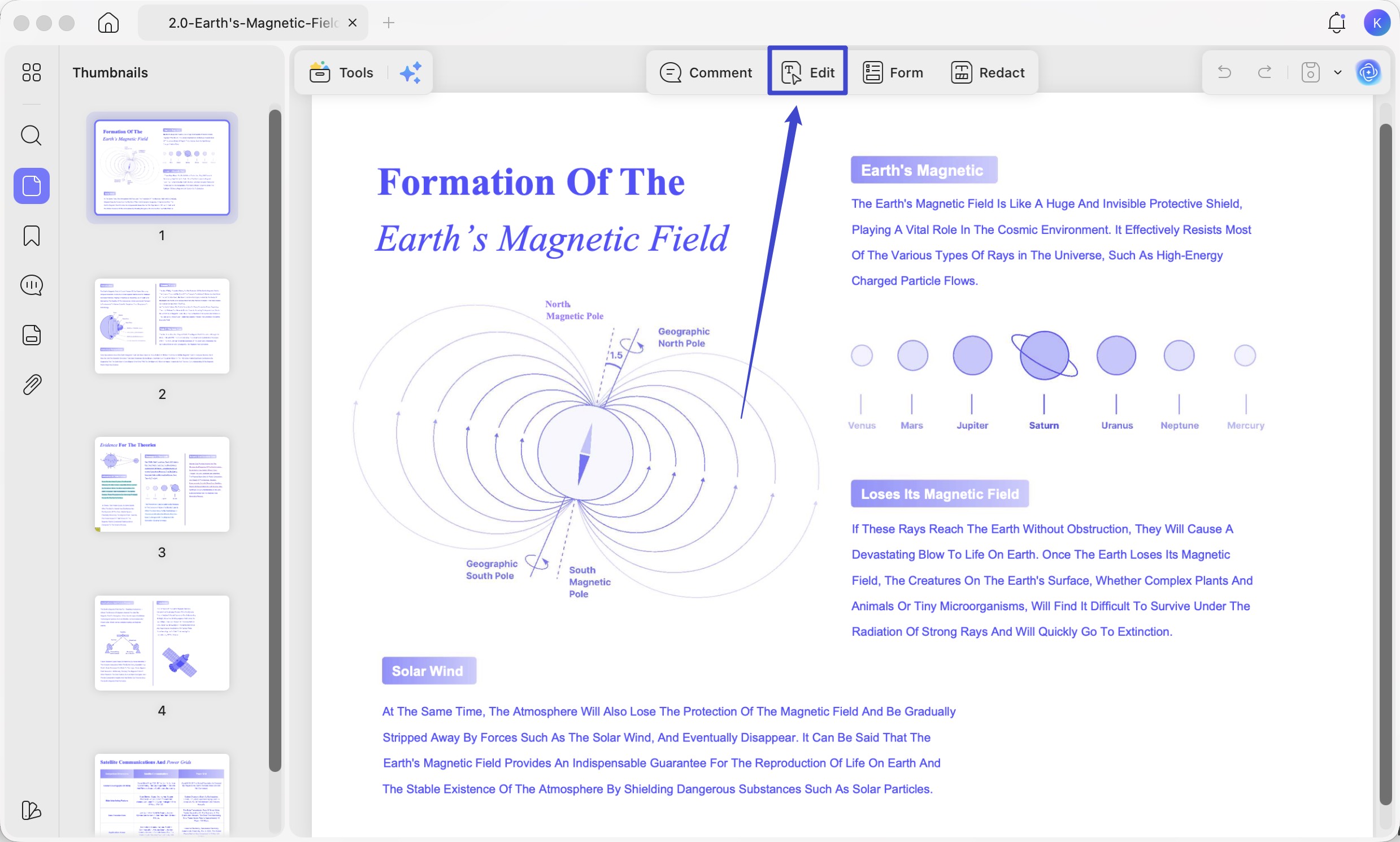
Step 1. Download and install UPDF. Open UPDF and click Open File, or drag and drop your PDF onto the UPDF window.
Step 2. Click the Edit button in the top toolbar to enter edit mode.. Click any text block or image to edit it directly. Changes render immediately with no lag.
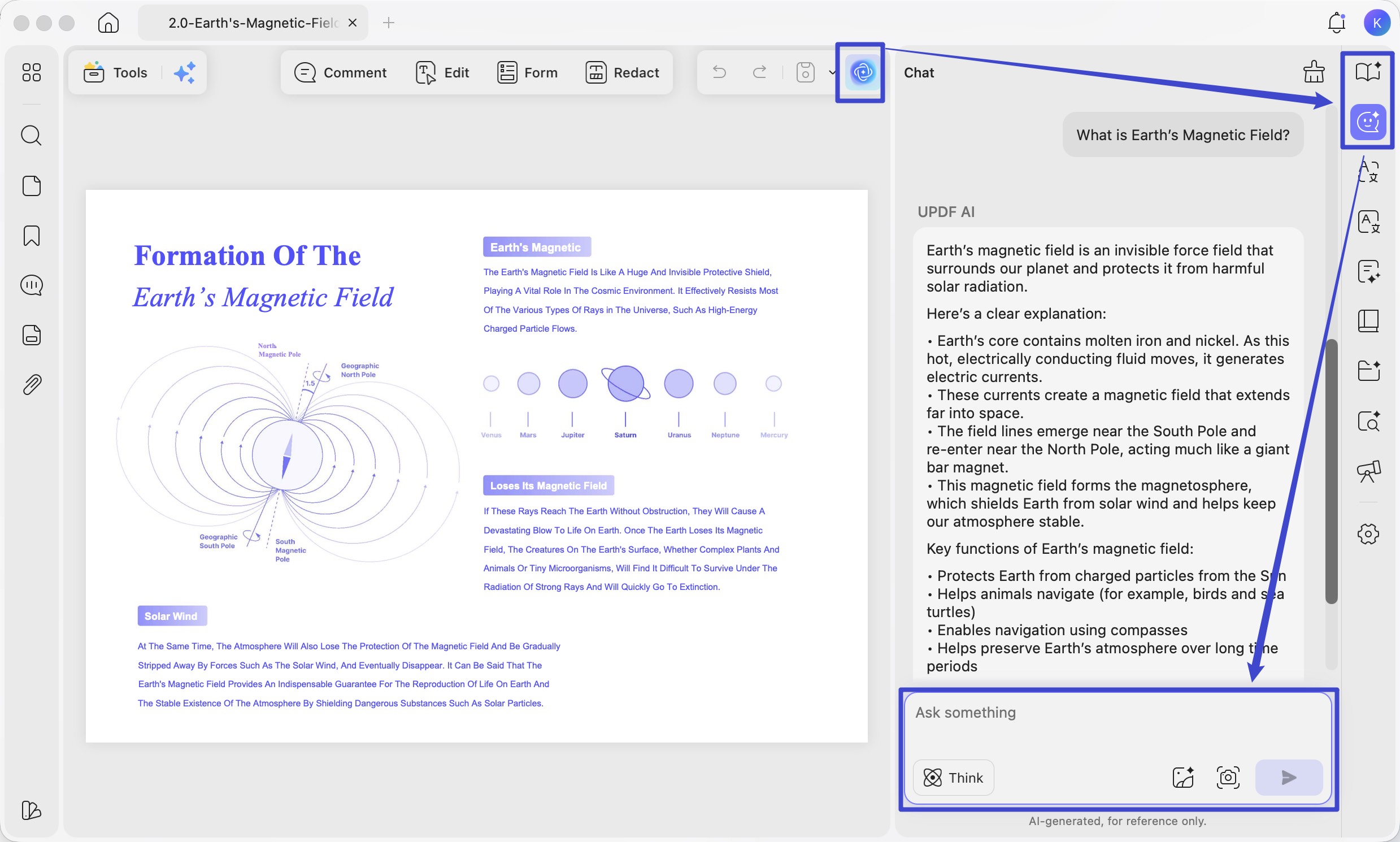
Step 3. Click the UPDF AI button to open the AI panel. Use Ask PDF/Chat to ask questions about the document.
You can check out this in-depth review of UPDF, or watch the video below for a complete breakdown of UPDF’s many amazing features!
Windows • macOS • iOS • Android 100% secure
Fix 2: Change Security Settings
Adjusting the security settings in Adobe Acrobat may enhance its performance. Certain settings can be overly restrictive and may slow down the application, especially with documents that have security features enabled or when third-party plugins are installed.
Warning
Step 1: Finding the Security Settings
Navigate to the "Edit" menu button, then select "Preferences" from the dropdown menu, followed by "Security."
Step 2: Turn Off SafeLogic CryptoComply
Next, you'll need to turn off "SafeLogic CryptoComply" if you are in the old version of Adobe Acrobat.
Step 3: Disable Security (Enhanced)
Head to find "Security (Enhanced)", and turn off everything in here.
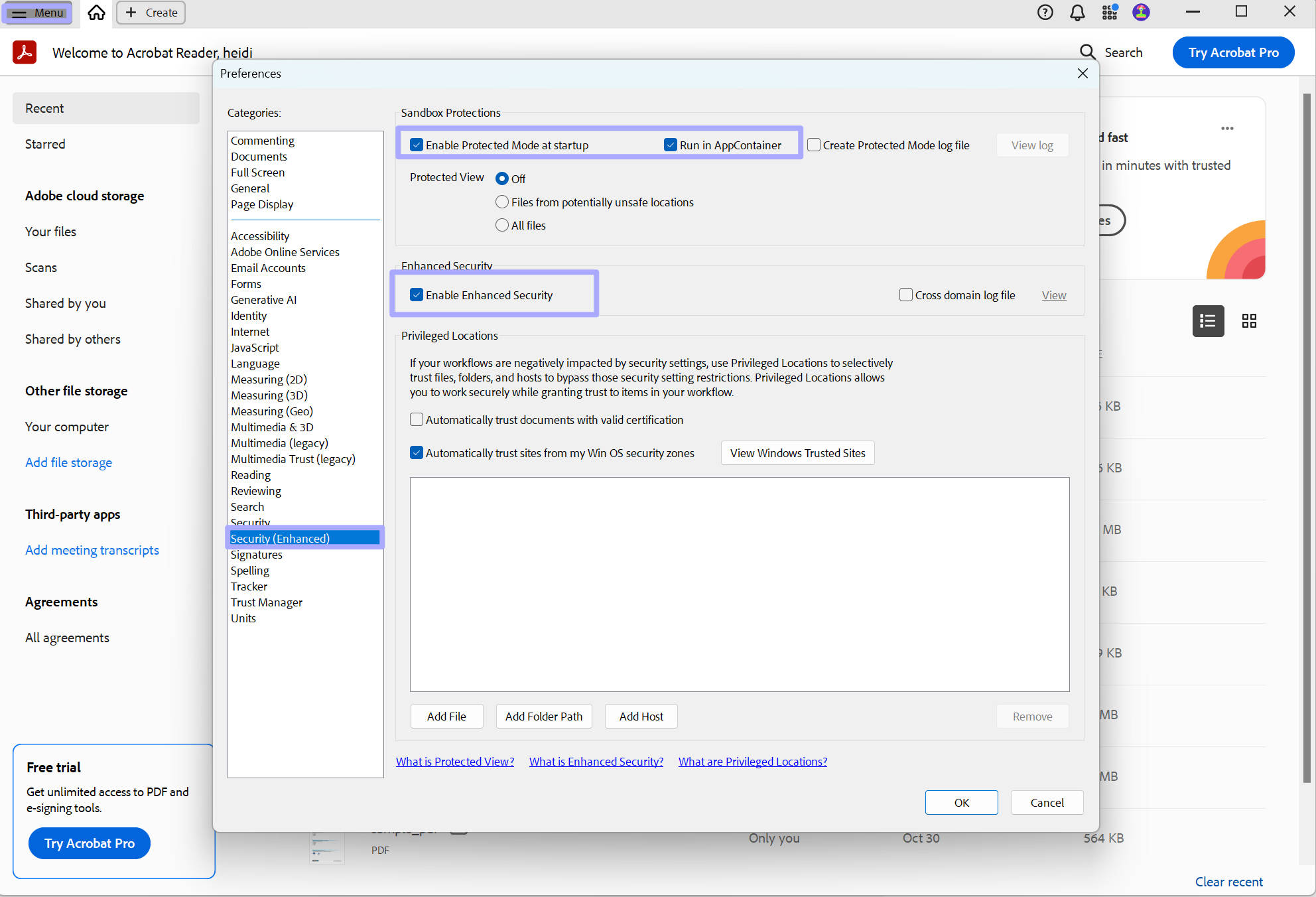
Following these steps on changing your security settings may help Acrobat run more efficiently and help reduce the lag you experience when accessing your PDF documents.
Fix 3: Reinstall Adobe Acrobat
The next option is to try reinstalling Adobe Acrobat. This may resolve underlying issues such as corrupted files, outdated components, or configuration errors. A standard uninstall sometimes leaves behind broken installer state, registry entries, or cached components, which can lead to very long "Gathering required information / configuring" loops.
Tip
Step 1: Uninstall Adobe Acrobat
Windows: Search for "Add or remove programs" in the Start menu → find Adobe Acrobat → click Uninstall.
Mac: Open Finder → Applications → drag Adobe Acrobat to the Trash → empty the Trash. Alternatively, use Adobe Creative Cloud → click the three dots next to Acrobat → Uninstall.
Step 2: Install the Latest Version of Adobe Acrobat
Once uninstalled, head to the Adobe website and download the latest version of the Acrobat.
Reinstalling Acrobat may clear up performance issues, allowing you to once again work with PDF documents without the fear of slow performance affecting your workflow.
Fix 4: Disable Generative AI
Adobe Acrobat's built-in AI Assistant loads background processes at startup, even when you don't actively use it. On systems without dedicated GPU support — or on older hardware — these background processes contribute measurably to startup lag and general sluggishness. Disabling this feature has been one of the most effective fixes for slow performance following recent Acrobat updates.
Click the "Menu" button, then select "Preferences", followed by "Generative AI." Find the option "Enable Generative AI" and uncheck this box to turn off the function.
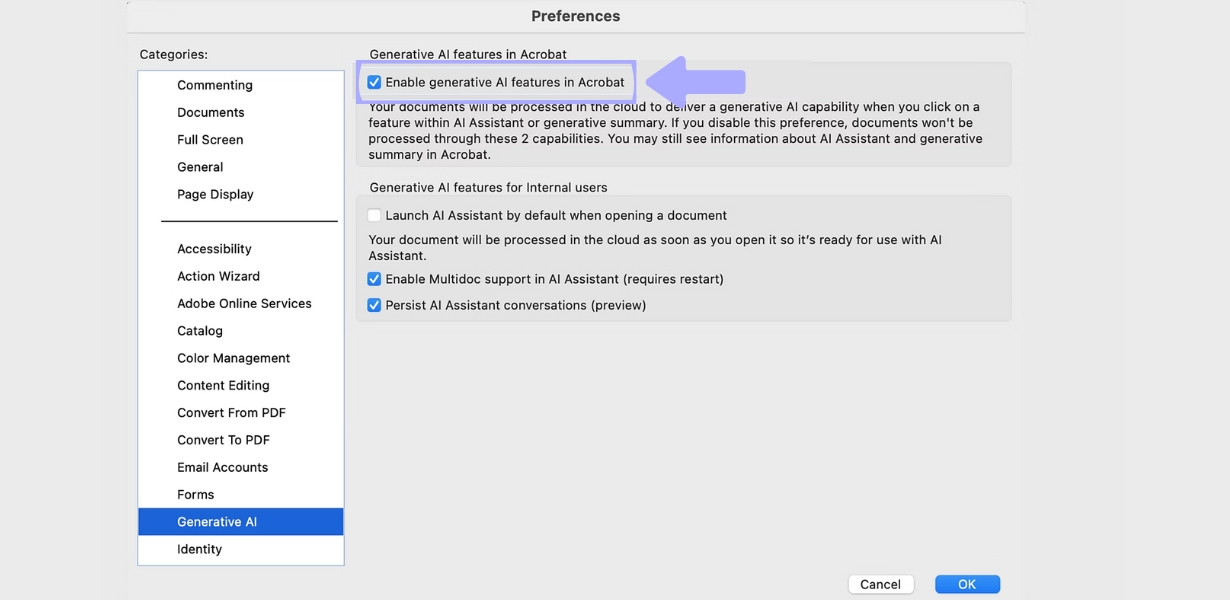
Disabling the generative AI functionality may help resolve performance issues with Acrobat. While a simple fix, this can make a significant difference when dealing with large files.
Tip
Fix 5: Uncheck "Use Page Cache"
Acrobat's Page Cache feature is designed to pre-render upcoming pages in memory, theoretically speeding up navigation through multi-page documents. However, on systems where RAM is limited (8 GB or less), this pre-rendering competes with Acrobat's other memory needs, often causing the opposite effect — sluggish page transitions and increased lag when editing. Disabling it forces Acrobat to render pages on demand only, which is typically faster in practice on average hardware.
Disabling "Use Page Cache"
Click on the "Menu" button, then select "Preferences", followed by "Page Display." Next, find the option "Use Page Cache" and uncheck this box to disable this feature.
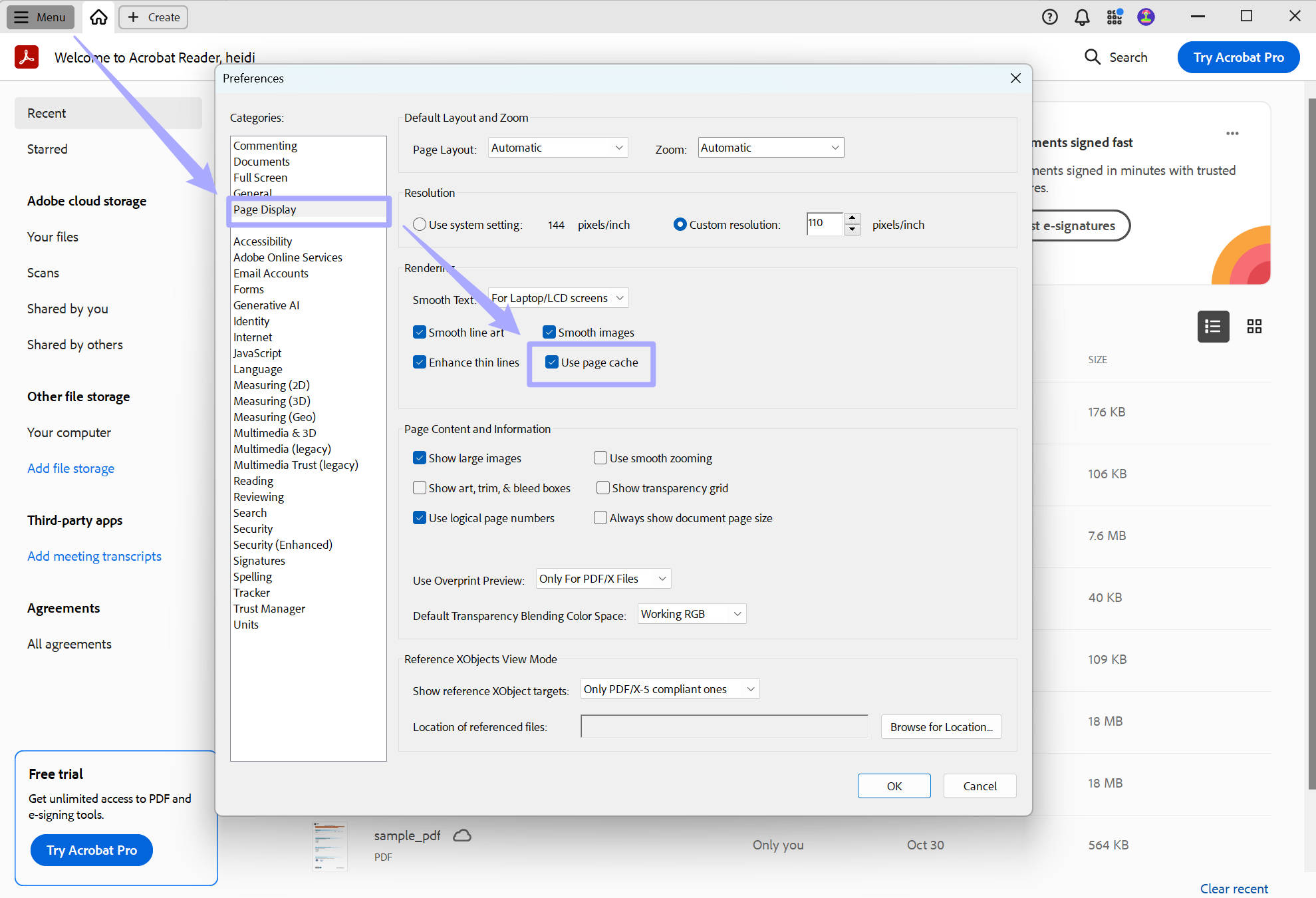
While designed to increase the speed at which Acrobat loads your documents, the Page Cache feature often causes lag. Therefore, disabling this feature may improve performance, especially when working with large PDF files.
Fix 6: Revert to the Old Version of Acrobat
If problems in Acrobat started after a recent update, reverting to an older version may help resolve these problems. Sometimes, the newer version can introduce bugs and compatibility issues.
Steps: Head over to the apps section on the Adobe Creative Cloud. Find Acrobat and click on the three dots, from the dropdown menu select "Other Versions." Next, find the version you'd like to revert to and click "Install."
By reverting to an older version, you may increase the performance of the software and reduce the amount of Adobe Acrobat lag you experience. If this solves your problem, you can continue to use the older version until a future update offers improved stability.
Tip
Fix 7: Quit Background Apps
A simple yet effective solution to Adobe Acrobat's slow performance is quitting background applications. Having multiple programs running simultaneously can use up valuable system resources, such as RAM and CPU, which leads to issues with Acrobat.
Pay special attention to cloud sync services — OneDrive, Google Drive, Dropbox, and iCloud constantly scan your files for changes and can interfere with Acrobat's file access, especially when opening PDFs stored in synced folders.
On Windows:
Press Ctrl + Shift + Esc to open Task Manager. In the Processes tab, click Memory or CPU to sort by resource usage. Identify applications consuming the most memory that you are not actively using — browsers with many tabs open, Slack, Teams, cloud sync services (Dropbox, OneDrive), and Adobe Creative Cloud background processes are common culprits. Select each and click End Task.
On Mac:
Open Activity Monitor (Spotlight → type "Activity Monitor" → Enter). Click the Memory tab to sort processes by memory usage. Select resource-heavy processes you don't need and click the Force Quit button.
Removing unnecessary background applications may significantly improve performance. This is a quick and easy fix to free up necessary system resources.
Fix 8: Free Up Computer Storage
Another quick solution to get Acrobat running faster is to free up storage on your device. When your hard drive is nearly full, it slows down your system and impacts the performance of applications.
On Windows:
Step 1. Right-click the Recycle Bin on the desktop → Empty Recycle Bin.
Step 2. Search for Disk Cleanup in the Start menu → select your system drive (usually C:) → check Temporary files, Downloaded Program Files, and Thumbnails → click OK.
On Mac:
Step 1. Open Finder → right-click the Trash icon in the Dock → Empty Trash.
Step 2. Click the Apple menu → About This Mac → Storage → Manage. Use the built-in storage management tools to review large files, downloads, and application caches. Enable Optimize Storage if available — this moves infrequently accessed files to iCloud and frees local disk space automatically.
Clear Acrobat's Dedicated Cache:
If Adobe Acrobat is still slow after general cleanup, clear its application-specific cache. Corrupted cache files are a common cause of repeated slowdowns, especially with the search function.
Windows: Navigate to C:\Users\[YourUsername]\AppData\Local\Adobe\Acrobat\[Version]\Cache and delete the contents of the Cache folder. Leave the folder itself in place.
Mac: Navigate to ~/Library/Application Support/Adobe/Acrobat/[Version]/Cache and delete the contents.
Tip
By freeing up space on your hard drive and clearing Acrobat's cache, you improve the overall efficiency of your device. Frequently cleaning unnecessary files and applications will reduce the chance of Acrobat running slow.
FAQ: Adobe Acrobat Slow — People Also Ask
Why is my Adobe Acrobat so slow even with good specs?
If you have an i7 processor, 32 GB RAM, and an SSD but Acrobat is still slow, the issue is almost certainly software-level, not hardware. The most common culprits are: (1) Generative AI background processes, (2) Protected Mode conflicting with plugins, (3) Page Cache consuming RAM inefficiently, (4) corrupted preferences or cache, and (5) cloud sync services scanning your PDFs in real time. Try Fix 4, Fix 5, and Fix 8 first.
Why is Adobe Acrobat so slow when searching?
Slow search is usually caused by a bloated or corrupted search cache. Acrobat's "Fast Find" feature builds an index of document text; when this cache grows too large or becomes corrupted, search speed drops dramatically. To fix it: go to Edit > Preferences > Search, click "Purge Cache Contents," increase Maximum Cache Size to 1000 MB, and restart Acrobat. If the file is stored in a cloud-synced folder (OneDrive, Dropbox), pause sync while searching.
Why is Adobe Acrobat so slow to open?
Slow startup is most often caused by Generative AI loading at launch (Fix 4), Protected Mode initialization (Fix 2), or too many recently used files being pre-loaded. Reducing the number of recent documents to 0–10 (Edit > Preferences > Documents) and disabling startup items (Fix 7) also helps.
Is it safe to disable Protected Mode in Adobe Acrobat?
Disabling Protected Mode improves performance but reduces security against malicious PDFs. It is safe to disable temporarily for troubleshooting, but you should re-enable it afterward. If you need to work with untrusted PDFs frequently, consider using a lightweight reader for viewing and Acrobat only for editing.
Why is Adobe so slow in general?
If multiple Adobe apps (Photoshop, Illustrator, Premiere, Acrobat) are all slow, the issue is usually the Adobe Creative Cloud desktop app running background sync, font activation, and update checks. Quit Creative Cloud from the system tray, disable "Launch Creative Cloud at login" in its preferences, and restart your computer.
Final Words
Most Adobe Acrobat slowdowns can be traced to one of two categories: settings that are misconfigured for your hardware (Fix 2–5Most Adobe Acrobat slowdowns can be traced to one of two categories: settings that are misconfigured for your hardware (Fix 2–5), or system resources being stretched thin (Fix 7–8). Working through the relevant fixes in order should resolve the majority of performance issues.
That said, some slowdowns are intrinsic to Acrobat's architecture — its large installation footprint, background AI processes, and memory-intensive rendering are design choices that no settings tweak fully resolves. For users who work with PDFs heavily enough that these recurring slowdowns genuinely impact productivity, UPDF is the most effective permanent solution. It opens faster, handles large files without lag, costs approximately one-fifth of Acrobat's yearly cost, and includes AI tools — AI Editing Suite, AI Page Organizer, and AI Semantic Search — that rival or exceed what Acrobat's AI Assistant offers, without the startup overhead.
Download UPDF for free and test it against your current Acrobat workflow — no subscription required to get started.
Windows • macOS • iOS • Android 100% secure







 Lizzy Lozano
 Enola Davis

 Enya Moore
 Enola Miller