UPDF
UPDF
 UPDF for Windows
 UPDF for Mac
 UPDF for iPhone/iPad
 UPDF for Android
 Nomostar
 UPDF AI Online
 UPDF Sign
 IvyCraft
 Edit PDF
 Annotate PDF
 Create PDF
 PDF Form
 Edit links
 Convert PDF
 OCR
OCR PDF to Word
 PDF to Image
 PDF to Excel
 Organize PDF
 Merge PDF
 Split PDF
 Crop PDF
 Rotate PDF
 Protect PDF
 Sign PDF
 Redact PDF
 Sanitize PDF
 Remove Security
 Read PDF
 UPDF Cloud
 Compress PDF
 Print PDF
 Batch Process
 About UPDF AI
 UPDF AI Solutions
 AI User Guide
 FAQ about UPDF AI
 Summarize PDF
 Translate PDF
 Chat with PDF
 Chat with AI
 Chat with image
 PDF to Mind Map
 Explain PDF
 PDF AI Tools
 Image AI Tools
 AI Chat Tools
 AI Writing Tools
 AI Study Tools
 AI Working Tools
 Other AI Tools
 AI Bookmark Generation
 AI Bookmark Summary
 AI Watermark Generation
 AI Background Generation
 AI Sticker Generation
 AI Stamp Generation
 AI Editing Suite
 UPDF Copilot
 AI Page Management
 AI Semantic Search
 PDF to Word
 PDF to Excel
 PDF to PowerPoint
 Enterprise Solution
 Enterprise Sign
 Enterprise AI
 Enterprise Plan
 Enterprise User Guide
 Enterprise Webinar
 IT
IT Education
 Construction
 Financial Service
 Healthcare
 Insurance
 Legal
Legal Manufacturing
 Government
 Researchers & PhDs
 Solopreneurs & Freelancers
 Lawyers & Legal Professionals
 Real Estate Agents & Brokers
 Education Solution
 Customer Stories
 User Guide
 UPDF Tricks
 FAQs
FAQs UPDF Reviews
 Download Center
 Blog
Blog Newsroom
 Tech Spec
 Updates
 UPDF vs. Adobe Acrobat
 UPDF vs. Foxit
 UPDF vs. PDF Expert

Quick answer:
If Combine Files in Acrobat is not working, first identify where the failure occurs:
- If Acrobat rejects a file, check for password protection, security restrictions, corruption, or an unsupported PDF type.
- If the process freezes, test the files one at a time and update Acrobat.
- If the merged PDF cannot be saved because it exceeds 2 GB on Windows, turn off “Save As optimizes for Fast Web View.”
- You can also use Insert Pages or switch to Acrobat Web, but the web version uploads the files to Adobe cloud storage and does not accept protected PDFs, 3D PDFs, or PDF Portfolios.
I needed to combine several reports into one PDF, but Acrobat either rejected one file, stalled during processing, or produced a document that would not save. The fastest fix depends on where the failure occurs, so the guide below starts with the symptom instead of treating every Adobe combine error as a file-size problem.
Part 1. Why Is Combine Files in Acrobat Not Working?
Use the point of failure to identify the most likely cause:
| What happens | Likely cause | Start with |
|---|---|---|
| Combine Files is missing or will not open | Wrong Acrobat access, an outdated app, or a damaged installation | Fix 1 or Fix 8 |
| Acrobat rejects one particular PDF | Password protection, security restrictions, an unsupported PDF type, or file corruption | Fix 2 or Fix 3 |
| Acrobat freezes while processing several files | One damaged file or a difficult source-format conversion | Fix 3 or Fix 4 |
| The PDFs combine, but the result will not save | The output exceeds 2 GB or the destination is not writable | Fix 6 |
| Right-click combining does not work | The operating-system shortcut or Acrobat shell integration has failed | Fix 1 |
| Acrobat Web will not accept the file | The file is secure, password-protected, 3D, or part of a PDF Portfolio | Fix 2 or Fix 7 |
| Pages need to be added to one existing PDF | Combine Files is unnecessary for this task | Fix 5 |
Adobe Acrobat can combine PDFs as well as Word, Excel, PowerPoint, image, audio, video, and web files. However, non-PDF files must be converted during the process, so mixed-format jobs have an additional point where the workflow can fail.
Part 2. Combine Files in Acrobat Not Working? Try These 8 Fixes
Fix 1. Open Combine Files Inside Acrobat Instead of Using Right-Click
If “Combine files in Acrobat” is not working from Windows File Explorer or another right-click menu, start the process inside Acrobat. This bypasses problems with the operating-system shortcut or Acrobat shell integration.
Step 1. Open Adobe Acrobat.
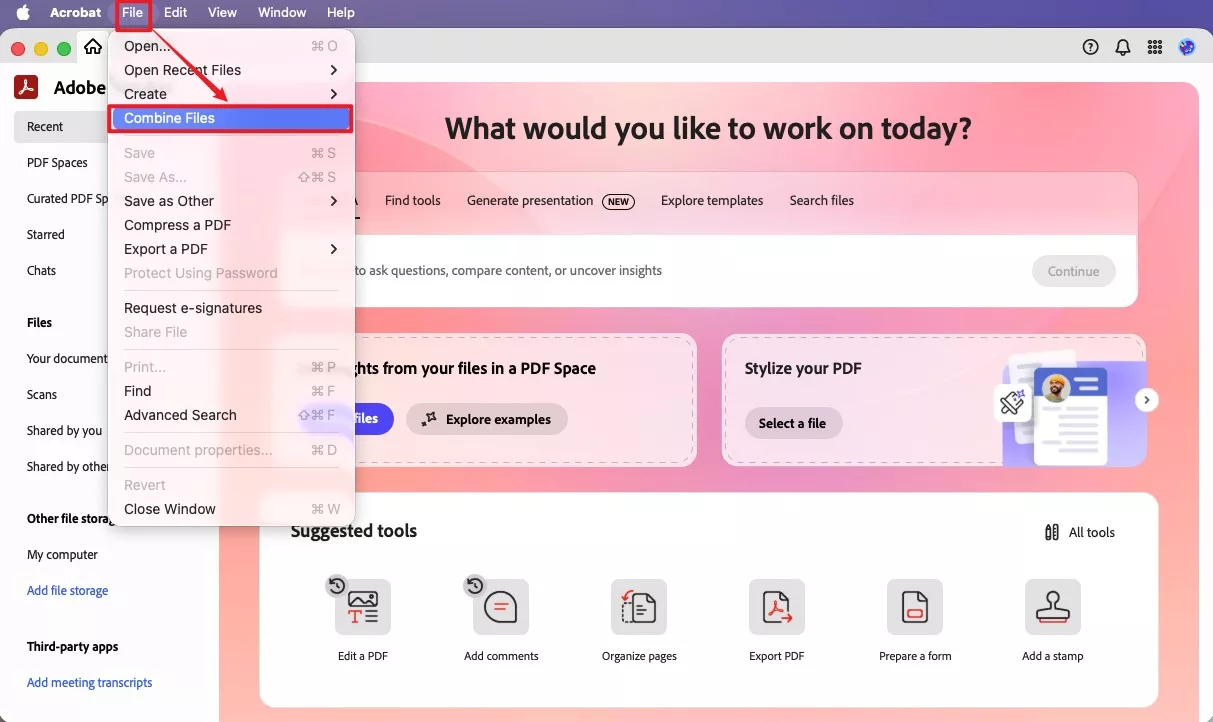
Step 2. On Windows, select Menu > Combine files. On Mac, select File > Combine files. You can also open All tools > Combine files.
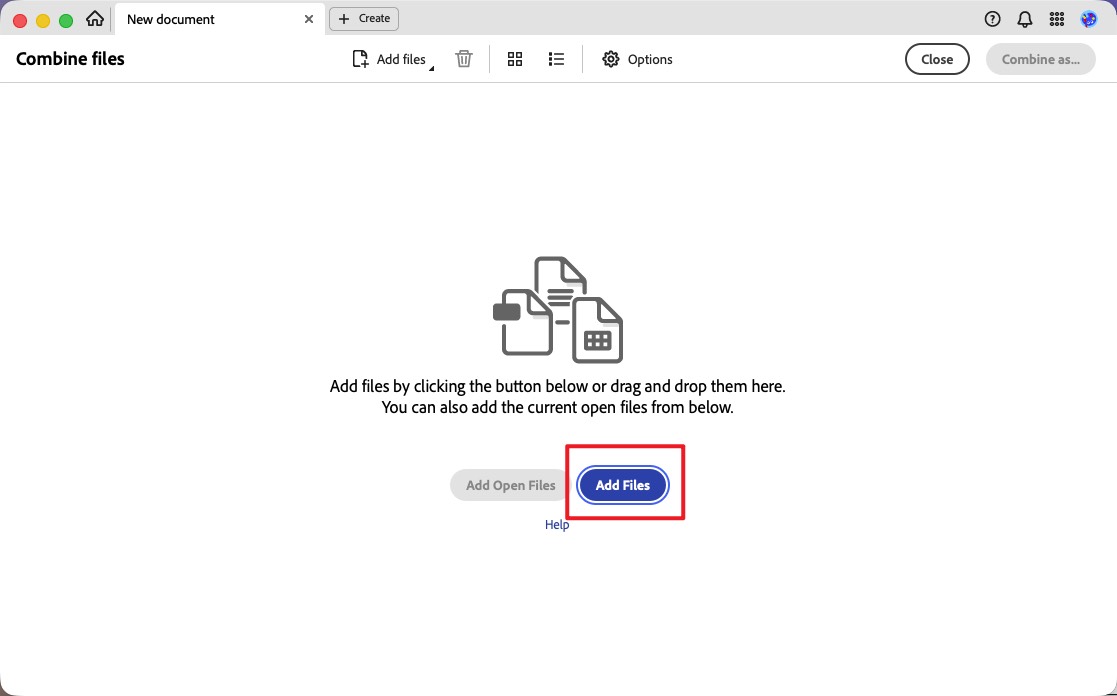
Step 3. Select Add Files, or drag the files into the Combine Files window.
Step 4. Arrange the files in the required order and remove any files or pages you do not need.
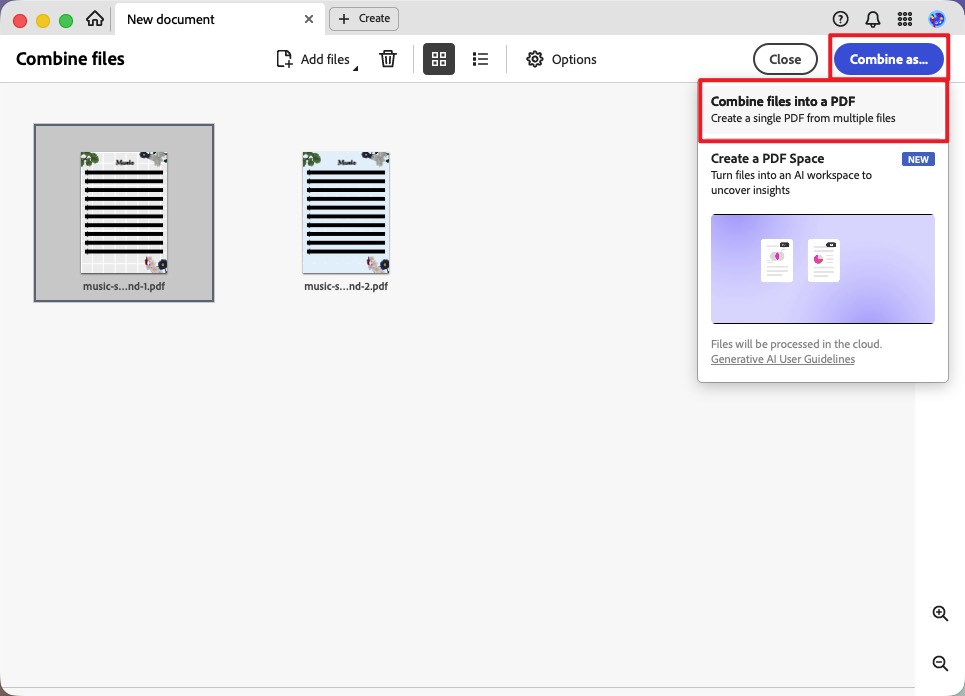
Step 5. Select Combine as... > Combine Files into a PDF, then save the resulting PDF under a new name.
If this in-app workflow succeeds, the PDFs themselves are probably valid and the failure is limited to the right-click shortcut.
Fix 2. Remove Protected or Unsupported Files
Acrobat Web cannot combine secure PDFs, password-protected PDFs, 3D PDFs, or files that are part of a PDF Portfolio. A restricted file may therefore be the reason Adobe Combine Files is not working.
Open each PDF separately and check whether Acrobat requests a password or reports restricted permissions. If you are authorized to change the document, use the correct password to remove its security before combining it. Otherwise, ask the document owner for an unrestricted copy.
Only remove PDF restrictions when you own the document or have permission to modify it.
Do not use the old “disable PDF Portfolio” advice as a general fix. Creating a PDF Portfolio is an output choice, whereas adding an existing Portfolio to Acrobat Web is an unsupported-input problem.
Fix 3. Find and Rebuild a Damaged PDF
When Acrobat stops only after a particular file is added, isolate that file instead of compressing the whole batch.
Step 1. Open every source PDF separately. Note any file that loads slowly, displays an error, or fails to open.
Step 2. Try combining two known-good files.
Step 3. Add the remaining files one at a time until the failure returns.
Step 4. If Acrobat reports an incorrect PDF structure, select File > Create > Combine Files into a Single PDF and add only the affected PDF.
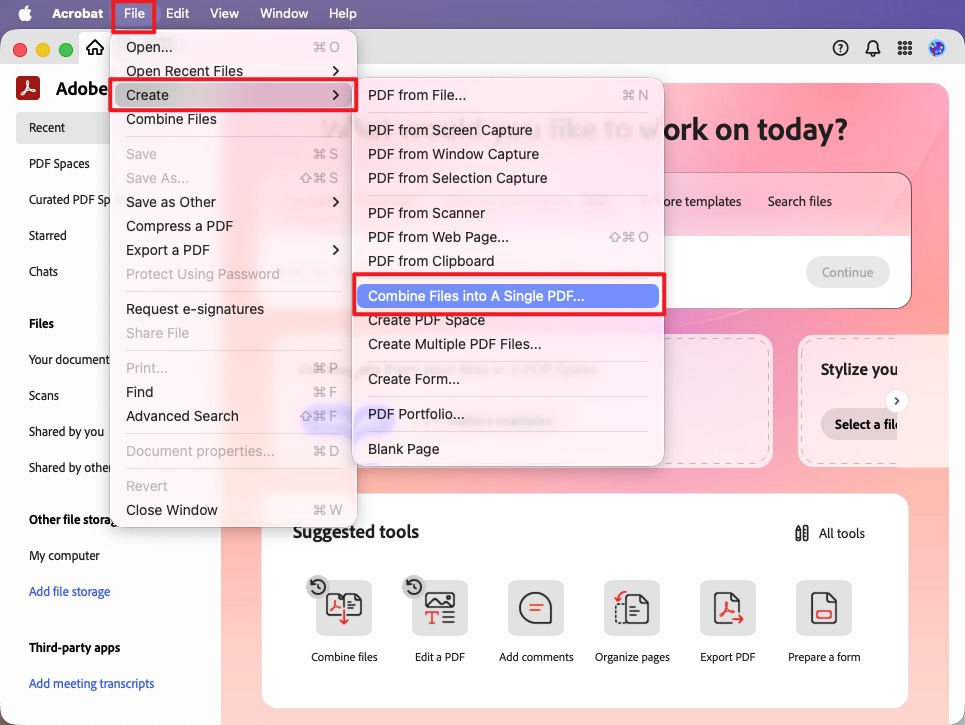
Step 5. Select Combine as... > Combine Files into a PDF, save the generated Binder1.pdf under a new name, and use the rebuilt copy in the full merge.
Adobe documents this single-file Combine process as a way to reconstruct a PDF containing damaged structural elements.
Fix 4. Convert Problematic Word, Excel, PowerPoint, or Image Files First
Acrobat supports mixed file types, but it must convert each non-PDF file before creating the final document. If the progress indicator freezes during that stage, convert the problematic source file to PDF first.
Step 1. Open the Word, Excel, PowerPoint, or image file in its original application.
Step 2. Export or print it as a PDF.
Step 3. Open the new PDF to confirm that all pages display correctly.
Step 4. Return to Acrobat and combine the PDF versions.
This separates conversion from merging, making it easier to determine whether the failure comes from the source document or Acrobat’s Combine Files tool. If Acrobat specifically says that it cannot convert a source file, see these fixes for the Acrobat does not support the conversion error.
Fix 5. Insert the PDF Instead of Using Combine Files
If you only need to append one PDF—or insert several pages into an existing document—use Organize Pages instead of rebuilding the entire file.
Step 1. Open the PDF that should remain the main document.
Step 2. Select All tools > Organize pages.
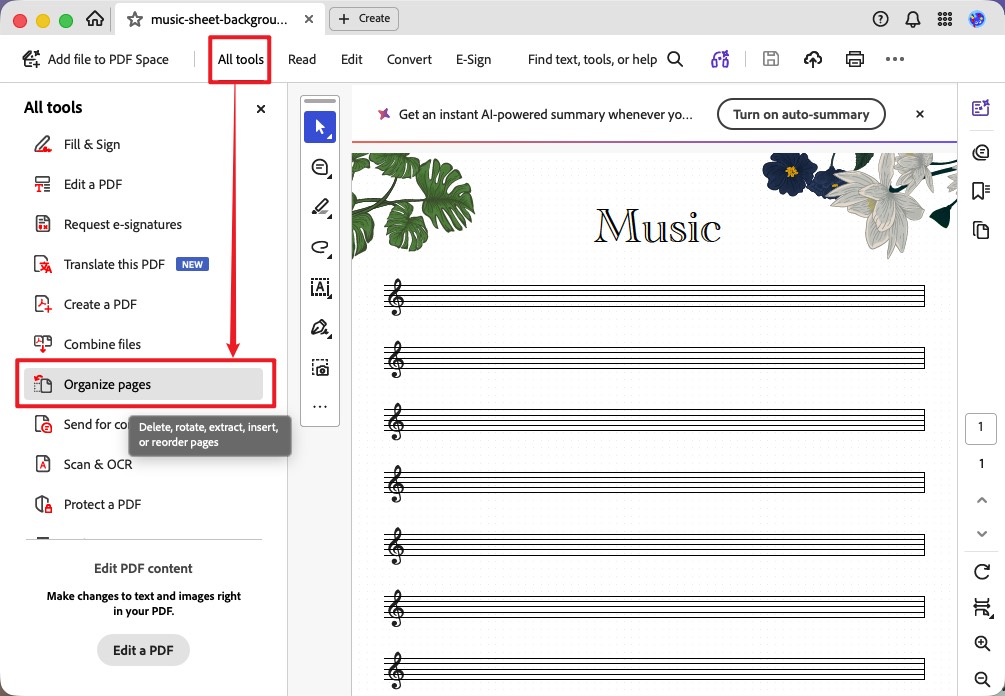
Step 3. Select Insert > From file.
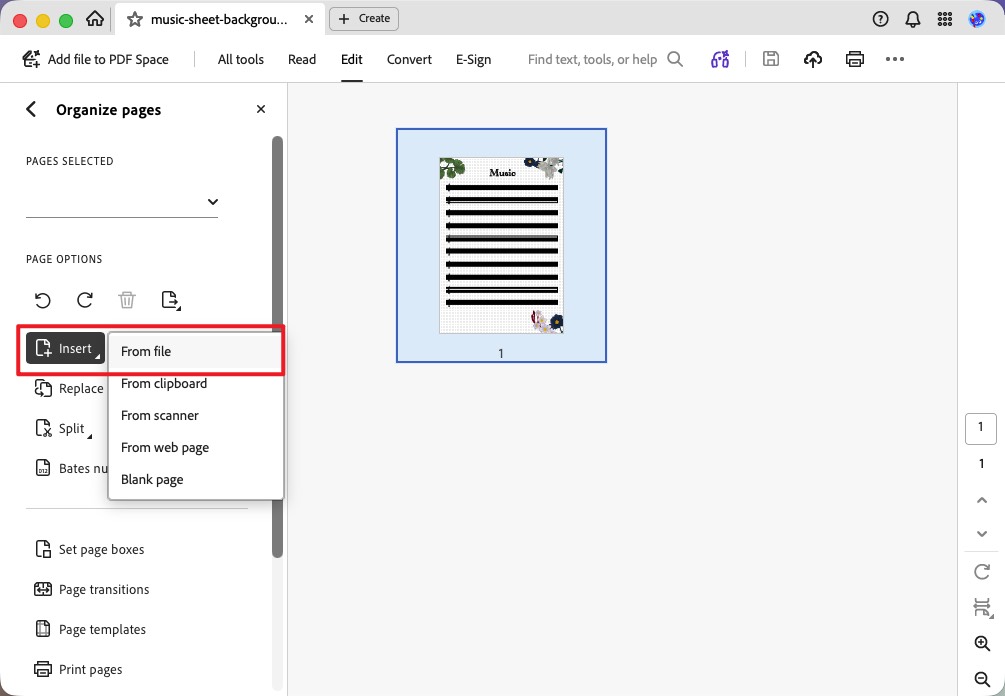
Step 4. Choose the second PDF and specify whether its pages should appear before or after the selected page.
Step 5. Select Save As and save the result as a new file.
This method is especially useful when Combine Files fails but both PDFs open normally. For additional page-level options, see how to add pages to a PDF.
Fix 6. Fix the 2 GB Save Error on Windows
The 2 GB issue is not a universal Acrobat merge limit. Adobe documents it as a Windows save error that can occur when the combined, linearized PDF exceeds 2 GB.
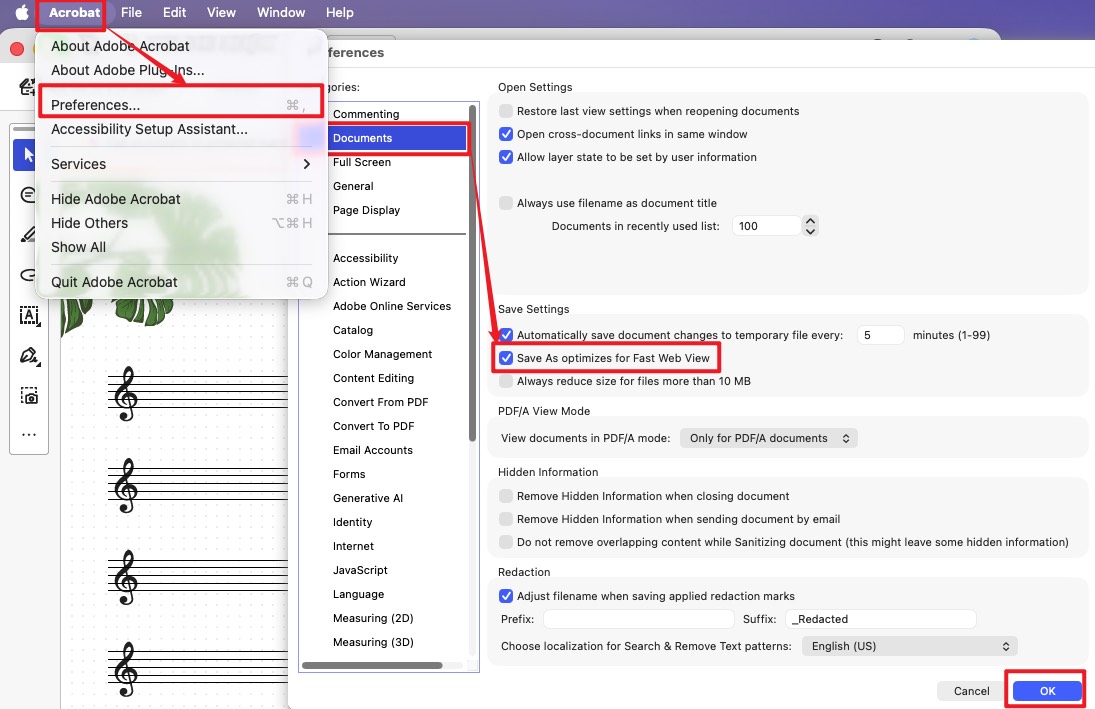
Step 1. Open Acrobat and select Preferences.
Step 2. Select Documents in the left panel.
Step 3. Clear Save As optimizes for Fast Web View.
Step 4. Select OK, combine the files again, and save the output.
If the result is still unusually large, reduce the source files before combining them. Compression is a secondary size-management option, not the first fix for every Combine Files error.
Fix 7. Try Acrobat Web—with Its Limits in Mind
If the desktop application is malfunctioning, Acrobat Web can help determine whether the problem is caused by the desktop installation.
Step 1. Sign in to Acrobat on the web.
Step 2. Select Edit > Combine files.
Step 3. Select the files, choose Continue, and arrange them in the required order.
Step 4. Select Combine.
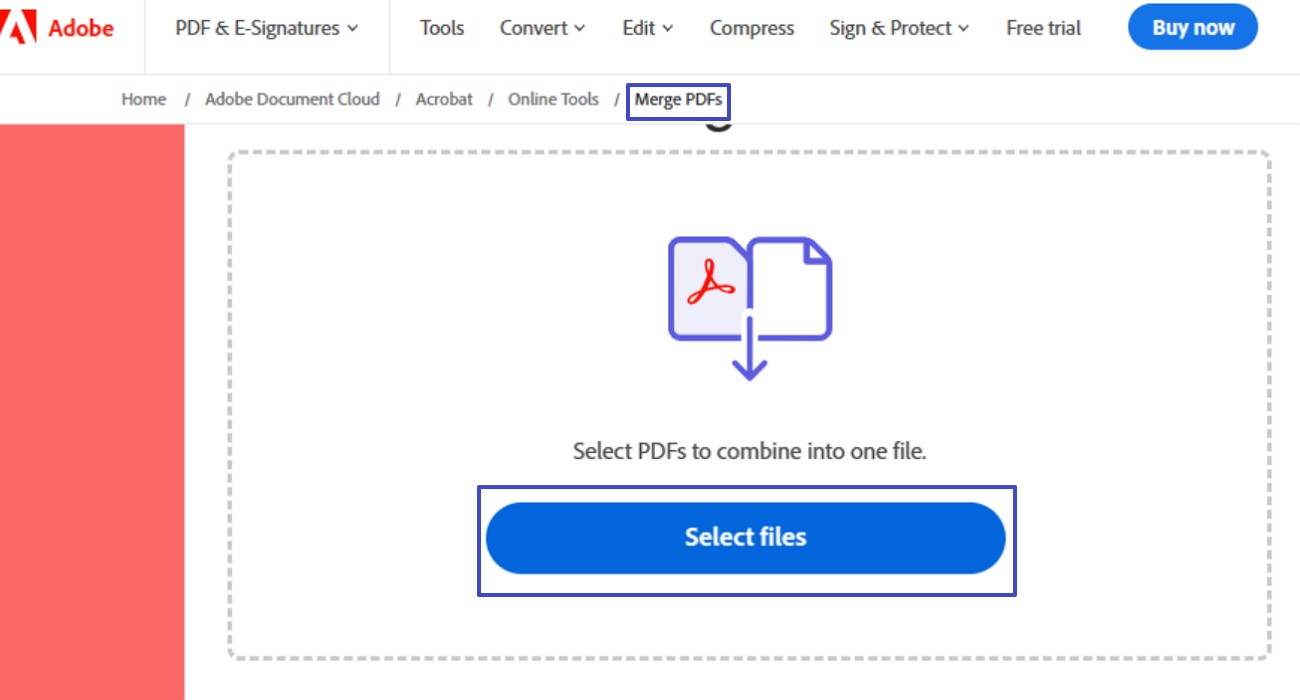
The result is automatically saved to Adobe cloud storage. Do not use this route for confidential files unless cloud uploading is acceptable. Acrobat Web also rejects secure, password-protected, 3D, and PDF Portfolio files, so it will not bypass those restrictions.
Fix 8. Update, Restart, or Repair Acrobat
If Combine Files is missing, freezes with every document, or closes unexpectedly, troubleshoot the application rather than the PDFs.
Step 1. On Windows, select Menu > Help > Check for updates. On Mac, select Help > Check for updates.
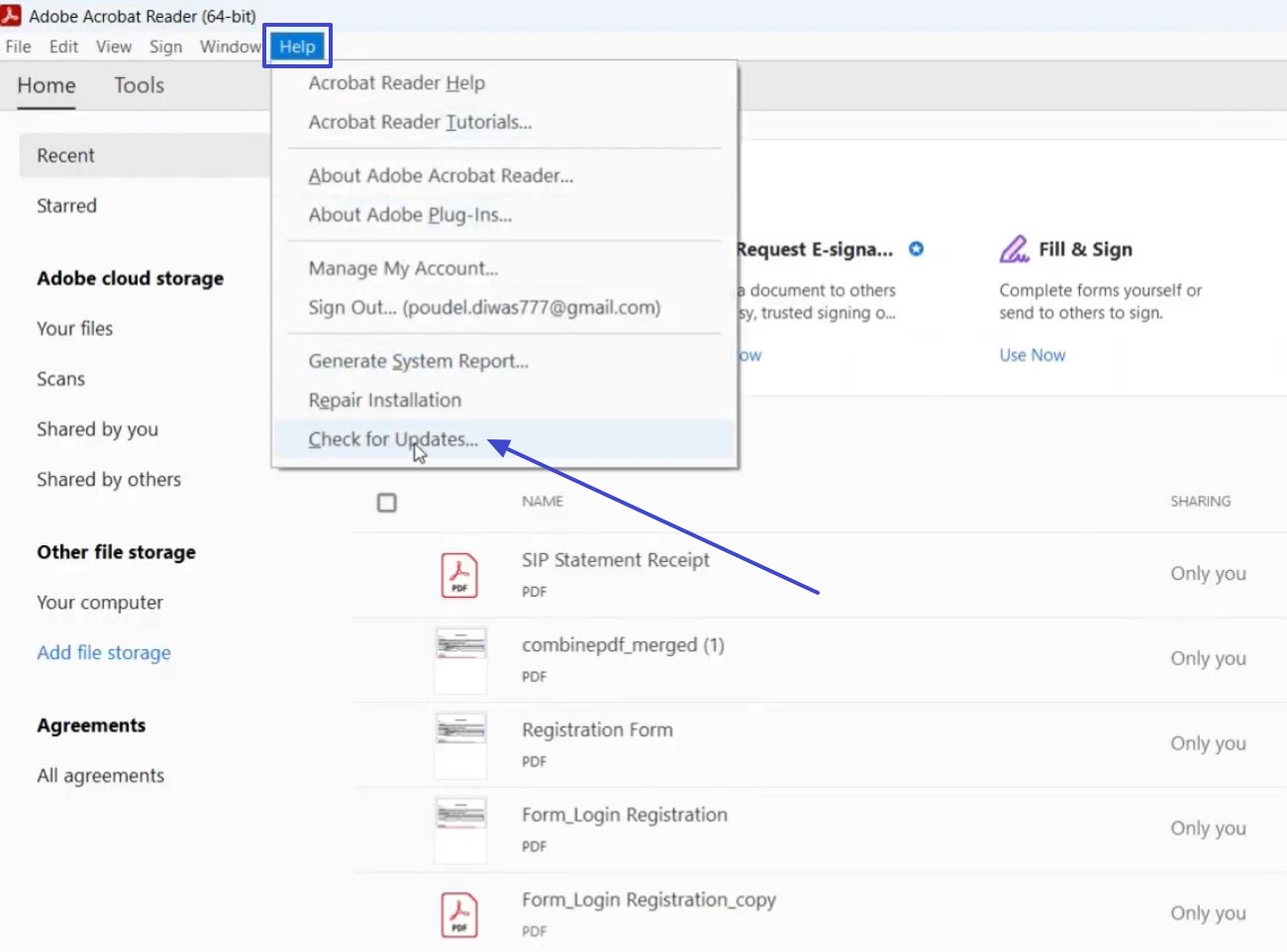
Step 2. Install the available update, quit Acrobat completely, and restart the computer.
Step 3. On Windows, open Acrobat and select Menu > Help > Repair installation if the problem continues.
Step 4. Restart Windows after the repair.
Acrobat for Mac does not provide the same Repair installation command. If updating and restarting do not help, reinstall Acrobat using Adobe’s current installer.
Part 3. Combine Files in Acrobat Still Not Working? Merge the PDFs in UPDF
If the PDFs open normally but Acrobat continues to freeze or reject the merge, using a second desktop PDF engine is a practical way to finish the task and confirm that the problem is specific to Acrobat.
UPDF can batch-merge complete PDFs on Windows and Mac. It also lets you arrange the source files before creating the output.
Windows • macOS • iOS • Android 100% secure
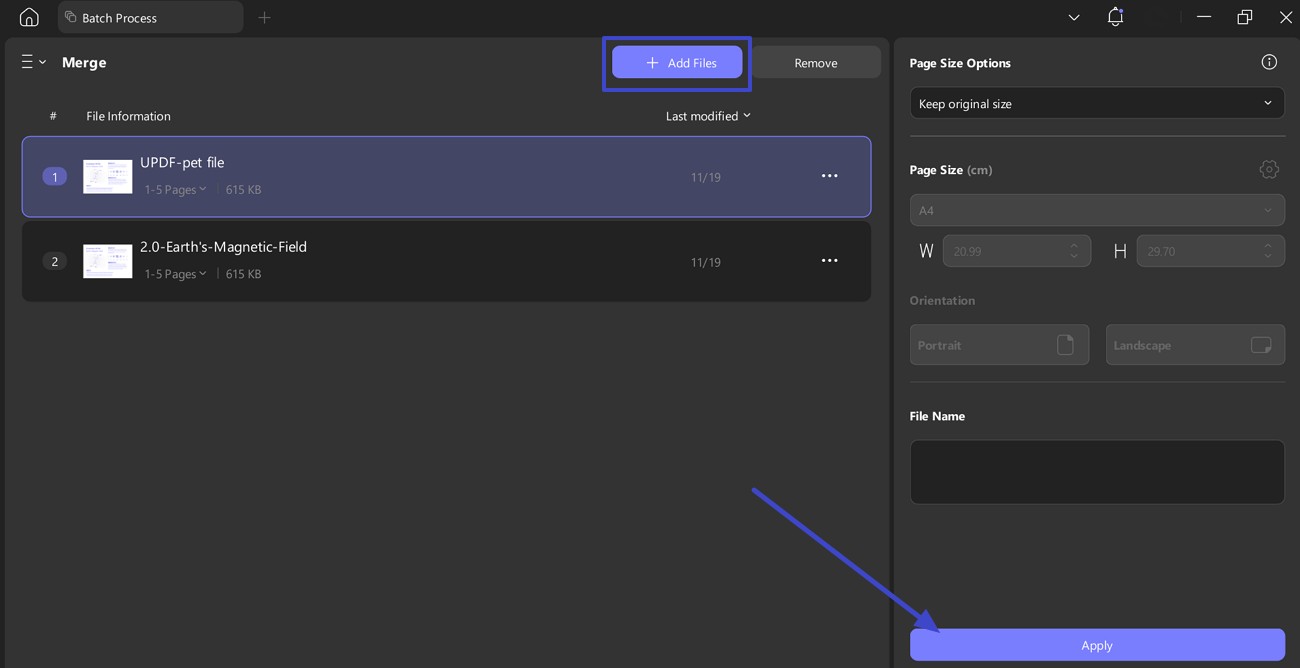
Step 1. Open UPDF and select Tools.
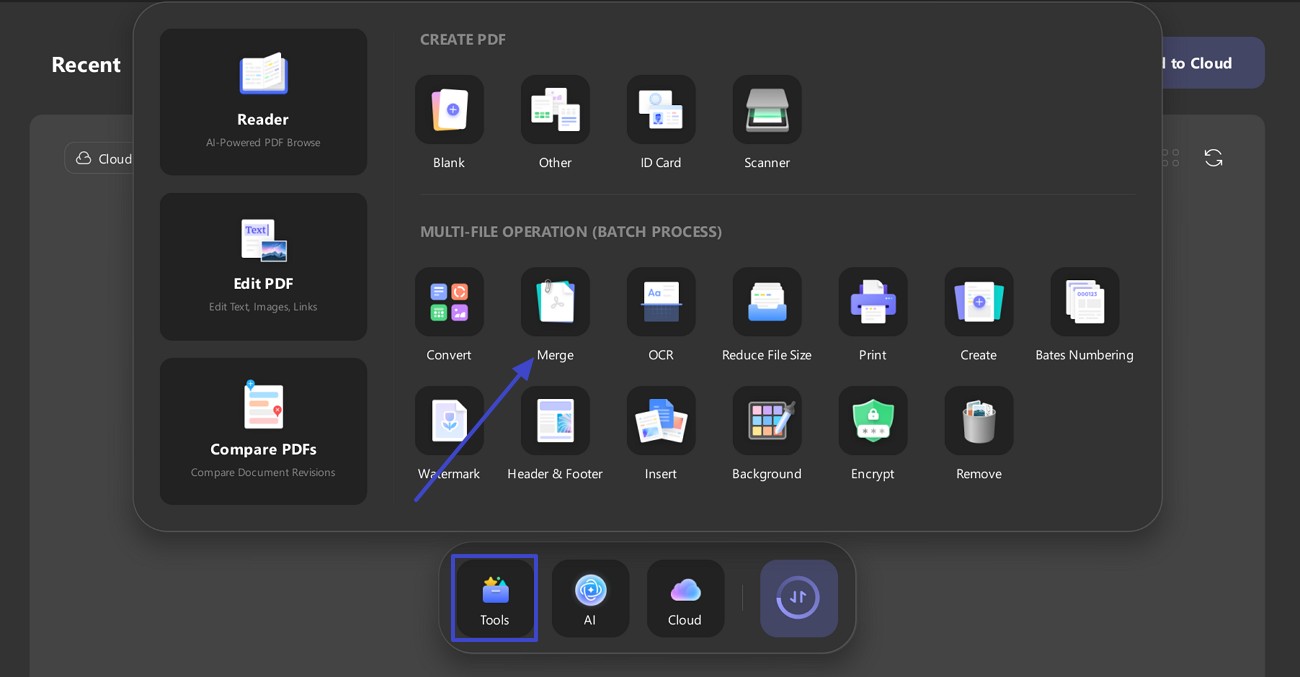
Step 2. Under BATCH PROCESS, select Merge.
Step 3. Select Add Files, or drag the PDFs into the window.
Step 4. Drag the files into the required order. Adjust the page ranges if only part of a PDF should be included.
Step 5. Select Apply, choose the destination folder, and save the merged PDF.
Download UPDF for free to try merging the PDFs on your computer — installation is free, and Pro removes the trial watermark from exported files.
Windows • macOS • iOS • Android 100% secure
For a more detailed explanation of page ranges, ordering, and inserting one PDF into another, read the complete guide on how to merge multiple PDF files.
What If the Source Files Are Word, Excel, PowerPoint, or Images?
Convert the non-PDF files before opening the Merge tool. On the UPDF desktop, dragging a Word, Excel, PowerPoint, or image file into the app converts it to PDF. After checking the converted files, open Tools > Merge and combine the PDF versions.
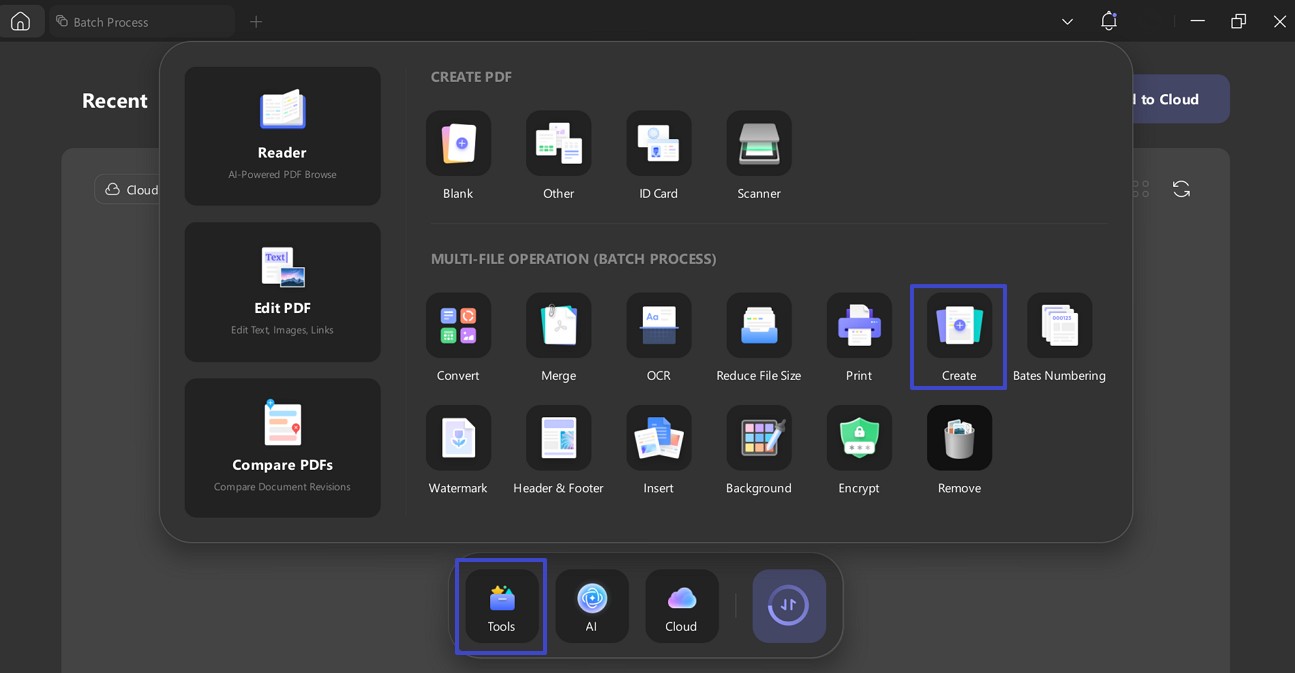
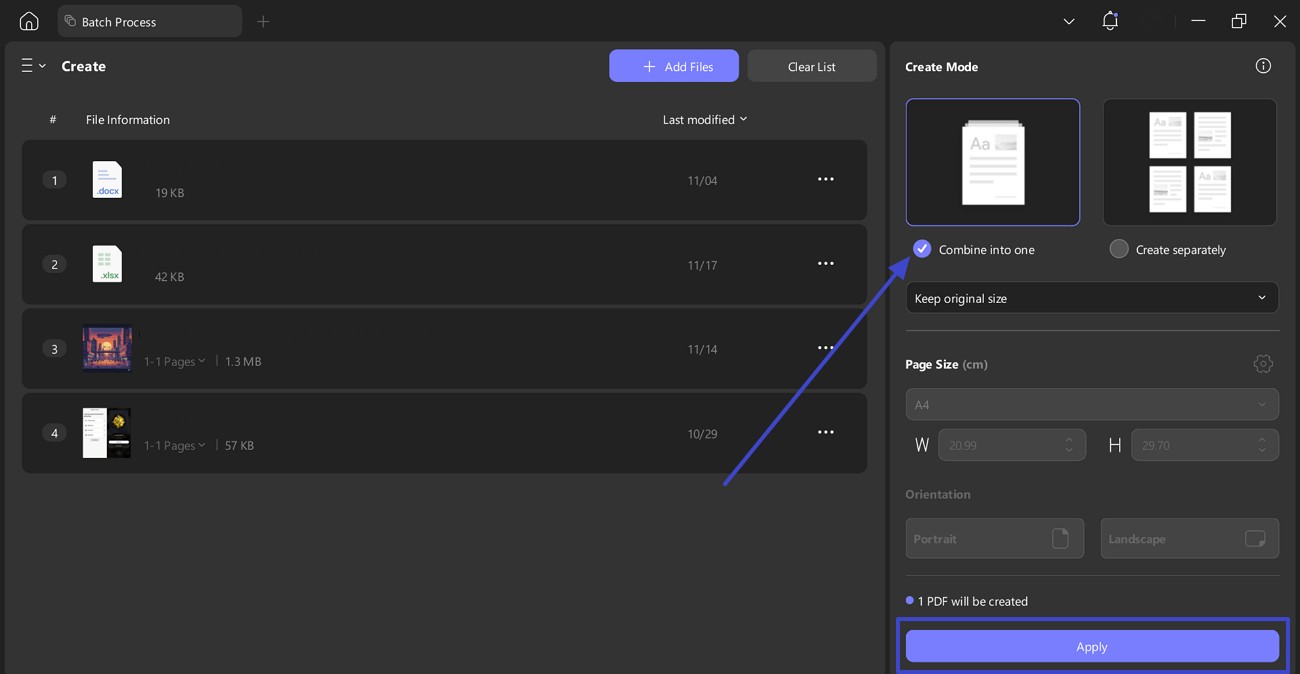
This two-stage workflow also makes troubleshooting easier: if one document fails to convert, you can fix that source file without repeating the entire merge.
Download UPDF for free to convert and combine the source documents — installation is free, and Pro removes the trial watermark from exported files.
Windows • macOS • iOS • Android 100% secure
Frequently Asked Questions
1. Why Is Combine Files Missing in Adobe Acrobat Reader?
Access depends on the Acrobat product, platform, account, and subscription. If the command opens an upgrade or sign-in prompt, confirm that Acrobat recognizes the Adobe account that owns the required plan. On mobile, Adobe states that combining files requires an Acrobat Premium or Acrobat Pro subscription.
2. Does Acrobat Upload My Files When I Combine Them?
Acrobat Web uploads the selected files and automatically saves the merged PDF to Adobe cloud storage. The Acrobat Reader mobile combine service also uses Document Cloud. Consider this before processing contracts, medical records, IDs, or other confidential documents.
3. Will Combining PDFs Reduce Their Quality?
Not necessarily. Acrobat’s desktop Combine Files options include Smaller, Default, and Larger file-size settings. Choosing a smaller output can compress content, while Default or Larger is more appropriate when image quality matters.
4. Why Does Acrobat Create Separate PDFs from My Images?
This can happen when the files are sent through a create or conversion workflow instead of the Combine Files workflow. Open All tools > Combine files, add all the images to the same job, verify their order, and select Combine once.
5. Can I Combine Signed PDFs?
Combining or modifying a digitally signed PDF can affect signature validity because the document structure changes after signing. Preserve the signed originals and check the signature status in the merged copy before distributing it.
Conclusion
When Combine Files in Acrobat is not working, match the fix to the point of failure. Use Acrobat’s in-app Combine Files command if only the right-click option is broken. Check security restrictions when a file is rejected, isolate and rebuild a damaged PDF when one document stops the batch, and use the Fast Web View setting only for the specific Windows save error involving an output over 2 GB.
Acrobat Web is a useful diagnostic fallback, but it uploads files to Adobe cloud storage and cannot accept several restricted PDF types. If the source PDFs are valid and Acrobat still fails, UPDF provides a direct desktop workflow for arranging and merging them.
Download UPDF for free to complete the merge without repeating the failed Acrobat workflow — installation is free, and Pro removes the trial watermark from exported files.
Windows • macOS • iOS • Android 100% secure







 Lizzy Lozano
 Enya Moore
 Engelbert White