 UPDF
UPDF
 UPDF for Windows
 UPDF for Mac
 UPDF for iPhone/iPad
 UPDF for Android
 UPDF AI Online
 UPDF Sign
 Edit PDF
 Annotate PDF
 Create PDF
 PDF Form
 Edit links
 Convert PDF
 OCR
OCR PDF to Word
 PDF to Image
 PDF to Excel
 Organize PDF
 Merge PDF
 Split PDF
 Crop PDF
 Rotate PDF
 Protect PDF
 Sign PDF
 Redact PDF
 Sanitize PDF
 Remove Security
 Read PDF
 UPDF Cloud
 Compress PDF
 Print PDF
 Batch Process
 About UPDF AI
 UPDF AI Solutions
 AI User Guide
 FAQ about UPDF AI
 Summarize PDF
 Translate PDF
 Chat with PDF
 Chat with AI
 Chat with image
 PDF to Mind Map
 Explain PDF
 PDF AI Tools
 Image AI Tools
 AI Chat Tools
 AI Writing Tools
 AI Study Tools
 AI Working Tools
 Other AI Tools
 AI Bookmark Generation
 AI Bookmark Summary
 AI Watermark Generation
 AI Background Generation
 AI Sticker Generation
 AI Stamp Generation
 AI Editing Suite
 UPDF Copilot
 AI Page Management
 AI Semantic Search
 PDF to Word
 PDF to Excel
 PDF to PowerPoint
 Enterprise Solution
 Enterprise Sign
 Enterprise AI
 Enterprise Plan
 Enterprise User Guide
 Enterprise Webinar
 Banking
 Healthcare
 Insurance
 Legal
Legal Manufacturing
 Government
 Education Solution
 Customer Stories
 User Guide
 UPDF Tricks
 FAQs
FAQs UPDF Reviews
 Download Center
 Blog
Blog Newsroom
 Tech Spec
 Updates
 UPDF vs. Adobe Acrobat
 UPDF vs. Foxit
 UPDF vs. PDF Expert

Headers and footers in Word are useful for documents that need page numbers, titles, or author information repeated across every page — but when you receive a template with pre-set headers you don't need, or when you're repurposing a document for a different purpose, getting rid of them is a common task.
This guide covers three methods to remove headers and footers in Word on both Windows and Mac, from a quick keyboard approach to the built-in Remove Header/Footer tool. If your document has already been saved as a PDF, Part 3 shows how to remove headers and footers directly from PDF files using UPDF — with no conversion back to Word needed.
Windows • macOS • iOS • Android 100% secure
Part 1: What Are Headers and Footers in Word — and When Should You Remove Them?
1.1 What are Header and Footer?
A header is the zone at the top of every Word page, commonly used for document titles, chapter names, author information, or page numbers. Depending on the demands of the page, headers might also include components such as logos, photos, and hyperlinks. A footer is the equivalent zone at the bottom. It may include information such as the document's page number, date, and author, among other things. Both are part of Word's page layout layer — separate from the main body text — meaning they repeat consistently across all pages (or can be configured differently for odd/even pages or the first page only).
1.2 Reasons and Scenarios to Remove Header and Footer in Word
- The document was received as a template with headers/footers you don't need.
- You are repurposing content for a different format (e.g., internal draft → public report).
- The header or footer is conflicting with margins or page break formatting.
- You prefer a cleaner, minimalist layout without repeating elements.
Part 2: How to Remove Header and Footer in Word: 3 Methods
Next, we’ll introduce two methods to remove header and footer in Word for both Windows and Mac users.
Method 1: Using the Delete Key
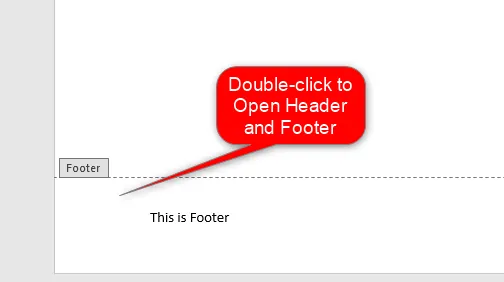
Step 1. Open your Word document. Double-click in the header area (top of the page) or footer area (bottom of the page) to activate the Header & Footer editing mode. The main body of the document will become grayed out.
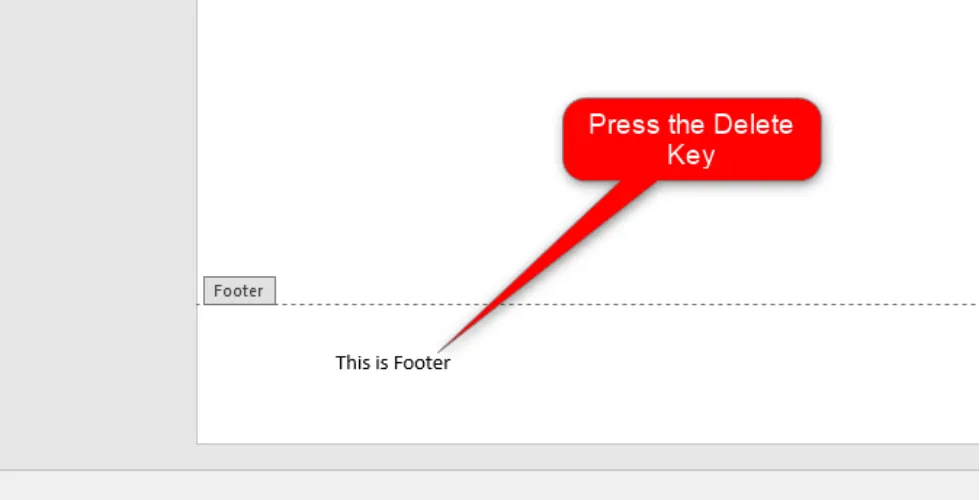
Step 2. Select all the content inside the header or footer using Ctrl + A (Windows) or Cmd + A (Mac), then press Delete or Backspace to clear the content.
Step 3. Double-click anywhere in the main body of the document to exit the header/footer editing mode. The header or footer will now be blank.
Best for:
- Selectively clearing specific content from a header or footer, or when you want to remove content on a page-by-page basis.
Limitation:
- If the same header/footer content appears across many pages (which it usually does), this method is slower than Method 2 — you'd need to manually clear each section. Use Method 2 for a complete, one-click removal.
Method 2: Using the Remove Header or Remove Footer Tool
Remove Header and Remove Footer are in-built tools vital in removing the document's Header or Footer. Here are the steps to use these tools:
Step 1. Open the document that you need to remove the Footer or Header.
Step 2. Double-click in the header area (top of the page) or footer area (bottom of the page) to activate the Header & Footer editing mode.
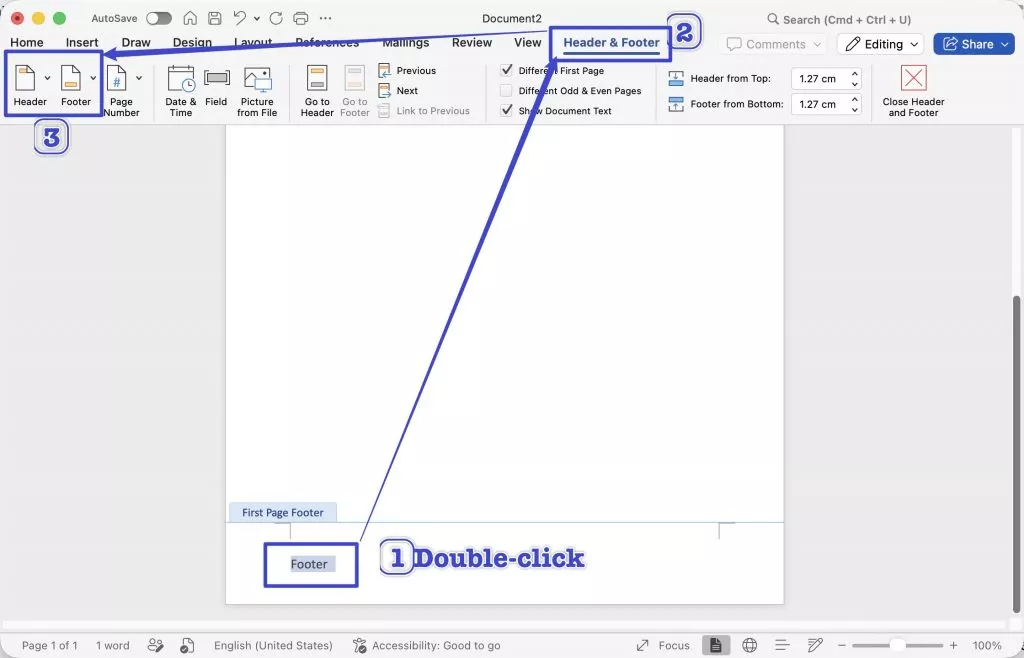
Step 3. Locate the Header and Footer Sections. Then Click on either the Header or the Footer drop-down button.
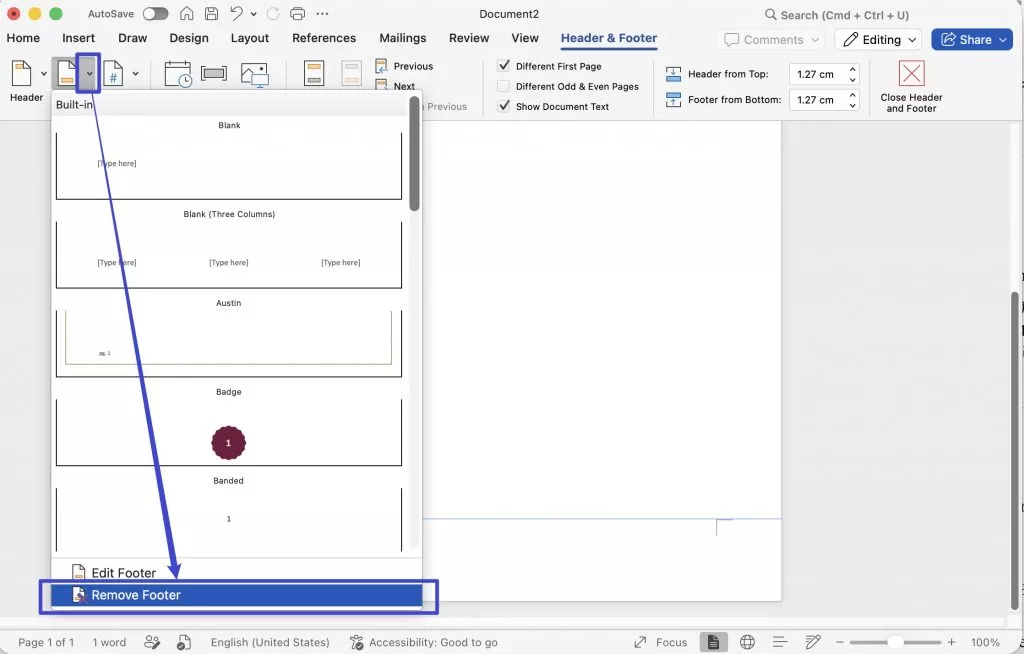
Step 4. Depending on the drop-down you choose, click either the Remove Header or Remove Footer from the menu.
Best for:
- Removing all header or footer content across the entire document in one action — the most efficient method for multi-page documents.
Limitation:
- Removes all header/footer content at once. If you only want to clear specific pages while keeping others, use Method 1 instead.
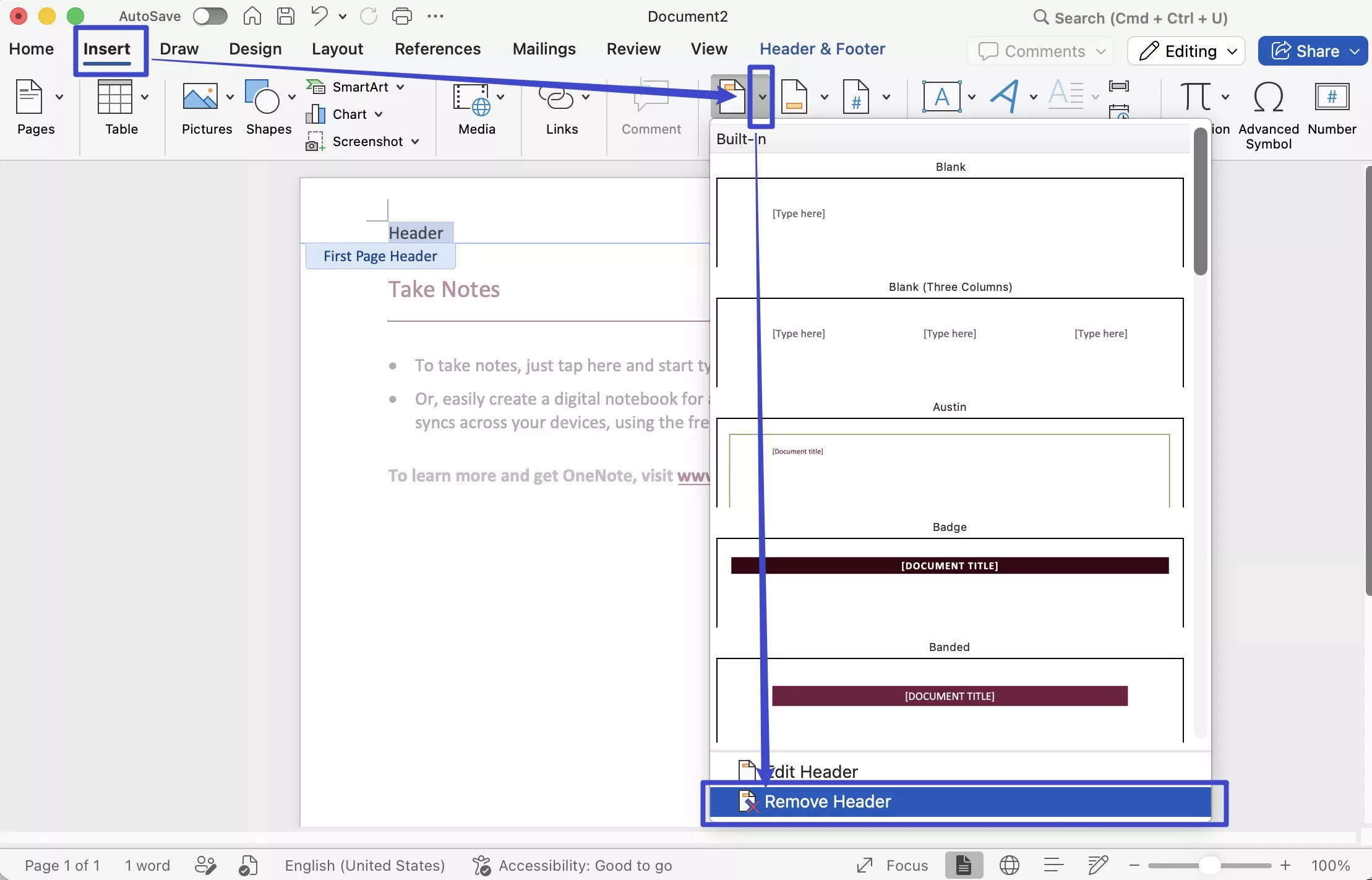
Method 3: Using the Insert Tool
Here are the steps to follow:
Step 1. Open the document that you need to remove the Footer or Header.
Step 2. In the Toolbar, click the Insert tab.
Step 3. Locate the Header and Footer Sections. Then Click on either the Header or the Footer drop-down button.
Step 4. Depending on the drop-down you choose, click either the Remove Header or Remove Footer from the menu.
Best for:
- Users who prefer working from the menu bar rather than entering the header/footer editing area manually.
Cons:
- Like Method 2, this removes all header/footer content document-wide. If headers and footers differ by section (common in longer documents with section breaks), you may need to remove them section by section.
Part 3: Extended Reading: How to Remove Header and Footer from PDF Files
If your Word document has already been exported or received as a PDF — or if you're working with a PDF form, contract, or report that has headers and footers baked in — converting back to Word just to remove them and then re-exporting is unnecessary. UPDF handles this directly in PDF format, in one click.
UPDF is an AI-powered PDF editor available on Windows, Mac, iOS, and Android. Its dedicated Header & Footer tool removes all header and footer content from a PDF document instantly — no conversion required. Let's discuss methods and steps to follow while using this software, UPDF.
Windows • macOS • iOS • Android 100% secure
Method 1: Using the Header & Footer Option
Step 1: Open UPDF and load your PDF via the "Open File" button or by dragging the file onto the UPDF window.
Windows • macOS • iOS • Android 100% secure
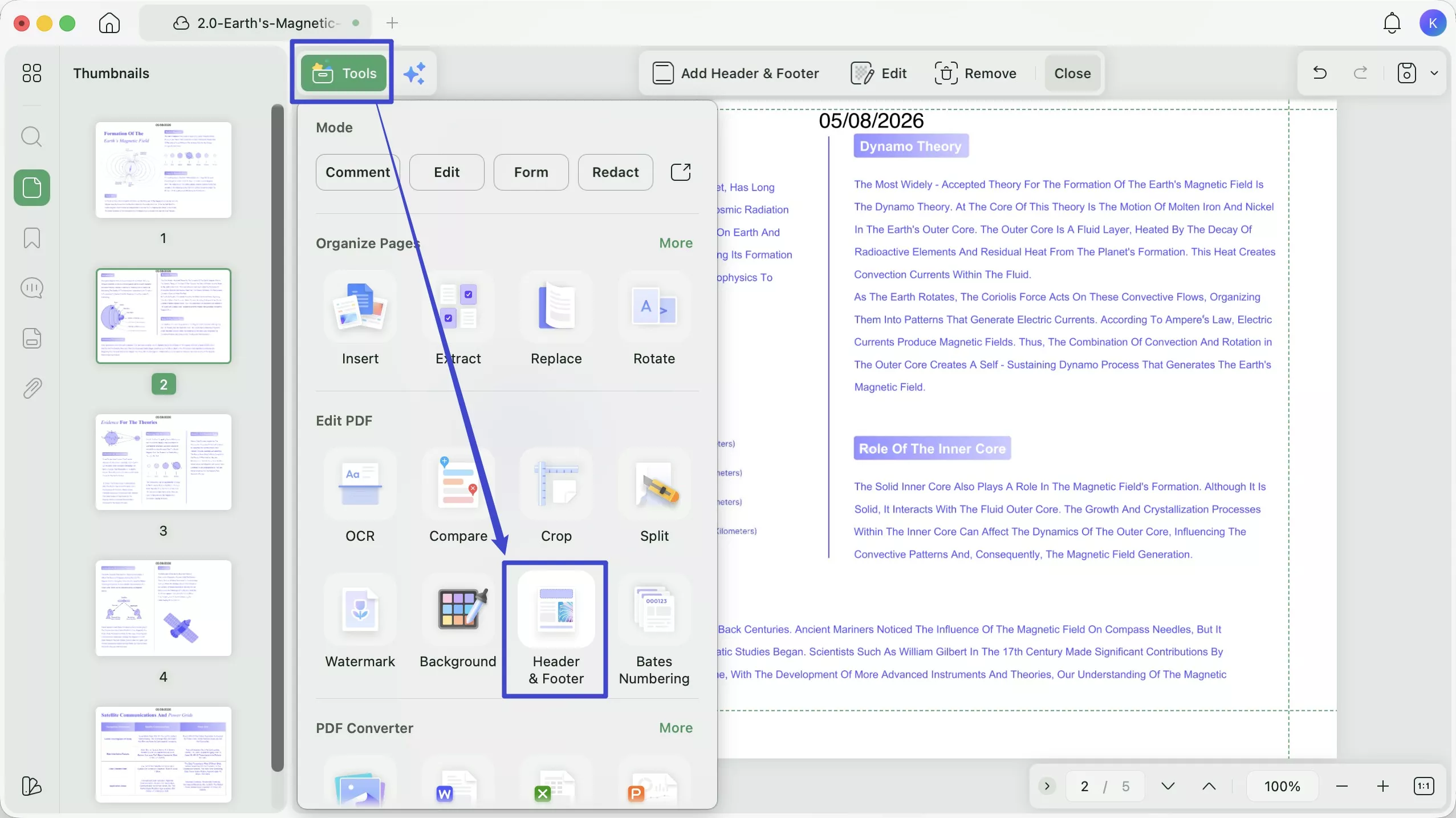
Step 2: Click Tools in the top toolbar, then select Header & Footer.
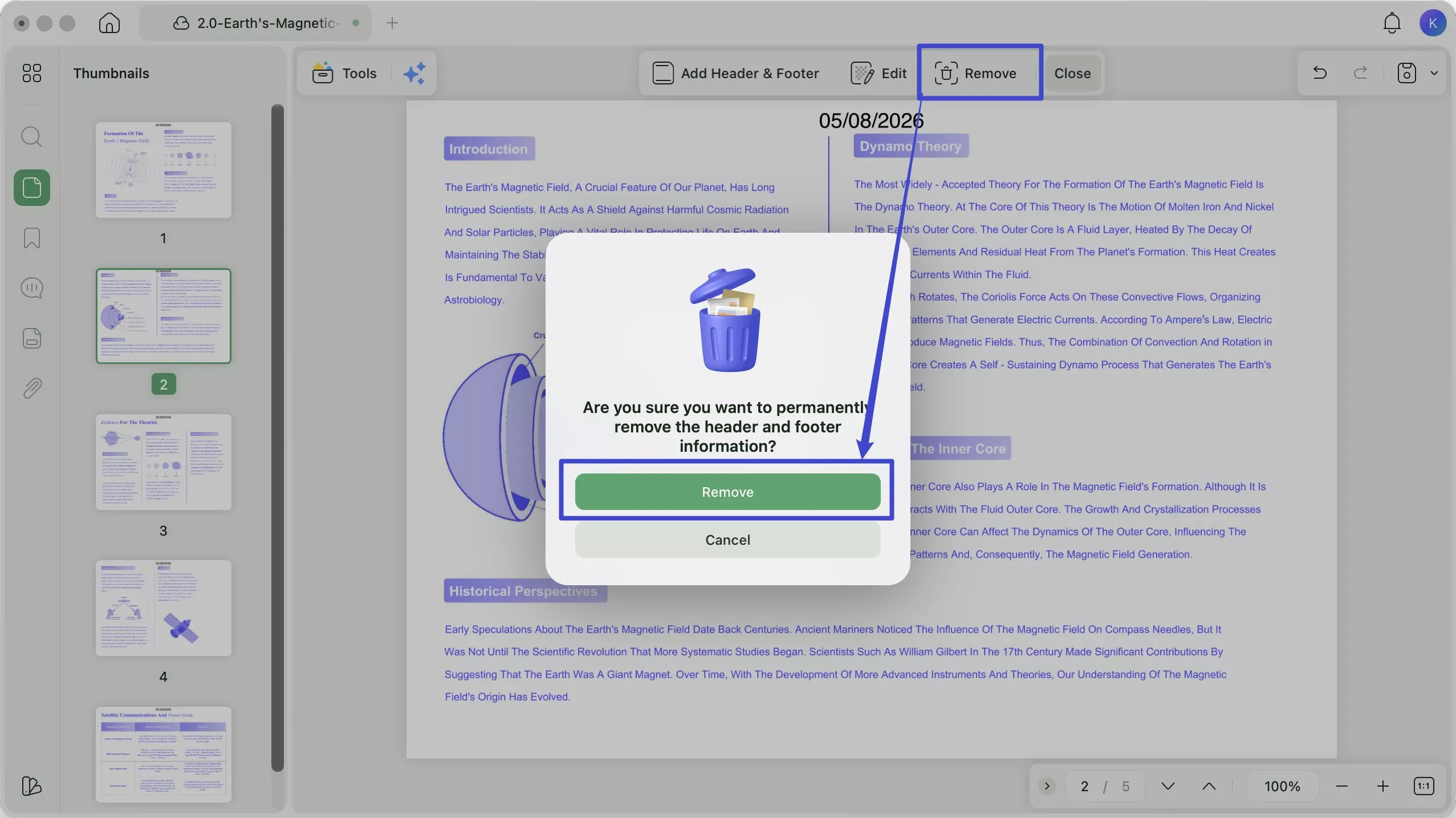
Step 3: In the Header & Footer panel, click Remove to strip all header and footer content from the PDF. The change is applied to all pages immediately.
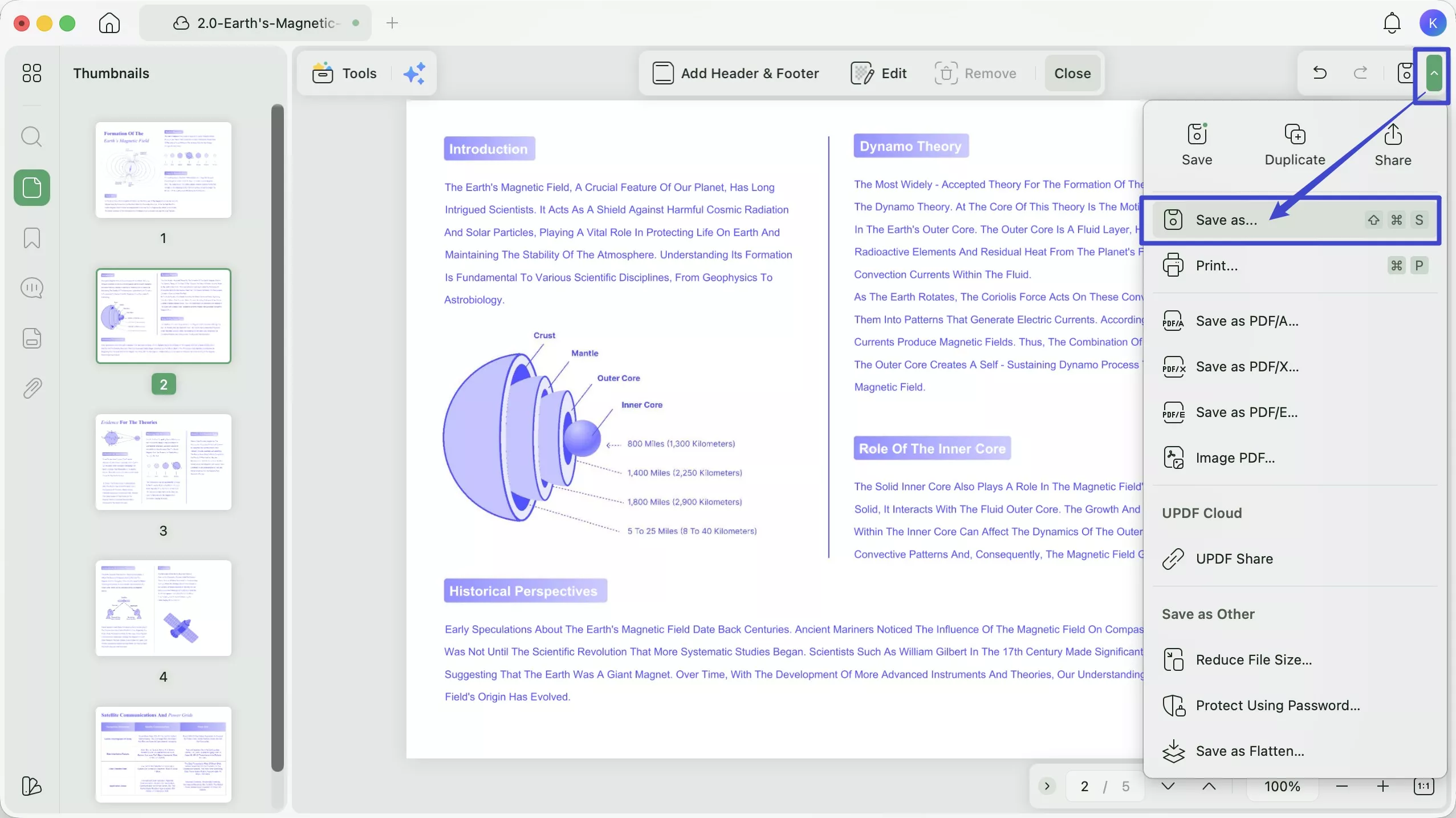
Step 4. Go to Save as Other → Save As to save the cleaned document under a new filename, preserving the original.
Method 2: Cropping the PDF Page
If the header or footer in your PDF is image-based (part of a scanned page or a flat design element) rather than text-based, the Remove tool above may not fully eliminate it. In that case, you can use UPDF's Crop Pages feature to trim the top or bottom margin area of every page, effectively removing the visible header or footer zone.
Step 1: With the PDF open in UPDF, click Tools in the top toolbar → select Crop.
Windows • macOS • iOS • Android 100% secure
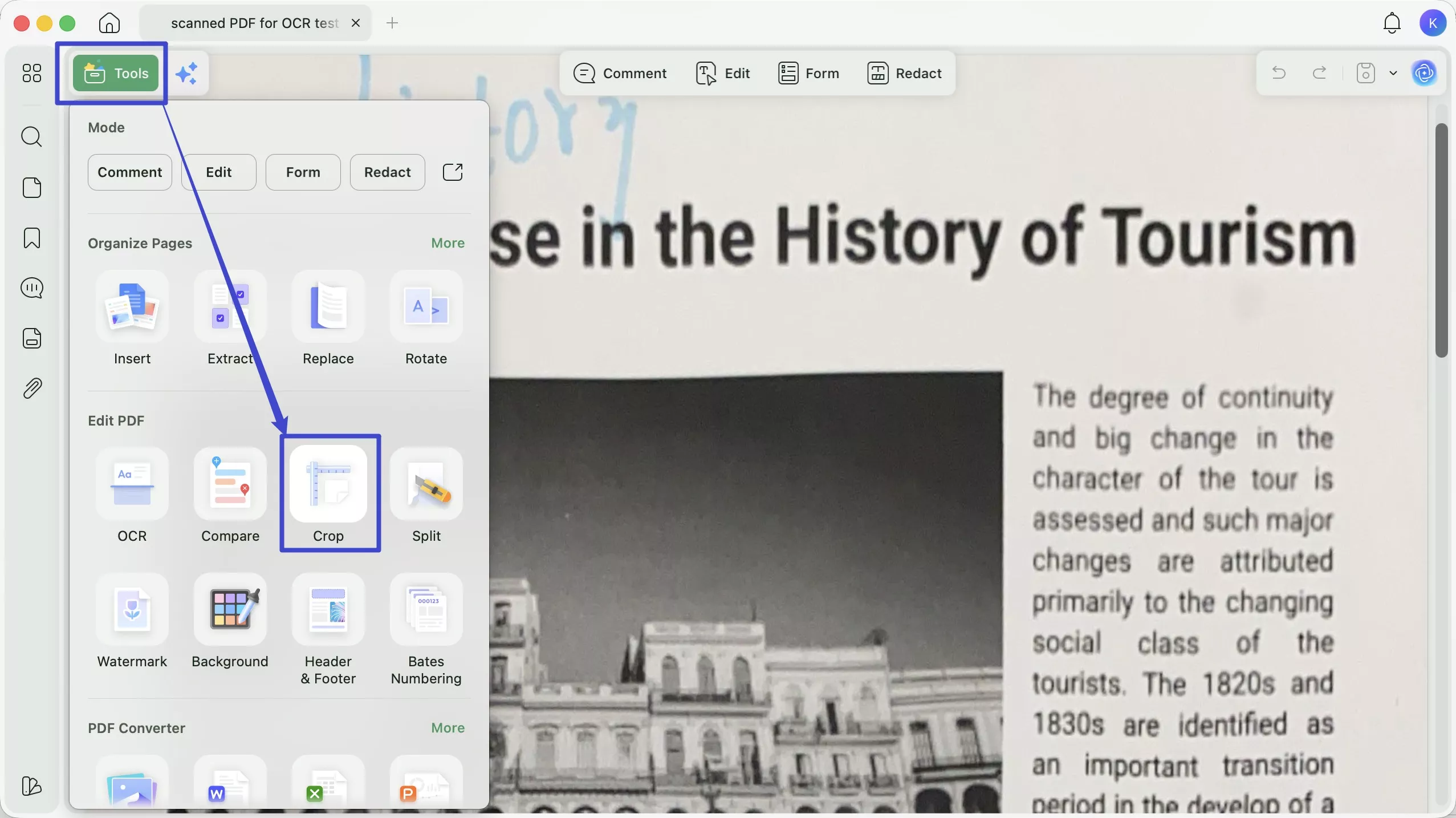
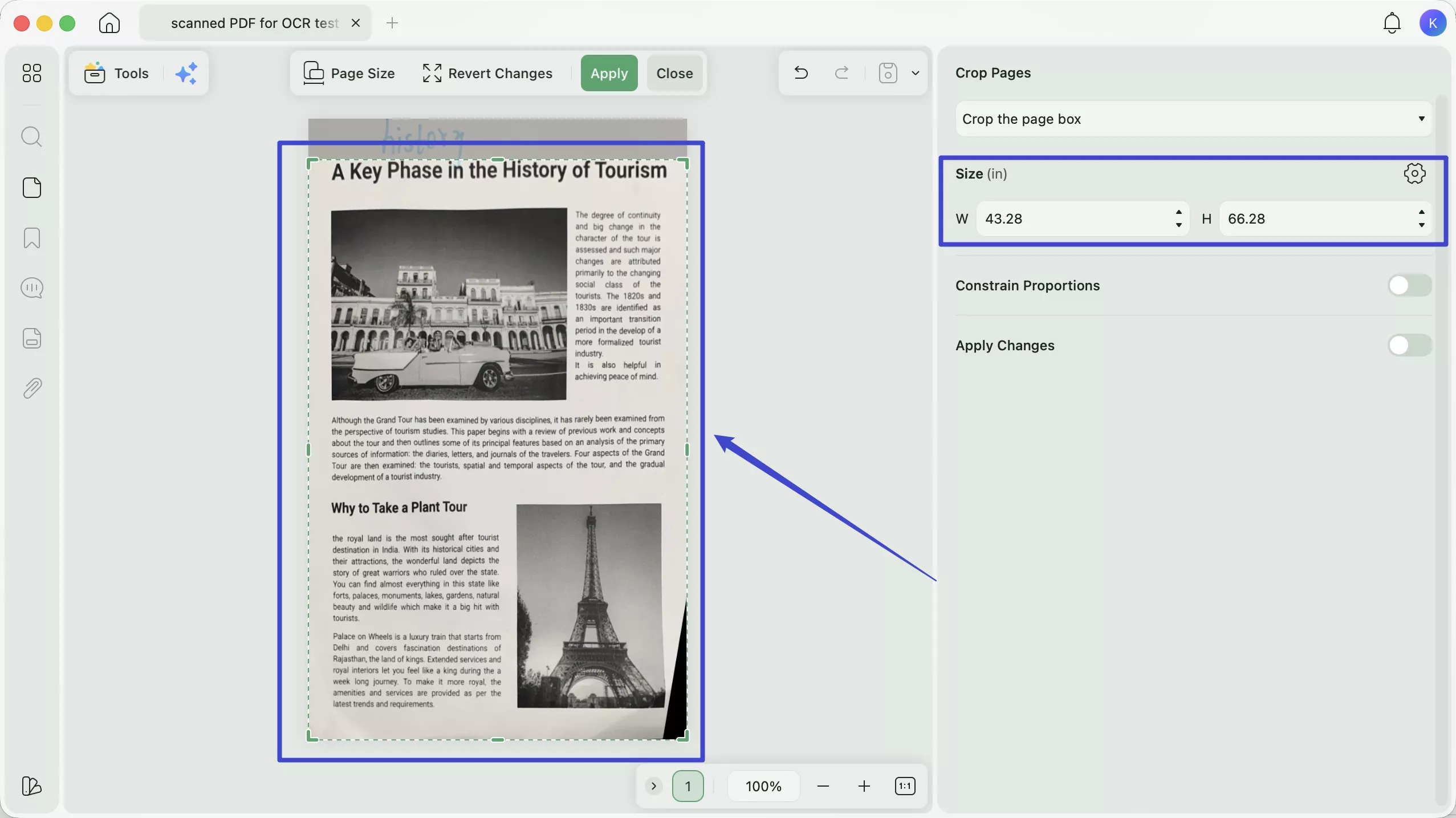
Step 2. In the Crop Pages panel, drag the crop handles inward from the top (to remove a header) or bottom (to remove a footer) of the page preview. Set the margin values numerically for precision.
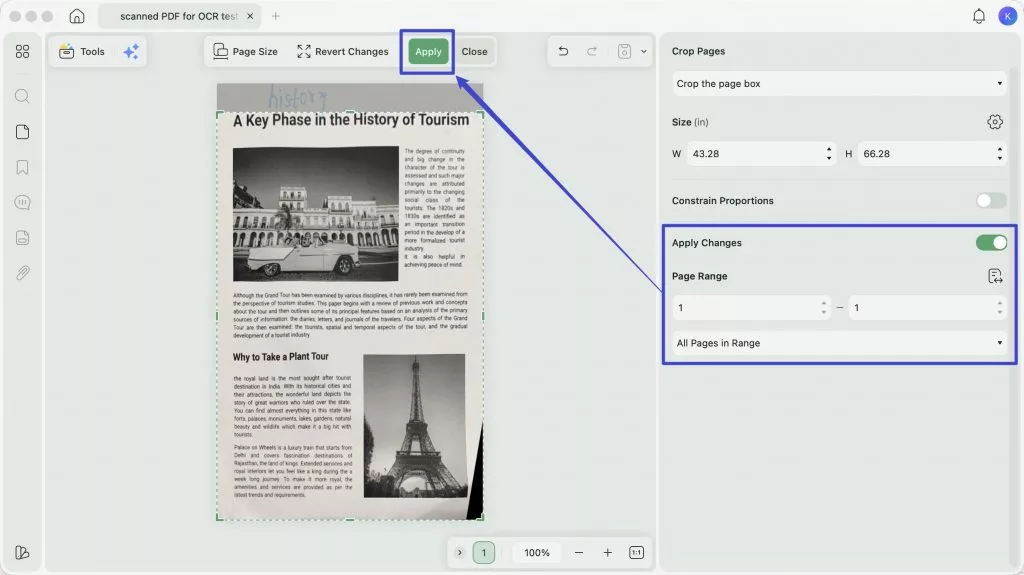
Step 3. Toggle the Apply Changes option on. Choose whether to apply the crop to all pages or a specific page range. Click Apply to crop.
Step 4. Go to Save as Other → Save As to save the cleaned document under a new filename, preserving the original.
Part 4: FAQs About Header and Footer in Word
Q1. How do I remove a Header and Footer Section break in Word?
Press “Ctrl + Shift + 8” on Windows (or “⌘ + 8” on Mac) to reveal hidden formatting marks. Locate the section break marker in your document — it appears as a double dotted line labeled "Section Break." Click just before it and press Delete to remove it. Note that deleting a section break will merge the two sections and may cause the header/footer of the following section to adopt the settings of the preceding one — review the result before saving.
Q2. How do I exit the Header and Footer sections?
Press the Escape key, or double-click anywhere in the main body text of the document. The header/footer area will become grayed out again and you'll return to the main editing area.
Q3: Can I remove the header on just the first page in Word?
Yes. Double-click the header to enter editing mode → in the Header & Footer tab (or Design tab), check Different First Page. Then go to the first page's header and delete its contents — the headers on remaining pages will be unaffected.
Conclusion
The three Word methods above cover the most common scenarios: the Delete key approach for selective removal, the built-in Remove Header/Footer tool for document-wide cleanup, and the Insert menu method. For most users, Method 2 or Method 3 is the fastest route.
If your document is already a PDF, UPDF's Header & Footer Remove tool does the job in one click — and once you're inside UPDF, UPDF can handle any follow-up document operations (compression, watermarking, in-document text edits) without switching tools.
Download UPDF for free and try removing your first PDF header or footer today — no subscription required to get started.
Windows • macOS • iOS • Android 100% secure






 Enya Moore
 Enola Davis