UPDF
UPDF
 UPDF for Windows
 UPDF for Mac
 UPDF for iPhone/iPad
 UPDF for Android
 Nomostar
 UPDF AI Online
 UPDF Sign
 IvyCraft
 Edit PDF
 Annotate PDF
 Create PDF
 PDF Form
 Edit links
 Convert PDF
 OCR
OCR PDF to Word
 PDF to Image
 PDF to Excel
 Organize PDF
 Merge PDF
 Split PDF
 Crop PDF
 Rotate PDF
 Protect PDF
 Sign PDF
 Redact PDF
 Sanitize PDF
 Remove Security
 Read PDF
 UPDF Cloud
 Compress PDF
 Print PDF
 Batch Process
 About UPDF AI
 UPDF AI Solutions
 AI User Guide
 FAQ about UPDF AI
 Summarize PDF
 Translate PDF
 Chat with PDF
 Chat with AI
 Chat with image
 PDF to Mind Map
 Explain PDF
 PDF AI Tools
 Image AI Tools
 AI Chat Tools
 AI Writing Tools
 AI Study Tools
 AI Working Tools
 Other AI Tools
 AI Bookmark Generation
 AI Bookmark Summary
 AI Watermark Generation
 AI Background Generation
 AI Sticker Generation
 AI Stamp Generation
 AI Editing Suite
 UPDF Copilot
 AI Page Management
 AI Semantic Search
 PDF to Word
 PDF to Excel
 PDF to PowerPoint
 Enterprise Solution
 Enterprise Sign
 Enterprise AI
 Enterprise Plan
 Enterprise User Guide
 Enterprise Webinar
 Banking
 Healthcare
 Insurance
 Legal
Legal Manufacturing
 Government
 Education Solution
 Customer Stories
 User Guide
 UPDF Tricks
 FAQs
FAQs UPDF Reviews
 Download Center
 Blog
Blog Newsroom
 Tech Spec
 Updates
 UPDF vs. Adobe Acrobat
 UPDF vs. Foxit
 UPDF vs. PDF Expert

Mirroring text in Word — flipping it into a reversed, reflected version — is a quick way to make a title, flyer, or logo stand out in a Word document. Word has no one-click "mirror text" button, but there are four reliable workarounds, and this guide walks through each one for the latest version of Microsoft Word. At the end, you'll also see how UPDF mirrors images and entire pages directly inside a PDF — with a true horizontal or vertical flip — and adds AI-generated backgrounds, stickers, and watermarks to finish the design.
Windows • macOS • iOS • Android 100% secure
Table of Contents
Part 1. Why Flip or Mirror Text in Word
Mirrored text is mostly a design choice. The most common reasons to use it are:
- Visual emphasis — drawing the reader's eye to a specific word, heading, or callout.
- Creative layouts — building flyers, posters, announcements, or signs that need an eye-catching effect.
- Branding — creating distinctive titles, headers, or logo-style graphics.
- Reflection effects — pairing original text with its mirrored copy for a polished, designed look.
Whatever the goal, the methods below let you mirror text in Word in just a few clicks.
Part 2. 4 Ways to Flip or Mirror Text in Word
Being a feature-rich tool, Microsoft Word offers multiple ways to mirror text. However, you should remember that you cannot directly flip or mirror text in Word. You have to insert the text inside a box and then flip it. So, let's now explore all the methods you can use to flip text in Word:
Method 1 — Using Text Boxes
The first and easiest way to mirror text in Word is using text boxes. You can insert a text box in your document, enter the text, and then flip it. Follow the below steps to flip text in Word using text boxes:
- Step 1. Open the Word document and go to the place you want to add the mirrored text.
- Step 2. Go to the "Insert" tab from the top toolbar, click the "Text" > "Text Box" option, and choose the text box style you want to insert.
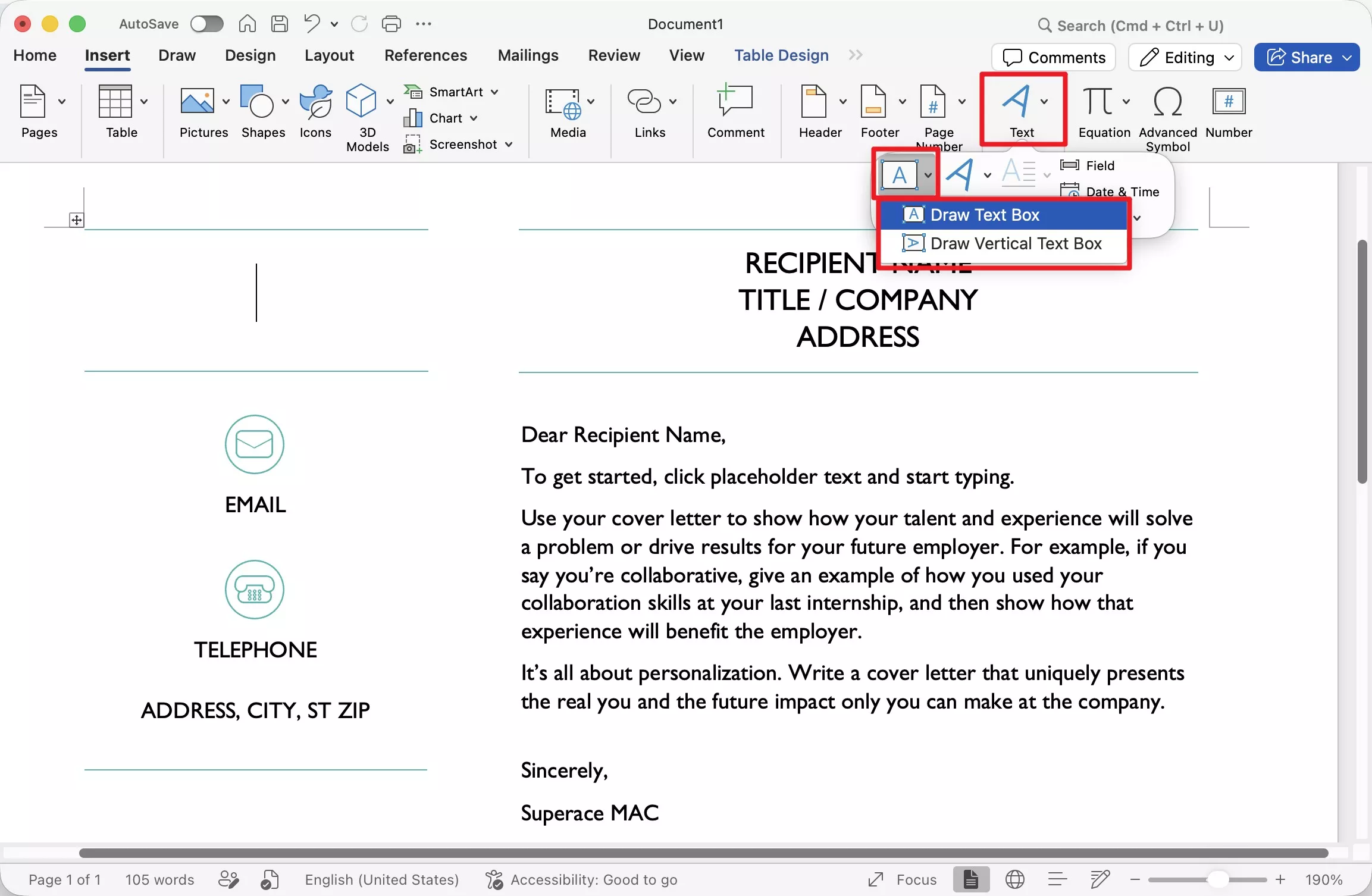
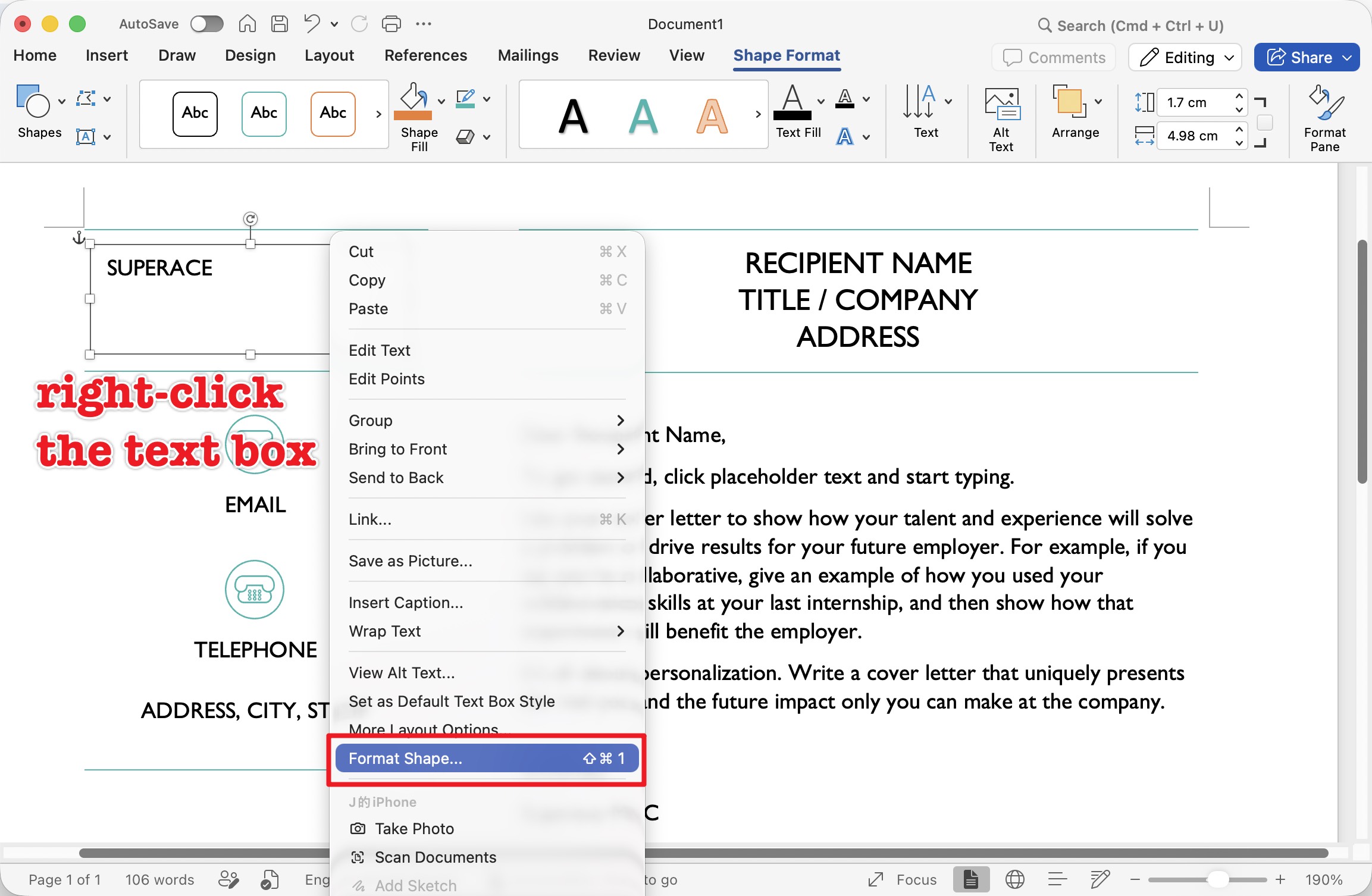
- Step 3. Enter the text in the text box. Afterward, right-click the text box and click "Format Shape".
- Step 4. Select Text Option, open 3D Rotation, and set the rotation: For a true left-to-right mirror (reversed reading direction), set Y Rotation to 180°. For a top-to-bottom flip (upside-down text), set X Rotation to 180°.
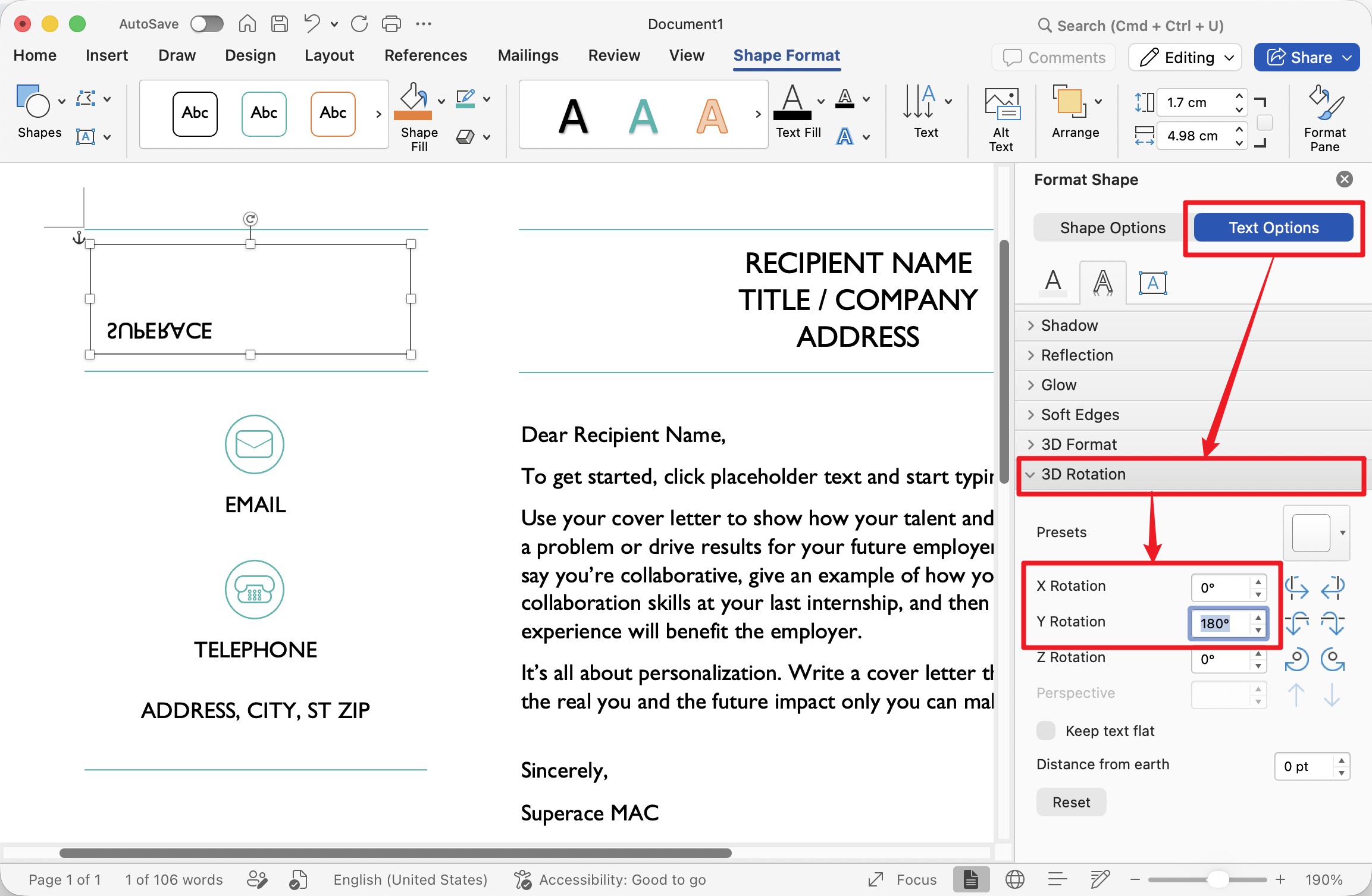
Once done, you will see the mirrored text inside the text box. This way, you can easily and instantly mirror text in Word.
Method 2 — Using WordArt
Just like text boxes, WordArt is another way to flip text in Word. WordArt is a built-in feature in Word that allows users to create visually appealing and stylish text using different effects. Follow the below steps to mirror text in Word using WordArt:
- Step 1. Open the Word document and go to the place you want to add the mirrored text.
- Step 2. Go to the "Insert" tab from the top toolbar, click the "Text" > "WordArt" option, and choose the text style/effect you want to insert.
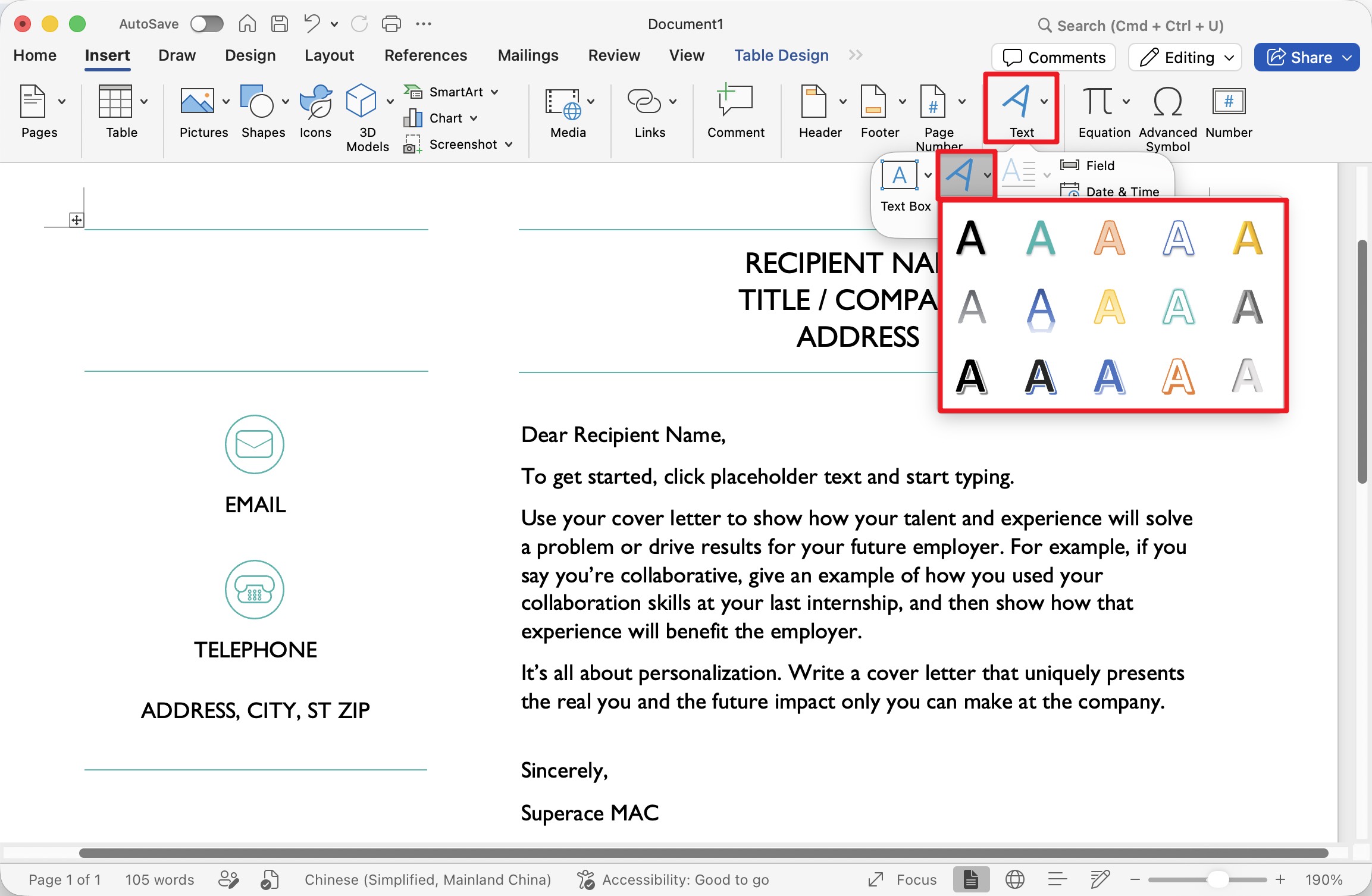
- Step 3. Enter the text. With the WordArt selected, open the Format Pane. Select Text Option, open 3D Rotation, and set the rotation: For a true left-to-right mirror (reversed reading direction), set Y Rotation to 180°. For a top-to-bottom flip (upside-down text), set X Rotation to 180°.
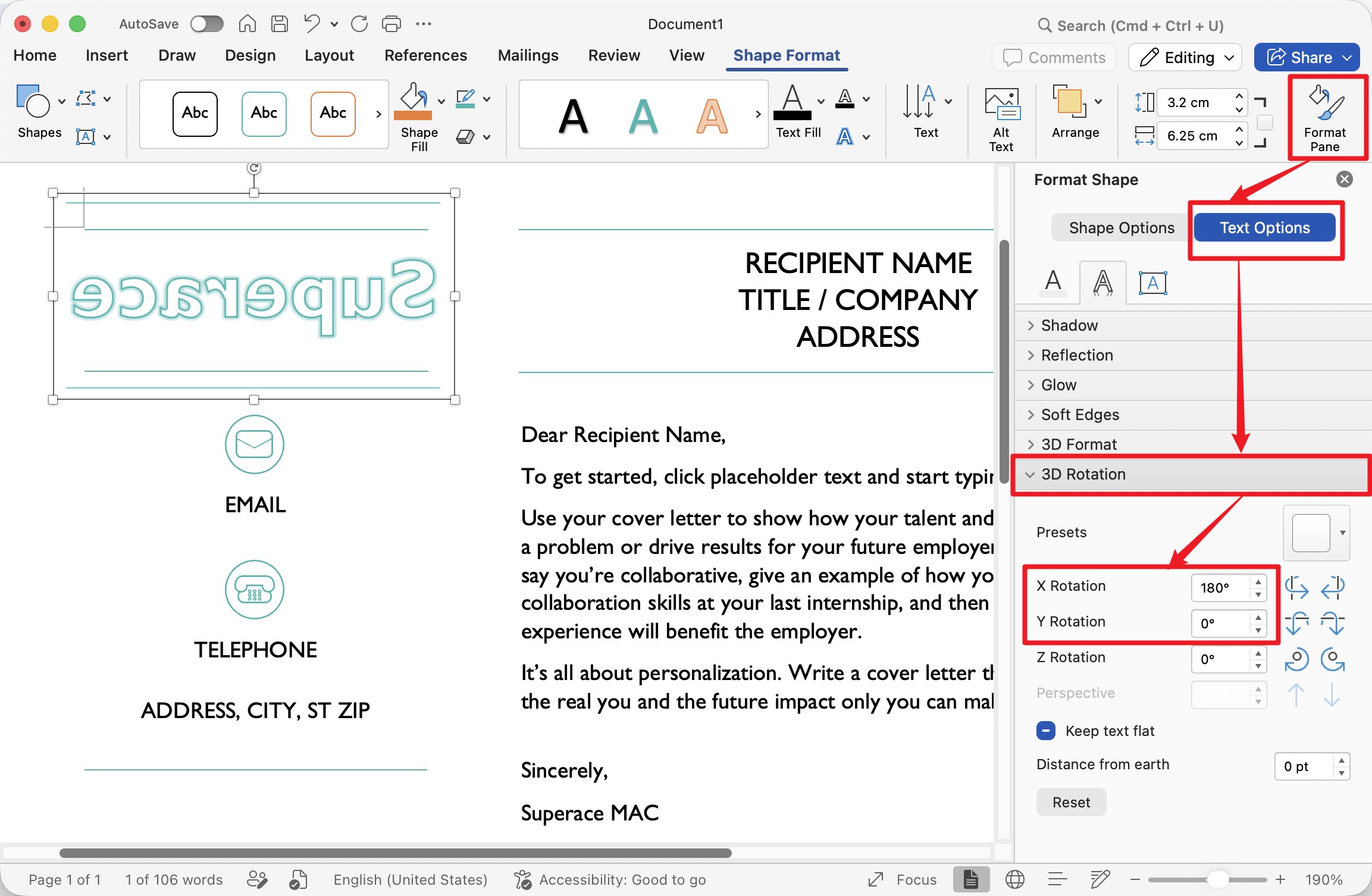
This way, you are not just able to mirror text but can also make it more visually appealing with different effects.
Method 3 — Using Reflections
Another cool way of mirroring text is using reflections. It allows you to have both the original text and the mirrored version of the text. Follow the below steps to flip text in Word using reflections:
- Step 1. Open the Word document and go to the place you want to add the mirrored text.
- Step 2. Go to the "Insert" tab from the top toolbar, click the "Text Box" option, and choose the text box style you want to insert.
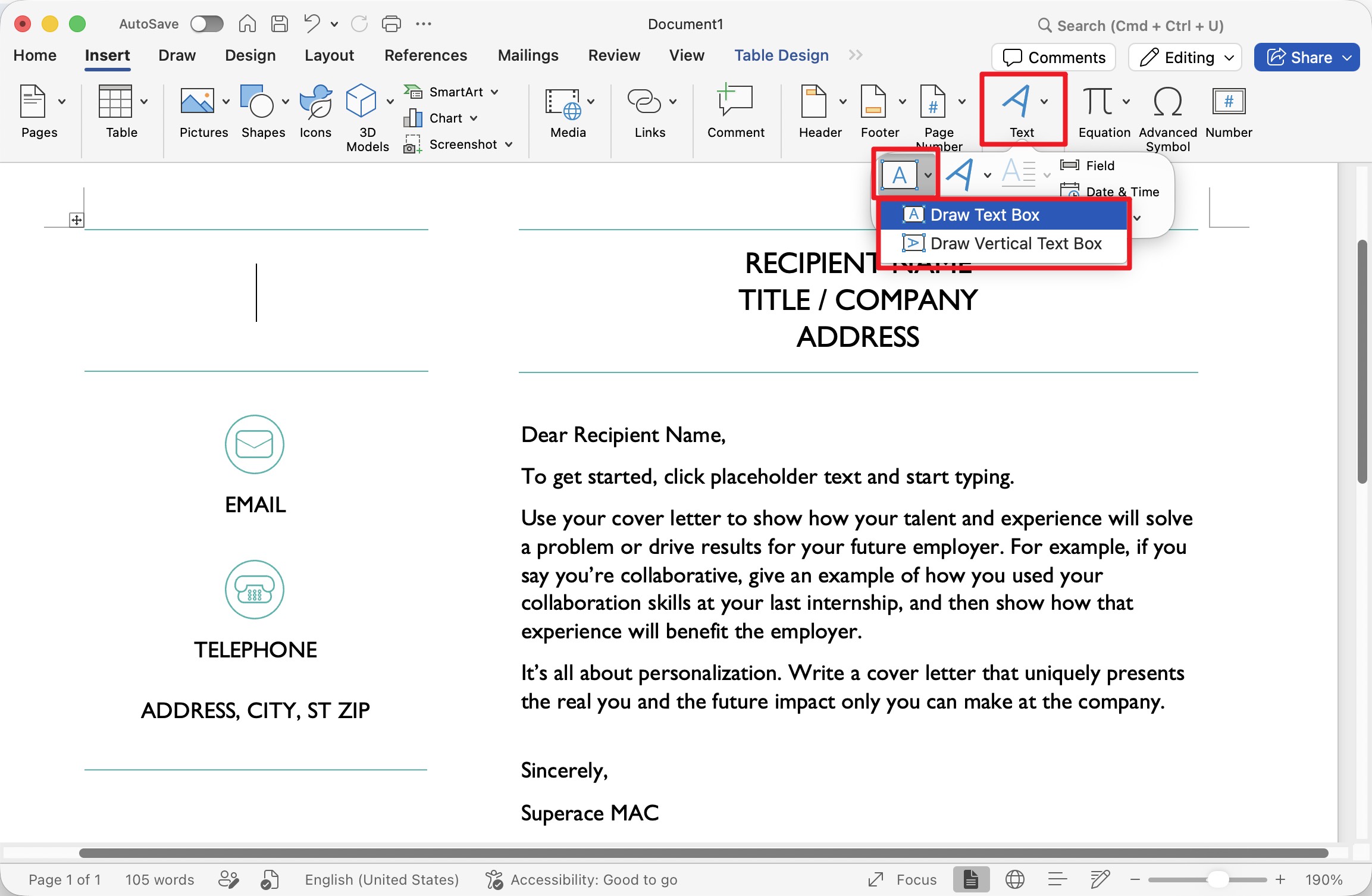
- Step 3. Enter the text in the text box. Afterward, right-click the text box and click "Format Shape".
- Step 4. Select the "Shape Options". Click "Reflection" and adjust the Transparency, Size, and Distance sliders until the reflection looks right.
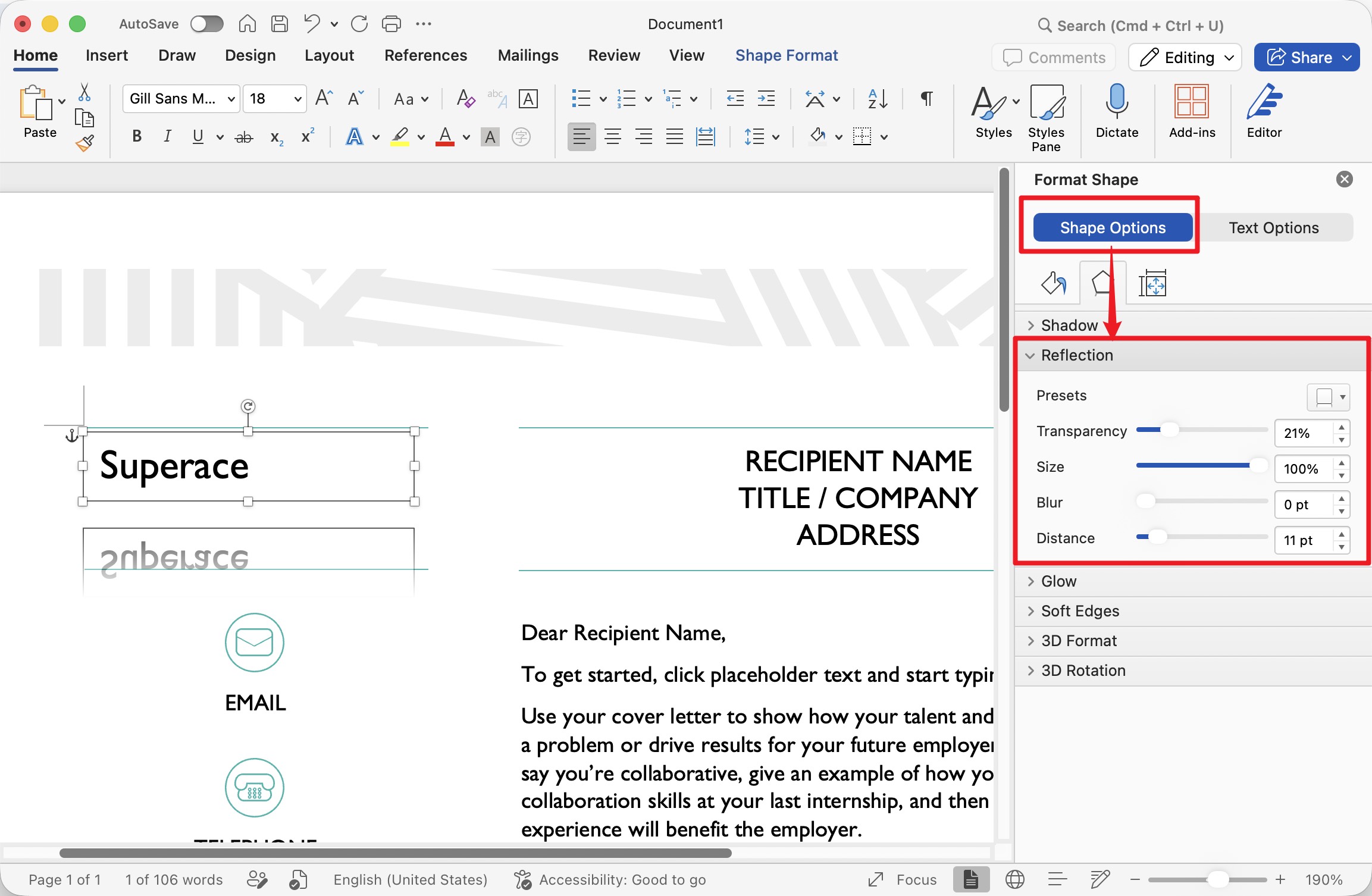
This way, you can reflect the text and have a mirrored version of it.
Method 4 — Using Printer Options
If you want to mirror an entire page rather than a single block of text, you can do it through the print settings. The option is located differently on Windows and Mac.
On Windows:
- Step 1. Open the Word document and click "Ctrl + P".
- Step 2. Click "Printer Properties" and then go to the "Advanced" tab.
- Step 3. Tick the Mirror Print (or Mirrored) checkbox and click OK, then print.
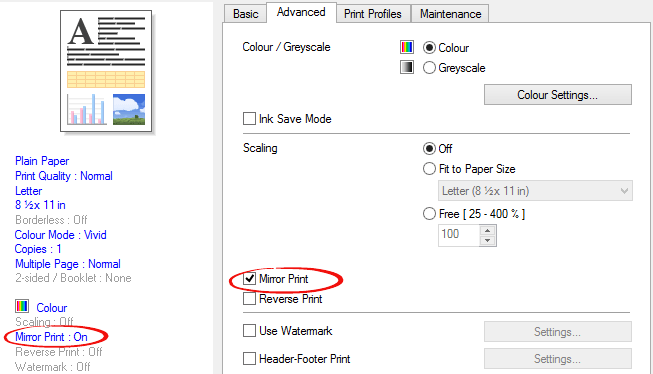
Note: this option comes from the printer's own driver, so the exact name and location vary by printer — and some drivers don't offer it at all.
On Mac:
- Step 1. Open the document and press Command + P.
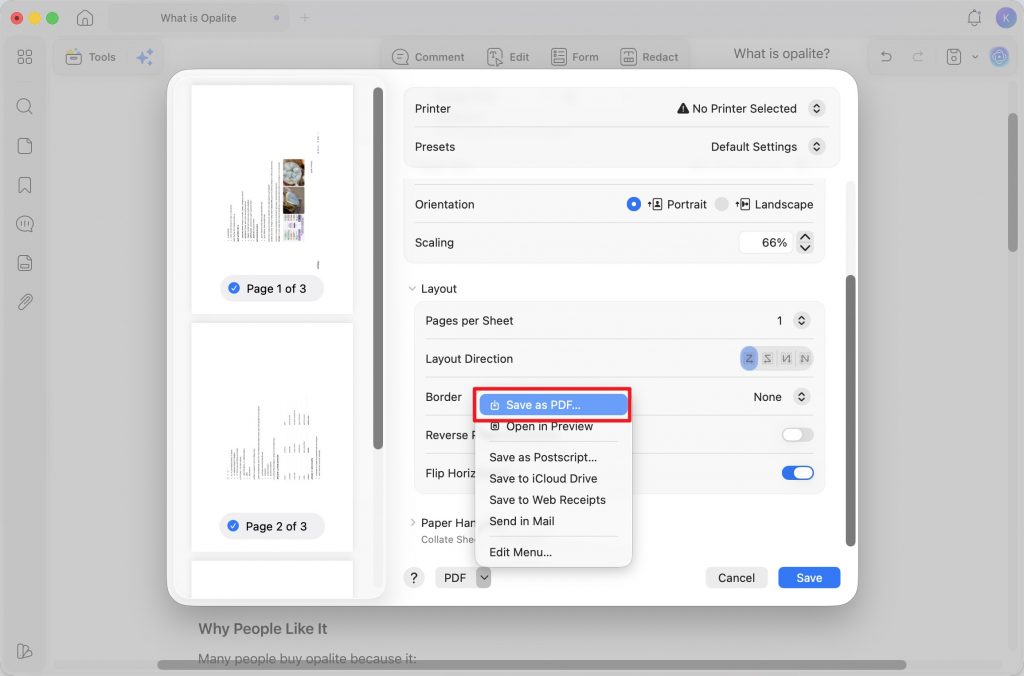
- Step 2. In the Print dialog, scroll to the layout options (the section with Pages per Sheet, Layout Direction, and Border).
- Step 3. Turn on the Flip Horizontally toggle, then print.
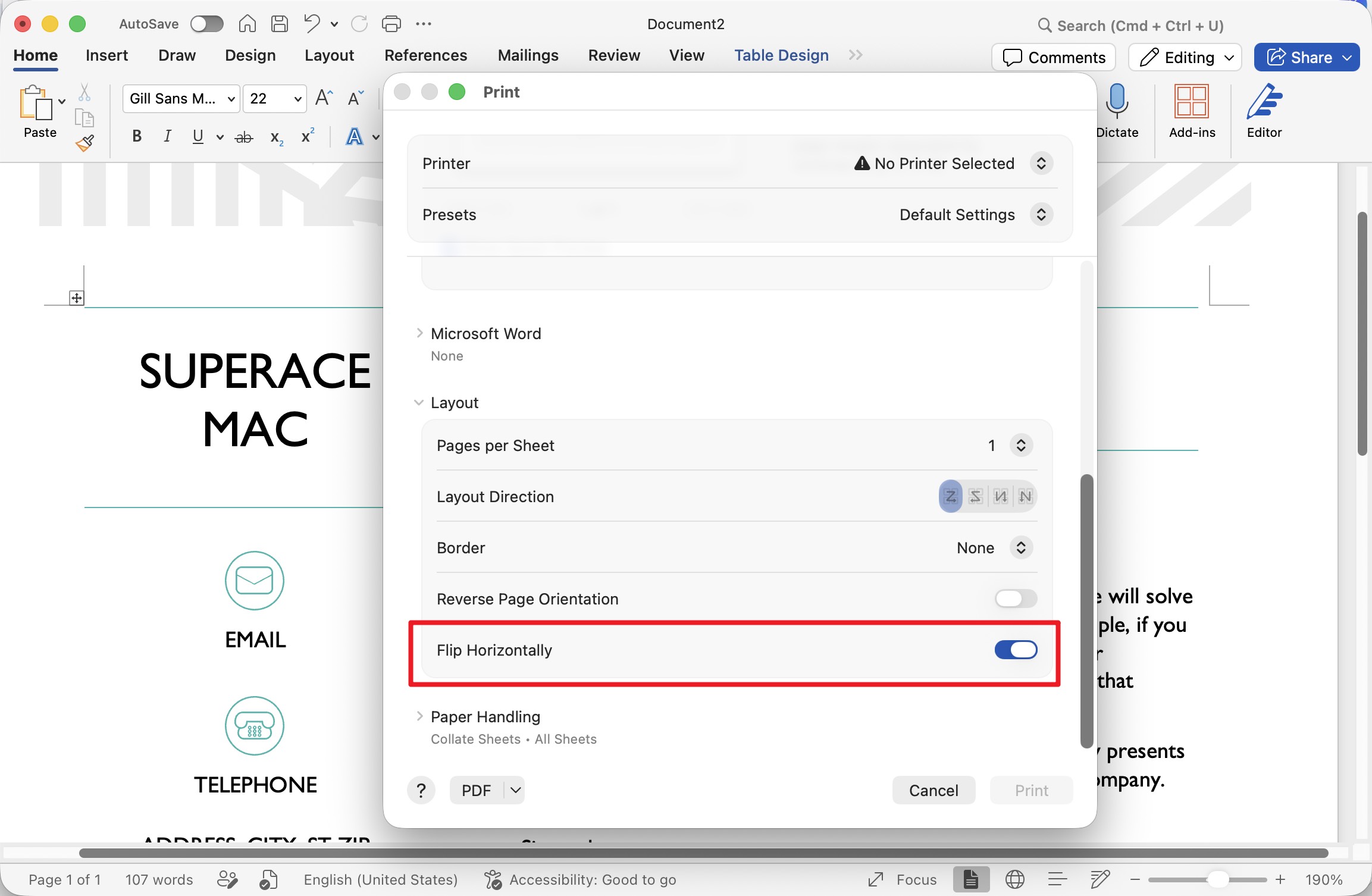
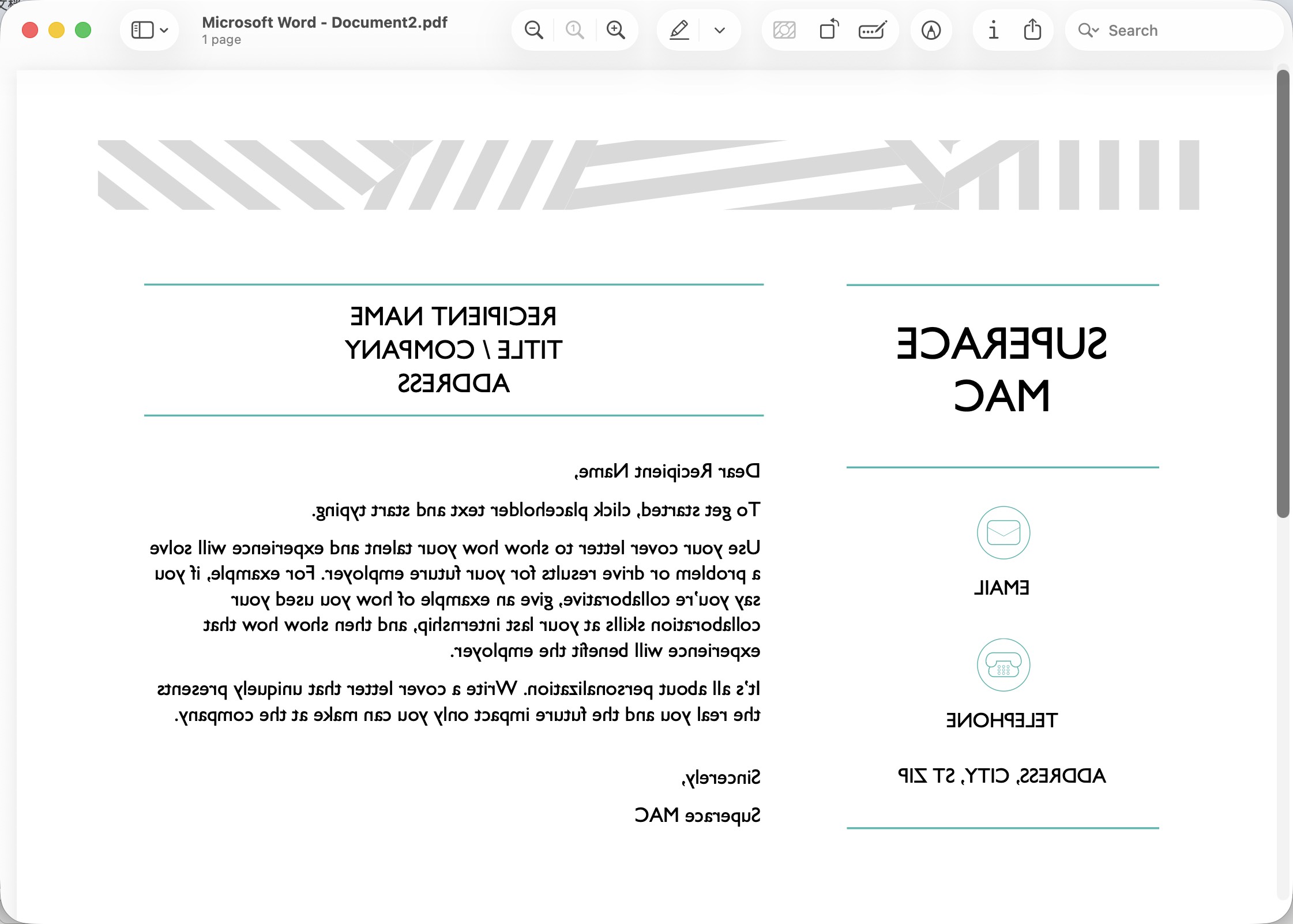
This mirrors the whole page left-to-right. Unlike the Windows route, Flip Horizontally is part of the standard macOS print dialog, so it's available regardless of which printer you use — and even appears before a printer is selected.
Part 3. Mirror Text and Images in a PDF with UPDF
Word's mirror tricks only work inside text boxes and WordArt. Once you convert a document to PDF — or if you're already working from one — UPDF mirrors content directly, with a true horizontal or vertical flip.
UPDF is an AI-powered PDF editor for Windows, Mac, iOS, and Android, and it mirrors content two ways.
Flip Images
Follow the below steps to flip images on Word/PDF/PPT files with UPDF:
Step 1. Download, install, and launch UPDF on your Windows or Mac computer.
Windows • macOS • iOS • Android 100% secure
Step 2. "Simply drag and drop your Word, PDF, or PPT file into UPDF to open it. The file will be automatically converted to PDF format for viewing."
Step 3. Click "Edit" in the top toolbar, then select choose "Image".
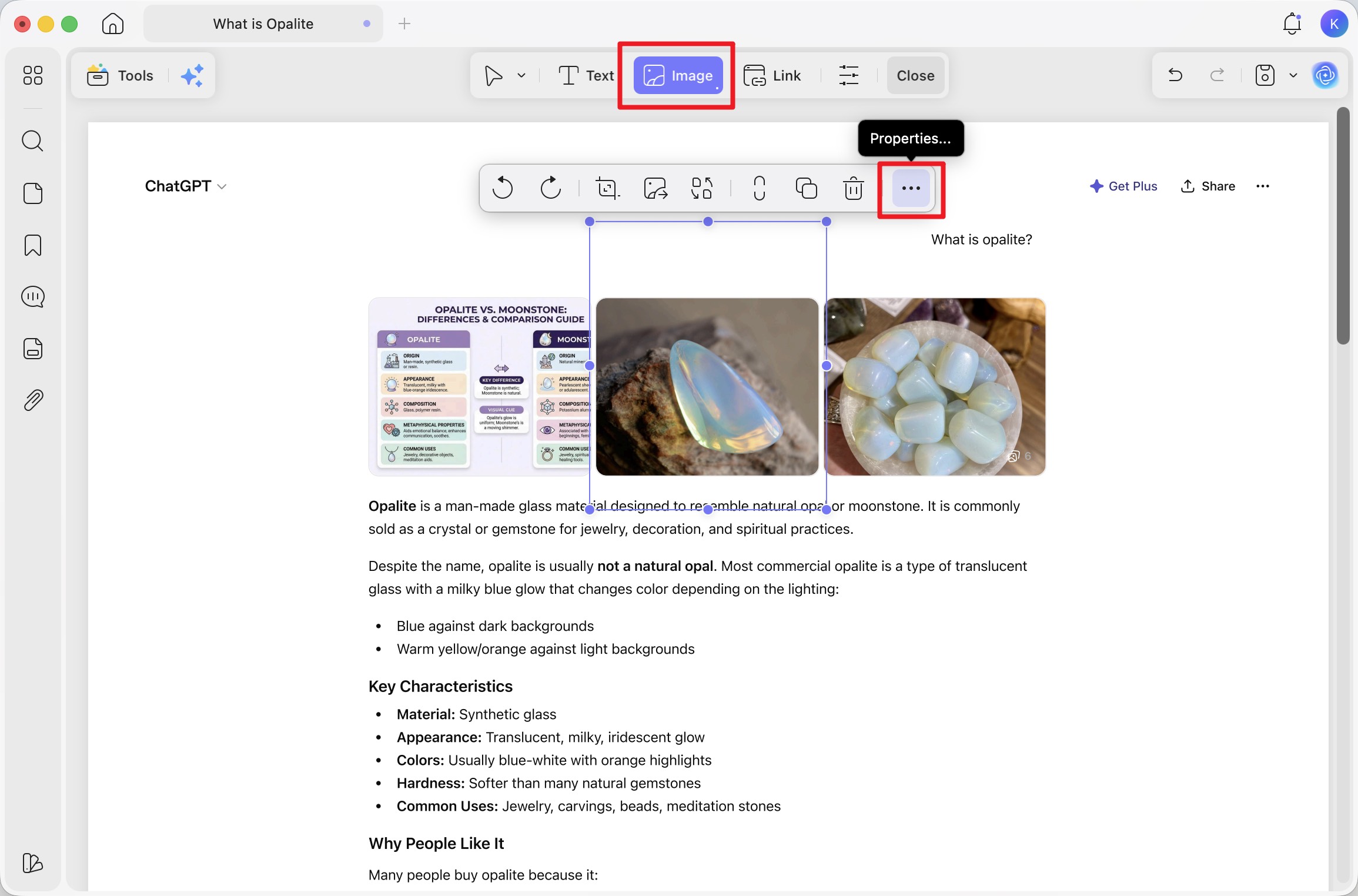
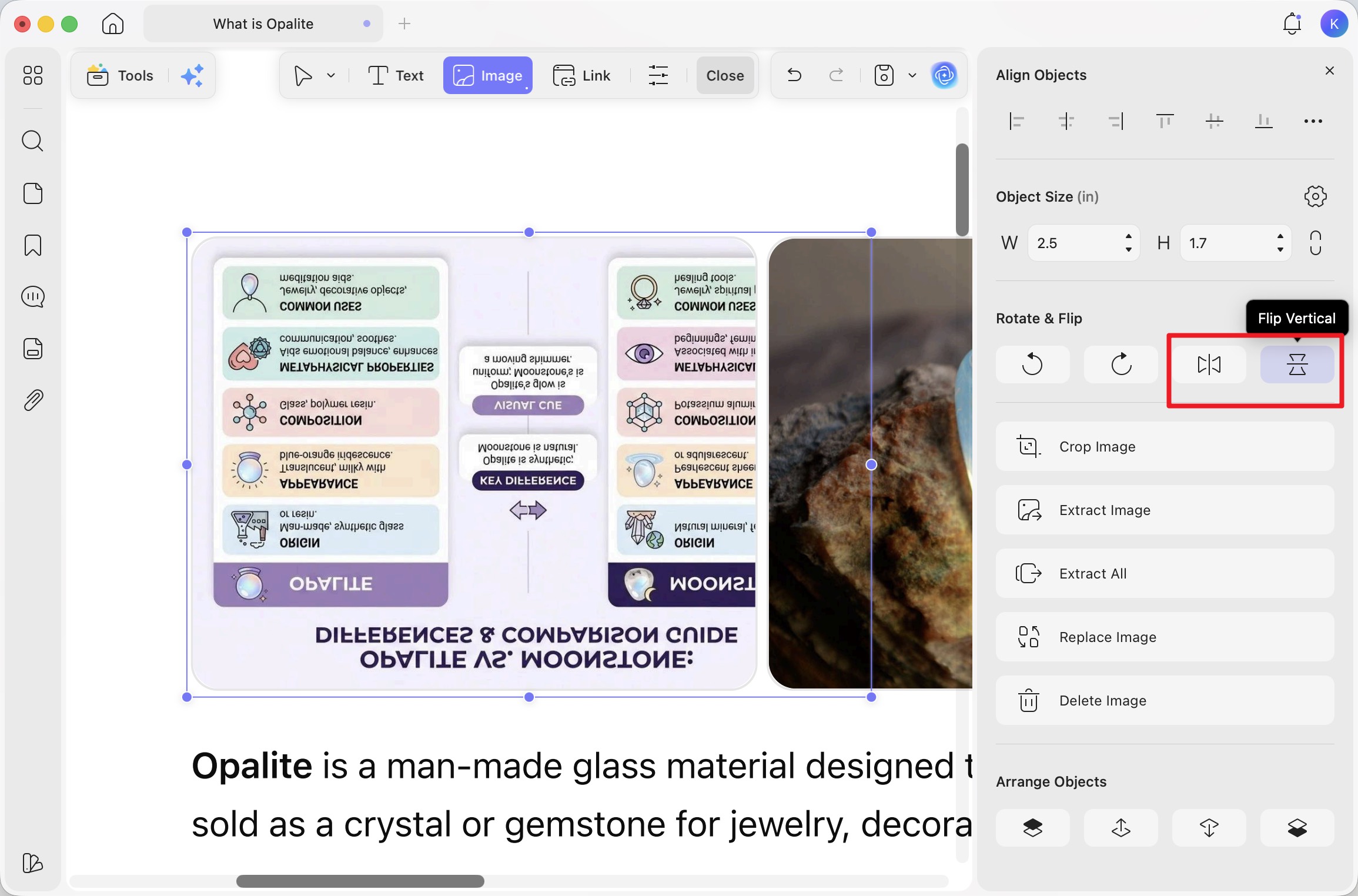
Step 4. Click the image you want to mirror. From the floating toolbar, click the Properties (three-dot) icon to open the side panel. Choose Flip Horizontal for a left-to-right mirror, or Flip Vertical for a top-to-bottom flip. The change applies instantly.
Flip the Entire Document
Step 1. With the document open in UPDF, open the Print dialog (Command + P on Mac, Ctrl + P on Windows).
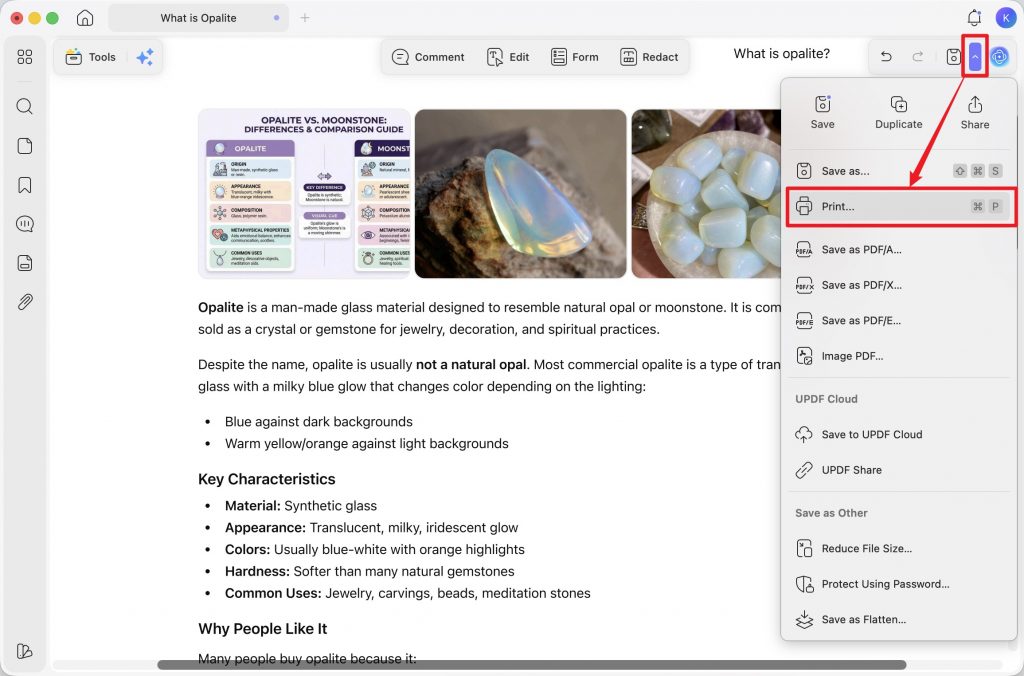
Step 2. Expand the Layout section and turn on Flip Horizontally to mirror every page — text and images together.
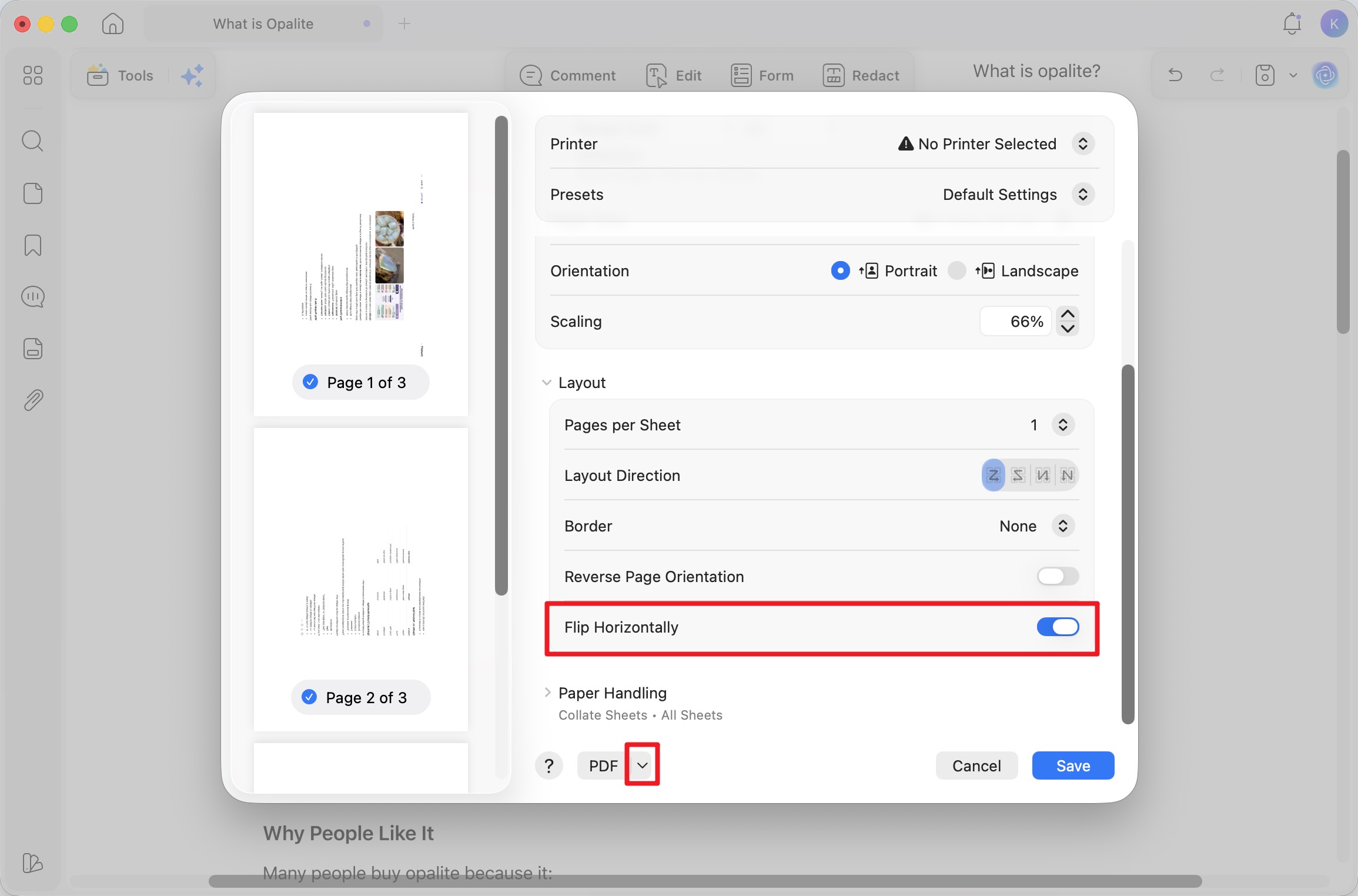
Step 3. Click the PDF dropdown at the bottom-left and choose Save as PDF to keep the mirrored version as a new file.
Once your document is mirrored, UPDF's AI design agents help you finish it — useful since most people mirror text to make a flyer, sign, or branded header stand out:
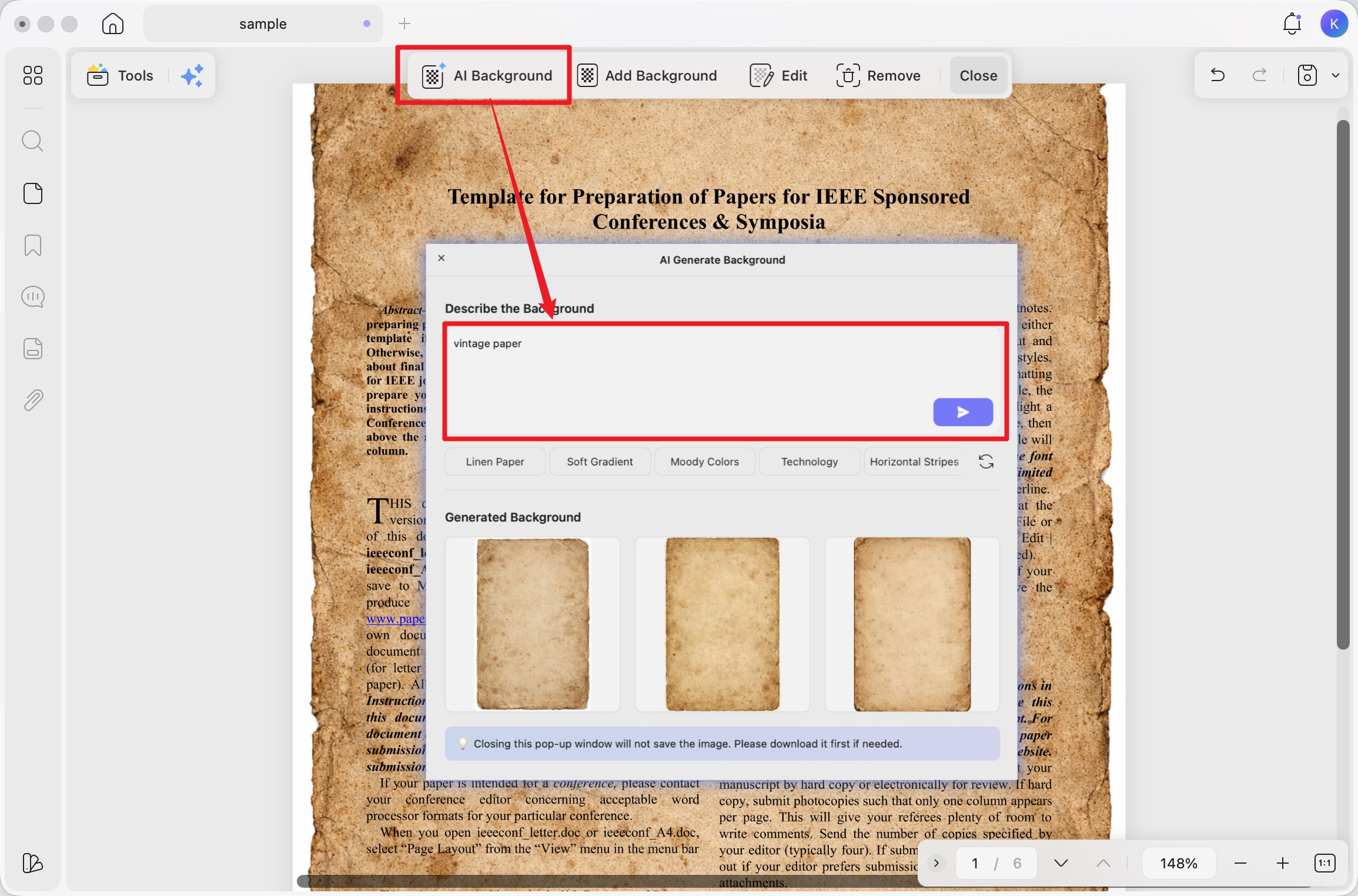
- AI Background Generator: Type a short prompt — "soft gradient," "vintage paper," "neon grid" — and UPDF generates a background to sit behind your mirrored title in seconds.
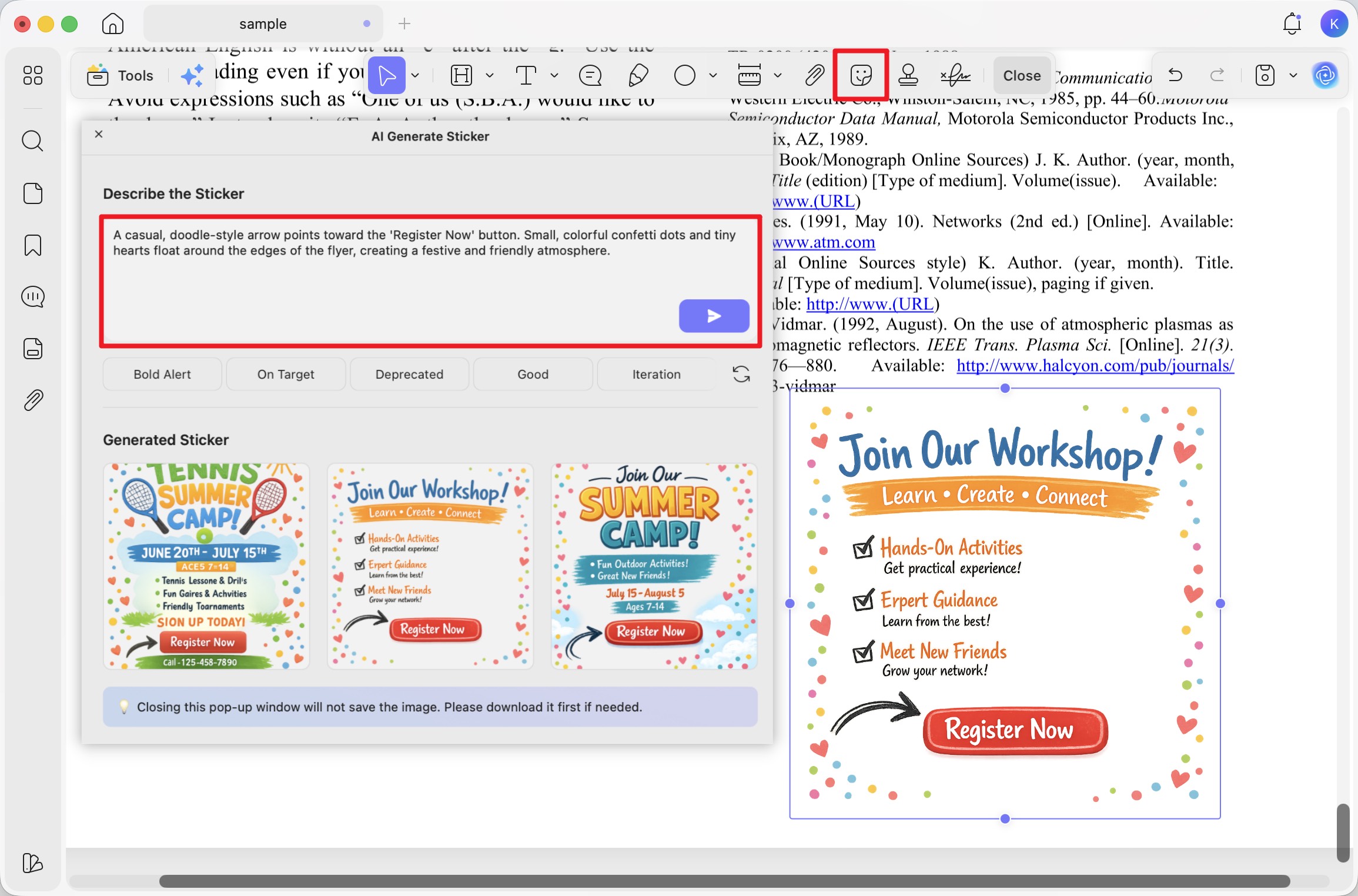
- AI Sticker Maker: Describe a decorative accent for a flyer or announcement and drop the generated artwork straight onto the page.
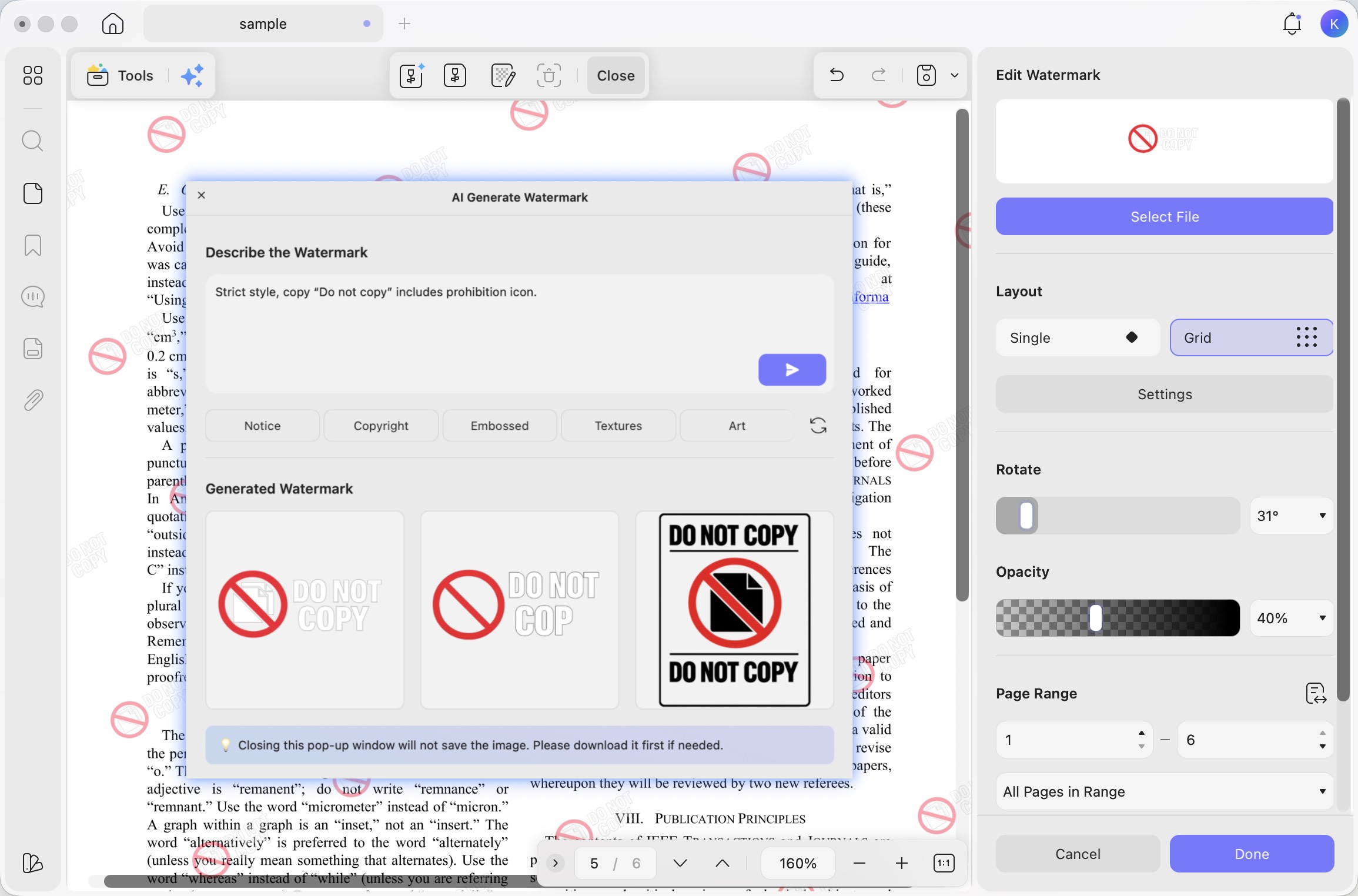
- AI Watermark Generator: Generate a custom watermark from a text prompt for brand-specific headers and logos, and apply it across every page.
Overall, UPDF serves as a complete PDF editor you must have to make your PDFs more professional. Download it for a free trial or upgrade to UPDF Pro to unlock all advanced features!
Windows • macOS • iOS • Android 100% secure
Conclusion
Word can mirror text through text boxes, WordArt, reflections, or printer settings — pick the method that matches whether you need a true horizontal mirror, a vertical flip, or a reflection effect. When you're working with a PDF instead, UPDF flips a single image or an entire page directly, with a real horizontal or vertical mirror, and its AI Background Generator, AI Sticker Maker, and AI Watermark Generator help you finish the design once the layout is set. Download UPDF for free and mirror your text and images in a few clicks — no subscription required to get started.
Windows • macOS • iOS • Android 100% secure




 Enola Miller

 Enola Davis