 UPDF
UPDF
 UPDF for Windows
 UPDF for Mac
 UPDF for iPhone/iPad
 UPDF for Android
 UPDF AI Online
 UPDF Sign
 Edit PDF
 Annotate PDF
 Create PDF
 PDF Form
 Edit links
 Convert PDF
 OCR
OCR PDF to Word
 PDF to Image
 PDF to Excel
 Organize PDF
 Merge PDF
 Split PDF
 Crop PDF
 Rotate PDF
 Protect PDF
 Sign PDF
 Redact PDF
 Sanitize PDF
 Remove Security
 Read PDF
 UPDF Cloud
 Compress PDF
 Print PDF
 Batch Process
 About UPDF AI
 UPDF AI Solutions
 AI User Guide
 FAQ about UPDF AI
 Summarize PDF
 Translate PDF
 Chat with PDF
 Chat with AI
 Chat with image
 PDF to Mind Map
 Explain PDF
 PDF AI Tools
 Image AI Tools
 AI Chat Tools
 AI Writing Tools
 AI Study Tools
 AI Working Tools
 Other AI Tools
 PDF to Word
 PDF to Excel
 PDF to PowerPoint
 Enterprise Solution
 Enterprise Sign
 Enterprise AI
 Enterprise Plan
 Enterprise User Guide
 Enterprise Webinar
 Banking
 Healthcare
 Insurance
 Legal
Legal Manufacturing
 Government
 Education Solution
 Customer Stories
 User Guide
 UPDF Tricks
 FAQs
FAQs UPDF Reviews
 Download Center
 Blog
Blog Newsroom
 Tech Spec
 Updates
 UPDF vs. Adobe Acrobat
 UPDF vs. Foxit
 UPDF vs. PDF Expert

Two different needs hide behind the query of how to tag a PDF in everyday document work. Accessibility tags are hidden, XML-like structures that tell assistive technology how to read content in the correct order. They define headings, paragraphs, lists, tables, and figure descriptions to support Section 508 compliance and predictable navigation. In contrast, organizational tags are file-level labels or metadata used for management, searchability, and fast retrieval.
Thus, tagging matters because modern workflows depend on searchable PDF files, accurate structure, and reliable handoffs. However, accessibility tagging fails when a document is a scanned image with weak text recognition. Poor OCR creates broken words, incorrect headings, and unstable selection across pages. That is why UPDF fits the pre-tagging stage, turning scans into clean, searchable text before compliance checks begin.
Windows • macOS • iOS • Android 100% secure
Part 1. How to Tag a PDF for Accessibility in Adobe Acrobat
Adobe Acrobat is the standard choice when legal accessibility compliance is required. Its Accessibility tools generate a tag tree, then support manual remediation and validation. This workflow anchors how to tag a PDF in Acrobat for audited delivery. Now, adhere to the steps below to see how it actually works:
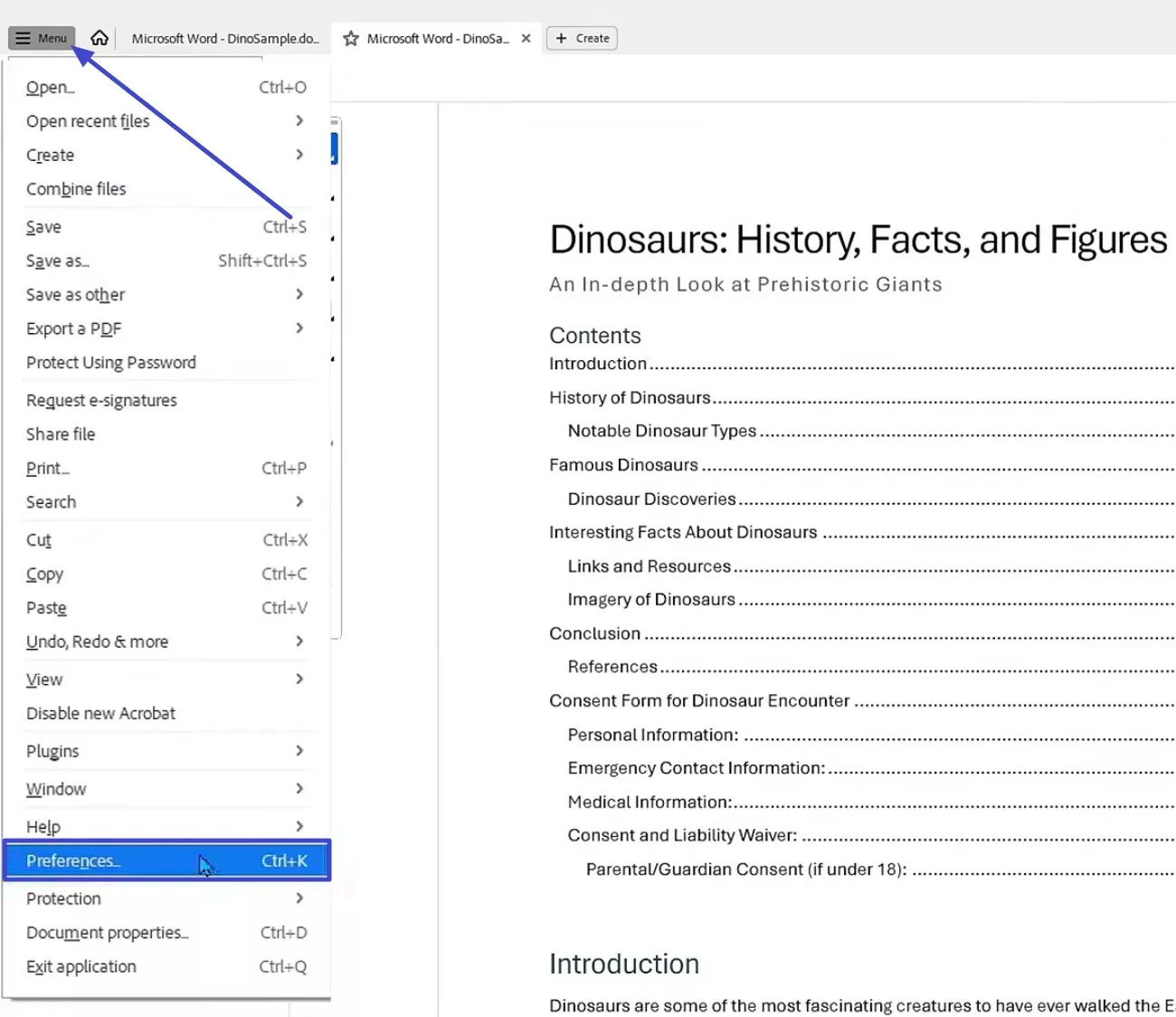
Step 1. To start, access the "Menu" from the top-left corner, then select "Preferences". Next, in Preferences, select "Accessibility" and enable the "cloud-based auto-tagging", then close.
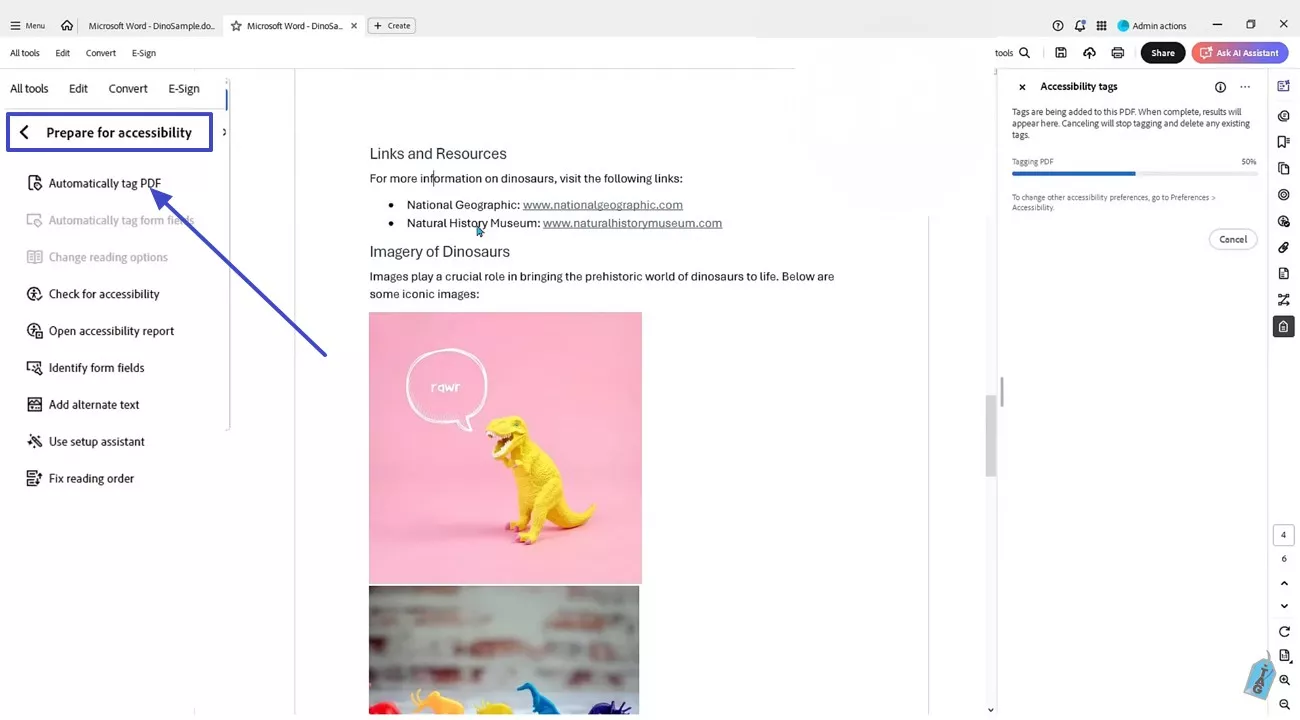
Step 2. Afterwards, choose "Prepare for accessibility", then click "Automatically tag PDF" and wait until the Tagging PDF progress bar appears.
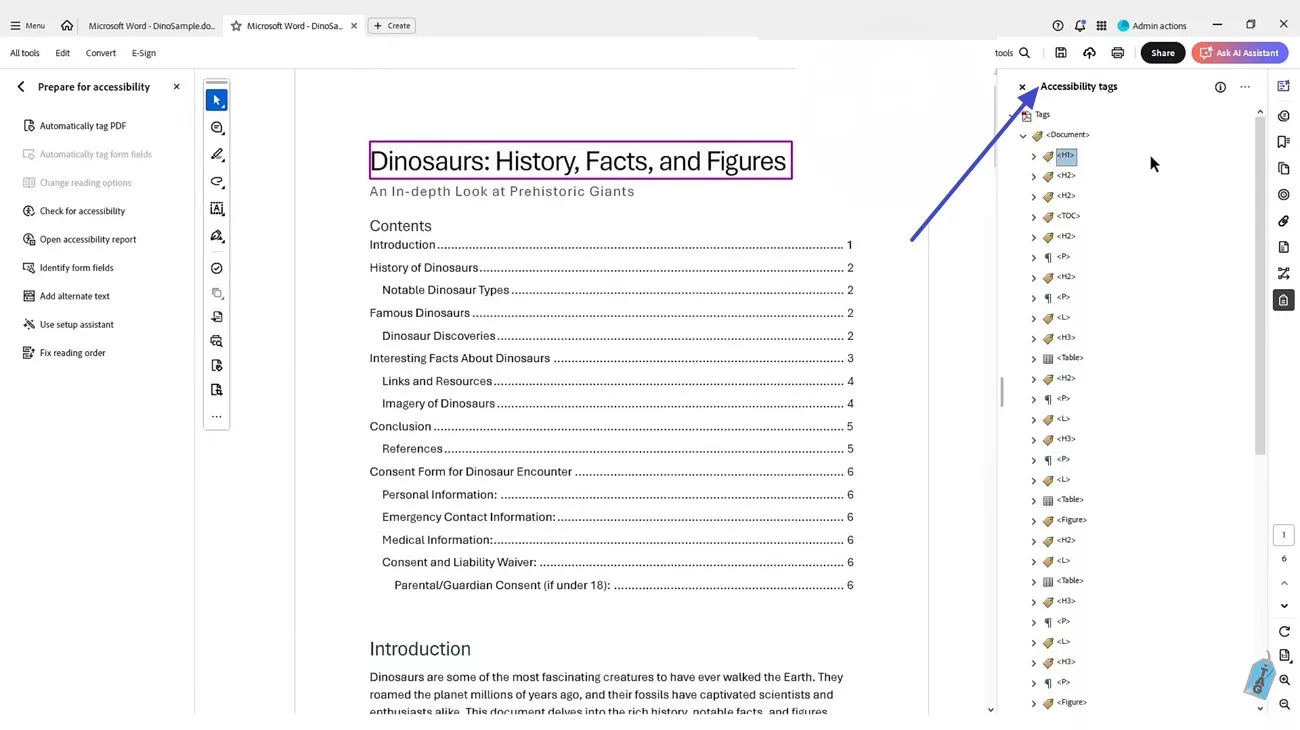
Step 3. Lastly, verify the tag tree in "Accessibility tags" on the right by expanding "Tags" under the document.
The Bottleneck: Why Manual Tagging Gets Slow Without a Searchable PDF
Before tackling how to tag a PDF in Acrobat, expect manual work when the base file is weak. These bottlenecks explain why tagging slows down, even with Autotag enabled:
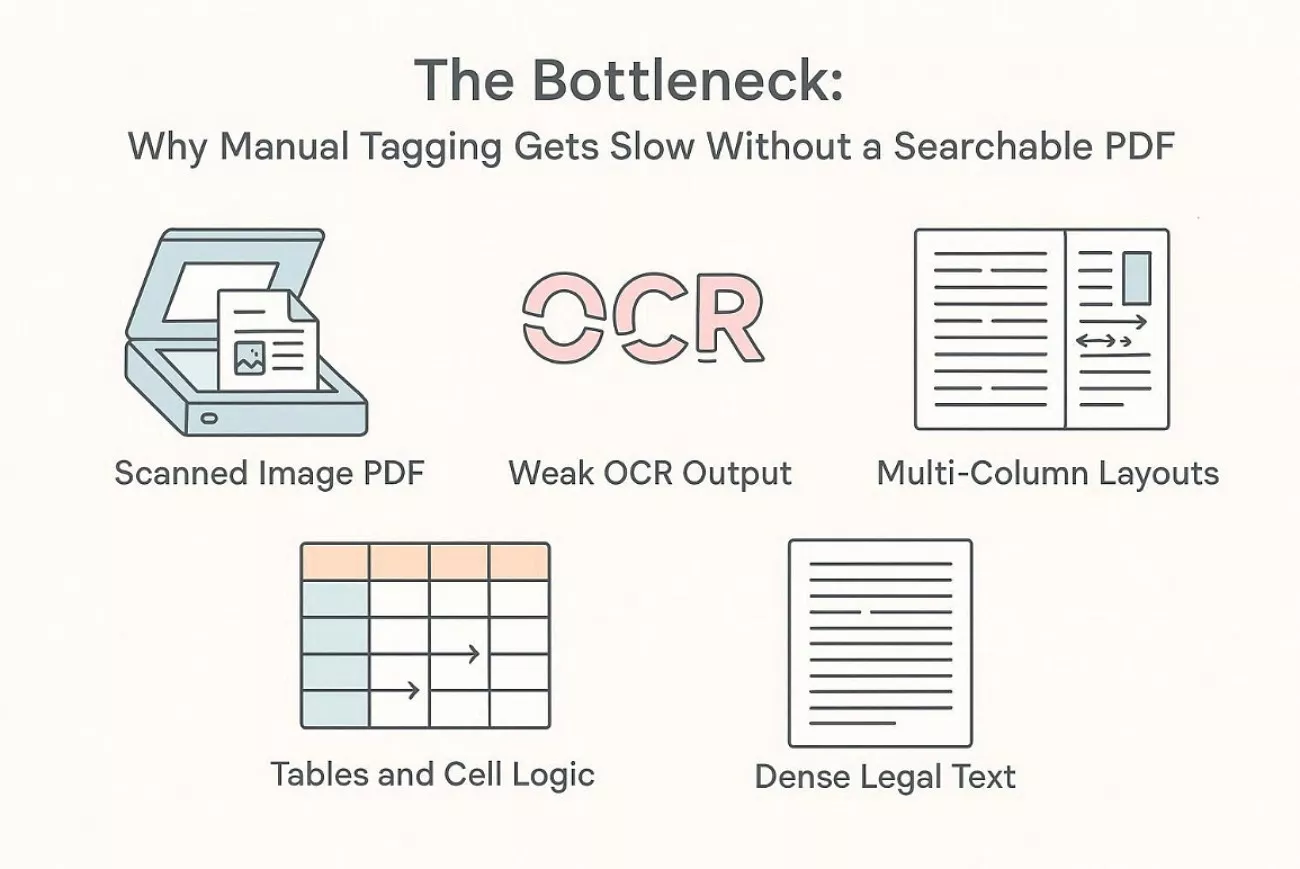
- Scanned Image PDF: Scanned pages contain pictures, so Acrobat cannot detect the true text structure reliably. Every heading and paragraph must be rebuilt, making tagging error-prone again.
- Weak OCR Output: Poor OCR merges words and breaks lines, confusing reading order checks often. Fixing those mistakes takes repeated edits, because tags inherit OCR errors directly.
- Multi-Column Layouts: Multi-column layouts cause paragraphs to jump, especially with sidebars present today. Manual region selection is required; then, the order must be verified carefully.
- Tables and Cell Logic: Tables need header relationships, but Autotag guesses wrong for many cells initially. Each row and column must be mapped, so screen readers announce context.
- Inconsistent Heading Styles: Inconsistent headings look like body text, so the tag hierarchy collapses quickly later. Cleaning styles first creates a clearer structure, reducing manual tagging decisions significantly.
Part 2. The Crucial Pre-Tagging Step: Preparing Files with UPDF
A scanned PDF is basically an image, so accessibility tags cannot map real text reliably. Clean tagging needs selectable characters, consistent spacing, and stable word boundaries for assistive technology. Therefore, UPDF prepares this foundation through strong OCR, turning scans into searchable PDF text that supports accurate structure before tagging begins correctly.
Once OCR is complete, UPDF also helps clean the document structure before compliance tools. Moreover, without OCR, tagging tools infer structure from shapes, producing fragile tag trees. Thus, preparation reduces tagging errors later and makes "how to tag a PDF" in Acrobat faster, cleaner, and far less manual.
Windows • macOS • iOS • Android 100% secure
Feature Focus: OCR in UPDF for Clean Structure
Run UPDF OCR and select the correct language settings for strong recognition results. Verify accuracy by searching rare terms, checking headings, and testing copy behavior. Moreover, fix obvious misreads early, because they poison how to tag a PDF document's outputs.
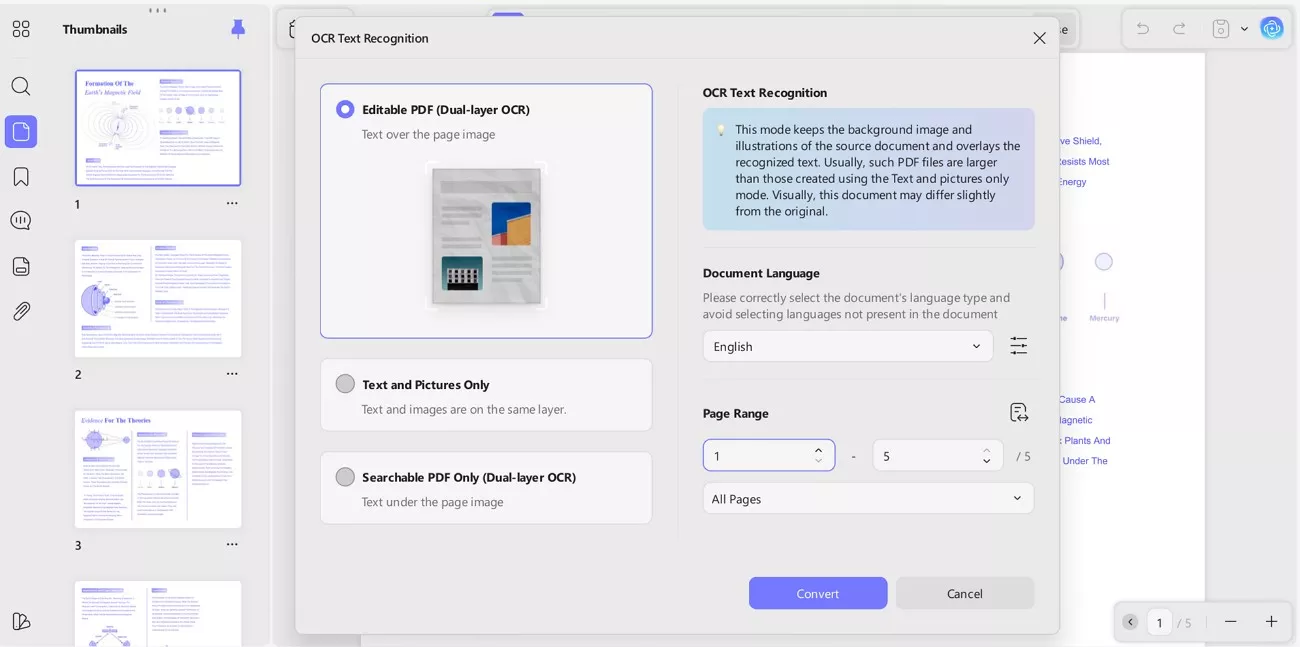
OCR quality also affects semantic search and downstream accessibility checker confidence. Plus, broken hyphenation and merged words can disrupt reading order detection and headings. Therefore, clean OCR reduces the manual time spent on tagging a PDF in Acrobat tasks.
Feature Focus: Editing For Heading Hierarchy and Figure Preparation
Use UPDF editing to standardize headings, spacing, and numbering across the document. Align section titles consistently, because Autotag relies on patterns for hierarchy inference. This preparation greatly strengthens how to tag a PDF consistently later.
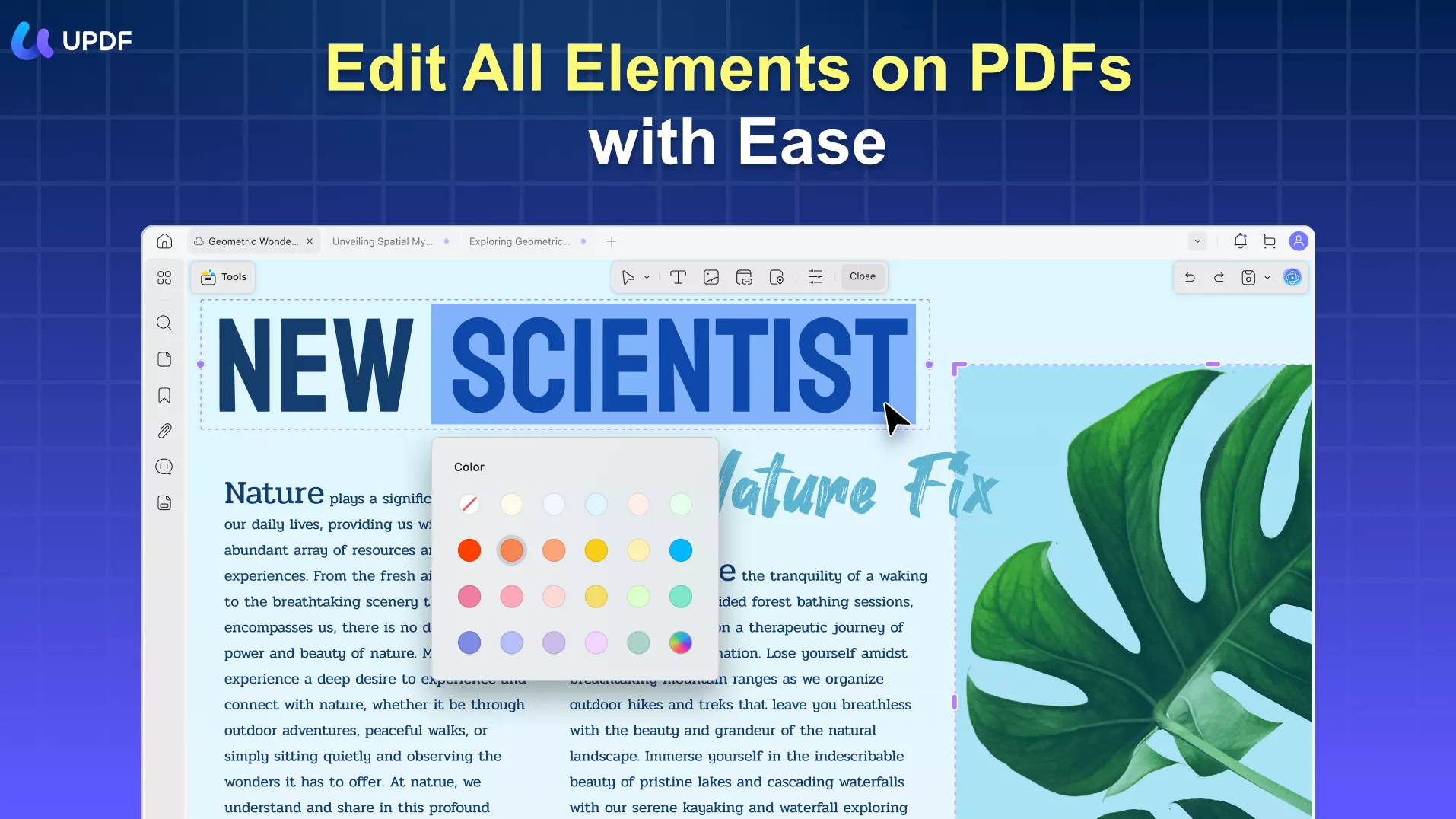
Furthermore, add captions for figures, then leave alt-text placeholders where meaning must be described. For complex visuals, note the takeaway message, not the design or color details. These notes speed remediation for how to tag a PDF for accessibility deliverables.
Part 3. Modern Alternatives: Using AI to "Read" Without Traditional Tags
Sometimes, tagging is mainly a shortcut to understand dense content faster. If compliance is not required, a rigid tag tree may be unnecessary for internal review. In that case, AI can summarize and explain complex layouts quickly, while OCR keeps the PDF searchable for later tagging. Thus, traditional tagging supports standardization, but it can be slow and manual for everyday use.
UPDF AI Assistant for Instant Comprehension
Consider UPDF AI to summarize sections and extract key points from complex layouts. The user can ask for explanations of tables, charts, and multi-column pages using plain language. This supports AI-driven document analysis while reinforcing how to tag a PDF intent.
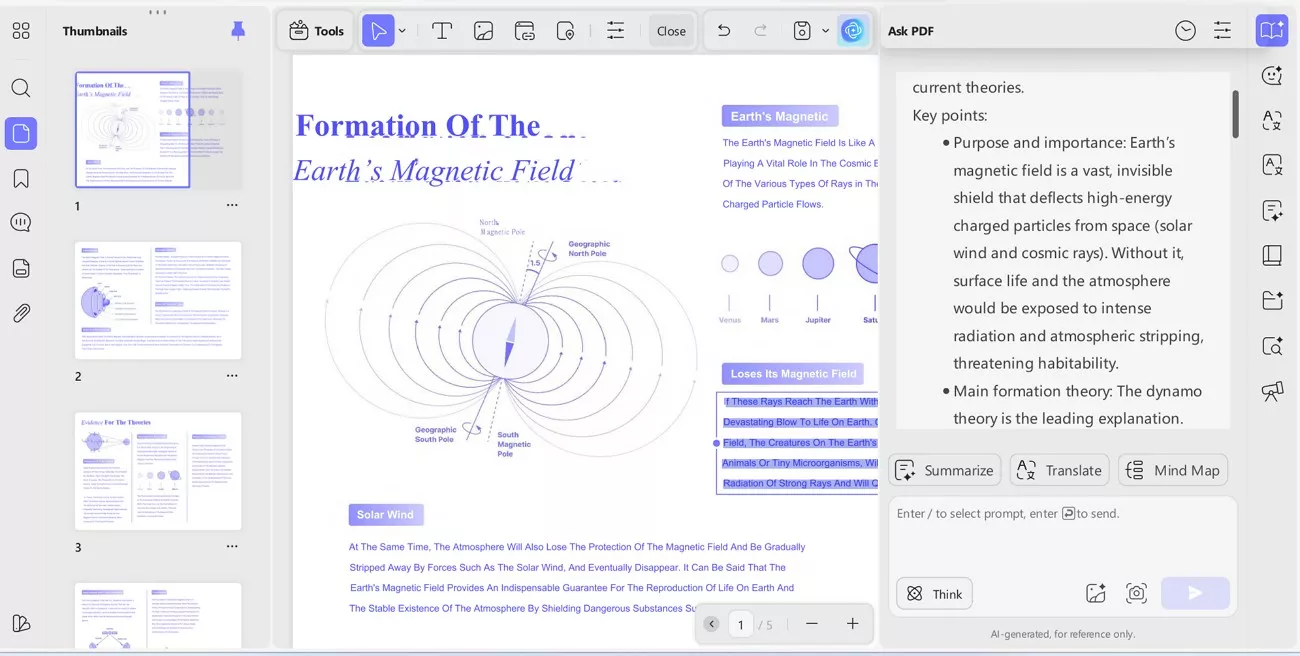
Moreover, AI does not replace Section 508 compliance obligations or audited tag trees. However, it can highlight missing headings, confusing order, and unclear figure context. Those insights reduce rework during the remediation of how to tag a PDF in Acrobat.
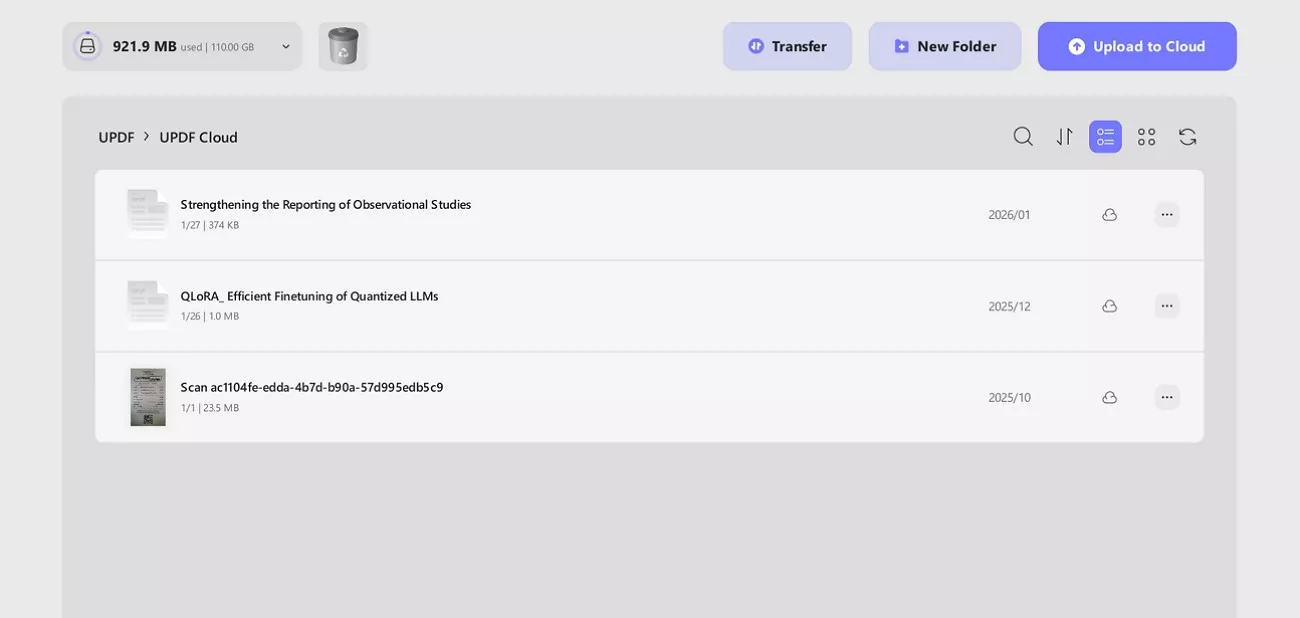
UPDF Cloud for File-Level Tagging and Retrieval
UPDF Cloud supports organizations across devices with searchable storage and version control. So, use consistent names, folder rules, and file tags to track status and ownership. This improves retrieval while practicing how to tag a PDF document for teams.
Part 4. Comparison: When to Use Which Tool
Choose tools by requirement, because compliance, preparation, and comprehension differ. Preparation enables accuracy, compliance enables legality, and AI enables fast understanding. This decision framework clarifies how to tag a PDF across typical scenarios, so review the table below:
| Scenario | Recommended tool | Why it fits best | Typical output |
| Government or university accessibility audit with strict standards | Adobe Acrobat | Builds and validates a formal tag tree for Section 508 compliance | Tagged PDF + checker report |
| Scanned contracts, certificates, or old reports need real text first | UPDF (OCR) | Converts "image-only" scans into a searchable PDF foundation | Searchable text layer |
| Headings look messy, numbering is inconsistent, and figures need placeholders | UPDF (Edit) | Cleans the structure so that later tagging tools can infer hierarchy correctly | Clean headings + fixed layout |
| Quick understanding of dense tables, multi-column research PDFs, or reports | UPDF AI Assistant | Summarizes and explains content without manual tag-tree work | Summary + key points |
| Managing many files across teams, projects, and versions | UPDF Cloud | Organizes PDF documents for fast retrieval and collaboration | Tagged library + folders |
| Full compliance delivery from a scanned source | UPDF + Acrobat | Prep with OCR/edit first, then finalize accessibility tags in Acrobat | Fast, accurate compliance PDF |
Conclusion
To conclude, compliance tagging is a specialist task with strict rules and documented checks. Adobe Acrobat fits audits because it validates tag trees and reading order. Yet results depend on clean text, stable headings, and reliable table structure.
Moreover, preparation makes everyday work faster and more accurate across most PDF projects. OCR converts scans into searchable text, reducing errors during accessibility fixes. AI summaries help when formal tags are not required for internal review. For smoother preparation and editing, use UPDF with how to tag a PDF document workflows
Windows • macOS • iOS • Android 100% secure







 Enrica Taylor

 Enola Miller
 Enya Moore
 Engelbert White