 UPDF
UPDF
 UPDF for Windows
 UPDF for Mac
 UPDF for iPhone/iPad
 UPDF for Android
 Nomostar
 UPDF AI Online
 UPDF Sign
 IvyCraft
 Edit PDF
 Annotate PDF
 Create PDF
 PDF Form
 Edit links
 Convert PDF
 OCR
OCR PDF to Word
 PDF to Image
 PDF to Excel
 Organize PDF
 Merge PDF
 Split PDF
 Crop PDF
 Rotate PDF
 Protect PDF
 Sign PDF
 Redact PDF
 Sanitize PDF
 Remove Security
 Read PDF
 UPDF Cloud
 Compress PDF
 Print PDF
 Batch Process
 About UPDF AI
 UPDF AI Solutions
 AI User Guide
 FAQ about UPDF AI
 Summarize PDF
 Translate PDF
 Chat with PDF
 Chat with AI
 Chat with image
 PDF to Mind Map
 Explain PDF
 PDF AI Tools
 Image AI Tools
 AI Chat Tools
 AI Writing Tools
 AI Study Tools
 AI Working Tools
 Other AI Tools
 AI Bookmark Generation
 AI Bookmark Summary
 AI Watermark Generation
 AI Background Generation
 AI Sticker Generation
 AI Stamp Generation
 AI Editing Suite
 UPDF Copilot
 AI Page Management
 AI Semantic Search
 PDF to Word
 PDF to Excel
 PDF to PowerPoint
 Enterprise Solution
 Enterprise Sign
 Enterprise AI
 Enterprise Plan
 Enterprise User Guide
 Enterprise Webinar
 IT
IT Education
 Construction
 Financial Service
 Healthcare
 Insurance
 Legal
Legal Manufacturing
 Government
 Researchers & PhDs
 Solopreneurs & Freelancers
 Lawyers & Legal Professionals
 Real Estate Agents & Brokers
 Education Solution
 Customer Stories
 User Guide
 UPDF Tricks
 FAQs
FAQs UPDF Reviews
 Download Center
 Blog
Blog Newsroom
 Tech Spec
 Updates
 UPDF vs. Adobe Acrobat
 UPDF vs. Foxit
 UPDF vs. PDF Expert

Quick answer:
The frustrating part isn't usually the writing — it's opening a PDF form and finding that nothing happens when you click. Some forms are built with interactive fields you can type straight into; others are flat scans or exported documents with no fields at all, so a normal PDF viewer just shows you a picture. The fix depends on which kind you have.
This guide covers three ways to write on a PDF form on your computer with UPDF: typing into fillable fields (and turning a non-fillable form into a fillable one when there are none), adding a single field by hand where you need one, and writing text directly onto the page where no field belongs. Each method points to the moment it's the right tool — and the moment it isn't. Two more sections cover mobile: filling a form emailed to you on an iPhone, and handwriting answers on an iPad with an Apple Pencil. For example, on a rental application with clickable name and address boxes but no signature field, fill the existing fields first and then add a signature field to the PDF if another person needs a designated place to sign.
Windows • macOS • iOS • Android 100% secure
Which method should you use?
Before opening any tool, it helps to know what kind of form is in front of you. The routing table below maps the situation to the method.
| What you're working with | Method to use | Best for |
|---|---|---|
| Form has clickable fields, or flat form you want made fillable | Method 1 — type into fields (run Form Field Recognition first if needed) | Government forms, W-9s, applications; scanned forms with clear blanks |
| A spot with no field that recognition can't detect | Method 2 — add a single field by hand | Adding info where the original left no space |
| Free-standing text that isn't form data | Method 3 — add text in Edit mode | Writing a note, label, or line anywhere on the page |
| A form emailed to you, to fill on your phone | Method 4 — fill on iPhone (Fill & Sign) | Completing and returning a form from your inbox |
| Handwriting or signing by hand on a tablet | Method 5 — handwrite on iPad (Apple Pencil) | Signature lines, ticking boxes, filling scanned forms |
A quick way to tell interactive from flat: open the PDF and look for shaded or outlined boxes. If UPDF highlights fields the moment the form loads, it's interactive — just start typing. If the page looks like a plain image with printed lines, it's non-fillable — run Form Field Recognition first, both covered in Method 1.
Method 1: Type into Fillable Fields (Auto-Create Them if Needed)
Many official PDFs — tax forms, applications, intake sheets — already contain interactive fields, and UPDF highlights these automatically when you open the file. If your form is flat instead, UPDF's Form Field Recognition scans the layout and builds fillable fields in one pass, so this one method handles both cases.
Step 1. Launch UPDF and click Open File to import your form, or drag the PDF onto the UPDF window. Don't have UPDF yet? Download UPDF for free and install it in under a minute, then continue.
Windows • macOS • iOS • Android 100% secure
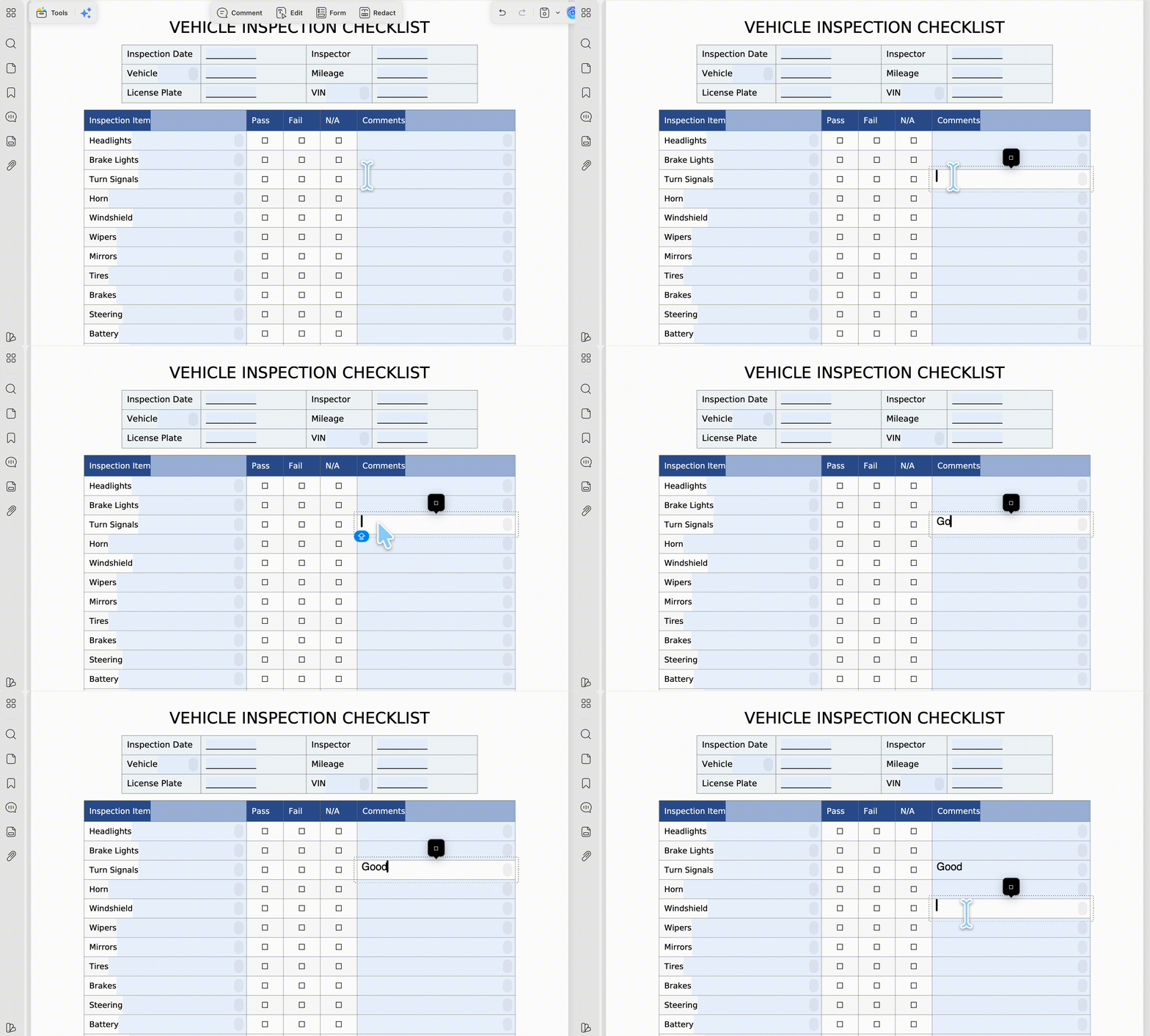
Step 2. If UPDF highlights existing fields, click a highlighted field and start typing. Text fields accept typing, checkboxes and radio buttons respond to a single click, and dropdowns open a list to choose from.
Step 3. If nothing is clickable, the form is non-fillable. Click Form on the top, then in the top toolbar click …More and choose Form Field Recognition. UPDF scans the document and creates fillable fields wherever it detects a blank.
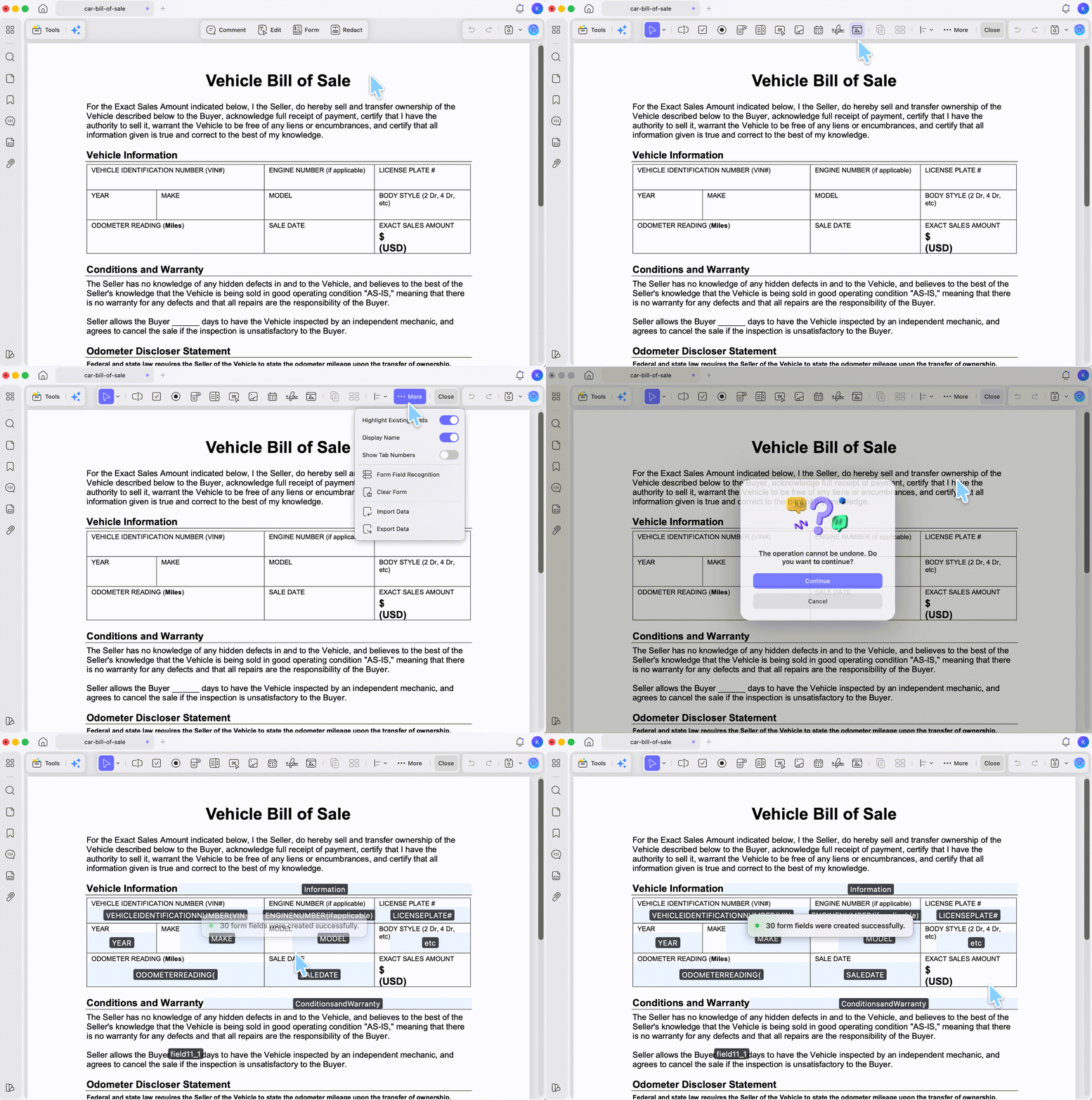
Step 4. Close the Form menu and switch to Comment or Reader mode, then click each field and type your information. Click Save when you're done.
Best for:
- any form built with real fields, plus flat forms with a clear structure — printed lines, labeled blanks, table cells — that recognition can latch onto.
Not for:
- writing in a spot recognition missed, or where there was never a blank to begin with — place the field yourself with Method 2.
Method 2: Add a Single Form Field by Hand
Sometimes recognition misses a spot, or you need to enter information where the original form left no space at all — an extra line for a middle name, a field the layout never included. In that case you can place one field exactly where you want it, and it behaves like a proper form field others can fill.
Step 1. With the form open, go to the left Tools panel and click Form on the top.
Step 2. In the top toolbar, click Text Field. Click and drag on the page to draw the field where you need it. Resize or reposition it using the handles around the box.
Step 3. Close the Form menu and switch to Comment or Reader mode, then click your new field and type.
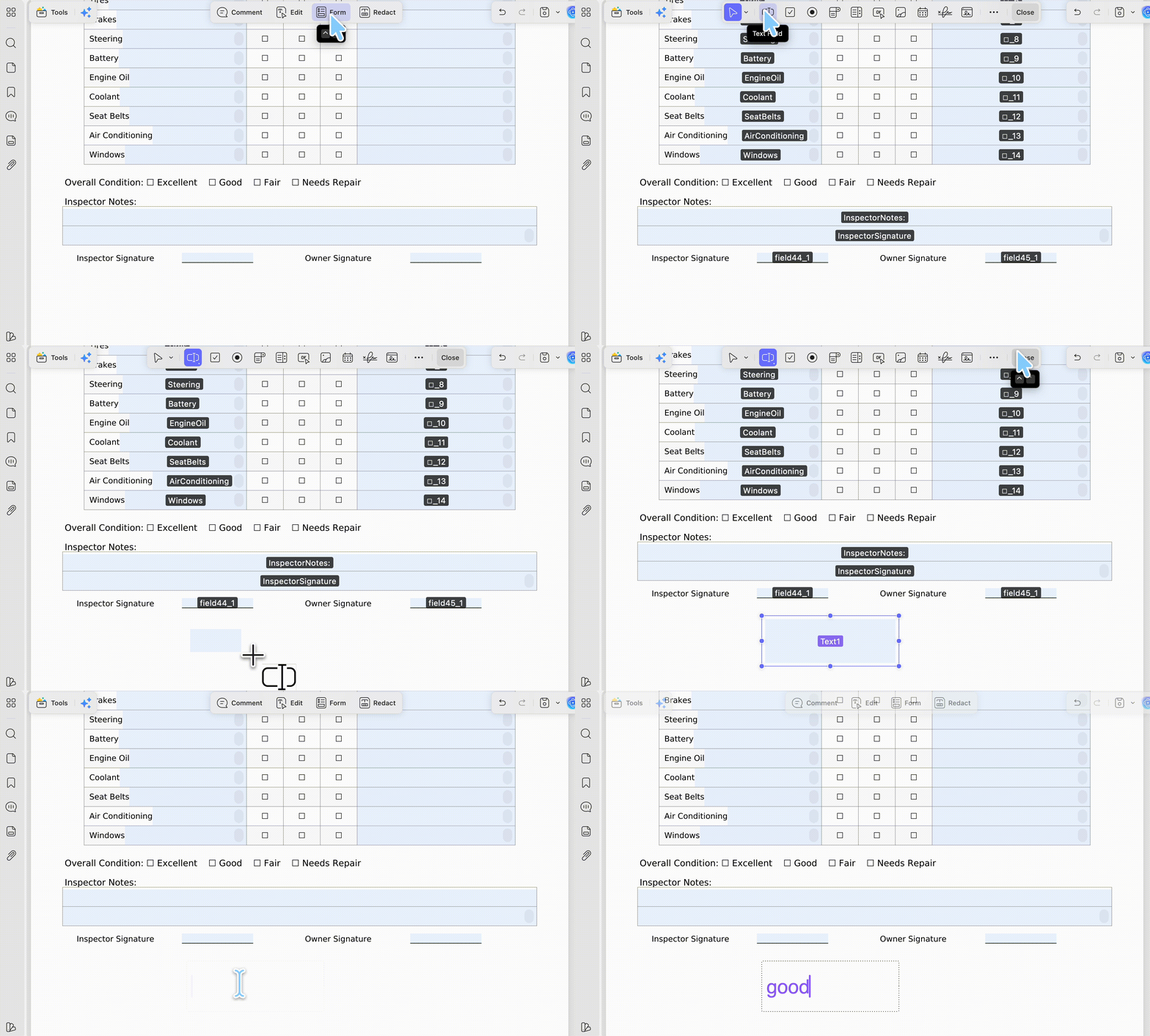
Step 4. Click Save to finish.
The same toolbar also holds checkboxes, radio buttons, dropdowns, date fields, and digital signature fields, so you can build out a specific spot rather than the whole form. To build a complete form from scratch, see how to create a fillable PDF.
Best for:
- filling a gap the original form didn't provide — one or two fields, placed precisely, that stay editable as form data.
Not for:
- text that isn't form data and doesn't need to be a fillable field — write it directly onto the page with Method 3.
Method 3: Write Text Directly onto the Page (Edit Mode)
Not everything you write on a form belongs in a fillable field. If you just need text on the page — a line where no field exists, a value on a flat form you don't want to convert — Edit mode adds it as part of the document itself, so it prints and exports as ordinary page text rather than a field.
Step 1. Open the document and, in the left Tools panel, click Edit.
Step 2. In the top toolbar, click Add Text. A text box appears where you click; adjust font, size, style, and color from the settings that appear.
Step 3. Click where you want the text and type. Drag the box to reposition it.
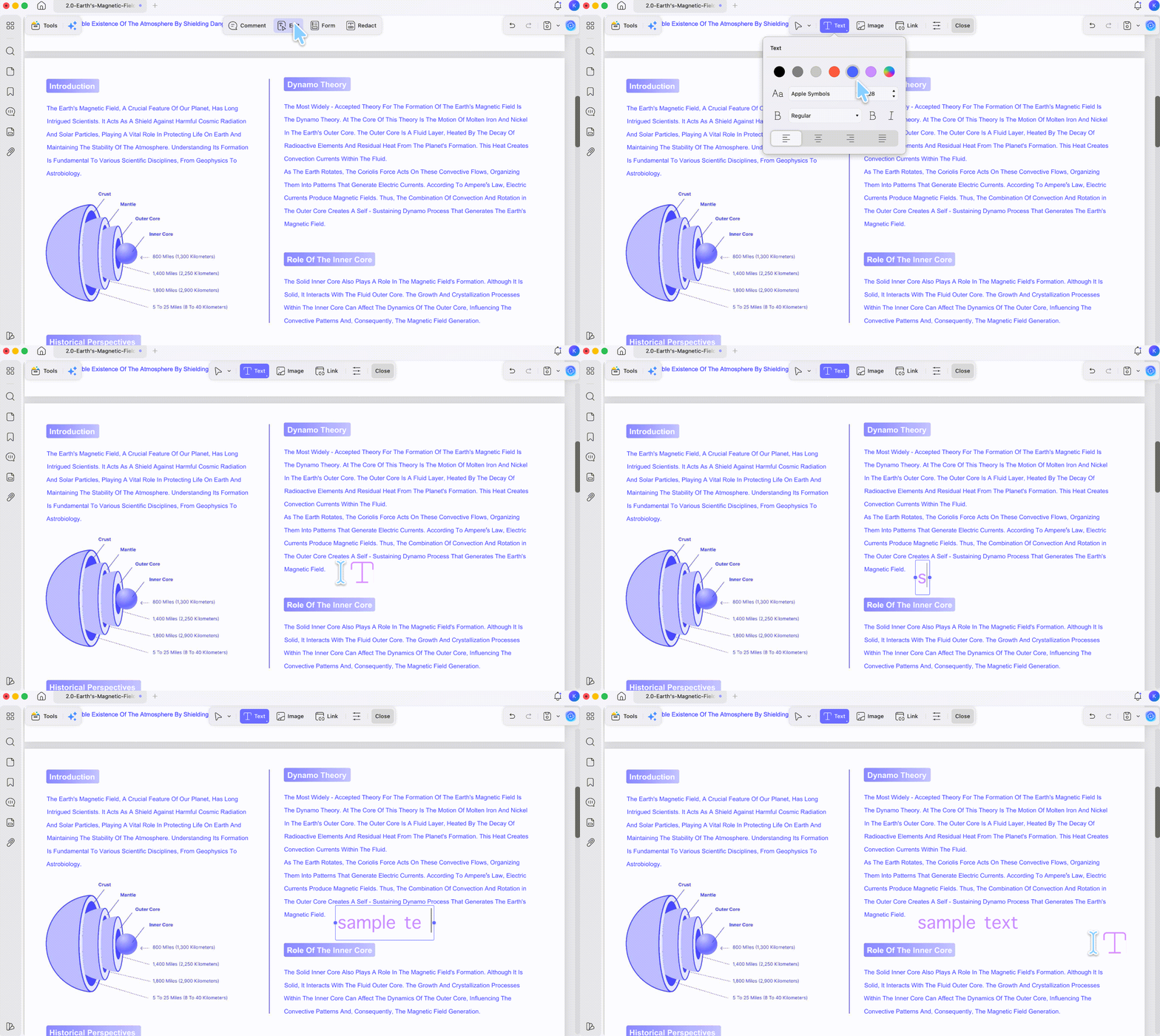
Step 4. Click Save to keep your changes.
Best for:
- writing a value or line straight onto the page when you don't need a fillable field.
Not for:
- interactive fields other people will fill in — use Method 1 or 2 so entries behave as proper form fields.
Download UPDF for free to try writing on your own form — installation is free, and Pro features are available when you need watermark-free export or advanced tools.
Windows • macOS • iOS • Android 100% secure
Form Field vs. Text in Edit Mode — What's the Difference?
These get mixed up constantly, and picking the wrong one causes real problems later.
A form field is a defined input area — a labeled slot that records a value, can be marked required, and exports cleanly to formats like CSV or FDF. Text added in Edit mode becomes part of the page content itself; it doesn't record a value or connect to any data structure, but it prints and flattens like the original text.
Think of it this way: a form field is a labeled blank on an official paper form that someone is expected to fill in; text in Edit mode is writing the answer directly onto the paper with a pen. Use fields for anything meant to be collected, tracked, or filled by someone else. Use Edit-mode text when you simply need words on the page.
Method 4 for Mobile: Fill Out a PDF Form Emailed to You on iPhone
A common snag: a form lands in your email on your iPhone, you open it, and there's no way to type. iOS Preview shows the file but doesn't fully support interactive PDF forms, so job applications, school forms, and government paperwork stall. UPDF for iOS handles both interactive forms and flat ones, and it can add fillable elements — text, signatures, dates, checkmarks, and crosses — where the form has none.
Check the surrounding lines after making a change to the wording. For a visual companion, the video below focuses on working with PDF forms in UPDF.
Step 1. Install UPDF from the App Store and open the app.
Step 2. In your email, tap the PDF attachment, then choose Share > Open in UPDF to import it.
Step 3. UPDF highlights any existing fields automatically. Tap a highlighted field and a keyboard appears — type your information, tap a blank area to exit, then move to the next field.
Step 4. For a form with no fields, tap Fill & Sign, then choose Text, Signature, Date, Checkmark, or Cross and tap where you want to place it.
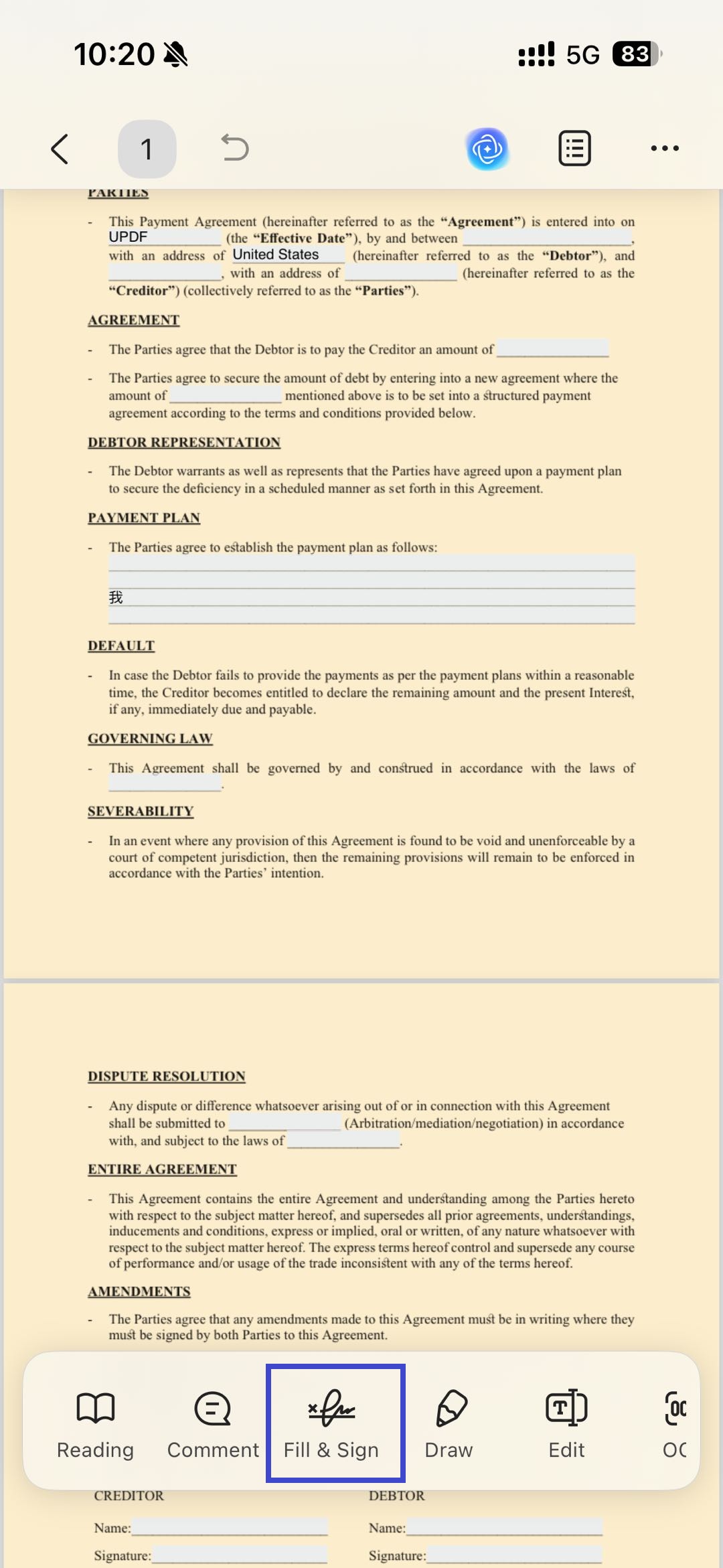
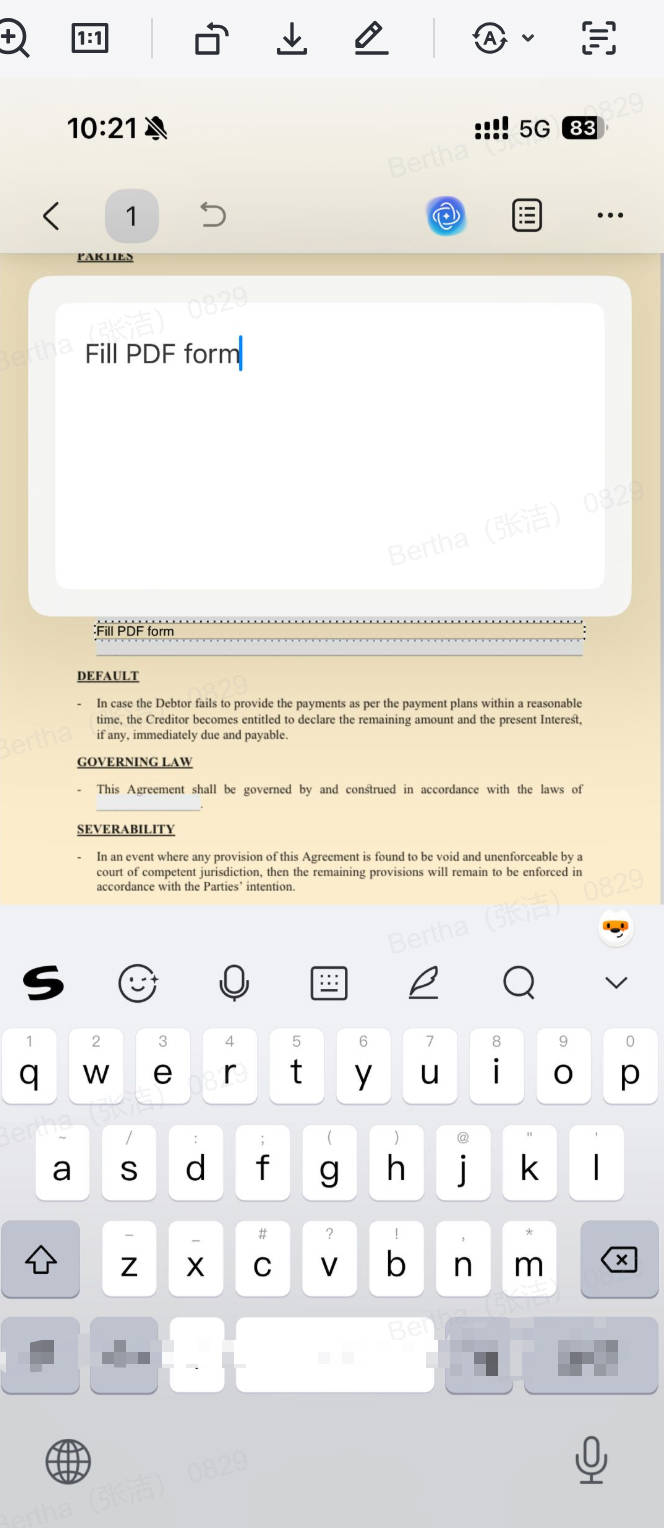
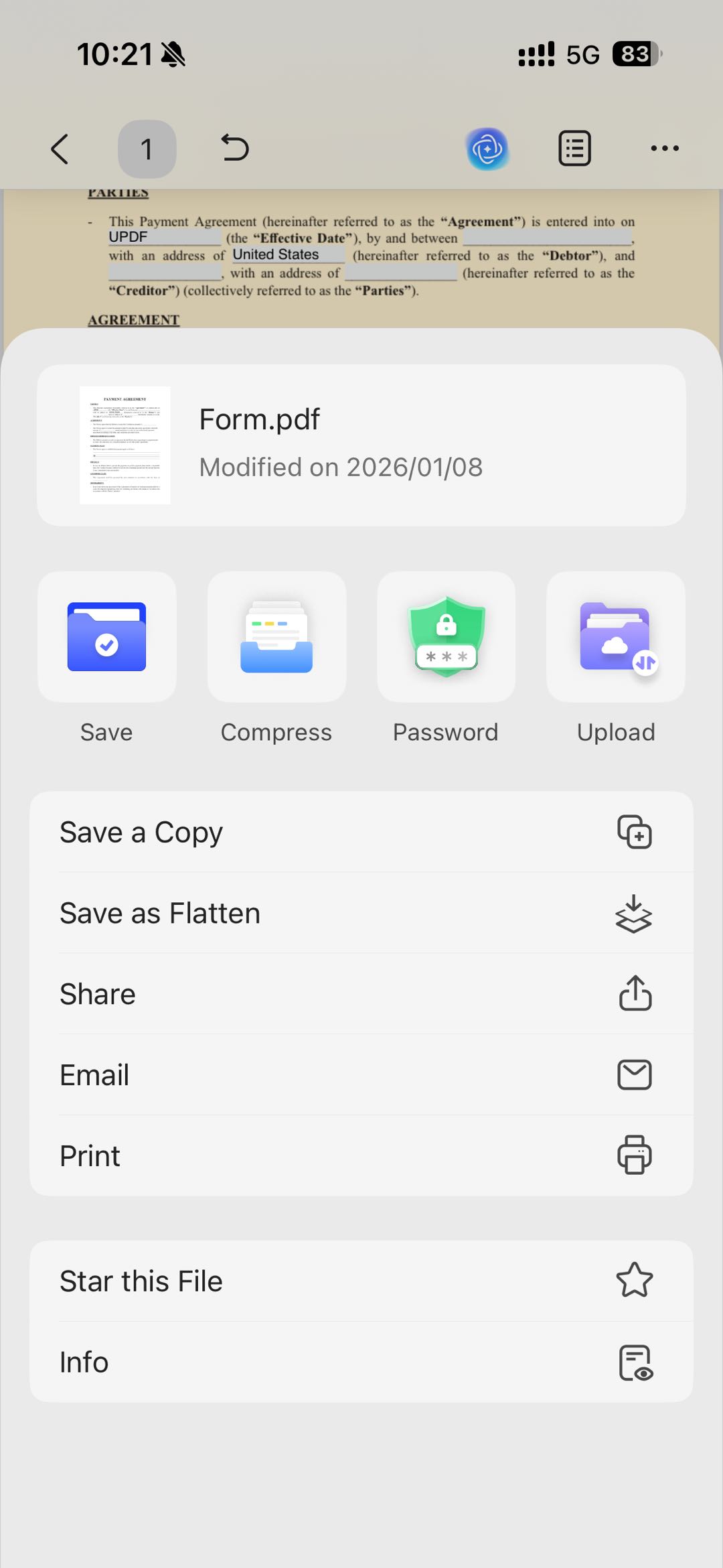
Step 5. Tap Save, or share the completed form directly by email, Messages, or a cloud service.
With UPDF for iOS you can complete and return a form without printing, scanning, or moving to a computer. For the full walkthrough across devices, see the pillar guide on how to fill in a PDF form.
Method 5 for iPad: Handwrite Answers and Signatures with Apple Pencil

Some forms are easier to complete by hand — a printed form scanned to PDF, a signature line, a checkbox you'd rather tick with a stroke of the pen. On an iPad, UPDF's Draw tool lets you write straight onto the form with an Apple Pencil or your finger, which is the closest thing to filling in paper. This is for writing answers by hand on the form itself, not for marking up or reviewing a document — for that, see how to annotate a PDF on iPad.
Step 1. Open the form in UPDF for iPad and tap the Draw icon on the toolbar.
Step 2. Choose the pen (a marker and highlighter are also available), then set the color and thickness. Optionally enable Smart Brush so freehand strokes snap into clean straight lines.
Step 3. Write directly on the form with your Apple Pencil or finger — filling blanks, ticking boxes, or signing. Use the eraser to remove any stroke.
Step 4. Tap Save to keep your handwritten entries.
Handwriting sits on top of the page like ink, so it works on any form — including flat scans with no fields at all. If you need typed, aligned entries instead, use the Fill & Sign steps in Method 4.
Comparison of the Methods
| Method | Works on | Best for | Limitation |
|---|---|---|---|
| Type into fields (+ Form Field Recognition) | Interactive forms; flat forms with structure | Real fields, or scanned/exported forms with clear blanks | Recognition can miss unusual or crowded layouts |
| Add a field by hand | Any form | A precise spot with no field, kept as form data | Manual placement, one field at a time |
| Write text in Edit mode | Any PDF | A value or line where no field is needed | Not a fillable field; won't export as form data |
| iPhone (Fill & Sign) | Interactive and flat forms on iOS | Filling a form on the go from email | Adds elements rather than editing underlying fields |
| iPad (Draw, Apple Pencil) | Any form, including flat scans | Handwriting answers or signing by hand | Handwritten ink, not typed or aligned text |
All methods are available in the free version of UPDF. You can open, fill, and edit forms without paying — exported or saved files carry a trial watermark until you upgrade to Pro. Current individual pricing is US$49.99/year or US$79.99 for a lifetime license; verify the latest on the official pricing page.
Edge Cases and Troubleshooting
"I'm in the right mode but the highlighted field won't accept my typing." If a field is outlined but ignores input, it may be set to read-only, or you may still be in Form editing mode where clicks select the field instead of filling it. Close the Form menu, switch to Comment or Reader mode, and click into the field again.
"Form Field Recognition didn't catch every blank." Recognition works best on clean, structured layouts. For the blanks it missed, add each one manually with the Text Field tool (Method 2).
"The form won't let me type — it looks locked." The PDF may carry security or permission restrictions that block editing. You'll need permission to edit the file before you can write on it; only remove restrictions on forms you're authorized to change.
"My typed text disappeared after I closed the file." Make sure you clicked Save (or Save As) before closing. On the free version, saved files include a trial watermark — the text is still there.
"I filled it on iPhone but the recipient sees blank fields." Some basic viewers don't render form-field data. Save or export a flattened copy so your entries become part of the page, then send that version.
FAQ
1. Can you write on a PDF form for free?
Yes. UPDF's free version opens, fills, and edits forms on Windows, Mac, and iOS. Saved or exported files carry a trial watermark until you upgrade.
2. How do I write on a scanned PDF form?
A scan is a flat image. The quickest route is to open it in UPDF and use Edit mode to type text directly onto the page. If you also need the scanned text to be selectable or searchable, run OCR first to recognize the text, then add your entries.
3. Can I add a signature when writing on a PDF form?
Yes. On desktop, add a Digital Signature field from the Form tools with UPDF; on iPhone, use Fill & Sign to place a handwritten or scanned signature.
4. Does writing on a PDF form change the original text?
Filling fields and adding fields leave the original content untouched. Writing in Edit mode adds new text to the page but doesn't alter the existing text unless you edit that text directly.
Conclusion
Writing on a PDF form comes down to matching the method to the form: type into fields when they exist (and run Form Field Recognition when they don't), add a field by hand for a missing spot, and use Edit mode to write text straight onto the page. On mobile you can fill a form from your iPhone inbox or handwrite answers on an iPad with an Apple Pencil. UPDF covers all of it in one app across Windows, Mac, iPhone, and iPad, so you don't switch tools as the form changes.
Download UPDF for free to try writing on your own form — installation is free, and Pro features are available when you need watermark-free export or advanced tools.
Windows • macOS • iOS • Android 100% secure






 Engelbert White
  Lizzy Lozano
 高美季子
高美季子 
 Enid Brown