 UPDF
UPDF
 UPDF for Windows
 UPDF for Mac
 UPDF for iPhone/iPad
 UPDF for Android
 Nomostar
 UPDF AI Online
 UPDF Sign
 IvyCraft
 Edit PDF
 Annotate PDF
 Create PDF
 PDF Form
 Edit links
 Convert PDF
 OCR
OCR PDF to Word
 PDF to Image
 PDF to Excel
 Organize PDF
 Merge PDF
 Split PDF
 Crop PDF
 Rotate PDF
 Protect PDF
 Sign PDF
 Redact PDF
 Sanitize PDF
 Remove Security
 Read PDF
 UPDF Cloud
 Compress PDF
 Print PDF
 Batch Process
 About UPDF AI
 UPDF AI Solutions
 AI User Guide
 FAQ about UPDF AI
 Summarize PDF
 Translate PDF
 Chat with PDF
 Chat with AI
 Chat with image
 PDF to Mind Map
 Explain PDF
 PDF AI Tools
 Image AI Tools
 AI Chat Tools
 AI Writing Tools
 AI Study Tools
 AI Working Tools
 Other AI Tools
 AI Bookmark Generation
 AI Bookmark Summary
 AI Watermark Generation
 AI Background Generation
 AI Sticker Generation
 AI Stamp Generation
 AI Editing Suite
 UPDF Copilot
 AI Page Management
 AI Semantic Search
 PDF to Word
 PDF to Excel
 PDF to PowerPoint
 Enterprise Solution
 Enterprise Sign
 Enterprise AI
 Enterprise Plan
 Enterprise User Guide
 Enterprise Webinar
 Banking
 Healthcare
 Insurance
 Legal
Legal Manufacturing
 Government
 Education Solution
 Customer Stories
 User Guide
 UPDF Tricks
 FAQs
FAQs UPDF Reviews
 Download Center
 Blog
Blog Newsroom
 Tech Spec
 Updates
 UPDF vs. Adobe Acrobat
 UPDF vs. Foxit
 UPDF vs. PDF Expert

You edit a report on your work PC, then need it on your home laptop or phone — without emailing it to yourself every time. Keeping files in sync across devices solves that, and Windows gives you several built-in and third-party options to do it.
This guide covers 4 ways to sync files on Windows 10 and 11: the built-in Sync Center for local networks, OneDrive and Google Drive for cloud syncing, and UPDF Cloud for keeping PDFs synced across Windows, Mac, iOS, and Android.
Windows • macOS • iOS • Android 100% secure
Part 1. How to Sync Folders/Files on Windows 11/10 Via Sync Center
Sync Center is a built-in Windows tool for keeping files in sync between your PC and a network-shared folder. It works even when the server is slow or your internet is offline, which makes it useful inside an office or home network. Note that Sync Center is a legacy feature — Microsoft now steers users toward cloud syncing — but it still works on Windows 10 and 11. Setting it up can be a little tricky with the following steps below:
Step 1. Open Sync Center.
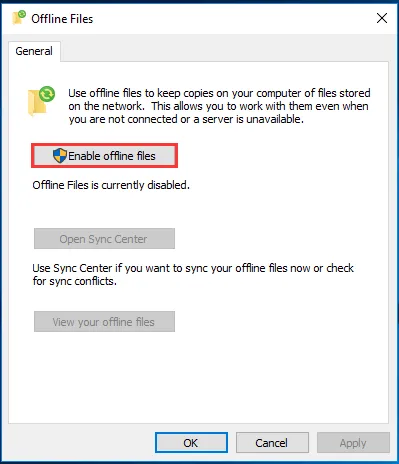
Click the Windows icon in the bottom-left corner of your screen, type "Control Panel," and open it. Search for Sync Center and open it. In the left panel, click Manage offline files, then click Enable offline files (administrator permission required) and click OK.
Step 2. Create a network-shared folder.
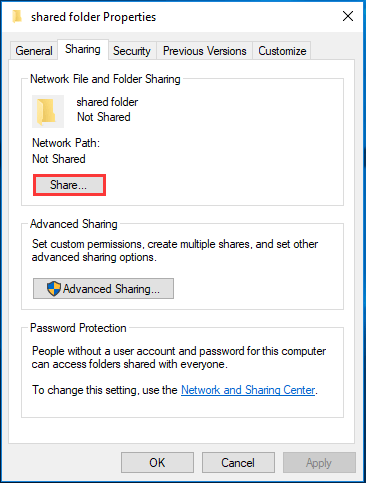
Open the control panel once again and click Network & Internet. Now click Network & Sharing Center and go to Change advanced sharing settings from the left panel. Here you need to turn on the following:
- Network discovery
- File and printer sharing
Click the Save Changes button with an administrator icon at the bottom. Next, right-click the folder's properties to share and go to the Sharing tab. Click Share and add the desired people along with setting permission. Click Share, go to the Sharing tab again, and select Advanced Sharing. You must click Share this folder to check it and click Apply to save your changes.
Step 3. Get the network server IP address.
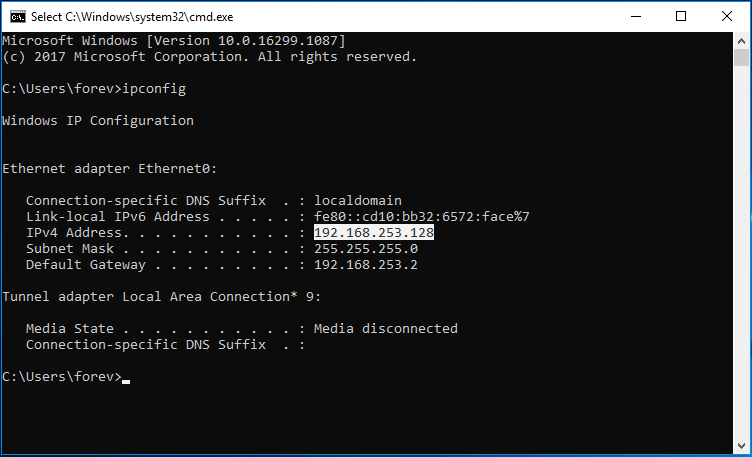
Press Windows key, type "cmd," and hit Enter. Write "ipconfig" in the command prompt and enter. It will show network details from where you need your IPv4 address.
Step 4. Sync the local drive and network drive
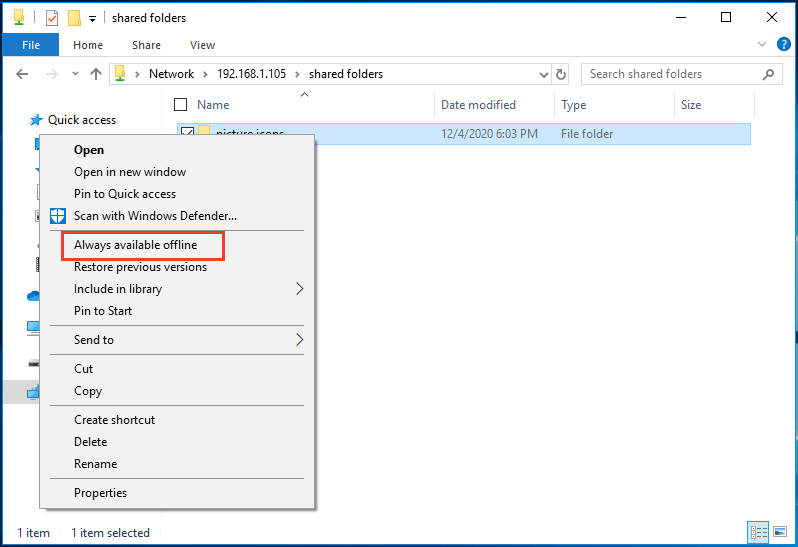
Next, press Windows and R keys together and type "\\network server IP address." Replace network server IP address in the command with the actual IP address and click OK. It will show you the shared folder. Open options by right click and choosing the always available offline option.
With these few steps, you can easily sync files between multiple Windows computers connected to the same local network. The best part is that the files stay accessible even without an internet connection.
Part 2. How to Sync PDF Files Across All Devices with UPDF
The methods above sync everything on your PC, but if the files you move between devices are mostly PDFs — contracts, study notes, reports — UPDF Cloud is the simpler route. Upload a PDF once and it appears in the UPDF app on Windows, Mac, iOS, and Android, all signed in to the same account. There's no folder setup, no network configuration, and no separate cloud app to install.

Because the PDF opens inside UPDF on every device, you can keep working on it rather than just viewing it. If you reopen a long synced document on another device and can't recall the exact wording you need, AI Semantic Search (iOS&desktop supported) surfaces synonyms when you search — so results include not just exact matches but also related terms. And the AI Editing Suite lets you rewrite text, refine tone, or correct grammar directly inside the PDF text boxes, so you can pick up editing where you left off without exporting to Word.
Windows • macOS • iOS • Android 100% secure
Here is the guide about how to sync PDF files on Windows.
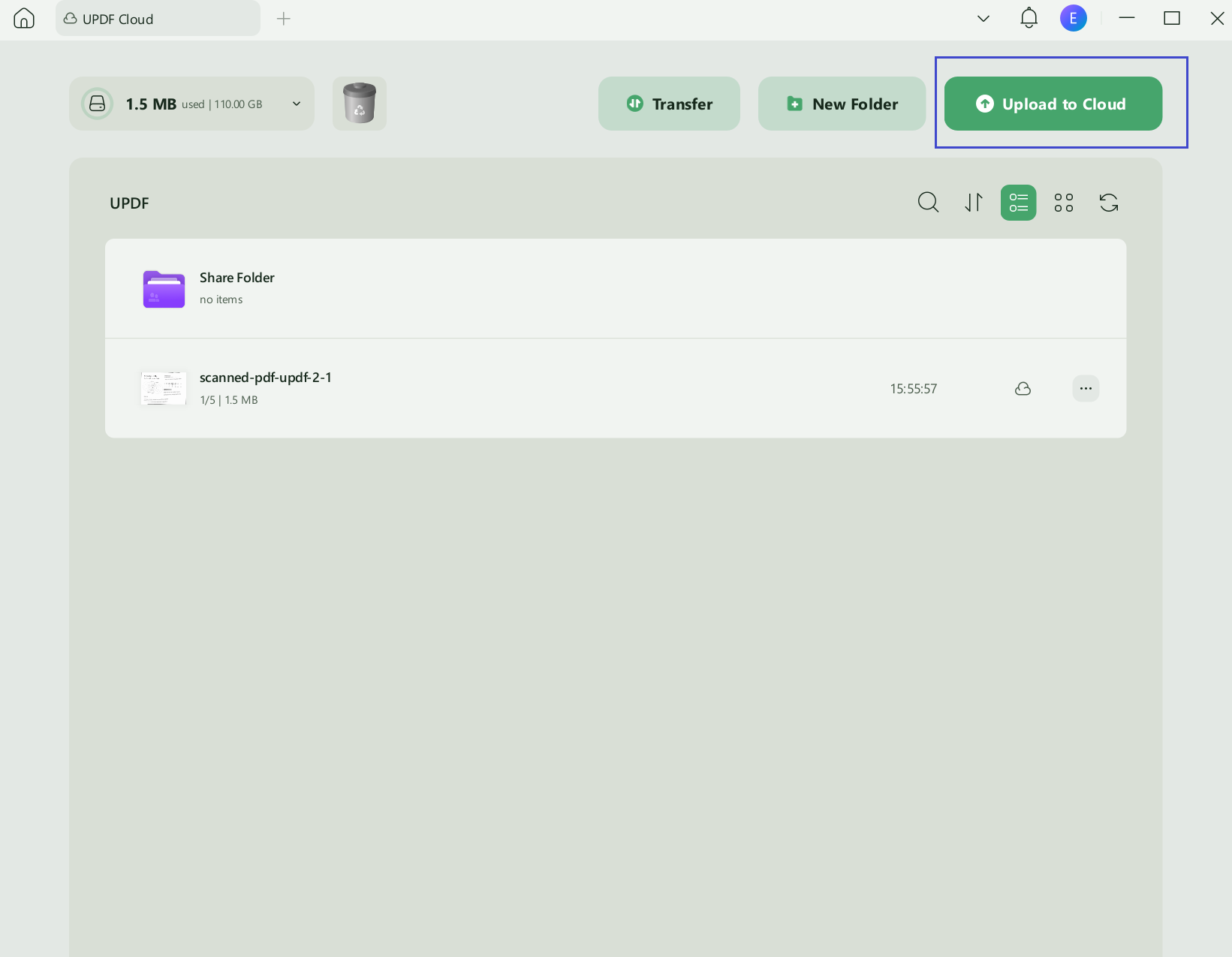
Step 1. Open UPDF on Windows, click “Upload to Cloud”, and choose the PDF file. It is now stored in UPDF Cloud.
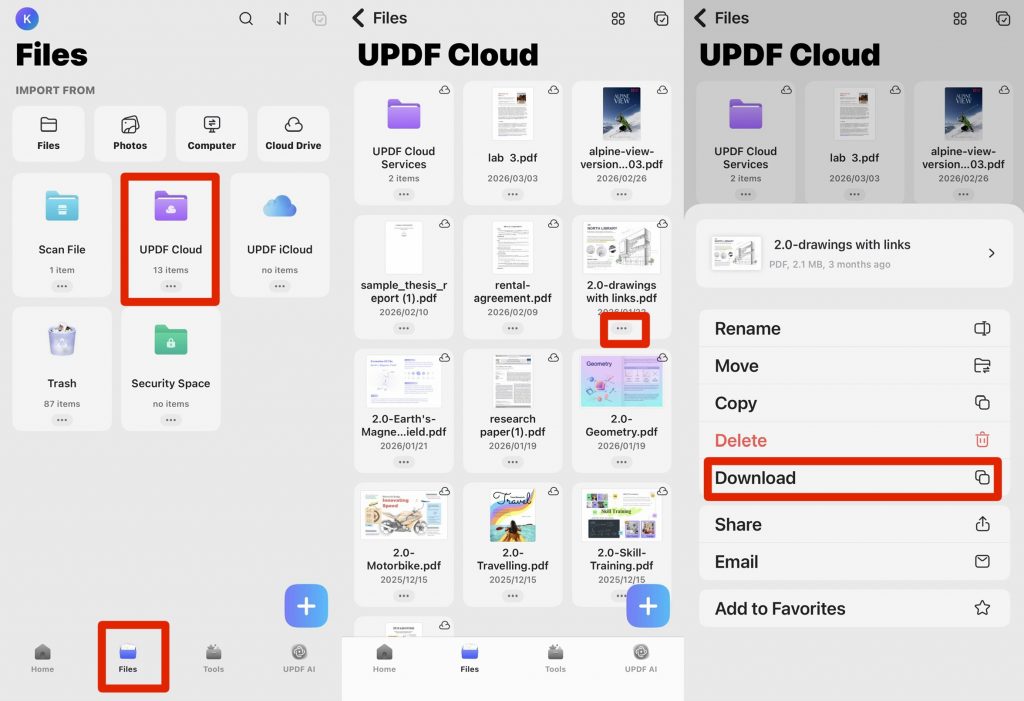
Step 2. Open UPDF on any other device:
- On iOS/Android: Go to Files > UPDF Cloud. Open the file directly, or tap the three-dot menu and select Download.
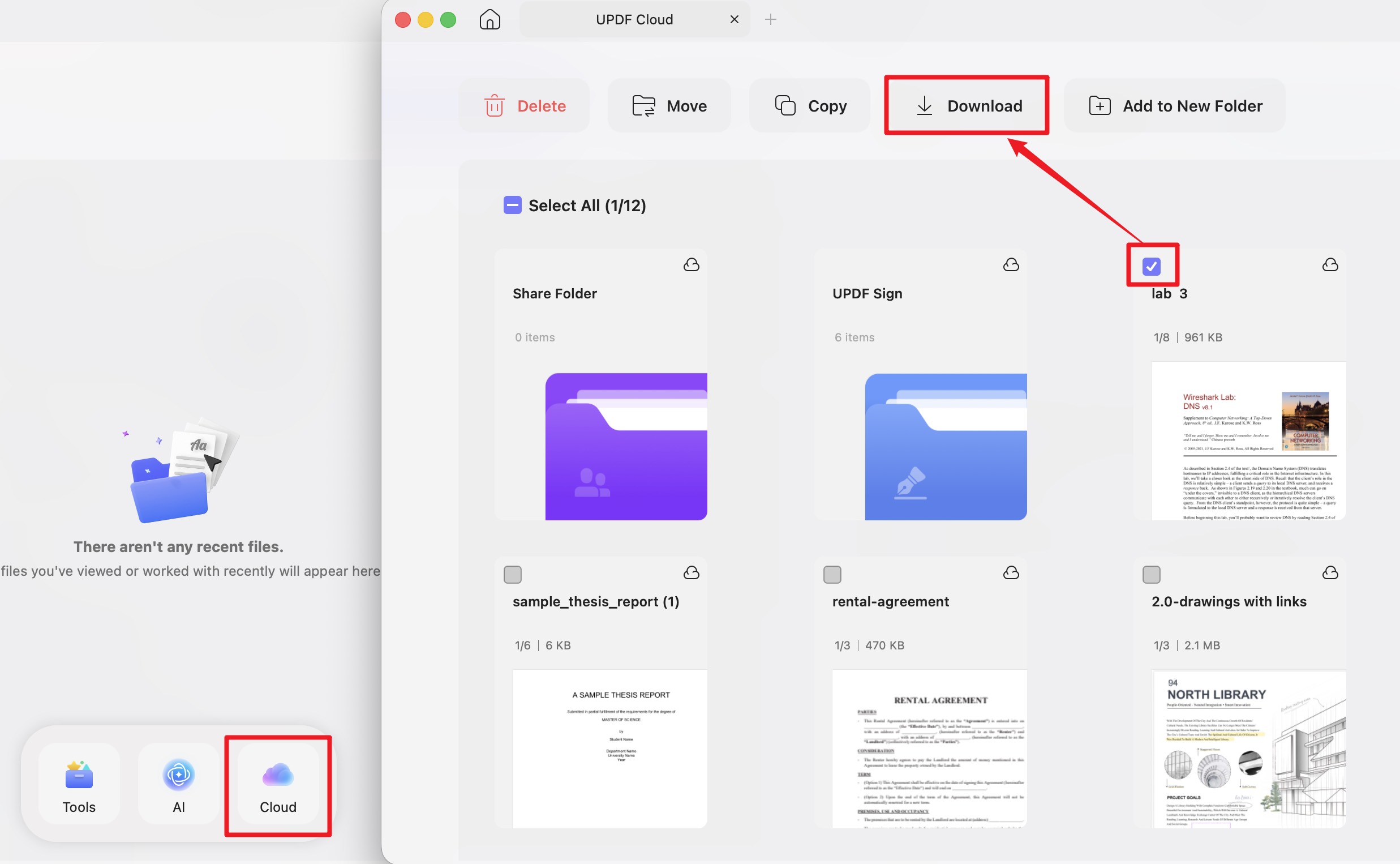
- On Mac: Click on “Cloud” at the bottom. Open the file directly, or tick the checkbox next to the file and select Download.
Note: Free accounts include 1 GB of cloud storage, with a maximum file size of 10 MB per file. For expanded capacity, users may upgrade to UPDF Pro, featuring 10 GB of cloud storage and supporting individual files up to 2 GB.
Windows • macOS • iOS • Android 100% secure
For an outside perspective, see this UPDF review by Geek Vibes Nation or watch the video below.
Part 3. How to Do File Sync on Windows 10/11 Via OneDrive
OneDrive is a Microsoft Application that can help sync the cloud and offline computer files. Hence, you can access those files on any device with an internet connection, whether a computer or a smartphone. Whatever you do on OneDrive from one device, the same effects happen for all other devices to keep you synced.
The best part is that it supports syncing automation. When syncing your files automatically, if the computer ever goes offline, the work is synced again when it gets an internet connection. So, this automated syncing does not require any input from your end.
Step 1. Signup and setup OneDrive
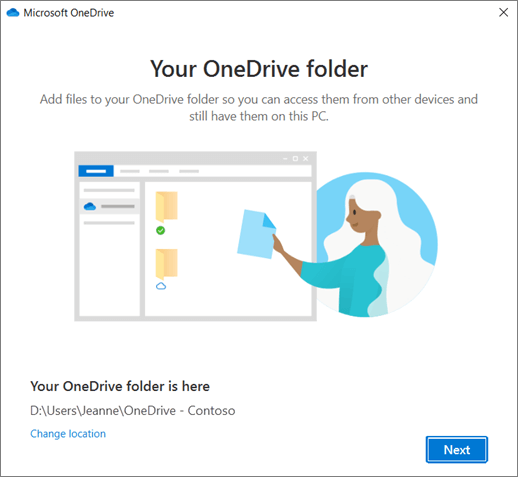
Press Windows key to search for "OneDrive" and click to open it. When the app opens for the first time, you must Sign in to start the setup process. The setup process starts with the "Your OneDrive folder" pop-up screen. It will show you the path to your default OneDrive folder location. Click Change location if you don't want to use the default location (optional). Click Next.
Now another pop-up window will appear. Here you can see all the details about the files and how OneDrive keeps them synced across your devices. Click Next on this screen, and your initial setup process will be complete.
Step 2. Manage your files or folders on OneDrive.
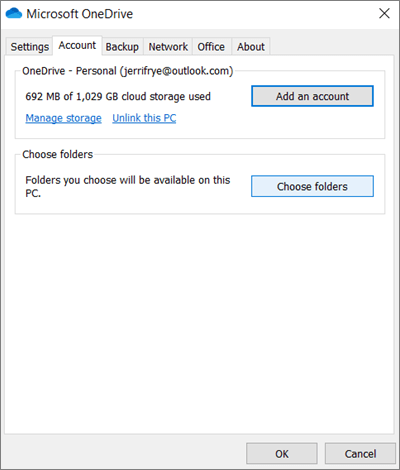
Open File Manager by clicking its taskbar icon. From the left pane, you can locate the OneDrive option. Click it and open the OneDrive folder that comes under your accounts. Whenever you want to add or remove folders to the OneDrive sync option, you can right-click the cloud icon in the taskbar. Now select "Settings”, go to the account tab, and click the "Choose folders" button. Clicking "OK" will save changes, and now the newly added folders will also be synced with OneDrive.
Part 4. How to Sync Windows Folder with Google Drive
Another solution that you can try using is Google Drive. Google provides 15GB of free storage with every Google account that you can use to sync your files across all devices with the help of the cloud. If the 15GB storage is not enough, you can purchase more.
It has multiple benefits, including file syncing across smartphones and other devices like Macs. Additionally, it supports real-time changes across all devices with ease. However, one of the drawbacks of this method is that it works online only, and the internet speed can impact the time files take to upload from one computer before they sync with other devices.
Step 1. Install setup Google Drive App on your PC
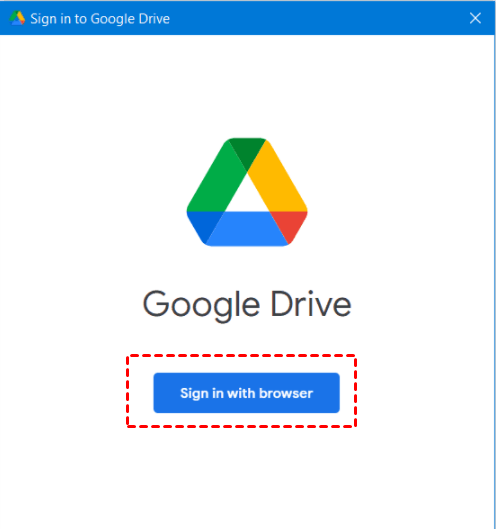
To install and do the initial setup of Google Drive on your pc, visit the Google Drive website and sign in. Click the "Download" button to download the Google Drive app for PC. Run the installer file after the download is complete and finish installation. Now sign into your Google account within the app.
Step 2. Choose folders for syncing with Google Drive.
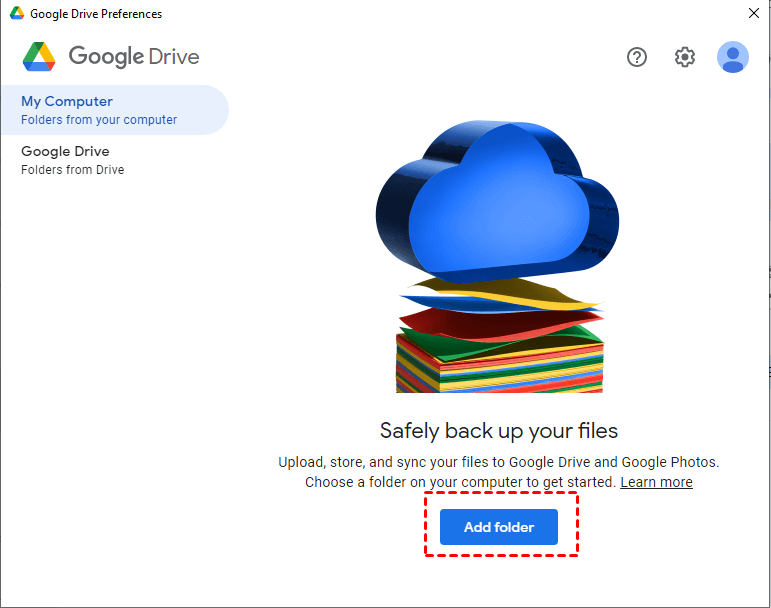
Once the initial setup is complete, click the Add Folder button and choose the folders you want to sync with Google Drive on your PC. Customize your sync settings, such as the location of the Google Drive folder on your PC. Select to sync the folder with Google Drive, and if you don’t want to sync the photos, unselect the second option.
Click Done, and then click Save. Wait for the app to upload your selected folders and files to Google Drive. Once the synchronization is complete, you can access your files and folders from the Google Drive website or through the Google Drive app on your PC.
When you finish these steps, you will see a Google Drive disk in the Disc drives on your local File Manager. So, changing any files or folders in there will be very easy if you want to change them.
Part 5. FAQS About Syncing Files on Windows
With so many questions arising about syncing files across Windows computers, we have listed the top 3 that may help you with your queries.
Q1. Does Windows 10 have built-in file sync?
Yes, Sync Centre is a built-in file synchronization feature in Windows 10. You may sync data between two computers or your computer and a network disc. Additionally, you may sync data with a cloud storage platform like OneDrive using Sync Centre.
Q2. Can I access my synced Windows network files on my iPhone or iPad?
Q3. How do I force sync files to OneDrive?
The easiest way to force sync files to OneDrive is by pausing syncing and resuming syncing. Another easy solution is restarting OneDrive. Doing so will force OneDrive to sync all your files once again, and to ensure that it works, run it as administrator when restarting.
Final Words
Sync Center suits local-network setups, while OneDrive and Google Drive handle general cloud syncing across devices. If the files you move most often are PDFs, UPDF Cloud keeps them synced across Windows, Mac, iOS, and Android in one account.
Download UPDF for free and keep your PDFs synced across every device — no subscription required to get started.
Windows • macOS • iOS • Android 100% secure







 Lizzy Lozano
 Enola Miller
 Enya Moore

 Enola Davis