 UPDF
UPDF
 UPDF for Windows
 UPDF for Mac
 UPDF for iPhone/iPad
 UPDF for Android
 UPDF AI Online
 UPDF Sign
 Edit PDF
 Annotate PDF
 Create PDF
 PDF Form
 Edit links
 Convert PDF
 OCR
OCR PDF to Word
 PDF to Image
 PDF to Excel
 Organize PDF
 Merge PDF
 Split PDF
 Crop PDF
 Rotate PDF
 Protect PDF
 Sign PDF
 Redact PDF
 Sanitize PDF
 Remove Security
 Read PDF
 UPDF Cloud
 Compress PDF
 Print PDF
 Batch Process
 About UPDF AI
 UPDF AI Solutions
 AI User Guide
 FAQ about UPDF AI
 Summarize PDF
 Translate PDF
 Chat with PDF
 Chat with AI
 Chat with image
 PDF to Mind Map
 Explain PDF
 PDF AI Tools
 Image AI Tools
 AI Chat Tools
 AI Writing Tools
 AI Study Tools
 AI Working Tools
 Other AI Tools
 AI Bookmark Generation
 AI Bookmark Summary
 AI Watermark Generation
 AI Background Generation
 AI Sticker Generation
 AI Stamp Generation
 AI Editing Suite
 UPDF Copilot
 AI Page Management
 AI Semantic Search
 PDF to Word
 PDF to Excel
 PDF to PowerPoint
 Enterprise Solution
 Enterprise Sign
 Enterprise AI
 Enterprise Plan
 Enterprise User Guide
 Enterprise Webinar
 Banking
 Healthcare
 Insurance
 Legal
Legal Manufacturing
 Government
 Education Solution
 Customer Stories
 User Guide
 UPDF Tricks
 FAQs
FAQs UPDF Reviews
 Download Center
 Blog
Blog Newsroom
 Tech Spec
 Updates
 UPDF vs. Adobe Acrobat
 UPDF vs. Foxit
 UPDF vs. PDF Expert

For architects, engineers, and design professionals, knowing the exact dimensions of objects within a PDF is crucial. Whether you're verifying CAD drawings, reviewing architectural blueprints, or checking print margins, a reliable PDF measuring tool saves time and eliminates guesswork.
In this article, we'll compare the top 7 PDF measurement tools available in 2026. We will explore how these tools help you accurately measure distance, perimeter, and area, while also introducing modern smart ecosystems to automate your document workflow.
Top 7 PDF Measuring Tools to Measure in PDF
Let’s dive into the top tools and compare their features to help you choose the best one for your specific needs. Let's analyze the features of all the best measuring tools available in the market to choose the best one for your needs.
1. UPDF - No1. PDF Measurement Tool (Available in Win & Mac & iOS Versions)
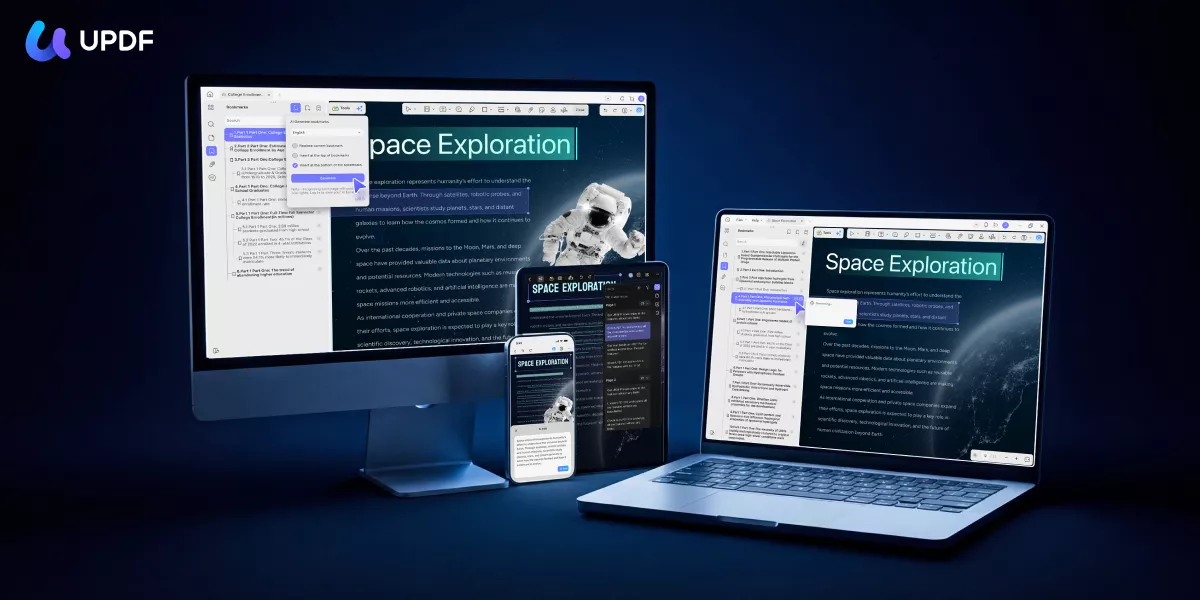
UPDF stands out as not just a highly accurate PDF measuring tool, but a complete intelligent document ecosystem available on Windows, Mac, iOS, and Android. It provides a dedicated set of measurement features tailored for technical precision:
- Distance, Perimeter, and Area: Easily measure the distance between two points, calculate the perimeter of a shape, or determine the total area of floor plans.
- Custom Scale Ratio: Calibrate the scale ratio to match real-world dimensions perfectly, ensuring your CAD or architectural PDF data is 100% accurate.
- Detailed Properties Panel: Access a dedicated tool panel displaying Angle, X, Y coordinates, and Scale Ratio. You can customize the color, opacity, and thickness of your measurement markups for better visibility.
How to Measure in UPDF:
- Open your document in UPDF.
Windows • macOS • iOS • Android 100% secure
Measure Distance
- Enter the "Comment" mode by clicking on the "Tools" button and select "Comment", then choose "Distance Too", select "Distance Tool", "Perimeter Tool", or "Area Tool" per your needs from the drop-down arrow.
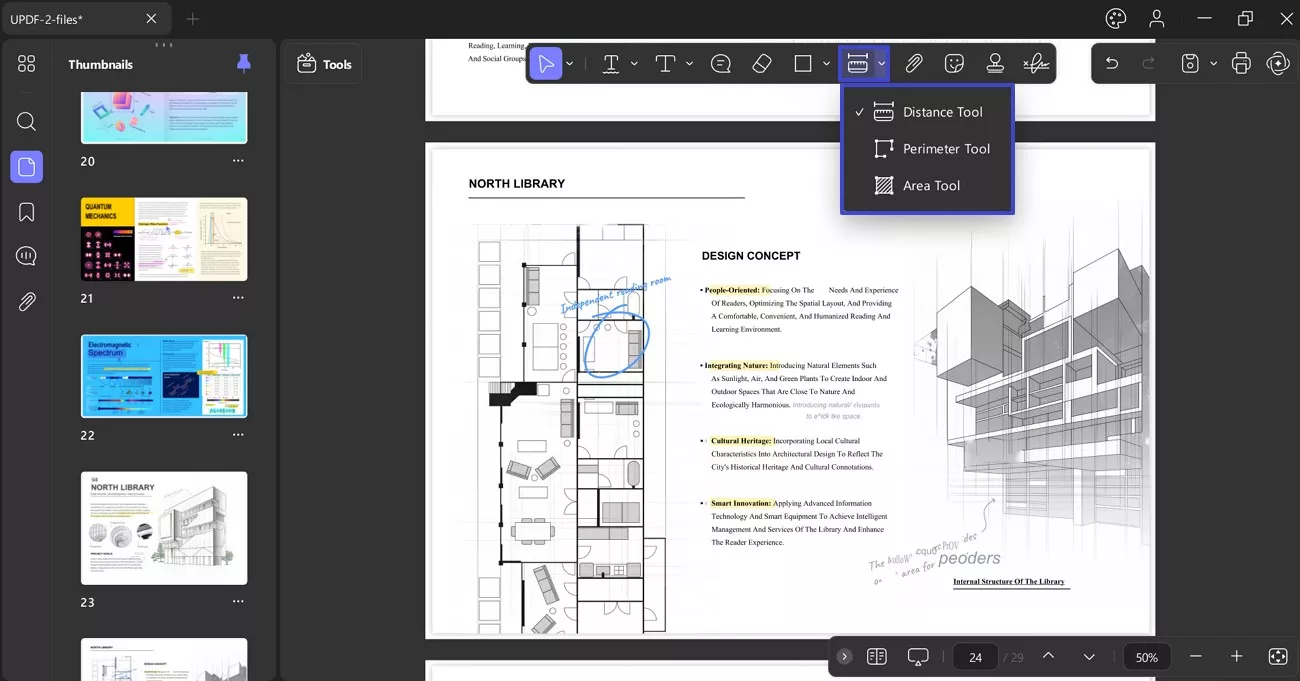
- For instance, if you want to measure the distance, you can click on "Distance Tool", and place your mouse on the start point and the end point.
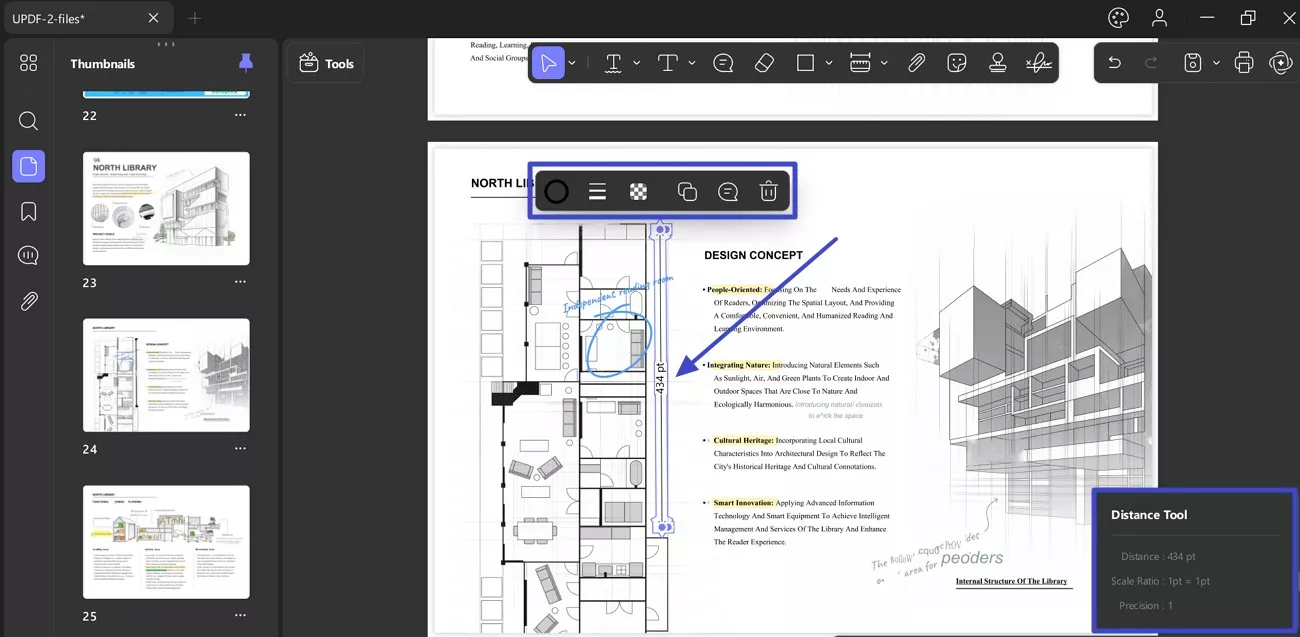
- Once done, double-click to end the process. Now, you can see the distance result. You can change its properties by double-clicking on it.
Measure Area
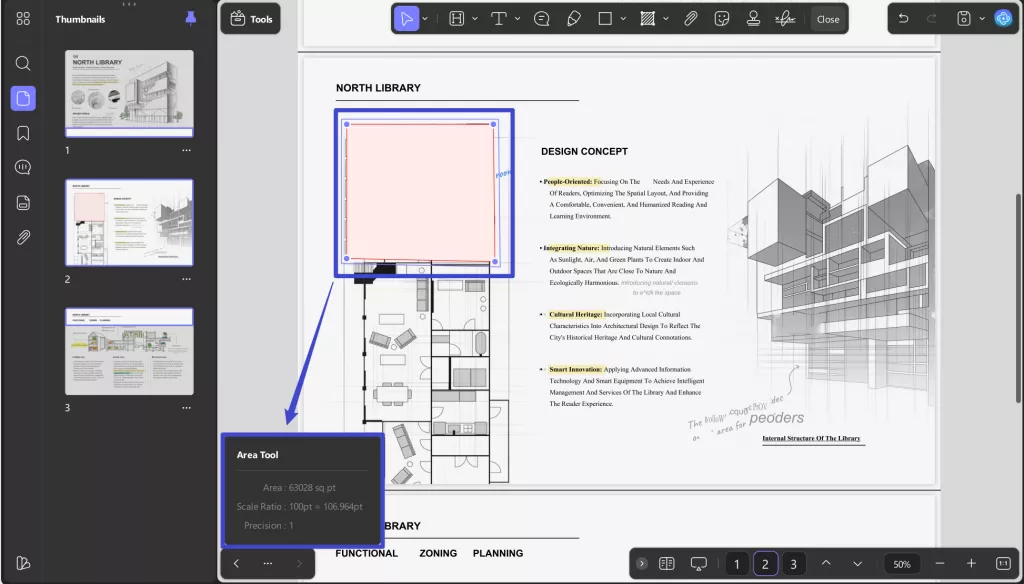
- Follow the same steps above and choose "Area Tool". Then mark the area you want to measure and end by double-click. Now you can see the area result.
To have a detailed guide, you can read this post: How to Measure PDF Documents Online and Offline Quickly in 3 Ways.
Except as a PDF measurement software, you can also use UPDF as a PDF editor and AI tool. Here are some key features it offers:
- UPDF AI not only helps summarize and translate PDFs, but also check grammar and search academic papers.
- PDF editing features allow you to edit existing text, images, and links or add new ones.
- PDF annotating features can allow you to highlight, draw, add stickers, add stamps, and more to PDF files.
- Compressing, protecting, and sharing PDF files.
- OCR PDF can convert your image or scanned PDF into an editable format.
Beyond Measurement: The V2.5 AI Upgrade
While its measuring capabilities are top-tier, UPDF transforms your entire workflow with its recent V2.5 update, deploying a workforce of 10 Autonomous AI Agents, such as AI-generated backgrounds, stamps, and stickers. It can also recognize bookmarks and automatically summarize the content of bookmarked pages. For more details, please check the video below:
UPDF is free to download and test (exported files include a trial watermark). The integrated UPDF AI also provides up to 100 free uses to let you experience the smart features firsthand. Currently, users can secure a $10 discount on the premium version, valid through May 7, 2026.
Windows • macOS • iOS • Android 100% secure
2. Adobe PDF Measuring Tool (Windows and Mac)
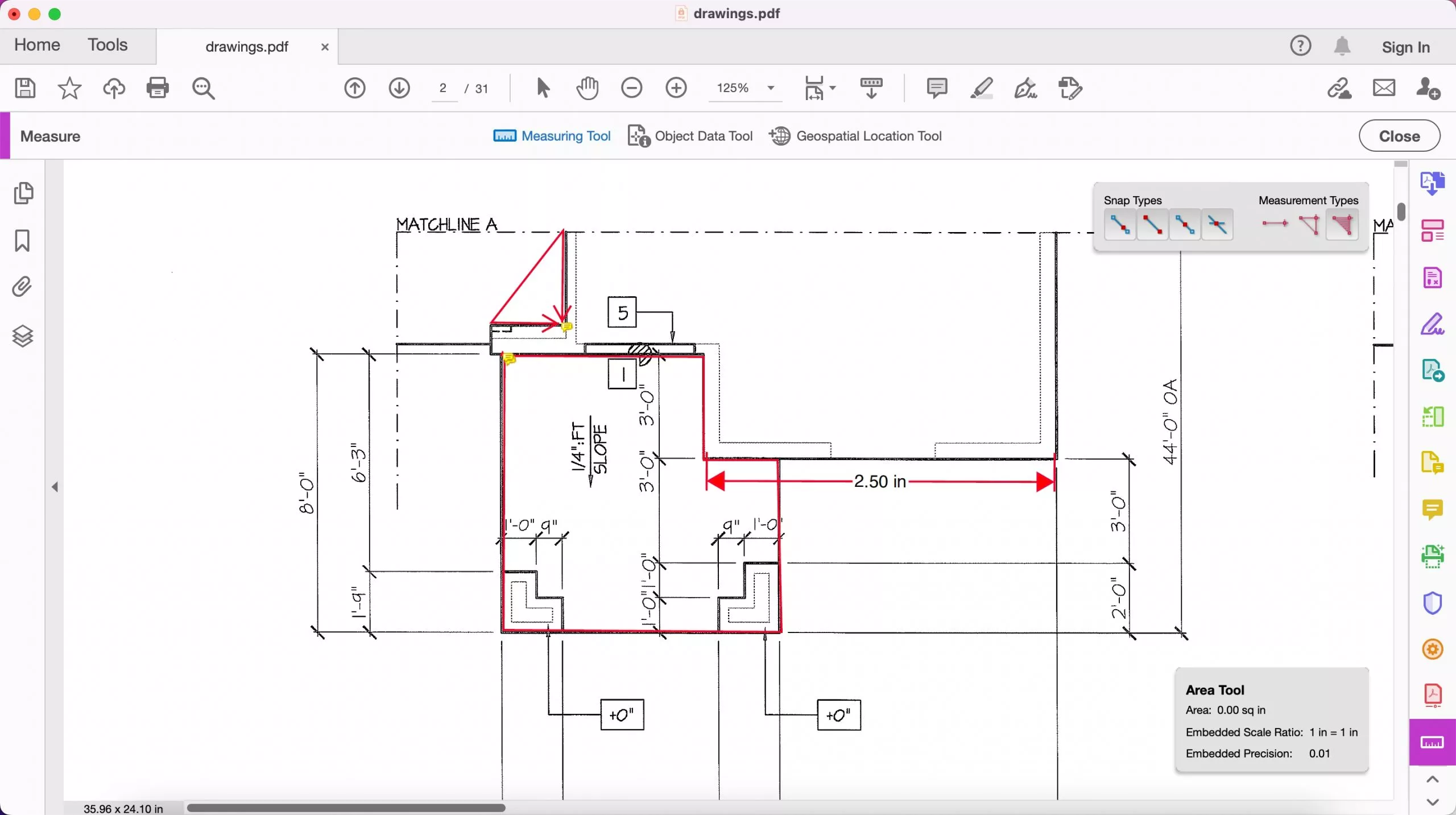
Adobe Acrobat is one of the most trusted PDF managers in the world, allowing you to handle all PDF-related tasks with ease. It also has a pdf measuring tool to help art students measure the dimensions of their artworks present in PDF format. Moreover, you can also change the scaling ratio of the measurements on the drawings.
All you need to do is access the "Measure" tool from the "Tools". Afterward, you can select the "Measuring Tool" option to choose measurement types and snap types from the newly appeared menu. These measurement types in the Adobe Acrobat measure tool will help you determine the distance, parameter, and area of the objects in the PDF.
- Pros: Highly trusted, robust snapping features, precise dimensioning.
- Cons: Expensive monthly subscription; no freemium version to test the measurement tool without a trial sign-up.
3. Cisdem PDF Measure Tool (Windows and Mac)
Cisdem is one of the best PDF measuring tools on Windows and Mac devices, helping users deal with PDF-related problems without issues. It provides you with a measuring tool to work with digital drawing in a better manner. Additionally, users have the option to customize the scale of measurement units. With the help of this PDF measuring software, you can measure the distance, the rectangle area, and the arc in the PDF drawings.
You just have to add the PDF on this tool and access the "Measurement" tool in the "Comment" tab. Afterward, you can select one from distance, parameter, and area measurement options to apply the function. Once you add the scale for your measurements, click anywhere in the PDF to start adding the measurement to the document.

- Pros: Easy to use, good for basic measurements.
- Cons: Advanced features are often missing from the Windows version; limited editing suite.
4. SwifDoo PDF Ruler (Windows)
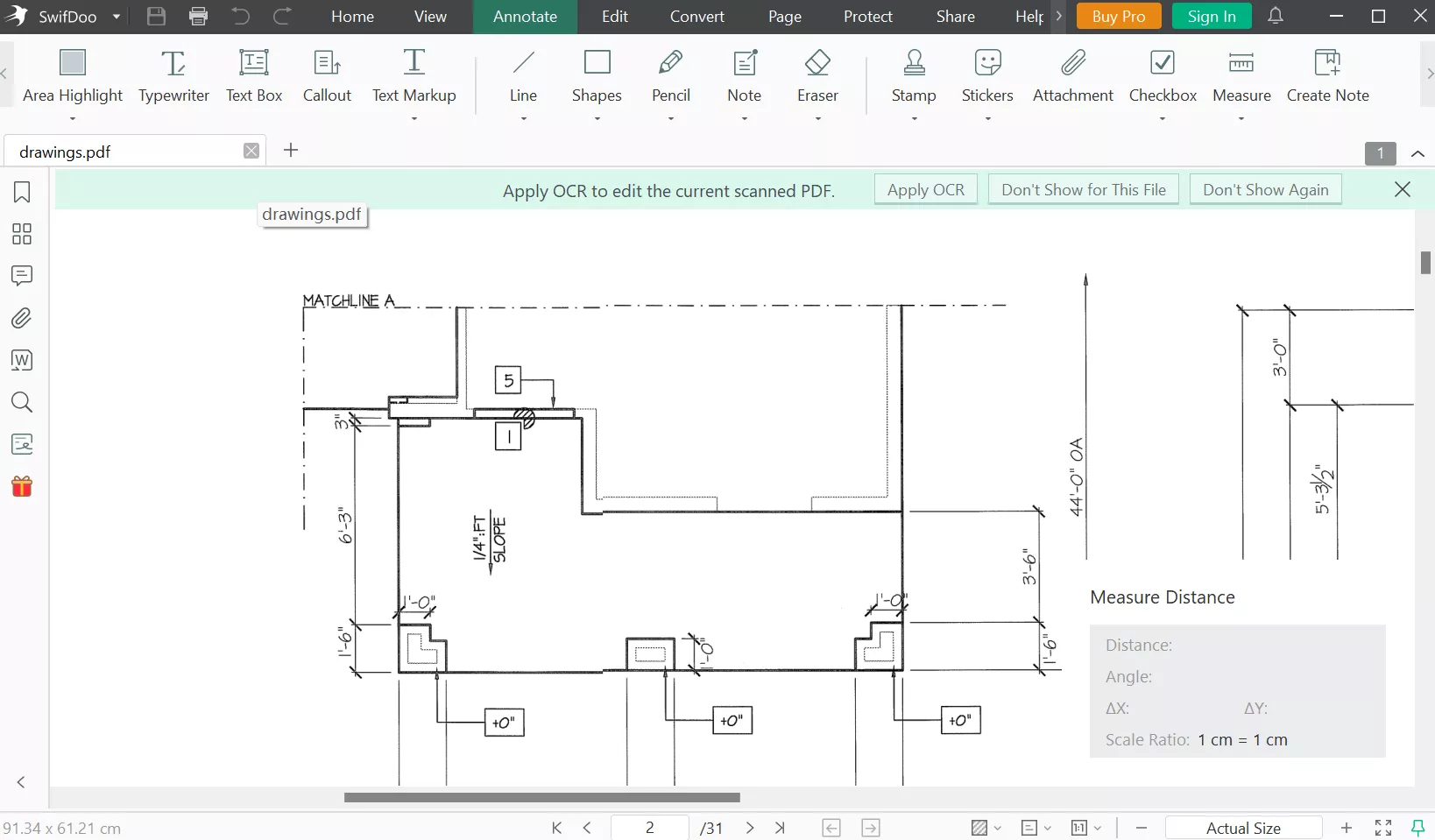
SwifDoo PDF provides an excellent toolset to handle every PDF-related issue, including adding measurements to the designs. The PDF measuring scale of this tool allows users to measure the dimensions within a few clicks. Anyone can estimate the distance, area, and parameters of the objects present in the PDF using this tool. Furthermore, you can also change the color of the added measurement scale with its annotation feature.
To measure dimensions in a PDF document, you first need to upload that document to SwifDoo PDF measurement software. Then, proceed to click on the "Annotate" tab to start adding measurement scales to the PDF. Afterward, hit the "Measure" drop-down icon to choose the desired tool according to your needs. Finally, start adding the dimensions to your designs using this tool.
- Pros: Intuitive interface, fast processing on Windows.
- Cons: No Mac or mobile versions available.
5. Preview - Free PDF Measuring Tool (Mac)
Preview is an in-built PDF tool available on Mac devices, allowing you to handle PDF in an efficient manner. It is a free PDF measuring tool that helps users add dimensions to their PDFs. Moreover, anyone can measure distance using this tool by simply drawing the measuring unit you like. You can choose a measurement unit and see the dimensions of the media box using this tool.
If you want to take advantage of the PDF measuring tool, simply open the PDF document in the Preview app. Afterward, you can access the "Tool" tab and proceed to click on the "Show Inspector" feature. Following this, drag your mouse cursor to measure the dimensions in your PDF.

- Pros: Completely free, pre-installed on Mac.
- Cons: Lacks advanced calibration and area/perimeter mapping; no Windows version.
6. FoxyUtils - PDF Measuring Tool Online
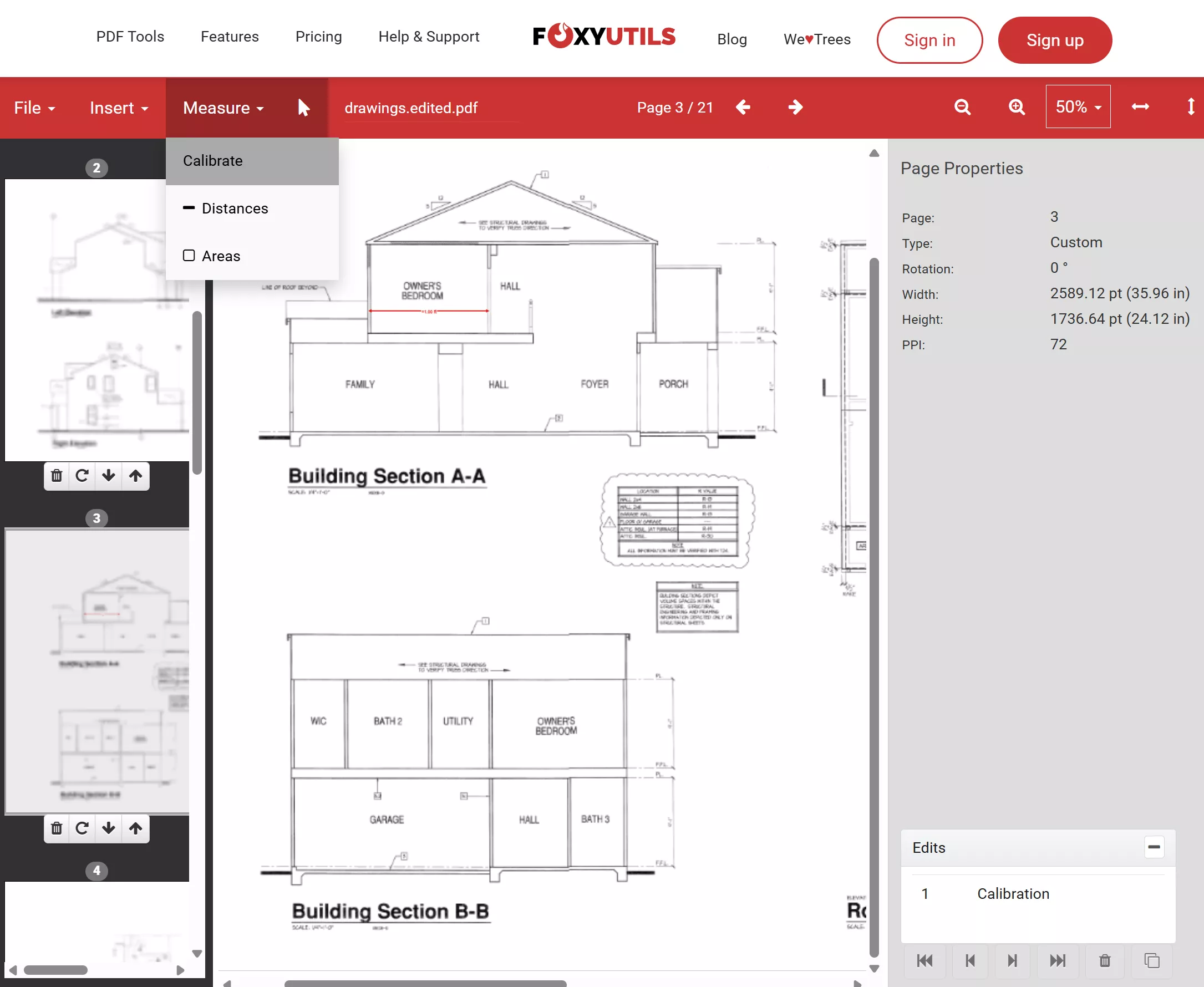
FoxyUtils has a collection of simple-to-use online tools to manage PDF documents with just a few clicks. Users can make use of this online best free PDF measuring software to conveniently measure the objects and images in the PDF. In addition, you can set the scaling settings to optimize the measurements added to the document. With the help of the "Measure PDF" feature, anyone can add dimensions to their PDF document.
All you have to do is first calibrate the document scaling with a known measurement unit. Proceed to enter the "Measure" tab and click on the "Distance" feature to begin the process. Now, drag the cursor and release the button to add length measurements. Moreover, you can use the "Areas" feature to calculate the selection area.
- Pros: Accessible from any web browser, no installation required.
- Cons: Requires an internet connection; processing can be slow with large architectural files.
7. PDF Expert - Mac/iPhone/iPad PDF Measure Tool
PDF Expert is a go-to PDF tool for iPhone, iPad, and Mac users, helping them annotate and edit files effectively. This PDF measurement software can automatically detect the scaling of your drawing to help you measure the dimensions of the design. The measurement process is as easy as adding a line in the PDF document. You can leave the rest of the job to this PDF tool for distance and area measurement.
To measure distance with the help of this tool, first, you need to upload a PDF document. Once the document is uploaded, select the "Measure" tab and then click on the "Calibrate" tool to let the tool add scaling. Afterward, you can choose the "Distance" or "Area" options to measure these parameters with the help of this PDF tool.

- Pros: Automatic scaling detection, seamless Apple ecosystem integration.
- Cons: Not available on Windows; premium pricing model.
Comparison Chart of the 7 PDF Measuring Tools
After going through all the features of these tools, you now have a clear idea about their work. All this information will help you choose the best PDF measuring tool for your needs. If you still haven't picked the most appropriate tool for you, analyze this comparison table to facilitate the selection.
| PDF Measuring Tool | Availability | Pros | Cons | Pricing |
| UPDF | Windows, Mac, iPhone/iPad | You can calibrate the measurement scale by manually entering the actual physical dimensions to ensure that the dimensioning in the software accurately corresponds to the actual physical dimensions. | Although you can use all features in the free version, you will have watermark on the exported pdf. | UPDF Pro: $49.99/Year, $79.99/Lifetime. |
| Adobe Acrobat | Windows, Mac | One of the oldest pdf tools Can also compare old and new pdf files | Pricing plans are not affordable Cannot try features without buying a package | Acrobat Pro: US$19.99 per month Acrobat Standard: US$14.99 per month |
| Cisdem | Windows, Mac | Supports batch processing feature for pdf editing View and edit pdf metadata | Offers limited pdf editing features Most advance features absent from windows | Cisdem PDFMaster: US$49.99 per year |
| SwifDoo PDF | Windows | Simple-to-use interface Affordable pricing | No freemium version available Slow processing speeds | Quarterly Plan: US$16 per month Perpetual Plan: US$96.75 |
| Preview | Mac | Free-to-Use app Diverse annotation features | Only available on macbooks No pdf editing features | Free |
| FoxyUtils | Online | Accessible through any web browser | Cannot work without internet Slow processing | Monthly: US$5.99 Annual: US$35.88 Lifetime: US$99 |
| PDF Expert | Mac, iPhone/iPad | Automatic scaling | Not available on Windows High pricing plans | Yearly Plan: US$79.99 Lifetime Plan: US$139.99 |
Once you go through all the comparison points discussed in this table, you will be able to choose the best PDF measuring software for you. You have to keep the pricing plans and functionality of these tools in mind before making the choice. We highly recommend you to choose UPDF as its price is very cheap and it has many features like UPDF AI, editing PDF, converting PDF, and more. You can download UPDF via the button below to test all its features on your own.
Windows • macOS • iOS • Android 100% secure
FAQs on PDF Measuring Tools
Q1. Is there a PDF measuring tool?
Yes, there are many PDF measurement software available in the market to cater to users' needs. Some of these PDF ruler tools are available offline, while others are online. A few of these tools are only restricted to Mac users, affecting their customer base. However, Adobe Acrobat is one tool that is available on both Windows and Mac to help users add dimensions to their documents.
Q2. What is the free PDF measuring tool?
Preview is a free PDF measuring tool available for Mac users for convenient PDF handling. MacBook users can take advantage of this built-in tool to measure the distance, area, and parameter of the objects present in the PDF. In addition to that, Windows users can take advantage of FoxyUtils online to add dimensions to the documents free of cost.
Q3. What is the best PDF measurement tool?
While Adobe Acrobat is an industry standard, UPDF is highly recommended as the best overall alternative. It offers professional-grade calibration and precise area/distance tools—at a much more cost-effective price point.
Conclusion:
All the PDF measuring tools introduced in this article are good enough to carry out measurement operations. However, most of them lack other PDF editing features to handle documents in routine life. UPDF is the best PDF measurement tool and PDF editor for such a situation with its cost-effective and multi-functional feature to manage PDFs. Download UPDF now to take advantage of this tool to edit, annotate, or convert PDF documents in an effective manner.
Windows • macOS • iOS • Android 100% secure






 Enola Miller
 Engelbert White
 Enya Moore
 Enrica Taylor