 UPDF
UPDF
 UPDF for Windows
 UPDF for Mac
 UPDF for iPhone/iPad
 UPDF for Android
 UPDF AI Online
 UPDF Sign
 Edit PDF
 Annotate PDF
 Create PDF
 PDF Form
 Edit links
 Convert PDF
 OCR
OCR PDF to Word
 PDF to Image
 PDF to Excel
 Organize PDF
 Merge PDF
 Split PDF
 Crop PDF
 Rotate PDF
 Protect PDF
 Sign PDF
 Redact PDF
 Sanitize PDF
 Remove Security
 Read PDF
 UPDF Cloud
 Compress PDF
 Print PDF
 Batch Process
 About UPDF AI
 UPDF AI Solutions
 AI User Guide
 FAQ about UPDF AI
 Summarize PDF
 Translate PDF
 Chat with PDF
 Chat with AI
 Chat with image
 PDF to Mind Map
 Explain PDF
 PDF AI Tools
 Image AI Tools
 AI Chat Tools
 AI Writing Tools
 AI Study Tools
 AI Working Tools
 Other AI Tools
 PDF to Word
 PDF to Excel
 PDF to PowerPoint
 Enterprise Solution
 Enterprise Sign
 Enterprise AI
 Enterprise Plan
 Enterprise User Guide
 Enterprise Webinar
 Banking
 Healthcare
 Insurance
 Legal
Legal Manufacturing
 Government
 Education Solution
 Customer Stories
 User Guide
 UPDF Tricks
 FAQs
FAQs UPDF Reviews
 Download Center
 Blog
Blog Newsroom
 Tech Spec
 Updates
 UPDF vs. Adobe Acrobat
 UPDF vs. Foxit
 UPDF vs. PDF Expert

I have been looking for a universal solution to create PDFs from almost any document I want. There are apps with built-in "Save as PDF" options, while others don't. Plus, I realized that not every tool handles PDF creation the same way. That's how I came across CutePDF Writer.
CutePDF Writer is a free virtual printer that promises to turn almost anything you can print into a PDF. In this guide, I will share my hands-on experience with CutePDF Writer, what it does well, where it falls short, and more. Plus, I will discuss how I found UPDF an even better alternative to CutePDF to handle PDFs, especially editing, annotating, organizing, reading, and more.
Windows • macOS • iOS • Android 100% secure
Part 1. What is CutePDF Writer?
CutePDF Writer is an app that serves as a virtual printer within your Windows computer and lets you save any document in a PDF format. This helps preserve the content and formatting of documents and makes them readable on any device due to the universal compatibility of PDF files. For example, professors can create printer-friendly versions of lectures and other course materials.
CutePDF Writer at a Glance
| Category | Details |
| Developer | Acro Software (PDF and E-Forms Specialist) |
| Developer Philosophy | Provide easy and affordable PDF utilities and solutions for everyday users and developers. |
| Core Features | PDF creation40-bit, 128-bit, 256-bit encryption Rearrange pages Email PDFs Combine PDF files Headers and Footers These features are powered through the CutePDF Editor. |
| Price | Free |
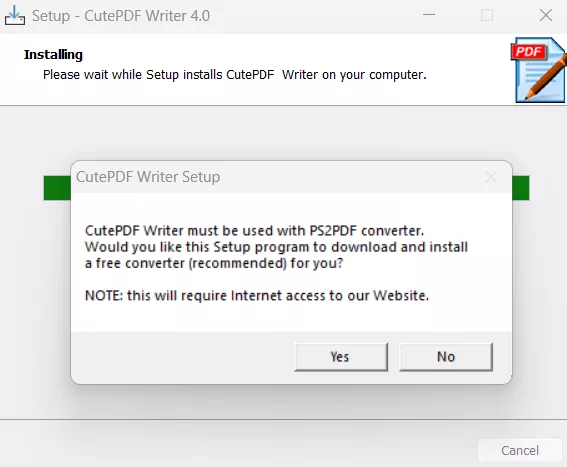
| Supported Devices | Microsoft Windows Vista/7/8/8.1/10/11 (32-bit/64-bit) Microsoft Windows Server 2008/2012/2016/2019/2022/2026 You must have the PS2PDF converter installed for CutePDF to work correctly. |
| Other Supporting Products | CutePDF Professional: PDF utility to combine PDF files, edit forms, add headers/footers, secure PDFs, scan, digital signature, and more. CutePDF Converter: Converts documents to PDFs, even with encryption. CutePDF Editor: A cloud-based PDF app to edit PDFs, such as organizing pages, adding passwords, combining PDFs, converting scanned images to PDF, etc. |
Part 2. Can I use CutePDF Writer Online?
No, CutePDF Writer is a virtual printing software you can download on your Windows PCs. It creates PDFs from almost any application and does not require an internet connection for use.
Acro Software does offer a browser-based PDF tool called CutePDF Editor, which does require an internet connection to use. This online editor lets you:
- Combine files
- Crop, organize, delete, extract, rotate, replace, overlap, and resize pages
- Add header and footer
- Encrypt PDFs
- Insert blank page
- Typewriter
- Prepare form
- Add comments
- Add stamps
- Add image
- Add watermark
- Booklet
- N-up imposition
- Bookmarks
- Merge PDF forms
- Organize pages
- Delete pages
- Convert scanned images to PDF
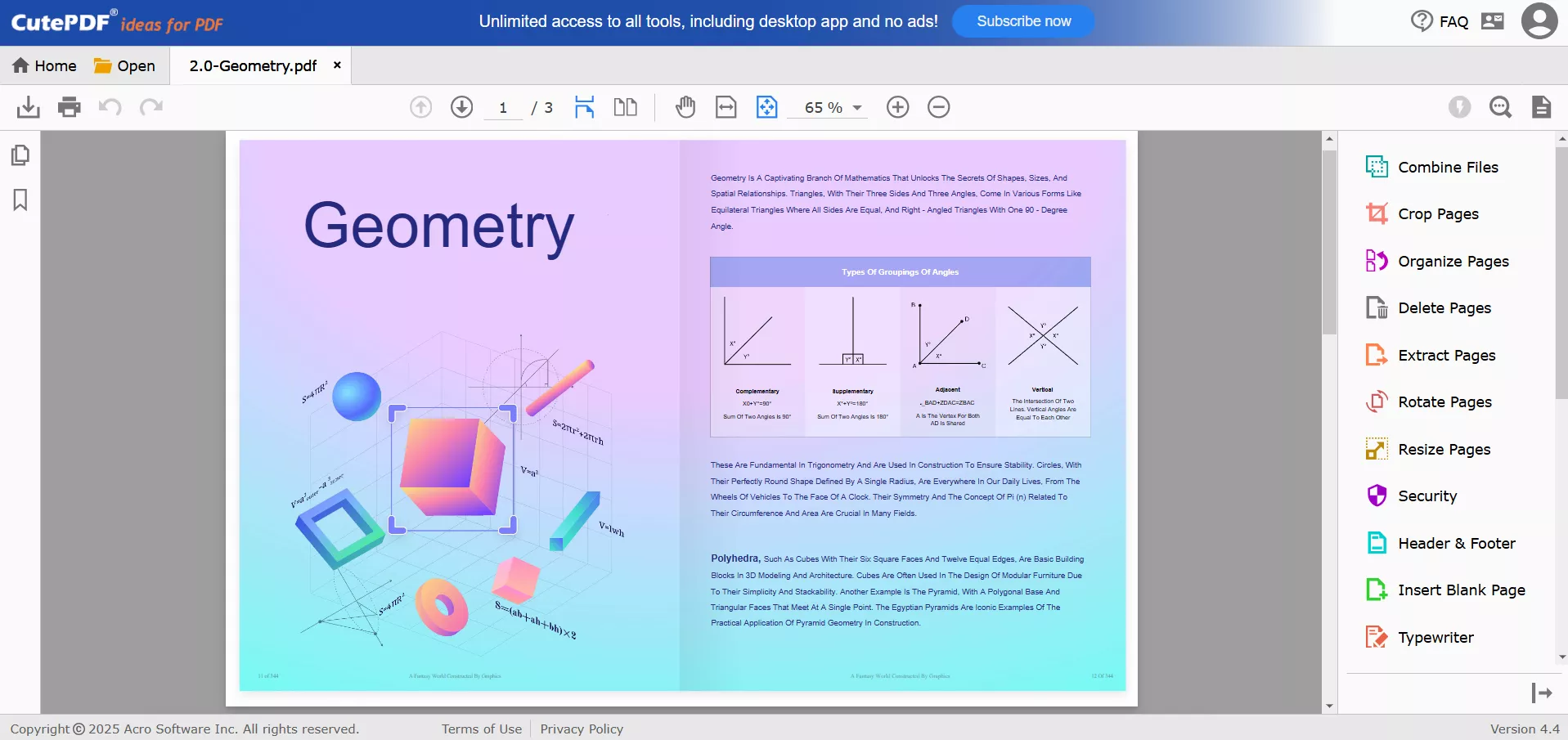
So, you can use CutePDF Writer on the desktop to create PDFs and then use the online CutePDF Editor to make basic edits to the created PDFs.
Part 3. Cute PDF Writer Free Download: Step-by-Step Guides
I have found the process of Cute PDF Writer free download straightforward. The steps are as follows:
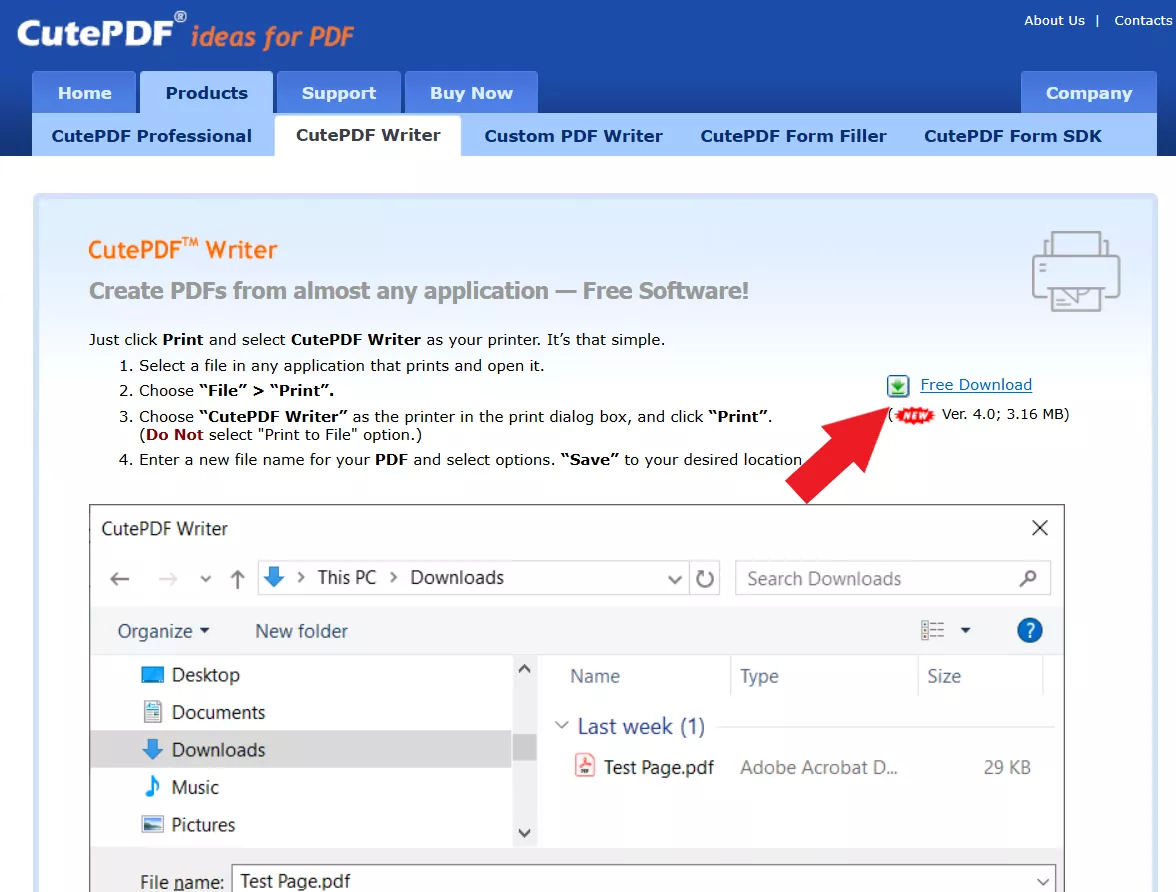
Step 1. Visit the CutePDF Writer download page on the official site and click "Free Download".
Step 2. After the download, launch the installer and follow the prompts to complete the installation.
Note
Now that the Cute PDF writer download free process is completed, let me quickly share the steps on how to use CutePDF Writer:
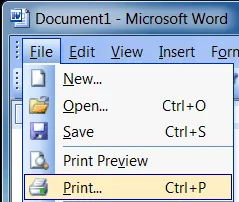
Step 1. Open the document in any software. Bring up the Print dialog box from the File menu or by pressing Ctrl + P.
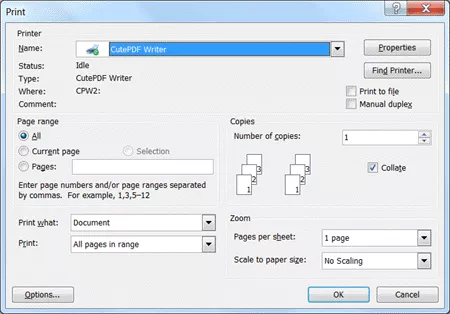
Step 2. Select "CutePDF Writer" as the printer to print.
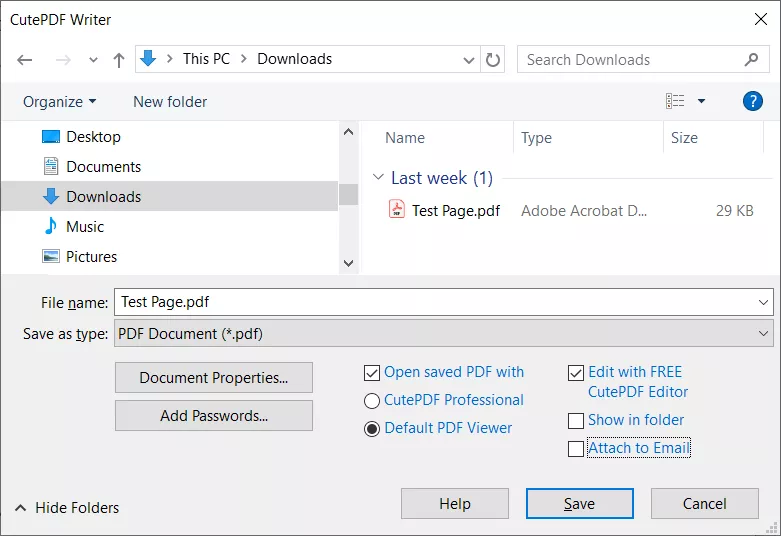
Step 3. You will get the "Save As" dialog box prompted. Select the save location and also change the Document Properties and Password settings if you want. Once done, click "Save".
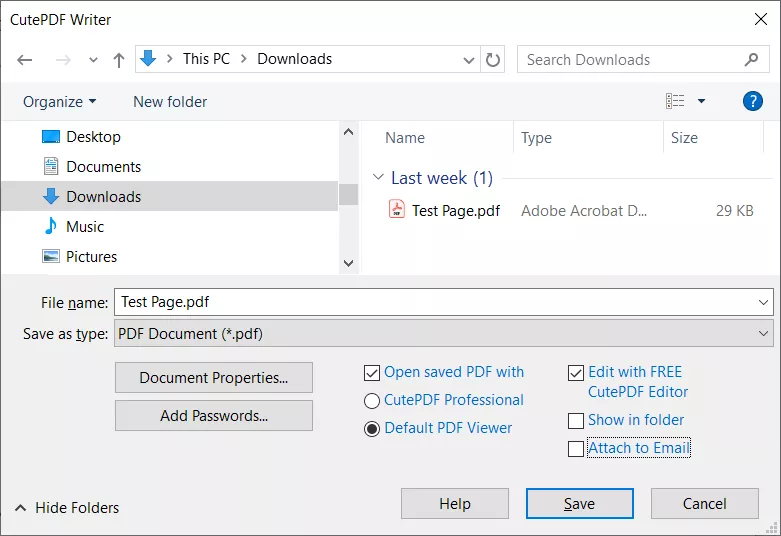
That's how simple it is to create a PDF using CutePDF writer.
Part 4. Why do I need CutePDF Writer?
Are you finding it hard to understand why you would need to download a virtual printer software like this to create PDFs? I felt the same initially because many applications now support PDF creation. For example, Microsoft Word has a built-in option for "Save as PDF". Similarly, to save a webpage as a PDF, we just have to click the three-dots icon in the browser menu, tap Print, and save it as a PDF.
According to the CutePDF Writer developer, you need this virtual printer software because:
- It guarantees that the text cannot be changed.
- You get the information in a format that can be read on any computer with PDF software installed.
These justifications from the developer aren't convincing because we get the same benefits when we use the built-in PDF creation option from other tools.
The main reason that convinced me that CutePDF Writer is worth using is the features that other virtual printers don't offer. To explain my point, let's compare Microsoft Print to PDF with CutePDF Writer.
Microsoft Print to PDF vs CutePDF Writer
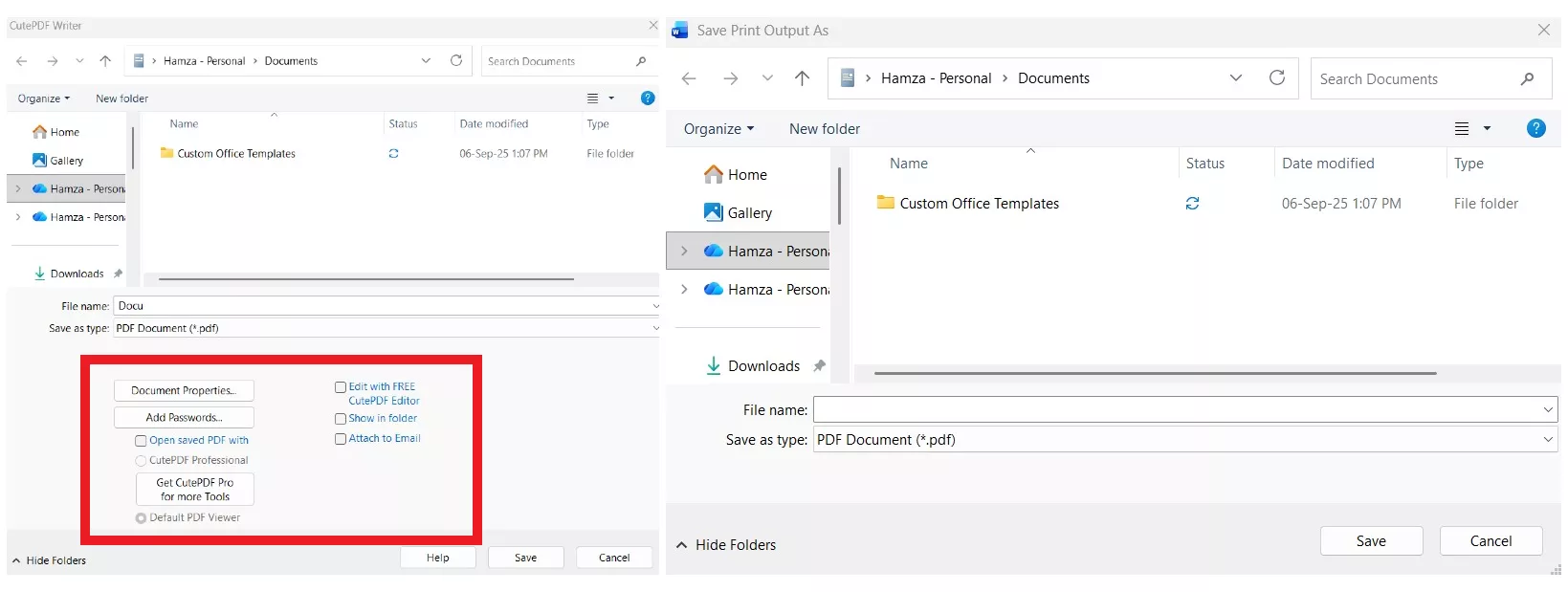
Let's try to print a webpage and see what set of options we get from CutePDF Writer vs Microsoft Print to PDF.
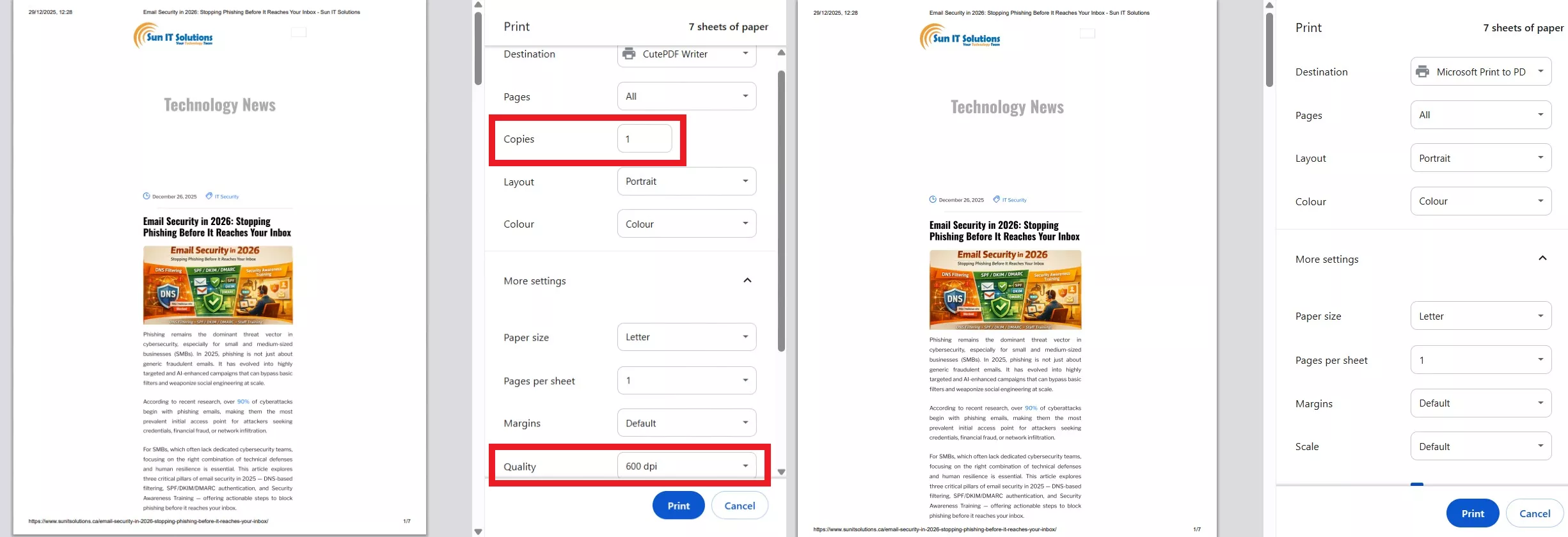
From the above image, you can see that CutePDF Writer gives additional options for:
- Number of copies
- Print quality
- Different paper size options
Similarly, when we click Print to save the PDF, CutePDF Writer gives more options:
- Document Properties
- Add passwords
- Edit with free CutePDF Editor
- Attach to Email
- And more
None of these options is available with Microsoft Print to PDF.
Part 5. Is CutePDF Worth It? My Honest Pros & Cons
Now comes the decision-making part. Should you use CutePDF or not? To answer that, I will share my honest pros and cons of this tool:
Pros:
I praise CutePDF Writer for:
- Free to use with no watermarks on created PDFs
- Works as a universal virtual printer for almost all Windows applications
- No internet connection required to create PDFs
- Preserves original document layout and formatting well
- Offers more print-to-PDF options than Microsoft Print to PDF
- Allows password protection and basic document properties during PDF creation
- Integrates with CutePDF Editor for basic online editing
- Lightweight installation and no learning curve
Cons:
When we consider CutePDF Writer capabilities, we often need more than just creating PDFs. To address that, the platform offers CutePDF Editor online to perform general edits. However, I tested version 4.4 of CutePDF Editor from 20th to 27th December, but felt that it was a bit too general.
Let me justify my concerns by sharing issues with its features:
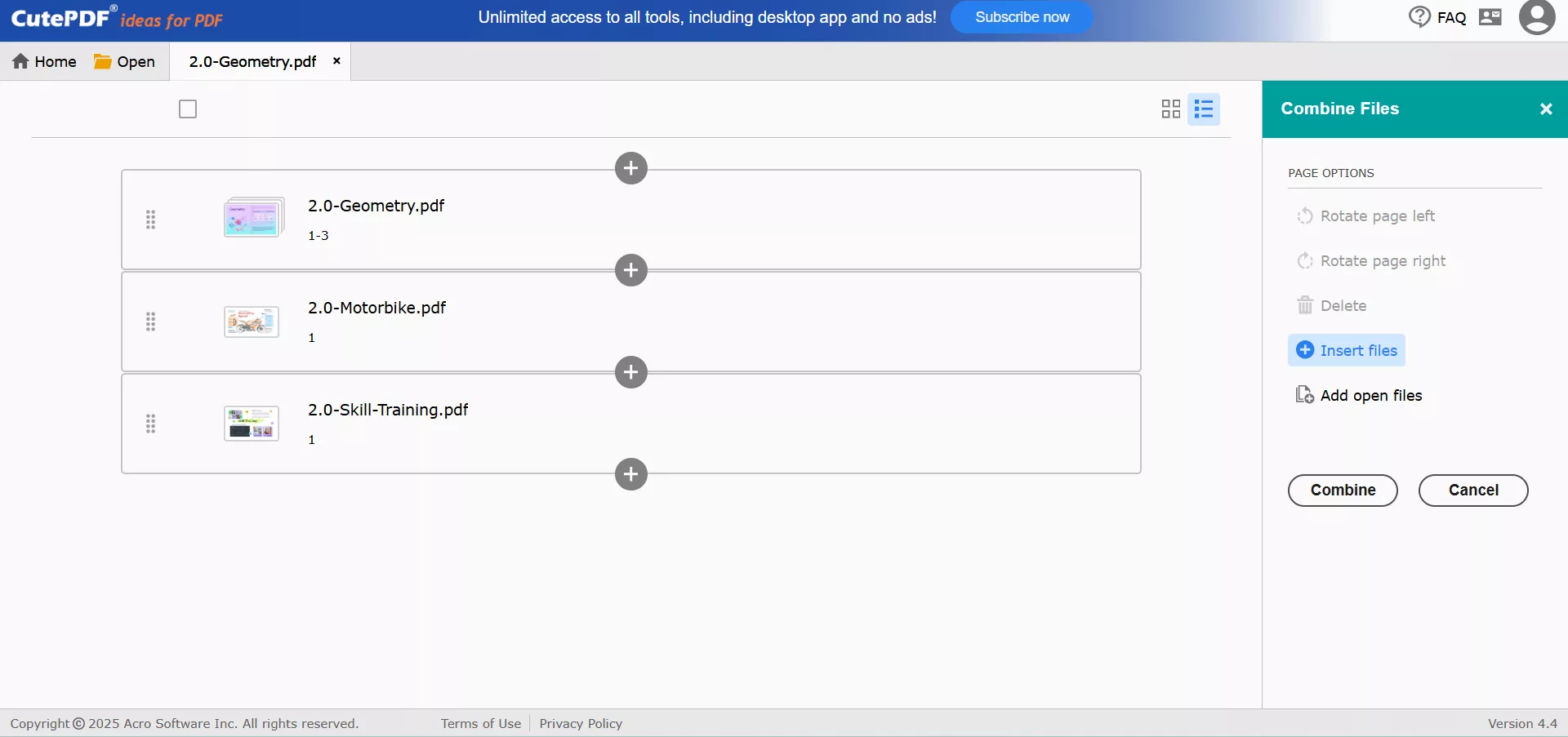
Combine PDF
The combine PDF feature of CutePDF Pro lets us only combine PDFs and images into a single PDF. You cannot just directly upload Word, Excel, and other file types to combine and convert to PDF. Moreover, it does not provide advanced PDF sizing options, such as page size, orientation, etc. These options are available in other PDF tools, like UPDF.
Organize
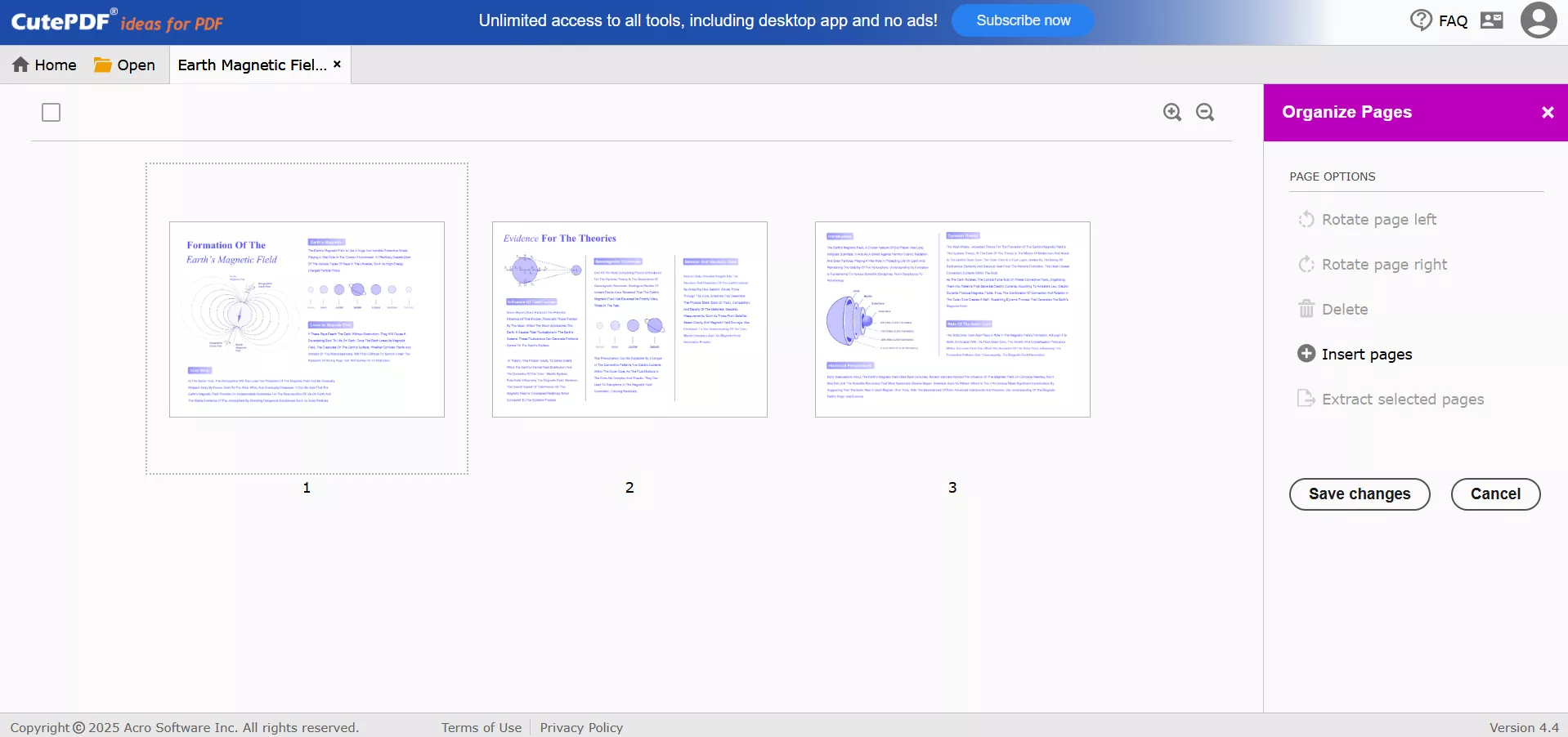
When organizing PDF, I couldn't organize pages from the thumbnail. Plus, the page options are limited to rotation, deletion, insertion, and extraction.
Extract
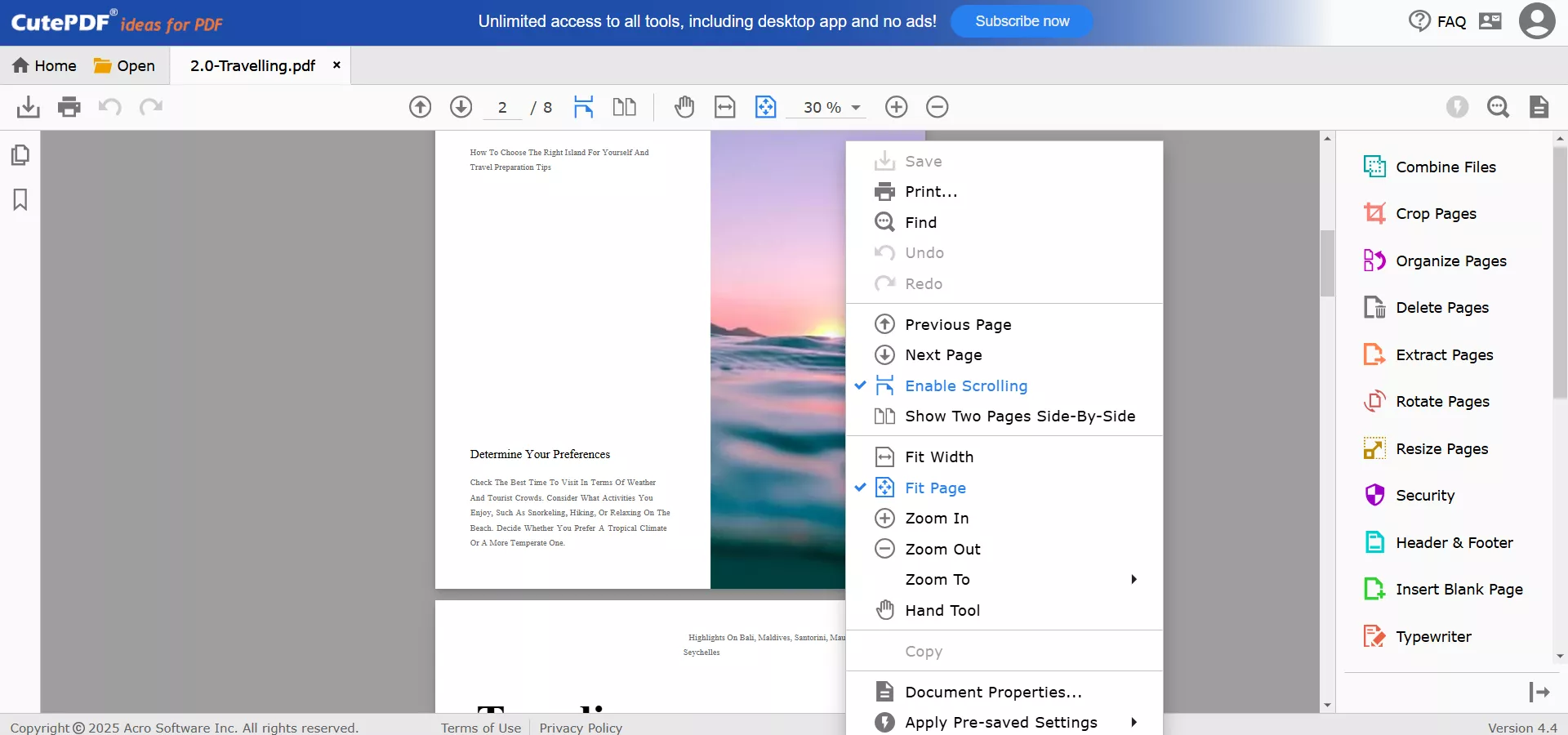
Sometimes, I want to extract images directly from a PDF for reuse or reference. However, CutePDF Writer online doesn't support image extraction at all.
Fill Form
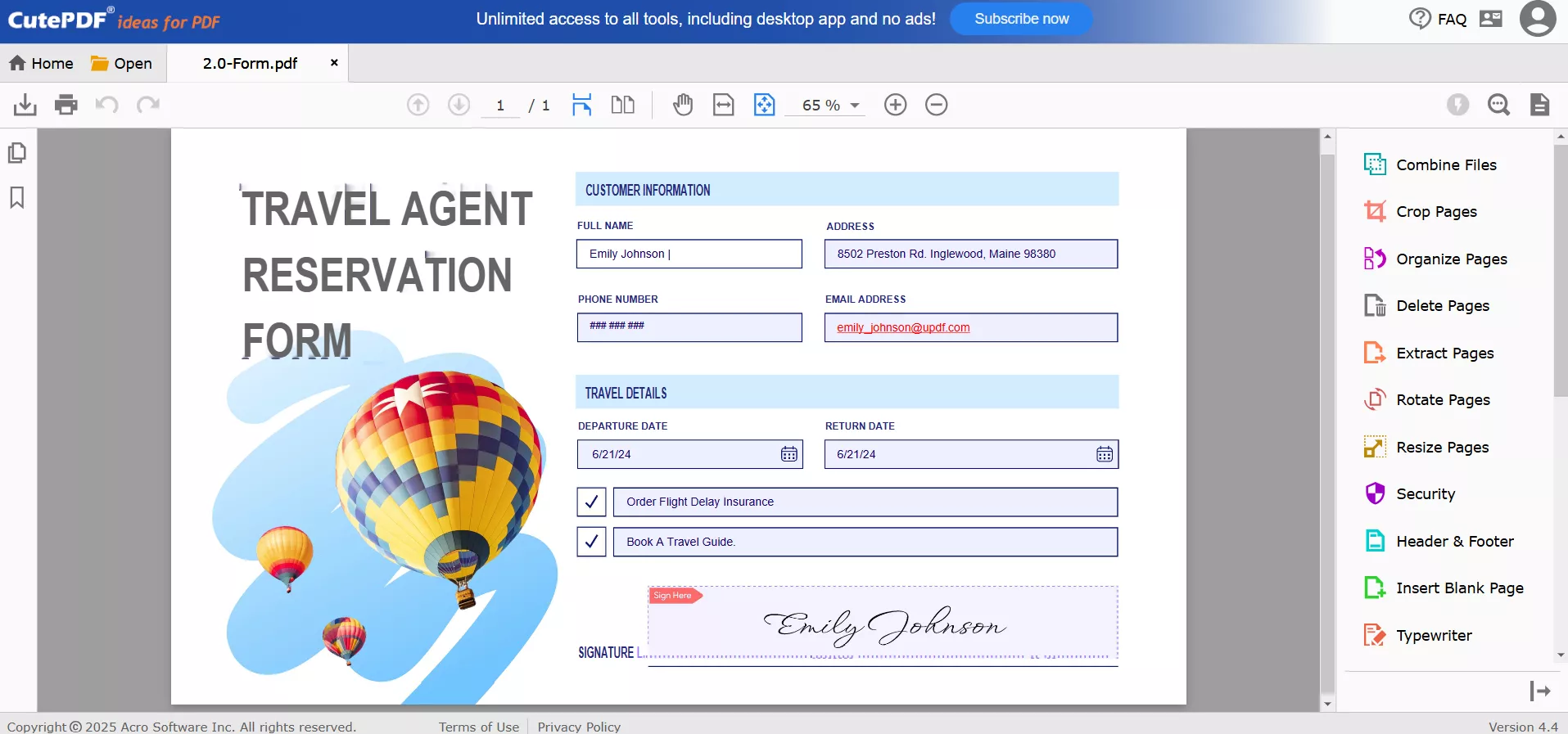
CutePDF Editor can help prepare forms, but it cannot recognize form fields while filling them. So, I won't recommend it to fill forms because there are more advanced tools like UPDF that make it convenient to fill forms with auto recognition of form fields.
Annotations
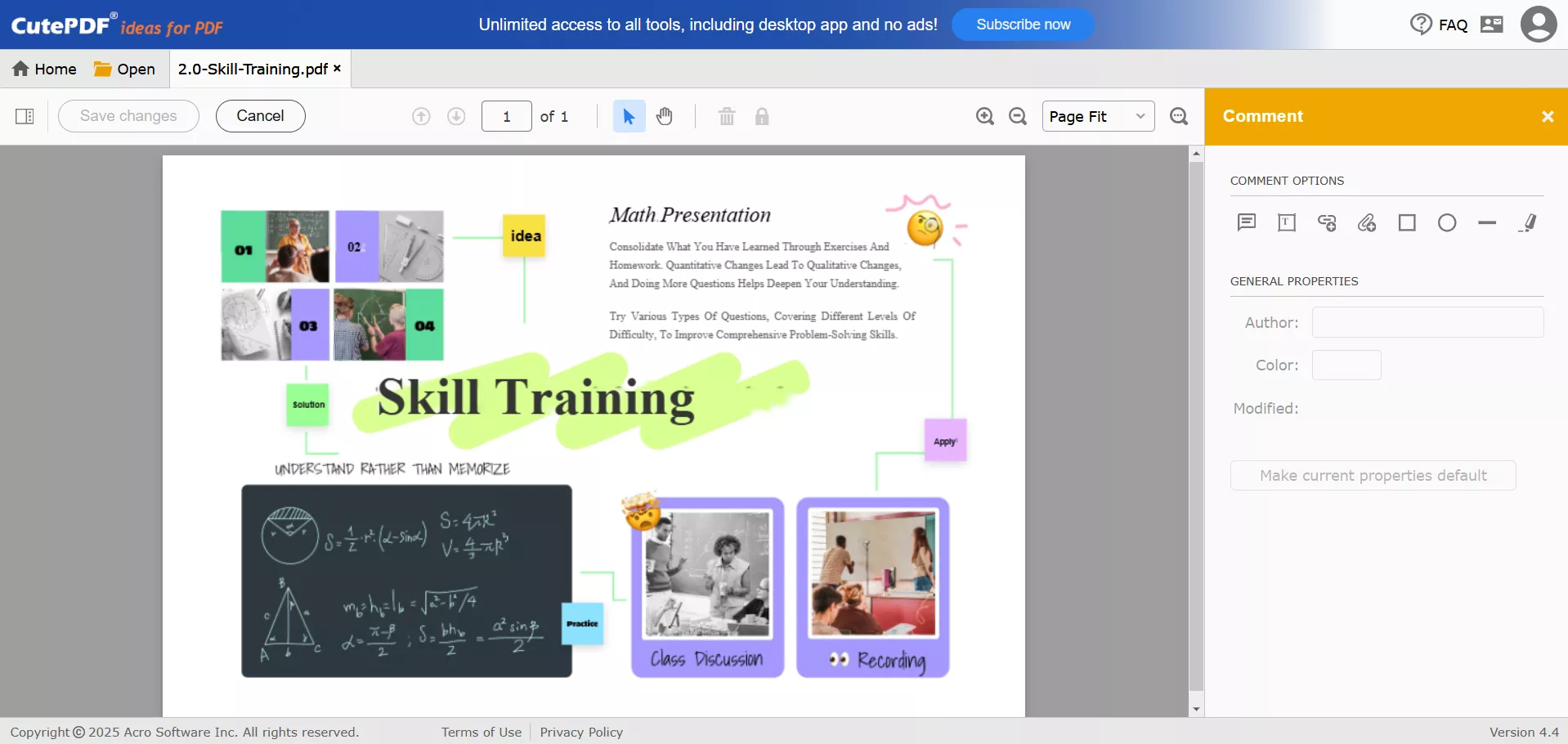
CutePDF Editor has limited annotation capabilities. There are no options to add squiggly, underline, strikethrough, text callout, stickers, and more. It also does not have dynamic stamps.
Edit PDF Element
The tool markets itself as a PDF editor, but it does not offer text and image editing features. We cannot edit existing text and images in the PDF. Plus, we cannot add a tile watermark.
Reading
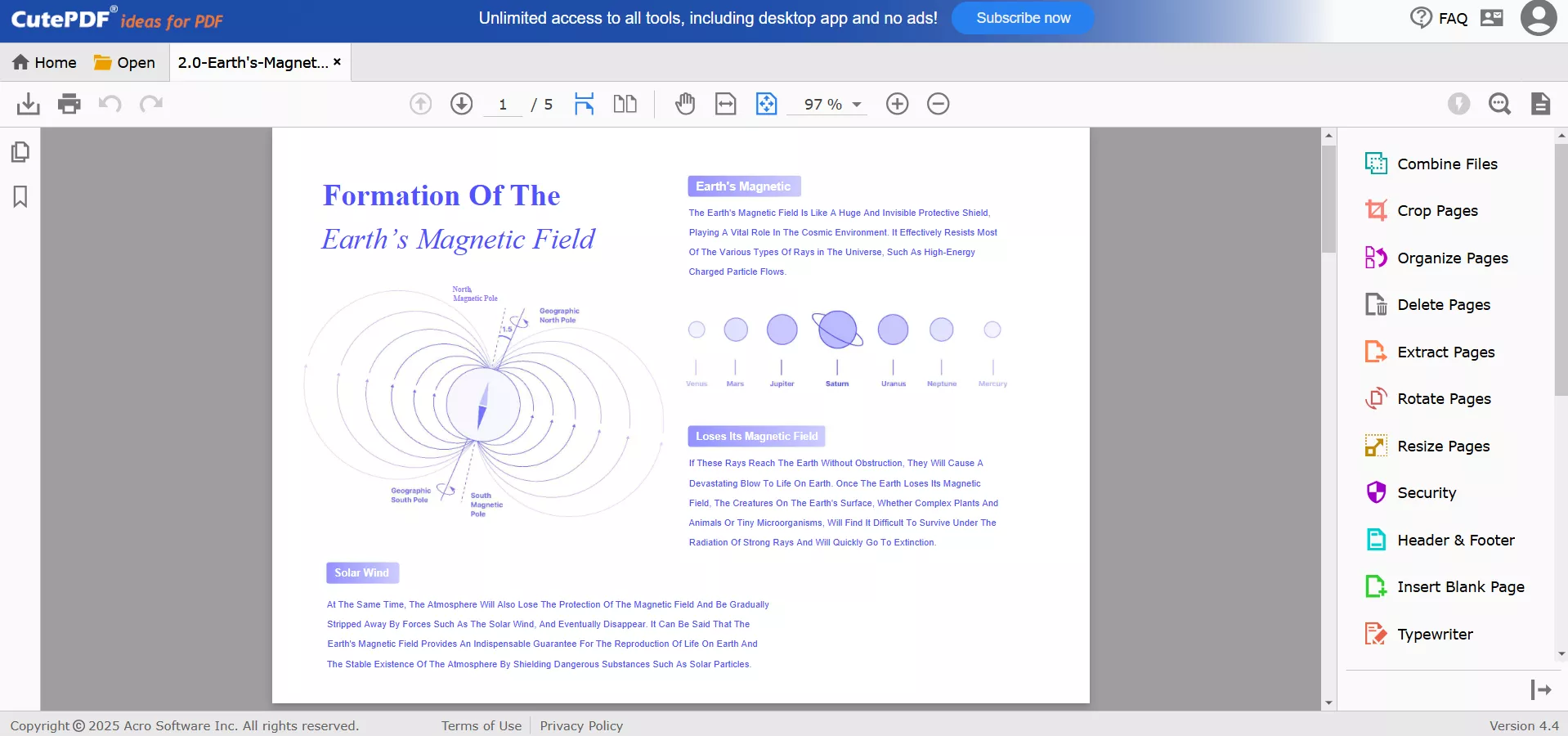
Even if we just want to read a PDF, the experience is again limited. There is no option for continuous scrolling, dark mode, colorful backgrounds, and more.
Other Missing Features
Other than the above issues, some of the other crucial features CutePDF Writer and Editor miss include:
- No OCR
- No AI tools to summarize/translate/explain
- No built-in redaction tool for protecting sensitive information
- No option to sign a PDF
Since CutePDF Writer and Editor are free tools, their basic features are sufficient for most everyday needs. So, this tool is quite worthwhile for most users. However, if you are like me and frequently work with PDFs, you need a more feature-rich PDF editor.
Part 6. UPDF: The Best CutePDF Editor Alternative
The PDF editor I have been using for a while now is UPDF. It is a highly cost-effective and feature-rich tool that addresses all the needs we expect from a PDF editor.
UPDF is an AI-powered PDF editor that provides an all-in-one app to handle every PDF activity. We can read, convert, edit, annotate, organize, protect, OCR, and do much more. It also offers a powerful AI assistant to summarize, translate, explain, generate mind maps, and get more assistance.
Windows • macOS • iOS • Android 100% secure
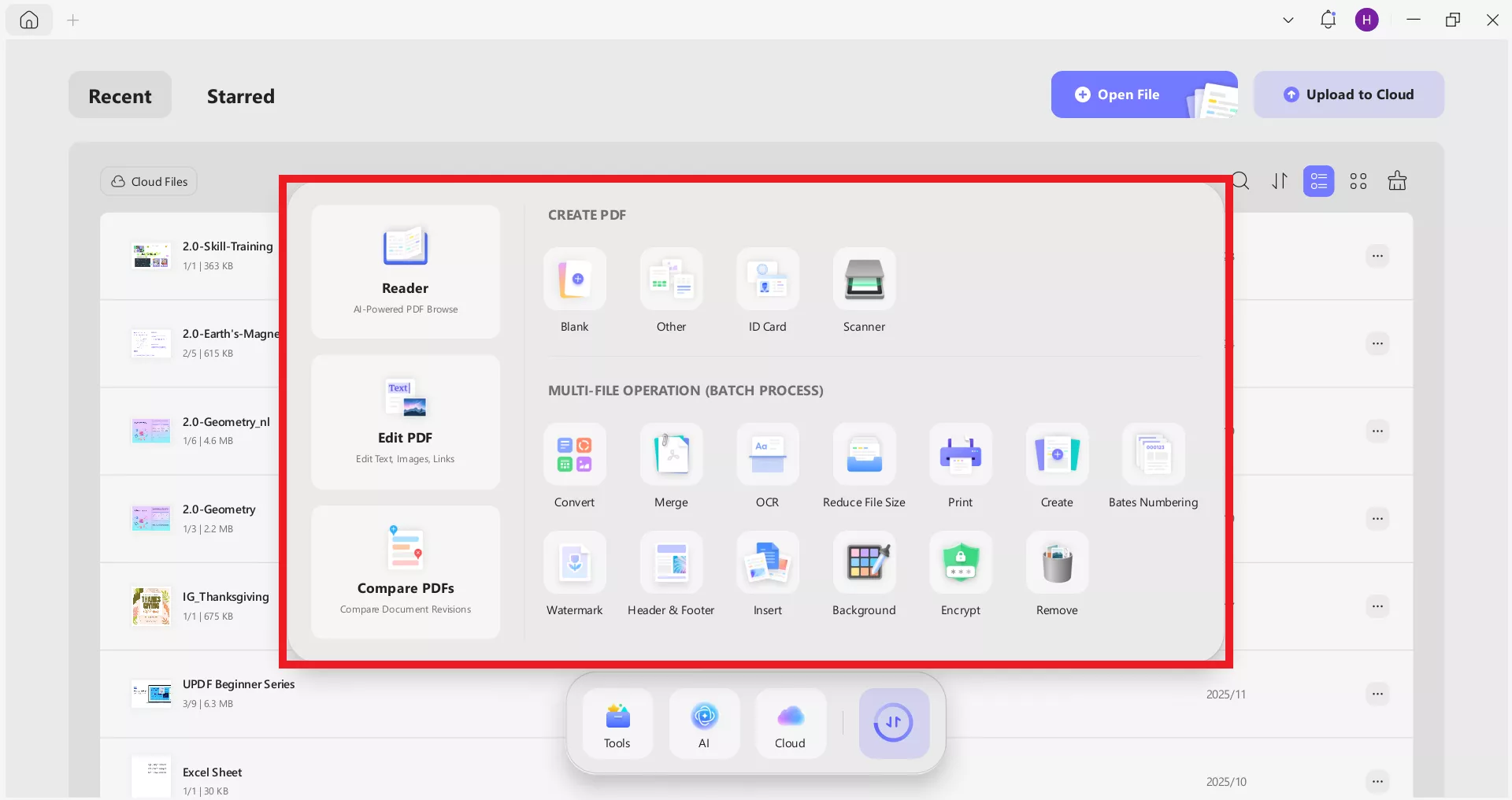
When I compared CutePDF Writer and Editor with UPDF, I found that UPDF can address the shortcomings quite well. CutePDF Editor is a "basic" PDF editor, while UPDF is an "advanced and full-featured" PDF editor. This statement alone justifies what we can expect from UPDF.
Let me share a few of my experiences with UPDF:
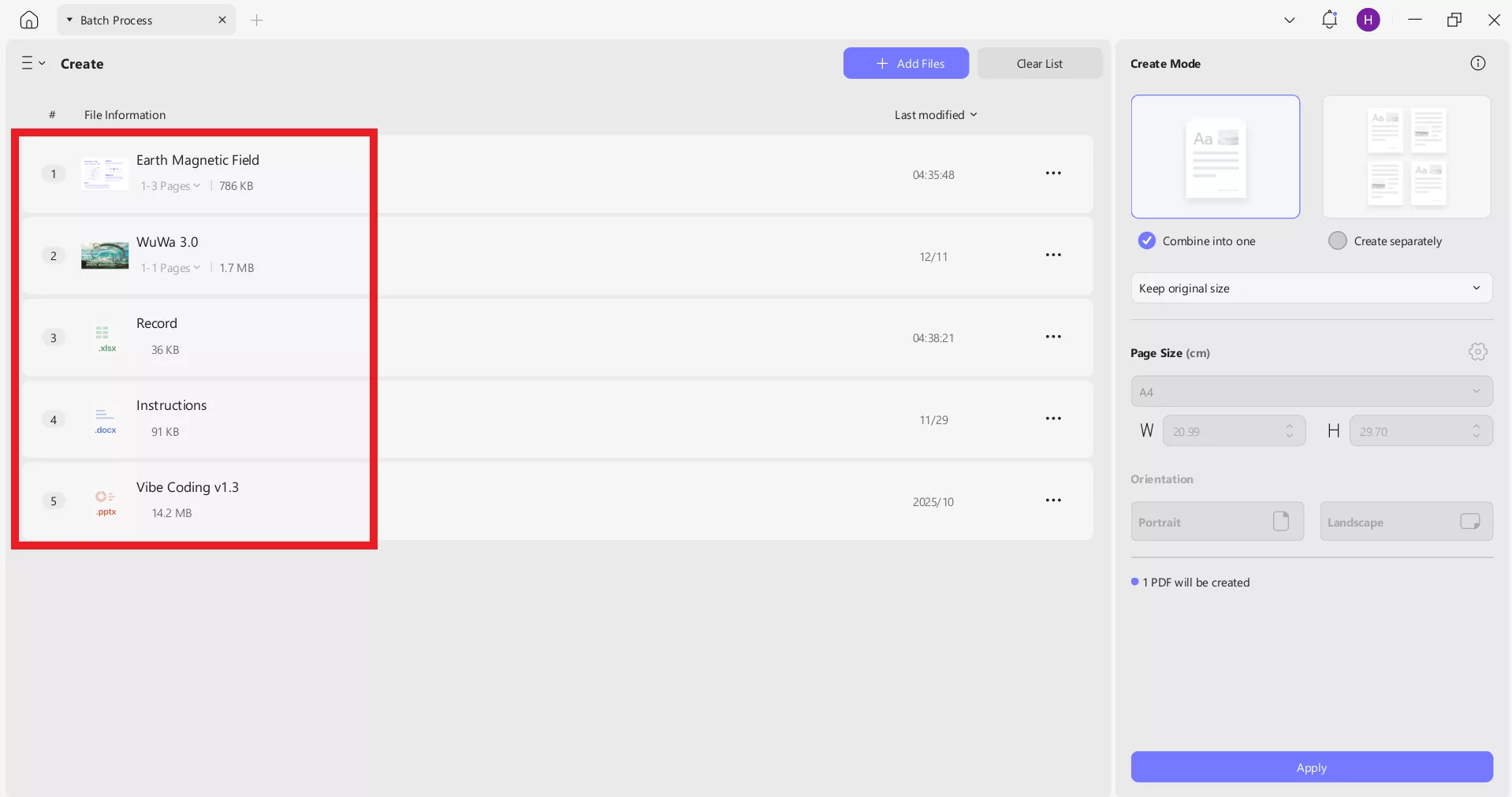
Combine PDFWhen I want to combine documents, UPDF lets me merge Word, Excel, PowerPoint, PDFs, images, and other file types at once. It also gives me more customization options, like combining into one, creating separate PDFs, adjusting page size and orientation, etc.
UPDF AI
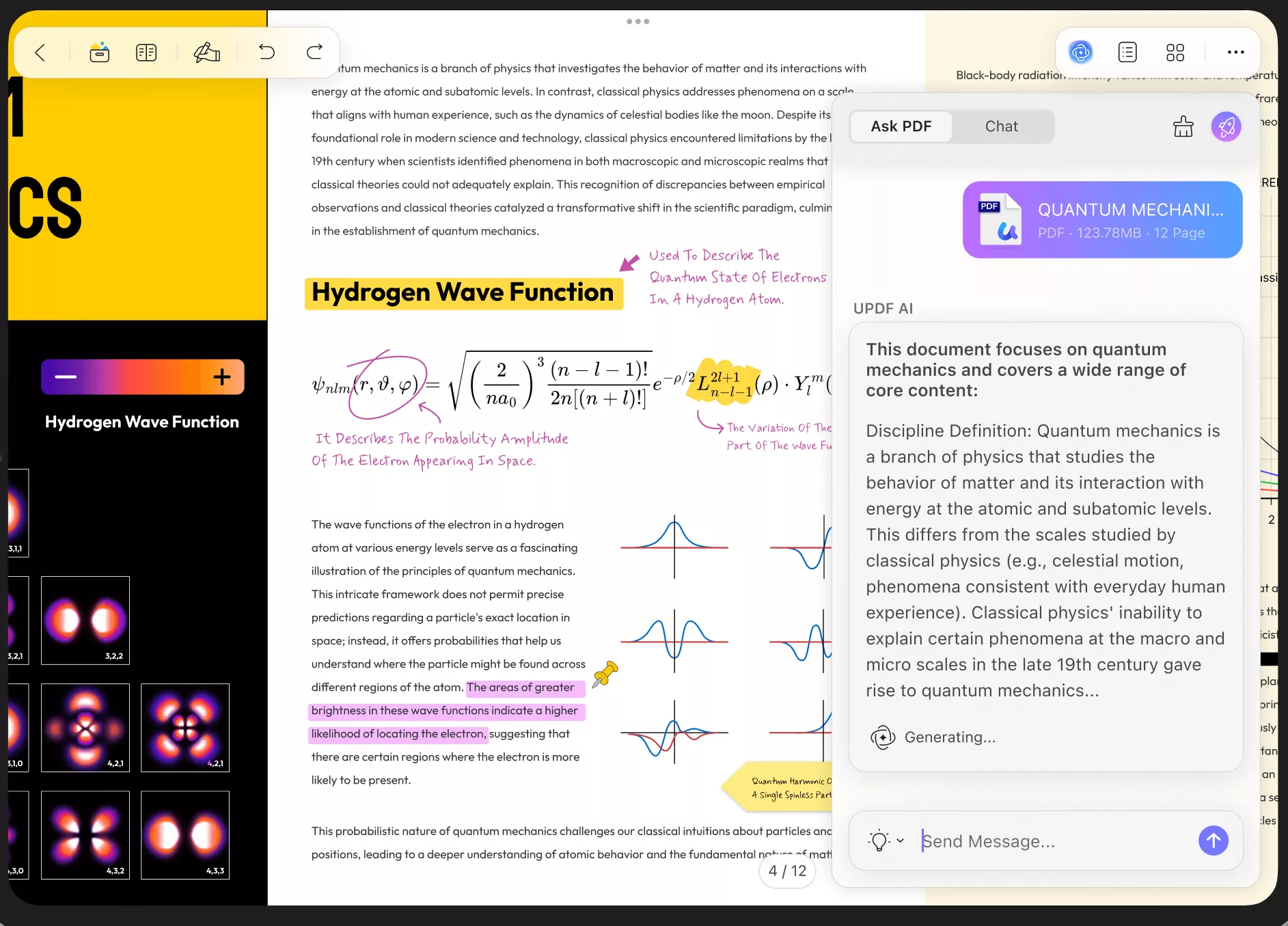
What I love about UPDF is its AI assistant. I call it my virtual work buddy who helps me chat with PDFs. I can summarize, translate, explain, and even generate mind maps from PDFs.
Edit and Annotate PDF
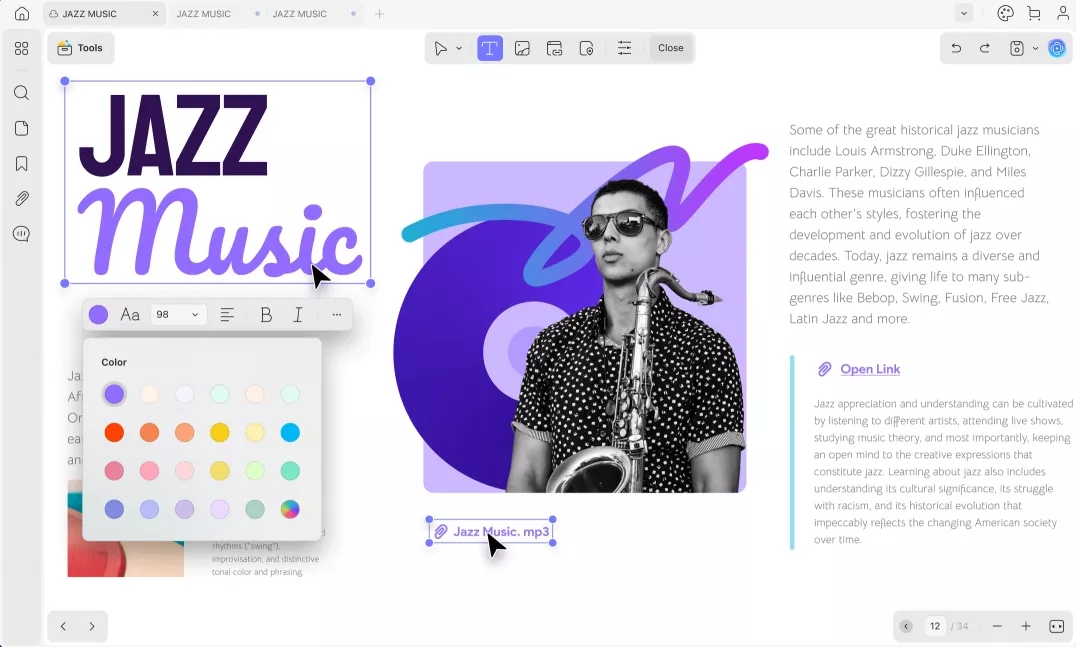
UPDF gives me a true PDF editing experience. I can add/edit text and images with ease. While adding new text, it retains the original font and style.
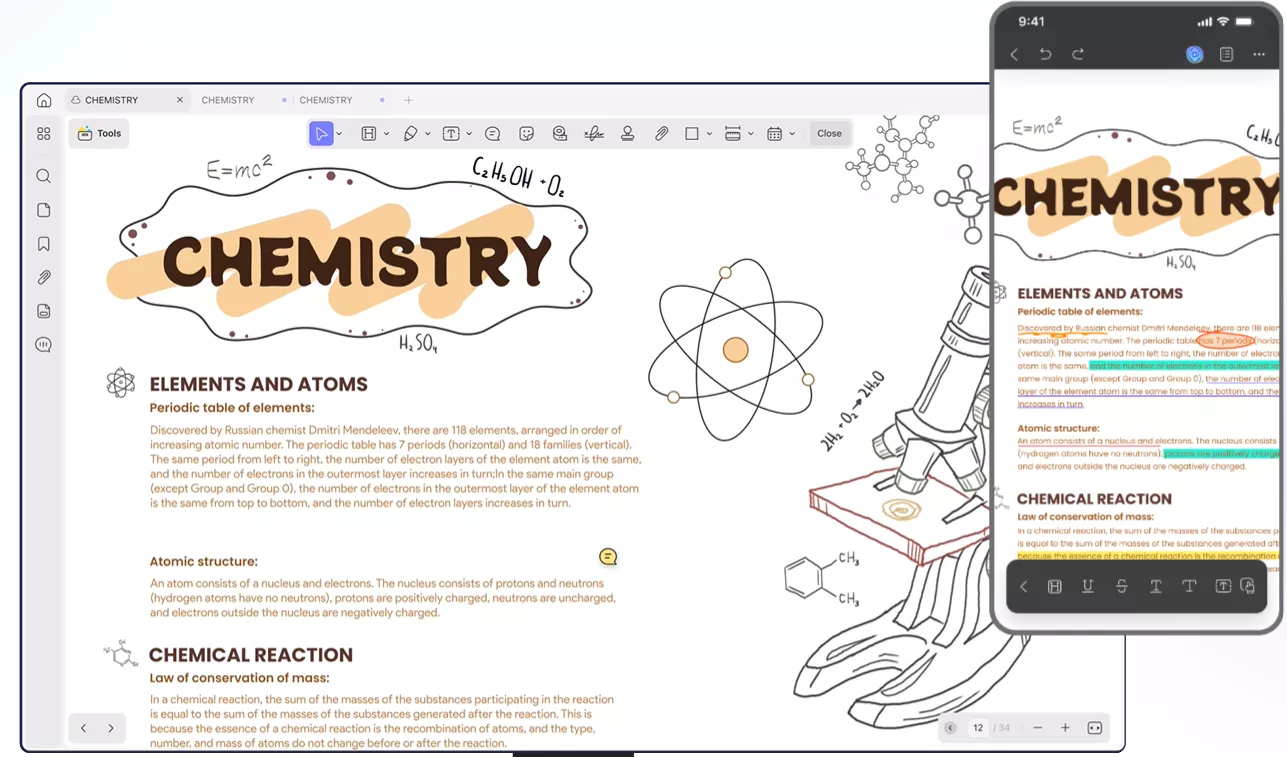
Similarly, UPDF offers 13+ PDF annotation tools, including highlight, underline, squiggly, strikethrough, sticky notes, stickers, stamps, and more.
Other Advanced Features of UPDF
UPDF has many more advanced features missed in CutePDF Editor, such as:
- Recognize form fields
- Perform OCR on scanned documents
- Convert PDF to other formats (Word, Excel, PPT, image, text, RTF, etc.)
- Extract images from PDF
- Redact sensitive information
- Compress PDF
- UPDF cloud storage
- Sign PDF (electronic + digital)
In short, if you want to overcome the limitations of CutePDF Editor, give UPDF a try and experience it yourself.
Windows • macOS • iOS • Android 100% secure
Conclusion
CutePDF Writer has become my go-to virtual printer whenever I want to create a PDF from almost any Windows application. So, I would also recommend you to go for the Cute PDF Writer download free and make it part of your daily workflow. Plus, you can also use CutePDF Editor online for basic edits.
However, my recommendations are more inclined toward UPDF when it comes to handling PDFs because of its advanced PDF-related features. Therefore, why not use CutePDF Writer to save documents as PDFs and use UPDF to handle those PDFs? Make your choice and manage PDFs like a pro.
Windows • macOS • iOS • Android 100% secure
Disclaimer




 Enola Miller
 Lizzy Lozano
 Enola Davis
